 UPDF
UPDF
 UPDF for Windows
 UPDF for Mac
 UPDF for iPhone/iPad
 UPDF for Android
 UPDF AI Online
 UPDF Sign
 Edit PDF
 Annotate PDF
 Create PDF
 PDF Form
 Edit links
 Convert PDF
 OCR
OCR PDF to Word
 PDF to Image
 PDF to Excel
 Organize PDF
 Merge PDF
 Split PDF
 Crop PDF
 Rotate PDF
 Protect PDF
 Sign PDF
 Redact PDF
 Sanitize PDF
 Remove Security
 Read PDF
 UPDF Cloud
 Compress PDF
 Print PDF
 Batch Process
 About UPDF AI
 UPDF AI Solutions
 AI User Guide
 FAQ about UPDF AI
 Summarize PDF
 Translate PDF
 Chat with PDF
 Chat with AI
 Chat with image
 PDF to Mind Map
 Explain PDF
 Scholar Research
 Paper Search
 AI Proofreader
 AI Writer
 AI Homework Helper
 AI Quiz Generator
 AI Math Solver
 PDF to Word
 PDF to Excel
 PDF to PowerPoint
 Enterprise Solution
 Enterprise Sign
 Enterprise AI
 Enterprise Plan
 Enterprise User Guide
 Enterprise Webinar
 Banking
 Healthcare
 Insurance
 Legal
Legal Manufacturing
 Government
 Education Solution
 Customer Stories
 User Guide
 UPDF Tricks
 FAQs
FAQs UPDF Reviews
 Download Center
 Blog
Blog Newsroom
 Tech Spec
 Updates
 UPDF vs. Adobe Acrobat
 UPDF vs. Foxit
 UPDF vs. PDF Expert


When writing content, one thing we regularly check is the word count. Mostly, we have a specific word count limit to fulfill, so our content should follow that limit. Counting words in Microsoft Word, Google Docs, or other similar tools is easy. But what if you want to count words in PDF? So, let's look into this point in detail in this guide. Here, we will present the simple and easy ways to check word count in a PDF. So, let's head right to it!
Part 1. The Best Tool to Do Word Count in PDF
UPDF is one of the most practical tools for counting words in PDF documents. With a recent update, UPDF for Mac supports viewing PDF word count directly within the app, making it a simpler alternative to Adobe Acrobat.
For Windows users, UPDF also offers flexible solutions through file conversion and AI assistance.
For Mac Users
With the latest update, UPDF for Mac allows users to check the word count of a PDF directly from document properties, without converting the file or using third-party tools.
How to Check PDF Word Count Using UPDF for Mac
- Open the PDF document in UPDF for Mac.
Windows • macOS • iOS • Android 100% secure
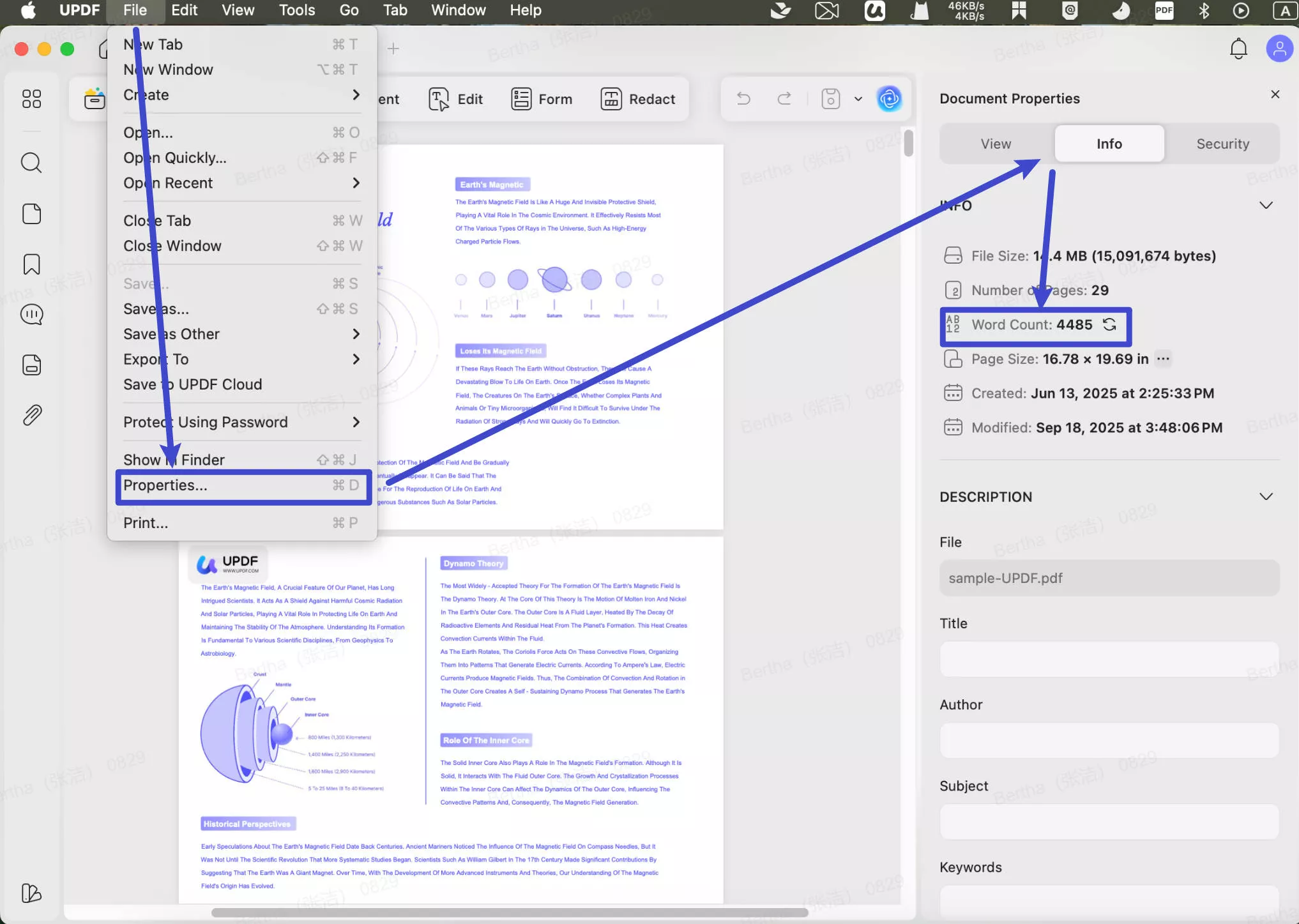
- Click “File” in the top-left menu and select “Properties.”
- UPDF will open a Document Properties panel on the right side.
- Switch to the Info tab, and the word count will be displayed automatically.
Why UPDF for Mac Is the Best Choice
- Newly added built-in word count feature
- No file conversion required
- Quick access through document properties
- No subscription needed
This makes UPDF an ideal option for Mac users who need a fast and accurate way to count words in PDF files.
For Windows Users
Currently, UPDF for Windows does not show word count directly in document properties. However, Windows users can still count PDF words using UPDF's alternative methods.
Option 1
To count words in a PDF using UPDF for Windows, follow these steps:
- Download and install UPDF on your computer.
Windows • macOS • iOS • Android 100% secure
- Open the PDF file that you want to count the word.
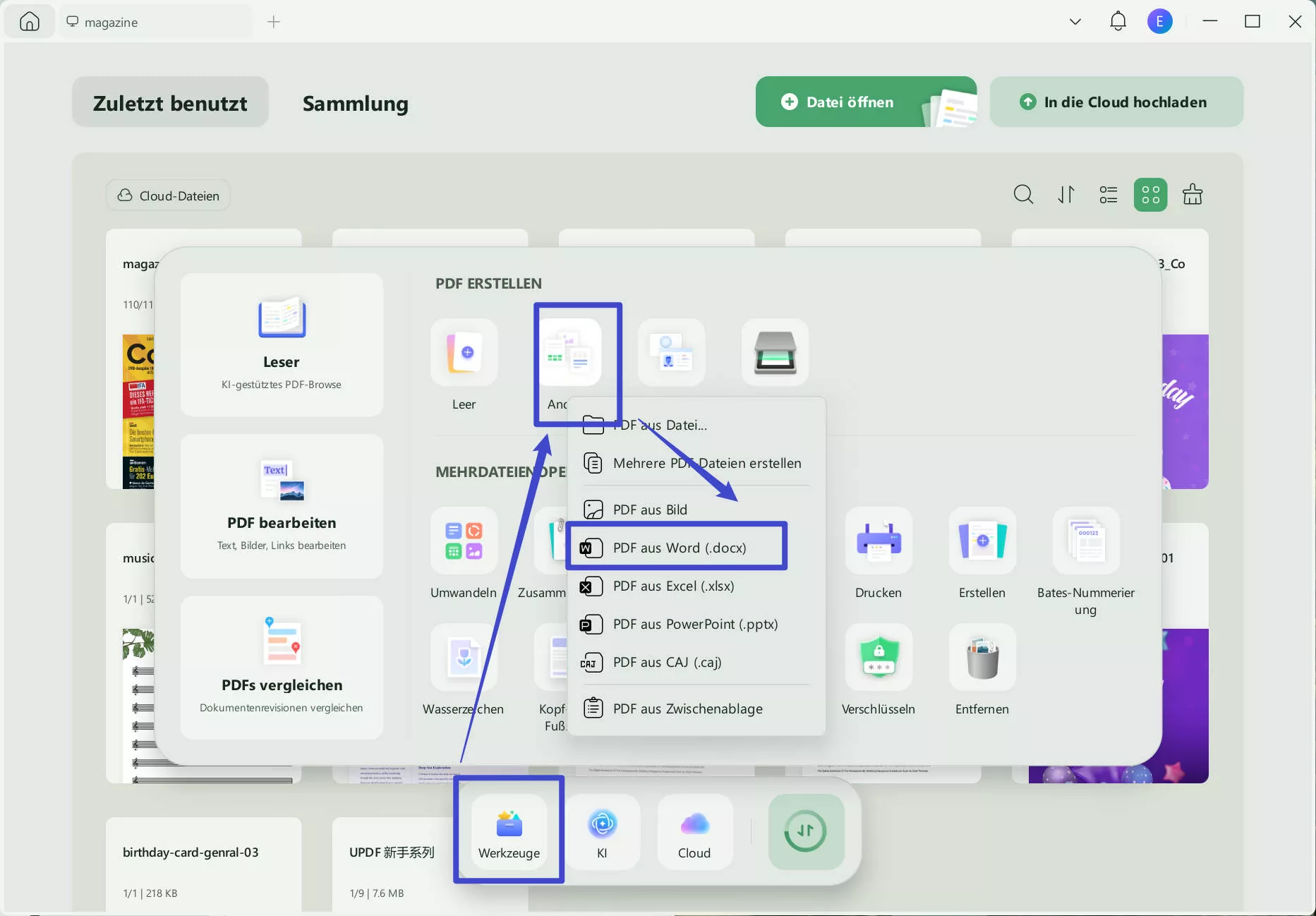
- Click on File > Export to > Word, and select a location to save the converted Word file.
- Open the Word file in Microsoft Word and check the word count.
That's it! By following these four steps, you can easily count the words in a PDF file using UPDF.
Option 2
The above method can help you do the word count in PDF, but what if we tell you that there is a smart and more advanced way to count words in PDF? This is where UPDF AI comes into action.
UPDF AI is an AI assistant for PDFs that is powered through ChatGPT. Simply put, it can analyze the PDF document and count its words. Besides that, it allows you to summarize, translate, explain, proofread, and rewrite the PDF intelligently.
In short, UPDF AI is your ideal companion for reading and analyzing PDF documents, not just limited to counting the words. So, why wait more? Download UPDF and get the most powerful AI assistant at your disposal.
Windows • macOS • iOS • Android 100% secure
Follow the below steps to learn how to do word count in PDF with UPDF AI:
Step 1. Launch UPDF and click "Open File" to open the PDF.

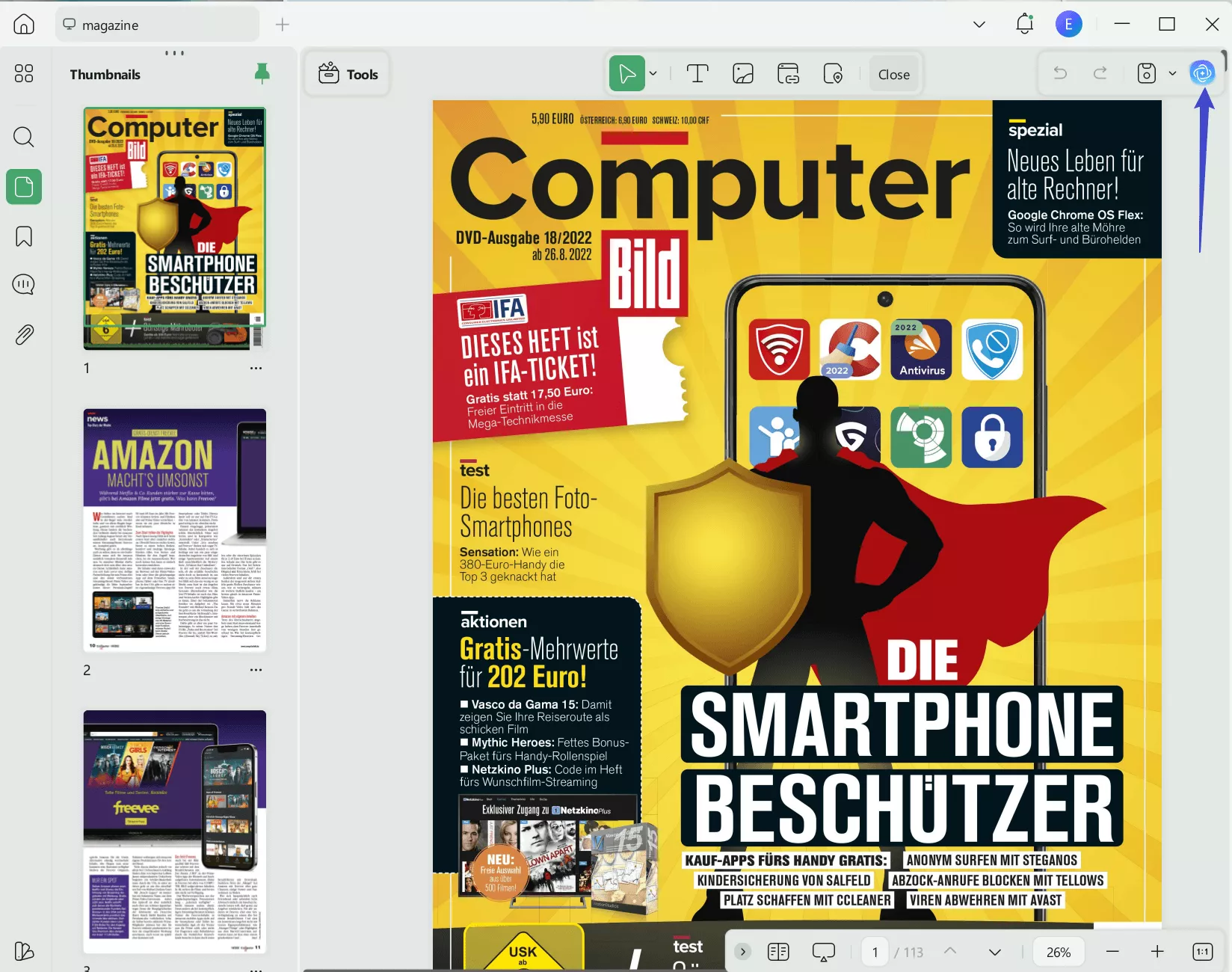
Step 2. Click the "UPDF AI" icon from the upper right corner.
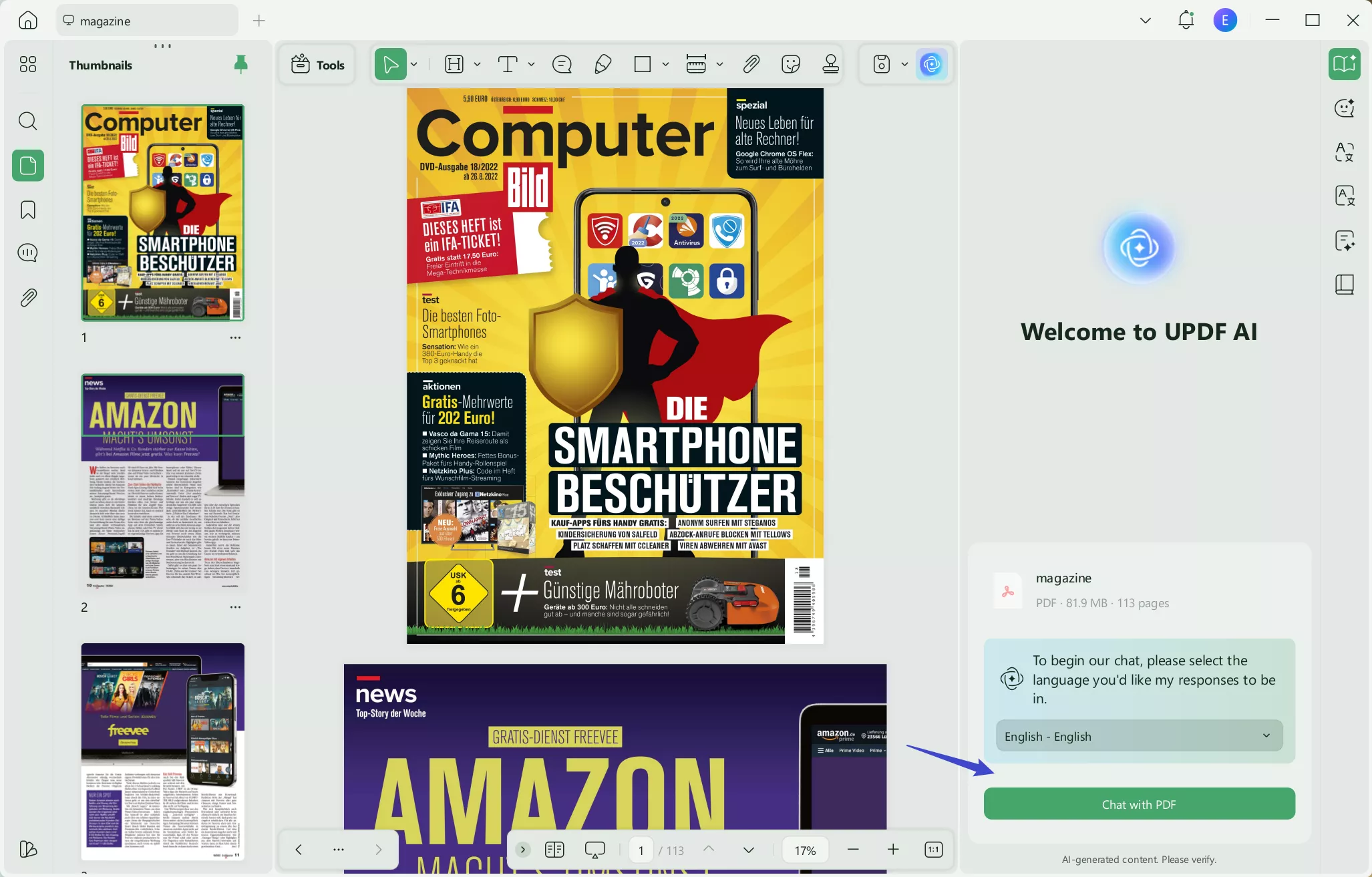
Step 3. In the UPDF AI sidebar, click "Chat with PDF" to let AI analyze the content.
Step 4. Copy and paste the text you want to count (maximum 2000 words) in the AI chat box, as shown in the below pic. Once done, hit the "Send" button.
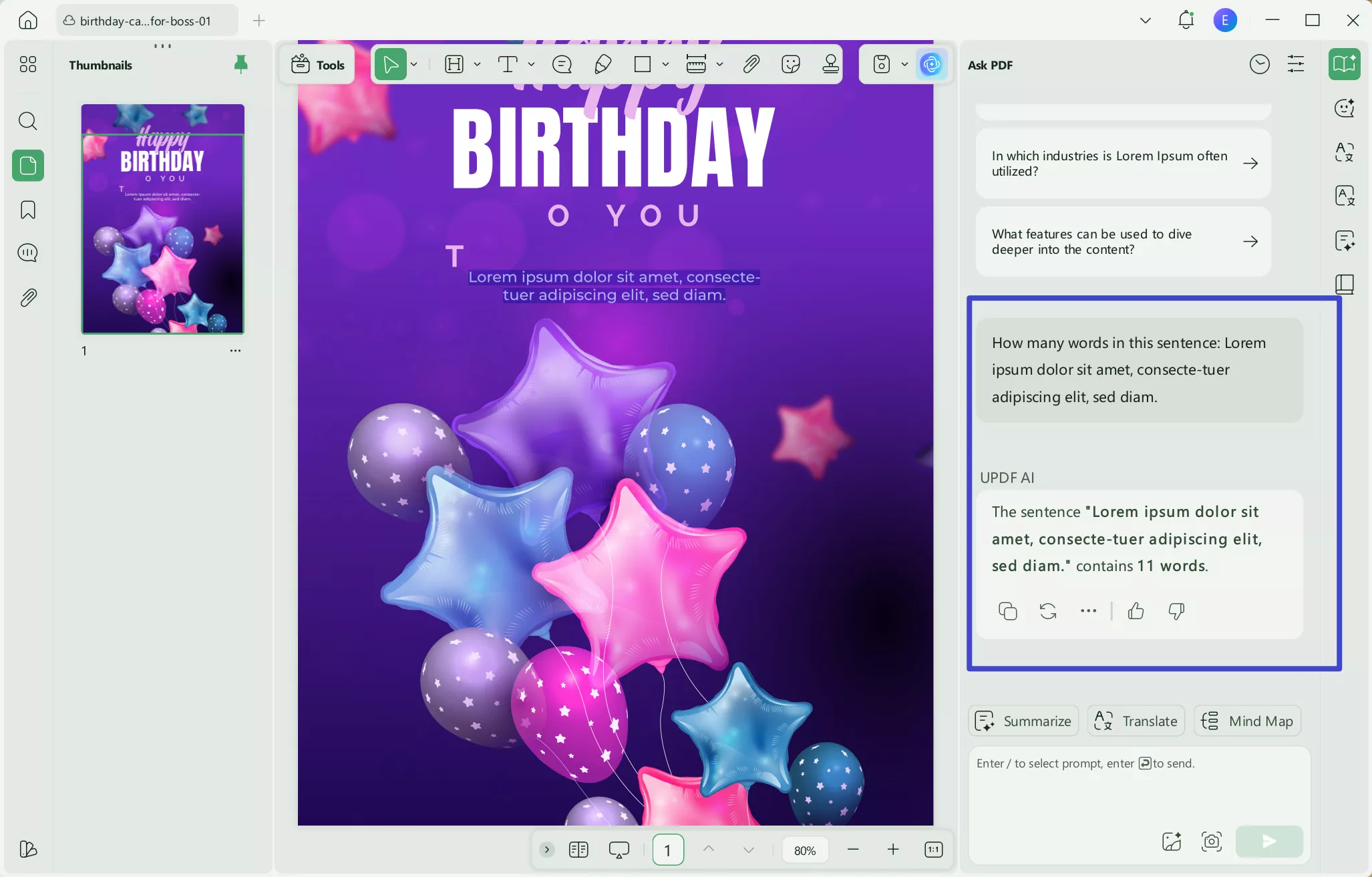
This way, UPDF AI will provide you with the exact word count instantly. Although it has a limitation of 2000 words, its analysis feature is very powerful. You can ask it to summarize the whole PDF or a few selected content from the PDF. Moreover, you can specify if you want to get a brief or comprehensive summary. Overall, UPDF AI is the ideal and modernized companion for reading and analyzing PDFs.
Bonus: UPDF Works More Than a Word Counter for PDF Files
UPDF is an all-in-one PDF management tool that not only offers word counting capabilities but also provides features for PDF editing, annotating, converting, and more. Below, you'll find some of the main features of UPDF:
- Edit PDF text, image, and links.
- Annotate PDF with sticky notes, stamps, underlines, etc.
- Read PDF comfortably with different reading modes and background colors.
- Summarize, transalte, explain, and rewrite the content in PDFs with its smart AI assistants.
You can download UPDF to explore more.
Windows • macOS • iOS • Android 100% secure
Or watch the video below instead.
Part 2. Another 2 Ways to Count the Number of Words in PDF
In addition to the above two options, there are two more methods available for counting words in PDFs. However, both of these methods are either complex or require a subscription to get started. Nevertheless, let's examine them in detail.
1. Do Word Count in PDF with Adobe Acrobat
Adobe Acrobat is a globally used tool to access PDF files. It provides an intuitive way to read, fill, sign, and edit PDFs. So, if you also access PDFs using Adobe Acrobat, you can use it to count words in a PDF. For that, you have to export the PDF to Word with Adobe Acrobat and then use MS Word to count the number of words.
Follow the below steps to learn how to check word count in a PDF with Adobe Acrobat:
- Launch Adobe Acrobat and open the PDF whose number of words you want to count.
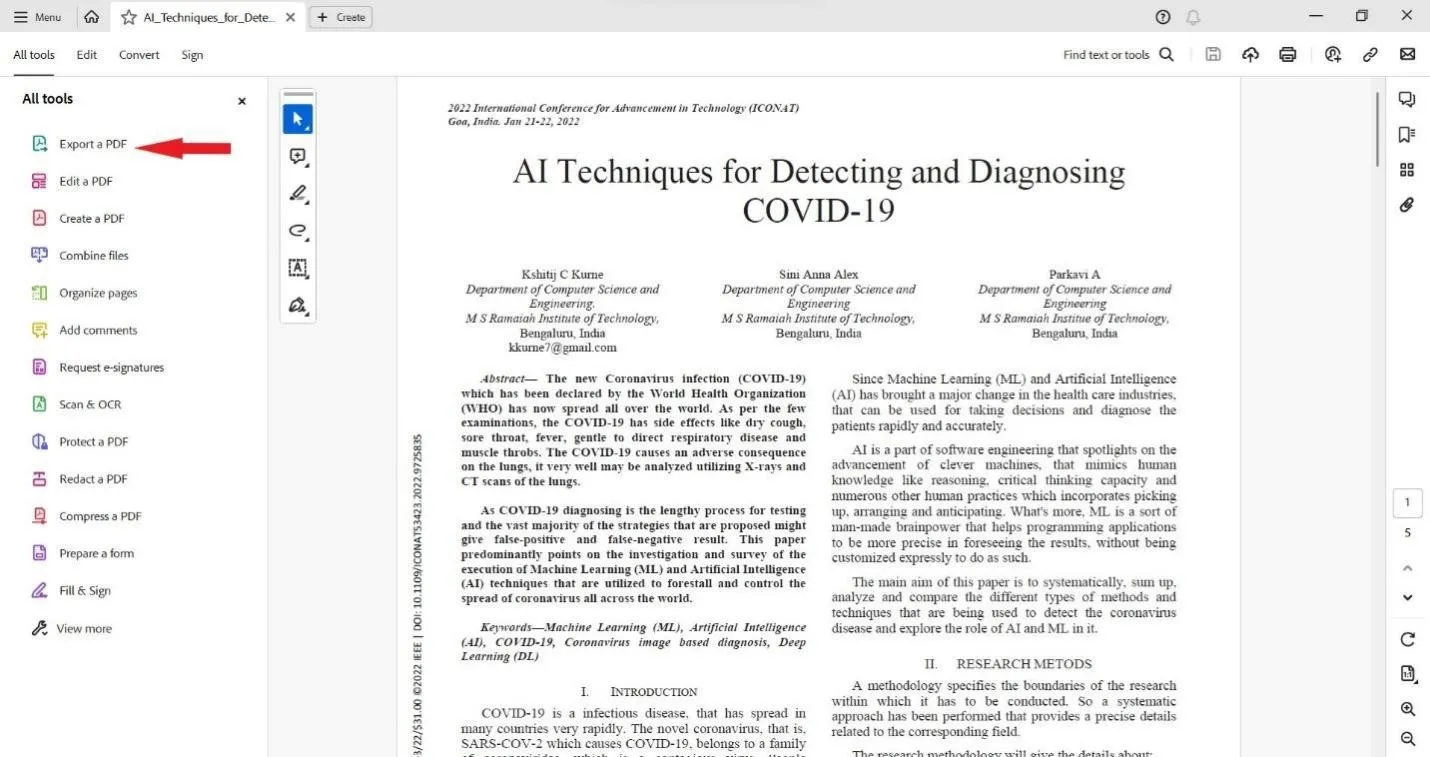
- Click "Export a PDF" from the left sidebar.
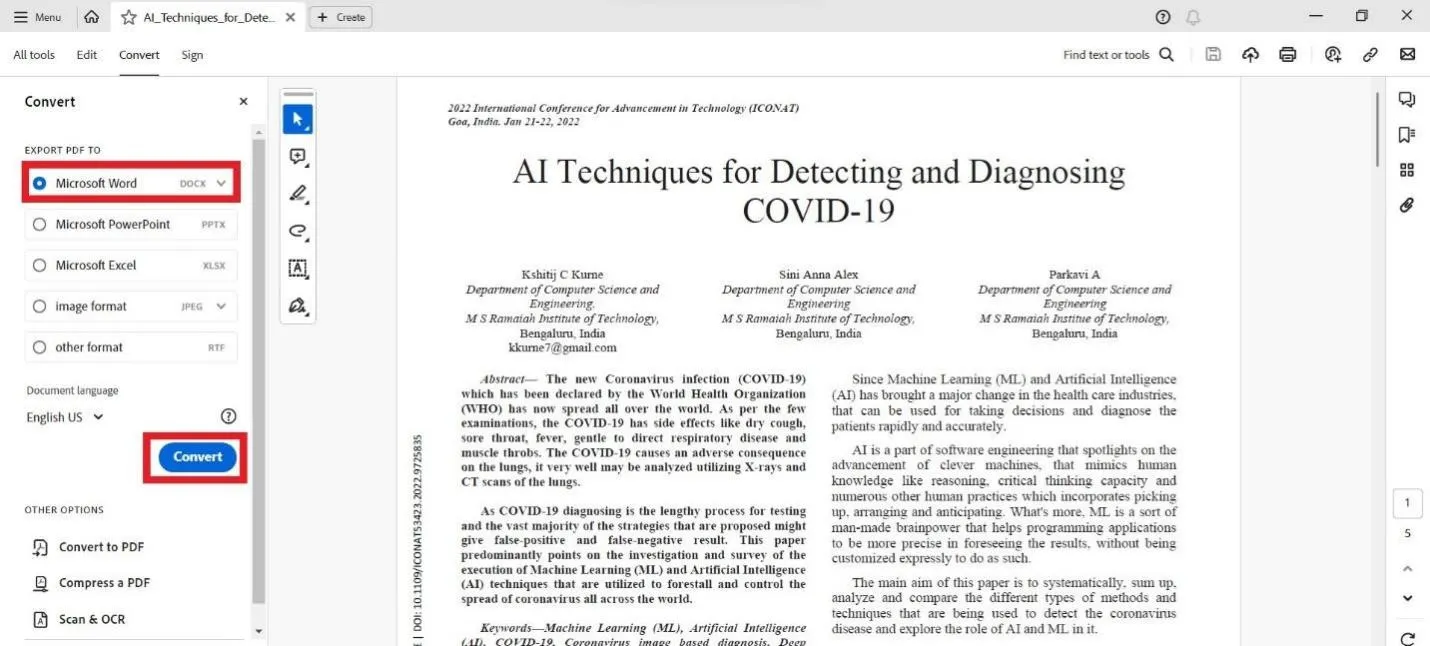
- Select "Microsoft Word" and click the "Convert" button.
- Open the converted Word file in MS Word. You will see the total word count in the bottom left corner. Alternatively, click Review > Word Count.
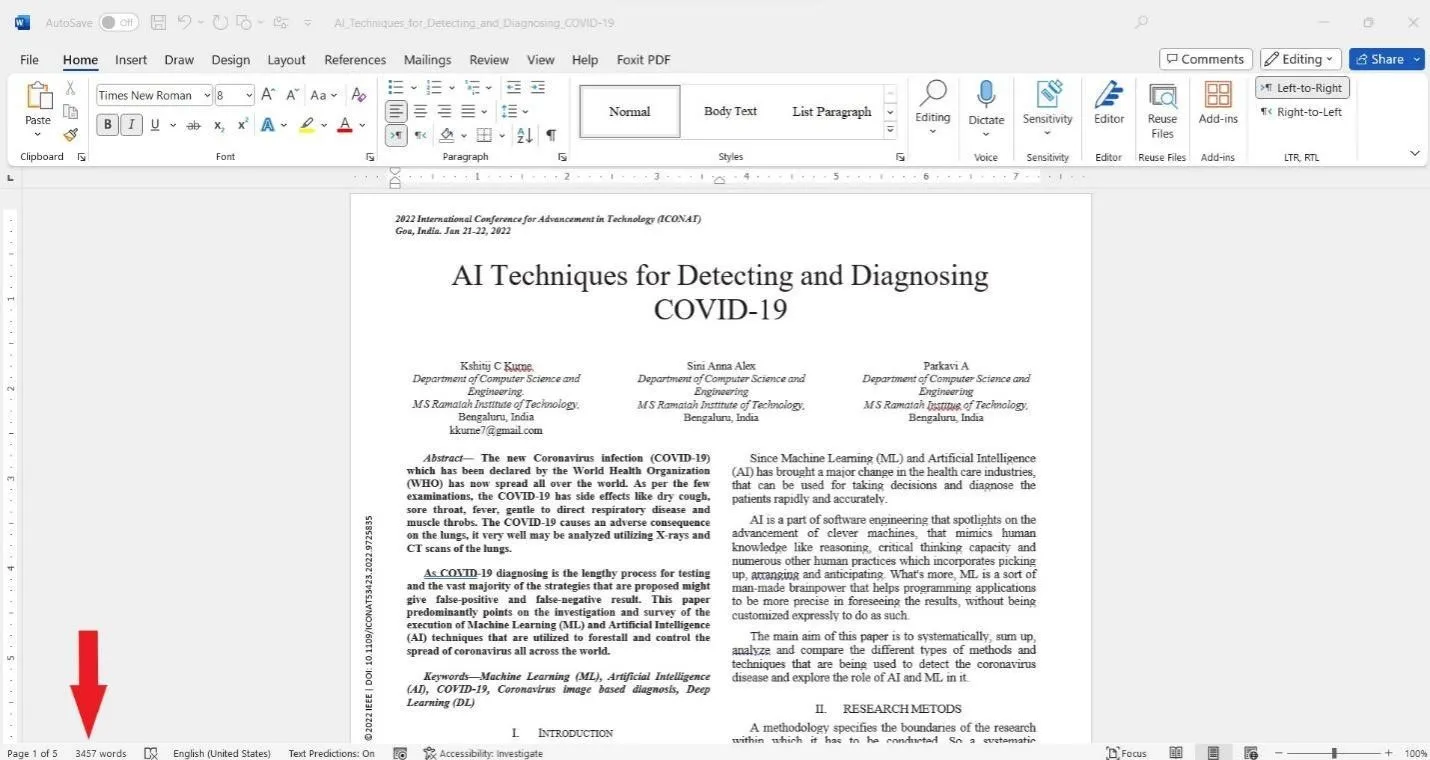
- To know the word count of selective content, select the text and then look at the word count from the bottom left corner.
This way, you can check the word count in Adobe PDF. Although the steps are easy, they require more time due to the export process and MS Word involvement.
2. Do Word Count in PDF with Foxit Reader
Foxit Reader is another popular PDF tool that allows users to read and customize PDFs. It also provides an intuitive way to count words in a PDF.
Follow the below steps to learn how to check word count in a PDF with Foxit Reader:
- Launch Foxit Reader and open the PDF whose number of words you want to count.
- Click the "View" tab from the top menu bar and then click "Word Count". It will show you the total number of words in a PDF file.
- To know the word count of selective content, select the content and then click View > Word Count.
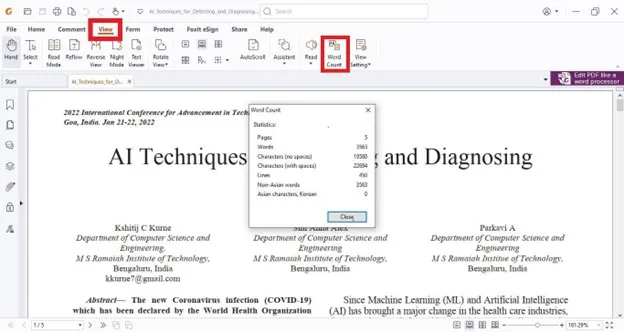
This way, Foxit Reader provides an intuitive and easy way to count words in a PDF.
Conclusion
Counting words in a PDF no longer has to be complicated. With its latest update, UPDF for Mac now provides a built-in way to view PDF word count directly, making it the most convenient solution for Mac users.
While Windows users can rely on UPDF's conversion and AI features, and Adobe Acrobat remains an alternative, UPDF offers a simpler and more cost-effective way to handle PDF word counting across platforms.






 Lizzy Lozano
 Enola Miller
 Enya Moore
