 UPDF
UPDF
 UPDF for Windows
 UPDF for Mac
 UPDF for iPhone/iPad
 UPDF for Android
 Nomostar
 UPDF AI Online
 UPDF Sign
 IvyCraft
 Edit PDF
 Annotate PDF
 Create PDF
 PDF Form
 Edit links
 Convert PDF
 OCR
OCR PDF to Word
 PDF to Image
 PDF to Excel
 Organize PDF
 Merge PDF
 Split PDF
 Crop PDF
 Rotate PDF
 Protect PDF
 Sign PDF
 Redact PDF
 Sanitize PDF
 Remove Security
 Read PDF
 UPDF Cloud
 Compress PDF
 Print PDF
 Batch Process
 About UPDF AI
 UPDF AI Solutions
 AI User Guide
 FAQ about UPDF AI
 Summarize PDF
 Translate PDF
 Chat with PDF
 Chat with AI
 Chat with image
 PDF to Mind Map
 Explain PDF
 PDF AI Tools
 Image AI Tools
 AI Chat Tools
 AI Writing Tools
 AI Study Tools
 AI Working Tools
 Other AI Tools
 AI Bookmark Generation
 AI Bookmark Summary
 AI Watermark Generation
 AI Background Generation
 AI Sticker Generation
 AI Stamp Generation
 AI Editing Suite
 UPDF Copilot
 AI Page Management
 AI Semantic Search
 PDF to Word
 PDF to Excel
 PDF to PowerPoint
 Enterprise Solution
 Enterprise Sign
 Enterprise AI
 Enterprise Plan
 Enterprise User Guide
 Enterprise Webinar
 IT
IT Education
 Construction
 Financial Service
 Healthcare
 Insurance
 Legal
Legal Manufacturing
 Government
 Researchers & PhDs
 Solopreneurs & Freelancers
 Lawyers & Legal Professionals
 Real Estate Agents & Brokers
 Education Solution
 Customer Stories
 User Guide
 UPDF Tricks
 FAQs
FAQs UPDF Reviews
 Download Center
 Blog
Blog Newsroom
 Tech Spec
 Updates
 UPDF vs. Adobe Acrobat
 UPDF vs. Foxit
 UPDF vs. PDF Expert

Quick answer:
The exact message, “A running instance of Acrobat has caused an error,” usually appears when you double-click a PDF or call an Acrobat tool while another Acrobat process is unresponsive. Start with the two quick fixes below. Use the registry or repair methods only if the error keeps returning.
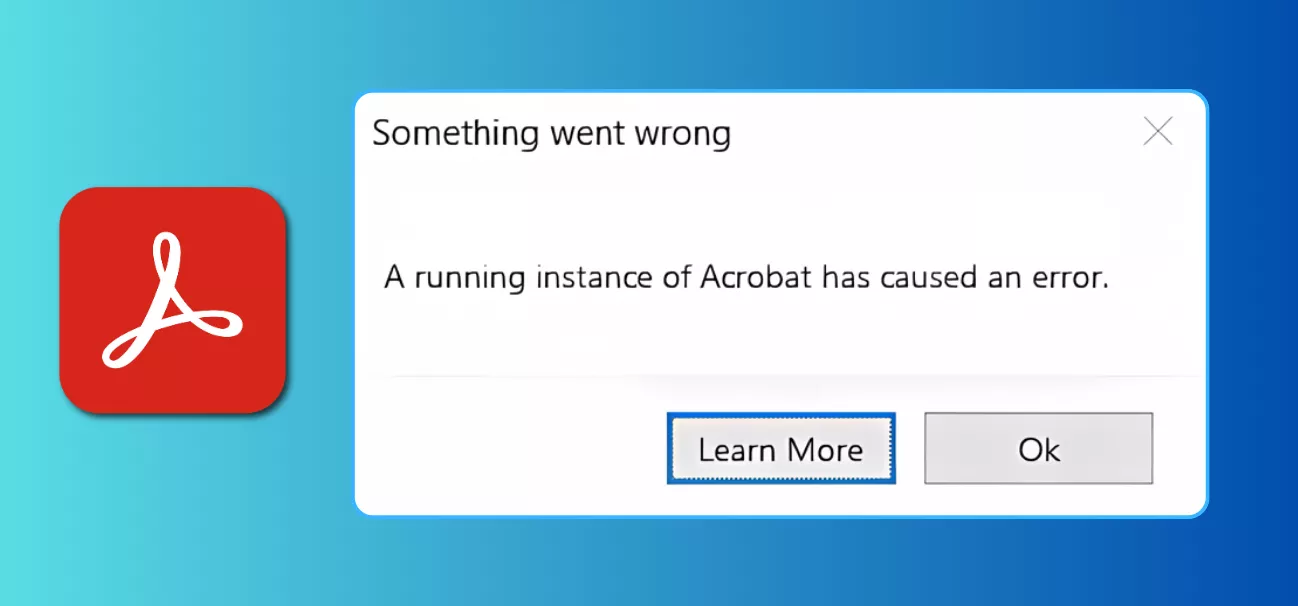
If you must open or edit the document immediately, you can temporarily use another PDF editor after completing the first two checks. That workaround keeps the PDF task moving while you repair Acrobat separately.
Part 1. Which Fix Should You Try First?
The correct fix depends on when the running-instance error appears. Use this table before changing Acrobat or Windows settings.
| What you see | Try first | Best for |
|---|---|---|
| Acrobat remains visible in Task Manager after its window closes | End every Acrobat process | The quickest fix for a stuck or “ghost” process |
| The error started after an Acrobat or Reader update | Update Acrobat and restart Windows | Version-specific bugs and incomplete updates |
| Acrobat opens normally, but double-clicking a PDF in File Explorer fails | Correct the Acrobat DDE registry entry | Broken Windows-to-Acrobat launch communication |
| Acrobat opens but repeatedly freezes or reports damaged files | Repair the installation from Acrobat | Corrupted Acrobat program files |
| Acrobat will not stay open long enough to use its Help menu | Repair Acrobat through Windows | Repairing the program outside Acrobat |
| The error returns after repair | Perform a clean reinstall | Damaged files or settings left by an older installation |
| You need the PDF immediately | Open a copy in UPDF | Continuing local PDF work while Acrobat is unavailable |
Adobe’s current troubleshooting page identifies four direct areas to check: unresponsive Acrobat processes, an incorrect DDE registry entry, an outdated Acrobat version, and corrupt installation files. A Windows restart may clear a stuck process temporarily, but it does not correct a recurring registry or installation problem.
Part 2. How to Fix “A Running Instance of Acrobat Caused an Error”
Work through these seven fixes in order. Test Acrobat after each fix and stop when PDFs open normally again.
Fix 1. End Every Acrobat Process in Task Manager
Best for:
- Acrobat closed on screen but still appears under Apps or Background processes.
Not for:
- You have unsaved changes in another open Acrobat window—ending the task closes every Acrobat window immediately.
- Save work in any Acrobat window that still responds.
- Press Ctrl + Shift + Esc to open Task Manager. Alternatively, type “Task Manager” in the Windows search box, then click Task Manager under Best match.
- Open the Processes tab and find Adobe Acrobat under both Apps and Background processes.
- Right-click each Adobe Acrobat process and select End task. Acrobat Reader users may also see Acrobat.exe or AcroRd32.exe.
- Close Task Manager and launch Acrobat once. Do not repeatedly double-click the same PDF while Acrobat is starting.
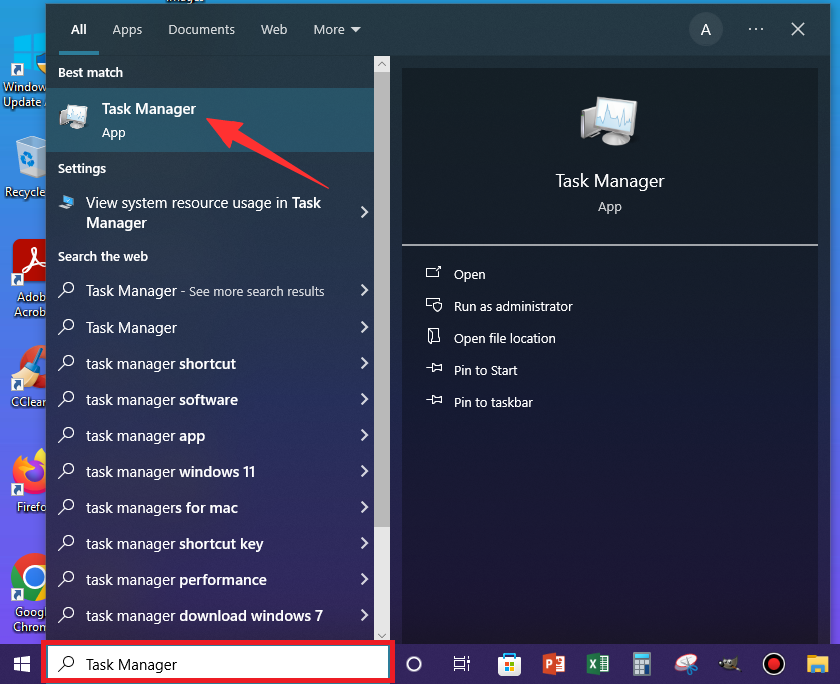
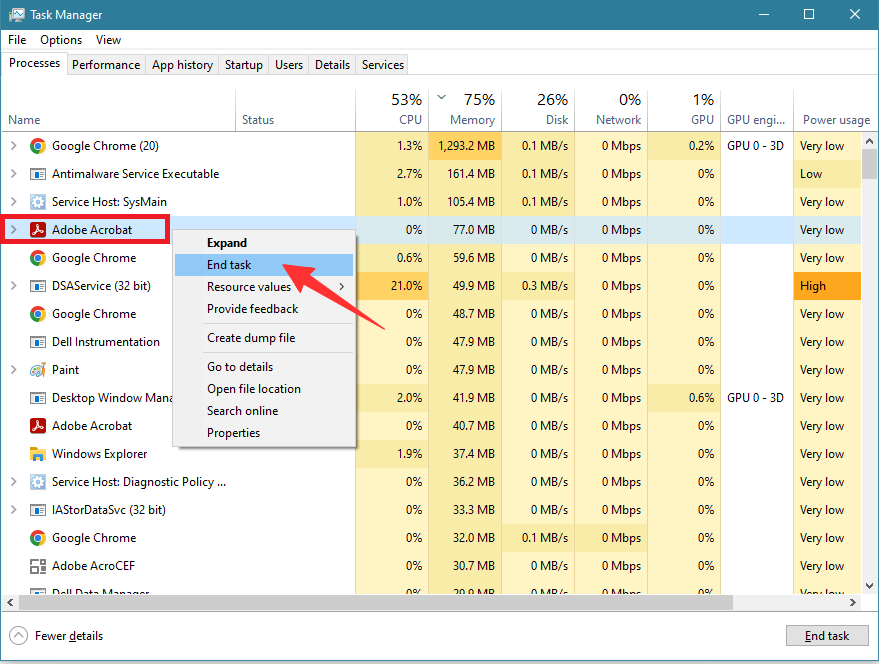
If the PDF opens normally, the error was caused by a process left behind after a crash or incomplete shutdown. If the error returns after the next restart, continue with Fix 2.
Fix 2. Update Adobe Acrobat or Acrobat Reader
Best for:
- The error appeared after a recent Acrobat update or affects several PDFs rather than one file.
Not for:
- Acrobat cannot remain open long enough to reach the Help menu.
- Open Acrobat without double-clicking a PDF.
- Select Menu > Help > Check for updates.
- Install every available Acrobat or Reader update.
- Close Acrobat and restart Windows before testing the PDF again.
Adobe support linked this error to specific Acrobat builds in 2026 and advised affected users to install the latest build first. Record the version shown under Help > About Adobe Acrobat if the error continues.
Fix 3. Correct the Acrobat DDE Registry Entry
Best for:
- Acrobat itself opens, but a PDF fails when opened from File Explorer, an email attachment, or another application.
Not for:
- You are using a managed work computer or are not allowed to edit the Windows Registry.
Incorrect registry changes can prevent applications from opening. Close Acrobat and create the backup described below before changing the value.
- Press Windows + R, type regedit, and press Enter.
- Go to:
HKEY_CLASSES_ROOT\acrobat\shell\open\ddeexec\application - Right-click the application key and select Export. Save the backup in a location you can find again.
- Double-click (Default) in the right pane.
- Change the value from
AcroViewA20toAcroViewR20. - Select OK, close Registry Editor, and relaunch Acrobat.
This is the DDE value specified in Adobe’s running-instance troubleshooting instructions. If the computer is controlled by an employer, ask IT to verify the value instead of changing it yourself.
Fix 4. Run Repair Installation in Acrobat
Best for:
- Acrobat opens, but its program files appear damaged or the error keeps returning.
Not for:
- Acrobat closes before you can open its Help menu.
- Open Acrobat.
- Select Menu > Help > Repair installation.
- Confirm the repair and allow it to finish.
- Restart Windows before testing Acrobat again.
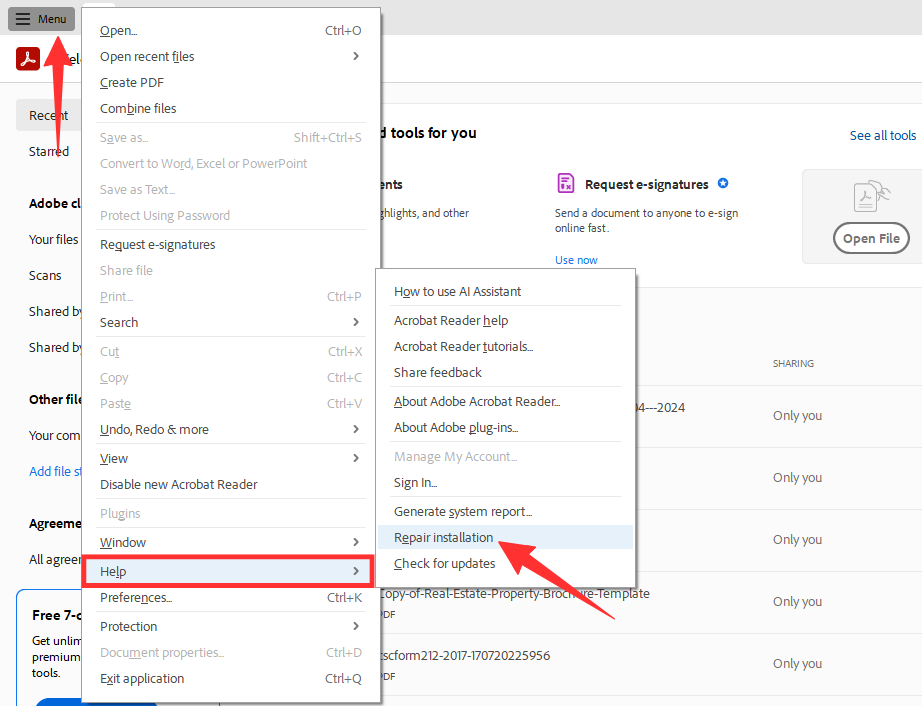
Repair Installation is a Windows feature. Adobe’s macOS version does not provide the same Help-menu repair command.
Fix 5. Repair Acrobat Outside the App
Best for:
- Acrobat will not open long enough to run Repair Installation.
Not for:
- Windows does not show Repair, Change, or Modify for the installed Acrobat package.
- Open Settings > Apps > Installed apps.
- Select the three-dot menu beside Adobe Acrobat.
- If Modify or Advanced options is available, open it and select Repair.
If Windows does not provide that option, open Control Panel > Programs > Programs and Features, right-click Adobe Acrobat, and select Repair or Change. Microsoft notes that these options are not available for every installed program.
Fix 6. Perform a Clean Acrobat Reinstall
Best for:
- Updating and repairing Acrobat did not remove the error.
Not for:
- You have not backed up custom Acrobat settings, stamps, certificates, or other items that may be removed during cleanup.
- Open Control Panel > Programs > Programs and Features.
- Select Adobe Acrobat and choose Uninstall.
- If an ordinary reinstall has already failed, use Adobe’s Acrobat Cleaner Tool to remove damaged installation remnants.
- Restart Windows.
- Download the current Acrobat or Acrobat Reader installer from Adobe and reinstall it.
- Open Acrobat and test a local PDF before restoring plug-ins or custom settings.
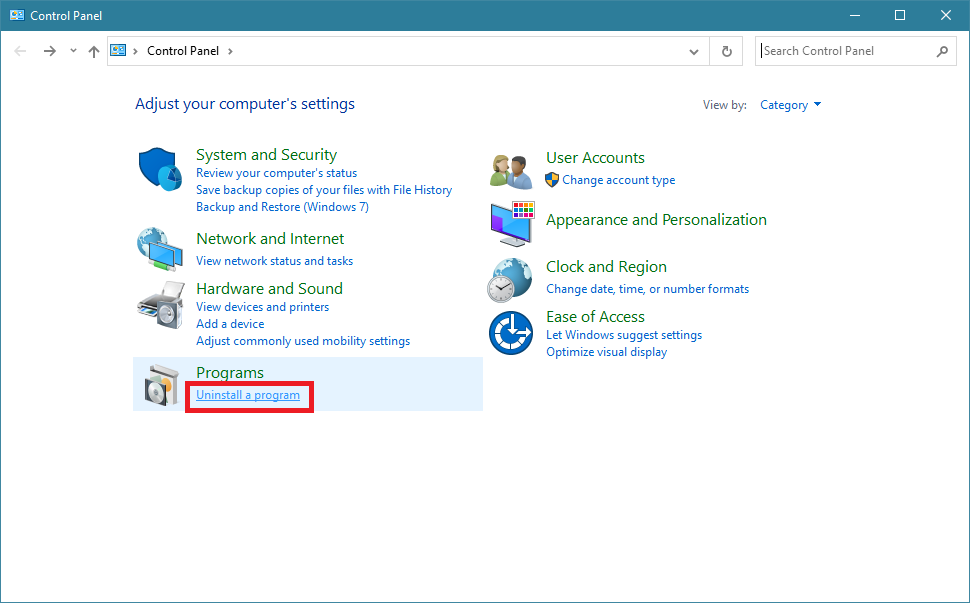
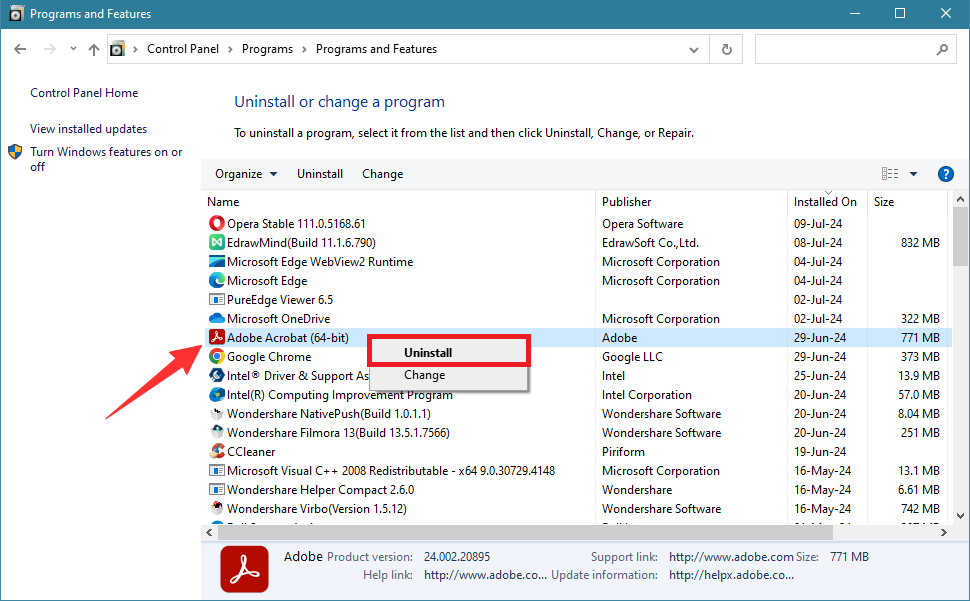
A clean reinstall is more thorough than repeatedly installing over the same damaged files. Follow Adobe’s cleanup and reinstall guidance rather than deleting unknown Adobe folders manually.
Fix 7. Test a New Windows User Profile
Best for:
- Acrobat works for other Windows accounts on the same computer but fails in your account.
Not for:
- The same Acrobat version fails across many company computers; that pattern should be escalated to IT or Adobe support.
Create a temporary Windows account with administrator rights, sign in to it, and test Acrobat with a local PDF. If Acrobat works in the new account, the problem is likely tied to the original user profile, its Acrobat preferences, or account-specific permissions.
Do not permanently move all your files to the test account. Use the result to help IT or Adobe support isolate the damaged profile setting.
Need the PDF Now? Continue Working in UPDF

Updating or repairing Acrobat can take time. If the immediate task is to read, annotate, edit, organize, convert, OCR, or sign the PDF—not diagnose Acrobat—you can open a copy in UPDF and complete the document task first.
- Open UPDF and select Open File. If UPDF is not installed, download UPDF for free and open a copy of the affected PDF.
- Select Edit from the top toolbar to change existing text, images, or links. Use Comment when you only need to highlight or annotate the document.
- Save the result under a new filename so the original PDF remains available for later Acrobat testing.
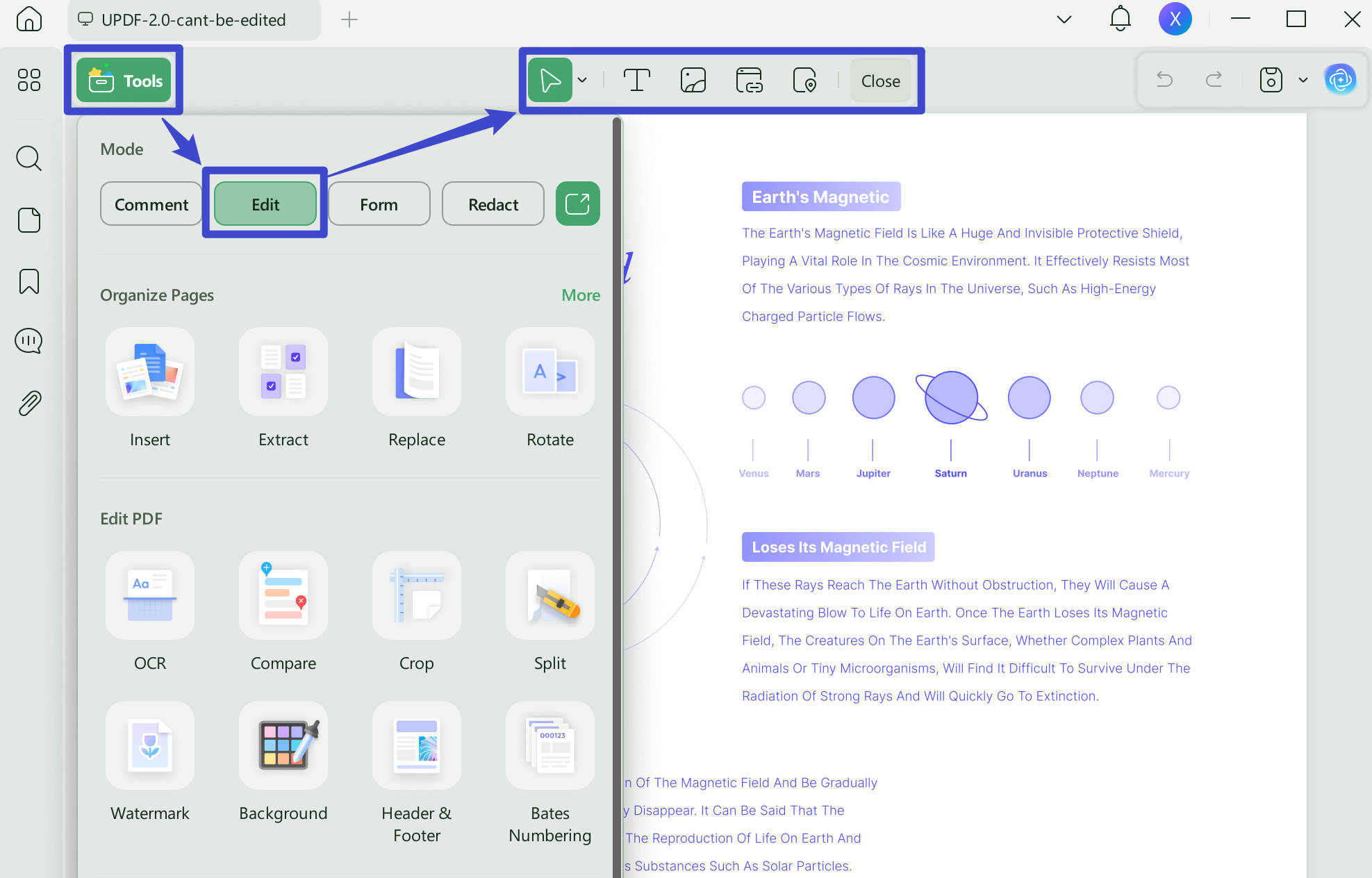
UPDF does not repair Acrobat or change Adobe’s registry entries. It is the practical fallback when the PDF itself is accessible but Acrobat cannot stay open.
If an urgent contract, form, or report is blocked by Acrobat, download UPDF for free and test the task on a copy—installation is free, and Pro removes the trial watermark from exported files.
Windows • macOS • iOS • Android 100% secure
Watch the short overview below to see the current UPDF desktop workspace and its main PDF tools.
Part 3. If the Standard Fixes Still Fail
The Error Appears Only with PDFs on a Network or Shared Drive
Copy one affected PDF to the local desktop and open that copy. If the local file works but the network copy does not, record the Acrobat version and the network location, then contact your IT administrator. Do not apply unverified registry workarounds copied from forum posts to a managed computer.
The Error Affects Many Users After the Same Update
Check Help > About Adobe Acrobat on each affected computer and compare the exact build numbers. Adobe’s 2026 community guidance asks administrators to report the build, whether files are local or network-based, and relevant crash logs when the normal update, repair, and registry fixes have already been tested.
Task Manager or Registry Editor Is Blocked
This normally means the computer is managed by an organization. Send IT the exact error message and Adobe’s official running-instance troubleshooting page. Do not attempt to bypass organizational restrictions.
FAQs About the Running Instance of Acrobat Error
1. Does This Error Mean the PDF Is Corrupted?
Usually, no. If the same PDF opens in a browser or another PDF editor, the file itself is probably intact and Acrobat is the failing component.
2. Is It Safe to End Every Acrobat Process?
Yes, after saving your work. Ending the processes closes all Acrobat windows, so unsaved changes in another open PDF can be lost.
3. Can the Error Affect Both Acrobat Reader and Acrobat Pro?
Yes. Adobe’s support discussions document the message in both Acrobat Reader and paid Acrobat installations. The executable names visible in Task Manager may differ.
3. Will Repair Installation Delete My PDFs?
No. Repair Installation replaces or repairs Acrobat program files; it does not delete ordinary PDF documents stored in your folders. Back up Acrobat-specific custom settings before a Cleaner Tool reinstall.
Conclusion
“A running instance of Acrobat caused an error” most often points to a stuck Windows process, an outdated Acrobat build, an incorrect DDE registry value, or damaged installation files. End every Acrobat process first, install the latest Acrobat update, and use Adobe’s registry or repair methods only if the error returns.
Do not treat a Windows restart as a permanent fix when the same message keeps reappearing. For company computers, network files, or multiple affected users, record the Acrobat build and involve IT rather than applying additional registry edits from unverified sources.
If Acrobat is unavailable but the PDF task cannot wait, open a copy in UPDF and finish the document work separately. Download UPDF for free to test the workflow—installation is free, and Pro removes the trial watermark from exported files.
Windows • macOS • iOS • Android 100% secure








 Delia Meyer

 Engelbert White
 Enola Davis
 Enola Miller