 UPDF
UPDF
 UPDF for Windows
 UPDF for Mac
 UPDF for iPhone/iPad
 UPDF for Android
 UPDF AI Online
 UPDF Sign
 Edit PDF
 Annotate PDF
 Create PDF
 PDF Form
 Edit links
 Convert PDF
 OCR
OCR PDF to Word
 PDF to Image
 PDF to Excel
 Organize PDF
 Merge PDF
 Split PDF
 Crop PDF
 Rotate PDF
 Protect PDF
 Sign PDF
 Redact PDF
 Sanitize PDF
 Remove Security
 Read PDF
 UPDF Cloud
 Compress PDF
 Print PDF
 Batch Process
 About UPDF AI
 UPDF AI Solutions
 AI User Guide
 FAQ about UPDF AI
 Summarize PDF
 Translate PDF
 Chat with PDF
 Chat with AI
 Chat with image
 PDF to Mind Map
 Explain PDF
 PDF AI Tools
 Image AI Tools
 AI Chat Tools
 AI Writing Tools
 AI Study Tools
 AI Working Tools
 Other AI Tools
 PDF to Word
 PDF to Excel
 PDF to PowerPoint
 Enterprise Solution
 Enterprise Sign
 Enterprise AI
 Enterprise Plan
 Enterprise User Guide
 Enterprise Webinar
 Banking
 Healthcare
 Insurance
 Legal
Legal Manufacturing
 Government
 Education Solution
 Customer Stories
 User Guide
 UPDF Tricks
 FAQs
FAQs UPDF Reviews
 Download Center
 Blog
Blog Newsroom
 Tech Spec
 Updates
 UPDF vs. Adobe Acrobat
 UPDF vs. Foxit
 UPDF vs. PDF Expert

Trying to open a Kindle book on another device but failed? You're not alone. That's because many modern Kindle books use the KFX format, which is protected by DRM and designed to work only inside the Kindle ecosystem.
Without a Kindle app or device, KFX files usually can't be opened, shared, or edited directly. That’s why many users look for a way to convert KFX to PDF—so they can read their books freely on phones, tablets, laptops, or any device they prefer.
The good news?
It is possible to convert KFX to PDF, as long as you use the right tools. In this guide, we'll walk you through both online and offline methods, and also show you how to get the best reading experience after conversion with UPDF - interested users can directly click the button below to give it a try for free.
Windows • macOS • iOS • Android 100% secure
Part 1. Convert KFX to PDF Online via ReaConverter
If you’re looking for a quick and simple solution, ReaConverter can help you convert KFX to PDF online without installing any software.
This method works well for occasional conversions. However, keep in mind that online tools may have limitations such as file size restrictions, slower processing speeds, or reduced success rates with DRM-protected files.
How to convert KFX to PDF online using ReaConverter
Step 1: Open your browser and search for the official website of ReaConverter.
Step 2: Click “add KFX Files” and upload your KFX file.

Step 3: Once the file is uploaded, select PDF as the output format and click “Convert.”

Step 4: Wait for the conversion to finish, then click “Download” to save the PDF file to your device.
That’s it! You’ve successfully converted a KFX file to PDF online.
If you need more control or want to convert multiple books, the offline method below is a better option.
Part 2. Convert Amazon KFX Book to PDF Offline via Calibre
For users who want higher success rates and more customization options, Calibre is the most reliable offline solution.
Calibre is a powerful eBook management tool that supports batch conversion and advanced layout settings. That said, it does require installation and may take some time for beginners to get familiar with.
How to convert KFX to PDF using Calibre
Step 1: Download and install Calibre from its official website. It supports Windows, macOS, Linux, iOS, and Android.

Step 2: Launch Calibre and click “Add Books” in the top-left corner to import your KFX file.

Step 3: Select the imported book, then click “Convert Books.” Choose PDF as the output format. You can also adjust page size, fonts, margins, and layout if needed.

Step 4: Click “OK” to start the conversion process.
Step 5: Once finished, right-click the book title and choose “Open Containing Folder” to locate your converted PDF.
Now your Amazon KFX book is successfully converted to PDF and ready to read anywhere.
Part 3. Bonus Tip: How to Read Converted PDFs Comfortably
After converting KFX to PDF, the next step is choosing a good PDF reader. This makes a big difference—especially for long books.
That’s where UPDF comes in.
UPDF is designed to make reading PDFs easier and more enjoyable across devices. Whether you’re reading novels, textbooks, or research materials, it helps you focus on the content instead of struggling with the file.
With UPDF, you can:
- Read smoothly with multiple display modes, including dark mode
- Highlight text and add notes while reading
- Instantly summarize, translate, or explain content using AI
- Adjust zoom and layout for a more comfortable reading experience
If you often read converted Kindle books, UPDF fits naturally into your workflow.
Windows • macOS • iOS • Android 100% secure
How to Read a Converted PDF in UPDF
Step 1: Open PDF in UPDF
Launch UPDF, click “Open File,” and select your converted PDF. You can also drag and drop the file directly.
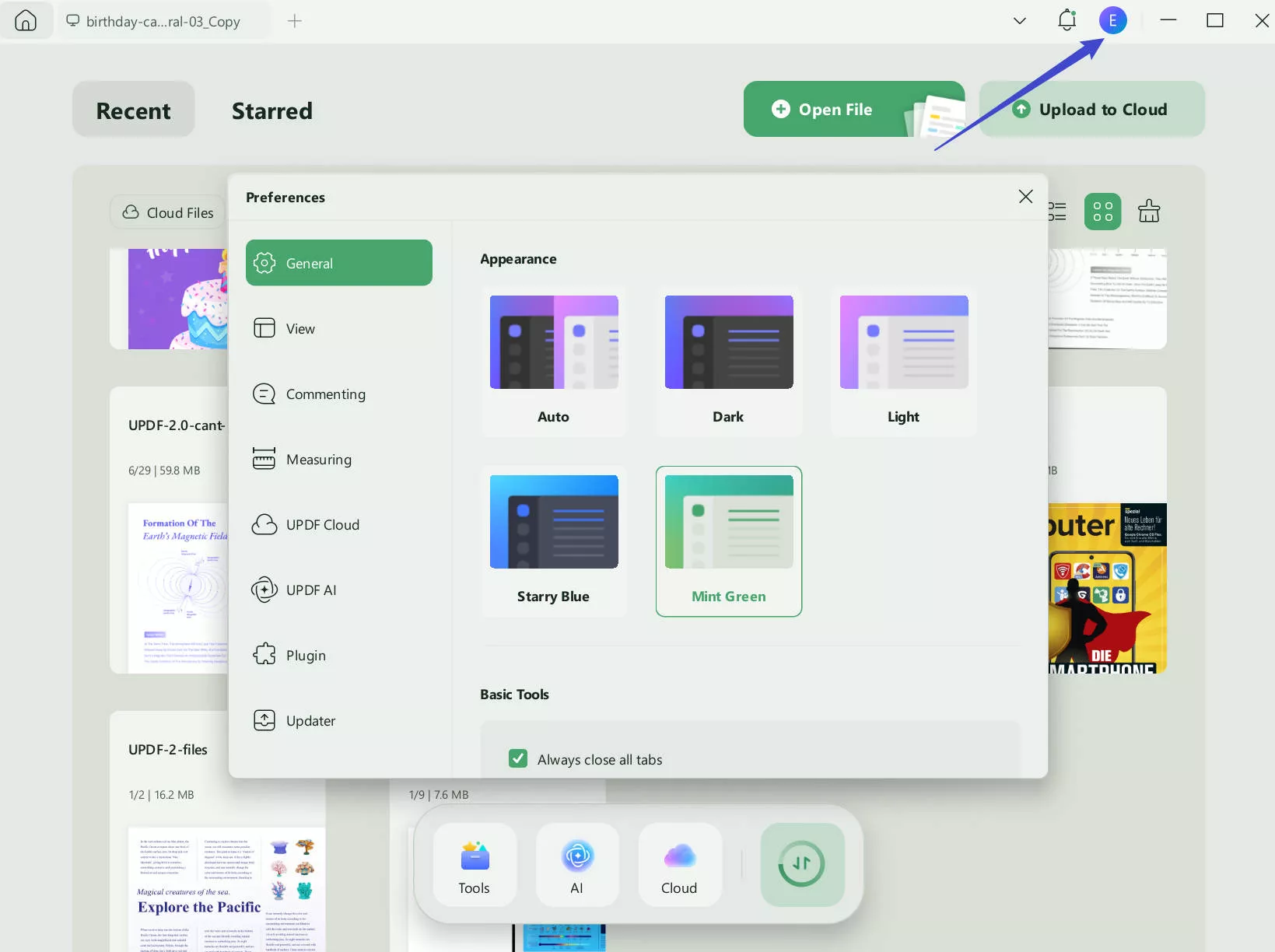
Step 2: Change the Display Mode
Go to Settings → Preferences → General to switch between light mode, dark mode, or other display options.
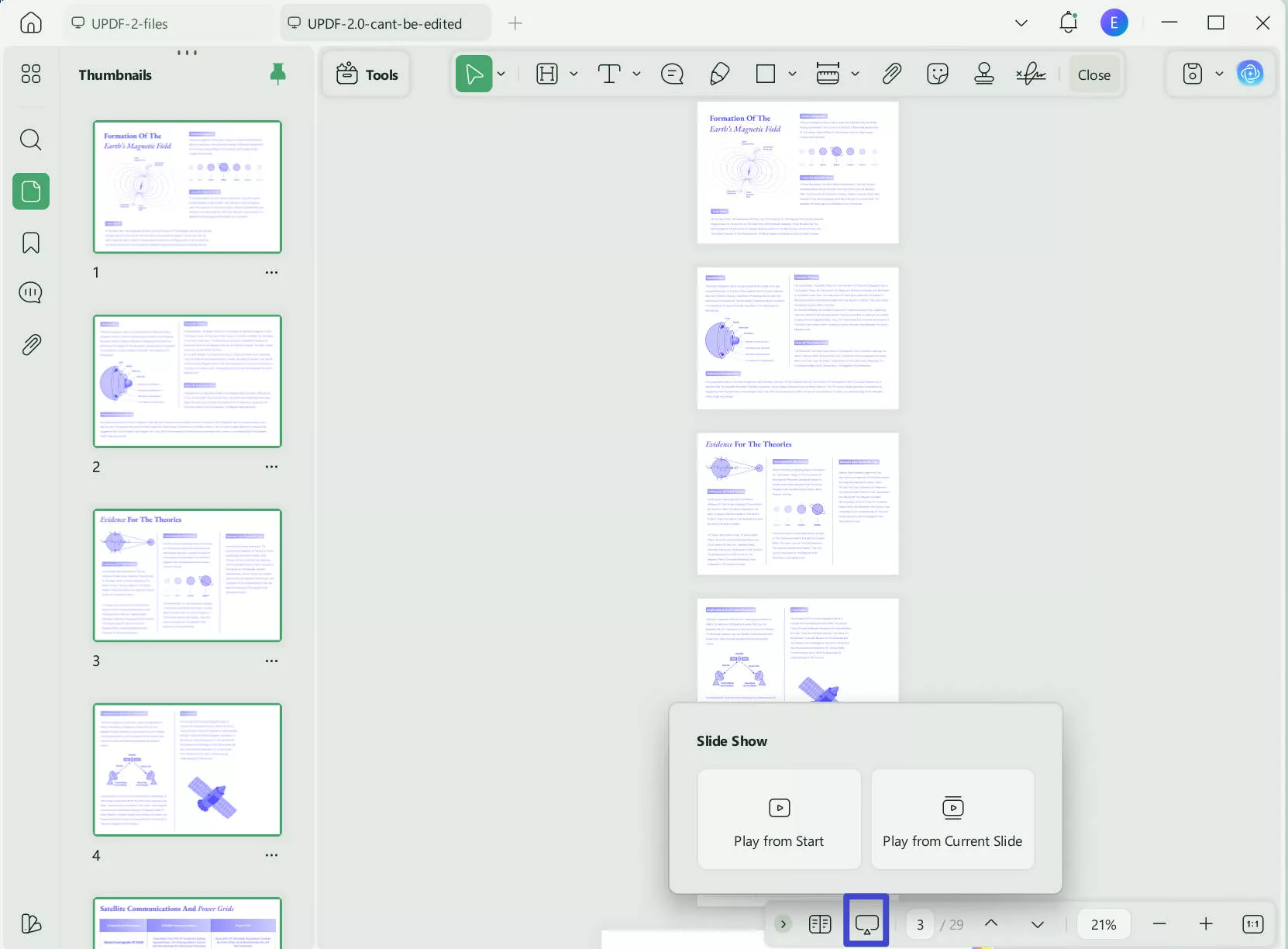
Step 3: Show PDF as a Slide Show
To view your PDF as a slide show, click “Slide Show” at the bottom if you prefer a distraction-free, page-by-page reading experience.
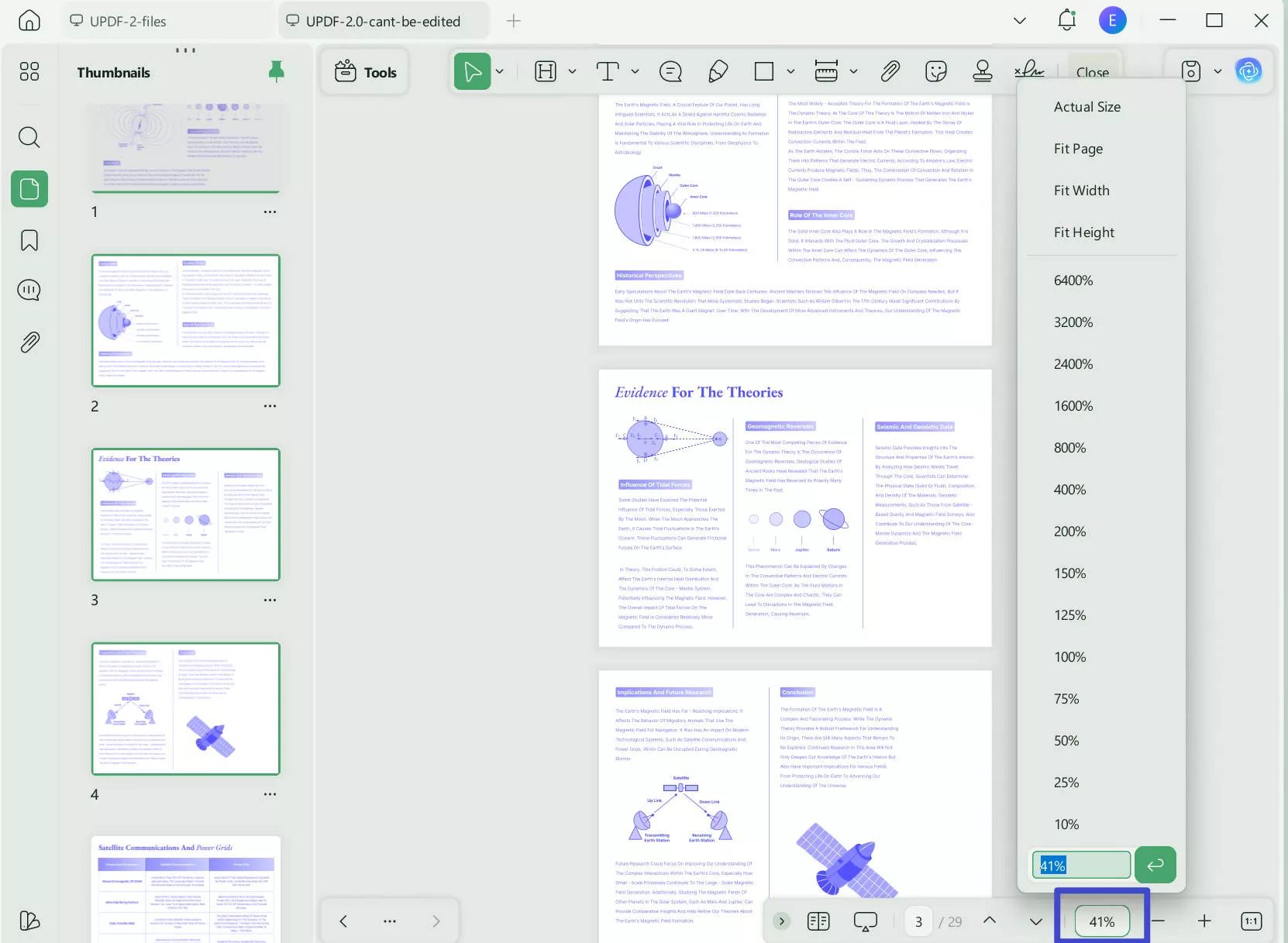
Step 4: Adjust Zoom and Page Size
Use the zoom controls in the bottom-right corner to customize the reading size.
Step 5: Translate/Summarize/Explain the Text
Select any text, click UPDF AI, and choose what you want to do.
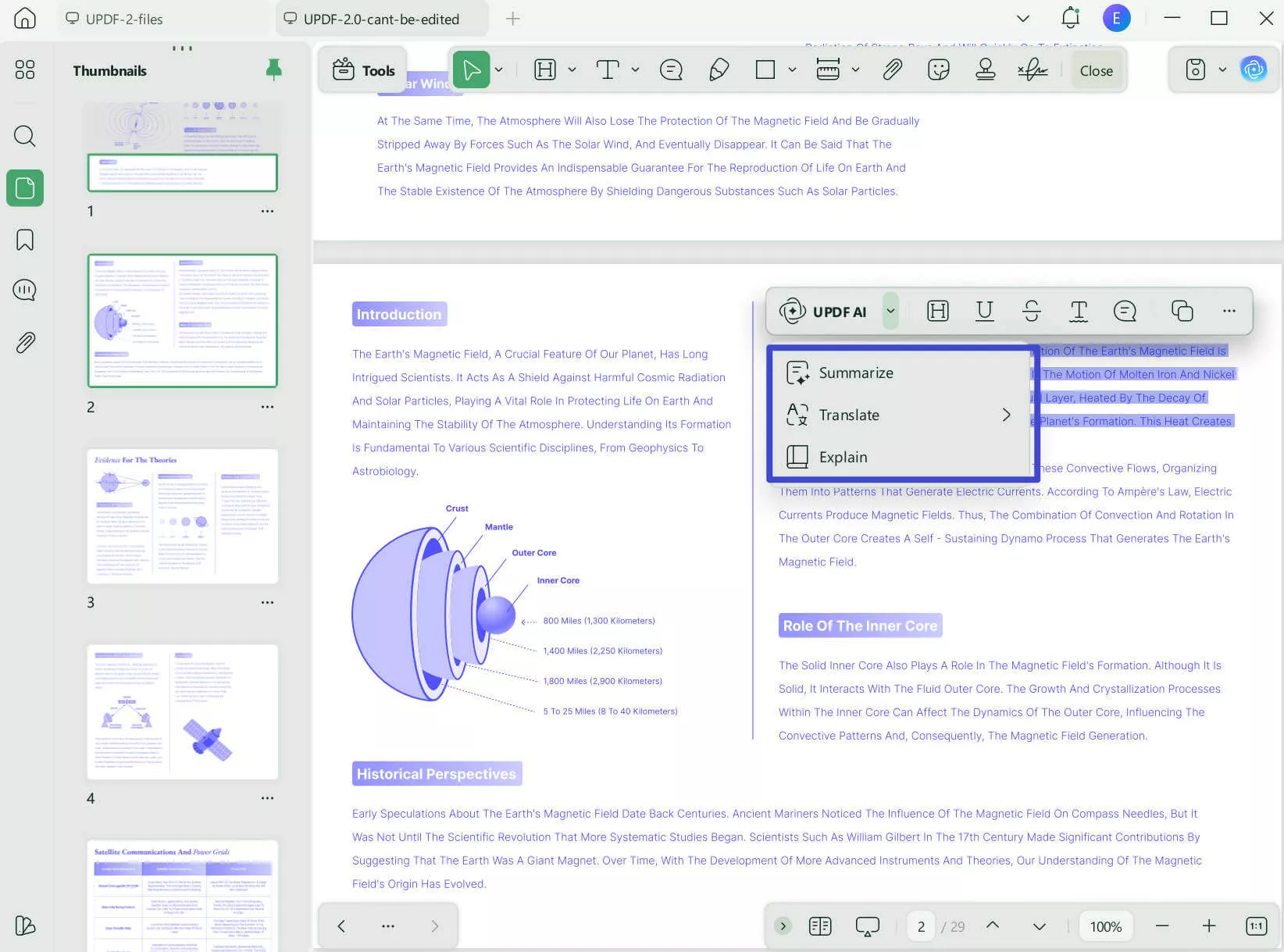
(Note: If your PDF is scanned or image-based, run OCR first to enable text selection and AI features.)
Step 6: Add Annotations to PDF
Highlight important passages, underline text, or add comments to keep track of key ideas while reading.
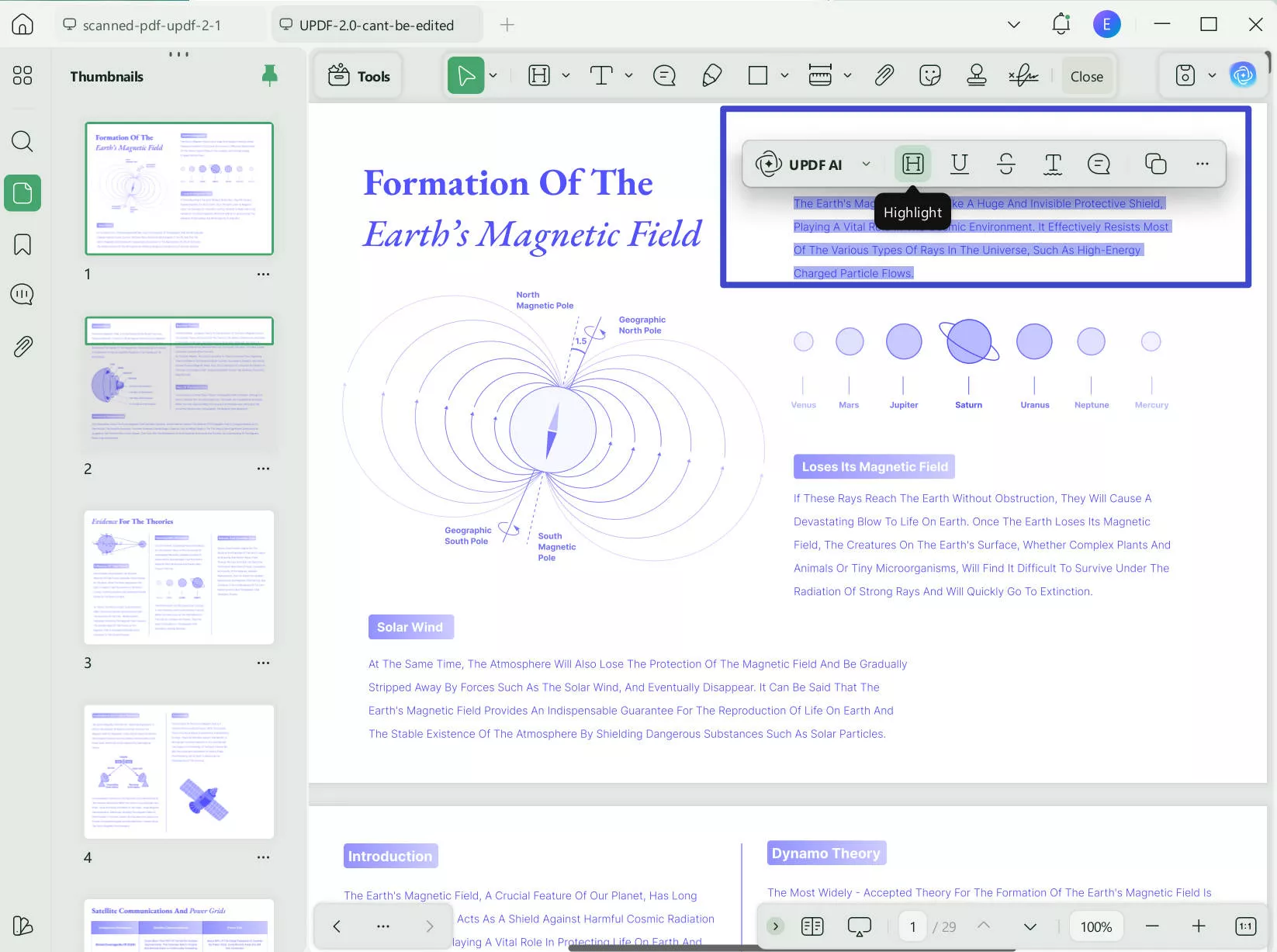
Want to know how to read PDF? Watch this video to check out its features! Read this article to learn more about this tool. Give it a try and see how UPDF makes reading PDFs easier!
Final Words
Converting KFX to PDF gives you freedom—freedom to read your Kindle books on any device without Kindle app restrictions.
You can use ReaConverter for quick online conversions or Calibre for more advanced, offline control. Once your PDF is ready, using a reliable reader like UPDF can significantly improve your reading experience.
Want to see the difference yourself?
Download UPDF and enjoy reading your converted Kindle books the way you like.
Windows • macOS • iOS • Android 100% secure







 Enola Miller
 Lizzy Lozano


 Enya Moore