 UPDF
UPDF
 UPDF for Windows
 UPDF for Mac
 UPDF for iPhone/iPad
 UPDF for Android
 UPDF AI Online
 UPDF Sign
 Edit PDF
 Annotate PDF
 Create PDF
 PDF Form
 Edit links
 Convert PDF
 OCR
OCR PDF to Word
 PDF to Image
 PDF to Excel
 Organize PDF
 Merge PDF
 Split PDF
 Crop PDF
 Rotate PDF
 Protect PDF
 Sign PDF
 Redact PDF
 Sanitize PDF
 Remove Security
 Read PDF
 UPDF Cloud
 Compress PDF
 Print PDF
 Batch Process
 About UPDF AI
 UPDF AI Solutions
 AI User Guide
 FAQ about UPDF AI
 Summarize PDF
 Translate PDF
 Chat with PDF
 Chat with AI
 Chat with image
 PDF to Mind Map
 Explain PDF
 PDF AI Tools
 Image AI Tools
 AI Chat Tools
 AI Writing Tools
 AI Study Tools
 AI Working Tools
 Other AI Tools
 AI Bookmark Generation
 AI Bookmark Summary
 AI Watermark Generation
 AI Background Generation
 AI Sticker Generation
 AI Stamp Generation
 AI Editing Suite
 UPDF Copilot
 AI Page Management
 AI Semantic Search
 PDF to Word
 PDF to Excel
 PDF to PowerPoint
 Enterprise Solution
 Enterprise Sign
 Enterprise AI
 Enterprise Plan
 Enterprise User Guide
 Enterprise Webinar
 Banking
 Healthcare
 Insurance
 Legal
Legal Manufacturing
 Government
 Education Solution
 Customer Stories
 User Guide
 UPDF Tricks
 FAQs
FAQs UPDF Reviews
 Download Center
 Blog
Blog Newsroom
 Tech Spec
 Updates
 UPDF vs. Adobe Acrobat
 UPDF vs. Foxit
 UPDF vs. PDF Expert

The IRS has provided relief to many taxpayers through the irs pandemic penalty refund, offering a chance to recover penalties issued during difficult pandemic years. If you were charged late filing or payment penalties during that time, you may now be eligible for a refund.
However, while the opportunity sounds straightforward, actually claiming it can be frustrating. Many people struggle with understanding eligibility requirements and correctly filling out form 843, which is required to request a refund.
That’s exactly where most of the confusion begins—navigating IRS forms can be time-consuming and overwhelming, especially if you’re not familiar with tax documentation. In this guide, I’ll walk you through everything you need to know about the irs pandemic refund, including eligibility, steps to file, and common mistakes to avoid.
To make things easier, I’ll also show how tools like UPDF can simplify the process. With its form-filling features available on both desktop and mobile, you can complete and manage IRS forms quickly and accurately.
Windows • macOS • iOS • Android 100% secure
Part 1. What Is the IRS Pandemic Penalty Refund?
The irs pandemic penalty refund is part of a relief initiative introduced by the IRS to support taxpayers who faced financial or operational challenges during the COVID-19 pandemic. During that period, many individuals and businesses struggled to meet tax deadlines, which resulted in penalties. Recognizing these hardships, the IRS later announced penalty relief and refunds for eligible cases.
Overview
- Background:
During the pandemic, disruptions affected filing and payment timelines across the country. As a result, the IRS implemented relief measures to reduce the burden on taxpayers who were unable to comply on time. - Purpose:
The main goal of the refund is to return penalties that were unfairly imposed due to pandemic-related difficulties. This helps taxpayers recover money and regain compliance without additional financial stress. - Eligibility:
Eligibility generally applies to taxpayers who were charged certain penalties for tax years affected by the pandemic. However, not all penalties qualify, so it’s important to verify your specific situation.
Types of Penalties Covered:
The IRS primarily targeted penalties such as:
- Failure to file:
This penalty applies when you don’t submit your tax return by the required deadline. It’s usually calculated based on the unpaid taxes and increases the longer the return remains unfiled. - Failure to pay:
This penalty is charged when you file your return but don’t pay the taxes owed on time. It typically accrues monthly until the outstanding balance is fully paid. - Failure to deposit:
This penalty mainly affects businesses that fail to deposit required payroll or employment taxes on time. The amount depends on how late the deposit is and can increase quickly if not addressed.
These are among the most common penalties issued during the pandemic period.
Timeline:
In many cases, the IRS issued refunds automatically, meaning eligible taxpayers received their money without taking action. However, if your penalty was not refunded, you may need to file form 843 to request it manually.
Key Points to Know
- Refunds may include interest, calculated from the date the penalty was originally paid.
- Not all penalties are eligible, so understanding the criteria is essential before applying.
- If you didn’t receive an automatic refund, you may still qualify for an irs pandemic refund, but you’ll need to take additional steps to claim it.
Understanding these basics makes it much easier to move forward and claim what you’re entitled to.
Part 2. Understanding Form 843: When and How to Use It
If you didn’t receive your refund automatically, understanding form 843 becomes essential. This form is the official way to request certain tax refunds or ask the IRS to remove penalties.
What Is Form 843?
- Official Name:
Form 843 is officially called “Claim for Refund and Request for Abatement.” - Purpose:
It allows taxpayers to request a refund of penalties, interest, or certain taxes that were incorrectly applied or need reconsideration. - When to Use:
You should use this form if you didn’t receive automatic relief or if you need to dispute specific penalties. For example, if your irs pandemic penalty refund wasn’t issued automatically, Form 843 is the correct way to claim it.
When to File Form 843 for Pandemic Refunds
There are several situations where filing Form 843 is necessary:
- You were charged penalties that were not covered under automatic relief
- Your refund was not processed by the IRS automatically
- You’re requesting a refund due to specific circumstances, such as reasonable cause
- You want to request abatement of interest related to refunded penalties
In these cases, filing Form 843 ensures your request is formally reviewed by the IRS.
Where to Get Form 843?
You can easily access Form 843 through multiple sources:
- IRS Official Website: Download it directly from the official IRS forms page
- IRS Forms & Instructions Section: Available at https://www.irs.gov/forms-instructions
- Local IRS Office: You can request a physical copy at a Taxpayer Assistance Center
- Tax Software: Some tax preparation tools like TurboTax, H&R Block, and TaxAct may include support or guidance for Form 843, helping simplify the filing process
Note: Always make sure you’re using the most recent version of the form from the IRS website to avoid delays or rejections.
Part 3. Step-by-Step Guide to Claiming Your IRS Pandemic Refund
If you didn’t receive your irs pandemic refund automatically, don’t worry—I’ve gone through this process myself, and it’s manageable if you follow the right steps.
Step 1: Check Your Eligibility
First, I log in to my IRS online account and review my 2019 and 2020 tax transcripts. This helps confirm whether penalties were applied and if I qualify for relief.
You should look for any charges related to late filing or payment. If penalties exist, there’s a good chance you may be eligible for an irs pandemic penalty refund.
Step 2: Determine If You Need Form 843
Next, I check whether the IRS already issued a refund automatically. This is usually mentioned in IRS notices or account updates.
- If you received automatic relief > no action needed
- If not > you’ll need to file form 843
This step is important because many taxpayers assume they need to file, when in reality the refund may already be processed.
Step 3: Complete Form 843 Using UPDF
Once I confirm I need to file, I download the latest version of Form 843 from the IRS website. Instead of printing it right away, I open it in UPDF, which makes the process much easier.
Windows • macOS • iOS • Android 100% secure
With UPDF, I can:
- Use smart field detection to automatically recognize fillable sections
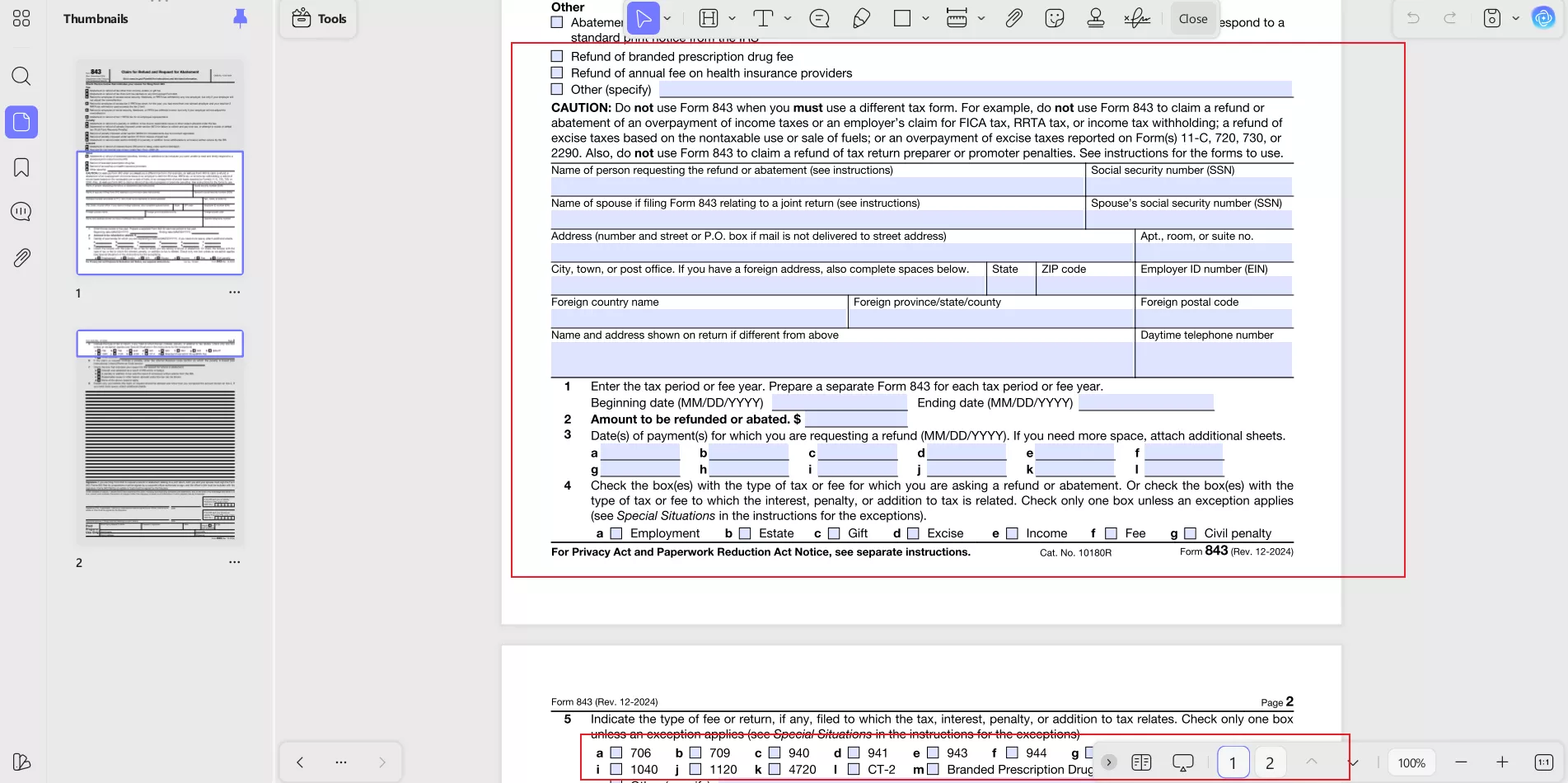
- Edit text fields and checkboxes without formatting issues
- Add my signature digitally, saving time
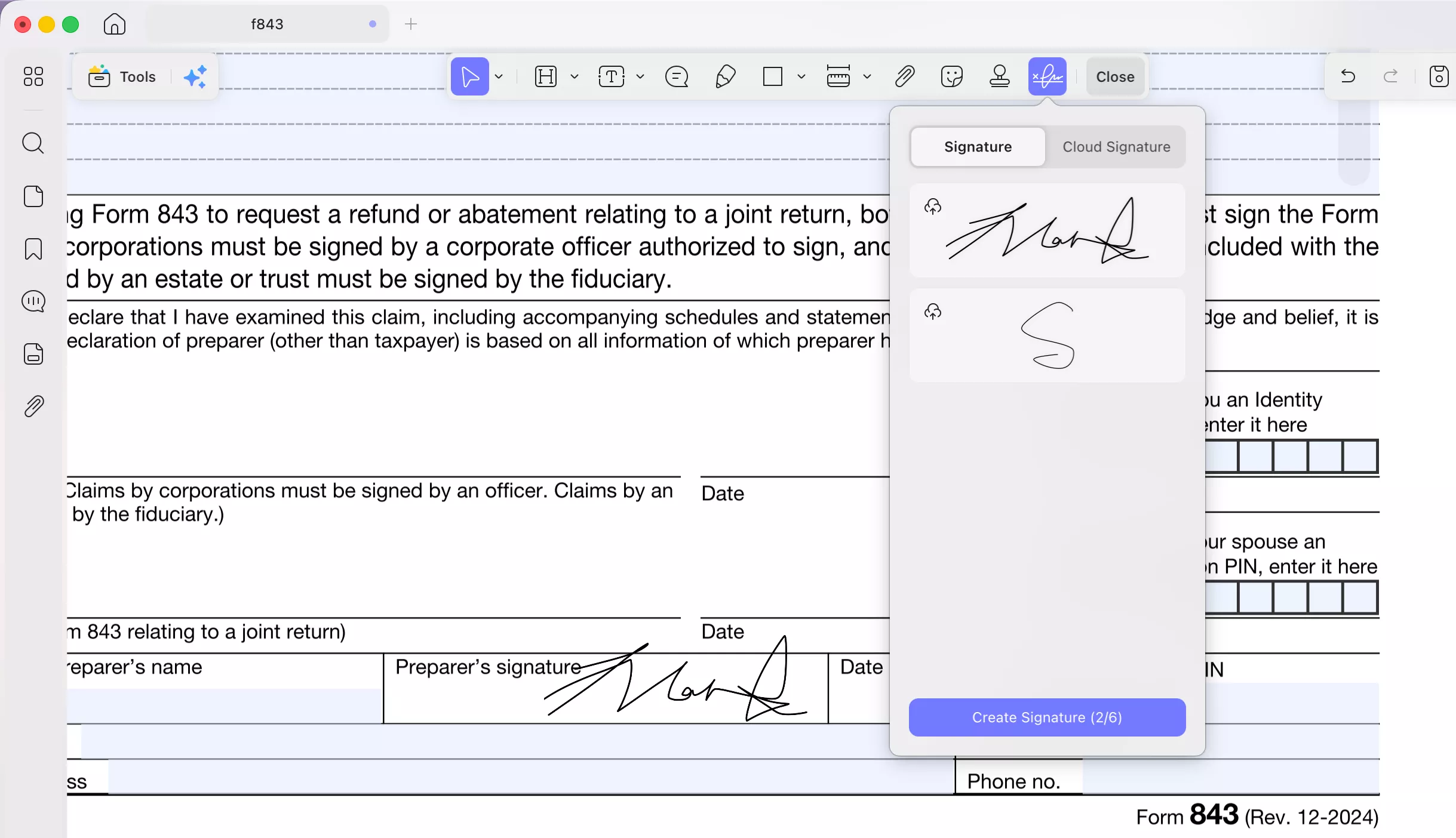
This avoids messy handwriting and ensures everything is filled out correctly.
Step 4: Submit Your Claim
After completing the form, I print and mail it to the appropriate IRS address listed in the instructions.
Make sure to:
- Include all supporting documents
- Keep a copy for your records
I usually save a PDF copy using UPDF and sync it to UPDF Cloud, so I can access it anytime across devices.
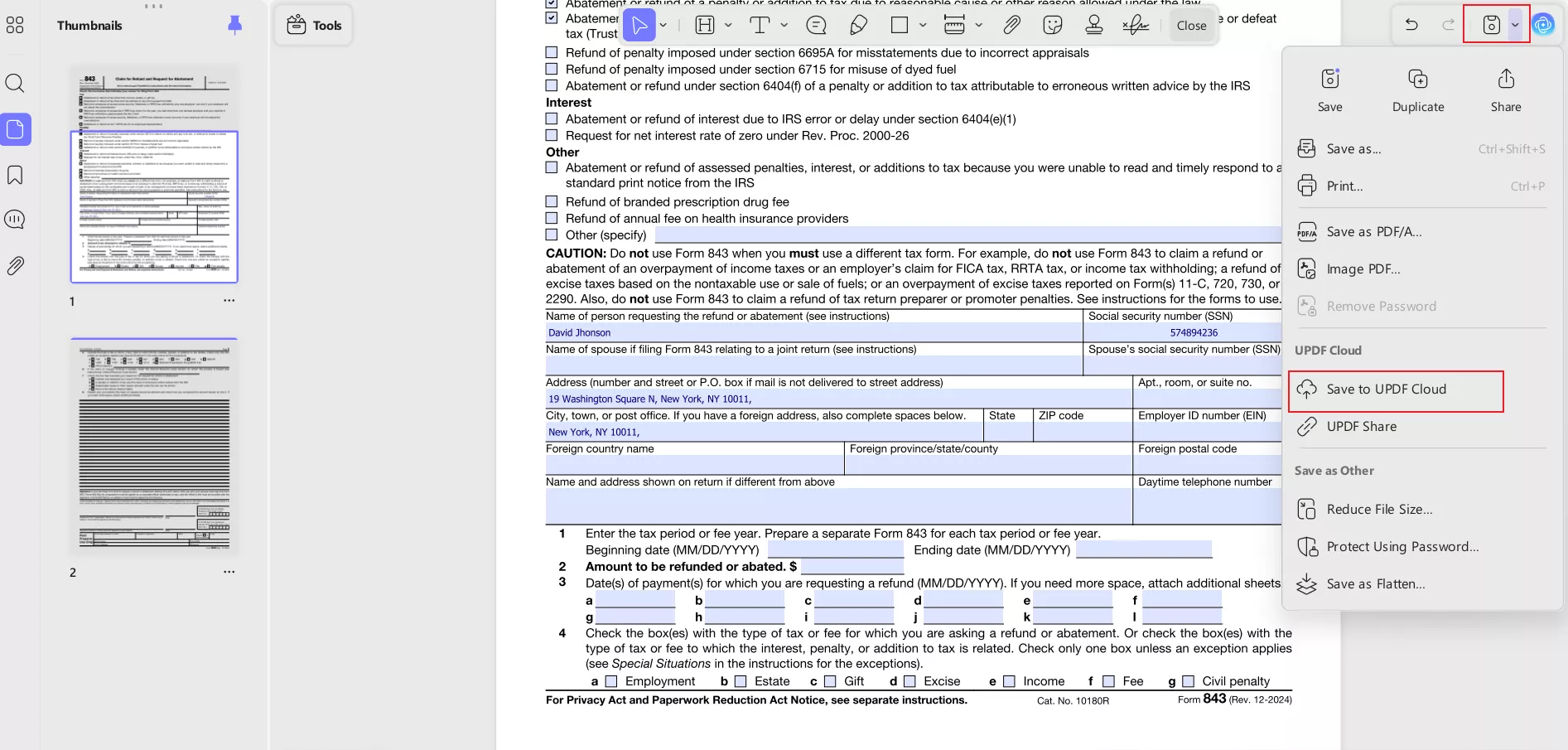
When I don’t have access to my laptop, I simply complete form 843 on my phone using UPDF. This is especially useful when I need to quickly apply for an irs pandemic penalty refund without delaying the process. The mobile experience is smooth and doesn’t require any technical setup.
Step 1: Download and Open the Form
Download the latest version of Form 843 from the IRS website. Now, open the file in the UPDF mobile app (Available on both iOS and Android)
Windows • macOS • iOS • Android 100% secure
Step 2: Start Filling the Form
Tap on any field to begin typing. UPDF automatically detects fillable fields. Enter your personal and tax details carefully.
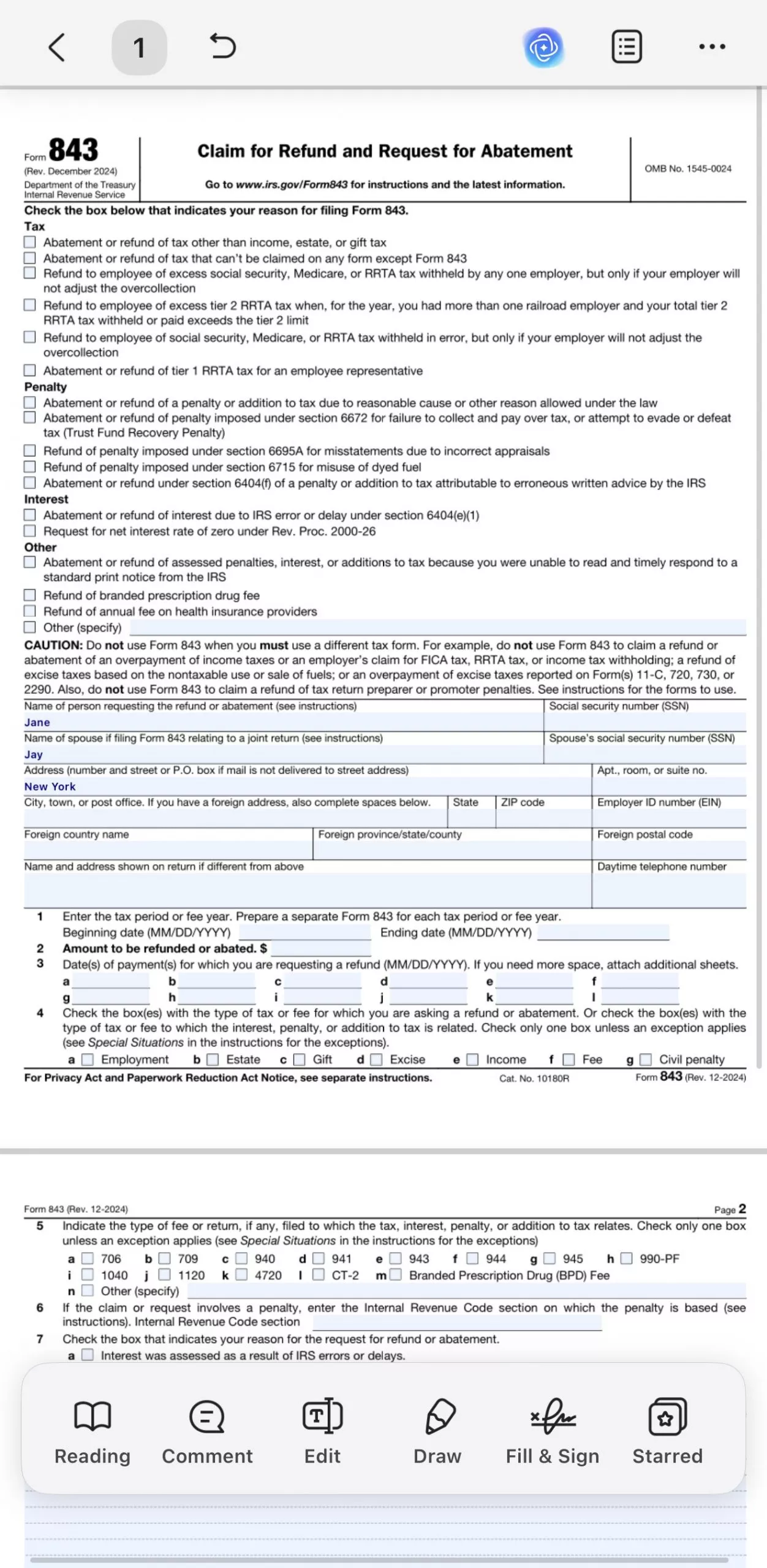
Step 3: Use Editing and Input Tools
Select checkboxes where required. Adjust text if needed. Once done, you can review all entries to ensure accuracy.
This helps avoid common mistakes that can delay your refund request.
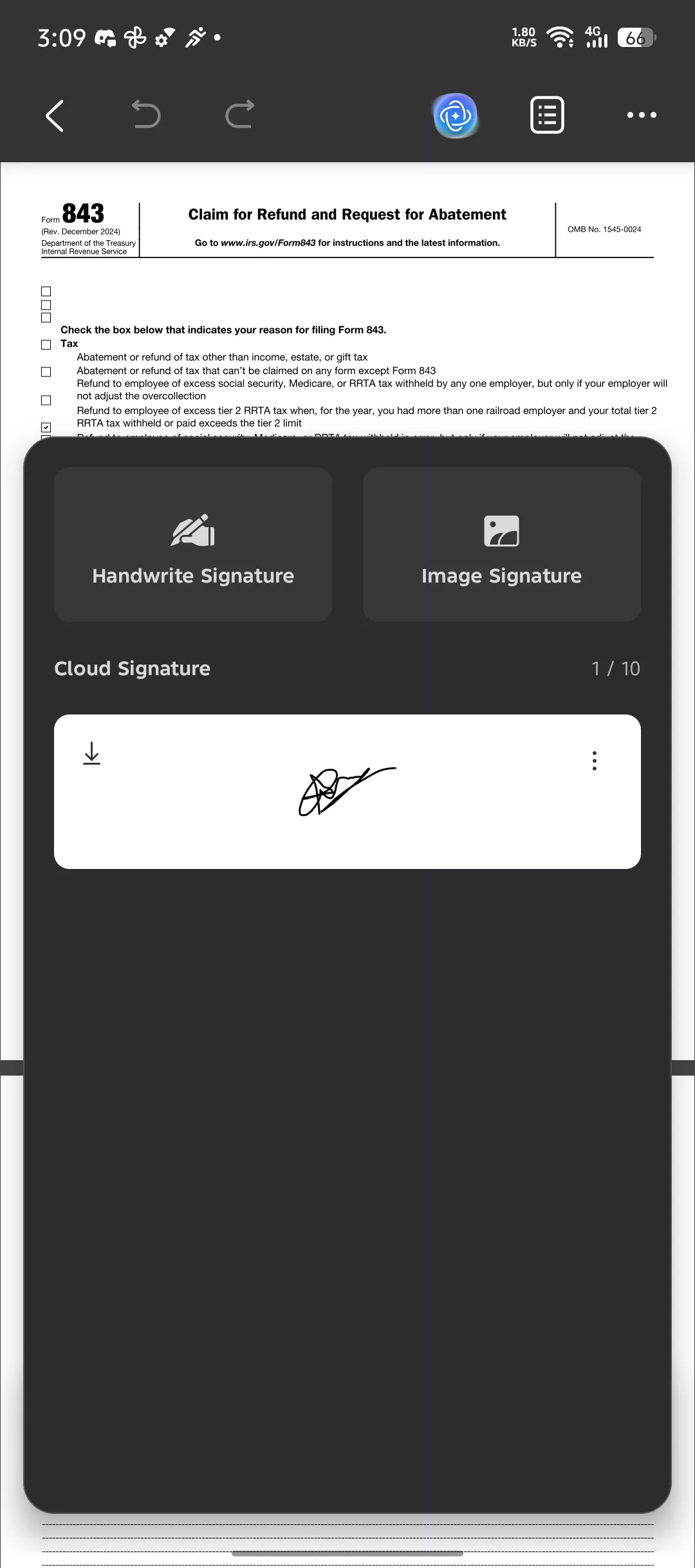
Step 4: Add Your Signature
Use the signature tool to sign directly on the screen. Place it in the required section of the form.
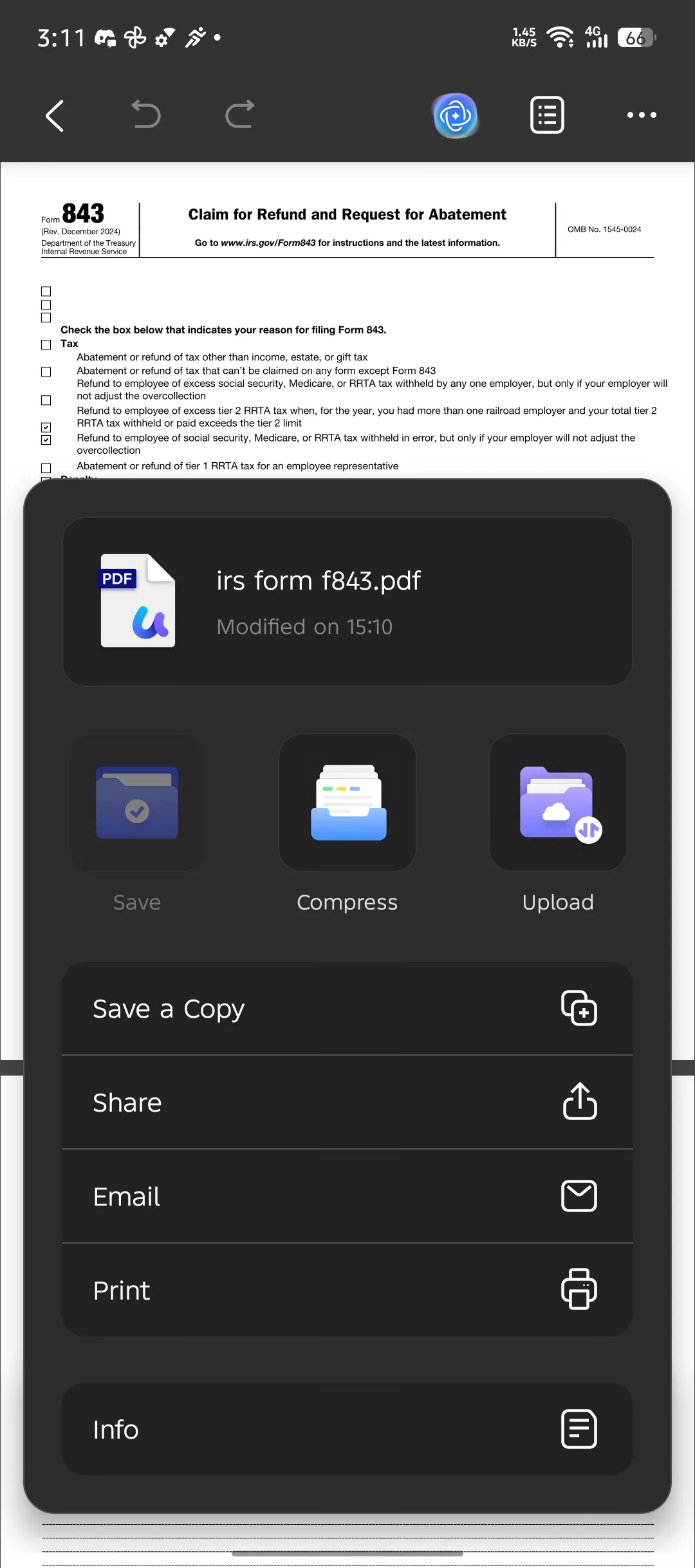
Step 5: Save and Sync the Document
Once all done, save the completed form as a PDF. Upload it to UPDF Cloud for backup. This way, you can also access it later from desktop if needed.
Windows • macOS • iOS • Android 100% secure
Step 6: Track Your Refund
Finally, I wait for processing. It typically takes 6–12 weeks for the IRS to review the claim.
You can track updates using the IRS “Where’s My Refund” tool. If there’s no update after the expected time, it’s a good idea to follow up.
By following these steps, claiming your refund becomes much more straightforward and less stressful.
Part 4. Manual vs. UPDF Form Filling: A Comparison
When I first worked on form 843, I tried filling it manually. It worked, but the process was slow and not very flexible. After switching to a digital workflow, I noticed a clear difference in efficiency and accuracy, especially when handling something like an irs pandemic penalty refund.
| Feature | Manual Paper Filling | UPDF Digital Form Filling |
| Field Detection | Manual identification | Automatic detection |
| Mobile Access | Not available | Full mobile support |
| Document Saving | Print or basic save | Cloud sync + encryption |
| Editing | Limited after printing | Unlimited edits |
| Best For | One-time use | Regular tax form handling |
With manual filling, I had to carefully locate each field, write everything by hand, and reprint the form if I made a mistake. There’s very little room for correction, which can be frustrating when dealing with detailed forms.
On the other hand, UPDF simplifies the process by automatically detecting fields and allowing me to fill them digitally. I can edit anytime, save securely, and even access the document across devices. This becomes especially useful if you’re handling multiple forms or making updates.
From a practical standpoint, manual filling may still work for one-time use. However, for better accuracy, flexibility, and long-term convenience, I find digital form filling with UPDF to be a more reliable option.
Windows • macOS • iOS • Android 100% secure
Part 5. FAQs
1. Can I File Form 843 Electronically?
No, form 843cannot be filed electronically. The IRS currently requires this form to be printed, completed, and mailed to the appropriate address. Make sure all details are accurate before submitting to avoid delays.
2. Can I Still File My 2019 Taxes and Get a Refund in 2024?
In most cases, the IRS allows a three-year window to claim refunds. For 2019 taxes, the deadline was typically in 2023. However, certain exceptions may apply, so it’s best to check directly with the IRS if you believe you still qualify.
3. Is UPDF Secure for Handling Tax Documents?
Yes, UPDF is designed with security in mind. It offers encrypted storage and secure cloud sync, which helps protect sensitive documents like those related to your irs pandemic refund. This makes it a reliable option for managing tax forms digitally.
Windows • macOS • iOS • Android 100% secure
Final Thoughts!
Claiming your irs pandemic penalty refund may seem complicated at first, but once you understand the process, it becomes much more manageable. From checking your eligibility to completing form 843 correctly, each step plays an important role in ensuring you receive what you’re entitled to. The key is to stay organized, avoid common mistakes, and follow the right approach when submitting your claim.
From my experience, using a digital tool like UPDF makes the process smoother and more accurate. Instead of dealing with manual errors or reprinting forms, I can fill, edit, sign, and store everything in one place. If you’re planning to claim your refund or handle similar tax documents in the future, I’d recommend giving UPDF a try for a more efficient workflow.
Windows • macOS • iOS • Android 100% secure







 Enola Davis
 Enola Miller