 UPDF
 UPDF for Windows
 UPDF for Mac
 UPDF for iPhone/iPad
 UPDF for Android
 Nomostar
 UPDF AI Online
 UPDF Sign
 IvyCraft
 Edit PDF
 Annotate PDF
 Create PDF
 PDF Form
 Edit links
 Convert PDF
 OCR
 PDF to Word
 PDF to Image
 PDF to Excel
 Organize PDF
 Merge PDF
 Split PDF
 Crop PDF
 Rotate PDF
 Protect PDF
 Sign PDF
 Redact PDF
 Sanitize PDF
 Remove Security
 Read PDF
 UPDF Cloud
 Compress PDF
 Print PDF
 Batch Process

 About UPDF AI
 UPDF AI Solutions
 AI User Guide
 FAQ about UPDF AI
 Summarize PDF
 Translate PDF
 Chat with PDF
 Chat with AI
 Chat with image
 PDF to Mind Map
 Explain PDF
 PDF AI Tools
 Image AI Tools
 AI Chat Tools
 AI Writing Tools
 AI Study Tools
 AI Working Tools
 Other AI Tools
 AI Bookmark Generation
 AI Bookmark Summary
 AI Watermark Generation
 AI Background Generation
 AI Sticker Generation
 AI Stamp Generation
 AI Editing Suite
 UPDF Copilot
 AI Page Management
 AI Semantic Search
 PDF to Word
 PDF to Excel
 PDF to PowerPoint
 Enterprise Solution
 Enterprise Sign
 Enterprise AI
 Enterprise Plan
 Enterprise User Guide
 Enterprise Webinar
 IT
 Education
 Construction
 Financial Service
 Healthcare
 Insurance
 Legal
 Manufacturing
 Government
 Researchers & PhDs
 Solopreneurs & Freelancers
 Lawyers & Legal Professionals
 Real Estate Agents & Brokers
 Education Solution
 Customer Stories
 User Guide
 UPDF Tricks
 FAQs
 UPDF Reviews
 Download Center
 Blog
 Newsroom
 Tech Spec
 Updates
 UPDF vs. Adobe Acrobat
 UPDF vs. Foxit
 UPDF vs. PDF Expert


Quick answer:
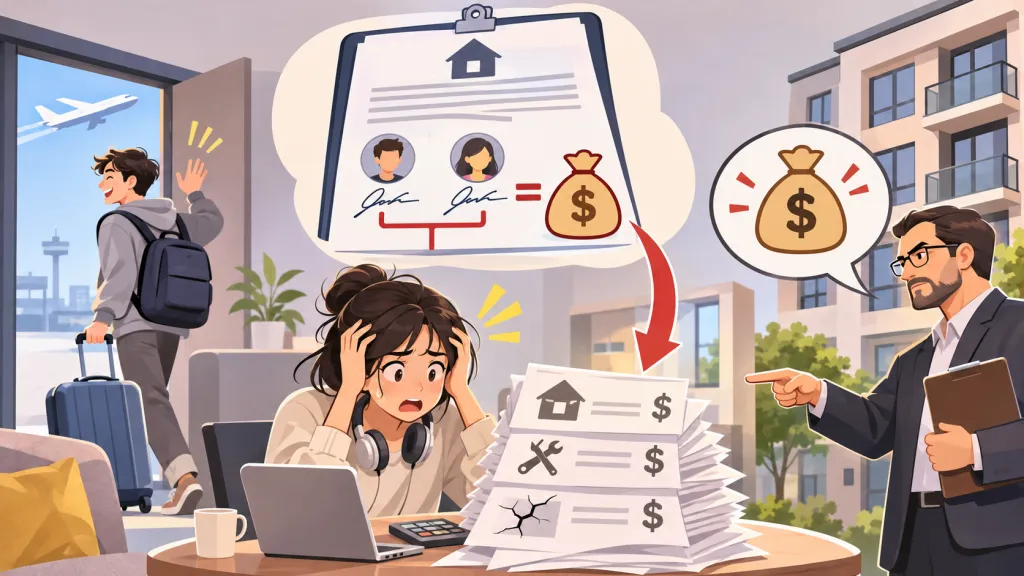
A $4,000 apartment. Two roommates. $2,000 each.
The arithmetic feels settled before anyone reads the lease.
Then someone stops paying.
Some tenants pay their share of the rent on time, only to be asked to cover the unpaid balance when a roommate stops paying.
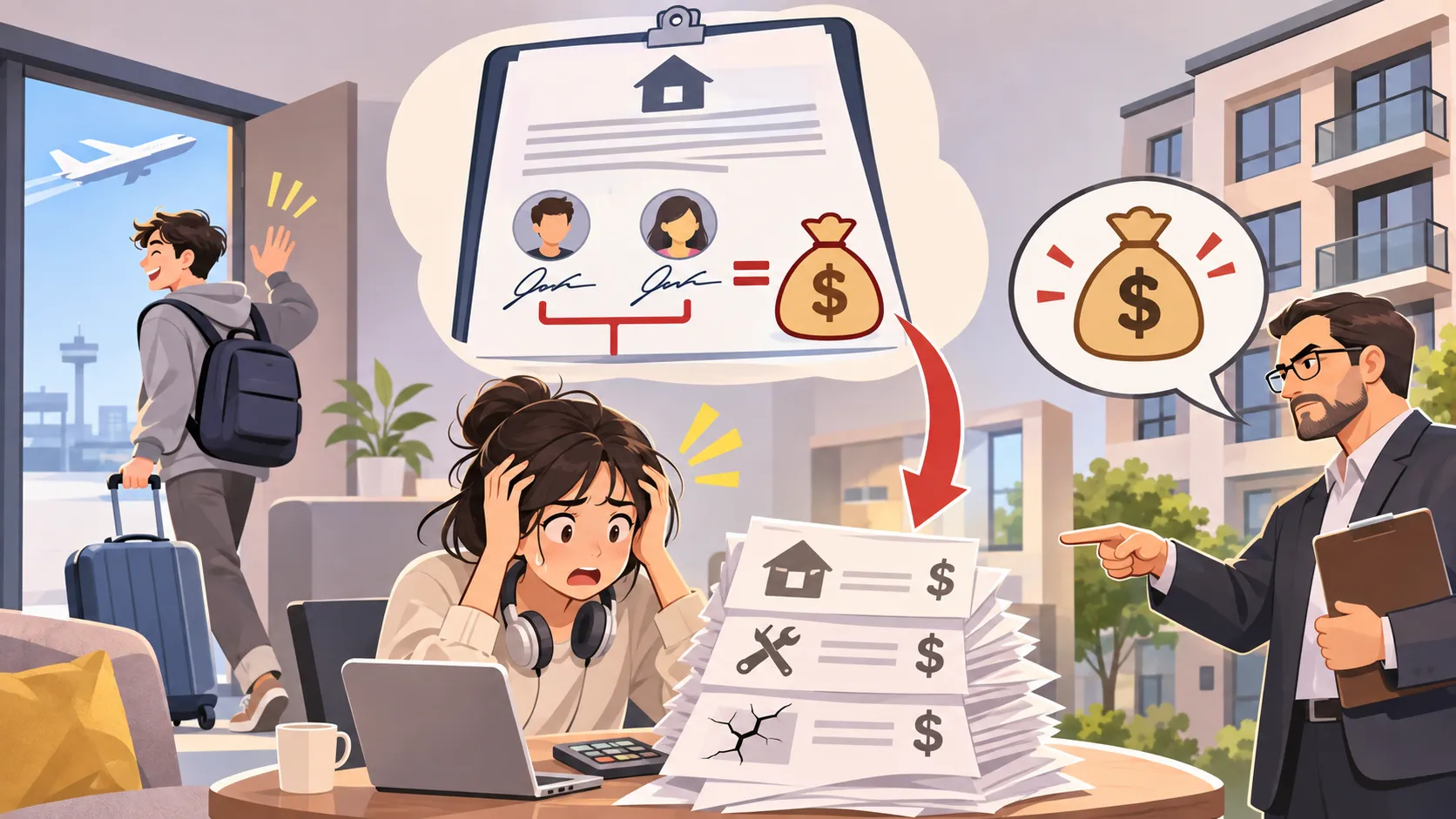
The phrase that made me pause was Joint and Several Liability.
That phrase can change what “my share” means. The rent split you budgeted for and the obligation you signed can be different things.
Before signing, I would want to know how much I could still owe if my roommate stopped paying. That is the question to settle before deciding what changes to ask the landlord for.
Part 1. What joint and several liability means for your rent
A Joint and Several Obligations clause makes multiple people or entities on the same side of a contract responsible together and individually for that side’s obligations. Each member may be required to fulfill the entire obligation. The lease’s wording determines which people and obligations are covered.
For co-tenants, the practical concern is exposure beyond the amount each person planned to contribute. UC Berkeley Student Legal Services’ roommate agreement form explains that a roommate under joint and several rent liability can be responsible to the landlord for the full rent if the others fail to pay.
With monthly rent of $4,000, paying your $2,000 share may still leave you responsible for the remaining unpaid balance. The lease and applicable law determine the outcome.
To understand your exposure, read the co-tenancy, rent payment, and default provisions together. Open the lease in UPDF and use Contract Assistant to help identify the relevant clauses and explain the risks, then check its response against the original wording.
Windows • macOS • iOS • Android 100% secure
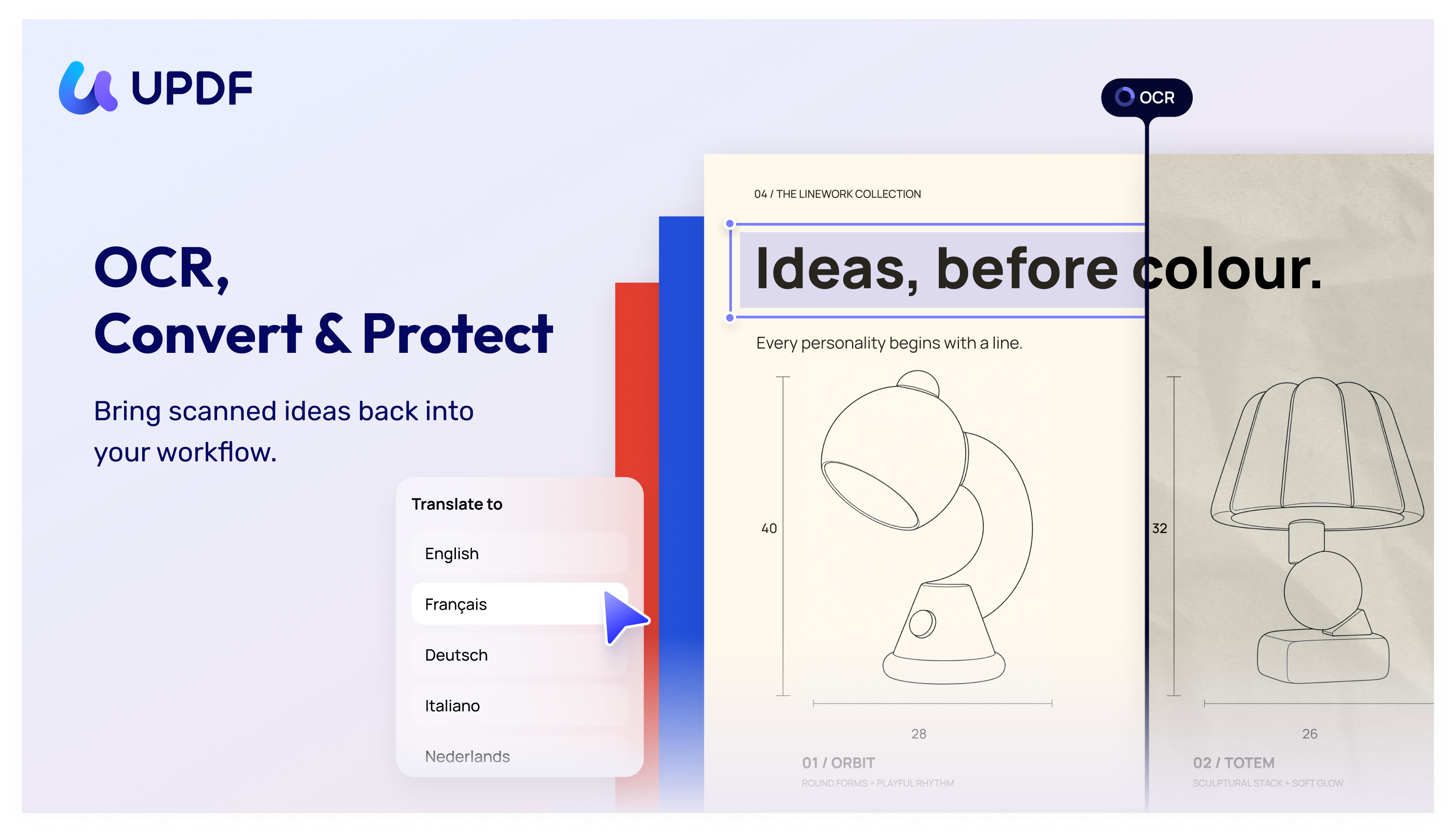
Part 2. If the lease is a scan, make the words editable first
Some contracts look like text until you try to select a sentence. Drag across the clause. If no words highlight, the page may be an image-only scan.
For this workflow, UPDF OCR prepares text for review and later editing. If your PDF already has usable, editable text, continue to the AI review.
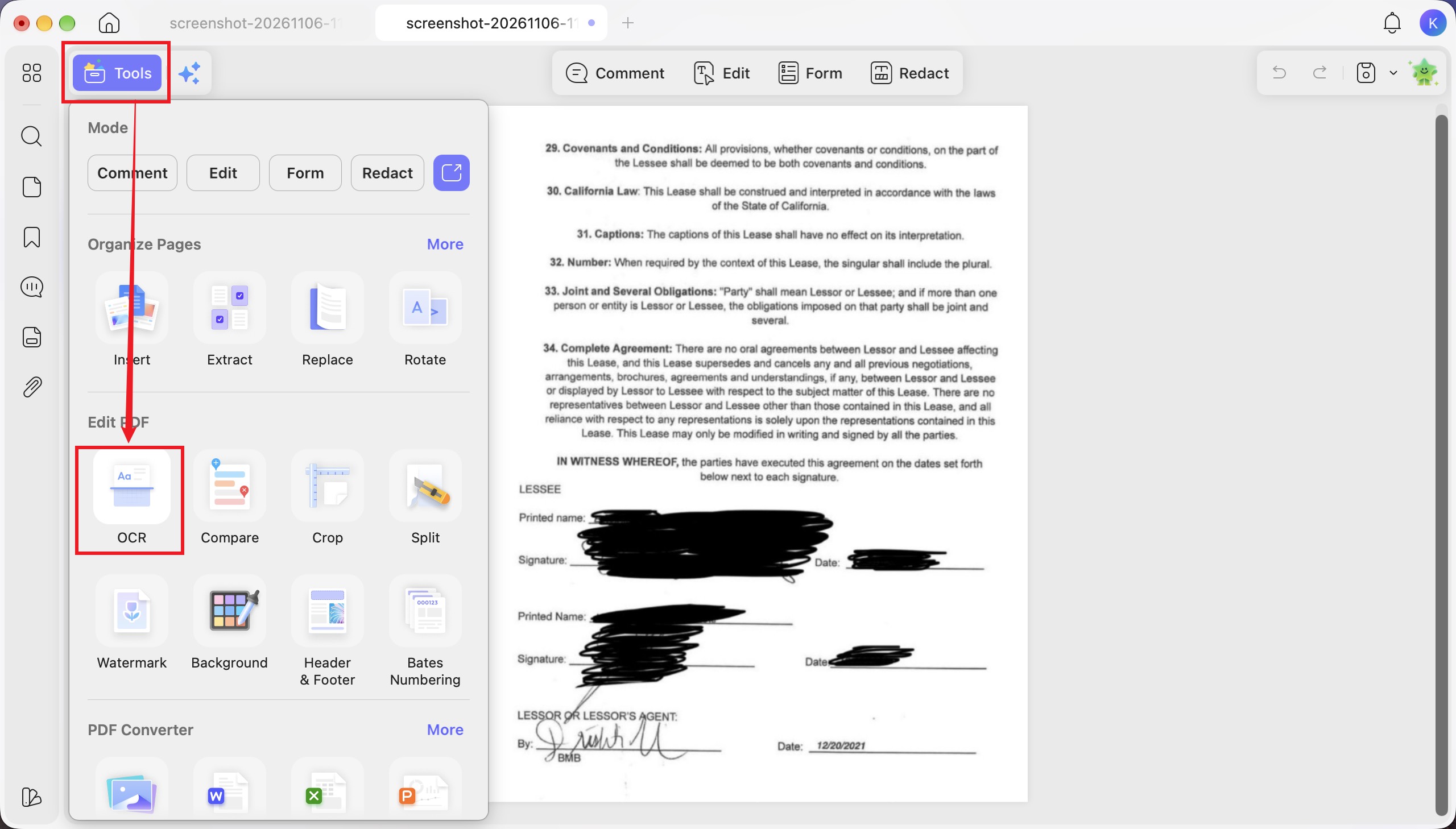
Step 1. Open the scanned PDF and choose Tools > OCR.
Step 2. Select Editable PDF (Dual-layer OCR), choose the document language and page range, and click Perform OCR.
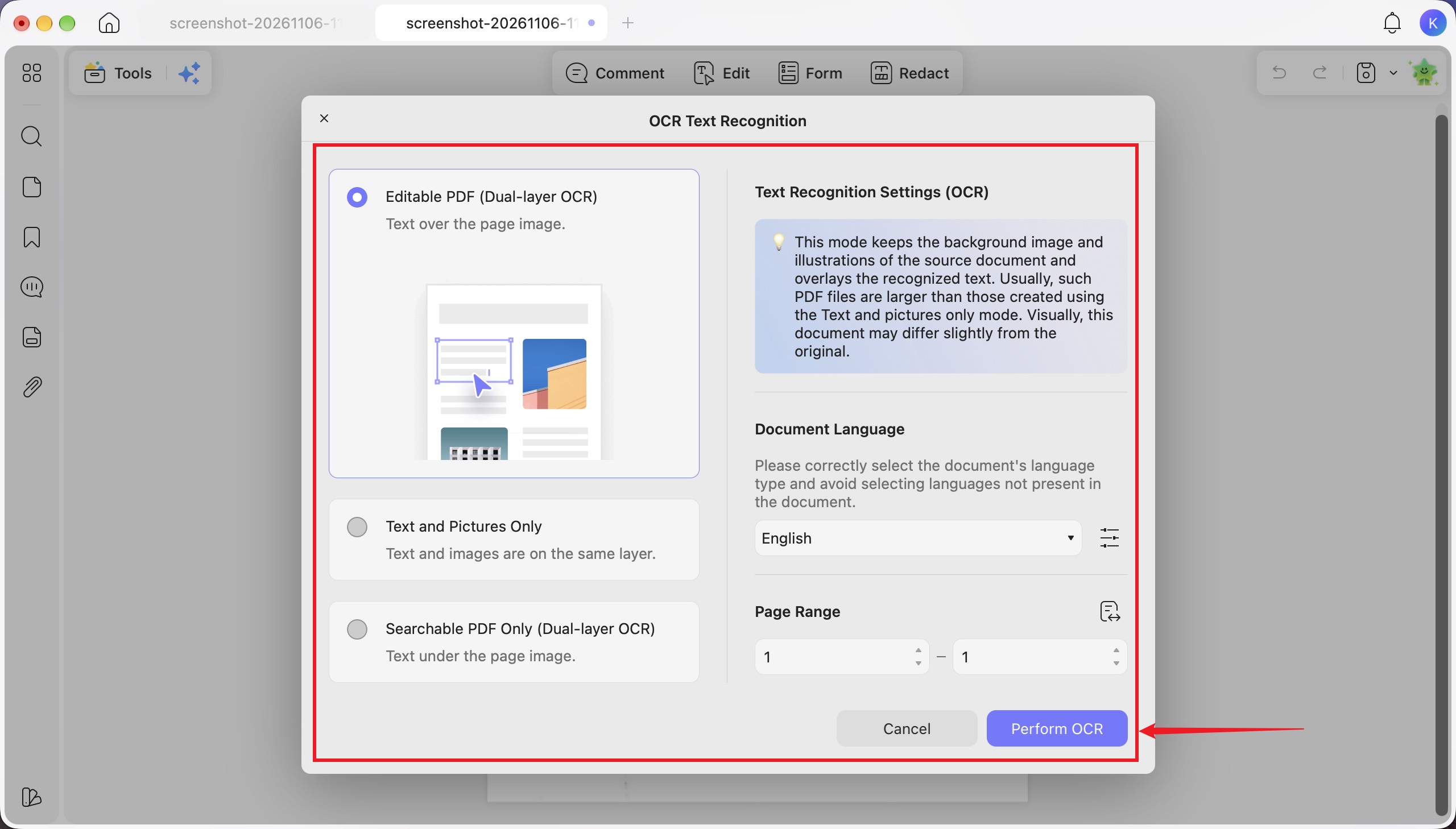
Use the editable output for the later revision step. Searchable PDF Only adds searchable text beneath the page image; it serves a different purpose from making the visible clause editable.
On Mac, dedicated OCR requires an Apple Silicon Mac and the official-website version of UPDF.
Step 3. Open the OCR result and check the clause against the scan.
Read names, amounts, dates, and words such as “not” carefully. Keep the untouched scan, and save an unedited OCR copy as your working baseline before changing any wording.
Use the full lease, including relevant schedules and addenda, so the review can account for definitions and exceptions elsewhere in the agreement.
Part 3. Ask what the clause could mean for you
A summary can tell you that the lease contains a joint and several obligation. A risk review goes further: what exposure deserves attention?
Step 4. Click UPDF AI and enter Ask PDF mode.
If prompted, click Chat with PDF to begin document analysis.
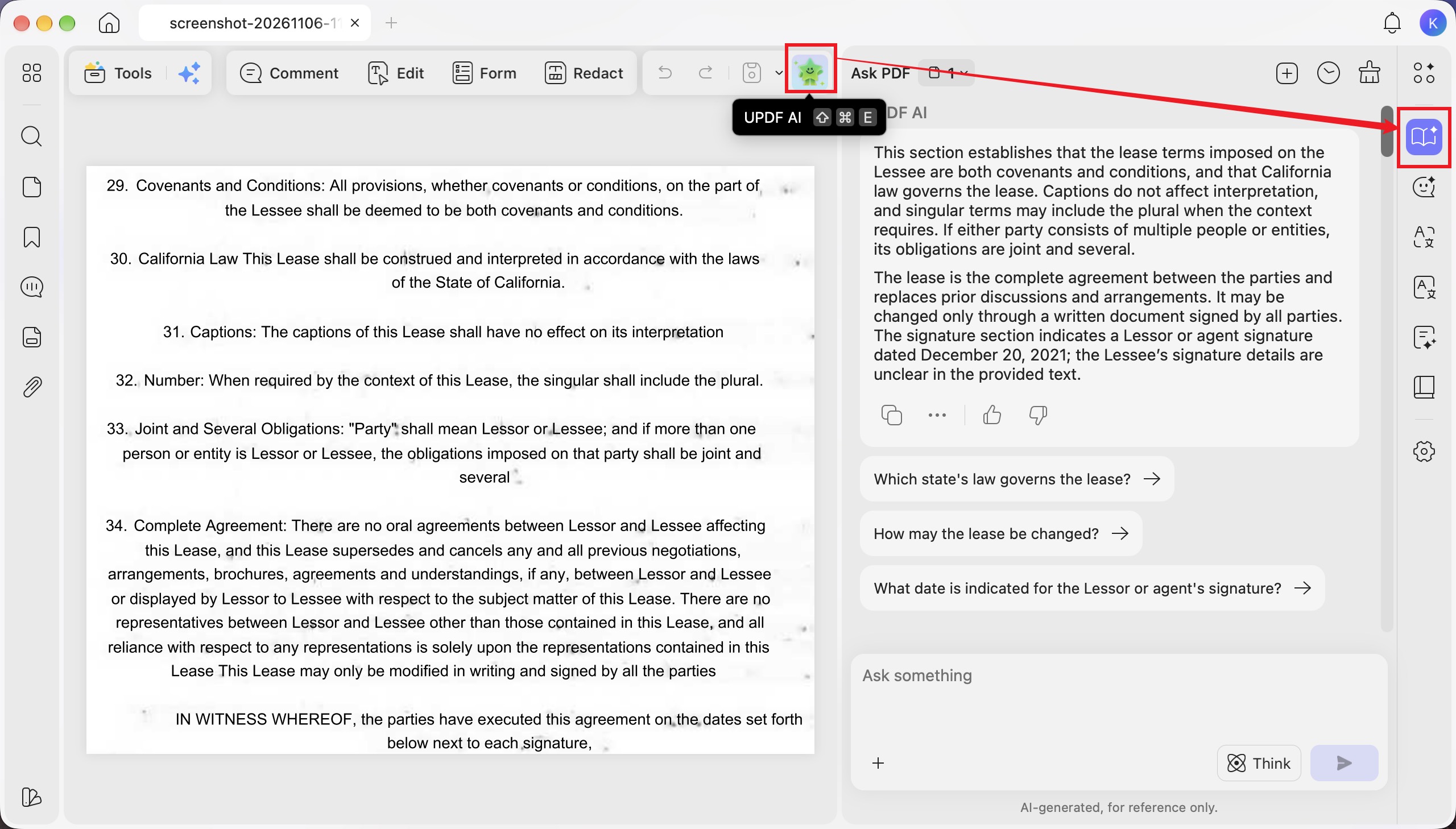
Step 5. Click the + button in the chat box, then choose Contract Assistant > Contract Risks.
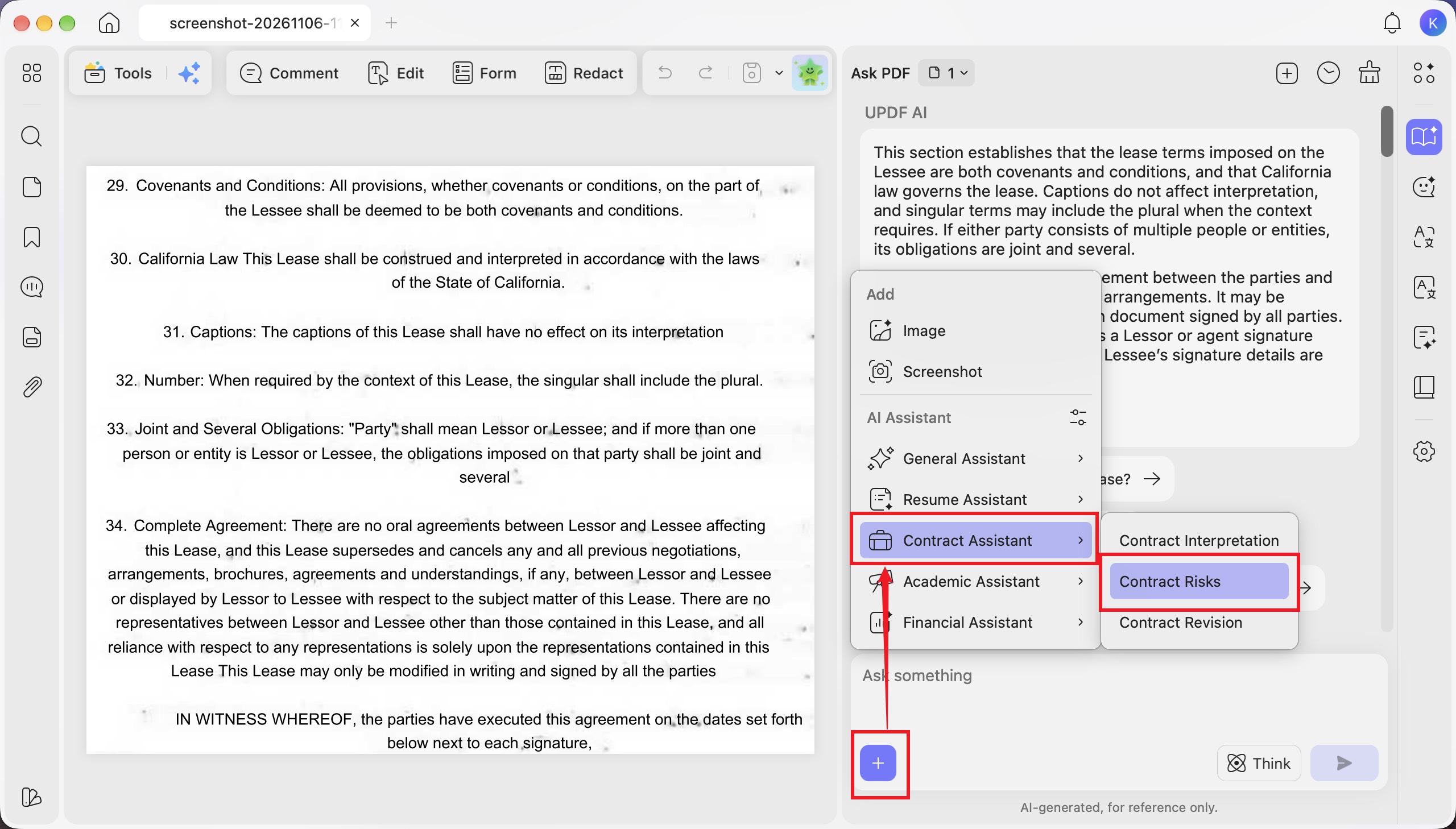
In the example, the report flags Joint and Several Obligations for Multiple Lessees. It explains that a lessee could face responsibility for another lessee’s unpaid rent, damages, or defaults.
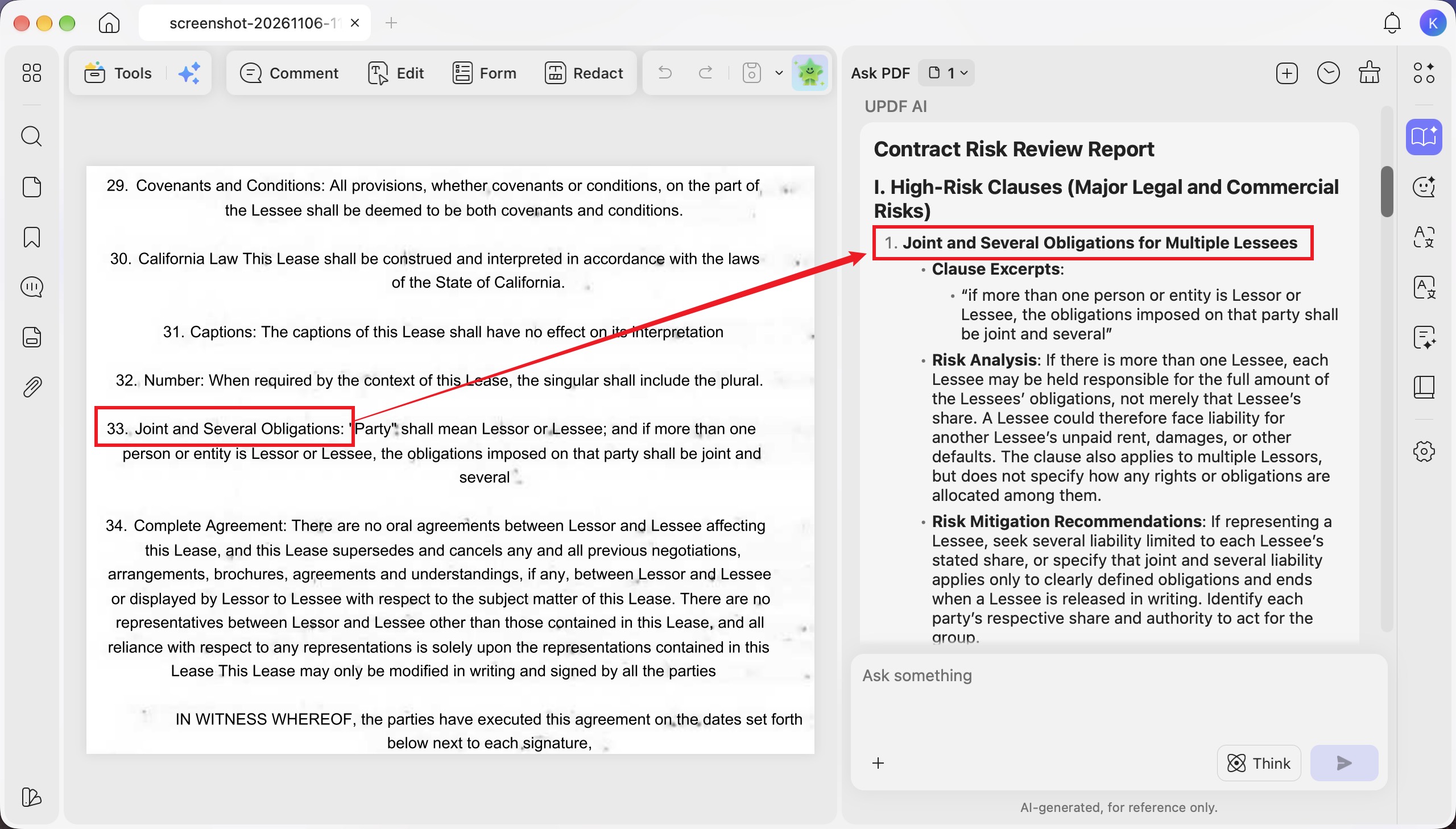
The useful part is the connection between the original wording and a concrete consequence. You have something specific to ask about before signing.
A follow-up question could be:
Review this lease from the prospective tenant’s perspective. For clause 33, explain whether paying my agreed share would still leave me exposed to another tenant’s unpaid rent or damage. Identify related provisions elsewhere in the document and distinguish what the text says from anything that needs local legal advice.
To examine that connection on a contract you are allowed to upload, start with a copy.
Download UPDF for free to try the review workflow—installation is free, and Pro removes the trial watermark from exported files.
Windows • macOS • iOS • Android 100% secure
Part 4. Ask for revisions, with a clear outcome in mind
Finding a risk raises another question: what should the wording do instead?
Step 6. Open + > Contract Assistant > Contract Revision.
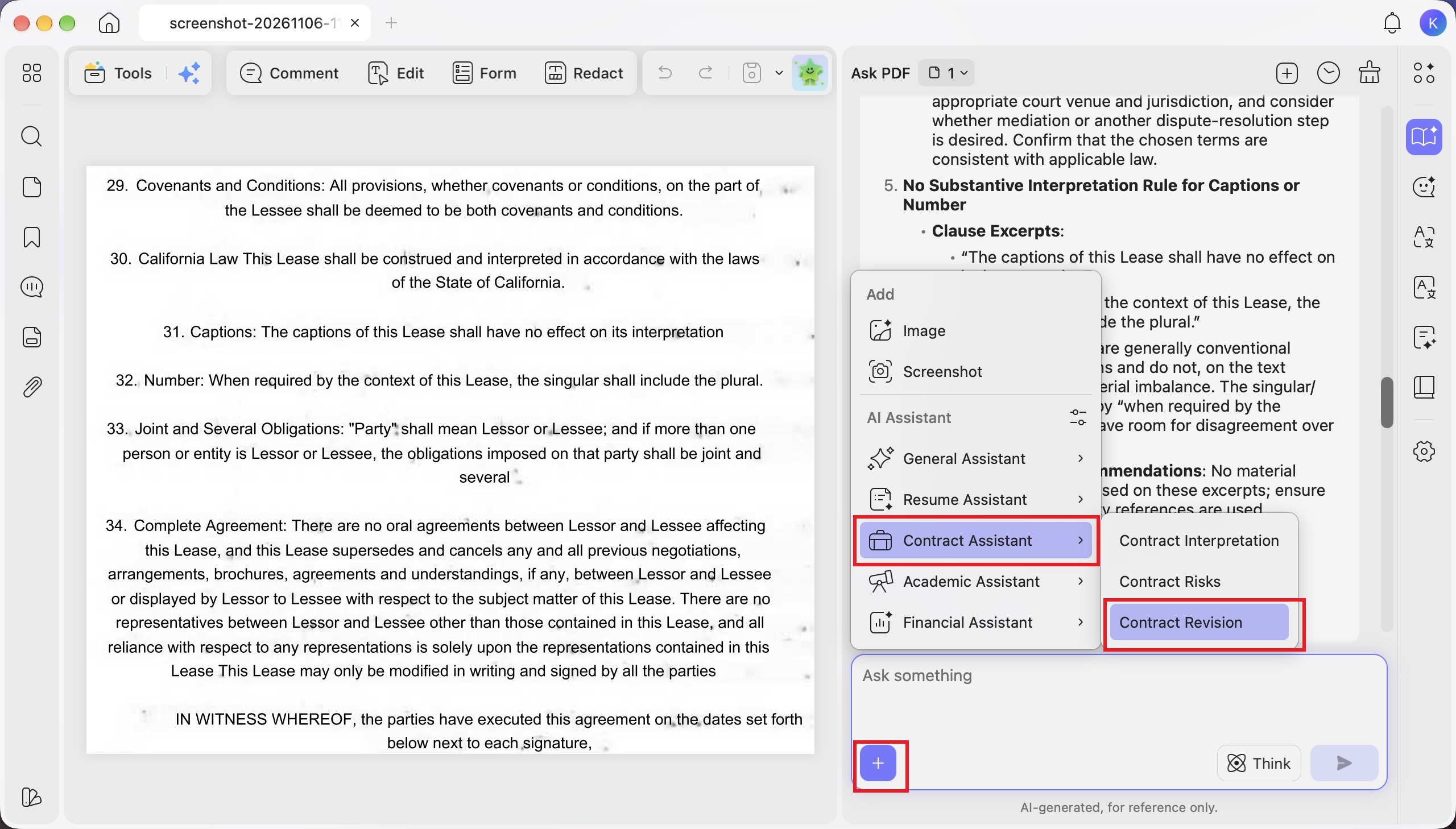
Read the proposed clause alongside the original and the explanation.
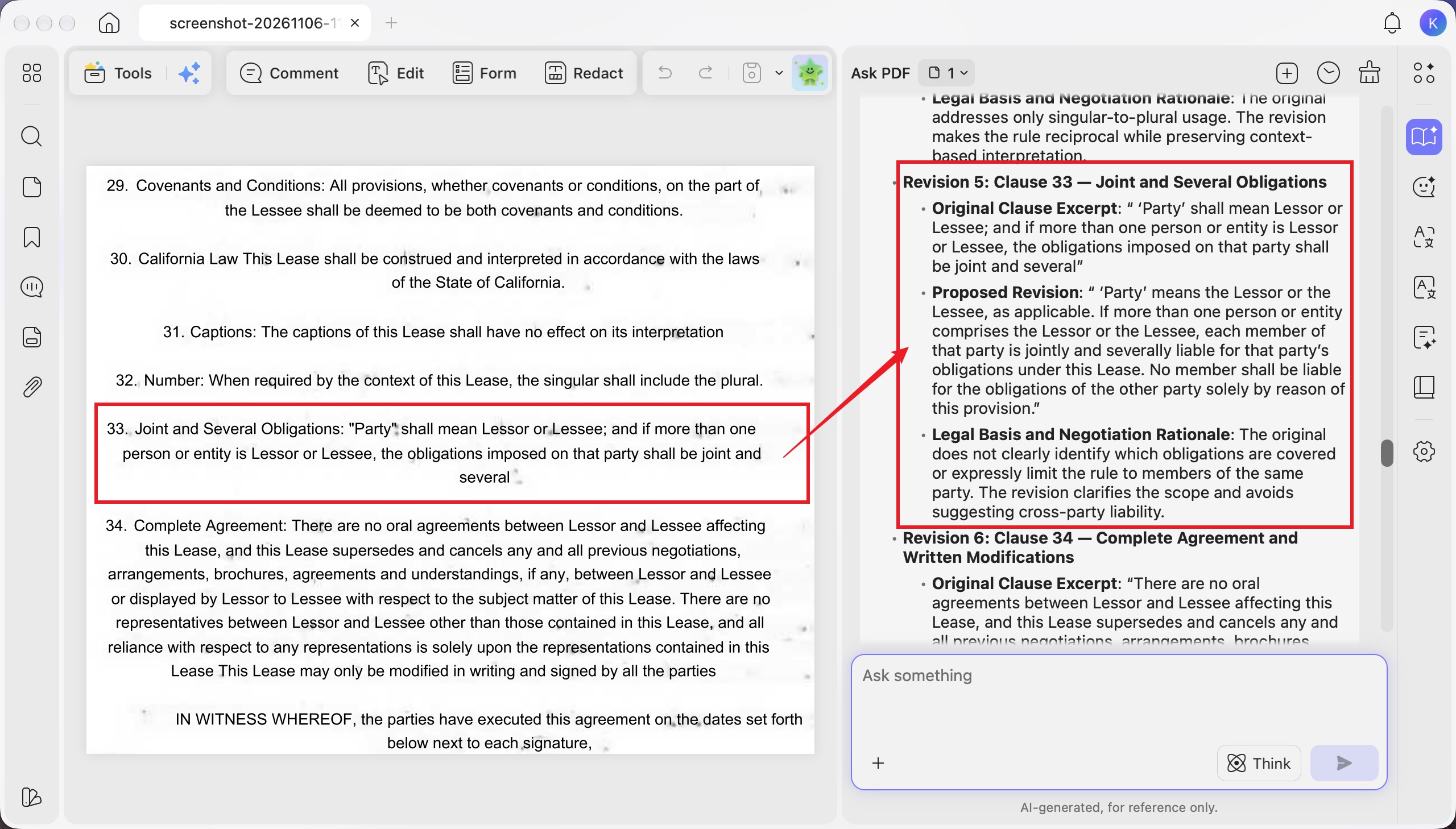
Here, the proposed revision clarifies which party’s obligations apply. It expressly says that a member is not responsible for the other contracting party’s obligations solely because of this provision.
The proposal still says “jointly and severally liable.”
That matters. A co-tenant remains a member of the Lessee side. Clarifying that tenants are not responsible for the landlord’s obligations does not cap each tenant’s exposure to their own rent share.
I would check the suggestion against the goal:
| What you want to achieve | What to check in the proposal |
|---|---|
| Clarify who owes which obligations | Does the clause distinguish the Lessor and Lessee sides? |
| Limit each tenant to a defined rent share | Does the wording actually replace or limit joint and several rent liability? |
| Address departure or replacement | Does the lease specify when liability ends and what written approval is required? |
If the goal is a different allocation of rent liability, make that request explicit:
Draft a tenant-side negotiation proposal for clause 33 that limits each named tenant’s rent liability to the amount expressly allocated to that tenant, instead of retaining joint and several rent liability. Use placeholders for missing names and amounts. Address damage responsibility separately, identify conflicting lease provisions, and flag issues requiring local legal review. Do not assume the landlord will accept the proposal.
This gives the assistant a defined drafting task. Review the response with a tenant adviser or lawyer before proposing it to the landlord.
Part 5. Put the proposed wording into a separate draft
The next step is preparing a document for discussion.
Step 7. Click Edit in the top toolbar.
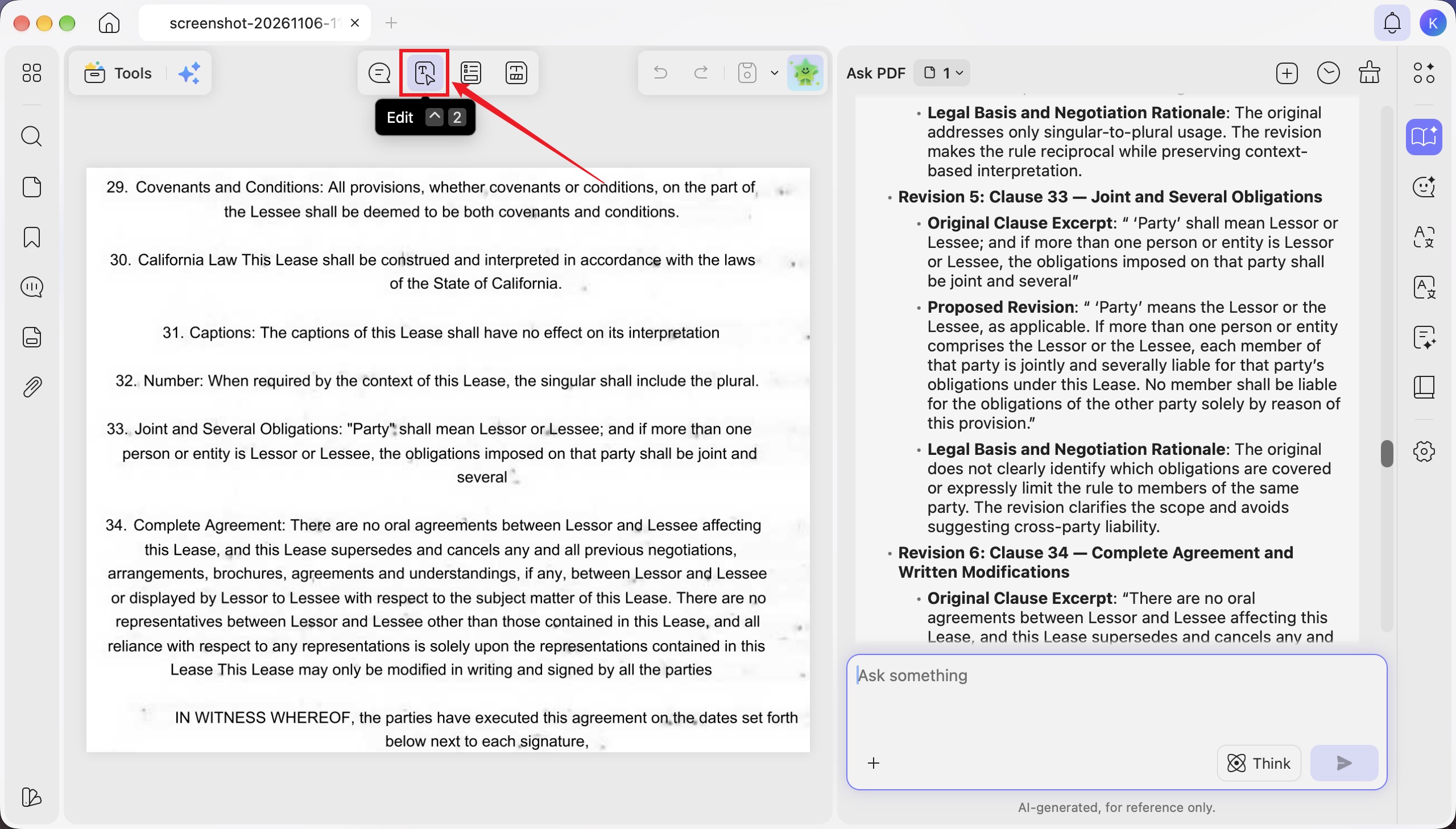
Step 8. Select the clause’s text box and replace the wording with the proposal you have chosen to review.
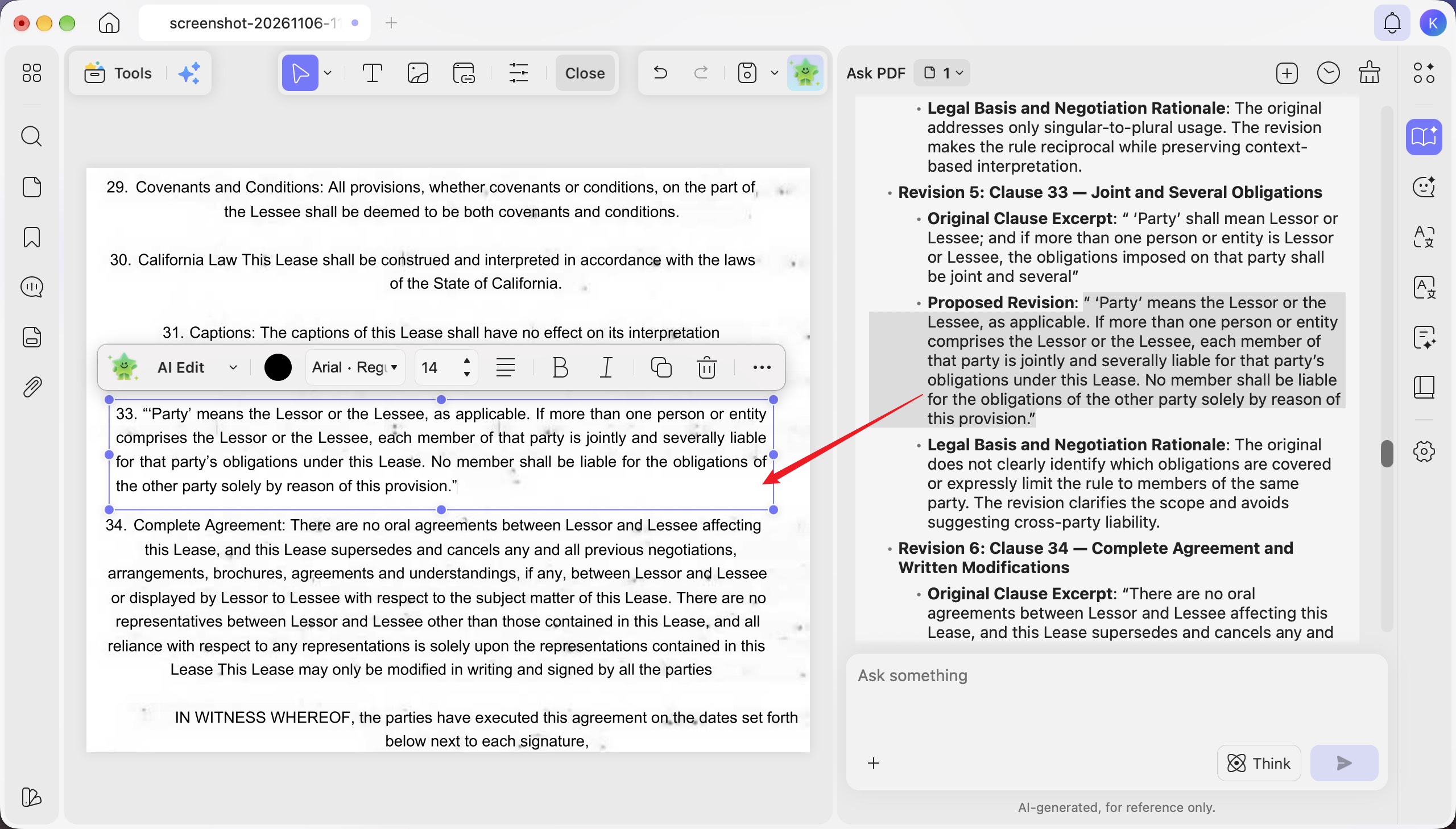
The example pastes the AI’s clarification into clause 33. Remember that this particular wording retains joint and several liability. Check the clause heading, numbering, quotation marks, and spacing after pasting, especially when a longer paragraph replaces a shorter one.
Step 9. Open the save drop-down and choose Save as… to create a separate PDF.
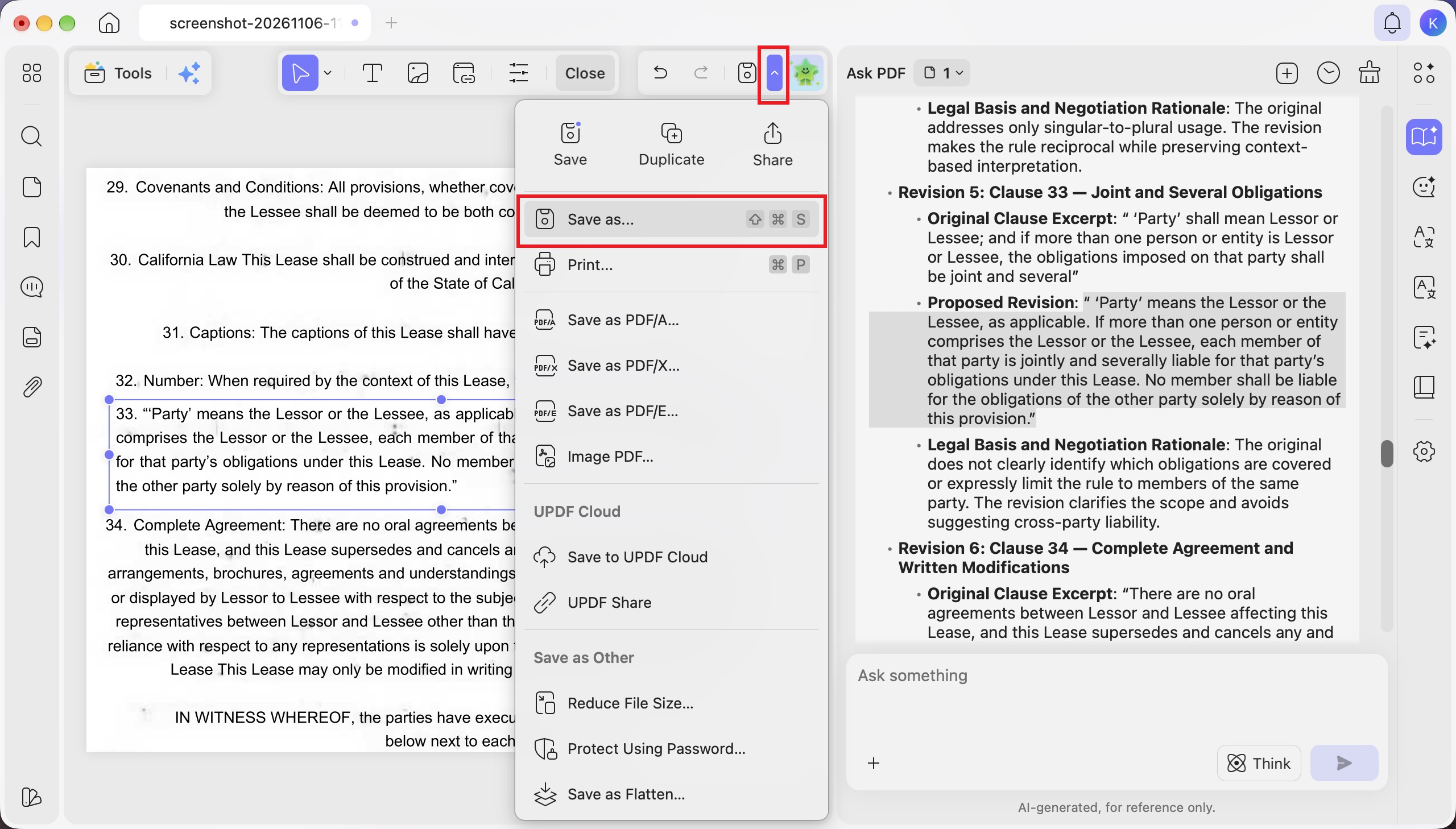
A name such as lease-proposed-revisions.pdf makes the document’s status clear. Keep the received original and unedited OCR baseline separately.
For preparing a readable proposal, you can work on a copy before circulating changes.
Download UPDF for free to try editing a clause in a separate draft—installation is free, and Pro removes the trial watermark from exported files.
Windows • macOS • iOS • Android 100% secure
Part 6. When the contract comes back, compare the files
“Only that clause changed.”
I would still want to check the returned PDF against the version I had reviewed.
UPDF’s comparison workflow is useful for checking your own edits and another party’s returned draft. You need both versions. Comparison shows differences between those files; it does not establish who made them or when.
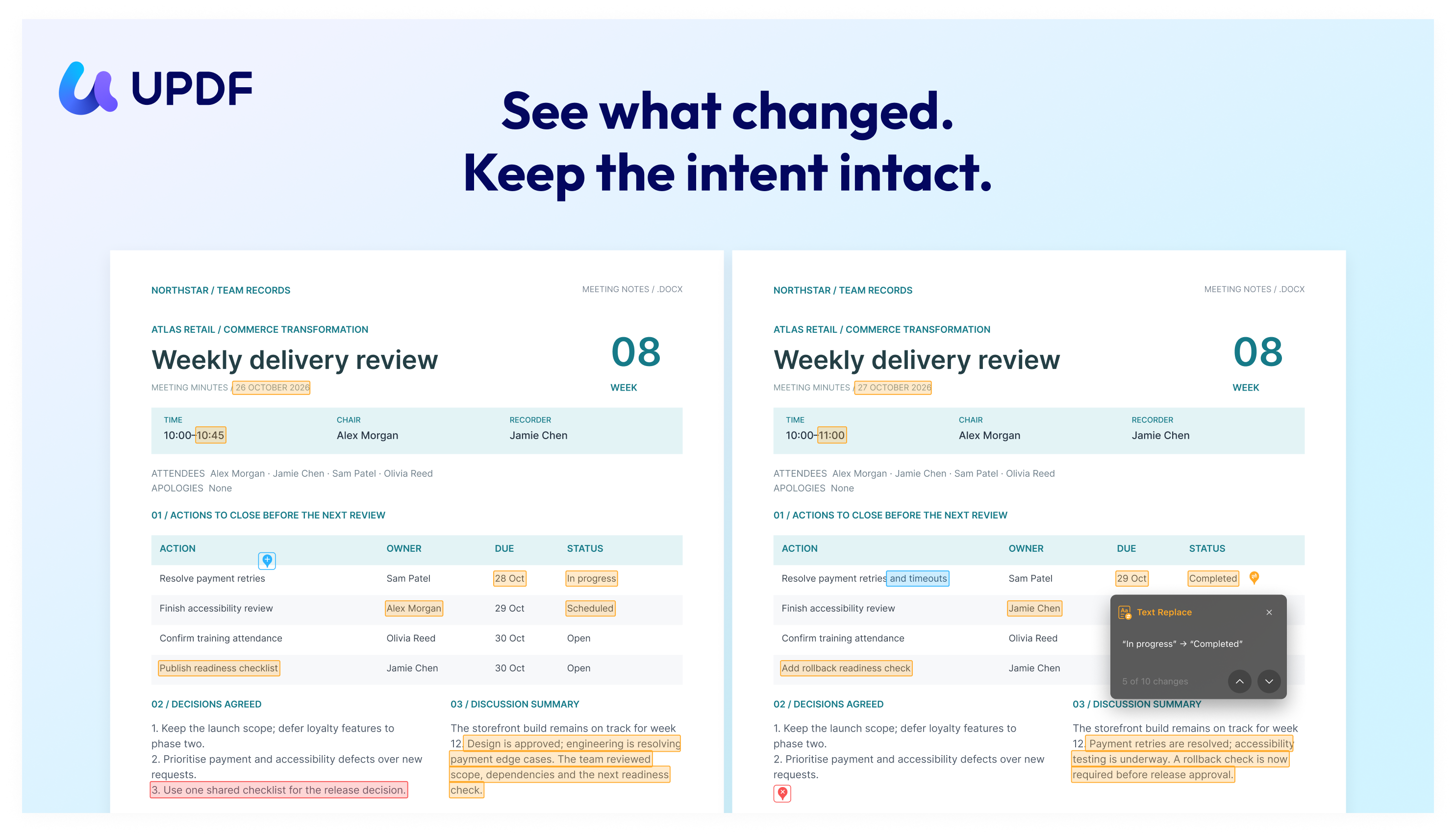
Plan note: free accounts can see the difference count but cannot open detailed comparison results. The detailed review shown below requires UPDF Pro.
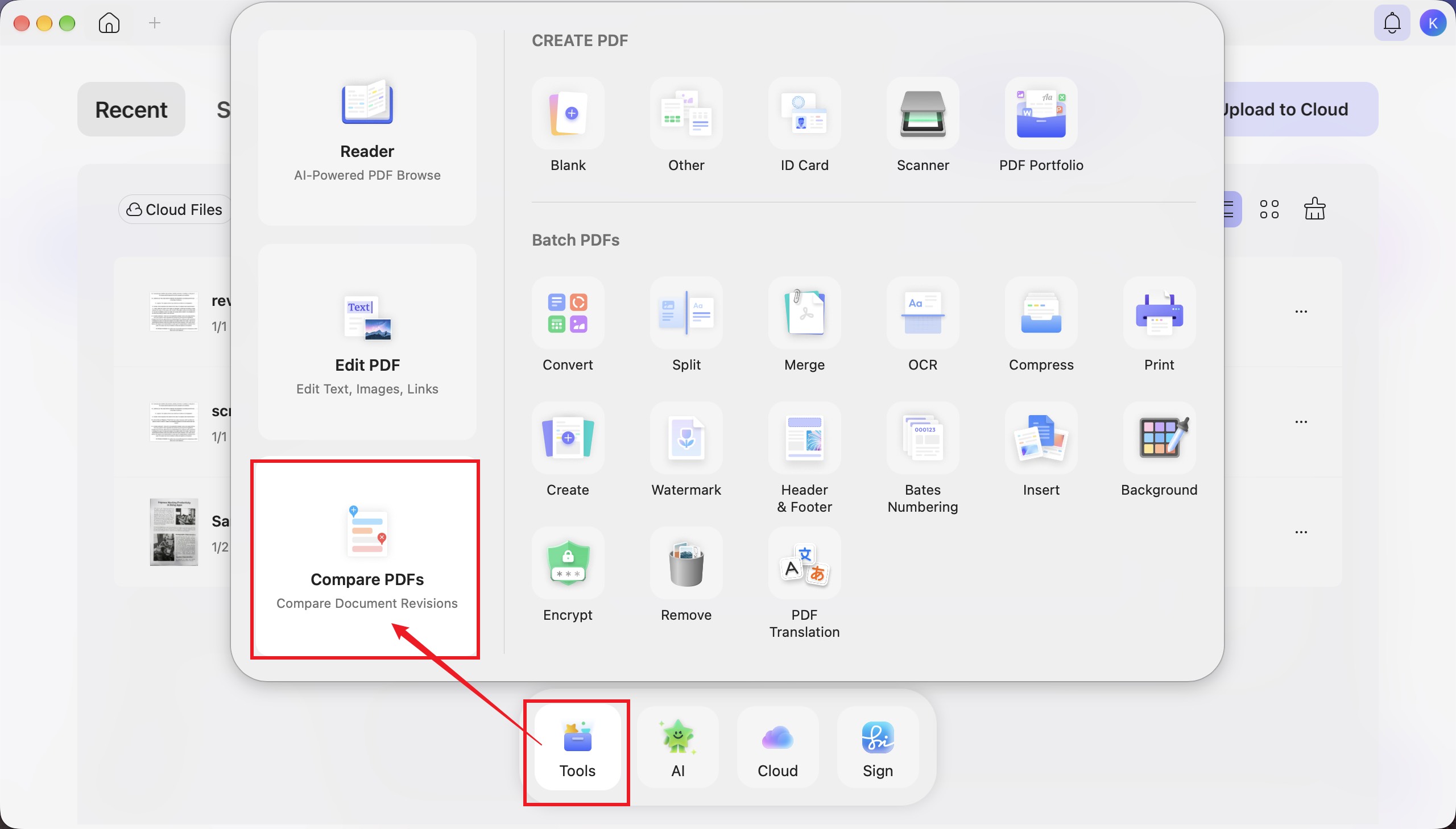
Step 10. From the home screen, open Tools > Compare PDFs.
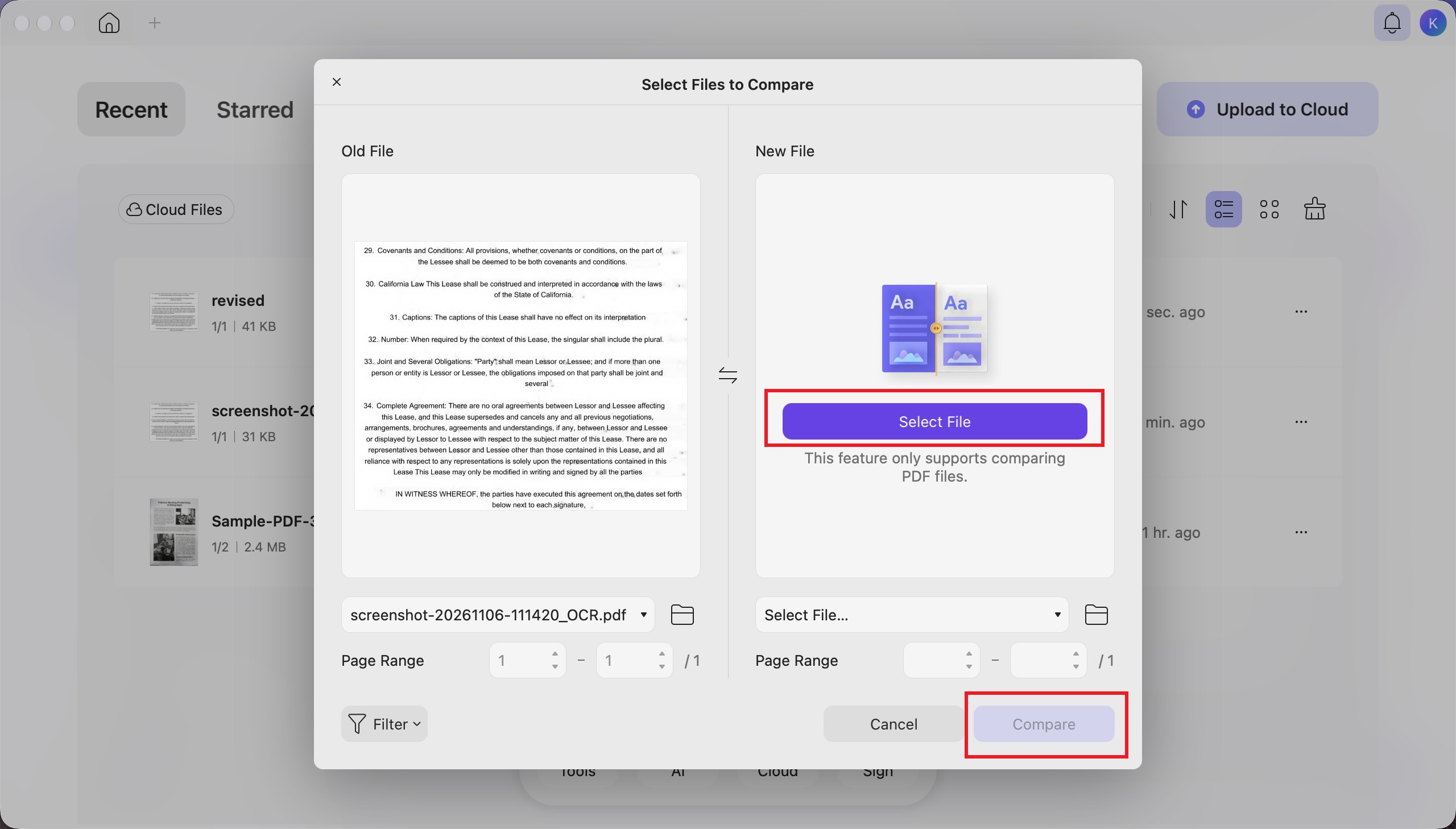
Step 11. Select the earlier PDF as Old File and the revised or returned PDF as New File, check the page ranges, and click Compare.
Step 12. Click Number of Changes to open the results list.
Review highlighted differences side by side. You can synchronize scrolling and filters by different content types.
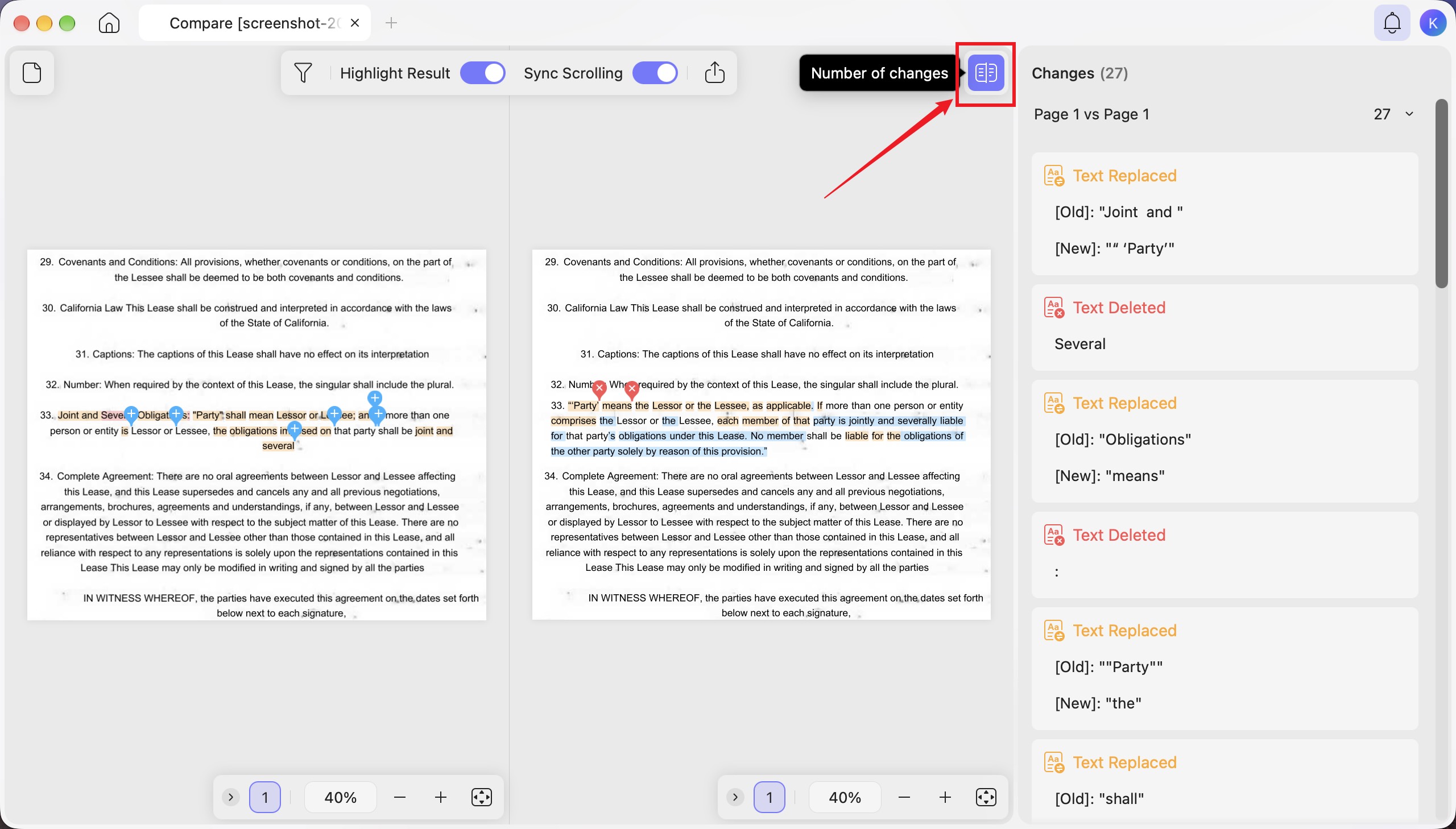
Read the surrounding sentences as well as the highlights. Check amounts, dates, notice periods, liability wording, and any changes outside the clause you intended to revise.
Part 7. When the PDF gets in the way
“I compared two scans, and small scan differences got in the way.”
A real discussion about comparing scanned documents describes the difficulty of finding text changes while excluding scanning artifacts. That discussion concerns other tools, but the distinction matters here too.
Separately OCRed copies may also contain different recognition errors. If results look noisy, focus on text with the comparison filter and inspect disputed passages against both page images. For edits you make yourself, work from one checked OCR baseline rather than OCRing the same scan again for each draft.
“The PDF already has signatures. Can I just replace the clause?”
Preserve the signed original. Prepare proposed changes in a separate draft or amendment for agreement. Certificate-based digital signatures can also restrict editing or reveal later modifications.
The handwritten signatures visible in a scan are not proof that the scanned file contains a certificate-based digital signature.
Conclusion
“I’ll pay my half” is a budget. Before signing, check whether the lease makes the same promise.
UPDF Contract Assistant helps turn a clause into a specific risk to examine and a revision to discuss. OCR makes a scanned page usable for that workflow; PDF comparison helps you check the draft that comes back.
The question I would carry through every step is simple: does this wording now say what I intend to agree to?
Start with a copy of the lease and one clause you want to understand.
Download UPDF for free to try the workflow—installation is free, and Pro removes the trial watermark from exported files. Detailed PDF comparison requires Pro; AI access is governed separately.
Windows • macOS • iOS • Android 100% secure







 Enid Brown


 Lizzy Lozano
