 UPDF
UPDF
 UPDF for Windows
 UPDF for Mac
 UPDF for iPhone/iPad
 UPDF for Android
 UPDF AI Online
 UPDF Sign
 Edit PDF
 Annotate PDF
 Create PDF
 PDF Form
 Edit links
 Convert PDF
 OCR
OCR PDF to Word
 PDF to Image
 PDF to Excel
 Organize PDF
 Merge PDF
 Split PDF
 Crop PDF
 Rotate PDF
 Protect PDF
 Sign PDF
 Redact PDF
 Sanitize PDF
 Remove Security
 Read PDF
 UPDF Cloud
 Compress PDF
 Print PDF
 Batch Process
 About UPDF AI
 UPDF AI Solutions
 AI User Guide
 FAQ about UPDF AI
 Summarize PDF
 Translate PDF
 Chat with PDF
 Chat with AI
 Chat with image
 PDF to Mind Map
 Explain PDF
 PDF AI Tools
 Image AI Tools
 AI Chat Tools
 AI Writing Tools
 AI Study Tools
 AI Working Tools
 Other AI Tools
 PDF to Word
 PDF to Excel
 PDF to PowerPoint
 Enterprise Solution
 Enterprise Sign
 Enterprise AI
 Enterprise Plan
 Enterprise User Guide
 Enterprise Webinar
 Banking
 Healthcare
 Insurance
 Legal
Legal Manufacturing
 Government
 Education Solution
 Customer Stories
 User Guide
 UPDF Tricks
 FAQs
FAQs UPDF Reviews
 Download Center
 Blog
Blog Newsroom
 Tech Spec
 Updates
 UPDF vs. Adobe Acrobat
 UPDF vs. Foxit
 UPDF vs. PDF Expert

If you work with invoices, payroll sheets, client lists, or confidential reports, protecting your Excel files becomes non-negotiable. I’ve had moments where I needed to share a spreadsheet quickly but still keep the data private, and that’s when I started asking myself, how do i encrypt an excel file properly. Encryption helps prevent unauthorized access, even if the file is accidentally forwarded or downloaded by the wrong person.
In this guide, I’ll cover the most reliable encryption methods, including Excel’s built-in password protection and other practical third-party options.
Make sure you read until the end because I’ll also show an additional method (converting your Excel file to PDF and locking it securely) that many people overlook. Tools like UPDF make this process simple, you can encrypt the PDF, add permissions, and share it safely in minutes. Simply click the button below to download!
Windows • macOS • iOS • Android 100% secure
Part 1. How Do I Encrypt An Excel File with Built-In Excel Encryption Methods
If you’re asking how do i encrypt an excel file, the easiest answer is: use Excel’s built-in password protection tools. The best part is that you don’t need any extra software—Microsoft Excel already provides multiple ways to encrypt and restrict access. I personally rely on these methods whenever I’m sharing files that contain sensitive information like budgets, salary sheets, customer data, or internal reporting.
Below are three simple ways (as shown in the reference video) to secure your Excel file using built-in features.
Method 1: Encrypt The Workbook From “Info” Settings
This is the method I use most often because it’s quick and works reliably.
Step 1: Open your Excel file and click “File”.
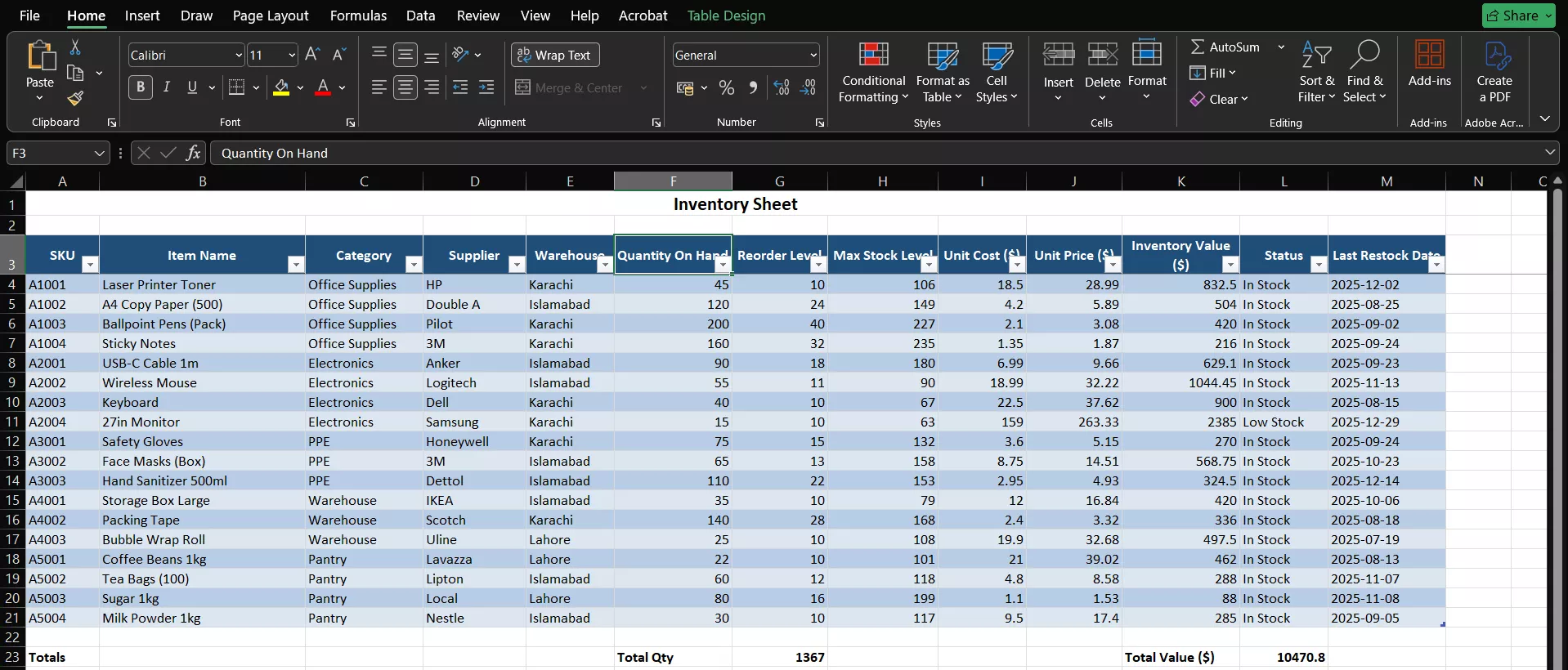
Step 2: Go to “Info” and select “Protect Workbook”.
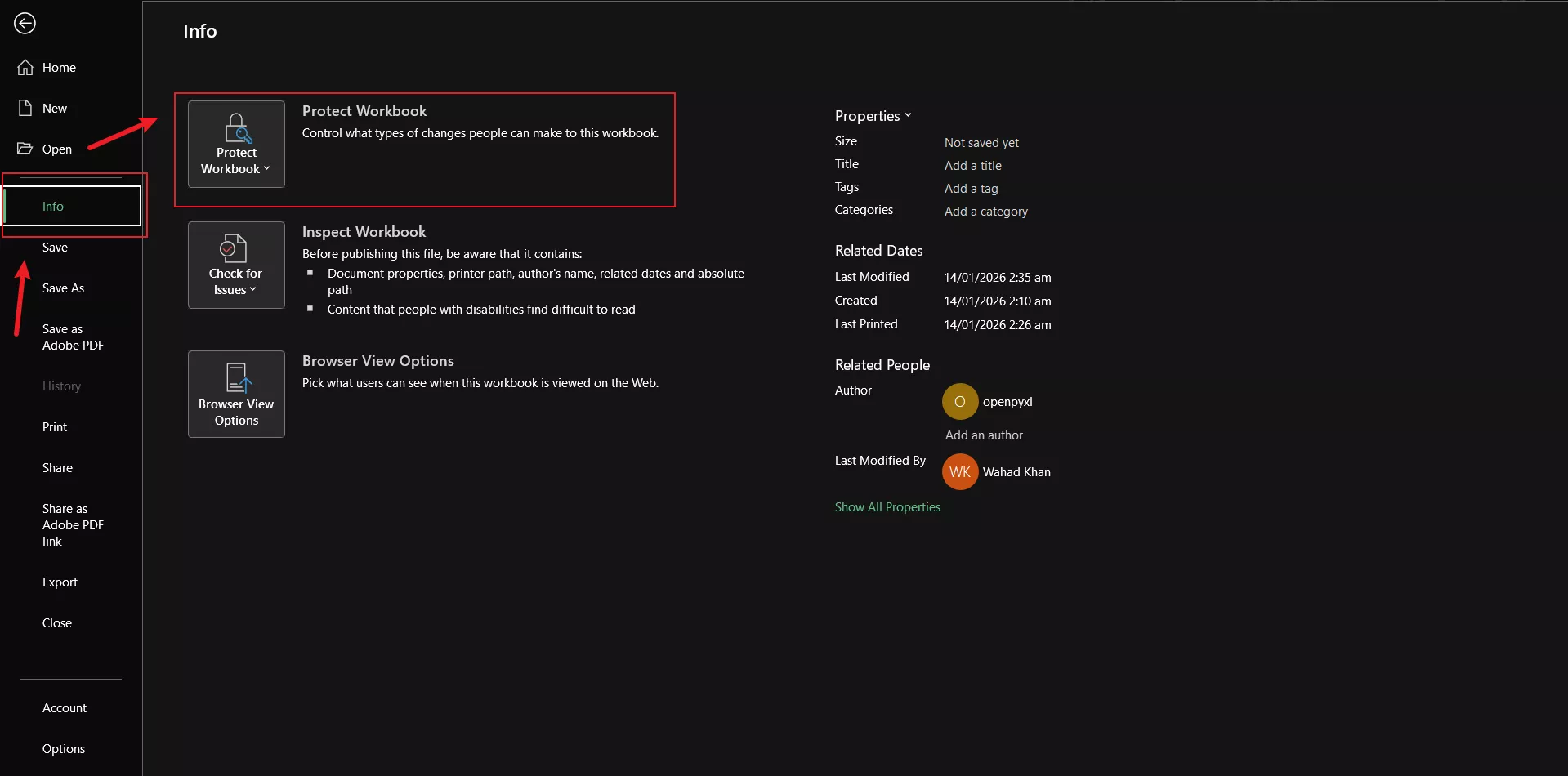
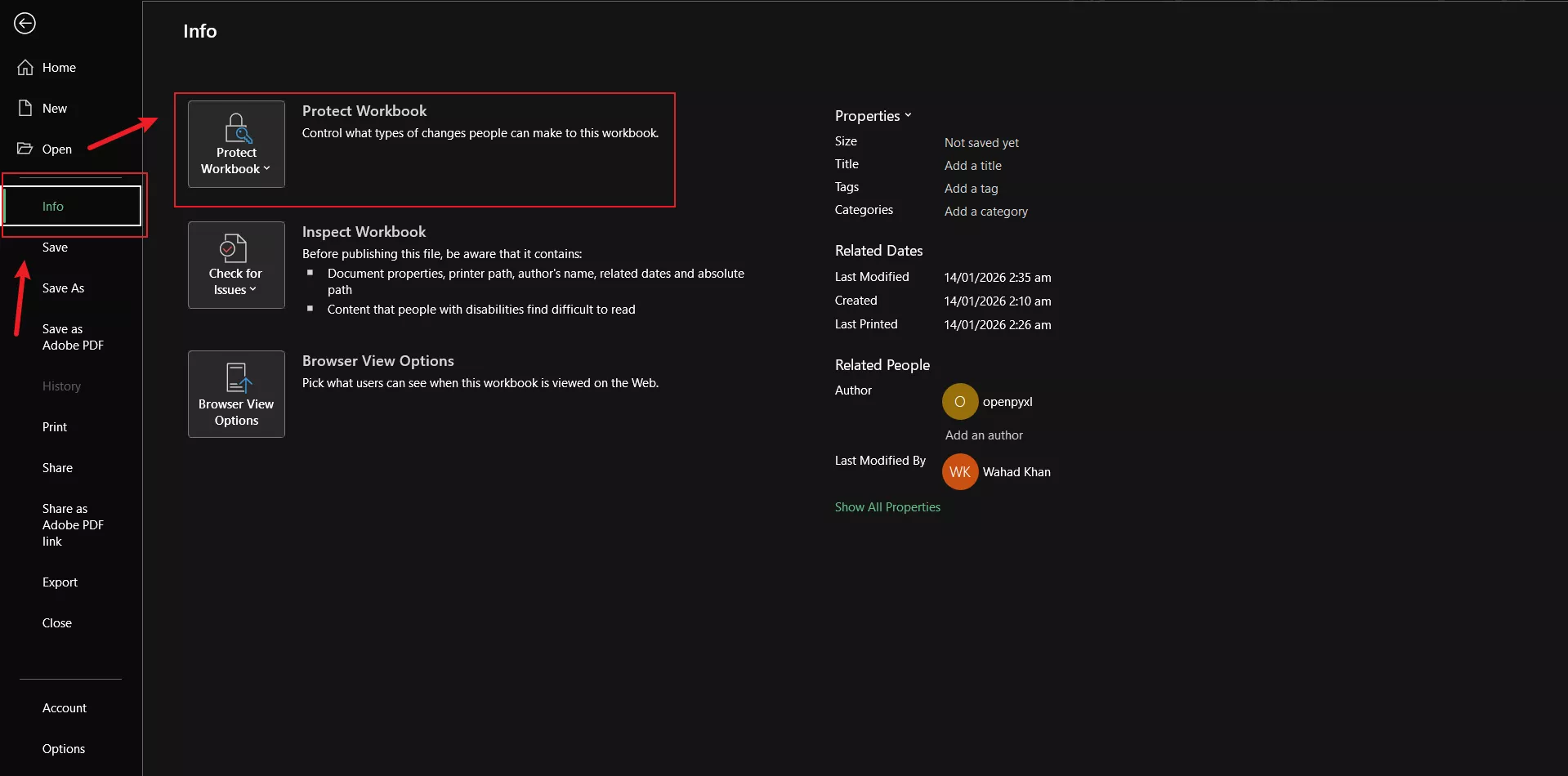
Step 3: Click “Encrypt with Password”.
Step 4: Enter a strong password, confirm it, and click “OK”.
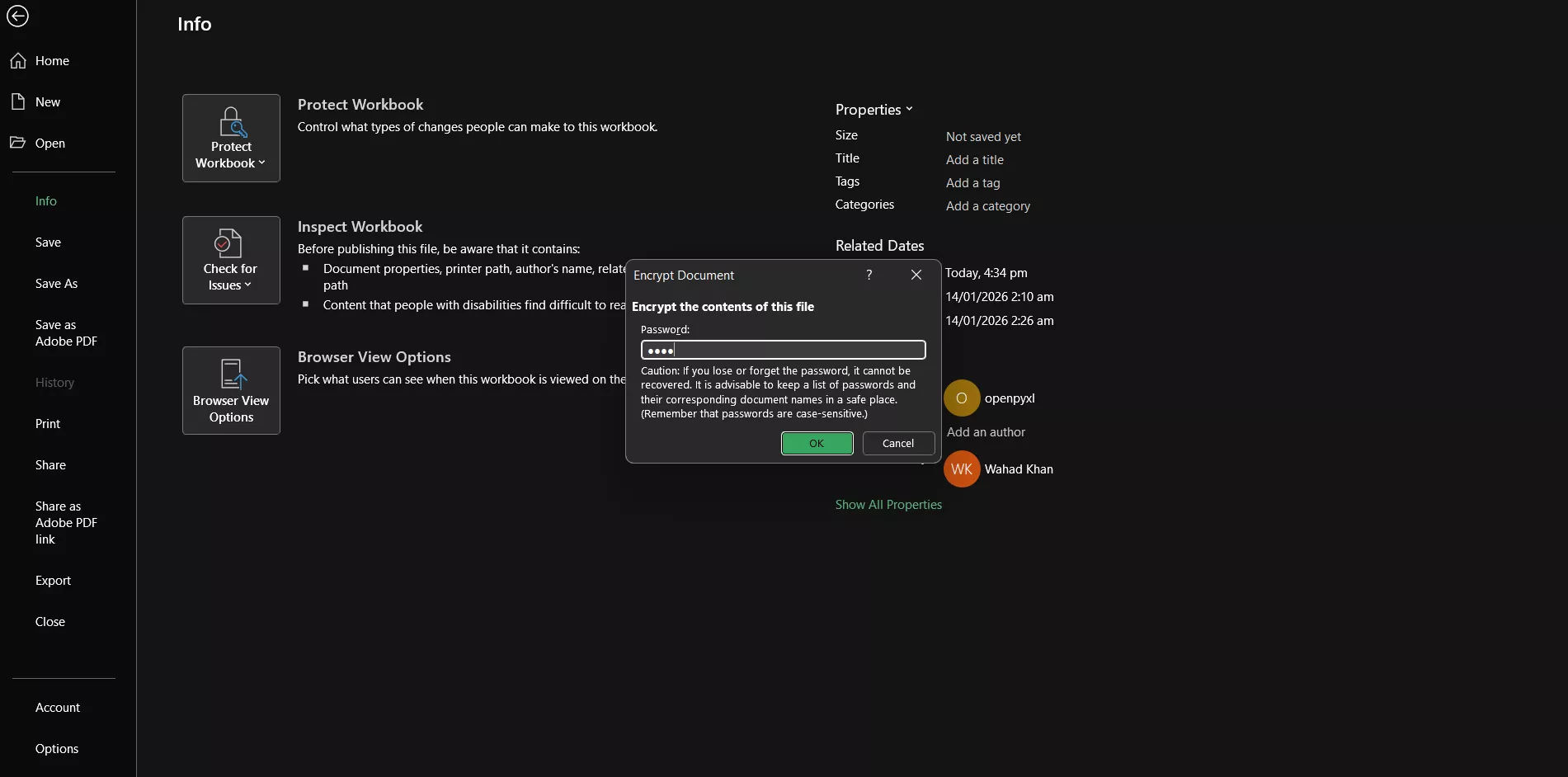
Step 5: Save the file.
Once done, anyone opening the file must enter the password first—this is the most direct way to apply how to encrypt excel file with password.
Method 2: Set A Password When Saving the File
This method works great if I’m exporting or saving a new version of the sheet.
Step 1: Click “File” > “Save As”.
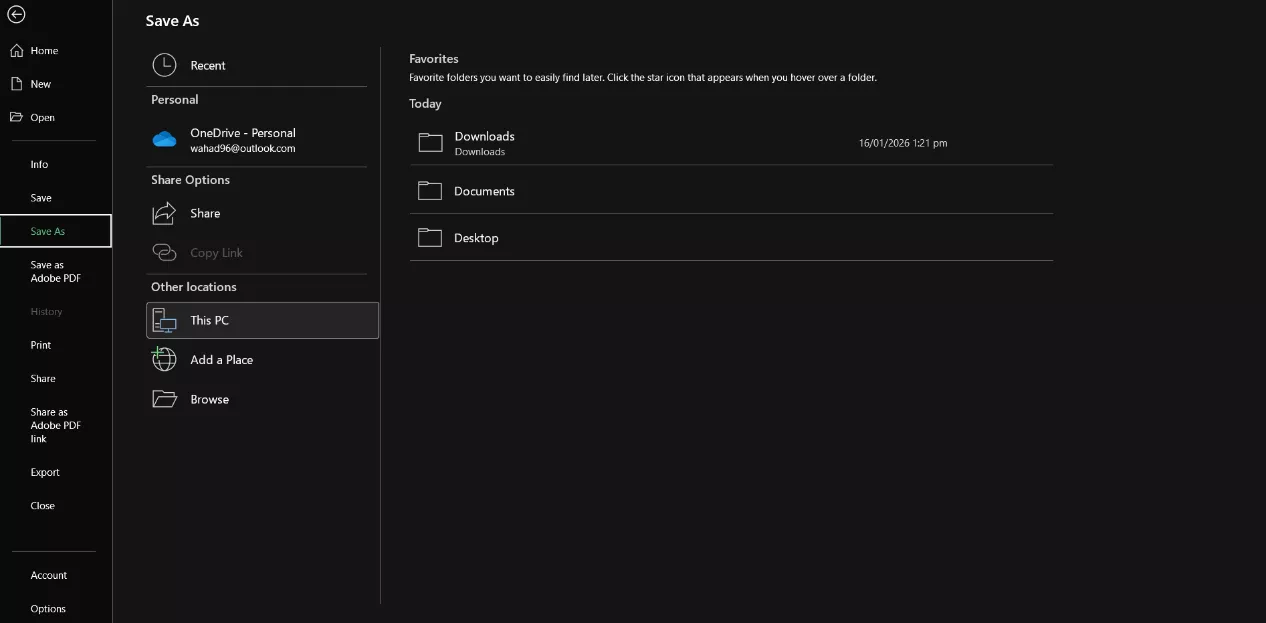
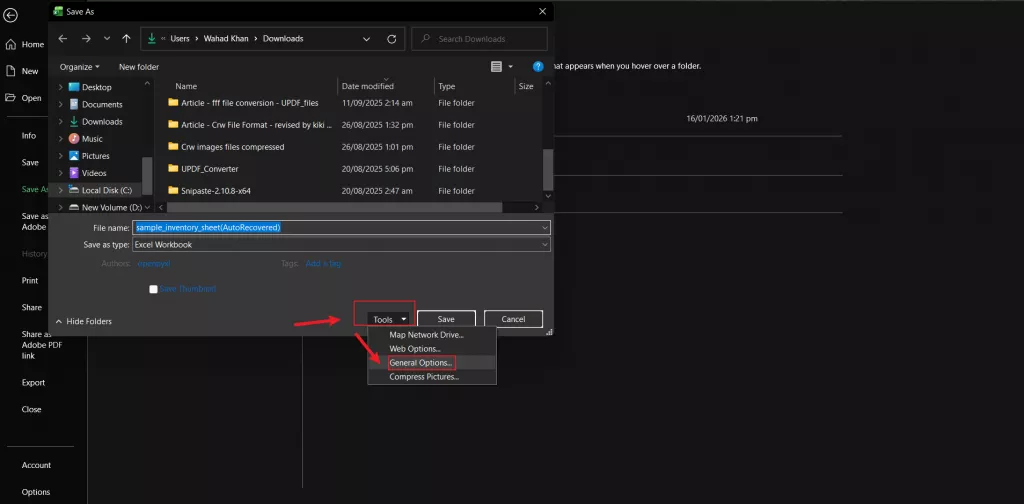
Step 2: Choose a location and click Tools (next to the “Save” button).
Step 3: Select “General Options”.
Step 4: Set a password to open the file (and optionally a password to modify).
Step 5: Click “Save”.
This adds encryption during the saving process and prevents unauthorized access.
Method 3: Restrict Editing Using “Protect Sheet/Workbook”
Sometimes I don’t need full encryption—I just want people to view the data without changing it.
Step 1: Go to the “Review” tab.
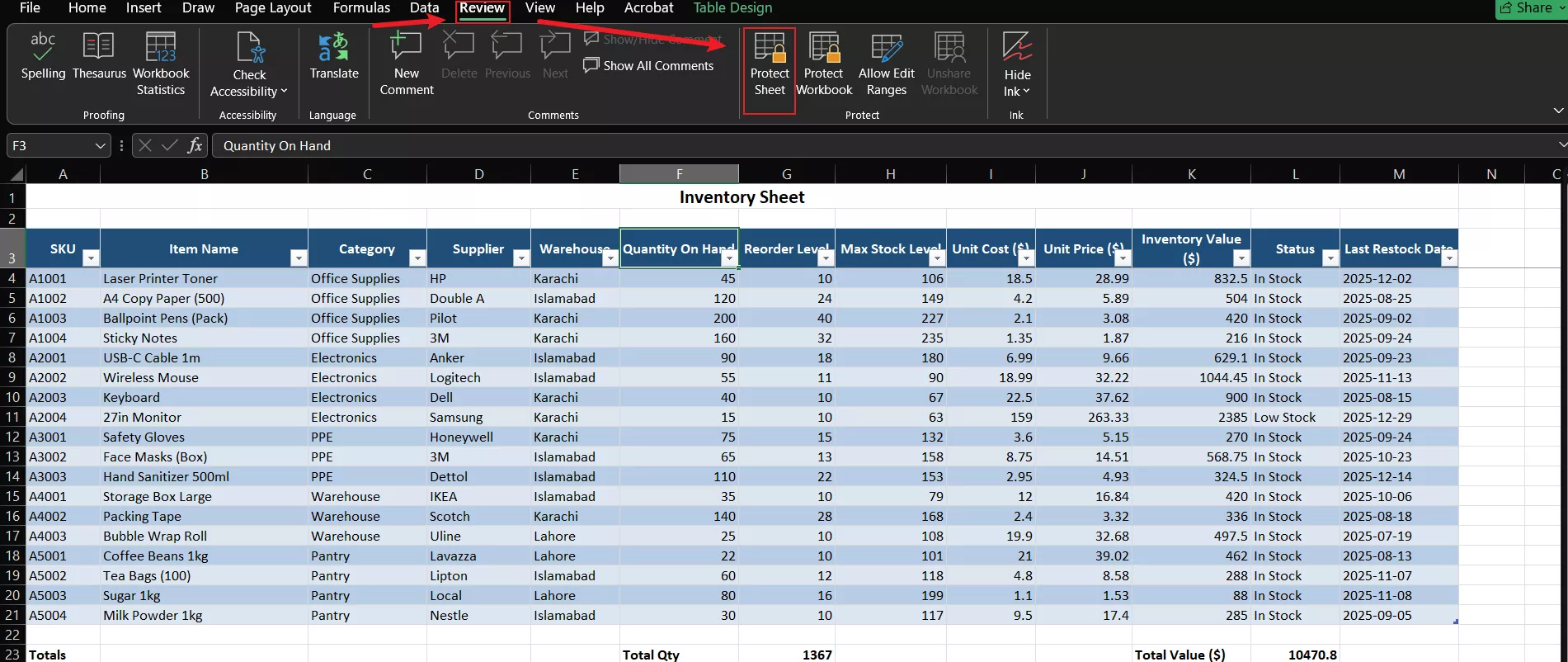
Step 2: Click “Protect Sheet” (or “Protect Workbook”).
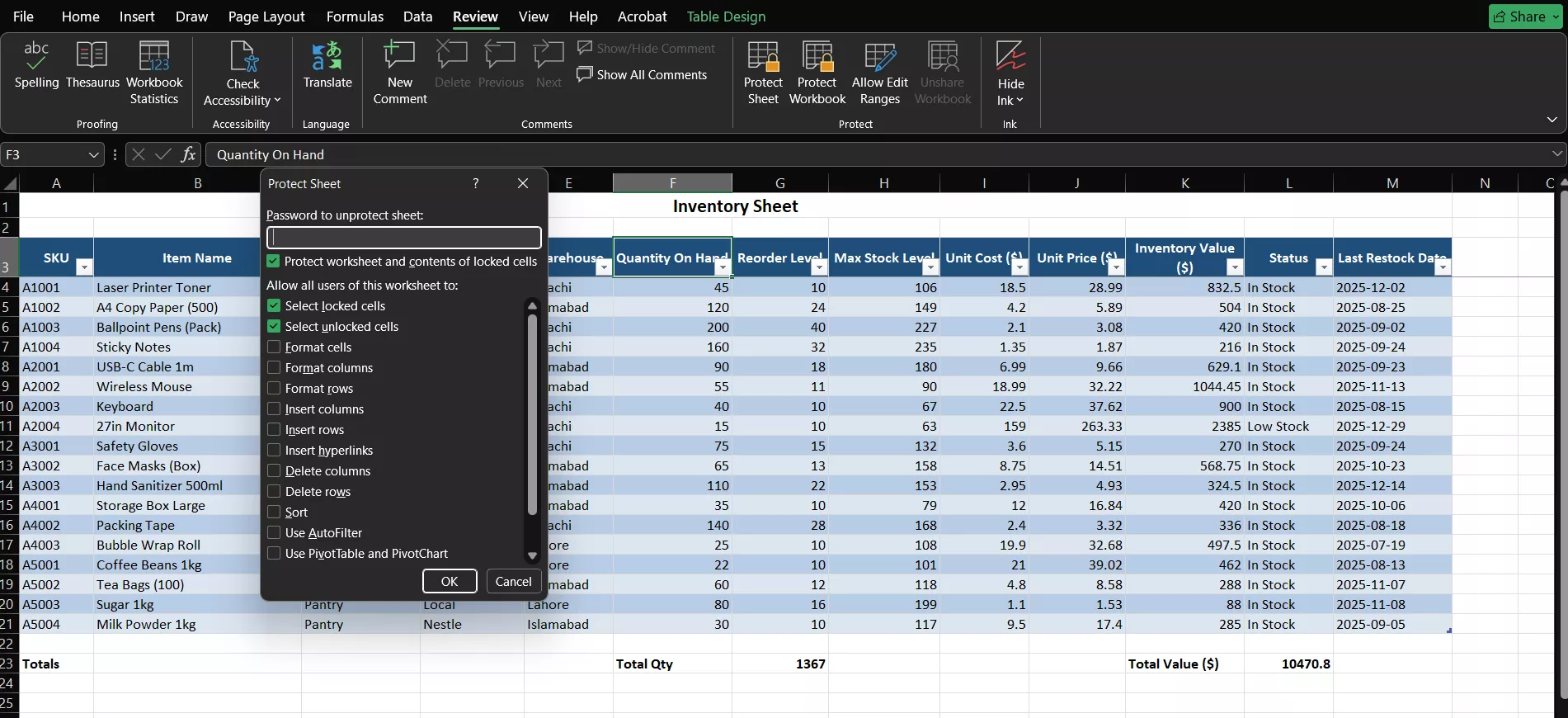
Step 3: Set a password and select allowed actions.
Part 2. Advanced Encryption with Third-Party Tool
Excel’s built-in encryption options are useful, but there are situations where I want stronger control over file security—especially when I’m sharing reports externally or storing sensitive records long-term. That’s where third-party tools become more practical. In my case, I use UPDF because it allows me to secure my Excel content even after converting it into a more universal format: PDF.
Why Use a Third-Party Tool ( Such as UPDF)?
When I send Excel files directly, formatting can shift depending on the receiver’s device, Excel version, or settings. PDFs solve that problem. They preserve the layout exactly the way I designed it, so tables, totals, and page breaks stay consistent across systems. This is one reason many professionals prefer converting spreadsheets into PDFs before sharing.
Windows • macOS • iOS • Android 100% secure
With UPDF, I can convert the Excel file into a PDF and then encrypt it using strong protection methods. This helps when I want more than basic password locking. UPDF supports advanced encryption standards such as AES-256, which is widely used for high-level file security. That means even if someone obtains the file, they still can’t access the content without authorization.
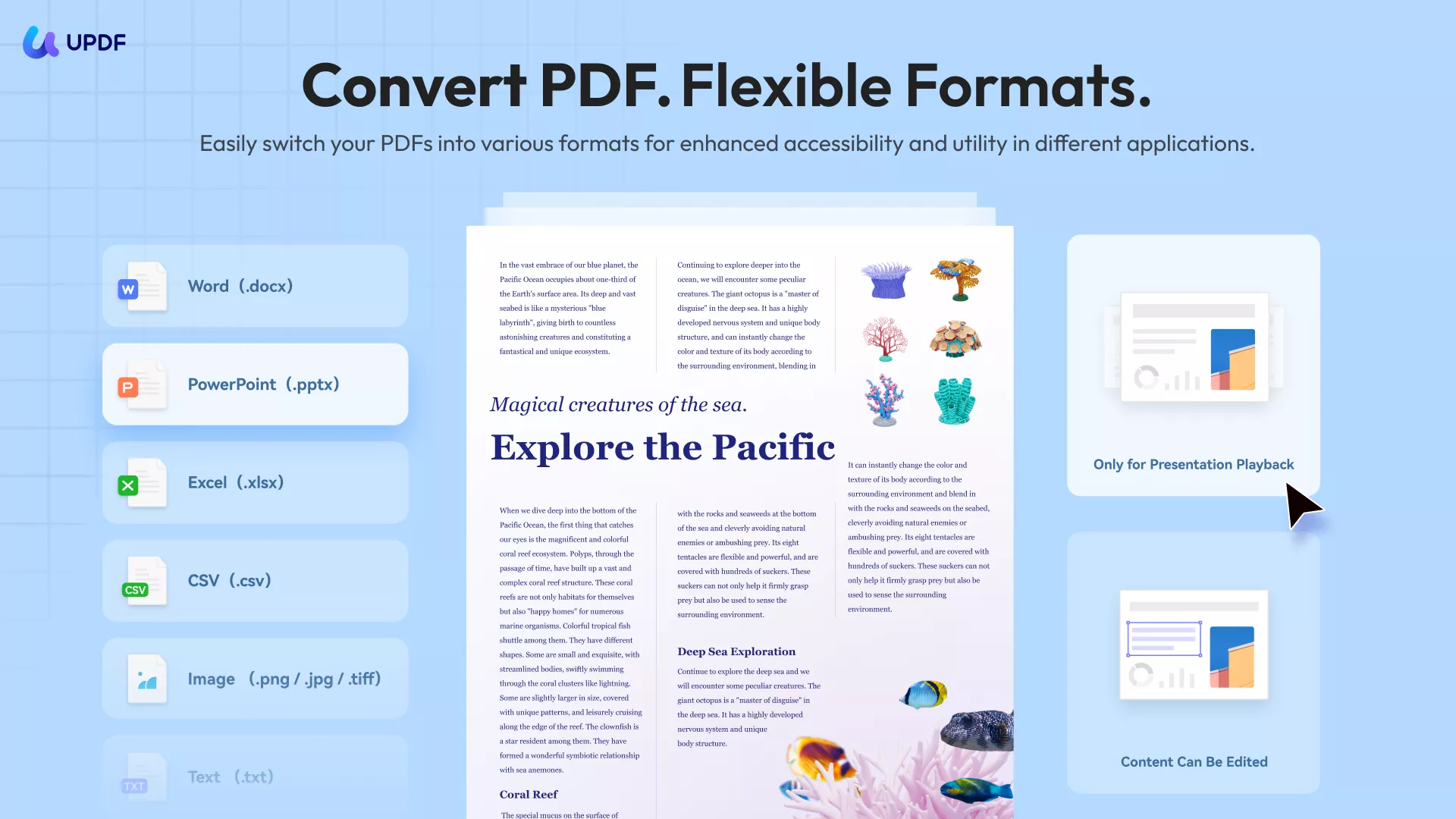
Another thing I like is the flexibility UPDF provides. Instead of encrypting one file at a time, I can batch process multiple PDF versions of Excel files, which is useful when handling bulk reports, invoices, financial summaries, or HR documents. It saves time, and I don’t have to repeat the same security steps again and again.
For long-term protection, UPDF also offers UPDF Cloud. This is helpful when I want encrypted backups that I can access securely across different platforms. Whether I’m working on Mac, switching to Windows, or checking files on iOS or Android, UPDF Cloud keeps documents synced and protected. It adds another layer of safety because I’m not relying on one device only.
So if you’re looking for a more reliable and professional way to handle file protection, UPDF is a smart option. It doesn’t just help with how to encrypt excel file content—it helps secure it in a format that’s easier to share, harder to alter, and far more consistent.
How To Encrypt With UPDF?
Once my Excel file is ready, I usually convert it into a PDF and encrypt it using UPDF. The reason I prefer this method is that PDFs preserve the layout exactly—no broken columns, no shifted tables—and UPDF gives me stronger control over file permissions and passwords.
Windows • macOS • iOS • Android 100% secure
A) Encrypt A Single Excel File In UPDF
Step 1: Open Your Excel File as a PDF in UPDF
There are two simple ways I do this:
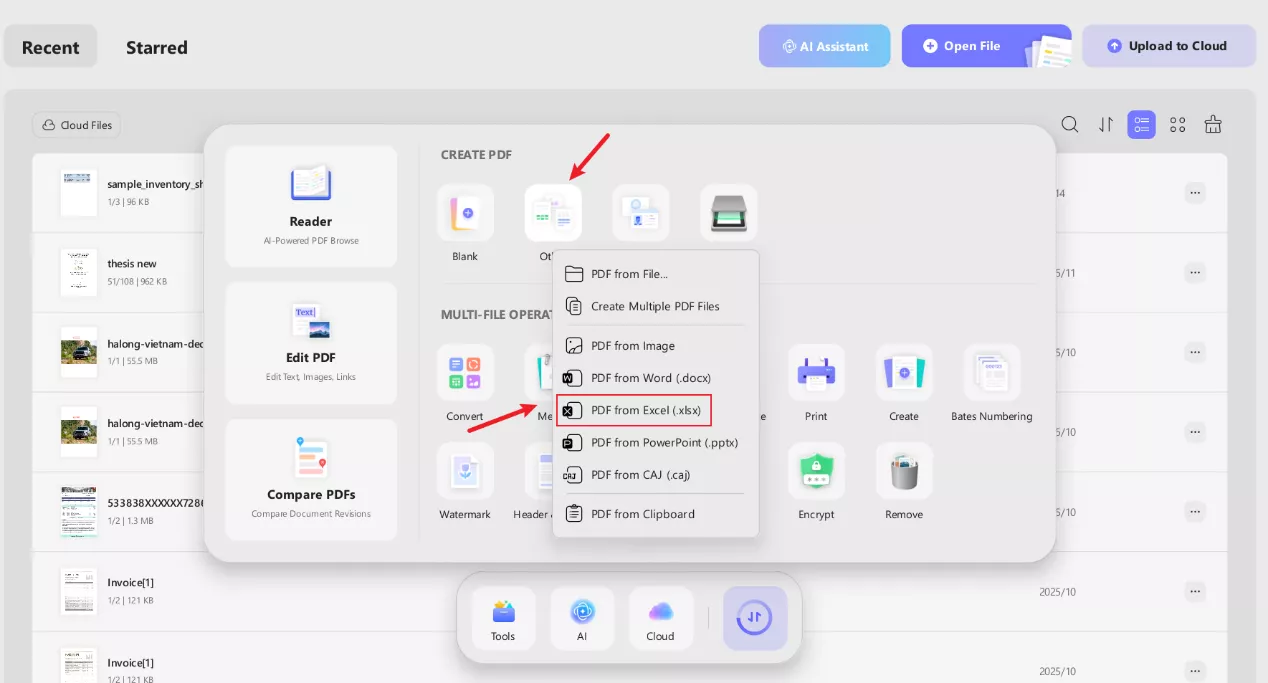
I drag and drop the Excel file directly into UPDF, and it instantly opens as a PDF. Or I go to Tools > Other > PDF from Excel (.xlsx) and select my file.
Step 2: Add Password Protection:
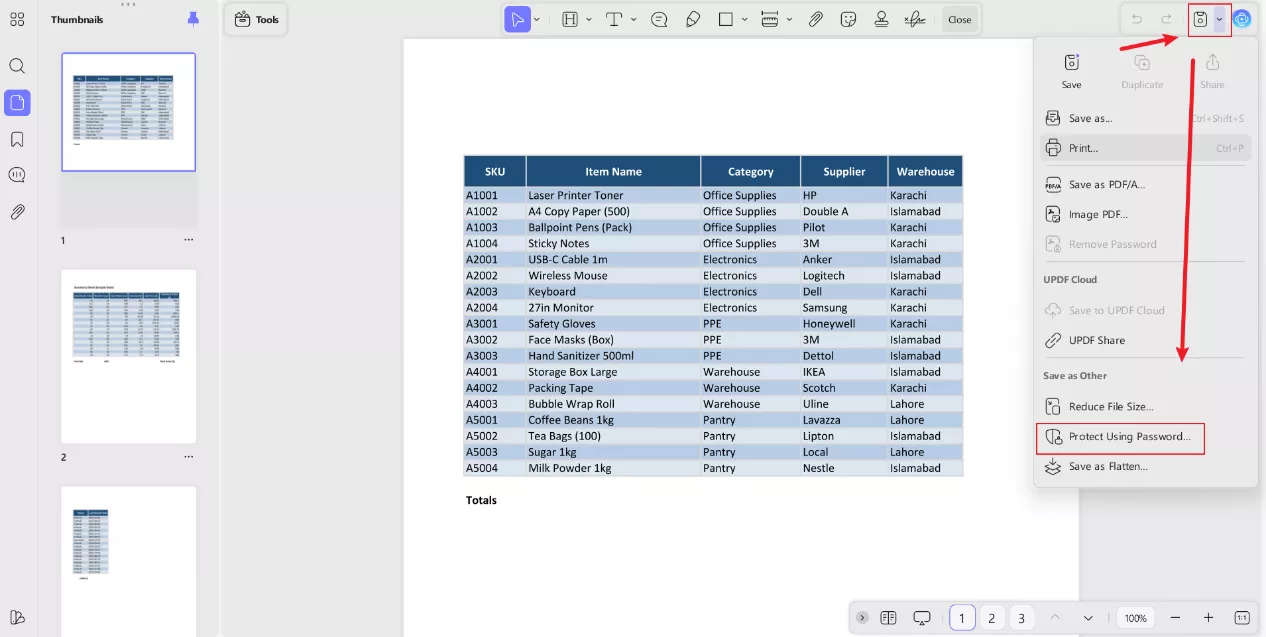
Once the Excel file opens as a PDF, I click “Protect Using Password” from the drop-down menu. Then I set either:
- an open password (required to open the file), or
- a permissions password (lets users view but restrict editing/printing).
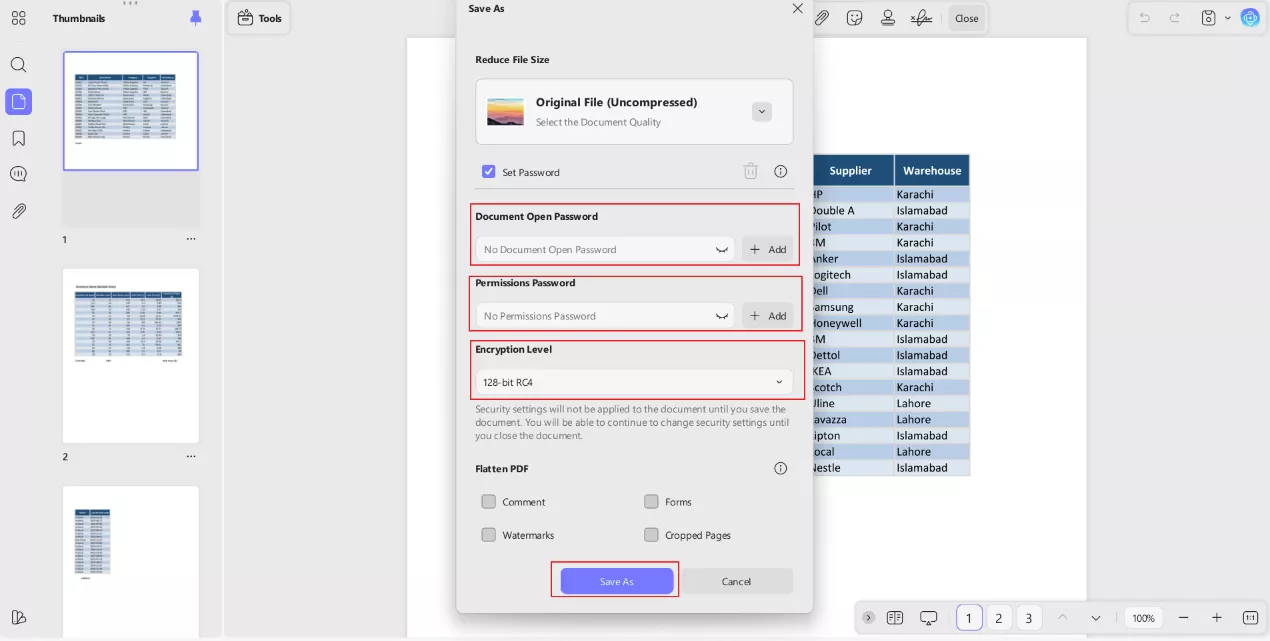
Step 3: Save the Encrypted PDF
After setting the password, I save the file. Now the exported document is locked and can’t be opened without permission.
B) Encrypt Multiple Excel Files (Batch Method)
If I need to secure multiple Excel reports at once (like monthly invoices or internal sheets), I don’t encrypt them one by one. Instead, I convert each to PDF and use UPDF’s Batch Encrypt feature.
Windows • macOS • iOS • Android 100% secure
In UPDF, I open the Batch PDFs tool, choose Encrypt, upload multiple PDF files, and apply one password across them.
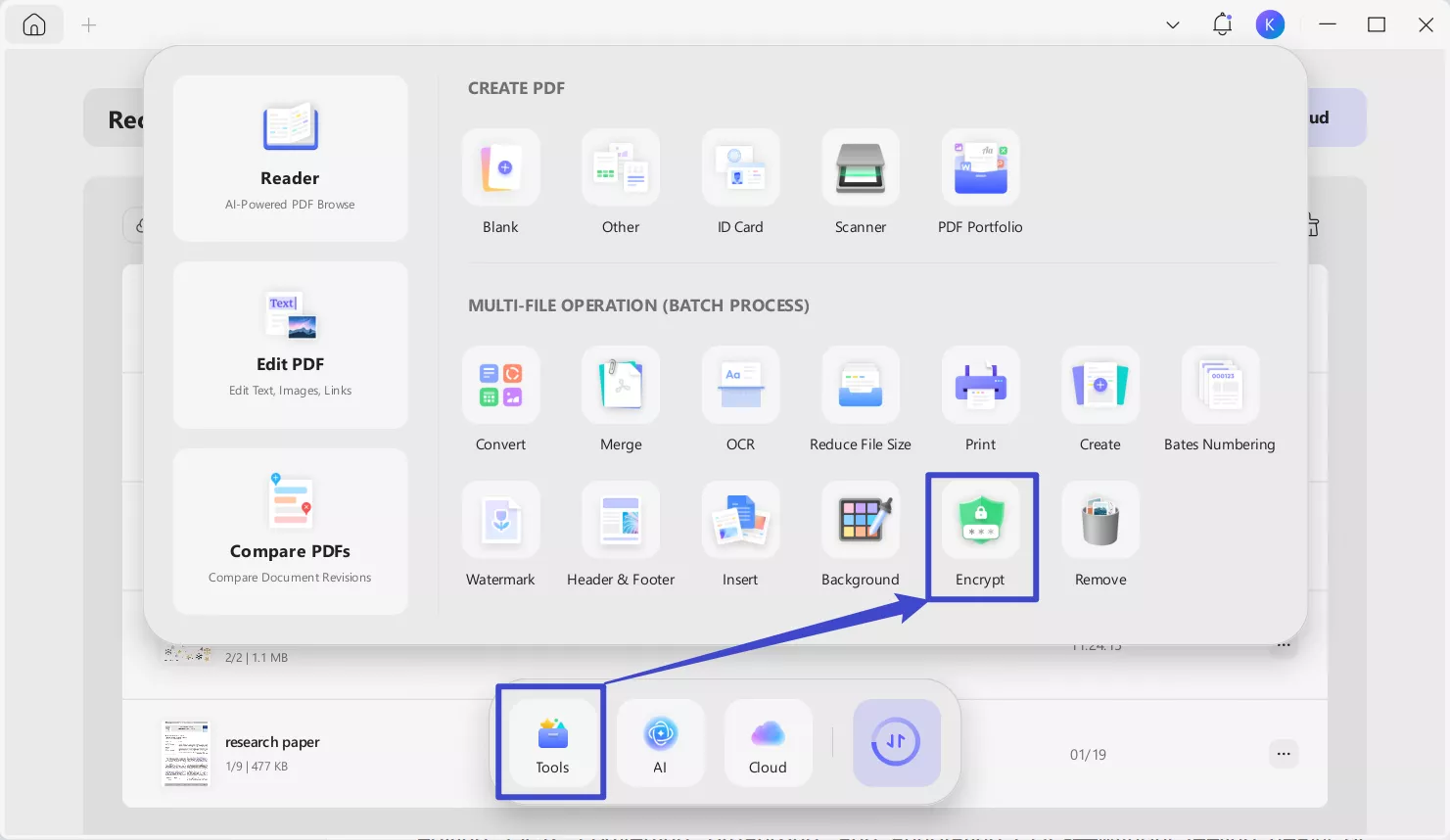
This makes bulk encryption much faster and consistent, especially when I’m handling several files for teams or clients.
UPDF: An All-In-One PDF Suite (Like Adobe Acrobat, But Simper)
If you’ve ever used Adobe Acrobat, you already know why a full-featured PDF editor matters. Personally, I prefer UPDF because it gives me the same essential workflow—editing, OCR, converting, organizing, and annotating PDFs—without feeling heavy or complicated.
For anyone who needs a reliable Acrobat-style solution for daily document work, UPDF offers a complete toolkit that covers the core features professionals actually use. And once you upgrade, the experience becomes even smoother because you unlock full conversion, OCR, and advanced processing features.
Windows • macOS • iOS • Android 100% secure
Advanced Editing (Edit PDFs Like Word)
When I export an Excel file to PDF, I often need small adjustments before sharing it—maybe a heading needs to be corrected, a number needs to be updated, or a logo needs repositioning.
UPDF’s Advanced Editing makes that easy because it works like a Word editor. I can click directly on text and modify it, then change the font style, size, and color so everything stays consistent. The same applies to images—I can move, replace, crop, rotate, or adjust them without disturbing the layout.
Powerful OCR
OCR is one of those features that sounds technical until you actually need it. I use it whenever my PDF is scanned or image-based—like receipts, printed reports, signed forms, or old records. Without OCR, I can’t select text, search keywords, or copy important lines. With UPDF, OCR converts scanned content into searchable and editable text, which saves me a huge amount of time.
Furthermore, it also helps when someone needs to extract information from scanned invoices or scanned Excel reports saved as PDFs. Instead of retyping everything manually, OCR makes the document interactive again.
High-Fidelity Conversion
One of the main reasons I keep UPDF in my workflow is its conversion accuracy. Sometimes I receive PDFs from others but need the content in Word, Excel, or PowerPoint for editing. UPDF lets me convert PDFs into Word, Excel, PPT, TXT, and JPG—and also convert files back into PDF—while keeping the layout and formatting intact. That “high-fidelity” part matters because most converters ruin spacing, break tables, or distort headings.
Document Management
Managing PDFs is where a lot of tools fall short, but UPDF handles it cleanly. I often work with multi-page reports, and I need to rearrange pages, remove extras, combine files, or split large PDFs into smaller documents. UPDF allows me to merge, split, extract, rotate, and reorganize pages easily. I can also add watermarks or insert headers and footers when I’m preparing official documents.
For professional users, this feature is important because PDF work is rarely single file only.

Annotation Tools
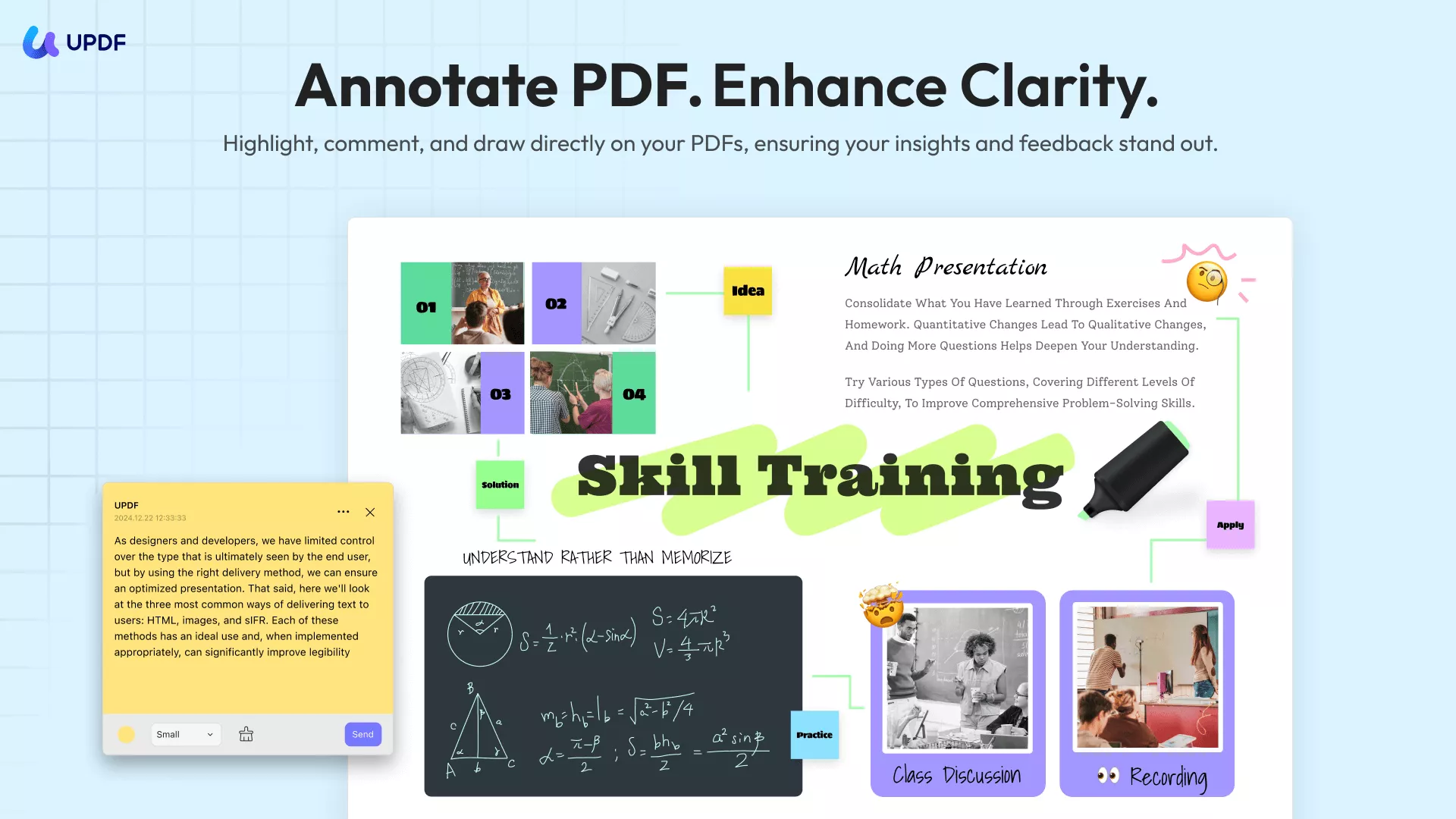
UPDF’s annotation tools are perfect when I want to review and share feedback without changing the original content. I can highlight key totals, underline important sections, add sticky notes, insert stamps, and leave comments directly on the PDF.
This is especially useful after exporting a protected Excel report—because I can still mark it up without unlocking the document structure.
From the reader’s perspective, annotation is one of the most used PDF functions in business and education.
Device Flexibility (One License, All Platforms)
This is one area where UPDF truly feels modern. I don’t always work from one device—sometimes I’m editing on Windows, sometimes I’m reviewing a file on my phone, and sometimes I’m checking a document from my Mac. UPDF supports cross-platform use on Windows, macOS, iOS, and Android, which makes file access and editing far more flexible.
Final Thoughts!
Encrypting an Excel file is one of the simplest ways to keep sensitive data protected, whether you’re sharing reports, invoices, or internal records. I’ve explained the whole process so that you don’t have to search for how do i encrypt an excel file again. No doubt, Excel’s built-in options work well for basic security, but converting the file to PDF adds extra stability and control.
That’s why I often export my spreadsheets and secure them using UPDF—it makes encryption, permission settings, editing, and sharing much easier. If you want stronger protection and a smoother document workflow, I recommend downloading UPDF. It’s advanced, 100% safe and has an intuitive UI for hassle free usage.
Windows • macOS • iOS • Android 100% secure








 Enola Miller
 Enola Davis
 Engelbert White