 UPDF
UPDF
 UPDF for Windows
 UPDF for Mac
 UPDF for iPhone/iPad
 UPDF for Android
 UPDF AI Online
 UPDF Sign
 Edit PDF
 Annotate PDF
 Create PDF
 PDF Form
 Edit links
 Convert PDF
 OCR
OCR PDF to Word
 PDF to Image
 PDF to Excel
 Organize PDF
 Merge PDF
 Split PDF
 Crop PDF
 Rotate PDF
 Protect PDF
 Sign PDF
 Redact PDF
 Sanitize PDF
 Remove Security
 Read PDF
 UPDF Cloud
 Compress PDF
 Print PDF
 Batch Process
 About UPDF AI
 UPDF AI Solutions
 AI User Guide
 FAQ about UPDF AI
 Summarize PDF
 Translate PDF
 Chat with PDF
 Chat with AI
 Chat with image
 PDF to Mind Map
 Explain PDF
 PDF AI Tools
 Image AI Tools
 AI Chat Tools
 AI Writing Tools
 AI Study Tools
 AI Working Tools
 Other AI Tools
 PDF to Word
 PDF to Excel
 PDF to PowerPoint
 Enterprise Solution
 Enterprise Sign
 Enterprise AI
 Enterprise Plan
 Enterprise User Guide
 Enterprise Webinar
 Banking
 Healthcare
 Insurance
 Legal
Legal Manufacturing
 Government
 Education Solution
 Customer Stories
 User Guide
 UPDF Tricks
 FAQs
FAQs UPDF Reviews
 Download Center
 Blog
Blog Newsroom
 Tech Spec
 Updates
 UPDF vs. Adobe Acrobat
 UPDF vs. Foxit
 UPDF vs. PDF Expert

PDFs have become the universal document format. They are easily accessible, shareable, and searchable. In 2026, a lead magnet PDF is no longer just a file; it's a high-value digital asset that sits at the front door of your entire marketing funnel.
The Conversion Secret
High-performing PDFs rely on three key ingredients:
- Professionalism: It must look like it costs something.
- Accessibility: It must open on any device without friction.
- Actionable Value: It must improve the reader's life before they spend a dime.
The best lead magnet PDF examples are quick to produce, easy to optimize for search/AI engines, and designed to drive readers toward the next step.
Stop doing it the hard way. Most businesses copy-paste from Word or export bloated 40MB files from Canva. Try UPDF for free and see how AI-integrated editing can handle your entire PDF lifecycle—from creation to compression.
Windows • macOS • iOS • Android 100% secure
Part 1. 10 High-Converting Lead Magnet PDF Examples (Categorized)
Your lead magnet format is doing more work than you think, but not all lead magnets are created equal. A startup founder drowning in onboarding tasks will opt in right away for a "10-Step SaaS Onboarding Checklist". However, an enterprise buyer evaluating a $50K software contract needs a whitepaper backed by data before they hand over their email.
The format you choose determines who opts in and how fast they act and trust you. Therefore, we have shortlisted below the ten proven lead magnet PDF examples, categorized by what they actually do for your funnel.
The "Quick Win" Tools: Checklists, Cheat Sheets, & Resource Lists
These lead magnet PDF examples offer high opt-in rates. Someone overwhelmed by a process will trade their email address for a checklist that removes the guesswork.
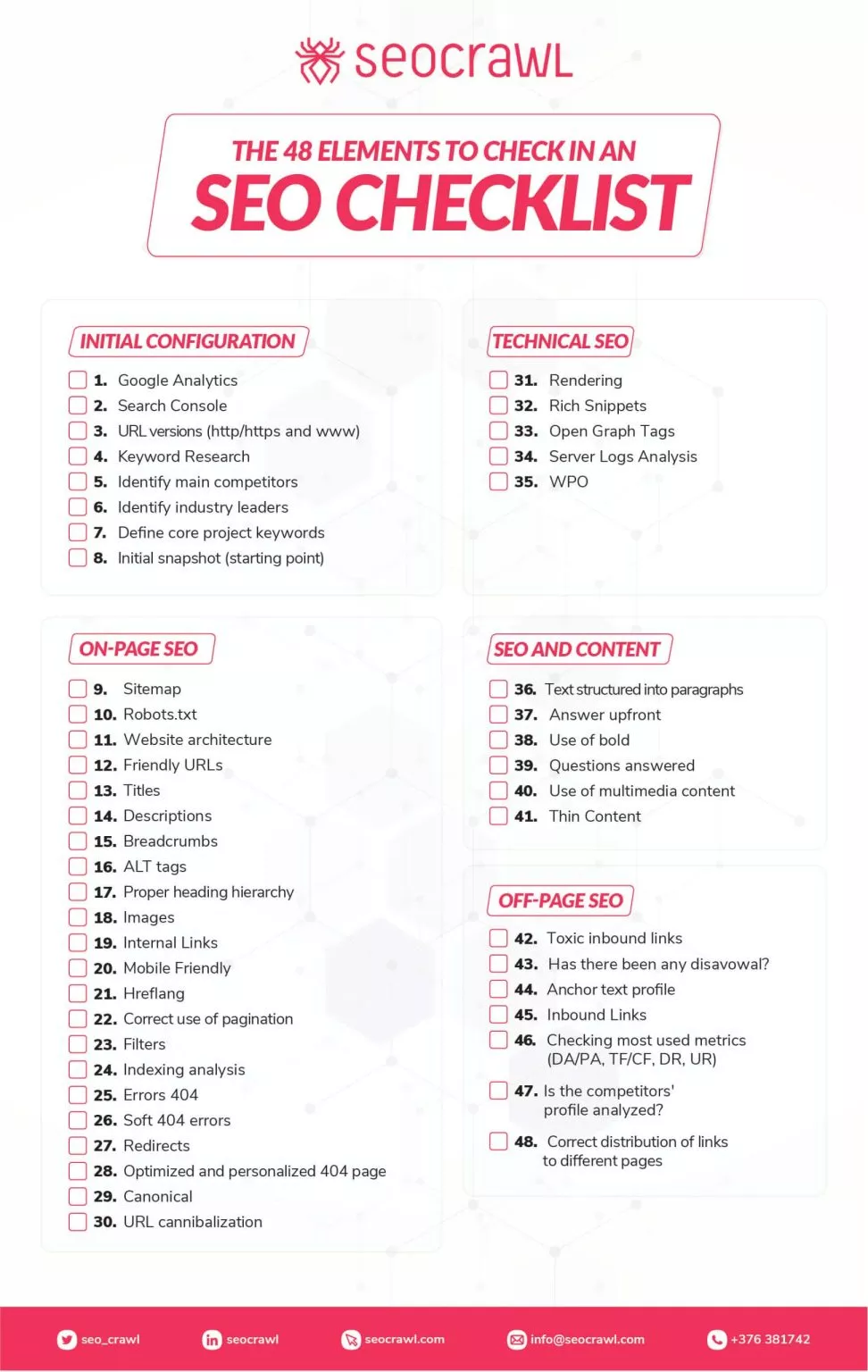
1. Checklist
A checklist breaks a complex task into simple and actionable steps that users can follow without overthinking. It is best for audiences who want clarity and quick execution. Examples include:
- 10-Point SEO Audit Checklist
- 17 Things to Do Before Your Website Goes Live
- 12-Step Blog Post Publishing Checklist
2. Cheat Sheets
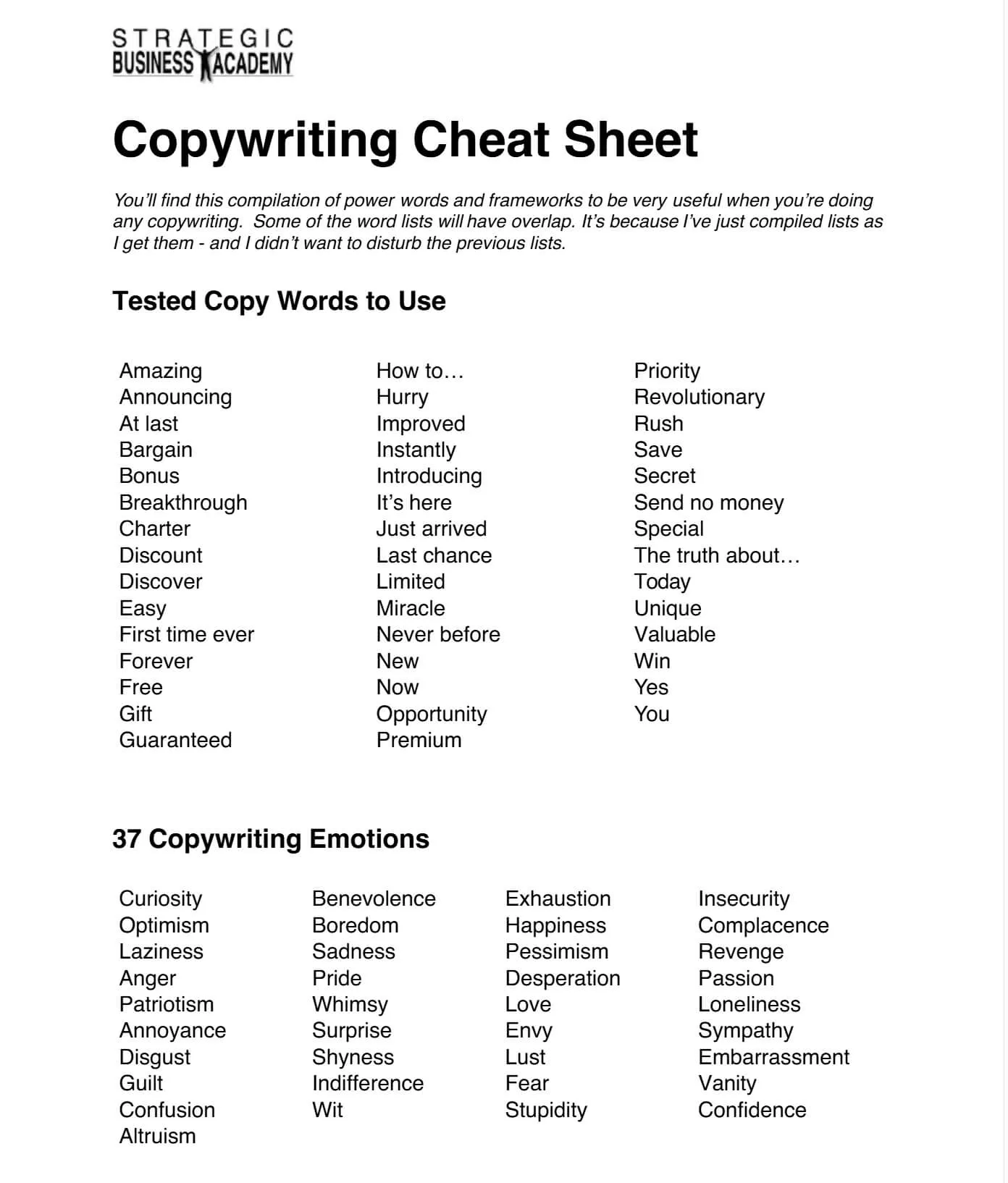
Cheat sheets condense valuable information into a quick-reference format. This makes them best for fast learning and repeated use. They deliver high perceived value in a compact form. Examples include:
- 25 High-Converting Copywriting Formulas Cheat Sheet
- 30 Email Subject Lines That Boost Open Rates
- 20 ChatGPT Prompts for Instant Content Creation
3. Resource Lists
Resource lists gather the best tools/platforms or references in one place and save users hours of research. They position you as a trusted guide who has already done the heavy lifting. Examples include:
- 50 Must-Have Digital Marketing Tools for 2026
- 35 Free Design Resources Every Creator Should Know
- 27 SaaS Tools Every Startup Needs to Scale
All these formats in the "Quick Win" tools category are low-time-investment for the reader and low-production-effort for you. The design focus should be on high contrast and numbered structure with a clear brand header. Keep it to 1-2 pages.
The "Deep Dive" Assets: Whitepapers, Industry Reports, E-books
These lead magnet PDF examples are built to position you as an expert. When someone is researching a solution, they are more willing to share their email address for in-depth and high-value content that educates them.
4. Whitepapers
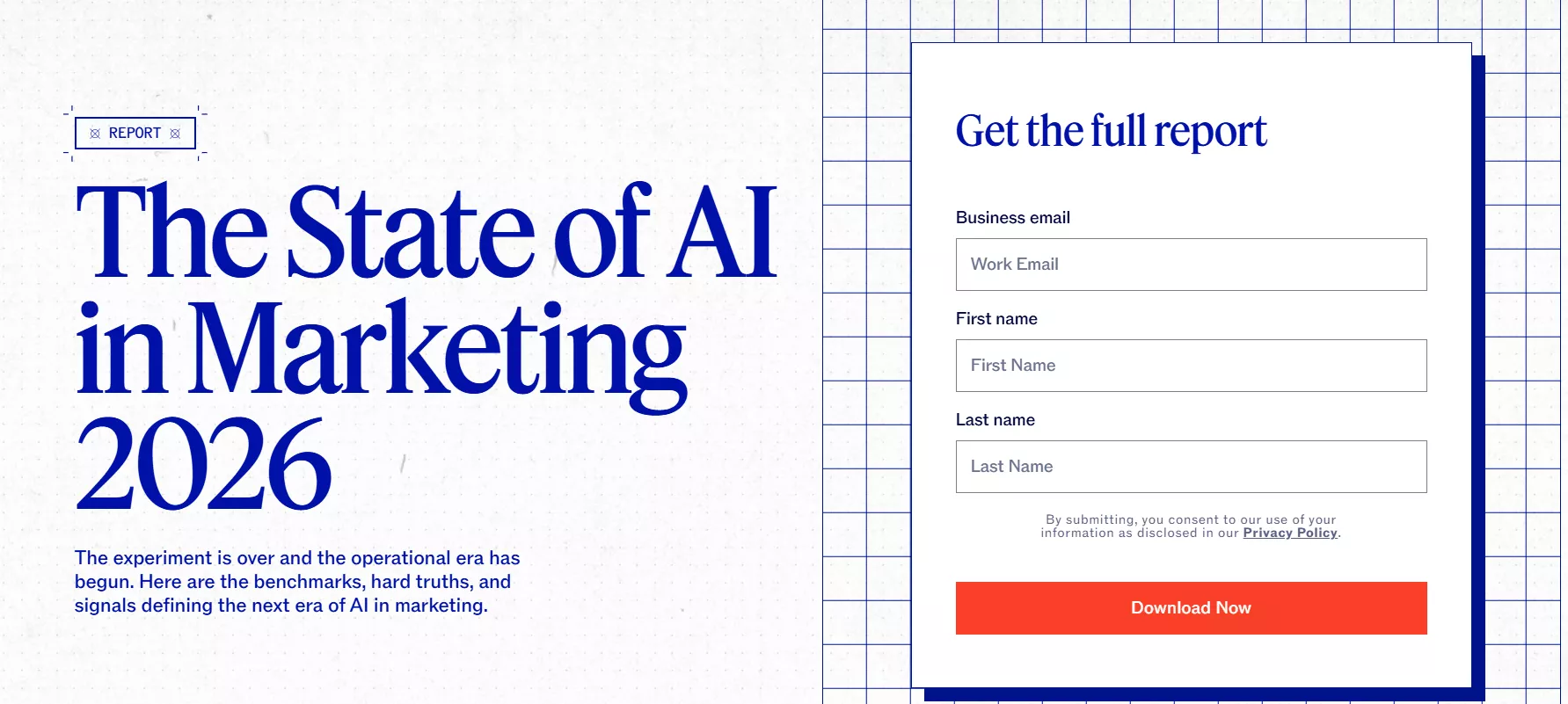
Whitepapers provide research-backed insights into a specific problem or trend. They are best for B2B audiences or decision-makers within organizations seeking data-based clarity. Examples include:
- The 2026 State of AI in Marketing
- Zero Trust Security Implementation Guide for Enterprises
- The Future of Remote Work: Trends & Predictions Report
Pro Tip
Reading dense whitepapers is easier with UPDF's AI assistant. You can summarize 50-page reports in seconds or ask specific questions about the data directly within the PDF.
Windows • macOS • iOS • Android 100% secure
5. Industry Reports
Industry reports compile original data and analysis to highlight trends and benchmarks. They are used for authority building and backlinks. Examples include:
- 2026 Digital Marketing Benchmark Report
- SaaS Growth Trends: Annual Industry Analysis
- Global E-commerce Statistics & Insights Report

6. E-books
E-books offer long-form and structured content that educates readers step by step on a topic. They are best for nurturing leads and building a strong knowledge base around your expertise. Examples include:
- The Complete Guide to Building a Sales Funnel That Converts
- Content Marketing Playbook for Beginners (2026 Edition)
- From Zero to 10K: A Startup Growth Blueprint

All these formats in the "Deep Dive" category require more effort but deliver higher perceived value and stronger authority. The design focus should be on clean layouts, authentic content, strong sectioning, and visual elements. Keep it between 8–30 pages with a clear table of contents and strategic CTAs throughout.
The "Interactive" Guides: Workbooks, Self-Assessment Audits, Editable Planners.
These lead magnet PDF examples are beyond passive reading. They let readers engage with them.
7. Workbooks
Workbooks guide users through exercises and help them apply what they learn in real time. They are best for coaching and skill-building niches. Examples include:
- 7-Day Personal Branding Workbook
- Build Your First Sales Funnel: Step-by-Step Workbook
- Content Strategy Planning Workbook for Beginners

8. Self-Assessment Audits
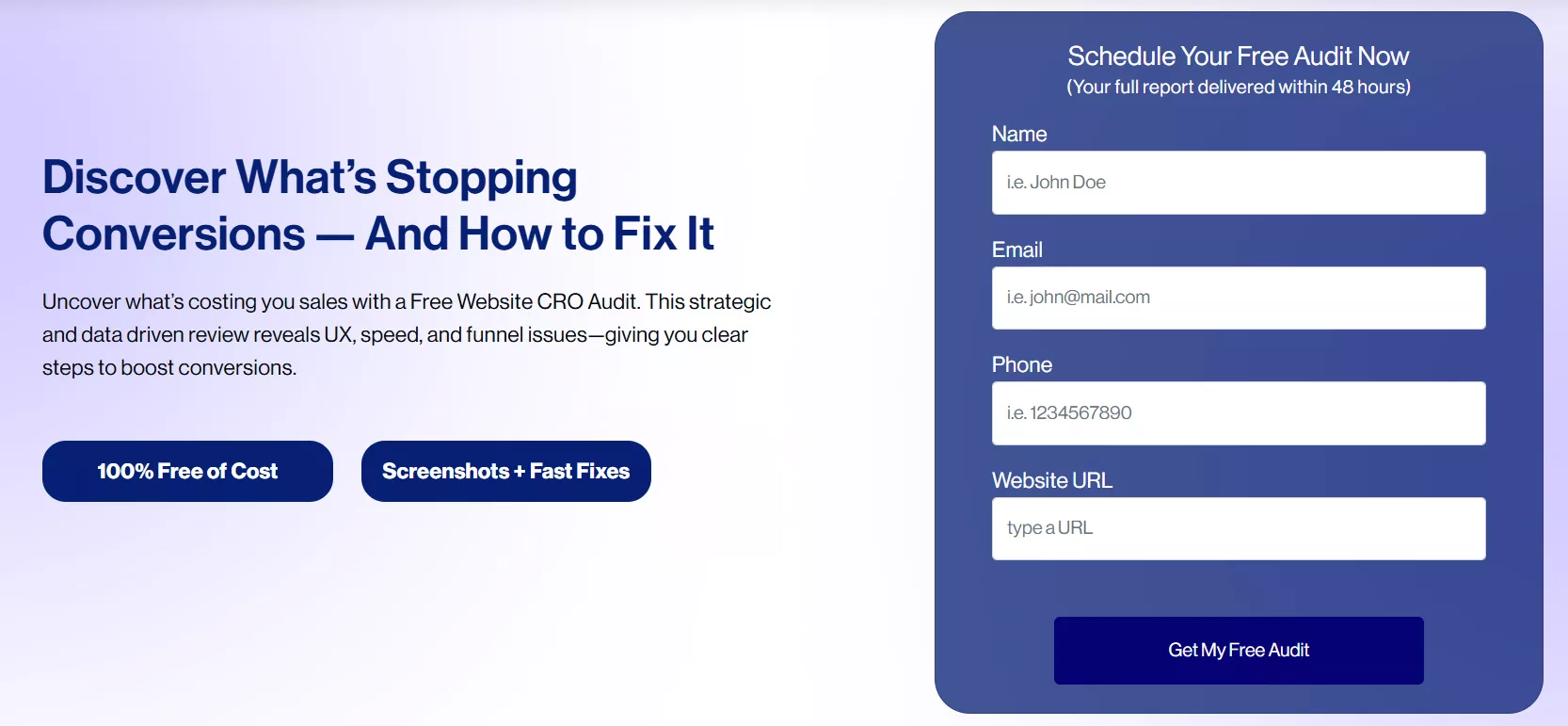
Self-assessment audits allow users to evaluate their current situation and identify gaps. They are powerful for qualifying leads and naturally leading into your services or solutions. Examples include:
- Website Conversion Rate Audit: Score Your Funnel in 10 Minutes
- Social Media Performance Self-Assessment Checklist
- SEO Health Scorecard: Analyze Your Site in 15 Steps
9. Editable Planners
Editable planners provide ready-to-use templates that users can customize for their own needs. They are ideal for ongoing use and repeated engagement. Examples include:
- 30-Day Social Media Content Planner (Editable PDF)
- Weekly Productivity Planner for Entrepreneurs
- Monthly Marketing Campaign Planner Template
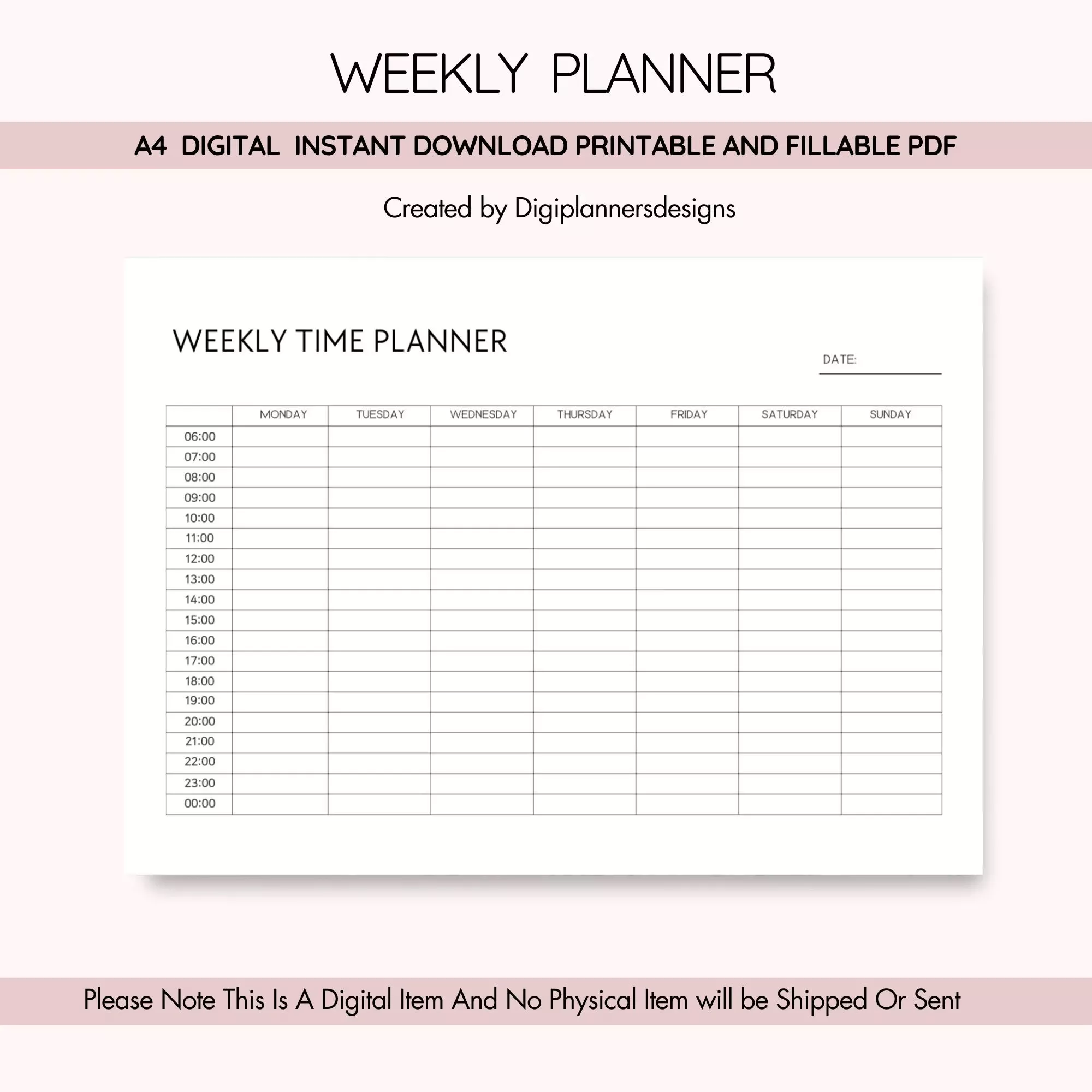
All these formats in the "Interactive" category increase engagement and time spent with your content. The design focus should be on usability, including fillable fields, clear instructions, interactive elements, and more. Keep the layout clean and intuitive so users can easily input information and take action.
Comparison Table: Checklist vs. E-book vs. Whitepaper
| Format | Best For | Avg Production Time | Primary Goal | Avg Opt-in Rate | Lead Capture Strategy |
| Checklist | Early-stage traffic & rapid opt-ins | 1–2 hours | Fast opt-ins / list growth | High | Free (No Email Required) |
| E-book | Thought leadership / lead nurturing | 1–2 weeks | Authority + education | Medium | Email Required |
| Whitepaper | Enterprise B2B & procurement | 3–8 weeks | Lead qualification + sales enablement | Lower but higher intent | Qualified Leads Only (Form + Details) |
Tip
Windows • macOS • iOS • Android 100% secure
Part 2. How to Create a Lead Magnet PDF in 4 Modern Steps
After looking at the top lead magnet PDF examples, let's move on to creating one of those PDFs. Below is the four-step workflow on how to create a lead magnet PDF in less than five minutes:
Step 1: AI-Powered Ideation & Outlining
The blank page problem kills more lead magnets than any technical issue. Most marketers know they need one, but far fewer actually finish building it.
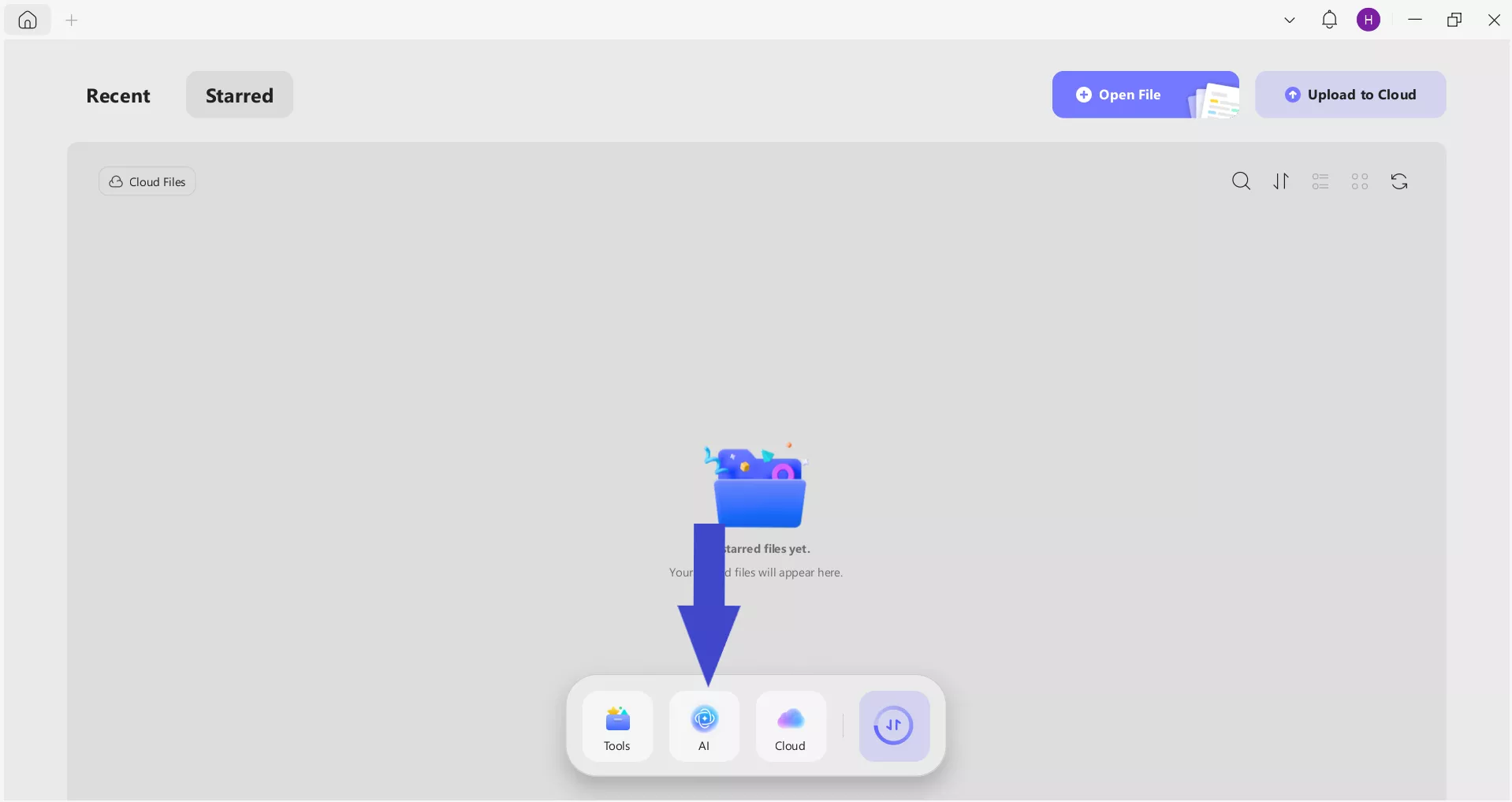
UPDF's built-in AI assistant changes the game. UPDF is a feature-packed PDF editor that comes with an AI assistant to brainstorm "magnetic" titles and generate a structured outline. Install and launch the UPDF app and click the "AI" option from the bottom.
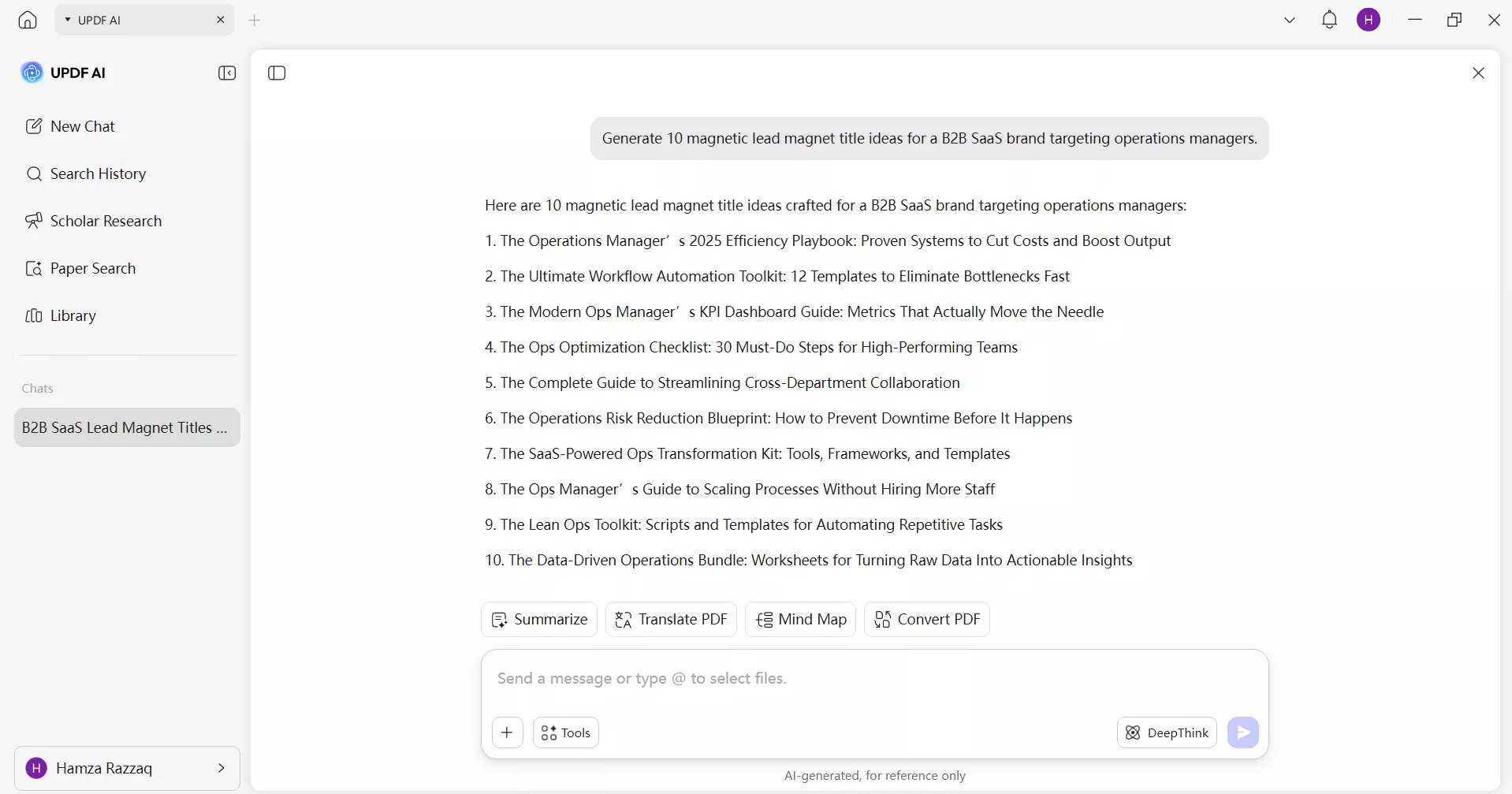
In the prompt window, write the prompt like "Generate 10 magnetic lead magnet title ideas for a B2B SaaS brand targeting operations managers." In seconds, you will get a full set of ideas you can choose from.
Once the title is finalized, you can ask the AI to generate a structured outline. Suddenly, writer's block is a non-issue.
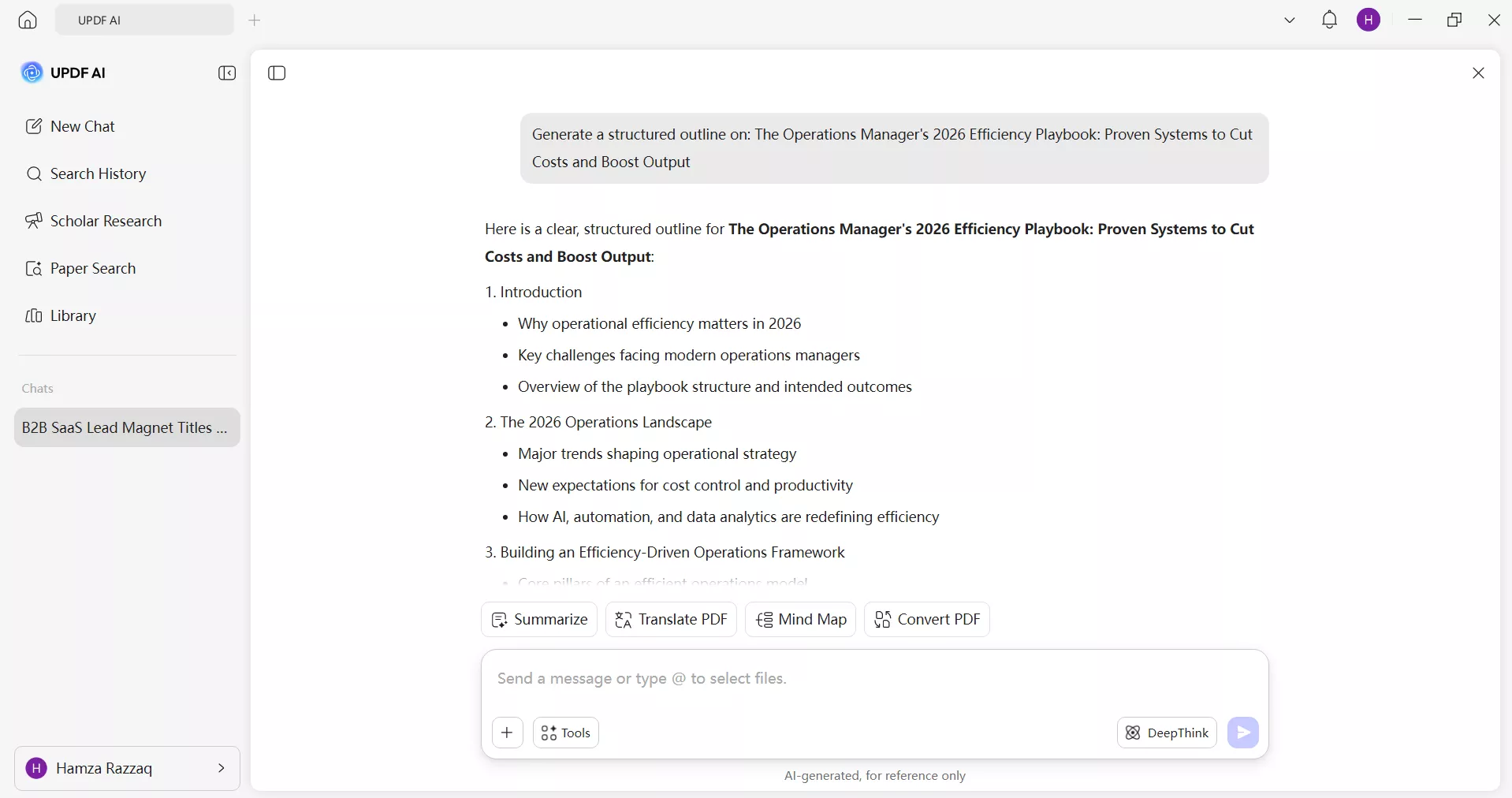
This AI assistance isn't meant to replace your thinking. It's about accelerating the scaffolding so you can focus your energy on the insights only you can provide.
Step 2: Designing for Readability
Many creators sketch designs in Canva and finish in Word. However, the modern route is to move to a single tool for precision edits.
UPDF Edit PDF feature gives you precise control over layout that tools like Canva or basic Word simply don't offer at the PDF stage. Simply import the design file and use the "Edit" mode to adjust text blocks, reposition design elements, fine-tune spacing with pixel-level accuracy, and do other edits directly inside the PDF.
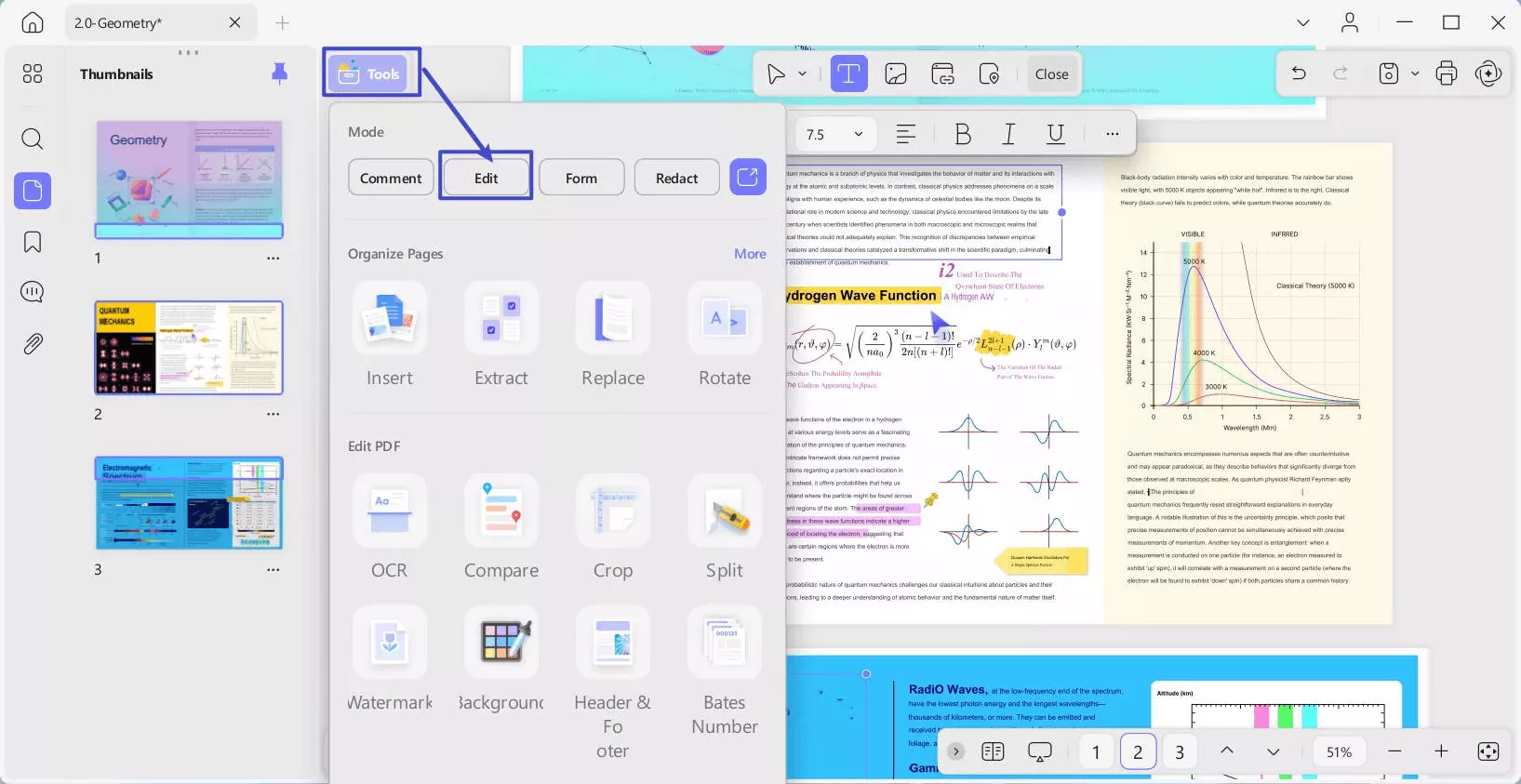
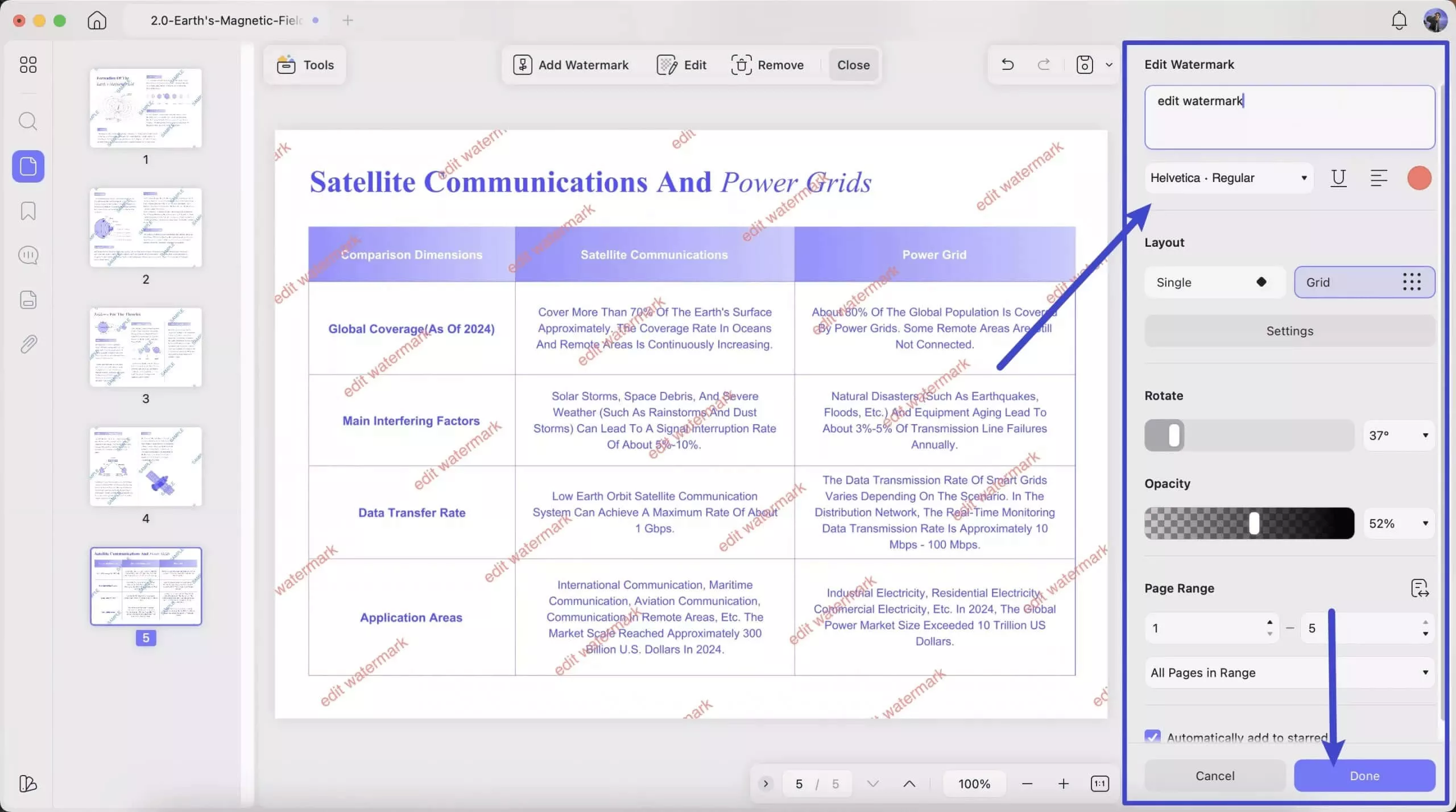
Moreover, you can also change the background or add a watermark. These are small details that separate professional assets from amateur ones.
Step 3: Boosting Engagement with Interactive Elements
A static lead magnet PDF is a dead end, while an interactive PDF is a traffic engine.
UPDF's Link & Form features let you embed clickable CTA buttons that link directly to your sales page, booking page, product demo, or any other page. You can also add hyperlinks to drive traffic back to your sales page or navigate between PDF pages.
Think of someone who downloads your audit workbook and completes the self-assessment. Afterward, they hit a button that says "Get Your Custom Action Plan →", which drops them directly onto your high-converting landing page. That's not a PDF. That's a funnel step disguised as a free gift.
To add a clickable CTA button, open your lead magnet PDF. Click Tools > Form and select "Button".
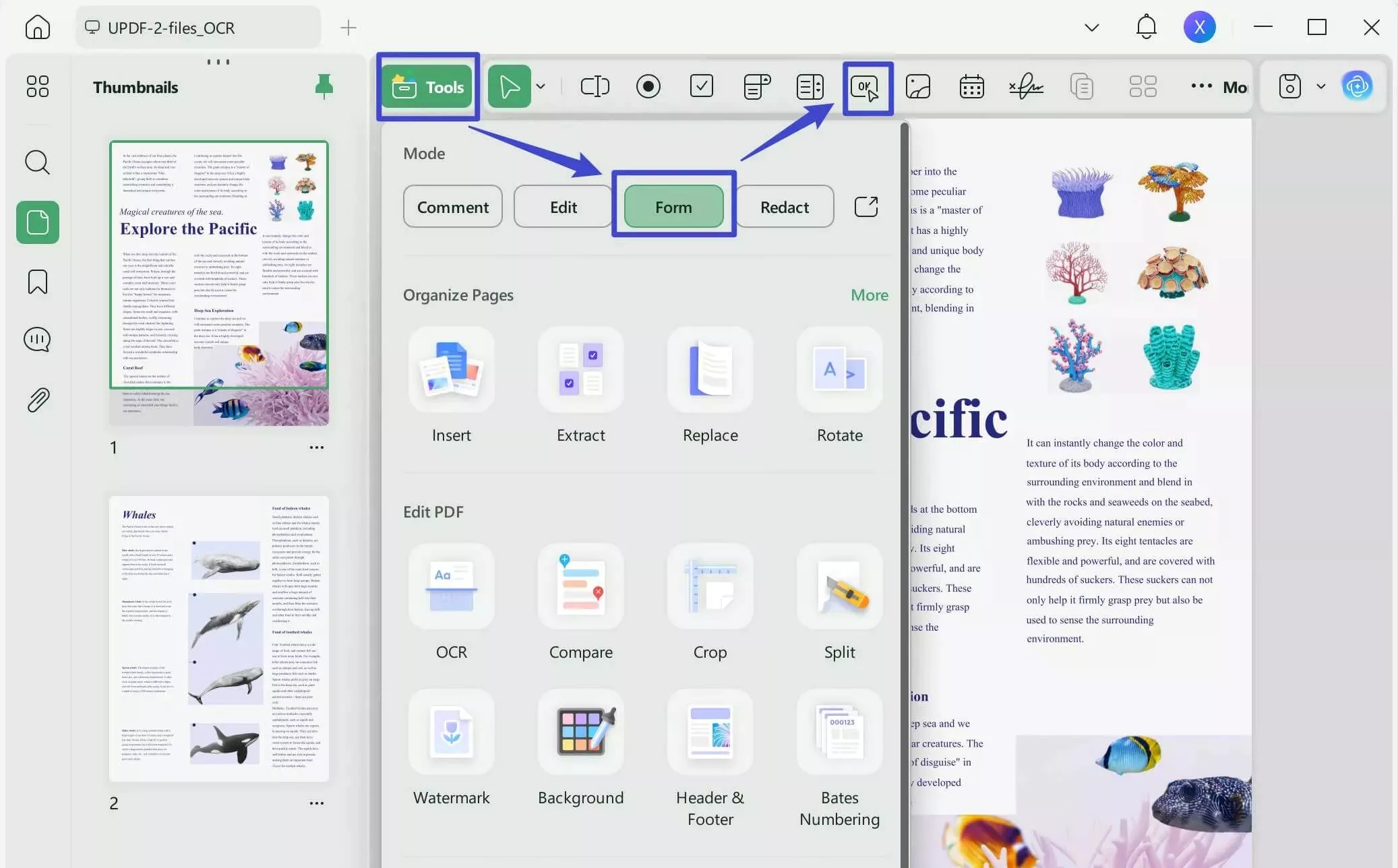
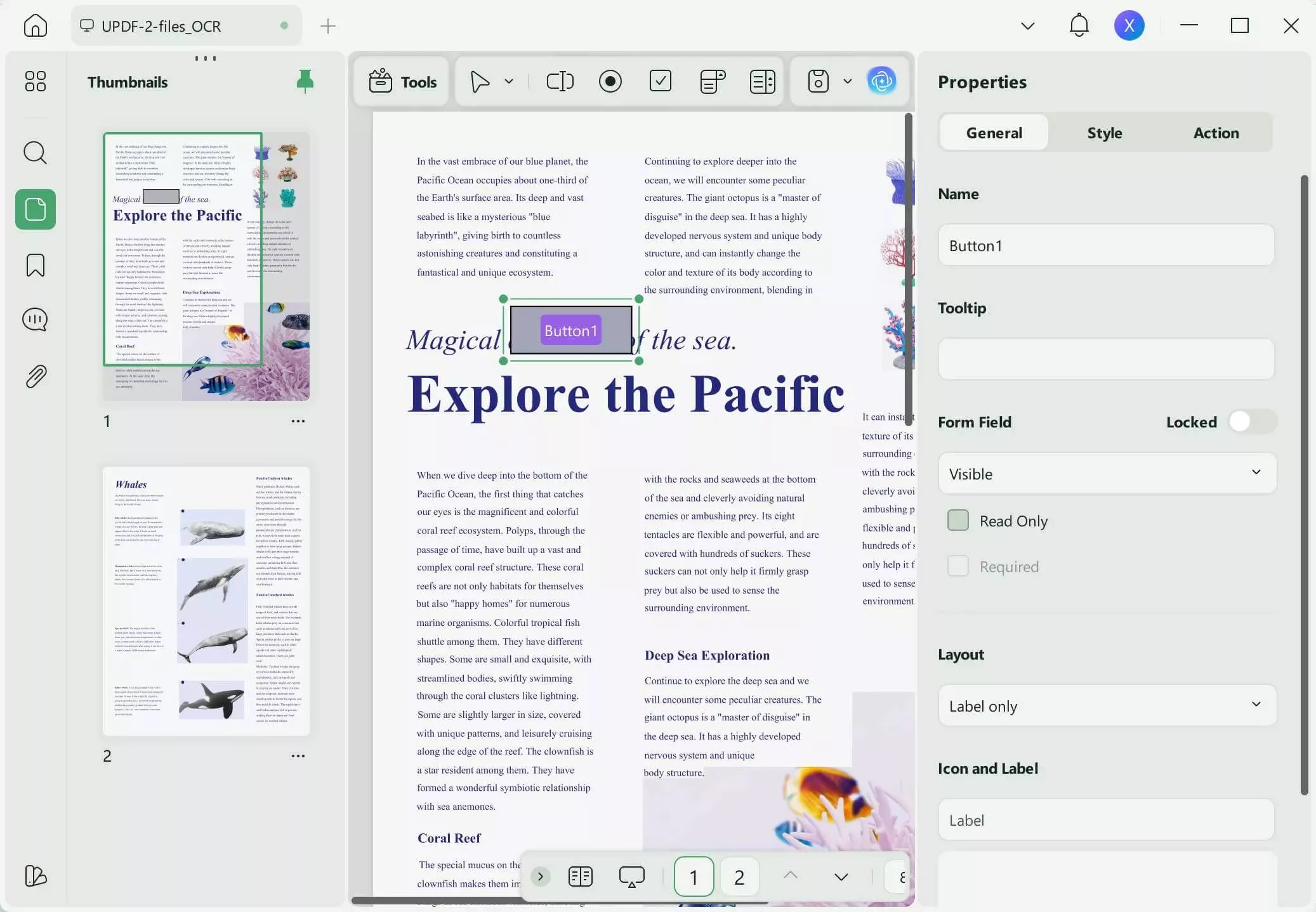
Now, click in the PDF where you want to add the button. Afterward, adjust its label, style, and click actions.
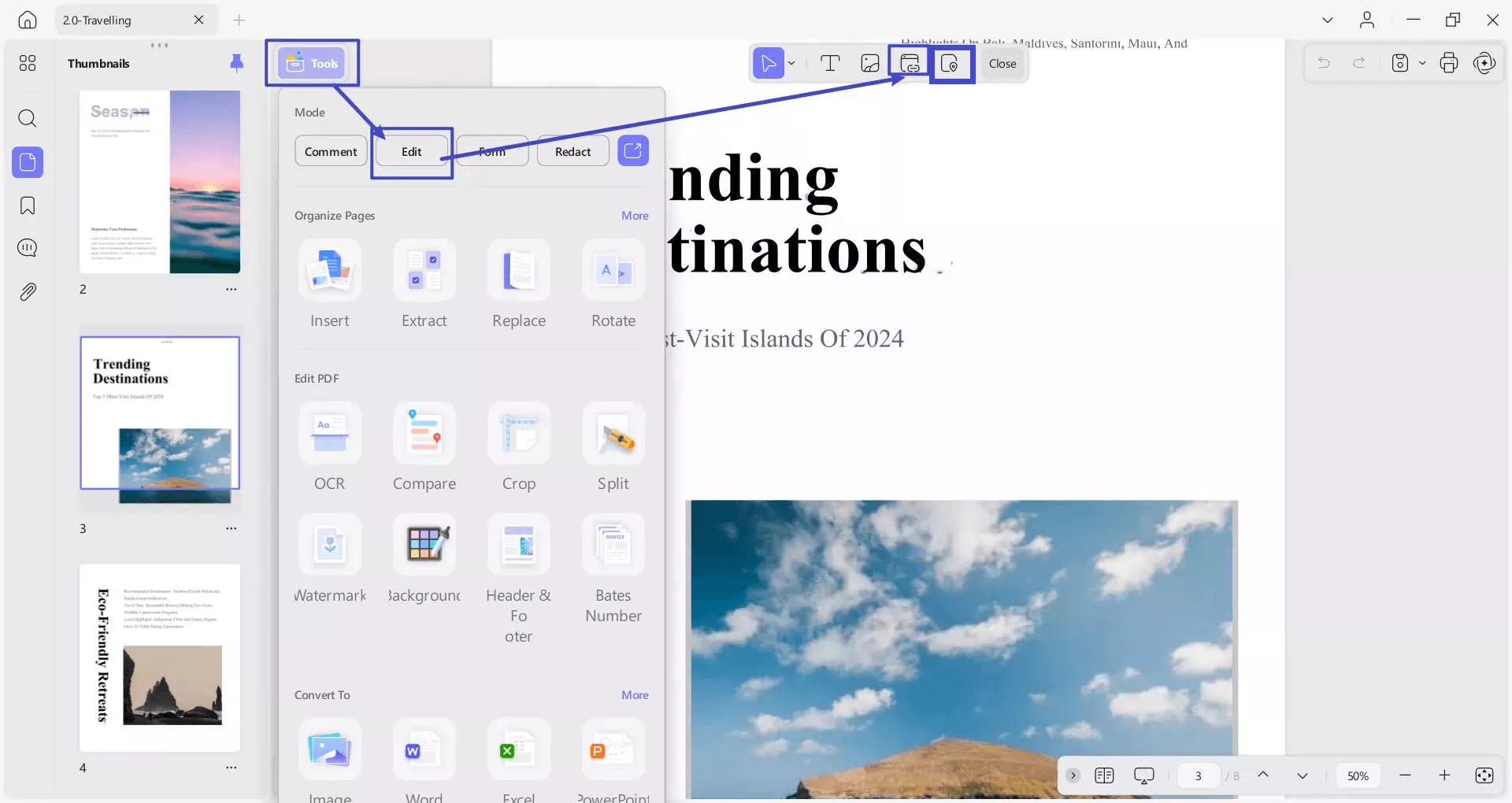
Similarly, if you want to add a hyperlink, click Tools > Edit. Now select "Insert & Edit Link" to add an external link or select "Insert & Edit Link Page" to add internal page links. Afterwards, you can simply place and add the link details where you want.
Step 4: Final Optimization for Delivery
A lead magnet that doesn't land in the inbox doesn't convert. File size is the silent killer of email deliverability. Most ESPs have attachment size limits. Similarly, adding a password to the PDF is also essential to secure premium content.
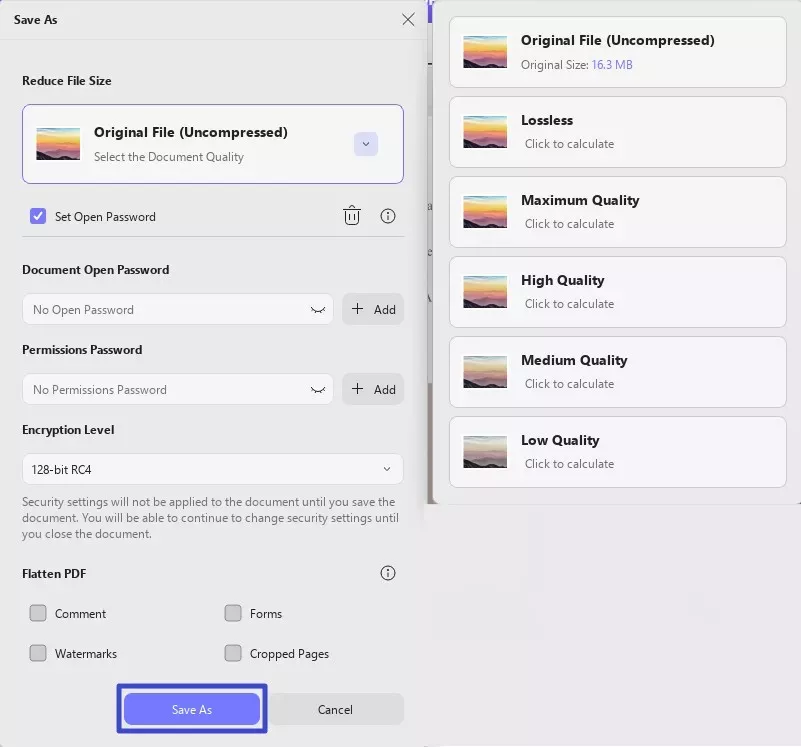
UPDF Compression & Protection features solve both these problems. The compress PDF feature lets you reduce the file size at various compression rates of your liking without causing any visible impact on quality. Similarly, the protect PDF feature lets you add an open and permission password with 128-bit RC4, 128-bit AES, or 256-bit AES.
Once you have finalized the lead magnet PDF, click the drop-down button next to the "Save" button and click "Reduce File size". Select the compression rate based on the estimated file size. If you want to add a password, check "Set Password" and then add the open/permission password. That's how effortless it is to compress and protect lead magnet PDFs with UPDF.
Feel impressed? Hit the download button below to install UPDF and make your lead magnet PDFs interactive and built to convert.
Windows • macOS • iOS • Android 100% secure
Part 3. Choosing the Right PDF Lead Magnet Template
It is a common practice that most creators start with a ready-made PDF lead magnet template to save time. However, it is important to choose the right template to create the most impact.
A "good" PDF lead magnet template is the one that offers:
Clean Hierarchy for Easy Scanning
A strong template should have a clear structure with bold titles, subheadings, short paragraphs, and bullet points. This helps readers quickly scan and understand the content without feeling overwhelmed. A well-structured layout also improves retention and keeps users engaged longer.
Mobile-First Layout Matters More Than Ever
Most users will open your PDF on their phones, so a single-column layout with readable font sizes is essential. Large buttons and clear CTAs let users take action without zooming or struggling.
Editable Elements for Flexibility
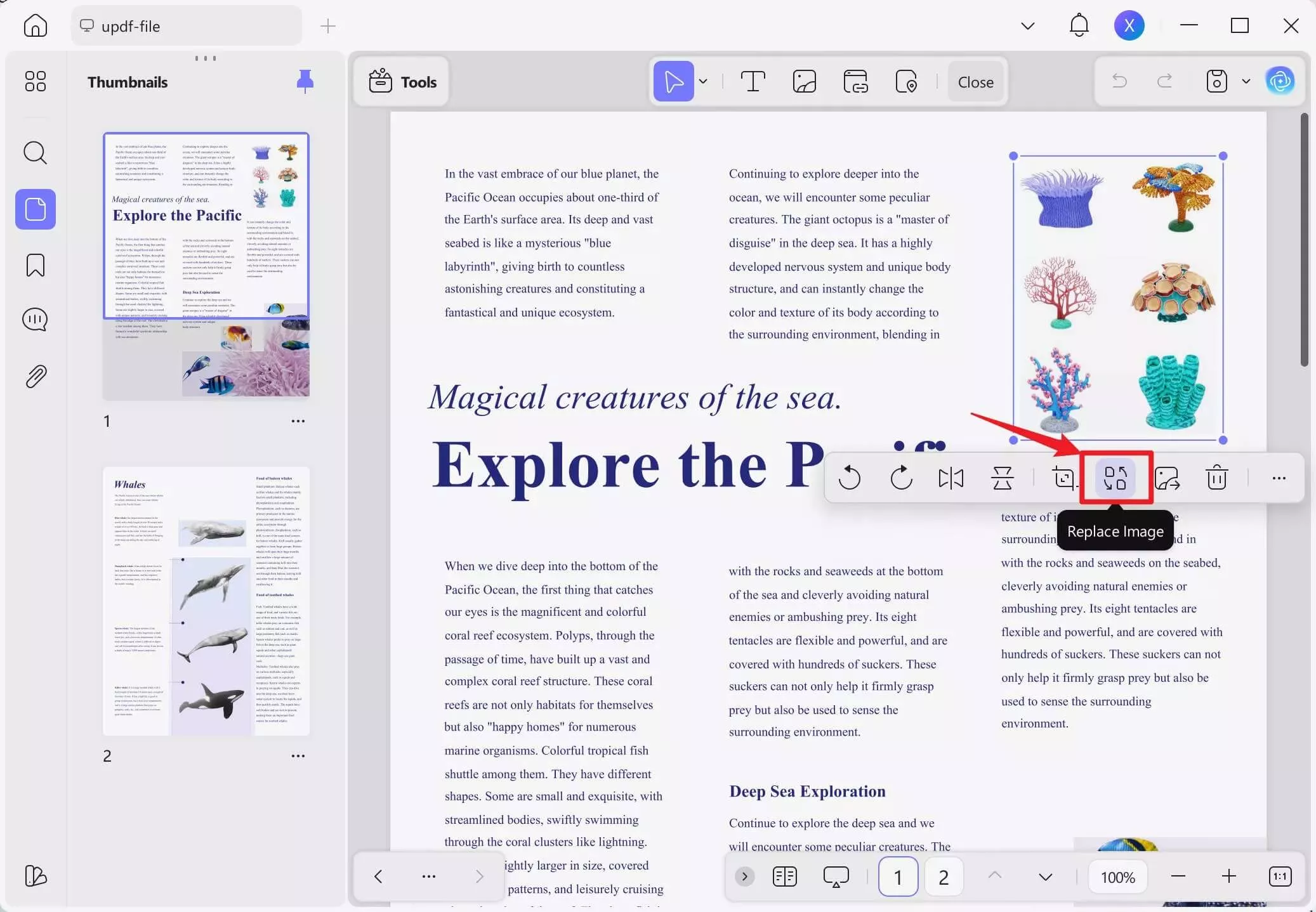
A good PDF lead magnet template should include placeholders for images, form fields, tables, or other elements. This flexibility allows you to repurpose the same structure for multiple campaigns. For example, you can use UPDF to easily replace images, edit text, or add interactive form fields without needing complex design tools.
SEO & Accessibility Optimization
Your PDF should use real and searchable text, not image-based content. Having proper metadata and real, searchable text (not image-based content) improves accessibility and visibility in AI search engines. While UPDF doesn't currently support alt-text for images, it makes other optimizations effortless by letting you edit text layers, manage metadata, and ensure your PDFs are fully searchable.
Pro Tip: Customize Any Template Inside UPDF
You don't need to be a designer to create something that looks like you hired one. Download a free template in any format (Google Docs, Canva export, Word), convert it to PDF, and open it in UPDF. Afterward, you can edit text, swap colors, adjust font sizes, insert your logo, and add interactive elements. This way, UPDF handles the final precision editing that turns a decent template into an on-brand asset.
Conclusion
Great lead magnets provide value. Smart lead magnets provide a path to purchase. The difference comes down to design/workflow and interactivity behind them, as seen in the above lead magnet PDF examples. So, if you are ready to build lead magnets that actually convert, UPDF is the tool your content strategy has been missing. Try it free today and build your next high-converting PDF asset in hours.
Windows • macOS • iOS • Android 100% secure







 Enrica Taylor
 Lizzy Lozano
 Enya Moore
 Enola Davis