 UPDF
UPDF
 UPDF for Windows
 UPDF for Mac
 UPDF for iPhone/iPad
 UPDF for Android
 Nomostar
 UPDF AI Online
 UPDF Sign
 IvyCraft
 Edit PDF
 Annotate PDF
 Create PDF
 PDF Form
 Edit links
 Convert PDF
 OCR
OCR PDF to Word
 PDF to Image
 PDF to Excel
 Organize PDF
 Merge PDF
 Split PDF
 Crop PDF
 Rotate PDF
 Protect PDF
 Sign PDF
 Redact PDF
 Sanitize PDF
 Remove Security
 Read PDF
 UPDF Cloud
 Compress PDF
 Print PDF
 Batch Process
 About UPDF AI
 UPDF AI Solutions
 AI User Guide
 FAQ about UPDF AI
 Summarize PDF
 Translate PDF
 Chat with PDF
 Chat with AI
 Chat with image
 PDF to Mind Map
 Explain PDF
 PDF AI Tools
 Image AI Tools
 AI Chat Tools
 AI Writing Tools
 AI Study Tools
 AI Working Tools
 Other AI Tools
 AI Bookmark Generation
 AI Bookmark Summary
 AI Watermark Generation
 AI Background Generation
 AI Sticker Generation
 AI Stamp Generation
 AI Editing Suite
 UPDF Copilot
 AI Page Management
 AI Semantic Search
 PDF to Word
 PDF to Excel
 PDF to PowerPoint
 Enterprise Solution
 Enterprise Sign
 Enterprise AI
 Enterprise Plan
 Enterprise User Guide
 Enterprise Webinar
 IT
IT Education
 Construction
 Financial Service
 Healthcare
 Insurance
 Legal
Legal Manufacturing
 Government
 Researchers & PhDs
 Solopreneurs & Freelancers
 Lawyers & Legal Professionals
 Real Estate Agents & Brokers
 Education Solution
 Customer Stories
 User Guide
 UPDF Tricks
 FAQs
FAQs UPDF Reviews
 Download Center
 Blog
Blog Newsroom
 Tech Spec
 Updates
 UPDF vs. Adobe Acrobat
 UPDF vs. Foxit
 UPDF vs. PDF Expert

Quick Answer
The important distinction is annotation versus content editing. Notes places comments, drawings, and signatures over a PDF page. It does not turn the attachment into a word-processing document or let you rewrite the PDF’s original text and images.
The practical rule I use is simple: if the original content can remain unchanged, Notes may be enough. If the sentence, image, link, or page itself must change, use a PDF editor.
Part 1. Which PDF Workflow Do You Need?
Use this table before opening a tool. It prevents the most common mistake: choosing Markup for a job that requires content editing.
| What you need to change | Recommended workflow | Why |
|---|---|---|
| Highlight text, draw, add a shape, or leave a visible note | Apple Notes > Markup | These are annotations placed over the PDF |
| Add a text box or visible handwritten signature | Apple Notes > Markup | Notes supports text boxes and signatures without changing the original text |
| Fill an interactive PDF form | Open the attachment in Preview or a PDF form editor | Apple documents form filling in Preview; Notes can hand the attachment to the default PDF editor |
| Correct existing text, replace an image, or edit a link | UPDF > Tools > Edit | The PDF’s original content objects must change |
| Insert, replace, extract, split, or delete pages | UPDF > Organize Pages | Notes offers limited attachment-page handling, not a full page organizer |
| Edit text in a scanned or image-only PDF | UPDF > Tools > OCR, then Edit | The scan needs a recognized text layer before its text can be edited |
Best for Notes:
- reviewing a lecture handout, circling a clause, adding feedback, or placing a visible signature on a document that otherwise stays unchanged.
Not for Notes:
- correcting a name inside the original contract text, replacing a logo, fixing a hyperlink, or restructuring a multi-page PDF.
Part 2. How to Edit PDFs in Notes in MacOS Tahoe?
Although the new updates for the Notes application do not bring any in-depth PDF editing features, it still makes it possible to fill the forms in PDF format without converting them or annotating PDF documents for ease in the future. The best part here is that working on these things is very easy, thanks to the intuitive interface of the Notes app. Here are the steps you need to follow for annotating PDFs or filling out PDF forms.
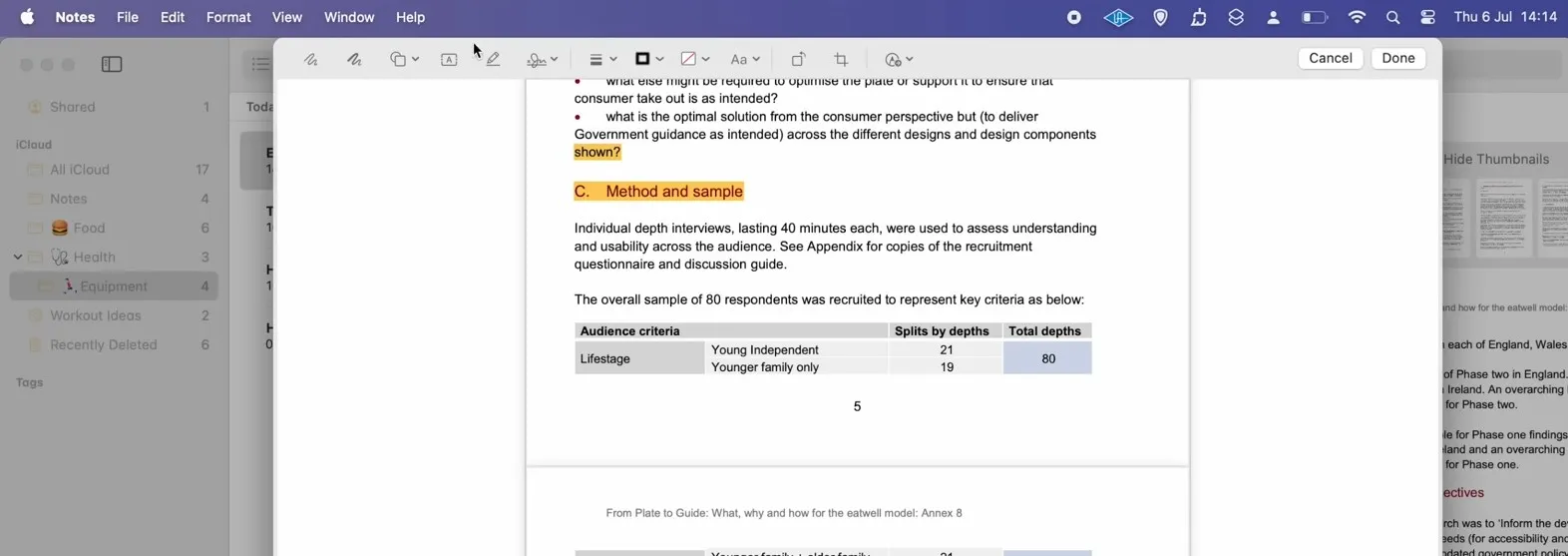
1. Open Markup tools in PDF and click Highlight
As you open the PDF document in Notes app, you can click the "Markup" button to go inside the Markup options. Now you have multiple editing options, and we will start with highlighting. Click "Highlight" from top and click-drag your mouse over any text to highlight it.
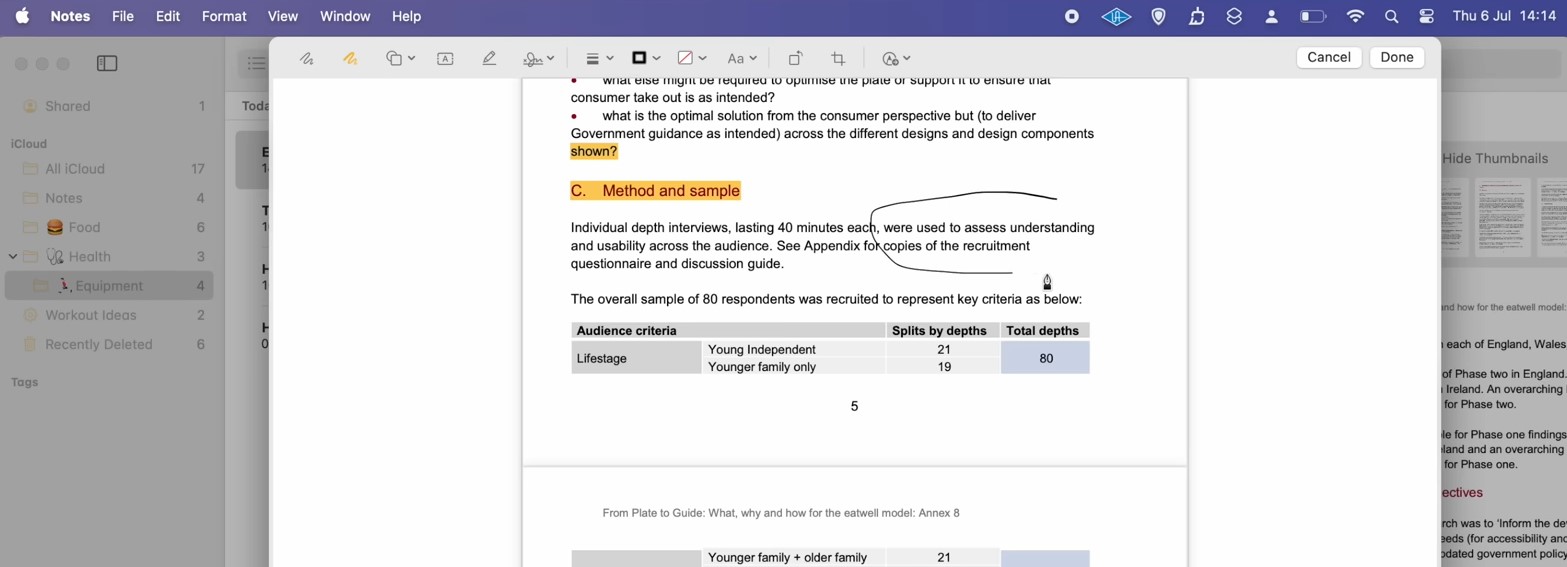
2. Click Pencil for freehand sketching on PDF
Click the "Pencil Draw" button from top and use the cursor of mouse as a pencil to draw anywhere on the PDF document. This can be useful for underlining or free-hand sketching on the PDF.
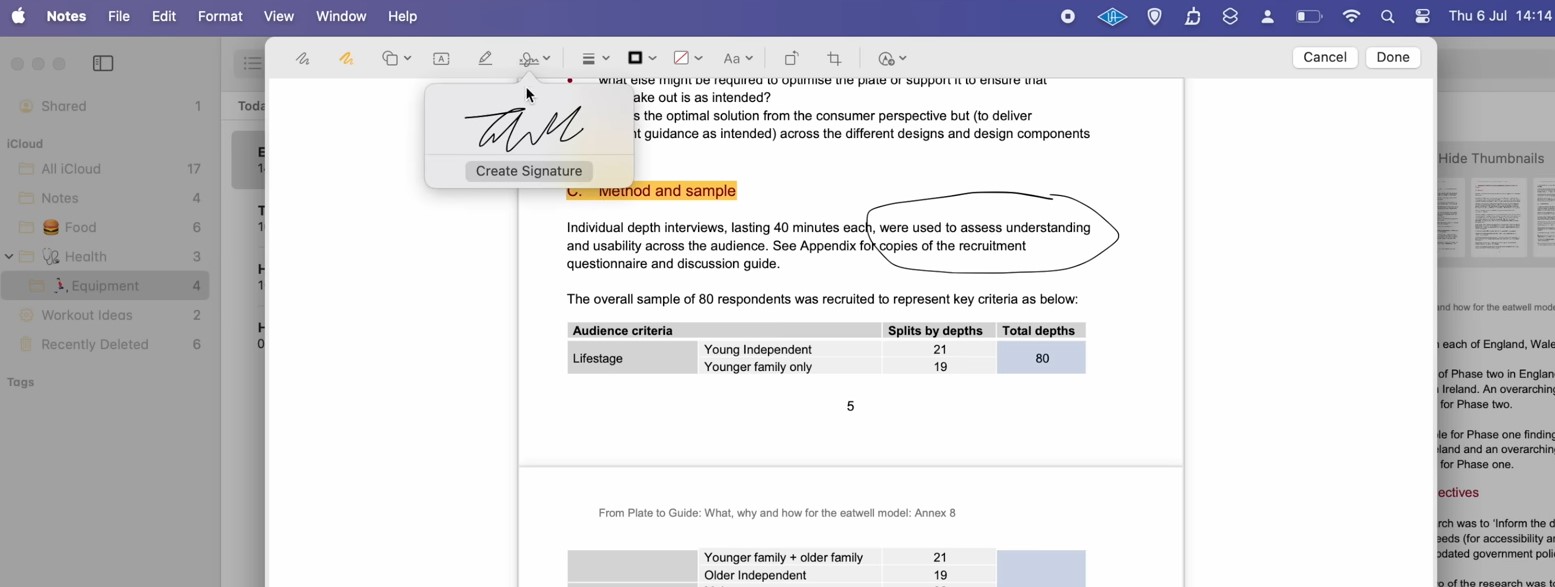
3. Click signature and create your digital signature
If you want to add a signature in your PDF document, you can click the "Signature" button from the top and then click "Create Signature". Once you have created your signature, clicking anywhere in the PDF will add it and you can also resize and reposition that signature.
In the similar way you can click the text button on top denoted by "A" enclosed in a box for adding text to your PDF wherever you want.
Part 3. What PDF Features Does the Notes App Have on MacOS Tahoe?
The Notes app previously didn't support any good PDF features, and working with PDF documents in this app wasn't a good experience at all. However, the MacOS Tahoe update for Notes app brings some exciting new features. The Notes app is getting several new features and updates like the rest of the OS and apps, but here we have listed the most important PDF features that are coming to the Notes app this time:
1. Store and open multiple PDFs together
With the new Notes app, you can now store and open multiple PDF documents together. It is now possible thanks to the updates in MacOS 16 that allow users to not only work on their PDF repository with the Notes app, but users can open and use multiple documents together within the Notes app.
2. An inline PDF usage experience
This new update for Notes app makes it very efficient for managing PDF documents in Notes along with all other documents. Exporting PDFs or working with scanned documents is efficient. Now, you don't get an image thumbnail, but there is a full-width document whenever you open a PDF document in Notes.
3. A different way to view PDFs with different sizes
The Notes app now allows users to use the show thumbnails feature like all other PDF viewer tools. This way, users will see the whole PDF page on their screen, along with page thumbnails in 3 different sizes ranging between small and large. Hence, it will be much easier to navigate through longer documents.
4. Auto-filling PDF forms
The Notes app has now become powerful enough to support auto-filling PDF forms. The experience is like filling out Web forms on a Mac, where the Mac automatically identifies the type of fields and fills it with your saved data, so you don't have to do that manually. Now, you can do the same with PDF documents using the Notes app.
5. Markup tools supported for PDFs
Notes app now supports markup tools for PDF documents. Now, users can add text comments, highlight their content, use pencil for freehand drawing or underlining, and even digitally sign their PDF documents with the Notes app in macOS Tahoe.
Part 4. Bonus Tip: The Best PDF Editor on MacOS Tahoe
While the Notes app is considered to now support fully featured PDF editing, that's not the case. It is only capable of annotating PDF documents, which include signatures, highlights, and comments. Moreover, it can fill PDF forms, and these editing options still do not give you complete control over PDF documents. So, once you edit the document, it gives a very unprofessional look with a bad experience.
So, if you are looking for a better PDF working experience and a complete range of features, then you need to install the best PDF editor for MacOS Tahoe. UPDF for Mac is your best choice since it supports MacOS Tahoe and brings every PDF feature that you need. With its PDF editing features, all your requirements will be fulfilled, and you will never miss out on any important task.
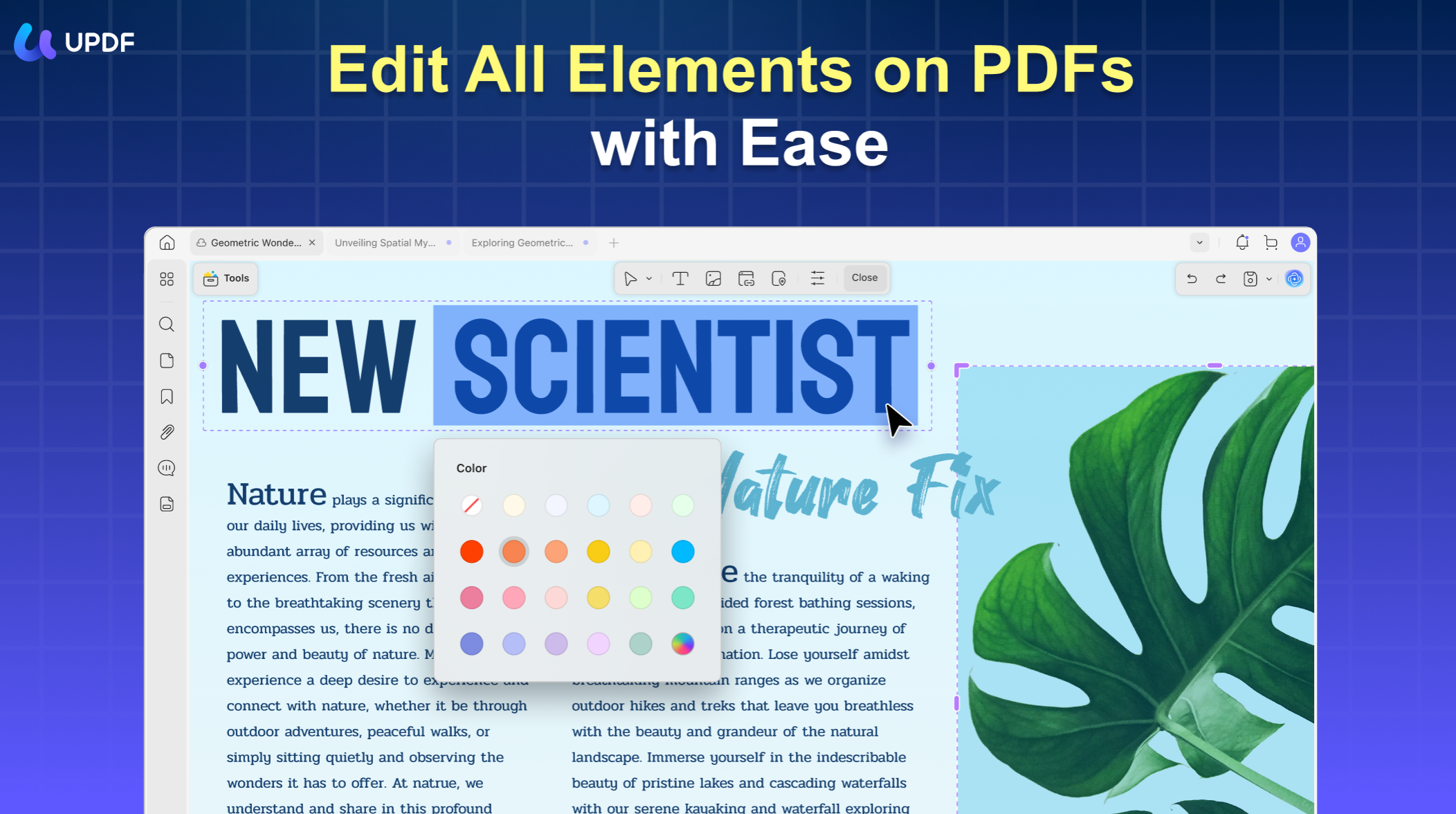
So, download UPDF on your Mac and purchase the UPDF Pro version to unlock all the premium features for a premium experience. This way, you will get the best PDF experience on a Mac with the following features available:
Windows • macOS • iOS • Android 100% secure
1. UPDF AI
UPDF AI is among the best features users get from UPDF because it is an intelligent chatbot that will assist you through the process of working on PDF documents. It supports summarizing, explaining, and translating content in PDF documents, and users can use it like a regular chatbot to ask things regarding their content.
2. UPDF Cloud
UPDF comes integrated with a Cloud feature, and every user gets free cloud storage for managing their PDF documents. The documents stored in the Cloud are synced across all the devices active with your account, so you don't have to manually transfer files between different devices.
3. OCR
Working on scanned documents or text images has never been this easy, thanks to the UPDF OCR feature. The built-in OCR feature supports multiple languages and brings a high accuracy of over 99% when converting graphic text to editable text inside a PDF document. Now, there is no need to manually type content from images or scans.
4. Batch Processing
With the batch processing feature in UPDF, users can work on multiple PDF documents simultaneously and process batches in seconds. The batch processing features include converting, combining, and securing. Inserting, printing, and Bates numbering.
5. PDF Protection
UPDF supports PDF protection features where you can set and remove document permissions or document access. Moreover, it can be used to remove the previous authentication set on a PDF document if you have the password for it.
6. PDF sharing
UPDF makes sharing PDF documents very easy, where we can use links or QR codes for sharing the documents publicly or privately. However, if you want to directly share a document with someone, you can use the email sharing option as well.
FAQs
Q1: Can Apple Notes edit existing text in a PDF?
No, Notes does not rewrite original PDF text. Notes can place text boxes and other annotations over a PDF. Use a PDF editor when the original sentence, font, image, or link must change.
Q2: Does marking up a PDF in Notes change the Finder copy?
Not necessarily. Notes can store its own attachment copy, so changes to the attachment may not update the file at its original Finder location. Save the finished attachment to a known folder and verify that copy.
Q3: Why can’t I highlight text in a PDF?
The PDF may not contain selectable text. Scanned pages are images until OCR creates a text layer. A text map problem or a macOS 26 selection issue can also prevent normal highlighting.
Q4: Can I use Notes to sign a PDF legally?
A Notes signature creates a visible electronic mark. Whether that mark satisfies a legal or business requirement depends on the transaction, local law, and the recipient’s policy. Use certificate-based signing when identity validation or tamper evidence is required.
Conclusion
You can edit a PDF in the everyday sense inside Notes on macOS Tahoe: attach it, highlight text, draw, add a text box, place a visible signature, crop, or rotate it. Notes does not edit the PDF’s existing text, images, links, or full page structure.
Use Notes when the PDF supports your note-taking workflow. Use UPDF when the corrected PDF itself must be delivered, reused, searched, or reorganized.
When the task goes beyond Markup, try the actual edit on a duplicate before changing your only copy.
Download UPDF for free to edit PDF text, images, pages, or a supported scanned document on Mac — installation is free, and Pro removes the trial watermark from exported files.
Windows • macOS • iOS • Android 100% secure




 Enrica Taylor

 Grace Curry
 Enid Brown