 UPDF
UPDF
 UPDF for Windows
 UPDF for Mac
 UPDF for iPhone/iPad
 UPDF for Android
 UPDF AI Online
 UPDF Sign
 Edit PDF
 Annotate PDF
 Create PDF
 PDF Form
 Edit links
 Convert PDF
 OCR
OCR PDF to Word
 PDF to Image
 PDF to Excel
 Organize PDF
 Merge PDF
 Split PDF
 Crop PDF
 Rotate PDF
 Protect PDF
 Sign PDF
 Redact PDF
 Sanitize PDF
 Remove Security
 Read PDF
 UPDF Cloud
 Compress PDF
 Print PDF
 Batch Process
 About UPDF AI
 UPDF AI Solutions
 AI User Guide
 FAQ about UPDF AI
 Summarize PDF
 Translate PDF
 Chat with PDF
 Chat with AI
 Chat with image
 PDF to Mind Map
 Explain PDF
 PDF AI Tools
 Image AI Tools
 AI Chat Tools
 AI Writing Tools
 AI Study Tools
 AI Working Tools
 Other AI Tools
 PDF to Word
 PDF to Excel
 PDF to PowerPoint
 Enterprise Solution
 Enterprise Sign
 Enterprise AI
 Enterprise Plan
 Enterprise User Guide
 Enterprise Webinar
 Banking
 Healthcare
 Insurance
 Legal
Legal Manufacturing
 Government
 Education Solution
 Customer Stories
 User Guide
 UPDF Tricks
 FAQs
FAQs UPDF Reviews
 Download Center
 Blog
Blog Newsroom
 Tech Spec
 Updates
 UPDF vs. Adobe Acrobat
 UPDF vs. Foxit
 UPDF vs. PDF Expert

Why is Adobe Acrobat Forcing me to sign in? You just need to view a quick document, but instead, you are met with a persistent "Sign In" pop-up from Adobe Acrobat. This "sign-in loop" can derail your productivity and make simple PDF management feel like a chore. Whether you are using the free Reader or a paid Pro subscription, these prompts often feel intrusive.
Don’t worry, as after testing all the best methods to fix this issue, we finally found the 5 effective ones that we’ll be telling you about in this article. We’ll also tell you about the reasons for this issue. Keep reading!
Quick Answer
Way 2. Reinstall Adobe Acrobat Reader
Way 3. Uncheck Sync Settings
Way 4. Remove Some Devices from Your Acrobat Account
Way 5. Restart Computer
Furthermore, if you are tired of the constant hurdles of the Adobe ecosystem, we will introduce you to UPDF—a high-performance, lightweight alternative. You can click the button below to have a free download.
Windows • macOS • iOS • Android 100% secure
Part 1. Why Does Acrobat Keep Asking Me to Sign In?
“Adobe Acrobat keeps asking me to sign up.” thousands of people have this issue with their app. But what causes it?
You may have the “Adobe Acrobat sign-in required keeps popping up” issue for the following reasons.
- Acrobat Software Issues: When the software has any bugs or technical issues, then the sign-in pop-up may show up repeatedly. That is fixed when the software gets updated.
- Device Limitations: Adobe Acrobat lets you use its account on up to 2 devices. If you’ve signed up with its account on more than two devices, the software may ask you to sign in again and again to verify your identity.
- Compatibility Issues: The software may not be compatible with your operating system or when you’re using an outdated OS on your system. That could also cause this issue.
- Adobe has fully transitioned into a cloud-centric "Software as a Service" (SaaS) model. The primary reason Acrobat forces you to sign in is to verify your subscription status and sync your documents with the Adobe Document Cloud. Even for the free version, Adobe uses the sign-in requirement to collect user analytics and encourage upgrades to their premium tiers. If this "cloud-first" approach feels too restrictive for your daily needs, it might be time to switch to a tool like UPDF that lets you work seamlessly offline and online.
Windows • macOS • iOS • Android 100% secure
These are reasons why the Acrobat repeatedly prompts for sign in. Let’s fix it.
Part 2. 5 Effective Ways to Fix Adobe Acrobat Sign-In Required Keeps Popping Up
We've found the following best methods to fix the Adobe sign-in required, which keeps popping up, keeping you from doing your tasks. Let's start with the fastest one.
Way 1. Use Acrobat Alternative - The Fastest Way
The fastest way to solve this issue is to simply download UPDF, the best Acrobat alternative. Unlike Adobe, which often feels bogged down by legacy code and mandatory cloud checks, UPDF is built for speed and modern efficiency. It provides all the power of a professional PDF editor you'd expect from Acrobat Pro, but at a more affordable and cost-effective price. It’s quick, easy to use, lightweight, and free from any issues that could take a lot of your time and keep you from doing any work.
Windows • macOS • iOS • Android 100% secure

Why Users are Switching from Adobe to UPDF:
Blazing Fast Performance: UPDF opens in seconds, not minutes. It doesn't run dozens of background "update" services that slow down your computer.
One License, All Platforms: Adobe often charges extra for different versions. One UPDF license covers you across Windows, Mac, iOS, and Android seamlessly.
Integrated AI Productivity: UPDF AI is already a mature feature, allowing you to summarize, translate, and chat with your PDFs directly—saving you hours of manual work. It can even search academic papers and generate literature reviews for you.
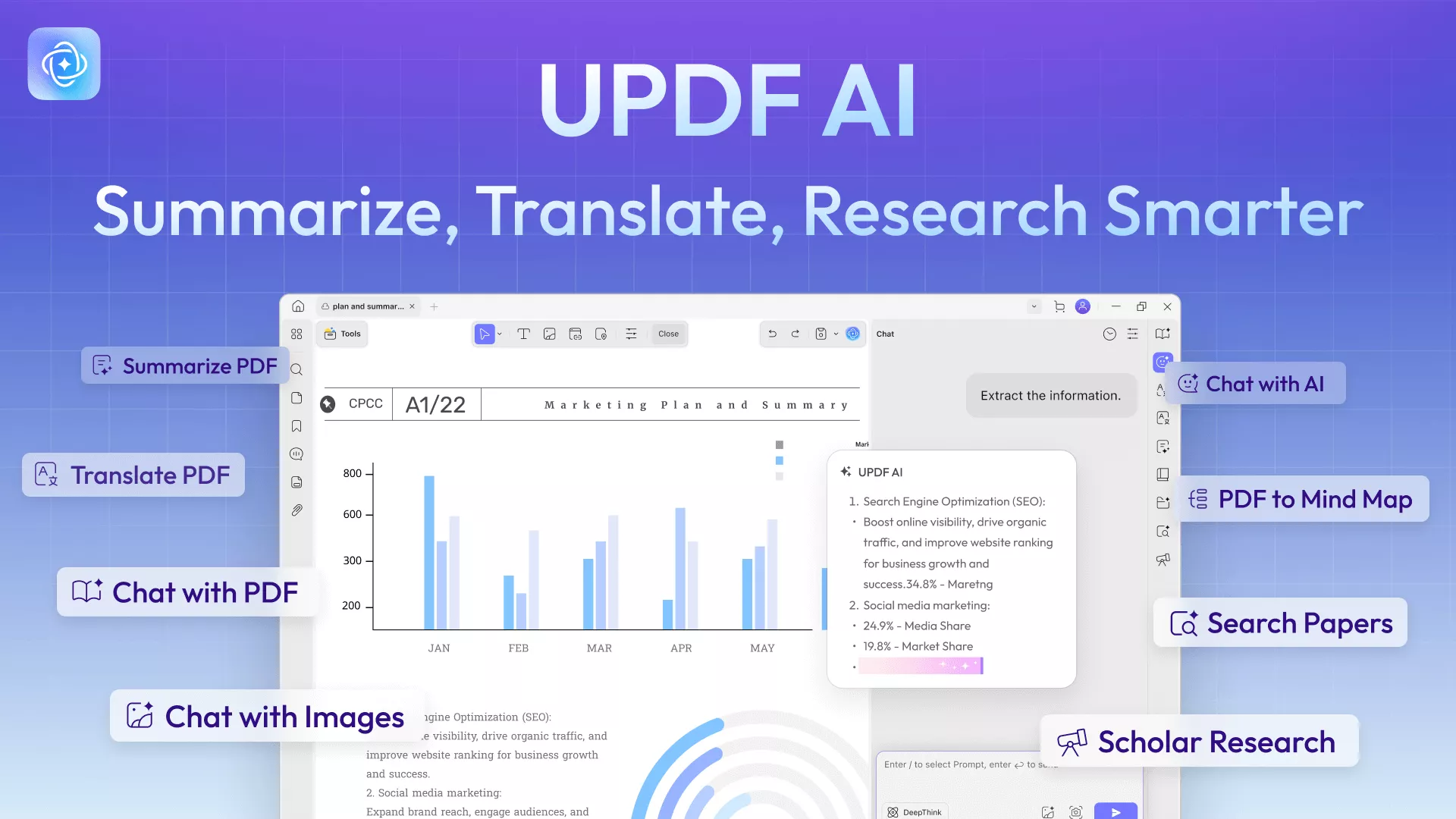
With this tool, you can easily read and manage PDF files, using advanced features to save time and greatly enhance your work efficiency.
Here are the powerful features.
- View PDFs: Open any PDF file and read through it without any trouble or delay. You can also change PDF background color as you like.
- Annotate PDFs: Highlight content, drop a comment, draw a shape, and mark up your PDF however you like.
- OCR Feature: It can convert the scanned files to editable and searchable PDFs without changing their layout.
- Cloud Storage: It allows you to upload your files to UPDF Cloud so that you can access your files on any platform.
Both UPDF and UPDF AI can be used for free. Under the UPDF free version, all features are available with trial watermarks added. The UPDF AI free version allows you to ask up to 100 questions.
You can watch this video or read this UPDF review blog to learn more about this AI-powered PDF manager.
✨Note
Way 2. Reinstall Adobe Acrobat Reader
Reinstallation is the simplest method to try out but trust us, it really works. When you uninstall the app and install it again, it gets updated, and all the viruses and the issues are also fixed. So, reinstall your Adobe Acrobat by following this step-by-step guide.
- Click the Search bar at the bottom of your screen and search for “Control Panel”.
- Next, click on the “Control Panel” option.

- Click the “Programs” option.

- Hit “Programs and Features”> Adobe Acrobat> Uninstall.

- Hit “Yes,” and the app will be installed again. To reinstall the app, go to the Adobe Acrobat Reader website and download it. Now, you can check the pop up window “Acrobat forcing you to sign is” issue fixed or not.
Way 3. Uncheck Sync Settings
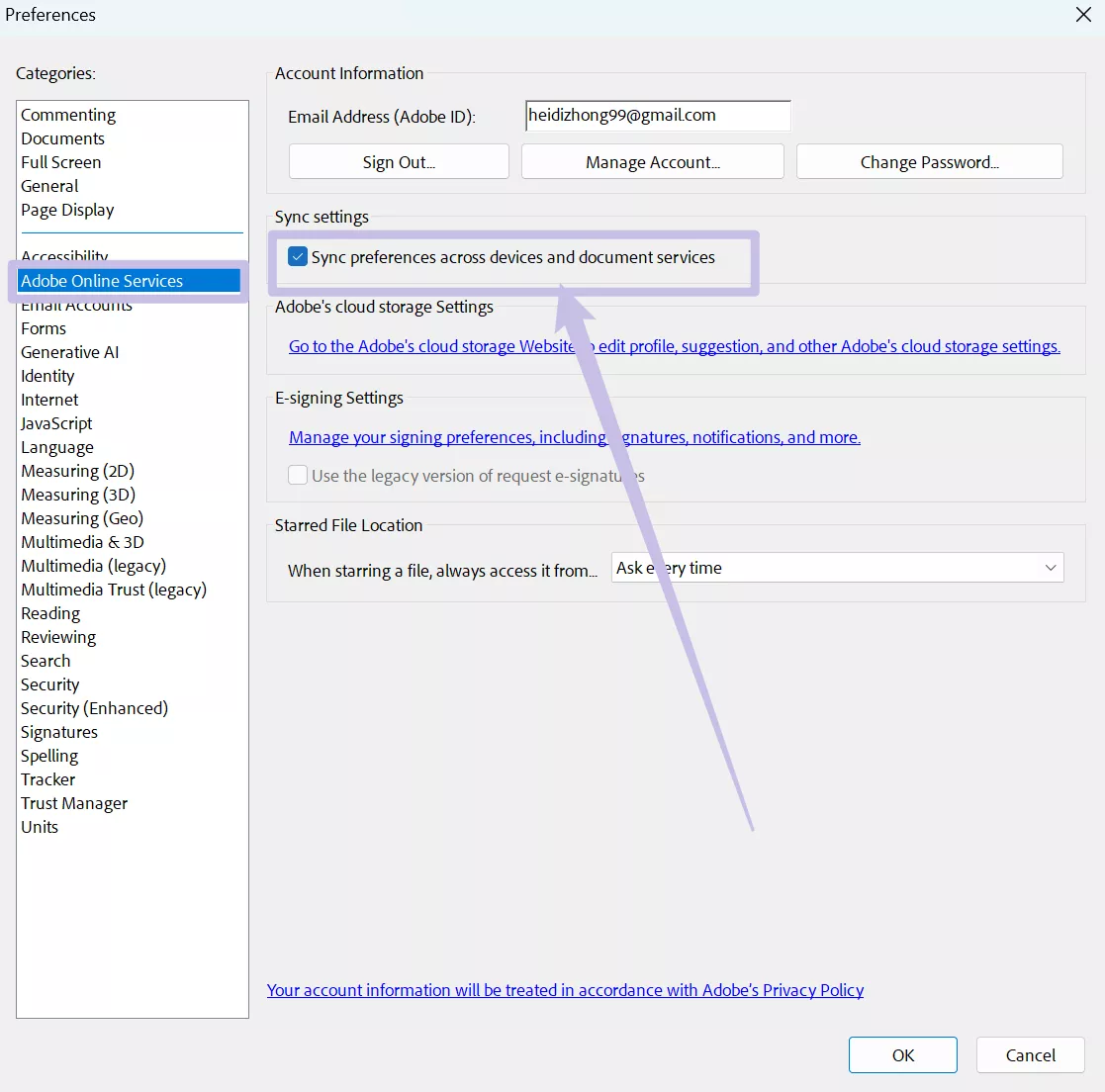
Sometimes, Adobe Acrobat’s sync features can also cause repeated sign-in issues in the software. You can disable it by following these steps and fix the problem.
- Open up Adobe Acrobat on your device and then click on the “Menu” icon at the top left.
- Click “Preferences.”
- Click on “Adobe Online Services” and then disable the “Sync preferences across devices and document services.”
Also Read: Adobe Collab Sync: Everything You Need to Know
Way 4. Remove Some Devices from Your Acrobat Account
If you’ve signed up your Adobe Acrobat account on multiple devices, then removing some of the devices can help you solve this issue. Because, with one Acrobat account, you can only use up to 2 devices. If you try to use it on more devices, the software starts asking you to sign so that it can confirm your identity. Follow this guide to remove extra devices.
- Enter your Adobe ID and password to access the Adobe Account Management page.
- Tap on the "Plans" option at the top side of your screen.
- Click "Manage plan," then select "Activated devices."
- Find the device you want to remove and click "Deactivate," then confirm.
Way 5. Restart Computer
After applying all of the methods above, you only need to restart your computer. When you restart your computer, the temporary cache and the data of your RAM are cleared up, and all the changes that you’ve made are properly applied to your system.
Also, it fixes all the minor bugs and removes the viruses. So, restart your computer by following this step-by-step guide.
- Click on the Start button at your left at the bottom.
- Click on the “Power” button.
- Lastly, click on the “Restart” button.

- Your PC will restart, and hopefully, the “Adobe Acrobat keeps forcing me to sign in” issue will now be fixed.
Final Words
The "forcing to sign in" issue is a symptom of a larger problem: software that prioritizes its own ecosystem over the user's workflow. While the fixes listed above can help you manage Adobe’s prompts, they don't change the fundamental complexity of the software.
By choosing UPDF, you are choosing a tool that stays out of your way and helps you get the job done. Whether you need to edit text, annotate a research paper, or use AI to summarize a report, UPDF provides a smooth, login-loop-free experience.
Stop fighting with your software. Download UPDF for Free today and experience PDF editing as it should be—simple, fast, and unrestrictive.
Windows • macOS • iOS • Android 100% secure






 Enya Moore

 Engelbert White

 Lizzy Lozano