 UPDF
UPDF
 UPDF for Windows
 UPDF for Mac
 UPDF for iPhone/iPad
 UPDF for Android
 UPDF AI Online
 UPDF Sign
 Edit PDF
 Annotate PDF
 Create PDF
 PDF Form
 Edit links
 Convert PDF
 OCR
OCR PDF to Word
 PDF to Image
 PDF to Excel
 Organize PDF
 Merge PDF
 Split PDF
 Crop PDF
 Rotate PDF
 Protect PDF
 Sign PDF
 Redact PDF
 Sanitize PDF
 Remove Security
 Read PDF
 UPDF Cloud
 Compress PDF
 Print PDF
 Batch Process
 About UPDF AI
 UPDF AI Solutions
 AI User Guide
 FAQ about UPDF AI
 Summarize PDF
 Translate PDF
 Chat with PDF
 Chat with AI
 Chat with image
 PDF to Mind Map
 Explain PDF
 PDF AI Tools
 Image AI Tools
 AI Chat Tools
 AI Writing Tools
 AI Study Tools
 AI Working Tools
 Other AI Tools
 AI Bookmark Generation
 AI Bookmark Summary
 AI Watermark Generation
 AI Background Generation
 AI Sticker Generation
 AI Stamp Generation
 AI Editing Suite
 UPDF Copilot
 AI Page Management
 AI Semantic Search
 PDF to Word
 PDF to Excel
 PDF to PowerPoint
 Enterprise Solution
 Enterprise Sign
 Enterprise AI
 Enterprise Plan
 Enterprise User Guide
 Enterprise Webinar
 Banking
 Healthcare
 Insurance
 Legal
Legal Manufacturing
 Government
 Education Solution
 Customer Stories
 User Guide
 UPDF Tricks
 FAQs
FAQs UPDF Reviews
 Download Center
 Blog
Blog Newsroom
 Tech Spec
 Updates
 UPDF vs. Adobe Acrobat
 UPDF vs. Foxit
 UPDF vs. PDF Expert

When I first tried iPhone stickers, I was surprised by how many menus and hidden options there were. I wanted simple ways to turn my favorite photos into reusable stickers for social posts. Most guides I found online skipped the parts that confused me most. So I started testing every method I could find, from built-in iPhone tools to more advanced desktop options.
In this guide, I walk you through how to create a sticker on iPhone in a clear way. I’ll also show you how UPDF helps me create professional stickers that still feel easy to use.
Windows • macOS • iOS • Android 100% secure
Part 1. What Are iPhone Stickers and Why Create Them?
Stickers on iPhone became a favorite way for me to add personality to everyday conversations. Instead of basic emojis, custom stickers built from my own moments feel expressive. With recent iOS updates, my phone can detect the main subject in a picture using built-in machine learning.
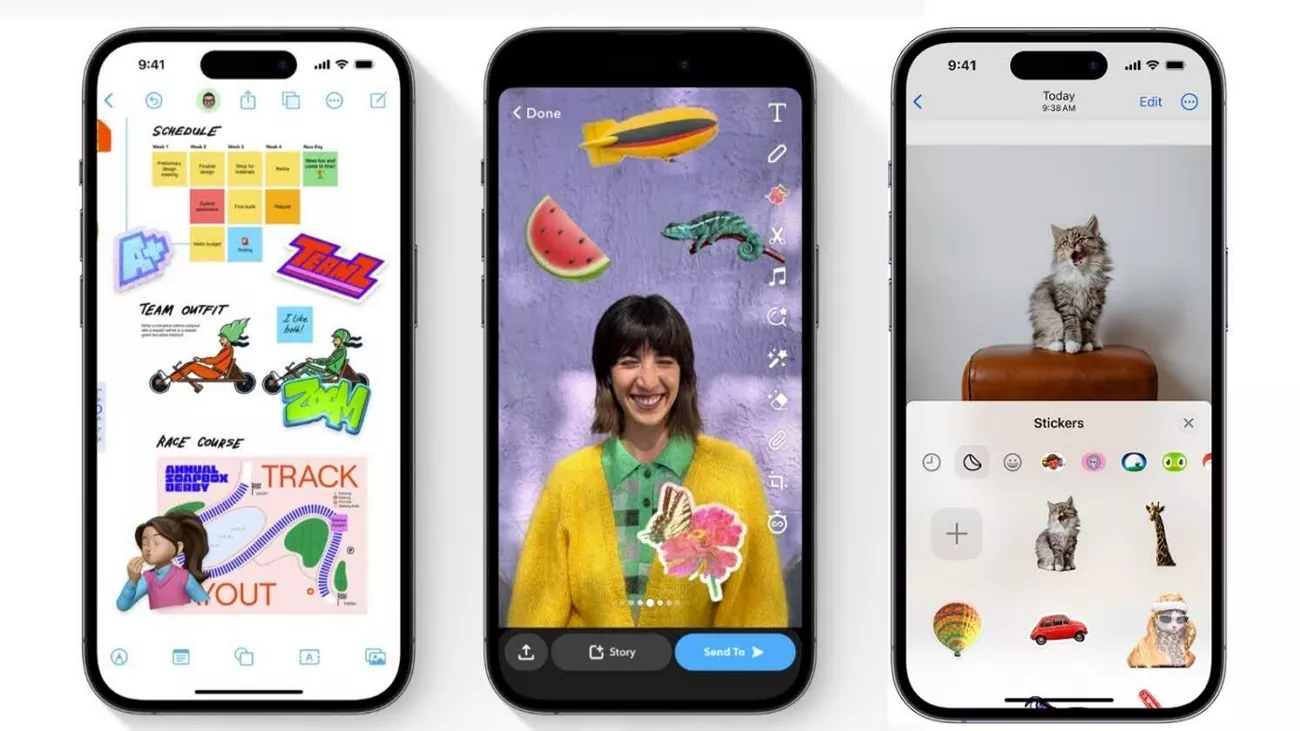
That cutout then saves as a reusable sticker I can drop onto messages whenever I want extra emphasis. Compared to generic sticker packs, these personal stickers make my chats feel memorable because they come from real life. Before learning how to create iPhone stickers, I’ll share a few ways I use these stickers in everyday moments.
- Reacting to friends’ messages with my own face instead of basic emojis in group chats.
- Marking funny moments in photos by dropping pet or friend stickers on top of key details.
- Highlighting important notes or reminders by adding small reaction stickers next to tasks.
- Creating quick meme-style replies using saved stickers from inside jokes we already share in conversations.
Static Stickers and Animated Live Photo Stickers
Next, look at the table below to see how each sticker type behaves in chats:
| Type | Movement | Source | Best Use |
| Static Sticker | No animation | Photo | Simple reactions |
| Animated Live Photo Sticker | Short loop | Live photo | Fun, dynamic moments |
After creating my own stickers, chats felt more engaging because they came from my real photos and moments. Pre-made sticker packs often look generic, while my custom ones carry inside jokes and personal meaning.
Part 2. How to Create a Sticker on iPhone?
Understanding how to create stickers for iPhone became easier once I broke the process into simple paths. In this section, I will walk through the exact ways I use Photos, Live Photos, and desktop tools to turn moments into reusable stickers.
1. From Photos App
Most of my favorite stickers start as simple photos sitting in my camera roll. Using photos I already love makes the stickers feel natural in my chats and reactions. Now, follow the steps below to see how I turn a regular photo into a sticker:
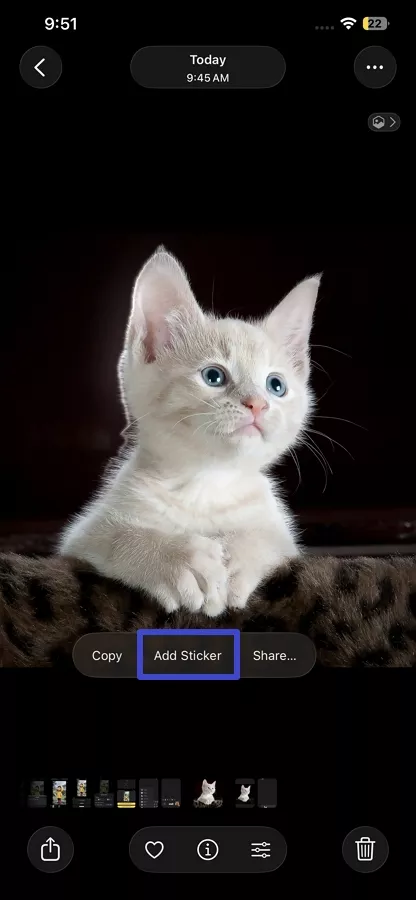
Step 1. First, access the Photos app on your iPhone and open the photo. Next, long-press the characters or object that you want to turn into the sticker and tap the “Add Sticker” option in the pop-up.
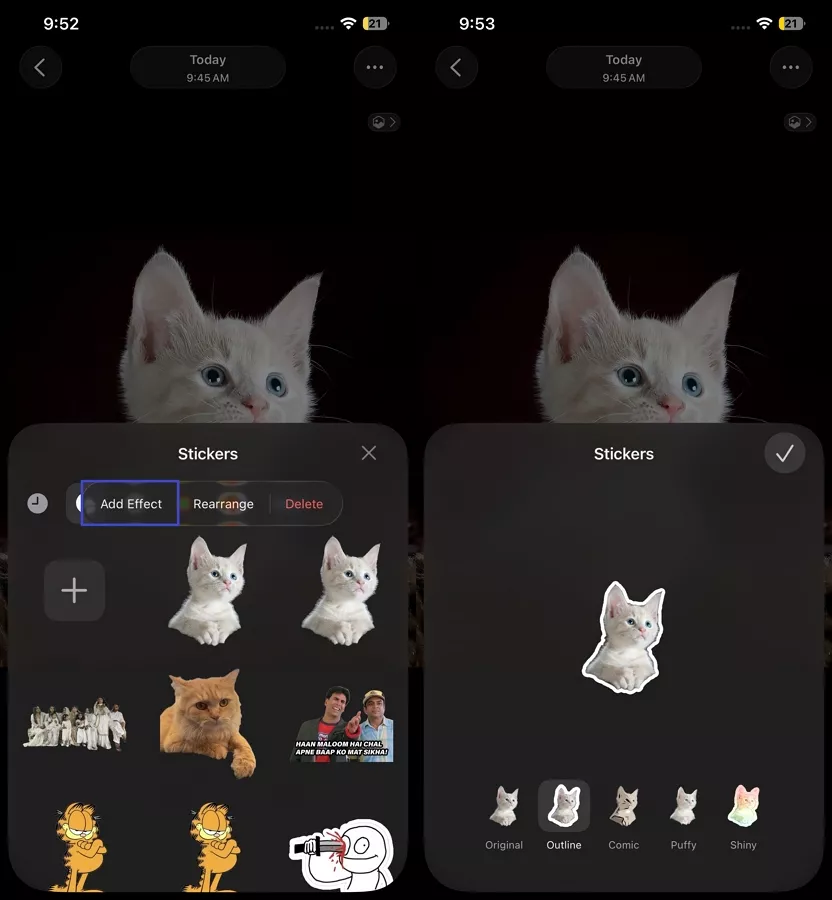
Step 2. It will be created as a sticker in the iPhone sticker gallery. To add a custom effect to the sticker, press the “Add Effect” option.
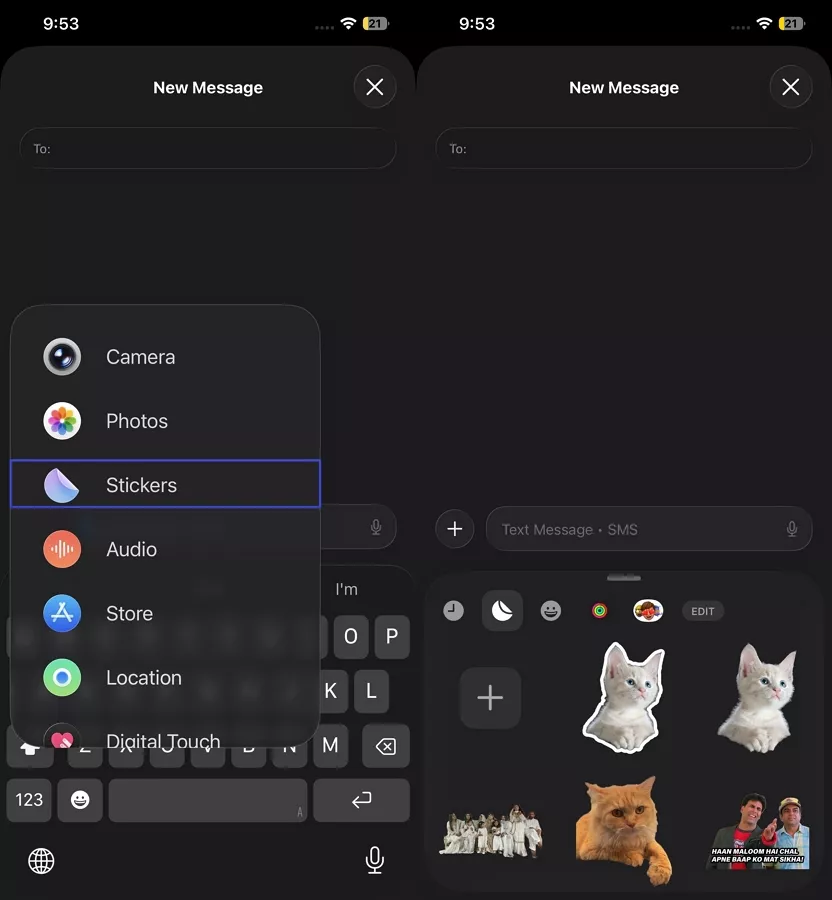
Step 3. Next, open a Messaging app and tap the “+” icon and press the “Stickers” option. Afterward, tap on the sticker you created to send it in the chat.
2. From Live Photos (Animated Stickers)
Turning small motion moments into animated stickers is my favorite way to capture real reactions. Learning how to create iPhone stickers from live photos helped me turn tiny clips into looping fun. Go through the steps below to see how I turn a quick Live Photo into a sticker:
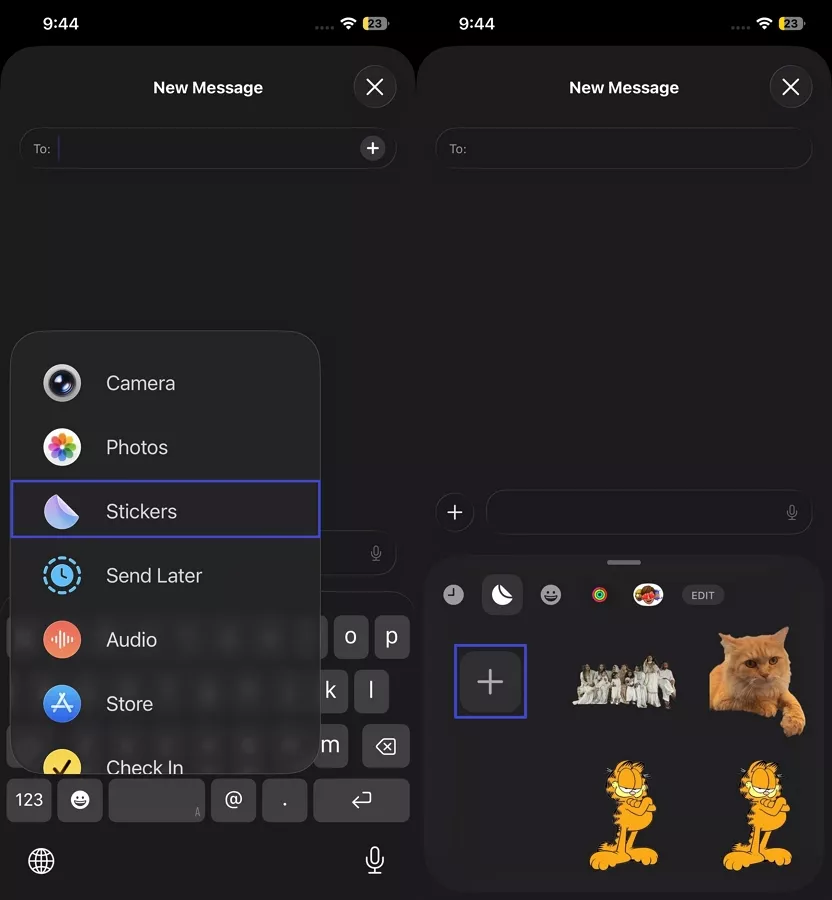
Step 1. Once you enter a chat, tap the “+” icon and press the “Stickers” option. Next, tap the “+” icon in the Stickers panel and choose a Live photo from the gallery.
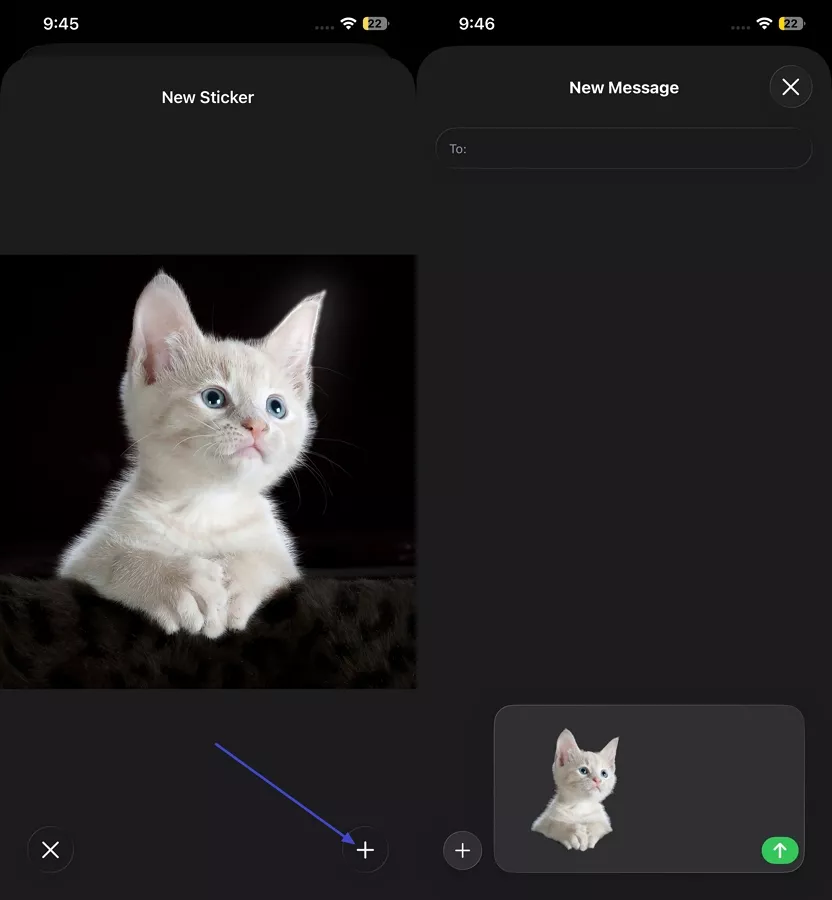
Step 2. Afterward, press the “+” icon in the bottom right corner to add it as a live sticker. Next, tap the sticker to send it in the chat.
3. From UPDF
Creating casual stickers is fun, yet sometimes I want designs that look more professional. When I reached that point, the basic tools on my phone started to feel limiting for more creative ideas. That’s where UPDF stepped in as a desktop tool that gives me more control and flexibility.
Windows • macOS • iOS • Android 100% secure
Using its AI features, I can quickly generate unique sticker designs without advanced drawing skills or complex software. Exporting those designs for my iPhone lets me keep the simple mobile workflow I like while upgrading how my stickers look. Let me share some features that make UPDF helpful for sticker creation:
- AI-Powered Generation: Quickly turns simple ideas into unique sticker concepts with just a few clicks.
- No Design Skills Required: I can generate stickers simply by writing a clear prompt.
- High-Quality Output: Gives clean images that still look good when used as small stickers.
Guide to Generate AI Stickers with UPDF
Next, follow the steps below to see how to create stickers for iPhone using UPDF
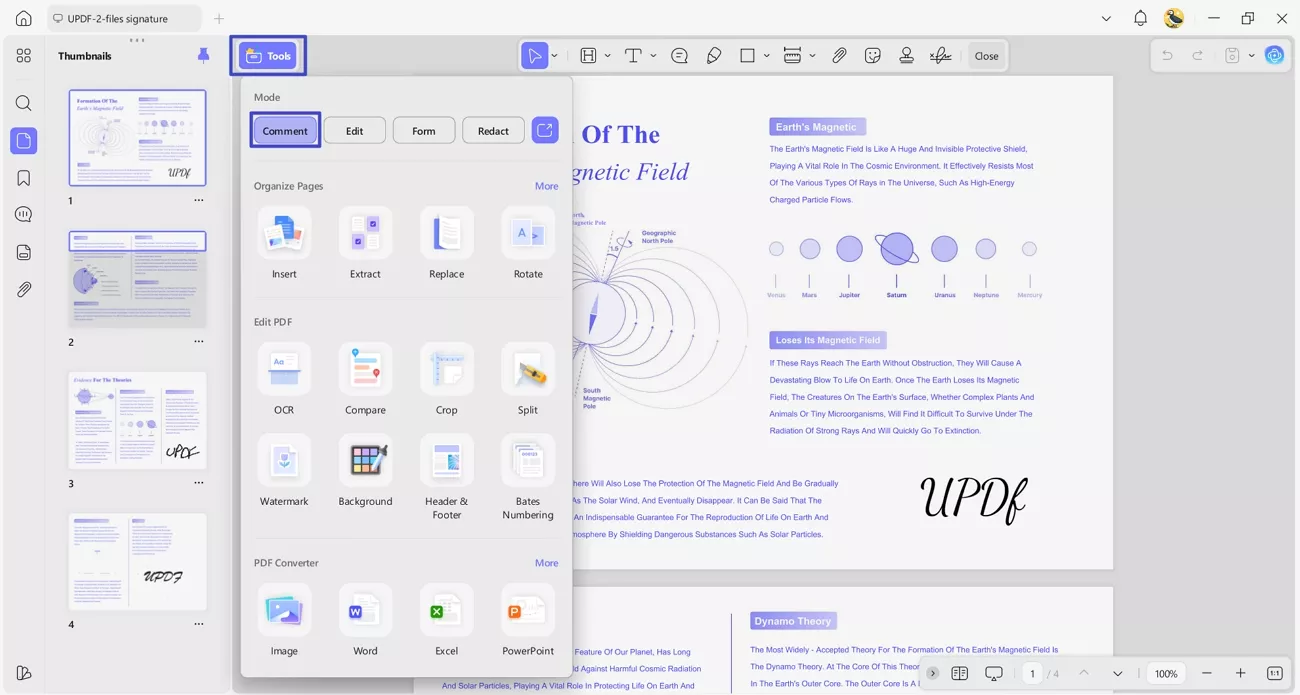
Step 1. Access Annotation Tool
Once you import a PDF file, press the “Tools” option and click the “Comment” tool to enter the annotation interface.
Windows • macOS • iOS • Android 100% secure
Step 2. Select Sticker Annotation Tool
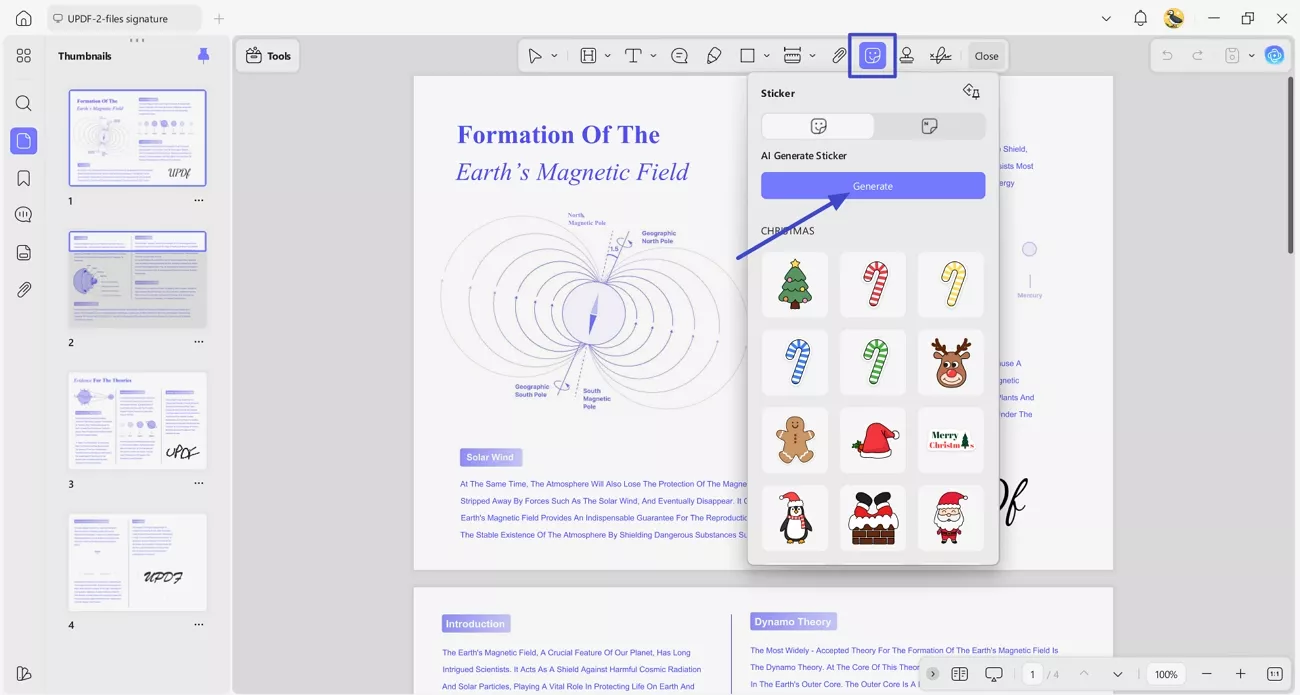
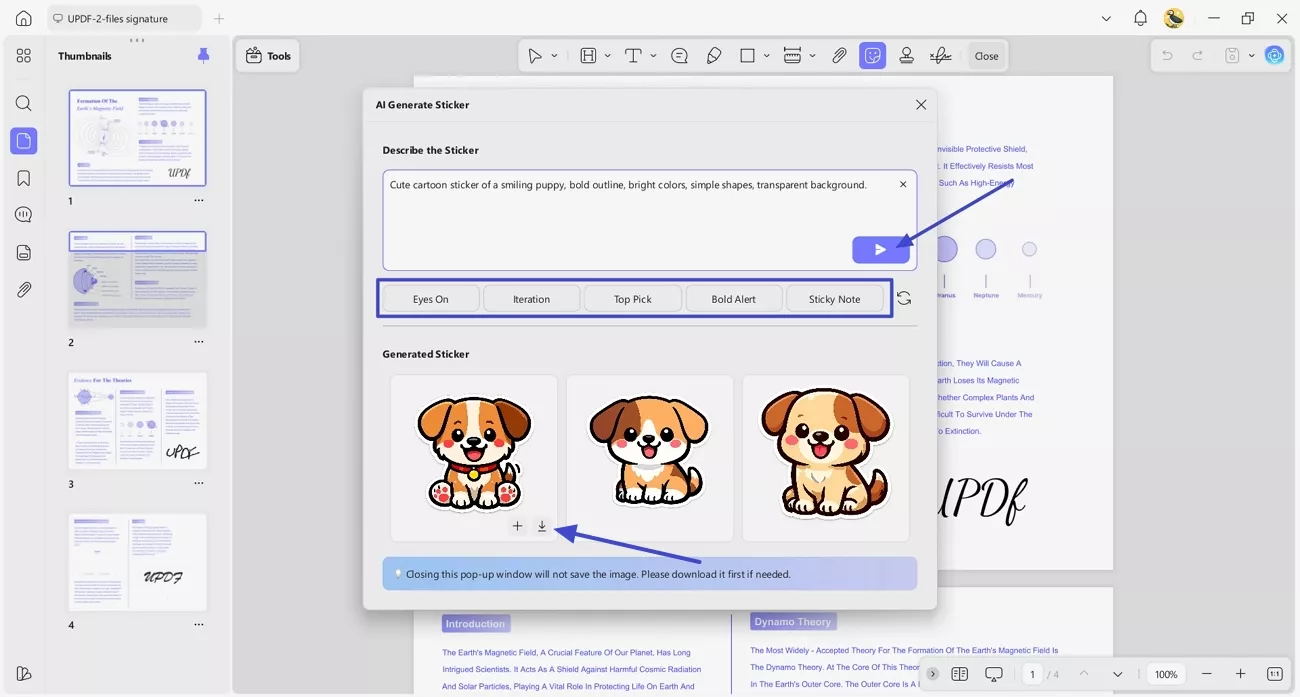
Afterward, click the “Sticker” icon in the toolbar and press the “Generate” option to generate custom stickers.
Step 3. Type Sticker Description and Download
In the pop-up, enter the sticker description or choose a “Keyword” to auto-generate a description. Click the “Send” button to generate 3 stickers, then press the “Download” icon to save the sticker. Next, transfer the image to iPhone to use as a sticker.
Note:
Moving Stickers From UPDF to iPhone
Now that the sticker is ready in UPDF, I quickly move it to my iPhone using these options:
- Airdrop from my Mac to my iPhone for a wireless transfer.
- Emailing the sticker file to myself to download it on my iPhone.
- Sending the sticker through a messaging app I already use on both devices.
- Uploading it to cloud storage like iCloud and Dropbox for access.
- Copying the file via a USB cable and opening it on my iPhone later.
Once the file is on my phone, I can save it to the Photos app. After that, I can utilize it as an iPhone sticker like any other image I have turned into a sticker.
To try the same workflow yourself, download UPDF and start creating your own stickers.
Windows • macOS • iOS • Android 100% secure
Part 3. How to Add a Sticker to a Photo on iPhone?
After learning how to create a sticker on iPhone, I wanted to place them on photos. Putting my own stickers on images helps me highlight fun moments and small details more clearly. This is my favorite way to turn normal photos into quick, shareable edits that feel personal. Go through the steps below to see how I place stickers on my iPhone photos:
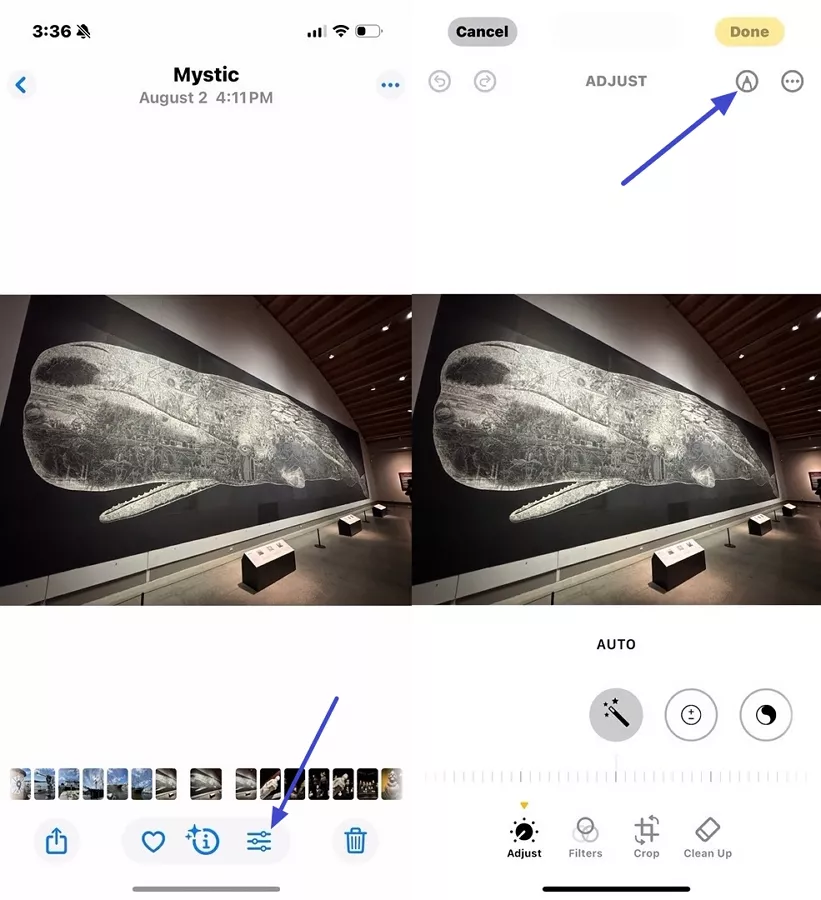
Step 1. First, open a picture and tap the “Edit” icon below. Next, press the “Markup” icon and tap the little “+” icon at the bottom.
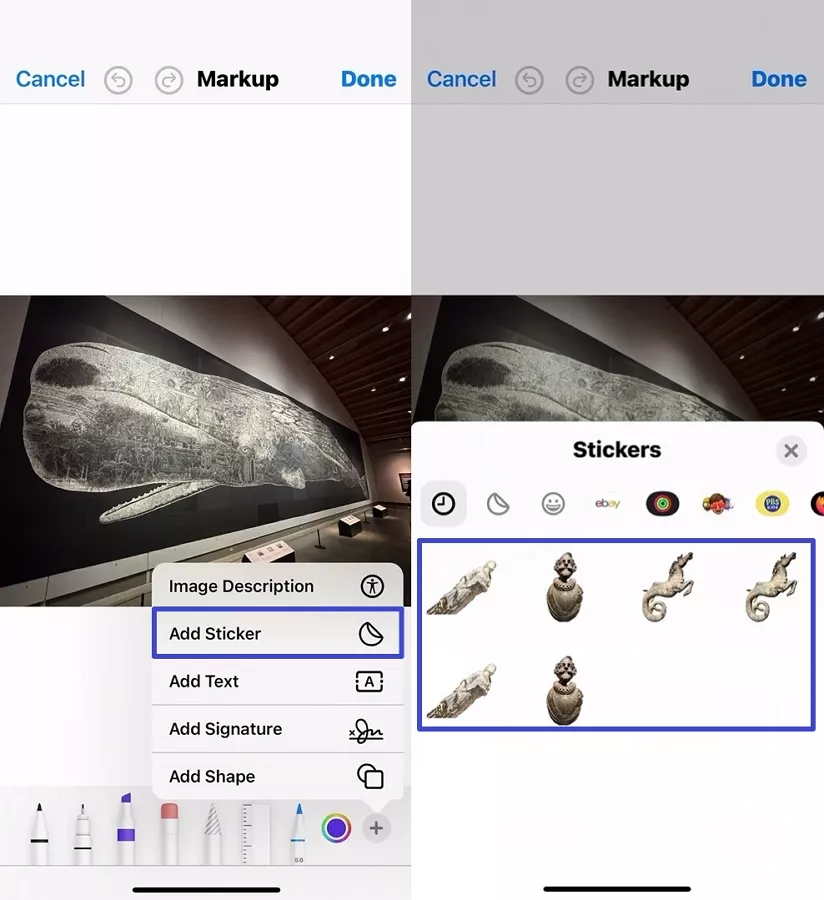
Step 2. Afterward, press the “Add Sticker” option and choose the sticker you want to add.
Part 4. Tips for Creating Great iPhone Stickers
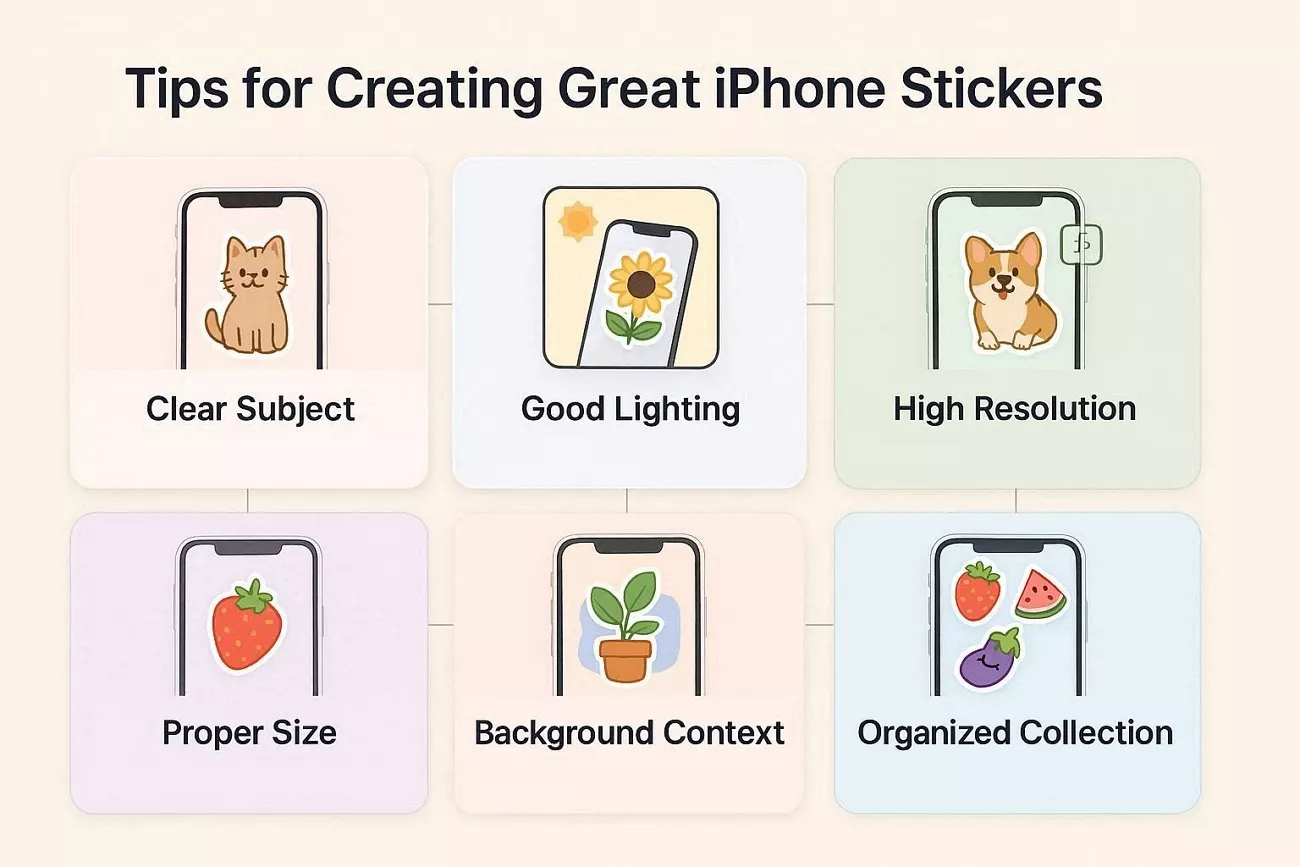
Now, I’ll share simple habits that improved how to create iPhone stickers for me:
1. Choose Clear Subjects
Photos work best when the main subject stands out clearly from any background clutter. Crowded scenes often confuse the cutout and leave messy edges that look bad as stickers.
2. Use Good Lighting
Even lighting helps the subject separate from the background without noisy edges. Harsh shadows usually create rough outlines that look awkward when used in chats.
3. Start with High Resolution
High-resolution photos give sharper sticker edges when scaled down. Heavily cropped images often become blurry once turned into small stickers.
4. Size Stickers
I try to keep important details big enough to recognize when the sticker appears small. Tiny text almost disappears in chats, so I avoid overly complex designs.
5. Consider Background Context
Stickers that work on both light and dark backgrounds feel flexible in different chats. Adding a simple white outline around dark stickers helps them pop without changing the design.
6. Organize Collection
From time to time, I remove old stickers to keep my drawer easy to browse. A curated set makes it faster to find the exact reaction I want during conversations.
Part 5. FAQs
1. Can I use iPhone stickers on Android phones?
iPhone stickers I create with native tools only work properly inside Apple’s iMessage ecosystem. To use similar designs on Android, I can generate stickers with UPDF AI and send image files.
2. Do custom iPhone stickers sync across devices?
When I’m signed into the same Apple ID, my custom stickers usually sync between my iPhone and Mac. If something seems missing, I first check iCloud settings and make sure all devices run supported iOS versions.
3. Can I delete stickers I’ve created?
Follow the steps below to delete a sticker you’ve created:
Step 1. Open Messages, tap the “+” icon, then choose “Stickers” from the menu.
Step 2. Go to your custom or Live stickers tab, then tap and hold the sticker.
Step 3. When the menu appears, tap the “Delete” option to remove it from your collection.
Conclusion
This guide walked through how to create a sticker on iPhone in practical ways. I showed how native tools were great for casual designs, while desktop tools offer more control. If you want professional-quality custom stickers that start on a desktop and stay smooth on a phone, UPDF’s AI Sticker Maker is my recommended choice.






 Enrica Taylor

 Lizzy Lozano
 Enola Miller
Is there a way to make cool stickers on my iPhone? It should be both static and animated stickers. So, is there a feature on the iPhone that lets you do that or do you need an app for that?
- applaviallc