 UPDF
UPDF
 UPDF for Windows
 UPDF for Mac
 UPDF for iPhone/iPad
 UPDF for Android
 UPDF AI Online
 UPDF Sign
 Edit PDF
 Annotate PDF
 Create PDF
 PDF Form
 Edit links
 Convert PDF
 OCR
OCR PDF to Word
 PDF to Image
 PDF to Excel
 Organize PDF
 Merge PDF
 Split PDF
 Crop PDF
 Rotate PDF
 Protect PDF
 Sign PDF
 Redact PDF
 Sanitize PDF
 Remove Security
 Read PDF
 UPDF Cloud
 Compress PDF
 Print PDF
 Batch Process
 About UPDF AI
 UPDF AI Solutions
 AI User Guide
 FAQ about UPDF AI
 Summarize PDF
 Translate PDF
 Chat with PDF
 Chat with AI
 Chat with image
 PDF to Mind Map
 Explain PDF
 PDF AI Tools
 Image AI Tools
 AI Chat Tools
 AI Writing Tools
 AI Study Tools
 AI Working Tools
 Other AI Tools
 AI Bookmark Generation
 AI Bookmark Summary
 AI Watermark Generation
 AI Background Generation
 AI Sticker Generation
 AI Stamp Generation
 AI Editing Suite
 UPDF Copilot
 AI Page Management
 AI Semantic Search
 PDF to Word
 PDF to Excel
 PDF to PowerPoint
 Enterprise Solution
 Enterprise Sign
 Enterprise AI
 Enterprise Plan
 Enterprise User Guide
 Enterprise Webinar
 Banking
 Healthcare
 Insurance
 Legal
Legal Manufacturing
 Government
 Education Solution
 Customer Stories
 User Guide
 UPDF Tricks
 FAQs
FAQs UPDF Reviews
 Download Center
 Blog
Blog Newsroom
 Tech Spec
 Updates
 UPDF vs. Adobe Acrobat
 UPDF vs. Foxit
 UPDF vs. PDF Expert

Every year, I ask, “When does the IRS begin accepting tax returns?” This matters because the IRS never uses a single fixed filing date. My tax software allows early preparation, but the returns remain officially unprocessed. Processing starts only after the official opening day announced each filing season. Tracking acceptance timing prevents confusion and supports realistic planning each tax year.
Thus, knowing when the IRS starts accepting returns shapes refund expectations clearly. The tax refund schedule depends on filing accuracy, timing, and volume. I explain dates and show how UPDF simplifies tax form preparation efficiently. Therefore, UPDF works across desktop and mobile to securely complete official IRS PDFs. So, I recommend using the UPDF and reading on for guidance.
Windows • macOS • iOS • Android 100% secure
Part 1. When Does the IRS Begin Accepting Tax Returns Each Year?
For each year’s tax filing season, I expect the IRS to begin accepting tax returns by January. While the date is not confirmed in advance, the pattern has stayed consistent for years. Here is what I have consistently noticed over time while tracking IRS filing announcements:
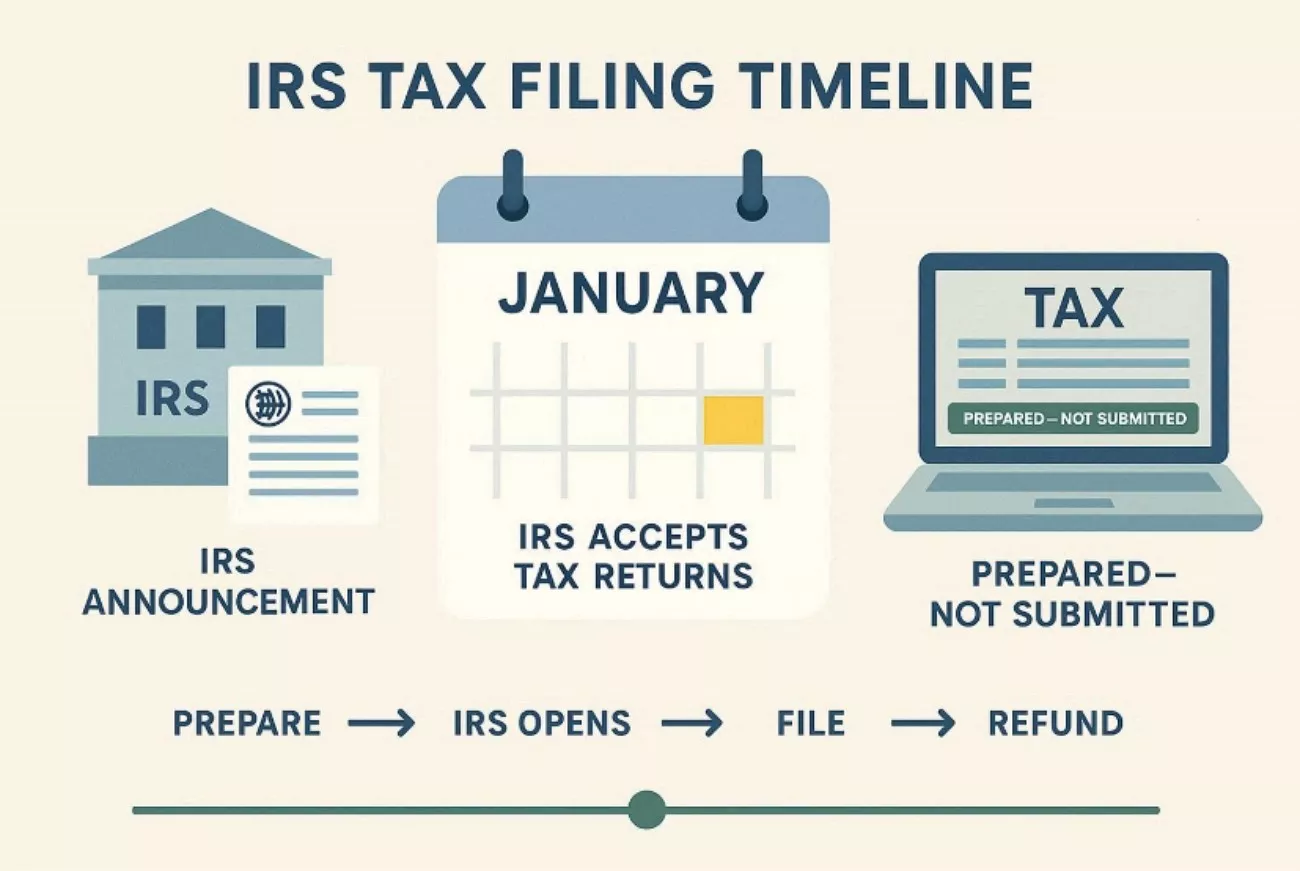
- The IRS usually announces the official opening day in a press release released in December or early January.
- In recent filing seasons, the opening date has fallen in the second half of January, often during the final full week.
- That opening day is the real answer to when the IRS start accepting returns, not when tax software becomes available.
Even though my tax software allows early preparation, the IRS does not process before the date. That is why I always wait for the official notice instead of guessing. To avoid guessing each year, you can check this IRS tax return dates guide for updated acceptance timelines. This approach helps me estimate the each year’s tax refund schedule more accurately. So, tax season feels predictable instead of stressful each year.
Part 2. How The Tax Refund Schedule Usually Works After Opening Day
Once the IRS officially begins accepting returns, the refund timeline usually follows a predictable pattern. When I e-file early and choose direct deposit, refunds often arrive within two weeks. However, refund timing still varies depending on filing method, accuracy, and seasonal volume.
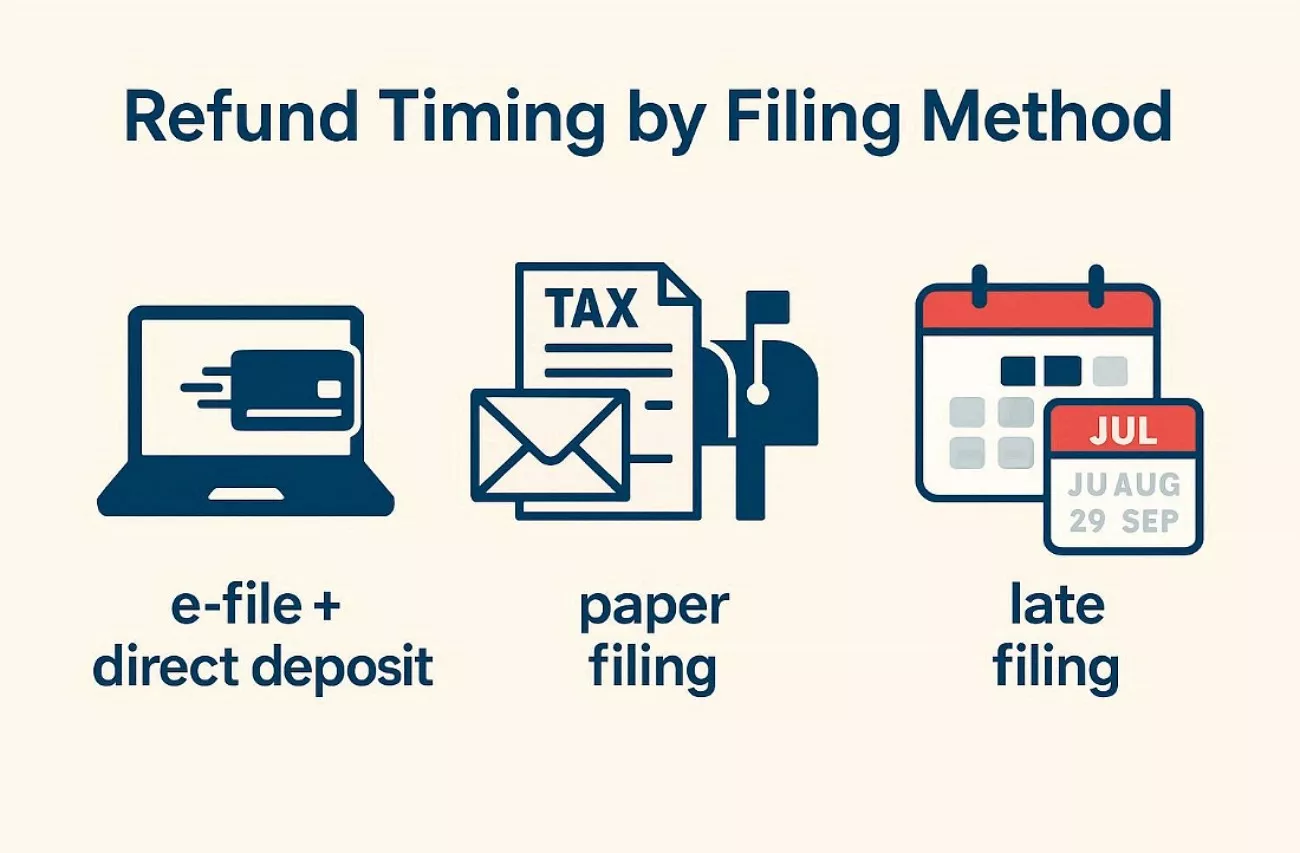
Refund Timing By Filing Method
- Early electronic filers using direct deposit usually receive refunds faster than most taxpayers.
- Paper returns and mailed refund checks generally take much longer to process fully.
- Later seasonal filings often push refund delivery into March or even later months.
Example From a Typical Filing Season
If the IRS opens in late January, early filers often receive refunds during February. Returns submitted later usually see refund processing spread across March and April. For the 2026 tax refund schedule, the IRS opened on Monday, January 26, 2026. Early filers during 2026 generally received refunds in mid to late February. Later filers experienced refund timelines extending into March and beyond.
Credits That Affect Refund Timing
I also account for special rules affecting refunds that include certain refundable tax credits. Refunds with EITC or ACTC are legally delayed until late February, regardless. This delay directly impacts the overall tax refund schedule for many households.
Thus, instead of tracking exact calendar dates, I prioritize accuracy, electronic filing, and early submission. That approach consistently places my return within earlier refund processing windows.
Part 3. My Annual Tax Prep Checklist Before Filing
No matter the year, I follow the same checklist mentioned below before submitting my return:
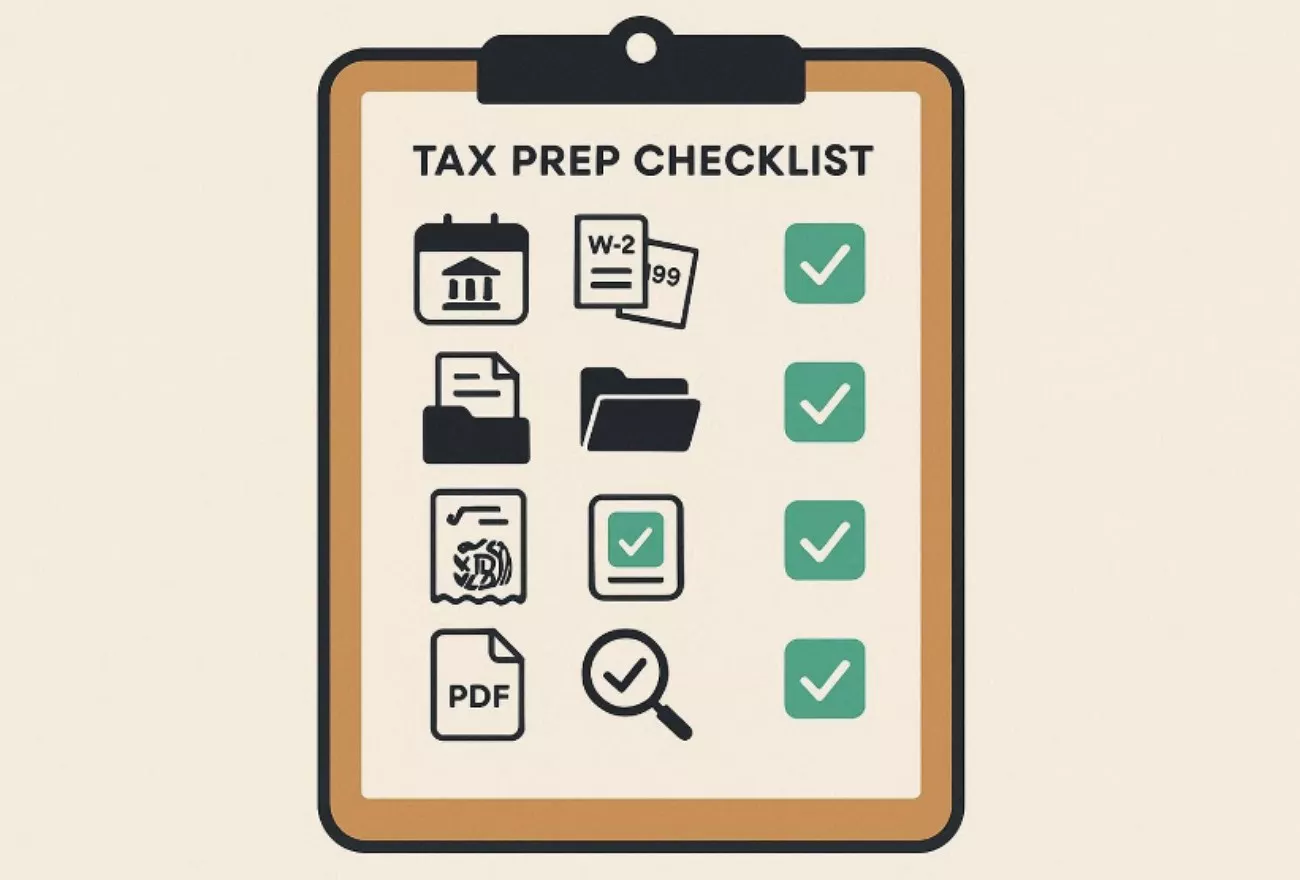
- I start by confirming “when does the IRS begin accepting tax returns” each filing season. This helps me plan my preparation timeline and avoid finishing returns too early.
- I wait until all income documents arrive before finalizing anything. These include W-2s, 1099s, and any additional income statements I receive.
- I gather receipts and records for deductions and credits I plan to claim. This includes education expenses, childcare costs, medical payments, mortgage interest, and donations.
- I organize all documents in one place to avoid searching during final reviews. Good organization reduces mistakes and speeds up the filing process.
- I download the latest IRS forms as PDFs for the current tax year. These include Form 1040 and any required schedules for my filing situation.
- I review everything carefully before submission to avoid corrections or refund delays. Following this checklist makes tax season smoother and far less stressful.
Part 4. How I Use UPDF on Desktop and Mobile to Fill My Tax Forms
Official IRS tax forms are provided as PDFs, so consistent editing tools matter. A single workflow across devices becomes important during every filing season. This consistency matters most while tracking “when does the IRS start accepting returns” yearly. For this reason, I rely on UPDF for tax preparation tasks. As UPDF is an AI-powered, all-in-one PDF editor built for handling official documents.
Windows • macOS • iOS • Android 100% secure
Moreover, the tool supports reading, editing, annotating, organizing, protecting, and OCR processing. These features cover nearly all essential functions typically required for tax form management. UPDF also includes an AI assistant that explains, summarizes, and translates content. Plus, the interface remains consistent across platforms, reducing errors during form completion. This stability helps when completing tax forms gradually across multiple working sessions.
Both UPDF and UPDF AI can be used for free. Under the UPDF free version, all features are available with trial watermarks added. The UPDF AI free version allows you to ask up to 100 questions.
How I Fill IRS Tax Forms on Desktop Using UPDF
Now, have a look at the steps below that I used to fill IRS Tax form on a desktop using UPDF:
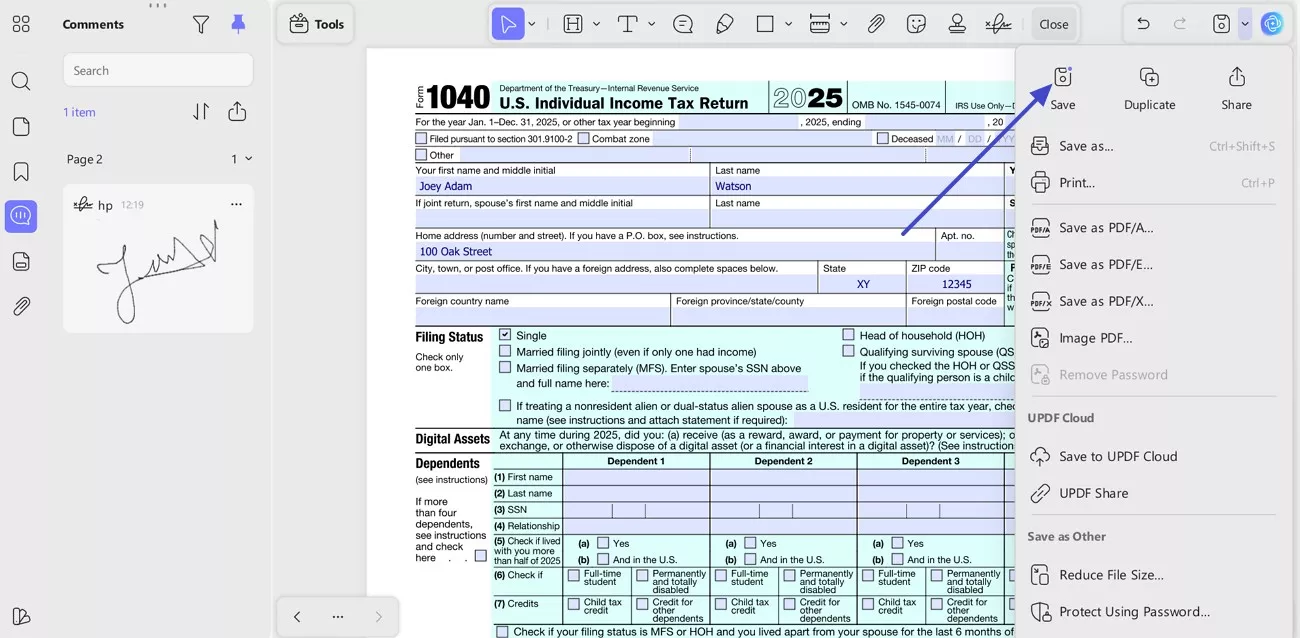
Step 1. Open the IRS Tax Form PDF in UPDF
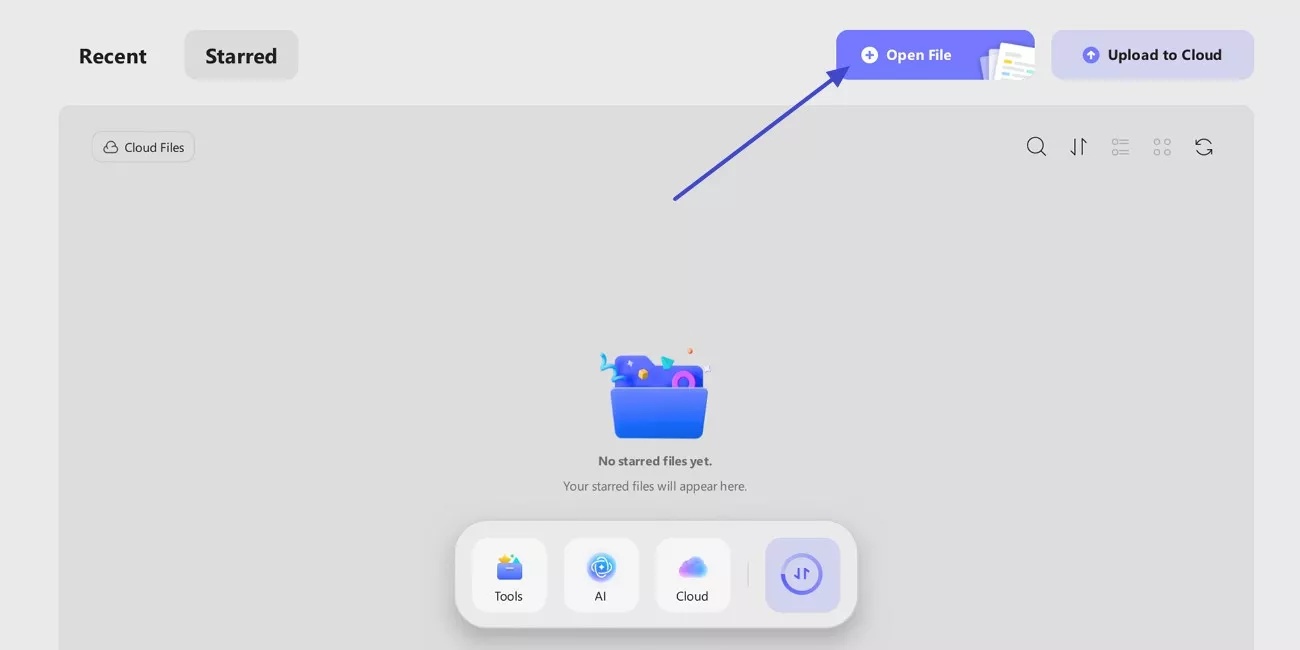
First, I launch UPDF on my desktop and select the “Open File” button. I then locate and open the official IRS Form 1040 PDF on my computer.
Windows • macOS • iOS • Android 100% secure
Step 2. Enter Information into Fillable Fields
Next, I click inside the fillable fields shown on the IRS Form 1040. I type personal details, addresses, and other required information directly into the form.
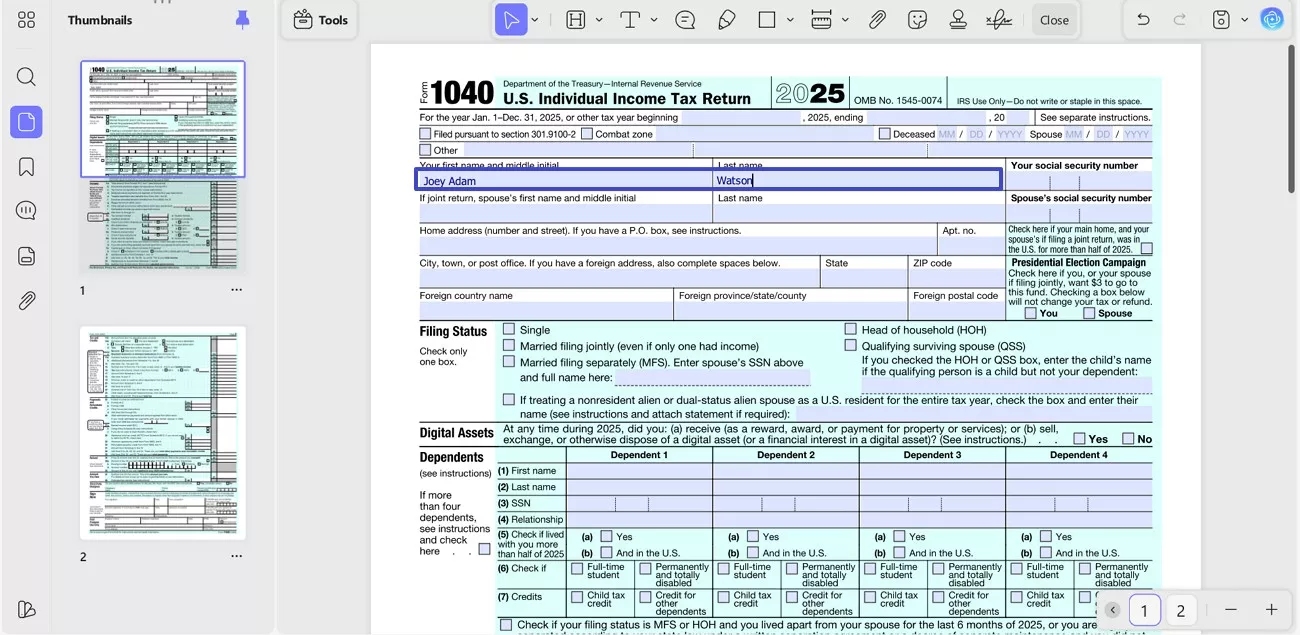
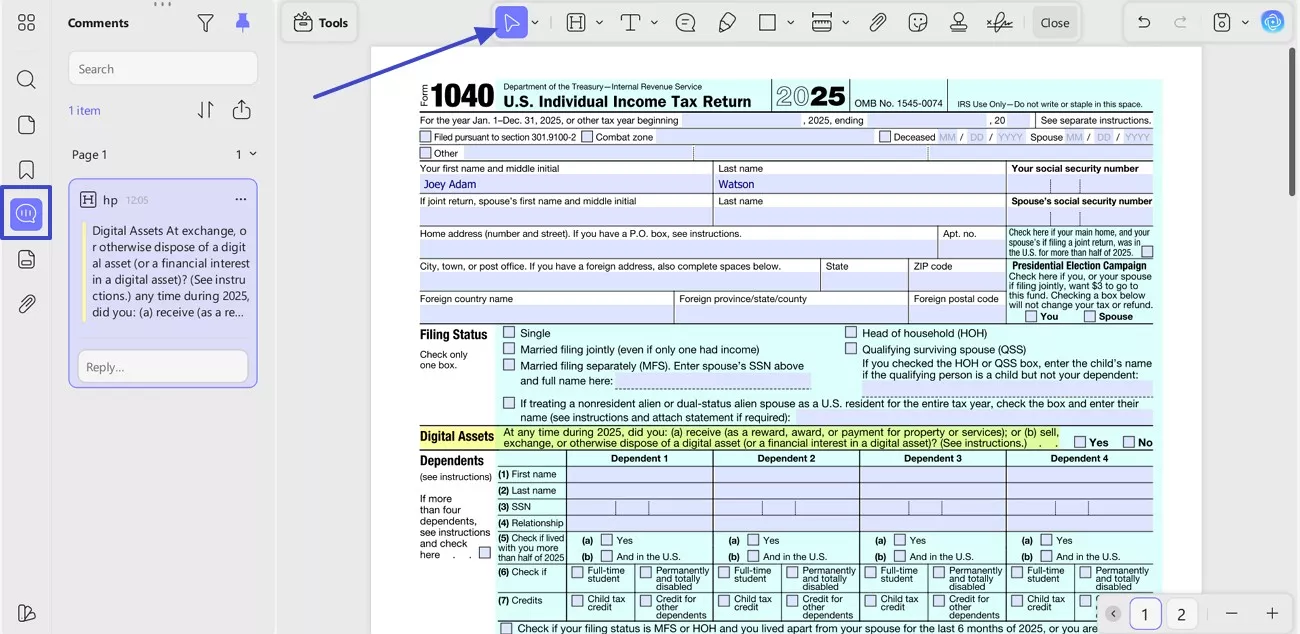
Step 3. Highlight Sections That Need Review
Then, I navigate to the “Comment” option from the left sidebar and pick the “Selection” tool. After that, I highlight lines or sections that I want to review later carefully. Moreover, you can add a comment alongside with highlight text for a reminder.
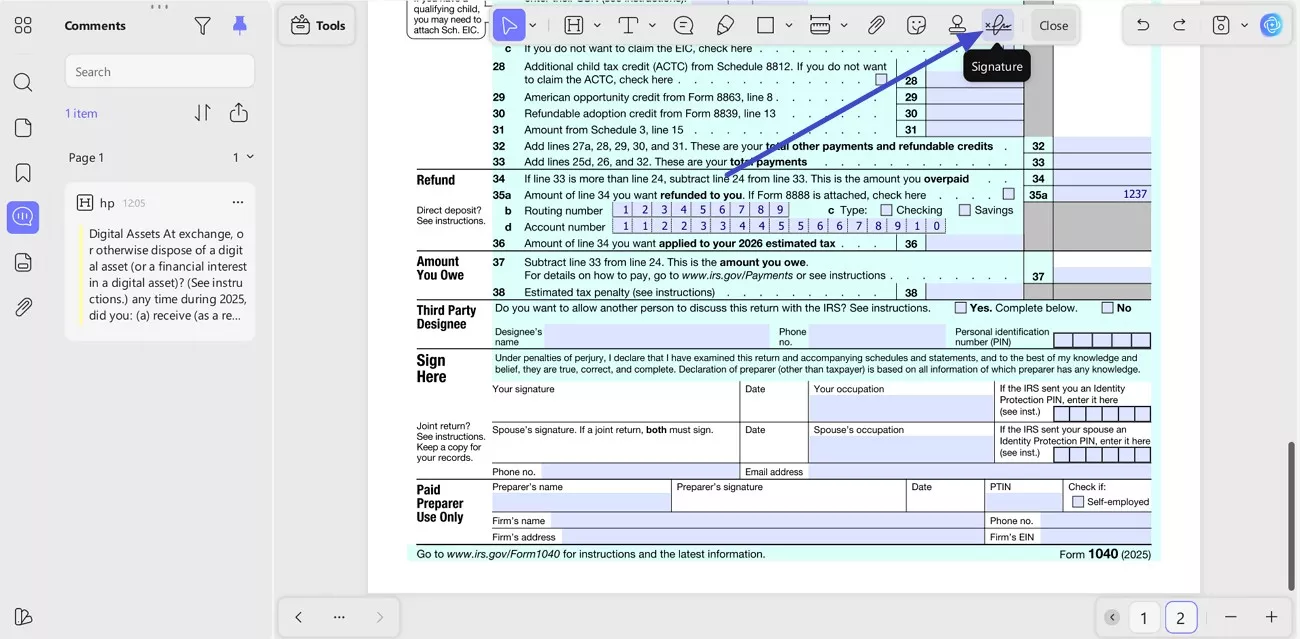
Step 4. Insert an Electronic Signature
Later, I select the “Signature” icon from the toolbar to continue. I add my electronic signature directly in the designated signature area to further proceed.
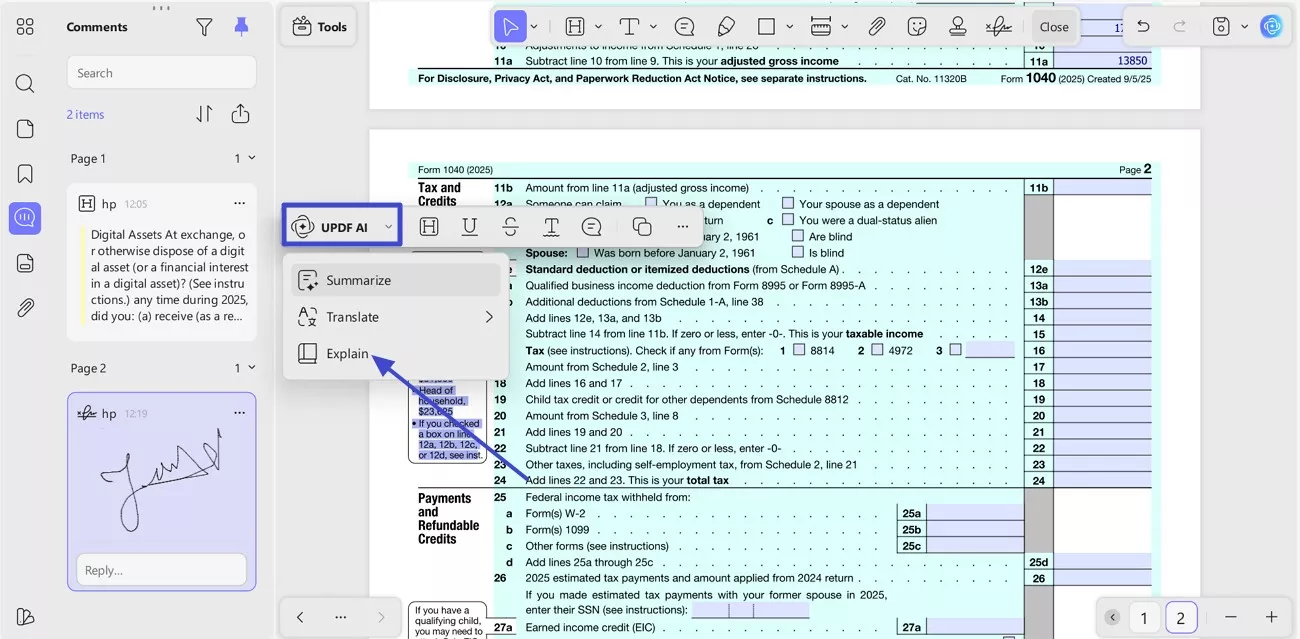
Step 5. Use UPDF AI to Explain Complex Sections
Upon reviewing, I select confusing text and open the “UPDF AI” menu. Afterwards, I chose the “Explain” option to understand the paragraph in simpler terms.
Step 6. Save the Tax Form to Your Device
Lastly, I click the save option from the top-right menu to save the completed tax form locally or to UPDF Cloud if needed
How I Review And Edit IRS Tax Forms On Mobile Using UPDF
Below are the steps that I follow to review and edit the IRS Tax form on mobile with UPDF:
Step 1. Add IRS Tax Form to UPDF App
Before getting started, download the UPDF mobile app from:
Windows • macOS • iOS • Android 100% secure
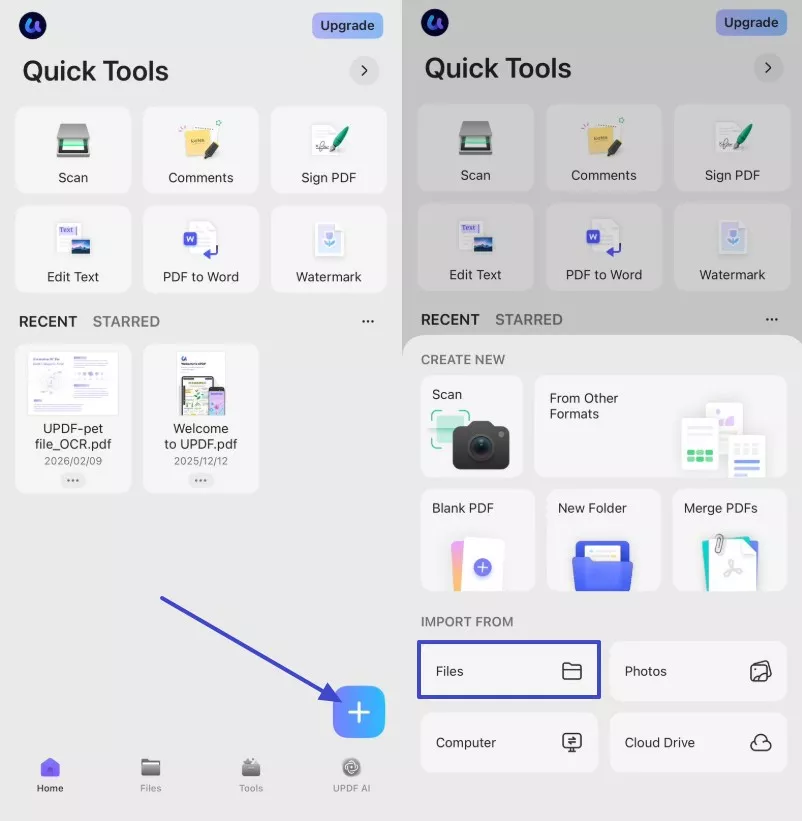
Upon running the UPDF app on my mobile device, I tap the “+” icon and select the “Files” option to import the IRS tax form.
Step 2. Highlight Sections And Add Comments For Review
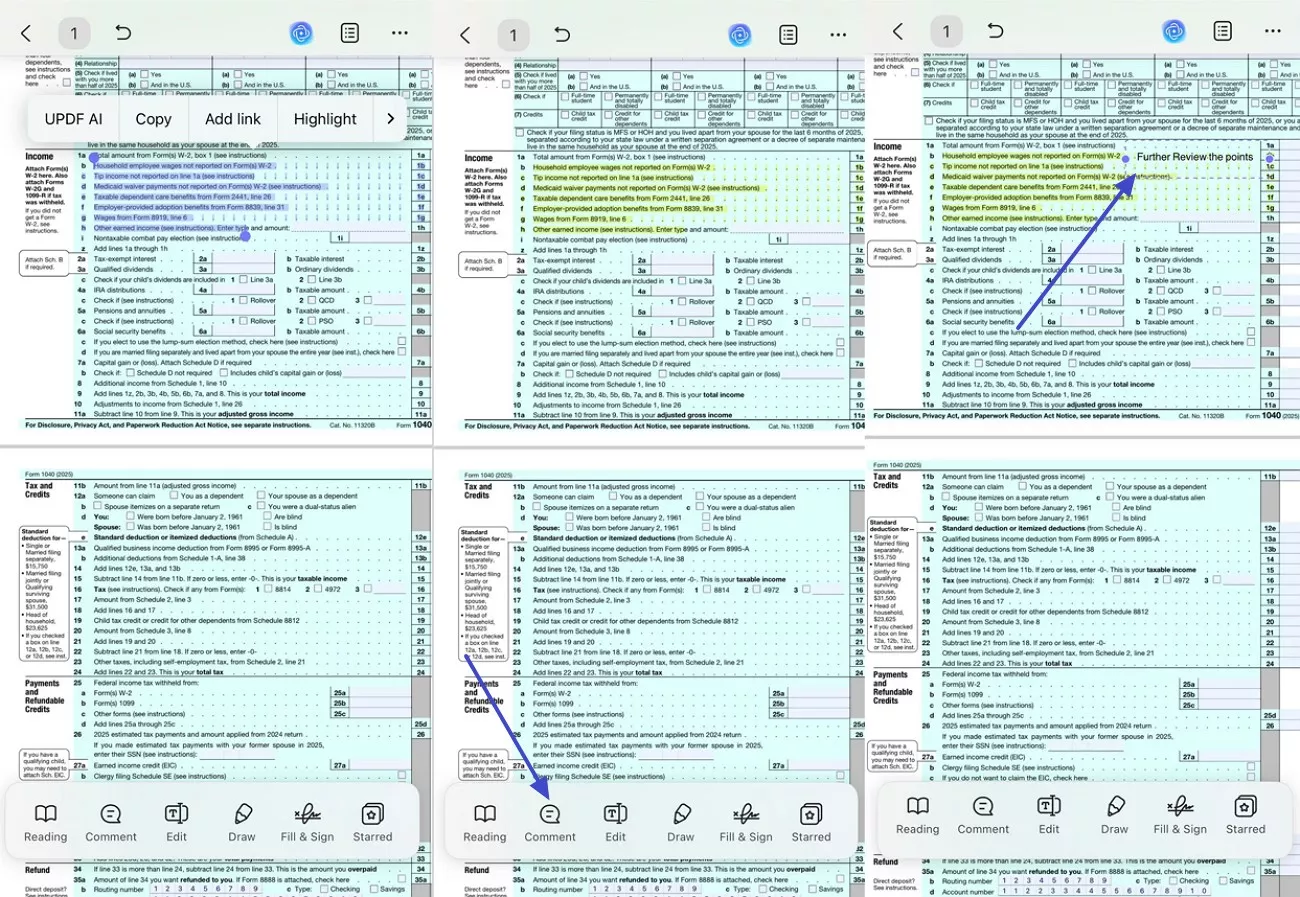
Then, I press and hold on to specific text within the form. Next, I select the “Highlight” option from the pop-up editing menu to mark important sections. Next, I switch to the ‘Comment” tool from the bottom menu. I add short notes beside highlighted lines that need further verification.
Step 3. Use UPDF AI To Explain Complex Tax Sections
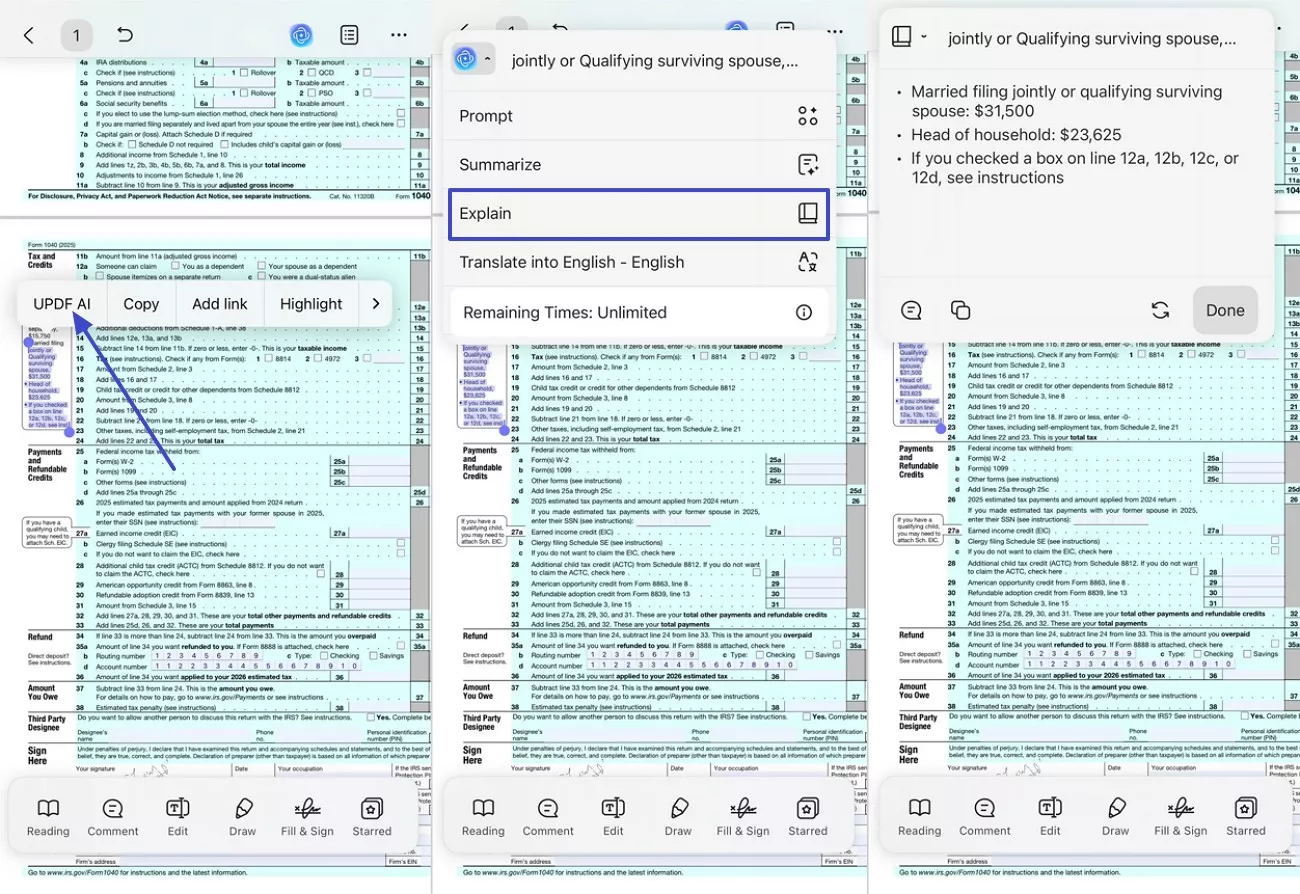
Later, I select the confusing text within the IRS form. Then, I open the “UPDF AI” menu and select the “Explain” option. This provides a simpler explanation of the selected paragraph for understanding.
Step 4. Add Electronic Signatures To IRS Tax Forms
Now, I tap the “Fill & Sign” option from the bottom toolbar to further choose the “Signature” option. Afterwards, I place my electronic signature in the designated signature fields.
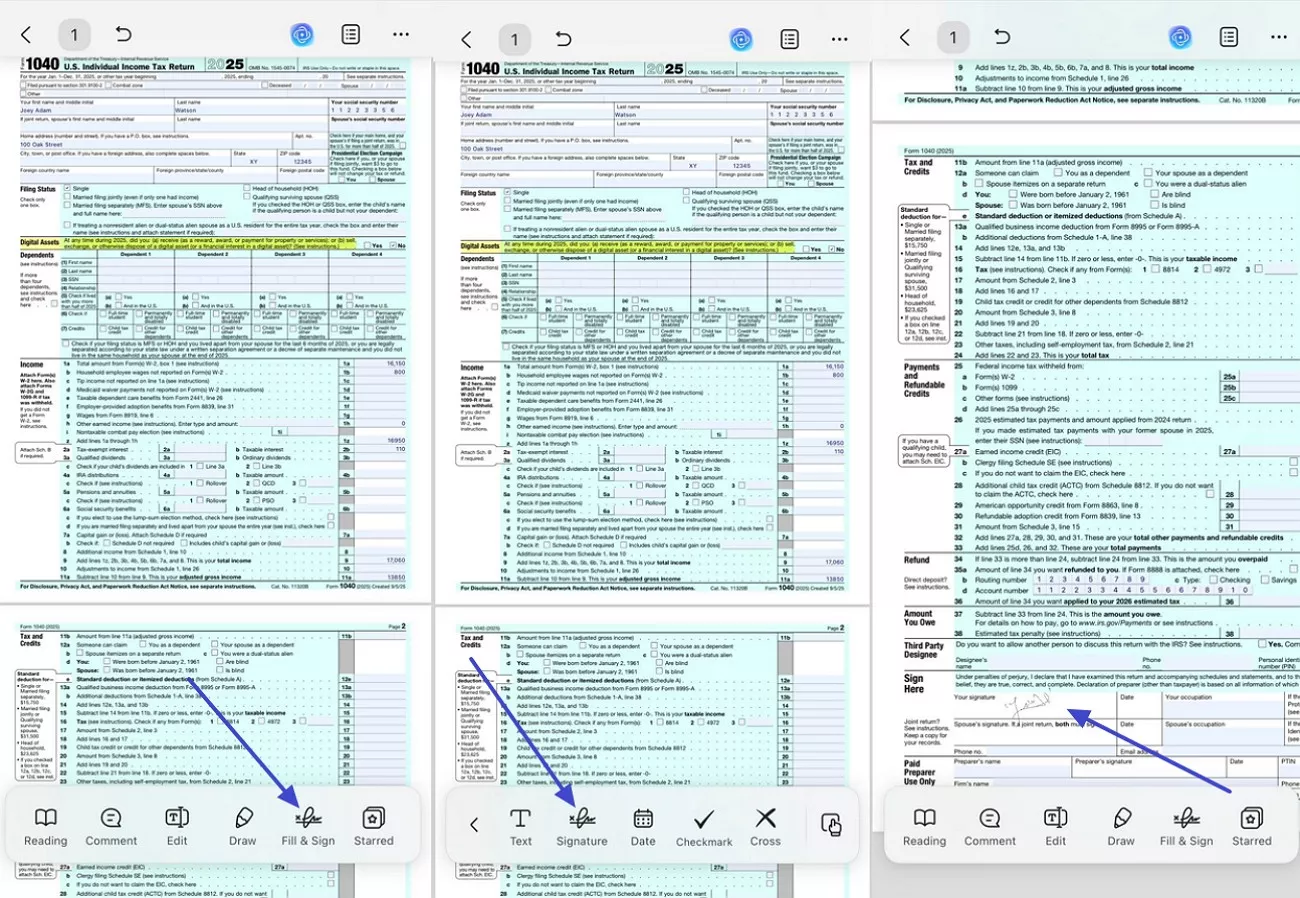
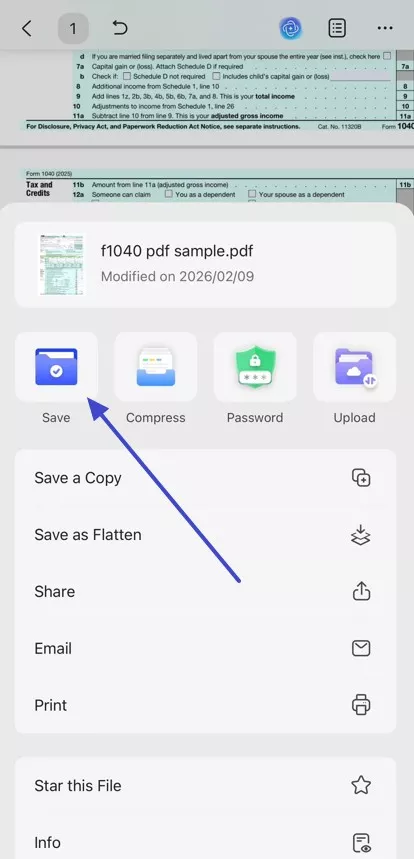
Step 5. Render the Tax Form to Your Device
Finally, I chose the “Three Dots” to select the “Save” option to render the updated tax form.
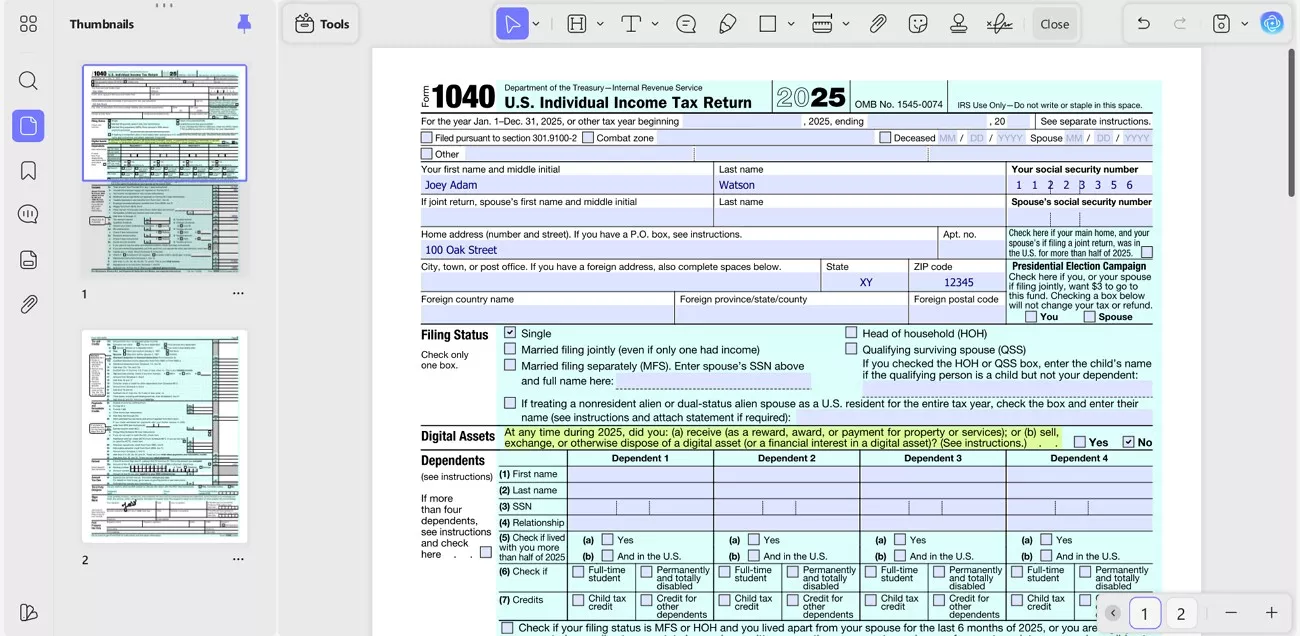
Furthermore, UPDF Cloud keeps the same tax PDF synchronized across desktop and mobile devices. In this image, edits and highlights appear on the desktop version of the IRS form.
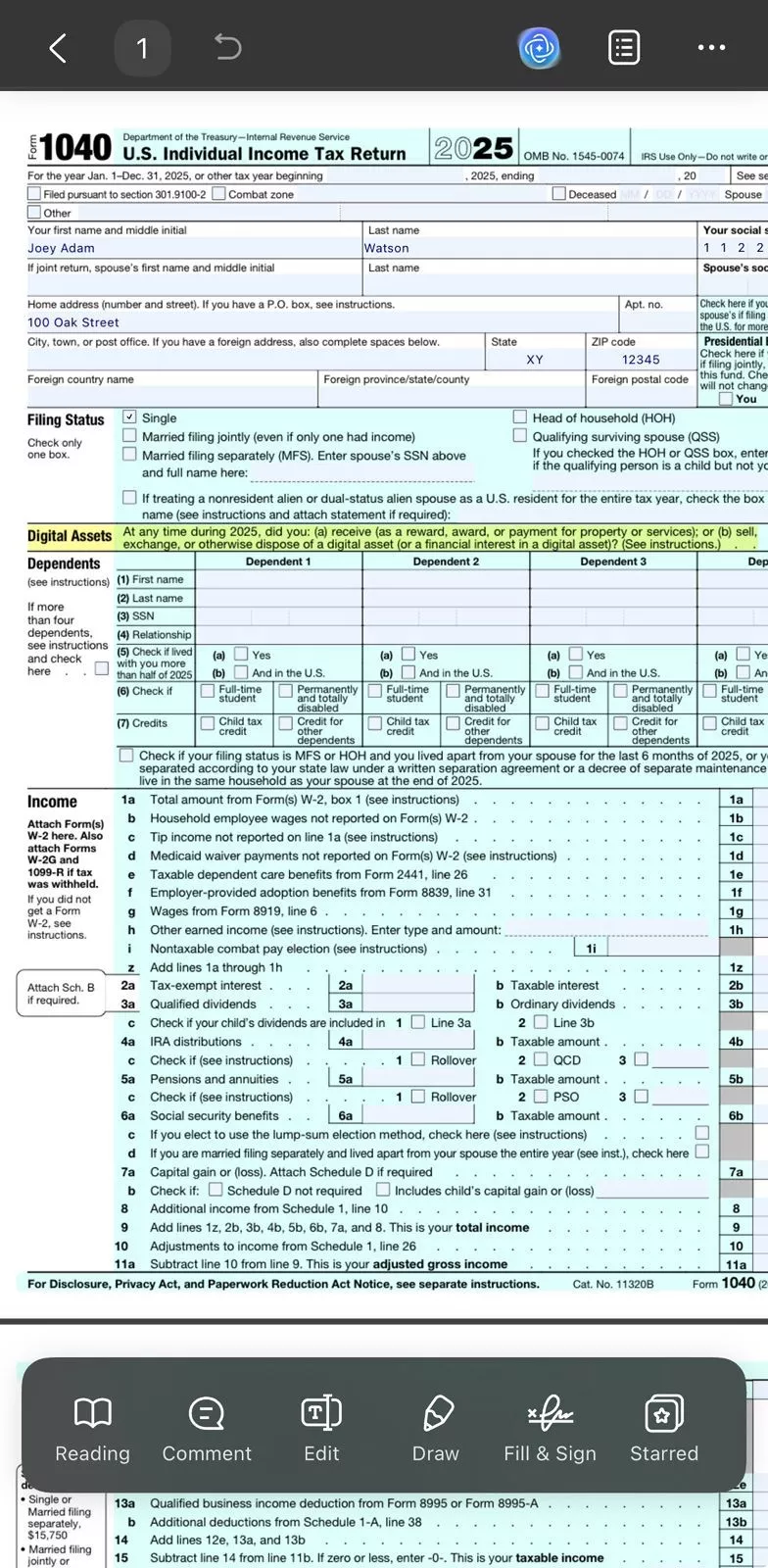
In the image below, those same edits appear on mobile in the exact positions. This visual consistency helps maintain context when switching devices during multi-day tax preparation. As a result, I can continue working over several days without losing progress or orientation.
Windows • macOS • iOS • Android 100% secure
Part 5. Simple Habits I Use to Avoid Refund Delays
As filing season moves forward, I rely on repeatable habits instead of exact dates. The following habits help me prevent delays and support smoother tracking of the 2026 tax refund schedule:
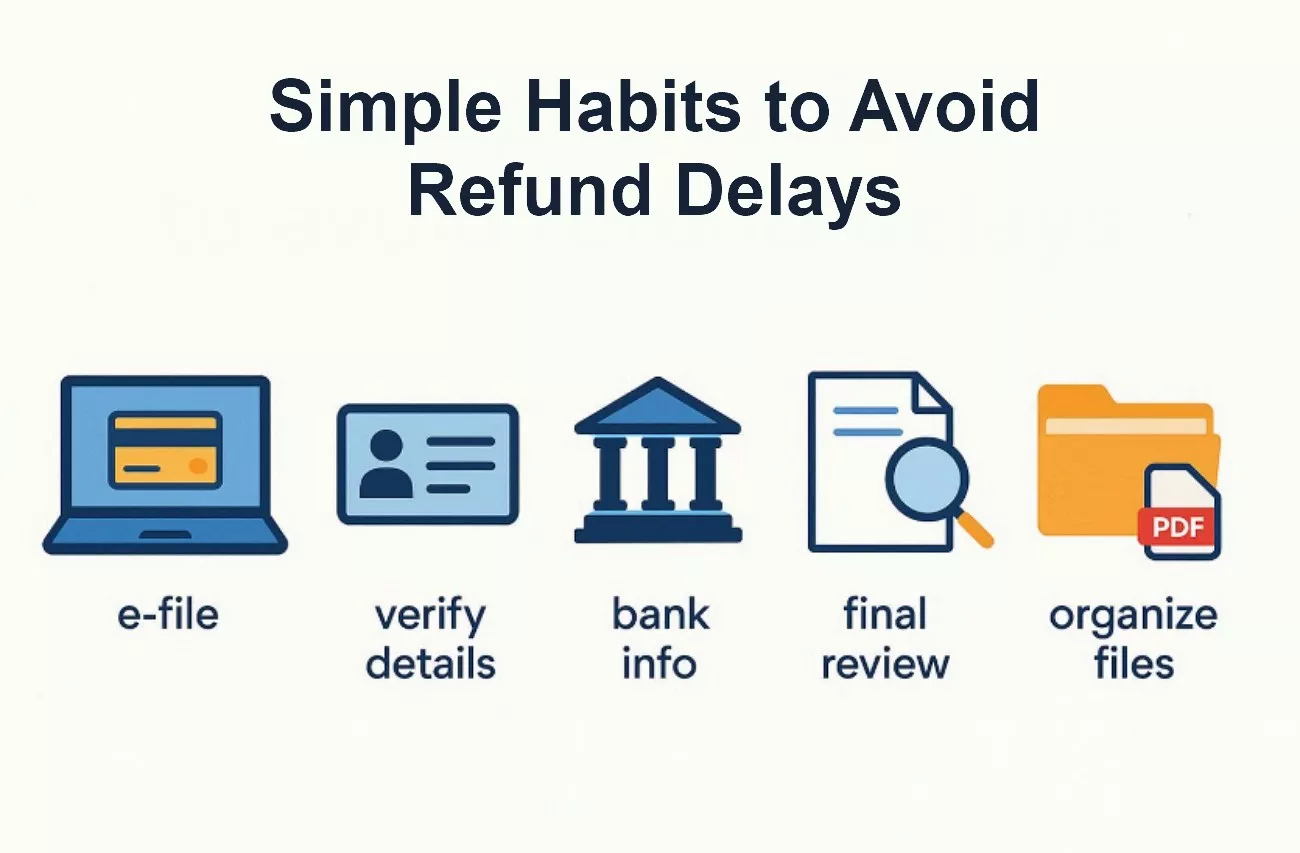
- E-File Method: Choosing e-file with direct deposit helps me receive refunds faster. This method saves me from postal delays and slower IRS processing times.
- Personal Details Check: Reviewing names, Social Security numbers, and addresses protects me from filing errors. Incorrect personal details often cause delays that affect my refund timeline.
- Bank Information Review: Confirming routing numbers and account numbers prevents refund delivery issues for me. Incorrect banking information frequently causes refunds to be delayed or returned.
- Final Form Review: A final review inside UPDF helps me catch mistakes before submission. This step reduces the chance of corrections slowing down my refund.
- Document Organization: Storing tax PDFs and proof documents together keeps everything accessible for me. Using the UPDF portfolio feature helps me respond quickly to IRS requests.
Frequently Asked Questions
- How long does it usually take for the IRS to accept a tax return?
The IRS usually accepts electronically filed tax returns within 24 hours of submission. Paper filed returns take longer, and acceptance confirmation may require several weeks sometimes.
- How do I know if the IRS has accepted my tax return?
Acceptance is confirmed through software alerts or the IRS Where's My Refund tool. A confirmation message usually appears within hours after a successful electronic submission to the IRS.
- What is the maximum time for refund processing?
Most refunds are issued within 21 days for electronically filed returns, generally. Reviews, errors, or identity checks can extend processing well beyond that timeframe period.
- How do you know if the IRS doesn't accept your return?
A rejected return triggers an electronic notice explaining the error and required correction. Tax software dashboards or IRS messages clearly indicate rejection status and next steps.
Conclusion
To conclude, knowing “when does the IRS start accepting returns” helps me plan filing without unnecessary stress. As a result, clear awareness of IRS timing improves refund expectations significantly. Accurate preparation and early electronic filing place returns into earlier processing windows. Therefore, focusing on accuracy matters more than guessing exact calendar dates. To simplify preparation across devices, I rely on UPDF for completing IRS PDFs.
Windows • macOS • iOS • Android 100% secure








 Engelbert White
 Lizzy Lozano


 Enrica Taylor