 UPDF
 UPDF for Windows
 UPDF for Mac
 UPDF for iPhone/iPad
 UPDF for Android
 Nomostar
 UPDF AI Online
 UPDF Sign
 IvyCraft
 Edit PDF
 Annotate PDF
 Create PDF
 PDF Form
 Edit links
 Convert PDF
 OCR
 PDF to Word
 PDF to Image
 PDF to Excel
 Organize PDF
 Merge PDF
 Split PDF
 Crop PDF
 Rotate PDF
 Protect PDF
 Sign PDF
 Redact PDF
 Sanitize PDF
 Remove Security
 Read PDF
 UPDF Cloud
 Compress PDF
 Print PDF
 Batch Process

 About UPDF AI
 UPDF AI Solutions
 AI User Guide
 FAQ about UPDF AI
 Summarize PDF
 Translate PDF
 Chat with PDF
 Chat with AI
 Chat with image
 PDF to Mind Map
 Explain PDF
 PDF AI Tools
 Image AI Tools
 AI Chat Tools
 AI Writing Tools
 AI Study Tools
 AI Working Tools
 Other AI Tools
 AI Bookmark Generation
 AI Bookmark Summary
 AI Watermark Generation
 AI Background Generation
 AI Sticker Generation
 AI Stamp Generation
 AI Editing Suite
 UPDF Copilot
 AI Page Management
 AI Semantic Search
 PDF to Word
 PDF to Excel
 PDF to PowerPoint
 Enterprise Solution
 Enterprise Sign
 Enterprise AI
 Enterprise Plan
 Enterprise User Guide
 Enterprise Webinar
 IT
 Education
 Construction
 Financial Service
 Healthcare
 Insurance
 Legal
 Manufacturing
 Government
 Researchers & PhDs
 Solopreneurs & Freelancers
 Lawyers & Legal Professionals
 Real Estate Agents & Brokers
 Education Solution
 Customer Stories
 User Guide
 UPDF Tricks
 FAQs
 UPDF Reviews
 Download Center
 Blog
 Newsroom
 Tech Spec
 Updates
 UPDF vs. Adobe Acrobat
 UPDF vs. Foxit
 UPDF vs. PDF Expert


Quick Answer
Two listings can both say “iPad Air” and still offer different storage, connectivity, or accessories. A deal that looks cheaper on the listing page may cost more once you add the stylus you need. You may also find that the retailer with the lowest price has a return window that ends before you can test a holiday gift.
Use this guide to compare electronics offers, choose an iPad for the way you’ll use it, and keep your purchase paperwork easy to find after checkout.
While you’re grabbing tech deals, don’t forget to buy productivity tools like UPDF. It is running its Black Friday Campaign, offering 48% discounts on its all-in-one PDF editor!!! With this tool, you can edit, convert, organize and sign PDFs with ease.
Download UPDF Now and enjoy exclusive Black Friday savings!
Windows • macOS • iOS • Android 100% secure
Part 1. How to Compare Black Friday Electronics Deals
Start with the model number or exact configuration. Retailers often group multiple options on the same product page, so check which one is selected before you record the price. Then look at the seller, the condition of the product, and what comes in the box.
| Shopping for | What to compare | What can change the value |
|---|---|---|
| iPad or tablet | Generation, storage, screen size, and Wi-Fi or cellular | A stylus, keyboard, or case you need to buy separately |
| Laptop or desktop | Processor, RAM, storage, and display | A lower-priced configuration that leaves you short on memory or storage |
| TV or monitor | Exact model number, size, and ports | Delivery charges, mounting hardware, or a different model in the same series |
| Headphones | Model, condition, and included accessories | A missing charging case or a different warranty on an open-box item |
| Smartphone | Storage, carrier status, and purchase terms | Trade-in requirements, activation fees, or credits applied over time |
Compare the final amount you’ll pay for the same configuration. If a seller offers a gift card, consider whether you would use it on something you already intended to buy. For trade-ins, check the required condition and when the credit will be applied. Keep both figures separate from the amount due at checkout.
If you’re choosing between new, refurbished, or open-box listings, read the seller’s warranty and return terms before comparing prices. Two identical model numbers can still come with different coverage.
Part 2. Which iPad Deal Fits the Way You Work?
For reading, coursework, and PDF markup
Start with a standard iPad or iPad Air configuration that meets your storage needs. Think about a typical session. Will you mostly read lecture slides, highlight passages, and write occasional notes? Or will you regularly work with a PDF and another app side by side?
Compare the screen sizes and accessories that suit that routine. If you plan to annotate by hand, confirm which Apple Pencil works with the exact iPad before adding it to your basket.
For reading on the move
Consider the iPad mini if portability is a priority. Think about the files you read most often. A compact device can suit short articles and manuals. If your work involves full-page tables, detailed diagrams, or dense research papers, check how readable those pages are at a comfortable zoom level.
For a larger workspace or creative work
Compare larger iPad Air and iPad Pro configurations if screen space matters to you. Use your actual workload to decide whether the added cost is worthwhile. If you often keep a source PDF open alongside notes, consider the display size and keyboard setup together. If you rely on demanding creative apps, check their requirements before choosing a configuration.
Part 3. What to Do Before Checkout
- Save the exact listing. Record the model number, configuration, seller, and condition. This helps you spot changes when you return to a saved deal.
- Set an all-in price target. Include the accessories you’ll actually need, plus any shipping or activation costs that apply.
- Check the promotion terms. Confirm how a gift card, trade-in credit, or bundle affects the amount you pay and when you receive the benefit.
- Read the return and warranty terms. Check the return deadline, any conditions for opened items, and who handles warranty service.
- Keep the purchase records together. Save the receipt, order confirmation, model information, and warranty in one folder. Note the return deadline while the order is still fresh in your mind.
For example, if you buy a tablet as a gift, check whether the recipient will have time to open and test it before the return window closes. Save the order details in a place you can reach even if you no longer have the confirmation email handy.
Part 4. Set Up Your New iPad and Keep Purchase Documents Easy to Find
Try your real PDF workflow on the new device
If you’re buying an iPad for study or work, open a PDF you already use. Highlight a passage, add a comment, and return to the file later to see how easily you can find your notes. UPDF on iPad supports reading and annotation, which is useful for lecture slides, manuals, and documents you need to review away from your desk.
Save a receipt you can find when you need it
A paper receipt is easy to misplace, and a photo saved to your camera roll can be hard to locate months later. In UPDF on iPhone or iPad, scan the receipt and save it as a PDF. Use a filename that includes the retailer, product, and purchase date. Keep it with the invoice and warranty so you have the records in one place.
If the receipt is image-only, run OCR on a supported version of UPDF to make recognized text searchable. Then check the order number, purchase date, and total against the original, especially if you’ll use the file to support a return or warranty claim.
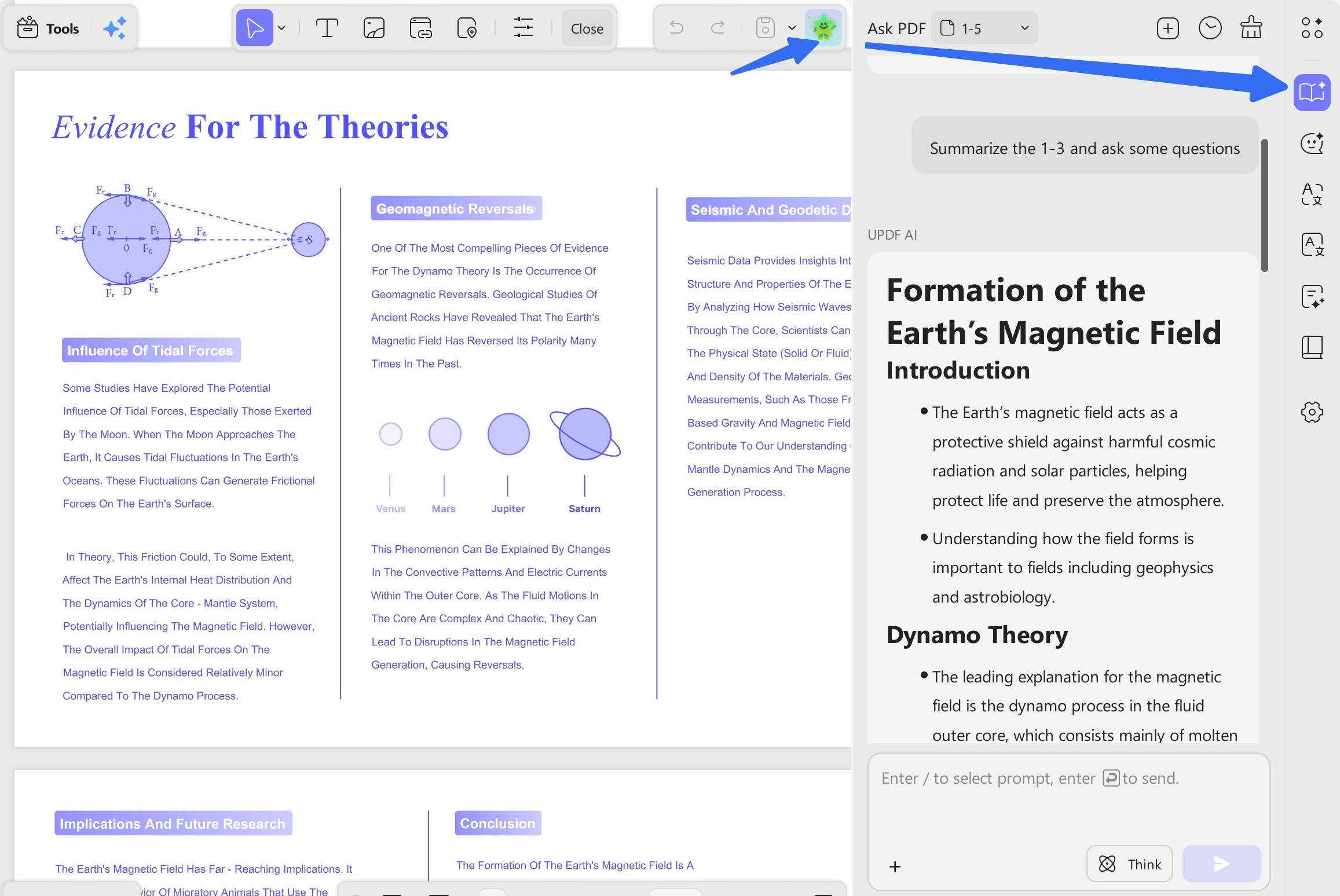
Find the relevant clause in a long warranty
When a warranty PDF covers several models or types of service, it can take time to find the requirements for your purchase. With UPDF 3.0 on desktop, you can ask about the entire document, the current page, or a selected range. If you already know the relevant section, focus the question there.
Try asking, “Which pages explain what proof of purchase I need for a repair?” Then read the original wording and check that the terms apply to your exact model. This gives you a clearer starting point before you contact the seller.
UPDF 3.0 Black Friday offer
If your new device will see regular PDF use, compare the UPDF plan with the work you expect to do. UPDF Pro covers everyday PDF tasks such as editing, annotation, and organization. UPDF Pro + AI is worth comparing if you regularly need help reading, summarizing, or analyzing longer documents. Check the plan details for AI access and credits.
The UPDF Black Friday sale runs from November 3 to December 11, 2026, with up to 48% off selected plans.
Once you’ve prepared your wishlist, tracked prices, and organized your receipts and warranties, you’re ready for some of the best Black Friday deals. Speaking of deals, UPDF’s Black Friday campaign is a perfect opportunity to get discounts on powerful PDF tools that can help you stay organized while shopping and keep all your digital documents in one place.
Windows • macOS • iOS • Android 100% secure
Let’s discuss the top features of this software.
1. Scan your Documents:
With this tool, you can scan your purchase receipts, invoices, and manuals into PDFs for convenient digital access. Once you are on the Scan screen, you will see two options: scan document or scan an ID. You can choose the options according to your requirements. After choosing your option, you can select other settings like add, rotate, crop, and more.

2. OCR (Optical Character Recognition)
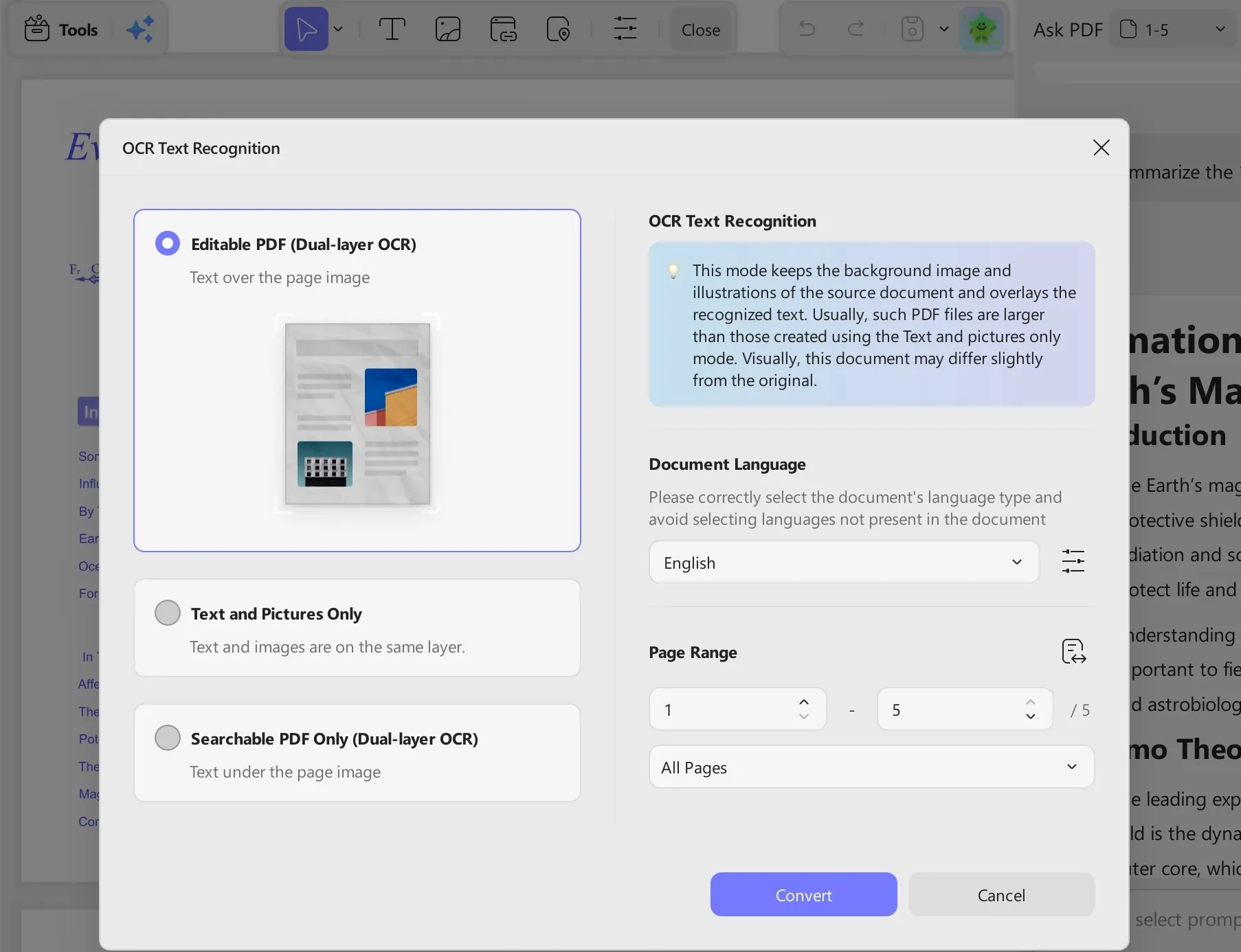
You can use the OCR PDF option to quickly find a specific product. It can recognize text in multiple languages, including English, French, German, and more. Also, you can choose OCR recognition modes like Editable PDF, Text and Picture only, or Searchable PDF only. Here’s what these modes mean:
- Editable PDF: This mode converts your scanned image or document into a PDF where you can easily edit the text. You can add screenshots, new items, and more.
- Text and Picture Only: It extracts images and text from the documents and makes a separate folder for your convenience.
- Searchable PDF Only: The scanned PDF is converted into a searchable document, which means you can search for words or phrases in the PDF. However, in this mode, you can’t edit your PDF.

Windows • macOS • iOS • Android 100% secure
3. Combine Documents: You can combine all your data, like receipts, invoices, manuals, and other shopping-related content into a single PDF for better organization.
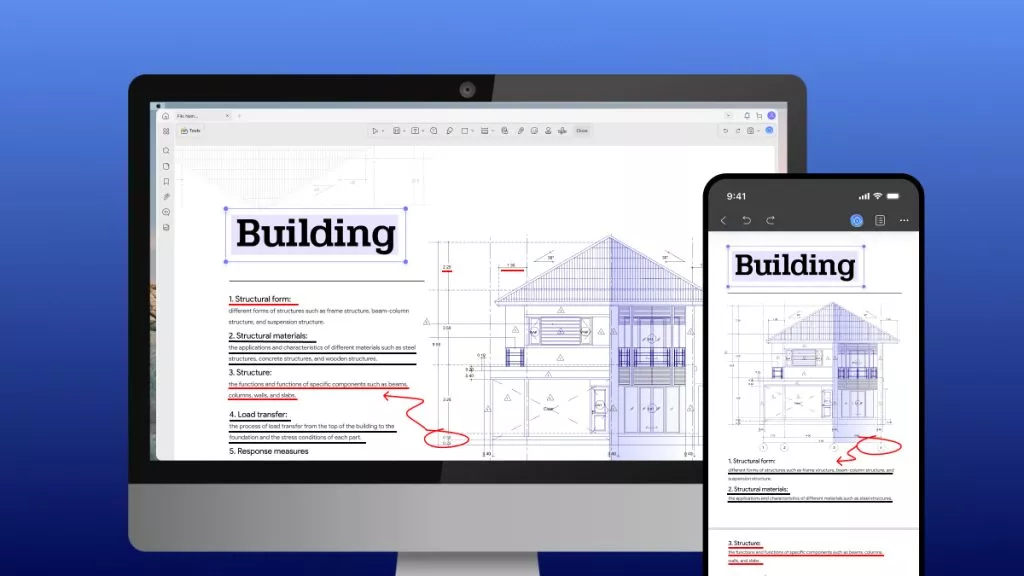
4. Annotate PDF: You can use this feature to highlight, comment, and add sticky notes to your PDF files. Apart from that, it offers others like underline, drawing, strikethrough, custom signature, and more.

5. Store PDF: You can easily store the PDF versions across all devices (Windows, Mac, iOS, Android) to ensure you can access them anytime, anywhere.

Windows • macOS • iOS • Android 100% secure
Conclusion
Before you buy, compare the exact model, the total cost with accessories, and the return terms. Once the order is placed, save the receipt and warranty together. If you bought an iPad for class or work, test it with the PDFs you’ll read and mark up most often. You can explore the UPDF 3.0 Black Friday plans through December 11, 2026.
Windows • macOS • iOS • Android 100% secure








 Enid Brown

 Delia Meyer

 Enola Miller

 Enya Moore