 UPDF
UPDF
 UPDF for Windows
 UPDF for Mac
 UPDF for iPhone/iPad
 UPDF for Android
 Nomostar
 UPDF AI Online
 UPDF Sign
 IvyCraft
 Edit PDF
 Annotate PDF
 Create PDF
 PDF Form
 Edit links
 Convert PDF
 OCR
OCR PDF to Word
 PDF to Image
 PDF to Excel
 Organize PDF
 Merge PDF
 Split PDF
 Crop PDF
 Rotate PDF
 Protect PDF
 Sign PDF
 Redact PDF
 Sanitize PDF
 Remove Security
 Read PDF
 UPDF Cloud
 Compress PDF
 Print PDF
 Batch Process
 About UPDF AI
 UPDF AI Solutions
 AI User Guide
 FAQ about UPDF AI
 Summarize PDF
 Translate PDF
 Chat with PDF
 Chat with AI
 Chat with image
 PDF to Mind Map
 Explain PDF
 PDF AI Tools
 Image AI Tools
 AI Chat Tools
 AI Writing Tools
 AI Study Tools
 AI Working Tools
 Other AI Tools
 AI Bookmark Generation
 AI Bookmark Summary
 AI Watermark Generation
 AI Background Generation
 AI Sticker Generation
 AI Stamp Generation
 AI Editing Suite
 UPDF Copilot
 AI Page Management
 AI Semantic Search
 PDF to Word
 PDF to Excel
 PDF to PowerPoint
 Enterprise Solution
 Enterprise Sign
 Enterprise AI
 Enterprise Plan
 Enterprise User Guide
 Enterprise Webinar
 Banking
 Healthcare
 Insurance
 Legal
Legal Manufacturing
 Government
 Researchers & PhDs
 Solopreneurs & Freelancers
 Lawyers & Legal Professionals
 Real Estate Agents & Brokers
 Education Solution
 Customer Stories
 User Guide
 UPDF Tricks
 FAQs
FAQs UPDF Reviews
 Download Center
 Blog
Blog Newsroom
 Tech Spec
 Updates
 UPDF vs. Adobe Acrobat
 UPDF vs. Foxit
 UPDF vs. PDF Expert

If the download button is missing or you can't save a PDF from Google Drive, the file is likely protected by sharing settings or a password. Whether you need to download restricted PDF from Google Drive, recover an undownloadable PDF, or bypass the "no download option" restriction, this guide gives you 3 proven methods to get the file: a JavaScript workaround for restricted sharing, a screenshot + OCR approach for view-only files, and UPDF for password-protected documents. Here's the step-by-step guide.
If you want to open a password-protected PDF file, I recommend using UPDF. Not only can UPDF quickly remove passwords from PDF files, but it also offers powerful AI editing features that help you polish, expand, simplify, and rewrite the tone, proofread, and correct errors, generate text as required, providing a smooth and efficient PDF editing experience.
Windows • macOS • iOS • Android 100% secure
Why Can't I Download the PDF from Google Drive? (Restricted vs. Password-Protected)
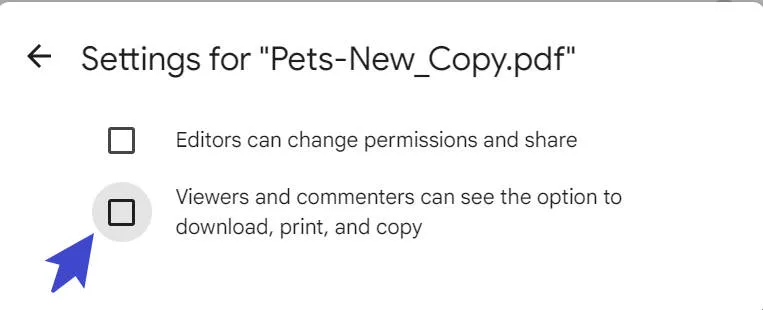
If you are unable to download the PDF from Google Drive, there are two common scenarios: the owner disabled downloads via sharing settings (creating a restricted PDF with no download option), or the file itself is encrypted with an permission password. In this way, the viewers cannot download, print, or copy the document from the Drive.
Method 1. How to Download PDF from Google Drive Without Download Option (Screenshot + OCR)
When a PDF is set to "view only" and the download button is removed, the file becomes undownloadable through normal means. In this case, take a scrolling screenshot of the document and convert it back into a searchable PDF with UPDF.
Step 1: Open the protected PDF in Google Drive and take a scrolling screenshot of it using a Chrome extension or any screenshot tool like GoFullPage and export the screenshot in PDF format.
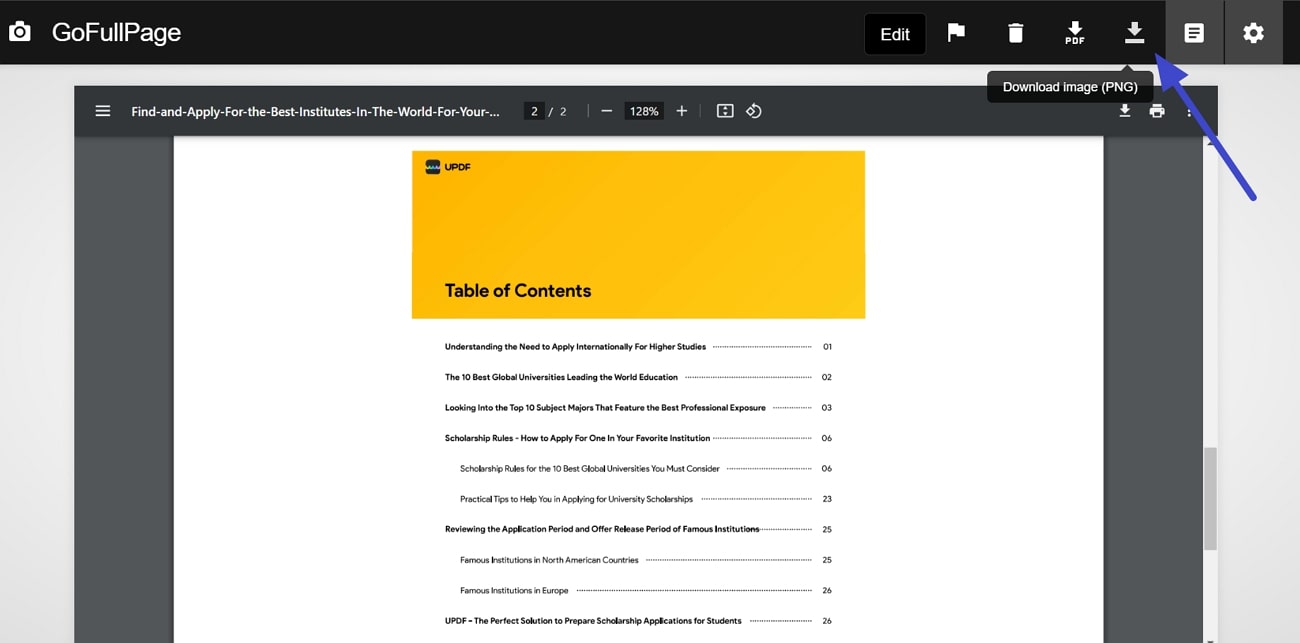
Step 2: Afterward, open the created PDF in UPDF. Once installed, UPDF automatically prompts you to apply OCR if the file is image-based—turning your screenshot into a fully searchable and editable document within seconds. You can then annotate, edit text, or export to Word/Excel. Download this all-in-one PDF software to unlock the file now.
Windows • macOS • iOS • Android 100% secure
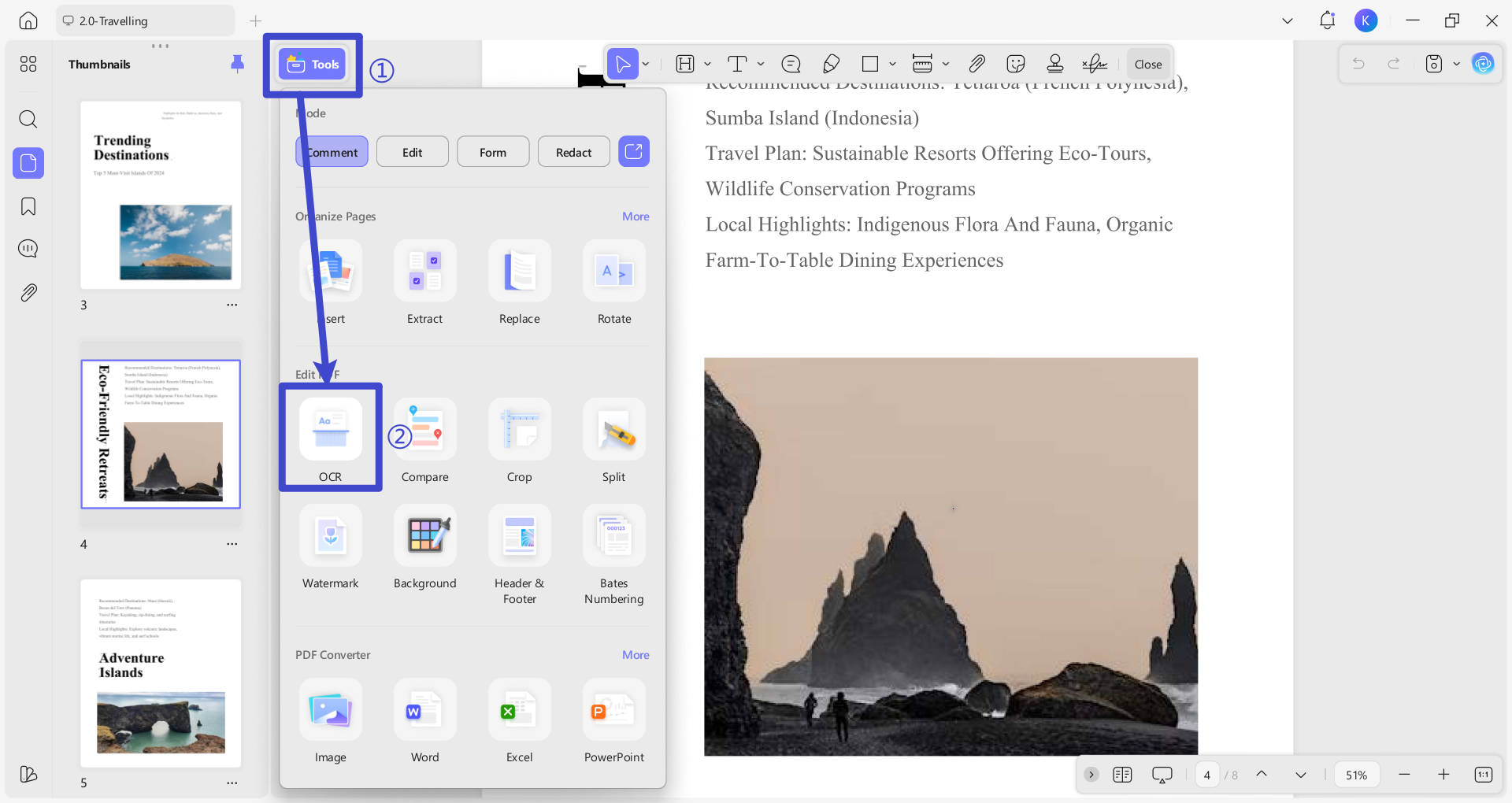
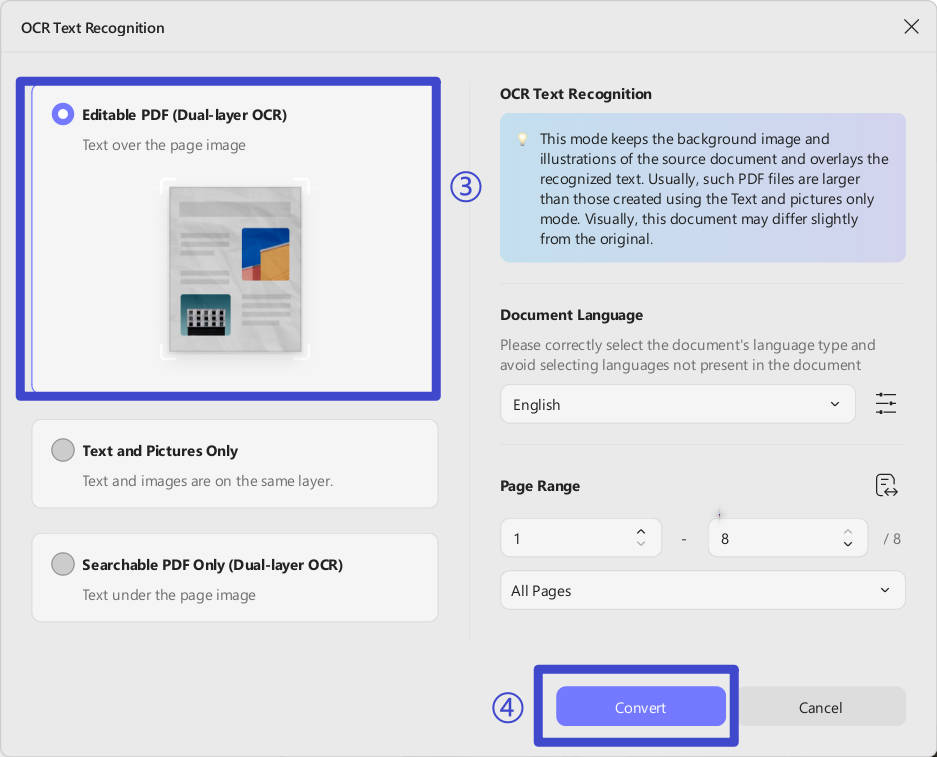
Step 3: UPDF can even help you to transfer your image-based PDF into a searchable and editable document using its advanced OCR technology. Once you apply the OCR feature of UPDF, you can edit the text and other details of the document.
Method 2. How to Download Restricted PDF from Google Drive (JavaScript Workaround)
To put it simply, Google Drive is a helpful tool that lets teams and individual professionals work together for free. You can edit, share, and keep your PDF documents there. The good thing is you can even work on your files without the internet, and once you're online again, it saves the changes made offline. One big plus point is that Google Drive works on different devices.
However, sometimes the PDFs you need to work on are restricted and cannot be downloaded. This restriction can be due to the sensitive information stored in those PDFs. But we have you covered with a simple solution. You can easily run the JavaScript code to download the PDF file automatically. Now, head to the steps below and download locked PDF files from Google Drive:
Instructions: Head to your web browser and access Google Drive to access the restricted PDF. Double-click the PDF file to open it and press the "Ctrl + Shift + C" keys on the keyboard while using Windows. Then, hit the "Console" tab next to the "Elements." Afterward, paste the given code into the "Console" and hit the "Enter" key on the keyboard. This will download your PDF file automatically. This method works when the owner has disabled downloads via Google Drive sharing settings but still allows you to open and view the file. It extracts the rendered page images and compiles them into a downloadable PDF.
let jspdf = document.createElement("script");

jspdf.onload = function () {

let pdf = new jsPDF();

let elements = document.getElementsByTagName("img");

for (let i in elements) {

let img = elements[i];

console.log("add img ", img);

if (!/^blob:/.test(img.src)) {

console.log("invalid src");

continue;

}

let can = document.createElement('canvas');

let con = can.getContext("2d");

can.width = img.width;

can.height = img.height;

con.drawImage(img, 0, 0, img.width, img.height);

let imgData = can.toDataURL("image/jpeg", 1.0);

pdf.addImage(imgData, 'JPEG', 0, 0);

pdf.addPage();

}

pdf.save("download.pdf");

};

jspdf.src = 'https://cdnjs.cloudflare.com/ajax/libs/jspdf/1.5.3/jspdf.debug.js';

document.body.appendChild(jspdf);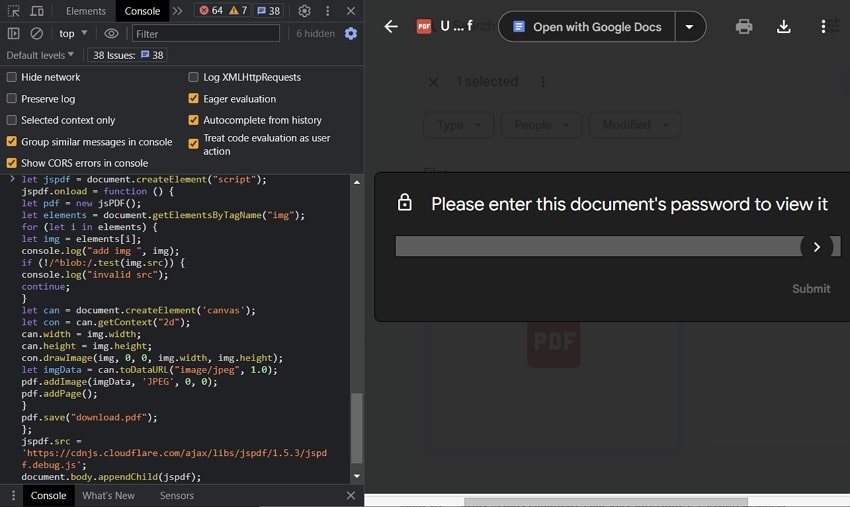
Once the file downloads, you may receive an image-based PDF. To make it editable or searchable, open it in UPDF and run the built-in OCR feature—this converts the JS-extracted images into real text you can copy, edit, and export.
Windows • macOS • iOS • Android 100% secure
Bonus Tip: How to Unlock and Download Password-Protected PDFs with UPDF
It is not easy to download protected PDFs from Google Drive. But you can do it with the methods shown above. Please note that it is illegal to download the protected PDF from others, so only download your own protected PDF.
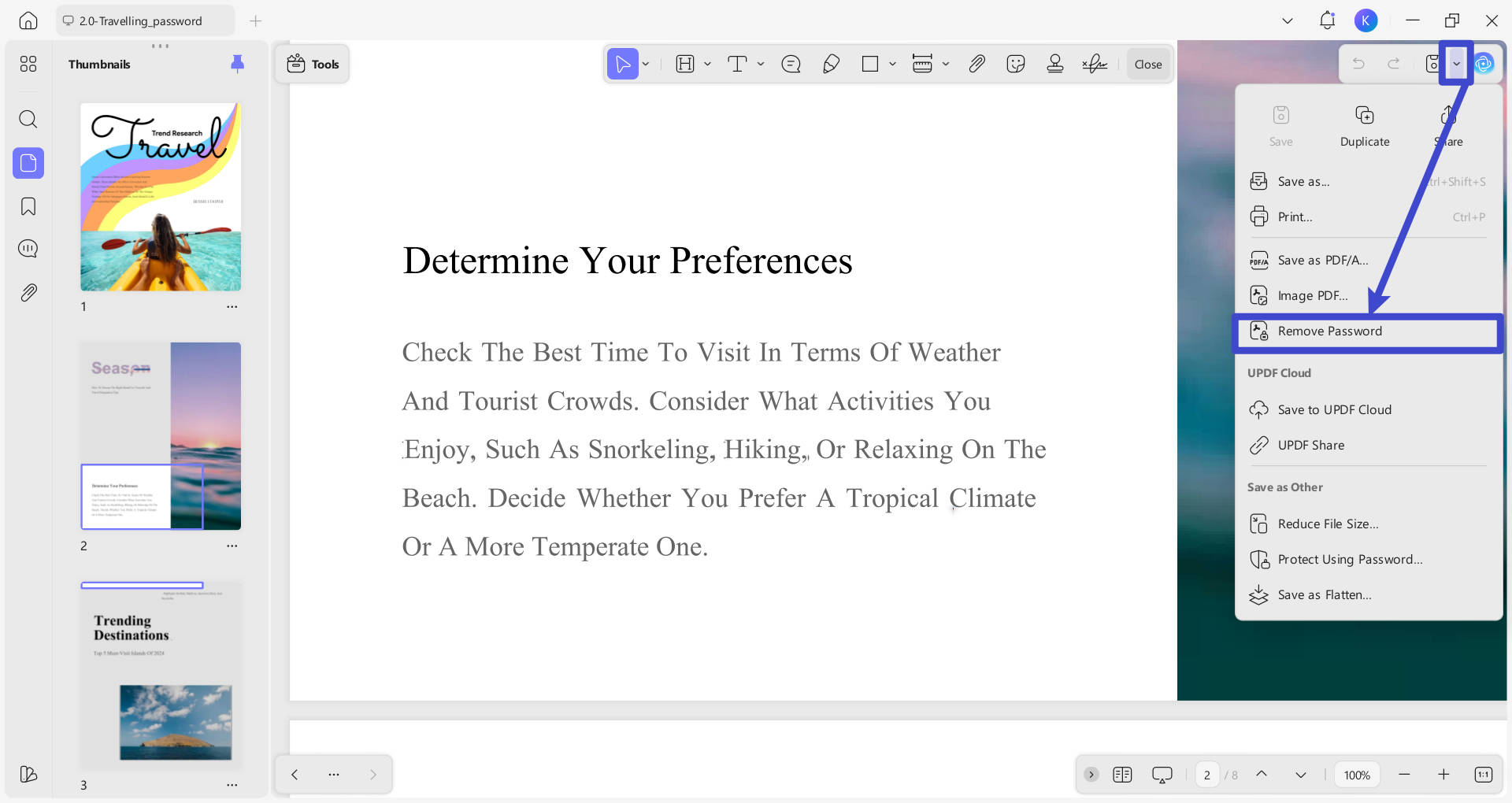
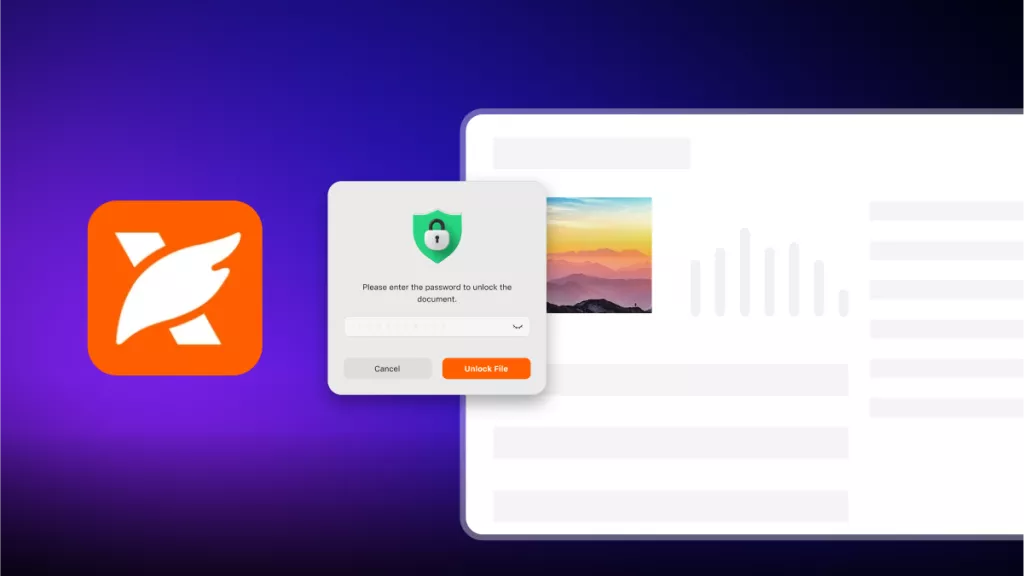
If you have a password-protected PDF and want to remove the password to download or share it freely, use the UPDF PDF editor. After installing UPDF, simply drag the locked file into the app, enter the open password when prompted, and click "Unlock." Once unlocked, you can immediately remove the password permanently via the dropdown menu for Save > Remove Password, then export the file to 9 formats (Word, Excel, PPT, image, etc.) or share it via email/link/QR code.
Windows • macOS • iOS • Android 100% secure
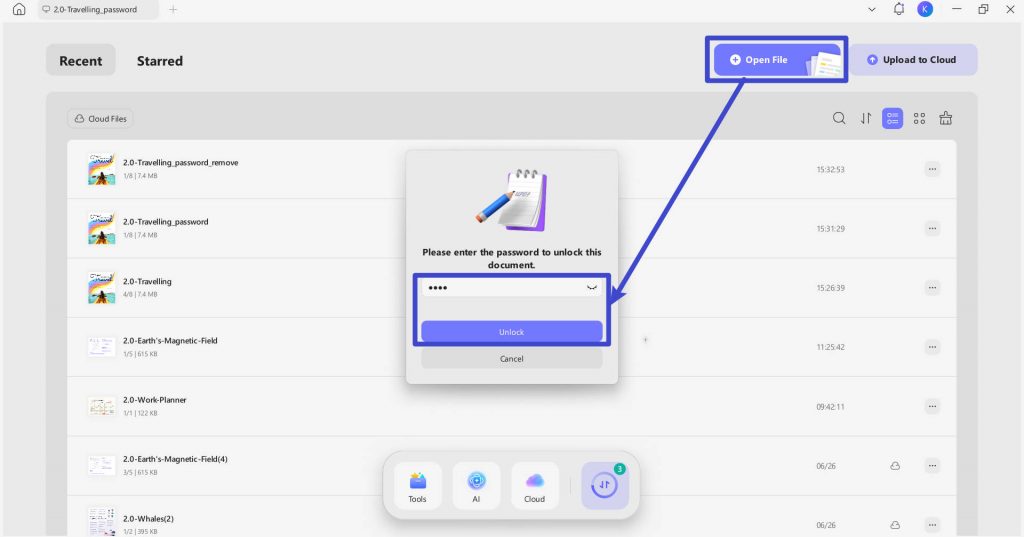
Step 1: Access the PDF File Using UPDF
Launch the UPDF program on your system and import protected PDF via the "Open File" option. In case the PDF is protected with an open password, you will need to "Enter Password" and click the "Unlock" button. This will allow you to access the contents of the PDF file.
Step 2: Remove Security to Unlock the File
Afterward, head to the right-side toolbar, tap the drop-down arrow icon, and select "Remove Password" from the extended menu. A pop-up window will prompt you to save the password-removed file on your computer. "Save" the file anywhere on your system.
Interested in using UPDF to unlock UPDF now? Download UPDF directly below.
Windows • macOS • iOS • Android 100% secure
Also Read: How to Remove Restrictions from PDF? (Proven Online & Offline Methods)
FAQs About Password Protected PDF in Google Drive
Q1. How to download protected PDF from Google Drive if I don't have the password?
If the PDF has an open password and you don't know it, contact the file owner. If you own the file, use UPDF to unlock it (see Bonus Tip above) and remove the password permanently.
Q2. Why is there no download option for my PDF in Google Drive?
The owner likely unchecked "Viewers and commenters can see the option to download, print, and copy" in the file's sharing settings. This creates a restricted file that can only be viewed in the browser. If the download button is disabled, use Method 1 (screenshot + UPDF OCR) for view-only files, or Method 2 (JavaScript console) for restricted sharing settings. Both let you save the content locally even when the owner blocks downloads.
Q3. Can I download a restricted PDF from Google Drive without permission?
Only download files you own or have legal access to. The methods above are intended for recovering your own files or those shared with you where you have viewing rights but the download feature is disabled by settings, not by copyright.
Final Thoughts
To conclude, downloading protected PDFs from Google Drive can be a simple process for users using the guided steps and exact codes mentioned above. We are sure that you can do it with this guide.
If you need to unlock the protected PDF file, we would like to recommend the UPDF PDF editor to you. This tool improves the PDF management task, and the hassle of removing passwords can be resolved easily. Download it to try now, and learn more about this software by reading a full review on PDF Association.
Windows • macOS • iOS • Android 100% secure



 Engelbert White
 Enrica Taylor
 Enola Miller