UPDF
UPDF
 UPDF for Windows
 UPDF for Mac
 UPDF for iPhone/iPad
 UPDF for Android
 Nomostar
 UPDF AI Online
 UPDF Sign
 IvyCraft
 Edit PDF
 Annotate PDF
 Create PDF
 PDF Form
 Edit links
 Convert PDF
 OCR
OCR PDF to Word
 PDF to Image
 PDF to Excel
 Organize PDF
 Merge PDF
 Split PDF
 Crop PDF
 Rotate PDF
 Protect PDF
 Sign PDF
 Redact PDF
 Sanitize PDF
 Remove Security
 Read PDF
 UPDF Cloud
 Compress PDF
 Print PDF
 Batch Process
 About UPDF AI
 UPDF AI Solutions
 AI User Guide
 FAQ about UPDF AI
 Summarize PDF
 Translate PDF
 Chat with PDF
 Chat with AI
 Chat with image
 PDF to Mind Map
 Explain PDF
 PDF AI Tools
 Image AI Tools
 AI Chat Tools
 AI Writing Tools
 AI Study Tools
 AI Working Tools
 Other AI Tools
 AI Bookmark Generation
 AI Bookmark Summary
 AI Watermark Generation
 AI Background Generation
 AI Sticker Generation
 AI Stamp Generation
 AI Editing Suite
 UPDF Copilot
 AI Page Management
 AI Semantic Search
 PDF to Word
 PDF to Excel
 PDF to PowerPoint
 Enterprise Solution
 Enterprise Sign
 Enterprise AI
 Enterprise Plan
 Enterprise User Guide
 Enterprise Webinar
 Banking
 Healthcare
 Insurance
 Legal
Legal Manufacturing
 Government
 Researchers & PhDs
 Solopreneurs & Freelancers
 Lawyers & Legal Professionals
 Real Estate Agents & Brokers
 Education Solution
 Customer Stories
 User Guide
 UPDF Tricks
 FAQs
FAQs UPDF Reviews
 Download Center
 Blog
Blog Newsroom
 Tech Spec
 Updates
 UPDF vs. Adobe Acrobat
 UPDF vs. Foxit
 UPDF vs. PDF Expert

Many learning tools claim to improve how people study, but most textbooks still force everyone into the same structure. When I first came across Learn Your Way, it stood out by adapting content instead of forcing learners into textbook pages. Some parts of the experience feel genuinely helpful, while others clearly show it is still an experiment in progress.
In this article, I explain how it works in real use and why it matters for personalized learning. Keep reading to see how it fit into my study routine and how I used UPDF alongside it to manage PDF study materials. Interested readers can click the button below to download for free.
Windows • macOS • iOS • Android 100% secure
Part 1. Quick Summary of “Learn Your Way”
Before diving deeper, let’s look at a quick overview of what Learn Your Way Google offers and how it works.
| Aspect | Overview |
| Purpose | A Google AI project designed to deliver personalized learning experiences |
| Functionality | Transforms PDF textbooks into various adaptive formats for easier study |
| Access | Sign in via Google Labs using a Google account; no separate app required |
| Advantages | Custom study paths, interactive lessons, and improved knowledge retention |
| Target Users | Students and independent learners looking for flexible, tailored learning |
Part 2. What is Learn Your Way?
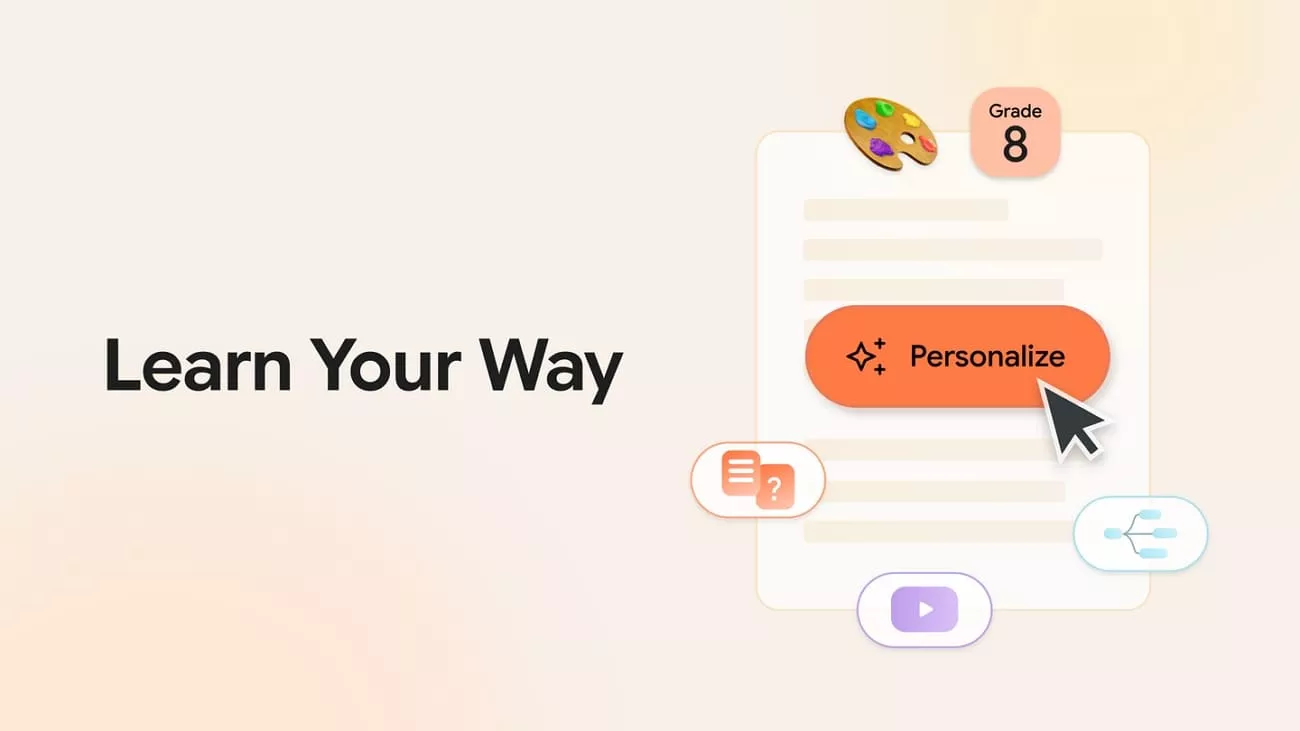
When I first started using Learn Your Way, I quickly realized how much easier studying became. Traditional textbooks feel rigid and make studying very difficult. This platform changes the material to match my learning and makes PDFs easier to study. It helps me focus on what matters most to make every study session feel more engaging.
What Makes Learn Your Way Effective
To understand why it works so well, let’s look at its main capabilities. These are designed to make learning engaging and tailored to each individual.
- Adaptive Text Formats: Transforms traditional textbook PDFs into lessons with simple summaries and slides that improve my understanding.
- Individualized Learning Journeys: The platform adjusts content according to my grade and progress to my learning pace.
- Quizzes and Assessments: They produce questions along the way to help me check my comprehension and remember the material well.
- Mind Maps & Visual Tools: Complex concepts become visual diagrams that show relationships and connections clearly and help me retain knowledge.
- Browser-Based Access: Everything works through Google Labs and removes the need for extra apps while keeping learning smooth and simple.
Part 3. How Does Learn Your Way Work?
Learn Your Way Google builds on the same textbook chapter but changes how it is delivered to me. Next, let’s explore how the system personalizes that content for my needs and turns it into multiple interactive learning formats.
Choose Grade and Interests
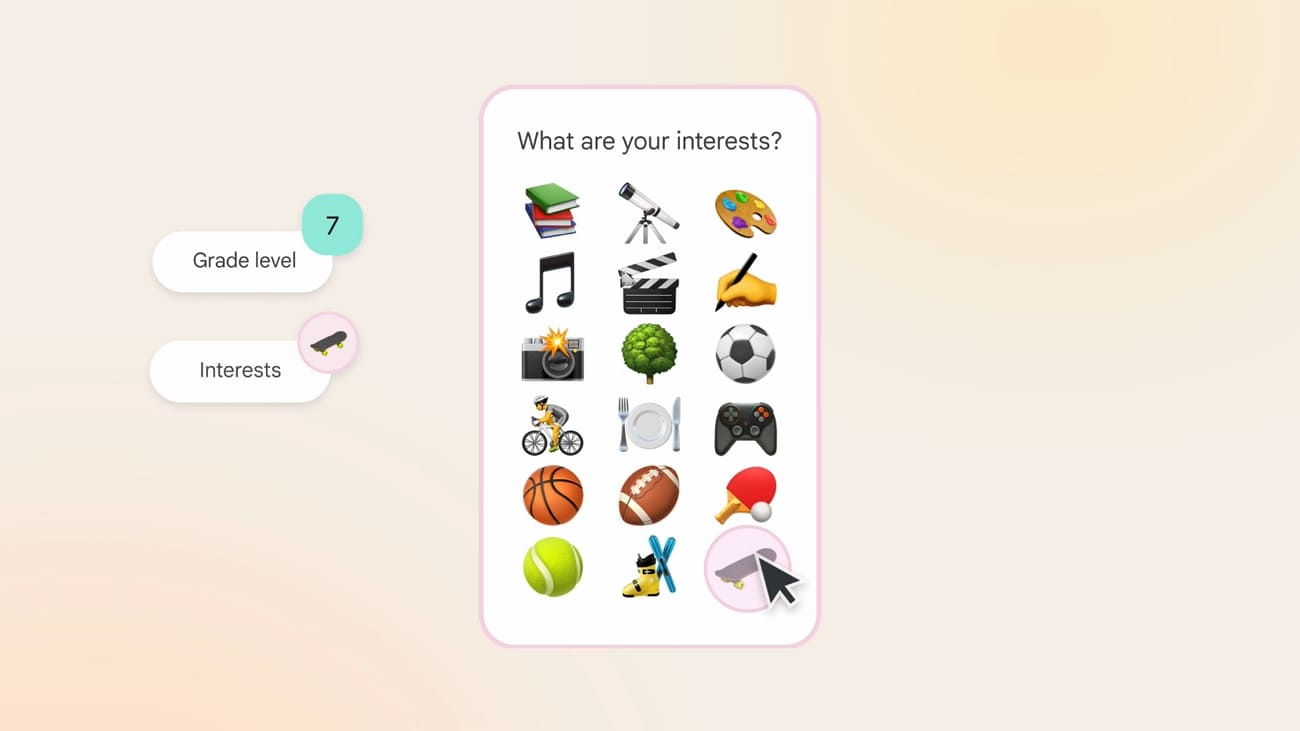
Learners first select a school grade, such as middle school or high school. They also choose a few interests like sports, music, or art that feel personally meaningful. These choices guide the system to adjust language difficulty for the learner’s current level. Also, they help the system select examples and contexts that feel familiar in the learner’s daily life.
Personalize the Core Text
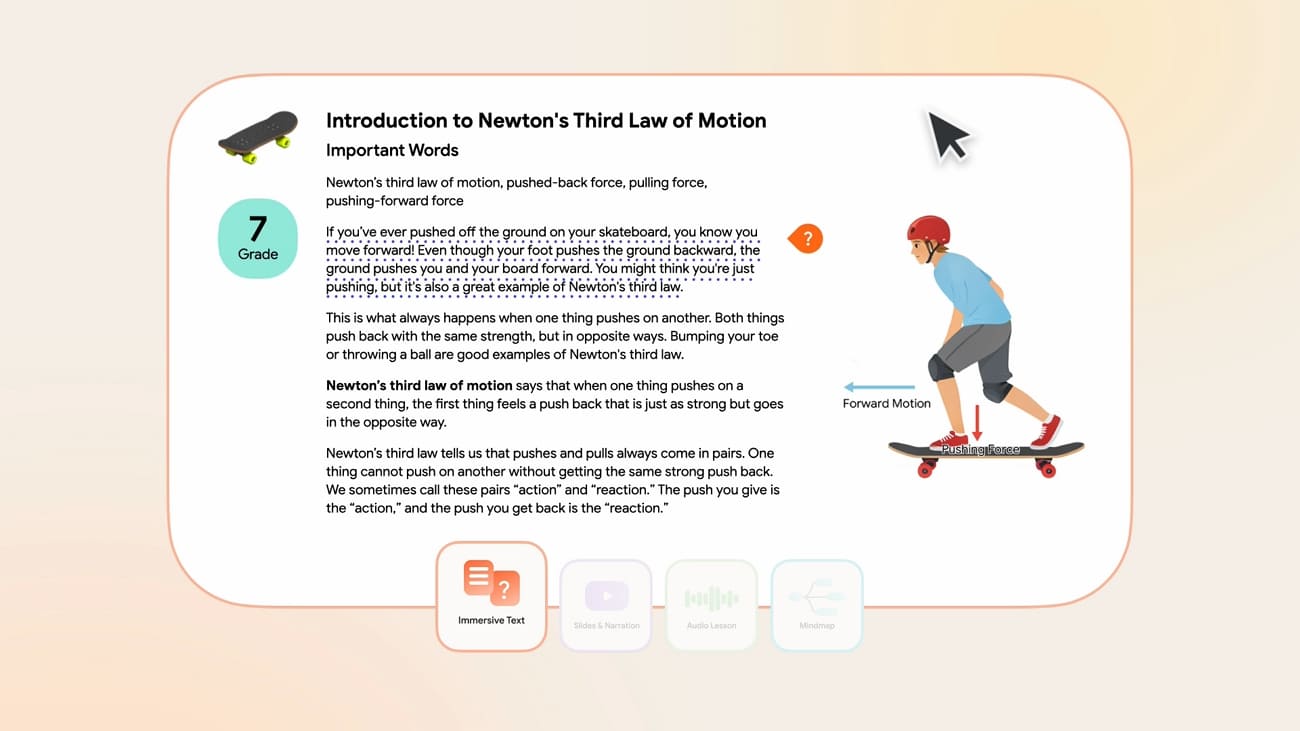
Using those settings, the AI regenerates the original textbook passage into a personalized master version. This new version is better matched to the learner profile defined by grade and selected interests. Generic examples are replaced with interest based scenarios that connect ideas to what the learner already likes. The wording and structure are adapted to support clearer learning while preserving the core concepts.
Transform into Many Formats
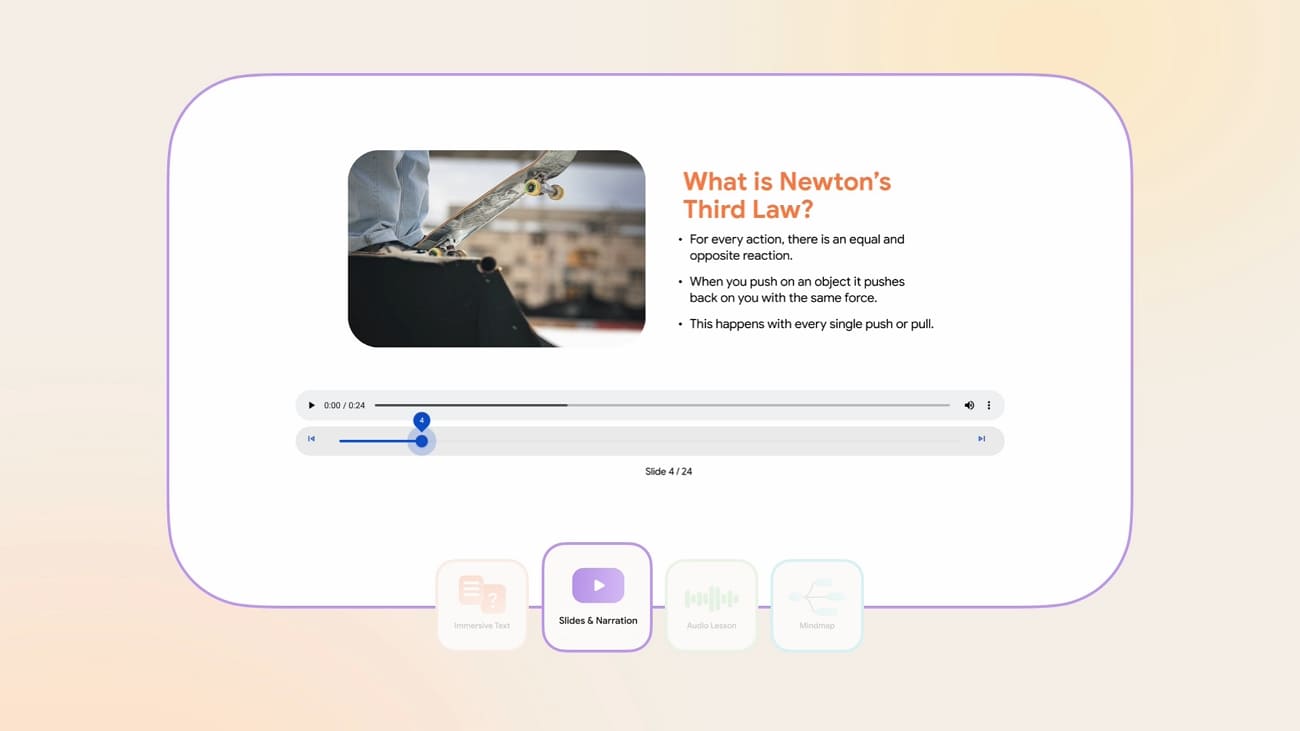
From that personalized master text, the system then generates several coordinated outputs that all stay aligned to the same core ideas and content.
- Immersive text with images and inline questions for active engagement.
- Section quizzes with embedded checks for understanding learner progress.
- Slides with narration, audio lessons, and mind maps for varied learning.
Part 4. Innovative Details and Benefits of Learn Your Way
After using Learn Your Way for a while, I realized how much it improves my studying and helps me understand material better. Let's focus on the innovative details and benefits of using it.
Innovative Details
This platform can turn a single textbook chapter into several formats that match the way I like to learn and study. I can access immersive text, quizzes, slides, audio lessons, and mind maps, all created from the same core material. Thanks to this variety, I can choose the format that fits whether I want to read deeply, revise quickly, or listen while doing other tasks.
Each format comes from the original content, so it stays consistent while still offering variety in how I study. The explanations and examples are adapted to my grade level and interests to make the material more relevant and easier to understand.
Benefits of Learn Your Way
Having explored the innovative details of Learn Your Way Google, let’s look at its benefits.
- It adjusts difficulty to my grade level, so challenging concepts become easier to understand.
- Personalized examples linked to my interests help me stay engaged and remember ideas for a longer time.
- Multiple formats, including immersive text, quizzes, slides, audio, and mind maps, support my preferred learning style.
- Instant feedback from questions and quizzes shows me exactly where I am strong or still confused.
- Consistent alignment across all formats means my revision always follows the same reliable textbook content.
Part 5. How to Login to Learn Your Way?
Now, follow the steps below to learn how to log in to Learn Your Way:
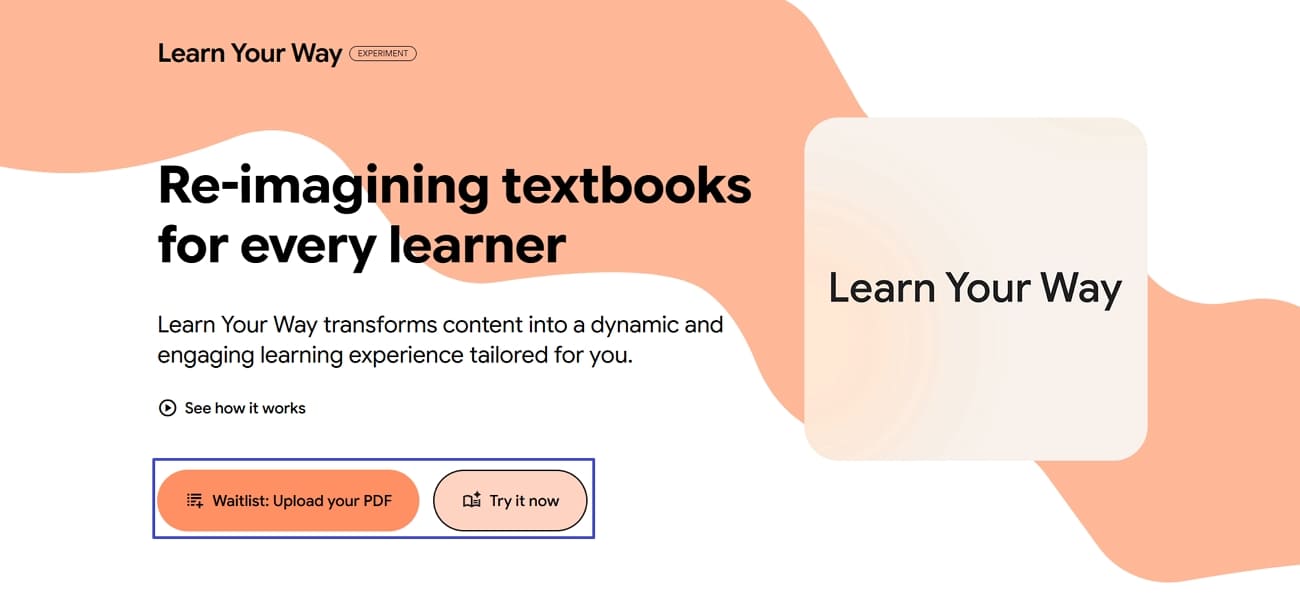
Step 1. Once you enter the main interface, click the “Waitlist: Upload Your PDF” button, fill out the Google Form to record your response, and wait for the link to log in. Otherwise, press the “Try it Now” button to try it with some already created categories.
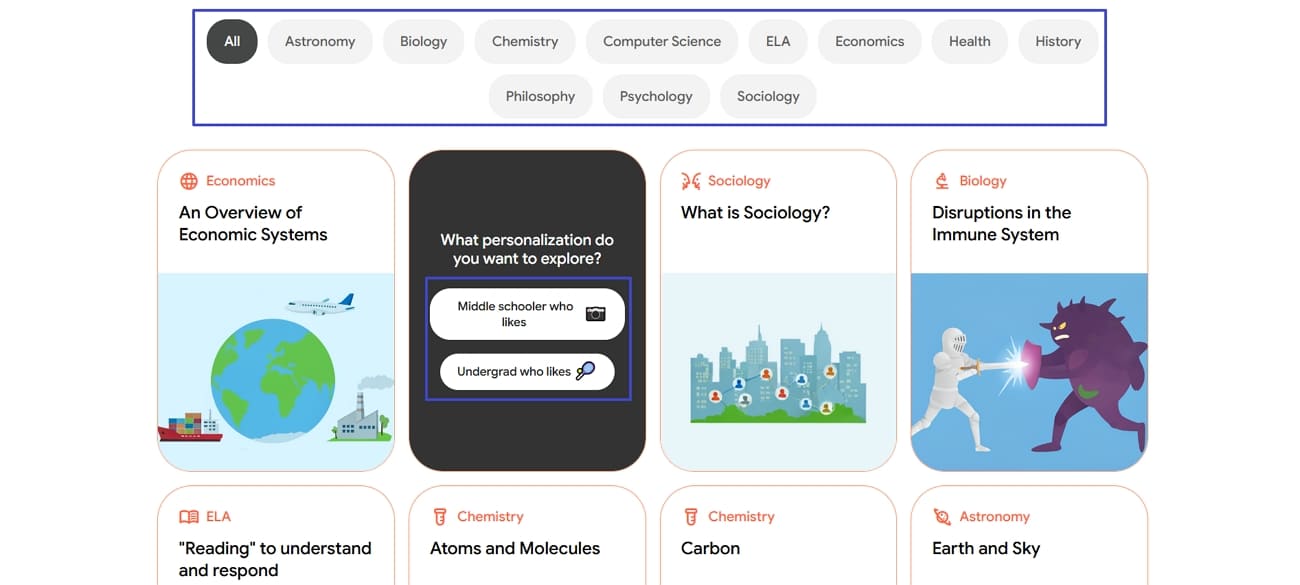
Step 2. Next, you’ll be able to choose a category and grade level you want to study with.
Part 6. Bonus Tip — Use Tools Like UPDF Alongside Learn Your Way
Most of the textbooks I use in Learn Your Way Google are PDFs, and I needed a way to manage them. This is where UPDF comes in as a companion to help me edit, organize, and handle PDFs. With UPDF, I can store all my PDF chapters in one place and keep track of them. It helped me focus on studying without struggling to find the right pages.
Moreover, I found that using UPDF alongside Learn Your Way improved my workflow by allowing me to access the same PDFs on any device. With a single license, I could access my files on my laptop, phone, or tablet, whether on Windows, macOS, iOS, or Android. This made it easy to continue studying anytime without transferring files.
Windows • macOS • iOS • Android 100% secure
UPDF Key Features
Let’s explore the key features of UPDF that make it a strong complement to the Learn Your Way tool.
1. PDF Editing: I can change text in my PDFs and adjust their font and layout.
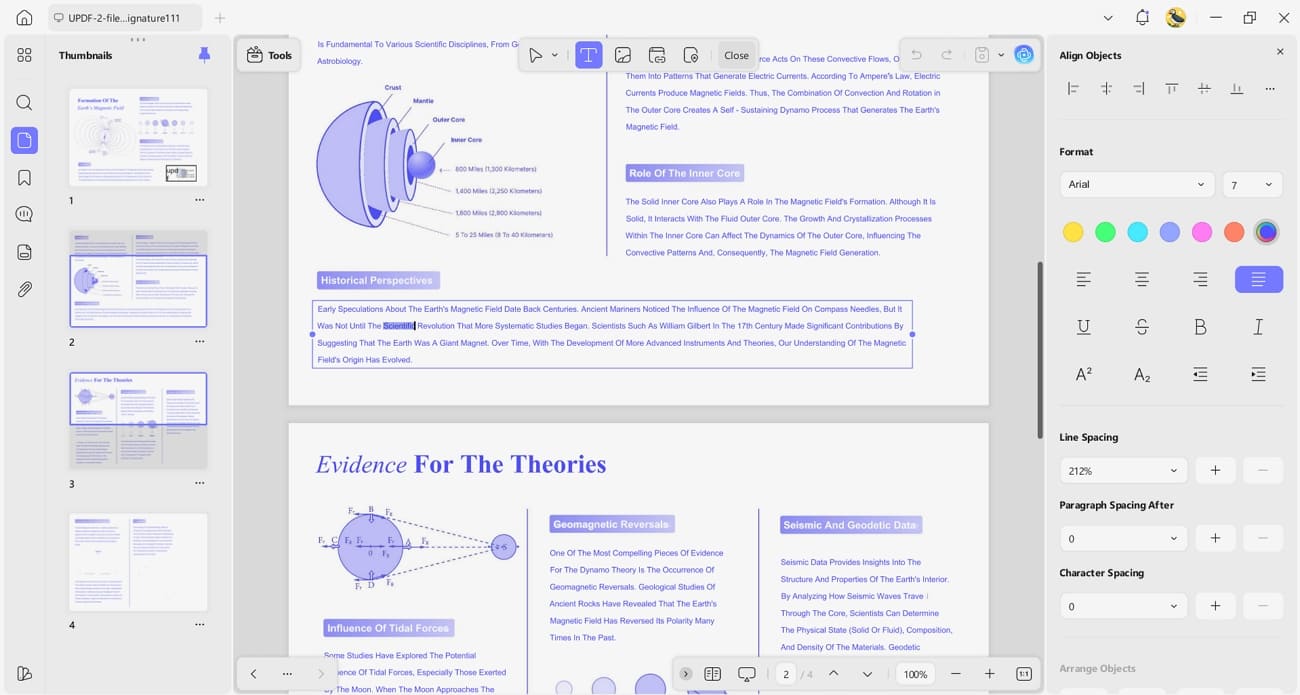
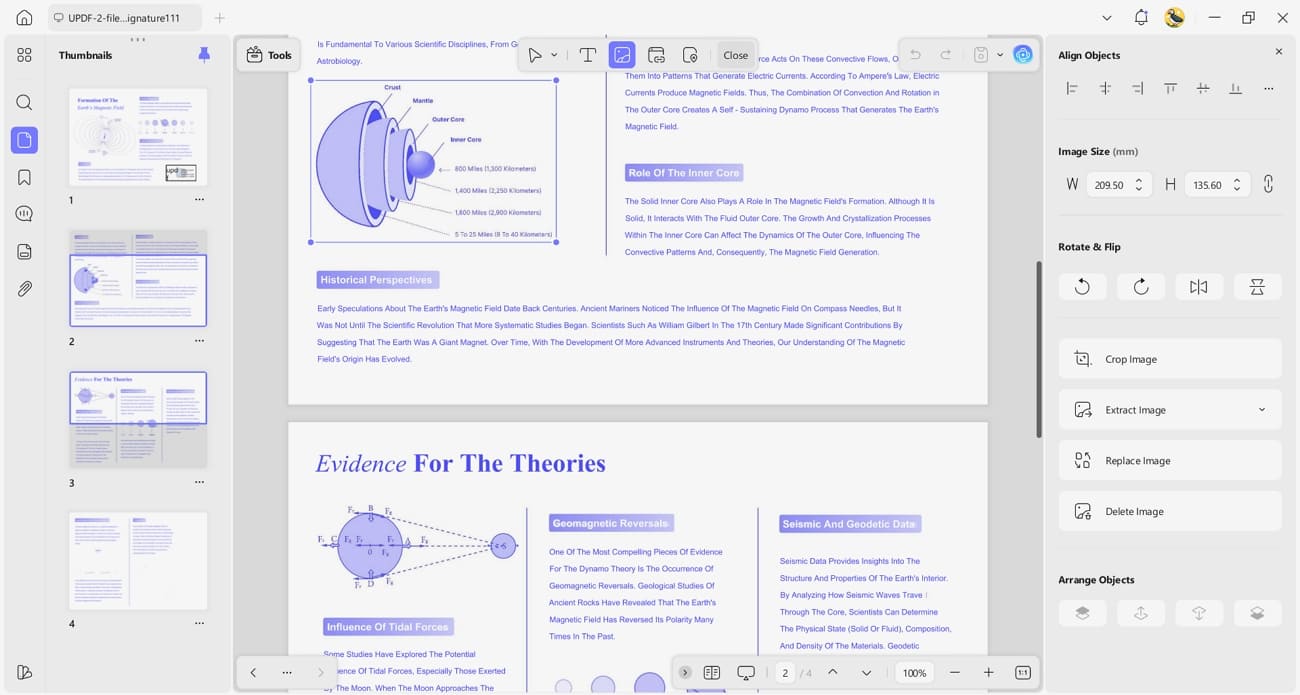
Visual content in the PDF can be cropped and resized to make pages easy to follow.
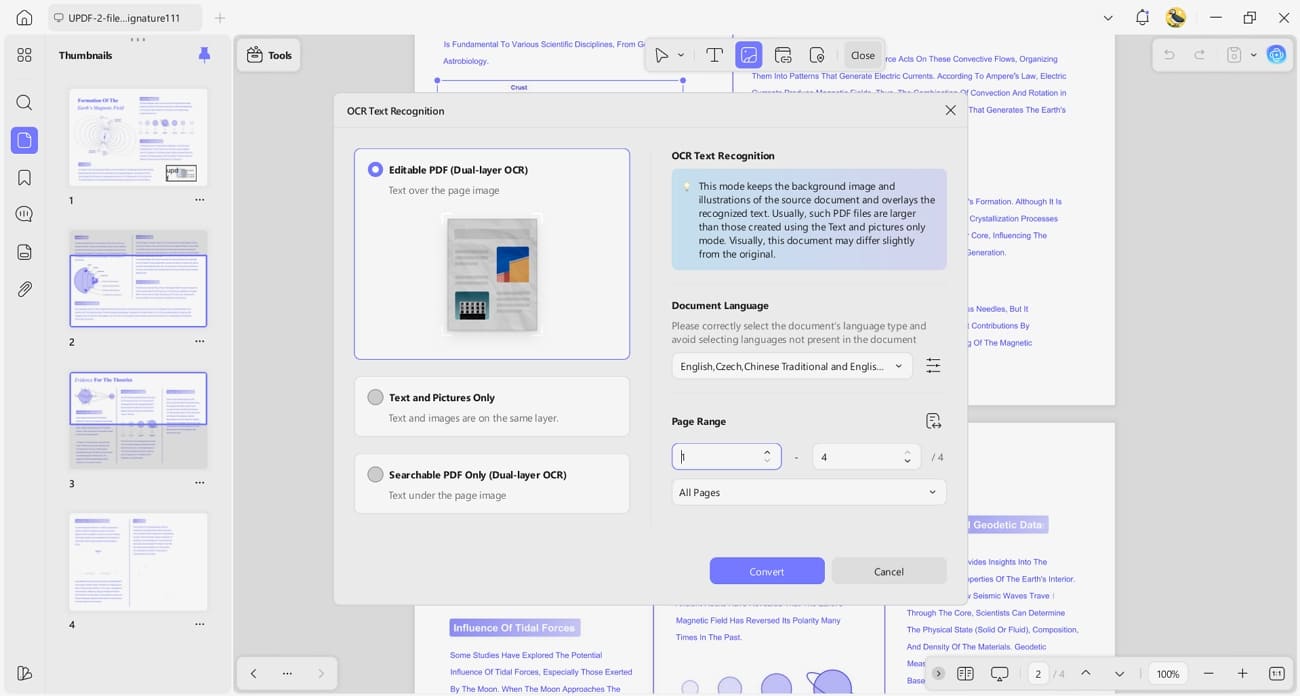
2. OCR PDFs: Extracting text from scanned or image‑based PDFs is straightforward. Various recognition options and language support help accurately capture text from complex pages.
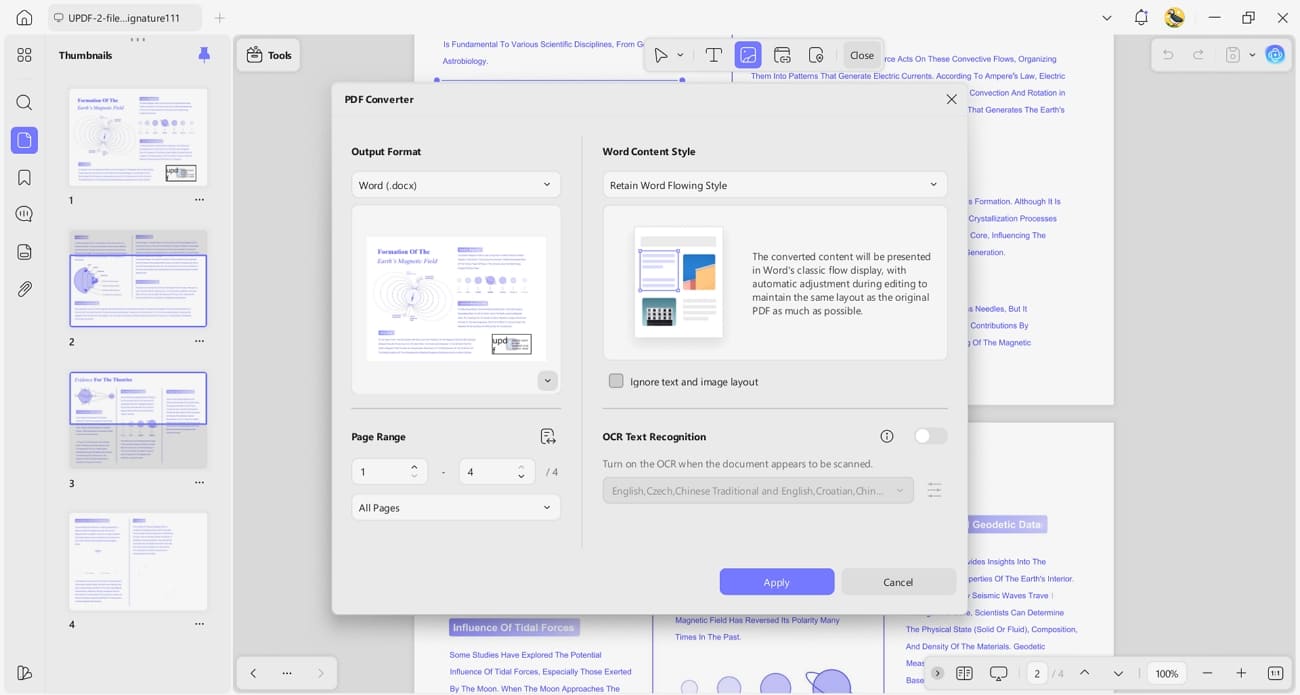
3. Convert PDFs: I can turn PDF files into formats like Word or Excel while maintaining the same layout. The converted files can also be converted to PDF with UPDF.
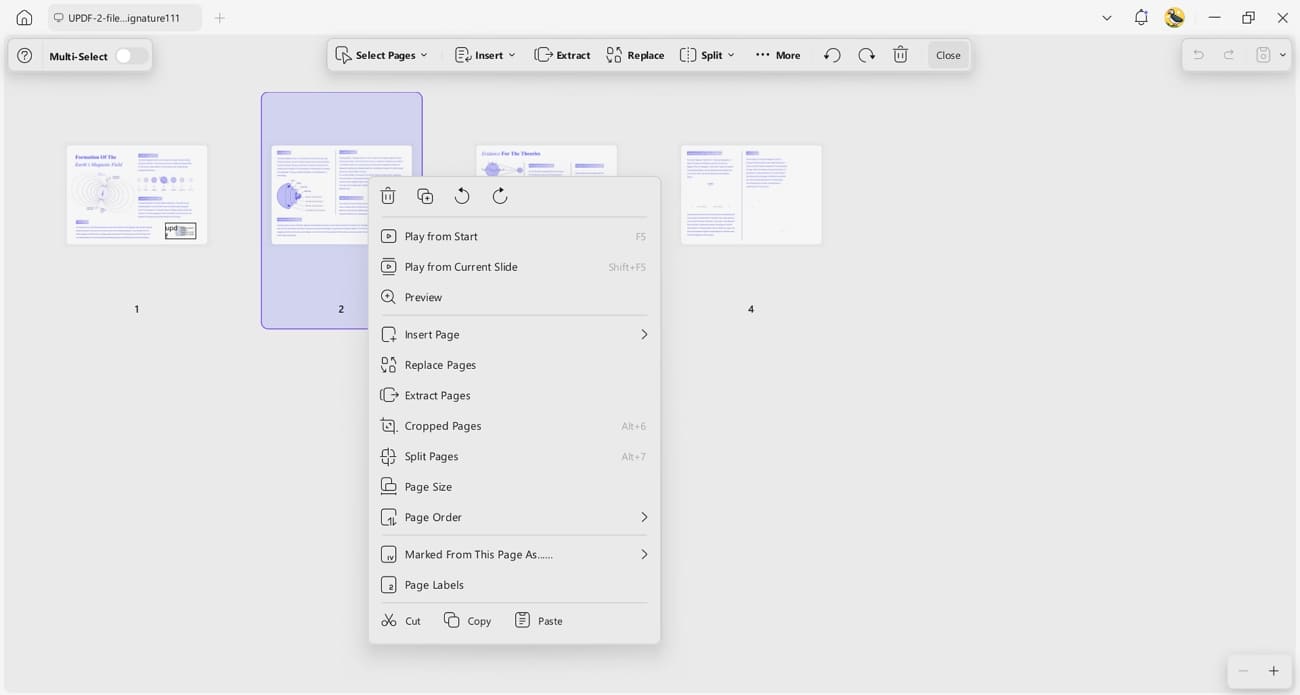
4. Organize PDFs: Users can merge and trim PDF pages to keep only what matters. Headers/footers and watermarks help me keep documents labeled and organized.
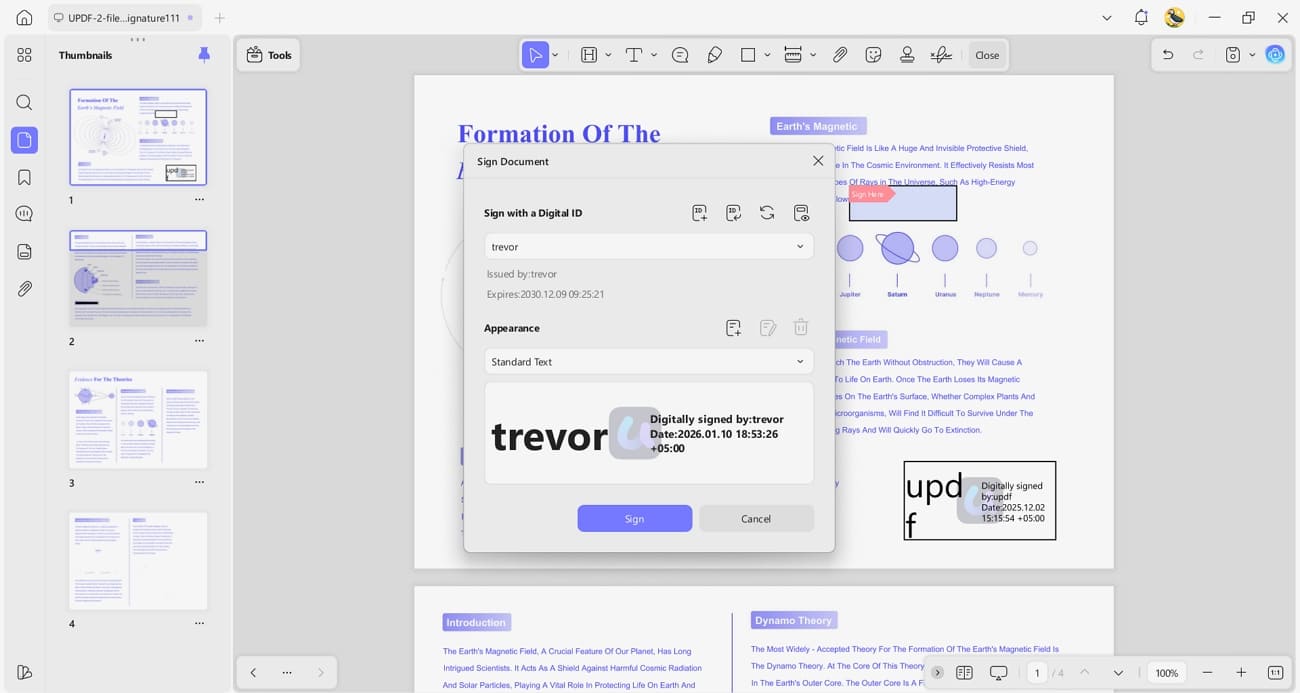
5. Secure and Sign PDFs: I can protect important files with passwords and redact confidential information to keep them secure.
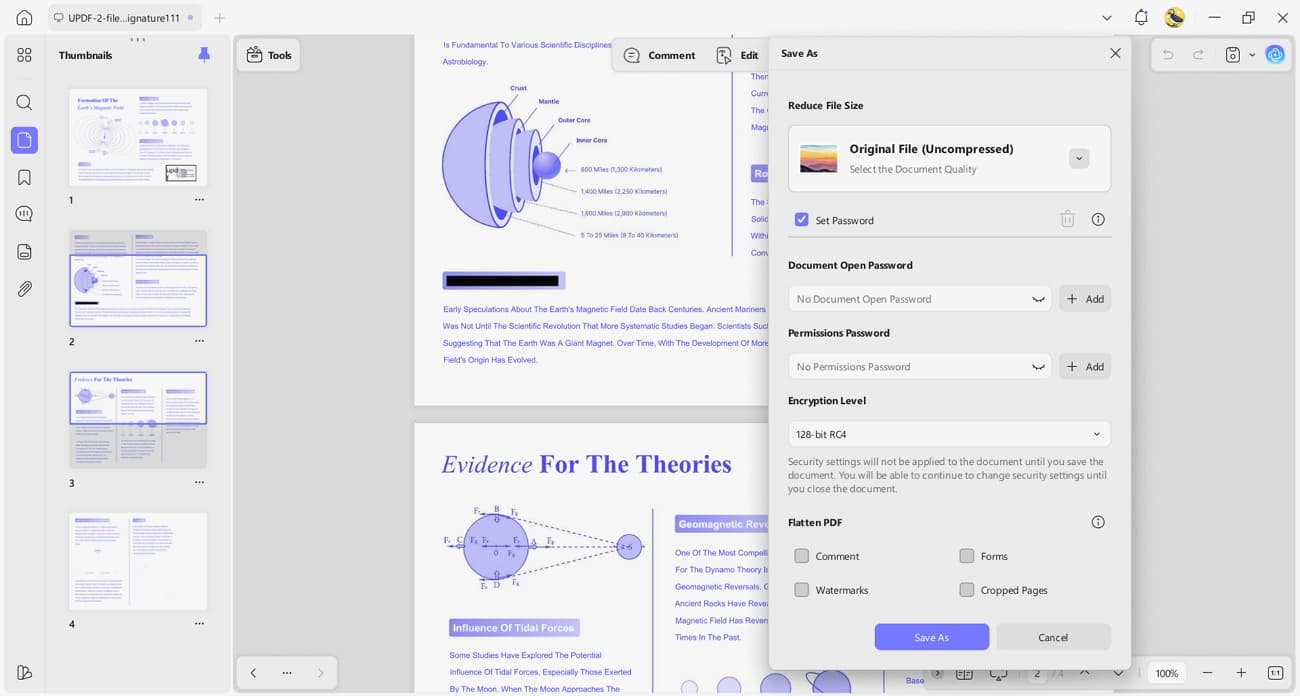
Digital signatures let me confirm authenticity and complete documents securely.
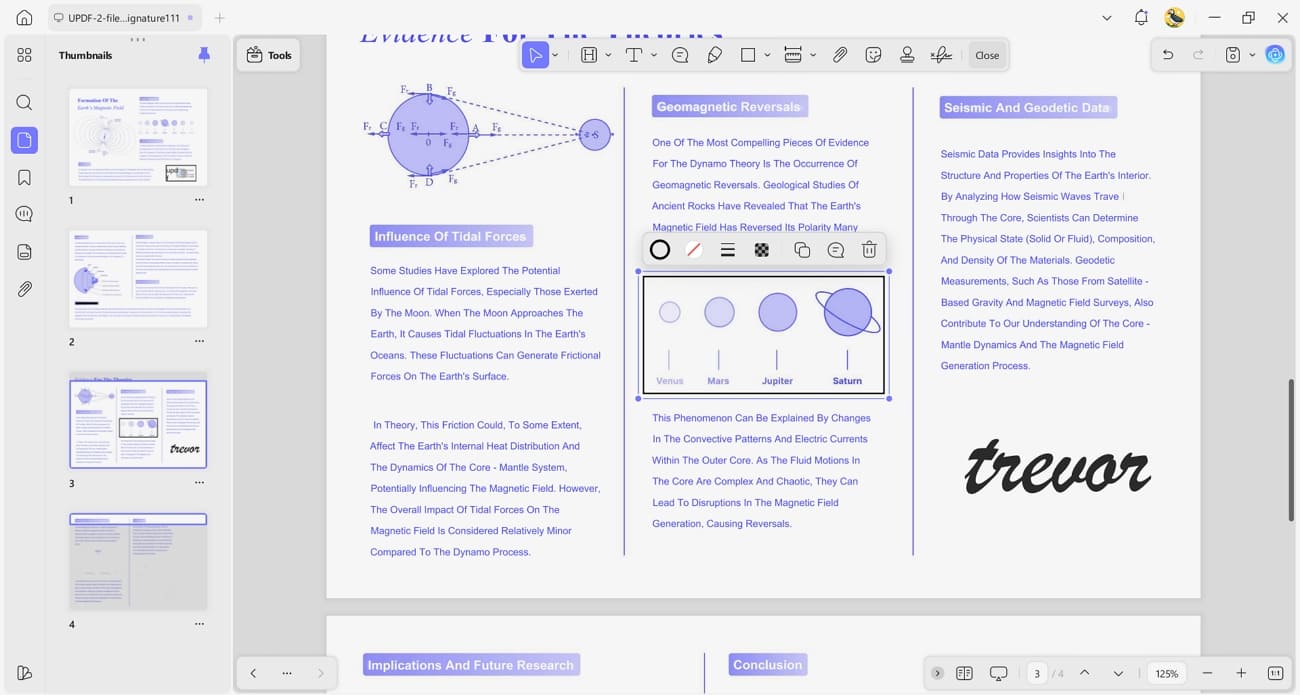
6. Annotate PDFs: Adding highlights and notes is easy with UPDF. I can also insert shapes, markups, and signatures to ensure each PDF is tailored to my work.
Windows • macOS • iOS • Android 100% secure
How UPDF AI Online Complements Learn Your Way
As I continued using Learn Your Way Google, I realized I also needed a tool to simplify managing my PDF textbooks and research documents. This is where UPDF AI Online comes in, letting me use it alongside Learn Your Way to keep my study workflow smooth. Now, let’s explore the features that make it stand out. You can click the button below to have a free try.
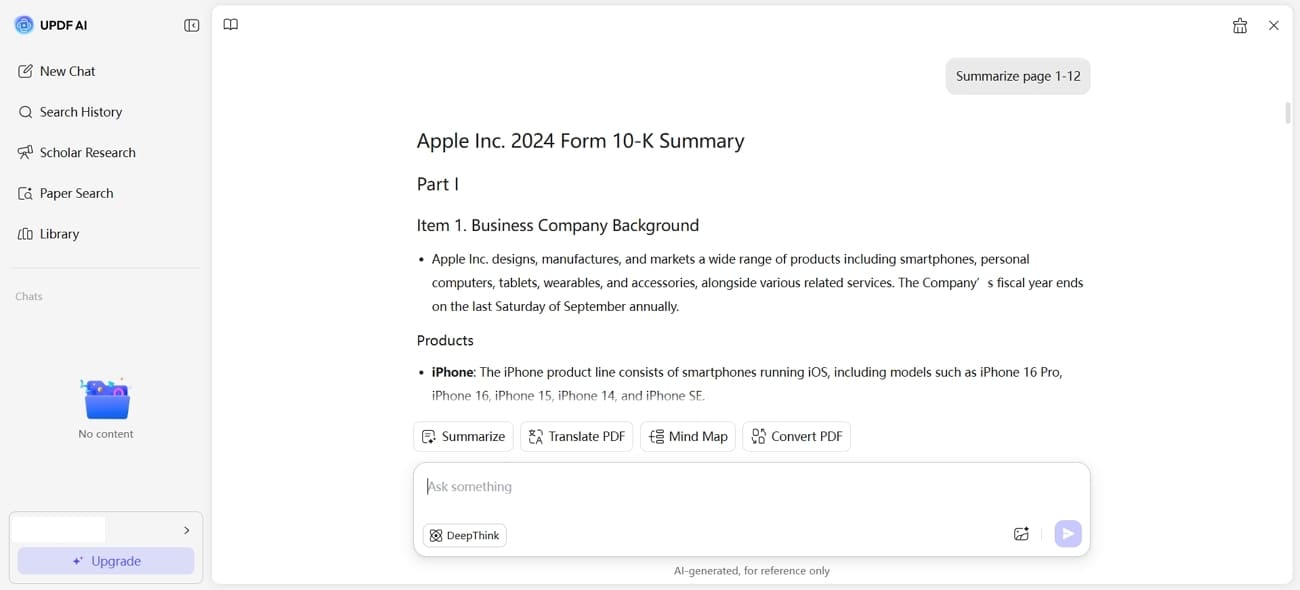
1. Summarize PDFs by Page: I can quickly get a summary of each page in a PDF, which helps me review content.
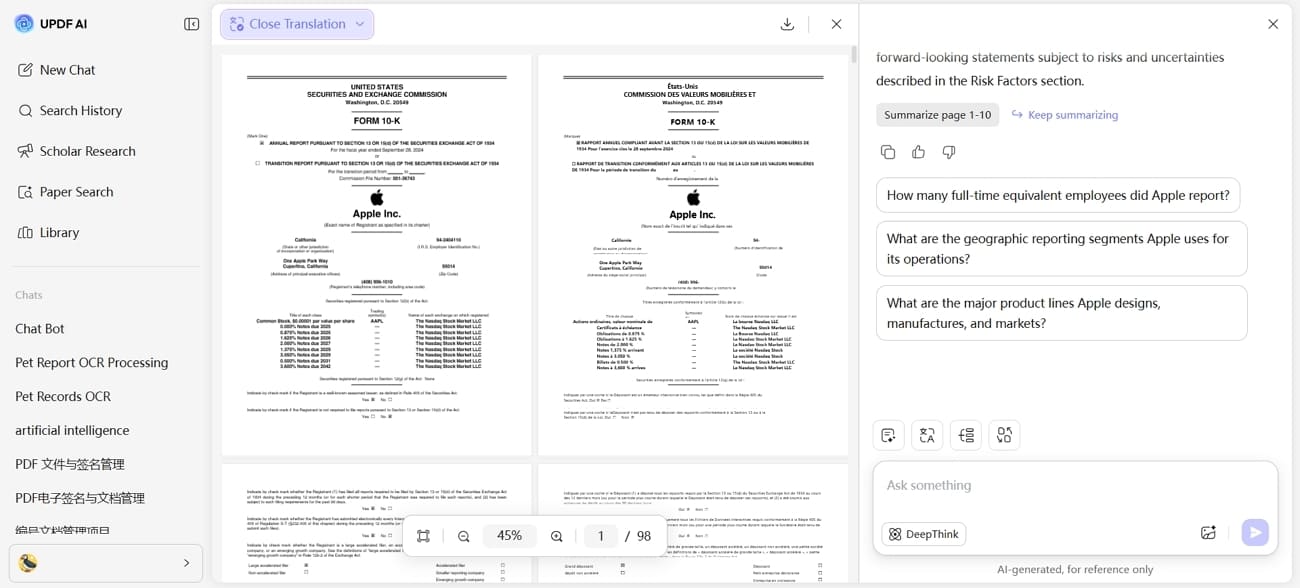
2. Translate Documents: I can translate an entire PDF at once to read it fully in another language.
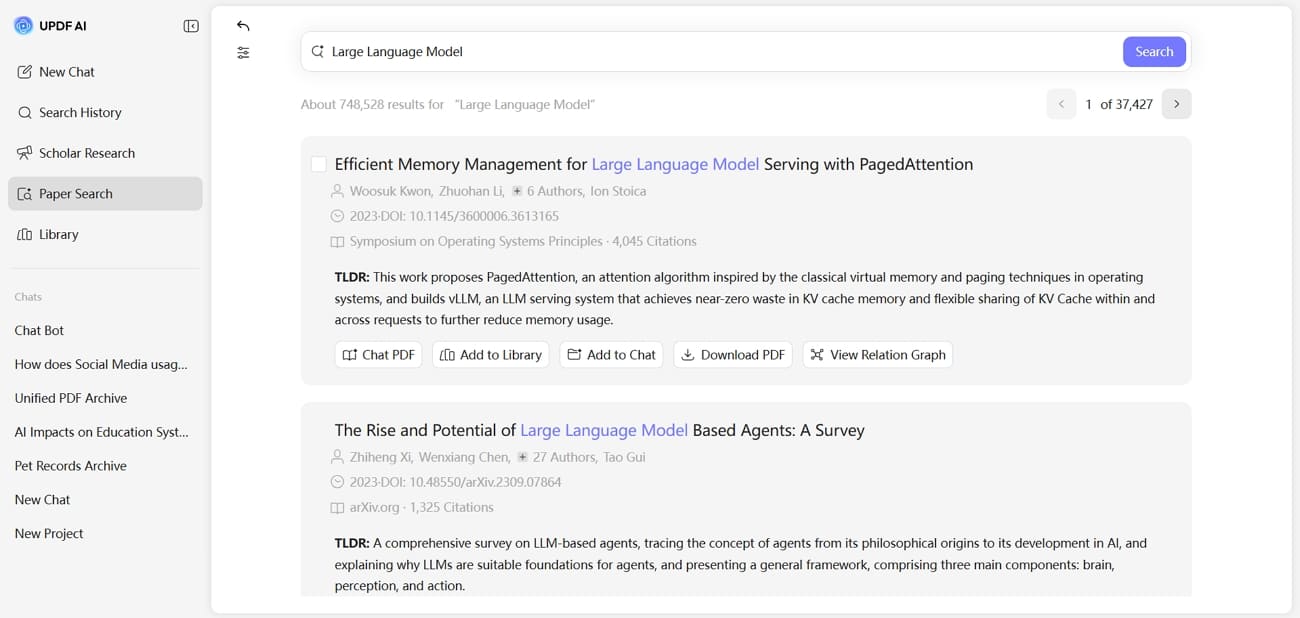
3. Paper Search: Standard keyword search helps me find relevant studies across multiple academic databases.
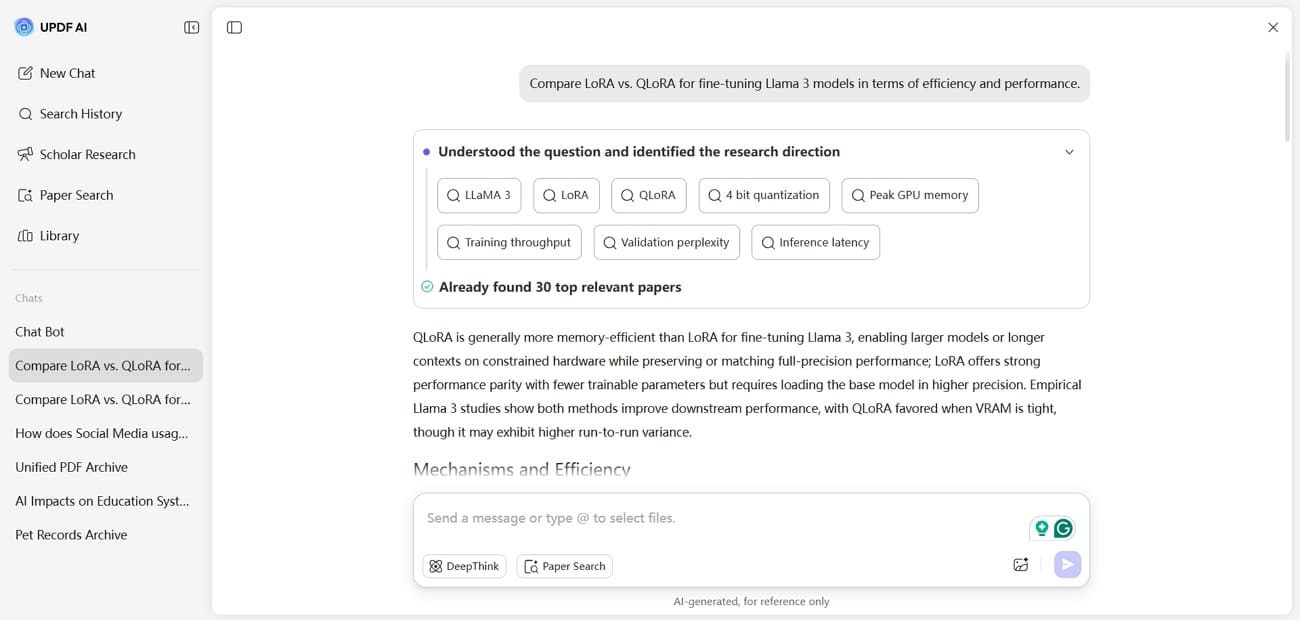
DeepThink mode lets me ask research questions and get answers supported by citations.
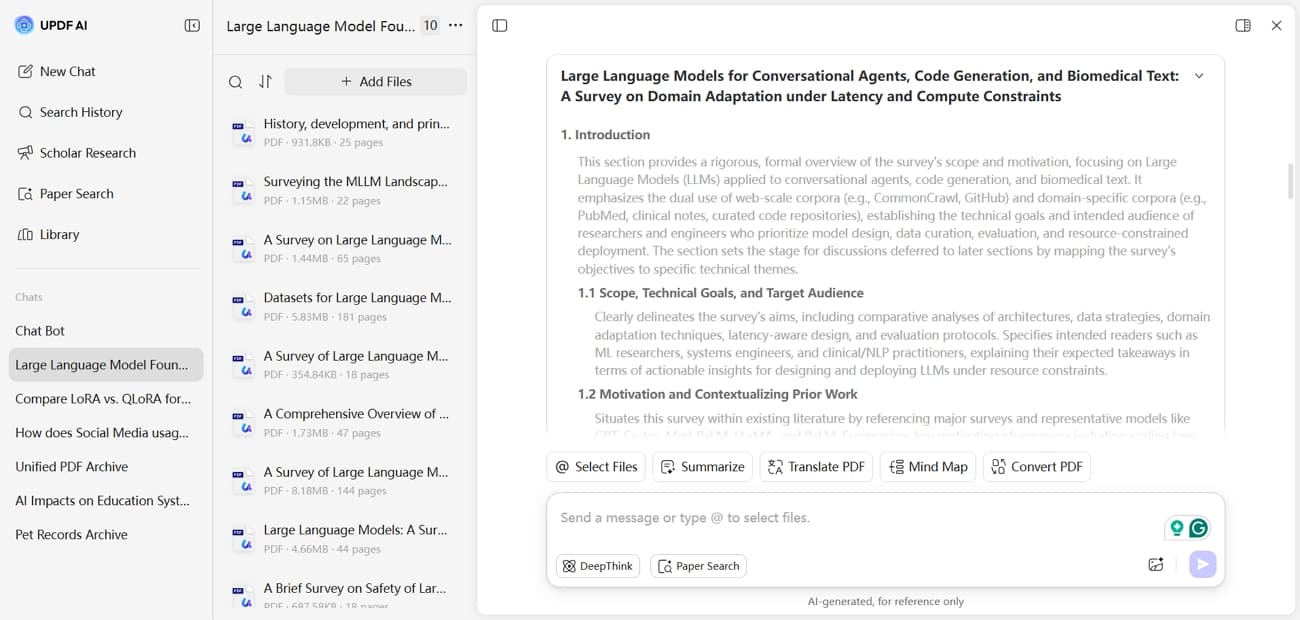
4. Scholar Research: Topic-based searches enable me to quickly gather multiple academic papers through the AI platform. The system then helps organize those sources into a clear, structured literature review.
Conclusion
In conclusion, this article explained how Learn Your Way personalizes textbooks by adapting content to individual learning needs. While the platform improves understanding through flexible formats, handling PDF textbooks still plays an important role in daily study routines. If you rely on PDF textbooks across multiple devices or need better control over study files, UPDF is the right companion to use.
Windows • macOS • iOS • Android 100% secure






 Enola Miller


 Delia Meyer