UPDF
UPDF
 UPDF for Windows
 UPDF for Mac
 UPDF for iPhone/iPad
 UPDF for Android
 UPDF AI Online
 UPDF Sign
 Edit PDF
 Annotate PDF
 Create PDF
 PDF Form
 Edit links
 Convert PDF
 OCR
OCR PDF to Word
 PDF to Image
 PDF to Excel
 Organize PDF
 Merge PDF
 Split PDF
 Crop PDF
 Rotate PDF
 Protect PDF
 Sign PDF
 Redact PDF
 Sanitize PDF
 Remove Security
 Read PDF
 UPDF Cloud
 Compress PDF
 Print PDF
 Batch Process
 About UPDF AI
 UPDF AI Solutions
 AI User Guide
 FAQ about UPDF AI
 Summarize PDF
 Translate PDF
 Chat with PDF
 Chat with AI
 Chat with image
 PDF to Mind Map
 Explain PDF
 PDF AI Tools
 Image AI Tools
 AI Chat Tools
 AI Writing Tools
 AI Study Tools
 AI Working Tools
 Other AI Tools
 AI Bookmark Generation
 AI Bookmark Summary
 AI Watermark Generation
 AI Background Generation
 AI Sticker Generation
 AI Stamp Generation
 AI Editing Suite
 UPDF Copilot
 AI Page Management
 AI Semantic Search
 PDF to Word
 PDF to Excel
 PDF to PowerPoint
 Enterprise Solution
 Enterprise Sign
 Enterprise AI
 Enterprise Plan
 Enterprise User Guide
 Enterprise Webinar
 Banking
 Healthcare
 Insurance
 Legal
Legal Manufacturing
 Government
 Education Solution
 Customer Stories
 User Guide
 UPDF Tricks
 FAQs
FAQs UPDF Reviews
 Download Center
 Blog
Blog Newsroom
 Tech Spec
 Updates
 UPDF vs. Adobe Acrobat
 UPDF vs. Foxit
 UPDF vs. PDF Expert

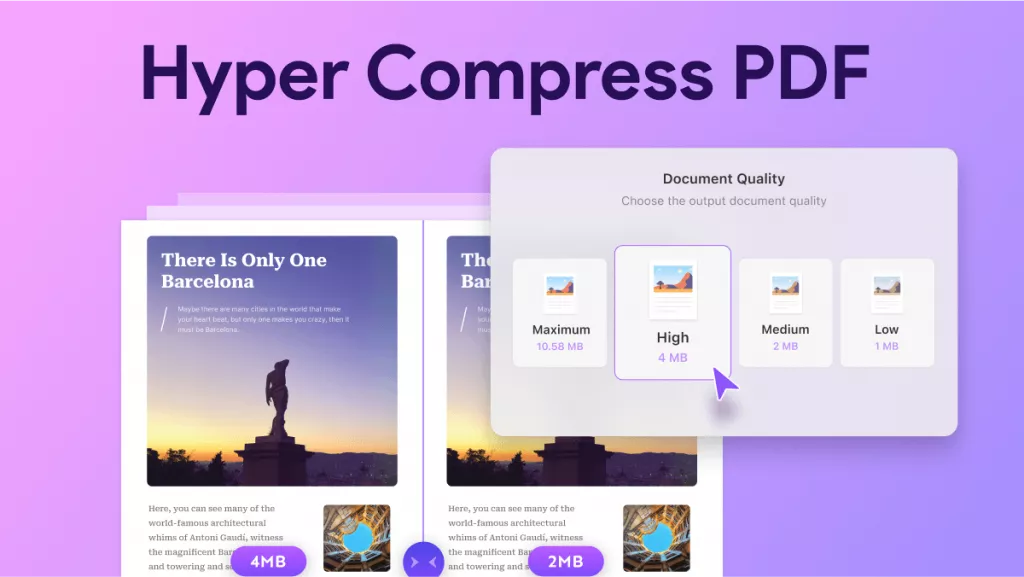
Have you ever tried sending a document but couldn’t do it because the file was too big? You’re not alone. I run into this problem all the time, and that’s why I have found a simple and easy way to reduce MB of a PDF without losing quality. In this article, I will tell you how to lower MB of PDF using UPDF software. With this app, you can quickly reduce PDF size without worrying about the quality. Let’s see how this app works on both desktop and mobile devices. Simply click the button below to download!
Windows • macOS • iOS • Android 100% secure
Part 1. Why Lower MB of PDF?
It’s important to lower the MB of a PDF when uploading documents to online forms, attaching files to emails, or sharing materials with colleagues or clients. I often run into this issue when I try to upload PDFs on certain websites. These platforms usually require the file size to be under 10 MB, and it becomes frustrating because the moment my PDF exceeds the limit, the system rejects it. This example clearly shows how problematic large file sizes can be. There are also other reasons why you should keep PDF files smaller, such as:
- Easy Sharing: You can easily and quickly share your compressed PDF files via email, messaging apps, and online platforms.
- Faster Uploads: You can quickly upload your smaller PDFs and share them with your clients, coworkers, and so on.
- Improve Performance: Compressed PDFs are easier to open on slow internet connections and older devices. You can also use your mobile devices to upload them.
Part 2. Step-by-Step Guide to Lower MB of PDF
If you don’t know how to lower MB of PDF, this section is for you. I have personally tested UPDF on both PC and mobile to reduce MB of multiple PDF files. It is an all-in-one PDF tool that can easily compress, edit, and convert your PDF files into different formats. Let’s discuss its top features and how you can use it to reduce MB of your PDF files.
Windows • macOS • iOS • Android 100% secure
Top Features of UPDF:
- Fast Compression: I have used this tool for different purposes, such as editing and converting, but what I really liked is how smooth and fast the compression feature is. It allows you to compress multiple files within seconds.
- Support Batch Compression: With UPDF batch mode, you can compress multiple files at the same time.
- Compression Quality Levels: You can also choose compression quality levels, such as high, medium, and low. For example, if you choose high, it will compress the file without compromising the quality.
- User-Friendly Interface: The interface of this software is simple and easy to use.
- Calculate the Estimated Size: This tool shows the approximate file size of your PDF in advance, so you can adjust the settings accordingly.
- Compatibility: You can use it on various devices, including Mac, Windows, iPhone, and Android.
- Offline for Privacy and Security: You can also use it offline, ensuring that your sensitive documents stay private and secure while being compressed.
Step-by-Step Guide on how to lower MB of PDF Using UPDF (PC & Mobile)
Here’s how I use this tool to lower the MB of PDF files on both my PC and mobile devices. You can follow the exact same steps to achieve the best results.
Compress PDF on PC:
1. Compress Single PDF
This method is used to compress a single PDF file with UPDF.
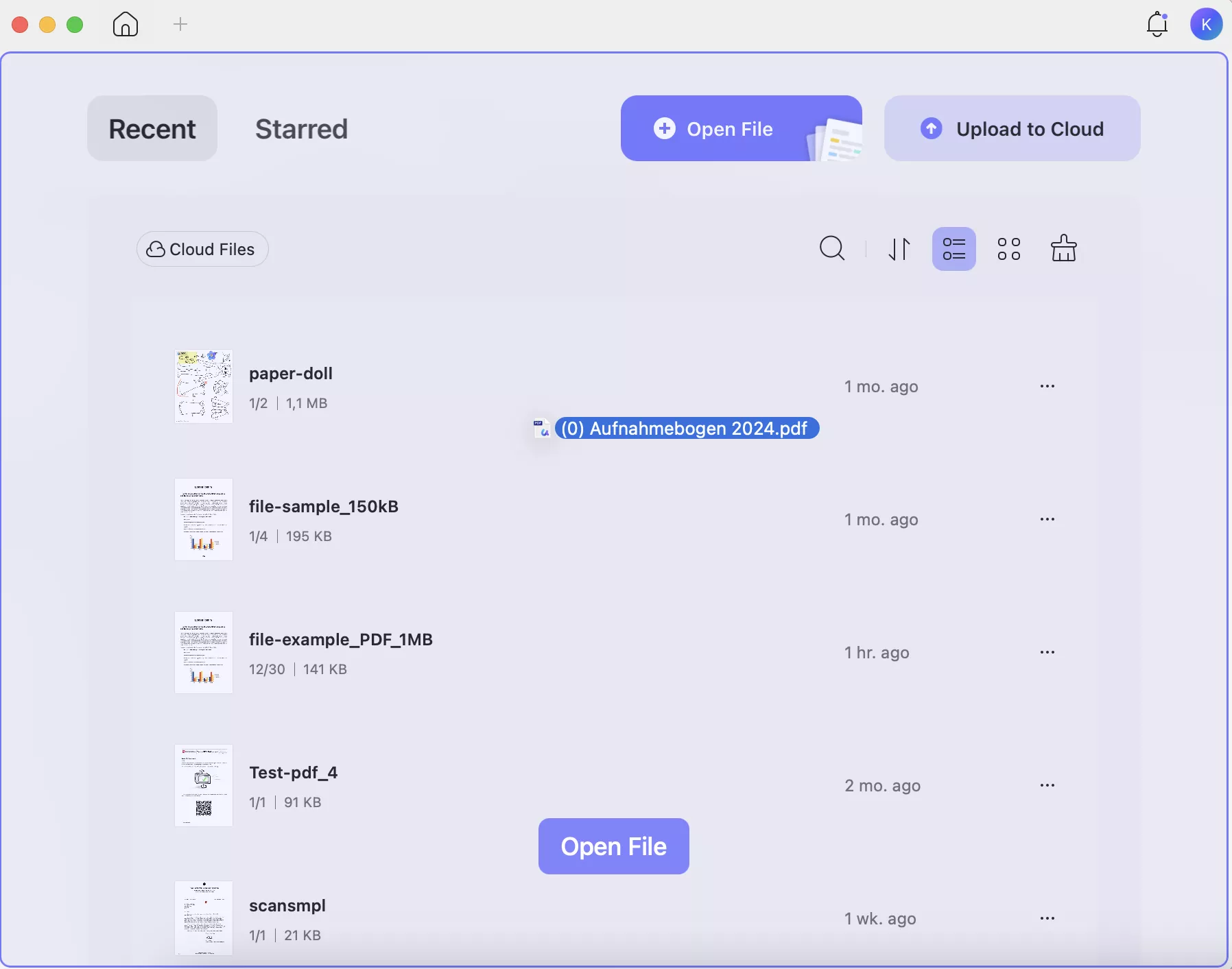
Step 1. Go to the website and download the latest version of UPDF. Once done, launch the app and upload your PDF. You can drag-and-drop a PDF to upload it.
Windows • macOS • iOS • Android 100% secure
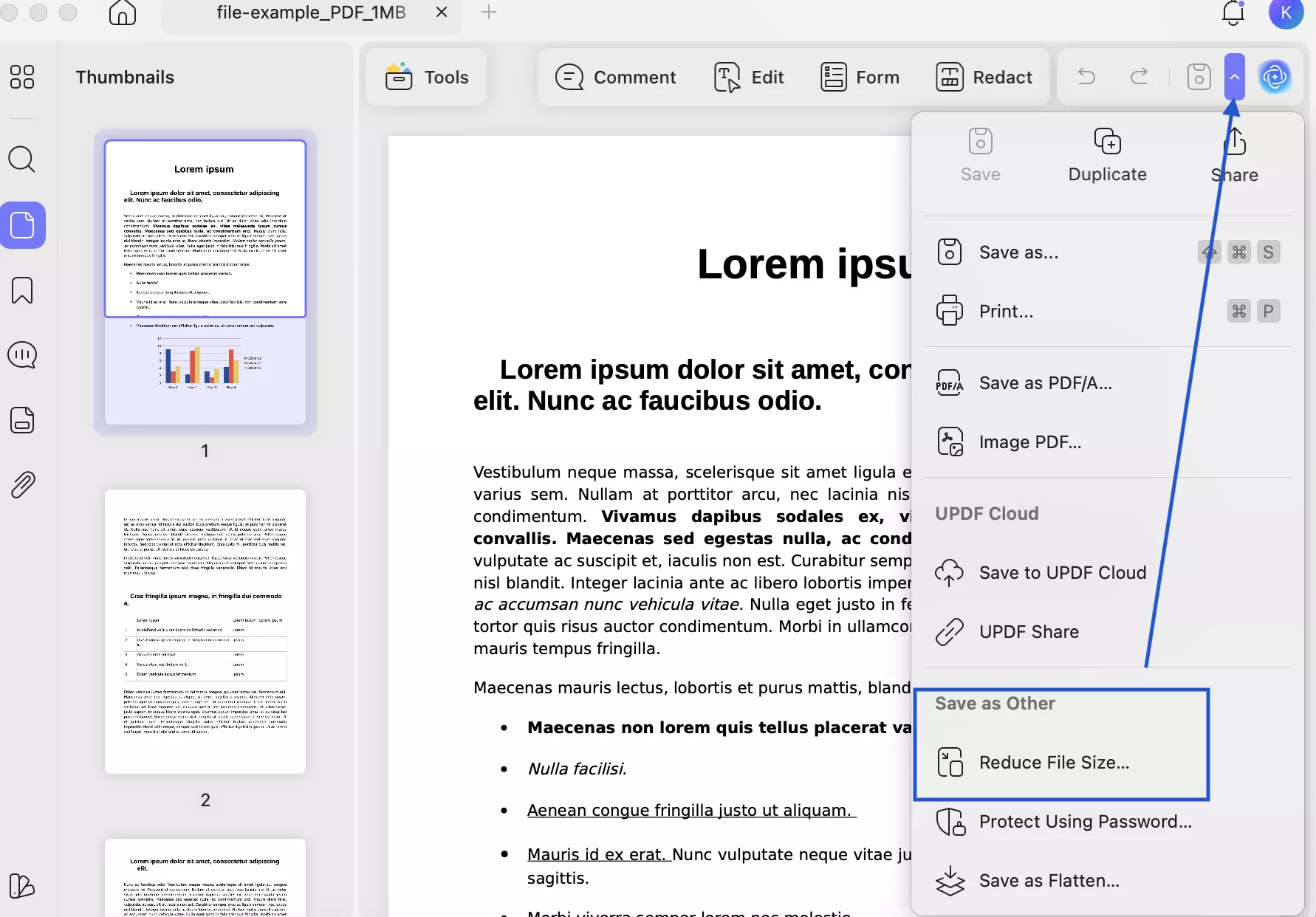
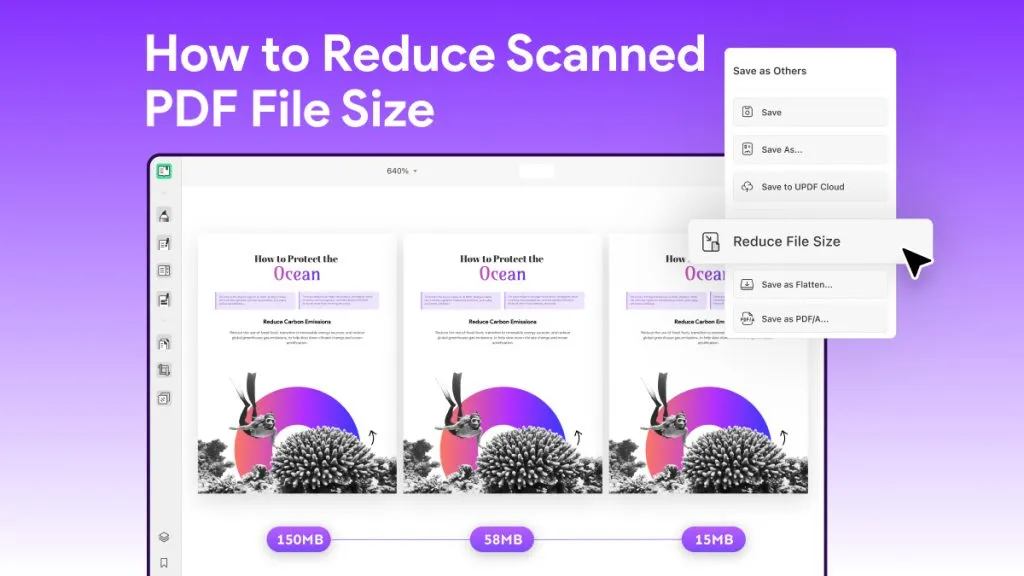
Step 2. Open your PDF file and click the “Save as Other” option. Now, select the “Reduce File Size” option.
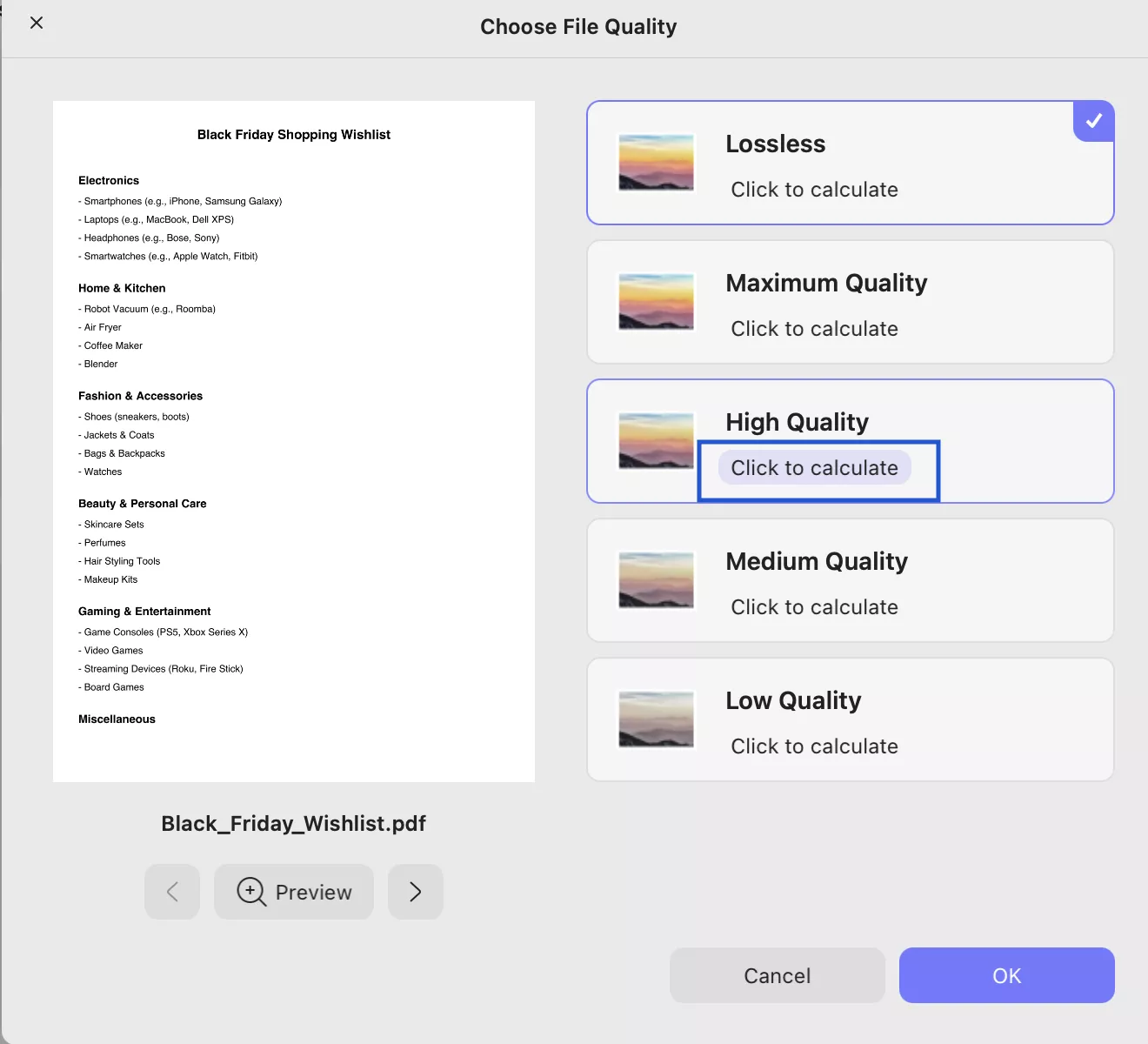
Step 3. Before choosing the compression quality, select the “Click to Calculate” button to find out the estimated file size.
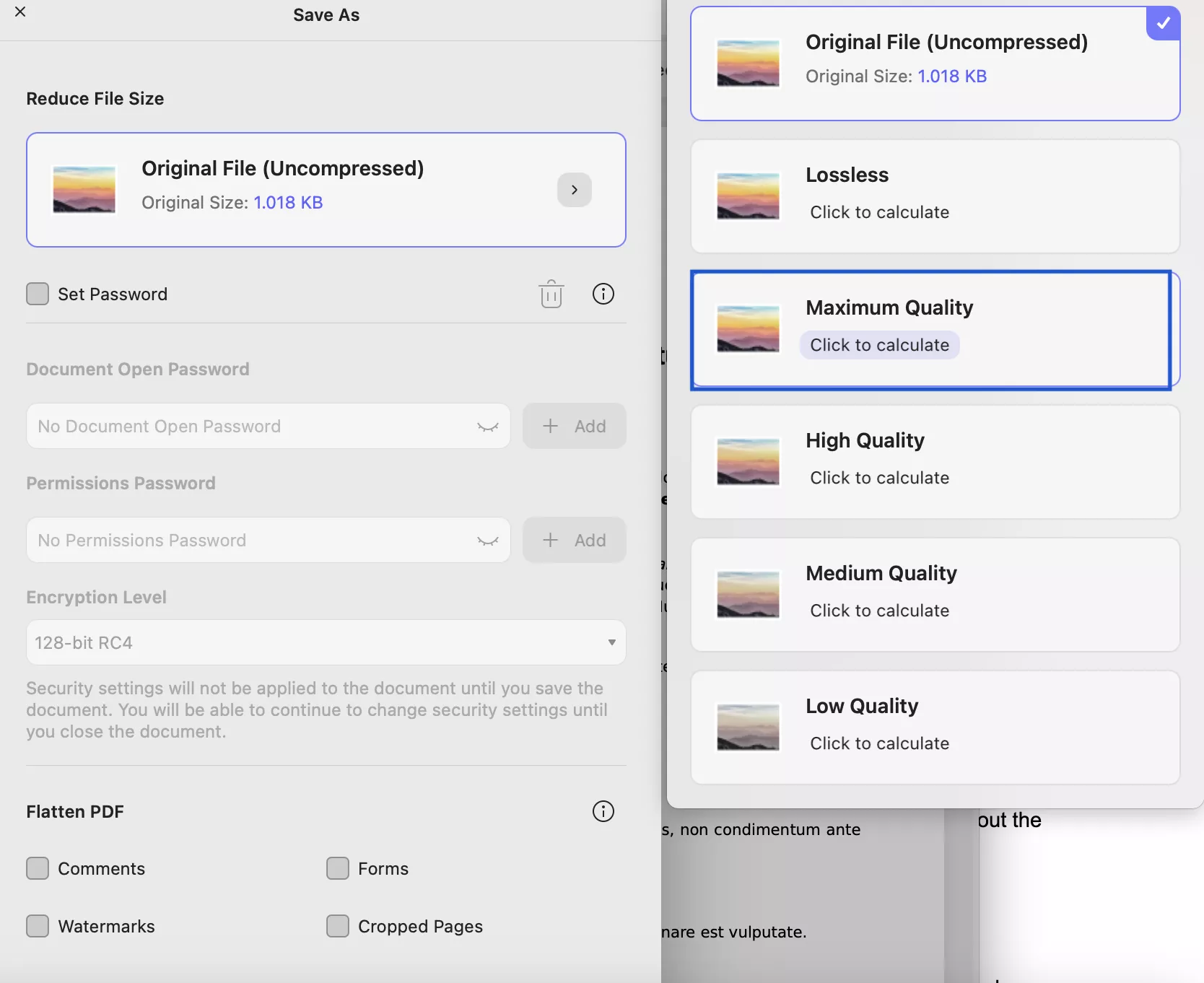
The app will calculate the file size and will show it on your screen.
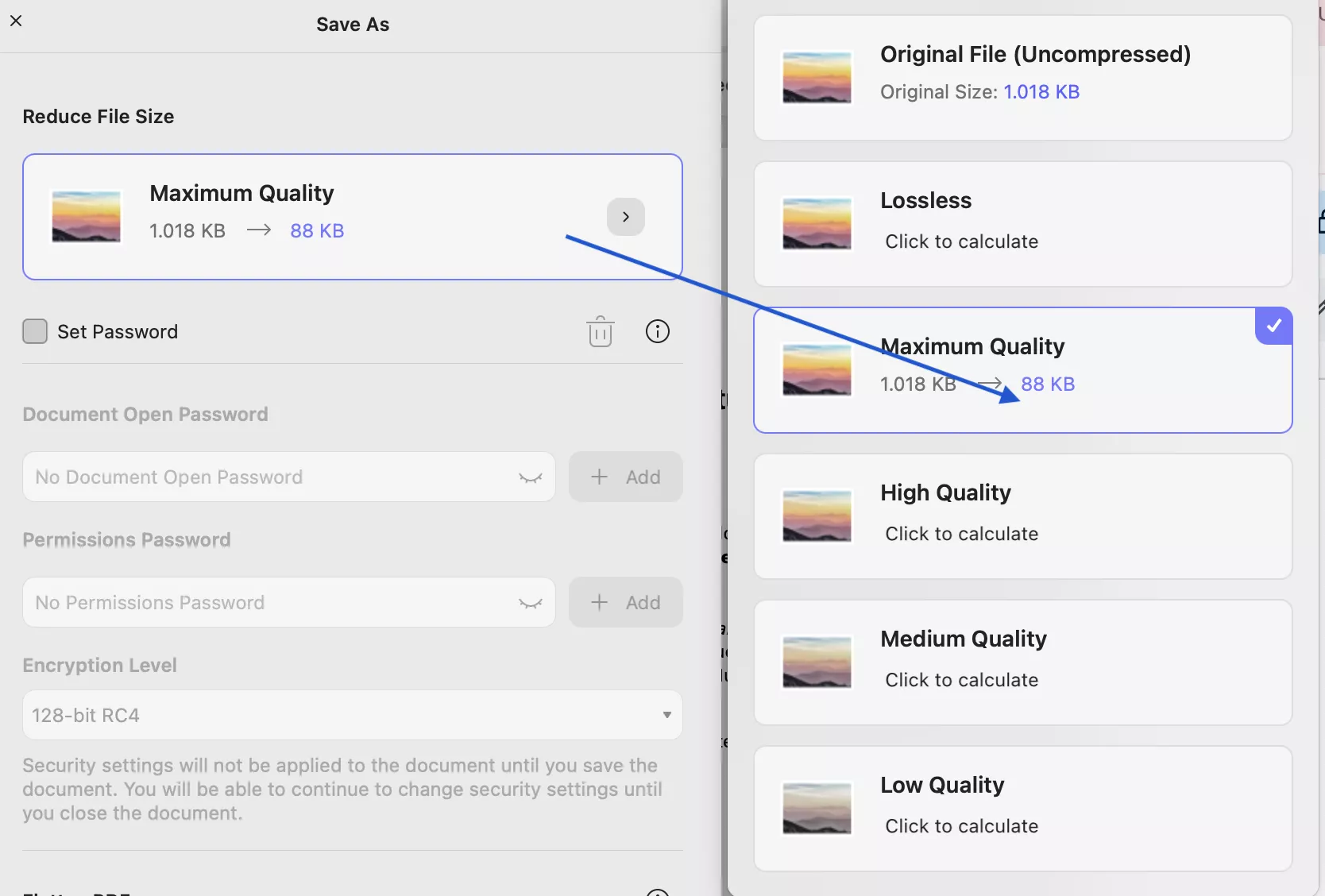
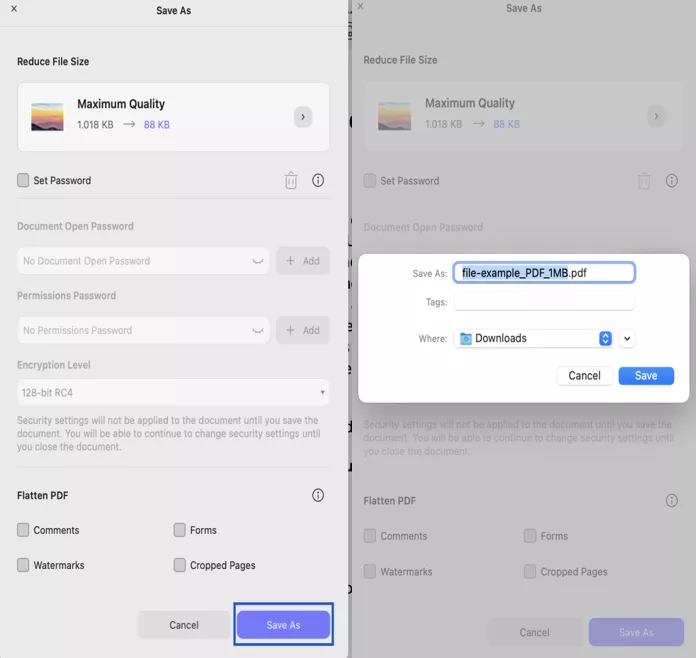
Step 4. After checking your file size, click the “Save As” option and wait for the compression process to finish. Once it’s done, your PDF will be reduced in size while maintaining its original quality, ready for sharing or uploading.
2. Batch Mode
If you want to compress multiple PDFs simultaneously to save time, you can use UPDF batch mode. Here is how this feature works.
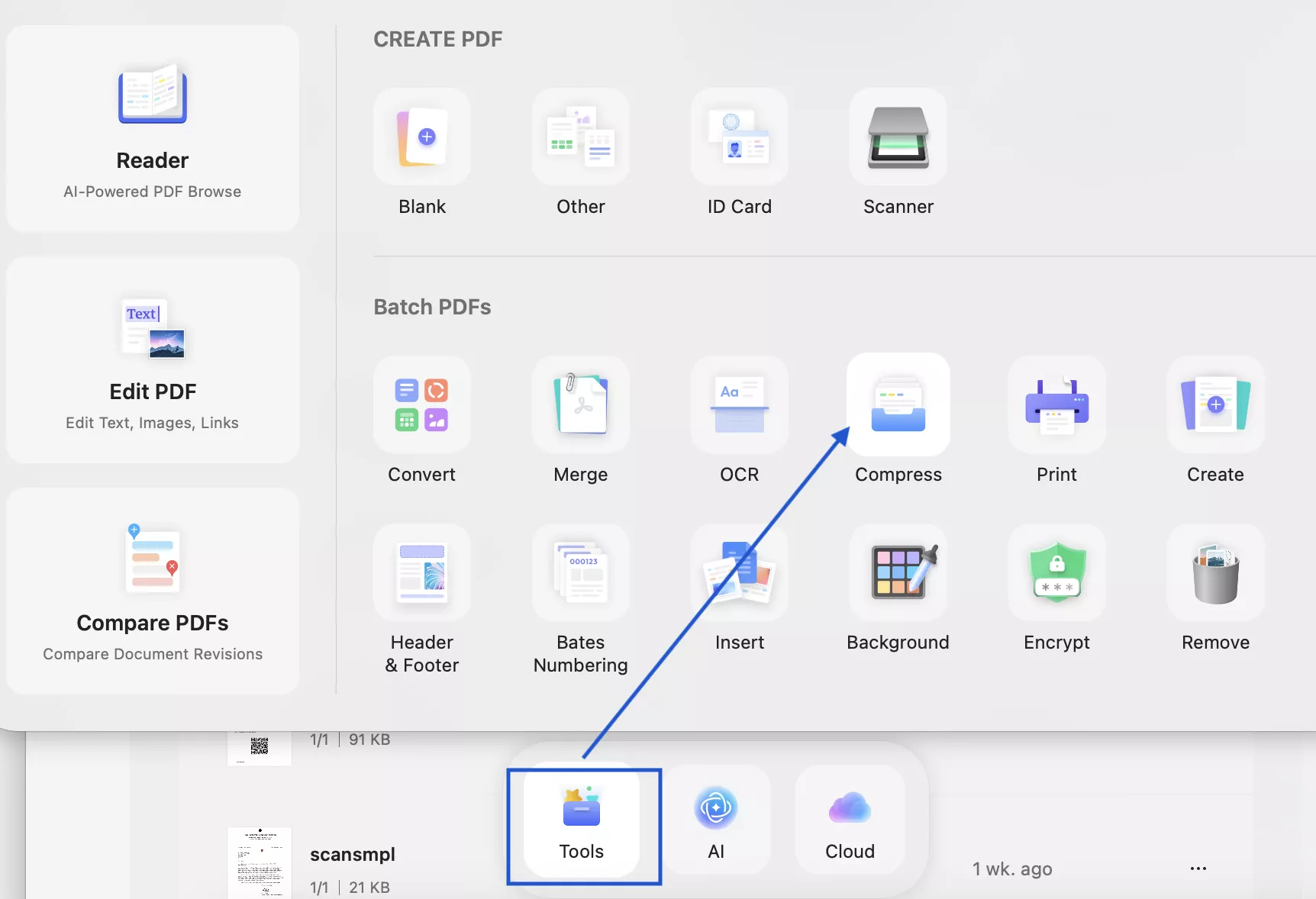
Step 1.Go to “Tools” and under Batch PDFs choose the “ Compress” option.
Windows • macOS • iOS • Android 100% secure
choose-compress-option
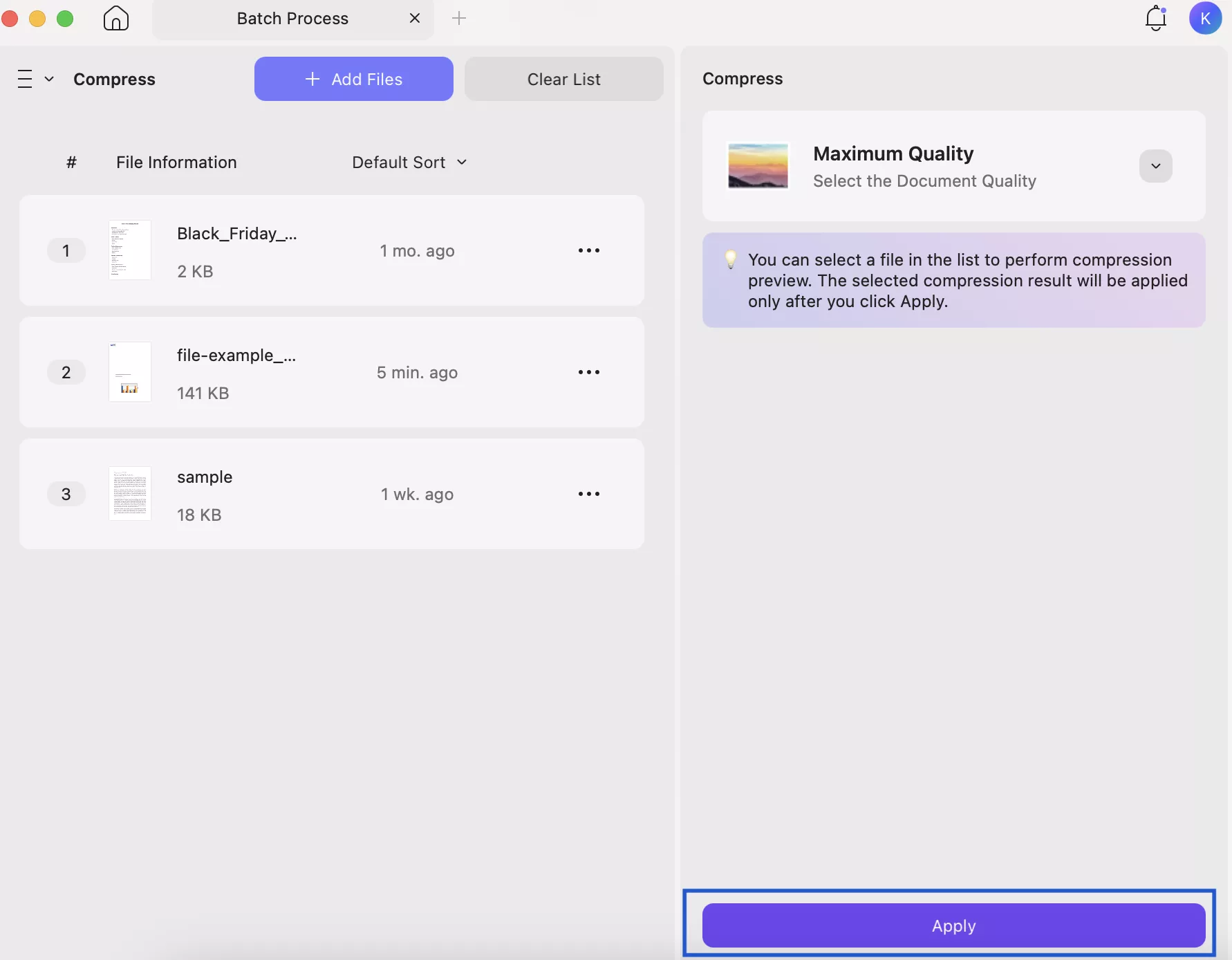
Step 2. Click the “Add Files” option to upload the PDF files that you want to compress.
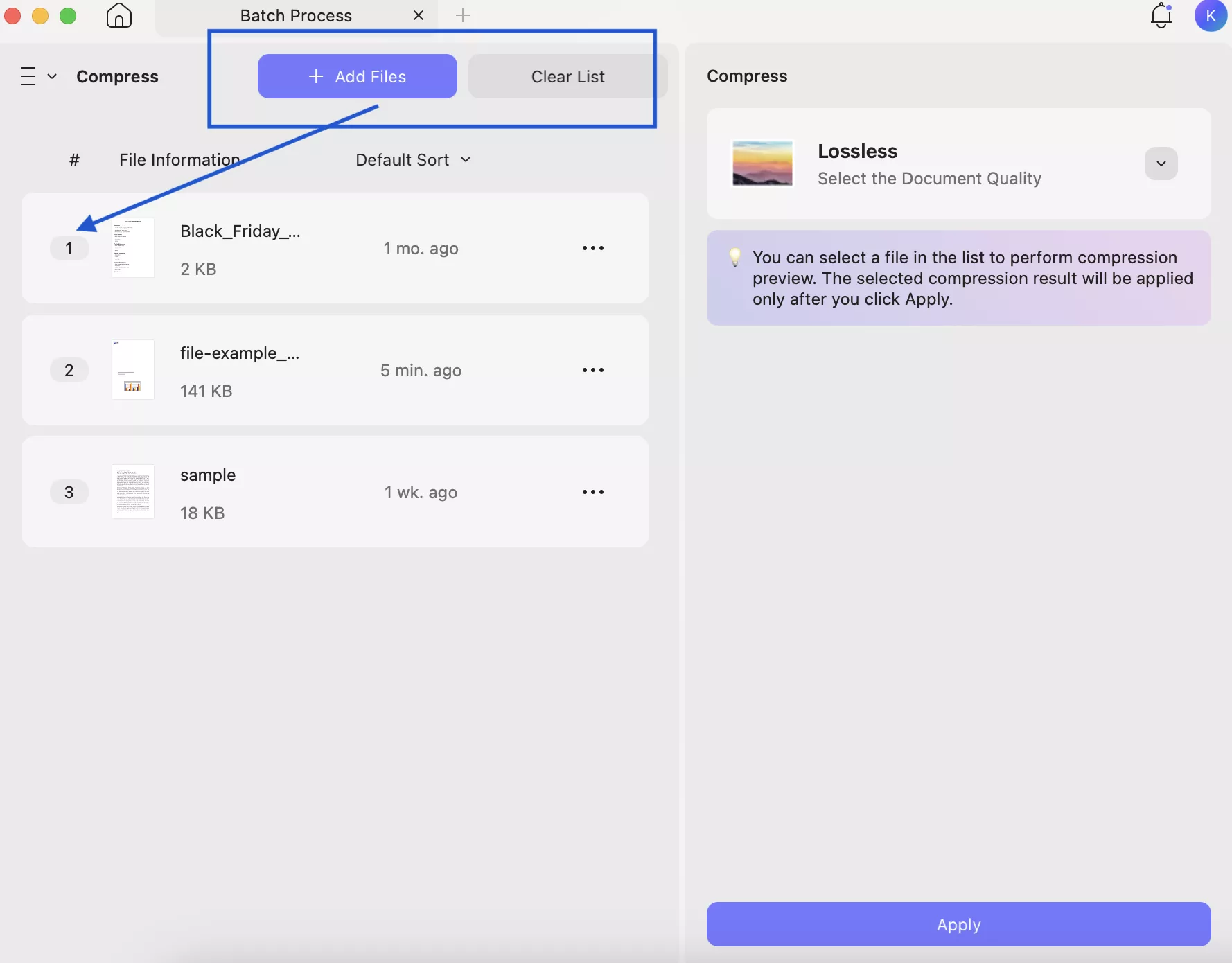
Step 3. Preview your uploaded files and select the “Click to Calculate” option to find the estimated file size. Remember to check the file size of each PDF.
Step 4. Now, click the “Apply” button to start compressing all your PDF files. Once the process is complete, your files will be saved in your selected folder.
Compress PDF on Mobile Devices:
Let’s see how you can easily compress PDFs on mobile devices (iOS/Android).
Step 1. Launch UPDF on your mobile device and click the “+” button to upload PDF.
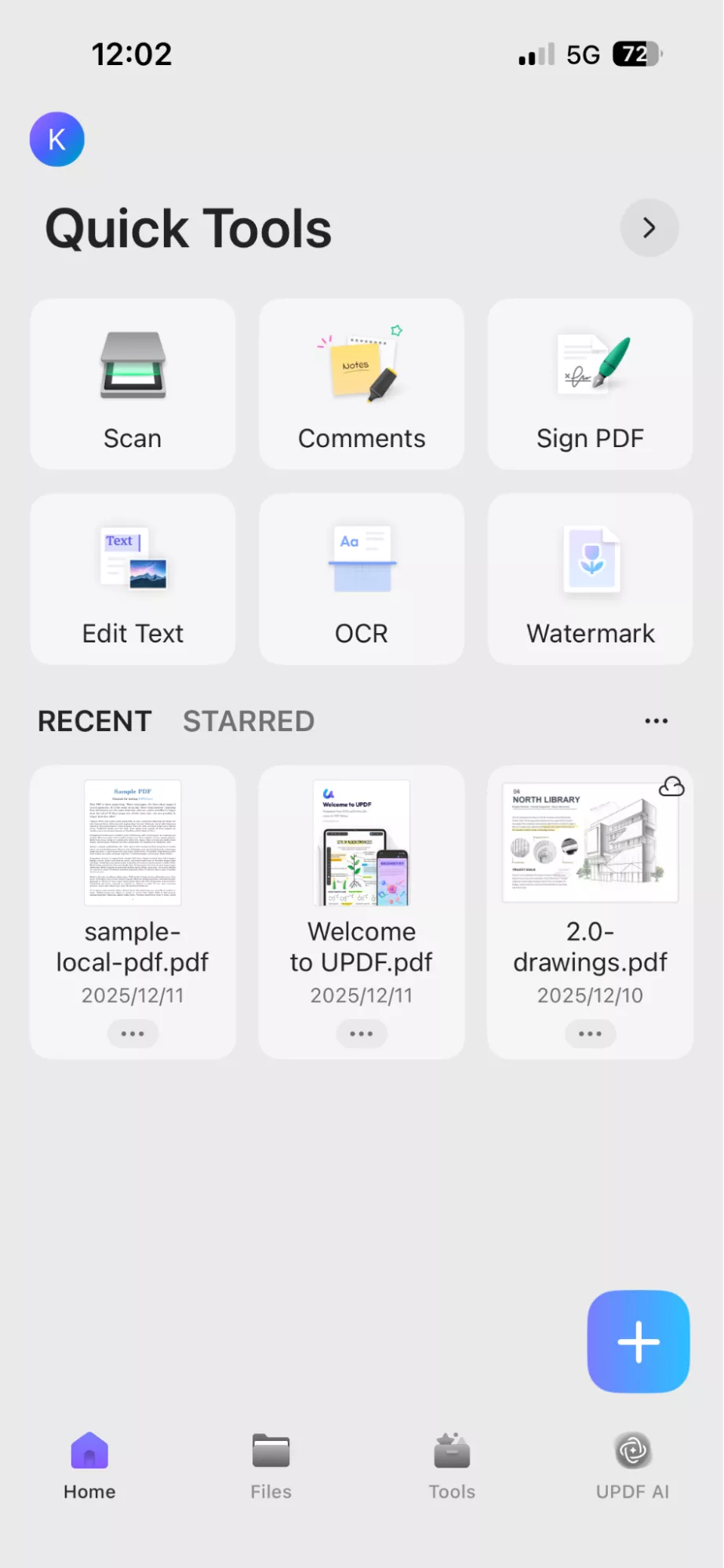
Step 2. Once uploaded, tap the file to open it. Then, tap the three-dot menu ( at the top of the screen) and select the “Compress” option.
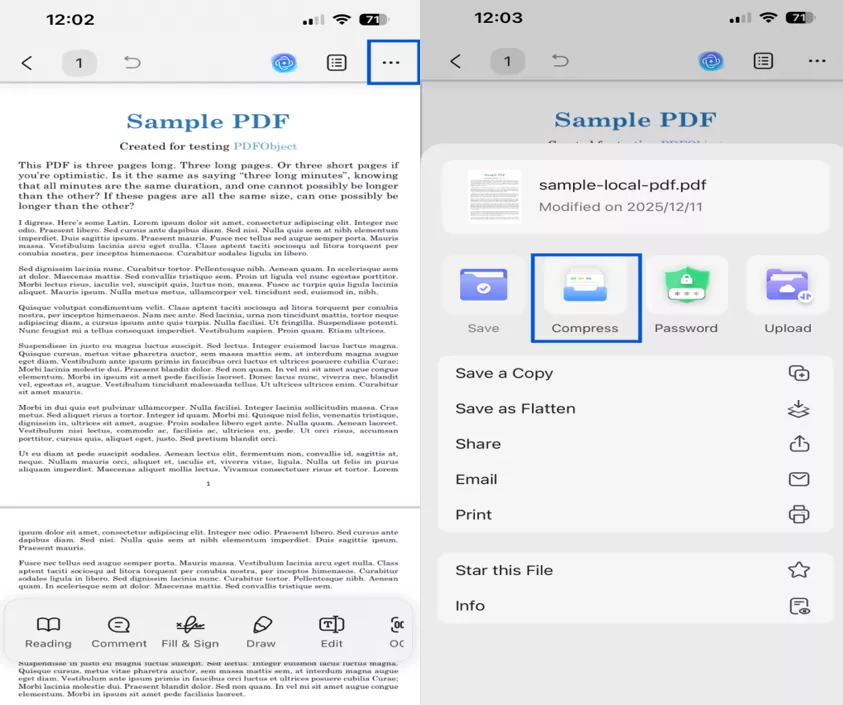
Step 3. Choose Compress quality to check the file size. You will see different options like Flash, Fast, Normal, and so on.
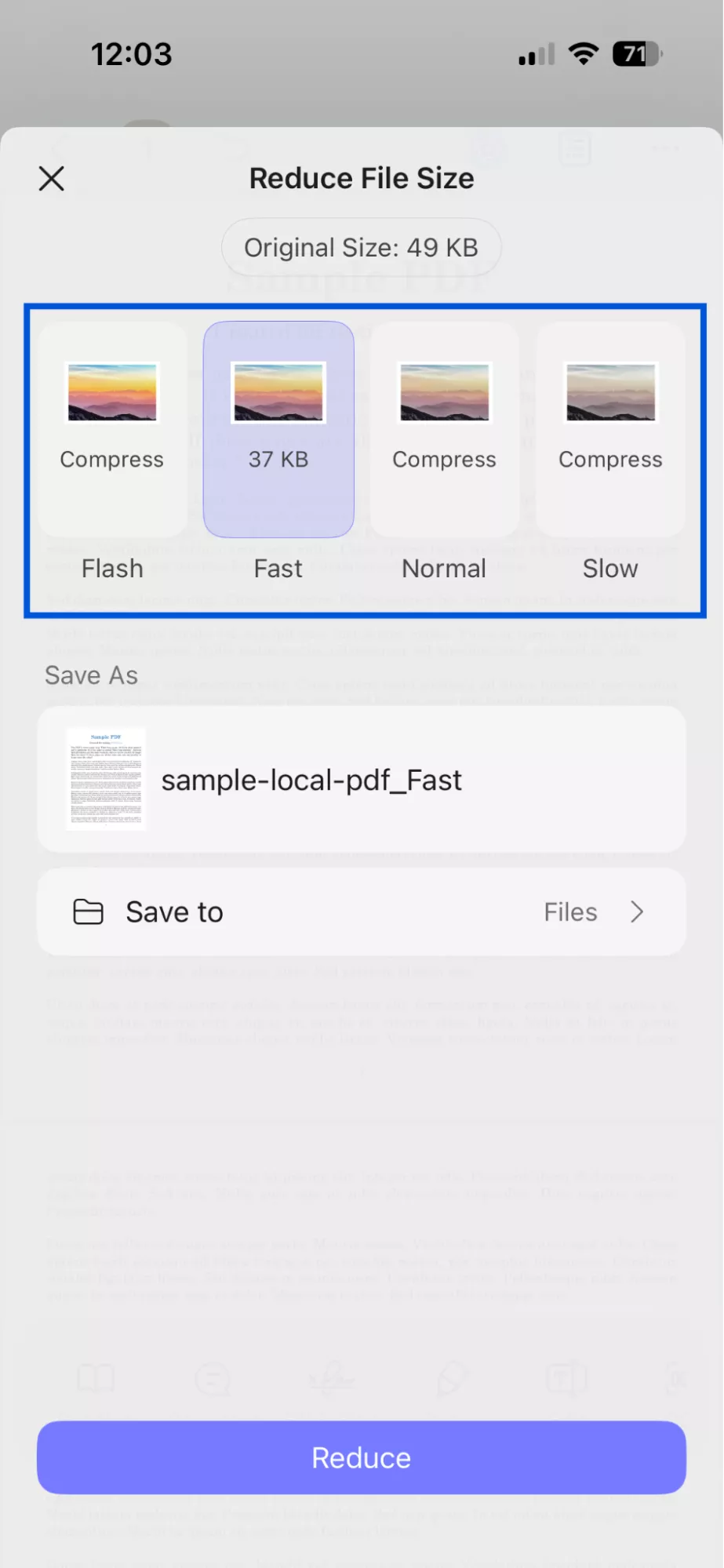
Step 4. Finally, select the folder where you want to save your compressed PDF and click “Reduce” to start compressing your PDF.
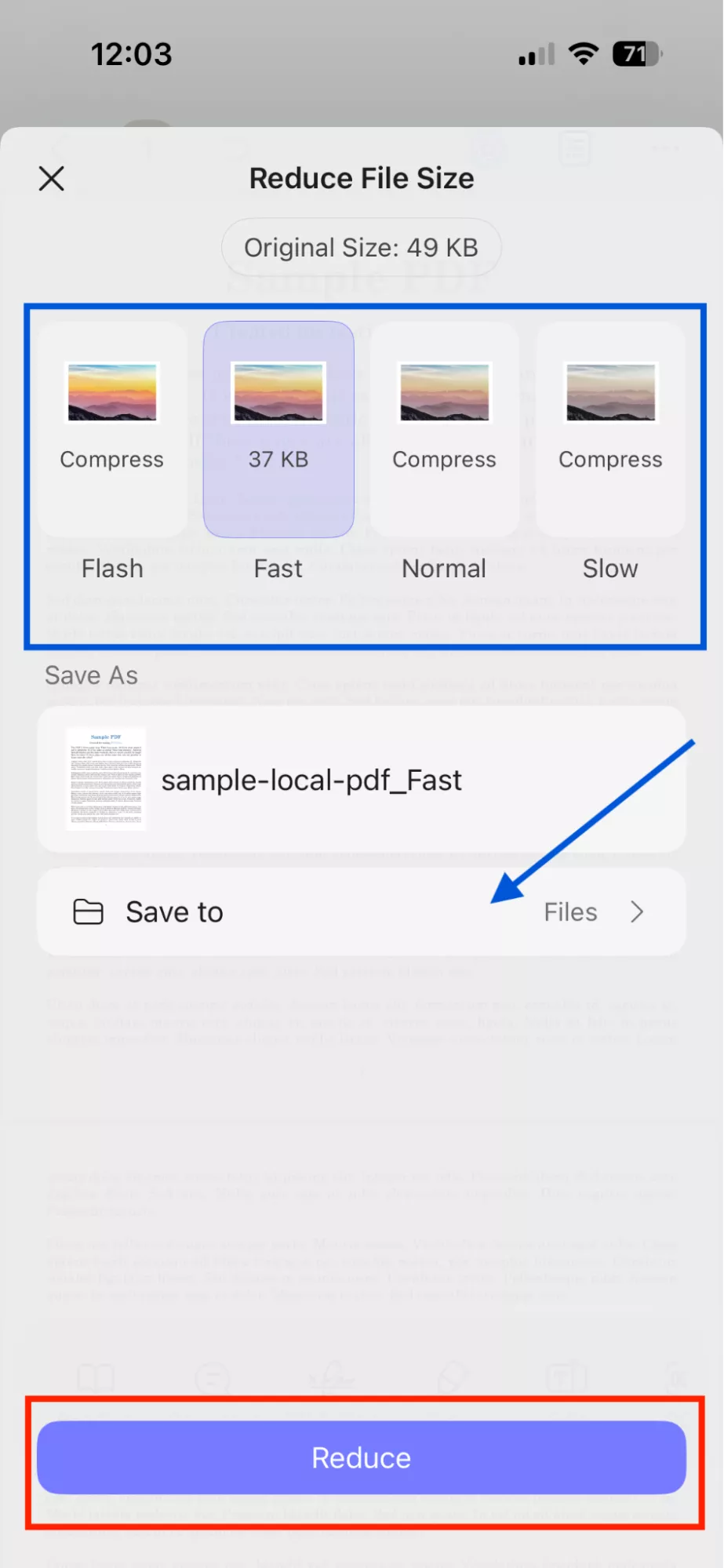
Tips for Users
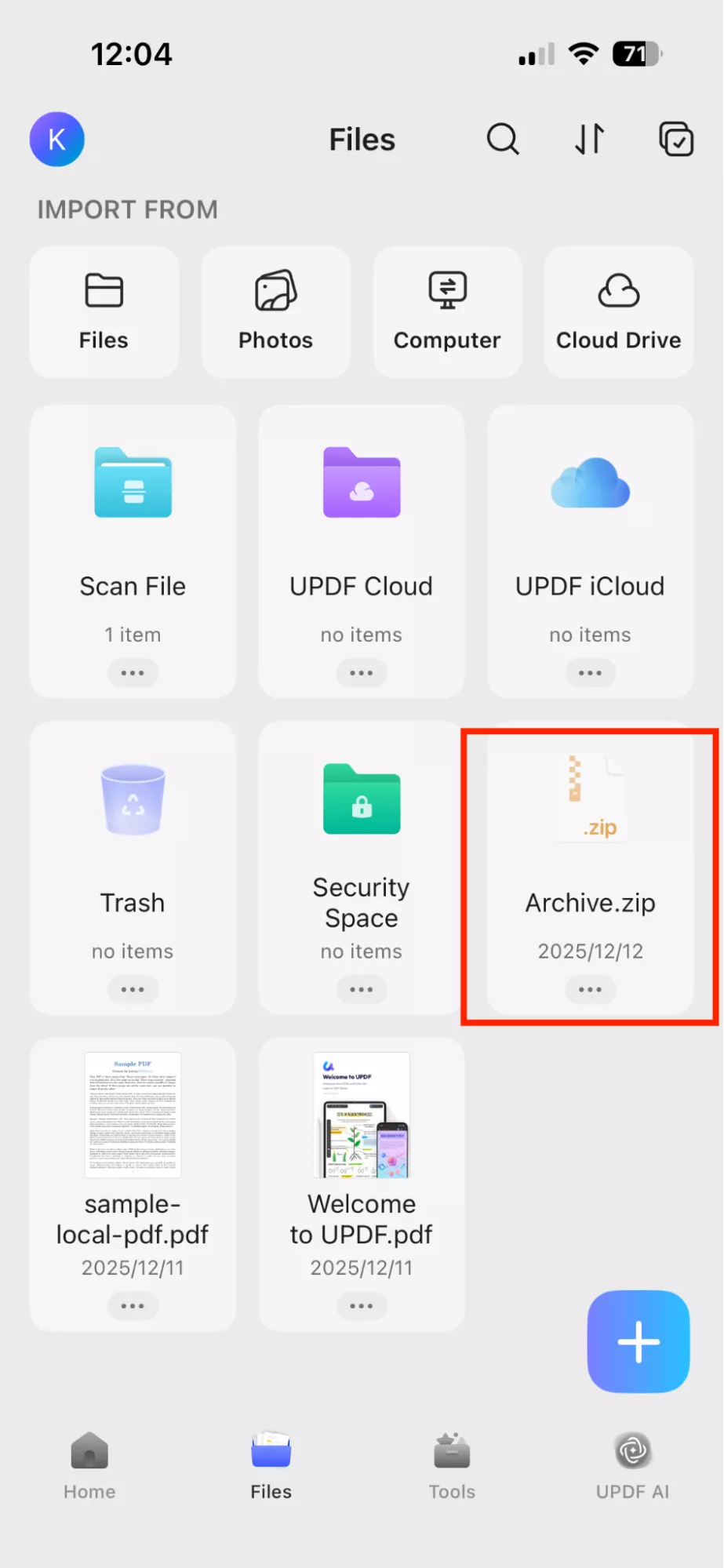
Besides compressing PDFs, UPDF also allows you to combine multiple files into a single ZIP directly from your mobile device, so that you can easily store or share documents.
Step 1. Open your UPDF app and click the multi-mode option.
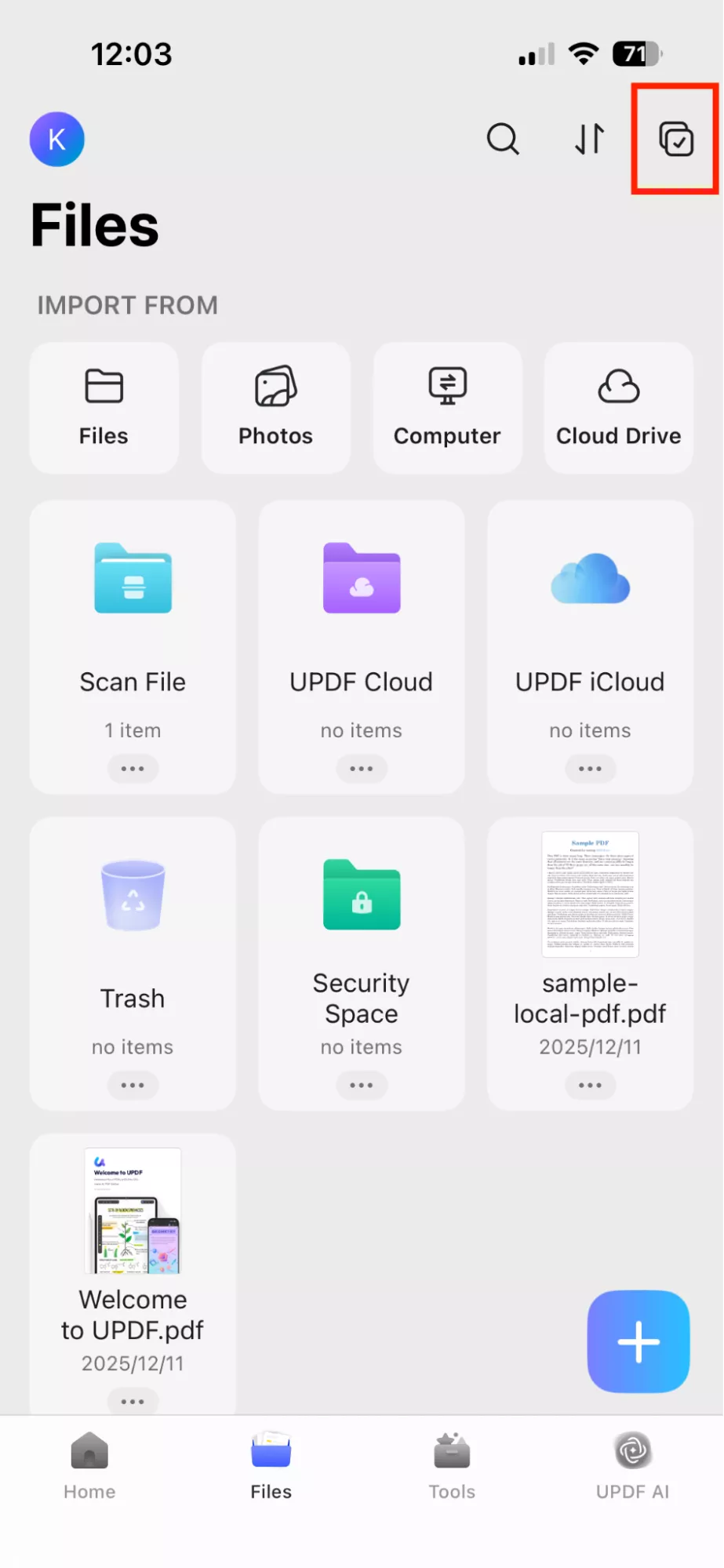
Step 2. Choose the “Compress” option and select all the files you want to include in the ZIP.
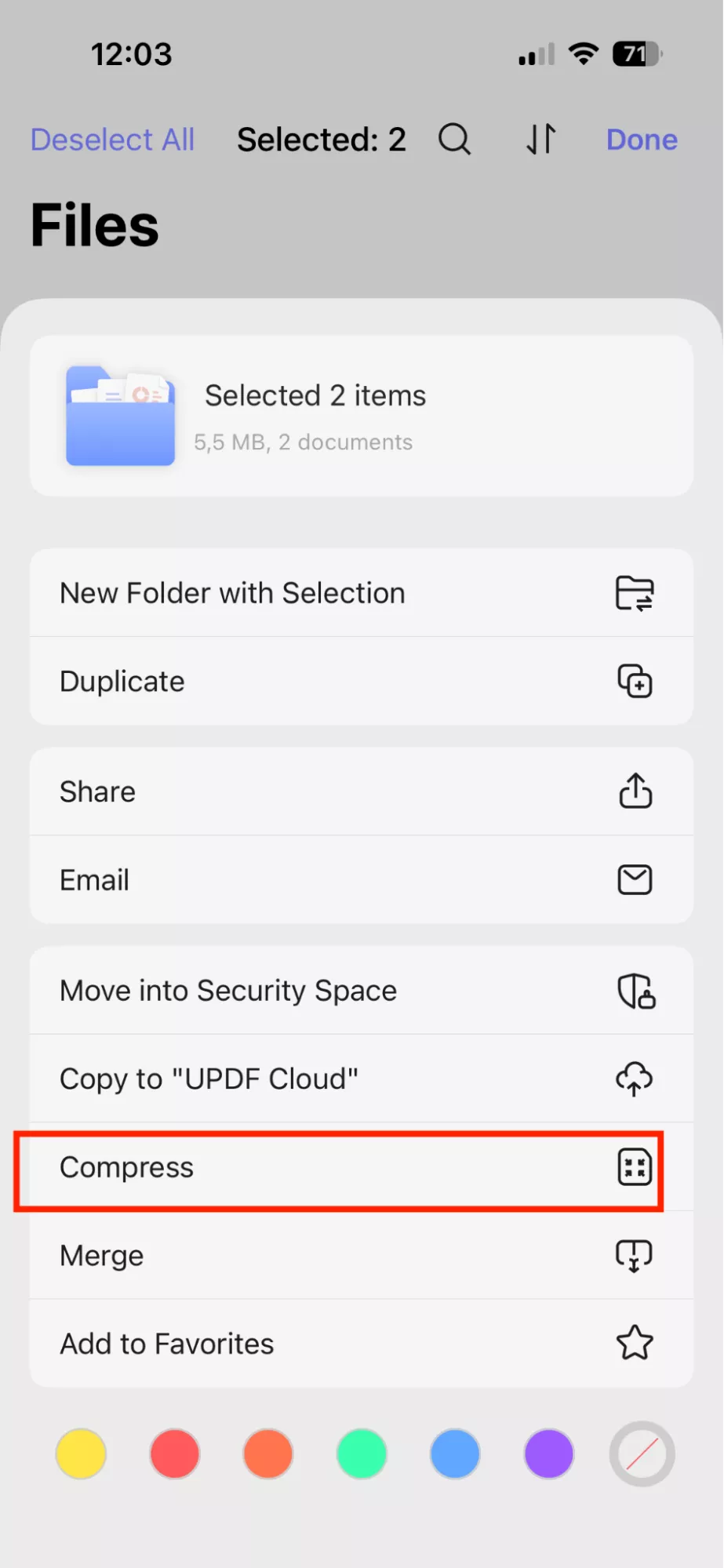
Step 3. The app will combine all selected PDFs into one ZIP file. You can see the file on the home page.
Special Offer: Use the coupon code ENARTICLE at checkout to get 10% off any plan. What are you waiting for? Don’t miss this chance to get full access to UPDF’s powerful features at a discounted price!
Conclusion
That’s all, folks! You’ve now learned the easiest way to lower MB of PDF using UPDF on both your PC and mobile devices. Hopefully, by using this software, you can quickly compress files, save storage space, and share documents effortlessly without worrying about size limits. You can also use this software to edit PDFs, convert, and organize PDFs with one click.
Windows • macOS • iOS • Android 100% secure



 Delia Meyer
 Lizzy Lozano
 Enid Brown