UPDF
UPDF
 UPDF for Windows
 UPDF for Mac
 UPDF for iPhone/iPad
 UPDF for Android
 Nomostar
 UPDF AI Online
 UPDF Sign
 IvyCraft
 Edit PDF
 Annotate PDF
 Create PDF
 PDF Form
 Edit links
 Convert PDF
 OCR
OCR PDF to Word
 PDF to Image
 PDF to Excel
 Organize PDF
 Merge PDF
 Split PDF
 Crop PDF
 Rotate PDF
 Protect PDF
 Sign PDF
 Redact PDF
 Sanitize PDF
 Remove Security
 Read PDF
 UPDF Cloud
 Compress PDF
 Print PDF
 Batch Process
 About UPDF AI
 UPDF AI Solutions
 AI User Guide
 FAQ about UPDF AI
 Summarize PDF
 Translate PDF
 Chat with PDF
 Chat with AI
 Chat with image
 PDF to Mind Map
 Explain PDF
 PDF AI Tools
 Image AI Tools
 AI Chat Tools
 AI Writing Tools
 AI Study Tools
 AI Working Tools
 Other AI Tools
 AI Bookmark Generation
 AI Bookmark Summary
 AI Watermark Generation
 AI Background Generation
 AI Sticker Generation
 AI Stamp Generation
 AI Editing Suite
 UPDF Copilot
 AI Page Management
 AI Semantic Search
 PDF to Word
 PDF to Excel
 PDF to PowerPoint
 Enterprise Solution
 Enterprise Sign
 Enterprise AI
 Enterprise Plan
 Enterprise User Guide
 Enterprise Webinar
 Banking
 Healthcare
 Insurance
 Legal
Legal Manufacturing
 Government
 Researchers & PhDs
 Solopreneurs & Freelancers
 Education Solution
 Customer Stories
 User Guide
 UPDF Tricks
 FAQs
FAQs UPDF Reviews
 Download Center
 Blog
Blog Newsroom
 Tech Spec
 Updates
 UPDF vs. Adobe Acrobat
 UPDF vs. Foxit
 UPDF vs. PDF Expert

Counting words in a PDF is a common requirement for academic writing, legal documents, and professional submissions. Traditionally, many users relied on Adobe Acrobat to complete this task.
With a recent update, UPDF now provides built-in solutions for counting PDF words, making it a practical alternative to Adobe Acrobat. In particular, UPDF for Mac supports viewing word count directly from document properties, while Windows users can count words using UPDF's AI or file conversion features.
Part 1. Count Words in a PDF Using UPDF (New)
For Mac Users
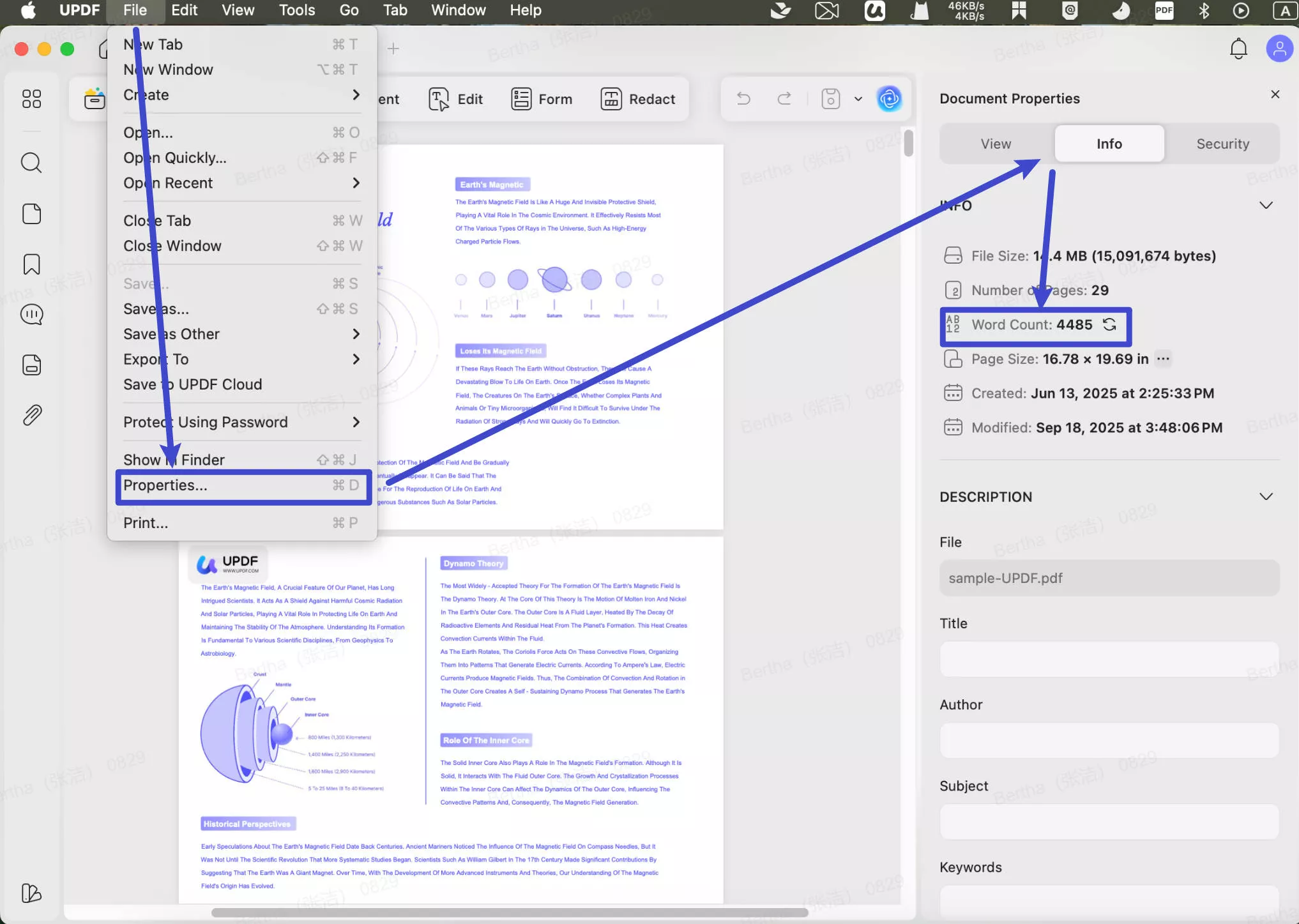
UPDF for Mac now allows users to view the word count of a PDF directly within the app, without converting the file or using external tools. This feature is available through the Document Properties panel. Download it and follow the steps below.
Windows • macOS • iOS • Android 100% secure
Steps to Count Words in a PDF Using UPDF for Mac
- Open the PDF document in UPDF for Mac.
- Click "File" in the top-left menu and select "Properties."
- The Document Properties panel will open on the right side.
- Switch to the Info tab, where the word count is displayed automatically.
Why This Method Stands Out
- Built-in feature, no file conversion required
- Quick access through document properties
- No subscription needed
- Ideal for Mac users who need accurate word counts
For Windows Users
Currently, UPDF for Windows does not display word count directly in document properties. However, Windows users can still count PDF words using UPDF's alternative solutions.
Option 1: Count Words Using UPDF AI
UPDF AI can analyze PDF content and provide word count information, making it useful for users who also need summaries or content analysis.
Step 1. Launch UPDF. Then, click “Open File” to upload the PDF to count words.
Windows • macOS • iOS • Android 100% secure
Step 2. Once your document is opened, select your desired words. Then press “CTRL+C” to copy them.
Step 3. Click “UPDF AI” from the lower right. Then, switch to the “Chat” mode from the top.
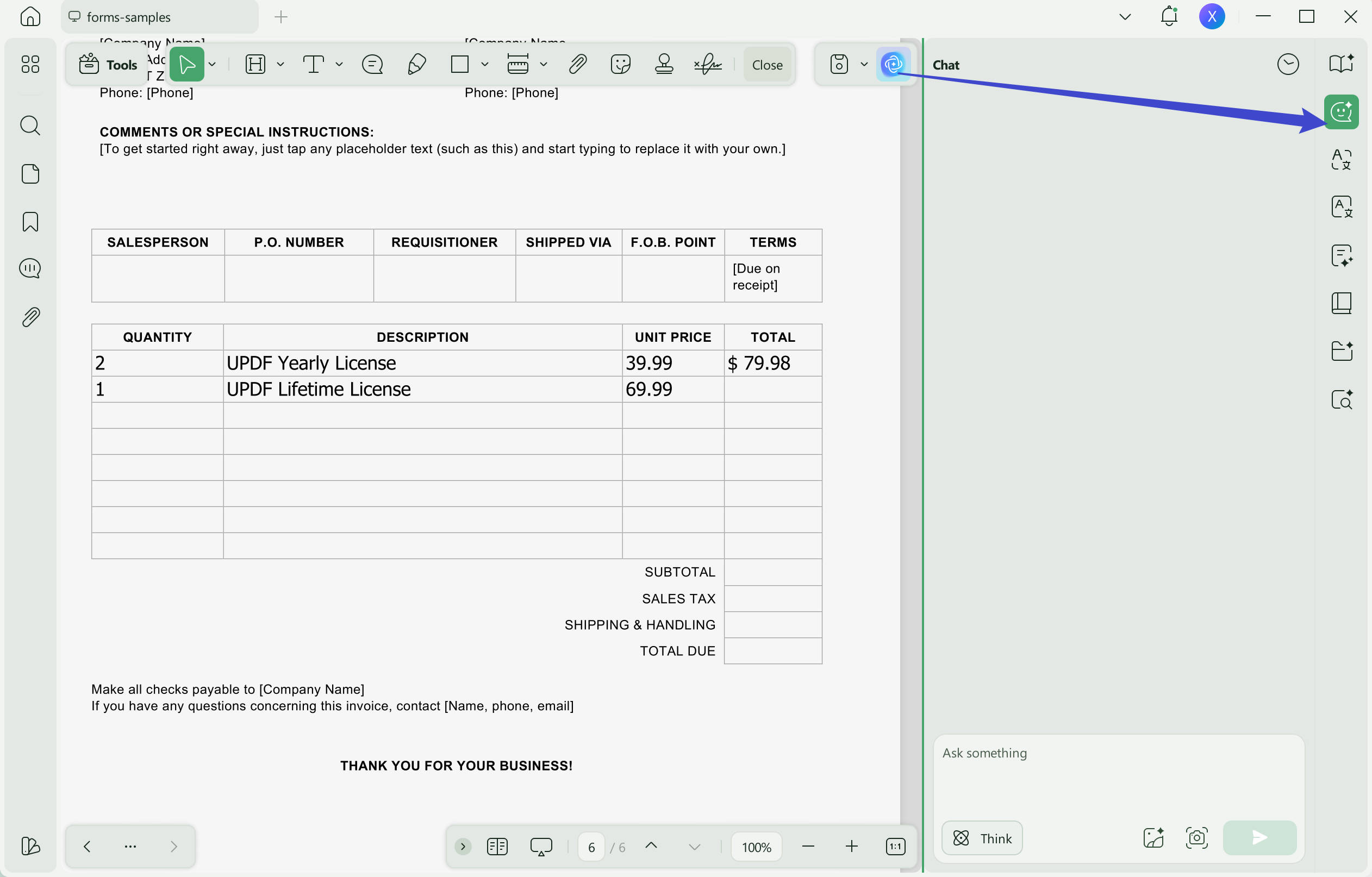
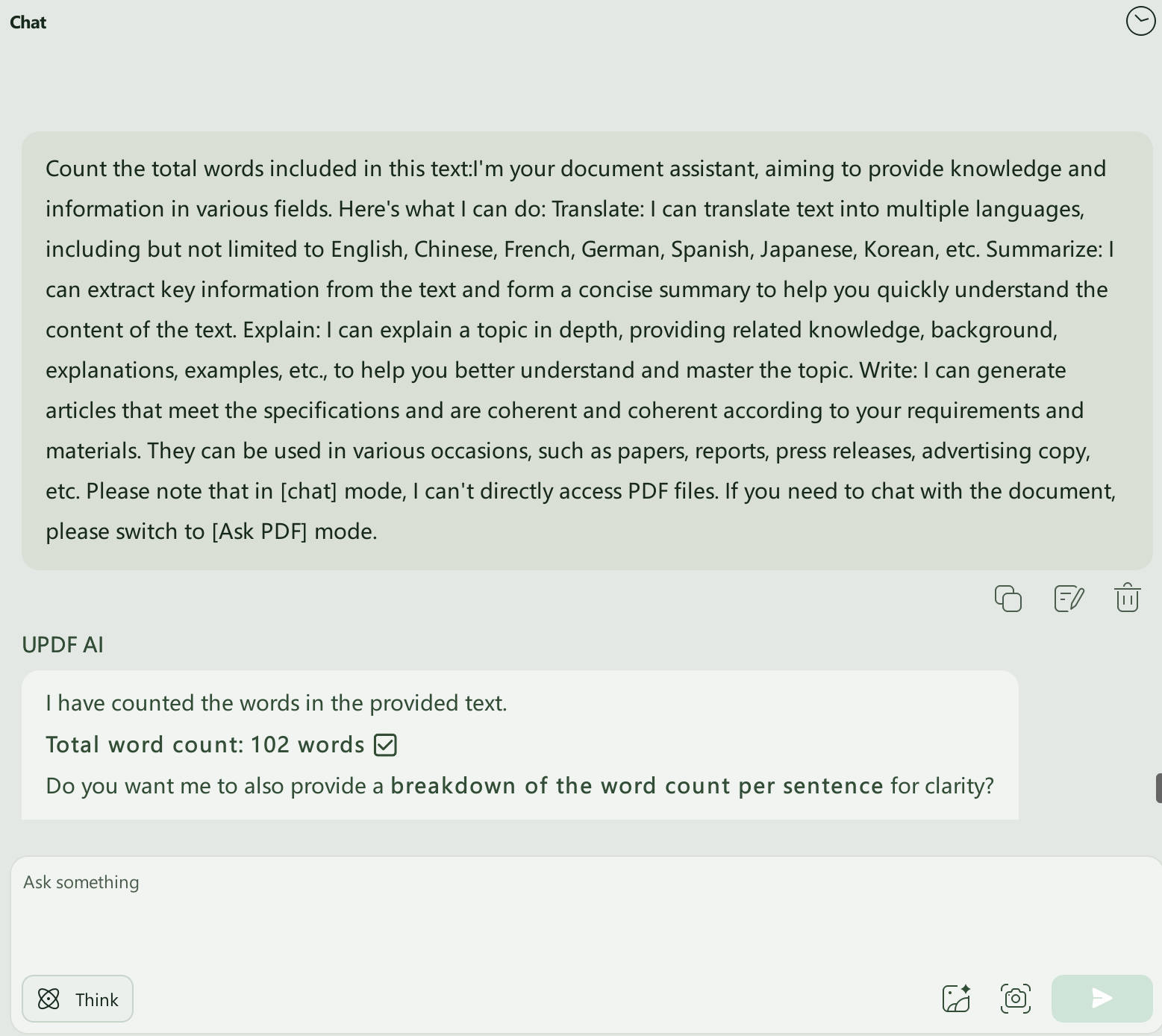
Step 4. Click the text box and write the prompt “count the total words included in this text.”
Step 5. Press “CTRL+V” to paste your text. Then, click the “Send” button. UPDF AI will quickly provide an accurate count of the words.
Option 2: Convert PDF to Word and Check Word Count
Another option is to convert the PDF into a Word document using UPDF, then check the word count in Microsoft Word. This method is especially helpful for longer or text-heavy PDFs.
Here's how UPDF allows converting a PDF to Word.
Step 1. Open your PDF file in UPDF. Then, click the icon labeled “Tools”.
Step 2. A list of several options will appear. Select “Word (.docx)” from here.
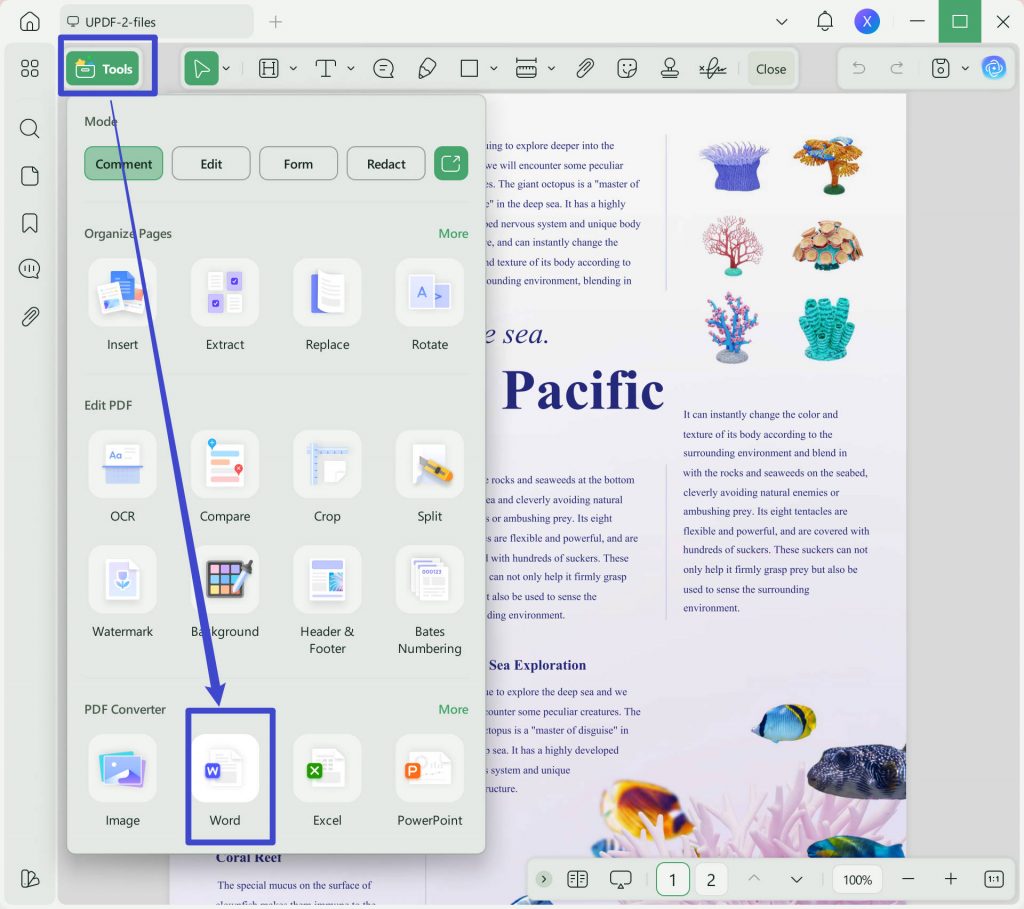
That’s it! Now open your converted document in MS Word to get your word count.
Why Choose UPDF?
Beyond a PDF word counter, UPDF works as an all-in-one PDF editor. This PDF editor provides practical PDF editing, annotating, form creating/filling, protecting tools, etc., making it convenient to manage your PDF files.
Moreover, UPDF's powerful AI assistant offers a faster and more efficient solution. Plus, you can enjoy the AI feature for free with the first 100 prompts. This gives you plenty of room to test its capabilities before purchasing.
So, don’t wait! Use UPDF now for a smarter and more cost-effective way to count words in your PDFs now.
Windows • macOS • iOS • Android 100% secure
UPDF also has many other features. Watch the following video or read this review to learn about how it can help you manage PDFs more productively.
Part 2. How to Count Words in Adobe Acrobat
Adobe Acrobat remains a commonly used tool for counting words in PDFs. However, its word count features are typically available only in paid versions and may require additional steps compared to UPDF for Mac.
Follow the steps below:
Step 1. Open Adobe Acrobat. Click on the PDF you want to import from the “Recent” section. Alternatively, click “Open File” to upload the PDF from your device.
Step 2. Once your PDF uploads, click “Export a PDF” from the All Tools panel on the left. Otherwise, choose “Convert” from the top toolbar.

Step 3. Select the “Microsoft Word” option. Then, choose between “DOCX” and “DOC” format from the dropdown.
Step 4. Click the “Convert” button. This will start your PDF-to-Word conversion.

Step 5. Once converted, open the converted PDF in Microsoft Word. Then:
- Go to the lower left and click the “[number] words” to assess the detailed count.

- Alternatively, select “Review > Word Count” from the ribbon at the top.

So, that’s how to check word count in Adobe Acrobat. While the process is fairly simple, it is not a convenient way to count words directly within the PDF. Moreover, this feature requires you to buy Acrobat Standard or Pro, which is incredibly expensive.
In contrast, UPDF offers a free and cheaper way to finish the task. Let’s learn all about it below!
Final Words
With its latest update, UPDF now offers a more accessible way to count words in PDF documents, especially for Mac users. By allowing word count to be viewed directly within document properties, UPDF reduces the need for complex workflows or expensive subscriptions.
Windows • macOS • iOS • Android 100% secure
While Adobe Acrobat is still an option, UPDF provides a simpler and more cost-effective alternative for users who want to manage and analyze PDFs efficiently across platforms.






 Enola Davis
 Delia Meyer
 Enya Moore
 Enola Miller