 UPDF
UPDF
 UPDF for Windows
 UPDF for Mac
 UPDF for iPhone/iPad
 UPDF for Android
 Nomostar
 UPDF AI Online
 UPDF Sign
 IvyCraft
 Edit PDF
 Annotate PDF
 Create PDF
 PDF Form
 Edit links
 Convert PDF
 OCR
OCR PDF to Word
 PDF to Image
 PDF to Excel
 Organize PDF
 Merge PDF
 Split PDF
 Crop PDF
 Rotate PDF
 Protect PDF
 Sign PDF
 Redact PDF
 Sanitize PDF
 Remove Security
 Read PDF
 UPDF Cloud
 Compress PDF
 Print PDF
 Batch Process
 About UPDF AI
 UPDF AI Solutions
 AI User Guide
 FAQ about UPDF AI
 Summarize PDF
 Translate PDF
 Chat with PDF
 Chat with AI
 Chat with image
 PDF to Mind Map
 Explain PDF
 PDF AI Tools
 Image AI Tools
 AI Chat Tools
 AI Writing Tools
 AI Study Tools
 AI Working Tools
 Other AI Tools
 AI Bookmark Generation
 AI Bookmark Summary
 AI Watermark Generation
 AI Background Generation
 AI Sticker Generation
 AI Stamp Generation
 AI Editing Suite
 UPDF Copilot
 AI Page Management
 AI Semantic Search
 PDF to Word
 PDF to Excel
 PDF to PowerPoint
 Enterprise Solution
 Enterprise Sign
 Enterprise AI
 Enterprise Plan
 Enterprise User Guide
 Enterprise Webinar
 IT
IT Education
 Construction
 Financial Service
 Healthcare
 Insurance
 Legal
Legal Manufacturing
 Government
 Researchers & PhDs
 Solopreneurs & Freelancers
 Lawyers & Legal Professionals
 Real Estate Agents & Brokers
 Education Solution
 Customer Stories
 User Guide
 UPDF Tricks
 FAQs
FAQs UPDF Reviews
 Download Center
 Blog
Blog Newsroom
 Tech Spec
 Updates
 UPDF vs. Adobe Acrobat
 UPDF vs. Foxit
 UPDF vs. PDF Expert

Is your iPhone stuck in a restart loop after installing the iOS 27 update? You're not alone — many users have reported their device restarting every few minutes or getting stuck on the Apple logo after upgrading.
This guide covers 8 straightforward fixes that work for both iPhone and iPad. We start with the simplest steps first, so you can get your device back to normal as quickly as possible — no tech expertise required.
Once your iPhone/iPad is back to normal, Part 3 covers a few AI-powered PDF tools in UPDF built for iOS — worth a look if you regularly work with documents on your device.
Windows • macOS • iOS • Android 100% secure
What If the Restarting Started After iOS 27?
The same troubleshooting sequence applies after an iOS 27 update: force restart the iPhone, install the latest available iOS build, remove recently installed or incompatible apps, confirm that enough storage is free, and back up the device before resetting settings or restoring it.
Part 1. Why is my iPhone Restarting on Its Own after iOS 27 Update?
Several factors can trigger a restart loop after an iOS update. Here are the most common reasons your iPhone keeps restarting after the iOS 27 update:
- Incompatible Apps: Some third-party apps — particularly those that haven't received iOS 27 updates yet — can conflict with system processes and cause repeated crashes. This can cause compatibility issues with apps like Uber and Instagram.
- Low Storage: If your device has very little free storage, iOS may not have enough space to complete background processes after the update, causing the system to crash and restart.
- Insufficient Battery / Overheating: Running a major update on a low or degraded battery can trigger automatic shutdowns. Overheating during or after the update has a similar effect, putting the device into a protective restart loop.
- Corrupted Update Files: In some cases, the update download or installation itself can be incomplete or corrupted, leaving the system in an unstable state that causes repeated reboots.
Now, let’s see how to fix this issue.
Part 2. How to Fix “iPhone Keeps Restarting After iOS 27 Update”?
The following eight fixes are arranged from simplest to most involved. Work through them in order — most users resolve the issue within the first three or four steps. All methods apply to both iPhone and iPad, and to earlier versions of iOS as well.
1. Force Restart Your iPhone
A force restart clears temporary software glitches — including restart loops — without erasing any of your data. This is always the best first step.
Here’s how it works.
Step 1:Press and release the volume up button.
Step 2: Click and release the volume down button.
Step 3: Press the side/power button. Hold it until you see the Apple logo.
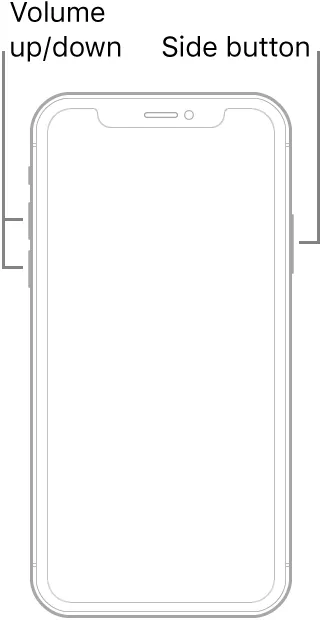
Note: For an iPhone with the Home button, press and hold the Power and Home button. Release them when the Apple logo appears.
2. Uninstall Incompatible App
If the force restart didn't help, an incompatible app is likely the culprit. Think about which apps you installed or updated recently before the restart loop began, and start there. Uber, Facebook, and heavily-used background apps are frequently reported triggers after iOS updates. Here’s how to uninstall it and fix the problem.
Step 1: Open your iPhone’s “Settings” app.
Step 2: Tap “General” and choose “iPhone Storage” from the next screen.
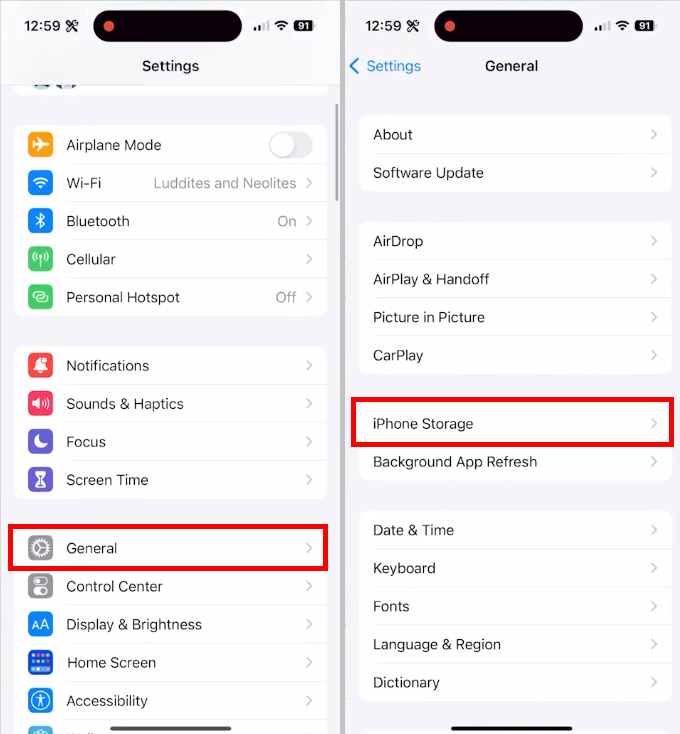
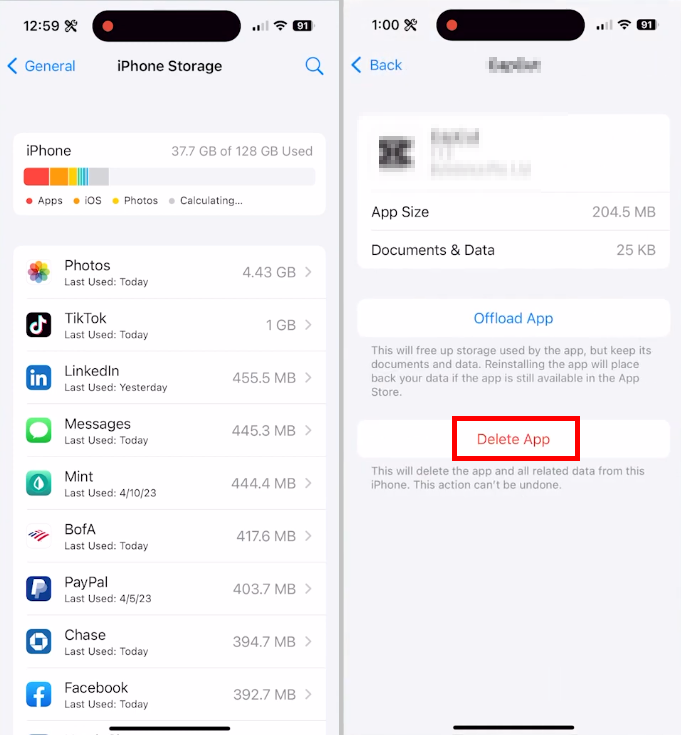
Step 3: Wait for the screen to load. Then, you can see all the apps installed on your device.
Step 4: Tap the app you want to delete. Then, press the “Delete App” button to uninstall it.
Did uninstalling the app solve the issue for you? If not, don’t worry. You can try our next fix.
3. Reset All The Settings for the iPhone
Resetting all settings clears any misconfigured system preferences that may have been disrupted by the update. Importantly, this does not delete your photos, apps, or personal data — only settings like Wi-Fi passwords, display preferences, and notification settings are reset.
Here's how to go about it.
Step 1: Open the “Settings” menu on your device. Select the “General” option.
Step 2: Scroll all the way down and tap the “Transfer or Reset” option.
Step 3: Tap “Reset” again to reveal a menu. Select “Reset All Settings” from here.
Step 4: Enter your device’s passcode. Then tap “Reset All Settings” to confirm it.
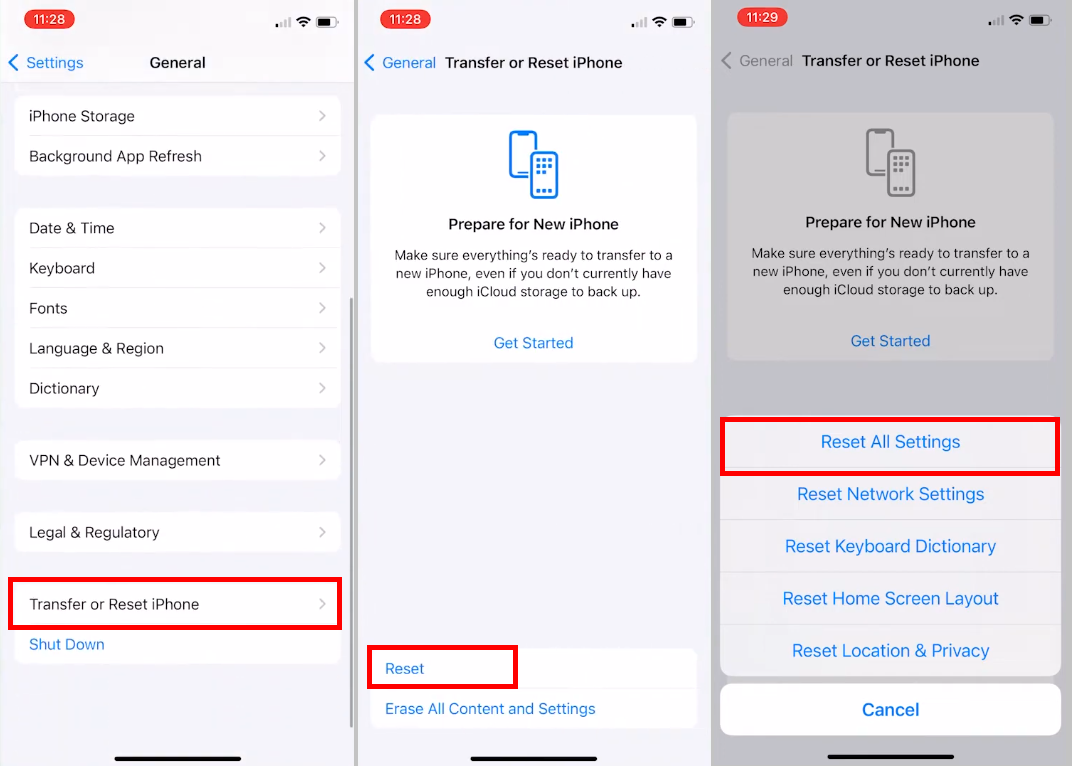
After your phone restarts, you'll need to reconnect to Wi-Fi and adjust any personal preferences. You can restore these from an iCloud or iTunes backup if you made one before the update.
4. Get Your iPhone Fully Charged
A low or degraded battery is a frequently overlooked cause of post-update restart loops. If your device won't stay on long enough to troubleshoot, plug it into a wall charger (not a computer USB port) and let it charge for at least 15 to 20 minutes before trying to power it on.
Let's see how to do it.
Step 1: Plug your iPhone/iPad into a power source using a compatible charging cable and adapter.
Step 2: Wait for the charging screen to appear. Let your phone charge for a few minutes.
Step 3: Your phone will turn on automatically once it has enough battery.
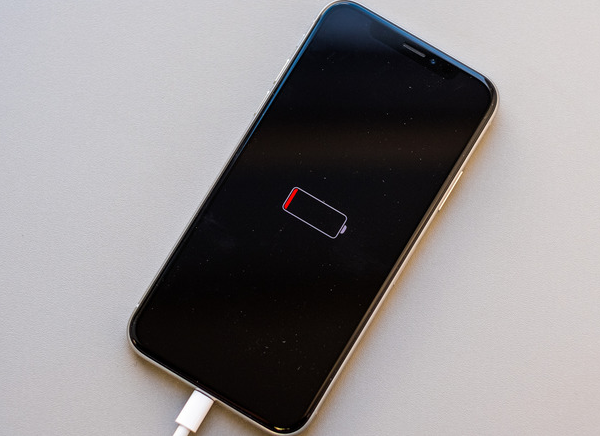
Let’s move forward to the next fix for the “iPhone keeps restarting after iOS 27 update” issue.
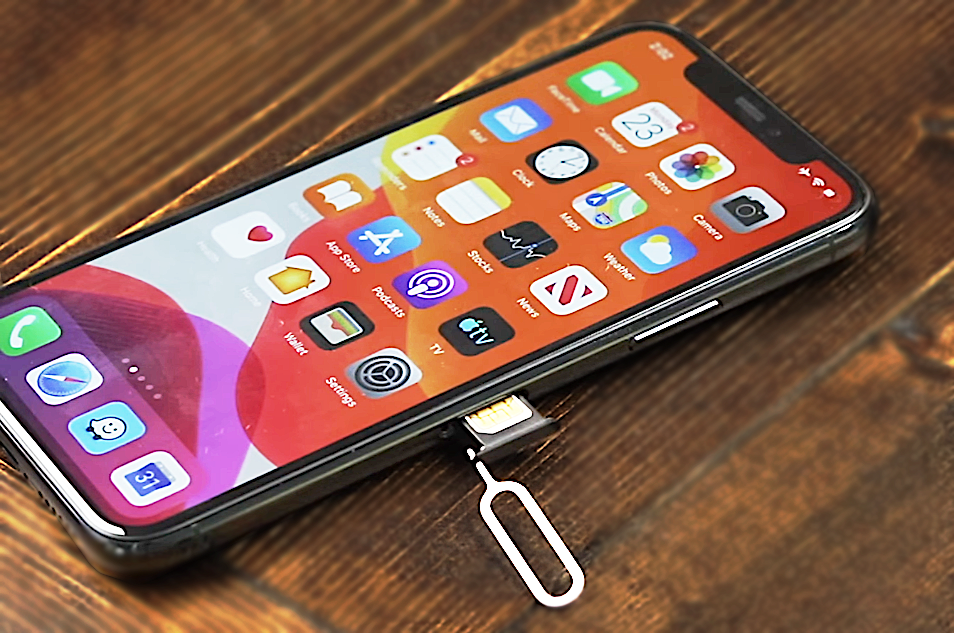
5. Reinsert SIM Card
A loose or misread SIM card can sometimes cause network-related system errors that trigger restarts, particularly after an iOS update refreshes carrier settings. Removing and reinserting the SIM card is a quick fix worth trying.
How do we do it?
Step 1: Turn off your phone and find the SIM card on the side of your device.
Step 2: Press the SIM ejector pin into the tiny hole next to the SIM card slot.
Step 3: Push the ejector gently until the tray slides out. Remove the SIM card from the tray.
Step 4: Inspect the SIM card for any damage and clean it. Then, put it back in the tray. Slide the tray into the slot until you hear it click.
Let’s move on and explore another way to fix it.
6. Check for Updates for iOS 27
If none of the earlier fixes worked, a deeper software bug introduced by the update itself may be the root cause. Apple regularly releases point updates (e.g., iOS 27.5) to address stability and bug-fix issues reported after a major release.
Check for the latest update by going to Settings > General > Software Update. If an update is available, install it — this is often the fastest path to resolving persistent restart loops without losing any data.
7. Restore Your iPhone to Factory Settings
If the restart loop persists and your device can't be used normally, a full restore is the most reliable fix. This erases your iPhone and reinstalls a clean version of iOS 27, removing any corrupted files from the failed update.
Important: A restore will erase all data on your device. Back up to iCloud or iTunes before proceeding if your device allows it.
You'll need a Mac (with Finder) or a Windows PC (with iTunes) to complete this process.
Step 1: First you’ll need to put your device in the recovery mode. For this,
- Turn off your phone and press and hold the power button.
- Keep pressing when you see the Apple logo.
- Release your finger when a screen with a charging cable appears. You are in recovery mode.
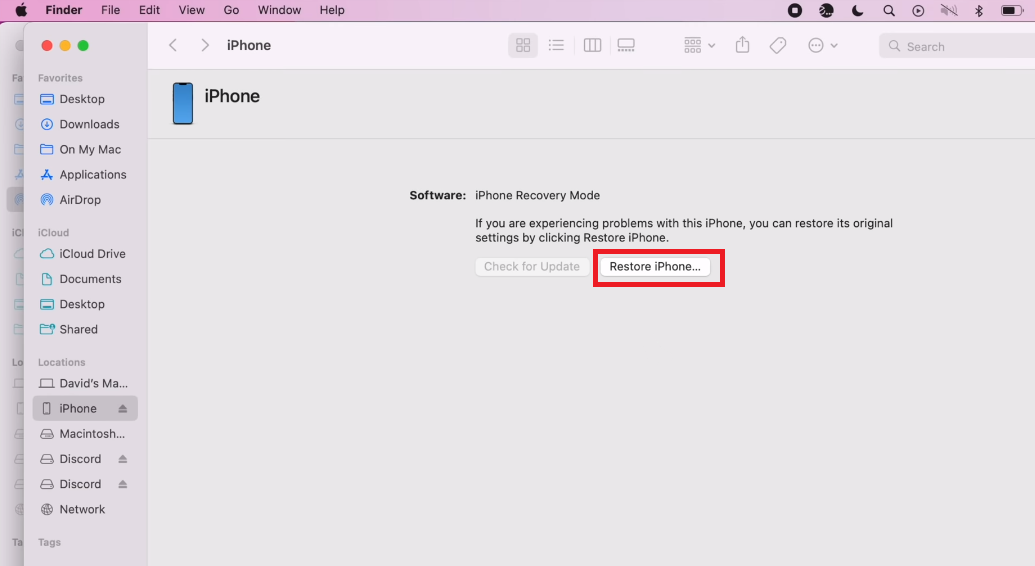
Step 2: Then, connect your phone to a Mac. Open Finder and select your phone’s name under the “Locations” section in the left panel.
Step 3: Click the “Restore iPhone…” button. Click “Restore and Update.”
Step 4: Click “Next” and press “Agree” to start the process.
Step 5: Once your phone is restored, you will see a notification on the Mac. Your phone will turn on, and you can now set it up.
8. Get Help from Apple Support
If none of the above steps resolved the issue, or if you don't have access to a Mac or PC for a full restore, Apple Support is your best next step. They can run remote diagnostics, walk you through recovery options, or arrange an in-store repair if a hardware issue is involved.
You can contact Apple Support using the website or app. Then, describe the issue and fill out requirements, such as device name and support option. You can chat or make a call using your phone. You can also make an appointment with the nearest store.
Part 3. Read and Edit PDFs on Your iPhone with UPDF
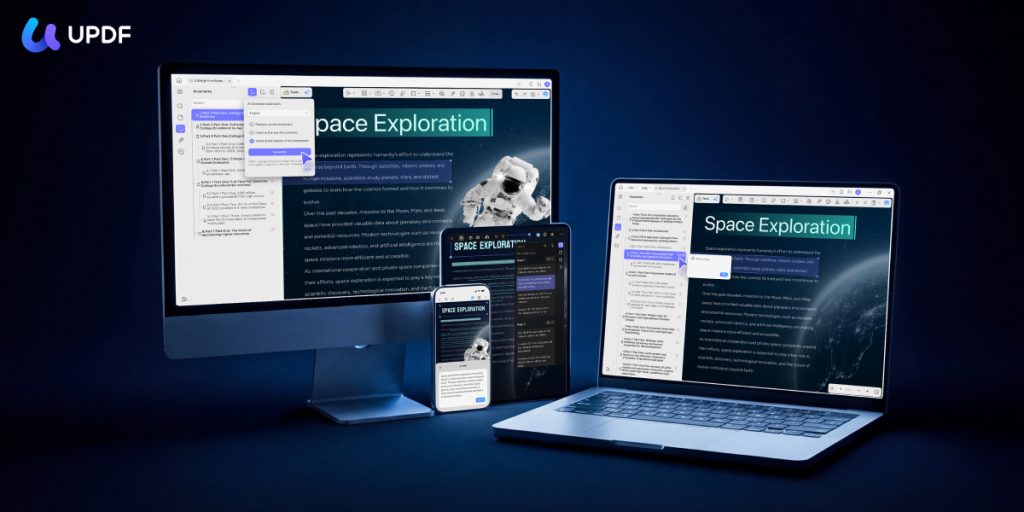
Now that your iPhone is back up and running, it's a good time to audit your apps for better performance. If you often handle documents on the go, you may ask: Do I really need a PDF reader on my phone? Here's a tool worth adding to it: UPDF — an AI-powered PDF editor built for iOS, Mac, Windows, and Android. It's one of the most complete PDF tools available at a fraction of the cost of Adobe Acrobat (plans start at just US$49.99/year; free trial supported):
Windows • macOS • iOS • Android 100% secure
- Effortless Editing: You can easily edit, annotate, convert, organize your files, and more.
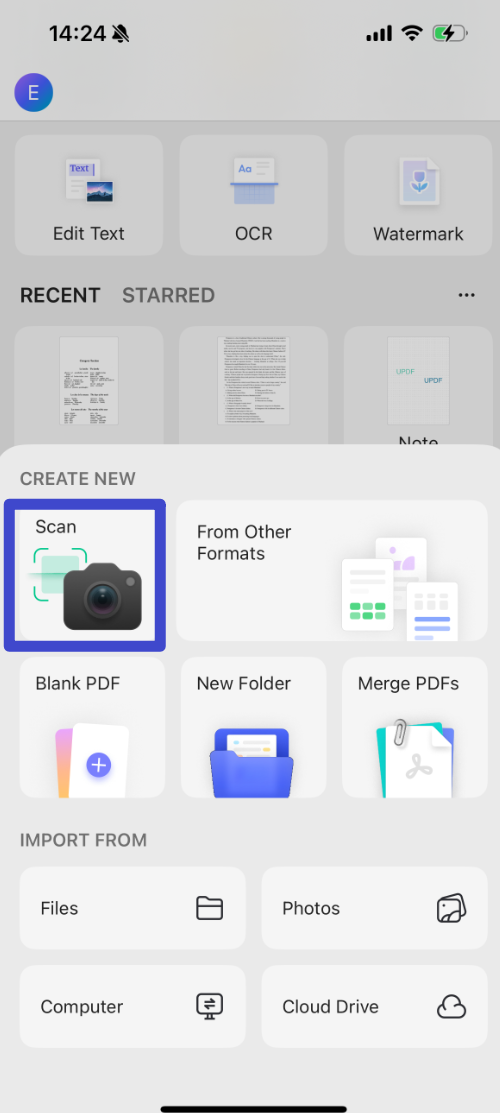
- Quickly Scan to PDF: You can scan an image or document directly into a PDF.
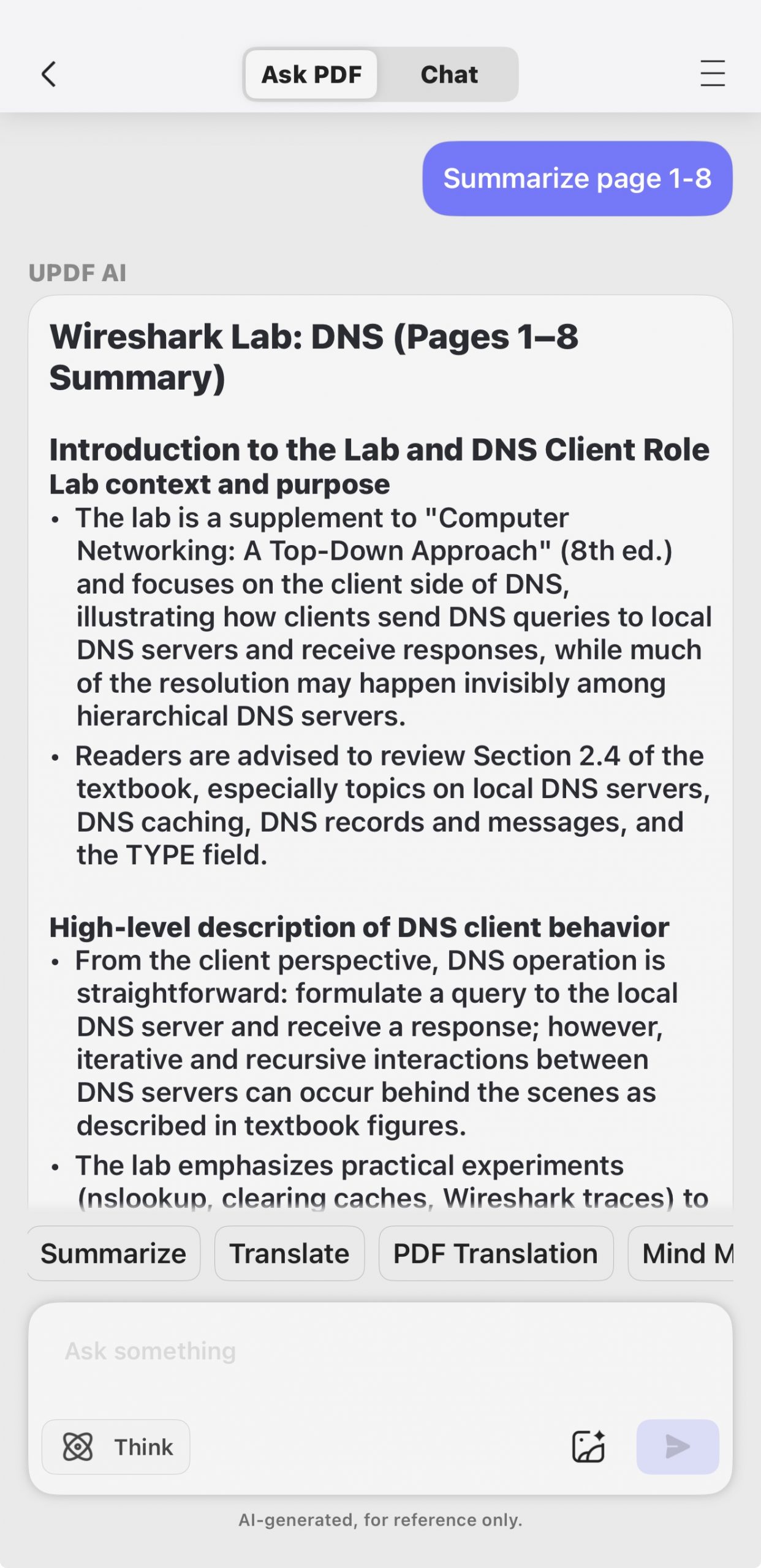
- AI Assistant: UPDF AI lets you summarize, generate mind-map, translate, explain, rewrite, and chat with PDF/Image.
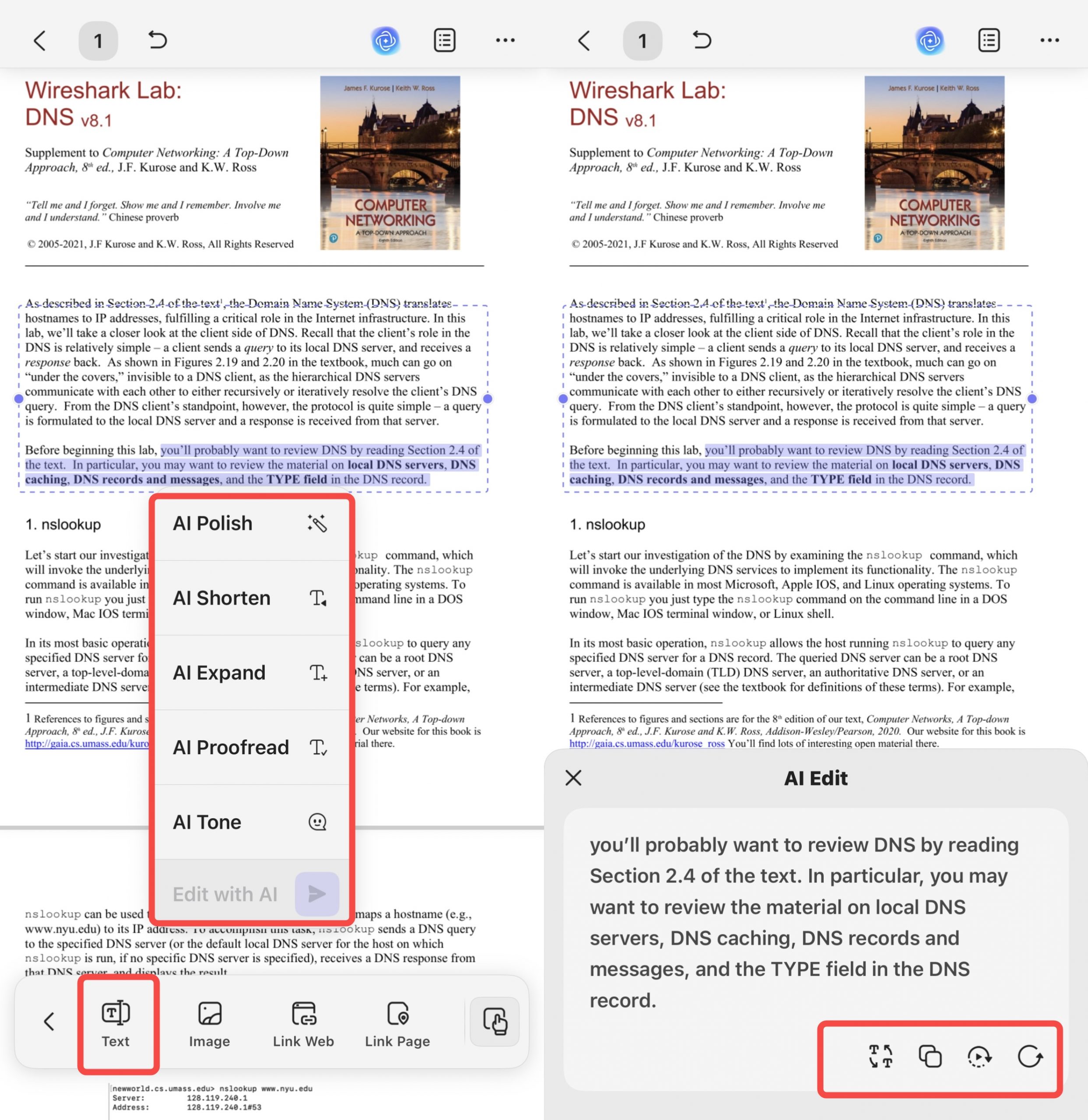
Beyond the standard editing, annotation, and conversion features, UPDF for iOS includes three AI Agents built specifically for on-device document work:
- AI Semantic Search — Forget exact-keyword searching. When you're looking through a long document on your phone and can't recall the precise wording, Semantic Search surfaces results by meaning — including synonyms and related terms — so you find what you need without scrolling endlessly.
- AI Editing Suite — Rewrite, refine tone, or correct grammar directly inside your PDF text boxes on iOS — without exporting to Word or switching to another app. Make clean edits to contracts, forms, or notes right on your iPhone.
- AI Bookmark Generator & Summarizer — Reading a long PDF report or textbook on a small screen without a table of contents is a real pain. AI Bookmark Generator scans the document and creates a full, navigable chapter outline in one tap. The Summarizer then adds concise previews to each bookmarked section so you can jump straight to what matters.
UPDF also syncs your files across all devices via UPDF Cloud, so anything you open on your iPhone is available on your Mac or Windows PC the moment you need it.
Try UPDF free — no credit card required. The free plan includes 100 AI uses and access to all core PDF tools (with trial watermark added).
Watch the video below or read this review article to learn more about its features and how you can benefit from it.
Windows • macOS • iOS • Android 100% secure
Final Words
Hopefully one of these eight fixes got your iPhone back to normal. The force restart and checking for an iOS point update resolve most restart loops without requiring a full restore — so start there if you haven't already.
Once you're back up and running, UPDF is worth having on your iOS device. It's a capable, AI-powered PDF editor that handles everything from basic edits and annotations to smart semantic search and AI-assisted document navigation — all optimized for iPhone and iPad. Download it free or explore pricing plans starting at US$49.99/year.
Windows • macOS • iOS • Android 100% secure







 Grace Curry
 Enola Miller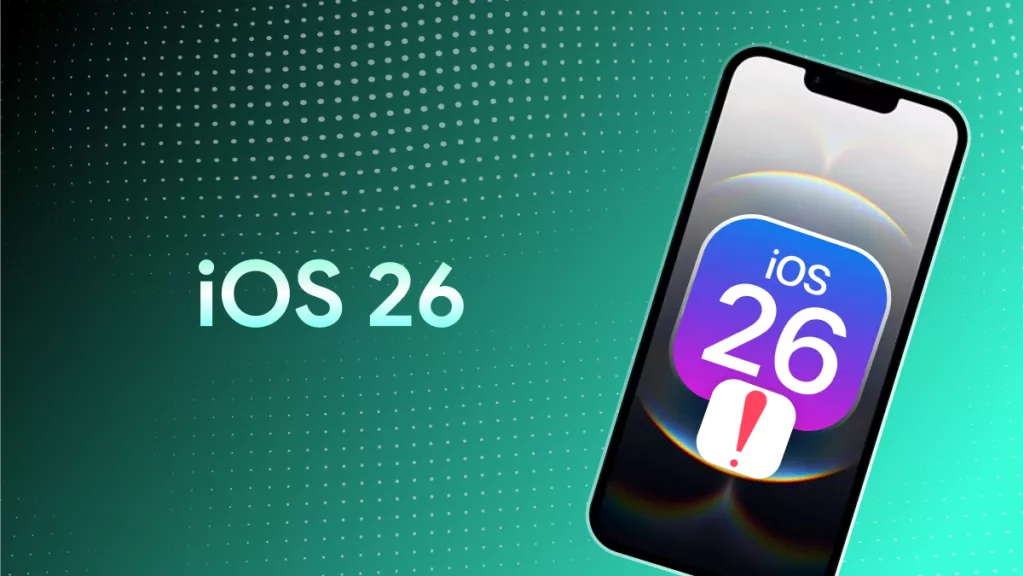
 Enya Moore
 Engelbert White
 Enid Brown