 UPDF
UPDF
 UPDF for Windows
 UPDF for Mac
 UPDF for iPhone/iPad
 UPDF for Android
 Nomostar
 UPDF AI Online
 UPDF Sign
 IvyCraft
 Edit PDF
 Annotate PDF
 Create PDF
 PDF Form
 Edit links
 Convert PDF
 OCR
OCR PDF to Word
 PDF to Image
 PDF to Excel
 Organize PDF
 Merge PDF
 Split PDF
 Crop PDF
 Rotate PDF
 Protect PDF
 Sign PDF
 Redact PDF
 Sanitize PDF
 Remove Security
 Read PDF
 UPDF Cloud
 Compress PDF
 Print PDF
 Batch Process
 About UPDF AI
 UPDF AI Solutions
 AI User Guide
 FAQ about UPDF AI
 Summarize PDF
 Translate PDF
 Chat with PDF
 Chat with AI
 Chat with image
 PDF to Mind Map
 Explain PDF
 PDF AI Tools
 Image AI Tools
 AI Chat Tools
 AI Writing Tools
 AI Study Tools
 AI Working Tools
 Other AI Tools
 AI Bookmark Generation
 AI Bookmark Summary
 AI Watermark Generation
 AI Background Generation
 AI Sticker Generation
 AI Stamp Generation
 AI Editing Suite
 UPDF Copilot
 AI Page Management
 AI Semantic Search
 PDF to Word
 PDF to Excel
 PDF to PowerPoint
 Enterprise Solution
 Enterprise Sign
 Enterprise AI
 Enterprise Plan
 Enterprise User Guide
 Enterprise Webinar
 Banking
 Healthcare
 Insurance
 Legal
Legal Manufacturing
 Government
 Researchers & PhDs
 Solopreneurs & Freelancers
 Education Solution
 Customer Stories
 User Guide
 UPDF Tricks
 FAQs
FAQs UPDF Reviews
 Download Center
 Blog
Blog Newsroom
 Tech Spec
 Updates
 UPDF vs. Adobe Acrobat
 UPDF vs. Foxit
 UPDF vs. PDF Expert

The PDF Preview Handler error in Outlook typically appears as a warning bar: "This file cannot be previewed because of an error with the following previewer: PDF Preview Handler."
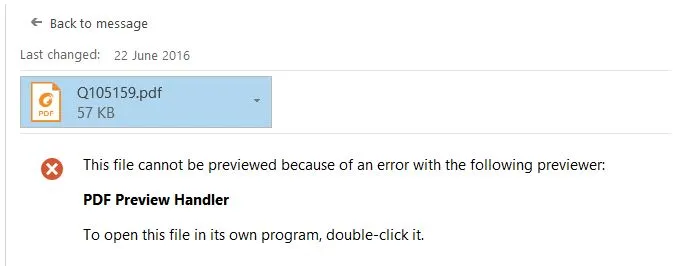
It usually surfaces after a Windows update, an Outlook upgrade, or a fresh installation of Adobe Reader — and the root cause is almost always one of three things: a bit-version mismatch between Office and Adobe Reader, a disabled preview setting in Outlook, or a corrupted registry entry.
If you also face this PDF preview handler not working issue, then you are in the right place. This guide covers 10 tested fixes ordered from most common to most involved. Fix 1 addresses the most frequent root cause (bit-version mismatch); most users resolve the issue within the first three fixes. If none of the fixes work, Part 2 covers UPDF as a reliable immediate alternative that lets you open, read, and fully work with any PDF — on Windows, Mac, iOS, and Android — without depending on Outlook's preview function at all.
Windows • macOS • iOS • Android 100% secure
Part 1. 10 Proven Ways to Fix PDF Preview Handler not Working in Outlook
Work through these fixes in order — most users find a resolution within the first three. Each fix targets a specific root cause; if one doesn't apply to your situation, the description will make that clear so you can skip ahead.
Way 1. Make Sure the Office and Adobe Reader Have the Same Bit Version
The PDF Preview Handler in Outlook requires that the bit architecture of Microsoft Office and Adobe Reader match exactly. In most cases, a 32-bit app will work on a 64-bit OS, but different-bit versions can cause compatibility issues among tools. So, if you face PDF preview handler not working issues, you must check both Office and Adobe Reader to make sure they have same bit - and the fix is simply reinstalling Adobe Reader to match Office's bit version. This is the most common root cause and should be your first check.
Step 1. To check the details for Outlook, you need to run Outlook and click "File" then go to "Office Account" > for viewing "Product Information" and click "About Outlook". You will find the bit information here.

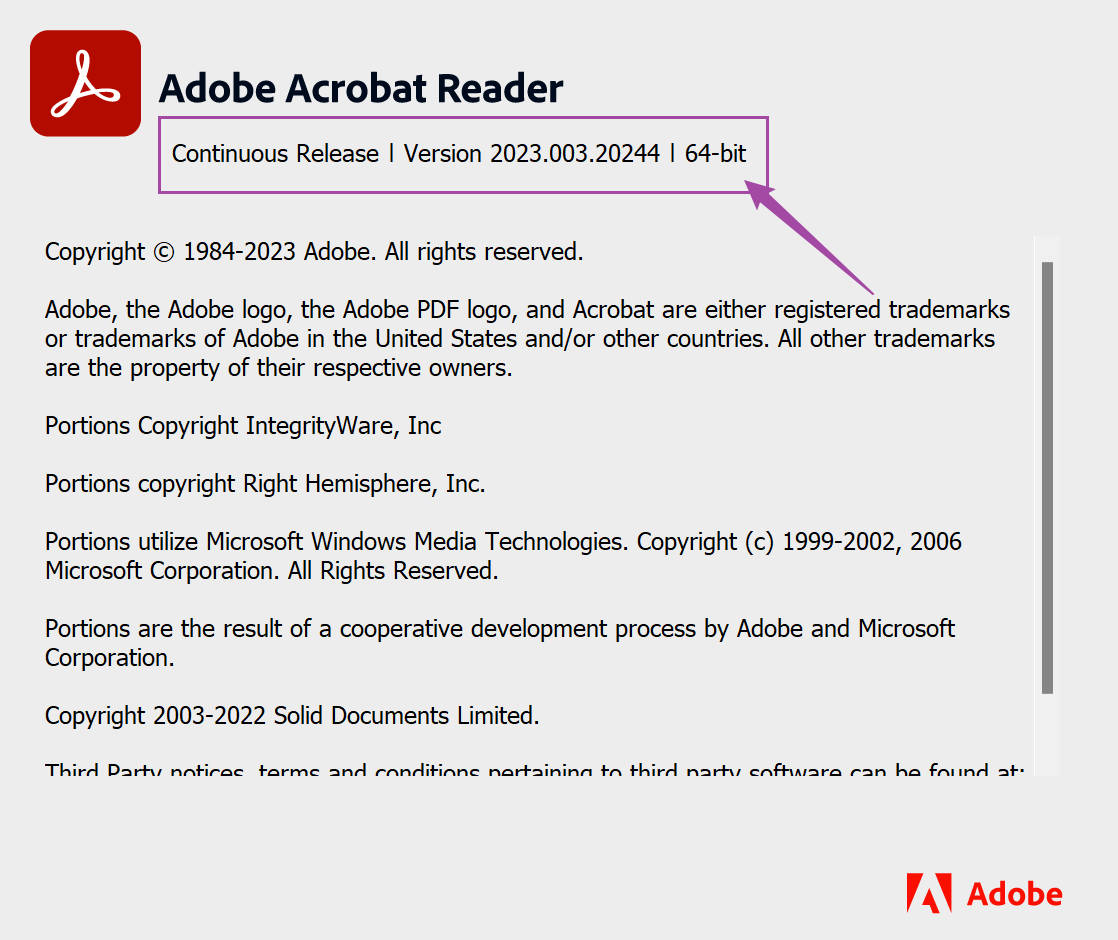
Step 2. To check the bit version of Adobe Reader, you need to open Adobe Reader on your computer, click "Menu" > "Help" > "About Adobe Reader". Now, you can find the bit information of your Adobe Reader.
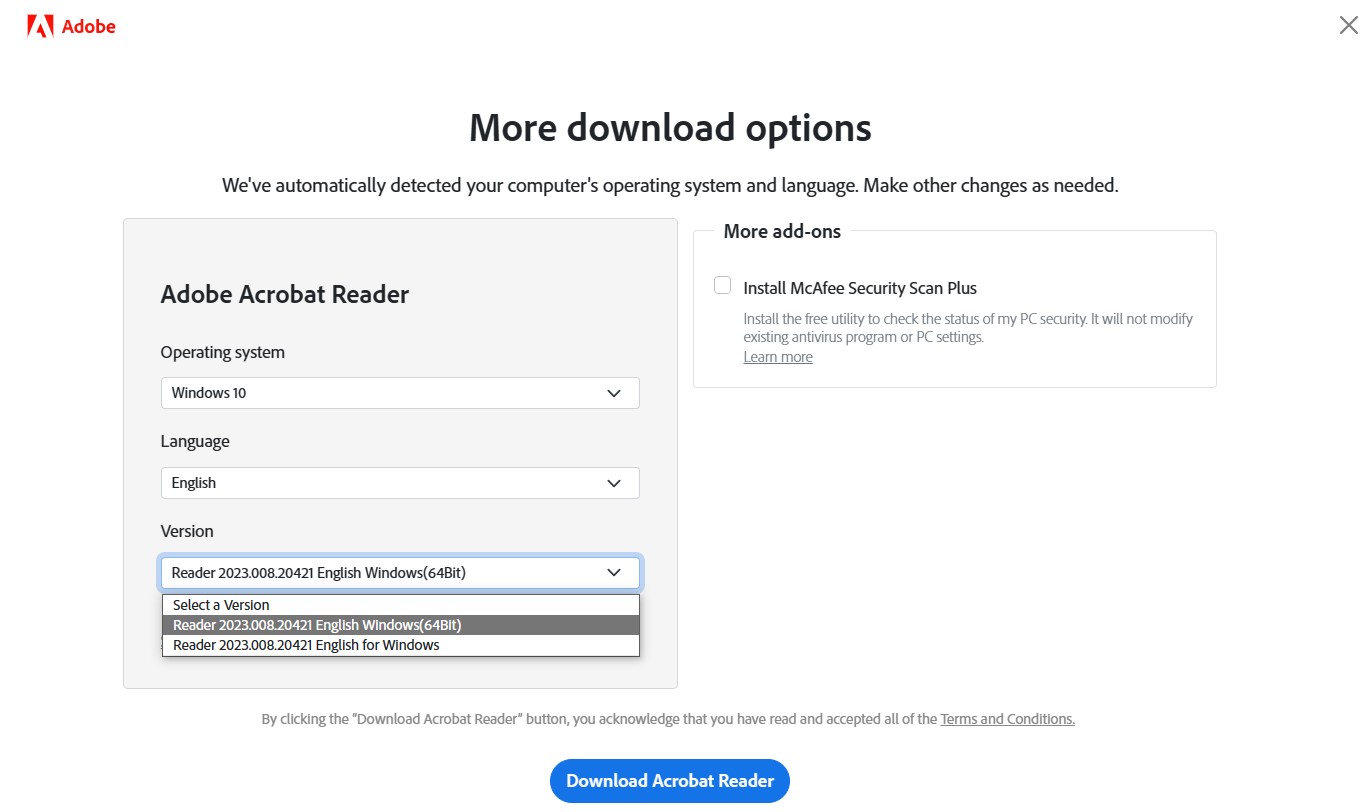
Step 3. If both tools are installed in different bit versions, then you must download Adobe Reader in same bit as Outlook. Go to Adobe Reader download page and click "More Download Options" then select the right version to download.
Way 2. Enable PDF Preview Handler
Sometimes, disabling PDF preview handler in your tool settings can cause PDF preview handler not working. So, enable this setting in Outlook app to check if it starts working.
Step 1. Run Outlook then click "File" and choose "Options". Here pick "Trust Center" and go to "Trust Center Settings" for editing "Attachment handling" settings and uncheck "Turn off Attachment Preview" option.
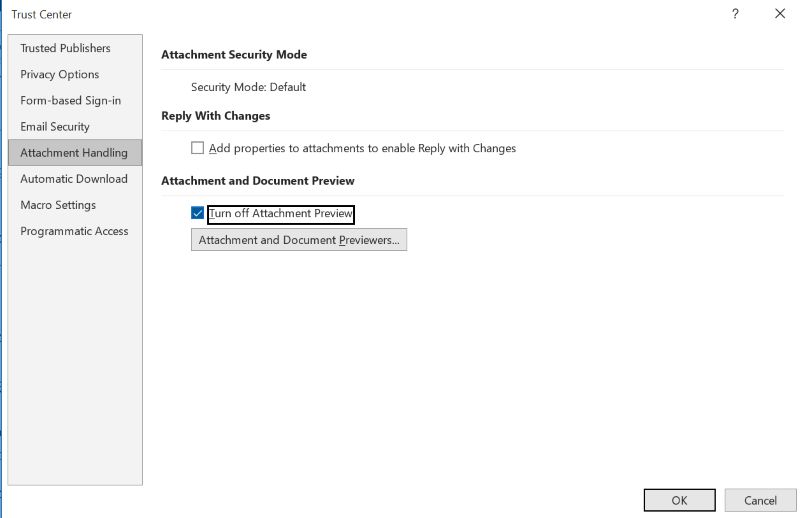
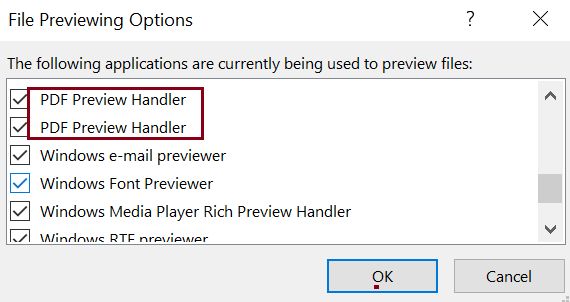
Step 2. Click "Attachment and Document Previewers" then check "PDF View Handler" option before clicking OK.
Way 3. Disable and Enable the Internet
When this applies: In rare cases where Adobe Reader is configured to validate PDFs against online certificate revocation lists (CRL) or contact Adobe's servers during rendering, a slow or disrupted connection can cause preview failures. This is uncommon but worth trying if Ways 1 and 2 didn't resolve the issue.
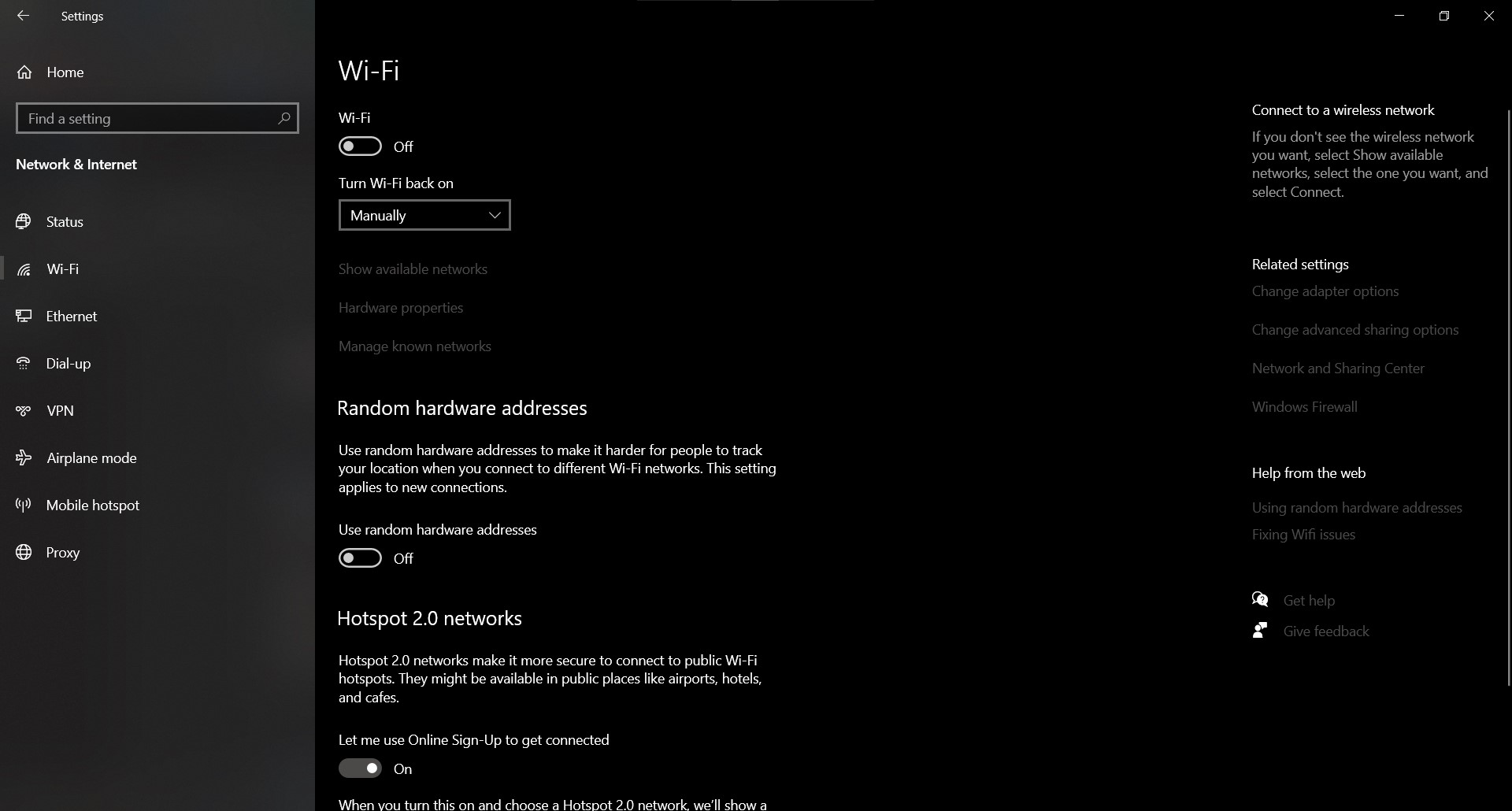
Step 1. Disconnect from the internet (disable Wi-Fi or unplug the ethernet cable).
Step 2. Open Outlook and attempt to preview a PDF attachment while offline. If the preview works offline but not online, the issue is Adobe Reader's network calls during rendering — which Way 5 (Disable Internet Auto-Detect) will resolve more permanently.
Step 3. Wait for a few seconds and turn the Wi-Fi back on or re-attach the ethernet cable. If the preview fails again once reconnected, proceed to Way 4.
Way 4. Restart the Computer
Issues with RAM often cause problems with software where they stop responding like normal. Restarting your PC will clear RAM and solve this issue if that's the case.
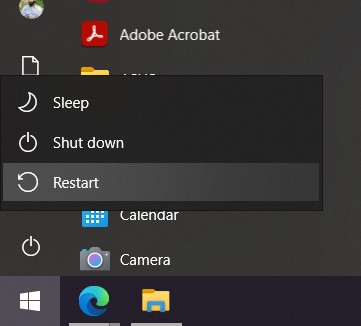
Steps: Click "Windows" > "Power" > "Restart" and wait as your PC restarts. Try previewing PDF again in Outlook after PC starts.
Way 5. Disable Internet Auto-Detect
Internet Auto-Detect is a feature that might be causing issues with your PDF Preview Handler. You can resolve these issues by disabling this option.
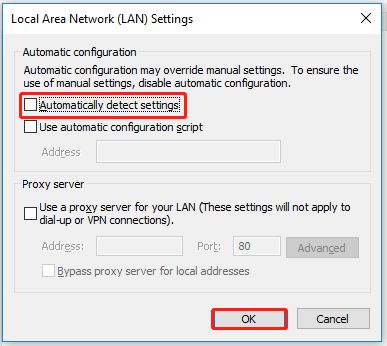
Step 1. Open Adobe Acrobat Reader and click "Menu" > "Preferences" > "Internet" > "Internet Settings" > "Connections" > "Lan Settings"
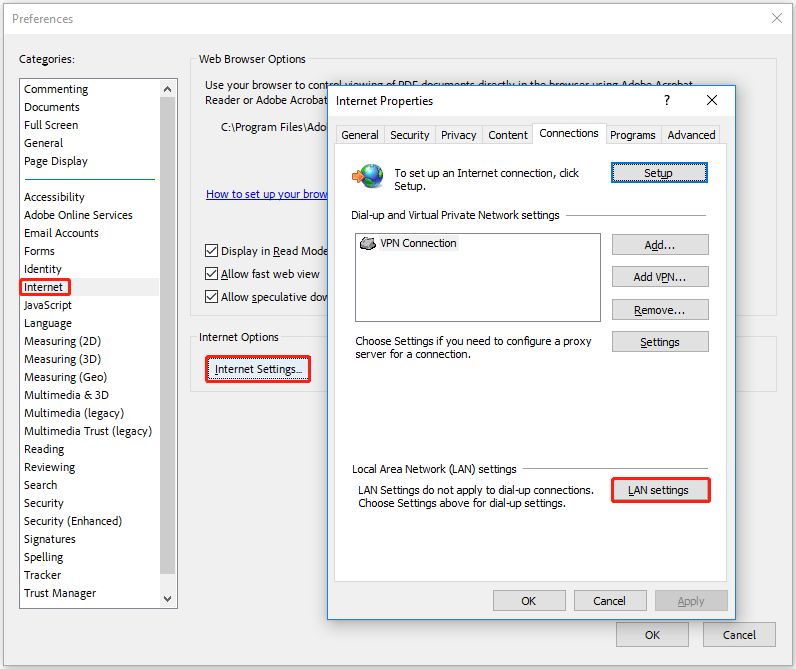
Step 2. Uncheck "Automatically Detect Settings" then click "OK" > "Apply". Close all apps and restart PC.
Way 6. Run Adobe Acrobat Reader with Win 8 Compatibility Mode
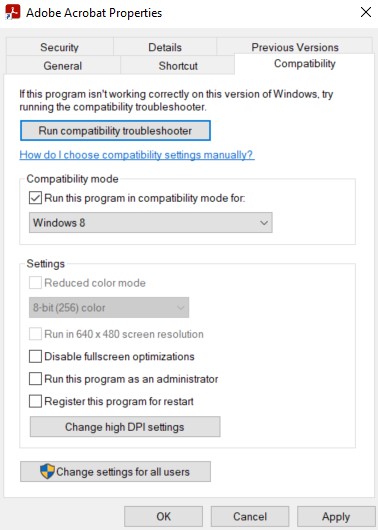
Some users have found that running Adobe Acrobat Reader in Windows 8 compatibility mode resolves Preview Handler issues on Windows 10 and Windows 11 systems where the Preview Handler component was originally written for an older Windows version.
Step 1. Do right-click Adobe Reader icon and open "Properties".
Step 2. Click the "Compatibility" tab. Check "Run this program in compatibility mode for:" and select "Windows 8" from the dropdown.
Step 3. Click "Apply". Restart Adobe Reader and test Outlook preview again.
If this fix doesn't work on Windows 11, skip to Way 7 or Way 9.
Way 7. Set the Adobe Reader as Default PDF Handler
Downloading Adobe Reader and not setting it as default preview tool for PDFs can cause different issues including the one with PDF preview handler. So, you can try setting it as default tool to see if your Outlook starts working normally or not.
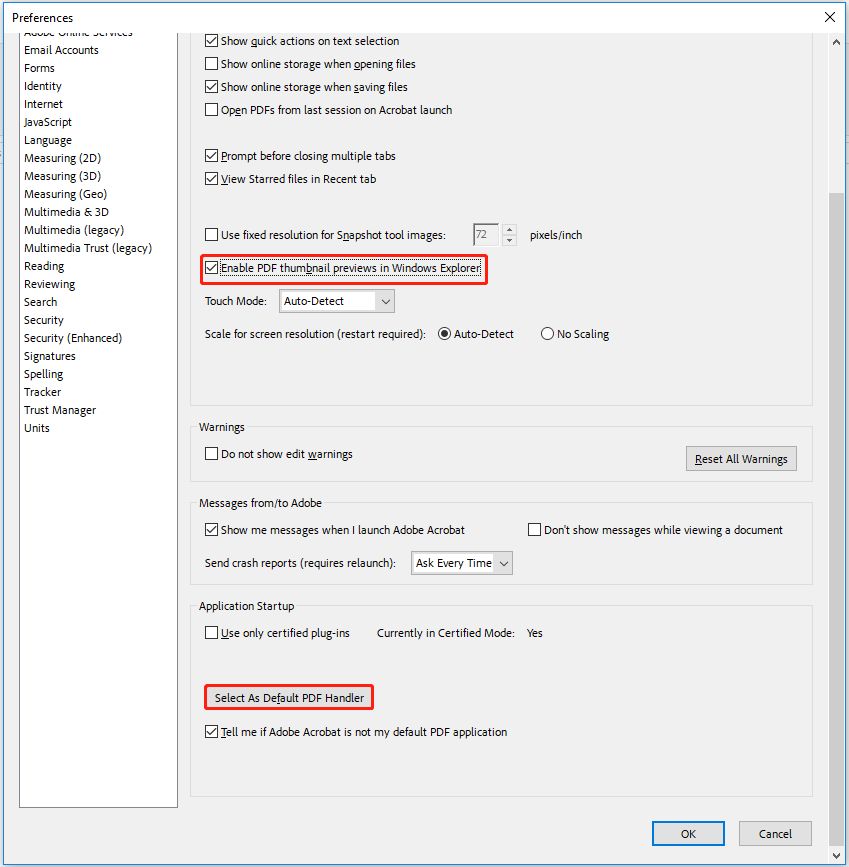
Step 1. Run Acrobat Reader then click "Menu" > "Preferences" > "General".
Step 2. Check "Enable PDF thumbnail previews in Windows Explorer".
Step 3. Click "Select As Default PDF Handler". Confirm any UAC (User Account Control) dialog that appears — this requires administrator privileges.
Step 4. Also check "Tell me if Adobe Acrobat is not my default PDF application" so you'll be notified if another update resets this. Click "OK" and restart your computer.Now, you can preview the PDF file again with Outlook.
Alternative via Windows Settings (Windows 10/11): Go to Settings → Apps → Default Apps → search for PDF in the "Set a default for a file type" section → select Adobe Acrobat Reader as the handler for .pdf files. This Windows-level setting takes priority over the in-app setting.
Way 8. Deleting Temporary Files
Temporary files are saved in Windows OS for better performance. Temp or cache files may cause issues with PDF handler. Delete temp files to resolve PDF preview handler Outlook issue.
Step 1. Close Outlook completely — right-click the Outlook icon in the system tray and select "Exit" (not just closing the window).
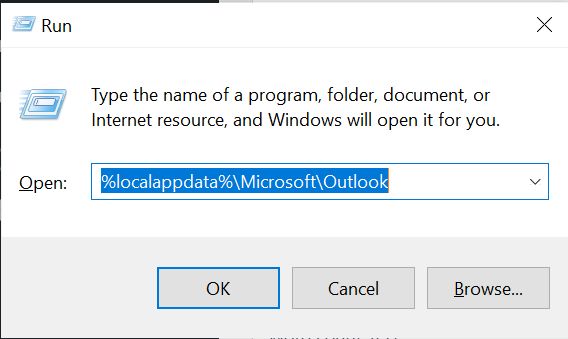
Step 2. Press "Win + R" to open the Run dialog. Type the following path and press "Enter": %localappdata%\Microsoft\Outlook
Step 3. In the folder that opens, delete all files and subfolders with the following extensions:
- Tmp - temporary files
- Dat - data cache files
- Obi - Outlook binary index files
- Olk - Outlook cache files
Step 4. Restart Outlook and test PDF preview again.
Important:
Way 9. Solve the Registry Issues
Sticking to an older version of Adobe Reader might have caused the issue for you. If you do not want to update Adobe Reader, you can fix registry issues with these steps to solve the PDF Preview Handler issue:
⚠️ Warning:
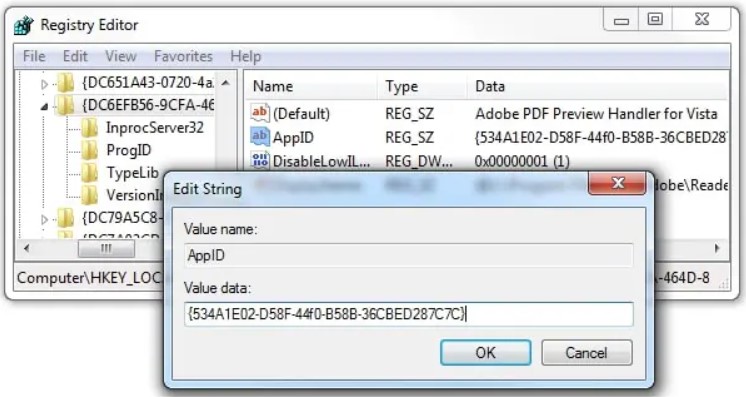
Step 1. Press "Win + R", type "regedit", and press "Enter". Accept the UAC prompt to open Registry Editor with administrator privileges.
Step 2. Navigate to the following path (you can copy and paste this into the Registry Editor's address bar):
HKEY_LOCAL_MACHINE\SOFTWARE\Wow6432Node\Classes\CLSID{DC6EFB56-9CFA-464D-8880-44885D7DC193}.
Step 3. In the right pane, double-click AppID. Replace the current value in the Value data field with:
{534A1E02-D58F-44f0-B58B-36CBED287C7C} then click "OK".
Step 4. Close Registry Editor and restart your computer. Test Outlook PDF preview after restarting.
Note:
Way 10. Repair Corrupt File
If none of Ways 1–9 resolved the issue, the problem may be with the specific PDF file rather than your system configuration. Test this by:
Trying to open the PDF in UPDF or another PDF reader directly. If it opens correctly there, the file itself is intact and the issue is Outlook-specific — revisit Ways 1 and 2.
Trying to preview a different PDF in Outlook. If other PDFs preview correctly, only this specific file is problematic.
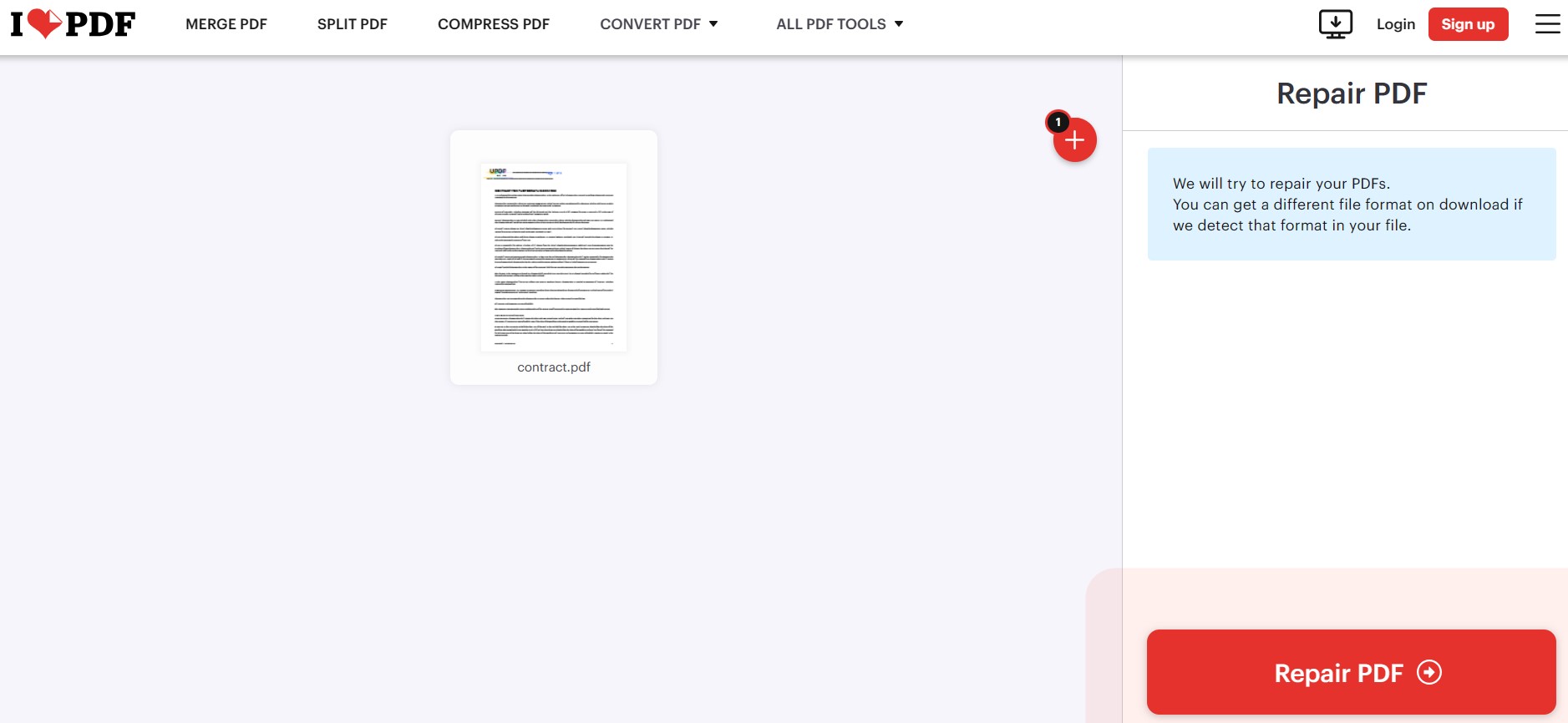
If the file appears corrupted (opens with errors or doesn't open at all in any reader), use an online repair tool such as iLovePDF's PDF Repair tool.
Also read: Repair A Corrupted PDF File: Causes, Solutions & Quick Fixes
Steps: Open iLovePDF PDF repair tool and upload your PDF using "Select PDF File" button. Click "Repair PDF" and the tool will automatically repair and download your file. Now, you can try to open the PDF file to see if the problem is fixed.
Part 2: If Nothing Works — Use UPDF as Your Permanent PDF Viewer
There's a simpler framing for this entire problem: Outlook's PDF Preview Handler is a dependency on Adobe Reader's renderer, and that dependency breaks regularly after updates. Instead of maintaining that dependency, you can open PDFs directly in UPDF — which is faster to launch, more reliable, and gives you far more capability than Outlook's inline preview ever could.
Windows • macOS • iOS • Android 100% secure
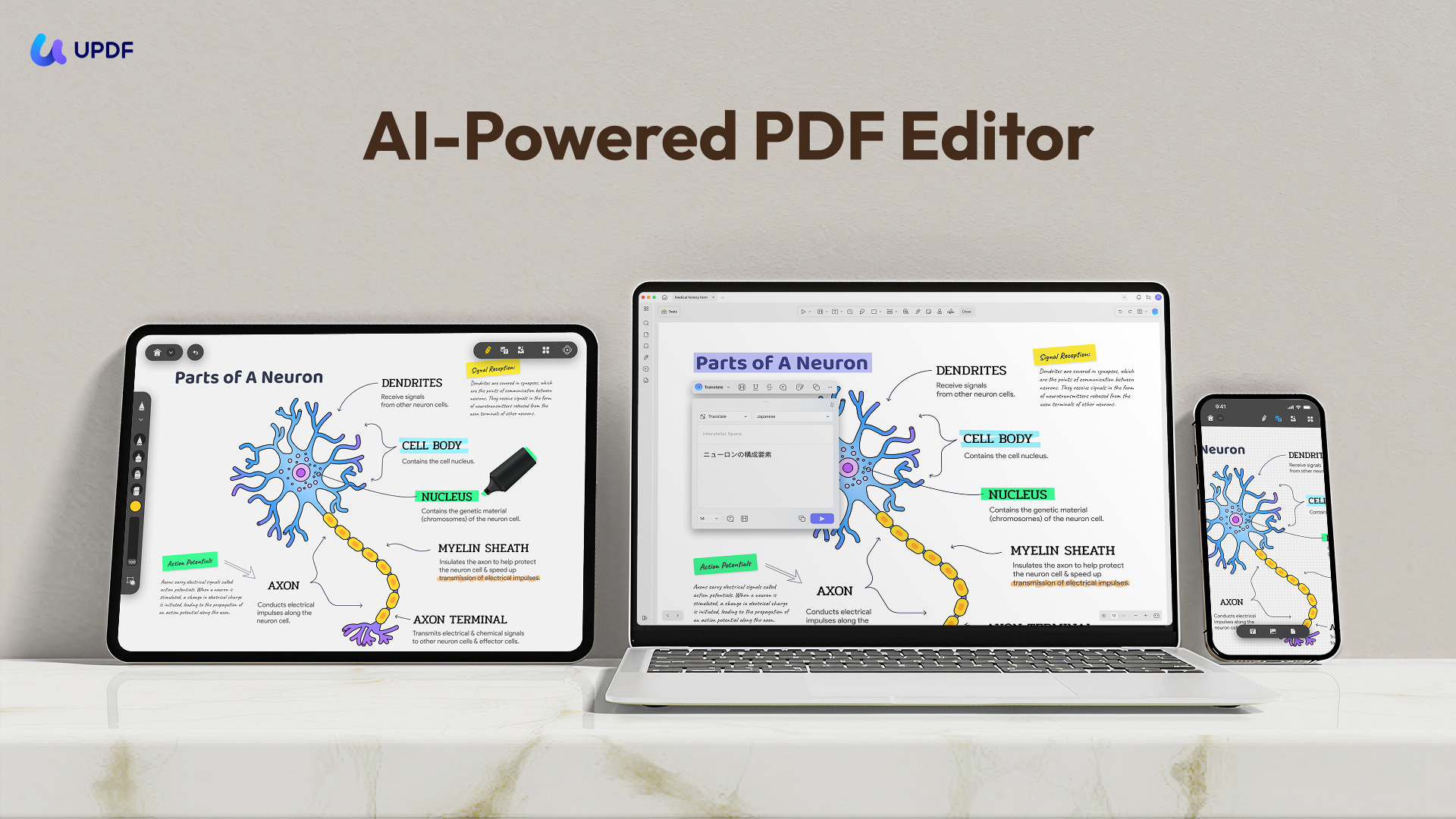
Why UPDF is better than Outlook's built-in PDF preview:
- Outlook's preview is read-only and cannot display all PDF features (forms, digital signatures, embedded media, complex formatting)
- UPDF opens PDFs in their full fidelity with no rendering limitations
- UPDF is available on Windows, Mac, iOS, and Android under a single license — your PDFs are accessible on every device
- UPDF requires no Adobe Reader as a dependency, so there's no "Preview Handler" error to troubleshoot
Core PDF capabilities:
- Read and view any PDF with full fidelity — all formatting, embedded media, forms, and digital signatures display correctly
- Annotate — highlight, underline, sticky notes, stamps, shapes, and freehand drawing
- Edit — modify text, replace images, adjust links and formatting directly within PDF files
- OCR — convert scanned PDFs to searchable, editable text in 38 languages with up to 99% accuracy
- Convert — export PDFs to Word, Excel, PowerPoint, images, and more; convert other formats to PDF
- Fill and Sign — complete PDF forms and add digital or handwritten signatures
- Protect — add open passwords, permission passwords, and redaction
- UPDF Cloud — sync your PDFs across all devices automatically; access any file from any device
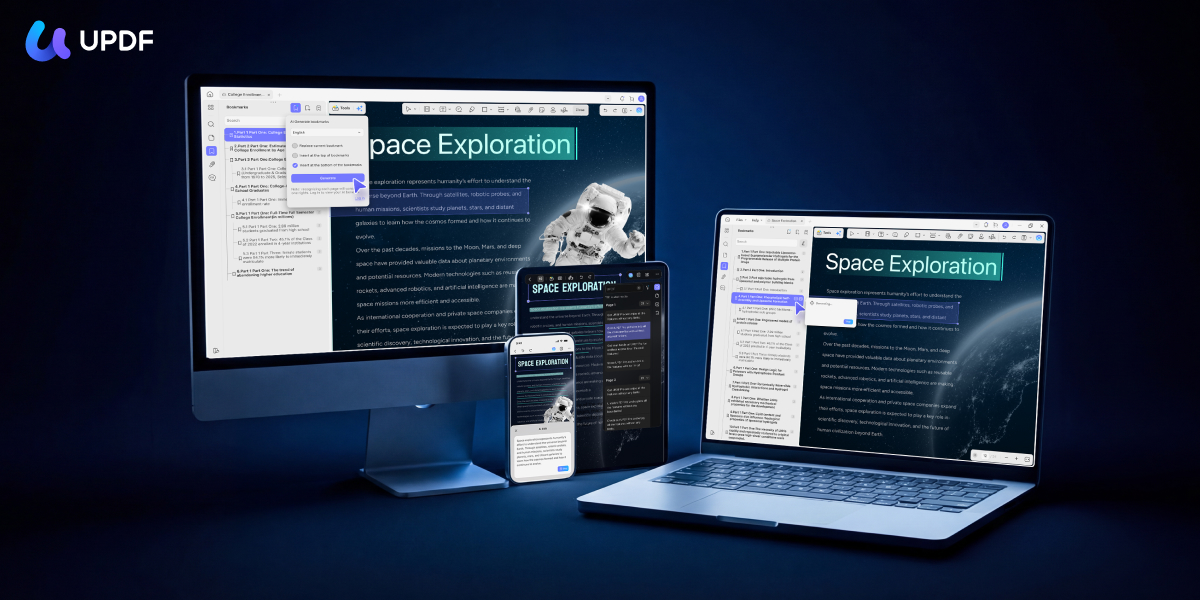
AI features — what Outlook's preview will never offer:
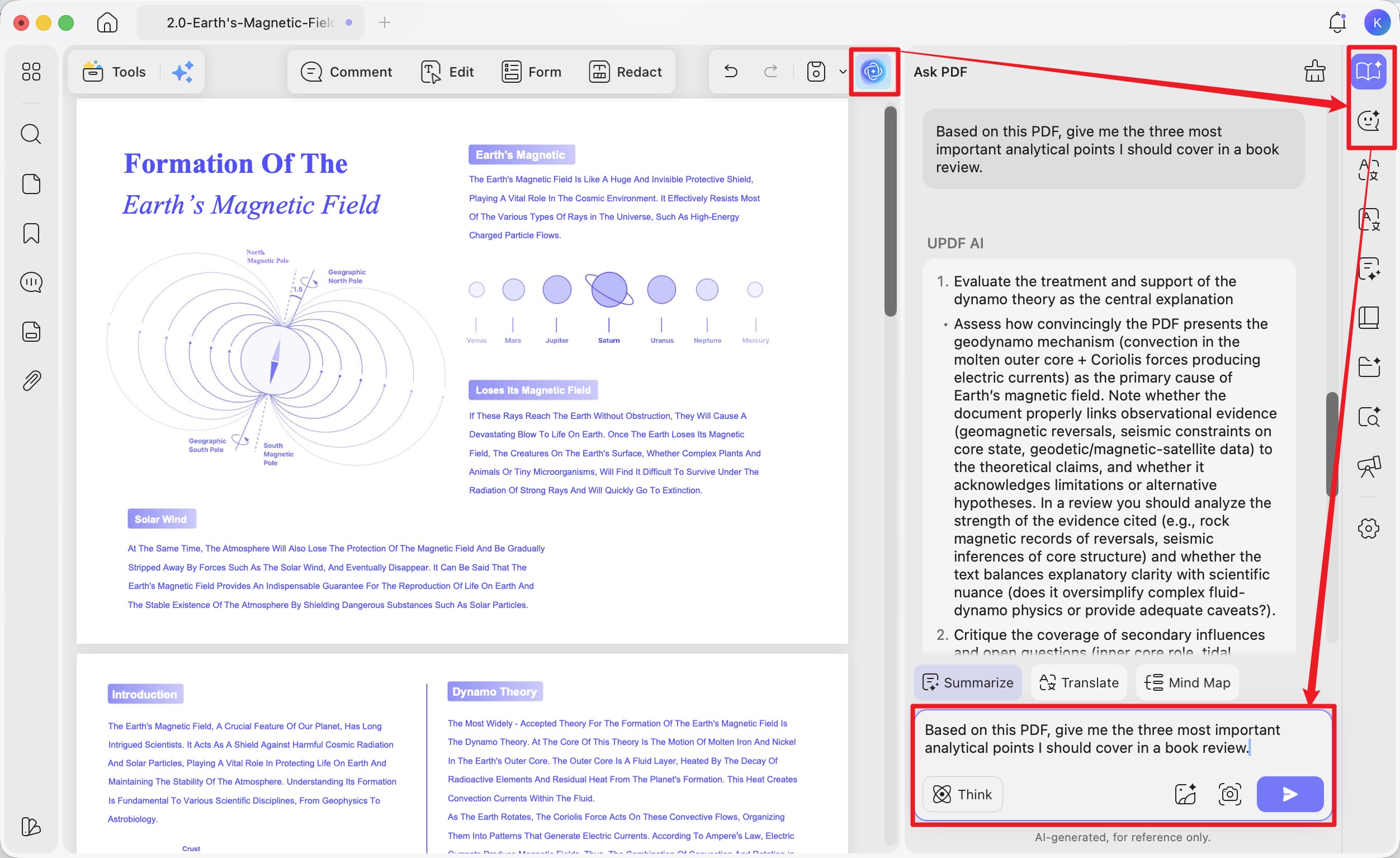
- Chat with PDF: Open any PDF attachment in UPDF and ask it direct questions — "What are the key terms in this contract?" or "Summarize the main points of this report." For business users who receive PDF documents by email (the primary use case for Outlook PDF preview), being able to query a document's contents directly is a major productivity upgrade over simply viewing it.
- AI Editing Suite: If a PDF attachment contains text that needs updating before you reply or forward it — correcting a detail, updating a clause, or adjusting phrasing — the AI Editing Suite lets you rewrite any text block directly inside the PDF without exporting to Word.
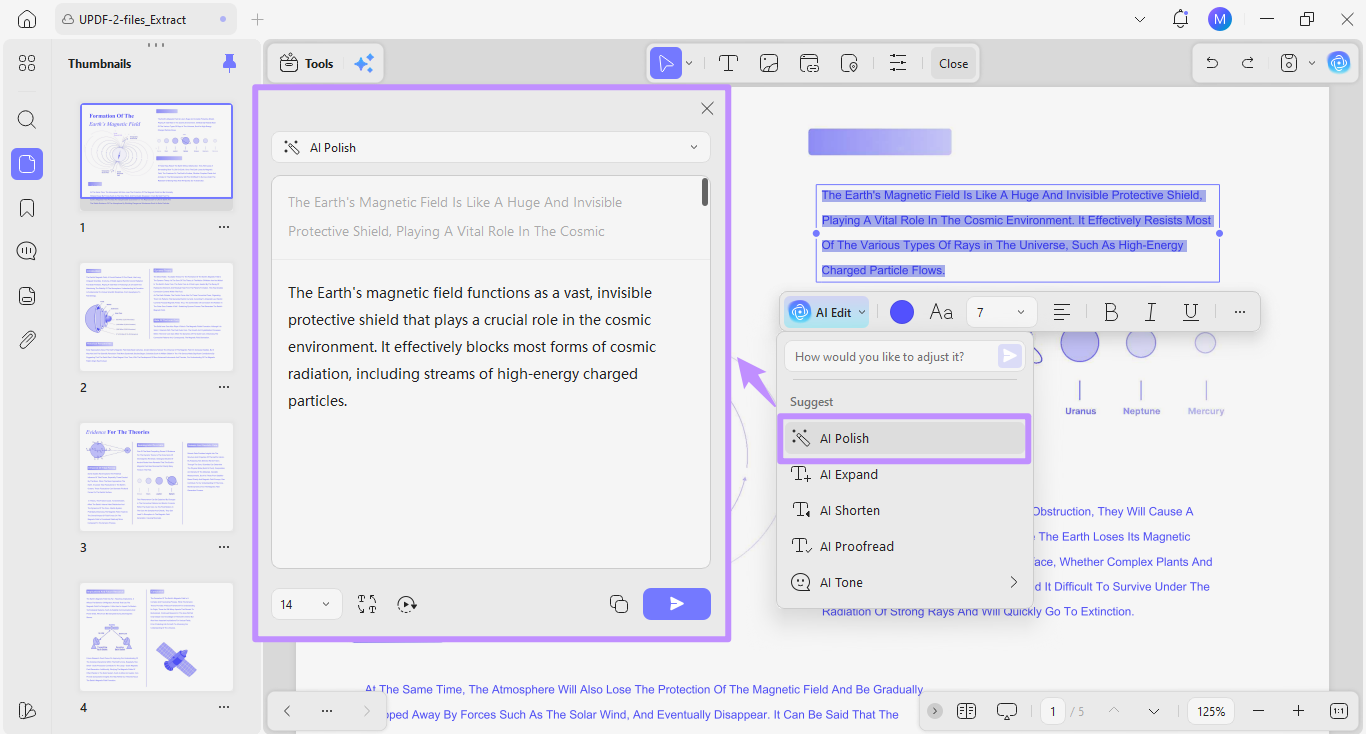
- AI Semantic Search: If you frequently receive long PDF reports or contracts as email attachments, AI Semantic Search lets you find specific content by meaning — searching for a concept and its synonyms simultaneously — so you can locate relevant sections in a 100-page document in seconds rather than scrolling manually.
With all these amazing benefits, UPDF makes the best PDF reader tool that you can use. Read the UPDF Laptopmedia review and watch the video below to learn more about its functionalities.
How to open an Outlook PDF attachment in UPDF:
Step 1. When you receive a PDF attachment in Outlook, right-click on the attachment → select Save As to save it to a folder on your computer.
Step 2. Open UPDF and click Open File, or drag the saved PDF directly onto the UPDF window.
Windows • macOS • iOS • Android 100% secure
Step 3. The PDF opens immediately with full fidelity — no Preview Handler dependency, no error messages.
Step 4 (optional): Ask the PDF a question. Click the UPDF AI button in the top-right corner. Select Ask PDF/Chat and type your question about the document's content.
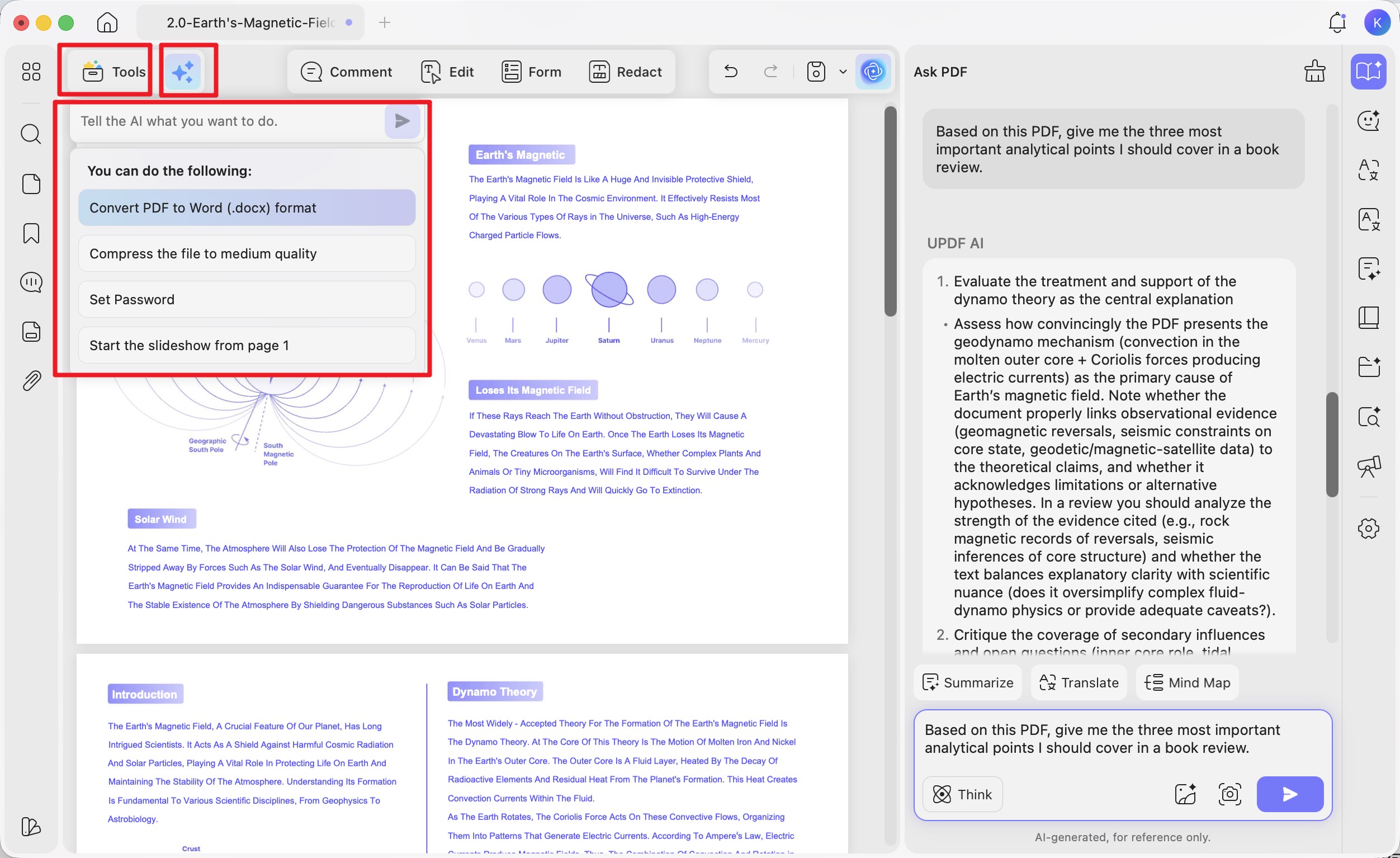
Step 5. If you need to perform additional operations on the PDF before replying or forwarding — compress it, add a watermark, or make text edits — use UPDF Copilot (type your instruction to find the buttons) or look for the tool you need in the top-left corner under "Tools".
If you want to unlock more features, you can upgrade it to UPDF Pro to save time, boost efficiency, and enjoy a different level of PDF editing experience! You can also enjoy a great discount if you purchase it now.
Final Words
The PDF Preview Handler error in Outlook has a consistent set of root causes. In most cases, Ways 1 (bit-version match), 2 (enable preview in settings), or 7 (set as default handler) resolve it within a few minutes. If your environment involves more complex registry or compatibility issues, Ways 9 and 6 cover those scenarios.
For users who want to stop troubleshooting Outlook dependencies entirely, UPDF opens any PDF attachment directly with no Preview Handler required — and adds capabilities that Outlook's inline preview never could: Chat with PDF for instant content queries, AI Editing Suite for in-place text updates, and AI Semantic Search for navigating large documents by meaning.
Download UPDF for free and open your next PDF email attachment with it — no subscription required to get started.
Windows • macOS • iOS • Android 100% secure





 Enya Moore
 Enrica Taylor

 Enola Miller
- lancorpnetwork