 UPDF
UPDF
 UPDF for Windows
 UPDF for Mac
 UPDF for iPhone/iPad
 UPDF for Android
 UPDF AI Online
 UPDF Sign
 Edit PDF
 Annotate PDF
 Create PDF
 PDF Form
 Edit links
 Convert PDF
 OCR
OCR PDF to Word
 PDF to Image
 PDF to Excel
 Organize PDF
 Merge PDF
 Split PDF
 Crop PDF
 Rotate PDF
 Protect PDF
 Sign PDF
 Redact PDF
 Sanitize PDF
 Remove Security
 Read PDF
 UPDF Cloud
 Compress PDF
 Print PDF
 Batch Process
 About UPDF AI
 UPDF AI Solutions
 AI User Guide
 FAQ about UPDF AI
 Summarize PDF
 Translate PDF
 Chat with PDF
 Chat with AI
 Chat with image
 PDF to Mind Map
 Explain PDF
 PDF AI Tools
 Image AI Tools
 AI Chat Tools
 AI Writing Tools
 AI Study Tools
 AI Working Tools
 Other AI Tools
 PDF to Word
 PDF to Excel
 PDF to PowerPoint
 Enterprise Solution
 Enterprise Sign
 Enterprise AI
 Enterprise Plan
 Enterprise User Guide
 Enterprise Webinar
 Banking
 Healthcare
 Insurance
 Legal
Legal Manufacturing
 Government
 Education Solution
 Customer Stories
 User Guide
 UPDF Tricks
 FAQs
FAQs UPDF Reviews
 Download Center
 Blog
Blog Newsroom
 Tech Spec
 Updates
 UPDF vs. Adobe Acrobat
 UPDF vs. Foxit
 UPDF vs. PDF Expert

Understanding how to check PDF edit history is crucial for maintaining document integrity and collaboration. This guide will walk you through various methods to track changes in your PDFs. Read on to discover how tools like UPDF can simplify this process and enhance your document management.
Part 1. Can You See the Editing History of a PDF?
Yes, you can see the editing history of a PDF, but it depends on the tools and software you use. Some PDF editors and viewers offer built-in features that allow users to review basic change information. For example, UPDF provides access to Document Properties, where you can view metadata such as the file's creation date, last modification date, and author details. While this does not show every individual edit, it helps you understand when the document was modified.
If you need deeper insight into how a PDF has changed over time, more advanced PDF management tools are required. UPDF goes beyond basic metadata by offering features such as version comparison and detailed edit tracking, allowing you to identify what content was changed and when those changes occurred. With these capabilities, users can better audit document revisions, collaborate efficiently, and maintain accurate records of document updates.
Part 2. Check PDF Edit History - Tracking Text, Images, and Other Elements
UPDF is an advanced tool that makes it easy to compare PDFs and track changes. The latest feature, PDF Comparison, allows you to compare the current version of a PDF with a previous one, providing valuable insights into any edits made to the document. Here's how you can utilize this feature to its maximum potential.
Note: To use this feature, you have to ensure that you have both the editted and the original documents.
Using UPDF's PDF Comparison Feature:
Step 1. First, ensure you have UPDF for Windows or Mac installed on your computer.
Windows • macOS • iOS • Android 100% secure
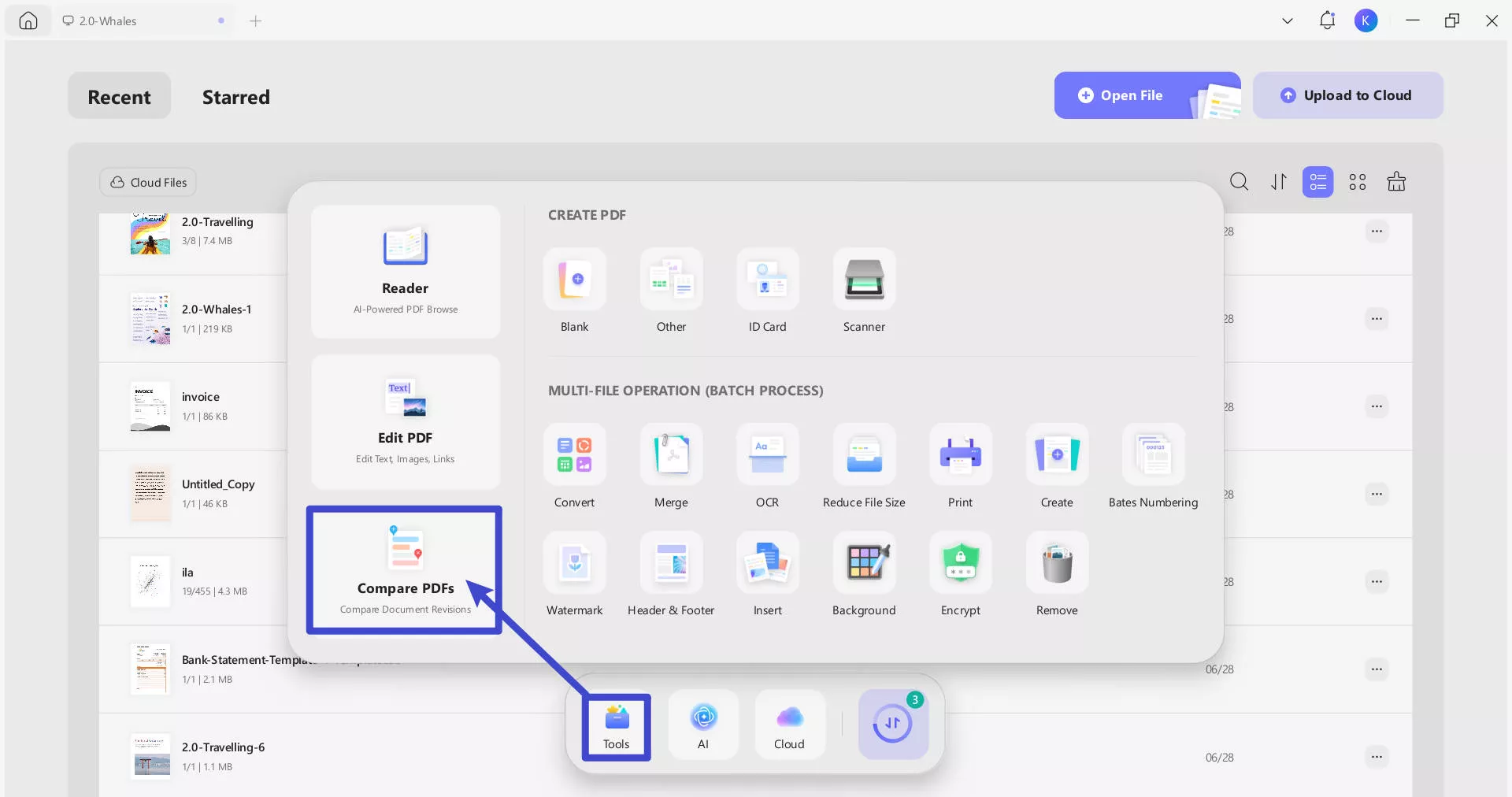
Step 2. After launching the UPDF, press the "Tools" > "Compare PDFs" option from the home page and reveal the document uploading window.
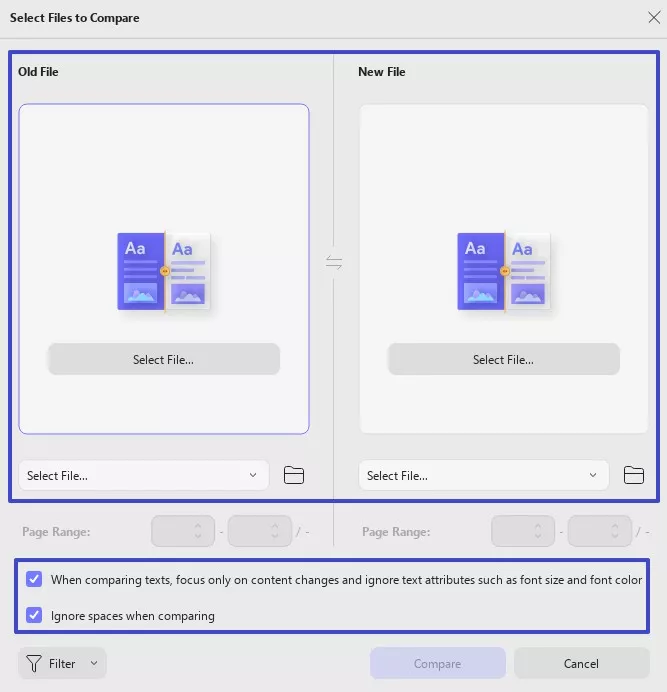
Step 3. A new window will open. From there, place the current and a previous version of a PDF. You can add the file by clicking on the Select File button.
You can select PDFs from recent (recently opened files in UPDF) through the drop-down list, or from the local storage of your device.
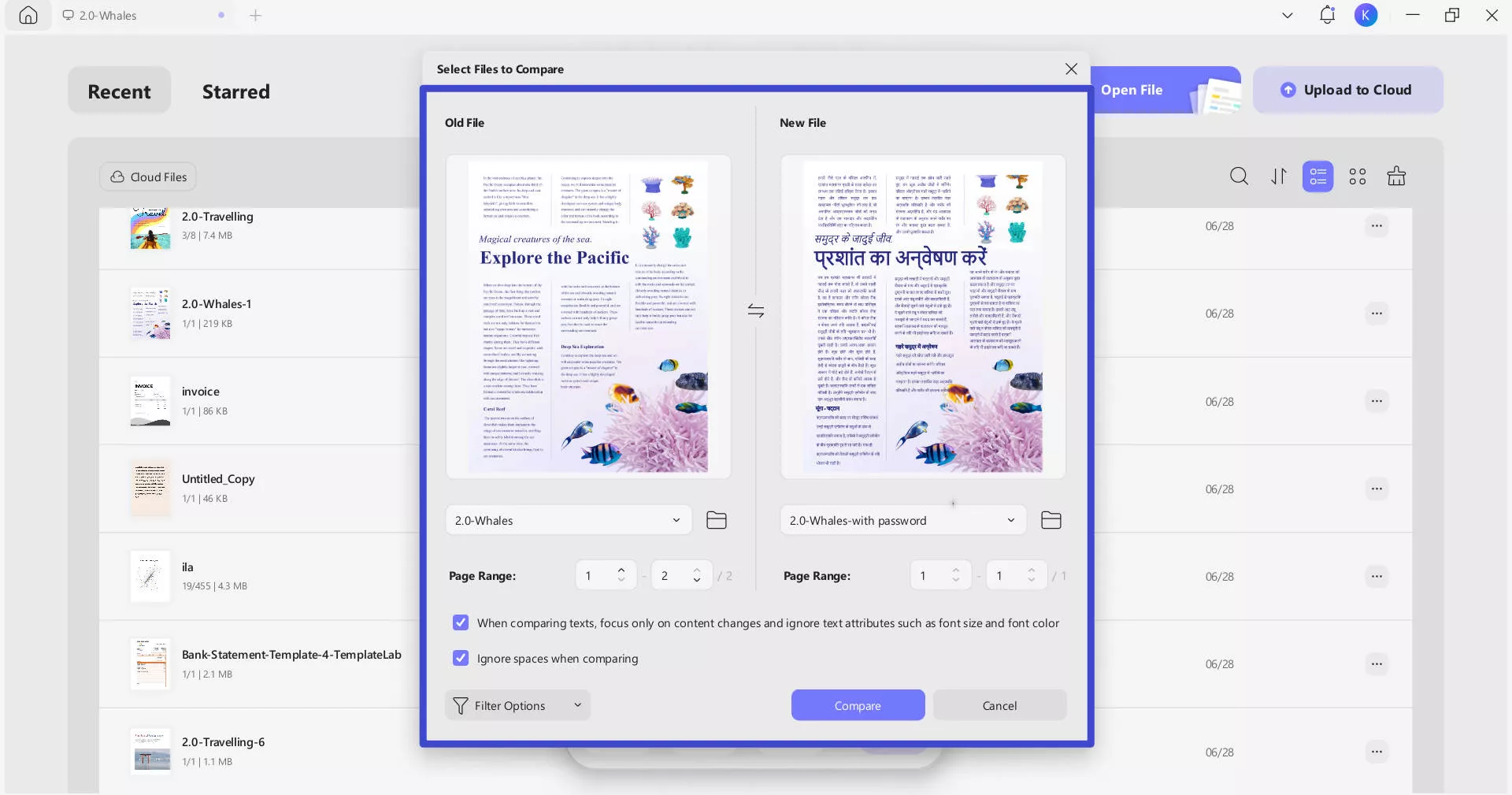
You can also check the boxes for: When comparing text, focus only on content changes and ignore text attributes such as font size and font color, and ignore spaces when comparing. Below these options, you'll find a filter that allows you to include Text, Image, Path, Shading, and Page in the comparison.
Step 4. Once your files are successfully uploaded, you can select the page range you like and then click on the Compare button to begin the process.
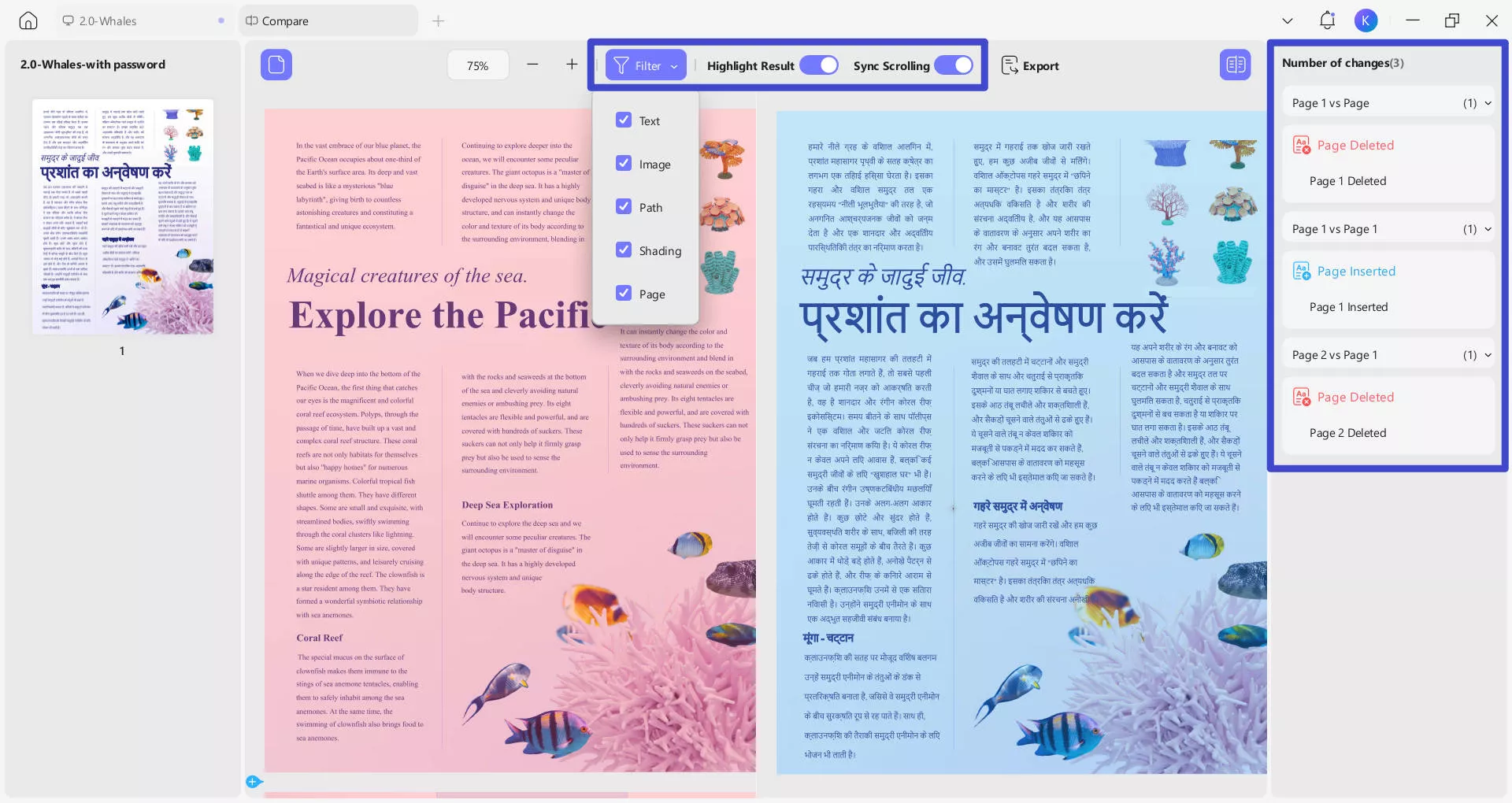
The right panel conveniently displays all differences, from text modifications to image and path changes. This way, you can easily identify what changes were made in the new file!
On top of it, with the Filter option, users can effortlessly focus on single or multiple elements.
Sync Scrolling is an all-new feature that allows you to scroll both PDFs simultaneously. You can easily compare the PDFs line by line. Simply toggle the Sync Scrolling button on the top menu bar and enjoy!
Alternatively, you can watch the video below to learn the steps.
Explore UPDF's PDF Comparison feature today to effortlessly track changes in your PDF documents. This tool makes it easy to identify differences between versions, enabling you to review and manage changes with precision. Don't miss out on this innovative feature—try it now!
Part 3. Check PDF Edit History - Viewing the Editing Date
Understanding the editing history of a PDF can be crucial, especially in collaborative environments. One important aspect is knowing when a document was last modified. Most PDF readers provide this information through the document properties feature. Here's how you can easily check the modification date of a PDF.
Step-by-Step Guide to Checking the Editing Date
Step 1: Open the PDF File
Download and open UPDF. Open the PDF file or document you want to inspect in any PDF reader that supports this feature.
Windows • macOS • iOS • Android 100% secure
Step 2: Access File Properties
Click "Document Properties" in the bottom menu of the page.
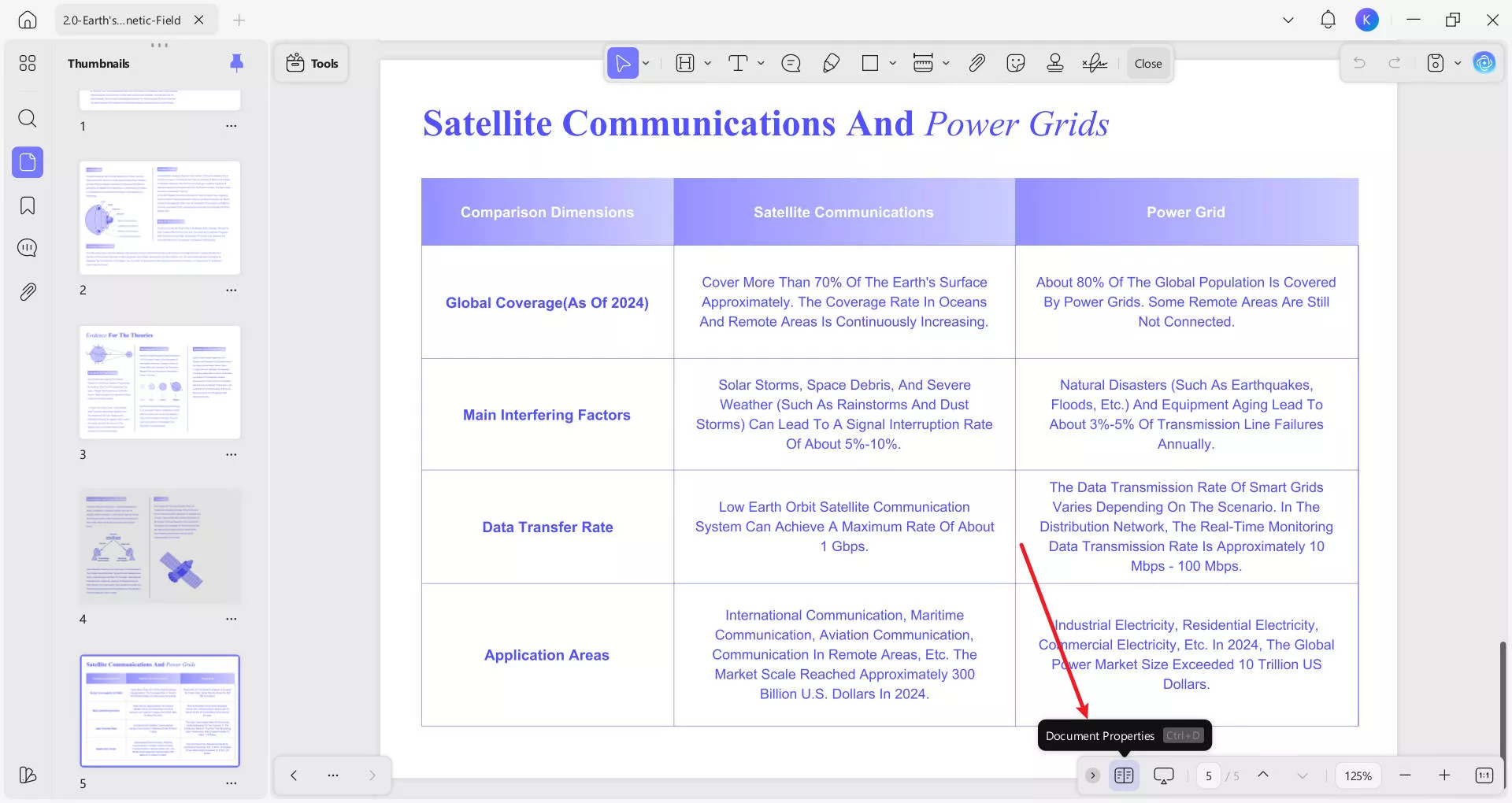
Step 3: View Modification Date
In the Properties window, go to the "Info" button. Here, you will see detailed information about the document, including the "Modified" date. This shows the last time the document was edited.
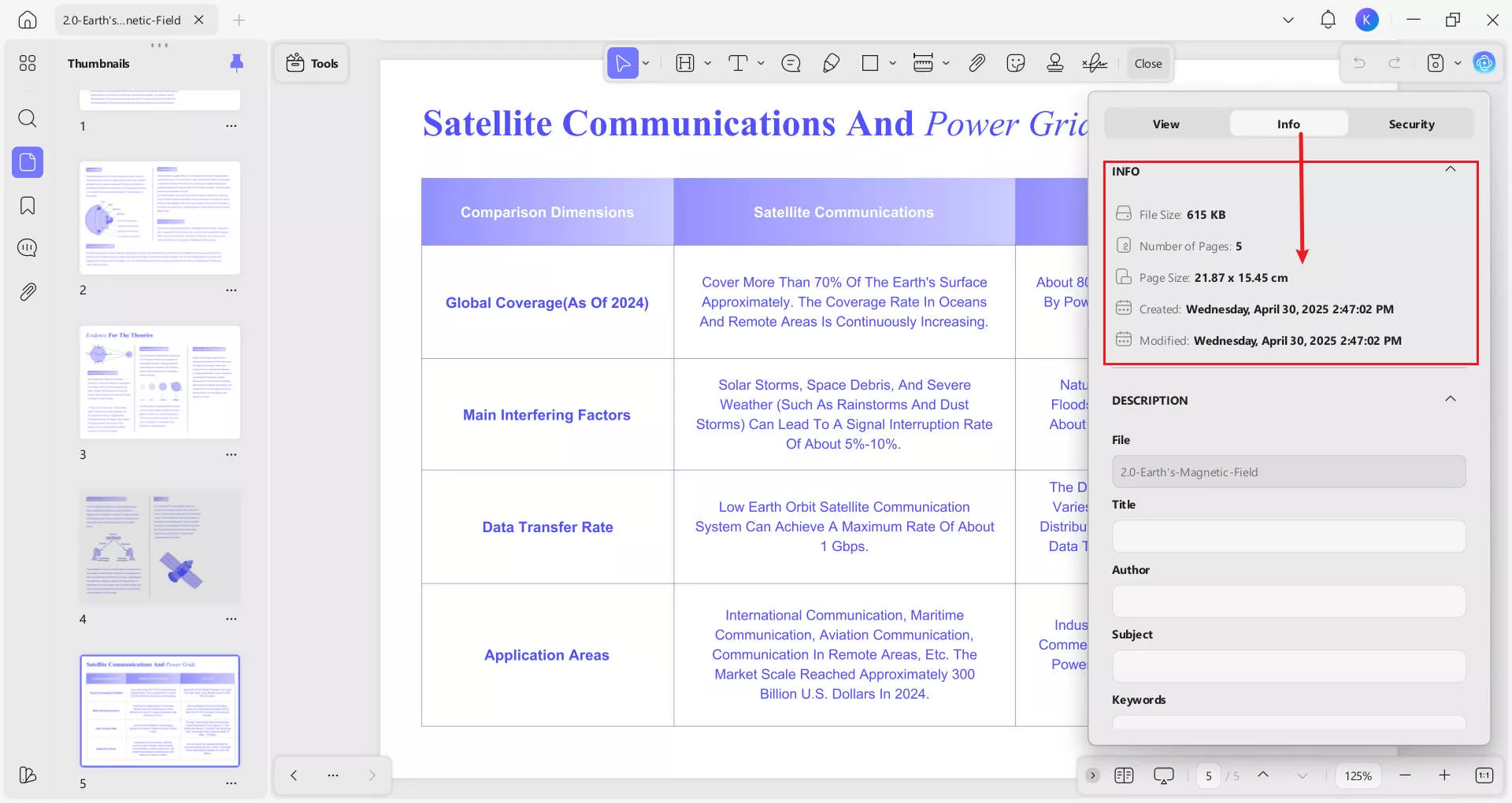
From the "Description" section, you can also change the metadate of your PDF file.
By following these simple steps, users can quickly identify the last modification date of any PDF document. This capability is useful for tracking changes and making sure you are working with the most up-to-date version of a file. Moreover, UPDF also supports changing the creation date of a PDF.
Part 4. What Can UPDF Do Beyond Checking PDF Edit History?
UPDF is a versatile PDF management tool that offers a wide range of features beyond checking edit history. Leveraging AI, UPDF enhances productivity with advanced capabilities.
- AI: Use AI-powered features to summarize, translate, and explain PDF documents. Users can also use the AI assistant to chat with images and convert PDFs to mind maps.
- Annotate: Easily add comments, highlights, and notes to your PDFs for better collaboration and review.
- Conversion: Convert PDFs to various formats, including Word and more, ensuring compatibility with other applications.
- OCR (Optical Character Recognition): Transform scanned documents and images into editable and searchable text, making data extraction effortless.
- Batch Processing: Save time by performing tasks like conversion, compression, and renaming on multiple files simultaneously.
- Edit: Modify text, images, and other elements directly within your PDF, providing a seamless editing experience.
- Compress: Reduce the file size of your PDFs without compromising quality, making the files easier to share and store.
- Protect: Secure your documents with password protection, encryption, and permissions to control access and maintain confidentiality.
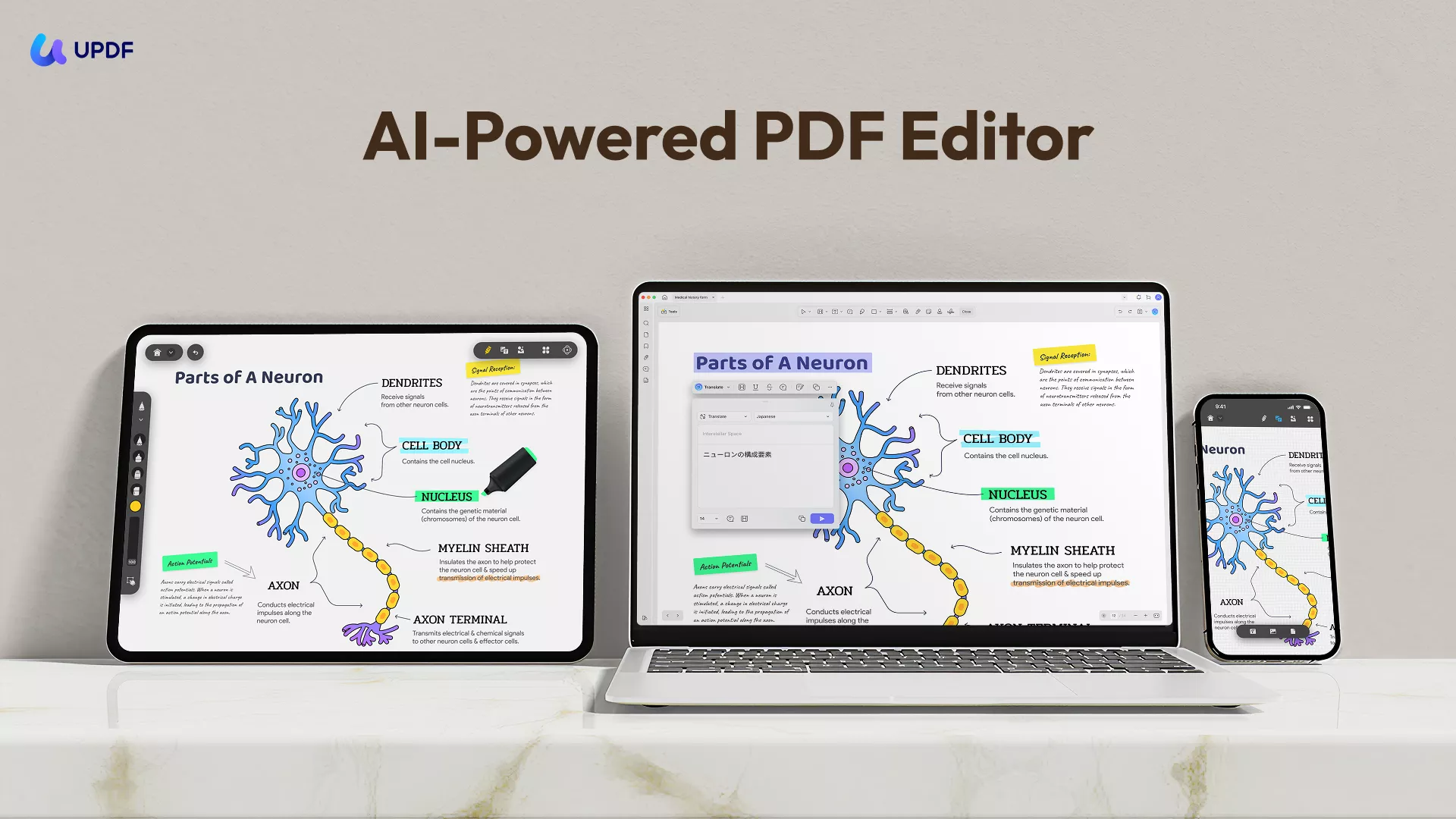
Explore UPDF's robust features to streamline your PDF management tasks efficiently and effectively.
Windows • macOS • iOS • Android 100% secure
Conclusion
In conclusion, knowing how to check PDF edit history is essential for efficient document management. UPDF offers comprehensive features to track edits, ensuring you stay informed about document changes. Try UPDF today to streamline your workflow and enhance productivity.




 Enola Miller


 Engelbert White
 Enrica Taylor