UPDF
UPDF
 UPDF for Windows
 UPDF for Mac
 UPDF for iPhone/iPad
 UPDF for Android
 UPDF AI Online
 UPDF Sign
 Edit PDF
 Annotate PDF
 Create PDF
 PDF Form
 Edit links
 Convert PDF
 OCR
OCR PDF to Word
 PDF to Image
 PDF to Excel
 Organize PDF
 Merge PDF
 Split PDF
 Crop PDF
 Rotate PDF
 Protect PDF
 Sign PDF
 Redact PDF
 Sanitize PDF
 Remove Security
 Read PDF
 UPDF Cloud
 Compress PDF
 Print PDF
 Batch Process
 About UPDF AI
 UPDF AI Solutions
 AI User Guide
 FAQ about UPDF AI
 Summarize PDF
 Translate PDF
 Chat with PDF
 Chat with AI
 Chat with image
 PDF to Mind Map
 Explain PDF
 PDF AI Tools
 Image AI Tools
 AI Chat Tools
 AI Writing Tools
 AI Study Tools
 AI Working Tools
 Other AI Tools
 AI Bookmark Generation
 AI Bookmark Summary
 AI Watermark Generation
 AI Background Generation
 AI Sticker Generation
 AI Stamp Generation
 AI Editing Suite
 UPDF Copilot
 AI Page Management
 AI Semantic Search
 PDF to Word
 PDF to Excel
 PDF to PowerPoint
 Enterprise Solution
 Enterprise Sign
 Enterprise AI
 Enterprise Plan
 Enterprise User Guide
 Enterprise Webinar
 Banking
 Healthcare
 Insurance
 Legal
Legal Manufacturing
 Government
 Education Solution
 Customer Stories
 User Guide
 UPDF Tricks
 FAQs
FAQs UPDF Reviews
 Download Center
 Blog
Blog Newsroom
 Tech Spec
 Updates
 UPDF vs. Adobe Acrobat
 UPDF vs. Foxit
 UPDF vs. PDF Expert

A few days ago, I received a PDF draft from a client with several important sections completely blacked out for review. As a writer, I needed to know whether I could reference that information or if it was permanently off-limits. This situation had me researching frantically:
Is it actually possible to unredact a document?
After reviewing dozens of resources, I learned that the answer depends entirely on how the redaction was applied. And that inspired this guide on how to unredact a document. Here, I will explain what worked, what failed, and how UPDF has helped me handle redaction correctly. You can click below to give it a try!
Windows • macOS • iOS • Android 100% secure
Quick Answer: How to Unredact a Document
Part 1. Can You Really Unredact a Document?
With my experience of removing redaction from PDFs, I have learned that not all redactions are the same. So, based on how the document is redacted, you can or cannot unredact a document. This depends on the type of redaction:
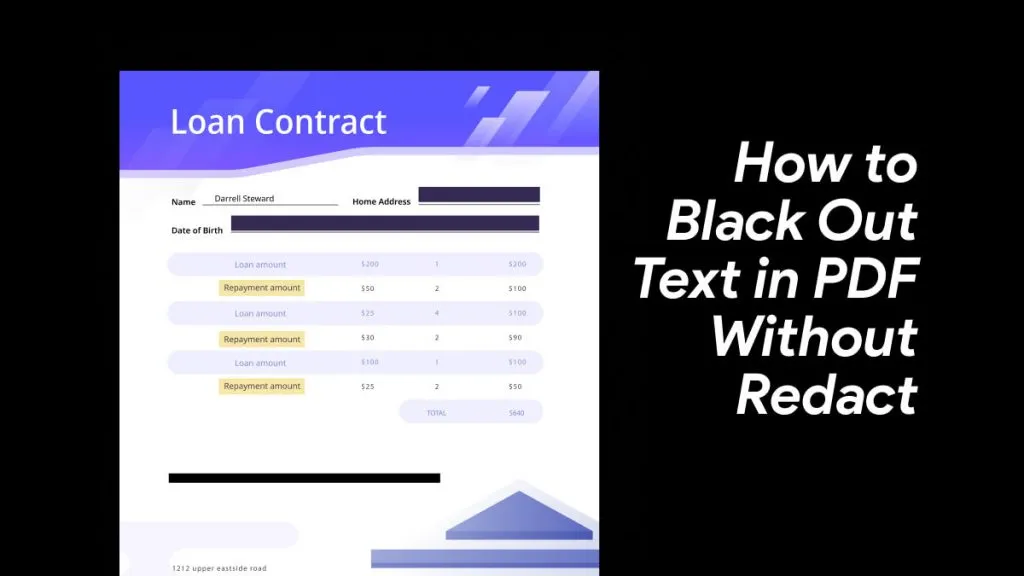
Fake Redaction: This is done by placing rectangles, highlights, or shapes over text without removing the underlying content. So, at a glance, the information looks hidden. But technically, it is still there under some layers. Therefore, you can easily reverse it.
True Redaction: In this type of redaction, the text is permanently deleted from the document’s structure. The black bar where the content should be is only a placeholder. And when applied correctly, no software can reverse this redaction.
But how do I know if a document can be unredacted? It’s easy to tell with a simple test. I select the blacked-out area and copy it. Then, I paste it into another document. If readable text appears, I can tell that the file was never properly redacted.
Part 2. How to Unredact a Document When the Text Was Only Covered?
If the text is only covered, there are several practical methods to unredact it. Below you'll find these methods with steps for desktop, mobile, and online.
Method 1. Using Microsoft Word
If your word document was originally created and redacted using Word, you can use the same tool to unredact. Here are the steps for how to unredact a document:
1. Open the file with Microsoft Word. Click the redacted section. Then, press the "Delete" key to remove it.
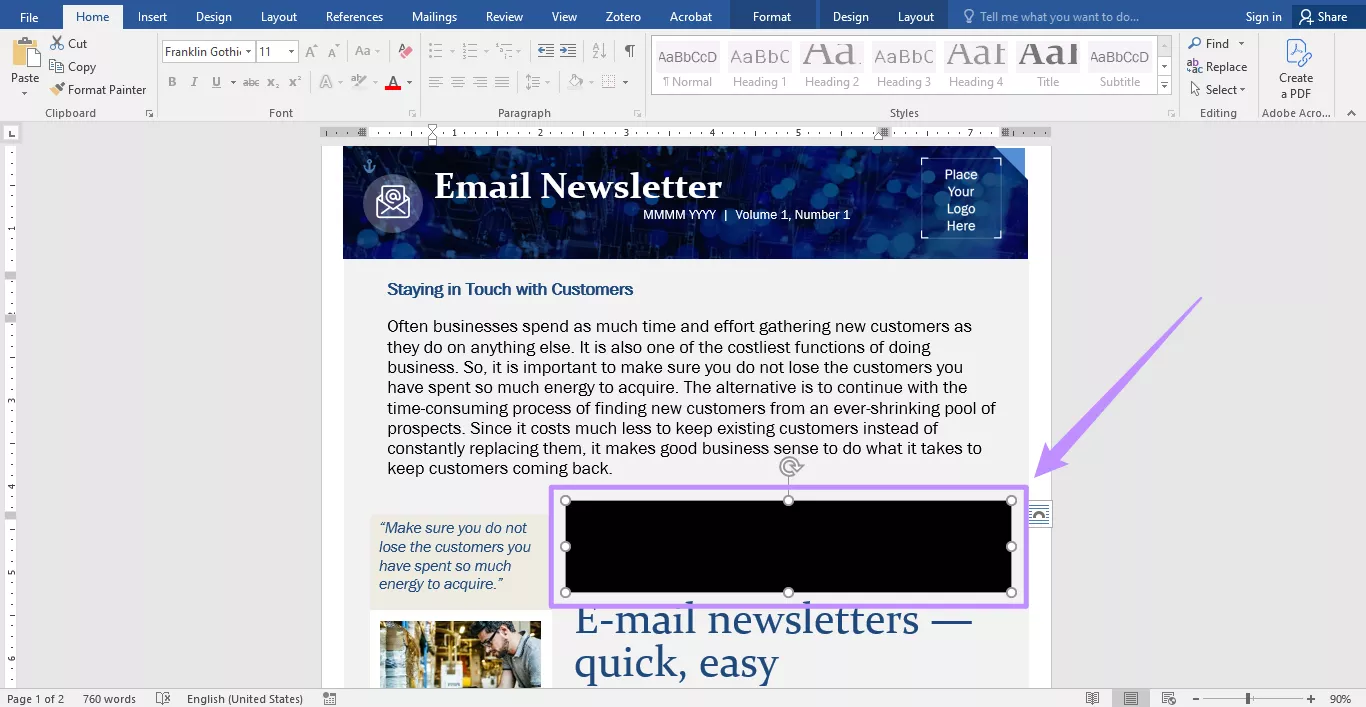
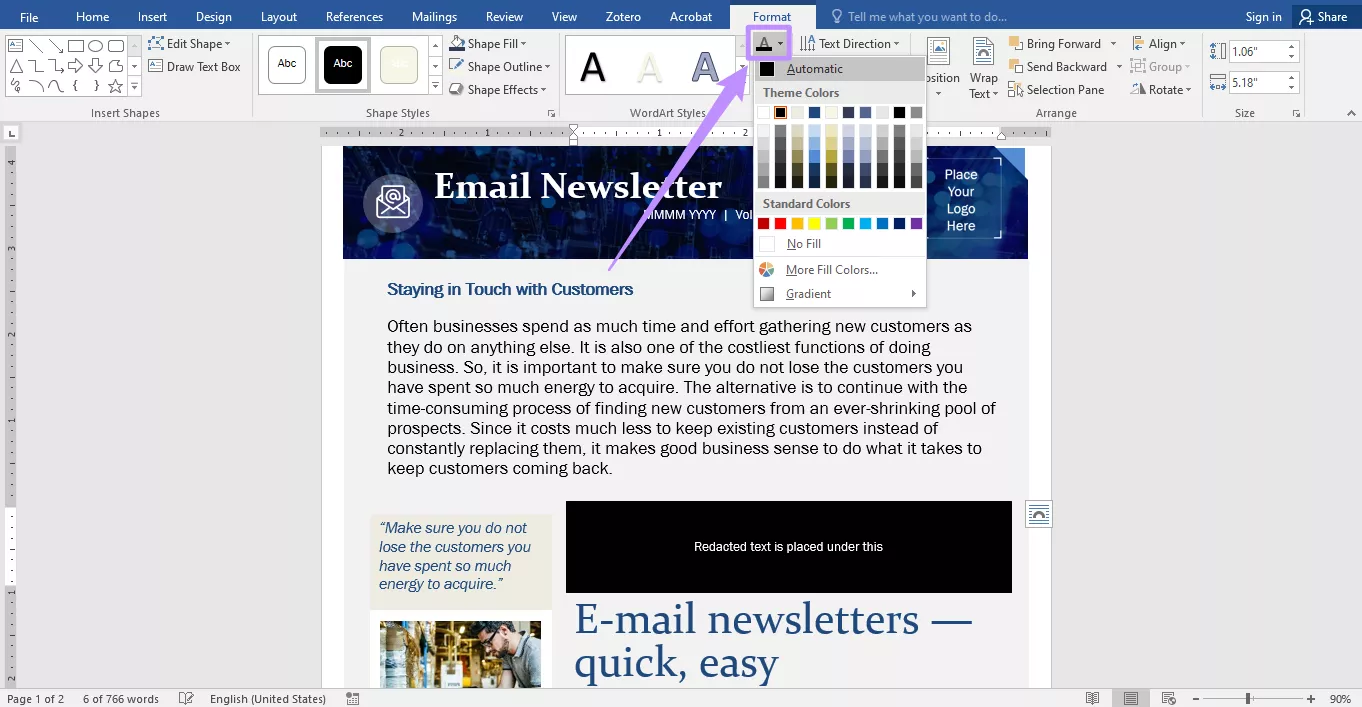
2. If it is a shape filled with black text, press “CTRL+A” to select it. Then, click the "Text Fill" option from the top and change the font color to "Automatic" to make the text visible.
Method 2. Using a PDF Reader like UPDF
If your document is a PDF, you can use a PDF reader app like UPDF. This powerful tool lets you easily add or remove shapes, text highlights, and other objects in PDF documents. Moreover, it is available on Windows, Mac, iOS, and Android. So, make sure to download it on your device. Then, use the following steps to learn how to unredact a PDF using it.
Windows • macOS • iOS • Android 100% secure
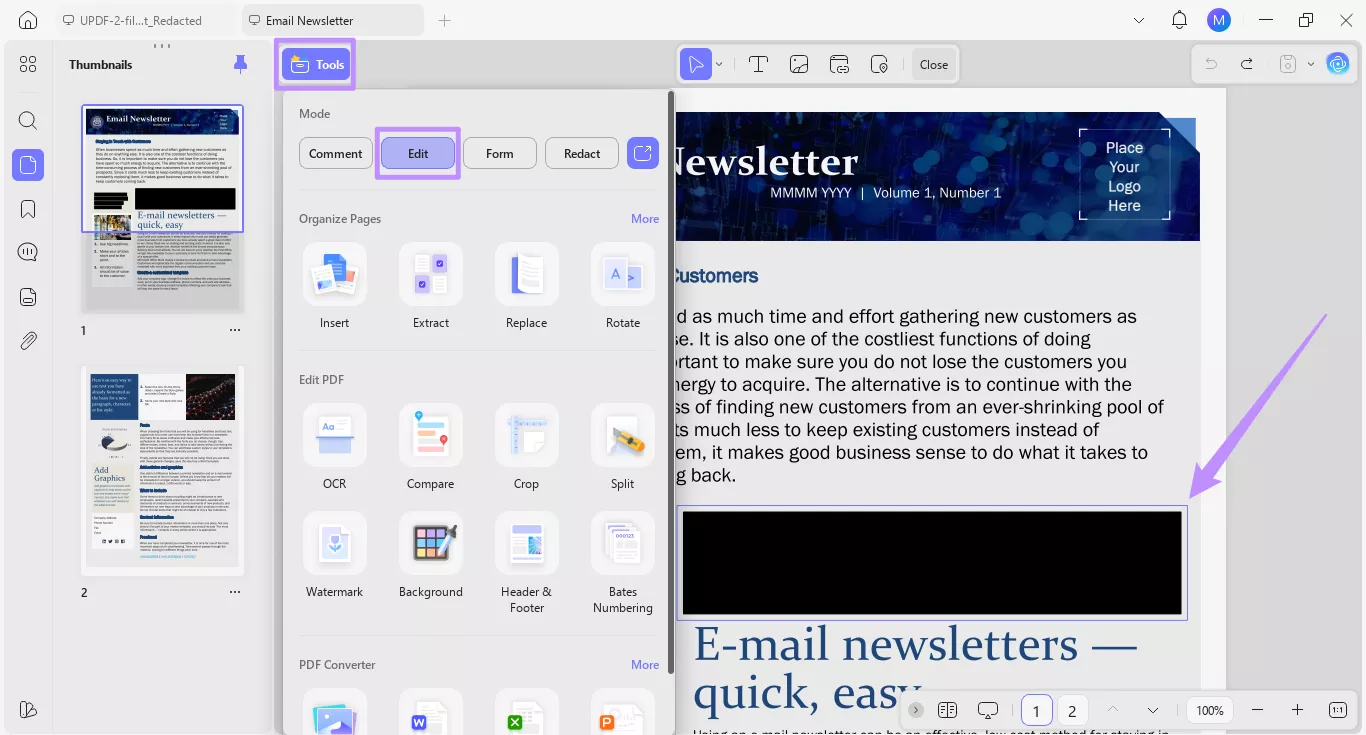
Steps to Unredact on Desktop:
- Open UPDF and click “Open File” to import your PDF.
- Click “Tools” from the top. Then, click “Edit.”
- Click the redacted section. Then, click the “Delete” key to remove any shape or highlighted color.
Steps to Unredact a PDF on Mobile:
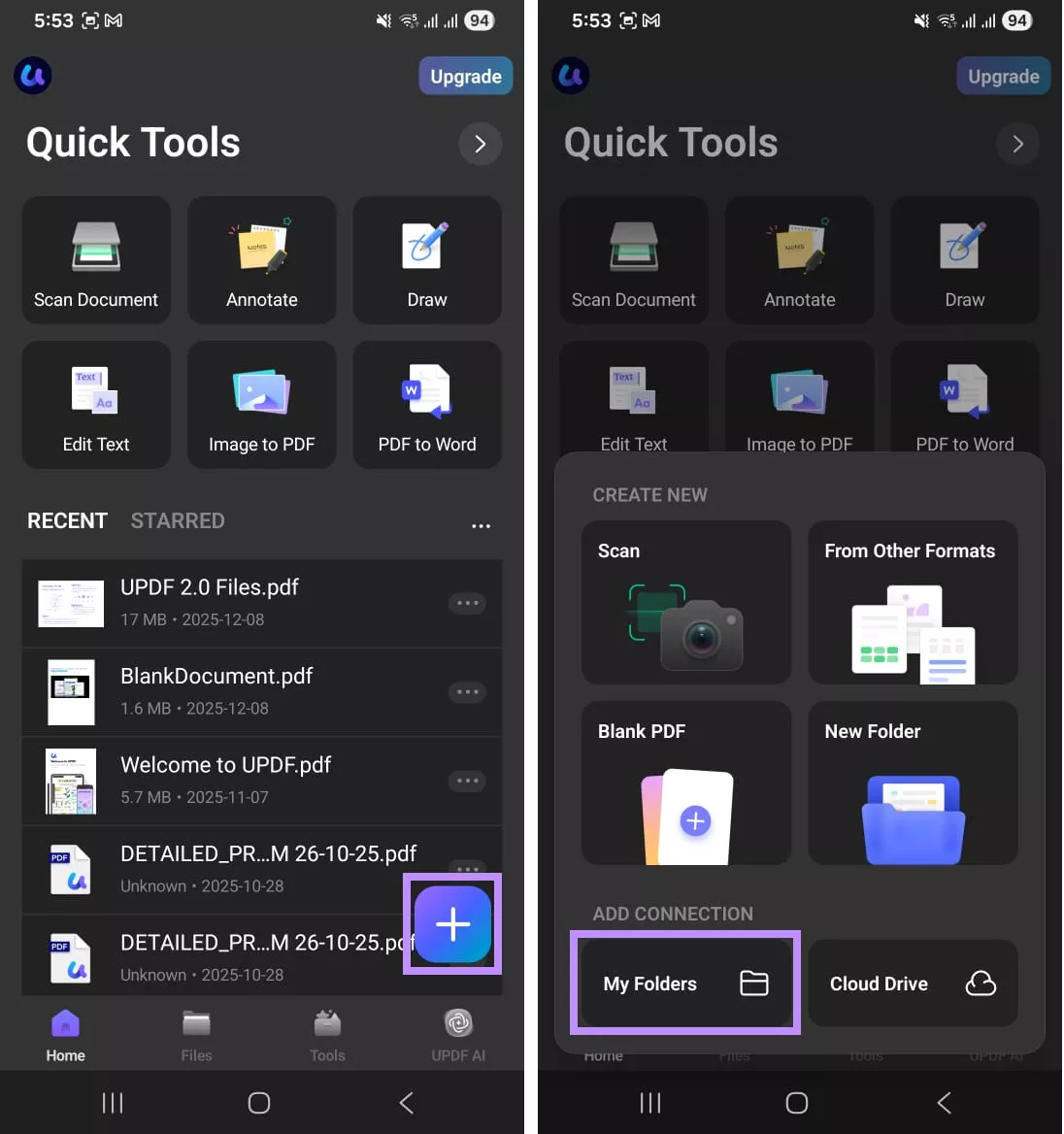
1. Install the UPDF app on Google Play or App Store and open it. Click the “+” button and choose “My Folders.” Then, import your desired PDF.
Windows • macOS • iOS • Android 100% secure
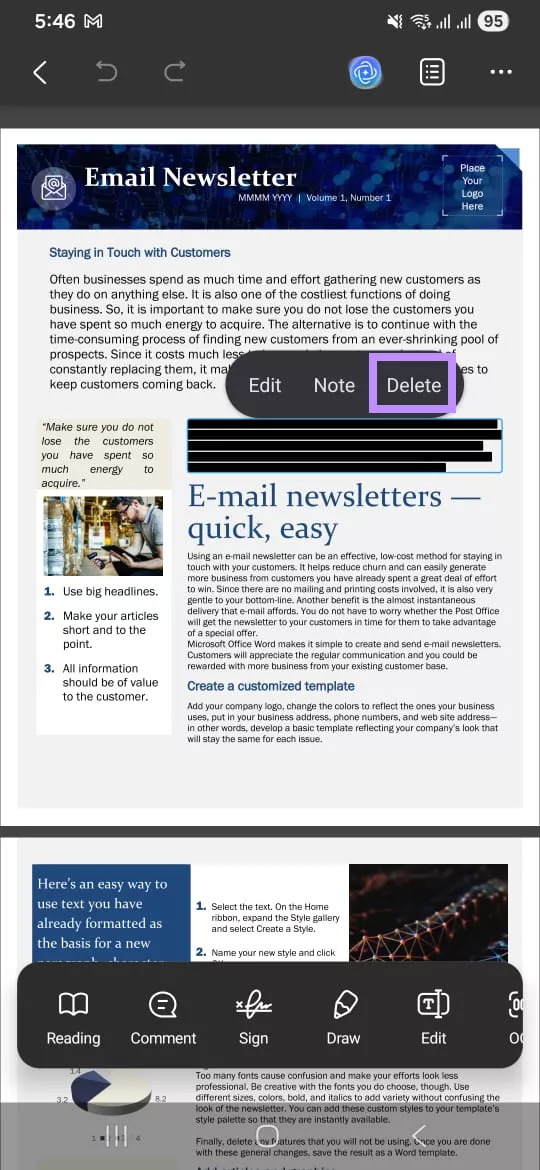
2. Once opened, tap the redacted section with highlights. Then, press “Delete” from the floating toolbar.
UPDF makes it easy to remove the redaction completely free of cost. However, the free trial adds a watermark on the edited files. If you want to remove this watermark, you can upgrade to the Pro version at an affordable price. If you still want a free option, you can temporarily use an online PDF editor.
Method 3. Using an Free Online PDF Editor
A free online tool like PDF Filler lets you unredact by erasing the highlights or shapes overlaying the text. Here’s how to unredact a PDF using it.
- Open PDF Filler's edit PDF tool. Then, drag and drop to upload your PDF.
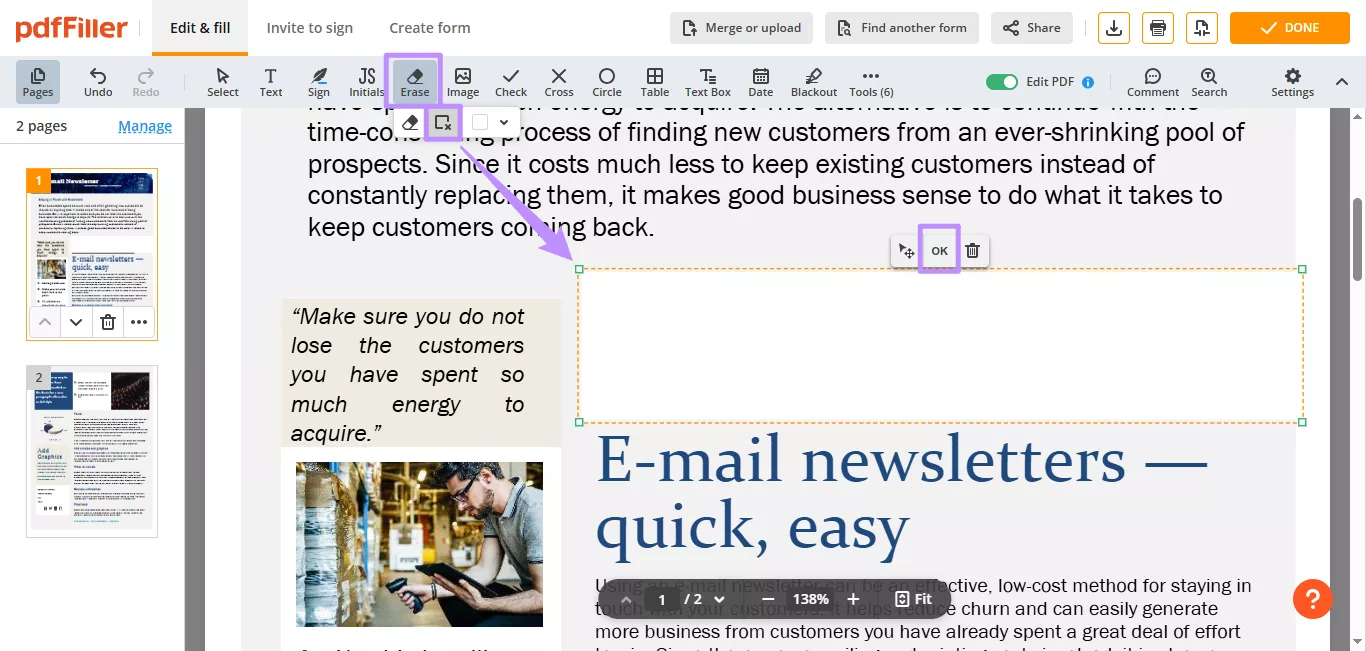
- Once uploaded, click “Start editing.” Then, select “Erase” > “Rectangle erase tool” from the top.
- Select the redacted area. Then, click “Ok” to erase the annotations and make the text visible.
Method 4. Using Preview on Mac
Mac Preview automatically saves the version history of edited documents. So, if you have redacted a PDF using Preview, you can revert to a previous unredacted version.
Here's how to unredact a document using Preview.
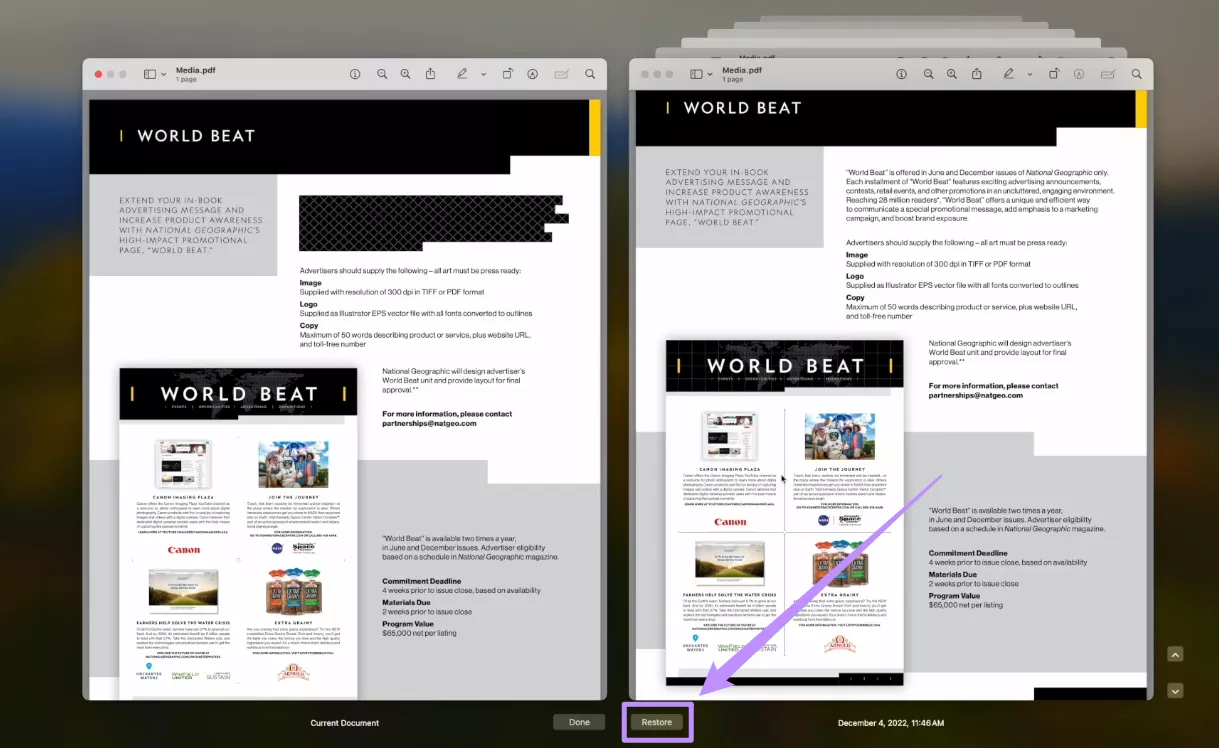
1. Open the redacted file in Preview. Click “File” and choose “Revert to.” Then, select “Browse all versions.”
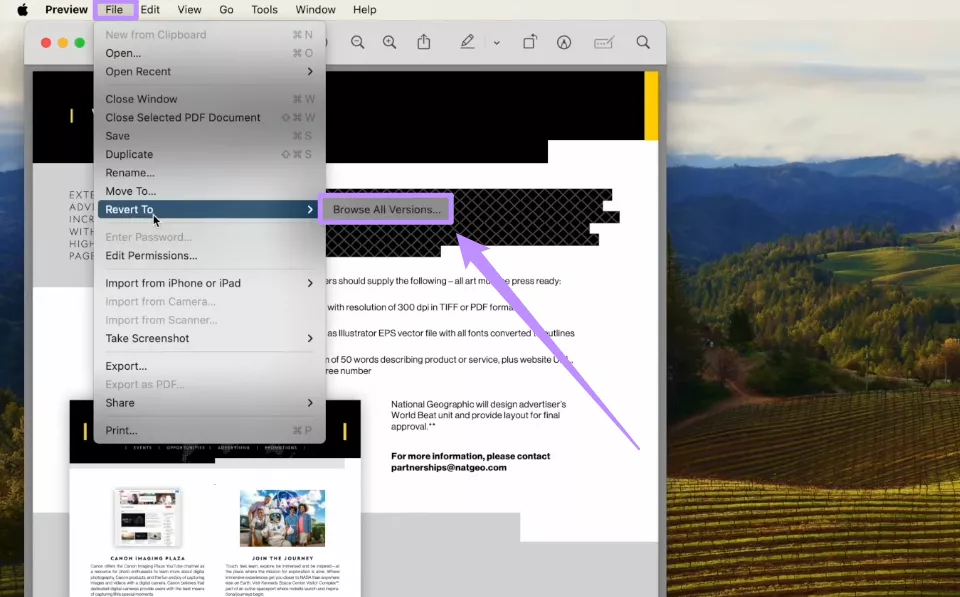
2. Find the version without redaction and click “Restore” from the bottom. Then save your file.
Why UPDF is More Helpful in Removing Redaction
Most tools allow you to unredact documents by deleting annotations one by one. UPDF makes things easier by letting you remove these elements all at once. Here are some ways it can help.
- Batch-Remove: This allows you to remove all markups from multiple PDFs at once. Plus, you can batch-remove two files for free. Simply, click “Tools” from the Home screen and choose “Remove.”
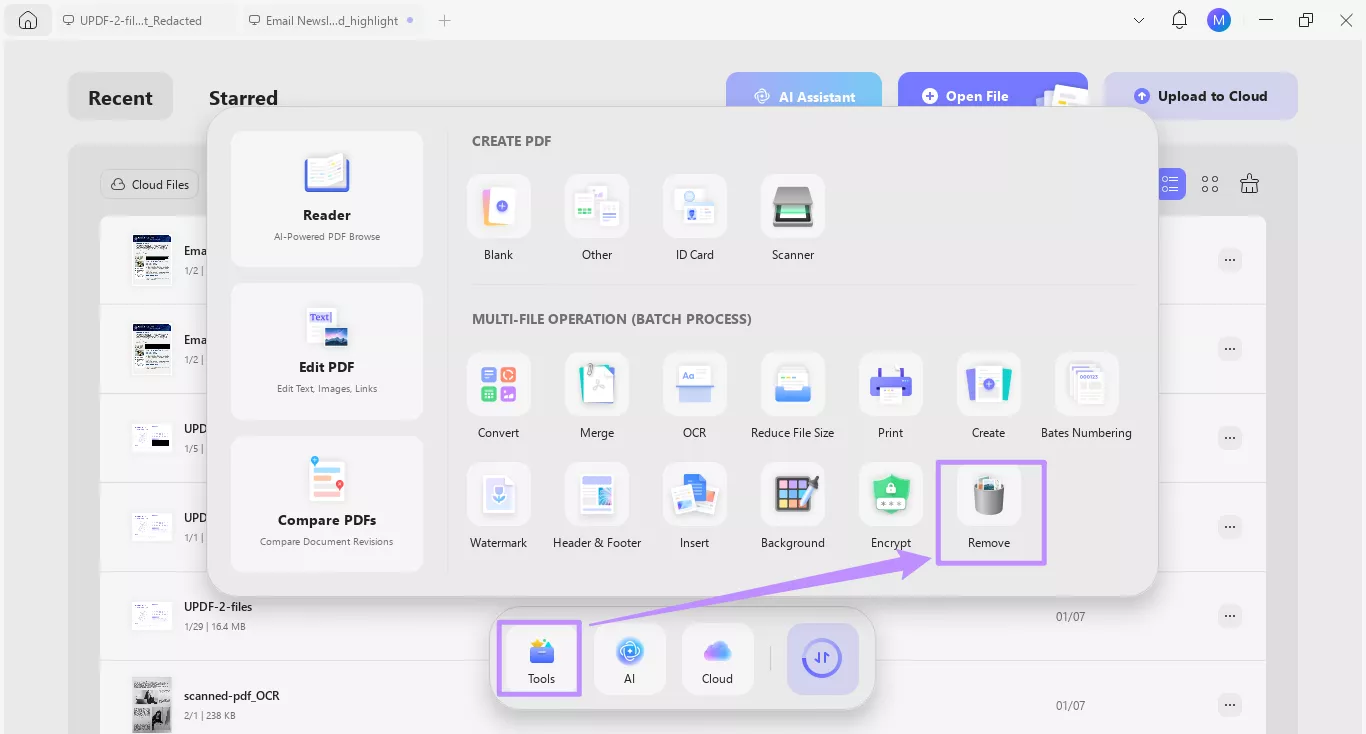
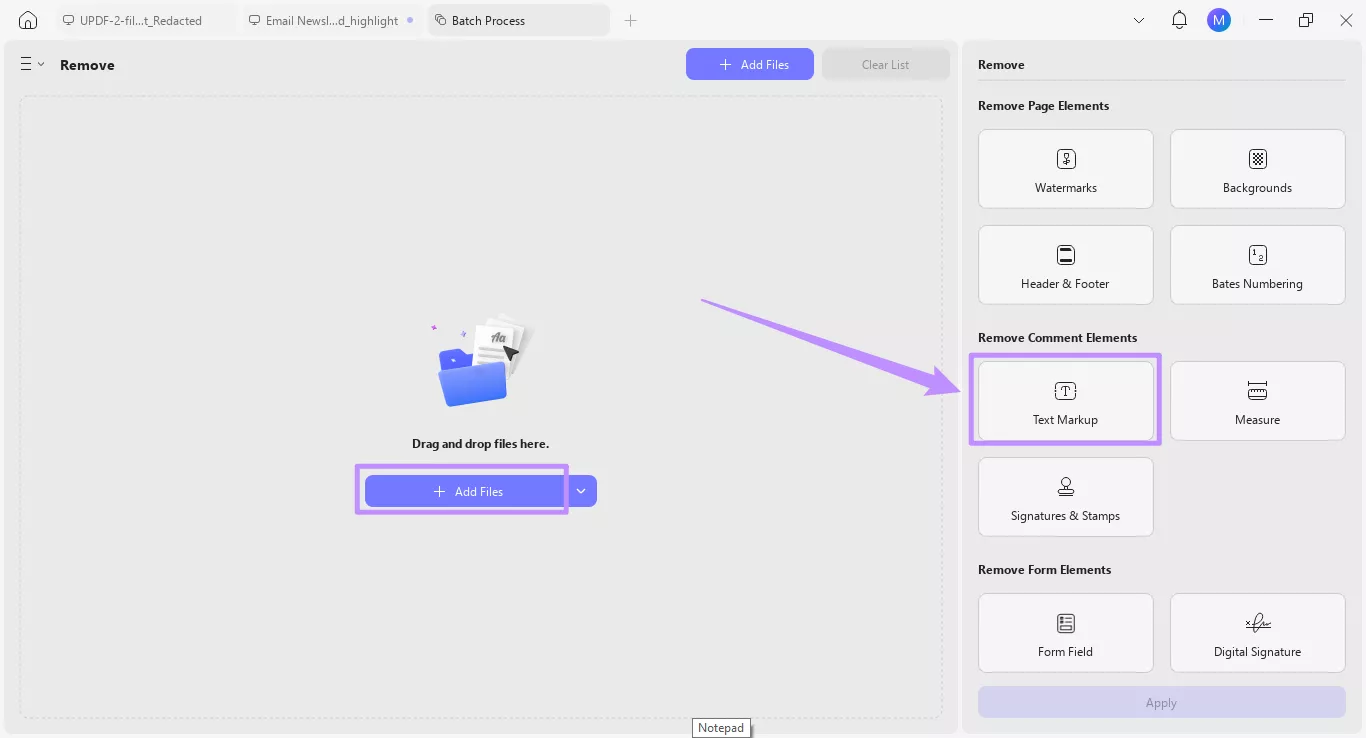
Click “Add Files” to upload your PDF and select “Text Markup” from the right. Then, click “Apply.”
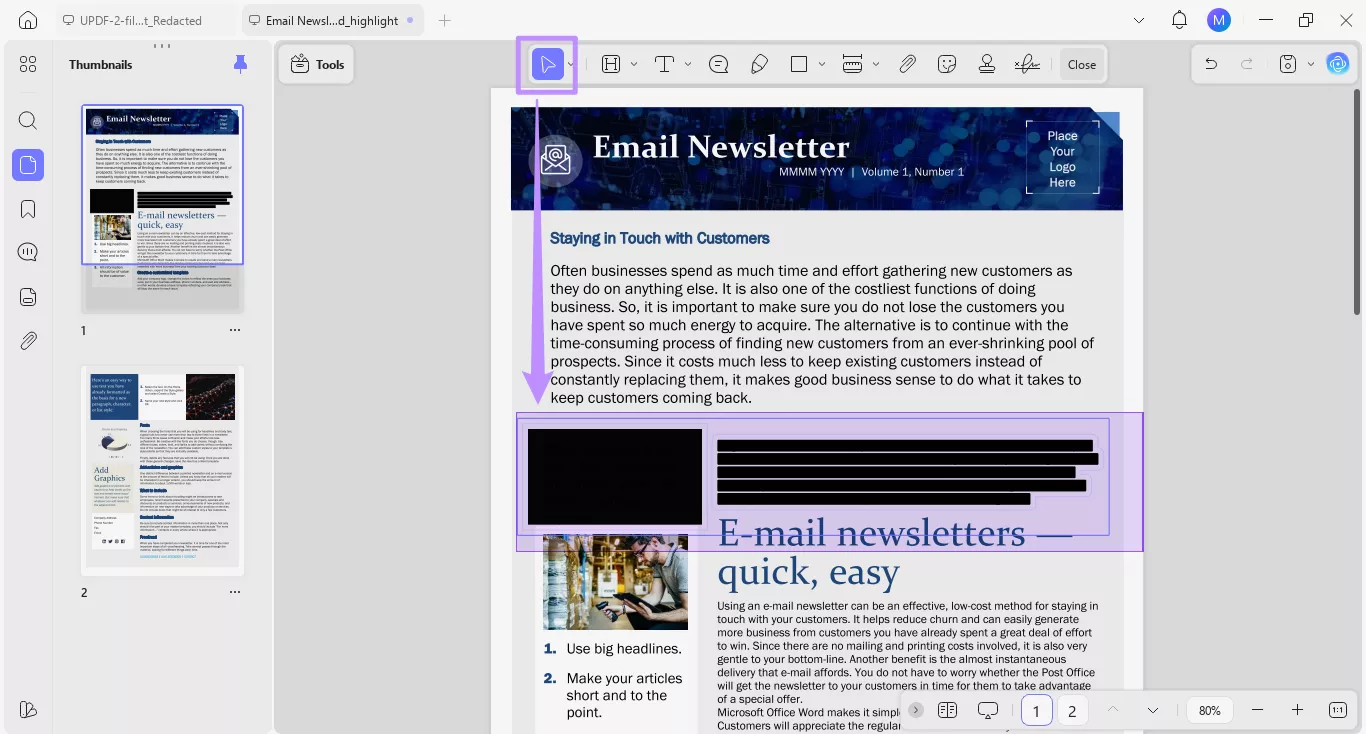
- Remove All Shapes: With your PDF opened, use the selection tool from the top or press “CTRL+A” to select all shapes on one page. Then, press the “Delete” key.
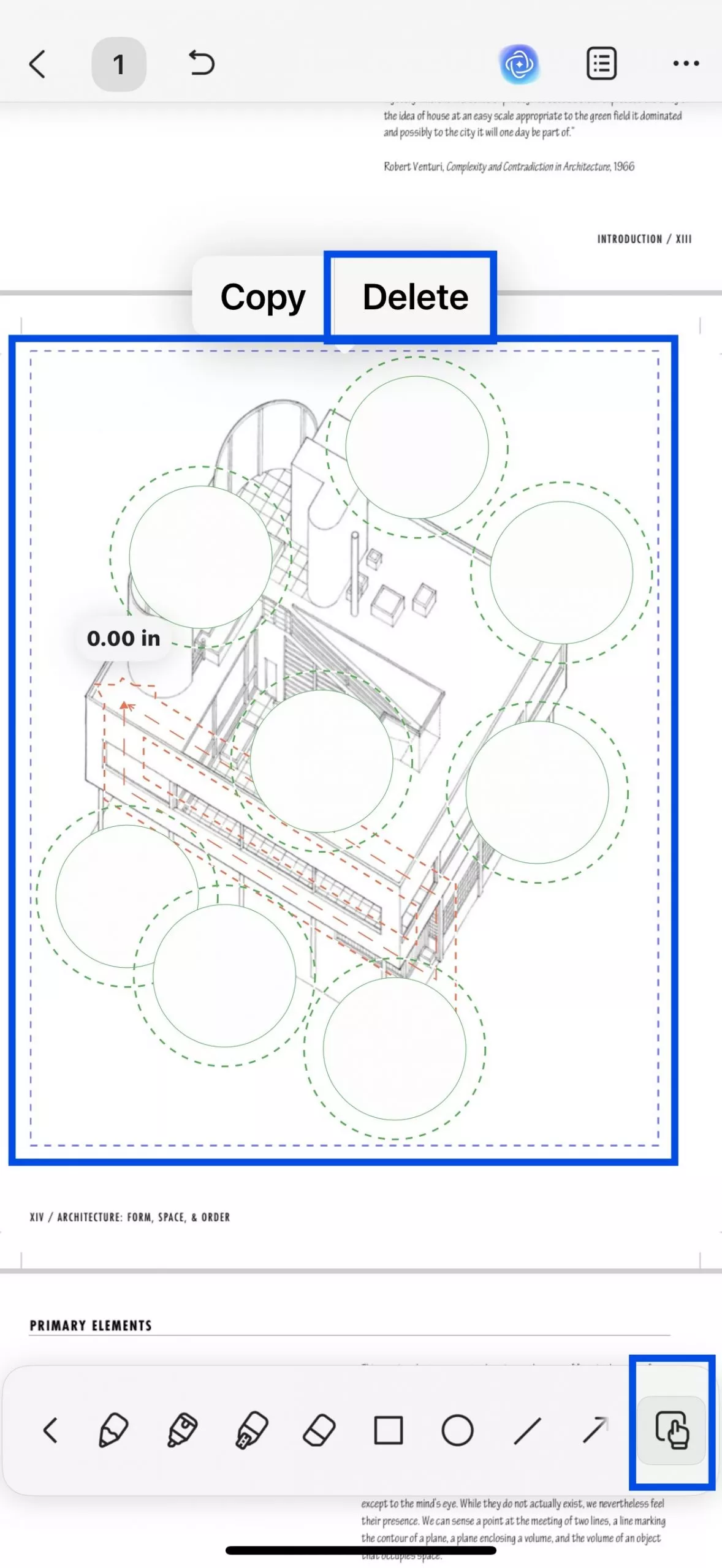
- Delete All Annotations (iOS): You can remove all annotations on the same page using UPDF for iOS. Select “Draw” and press the “Hand” icon. Choose the area with the annotations. Then, press “Delete.”
Windows • macOS • iOS • Android 100% secure
Part 3. When Unredacting is Impossible (And What I Do Instead)
Over time, I have come to accept that some PDFs simply cannot be unredacted. And that's actually reassuring. It's a sign that redaction is done properly and the original text is permanently removed from the file. This level of security is what I need for documents containing sensitive or confidential information.
So, instead of trying to defeat redaction, I can do it right from the start. And UPDF has helped me handle it effortlessly. In my daily work, I have to deal with reports, contracts, and internal files. I can use UPDF to apply true redaction before forwarding these files. while knowing that no one can restore the content.
Windows • macOS • iOS • Android 100% secure
What Makes UPDF Different for Redaction
Here are the key advantages of redacting PDFs with UPDF:
1. True Redaction: UPDF permanently removes redacted content, instead of hiding it behind highlights or shapes. I can rest assured that no software can restore the content.
2. Customize Redaction Styles: It allows me to change redaction area color, add overlay text, redact by content type, change the appearance of redaction marks, and more.
3. Redact Entire Pages: It helps me redact the entire PDF page. All I have to do is define the page range.
4. Search and Redact: If I want to redact specific words or phrases in the entire file, I can search for them and apply redaction directly.
5. Sanitize Document: Besides redacting PDF content, it lets me remove all metadata and hidden data from the PDF before sharing it.
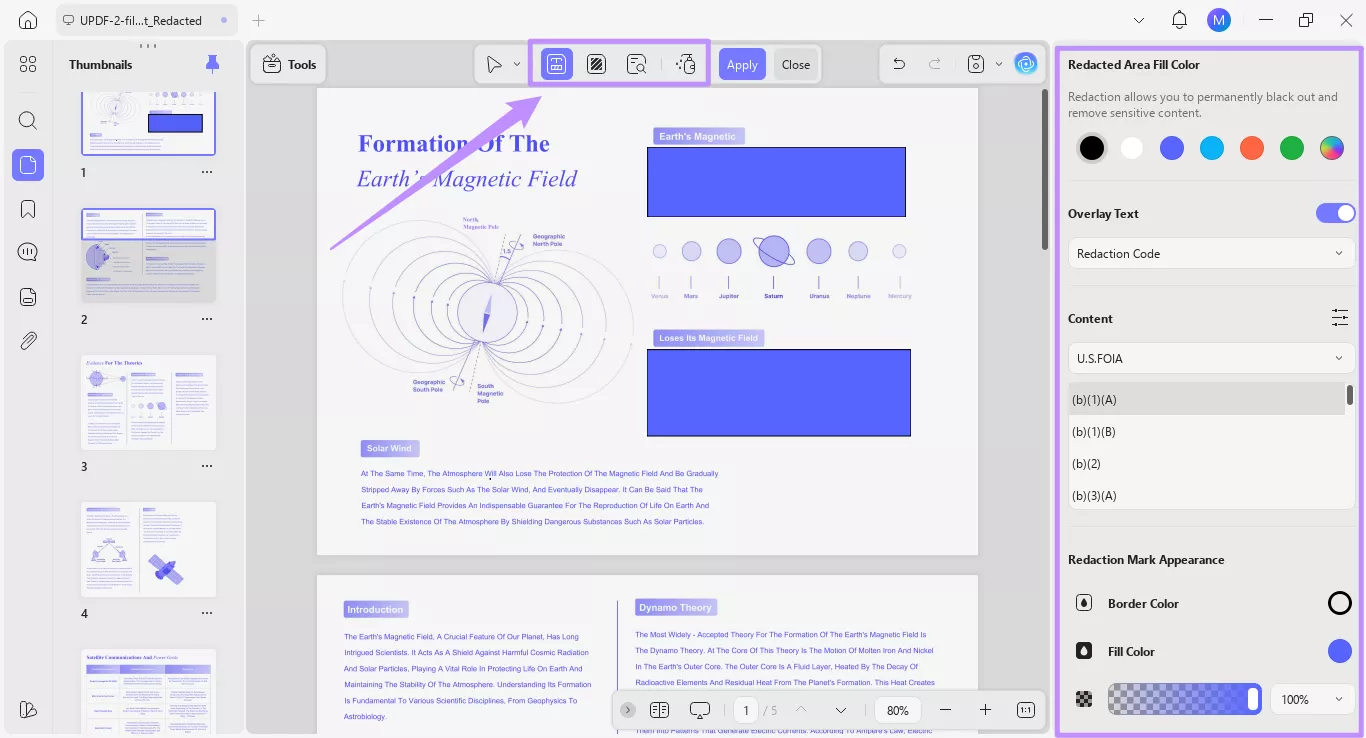
6. Preview Before Applying: I can mark multiple sections for redactions before confirming to apply them permanently. This helps me avoid mistakenly redacting unwanted areas.
7. Clutter-Free Interface: UPDF has a minimal and modern interface. The redaction tool does not require any technical steps. It is easy to use even for beginners.
Windows • macOS • iOS • Android 100% secure
My Comparison: Fake Redaction vs. Real Redaction (What I Learned)
| Feature / Criteria | Fake Redaction | Real Redaction (UPDF) |
| My Experience | Text recoverable | No |
| Safe for Legal Docs | No | Yes |
| Easy to Do | Yes | Yes |
| Professional Standard | No | Yes |
In short, UPDF helps you permanently secure sensitive documents. But unlike basic free tools, it offers far more than redaction. It also helps you edit, annotate, convert, password-protect files, interact with a built-in AI, and more. Overall, it's a complete toolkit to handle professional documents in the long term. So, don’t wait. Download and try it now. And if you want to use it without limits, you can upgrade to UPDF Pro here.
Windows • macOS • iOS • Android 100% secure
Conclusion
That wraps up how to unredact a document. Fake redaction can be deleted easily using various tools on desktop, mobile, and online. In contrast, true redaction is permanent. And it is what you need to protect sensitive documents before sharing. UPDF offers flexible ways to redact files and customize them as needed. Plus, you can get started with a free trial. So, don’t miss out. Download and try UPDF today!
Windows • macOS • iOS • Android 100% secure


 Enola Miller
 Delia Meyer
 高美季子
高美季子