UPDF
UPDF
 UPDF for Windows
 UPDF for Mac
 UPDF for iPhone/iPad
 UPDF for Android
 Nomostar
 UPDF AI Online
 UPDF Sign
 IvyCraft
 Edit PDF
 Annotate PDF
 Create PDF
 PDF Form
 Edit links
 Convert PDF
 OCR
OCR PDF to Word
 PDF to Image
 PDF to Excel
 Organize PDF
 Merge PDF
 Split PDF
 Crop PDF
 Rotate PDF
 Protect PDF
 Sign PDF
 Redact PDF
 Sanitize PDF
 Remove Security
 Read PDF
 UPDF Cloud
 Compress PDF
 Print PDF
 Batch Process
 About UPDF AI
 UPDF AI Solutions
 AI User Guide
 FAQ about UPDF AI
 Summarize PDF
 Translate PDF
 Chat with PDF
 Chat with AI
 Chat with image
 PDF to Mind Map
 Explain PDF
 PDF AI Tools
 Image AI Tools
 AI Chat Tools
 AI Writing Tools
 AI Study Tools
 AI Working Tools
 Other AI Tools
 AI Bookmark Generation
 AI Bookmark Summary
 AI Watermark Generation
 AI Background Generation
 AI Sticker Generation
 AI Stamp Generation
 AI Editing Suite
 UPDF Copilot
 AI Page Management
 AI Semantic Search
 PDF to Word
 PDF to Excel
 PDF to PowerPoint
 Enterprise Solution
 Enterprise Sign
 Enterprise AI
 Enterprise Plan
 Enterprise User Guide
 Enterprise Webinar
 Banking
 Healthcare
 Insurance
 Legal
Legal Manufacturing
 Government
 Education Solution
 Customer Stories
 User Guide
 UPDF Tricks
 FAQs
FAQs UPDF Reviews
 Download Center
 Blog
Blog Newsroom
 Tech Spec
 Updates
 UPDF vs. Adobe Acrobat
 UPDF vs. Foxit
 UPDF vs. PDF Expert

“You need to send a contract to a client, but it contains their bank account number—do you simply delete it, or handle it differently?”
Delete: Removes only the visible display; underlying data may remain and could be recovered via technical means.
Redact: Permanently removes text and images; redacted content cannot be recovered or viewed.
So this article provides a comprehensive guide on how to redact in Adobe, covering everything from basic operations and advanced features to FAQs and a comparison of alternatives.
Part 1. How to Redact in Adobe – 3 Core Approaches
This section covers manual redaction, search-and-redact, and full-page redaction, allowing you to quickly find the method that suits your needs.
So, follow the 3 methods below to learn how to redact in Adobe:
Method 1: Manual Redaction—Select specific text or images (suitable for most users)
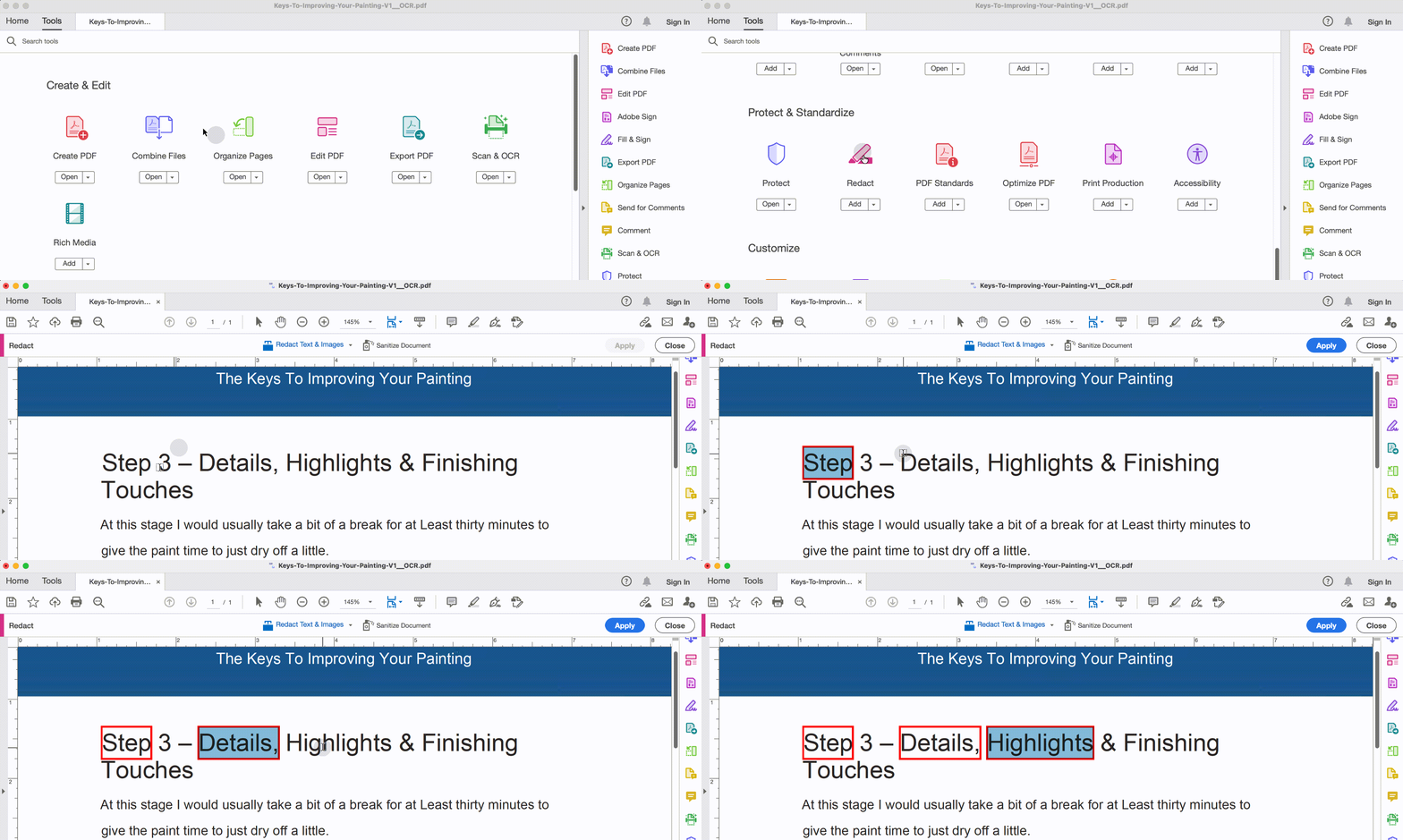
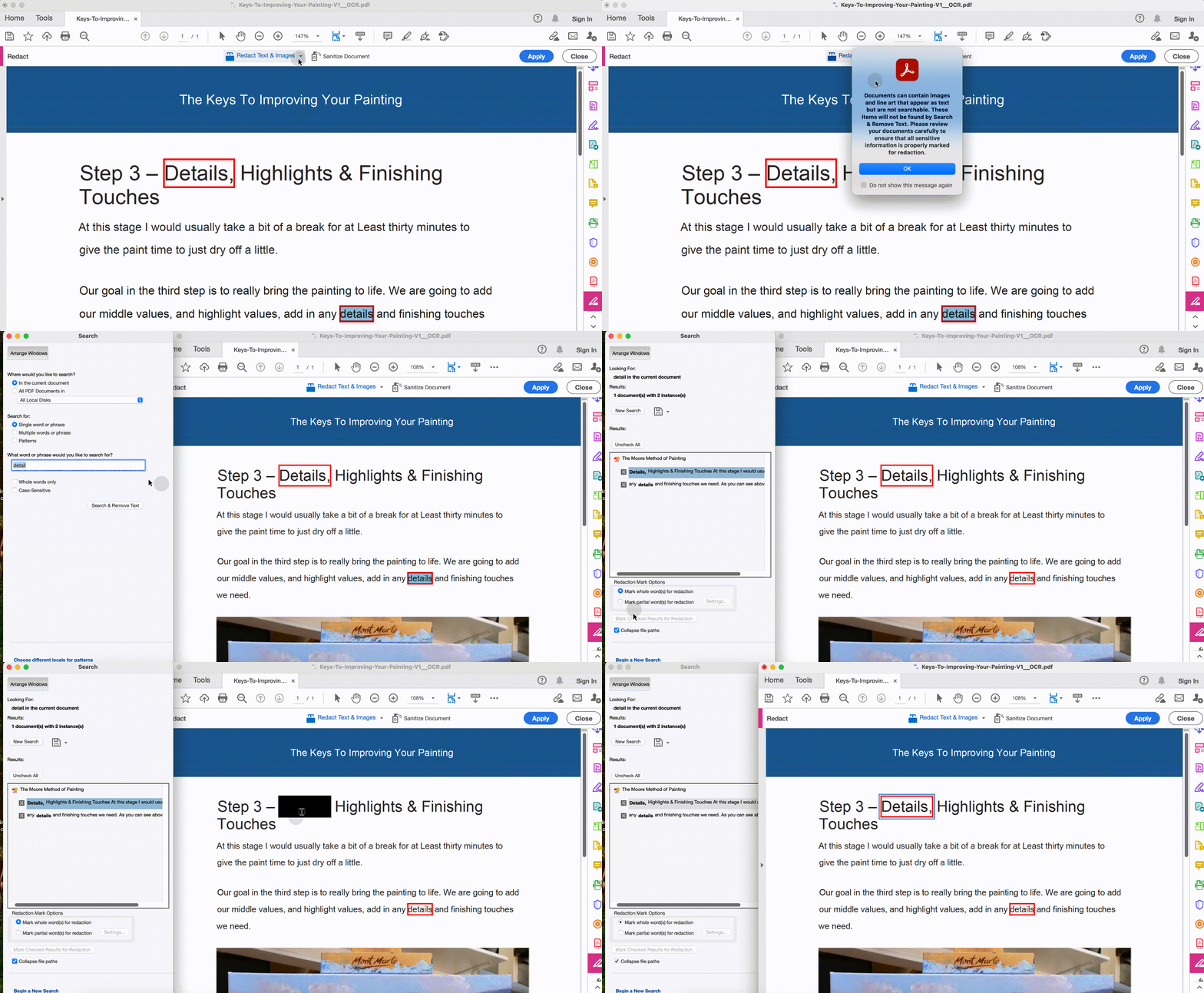
Method 2: Search and Bulk Redact — Find specific words or patterns (suitable for users requiring batch processing) Here you can check the recording steps on how to search and bulk redact in Adobe.
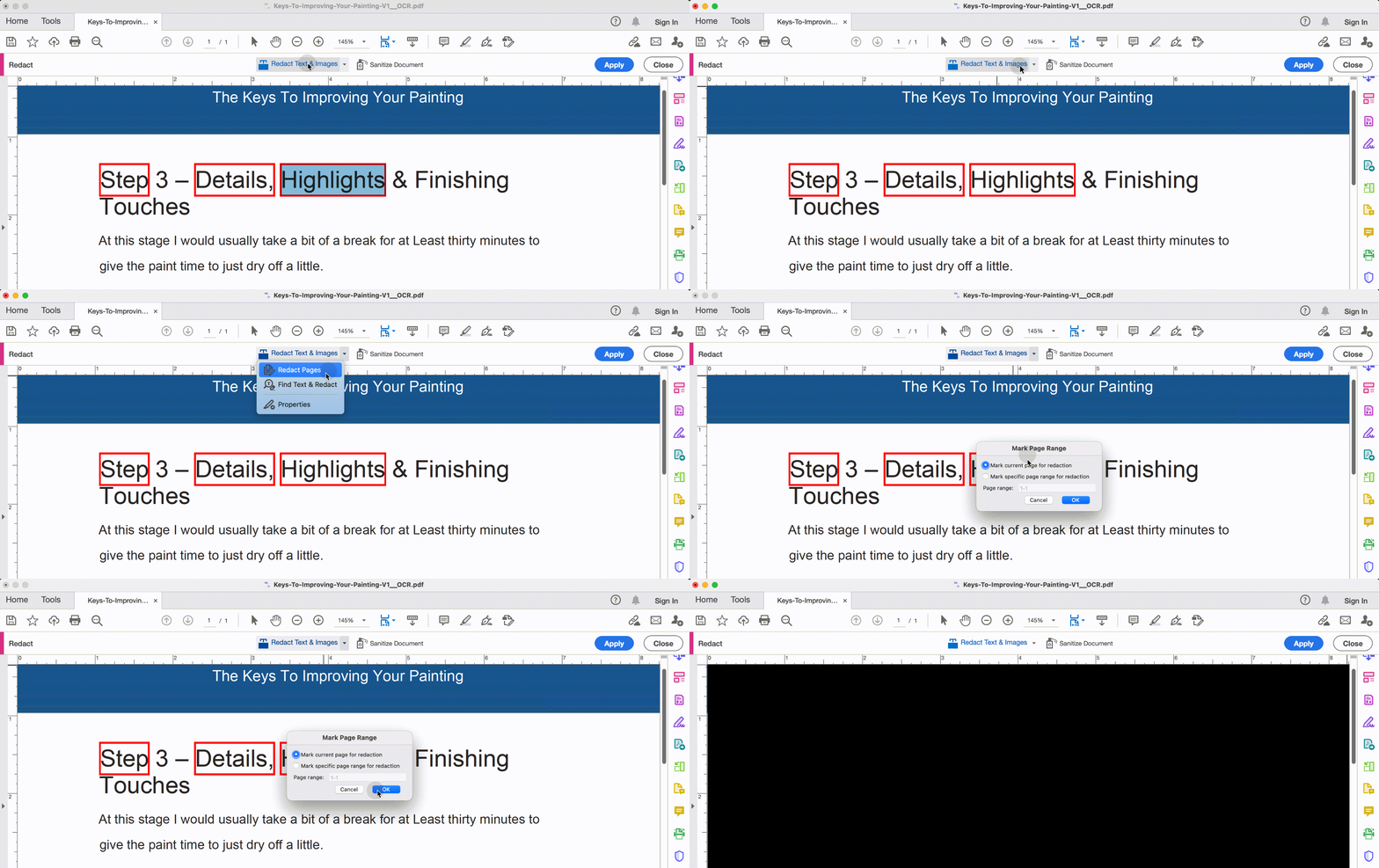
Method 3: Black out the entire page—quickly mark the whole page
Advanced Features—Making Redact More Professional and Efficient
Before clicking the Apply button, if you want to customize the properties of the redaction, such as fill color and opacity, etc. you can double-click on the box to edit. After that, you can apply the redaction and save the PDF.
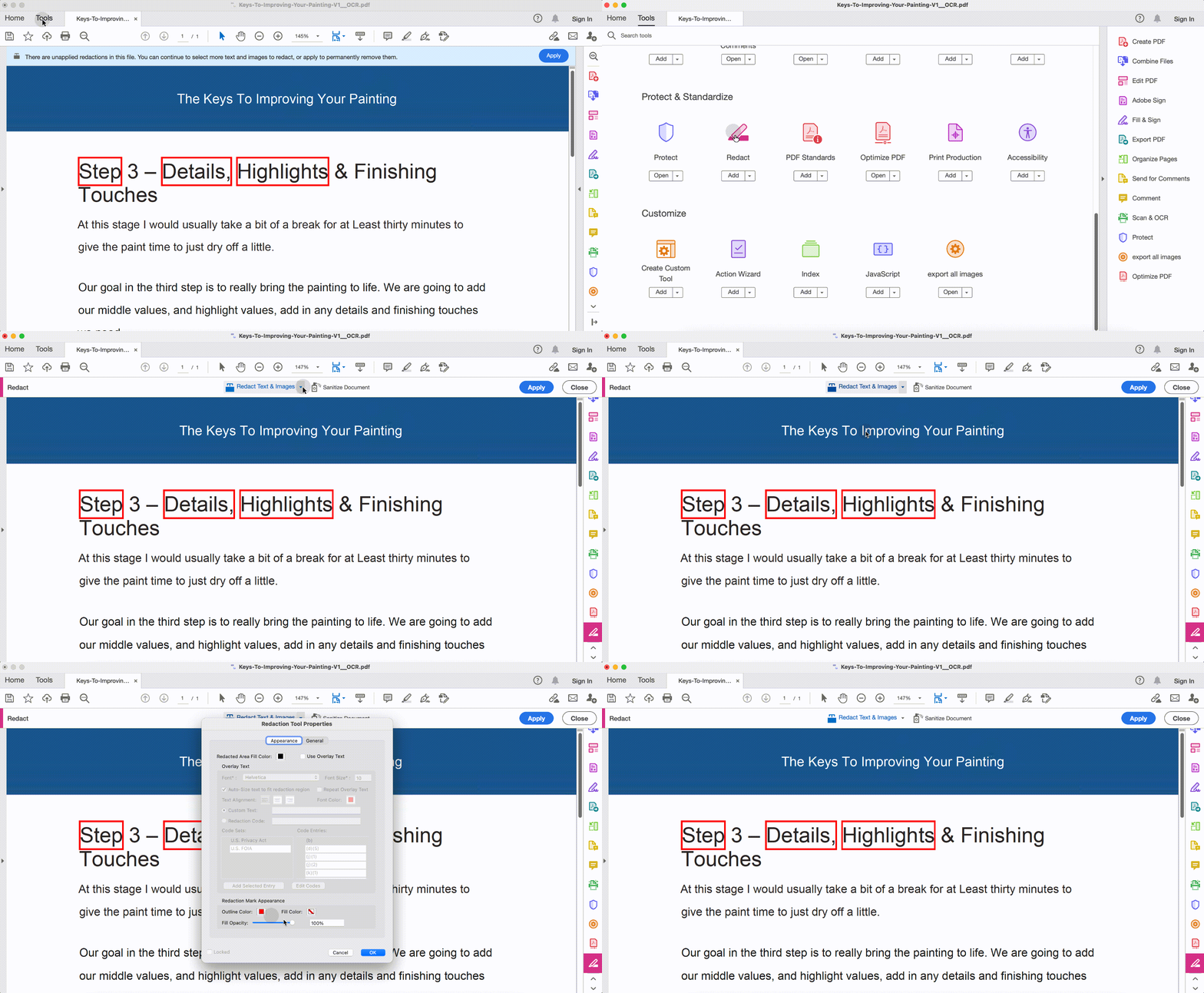
This way, Adobe provides a complete solution for how to redact in Adobe. Using the above steps, you can easily redact and sanitize a PDF in Adobe.
Although Adobe seems to offer a complete solution to redact documents, there are a few cons associated with Adobe.
First, its redaction feature is only accessible with a paid Acrobat Pro subscription, which is very costly. It costs US$29.99/month or US$239.88/year. Secondly, it involves more steps, which can be overwhelming for some users. So let's continue to read more redaction tools and see which one you should choose.
Part 2. Adobe Acrobat vs. Other Redaction Tools: Which Should You Choose?
| Dimension | Adobe Acrobat Pro | UPDF | Foxit | Free Online Tools |
|---|---|---|---|---|
| Redaction (Text & Images) | ✅ Full support (Manual / Search / Batch / Entire Page) | ✅ Full support (Manual / Batch) | ✅ Full support | ⚠️ Basic (Manual only, limited functionality) |
| Sanitize Hidden Information | ✅ Full support (metadata, annotations, hidden layers) | ✅ Supported | ✅ Supported | ❌ Usually not supported |
| Annual Price | $240/year (Pro) | $49.99 | $130–$160/year | Free (with limitations) |
| Learning Curve | Medium-High | Low | Medium | Low |
| Best For | Professional users, compliance-heavy scenarios | Cost-conscious individuals and teams | Enterprise users | Occasional individual users |
If you need redaction for professional or compliance-driven work — and you care about keeping sensitive data on your own machine — you'll want a desktop tool. Among them:
- Adobe Acrobat Pro is the most feature-rich, but at $240/year, it's overkill for many users.
- Foxit sits in the middle, both in price and functionality.
- UPDF offers the most balanced package — it handles manual redaction, batch processing, and sanitization for roughly 1/4 to 1/2 the cost of Adobe — making it a strong choice for individuals and small teams who need professional-grade redaction without the professional-grade price tag.
- Free online tools work in a pinch, but avoid them for anything confidential, legally protected, or personally identifiable.
UPDF is an AI-driven PDF editor tool that offers a free and powerful way to redact PDFs. Its redaction feature allows users to manually redact specific text/images anywhere in the PDF. Furthermore, its "Search & Redact" feature allows users to search for a specific text on a specific page or on multiple pages and redact it immediately across all the selected pages. This way, you get a more advanced, streamlined, and time-saving way to redact text on multiple pages.
Below are the key redaction features offered by UPDF:
- It allows you to seamlessly apply redaction to text and images manually.
- Its Search & Redact can automatically apply redaction to selected text in single or multiple pages.
- It allows you to customize the properties of the redaction mark.
- It requires zero learning curve to do redaction due to its click-based interface.
In short, UPDF is a modernized and more powerful way to redact PDFs. Therefore, download UPDF and experience its top-notch redaction feature yourself.
Windows • macOS • iOS • Android 100% secure
Follow the steps below to redact with UPDF:
Step 1. Download and launch UPDF. Tap "Open file" to select and open the PDF you want to redact.
Step 2. Click the "Redact" icon from the left sidebar to enter the redaction mode.
Step 3. Click "Redact" from the top menu bar, select the text/image you want to redact, and click the "Apply" button from the small pop-up window.
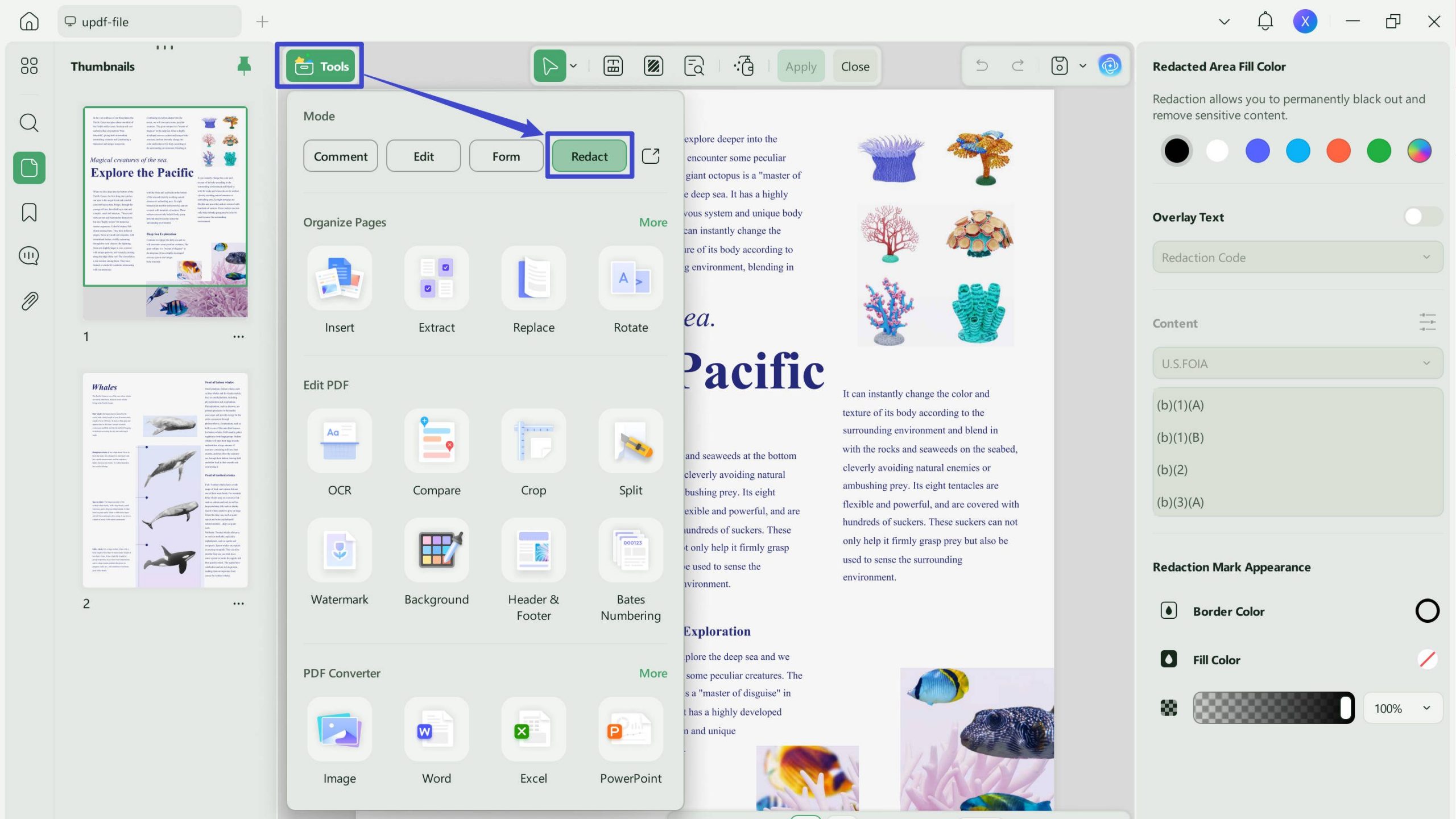
Step 4. To apply redaction on multiple pages, click "Search & Redact".
Step 5. Type the text to redact and tick the checkboxes to select places where you want to redact that text. Once done, click "Redact".
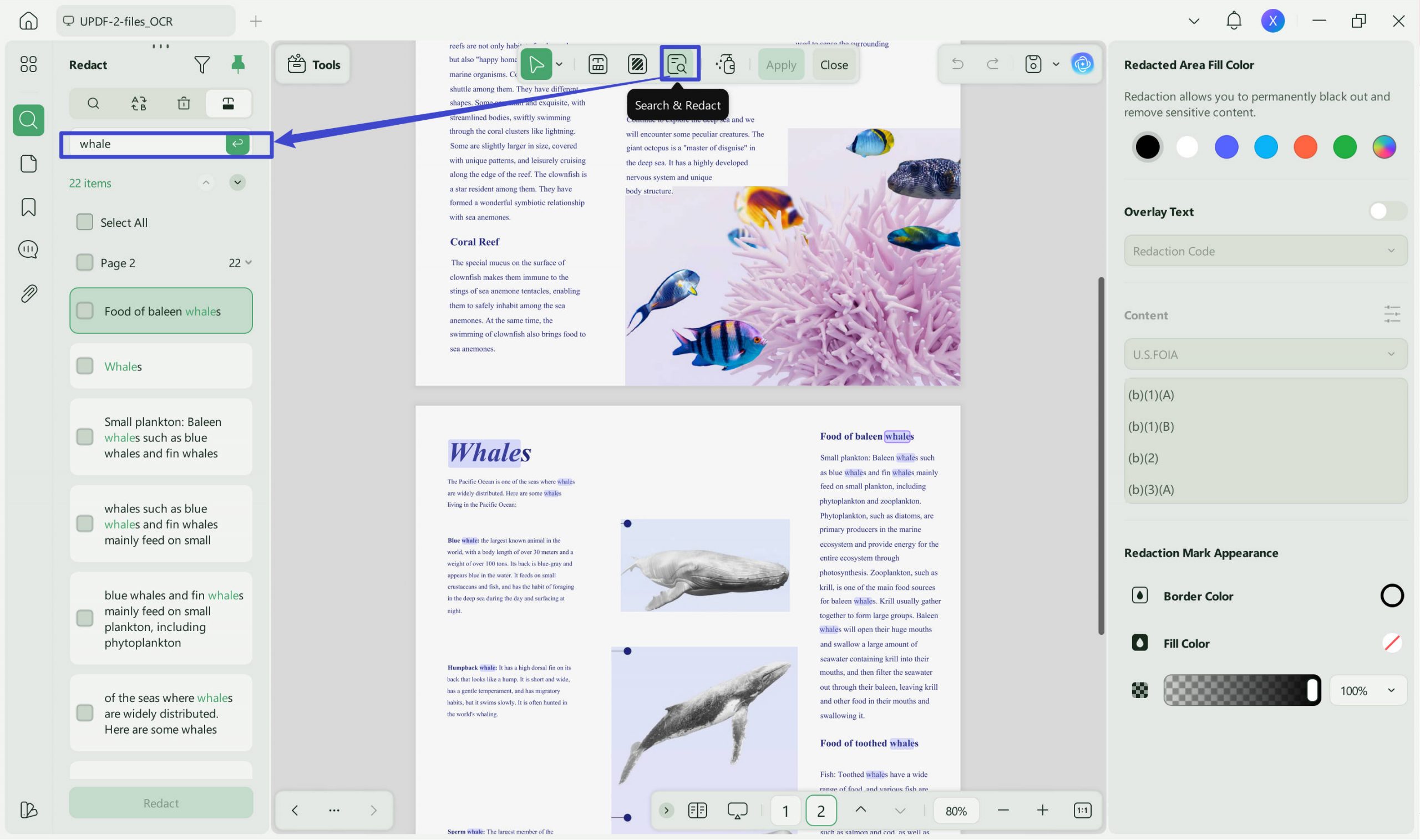
Step 6. To change the redaction property, click "Properties" from the top and make the changes.
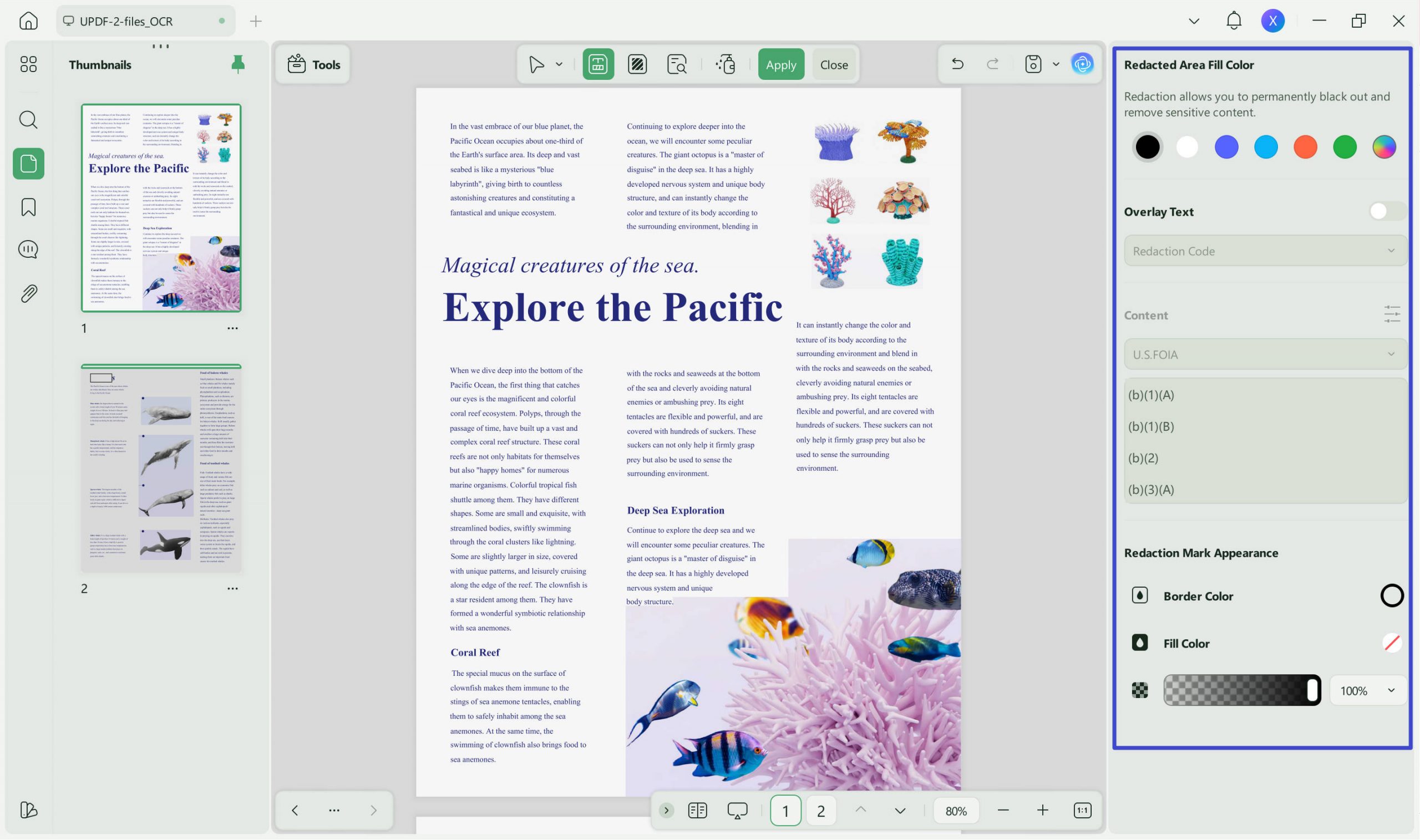
That's it! This way, UPDF offers an outstanding experience in redacting text and images in PDFs without any hassle. So, think no more. Download UPDF and get the best PDF redaction tool at your disposal.
Windows • macOS • iOS • Android 100% secure
Watch the guide video below to learn how to protect a PDF from data leaks.
Part 3. FAQs about Redactions in Adobe
Q1. Are redactions in Adobe permanent?
Yes, redactions in Adobe are permanent once you have saved the document after applying the redaction. When you have applied the redaction but not saved the file, Adobe gives you the option to delete the redactions. However, once the file is saved, the redactions become permanent.
Q2. How do I permanently redact a PDF for free?
UPDF is a PDF redaction tool that offers a free way to permanently redact a PDF. All you have to do is open the PDF with UPDF, go into the redaction mode, redact text and images, and apply the redaction permanently.
Q3. How do I black out text in a PDF without redaction it?
You can black out text in a PDF without redaction by placing a black-filled rectangle over the text, as follows:
1.Open the PDF in UPDF.
2.Choose the "Comment" mode.
3.Select "Rectangle" and place it over the text.
4.Customize the fill color.
Note: There are some differences between blackout and redaction.
Conclusion
This guide thoroughly discusses how to redact in Adobe. However, if you want a more advanced, free, and quick experience, then UPDF is the ideal alternative to Adobe. With UPDF, you can easily and autonomously redact specific text on multiple pages without any complicated steps.
Beyond redaction, sanitizing hidden metadata — such as author names, edit history, and hidden layers — is another essential step in PDF protection. This is part of a broader set of techniques covered in our How to Protect PDF pillar page.
Windows • macOS • iOS • Android 100% secure


 Enya Moore
 Enid Brown
 Delia Meyer
 Lizzy Lozano