 UPDF
UPDF
 UPDF for Windows
 UPDF for Mac
 UPDF for iPhone/iPad
 UPDF for Android
 UPDF AI Online
 UPDF Sign
 Edit PDF
 Annotate PDF
 Create PDF
 PDF Form
 Edit links
 Convert PDF
 OCR
OCR PDF to Word
 PDF to Image
 PDF to Excel
 Organize PDF
 Merge PDF
 Split PDF
 Crop PDF
 Rotate PDF
 Protect PDF
 Sign PDF
 Redact PDF
 Sanitize PDF
 Remove Security
 Read PDF
 UPDF Cloud
 Compress PDF
 Print PDF
 Batch Process
 About UPDF AI
 UPDF AI Solutions
 AI User Guide
 FAQ about UPDF AI
 Summarize PDF
 Translate PDF
 Chat with PDF
 Chat with AI
 Chat with image
 PDF to Mind Map
 Explain PDF
 PDF AI Tools
 Image AI Tools
 AI Chat Tools
 AI Writing Tools
 AI Study Tools
 AI Working Tools
 Other AI Tools
 AI Bookmark Generation
 AI Bookmark Summary
 AI Watermark Generation
 AI Background Generation
 AI Sticker Generation
 AI Stamp Generation
 AI Editing Suite
 UPDF Copilot
 AI Page Management
 AI Semantic Search
 PDF to Word
 PDF to Excel
 PDF to PowerPoint
 Enterprise Solution
 Enterprise Sign
 Enterprise AI
 Enterprise Plan
 Enterprise User Guide
 Enterprise Webinar
 Banking
 Healthcare
 Insurance
 Legal
Legal Manufacturing
 Government
 Education Solution
 Customer Stories
 User Guide
 UPDF Tricks
 FAQs
FAQs UPDF Reviews
 Download Center
 Blog
Blog Newsroom
 Tech Spec
 Updates
 UPDF vs. Adobe Acrobat
 UPDF vs. Foxit
 UPDF vs. PDF Expert

AI sticker generator can unlock your creativity whether you want to personalize chats, boost your brand, or just have fun, the following 4 tools can turn your ideas into custom stickers in seconds and no design skills needed.
But when open long PDF files, the pages often feel boring and tiring to read carefully, you can also add custom stickers on PDF with UPDF in simple prompts, turning ordinary PDFs into lively documents.
Windows • macOS • iOS • Android 100% secure
Part 1. What is AI Sticker Generator?
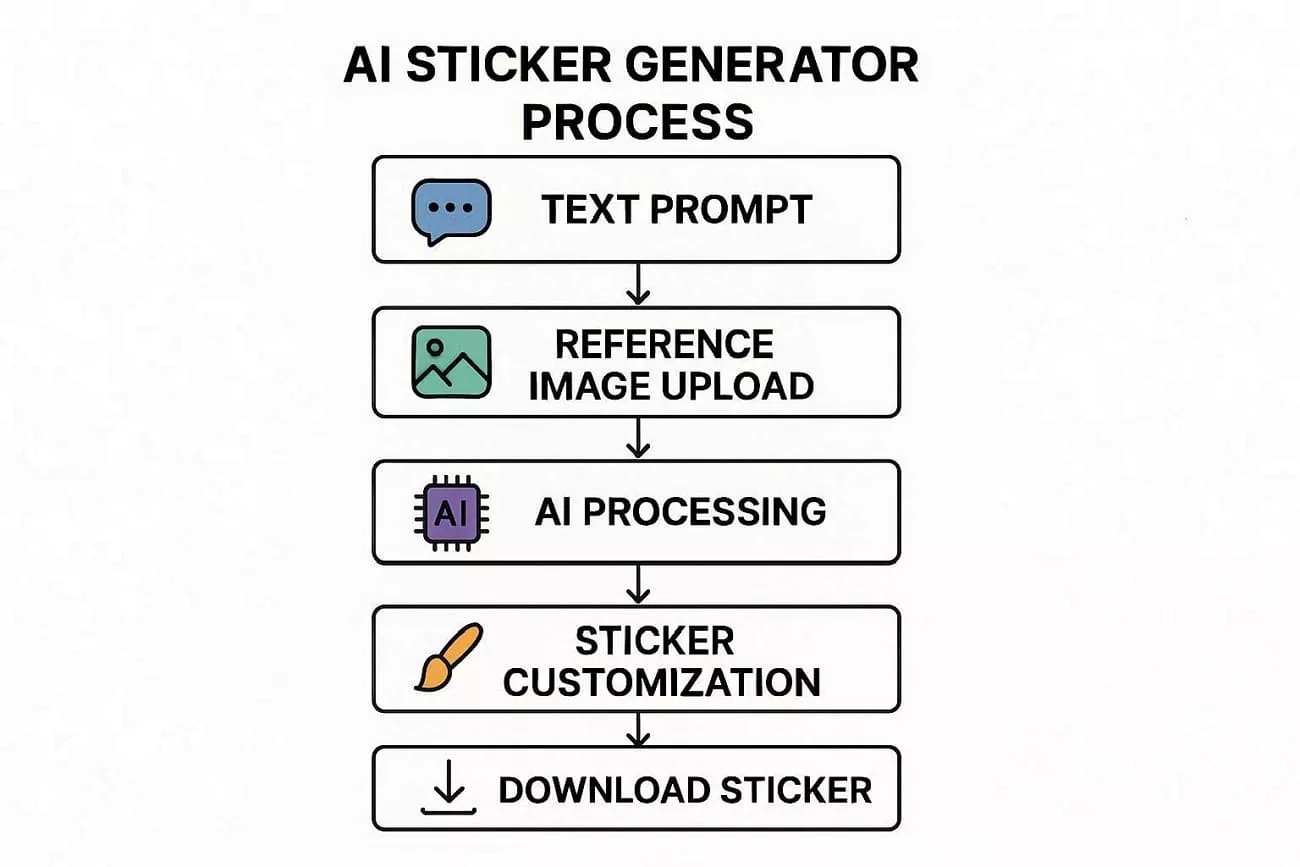
AI sticker maker tools help users create fun and unique stickers in just a few seconds. They allow you to describe your design idea using a short text prompt that tells the AI what to make. These tools also let you upload a reference image to copy the style and color you want.
Each sticker looks creative and personalized because the AI understands both your text and image hints perfectly. This combination makes designing custom stickers faster and more accurate than doing it manually.
Next, let’s explore how these smart tools turn your ideas into ready-to-use stickers.
- Text Input: Enter a detailed text prompt that clearly describes your sticker’s theme, shape, and overall style.
- Reference Upload: Upload a reference image to help the AI accurately follow your preferred color and design style.
- Processing: The AI smartly analyzes your prompt and reference image together to produce a cohesive sticker design.
- Customization: Modify the generated sticker by adjusting its color tones, outlines, shadows, and overall artistic effects.
- Download: Once satisfied with customization, download your sticker in PNG or your preferred format for instant creative use.
Part 2. Comparison of 4 Main AI Sticker Generators
Many creators want a simple way to turn ideas into custom stickers using an AI sticker generator from images. Now, we will introduce and compare 4 popular tools that balance free access, speed, and creative styles.
| Tool | Best For | Access/Price | Key Strengths | Main Limitations |
| Meta AI Stickers | Quick chat stickers in social apps | Built into Meta apps, free | Instant, text-based stickers, seamless in chats | Limited control over style and export |
| Canva | Branded, social, and marketing use | Freemium, online | Easy interface, templates, good for non-designers | Less granular control than pro AI tools |
| Wepik | Fast, simple online designs | Free/freemium, web | Ready-made assets, quick customization | Fewer advanced AI options and styles |
| Midjourney | High-end, artistic sticker styles | Subscription, Discord | Very detailed, unique art styles, flexible prompts | Requires prompt skill, extra export steps |
1. Meta’s AI Stickers
Inside Meta’s apps, AI stickers turn short text ideas into playful, shareable visuals right inside your chats. Instead of drawing, you just describe what you want, and Meta’s models, built on Llama 2 and its Emu image generator, produce several high‑quality sticker options in seconds. Everything happens within WhatsApp, Instagram, or Messenger, so it’s ideal for people who care more about quick customization than deep control over complex illustration.

2. Canva AI Sticker Generator
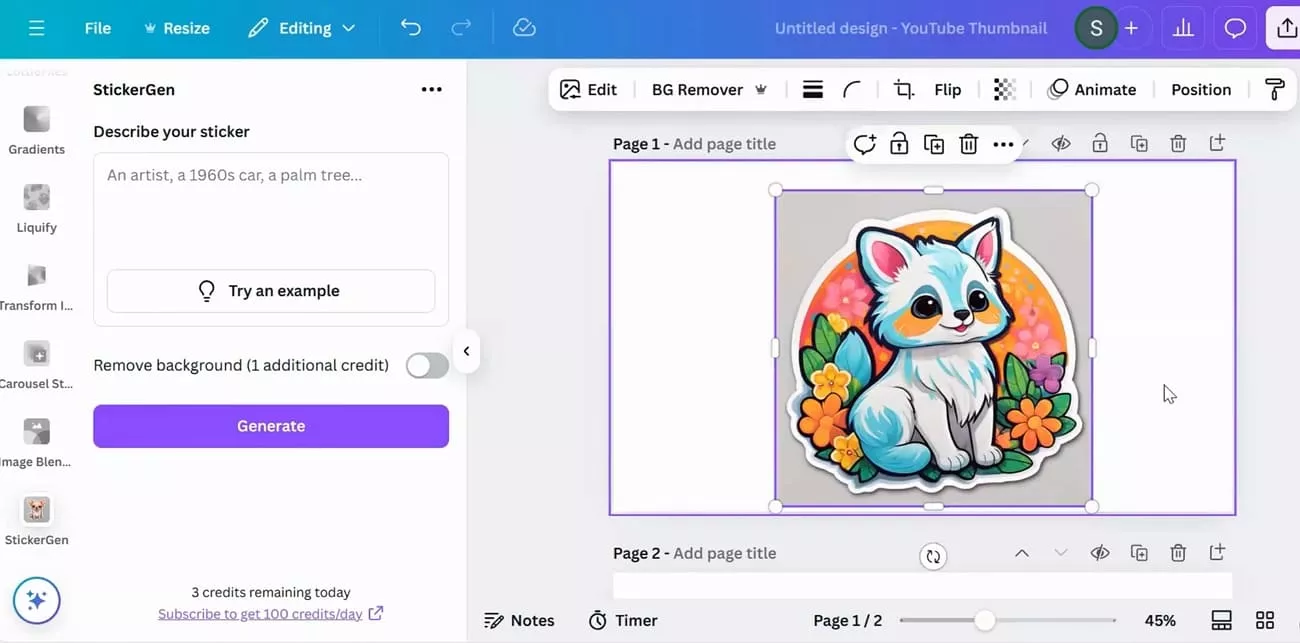
From a blank canvas or template, you can open Canva’s AI sticker generator and describe your idea. Using a short prompt, the tool instantly creates multiple sticker variations, already cropped with clean transparent backgrounds applied. After generation, it’s easy to resize, adjust colors, and download high-resolution PNG stickers for printing or digital use.
3. Wepik
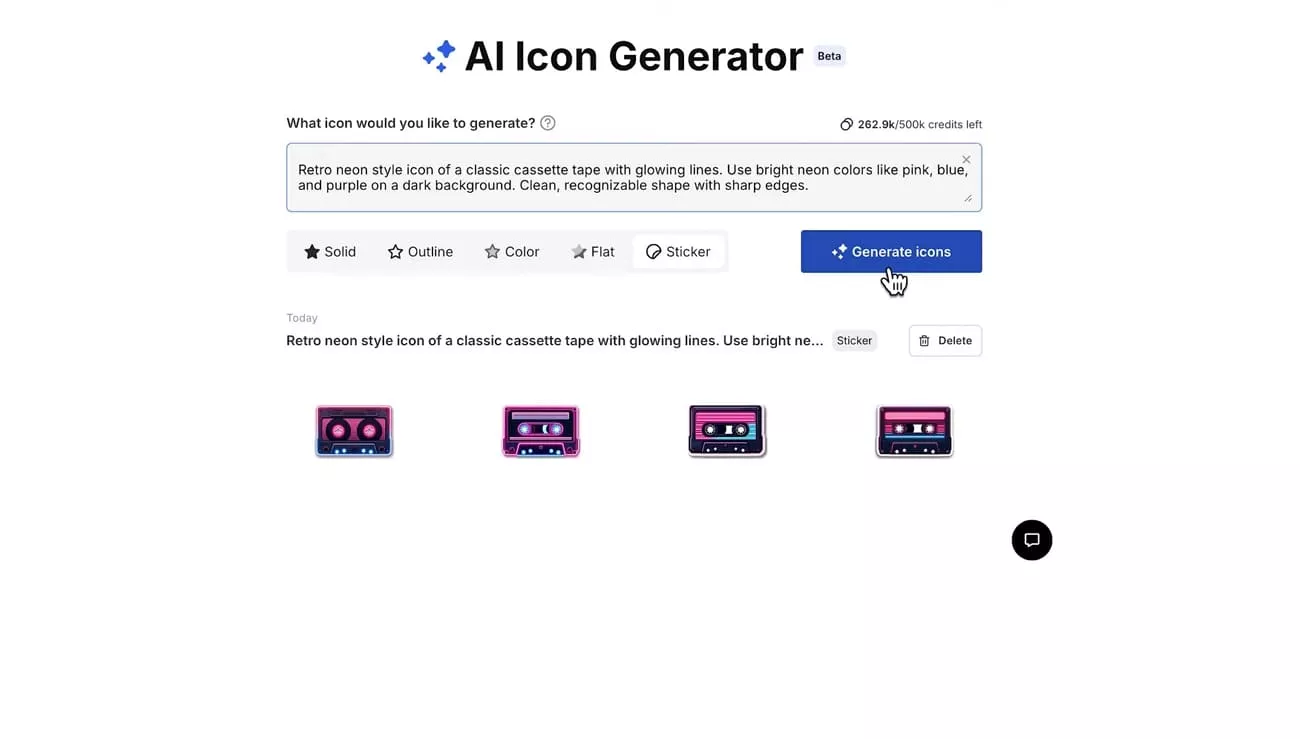
Wepik, now known as Freepik, is an online design platform that offers ready-made sticker templates for social media and personal projects. Compared with a typical AI sticker generator from a photo, it centers on editable templates rather than fully automated, prompt-based image creation. Through its connection with Freepik’s library, users get access to many modern sticker layouts, icons, and illustration styles.
4. Midjourney
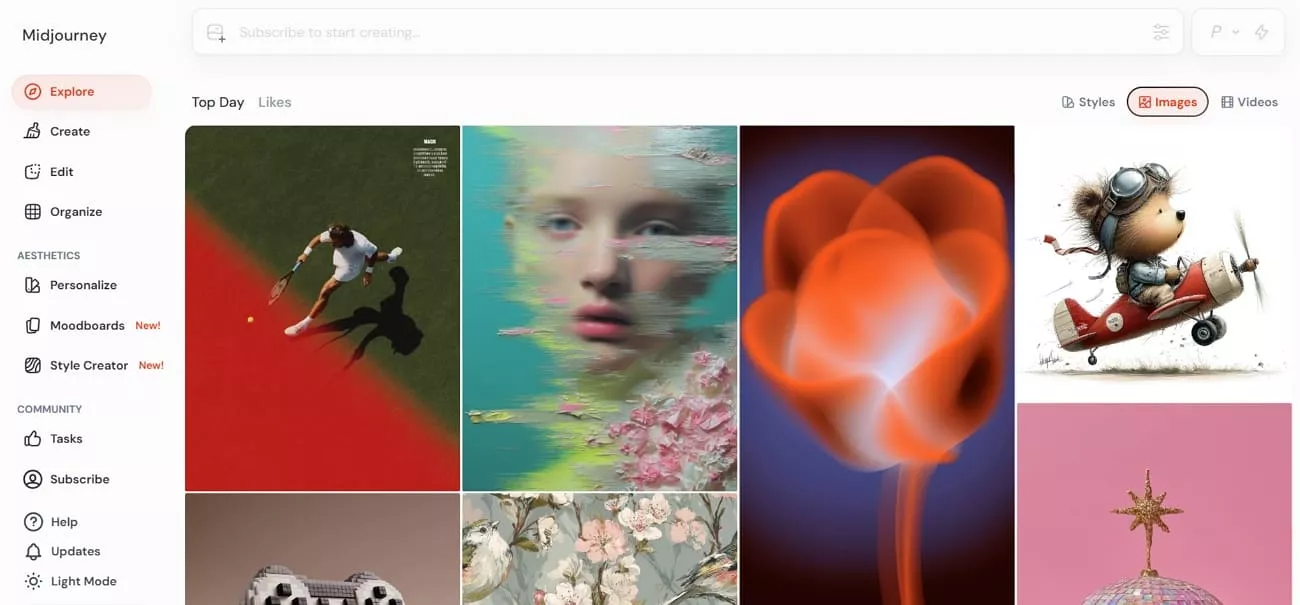
An advanced AI image model that many creators now use as a powerful sticker generator. It turns short text prompts into stylized visuals that you can quickly convert into stickers for chats and merch. With its rich art styles and high image quality, Midjourney helps users design unique stickers without traditional drawing skills.
Part 3. How to Create Custom Stickers for Free?
Custom stickers help you express ideas, organize information, and add personality to chats and documents using AI sticker generator free tools. Now, we will see how you can turn simple prompts or images into personalized stickers step by step.
Now, follow the steps below to turn your ideas into AI-powered stickers inside Meta’s social apps:
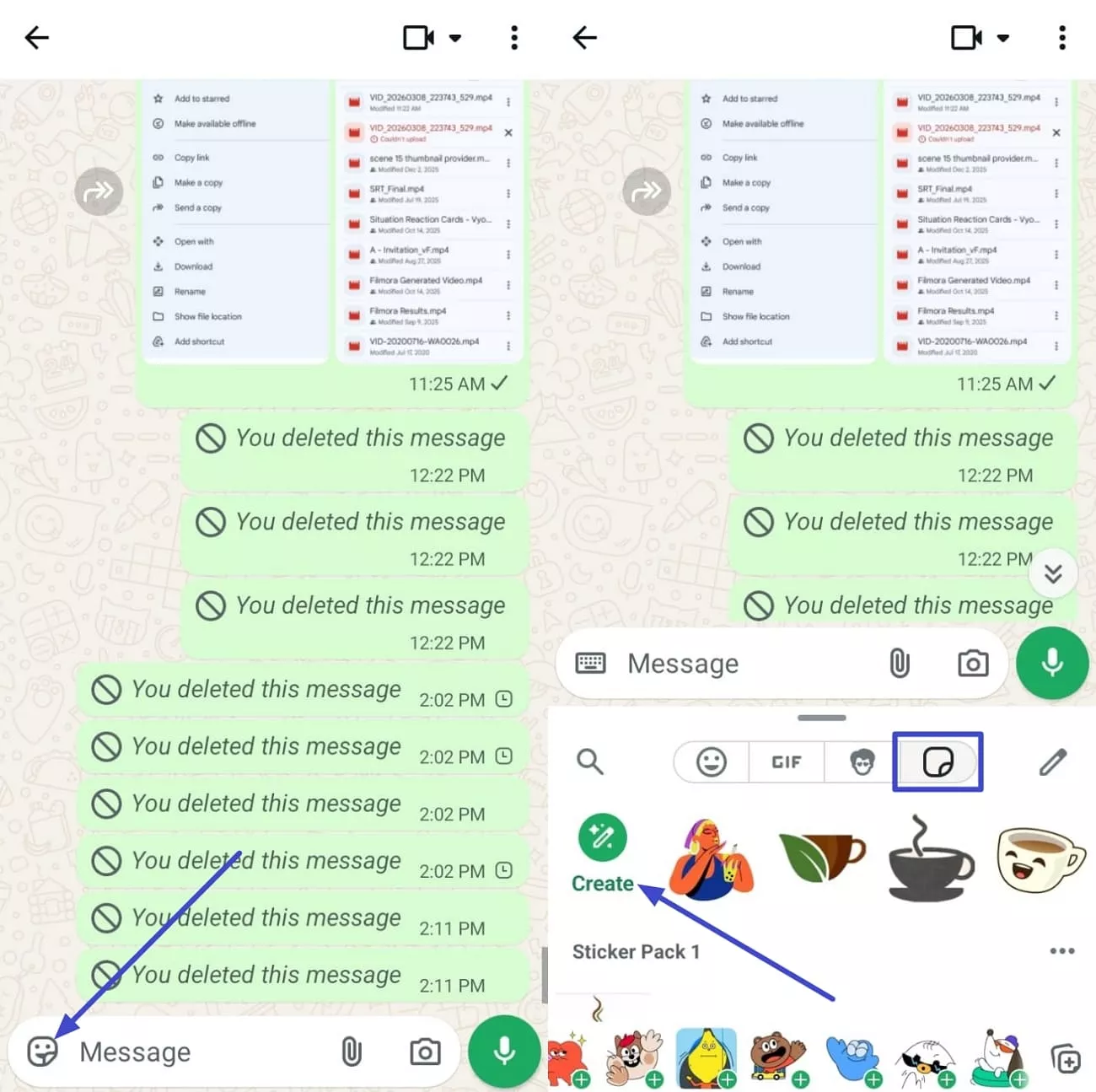
Step 1. To generate a sticker inside WhatsApp, open a chat and tap the “Stickers” icon. Next, tap on the “Stickers” icon below again and press the “Create” option.
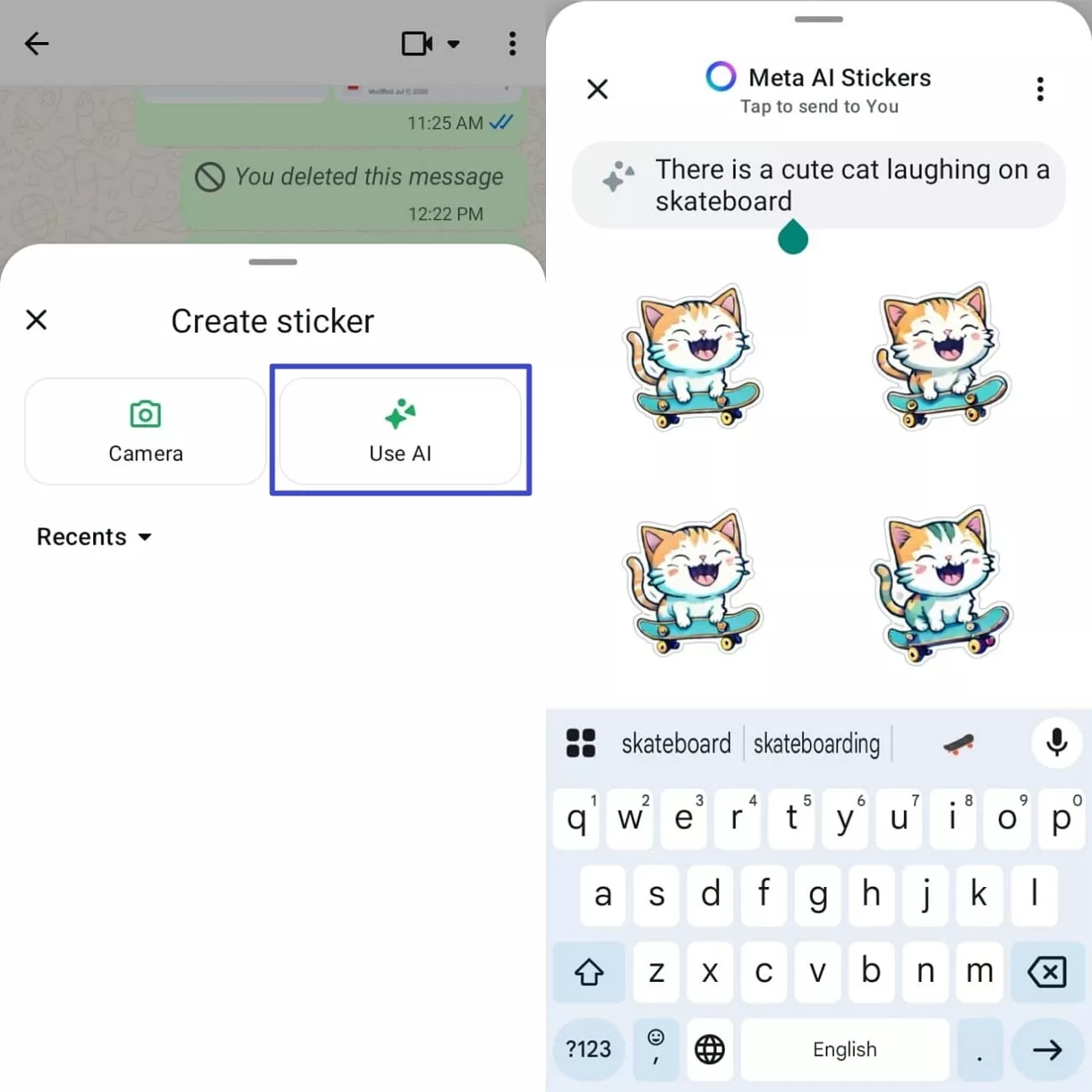
Step 2. Next, tap the “Use AI” option, then enter the sticker prompt. Once the sticker is generated, tap on the sticker to send it directly in chat.
Bonus: Best AI Sticker Generator for PDF
When people review long reports and project plans in PDF, simple highlights are not always enough to stay organized. This is where UPDF solves this by providing a tidy workspace where you can drop meaningful stickers onto pages to guide your eye. Instead of jumping through different apps or browser tools, you stay inside UPDF to both design and apply your custom visuals.
It works by adding a short description of the sticker, and UPDF quickly generates designs that match your content. These stickers can mark different sections and add personality without any drawing experience. With its flexibility, UPDF works as the best AI sticker generator for users who handle PDF files every day.
Windows • macOS • iOS • Android 100% secure
Having introduced UPDF as a reliable AI sticker maker, follow the steps below to see how it works:
Step 1. Access Comment Tool in UPDF
Once you import a PDF file, press the “Tools” option and click the “Comment” tool to enter the annotation interface.
Step 2. Choose Sticker Annotation Tool
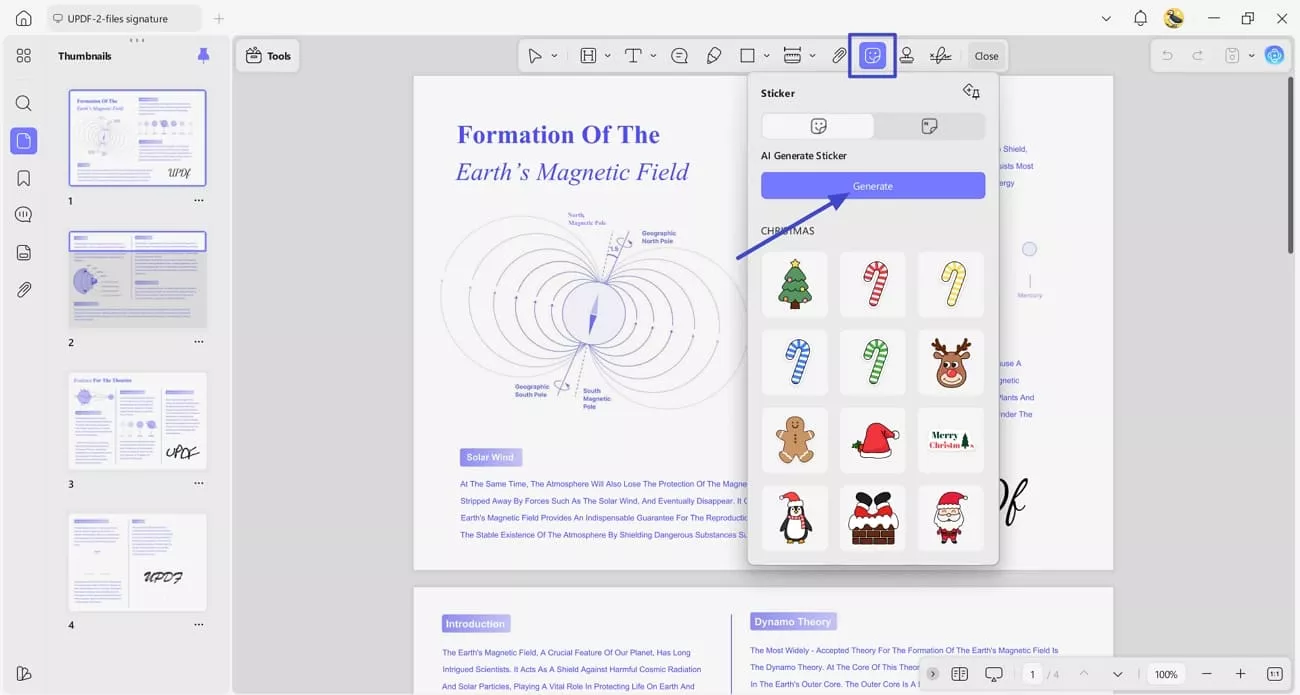
Next, click the “Sticker” icon in the toolbar and press the “Generate” button to generate custom stickers.
Step 3. Write Sticker Description
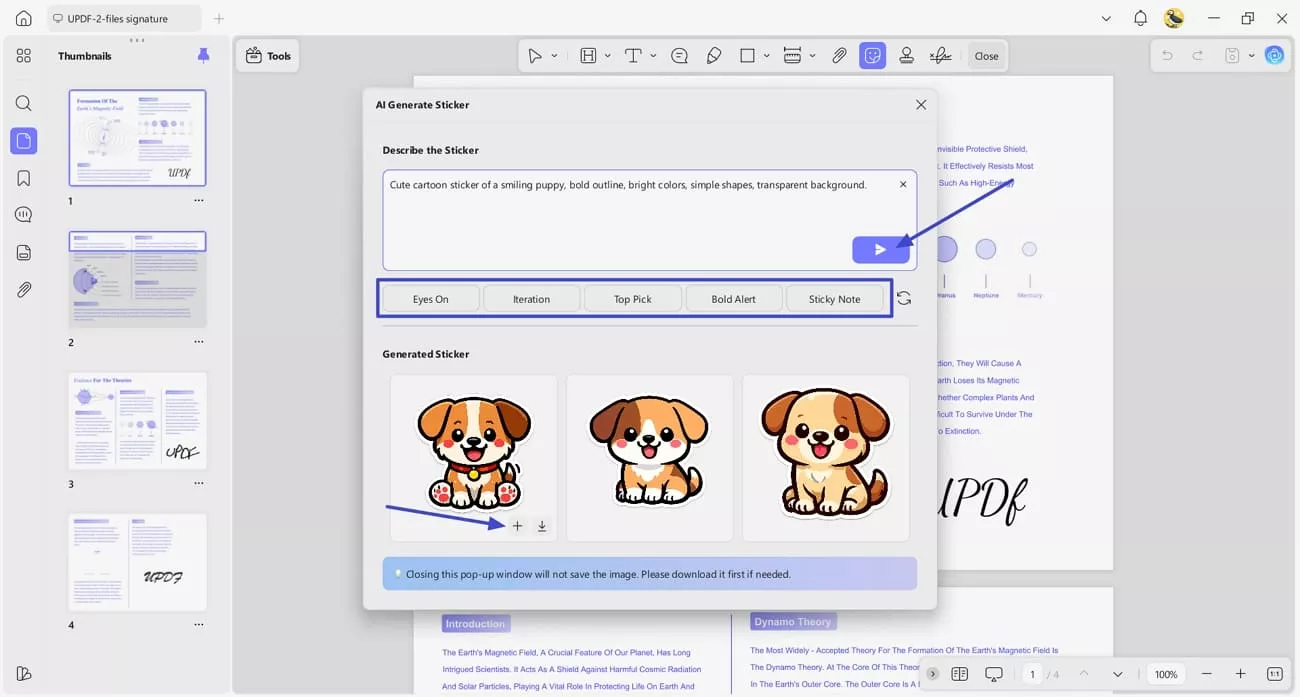
After you see a pop-up window, enter the sticker description or select a “Keyword” to auto-generate a description. Next, click the “Send” button to generate 3 stickers, then press the “Add” icon to add a sticker to the PDF.
Step 4. Use The Generated Sticker on the PDF
Once done, click anywhere on the PDF page to use the sticker and click the “Save” icon to save the PDF.
Words At The End
To summarize, an AI sticker generator simplifies the creation of custom stickers for students, professionals, and creative users across chats and documents. By exploring different tools, prompts, and styles, you can discover designs that truly match your personality or brand identity. For marking up PDFs with colorful, UPDF - AI-generated stickers generator keeps your work organized and visually engaging.
Windows • macOS • iOS • Android 100% secure






 Enola Davis
 Enrica Taylor
 Enya Moore
 Engelbert White
 Lizzy Lozano