 UPDF
UPDF
 UPDF for Windows
 UPDF for Mac
 UPDF for iPhone/iPad
 UPDF for Android
 UPDF AI Online
 UPDF Sign
 Edit PDF
 Annotate PDF
 Create PDF
 PDF Form
 Edit links
 Convert PDF
 OCR
OCR PDF to Word
 PDF to Image
 PDF to Excel
 Organize PDF
 Merge PDF
 Split PDF
 Crop PDF
 Rotate PDF
 Protect PDF
 Sign PDF
 Redact PDF
 Sanitize PDF
 Remove Security
 Read PDF
 UPDF Cloud
 Compress PDF
 Print PDF
 Batch Process
 About UPDF AI
 UPDF AI Solutions
 AI User Guide
 FAQ about UPDF AI
 Summarize PDF
 Translate PDF
 Chat with PDF
 Chat with AI
 Chat with image
 PDF to Mind Map
 Explain PDF
 PDF AI Tools
 Image AI Tools
 AI Chat Tools
 AI Writing Tools
 AI Study Tools
 AI Working Tools
 Other AI Tools
 AI Bookmark Generation
 AI Bookmark Summary
 AI Watermark Generation
 AI Background Generation
 AI Sticker Generation
 AI Stamp Generation
 AI Editing Suite
 UPDF Copilot
 AI Page Management
 AI Semantic Search
 PDF to Word
 PDF to Excel
 PDF to PowerPoint
 Enterprise Solution
 Enterprise Sign
 Enterprise AI
 Enterprise Plan
 Enterprise User Guide
 Enterprise Webinar
 Banking
 Healthcare
 Insurance
 Legal
Legal Manufacturing
 Government
 Education Solution
 Customer Stories
 User Guide
 UPDF Tricks
 FAQs
FAQs UPDF Reviews
 Download Center
 Blog
Blog Newsroom
 Tech Spec
 Updates
 UPDF vs. Adobe Acrobat
 UPDF vs. Foxit
 UPDF vs. PDF Expert

You download a PDF from an email attachment or a browser link — and then spend the next few minutes wondering where it actually went. Unlike a computer where the Downloads folder is always visible, mobile phones hide files in multiple possible locations depending on the OS version, the app you used to download, and your storage configuration.
This guide tells you exactly where PDF files are stored on Android and iPhone in 2026, how to locate them using the built-in file managers, how to check your SD card on Android, and how to change the default download location. We also cover how to open, read, and edit those PDFs directly on your phone using UPDF — including AI features that go well beyond basic viewing.
Windows • macOS • iOS • Android 100% secure
Part 1. Where PDF Files Are Stored by Default — Android and iPhone
The default storage location for downloaded PDFs varies between Android and iPhone. Here is where to look first on each platform — and what to try if the file isn't where you expect it.
On Android: Where to Find Downloaded PDFs
On Android, PDFs downloaded from a browser, email, or messaging app go to the Downloads folder in your internal storage by default.
Step 1. Open the Files app (called "File Manager" on some Samsung and Xiaomi devices) or the My Files app on Samsung phones.
Step 2. Tap Internal Storage → Downloads. Your downloaded PDFs should appear here.
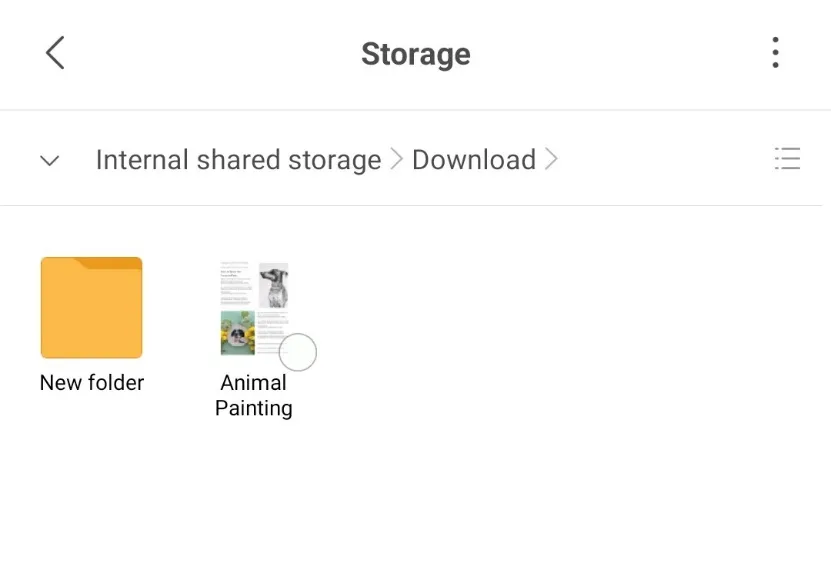
Step 3. Use the search bar at the top to search by filename if you have a large number of files.
If you don't find it in Downloads:
- Check the Documents folder — some apps (like Google Drive or email clients) save PDFs here instead.
- Check app-specific folders: if you downloaded a PDF from WhatsApp, look in WhatsApp/Media/WhatsApp Documents. If it came from Telegram, check Telegram/Documents. Each messaging app has its own subfolder within Internal Storage.
- Check Recent Files: most modern Android file managers show a "Recent" or "Recent Files" section at the top — this is often the fastest way to find a file you downloaded in the last few hours.
On iPhone: Where to Find Downloaded PDFs
On iPhone, where a PDF ends up depends on which app or method was used to download it. The two most common locations are the Files app and the Books app. So, let's explore how to access PDF files from both places.
Method 1 — Files app (Safari and most browsers):
Step 1. Open the Files app (the blue folder icon).
Step 2. Tap On My iPhone → Downloads. PDFs downloaded from Safari should appear here.
Step 3. Use the search bar at the top to search by filename.
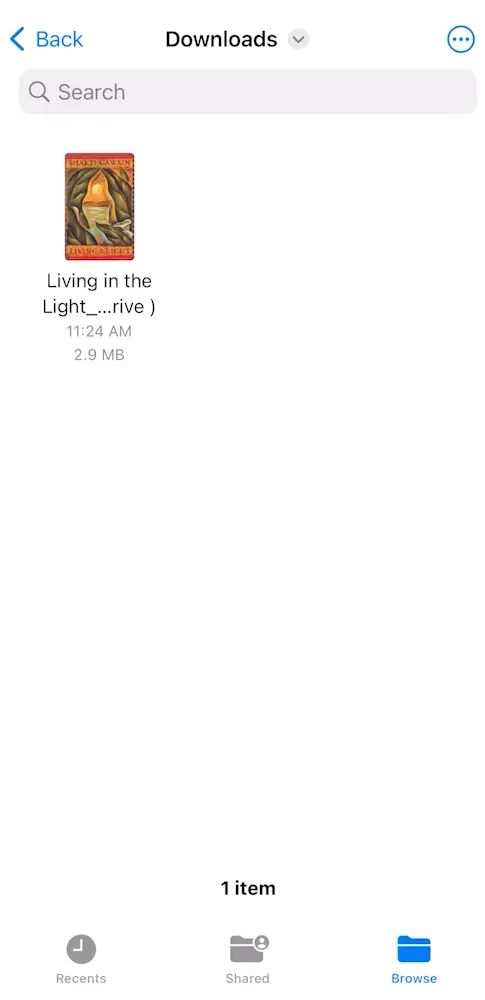
If it's not in Downloads, also check:
- On My iPhone → UPDF (or whichever app you used to open it) — many apps save files to their own folder inside "On My iPhone."
- iCloud Drive — if iCloud Drive is enabled, Safari and some apps may save files there instead of locally. Tap iCloud Drive from the Files main screen to check.
Method 2 — Books app (PDFs opened directly from email or a link):
Step 1. Open the Books app. You can find this app on the home screen of your iPhone.
Step 2. Tap the Library tab at the bottom. PDF files that were sent to Books will appear here alongside your purchased eBooks.
Step 3. Use the Search tab (bottom toolbar) to search by title if the library is large.
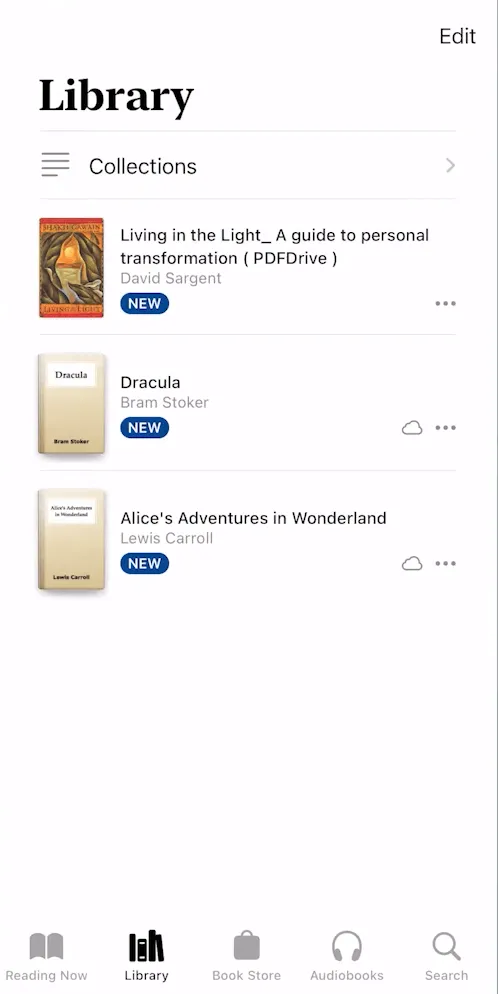
This way, you can quickly address where are PDF files stored on my phone by accessing them from the Downloads folder or Books app. Learn more about how to download a PDF on iPhone.
Part 2. Where are PDF Files Stored on Android Using SD Card?
By default, Android saves downloaded PDFs to internal storage — even when an SD card is inserted. However, if you or an app specifically directed downloads to the SD card, that's where to look.
Step 1. Open the Files / My Files app.
Step 2. Tap SD Card (it may appear as the brand name of your card, e.g., "Samsung SD" or the SD card's volume label).
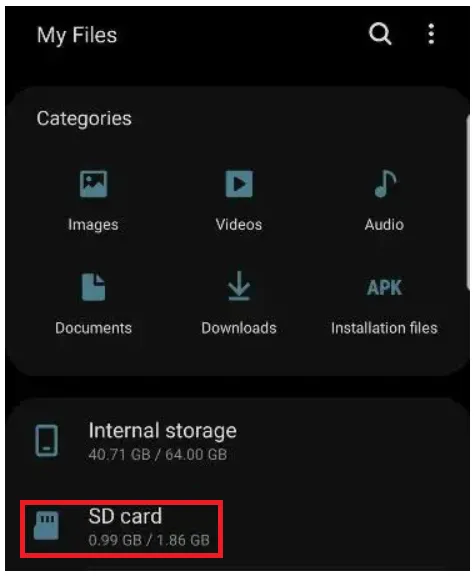
Step 3. Open the Downloads folder on the SD card. If it doesn't exist, try the root level of the SD card — some apps create their own folders directly at the root rather than inside Downloads.
💡 Tip:
This way, you can address where are PDF files stored on Android with or without using an SD card.
Part 3. How to Change the Default Download Location for PDFs on Android
On Android, you can change where Chrome saves downloaded PDFs through the app's settings.
Note for iPhone users:
Changing the download location in Google Chrome (Android):
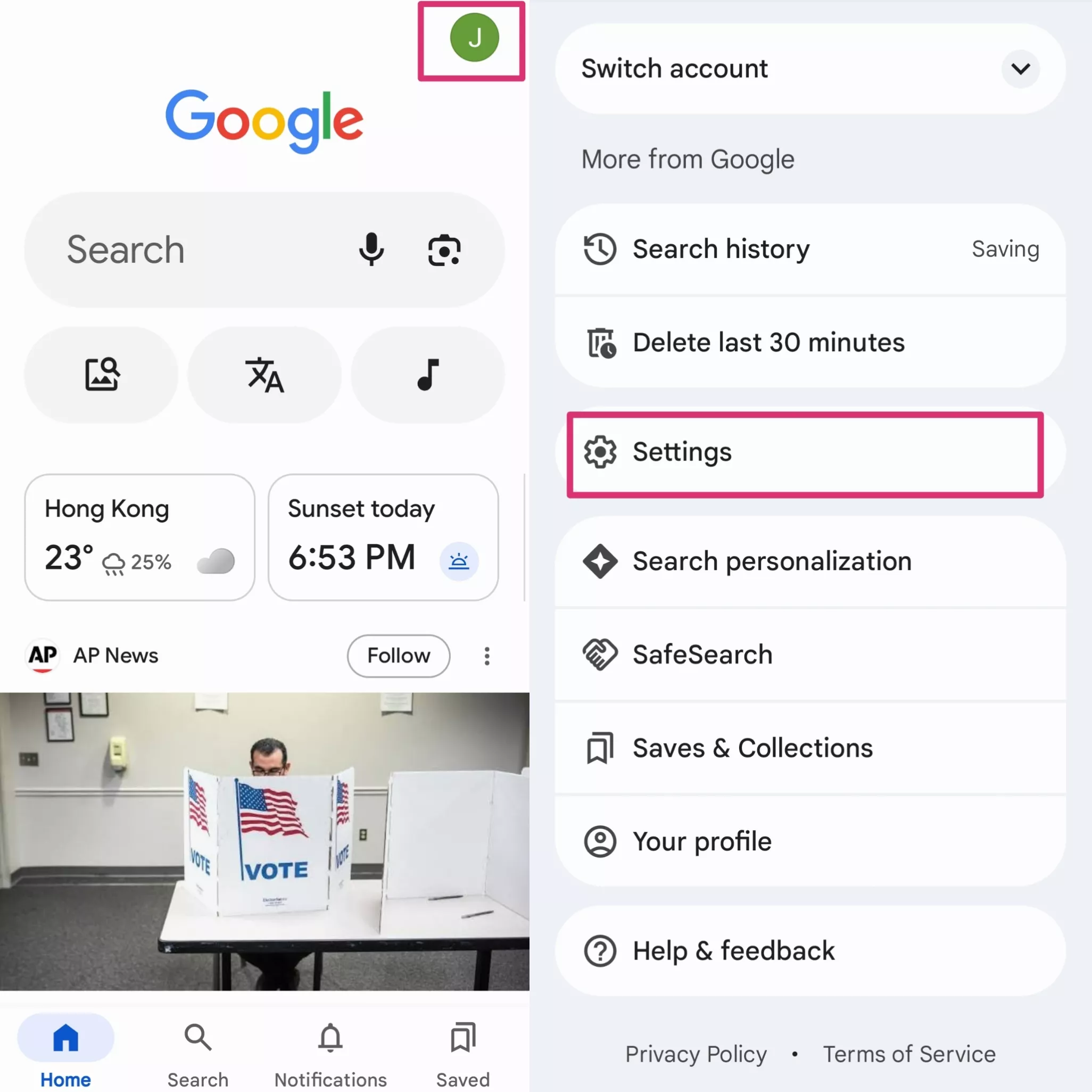
Step 1. Open Chrome on your Android phone. Tap your profile in the top-right corner → tap Settings.
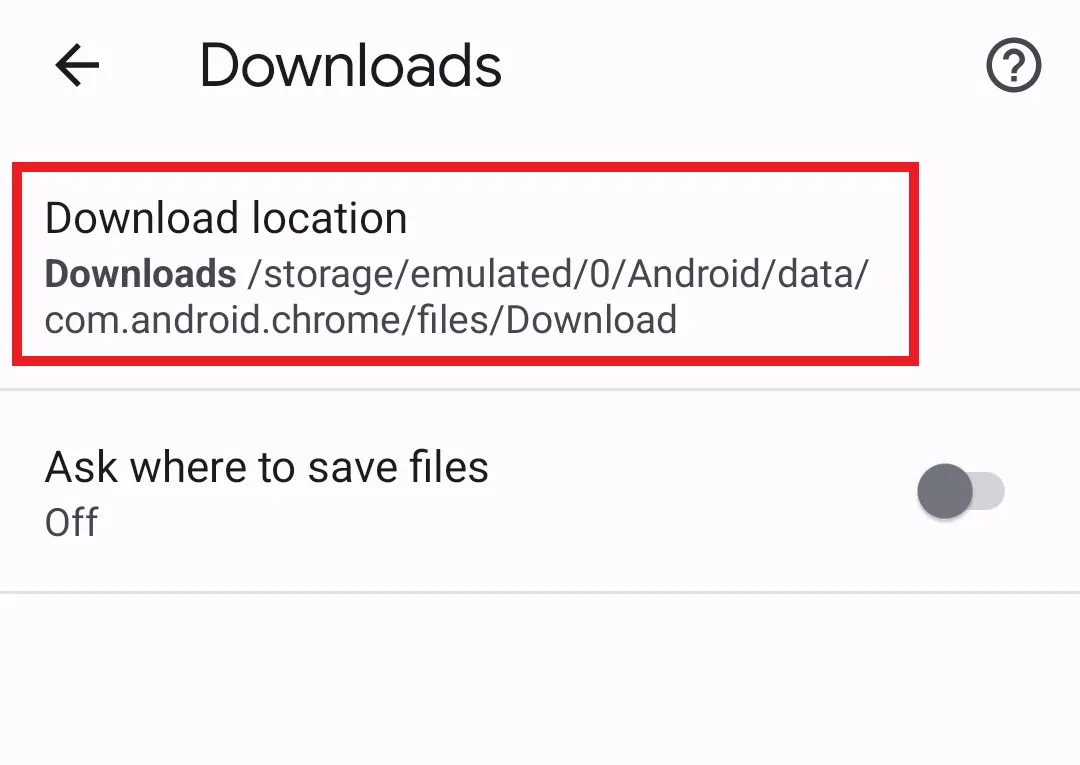
Step 2. Scroll down and tap Downloads (listed under the "Advanced" section in some Chrome versions).
Step 3. Tap Download location. If an SD card is inserted, you will see the option to switch between Internal storage and the SD card name.
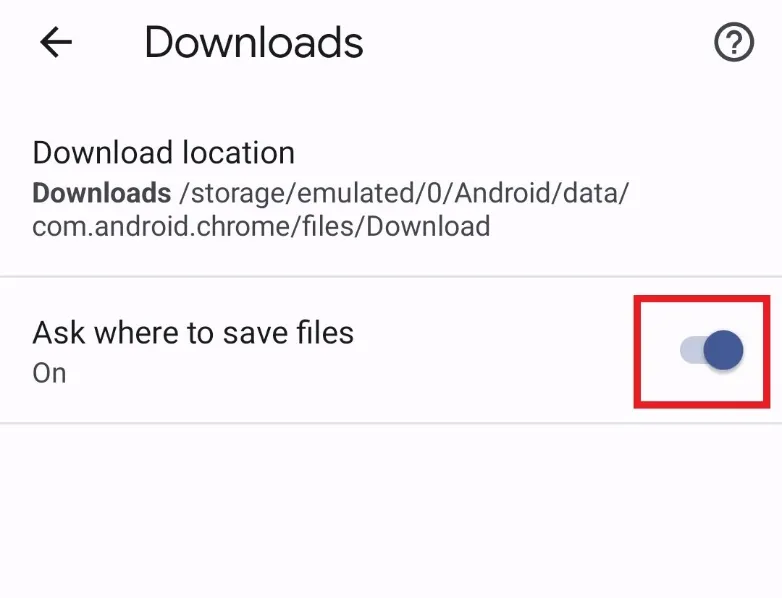
Step 4 (optional): Toggle Ask where to save files to ON. With this enabled, Chrome will prompt you to choose a save location every time you download a file — giving you full control over where each PDF is saved.
💡 Note for Samsung Internet Browser users:
Part 4: How to Open, Read, and Edit PDFs on Your Phone — With UPDF
Once you've located your PDF using the steps above, the next question is: what do you do with it? The phone's default PDF viewer (like Files or Books) lets you read the file — but it can't annotate, edit, or intelligently interact with the content.
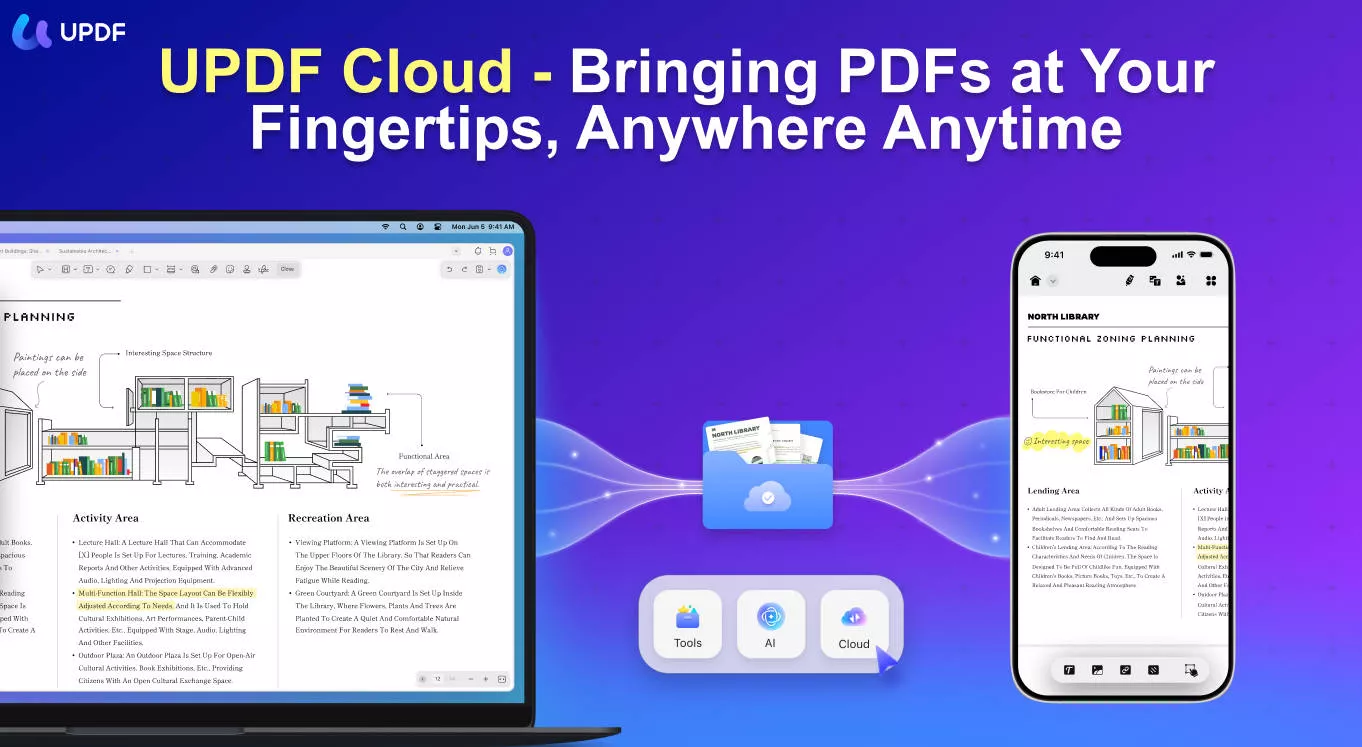
UPDF is an AI-powered PDF editor available as a free download on both iOS and Android. Once installed, it automatically appears as an option in your phone's "Open with" menu whenever you tap a PDF file — so finding the file first (as in Parts 1–3) is step one, and opening it in UPDF is step two.
Windows • macOS • iOS • Android 100% secure
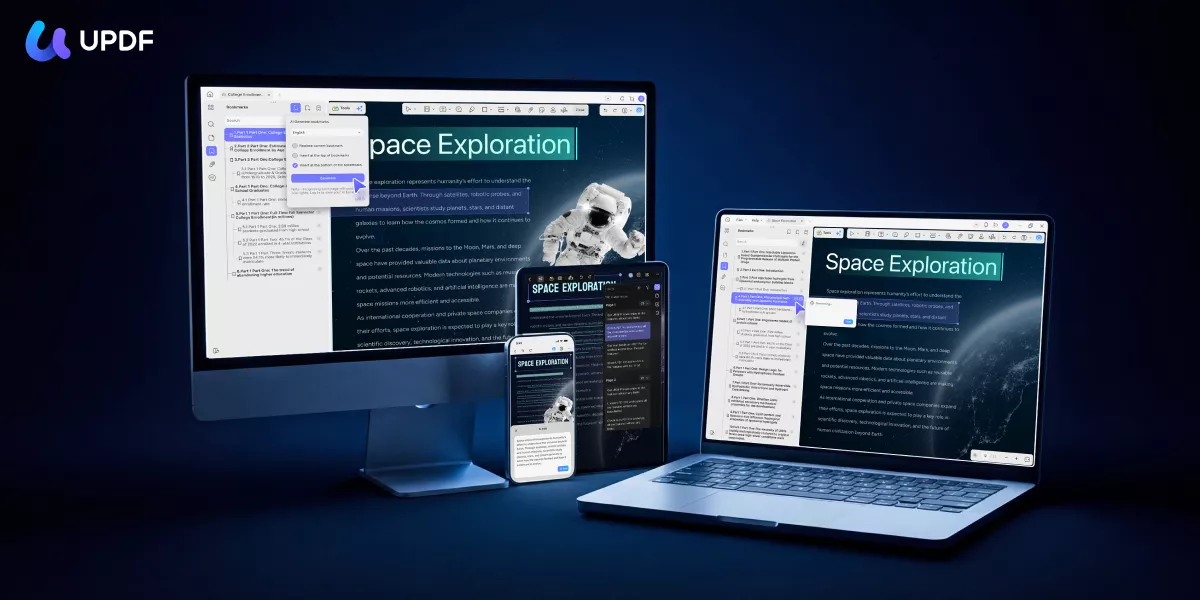
Here's what UPDF lets you do on your phone that your default viewer cannot:
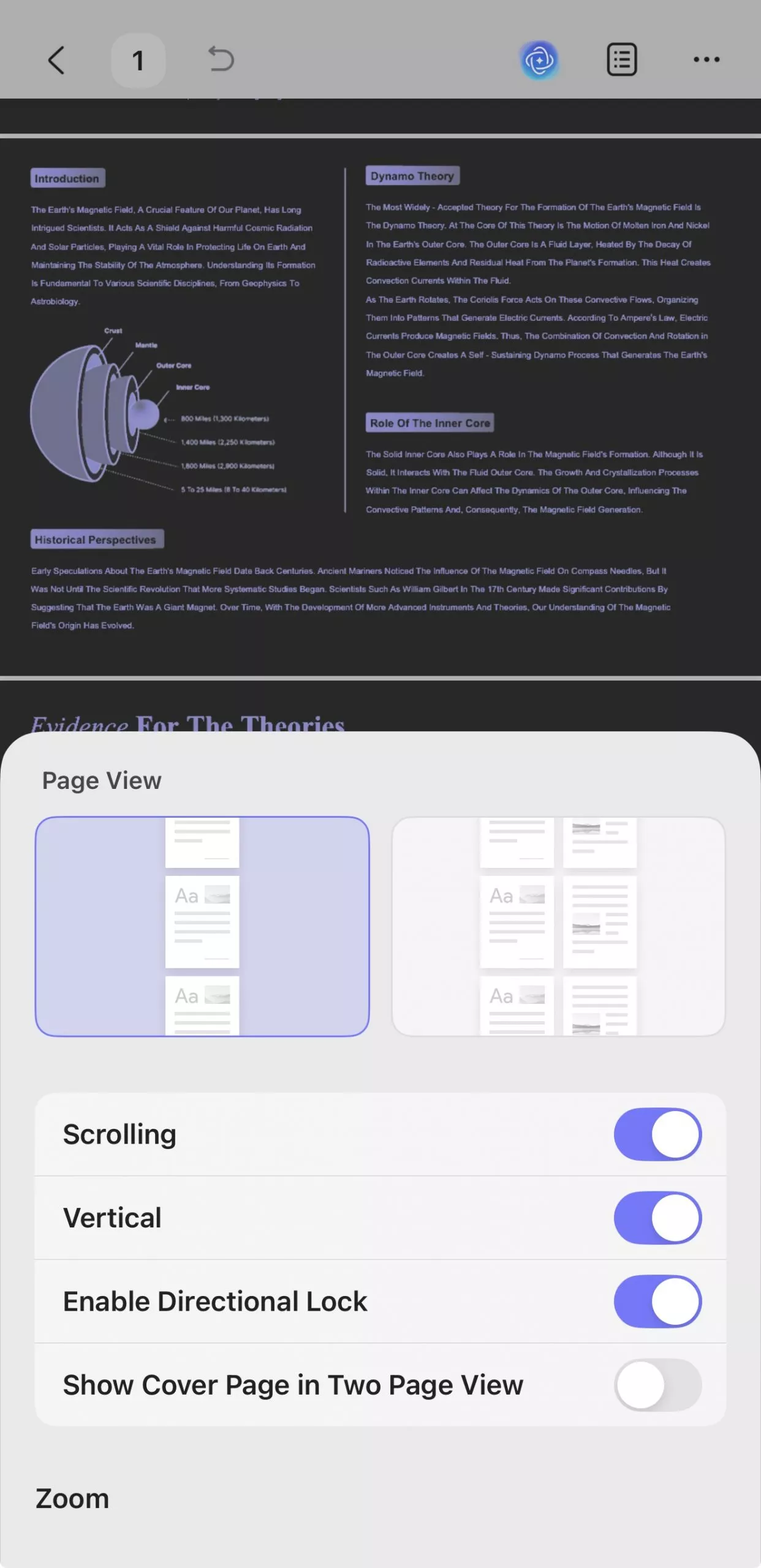
Reading and navigation:
- Read in single-page, two-page, or continuous scroll mode.
- Dark mode and adjustable background colors for comfortable reading.
- Add and manage bookmarks for quick page navigation.
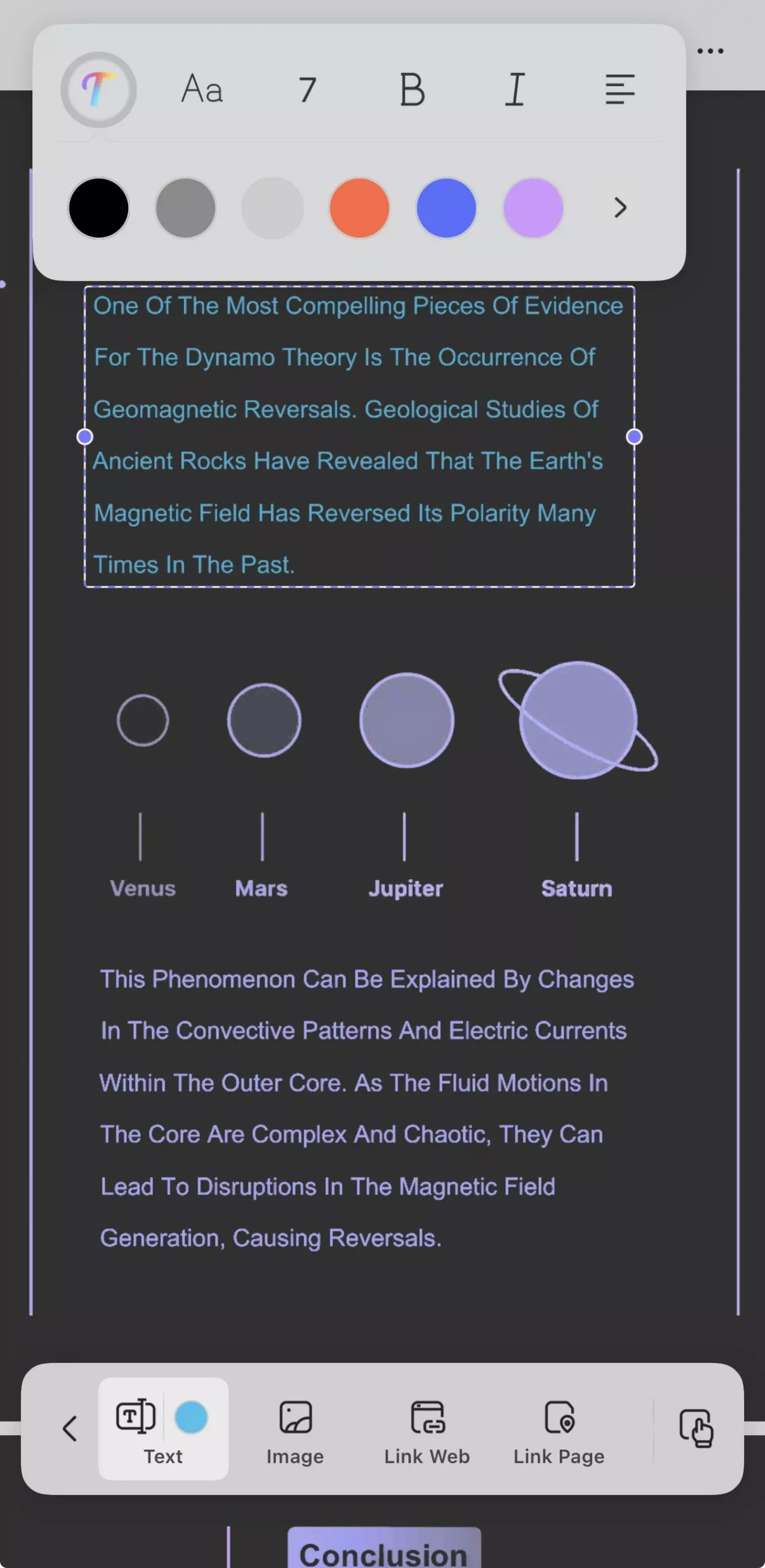
Editing:
- Add, edit, or delete text inside the PDF.
- Insert, replace, crop, or resize images.
- Change font size, color, and style directly within text blocks.
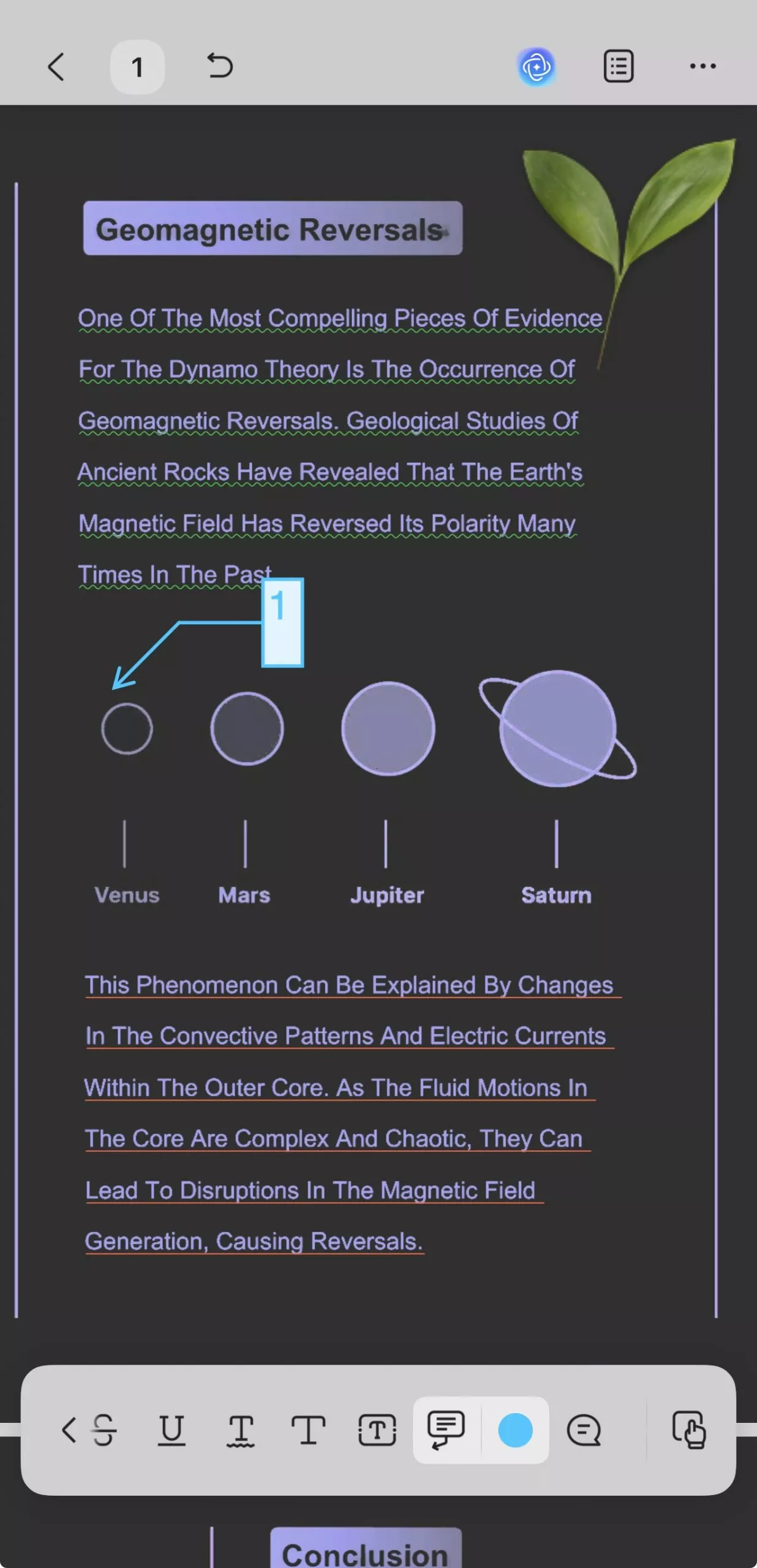
Annotation:
- Highlight, underline, or strikethrough text.
- Add sticky notes, stamps, shapes, or freehand drawings.
- Export or delete annotations as needed.
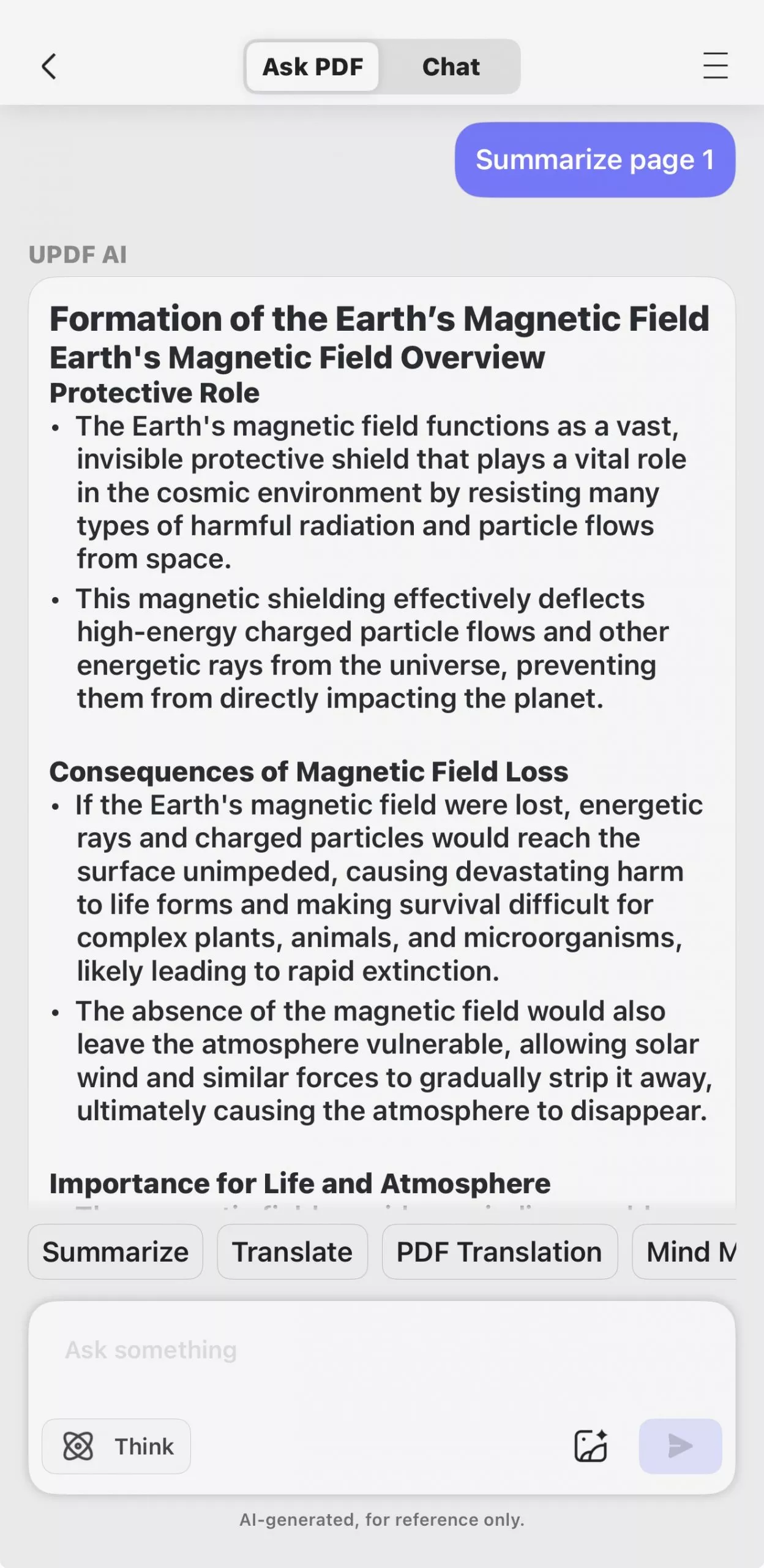
AI features on mobile:
- Chat with PDF: Tap the UPDF AI button on any PDF and ask questions about the content in plain language. Useful for contracts, reports, research papers, or any document you downloaded but haven't had time to read fully. Get an instant summary or ask for specific information without scrolling through the whole file.
- AI Semantic Search: Search your PDF by meaning — UPDF finds pages containing your search term and its synonyms, so you don't have to remember the exact wording used in the document. Particularly useful for long PDFs where scrolling to find a passage would take too long.
- Translate: Select any passage or entire sections and translate to your preferred language directly within the PDF — useful when you've downloaded a PDF in a language other than your native one.
- Summarize: Ask UPDF AI to summarize the document or a selected section — ideal for quickly understanding the content of a PDF you just found on your phone without reading the entire file.
Organizing and saving:
- Manage pages: reorder, extract, delete, insert, or rotate.
- Save the edited PDF directly to your phone storage or upload to UPDF Cloud for automatic sync across all your devices (Windows, Mac, iOS, Android) — so the file is always accessible regardless of which device you're on.
To open a PDF in UPDF from your phone's file manager:
Step 1. Download and install the UPDF app on your Android or iPhone device.
Windows • macOS • iOS • Android 100% secure
Step 2. Navigate to the PDF using the steps in Part 1 or Part 2.
Step 3.Long-press the PDF file → tap Open with → select UPDF from the list.
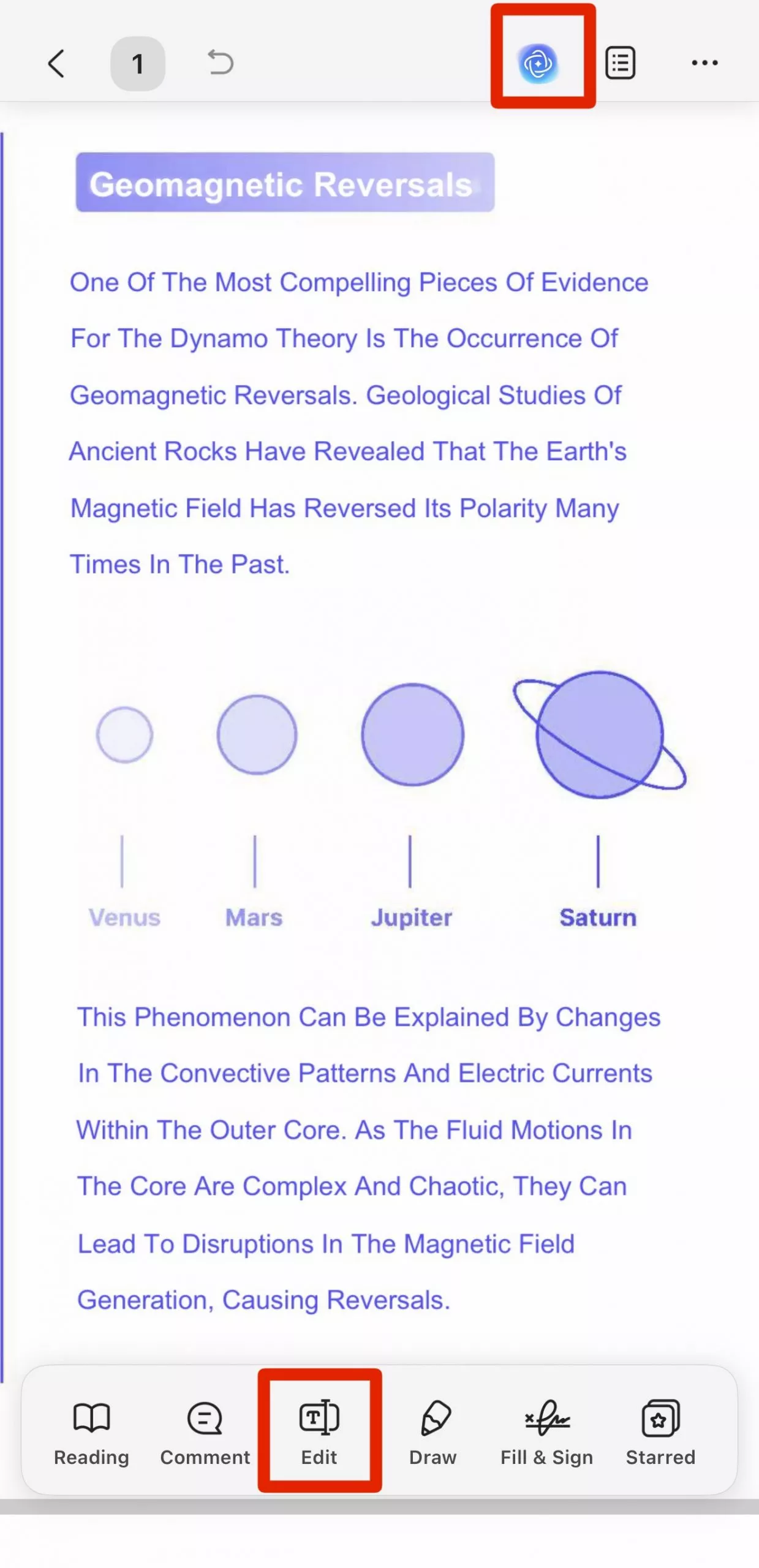
Step 4. UPDF opens the file. Tap the Edit button in the bottom toolbar to enter edit mode, or tap the UPDF AI button to open the AI assistant.
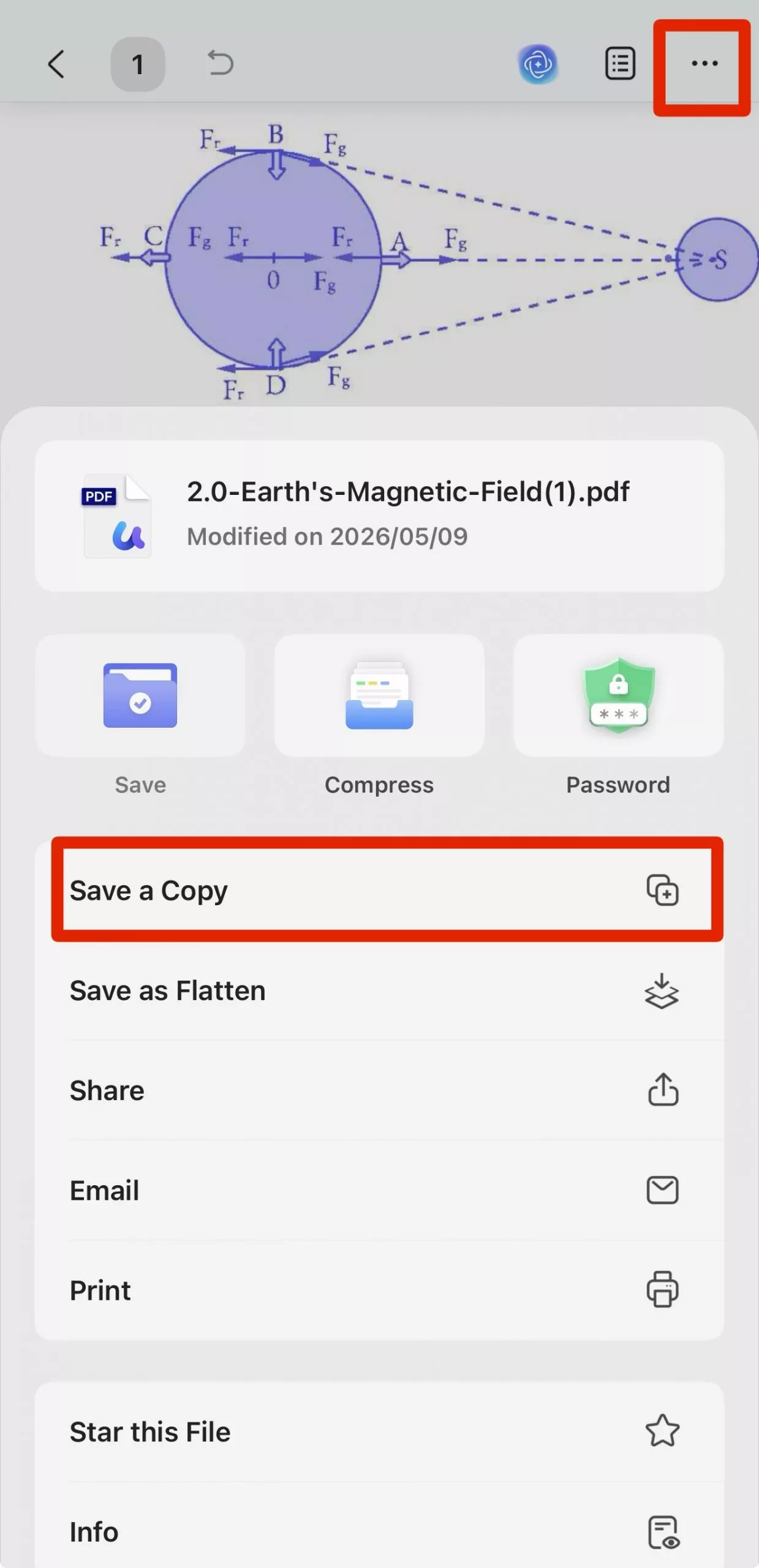
Step 5. Once you have made all the changes you want to make, click the three-dot icon from the top toolbar and then click "Save As a Copy" to save the PDF file in your targeted folder.
That's it! So, a few simple clicks let you easily edit PDF files on your phone with UPDF.
UPDF is available for free download on iOS and Android, and is significantly more affordable than Adobe Acrobat for users who need full PDF editing and AI features on mobile. A single UPDF Pro license covers Windows, Mac, iOS, and Android simultaneously — meaning the PDF you found on your phone is also accessible and fully editable on your computer via UPDF Cloud. Don't hesitate to upgrade to UPDF Pro and unlock all its features!
Windows • macOS • iOS • Android 100% secure
Conclusion
Downloaded PDFs on Android typically end up in the Downloads folder of your internal storage, or in an app-specific subfolder (WhatsApp, Telegram, etc.) if they came through a messaging app. On iPhone, check the Files app → Downloads folder first, then the Books app if the file was sent there directly. If iCloud Drive is enabled, also check there.
If the file is in an unexpected location, Part 3 shows how to configure Chrome to always ask you where to save downloads — preventing the problem in the future.
Once you've found your PDF, open it in UPDF for the full reading, editing, and AI experience. Chat with it, search it by meaning with AI Semantic Search, or get an instant summary — all from the same app you used to open it. Download UPDF for free and try it on the next PDF you find — no subscription required to get started.
Windows • macOS • iOS • Android 100% secure





 Enid Brown
 Enrica Taylor

 Lizzy Lozano
 Enola Miller