UPDF
UPDF
 UPDF for Windows
 UPDF for Mac
 UPDF for iPhone/iPad
 UPDF for Android
 UPDF AI Online
 UPDF Sign
 Edit PDF
 Annotate PDF
 Create PDF
 PDF Form
 Edit links
 Convert PDF
 OCR
OCR PDF to Word
 PDF to Image
 PDF to Excel
 Organize PDF
 Merge PDF
 Split PDF
 Crop PDF
 Rotate PDF
 Protect PDF
 Sign PDF
 Redact PDF
 Sanitize PDF
 Remove Security
 Read PDF
 UPDF Cloud
 Compress PDF
 Print PDF
 Batch Process
 About UPDF AI
 UPDF AI Solutions
 AI User Guide
 FAQ about UPDF AI
 Summarize PDF
 Translate PDF
 Chat with PDF
 Chat with AI
 Chat with image
 PDF to Mind Map
 Explain PDF
 PDF AI Tools
 Image AI Tools
 AI Chat Tools
 AI Writing Tools
 AI Study Tools
 AI Working Tools
 Other AI Tools
 AI Bookmark Generation
 AI Bookmark Summary
 AI Watermark Generation
 AI Background Generation
 AI Sticker Generation
 AI Stamp Generation
 AI Editing Suite
 UPDF Copilot
 AI Page Management
 AI Semantic Search
 PDF to Word
 PDF to Excel
 PDF to PowerPoint
 Enterprise Solution
 Enterprise Sign
 Enterprise AI
 Enterprise Plan
 Enterprise User Guide
 Enterprise Webinar
 Banking
 Healthcare
 Insurance
 Legal
Legal Manufacturing
 Government
 Education Solution
 Customer Stories
 User Guide
 UPDF Tricks
 FAQs
FAQs UPDF Reviews
 Download Center
 Blog
Blog Newsroom
 Tech Spec
 Updates
 UPDF vs. Adobe Acrobat
 UPDF vs. Foxit
 UPDF vs. PDF Expert

I recently started hearing a lot of buzz about Kimi K2.5, a new model focused on stronger reasoning, an impressively long context window, and a fresh feature, "agent swarm" capability that sets it apart from standard chatbots.
Instead of diving into technical benchmarks, I want to share my early experiences with Kimi K2.5 in my daily workflows, where it really stands out in everyday research and writing tasks, and what makes it different from older models.
Research often means dealing with PDFs. I have shared a bonus section on how I combine kimi k2.5 with UPDF and UPDF AI. UPDF is my go-to PDF editor, and UPDF AI adds powerful academic tools for research and literature reviews.
Windows • macOS • iOS • Android 100% secure
Part 1. What kimi k2.5 is (From My Early Experience)
So, what exactly is Kimi K2.5?
It is an open-source, native multimodal "agentic" AI model released by Moonshot AI in January 2026. It is designed to handle complex research, coding, and office productivity tasks through a massive architecture and a unique parallel-processing system called "Agent Swarm". Even though it has over 1 trillion parameters, its Mixture-of-Experts (MoE) architecture keeps it fast and responsive. Think of it as a smarter, faster, and more capable upgrade to earlier AI models like ChatGPT, Gemini, etc.
From my perspective, the biggest changes are:
Native Vision & Coding
It is a native multimodal model, meaning it doesn't just "see" images or videos as attachments; it understands them as part of the same reasoning process as text. It can translate a UI screenshot directly into working front-end code, saving me hours of manual layout work. It's been trained on roughly 15 trillion tokens of both text and visual data, meaning it doesn't just understand words but images and videos, too.
Stronger reasoning
Compared to earlier versions, it feels sharper in its reasoning, better at handling long conversations, and better at keeping track of context across multiple prompts.
Longer context handling
I can feed it extended documents or multi-part questions, and it remembers details without losing track. I could continue the same conversation hours later without repeating background information. With a massive 256K token context window, I’ve been able to feed it entire research.
I could continue the same conversation hours later, and it still remembered the earlier discussion.
Efficiency
What I noticed right away is that its responses feel more confident and structured. When I ask it a complex question, it doesn't just dump a wall of text at me. It organizes its thinking, breaks things down clearly, and actually feels like it understands what I'm asking
Agent Swarm
This is the biggest new feature, and I'll cover it in detail in the next section
How to Access and Use Kimi K2.5
Getting started is straightforward, whether you want a simple chat interface or a developer-focused setup. The Kimi blog post explains the updates in detail, but I found it easier just to start experimenting.
1. Direct Web Access: You can go to Kimi.com or use the Kimi App. Once logged in, I could open a chat window, type my question, and immediately see how the model responds to it.
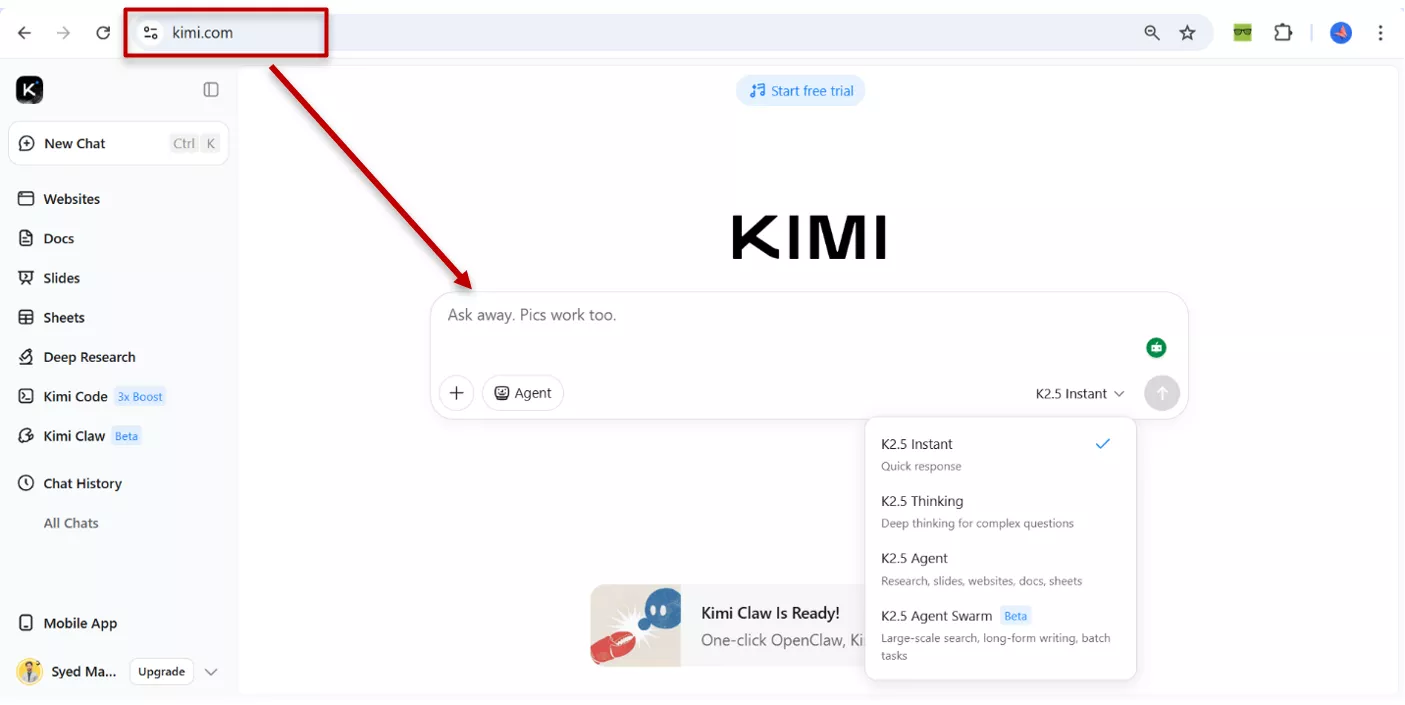
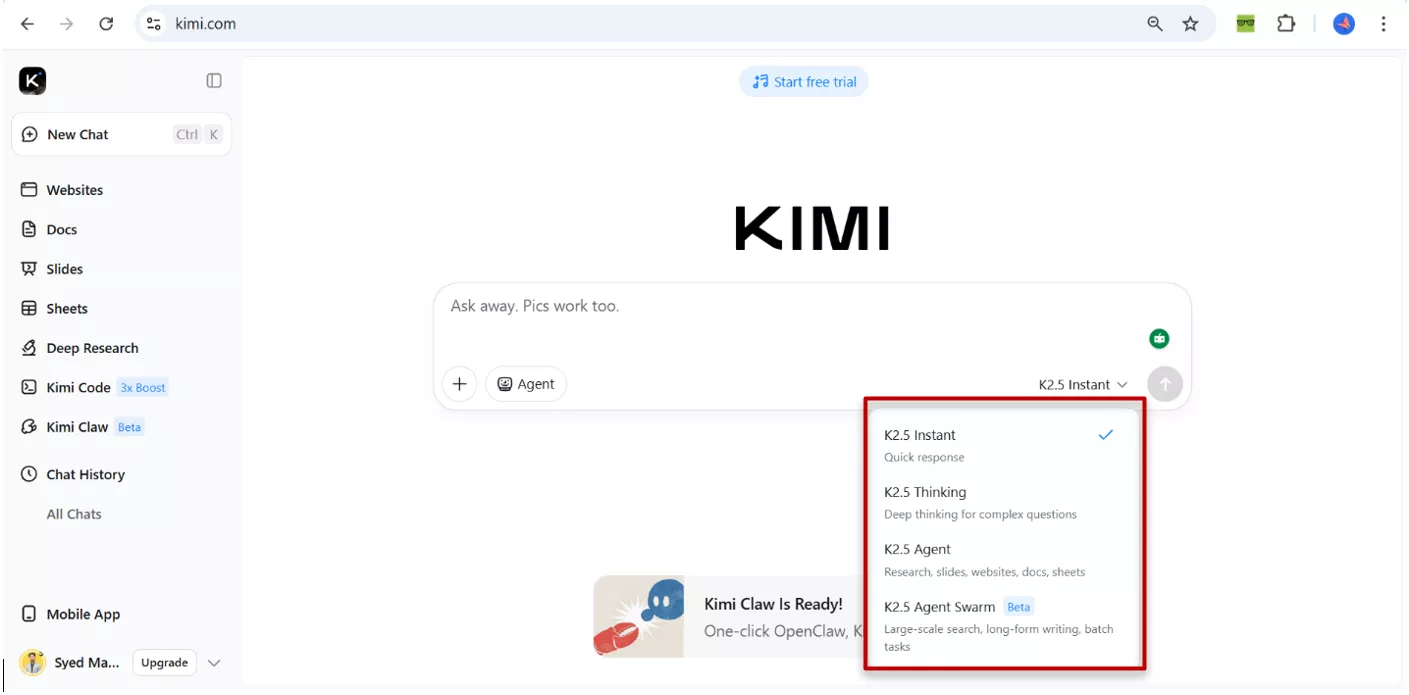
2. Choose Your Mode: In the interface, you can toggle between four main modes: Instant (for quick answers), Thinking (for deep reasoning traces), Agent (for document/spreadsheet creation), and Agent Swarm (the powerful research preview).
3. For Developers: If you want to integrate it into your own tools, the model is available via the Moonshot AI Open Platform API. You can also find it on platforms like Together AI or NVIDIA NIM for free experimentation with an API key.
Part 2. Agent Swarm: What It Is and How It Feels to Use (Core New Feature)
Most AI models work like a single person doing everything on their own, reading your question, thinking it through, and writing back. One brain, one task, one answer at a time. Kimi k2.5 includes the new agent swarm capability, which can coordinate up to 100 sub-agents and handle up to 1,500 steps at a time. Tasks that would normally take a long time get done up to 4.5x faster.
Kimi k2.5 contains multiple internal “agents”, each of which focuses on different parts of a task. In simple terms, it feels like having a small team working behind the scenes, with one agent focusing on background information, another on structure, and another on methods or style.
How It Feels in Practice
In practice, I’ve used it for brainstorming, outlining, and exploring new research topics. This has been especially useful when I’m stuck on complex tasks or need to see different perspectives at once.
Example: The Market Researcher
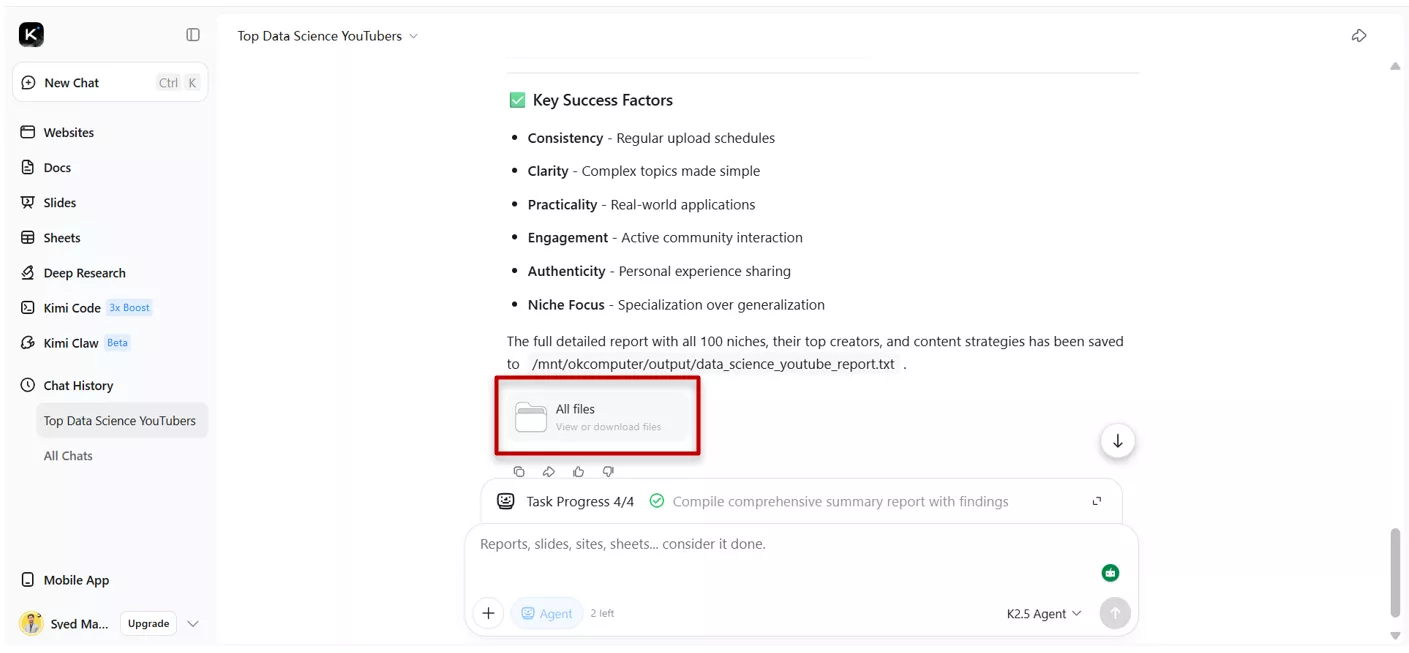
I asked Kimi K2.5: “Identify the top YouTube creators across 100 different niches in the data science domain and summarize their content strategy”.
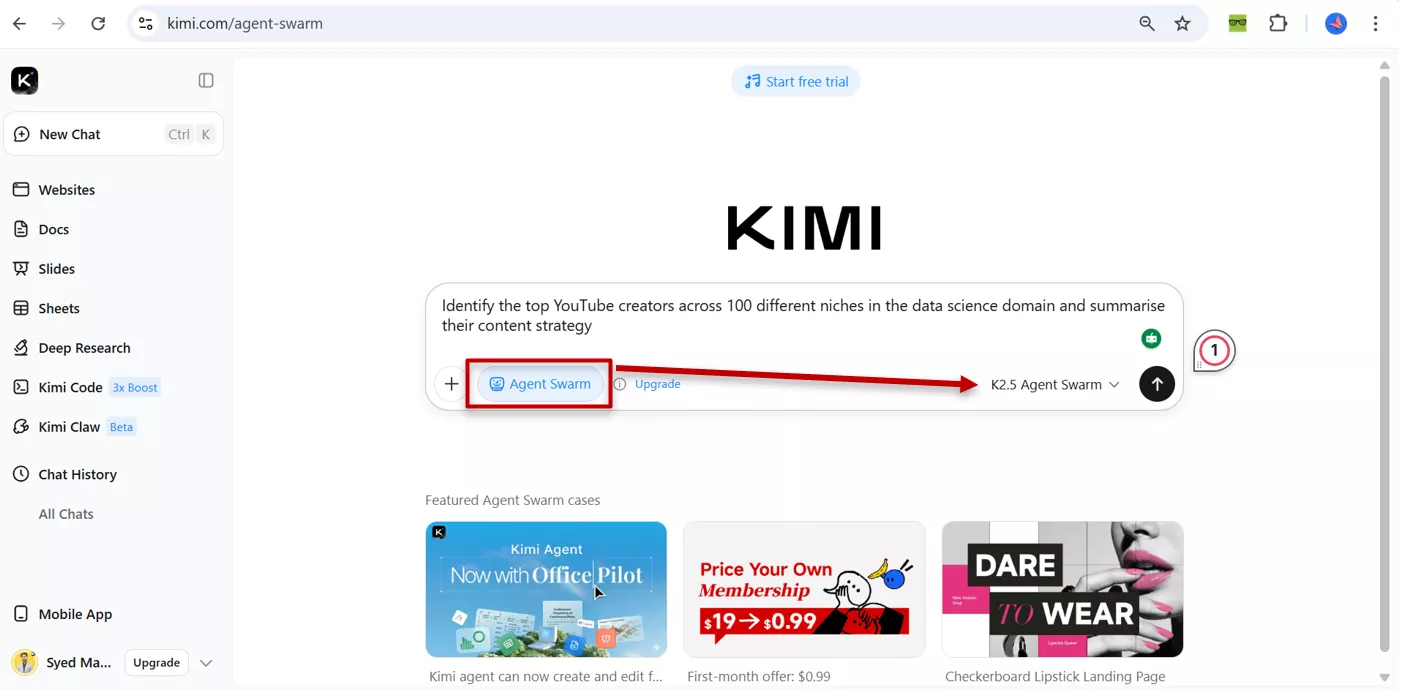
What happened next was genuinely impressive. Instead of going through each niche one by one, it spun up 100 sub-agents simultaneously, each researching its assigned niche, and then brought together the top 10 creator profiles and their content strategies from 100 different niches. It has also generated a downloadable .txt file containing everything in a structured format.
That kind of structured reasoning is what makes kimi k2.5 stand out for me.
Part 3. Using Kimi K2.5 For Research And Idea Exploration
One of the main ways I use kimi k2.5 is for early-stage research and idea exploration. Whenever I step into a new topic, whether it’s a technical field, policy debate, or emerging AI trend, I don’t immediately look for answers. Instead, I ask broad landscape questions first.
For example, I might ask:
“What are the main debates around decentralized AI systems?”
or
“What are the key approaches to solving long word reasoning problems?”
What I like about kimi k2.5 is how it maps the field in layers. It doesn’t just list points randomly. It organizes themes into categories, identifies sub-questions, and sometimes even suggests competing schools of thought. That structured overview saves me hours compared to starting from scratch.
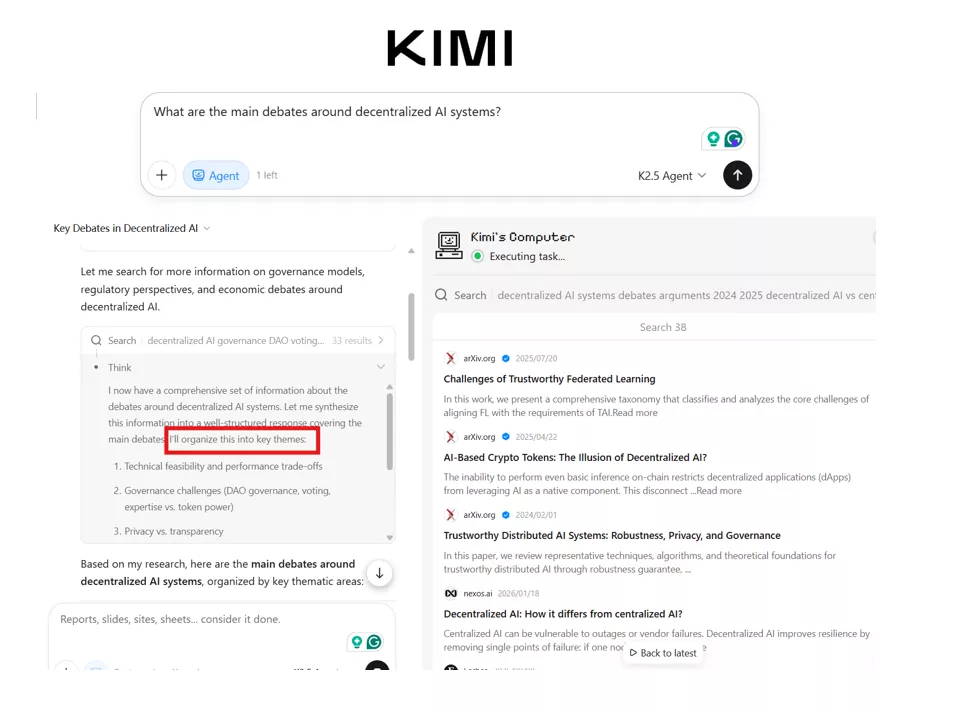
After that, I go deeper. I’ll pick one theme and ask it to break it down into multiple subtopics, research angles, or potential paper sections. It often suggests search keywords I hadn’t considered, which helps me explore and add extra information.
But I stay cautious. I treat kimi k2.5 as a research assistant, not a final decision and draft. Whenever it suggests claims or conceptual explanations, I create a verification list. I then cross-check everything with the original sources.
I also deliberately challenge it. I frequently ask:
“What are the limitations or counterarguments?”
“What assumptions does this approach rely on?”
This pushes the model to offer different perspectives rather than giving me a single, polished narrative. In my experience, that’s where kimi k2.5 becomes most useful, not as a fact machine, but as a structured idea creator.
Part 4. Drafting And Editing With Kimi K2.5 (Outlines, Drafts, And Rewrites)
When it comes to writing, I use kimi k2.5 more as a thinking partner than a ghostwriter. If I’m starting a new article or report, I rarely begin with a blank page. Instead, I ask it to generate several outline variations. Well, you can note it down if you didn't follow this technique before, as it gives the best start. For example, I’ll request:
“Create three outline options: one technical, one semi-technical, and one general audience.”
This helps me quickly see different framing strategies.
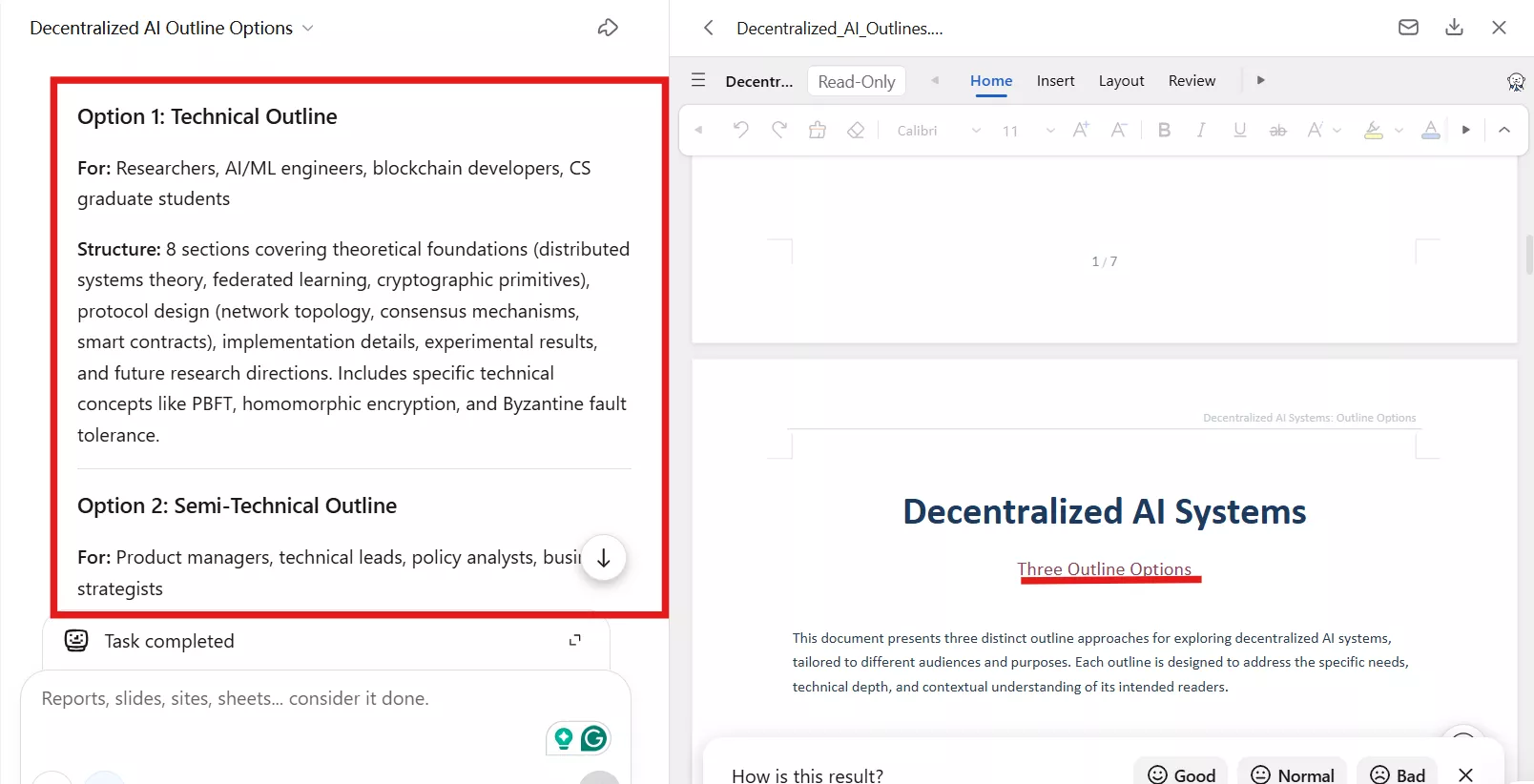
Once I choose a direction, I either write the first draft myself or ask Kimi K2.5 to produce a rough version. But I never publish its output as-is. I then heavily edit it to suit my needs. I see it as a blueprint, not a finished project. I will recommend that readers treat it the same way.
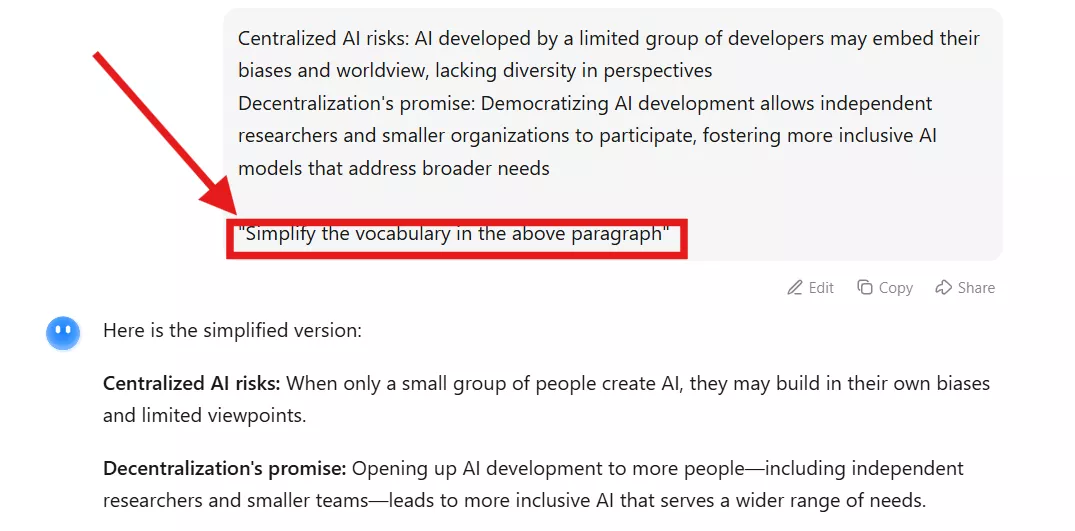
For editing, I paste in specific paragraphs and ask targeted questions:
“Can you tighten this without losing detail?”
“Which sentences might confuse readers?”
“Use simple vocabulary for intermediate.”
The responses are usually practical and direct. Instead of rewriting the whole piece, Kimi often highlights main points and suggests alternatives. That saves me time because I can evaluate changes line by line.
One feature I find especially interesting is how its agent swarm capability can evaluate the same draft from multiple angles. In one response, it might separate feedback into clarity, structure, engagement, and logic. It is powerful because it is similar to receiving multiple comments and feedback from multiple reviewers.
Still, I don’t unquestioningly accept every suggestion. My own judgment remains the final filter. Most of the time, my original phrasing contains a nuance I need as is, and rather than removing it, I want to preserve it.
Therefore, for me, Kimi k2.5 works best not as a replacement writer but as a structured editorial assistant that sharpens ideas without taking control of them.
Part 5. Trying kimi k2.5 on Complex, Multi-Step Tasks
So far, I've talked about using Kimi K2.5 for research, outlines, and editing. I moved beyond simple prompts and gave it a high-complexity challenge.
Most AI models do well on simple, focused prompts. But when given something long, layered, and multi-step, they either lose track halfway through, skip important details, or give you something that looks complete but falls apart when you look closely.
The test: “Designing a comprehensive course for data science”
I asked Kimi: “Design a comprehensive course for my data science portfolio, including learning objectives, weekly topics, and assessment ideas”.
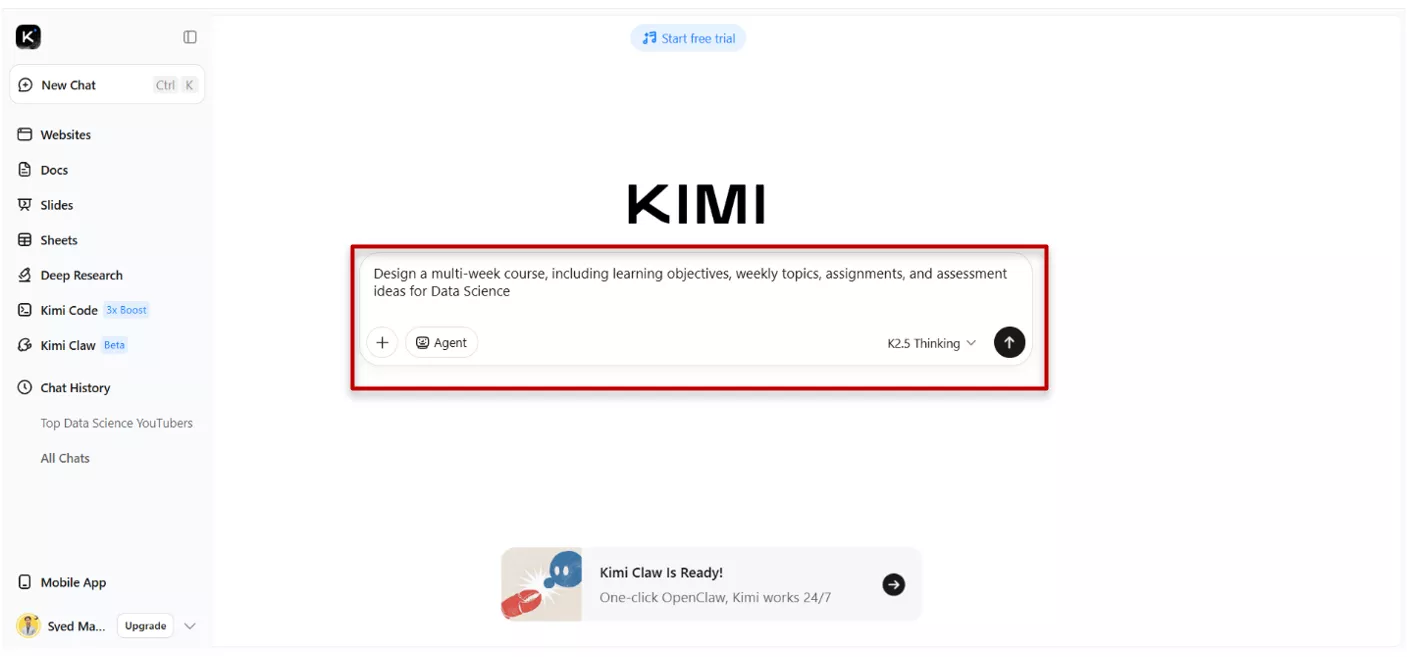
What came back
To be honest , I was impressed.
Kimi K2.5 returned with a well-structured, well-thought-out course plan. It didn't just list topics randomly. It built the course in a logical progression, starting with foundational concepts, moving into practical applications, and finishing with real-world decision-making scenarios that a business professional would actually face.
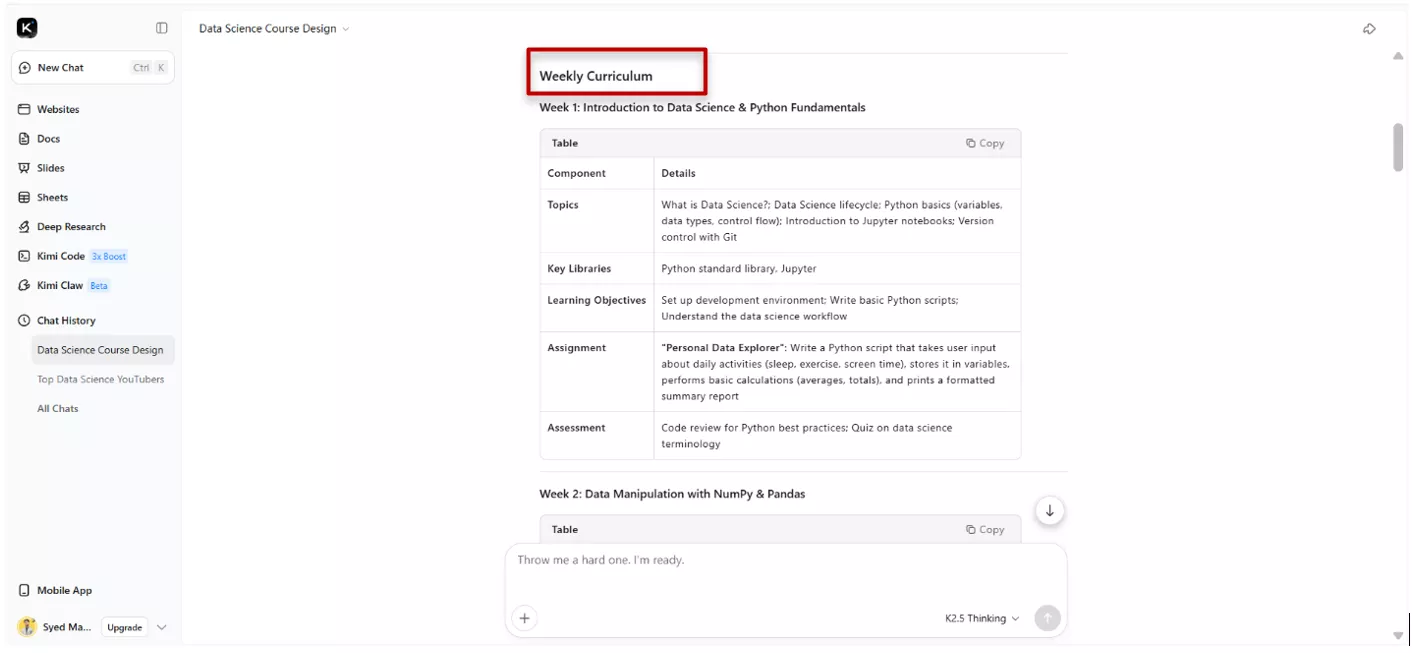
After creating a PDF file, I simply import it into UPDF for further editing and annotation.
To push Kimi K2.5 to its absolute limits, I moved beyond simple prompts and gave it a high-complexity, real-world engineering challenge:
The Test: Planning a Vision-Based Traffic System
“Design a Smart Traffic Management System based on Computer Vision and AI”.
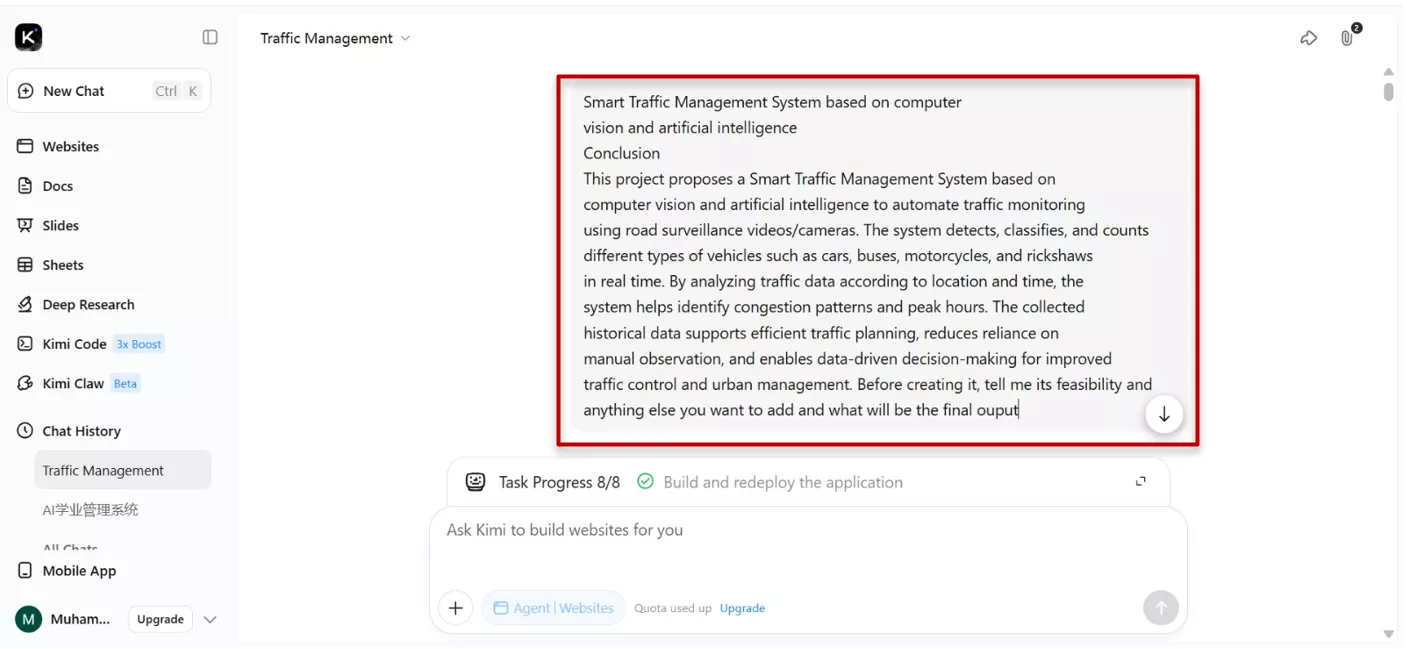
What came back
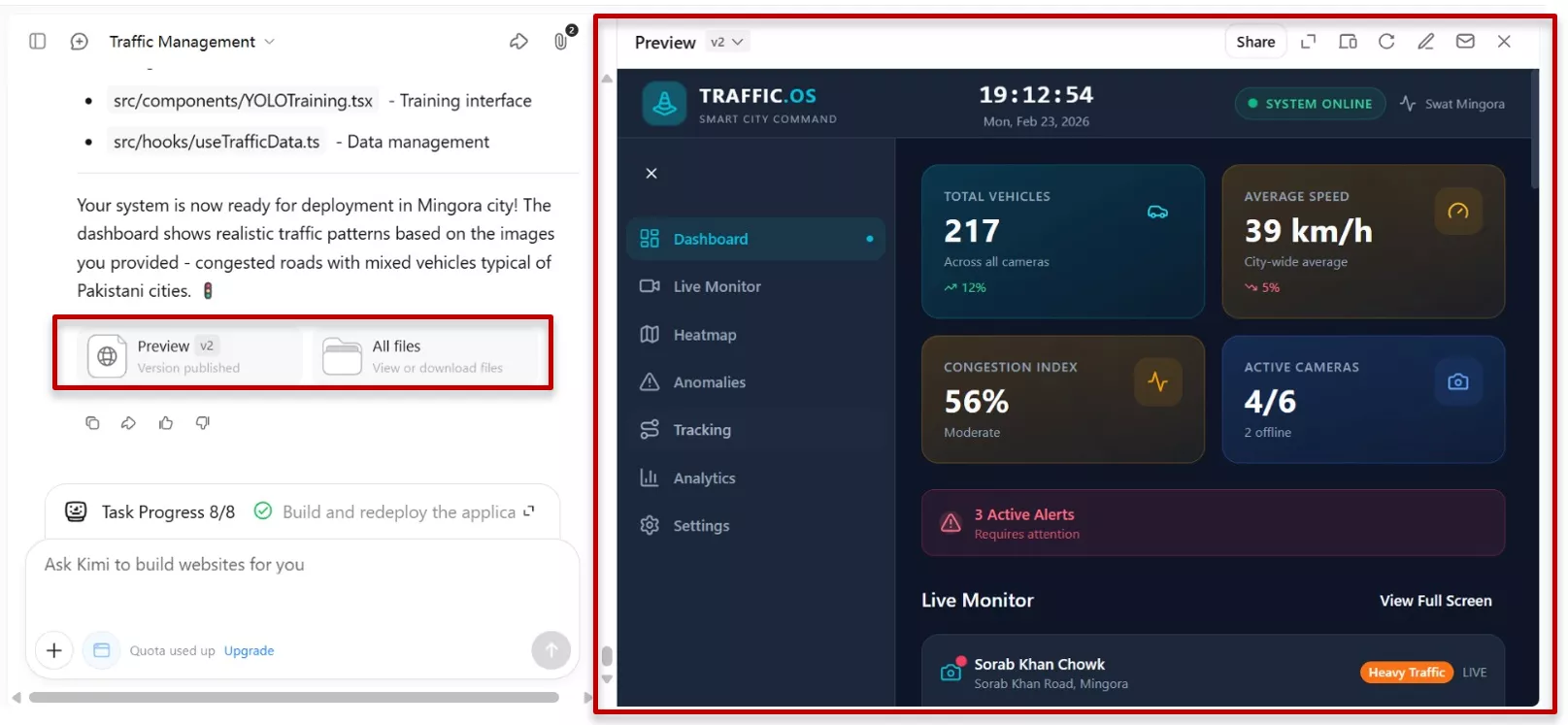
Using Agent Swarm, Kimi immediately deployed sub-agents to look up current state-of-the-art papers on real-time vehicle tracking and urban traffic flow algorithms. It proposed a multi-layered system: an edge-computing layer for high-speed image processing using specialized vision encoders and a central AI cloud for long-term traffic pattern analysis.
I can download all the files as well as preview the overall management system.
Part 6. Bonus: Using UPDF AI for Research and UPDF for Handling PDF
While Kimi K2.5 is an incredible engine for generating ideas and mapping out broad topics, I’ve found that my research workflow is only complete when I bring those ideas into a dedicated document environment. In my daily life, I rely on UPDF AI for deep academic research and UPDF for general PDF handling to turn those AI-generated drafts into professional, finalized documents.
Windows • macOS • iOS • Android 100% secure
About UPDF
UPDF also features a powerful AI assistant that helps you summarize, translate, explain content, generate mind maps and literature reviews, search academic papers, and more.
Both UPDF and UPDF AI can be used for free. Under the UPDF free version, all features are available with trial watermarks added. The UPDF AI free version allows you to ask up to 100 questions.
UPDF AI for Research: The Academic Powerhouse
When it’s time to move from "brainstorming" to "verifying," I switch to UPDF AI. It bridges the gap between AI reasoning and real-world scholarly evidence.
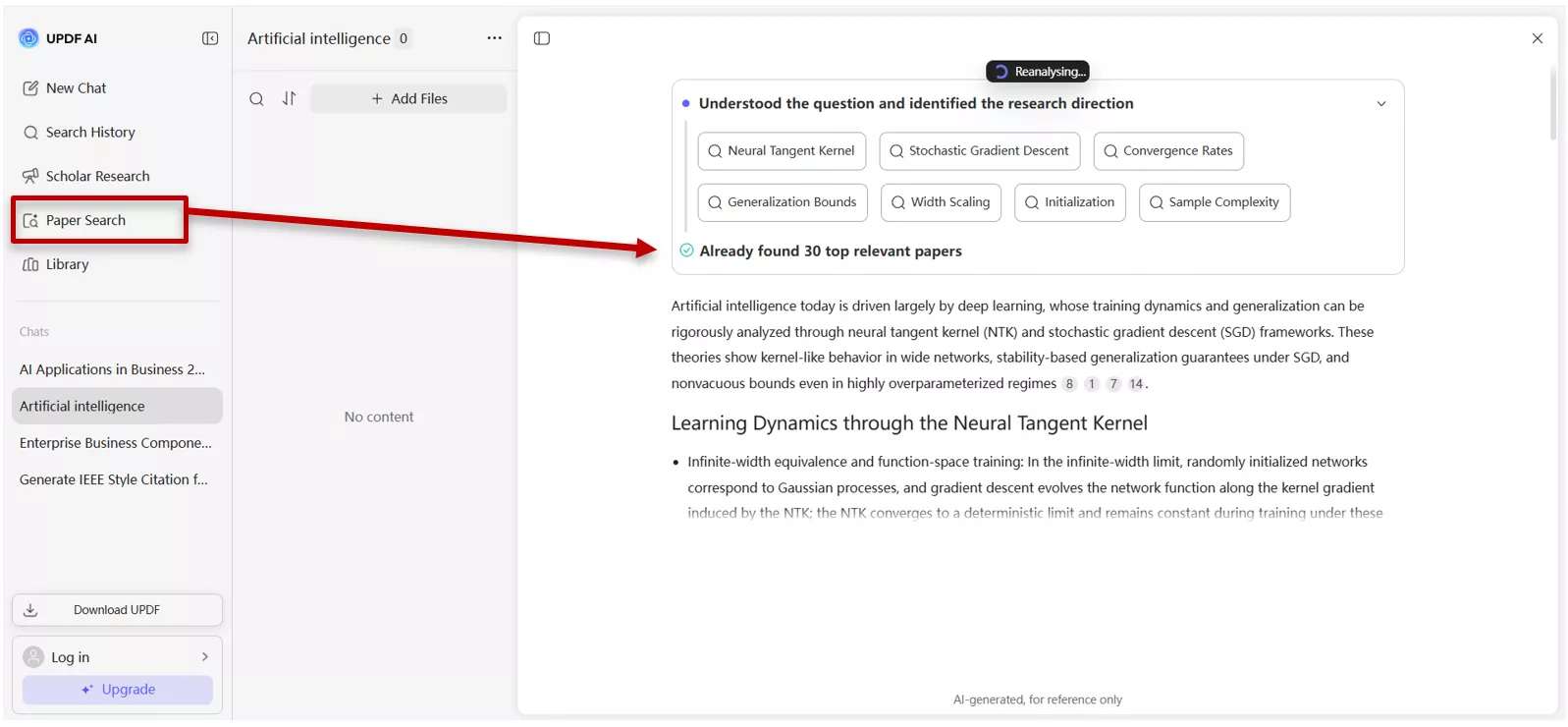
- Paper Search & Discovery: Under the “Deepthink mode”, I can find relevant papers from a database of over 220 million sources. What I love most are the citation-backed answers, which ensure that every claim the AI makes is grounded in a real, peer-reviewed document.
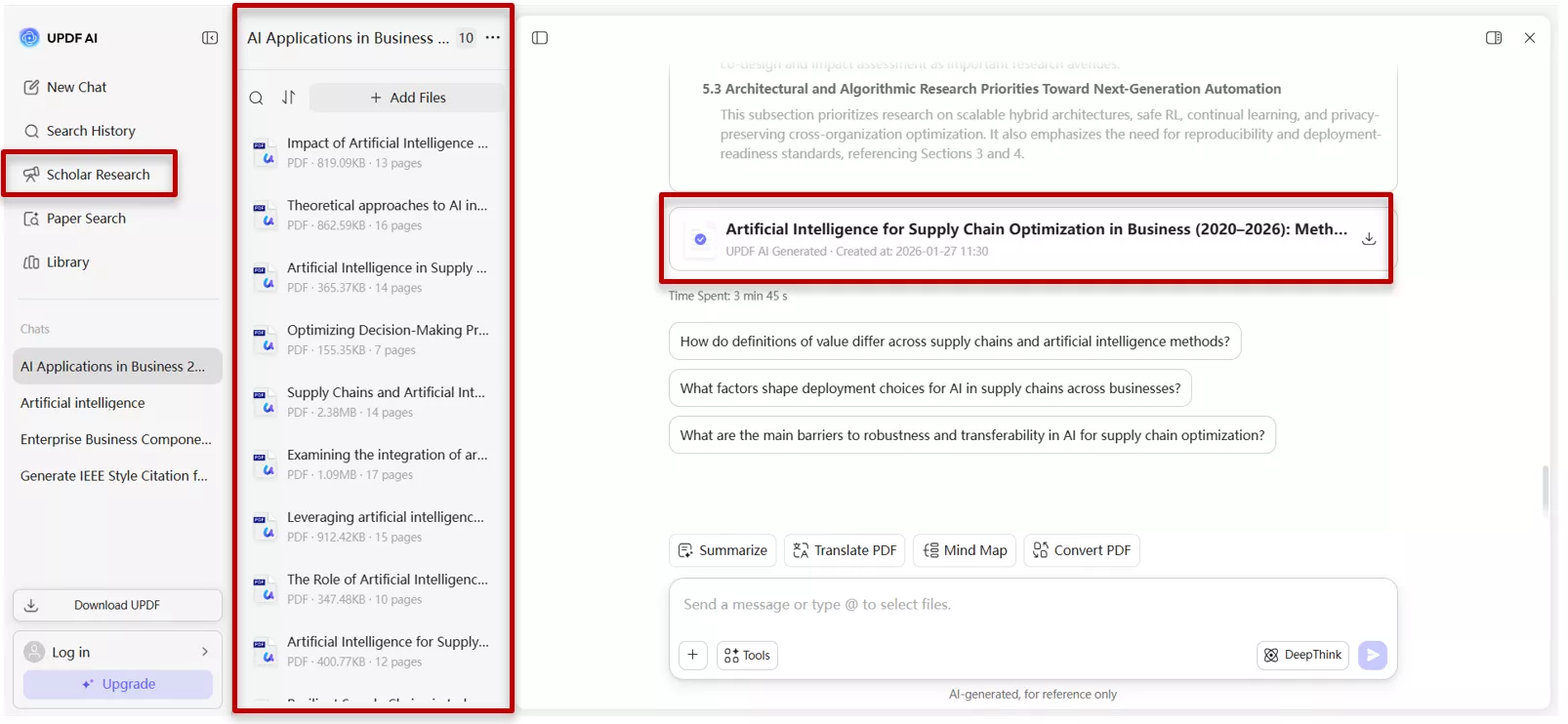
- AI Summarisation & Scholar Research: Instead of manually reading 50 papers, I use the ”Scholar Research” feature. It provides page-by-page summarization and can generate a structured literature review or report with citations. If a paper looks particularly interesting, I can download its citation directly in the app.
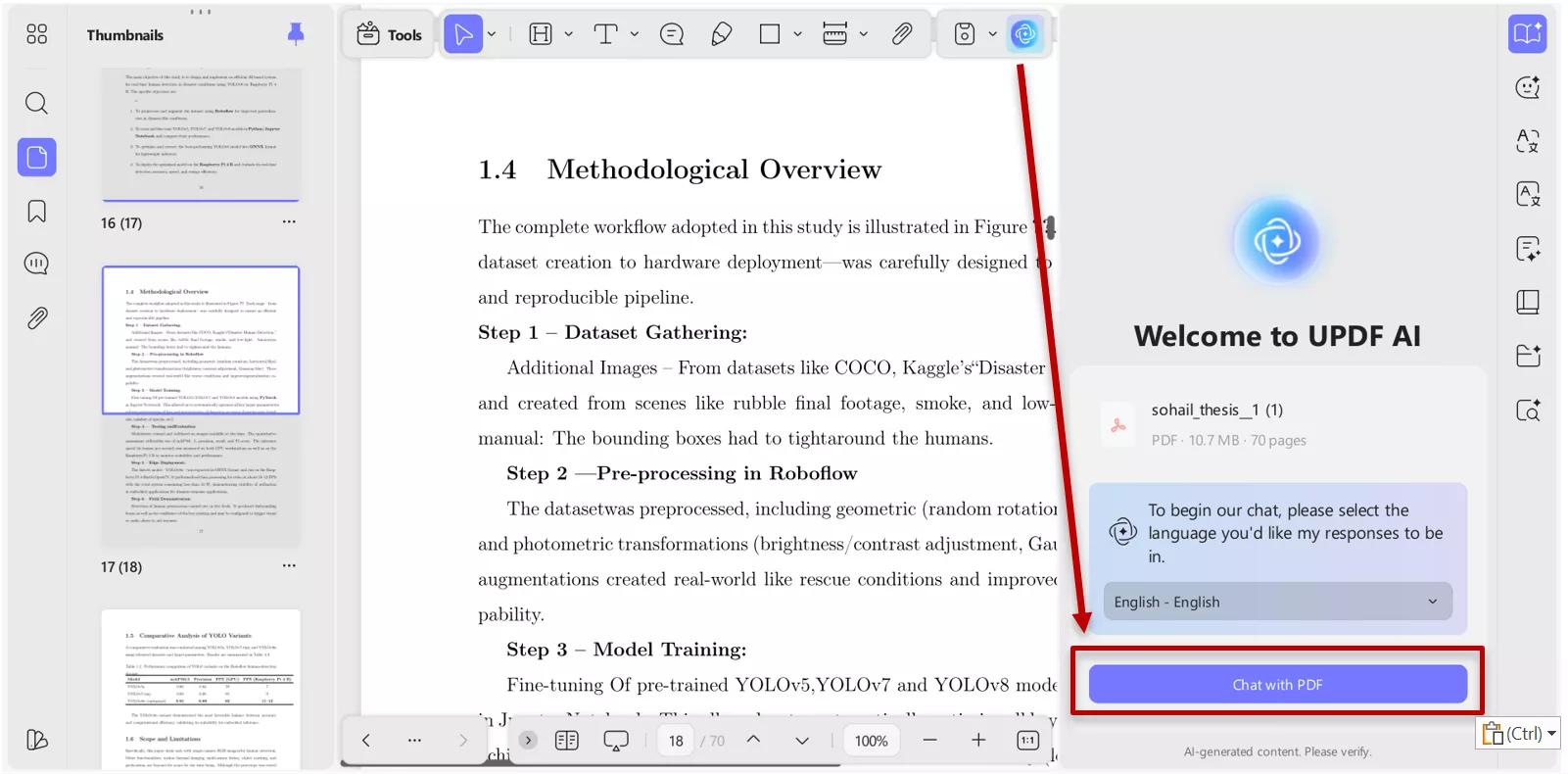
- Interactive Q&A with PDFs: Once I have a thesis or paper open, I can ask the AI specific questions about the methodology or results. This interactive Q&A saves me from hunting through hundreds of pages for a single data point.
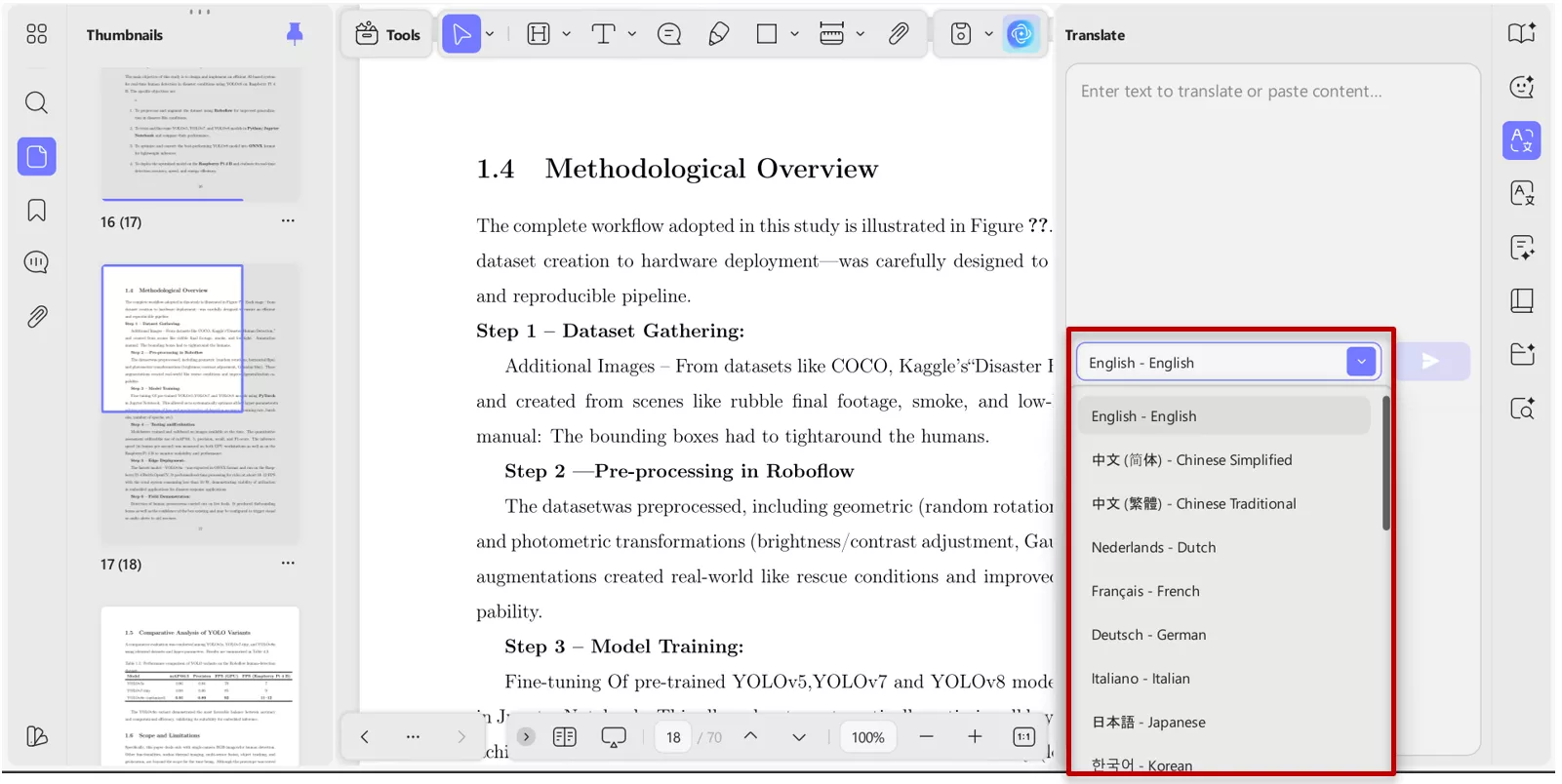
- Full PDF & Side-by-Side Translation: As someone who often looks at global research, the translation features are a lifesaver. You can now perform full PDF translation on iOS and PC, or use side-by-side translation in the online version to compare the original text with the translated version in real-time.
UPDF for Handling PDFs: My Daily Toolkit
Beyond the AI features, the core UPDF software handles all my document management needs with ease:
Windows • macOS • iOS • Android 100% secure
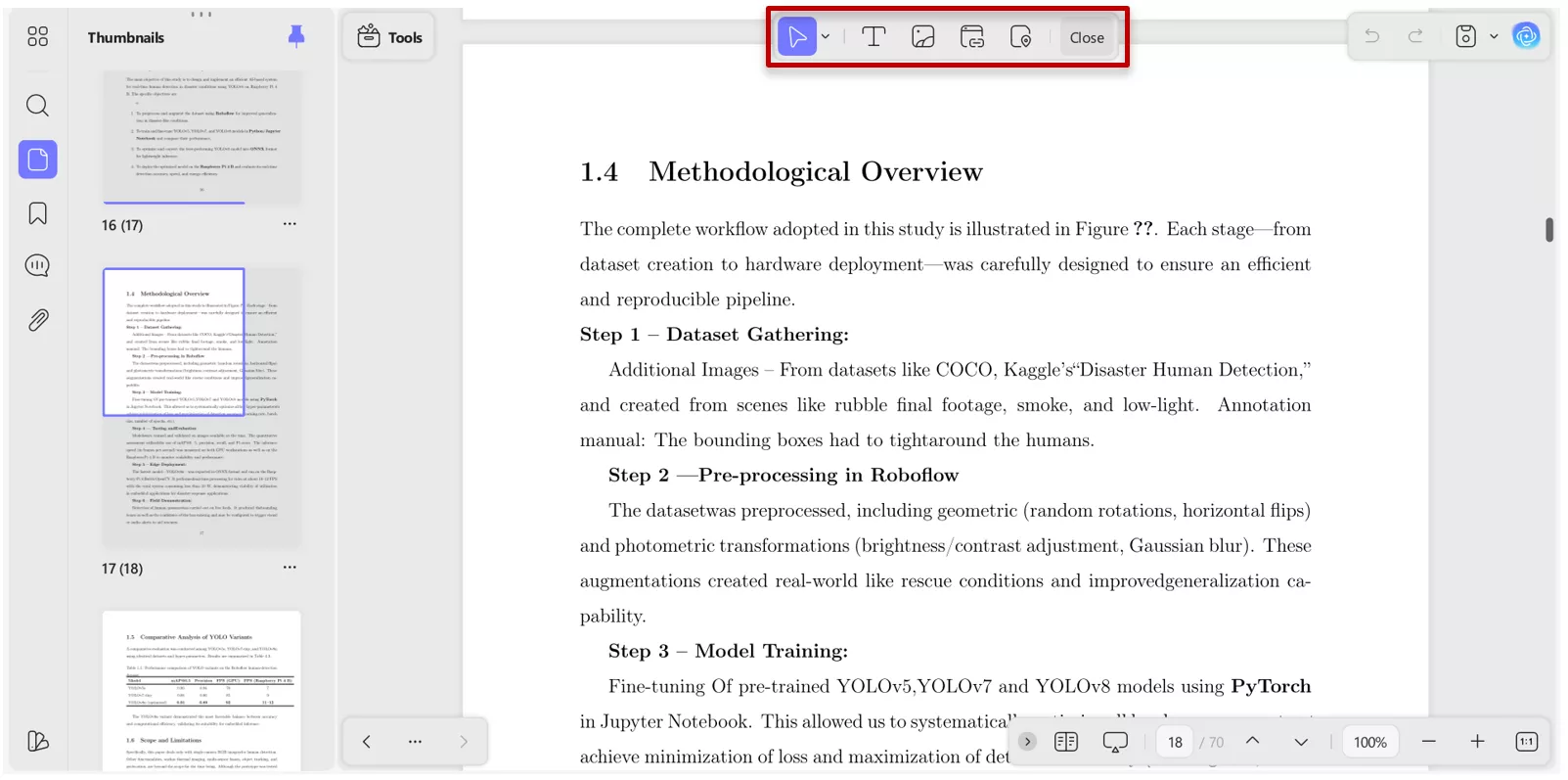
- Advanced Editing & Annotation: I can edit text and images in a PDF as easily as in a Word document, and the multiple annotation tools (highlighting, sticky notes, stamps, etc.).
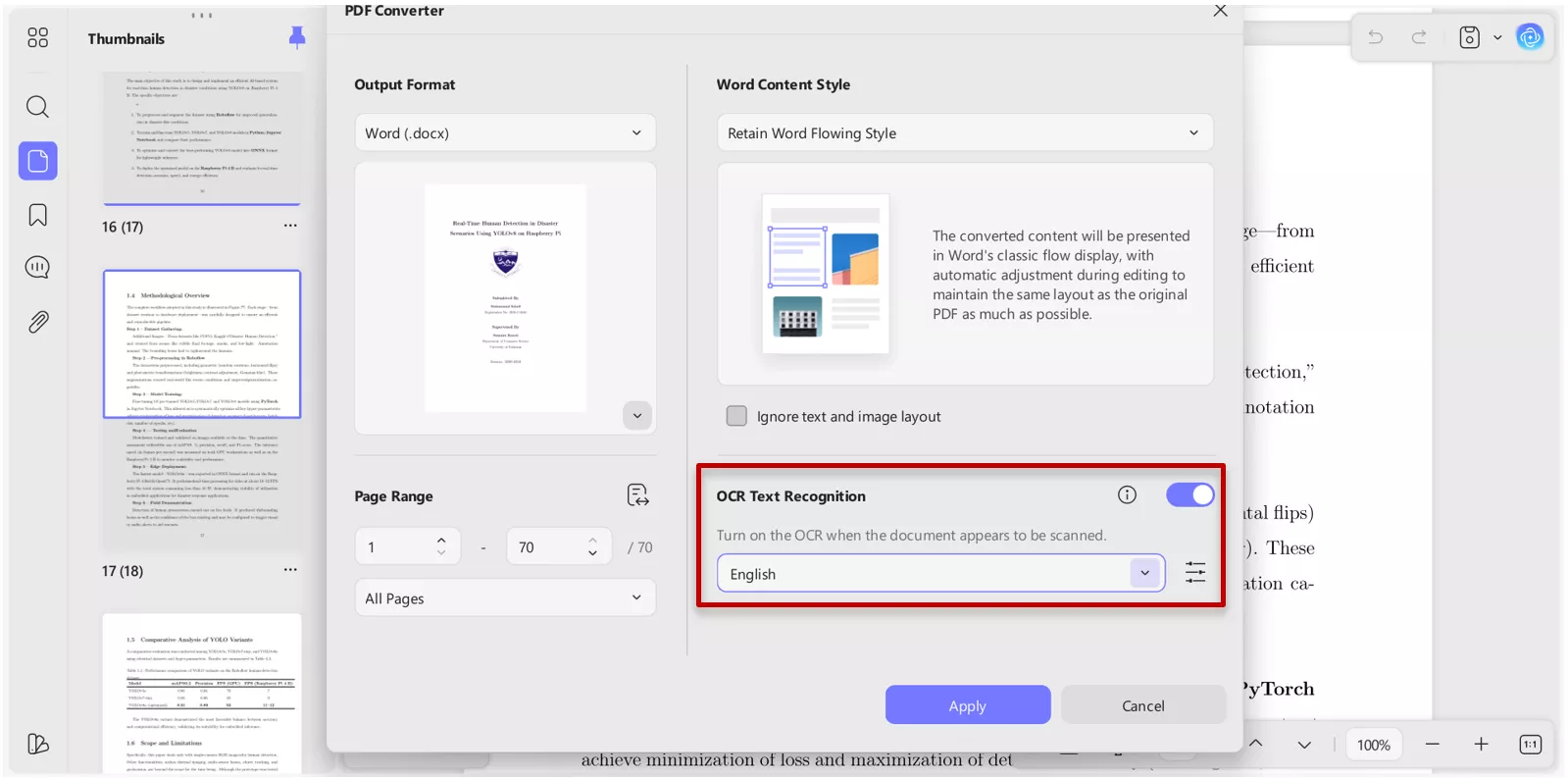
- Powerful OCR: I use the OCR feature to digitize old paper documents. It supports 38+ languages and even handles batch processing, which is a massive time-saver.
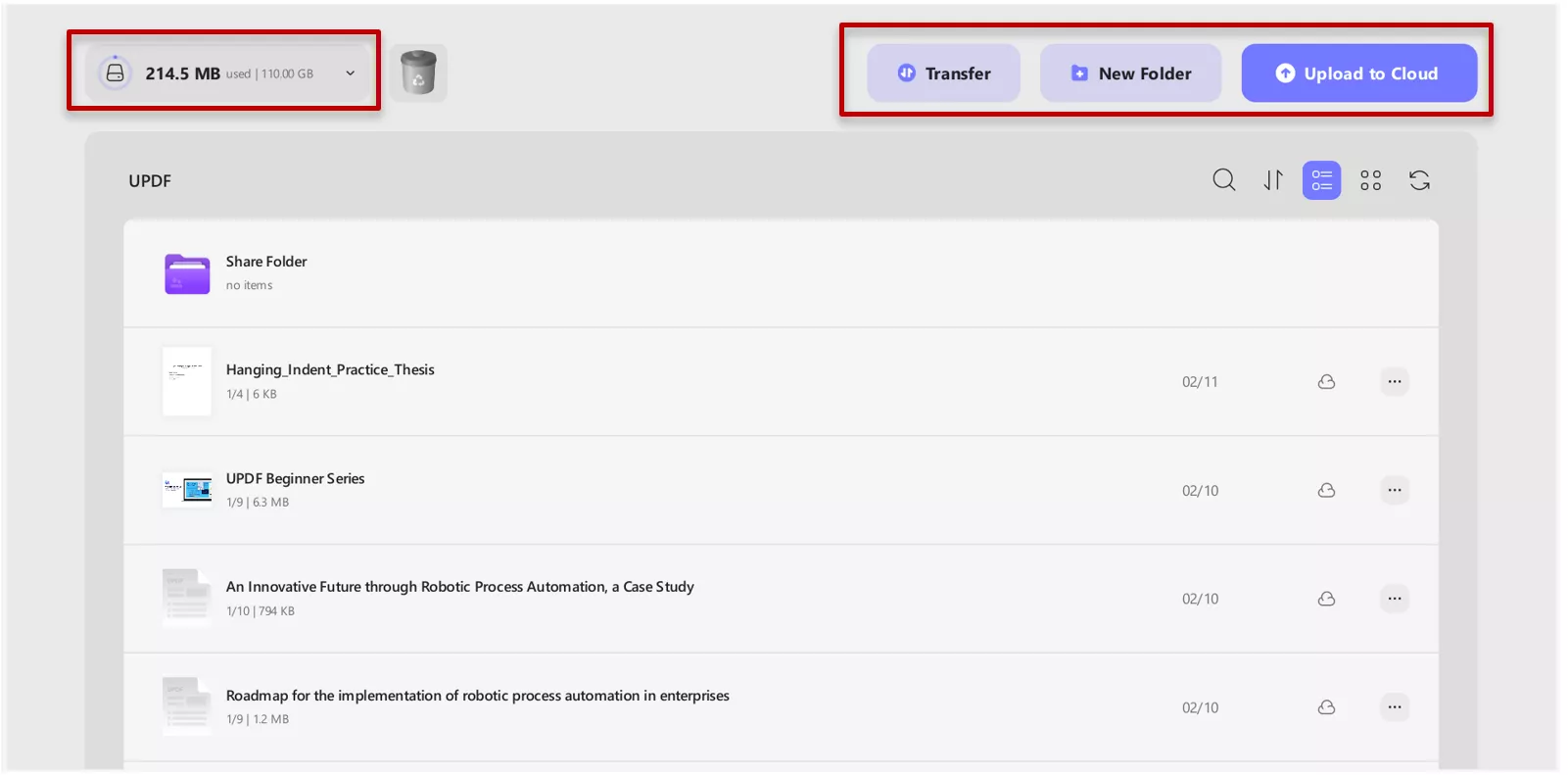
- Cloud Sync & Flexibility: My research follows me wherever I go. With UPDF Cloud, my files sync across Mac, iOS, Windows, and Android. It even integrates with Dropbox and iCloud. Best of all, one license covers all four of my devices.
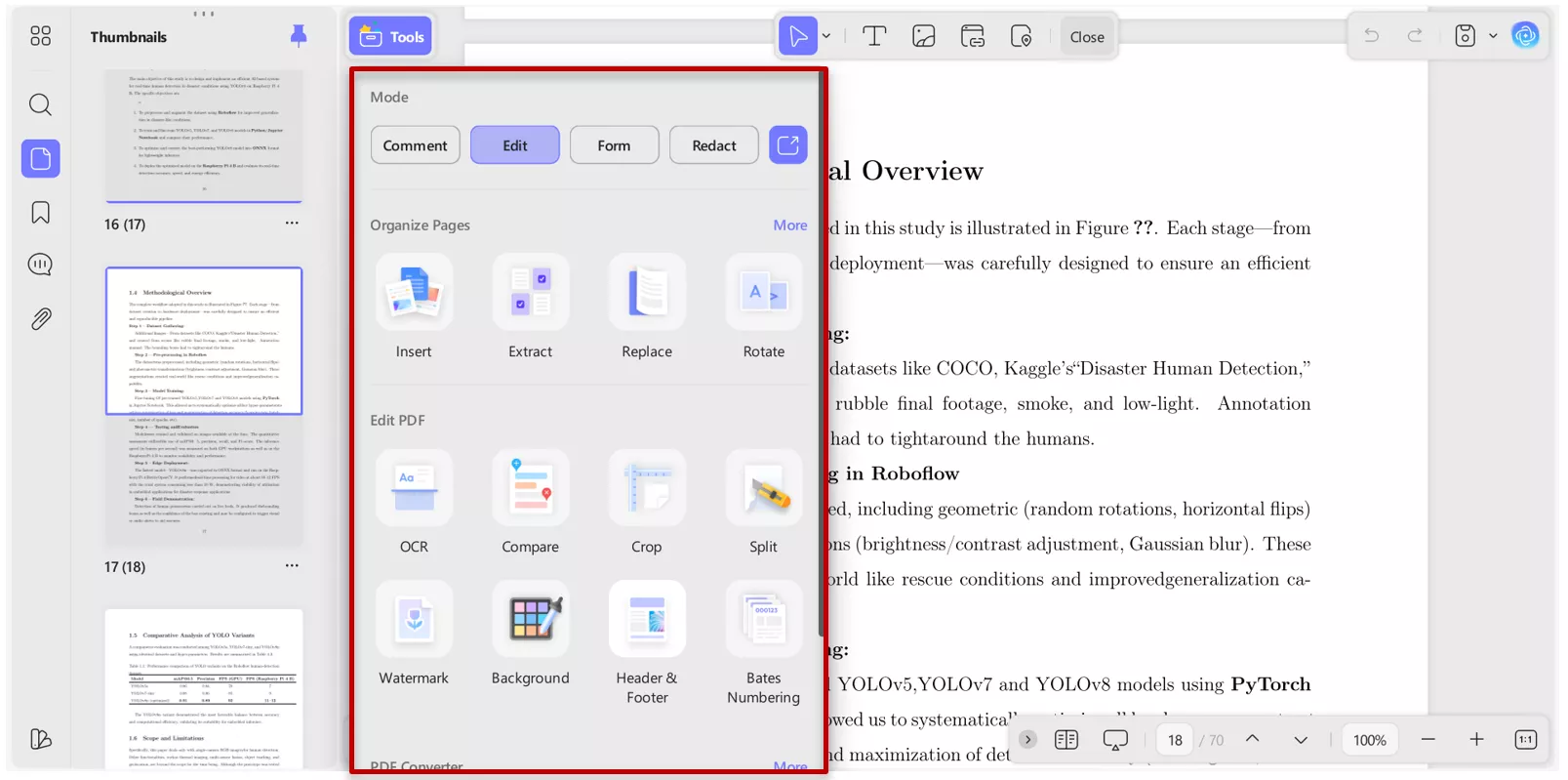
- Document Management: Whether I need to merge, split, or extract pages, UPDF makes it simple. I can also add watermarks or custom headers and footer to give my reports a professional look.
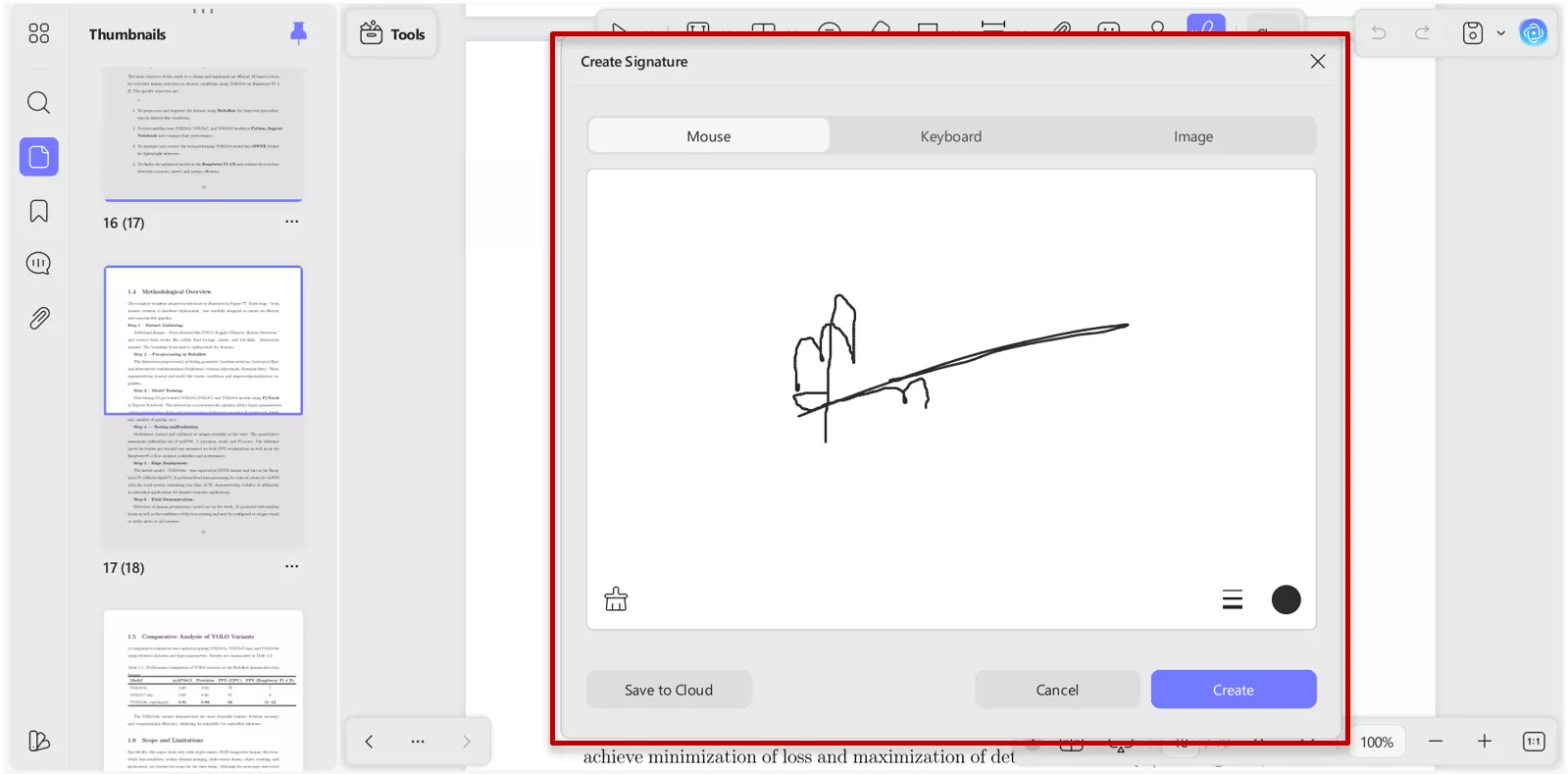
- Security & Signing: Before sharing my work, I use the redaction tool to hide sensitive info and add an electronic signature to finalize my papers securely.
Part 7. FAQs
Q1. Is Kimi K2 5 free?
Yes, you can access Kimi K2.5 for free through Kimi.com and the Kimi App. However, like most AI platforms, there may be usage limits or premium tiers for extended access. For most everyday tasks, the free version is more than enough to get started.
Q2. Is Kimi K2 better than Sonnet 4?
From my perspective, kimi k2.5 feels stronger in reasoning and handling long context compared to earlier models like Sonnet 4. Kimi K2.5 often outperforms Sonnet in agentic workflows and search-heavy tasks that require parallel execution. Plus, Kimi is significantly more cost-effective for high-volume work.
Q3. Is Kimi as good as ChatGPT?
Kimi k2.5 and ChatGPT are both powerful, but they have different strengths. ChatGPT is widely used and polished for general conversation, while kimi k2.5 stands out for its agent swarm reasoning and ability to handle longer, more complex tasks. Kimi k2.5 is often superior for autonomous web browsing and video reasoning.
Conclusion
After weeks of testing, it’s clear that Kimi K2.5 is a major milestone in AI. From brainstorming ideas to drafting outlines and tackling complex tasks, it feels less like a single assistant and more like a coordinated team working behind the scenes. However, the best AI in the world still needs a solid place to land. That’s why I always move my Kimi-generated drafts into UPDF. By using UPDF AI for deep academic verification and UPDF’s editing tools to finalize my reports, I can ensure that my research is not just fast, but professional and accurate.
I highly recommend downloading UPDF today to smooth your document workflow.
Windows • macOS • iOS • Android 100% secure








 Enrica Taylor
 Delia Meyer
 Engelbert White