UPDF
UPDF
 UPDF for Windows
 UPDF for Mac
 UPDF for iPhone/iPad
 UPDF for Android
 UPDF AI Online
 UPDF Sign
 Edit PDF
 Annotate PDF
 Create PDF
 PDF Form
 Edit links
 Convert PDF
 OCR
OCR PDF to Word
 PDF to Image
 PDF to Excel
 Organize PDF
 Merge PDF
 Split PDF
 Crop PDF
 Rotate PDF
 Protect PDF
 Sign PDF
 Redact PDF
 Sanitize PDF
 Remove Security
 Read PDF
 UPDF Cloud
 Compress PDF
 Print PDF
 Batch Process
 About UPDF AI
 UPDF AI Solutions
 AI User Guide
 FAQ about UPDF AI
 Summarize PDF
 Translate PDF
 Chat with PDF
 Chat with AI
 Chat with image
 PDF to Mind Map
 Explain PDF
 Scholar Research
 Paper Search
 AI Proofreader
 AI Writer
 AI Homework Helper
 AI Quiz Generator
 AI Math Solver
 PDF to Word
 PDF to Excel
 PDF to PowerPoint
 Enterprise Solution
 Enterprise Sign
 Enterprise AI
 Enterprise Plan
 Enterprise User Guide
 Enterprise Webinar
 Banking
 Healthcare
 Insurance
 Legal
Legal Manufacturing
 Government
 Education Solution
 Customer Stories
 User Guide
 UPDF Tricks
 FAQs
FAQs UPDF Reviews
 Download Center
 Blog
Blog Newsroom
 Tech Spec
 Updates
 UPDF vs. Adobe Acrobat
 UPDF vs. Foxit
 UPDF vs. PDF Expert

Many people use AnyFlip to publish and read digital content such as professional presentations, interactive flipbooks, and marketing materials.
However, if you are reading this article, you are likely looking for a way to download content from AnyFlip for offline use.
While AnyFlip does not always provide a direct download option, users still look for tools that allow offline access. In this article, we’ll introduce three commonly used AnyFlip downloaders.
Let’s first look at why these tools are needed.
Download UPDF to read and annotate AnyFlip PDFs offline
Windows • macOS • iOS • Android 100% secure
Note
Part 1. Why Use Anyflip Downloaders?
AnyFlip offers a built-in "Save" feature that allows users to bookmark publications for later online viewing. However, some users still search for AnyFlip downloader tools for specific legal and practical reasons.
Common scenarios include:
- The publisher provides access to the content but does not offer an official offline download option.
- Users experience issues when saving PDFs for offline reading through the platform.
- Some publications are only available for online viewing, which may not be convenient in low-connectivity environments.
- Users want to organize authorized publications into a personal offline library for easier access.
Important: You should only download content from AnyFlip if you have the legal right to do so. Downloading copyrighted publications without the publisher’s permission may violate copyright laws and the platform’s terms of service.
With that in mind, below are three tools that are commonly used to save AnyFlip content for personal, non-commercial use, where permission is granted.
Part 2. 3 Ways to Save AnyFlip Content for Offline Viewing
Important Notice: The following methods are intended only for personal, non-commercial use and apply to flipbooks you are legally permitted to access (such as your own content or publications explicitly authorized for offline use). We do not support or encourage the downloading or reproduction of copyrighted material without permission.
We have already tested all the methods on this list. They are commonly used to save or record flipbook content that users are legally allowed to access, for personal offline viewing.
Unlike platforms that offer built-in download options, AnyFlip does not always provide an official way to save flipbooks offline. In such cases, users may rely on basic system tools to capture content they have permission to use.
1. Snipping Tool on Windows or Screenshot Tool on Mac
Windows and Mac come with an in-built screenshot tool. With this helpful feature, we don't need to wander around for AnyFlip PDF downloaders. It can be used to capture flipbook pages for personal reference when offline access is required and permission is granted.
You can just use the snipping or screenshot tool to take images of the flip files. Then, use a tool to combine all your photos and convert them into a single PDF. Download UPDF now to make a PDF using images you are legally allowed to use.
Windows • macOS • iOS • Android 100% secure
Steps to Download Flip Files with the Snipping Tool
Step 1: Press Command + Shift + 4 on our Macbook.
Step 2: Take snips of the flip files on AnyFlip individually and save them on your Macbook.

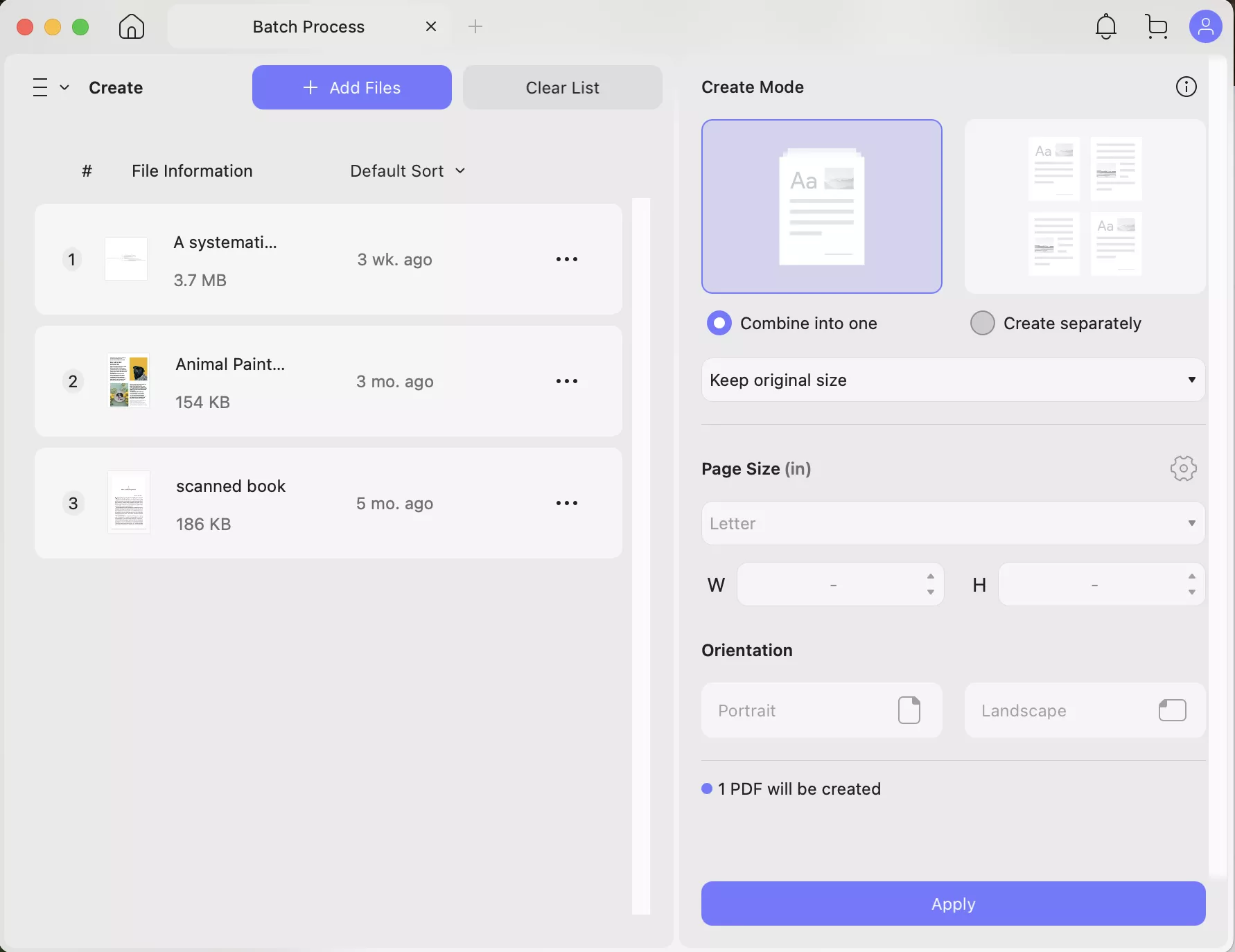
Step 3: Launch UPDF and click on “Tools” on the bottom.
Step 4: Select “Create” under the "Batch PDFs" category. Now add all the images you want to add to the PDF.
Step 5: Click on “Apply” at the bottom right corner to save this new PDF.
2. LICEcap
If you want a simpler AnyFlip to PDF downloader, use LICEcap. This free software can record and convert it into a GIF. You can then use it to make a GIF of the Flip files on AnyFlip and read them whenever you want.
Steps to Use LICEcap
Step 1: Install & launch LICEcap on your computer. Open the flip file in AnyFlip and bring LICEcap over it.
Step 2: When you are ready, click on the “Record” button at the bottom right corner.

Step 3: Now select a destination folder to save the file and name your GIF. Then click “Save.”
Step 4: When the recording starts, click on the next button and flip the pages of the flip file.

Step 5: Finally, click “Stop” when you have flipped all the pages.

3. Screen-recorder
If you don’t want images or GIFs, you can use a screen recorder to make a video for it. There are many online recorders like this Screen-Recorder. It’s a tool that can record a video of the flip files in AnyFlip. You can save the recorded video on your computer and view it offline.
Steps to Use Screen-Recorder
Step 1: launch your browser and open a flip file in AnyFlip on this browser.
Step 2: Open Screen-Recorder online in a separate tab and click “Start Recording.” Select the AnyFlip Tab and click “Share.”

Step 3: Click the red “Start Recording” button and return to the Anyflip tab. Flip the file pages so that every page is included in the video.

Step 4: Click on “Stop Recording” and then click on “Done Recording.”

Step 5: Click on the red Download button to get this video.

With the methods introduced above, you can save or record authorized flipbook content from AnyFlip for offline viewing. However, if you may download a PDF from AnyFlip, let’s move one step forward. After you download a PDF from AnyFlip, you may want to read and take notes on it. Let’s show you how to do it.
Part 3. How to Read or Take Notes on Downloaded PDFs from Anyflip?
Once you've saved or accessed an AnyFlip publication for offline viewing, the next step is deciding whether it's actually worth your time—or even worth buying a physical copy. For that, you need a tool that makes reading, annotating, and reviewing PDFs easy and efficient.
UPDF is a PDF reader and editor designed for comfortable reading and quick annotation. It offers multiple viewing modes, such as two-page view, two-page scrolling, and slideshow mode, making it ideal for reading long books or magazines. You can also highlight text, add sticky notes, and annotate pages as you read.
For faster evaluation, UPDF's AI features can help you:
- Summarize chapters to understand the main ideas quickly.
- Translate content if the book is written in another language.
- Ask questions or get explanations for complex sections.
This makes UPDF especially helpful when you're previewing a book and want to decide whether it's worth purchasing.
Steps to Take Notes on Downloaded AnyFlip PDF
Step 1: Open the downloaded AnyFlip PDF in UPDF.
Step 2: Click on the "Tools" button and hit the "Comment" icon to find the "Sticky Note" icon or quick toolbar at the top to add your note.
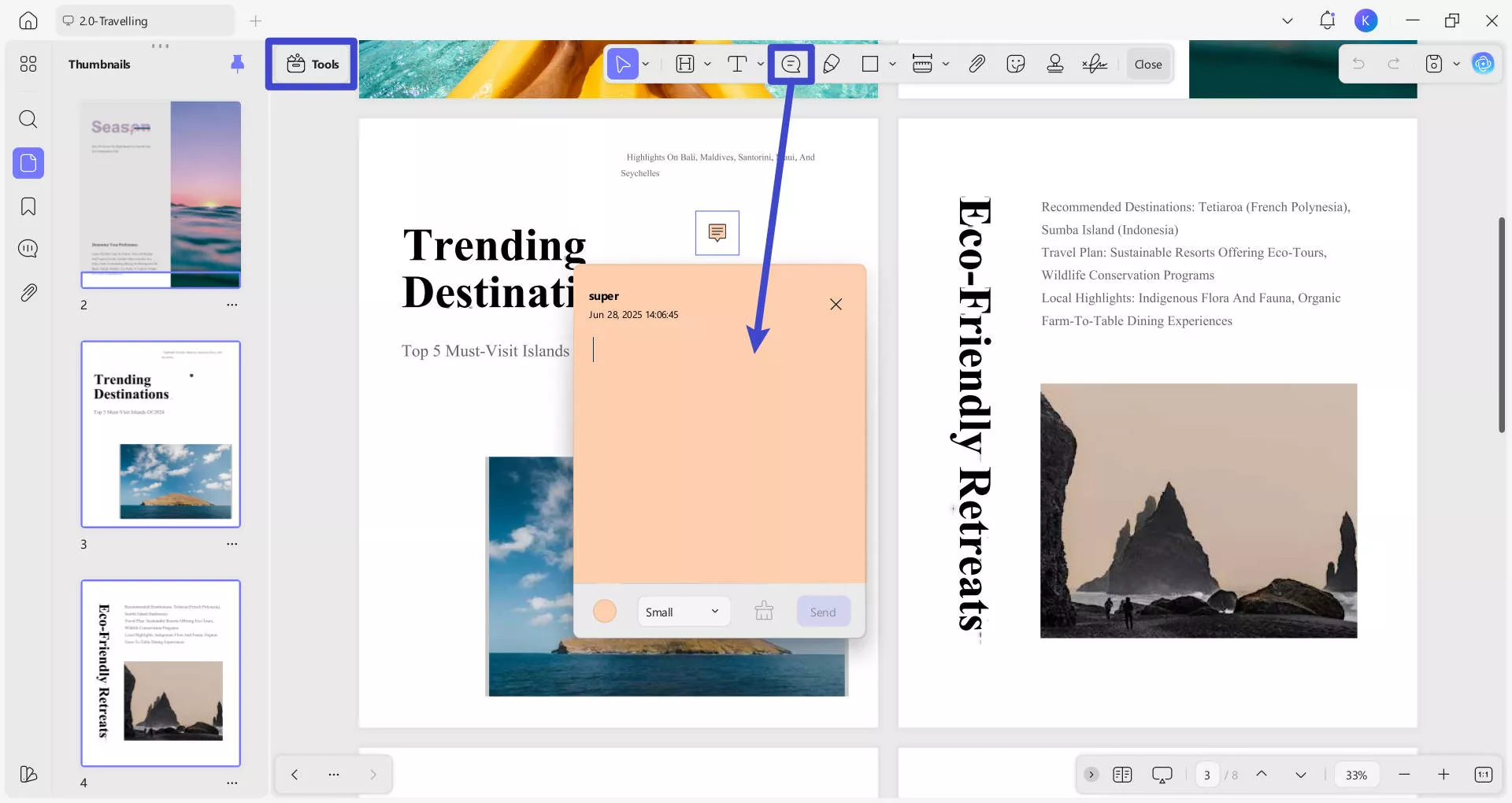
Step 3: When the note appears on PDF, bring your cursor to view it.
Step 4: You can also use the above toolbar to annotate your PDF with different tools.
Download UPDF via the button below to start reading and reviewing PDFs more efficiently. To learn more, you can also watch the video tutorial or read our detailed UPDF review.
Windows • macOS • iOS • Android 100% secure
Final Words
AnyFlip hosts a large collection of useful digital publications. If you want to access these materials offline, we've introduced three practical AnyFlip downloaders above.
Once you download a PDF from AnyFlip, you can open it with UPDF for a smoother offline reading experience. UPDF makes it easy to highlight text, add notes, and organize your PDFs in one place.






 Enrica Taylor

 Engelbert White
 Enola Davis