UPDF
UPDF
 UPDF for Windows
 UPDF for Mac
 UPDF for iPhone/iPad
 UPDF for Android
 UPDF AI Online
 UPDF Sign
 Edit PDF
 Annotate PDF
 Create PDF
 PDF Form
 Edit links
 Convert PDF
 OCR
OCR PDF to Word
 PDF to Image
 PDF to Excel
 Organize PDF
 Merge PDF
 Split PDF
 Crop PDF
 Rotate PDF
 Protect PDF
 Sign PDF
 Redact PDF
 Sanitize PDF
 Remove Security
 Read PDF
 UPDF Cloud
 Compress PDF
 Print PDF
 Batch Process
 About UPDF AI
 UPDF AI Solutions
 AI User Guide
 FAQ about UPDF AI
 Summarize PDF
 Translate PDF
 Chat with PDF
 Chat with AI
 Chat with image
 PDF to Mind Map
 Explain PDF
 PDF AI Tools
 Image AI Tools
 AI Chat Tools
 AI Writing Tools
 AI Study Tools
 AI Working Tools
 Other AI Tools
 AI Bookmark Generation
 AI Bookmark Summary
 AI Watermark Generation
 AI Background Generation
 AI Sticker Generation
 AI Stamp Generation
 AI Editing Suite
 UPDF Copilot
 AI Page Management
 AI Semantic Search
 PDF to Word
 PDF to Excel
 PDF to PowerPoint
 Enterprise Solution
 Enterprise Sign
 Enterprise AI
 Enterprise Plan
 Enterprise User Guide
 Enterprise Webinar
 Banking
 Healthcare
 Insurance
 Legal
Legal Manufacturing
 Government
 Education Solution
 Customer Stories
 User Guide
 UPDF Tricks
 FAQs
FAQs UPDF Reviews
 Download Center
 Blog
Blog Newsroom
 Tech Spec
 Updates
 UPDF vs. Adobe Acrobat
 UPDF vs. Foxit
 UPDF vs. PDF Expert

- Multi-select pictures from the gallery
- cloud backup or local one
- package sharing for other users.
WhatsApp sticker online tools help users share emotions visually to make everyday conversations memorable across chats. Their popularity keeps growing as people enjoy customizing characters and reactions that reflect cultural references.
In this guide, we explain how to design your own stickers and use online creators with clear steps. You will see how prompts, styles, and expressions work together to generate polished designs ready for quick sharing. As a bonus, we also introduce UPDF, which uses AI to create custom stickers that brighten PDF documents.
Windows • macOS • iOS • Android 100% secure
Part 1. Tips & Prompts for Creating WhatsApp Stickers Online
Before moving forward, let’s quickly review some basics that every online WhatsApp sticker maker user should understand. These rules help your stickers look professional and ready for smooth sharing in every chat.
1: Common Rules on WhatsApp Sticker
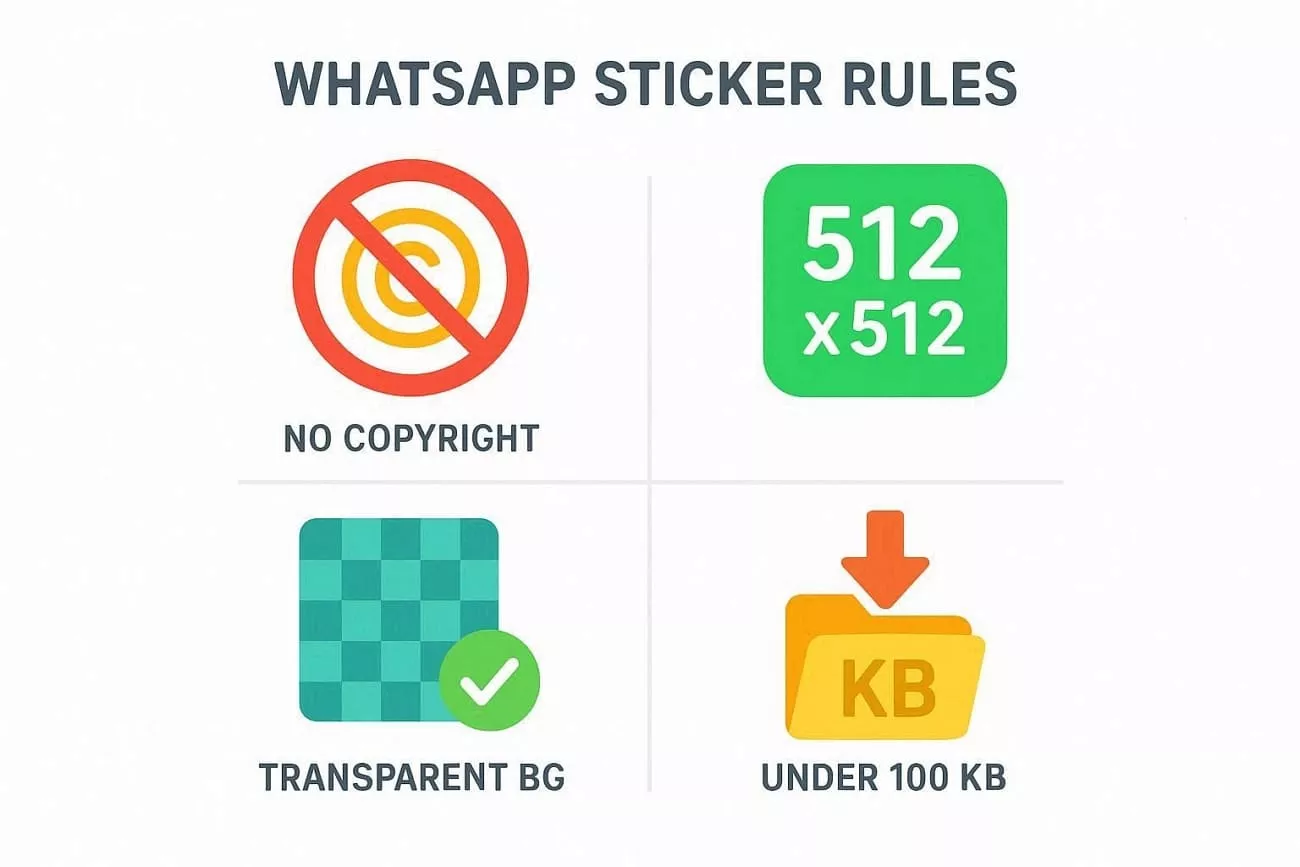
First, let’s look at the essential technical requirements you must follow for creating quality WhatsApp stickers:
- Size Recommendation: Stickers should be close to 512 by 512 pixels to keep important details centered for better visibility.
- Format Support: Stickers must be PNG or WebP image format; otherwise, WhatsApp will not support images in other formats.
- Transparent Background: Remove any background color and keep only your main subject to avoid messy edges in chats.
- Copyright Issues: Always create original artwork and use licensed resources to avoid famous characters and protected brand images.
2: Keywords for Creating WhatsApp Sticker Online
Right keywords help AI focus on the right subject and style to generate clearer sticker results. They also save time by reducing trial and error when using any WhatsApp sticker creator online. Now, let’s turn those keywords into a simple formula you can reuse for every design.
Universal Prompt Formula
This universal prompt formula keeps your idea organized: “Subject + action or emotion + visual style + extra details + transparent background.” Let’s break this formula into small pieces so you can mix and match keywords.
- Subject: The main focus, like a cat, selfie, birthday cake, laptop, coffee cup, or cute robot.
- Action: Describes mood or pose, such as happy, angry, crying, surprised, acting cute, or thinking deeply.
- Visual Style: Controls appearance, using terms like cartoon style, anime style, 3D rendering, and watercolor style.
- Transparent Background: Ensures only your character appears, so the sticker looks clean inside every WhatsApp chat.
3: Try Prompts to Create WhatsApp Stickers
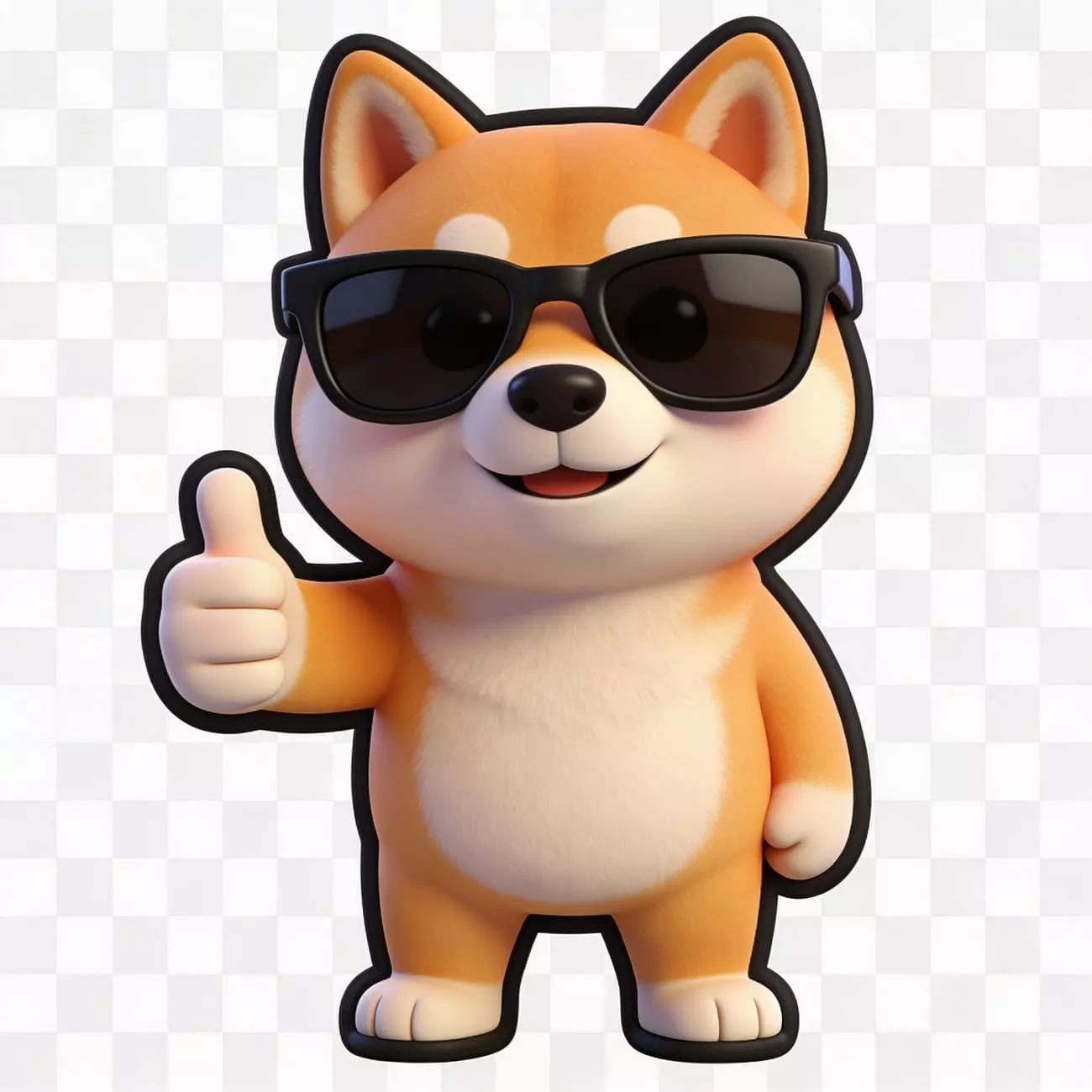
One clear line gives the AI enough detail to draw the WhatsApp sticker online free design you have in mind. We will highlight some prompts with their output that you can try yourself:
- For Shiba Inu Sticker: “A Shiba Inu, wearing sunglasses, giving a thumbs-up, 3D rendered style, transparent background.”
- For Selfie Sticker: “My selfie, converted into a Ghibli-style sticker, smiling, white outline.”

- For Birthday Sticker: “Birthday cake, colorful balloons, celebratory atmosphere, cute hand-drawn style.”

Part 2. How to Create a WhatsApp Sticker Online
Creating stickers online is easier when you follow a few clear, simple steps. These steps guide you from your initial idea to a finished image ready to share in chats. Now, we will explore 2 dependable AI tools and see how they can help you create WhatsApp sticker online packs.
Way 1: Create WhatsApp Stickers with ChatGPT
ChatGPT can turn short text prompts into fun sticker-style images that you can reuse easily inside WhatsApp chats. You simply describe the character, emotion, and visual style you want, and the AI draws it for you. Moreover, you can experiment with different prompts repeatedly until the result matches the mood or reaction you need. Now, follow the steps below to create and download your first custom sticker image using ChatGPT:
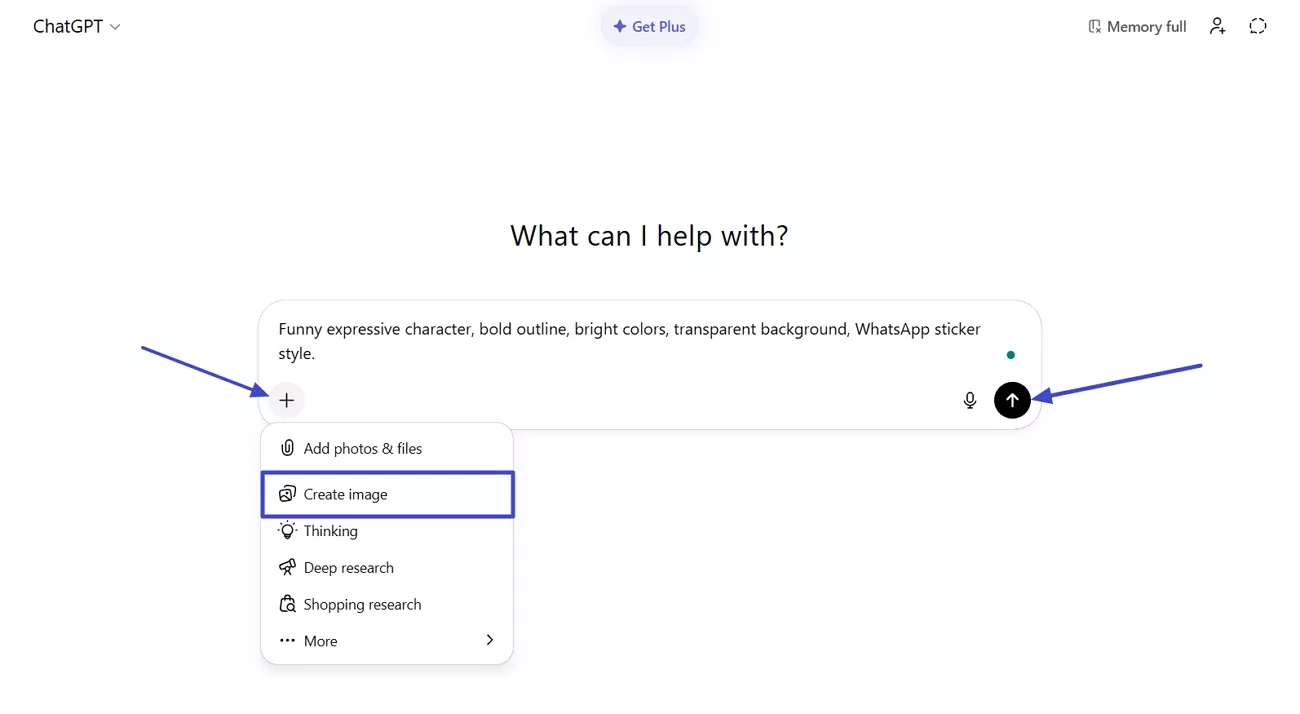
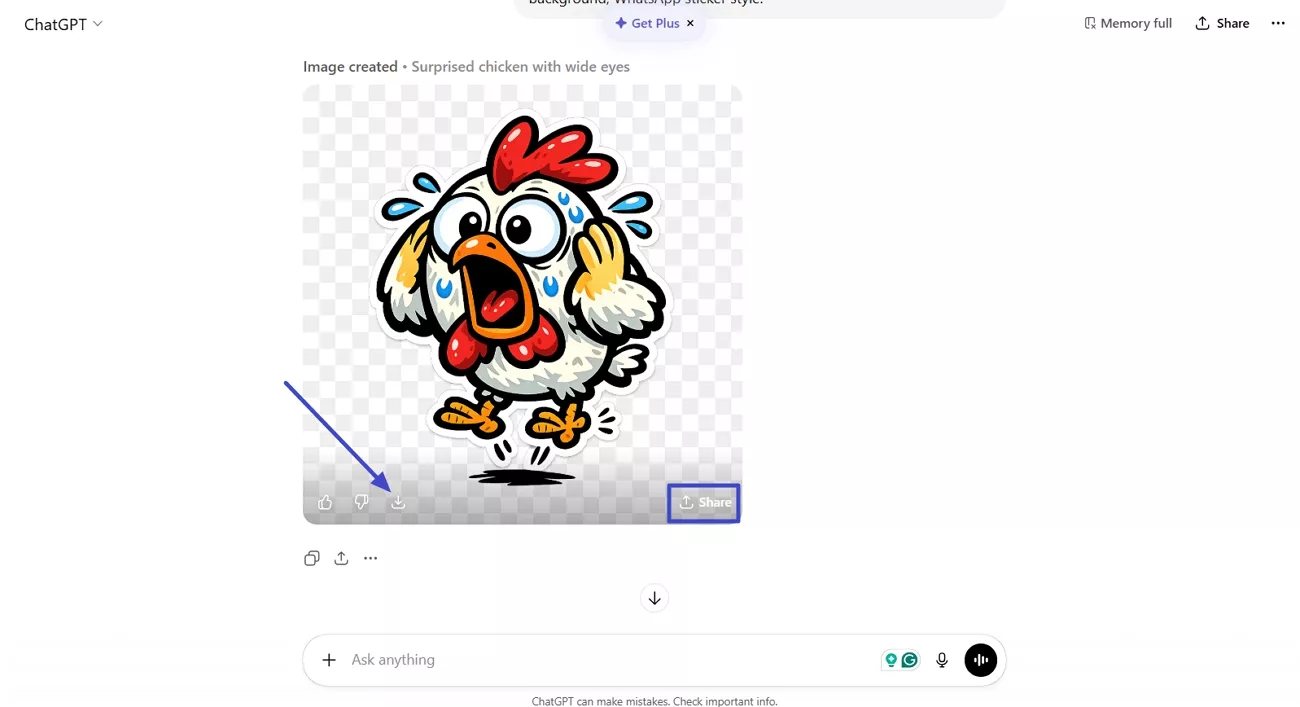
Step 1. Once you enter the main interface, press the “+” icon and click the “Create Image” mode. Then, enter the prompt “Funny expressive character and transparent background WhatsApp sticker style.” and press the “Send” button.
Step 2. After the sticker is generated, press the “Download” icon to directly download the image. To share the sticker via link or platforms, click the “Share” button.
Way 2: Create WhatsApp Stickers with Dreamina AI
Using text prompts with Dreamina AI by CapCut makes it simple to turn ideas into bright, expressive sticker-style images. It allows you to describe the scene or character, and let the AI handle drawing. This tool suits beginners who want polished designs without installing apps or learning any complex editing software features.
Also, it can act as a flexible WhatsApp sticker online creator, supporting many art styles and playful character concepts easily. Go through the steps below to generate, refine, and download sticker images ready for sharing in your chats:
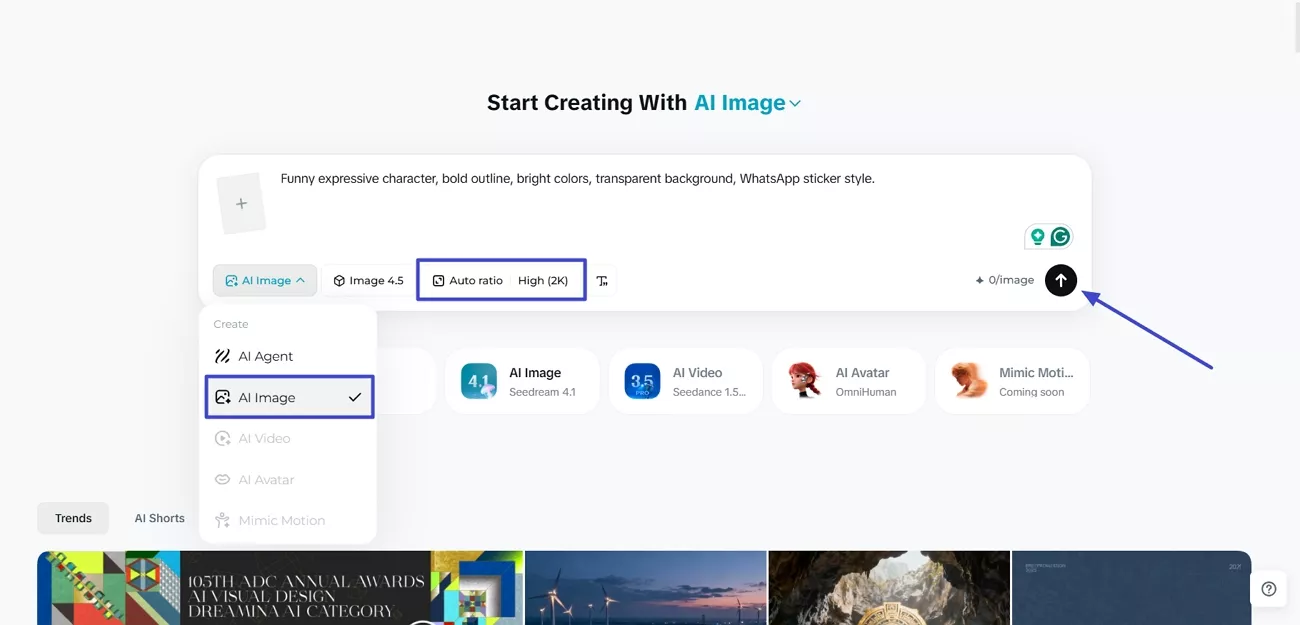
Step 1. On the main interface, choose the “AI Image” mode and select an appropriate ratio and resolution. Enter the prompt “Funny expressive character, bold outline, bright colors, transparent background, WhatsApp sticker style.” and click the “Send” button.
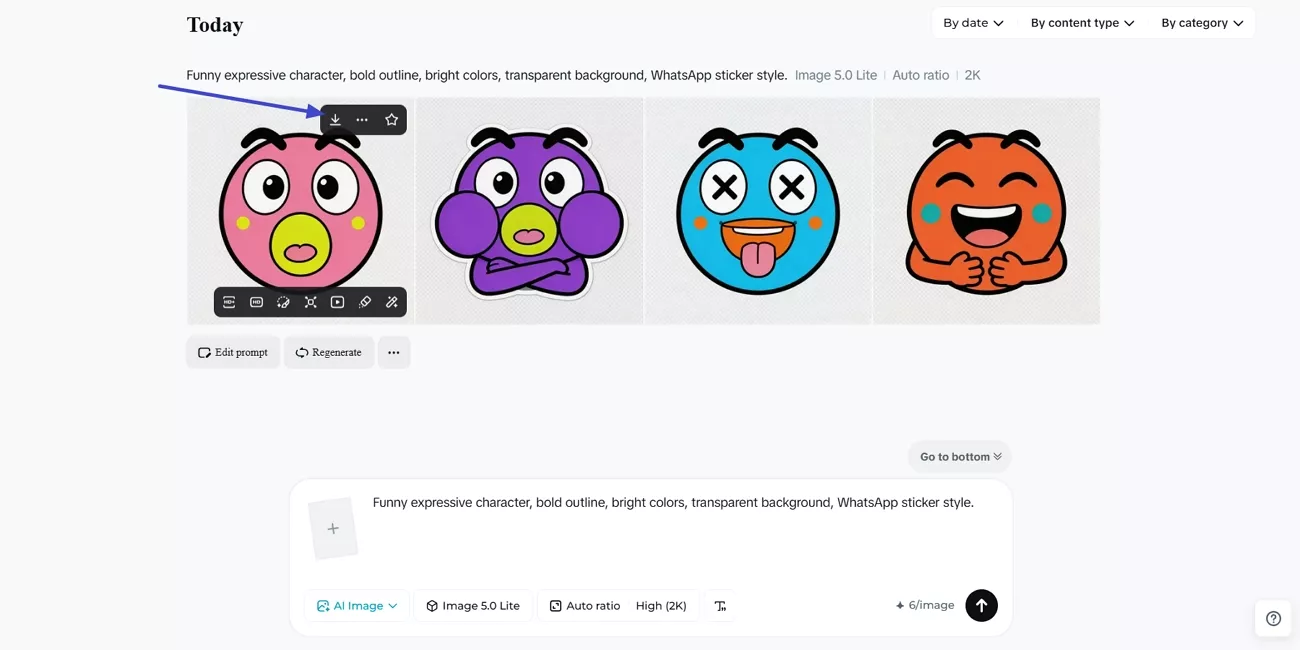
Step 2. Here, you’ll get 4 versions of generated WhatsApp stickers. To download the sticker directly, press the “Download” button.
Bonus Tip: PDF Sticker Maker Online
Having discussed two reliable tools, some users still want easier ways to decorate and organize their documents. This is where UPDF comes in, offering a simple workspace for adding creative, meaningful stickers directly onto PDFs. Unlike many online WhatsApp sticker maker tools, UPDF includes an “AI Generate Sticker” feature for instant custom designs.
Users can type a short description, and UPDF creates matching stickers that suit notes, worksheets, and reports. These stickers help highlight important points, label sections, and add personality without manually drawing or importing separate images. UPDF then lets you resize, move, duplicate, and save those stickers so every PDF stays engaging.
Windows • macOS • iOS • Android 100% secure
Ultimate Guide to Generating AI Stickers Using UPDF
Now, follow the steps below to see how it generates stickers and how it works better than some WhatsApp sticker creator online tools:
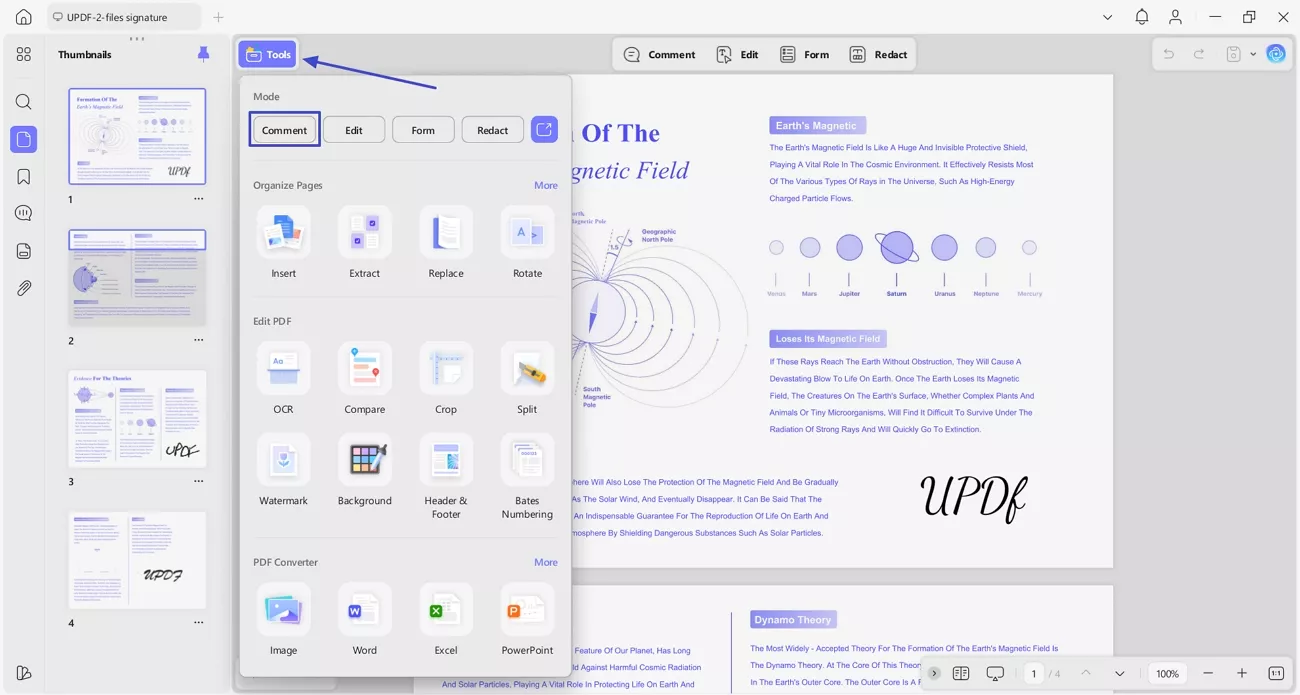
Step 1. Import PDF and Access Comment Mode
Once you import the PDF, press the “Tools” option and click the “Comment” button to enter the comment interface.
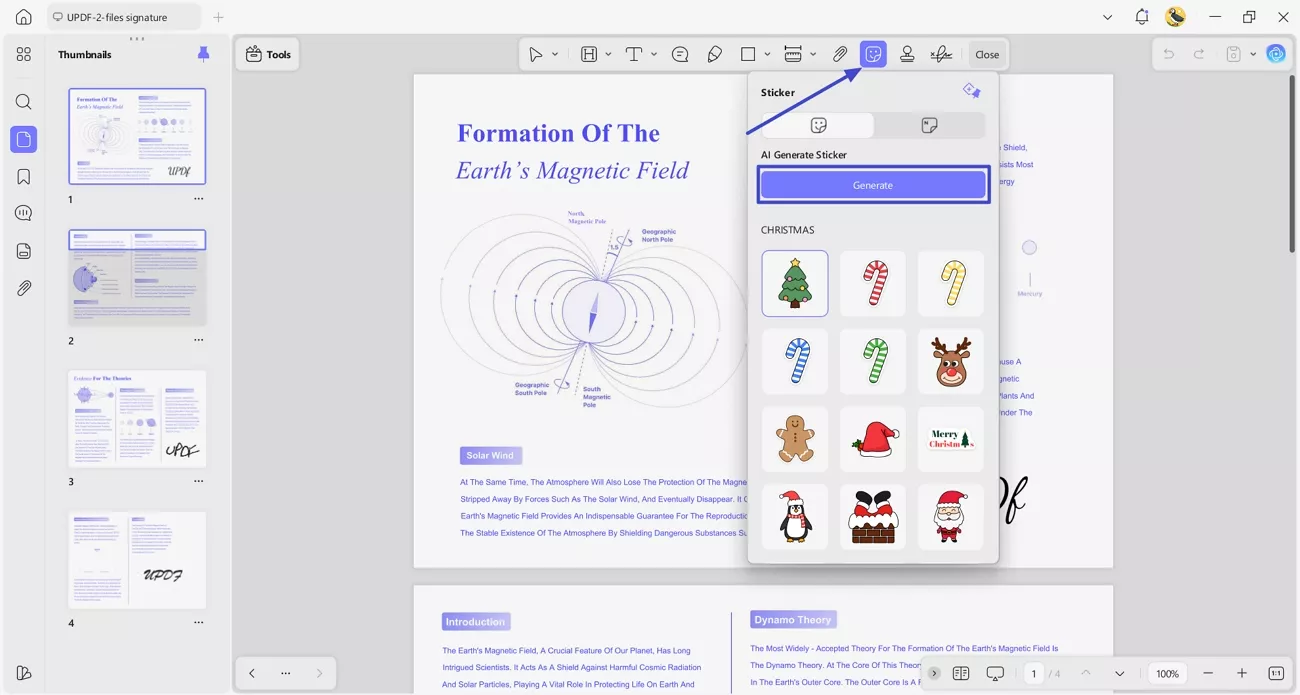
Step 2. Select AI Generate Sticker Annotation Tool
Next, press the “Sticker” icon in the top bar and click the “Generate” button to enter the AI sticker generation interface.
Step 3. Describe The Sticker
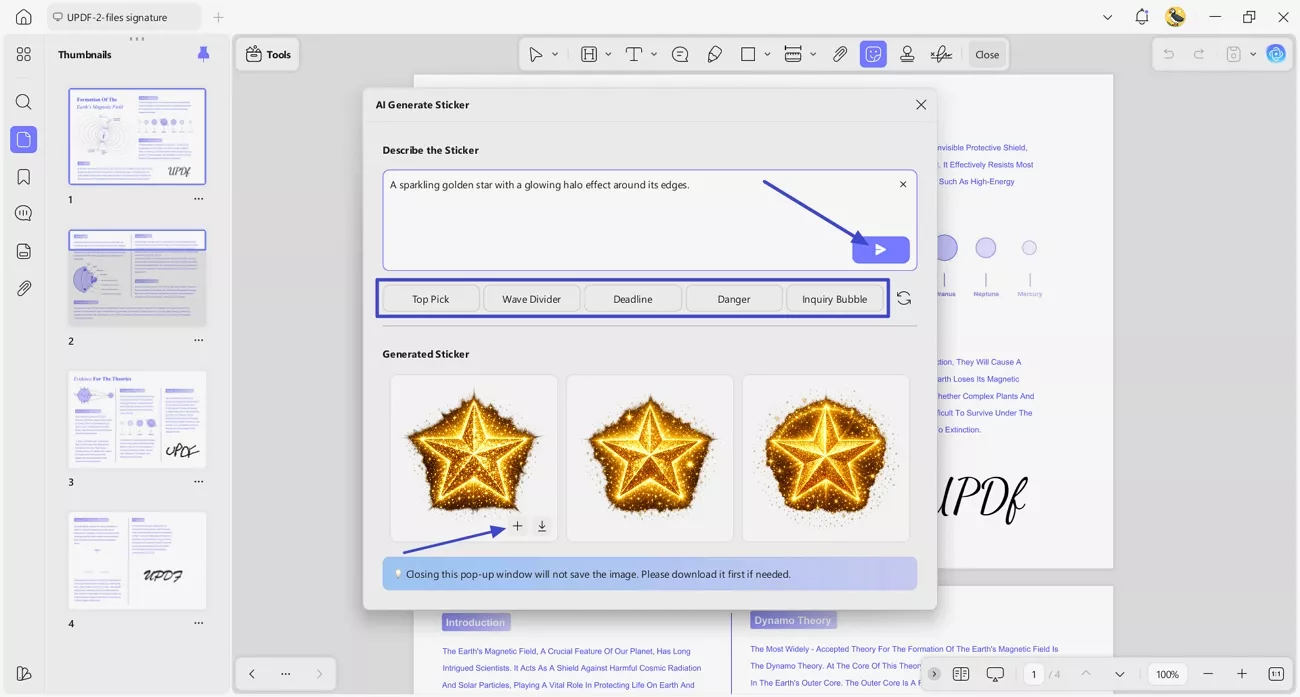
In the pop-up, enter the sticker description or choose a “Keyword” below to auto-generate prompts. Once the prompt is finalized, press the “Send” button. Here, you’ll get 3 high-quality images that can be used directly within your content. Click the “Add” button to add the sticker to the PDF.
Step 4. Saved The Edited PDF
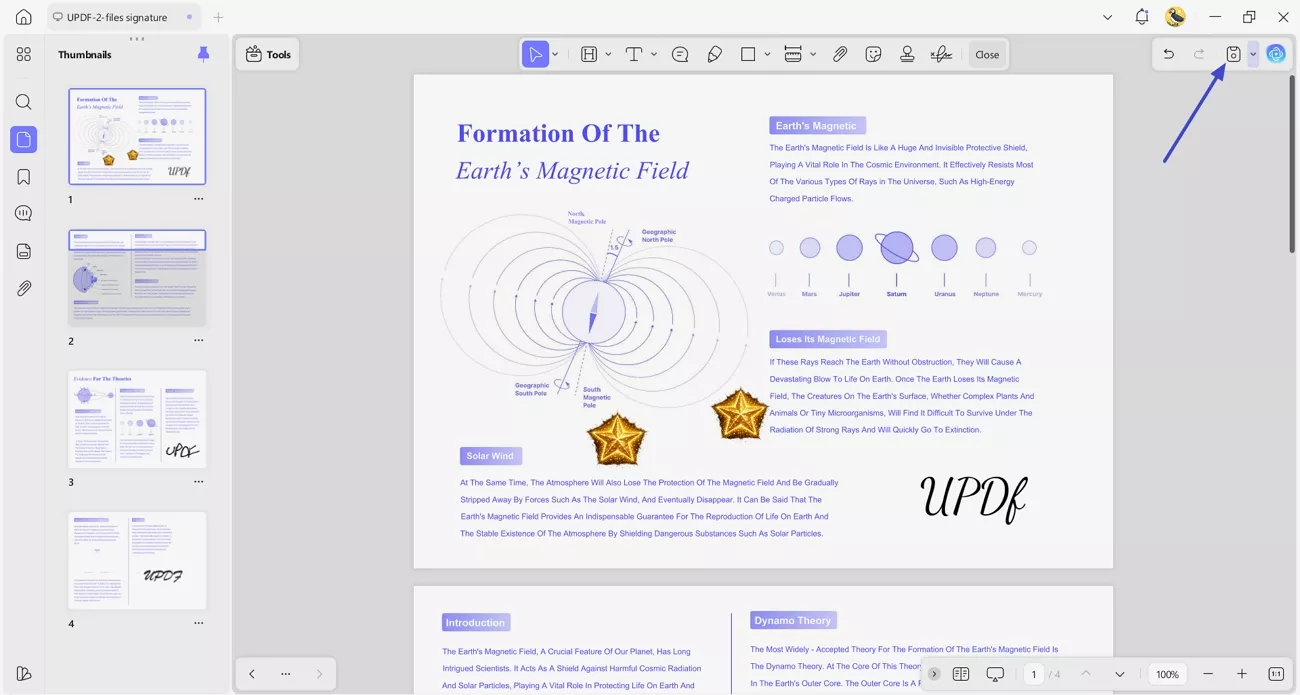
Lastly, press the “Save” button in the top left corner to save the file with the sticker added.
Final Thought
In this guide, you learned how prompts, styles, and emotions combine to create expressive WhatsApp sticker online designs. We discovered simple workflows in ChatGPT and Dreamina AI for turning quick ideas into polished sticker images. For documents, AI-generated stickers can highlight key points and make serious content feel more engaging. To manage both PDF stickers and everyday documents in one place, consider using UPDF - PDF Sticker Maker Online for your next project.
Windows • macOS • iOS • Android 100% secure





 Enola Davis
 Enya Moore
 Lizzy Lozano