 UPDF
UPDF
 UPDF for Windows
 UPDF for Mac
 UPDF for iPhone/iPad
 UPDF for Android
 Nomostar
 UPDF AI Online
 UPDF Sign
 IvyCraft
 Edit PDF
 Annotate PDF
 Create PDF
 PDF Form
 Edit links
 Convert PDF
 OCR
OCR PDF to Word
 PDF to Image
 PDF to Excel
 Organize PDF
 Merge PDF
 Split PDF
 Crop PDF
 Rotate PDF
 Protect PDF
 Sign PDF
 Redact PDF
 Sanitize PDF
 Remove Security
 Read PDF
 UPDF Cloud
 Compress PDF
 Print PDF
 Batch Process
 About UPDF AI
 UPDF AI Solutions
 AI User Guide
 FAQ about UPDF AI
 Summarize PDF
 Translate PDF
 Chat with PDF
 Chat with AI
 Chat with image
 PDF to Mind Map
 Explain PDF
 PDF AI Tools
 Image AI Tools
 AI Chat Tools
 AI Writing Tools
 AI Study Tools
 AI Working Tools
 Other AI Tools
 AI Bookmark Generation
 AI Bookmark Summary
 AI Watermark Generation
 AI Background Generation
 AI Sticker Generation
 AI Stamp Generation
 AI Editing Suite
 UPDF Copilot
 AI Page Management
 AI Semantic Search
 PDF to Word
 PDF to Excel
 PDF to PowerPoint
 Enterprise Solution
 Enterprise Sign
 Enterprise AI
 Enterprise Plan
 Enterprise User Guide
 Enterprise Webinar
 IT
IT Education
 Construction
 Financial Service
 Healthcare
 Insurance
 Legal
Legal Manufacturing
 Government
 Researchers & PhDs
 Solopreneurs & Freelancers
 Lawyers & Legal Professionals
 Real Estate Agents & Brokers
 Education Solution
 Customer Stories
 User Guide
 UPDF Tricks
 FAQs
FAQs UPDF Reviews
 Download Center
 Blog
Blog Newsroom
 Tech Spec
 Updates
 UPDF vs. Adobe Acrobat
 UPDF vs. Foxit
 UPDF vs. PDF Expert

You may want to inspect fonts and resolution to resolve printing errors, scan the file for hidden security threats, or generate an AI summary for hundreds of pages of content.
For many, it means getting an AI to summarize a 100‑page document or answer specific questions about its content — and that's where tools like UPDF AI come in, offering instant summaries, translations, and conversational insights without uploading your files to the cloud.
This guide helps you pinpoint your specific requirements, sort corresponding tool types, and select the optimal solution for regular users, security practitioners, and academic researchers.
Part 1. Which Kind of PDF Analyzer Fits Your Need?
Before diving into details, use this table to quickly identify which tool category fits your situation.
| Your Scenario | Recommended Tool Category | Representative Tools | What It Tells You |
|---|---|---|---|
| You need to check PDF version, fonts, images, encryption, or metadata | PDF Property Inspectors | Mapsoft PDF Analyzer | What the PDF is — its structure, version, fonts, images, security settings |
| You suspect the PDF might contain malware, JavaScript, or hidden exploits | Security & Malware Analysis Tools | PDF Stream Dumper (Lenny Zeltser) | Whether the PDF is safe — detects exploits, JavaScript, suspicious objects |
| You want AI to read, summarize, translate, or answer questions about content | AI-Powered Document Intelligence Platforms | UPDF AI, Smallpdf, SciSpace, PDFGPT.IO, Scribbr, Notion AI | What the PDF says — summaries, answers, insights, translations |
| You're a researcher needing citation extraction or literature review | Academic Research & Literature Tools | SciSpace, EDP Sciences | How to access and organize scholarly literature |
Still not sure? What do you actually need from the PDF?
- Basic technical info → PDF Property Inspectors
- Security check → Security tools
- Understand content via AI → AI platforms
- Academic research → Academic tools
Now let's explore each category in detail — what they can do, how to use them, and who they're best for.
Before we dive in, one quick note: UPDF AI is rated as the best overall tool in Part 4 (AI-Powered Document Intelligence Platforms). It wins because it combines local processing (your files never leave your device) with the most comprehensive AI feature set — summarize, translate, mind maps, semantic search, bookmark generation, and page health checks — making it significantly more private and feature‑complete than any cloud‑only alternative.
Part 2. How to Analyze PDF for Checking Basic File Information
PDF property inspectors examine a PDF's internal structure and metadata. They answer questions like: What version of PDF is this? Are the fonts embedded? What images does it contain? Is it encrypted? Are there form fields or bookmarks?
Key distinction from AI tools: Property inspectors read about the PDF (its structure and metadata). AI tools read the content of the PDF (its text, meaning, and insights). They serve entirely different purposes.
They typically reveal:
- Basic properties: PDF version, page count, page dimensions, file size, creation/modification dates, producer application
- Font information: List of fonts used, embedding status (missing fonts are the #1 cause of rendering issues)
- Images & resources: Image count, total image size, resolution, color space, compression method
- Structure: Bookmarks, named destinations, logical structure tree (important for accessibility), layers, attached files
- Security & permissions: Encryption status, encryption method, allowed actions (printing, copying, form filling)
- Interactive elements: Form fields, annotations, JavaScript actions, links, multimedia objects
- Metadata: DocInfo dictionary and XMP streams
- Compliance: Whether the file meets ISO sub‑standards like PDF/A, PDF/X, or PDF/UA
What they cannot do: Understand the meaning of content, answer questions, generate summaries, or detect malware.
When to use: You need to diagnose a technical issue — why a PDF won't print correctly, why fonts look wrong, what's inside a file before opening it, or whether it meets a specific standard.
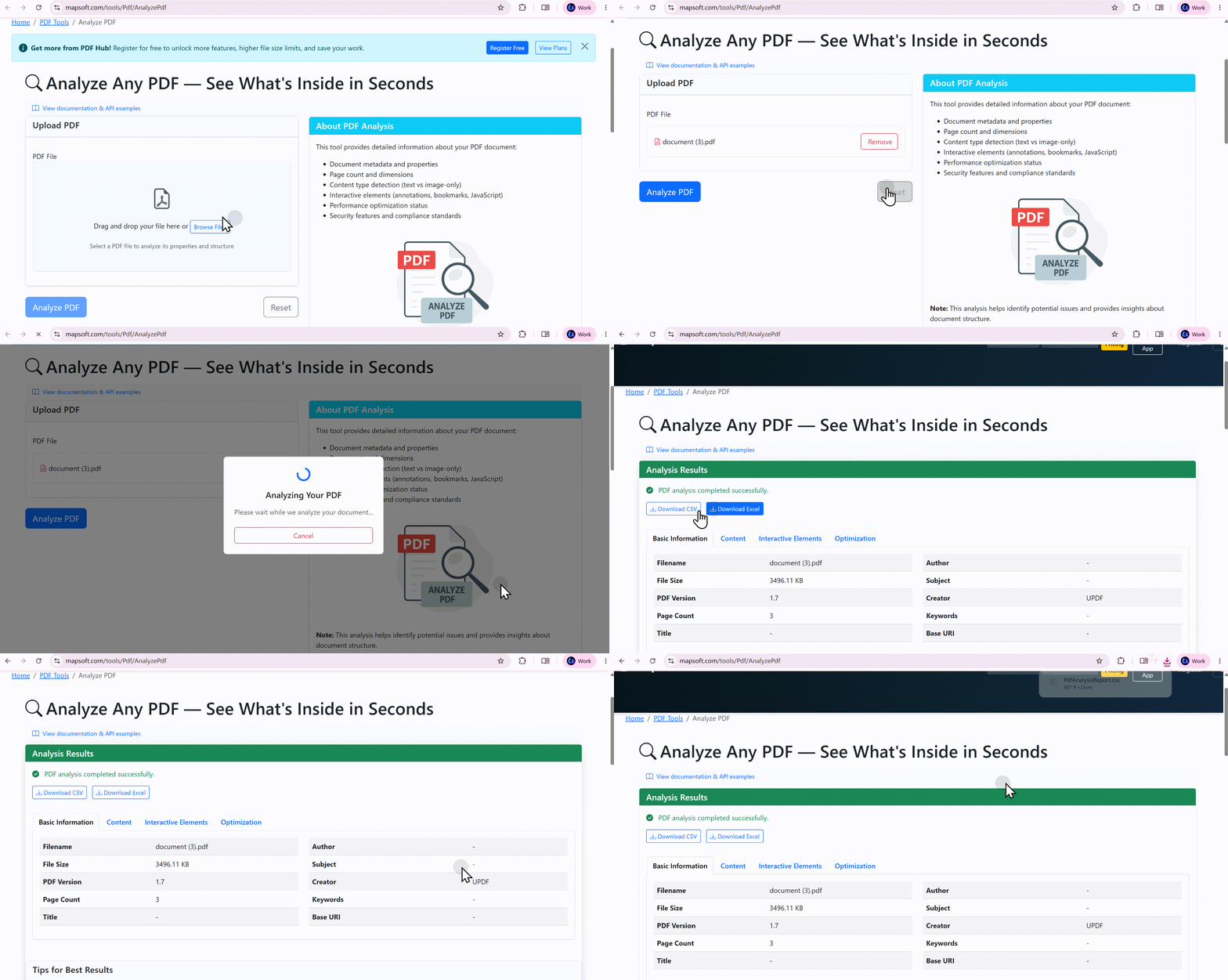
Mapsoft's Analyze PDF tool uploads a file and returns a structured report covering version, page count, page size, security, fonts (with embedding status), image count and breakdown by type, form fields, bookmarks, linearisation status, and attached files.
Powered by the Adobe PDF Library — the same engine as Adobe Acrobat — built in‑house by Mapsoft with over 30 years of PDF and Adobe expertise. The tool runs in your browser and does not require installation.
How to use Mapsoft PDF Analyzer:
- Go to Mapsoft's Analyze PDF tool page
- Upload your file using drag‑and‑drop or Browse Files
- Click Analyze PDF to process
- Review the comprehensive report covering all aspects of the PDF structure and content
- Download the report if needed
Part 3. How to Analyze PDF for Suspicious PDFs
Security analysis tools inspect PDFs for malicious content — without actually executing the file. They're built for security professionals, incident responders, and forensic analysts.
They can detect:
- Embedded JavaScript code and known exploits
- Shellcode and exploit code hidden in binary streams
- Suspicious objects in the PDF's tree data structure
- Anomalously formatted or malformed document markers
- They navigate object structures, decode streams, and include JavaScript interpreters for analysis
Key distinction: These tools read how the PDF is constructed to find anomalies. AI tools read what the PDF says. Property inspectors read what the PDF is.
They typically process files 100% locally, making them safe for handling sensitive or potentially malicious files.
When to use: You've received a suspicious PDF from an unknown source, or you're a security analyst whose job is to analyze potentially malicious documents.
| Tool | Key Capabilities | Platform | Cost | Best For |
|---|---|---|---|---|
| PDF Stream Dumper (Lenny Zeltser) | Scans known exploits, navigates object structures, decodes streams, JavaScript interpreter | Windows GUI | Free | Security professionals, analysts needing GUI-based inspection |
| QuickSand by Tylabs | Python-based analysis framework; identifies exploits in streams of different encodings or compressions; | Command line (Python) | Free & Open-source | Security researchers, analysts comfortable with CLI who need a flexible, scriptable framework |
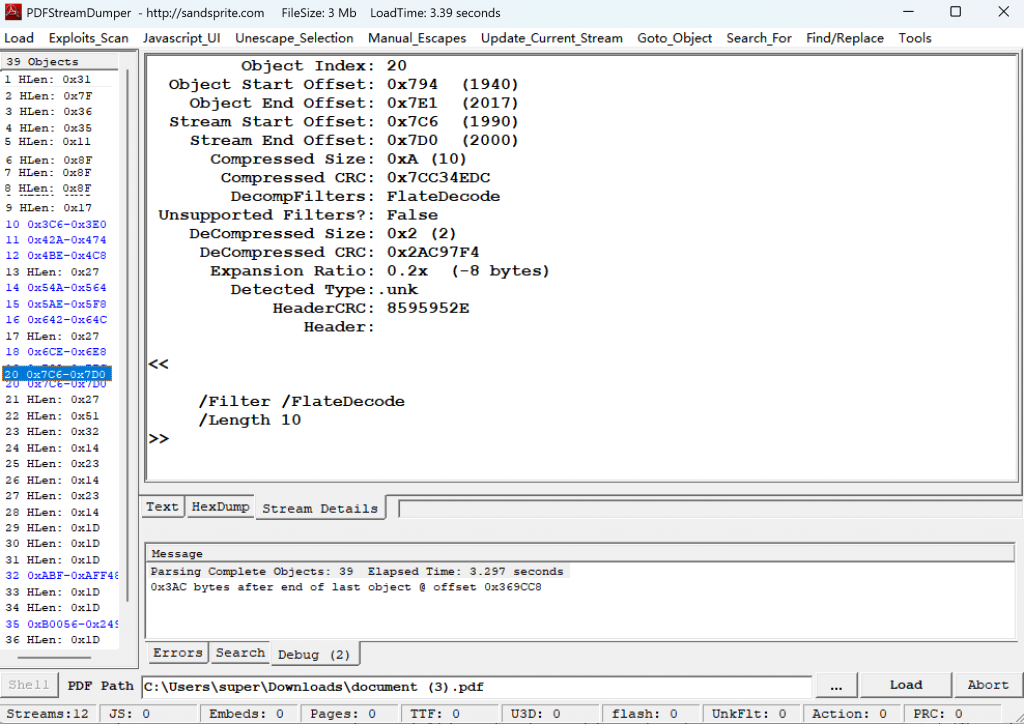
PDF Stream Dumper is a free Windows tool with a GUI for analyzing suspicious PDFs. It is part of the toolset recommended by Lenny Zeltser, a well‑known security expert and SANS instructor.
Key capabilities:
- Scans for known exploits
- Navigates object structures
- Decodes streams
- Includes a JavaScript interpreter for analyzing embedded scripts
How to use PDF Stream Dumper:
- Download PDF Stream Dumper
- Open the suspicious PDF in the tool
- Navigate the object structure to inspect each component
- Scan for known exploits and decode suspicious streams
- Use the JavaScript interpreter to analyze any embedded scripts
- Review the findings to determine if the PDF contains malicious content
Part 4. How to Analyze PDF for Understanding Content
AI platforms use large language models to "read" PDFs and interact with them through natural language. This is the fastest‑growing category — users increasingly want AI to extract insights, not just text.
Key distinction: AI tools read what the PDF says (content, meaning, insights). Property inspectors read what the PDF is (structure, metadata). Security tools read how the PDF is constructed (for anomalies).
They can:
- Answer questions about PDF content through natural language chat
- Generate automatic document summaries
- Extract key information and insights
- Create study materials like flashcards and quizzes
- Generate mind maps and visual notes
- Support multiple languages
- Process multiple documents simultaneously for cross‑document analysis
When to use: You need to quickly understand a long document, extract specific information, or get answers without reading everything. You're a student, researcher, business professional, or knowledge worker.
| Tool | Best For | Key Features | Privacy | File Limits | Platform | Cost |
|---|---|---|---|---|---|---|
| UPDF AI | Complete PDF workflow + AI | Summarize, translate, mind maps, semantic search, bookmarks, page health, multi‑document, full editing | Local processing (desktop) | 5 files, 100MB, 100 free questions (free trial) | Win/Mac/iOS/Android/Web | Free trial + subscription |
| Smallpdf | All‑in‑one online document management | AI summarizer, chat with PDF, AI question generator, OCR, 20+ PDF tools | Cloud upload | Varies | Web + Chrome extension | Free with limits + paid |
| SciSpace | Academic research, literature reviews | Chat with PDF, math/table understanding, 270M+ papers, 9,000+ citation styles | Cloud upload | Unlimited (free) | Web | Free |
| PDFGPT.IO | Legal, compliance, multi‑document analysis | Multi‑document chat, AI agents, fact‑checking, legal tools | Cloud upload | 1000 pages (free) | Web | Free with limits + paid |
| Scribbr Chat PDF | Students, quick academic queries | Chat with PDF, instant answers, academic‑focused | Cloud upload | Varies | Web | Free with limits |
| Notion AI | Notion users, knowledge management | Integrated AI analysis within Notion workspace | Cloud upload | None (within Notion) | Notion | Paid (Notion AI add‑on) |
Spotlight: UPDF AI — The Complete AI-Powered PDF Analysis Solution
Among the many AI‑powered PDF analysis tools, UPDF AI stands out as a comprehensive, all‑in‑one solution that combines deep AI capabilities with a full‑featured PDF platform.
What UPDF AI Can Do
1. Multi-Document Analysis & Project-Based Workflow
UPDF AI can analyze multiple uploaded PDFs simultaneously, extract key insights across documents, and automatically generate structured "project overviews." You can create dedicated "Projects" for groups of PDFs, enabling continuous conversations and cross‑file context awareness. Unlike basic AI chatbots that only handle one file at a time, UPDF AI understands relationships between different documents.
2. Comprehensive AI Toolkit
UPDF AI offers a complete suite of AI‑powered tools:
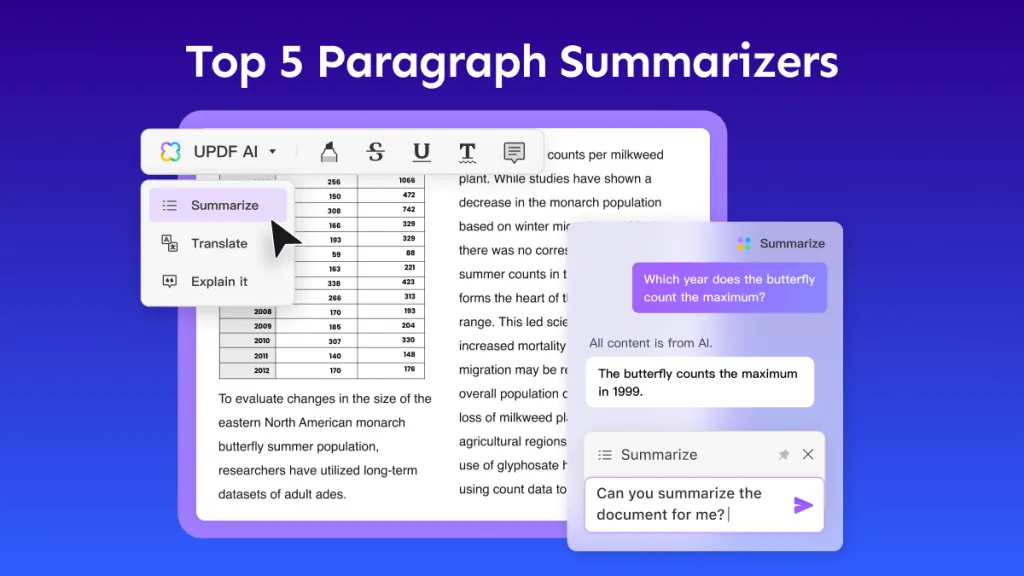
- Summarize: Generate concise summaries of entire documents, specific pages, or custom page ranges
- Translate: Cross‑language content understanding
- Mind Map: Convert PDFs into visual mind maps in one click — available both online and on desktop
- Explain: Get clear explanations of complex terms, phrases, or sections
- DeepThink: Click "DeepThink" for deeper, more thorough answers
- Chat: Free‑form conversation with your PDFs
3. AI Page Health Check
UPDF is the only PDF tool with a built‑in AI Agent that autonomously analyzes document structure and flags issues. One click launches an AI scan of your entire PDF, identifying blank pages, reversed pages, inconsistent page sizes, and formatting problems. All issues are compiled into a clear list for quick review and one‑click fixes. For scanned documents, the AI detects non‑searchable pages and prompts OCR in 38 languages.
4. AI Bookmark Generation & Chapter Summaries
AI automatically analyzes file structure, creates clear chapter bookmarks, and generates concise summaries for each section. Even for scanned or image‑based PDFs, OCR recognition enables AI to analyze the entire document structure.
5. AI Semantic Search
UPDF understands the meaning behind your search terms — not just exact keywords. It scans the entire PDF, identifies synonyms and related concepts, and intelligently ranks results. Even text within images (via OCR) is included in the search.
6. Local‑Processing Privacy
Unlike cloud‑only AI tools, UPDF processes commands locally, ensuring sensitive data remains on your device. With DeepSeek R1, user data and personal information are not stored or leaked. This makes UPDF AI the ideal choice for analyzing sensitive documents like contracts, financial reports, and legal agreements.
7. Cross‑Platform & Integrated Workflow
UPDF AI is seamlessly integrated into the UPDF app across Windows, Mac, iOS, and Android, with a dedicated web version available. Unlike standalone AI tools, UPDF combines AI analysis with full PDF editing capabilities — you can analyze, then immediately edit, convert, annotate, encrypt, and finalize documents without switching tools.
8. Academic & Research Capabilities
UPDF AI Scholar Research takes you from a simple topic to a structured literature review with minimal effort. It automatically identifies key insights across research materials — including similarities and differences in methodologies, conflicting or aligned findings, emerging trends, and critical gaps in the literature. It also automatically extracts academic details (authors, publication dates, citations) for quick bibliography building.
Windows • macOS • iOS • Android 100% secure
How to use UPDF AI:
- Open your PDF in UPDF, or use the web version at ai.updf.com
- Click the "AI" icon or select "Ask PDF"
- Let AI read and analyze your PDF
- Ask questions or choose preset tools (Summarize, Translate, Mind Map, etc.)
- For deeper analysis, click "DeepThink"
- For multiple documents, create a "Project" and upload up to 5 PDFs
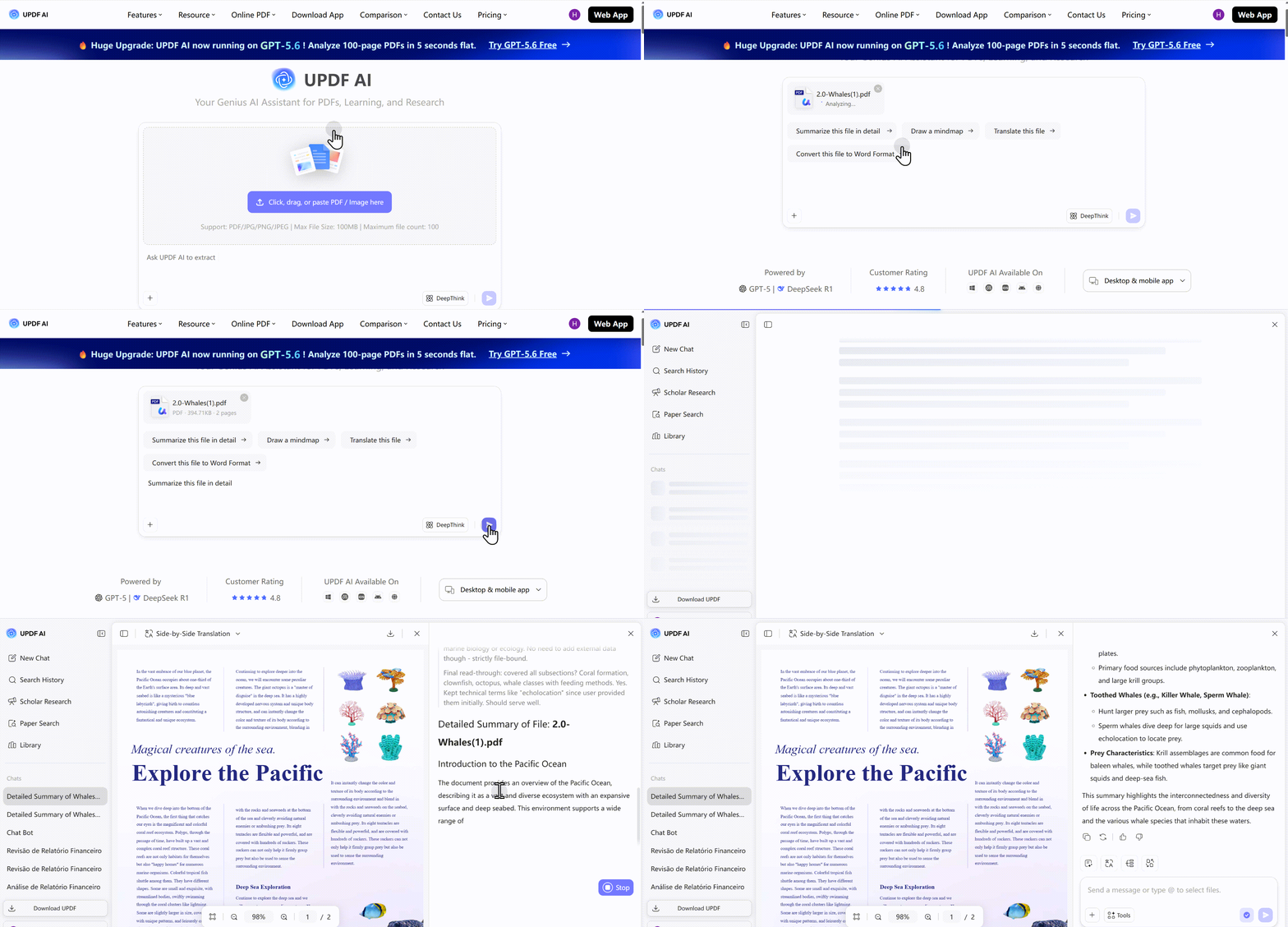
Why UPDF AI over other AI tools: It's the only AI‑powered PDF solution that combines comprehensive AI capabilities (summarize, translate, mind maps, semantic search, bookmark generation, page health check, multi‑document analysis) with local‑processing privacy and full PDF editing — all in one cross‑platform tool.
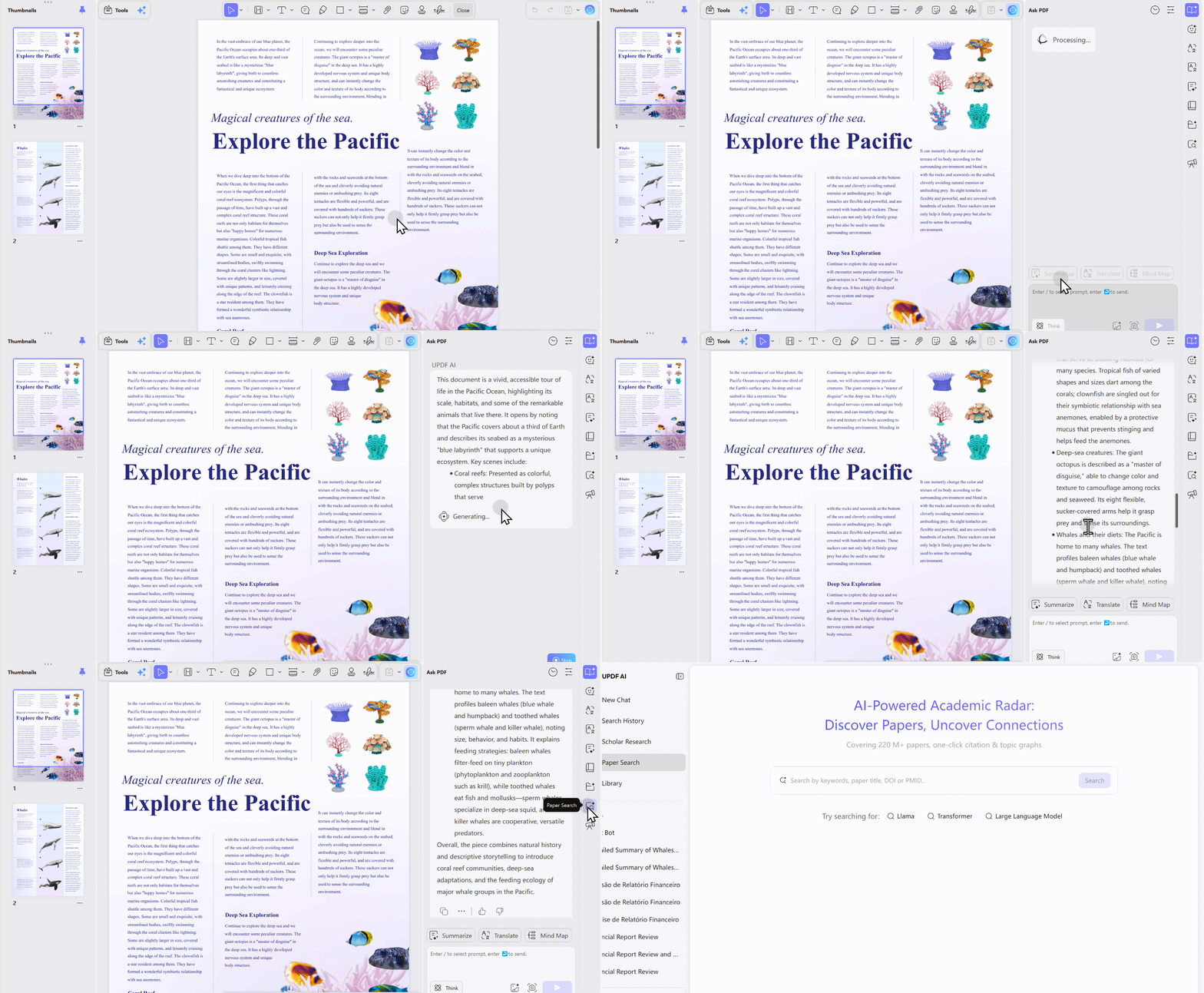
If your main task is to understand, summarize, translate, or extract information from a PDF, UPDF AI is usually more convenient than ChatGPT. Instead of uploading files to a separate chatbot or copying text manually, you can analyze the PDF directly while reading it.
This is especially useful when you need to check the original page, highlight important content, use OCR, translate sections, or continue editing the PDF after analysis.
Best for:
- Students reading long academic papers
- Researchers reviewing reports or journals
- Business users analyzing client documents
- Finance teams checking statements or reports
- Legal users reviewing contracts or policies
- Anyone who wants to analyze PDFs without switching between tools
Skip if:
- Users who only want a casual AI conversation
- Very simple one-page documents that do not need PDF tools
- Highly confidential documents that cannot be processed by any AI tool
- Cases where professional legal, financial, or medical advice is required
Part 5. How to Analyze PDF for Scholarly Analysis
These tools serve the academic research community — they're designed for literature discovery, citation management, and research workflows.
Key distinction: Academic tools provide access to scholarly content (papers, journals, citations). AI platforms help you understand content you already have. Developer tools help you process content programmatically.
They can:
- Search and access academic papers from publishers and repositories
- Manage citations and references
- Fetch papers from DOI, arXiv ID, or PMID
- Support institutional access and subscriptions
When to use: You're an academic researcher, student, or librarian who needs to access, organize, and analyze scholarly literature.
| Tool | Key Capabilities | Content Access | AI Features | Cost | Best For |
|---|---|---|---|---|---|
| SciSpace | 270M+ papers, AI chat with PDFs, math/table understanding, 9,000+ citation styles, PDF to Video | Full access to repository | ✅ Yes — GPT‑based | Free | Researchers, students needing AI‑powered literature analysis |
| EDP Sciences | Publisher access, academic journals, PDF articles, institutional access | Publisher content only | ❌ No | Subscription/Institutional | Researchers needing publisher‑specific academic content |
Winner: SciSpace — It offers the most comprehensive solution for academic research: access to 270M+ papers, AI‑powered chat with PDFs (including math and table understanding), 9,000+ citation styles, and PDF to Video Generation — all for free. EDP Sciences is useful for accessing specific publisher content but lacks AI capabilities.
How to Use SciSpace (Step by Step)
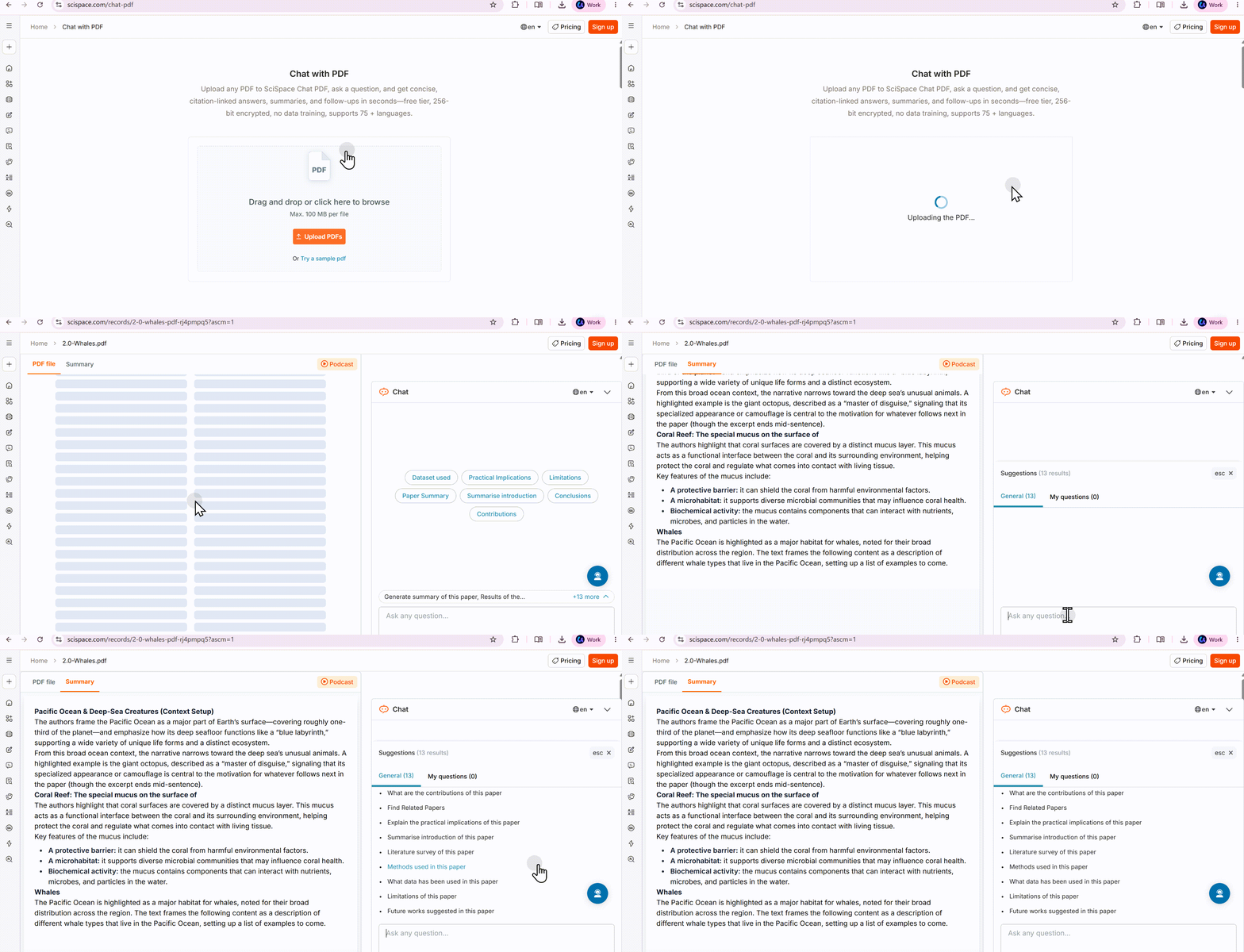
- Go to SciSpace's website
- Upload your PDF directly, or search across the 270M+ paper repository
- The tool splits the screen — your paper on the left, AI chat panel on the right
- Ask Questions: Type questions about the document in natural language (e.g., "What methodology did the authors use?", "What are the limitations of this study?")
- Use AI Tools:
- Summarize: Extract key information and summarize findings
- Identify methodologies: Get a breakdown of research methods used
- Identify gaps: Find research gaps and future research directions
- Extract citations: Pull references for your bibliography
- Math and Table Understanding: Clip unfamiliar equations or tables to find out what they mean
- Toggle Languages: Switch between 13 languages as needed
- Generate Citations: Export citations in 9,000+ styles
- Create Video Abstracts (Advanced): Convert PDFs into video abstracts with AI‑generated audio narration
Frequently Asked Questions
What's the most common reason PDF analysis fails?
The PDF is scanned or image-based. If there's no text layer, most analyzers can't read it. You'll need OCR-capable tools like UPDF AI to handle these cases.
Will analyzing a PDF change or damage the file?
No. Analysis tools are read-only — they inspect the file and report what they find. They do not modify or save changes to your PDF.
Can I analyze a PDF on my phone?
Yes — UPDF AI has iOS and Android apps with full AI analysis capabilities. SciSpace also works on mobile browsers. For property inspection, Mapsoft's web tool works on any device with a browser.
Is "analyze PDF" the same as "extract text from PDF"?
No. Text extraction is one specific task. Full analysis goes beyond that — it examines fonts, images, security, structure, metadata, and compliance. Think of extraction as "what's the text," and analysis as "what's in the file and how is it built."
Conclusion
"Analyze PDF" isn't one thing — it's a spectrum of needs. A property inspector tells you what a PDF is. A security tool tells you if it's safe to open. An AI platform tells you what it says. An academic tool helps you navigate scholarly literature.
Choosing the right category matters more than finding the "best" tool. Start with your actual problem — then pick the tool that solves it. For AI document analysis, try UPDF AI free — 100 questions, 5 PDFs, no credit card required. See what your documents actually say.




 Enid Brown
 Lizzy Lozano

 Enrica Taylor
 Enya Moore