 UPDF
UPDF
 UPDF for Windows
 UPDF for Mac
 UPDF for iPhone/iPad
 UPDF for Android
 Nomostar
 UPDF AI Online
 UPDF Sign
 IvyCraft
 Edit PDF
 Annotate PDF
 Create PDF
 PDF Form
 Edit links
 Convert PDF
 OCR
OCR PDF to Word
 PDF to Image
 PDF to Excel
 Organize PDF
 Merge PDF
 Split PDF
 Crop PDF
 Rotate PDF
 Protect PDF
 Sign PDF
 Redact PDF
 Sanitize PDF
 Remove Security
 Read PDF
 UPDF Cloud
 Compress PDF
 Print PDF
 Batch Process
 About UPDF AI
 UPDF AI Solutions
 AI User Guide
 FAQ about UPDF AI
 Summarize PDF
 Translate PDF
 Chat with PDF
 Chat with AI
 Chat with image
 PDF to Mind Map
 Explain PDF
 PDF AI Tools
 Image AI Tools
 AI Chat Tools
 AI Writing Tools
 AI Study Tools
 AI Working Tools
 Other AI Tools
 AI Bookmark Generation
 AI Bookmark Summary
 AI Watermark Generation
 AI Background Generation
 AI Sticker Generation
 AI Stamp Generation
 AI Editing Suite
 UPDF Copilot
 AI Page Management
 AI Semantic Search
 PDF to Word
 PDF to Excel
 PDF to PowerPoint
 Enterprise Solution
 Enterprise Sign
 Enterprise AI
 Enterprise Plan
 Enterprise User Guide
 Enterprise Webinar
 IT
IT Education
 Construction
 Financial Service
 Healthcare
 Insurance
 Legal
Legal Manufacturing
 Government
 Researchers & PhDs
 Solopreneurs & Freelancers
 Lawyers & Legal Professionals
 Real Estate Agents & Brokers
 Education Solution
 Customer Stories
 User Guide
 UPDF Tricks
 FAQs
FAQs UPDF Reviews
 Download Center
 Blog
Blog Newsroom
 Tech Spec
 Updates
 UPDF vs. Adobe Acrobat
 UPDF vs. Foxit
 UPDF vs. PDF Expert

Many researchers feel adrift when sorting sources, yet a simple organizing system can rebuild their sense of direction. Creating a clear comparison layout lets you link studies and decide which evidence deserves emphasis. With a clear plan and a reliable tool, you can turn many readings into one simple story.
For users managing multiple research PDFs and scattered notes, UPDF is a centralized and organized workspace. It allows you to highlight arguments, track quotations, and keep revised annotations together without losing essential context. By turning scattered readings into a literature review matrix, you can compare sources and surface genuine gaps. This guide shows how a simple matrix structure and strategic use of UPDF can streamline your entire literature review.
So, download UPDF for Academic Research to centralize reading, summarizing, and annotating every article you need for your review. Start organizing your PDFs today and experience how a focused digital workflow helps you study faster and synthesize insights.
Windows • macOS • iOS • Android 100% secure
Part 1. Why You Need a Synthesis Matrix?
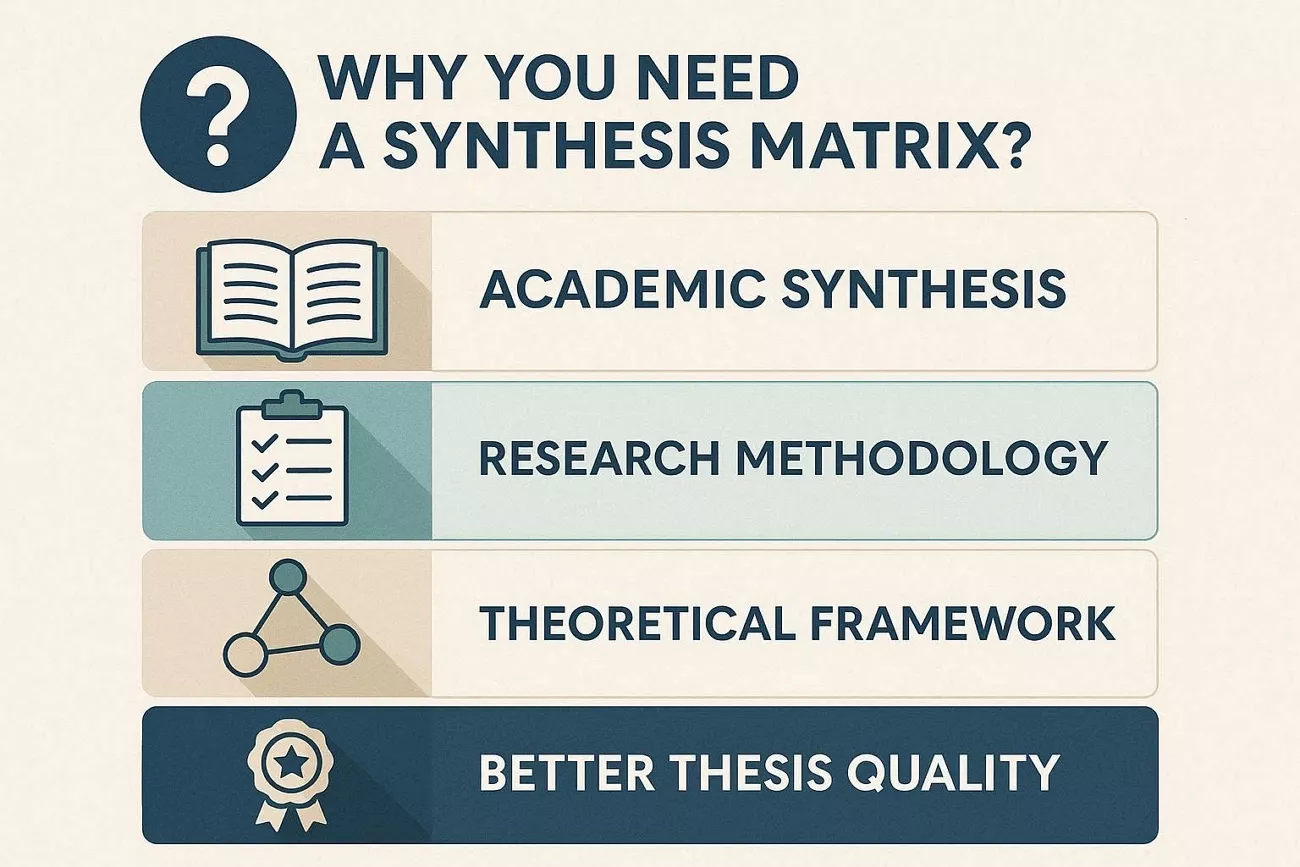
A synthesis matrix helps you see how different studies connect and contradict each other across themes. It makes it easier to notice what has been studied often and what important questions are still missing. Before learning how to make a literature review matrix, we will look at why this tool matters.
- Academic Synthesis: It supports academic synthesis by pulling separate studies together into one clear view of shared themes and ideas. You can compare how different authors treat the same issue and build a stronger combined argument.
- Research Methodology: The matrix lets you line up methods used in different papers, so your research methodology choice becomes clearer. You can see which methods work best for similar questions and avoid repeating weak designs.
- Theoretical Framework: You can track which theories each study uses to help you choose a strong theoretical framework. This makes your own study feel connected to ongoing debates instead of standing alone.
- Better Thesis Quality: In my experience, a matrix is the difference between a mediocre and a high-distinction thesis. It keeps your reading focused and your chapters easier to plan and write.
Part 2. Comprehensive Literature Review Matrix Sample
A simple literature review matrix sample uses short rows and clear columns to show what each study contributes. Patterns and gaps become easier to see when similar details sit in the same column across studies. Let's break this structure into rows and columns for easier understanding.
Understanding the Rows
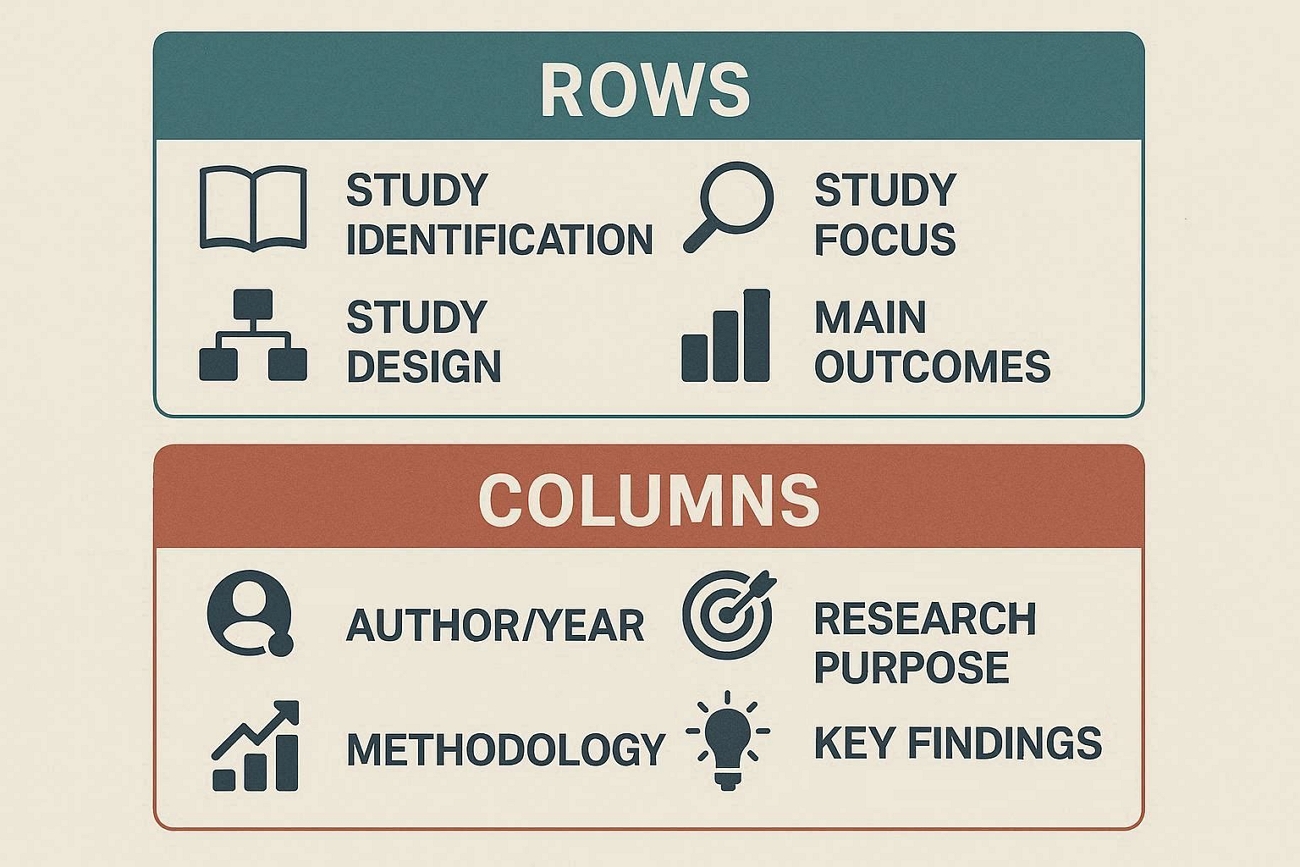
Each row represents one study or article that you have selected for your project. By scanning across a row, you see the most important details about that single source together. Next, let's explore what information usually appears inside each row:
- Study Identification: Rows start with basic source details, so you immediately know which study the information describes.
- Study Focus: Notes the main topic or question to show what the study is trying to understand.
- Study Design: Gives a short line about how the research was carried out, like surveys and interviews.
- Main Outcomes: Includes the key results from the study to help you remember its most important message.
- Missing Pieces: You write what the study did not cover, helping you notice open questions for future work.
Understanding the Columns
Columns divide the same type of information into neat vertical sections across all included studies. This layout lets you compare similar details, like methods or findings, side by side very easily. After looking into the row, let's see how each column shapes the overall structure:
- Author/Year: This column records who wrote the study and when to keep citation details organized and easy to check.
- Research Purpose: Here, you describe the main research question and goal to clarify why each study was originally conducted.
- Methodology: This column outlines the research approach to help you compare designs, such as experiments and qualitative interviews.
- Key Findings: It summarizes the central results here to make it simple to review what each study actually discovered.
- Research Gaps: This column highlights unanswered questions or limitations to guide you toward possible directions for your own research.
Part 3. How to Make a Literature Review Matrix with UPDF AI
Many researchers feel overwhelmed when dozens of long PDF articles pile up before starting structured analysis. This is where UPDF steps in with integrated AI features that shrink heavy reading workloads into focused insights. UPDF can summarize more than 100 pages into short, clear points, making core content faster to understand.
Its AI assistant helps highlight methods, key findings, and limits, ready to transfer into a structured literature review matrix. UPDF also lets users convert PDFs into editable formats, helping move organized notes directly into Word or spreadsheets. Moreover, it lets users edit PDF documents and annotate them by adding comments, highlights, and sticky notes for targeted evidence.
Take Your Research Further with UPDF 2.5
To make your synthesis even faster, the new UPDF 2.5 update introduces specialized AI Agents. While standard AI summarizes a single file, our Deep Research Agent can synthesize insights across multiple papers to find complex academic gaps instantly. You can also use the AI Bookmark Agent to auto-structure massive dissertations, ensuring you never lose track of a citation. For a limited time, you can get an exclusive $10 OFF UPDF 2.5 to unlock these 10+ professional AI Agents and master your literature review matrix today.
Download UPDF for Academic Research:
Windows • macOS • iOS • Android 100% secure
Ultimate Guide to Building a Synthesis Matrix With UPDF AI
Once we introduce the most reliable tool for organizing dense research PDFs, the next question becomes practical application. So, follow the steps below to turn scattered academic articles into a clear, structured matrix workflow:
Step 1. Bulk Import PDF File
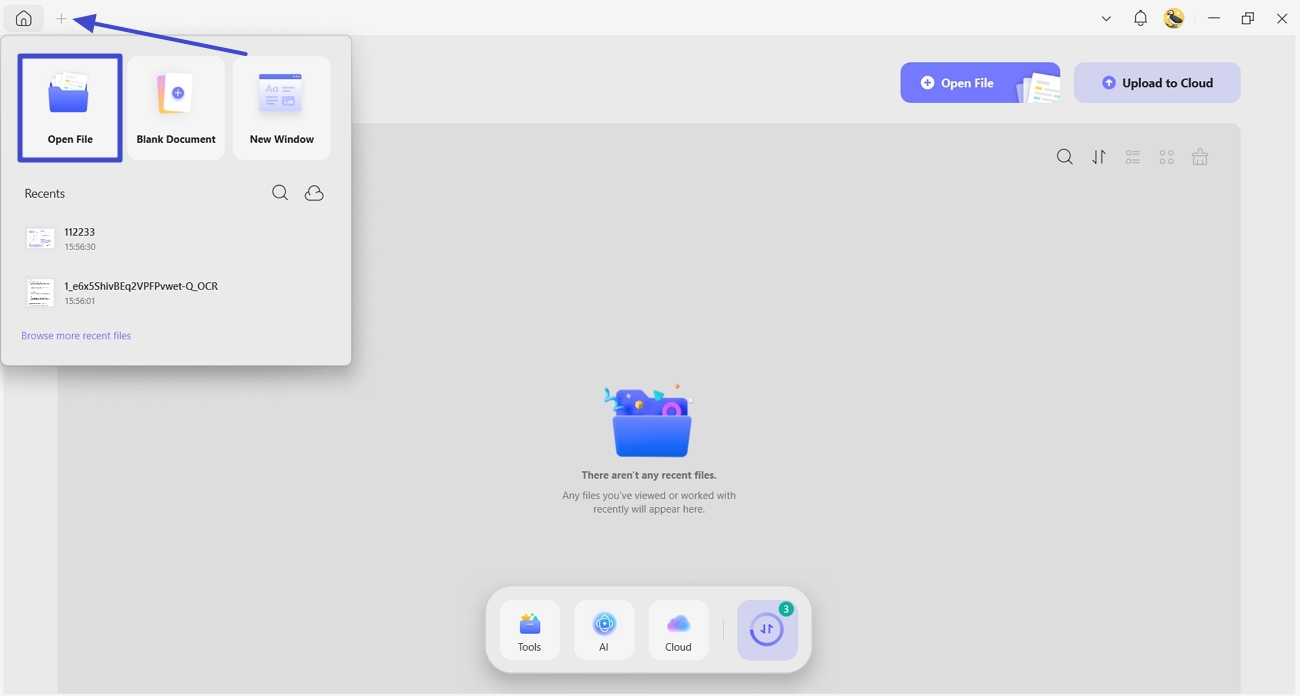
Once you land on the UPDF's home page, click the "+" icon in the top left corner and press the "Open File" button to import multiple PDFs into different tabs.
Step 2. Access UPDF AI Assistant
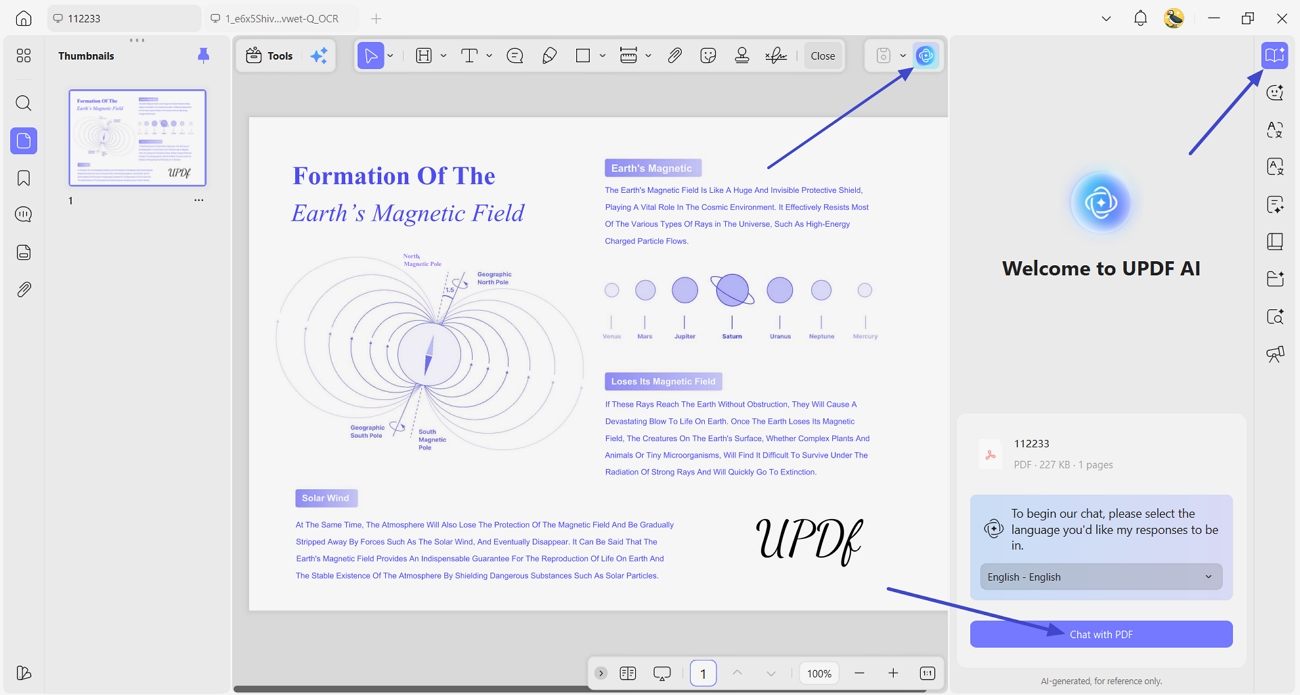
Next, open any PDF file, press the "UPDF AI" icon in the top-right corner, and click the "Ask PDF" option. Afterward, press the "Chat With PDF" option to start a conversation with AI about the PDF file.
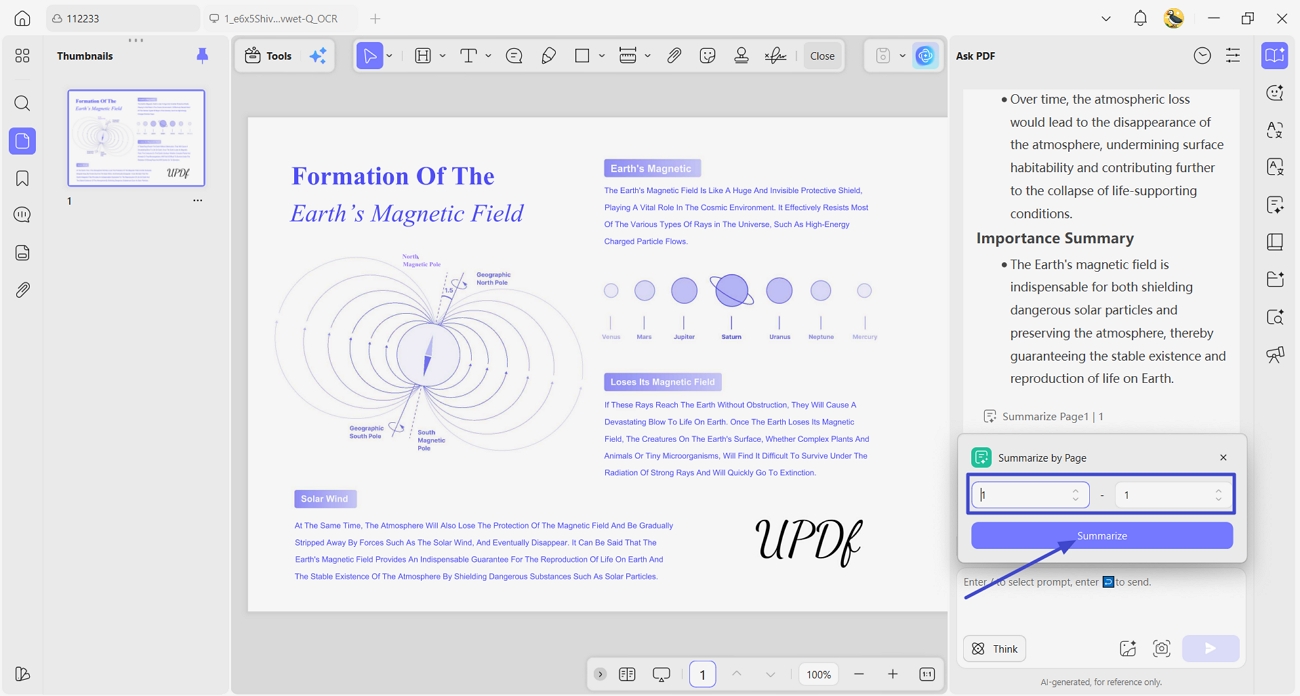
Step 3. Summarize PDF by Page
After that, click the "Summarize" option, select the page range you want to summarize, and press the "Summarize" button again. Alternatively, you can also ask the chat to summarize and extract limitations in bullets.
Step 4. Access The Annotation Tool
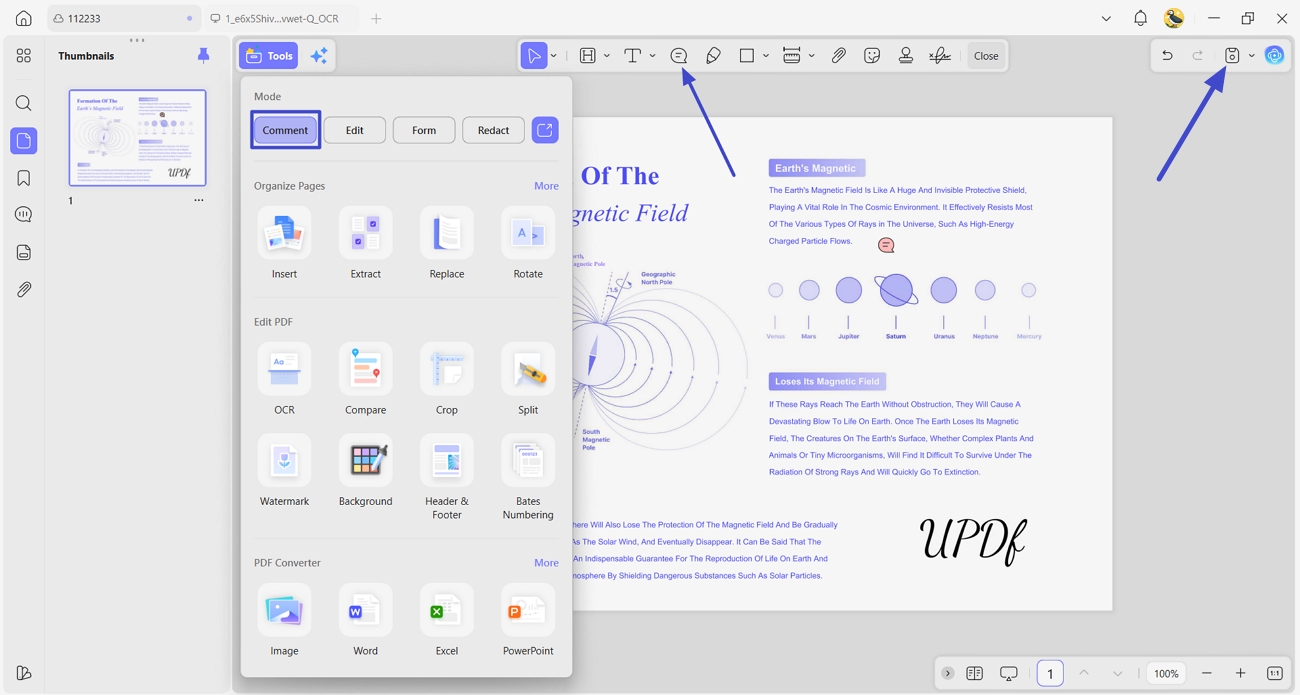
Once done, click the "Tools" option and press the "Comment" button to access the annotation tool. Here, press the "Sticky Notes" icon and click anywhere on the page to insert a sticky note for feedback or an important mark. After the PDF is finalized, click the "Save" option to save the file with changes.
Bonus Tip: Compare Findings Across PDFs
Many readers also wonder how to quickly cross-check findings when building a detailed literature review matrix sample. UPDF AI Online Assistant supports this by letting users upload multiple documents into a single interactive workspace. In that space, a chat-style interface can compare and summarize passages from different papers. The same tool can even pull text from images inside PDFs, making scanned tables or figures easier to reuse.
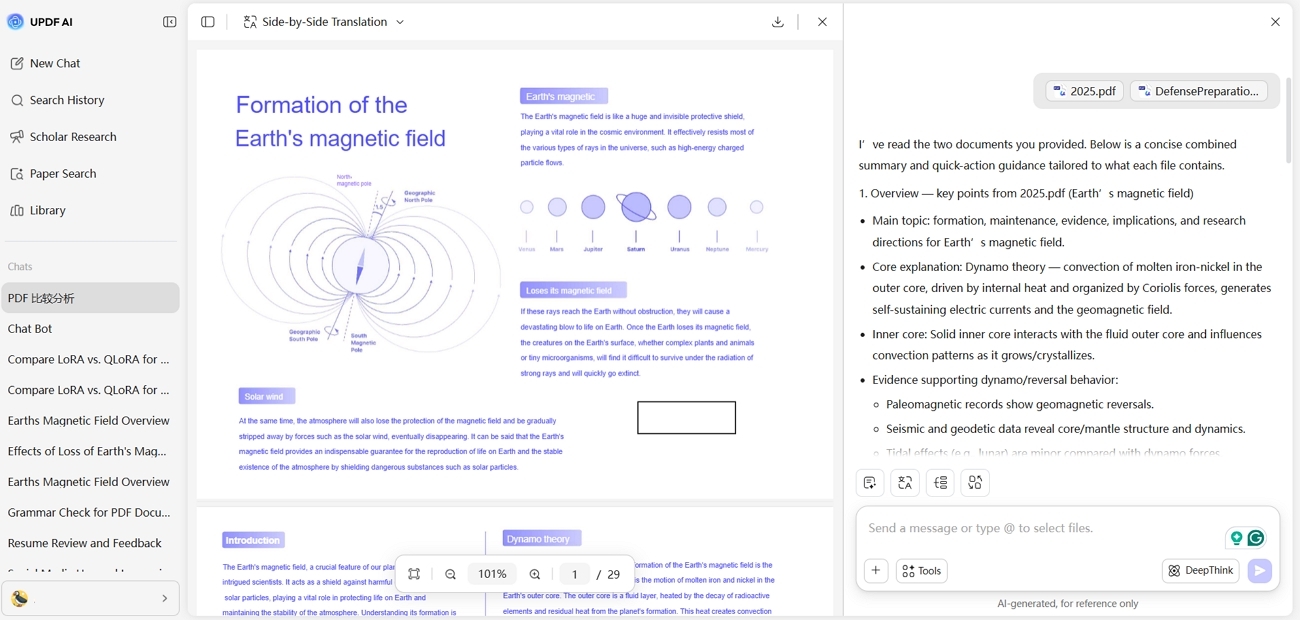
Benchmark tests show that researchers using AI assistance can compile a 20-source matrix in less than half the time.
Part 4. Advanced Tips: Ensuring Accuracy & Security
Academic work must stay accurate, honest, and safe, especially when handling sensitive or unpublished research data. Once you know how to make a literature review matrix using data extracted with UPDF, let's improve its quality.
1. Keep Academic Standards Clear
Always check AI summaries against the original PDF, especially the methods and main conclusions. Treat AI as an assistant only, so final interpretations and wording always come from your own judgment.
2. Rely on Certified Security
Choose tools that adhere to strong security standards, such as ISO 27001, to manage research information safely. This matters even more when handling unpublished manuscripts, internal reports, or confidential institutional documents in your workflow.
3. Use OCR for Older Scans
If articles come as scanned images, run OCR to convert them into clear, searchable text. Accurate OCR makes it easier to quote correctly, check details, and avoid copying misread or missing words.
4. Protect Sensitive Participant Data
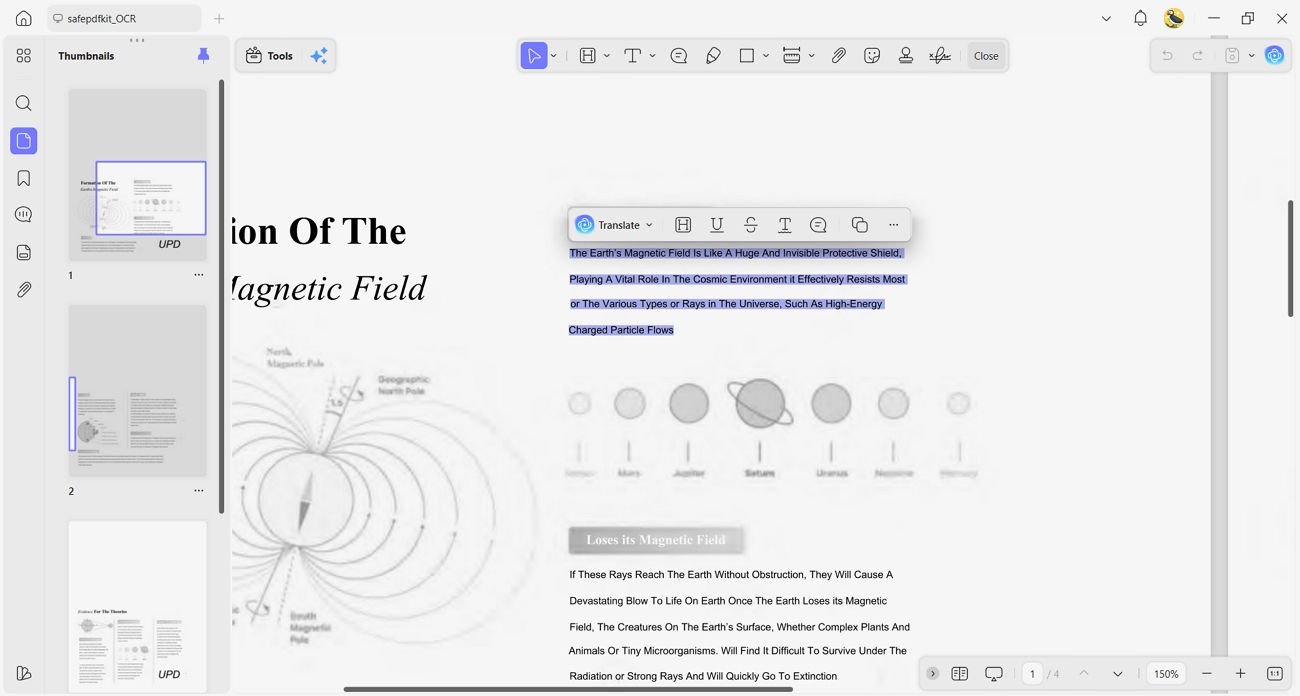
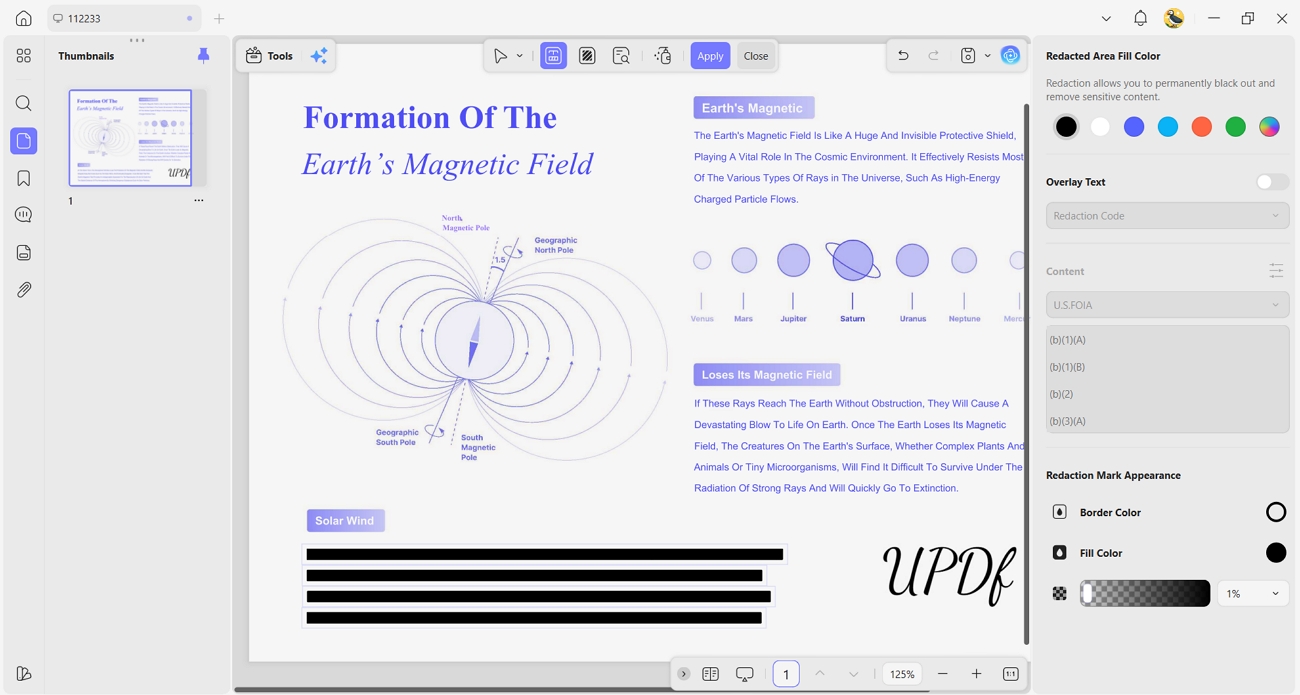
When working with interviews and surveys, remove names and identifiers before sharing any files. Use redaction features to permanently block private information, rather than just hiding it with shapes and highlights.
FAQs
How many sources should be in a literature review matrix sample?
For most projects, a literature review matrix sample works well with around 10 to 20 carefully chosen sources. Larger theses and dissertations may require 30 yet focus on quality and recent work rather than chasing high numbers.
Can I use AI to write my entire literature review?
No, AI should not write your entire literature review because that risks plagiarism, shallow analysis, and weak critical thinking. Instead, use AI only to summarize, compare, and organize sources, while you handle interpretation, argument building, and final writing.
Conclusion
In conclusion, we explored how a clear system makes complex research reading easier to manage. By mapping studies in a structured literature review matrix, strong evidence becomes much easier to see. The workflow also highlighted how AI support and careful security practices protect both academic rigor and sensitive data. To simplify reading, organizing, and securely handling research PDFs, we recommend using UPDF as the primary workspace.
Windows • macOS • iOS • Android 100% secure









 Enya Moore
 Enola Davis