 UPDF
UPDF
 UPDF for Windows
 UPDF for Mac
 UPDF for iPhone/iPad
 UPDF for Android
 Nomostar
 UPDF AI Online
 UPDF Sign
 IvyCraft
 Edit PDF
 Annotate PDF
 Create PDF
 PDF Form
 Edit links
 Convert PDF
 OCR
OCR PDF to Word
 PDF to Image
 PDF to Excel
 Organize PDF
 Merge PDF
 Split PDF
 Crop PDF
 Rotate PDF
 Protect PDF
 Sign PDF
 Redact PDF
 Sanitize PDF
 Remove Security
 Read PDF
 UPDF Cloud
 Compress PDF
 Print PDF
 Batch Process
 About UPDF AI
 UPDF AI Solutions
 AI User Guide
 FAQ about UPDF AI
 Summarize PDF
 Translate PDF
 Chat with PDF
 Chat with AI
 Chat with image
 PDF to Mind Map
 Explain PDF
 PDF AI Tools
 Image AI Tools
 AI Chat Tools
 AI Writing Tools
 AI Study Tools
 AI Working Tools
 Other AI Tools
 AI Bookmark Generation
 AI Bookmark Summary
 AI Watermark Generation
 AI Background Generation
 AI Sticker Generation
 AI Stamp Generation
 AI Editing Suite
 UPDF Copilot
 AI Page Management
 AI Semantic Search
 PDF to Word
 PDF to Excel
 PDF to PowerPoint
 Enterprise Solution
 Enterprise Sign
 Enterprise AI
 Enterprise Plan
 Enterprise User Guide
 Enterprise Webinar
 IT
IT Education
 Construction
 Financial Service
 Healthcare
 Insurance
 Legal
Legal Manufacturing
 Government
 Researchers & PhDs
 Solopreneurs & Freelancers
 Lawyers & Legal Professionals
 Real Estate Agents & Brokers
 Education Solution
 Customer Stories
 User Guide
 UPDF Tricks
 FAQs
FAQs UPDF Reviews
 Download Center
 Blog
Blog Newsroom
 Tech Spec
 Updates
 UPDF vs. Adobe Acrobat
 UPDF vs. Foxit
 UPDF vs. PDF Expert

PDF/E is an ISO-standardized PDF format designed for engineering workflows. It helps engineers, architects, manufacturers, and construction professionals exchange technical documents in a consistent, platform-independent format.
A PDF/E file may contain technical drawings, complex vector graphics, engineering annotations, layers, multimedia, or supported 3D content. Because it is based on PDF, it can usually be opened without the original CAD or engineering software.
In this guide, you will learn what PDF/E is, how it differs from a regular PDF, when to use it, and how to open, edit, and convert PDF/E files.
What is a PDF/E?
PDF/E stands for “Portable Document Format for Engineering.” It is a family of ISO standards created for exchanging engineering documents through PDF-based workflows.
PDF/E-1, formally defined by ISO 24517-1:2008, specifies how PDF 1.6 should be used for documents created and exchanged in engineering workflows. The standard was published in May 2008 and was reviewed and confirmed by ISO in 2022.
PDF vs PDF/E: What Is the Difference?
PDF/E is based on PDF, but the two terms do not mean exactly the same thing.
A regular PDF is a general-purpose document format. It can be used for reports, presentations, forms, ebooks, invoices, academic papers, and many other types of content.
PDF/E is intended specifically for engineering documentation. To be described as PDF/E-compliant, a file must satisfy the requirements of the relevant ISO 24517 standard.
Here is a quick comparison:
| Aspect | Regular PDF | PDF/E |
|---|---|---|
| Primary purpose | General document sharing | Engineering document exchange |
| Typical users | Businesses, students, writers, and general users | Engineers, architects, manufacturers, and construction professionals |
| Typical content | Reports, forms, presentations, and ebooks | Technical drawings, complex graphics, annotations, and supported 3D content |
| ISO PDF/E compliance | Not required | Required for a compliant PDF/E file |
| File extension | .pdf | .pdf |
| Specialized viewer | Usually unnecessary | May be required for advanced 3D or engineering content |
| Replacement for CAD files | No | No |
Also Read: PDF vs PDF/A: Understanding The Differences
The Benefits of PDF/E
There are various benefits of PDF/E files such as:
- Supporting Rich Media and Interactive Elements – PDF/E allows for embedding complex elements such as 3D Models and animations, which makes it ideal for industries that need to create detailed documents.
Moreover, interactive elements such as hyperlinks, bookmarks, forms, annotations, and comments can be attached. This ensures that engineers can easily collaborate.
- Data Reliability – The information within the document is preserved accurately, thus, engineers don't have to worry about measurements and specifications becoming corrupted.
- Long-term Storage – PDF/E supports long-term archiving, which ensures that documents can be accessed without losing any information in the future.
- ISO Compliance – The format is approved by ISO 24517 standards. This means that it is compliant with industry standards.
The Limitations of PDF/E
Although PDF/E is useful for engineering documentation, it is not ideal for every situation.
Its main limitations include:
- Some PDF readers may not display advanced 3D content or specialized engineering annotations.
- Editing a compliant PDF/E file may affect its conformance.
- PDF/E does not retain all the authoring capabilities of a native CAD file.
- A PDF/E file may be larger than a basic PDF if it contains complex graphics, multimedia, or 3D data.
- PDF/E is not specifically designed as a long-term archival standard.
If long-term preservation is your primary goal, PDF/A is generally a more appropriate format. If the document is intended for professional printing, PDF/X may be more suitable.
How to Open and Edit PDF/E?
Our UPDF software can help you open, view, and edit your PDF/E document. Why should you use UPDF? The answer is simple – you can open and view the file for free. And if you want to save the edited PDF/E, the price is much lower compared to other applications. UPDF has all the essential features that you may need to successfully and quickly edit your PDFs.
The software allows for annotating, adding images and links as well as redacting files. If you ever feel like you don't have any ideas, you can use UPDF AI which will help you generate some initial concepts. We also understand that PDF/E can be confidential and contain important information. Thus, with UPDF, you will also be able to password-protect your work.
To open and edit PDF/E, you can follow the below guide.
Step 1. Open PDF by clicking the "Open File" and select the PDF to import it to the UPDF. Now, you can view the PDF. If you want to edit the PDF/E, you can click on the "Edit" in Tools at the left side panel.
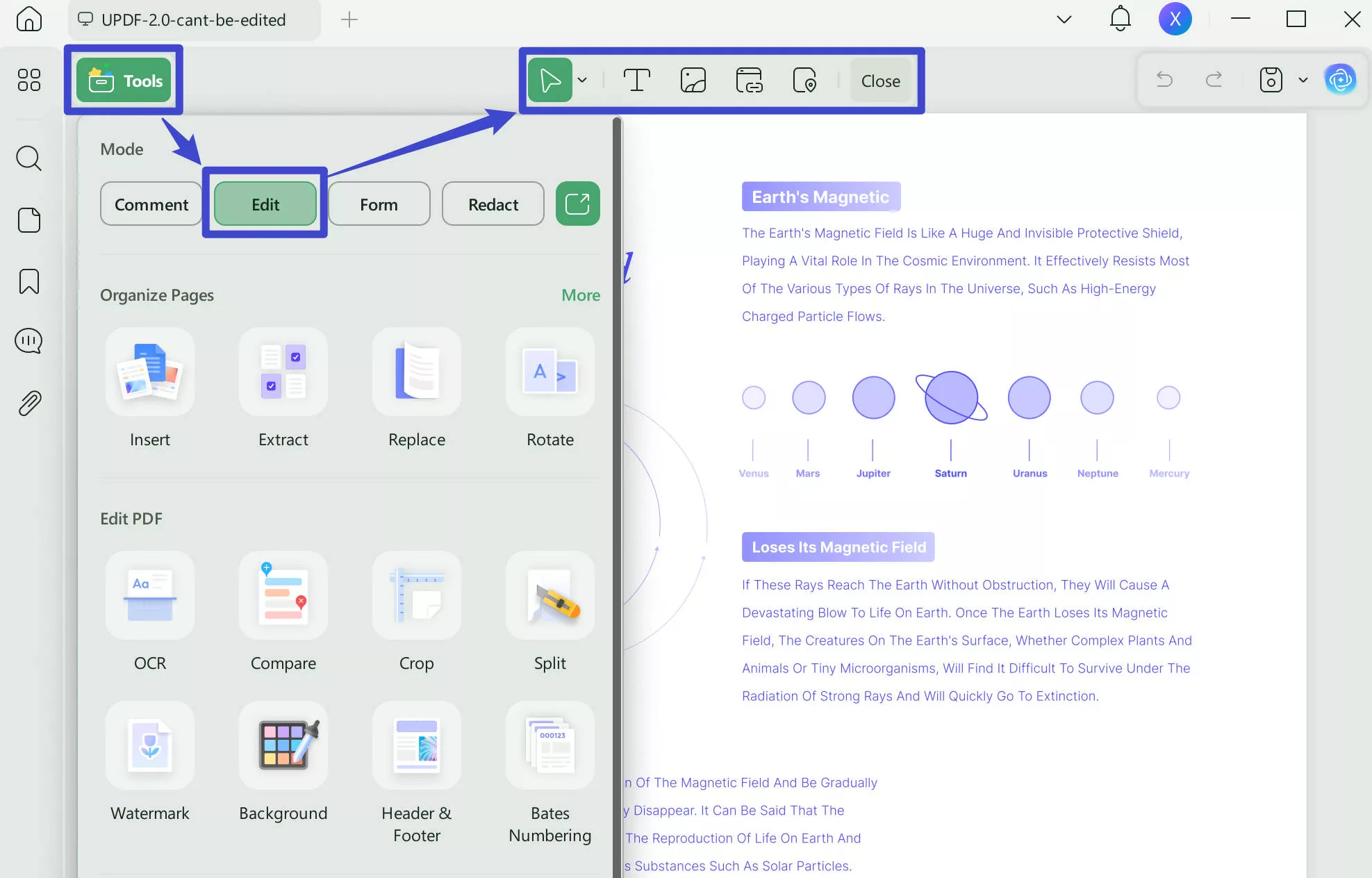
Step 2. Click on the text that you want to edit. Now, you can edit the existing content in the PDF. To add new text, links, and images, you can click on the icon on the top, then, click on where you want to add the text on.
If you like this software after testing, you can upgrade to pro version at a very low price.
How to Convert PDF to PDF/E?
There are few PDF converters that support converting PDF to PDF/E. One popular PDF to PDF/E converter is UPDF. You can click the button below to download UPDF.
Windows • macOS • iOS • Android 100% secure
Here's how it works:
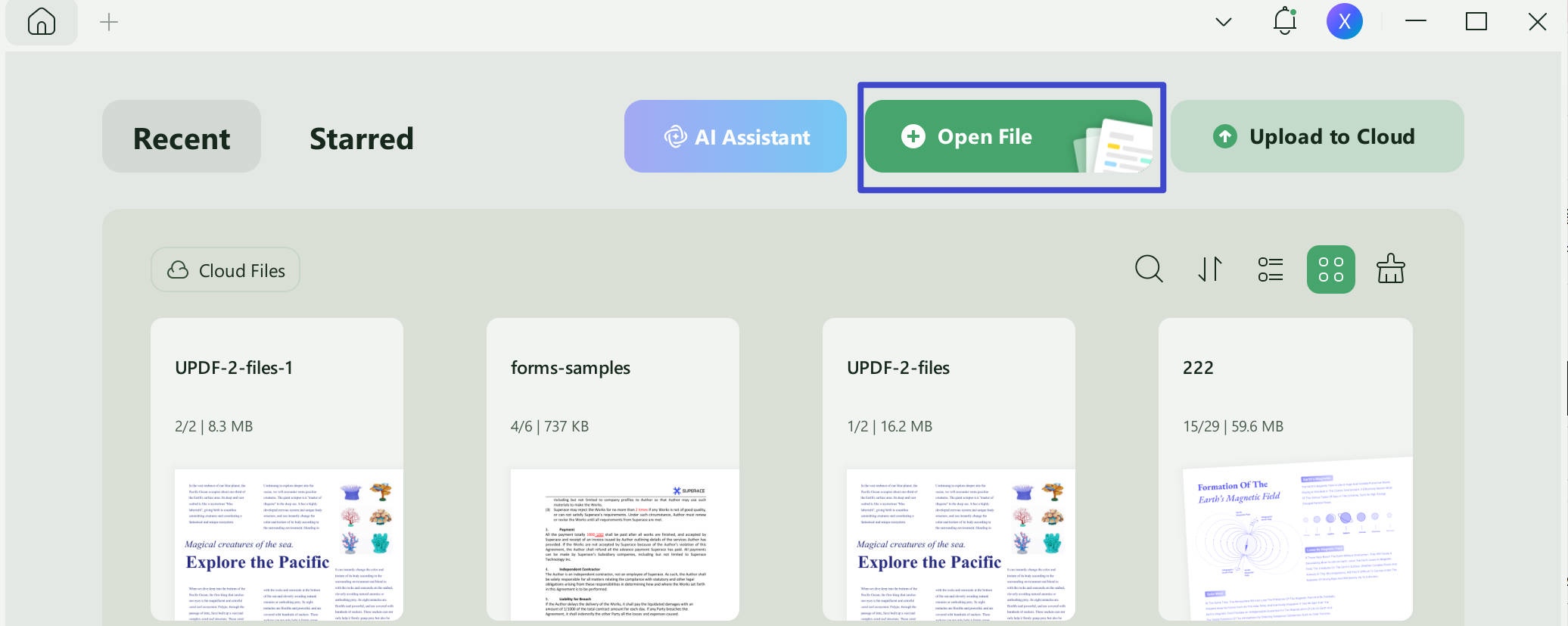
Step 1. Open UPDF on your computer and then drag and drop the file to open or click the "Open File" area to choose your PDF document.
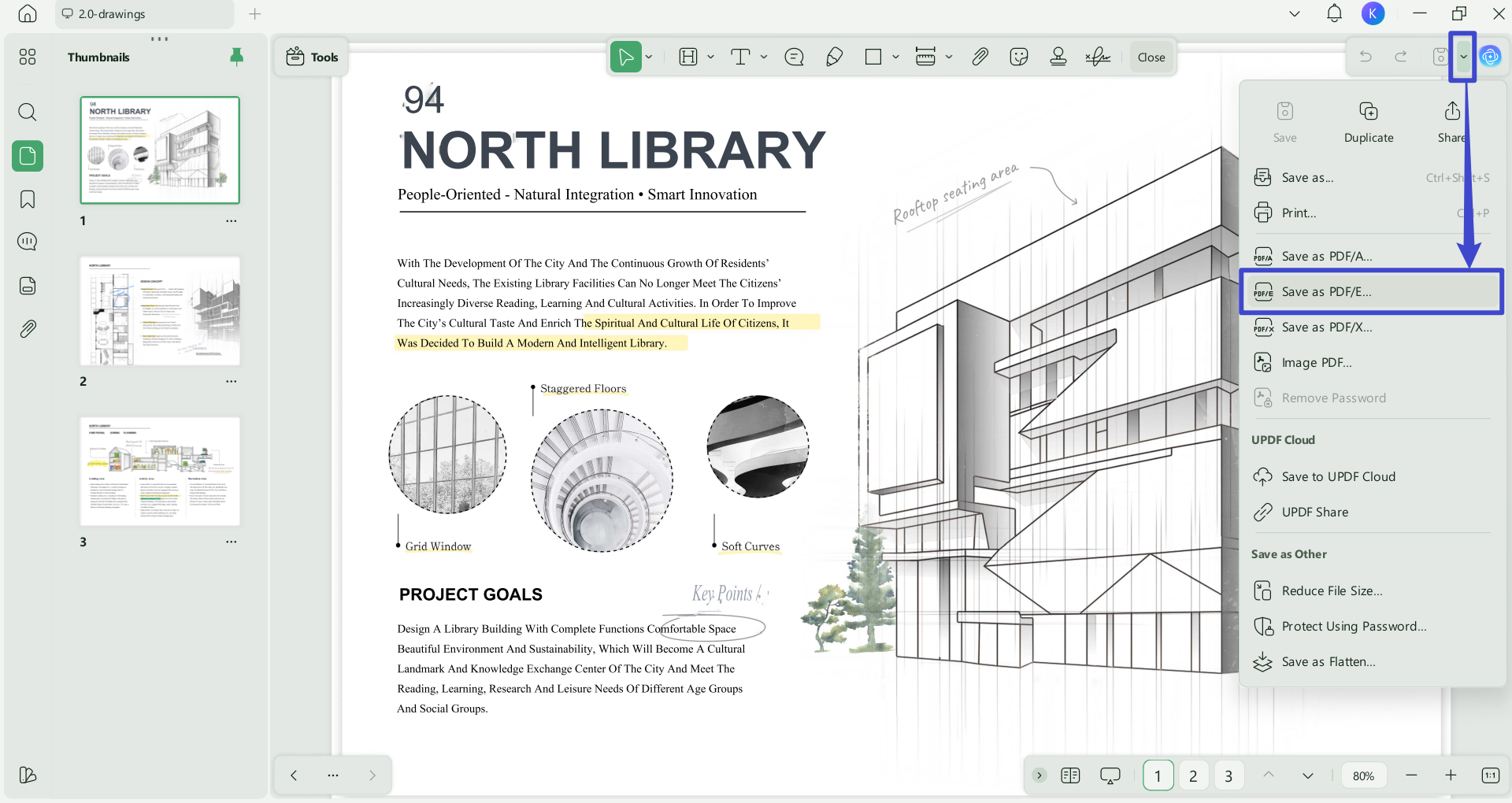
Step 2. Now you will be able to see the document. To save the current document as a PDF/E file, first click on the drop-down arrow next to the "Save" icon. Then, from the dropdown menu that appears, select the "Save as PDF/E…" option.
Step 3. Now, choose a location on your computer to store this PDF/E file.
You can also convert your PDF to PDF/E by using Adobe Acrobat. The application can be downloaded from the Adobe website.
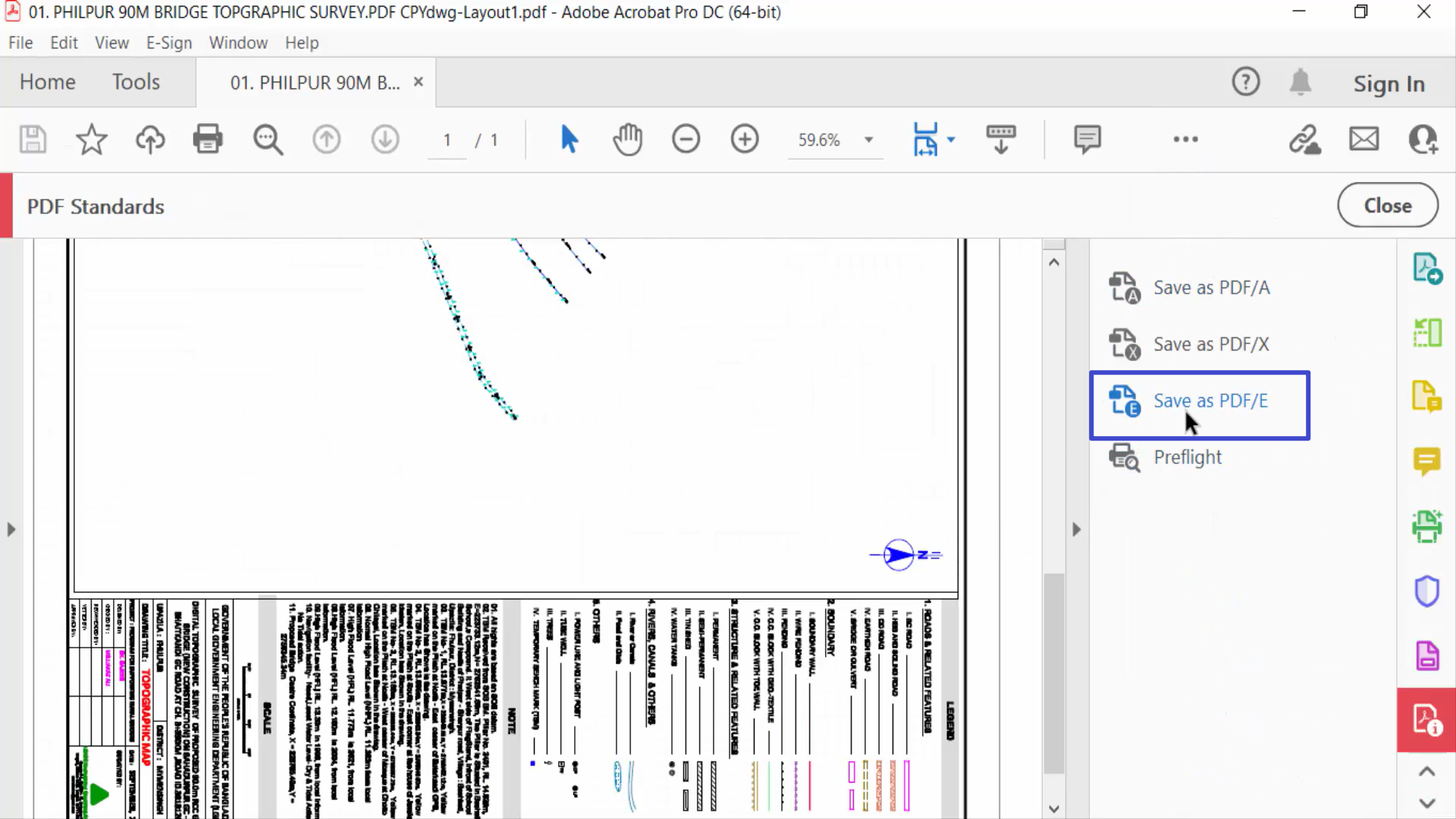
Step 1. Once you have it on your device, open it and click "Open File" to open your PDF. Then choose "Apply PDF standards" from the panel on the left.
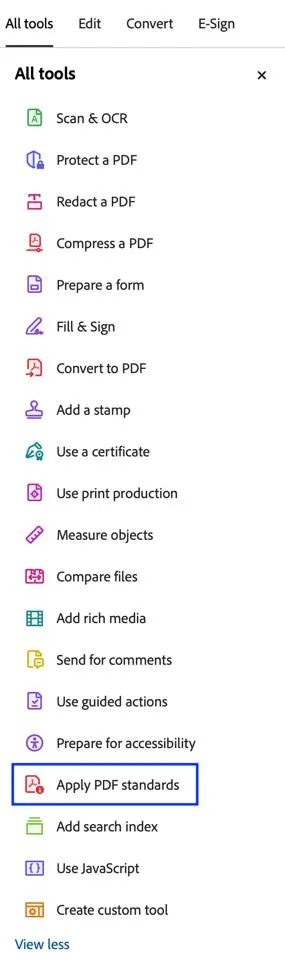
Step 2. Now, click "Save as PDF/E". You can't convert a file without a subscription. However, you can choose a free 7-day trial to test all Adobe features and then cancel it or continue with the subscription.
How to Convert PDF/E to PDF?
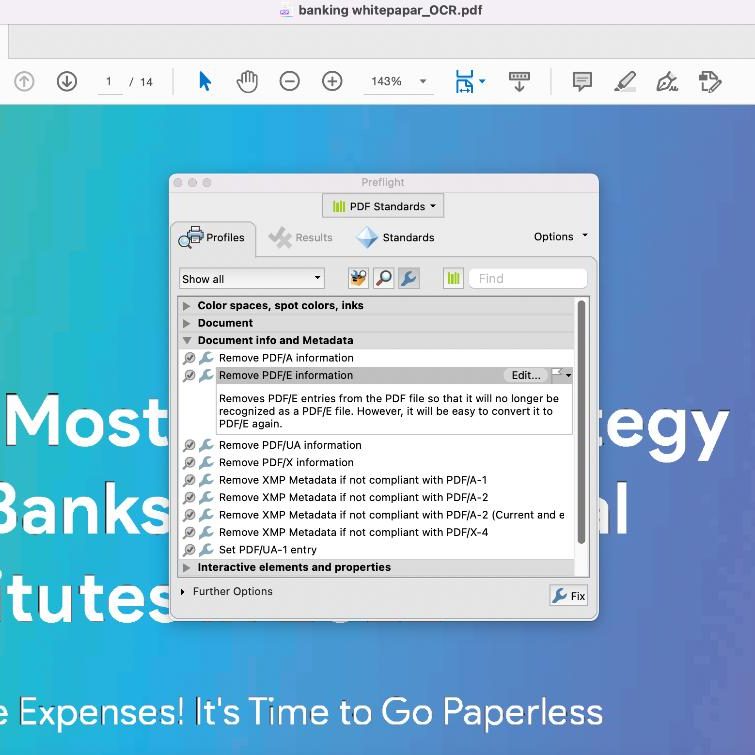
You can convert your PDF/E file to PDF with Adobe Acrobat. Open your file in the software by clicking "Open File". Now, click on the "Use Print Production" at the left side panel. Click on "Preflight", select "PDF Standard", click on the "Documents info and Metadata" under the "Profiles" and select "Remove PDF/E Information" , then, click on the "Fix" to convert DPF/E to PDF.
FAQs
Q1: Will Editing a PDF/E File Remove Its Compliance?
It may. Adding, removing, or changing content can cause a file to no longer meet PDF/E requirements, even if it still opens normally and retains its .pdf extension.
Keep an unedited copy of the original document and validate the edited version before using it in a compliance-sensitive workflow.
Q2: Why Does a PDF-to-PDF/E Conversion Fail?
A conversion may fail when the source PDF contains content that does not meet the selected PDF/E profile or when required document information cannot be corrected automatically.
Running a Preflight check can help identify problematic objects, metadata, fonts, graphics, or other elements in the document.
Q3: Can PDF/E Replace the Original CAD File?
No. PDF/E is useful for distributing and reviewing engineering documentation, but it does not retain every authoring feature, dependency, or editing capability of a native CAD file.
Keep the original CAD data when future design changes or detailed model editing may be required.
Conclusion
We hope that you learned more about PDF files, what PDF/E is, and how to convert it.
PDF/E is a great file format to use if you work in the engineering, manufacturing, or construction industry. Using this format will help you create better-quality documents for your work. Remember, you can view and edit any PDF file format, including PDF/E, with UPDF. You can also convert your PDF to PDF/E format. Don't wait – try it out for free and start learning new skills today!
Windows • macOS • iOS • Android 100% secure








 Delia Meyer
 Enola Miller
 Enola Davis
 Lizzy Lozano
 Enid Brown