 UPDF
UPDF
 UPDF for Windows
 UPDF for Mac
 UPDF for iPhone/iPad
 UPDF for Android
 Nomostar
 UPDF AI Online
 UPDF Sign
 IvyCraft
 Edit PDF
 Annotate PDF
 Create PDF
 PDF Form
 Edit links
 Convert PDF
 OCR
OCR PDF to Word
 PDF to Image
 PDF to Excel
 Organize PDF
 Merge PDF
 Split PDF
 Crop PDF
 Rotate PDF
 Protect PDF
 Sign PDF
 Redact PDF
 Sanitize PDF
 Remove Security
 Read PDF
 UPDF Cloud
 Compress PDF
 Print PDF
 Batch Process
 About UPDF AI
 UPDF AI Solutions
 AI User Guide
 FAQ about UPDF AI
 Summarize PDF
 Translate PDF
 Chat with PDF
 Chat with AI
 Chat with image
 PDF to Mind Map
 Explain PDF
 PDF AI Tools
 Image AI Tools
 AI Chat Tools
 AI Writing Tools
 AI Study Tools
 AI Working Tools
 Other AI Tools
 AI Bookmark Generation
 AI Bookmark Summary
 AI Watermark Generation
 AI Background Generation
 AI Sticker Generation
 AI Stamp Generation
 AI Editing Suite
 UPDF Copilot
 AI Page Management
 AI Semantic Search
 PDF to Word
 PDF to Excel
 PDF to PowerPoint
 Enterprise Solution
 Enterprise Sign
 Enterprise AI
 Enterprise Plan
 Enterprise User Guide
 Enterprise Webinar
 IT
IT Education
 Construction
 Financial Service
 Healthcare
 Insurance
 Legal
Legal Manufacturing
 Government
 Researchers & PhDs
 Solopreneurs & Freelancers
 Lawyers & Legal Professionals
 Real Estate Agents & Brokers
 Education Solution
 Customer Stories
 User Guide
 UPDF Tricks
 FAQs
FAQs UPDF Reviews
 Download Center
 Blog
Blog Newsroom
 Tech Spec
 Updates
 UPDF vs. Adobe Acrobat
 UPDF vs. Foxit
 UPDF vs. PDF Expert

An emergency binder is not a second filing cabinet. It is a tested system that helps the right person find medical contacts, insurance details, evacuation information, and the location of important originals without exposing more personal data than necessary.
UPDF supports the full document workflow in one desktop app: create PDFs, build a PDF Portfolio from mixed files, scan paper records, run OCR, organize pages, add forms, redact sensitive information, sanitize hidden data, and apply password protection.
Download UPDF for free and use the workflow below to build both a complete Master Emergency Portfolio and a simpler Quick-Access Emergency PDF.
Windows • macOS • iOS • Android 100% secure
Part 1. Decide What the Emergency Binder Must Do
Start with the user, not the documents. Decide who may need the binder, what that person may need to do first, which device or format they will use, and what information they are authorized to see. A binder that only its creator can navigate will fail when it matters.
Choose Paper, Digital, or Hybrid
| Format | Best for | Main limitation |
|---|---|---|
| Paper binder | Power outages, evacuation, and immediate handoff | Harder to update and vulnerable to damage |
| Combined PDF | Searching, printing, and opening on common devices | Does not preserve every source format |
| PDF Portfolio | Keeping PDFs, documents, spreadsheets, and images together as separate files | Compatibility must be tested |
| Hybrid system | Combining quick access with a complete archive | Requires more than one version to be maintained |
Best for
Not for
Part 2. Decide What to Include and Leave Out
Ask which information helps another person take the next action and which information creates unnecessary risk.
Include directly
- Emergency contacts and household relationships
- Doctors, pharmacies, insurers, allergies, medications, and urgent medical alerts
- Pet-care instructions, meeting points, and evacuation details
- Locations of important originals and immediate household responsibilities
Reference without reproducing the full record
For bank accounts, insurance policies, property records, wills, tax files, password managers, safes, and lockboxes, state where the protected original is kept and whom to contact. Do not turn the emergency PDF into a portable copy of the household's financial and legal identity.
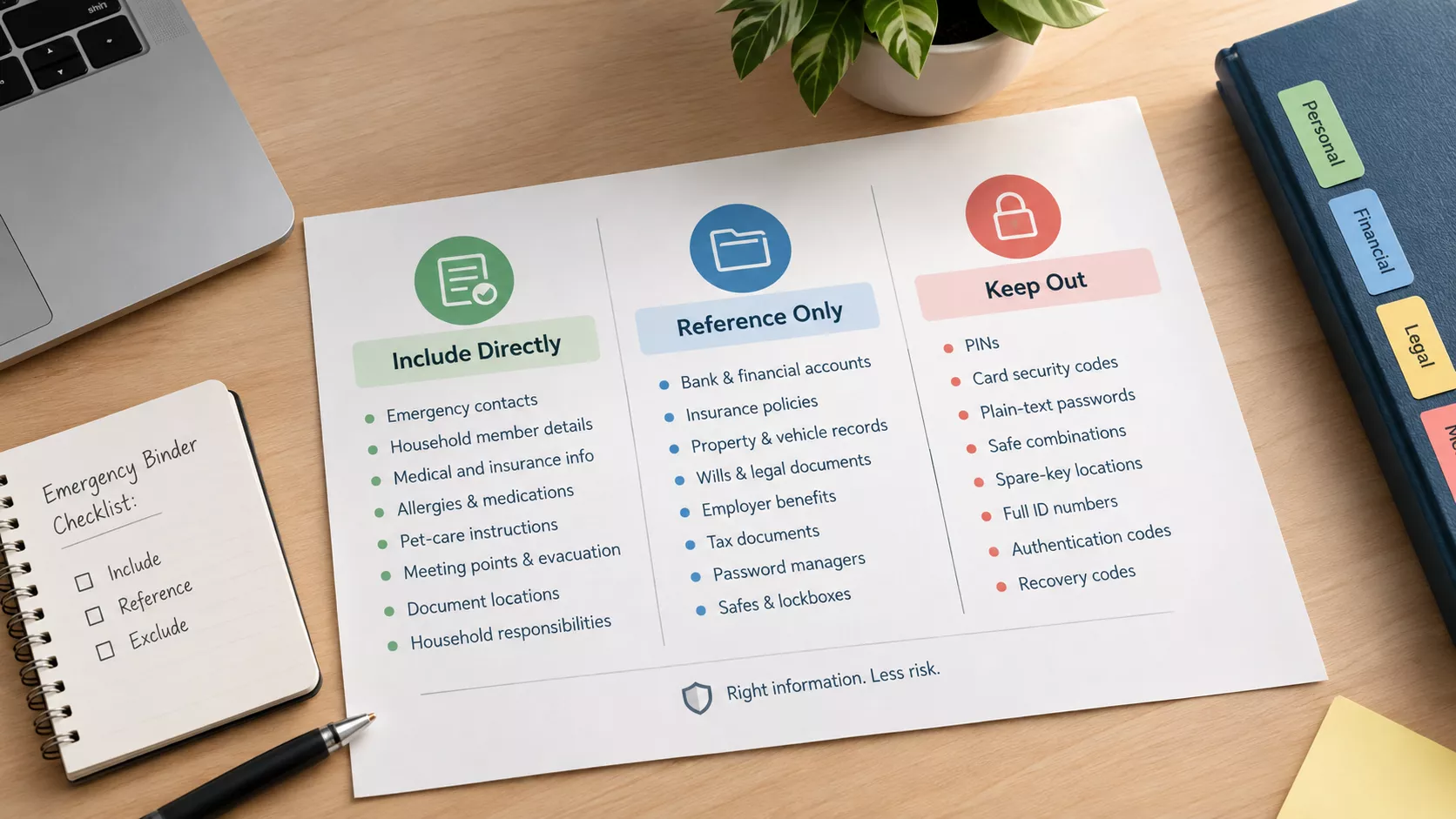
Never place in an easy-access copy
- PINs, card security codes, or plain-text passwords
- Safe combinations or spare-key locations
- Authentication and recovery codes
- Unnecessary complete account or identification numbers
| Avoid | Safer alternative |
|---|---|
| Full bank account number | Bank name and last four digits |
| Safe combination | Safe location and authorized contact |
| Original will in the binder | Location of the signed original |
| Written passwords | Password-manager name and recovery contact |
| Complete policy credentials | Insurer, policy ending, and contact number |
Part 3. Build a Master Emergency PDF Portfolio
A PDF Portfolio stores multiple files in one container while preserving their original formats. This makes it useful for a complete archive containing PDFs, Word files, spreadsheets, photos, and other supported records. It is different from merging every page into one long PDF.
Name files with a two-digit order number and a clear topic, such as 01-Start-Here-Emergency-Summary.pdf and 02-Family-Medical-Information.pdf. Do not put account numbers, dates of birth, diagnoses, or other sensitive details in filenames.
To create a PDF Portfolio in UPDF, follow the steps below:
Step 1. Prepare and Name the Files
File names look like a minor detail to many until someone else has to find a document under pressure.
The best approach is to have the file name use:
- A two-digit order number
- A descriptive/clear topic
- Consistent capitalization
This makes the file order predictable and makes the subject recognizable without opening each file.
Avoid adding sensitive information in the filename. Never add account numbers, dates of birth, Social Security numbers, diagnoses, or other sensitive details to make a filename more descriptive.
Step 2. Create the PDF Portfolio in UPDF
After your source files are ready, you need to use a dedicated PDF tool to create the portfolio. UPDF offers the exact solution where you can simply drag files to create a PDF Portfolio with no learning curve.
Windows • macOS • iOS • Android 100% secure
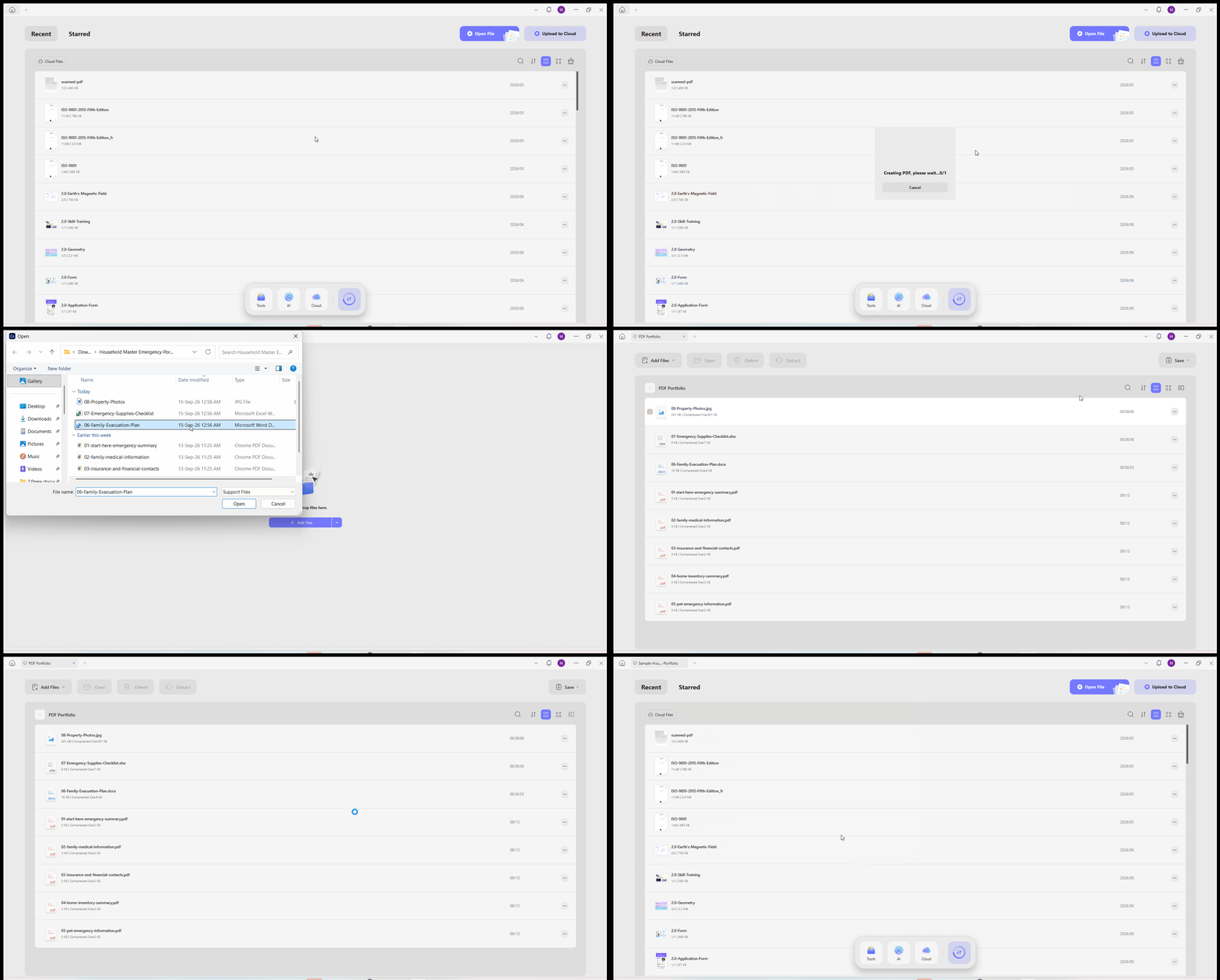
- Launch UPDF.
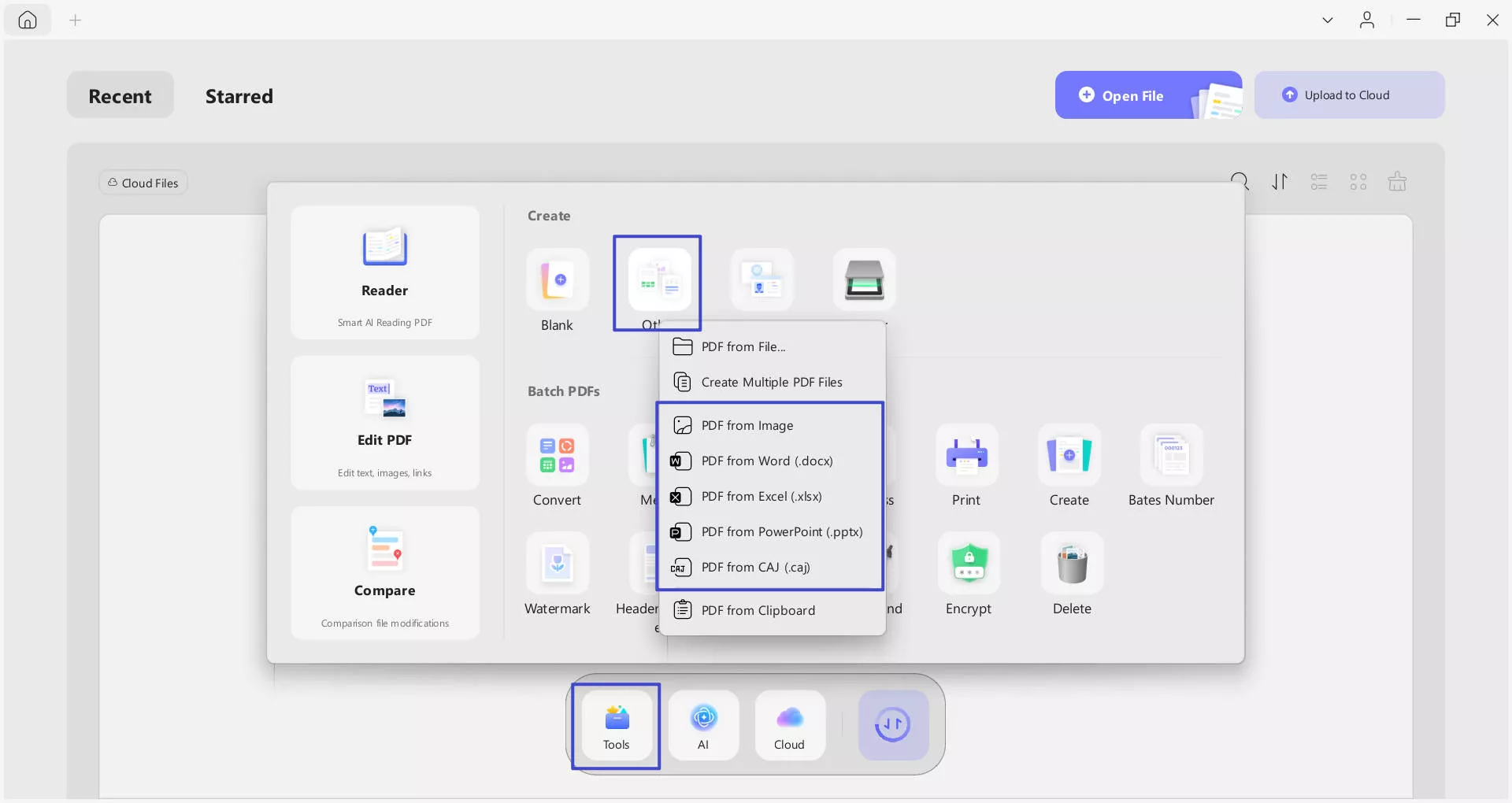
- Go to Tools and select PDF Portfolio.
- Add individual files or the folder containing your prepared records.
- Review the contents for missing or duplicate files.
- Switch between List View and Thumbnail View as needed.
- Save the Portfolio as Sample-Household-Master-Emergency-Portfolio.pdf.
Step 3. Search and Manage the Files
Now test the Portfolio as an actual user would.
Search for medical and open 02-Family-Medical-Information.pdf. Then try locating the insurance information and opening the pet file.
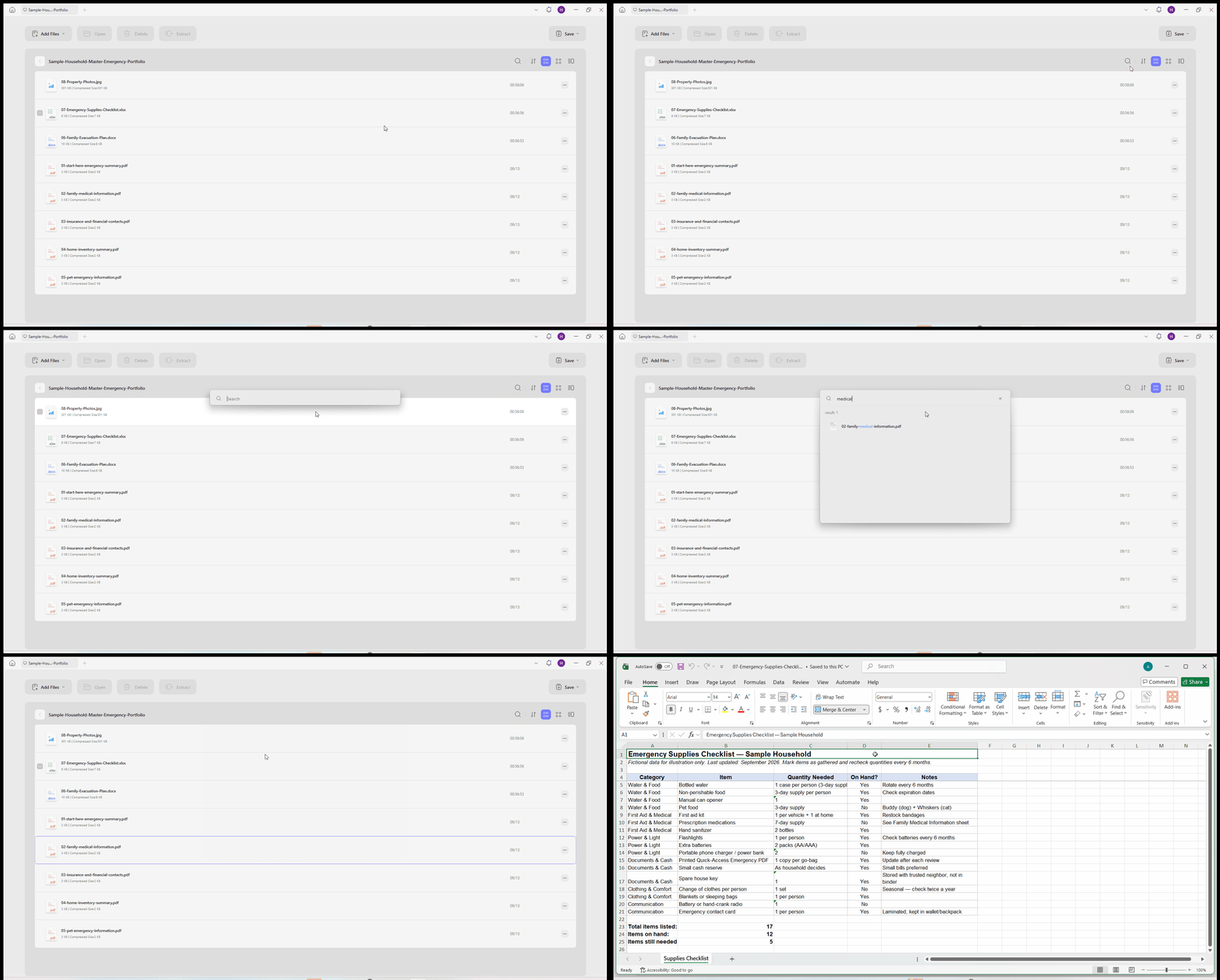
Also, check that the Word document, spreadsheet, and image remain separate files. These small tests expose problems that would otherwise be easy to miss.
Step 4. Test Compatibility
Do not assume a PDF Portfolio will behave the same way in every app. Reopen the file on the computer your trusted contact is expected to use. Have that person locate a document and extract something if necessary.
Best for:
- A complete master archive that brings PDFs, Word documents, spreadsheets, images, and other household files together while keeping each source file separate.
Not for:
- The only emergency copy on an unfamiliar device or PDF application. Portfolio support should be tested before you rely on it.
Create your Master Emergency Portfolio in UPDF and keep the complete record set organized in one structured file.
Windows • macOS • iOS • Android 100% secure
Note: You should also keep the Quick-Access PDF available because the Portfolio should not be your only emergency format.
Part 4. Create a Quick-Access Emergency PDF
The Portfolio is the complete archive. The Quick-Access PDF is designed for speed, broad compatibility, searching, printing, and forwarding.
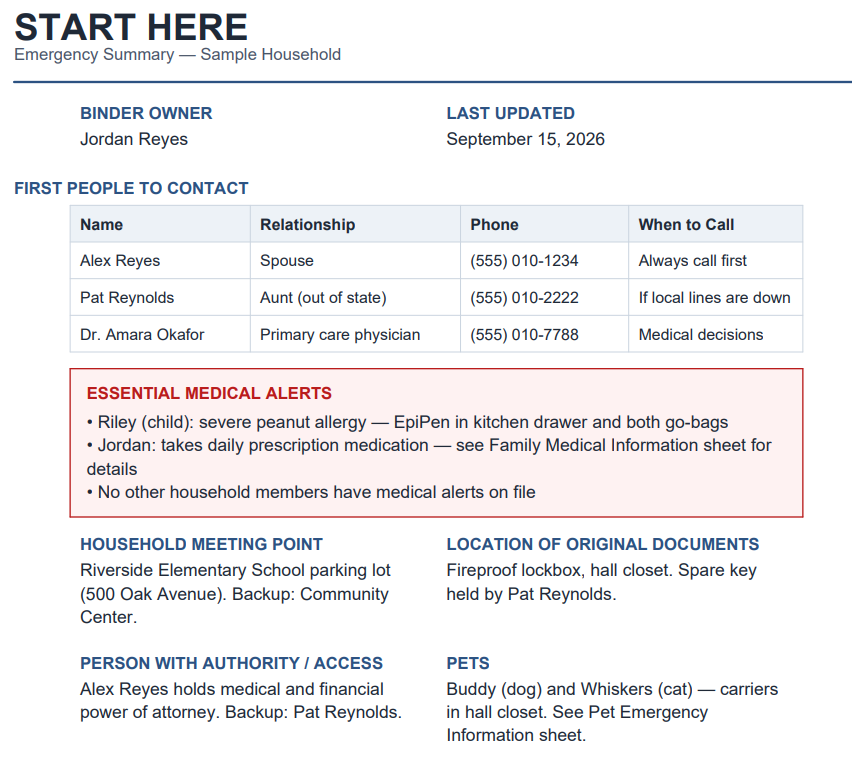
Create a one-page Start Here sheet
- Binder owner and last-updated date
- First people to contact
- Essential medical alerts
- Household meeting point
- Locations of originals
- People with authority or access
Scan only the paper records needed immediately
UPDF can create PDFs from a scanner or images, correct orientation, crop unwanted edges, and combine captured pages. Do not scan every legal or financial record when a reference to the protected original is safer.
Apply OCR and verify critical details
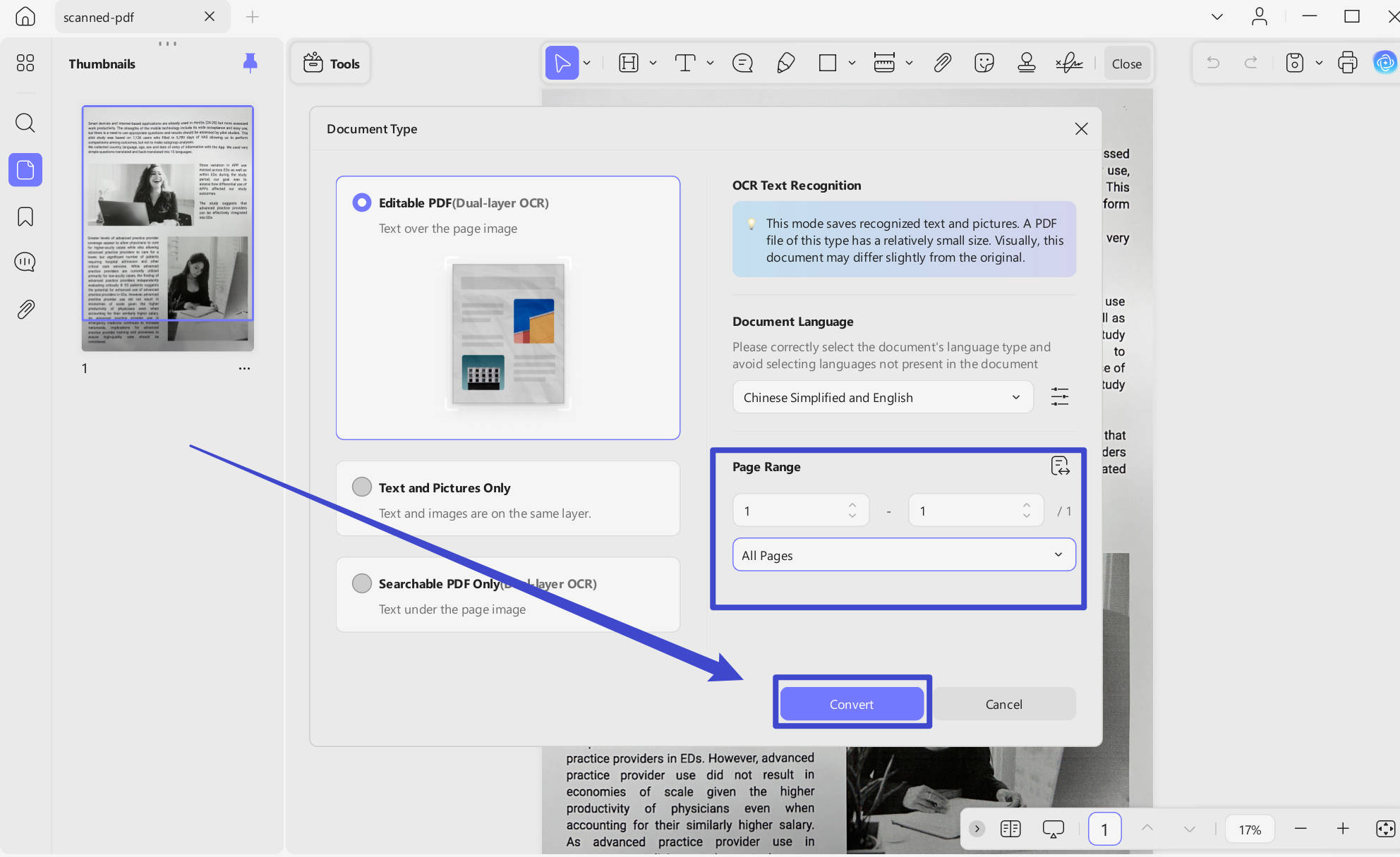
For scanned pages, open Tools > OCR, choose the correct language and page range, and select Searchable PDF Only when you want to preserve the page appearance while adding a searchable text layer. UPDF supports OCR for 38 languages. Afterward, verify names, dates, phone numbers, policy references, medications, dosages, and identification details against the original. Learn more about OCR for PDFs.
Combine and organize the pages
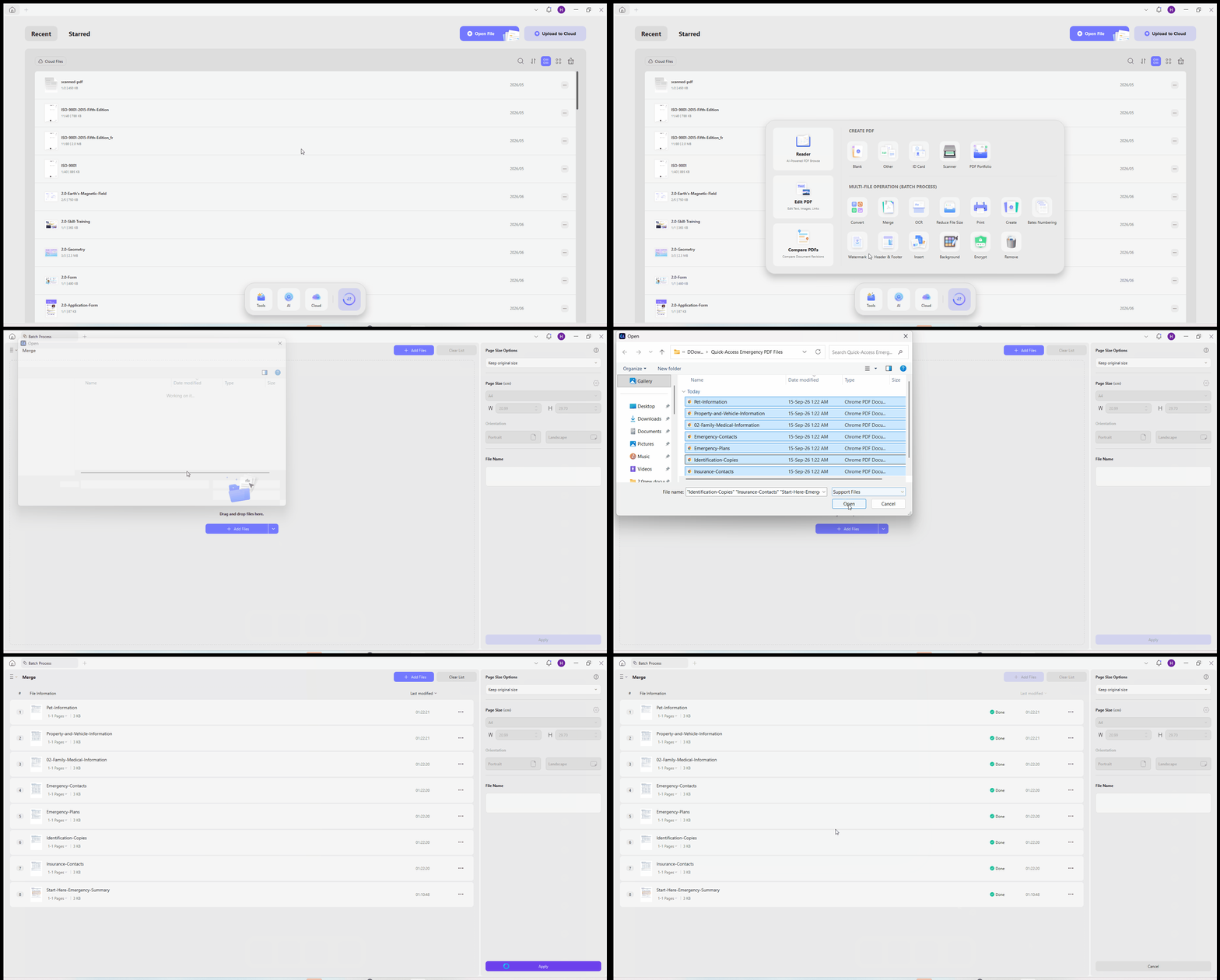
In UPDF, choose Tools > Merge, add the PDFs or images, arrange them, and apply the merge. Then open the combined file and use Organize Pages to reorder, insert, delete, or extract pages. A practical sequence is Start Here, emergency contacts, medical information, insurance contacts, identification copies, property information, pet information, and emergency plans.
Add reusable fillable pages
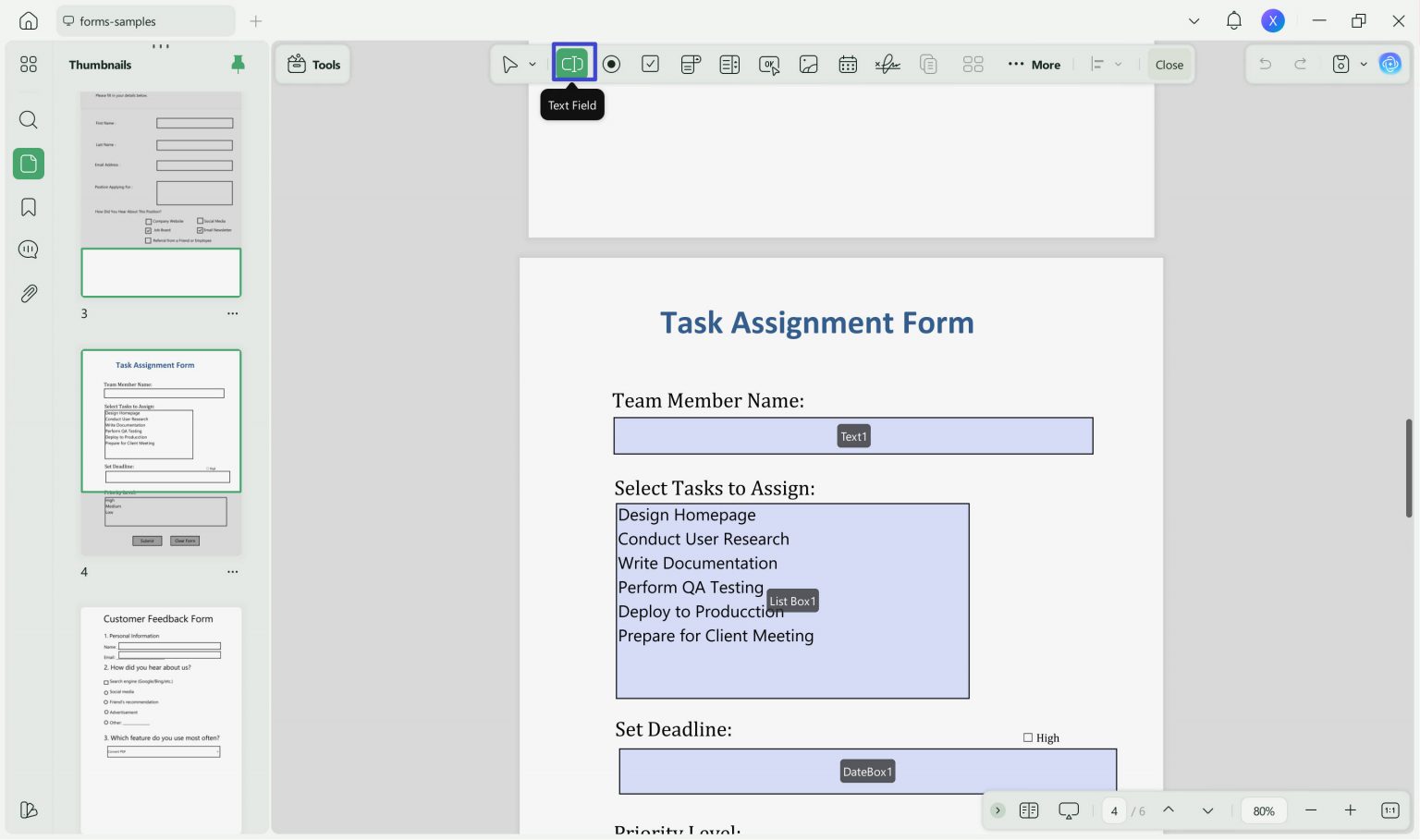
Emergency contacts, medical information, insurance contacts, pet instructions, and the update log may work better as reusable forms. UPDF can create, recognize, fill, and edit form fields; see how to create a fillable PDF.
Part 5. Protect the Binder Without Making It Unusable
The goal is appropriate protection that still lets an authorized person act. Apply safeguards to a copy, keep an untouched backup, and test the protected file before relying on it.
| Protection | What it does |
|---|---|
| Open password | Controls who can open the PDF |
| Permissions password | Restricts editing, copying, or printing |
| Redaction | Permanently removes selected information |
| Sanitization | Removes hidden information and metadata |
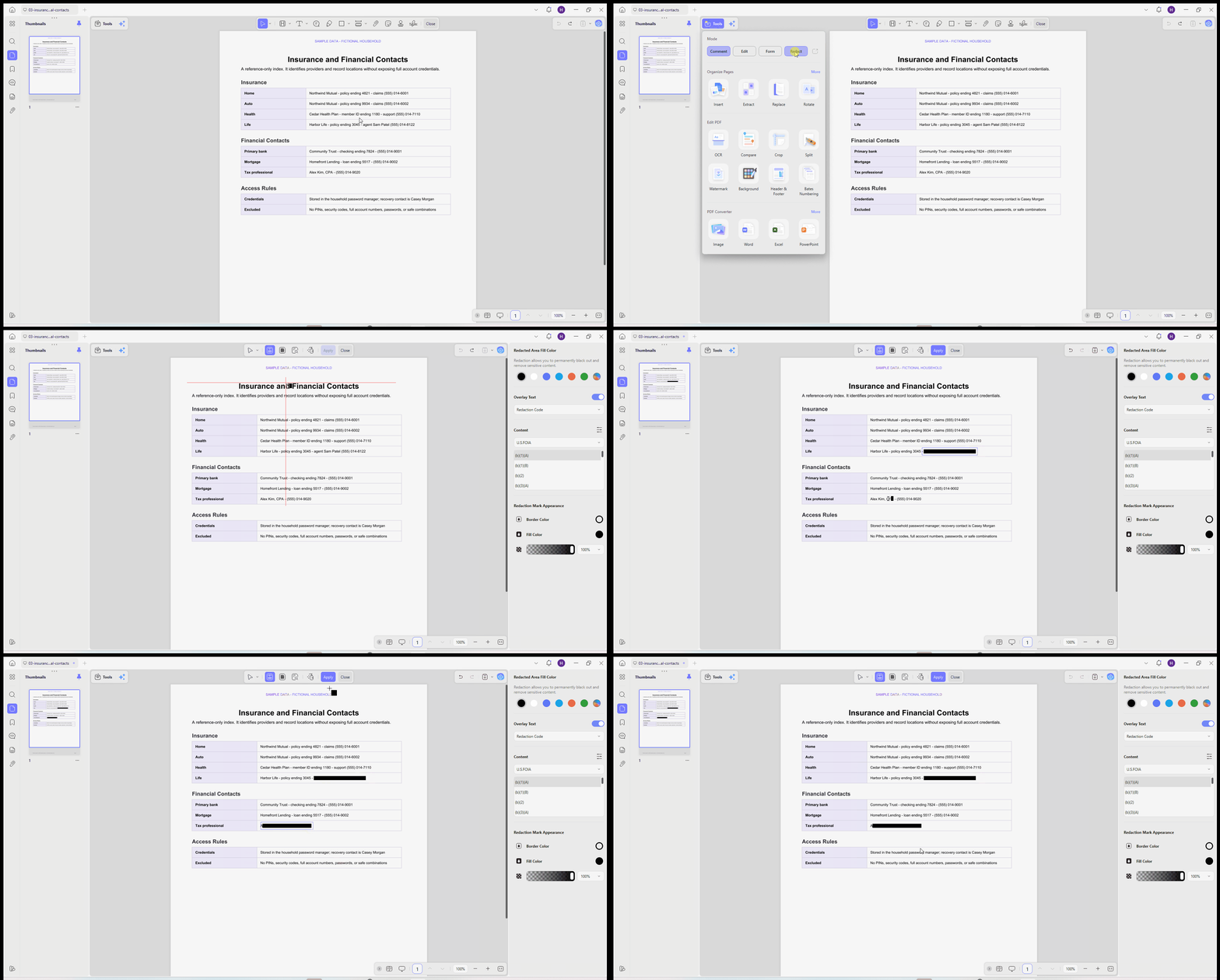
1. Redact information the recipient does not need. In UPDF, choose Tools > Redact, mark text, images, pages, or matching phrases, and apply the redaction. A black rectangle drawn over text is not redaction because the content may still be recoverable.
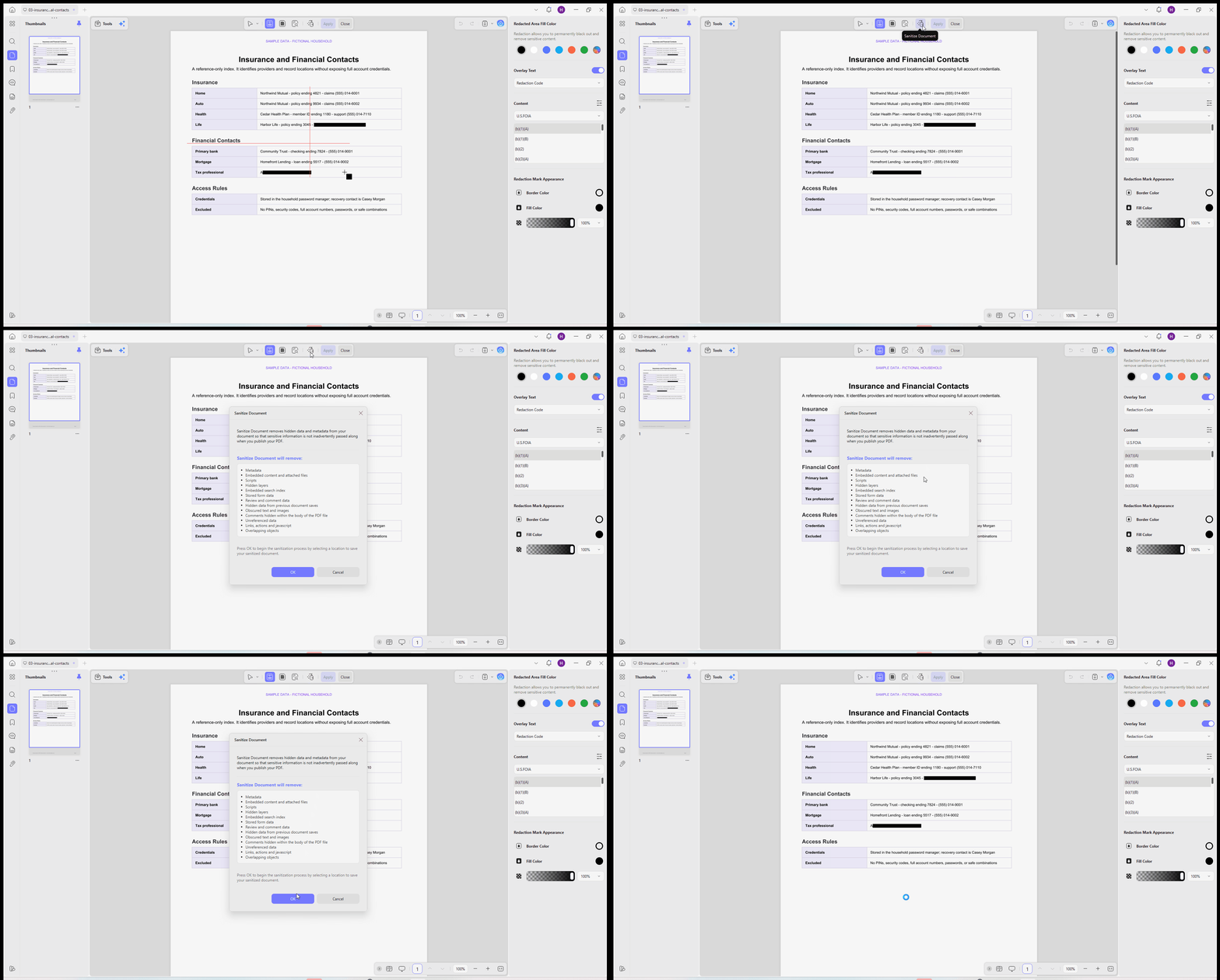
2. Sanitize hidden data before sharing. Use Sanitize PDF to remove metadata, hidden layers, scripts, and other unneeded information.
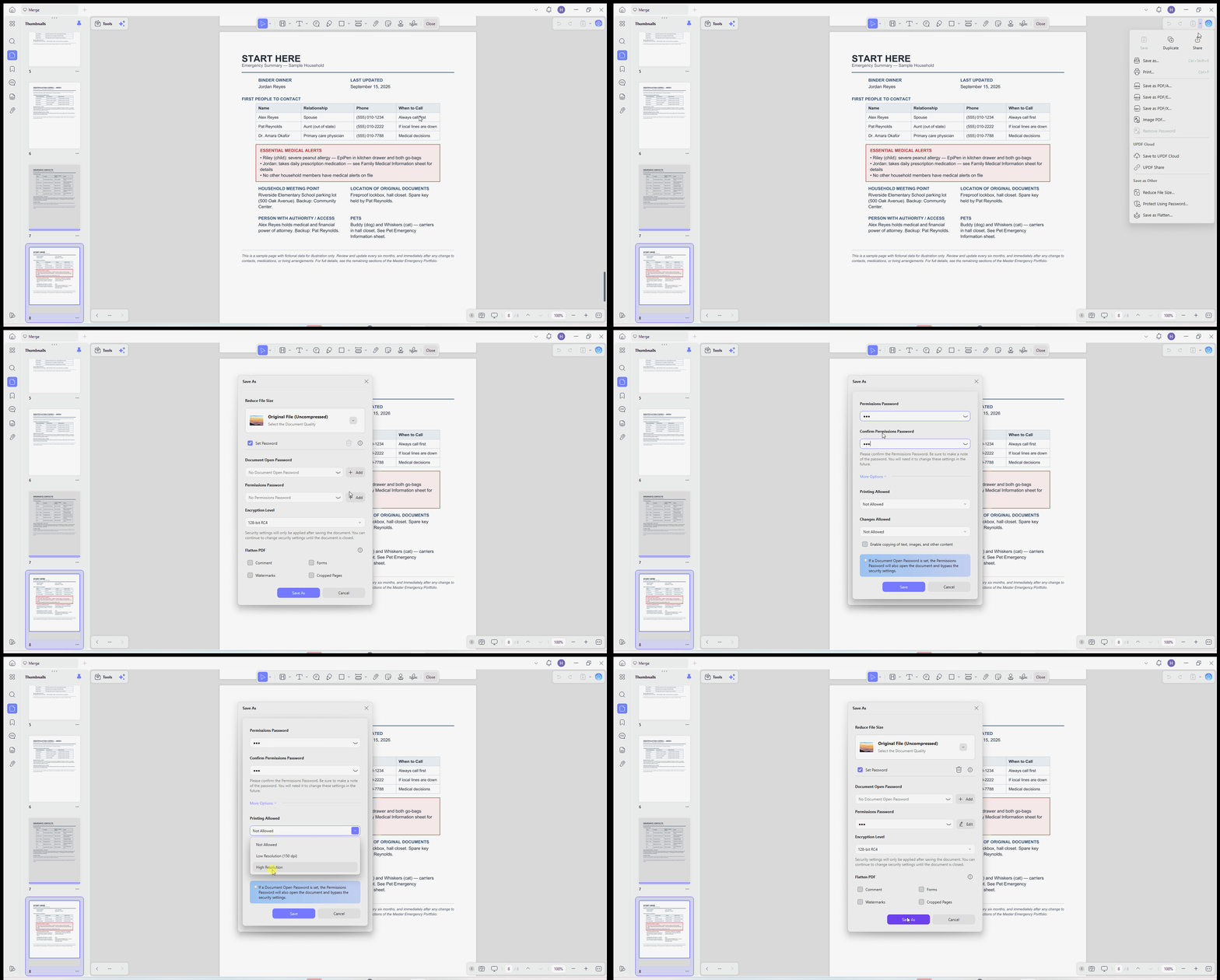
3. Add the appropriate password. From the Save menu, choose Protect Using Password. Use an open password to control access or a permissions password to restrict selected actions. Do not disable printing by default when the emergency copy may need to be printed.
4. Store access instructions separately. Never send the PDF and password in the same message or put the password on the first page.
Read more about permanent PDF redaction and other ways to protect PDFs.
Download UPDF for free to redact unnecessary details, remove hidden data, and protect the Quick-Access PDF before sharing it.
Windows • macOS • iOS • Android 100% secure
Part 6. Test and Maintain the Emergency Binder
Run a 10-minute handoff test
Give the binder to a trusted person who did not build it. Without coaching, ask them to find the primary doctor's number, an essential medical alert, the insurance claims contact, pet-care instructions, the location of original legal documents, and the Quick-Access PDF's print option. If they cannot finish in ten minutes, simplify the system.
Update after changes and review every six months
Update the binder after changes to household members, addresses, employment, insurance, doctors, pharmacies, medications, property, trusted contacts, or pet care. Use dated filenames such as family-emergency-binder-quick-access-2026-09.pdf, not final.pdf or new-final.pdf.
Part 7. Emergency Binder Checklist
- Identify the trusted user and choose paper, digital, or hybrid
- Separate information into direct, reference-only, and excluded categories
- Create the Master PDF Portfolio and one-page Start Here sheet
- Scan only necessary records and apply OCR where useful
- Verify OCR against the originals
- Combine, organize, bookmark, and add reusable form pages
- Redact unnecessary data and sanitize the sharing copy
- Apply suitable password protection and store access information separately
- Run the 10-minute handoff test and schedule the next review
Part 8. FAQs About Emergency Binders
What should be included in an emergency binder?
Include emergency contacts, household relationships, urgent medical alerts, doctors and pharmacies, insurance contacts, pet instructions, evacuation details, and locations of important originals. Reference sensitive financial and legal records instead of copying them in full.
Is a digital emergency binder safe?
It can be, if you limit the sensitive data it contains, use true redaction, remove hidden metadata, apply suitable password protection, and control who can access it.
Is a PDF Portfolio better than one combined PDF?
They serve different purposes. A PDF Portfolio preserves separate source files for the complete archive, while a combined PDF offers faster access, broader compatibility, searching, and printing. Many households benefit from keeping both.
How often should an emergency binder be updated?
Review it at least every six months and update it immediately after important changes to the household, health information, insurance, property, or emergency contacts.
Conclusion
A useful emergency binder is selective, searchable, protected, and tested. The Master Emergency Portfolio keeps the complete source collection organized, while the Quick-Access PDF gives a trusted person a simpler document for urgent searching, printing, or sharing.
Use UPDF to build the Portfolio, create the searchable Quick-Access PDF, and keep both current as your household changes.
Windows • macOS • iOS • Android 100% secure






 Lizzy Lozano
 Enrica Taylor
 Enya Moore
 Enid Brown