 UPDF
UPDF
 UPDF for Windows
 UPDF for Mac
 UPDF for iPhone/iPad
 UPDF for Android
 UPDF AI Online
 UPDF Sign
 Edit PDF
 Annotate PDF
 Create PDF
 PDF Form
 Edit links
 Convert PDF
 OCR
OCR PDF to Word
 PDF to Image
 PDF to Excel
 Organize PDF
 Merge PDF
 Split PDF
 Crop PDF
 Rotate PDF
 Protect PDF
 Sign PDF
 Redact PDF
 Sanitize PDF
 Remove Security
 Read PDF
 UPDF Cloud
 Compress PDF
 Print PDF
 Batch Process
 About UPDF AI
 UPDF AI Solutions
 AI User Guide
 FAQ about UPDF AI
 Summarize PDF
 Translate PDF
 Chat with PDF
 Chat with AI
 Chat with image
 PDF to Mind Map
 Explain PDF
 Scholar Research
 Paper Search
 AI Proofreader
 AI Writer
 AI Homework Helper
 AI Quiz Generator
 AI Math Solver
 PDF to Word
 PDF to Excel
 PDF to PowerPoint
 Enterprise Solution
 Enterprise Sign
 Enterprise AI
 Enterprise Plan
 Enterprise User Guide
 Enterprise Webinar
 Banking
 Healthcare
 Insurance
 Legal
Legal Manufacturing
 Government
 Education Solution
 Customer Stories
 User Guide
 UPDF Tricks
 FAQs
FAQs UPDF Reviews
 Download Center
 Blog
Blog Newsroom
 Tech Spec
 Updates
 UPDF vs. Adobe Acrobat
 UPDF vs. Foxit
 UPDF vs. PDF Expert


PDF files are important for work and personal projects because they keep documents professionally and organized across devices. Many people struggle to create PDFs from documents, images, clipboard content, and scanned files without clear instructions. Understanding the main ways to create PDFs on PC and Mobile devices makes the process smoother and saves valuable time.
In this article, you will get to know how to create a PDF in simple instructions by using UPDF. You will discover different methods and practical tips that help you generate PDFs, no matter which device you use.
Part 1. Tools You Need to Create a PDF on Different Devices
A versatile PDF solution, UPDF lets you create PDFs from Word documents and any type of content. It also offers tools for editing text, adding comments, using OCR, and organizing pages. UPDF allows users to turn different file formats into shareable PDFs in just a few clicks.
Many users search for how to create a PDF on Mac, Windows, and mobile devices, and UPDF helps them by supporting all these platforms in one tool. After creating the PDF, users can edit text and manage pages without switching apps.
Download UPDF and follow the steps discussed below to create PDFs now!
Windows • macOS • iOS • Android 100% secure
Pros:
- Supports creating PDFs from multiple file formats so users can convert documents without switching tools.
- Compatible with Windows, Mac, iOS, and Android operating systems to allow users to create consistency in PDF production.
- Lets users combine documents, images, and scanned files into clean, professional PDFs.
- Helps users save time with multiple PDF creation methods inside a single application.
- Keeps documents in their original formatting after conversion so accuracy and presentation stay high.
Using UPDF removes the need to rely on several separate applications for PDF creation and organization. This makes document handling more straightforward and consistent. Users who want to try the premium version can download UPDF and apply the coupon code "ENARTICLE" to receive a 10% discount.

UPDF Feature Availability
Before learning how to create a PDF with images and other file formats using this tool, let's understand which PDF creation features are available on each device.
| PDF Creation Option | UPDF Windows | UPDF Mac | UPDF iOS | UPDF Android |
| Create Blank PDF | Yes | Yes | Yes | Yes |
| Create PDFs from Microsoft Files | Available | Available | Yes (import Office files and convert) | Yes (import Office files and convert) |
| Create PDFs from Images | Available | Available | Yes (images to PDF) | Yes (images to PDF) |
| Create PDF from Clipboard | Yes (clipboard to PDF) | Yes (PDF from Clipboard) | Not available | Not available |
| Create PDF from Captured Image | No | Yes | No | No |
| Create PDF Portfolio | Yes | No | No | No |
| Create PDF from Scanner | Yes | Yes | No | No |
| Create PDF from Camera | No | No | Yes | Yes |
Part 2. How to Create a Blank PDF
Many users like to start from scratch, so UPDF lets you create a blank PDF on Windows, Mac, iOS, and Android before adding any text or images. You can pick page size, orientation, and basic paper styles so the document fits your needs from the very beginning.
Guide to Create a Blank PDF Using UPDF
Once you have successfully downloaded UPDF on your Windows device, follow the steps below to learn how to create a PDF from scratch:
Step 1. Access Blank PDF Option
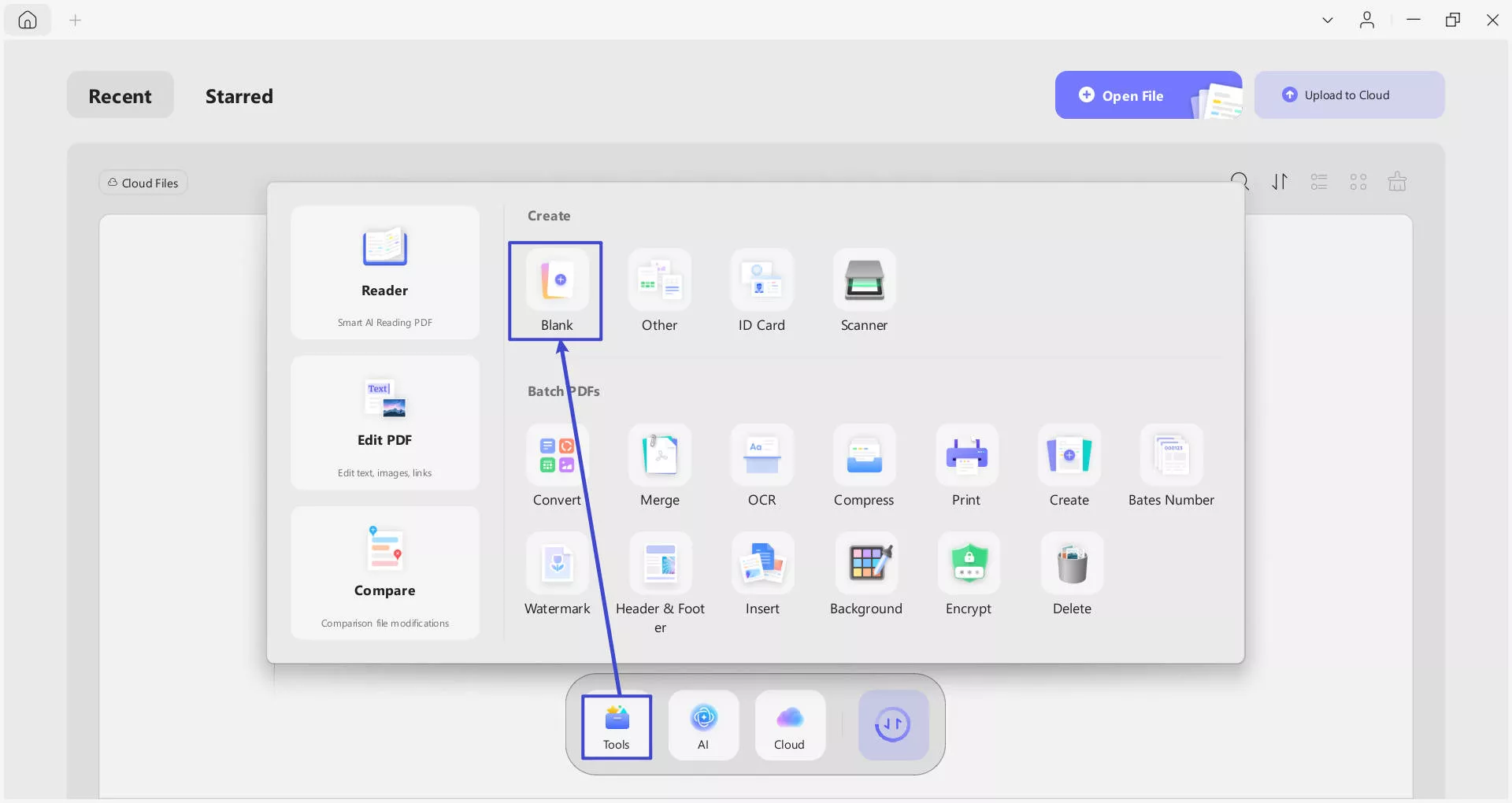
After you open UPDF on your desktop, press the "Tools" option in the bar below and click the "Blank" option. This will open a pop-up window in front of you.
Windows • macOS • iOS • Android 100% secure
Step 2. Choose Page Style and Other Settings
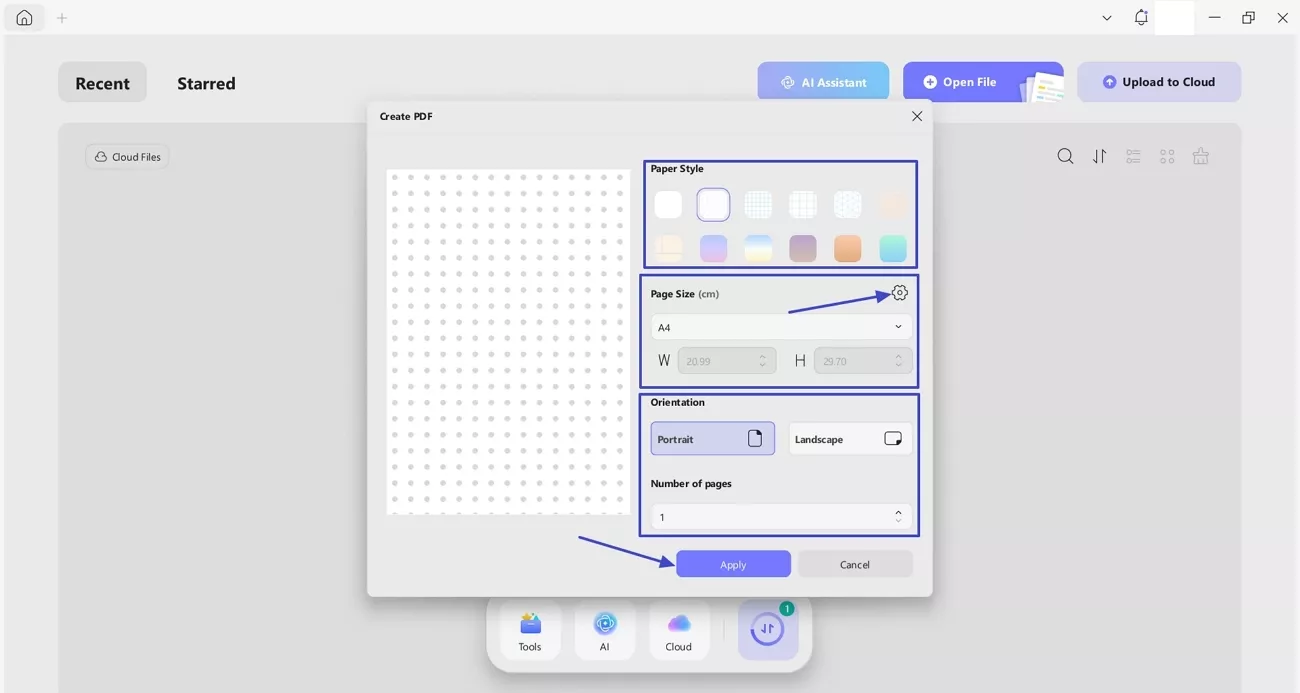
Afterwards, choose an appropriate background type from the "Page Style" option and select the desired page size from the "Page Size" option. You can also set the measurement unit by clicking the "Settings" icon. Next, choose the correct "Orientation" and enter the quantity of pages you want in the "Number of Pages" section. Lastly, press the "Apply" button to create a blank PDF.
Part 3. How to Create a PDF from Images/Word/Excel/PPT/CAJ
After creating a blank PDF, many users also need to turn existing files like Word, Excel, PowerPoint, CAJ, or images into PDFs with UPDF. Windows, Mac, iOS, and Android devices have this feature to help you convert documents and pictures on any device.
Ultimate Guide to Create PDFs from Images/Word/Excel/PPT/CAJ
Next, go through the steps below to learn how to create a PDF with images and other file formats using UPDF:
Step 1. Access Create PDF from Others Tool
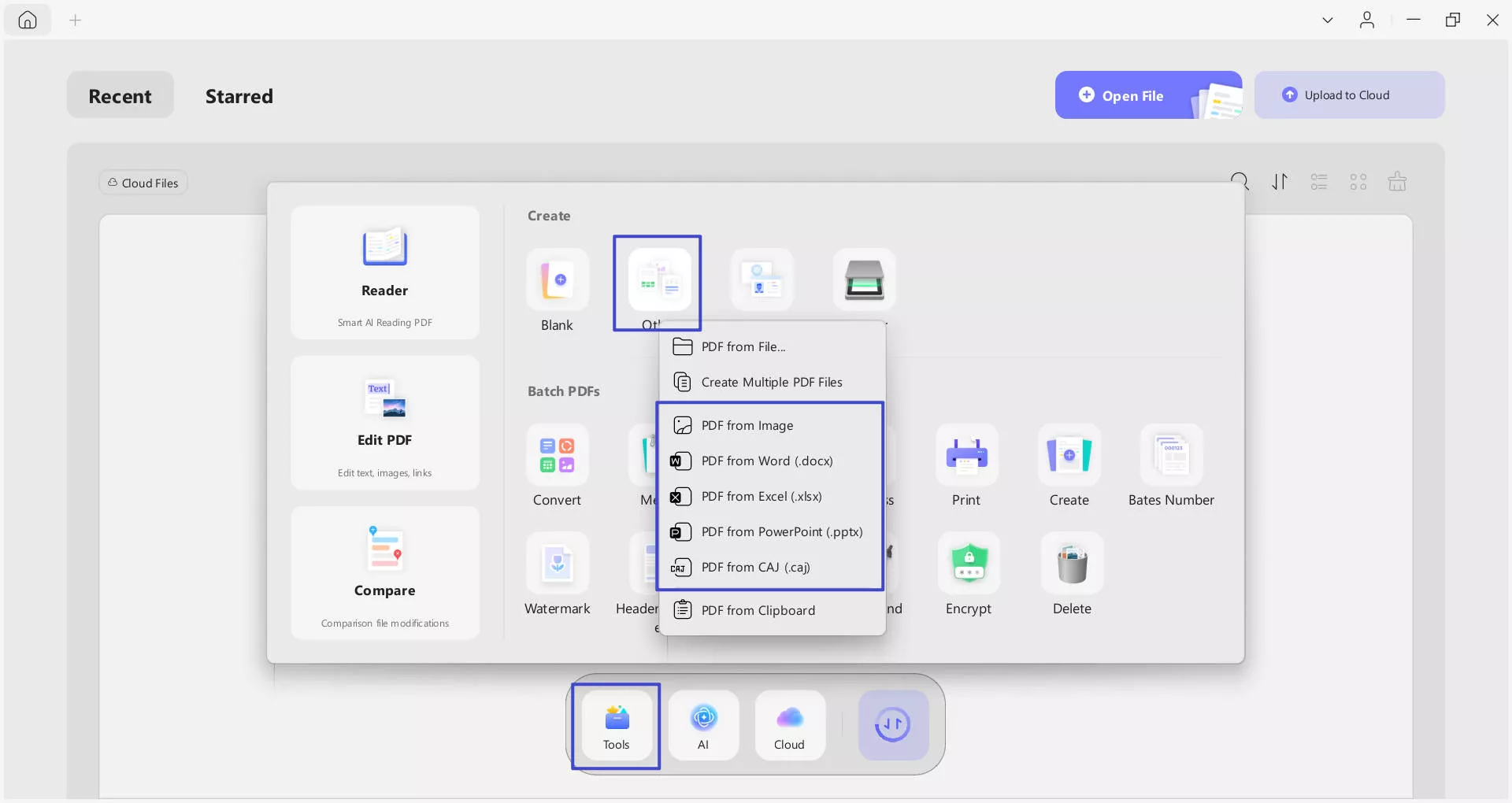
Once you access the "Tools" section, press the "Others" option under the "Create PDF" section. In the context menu, choose the original format of your file.
Step 2. Adjust PDF Settings and Create a New PDF
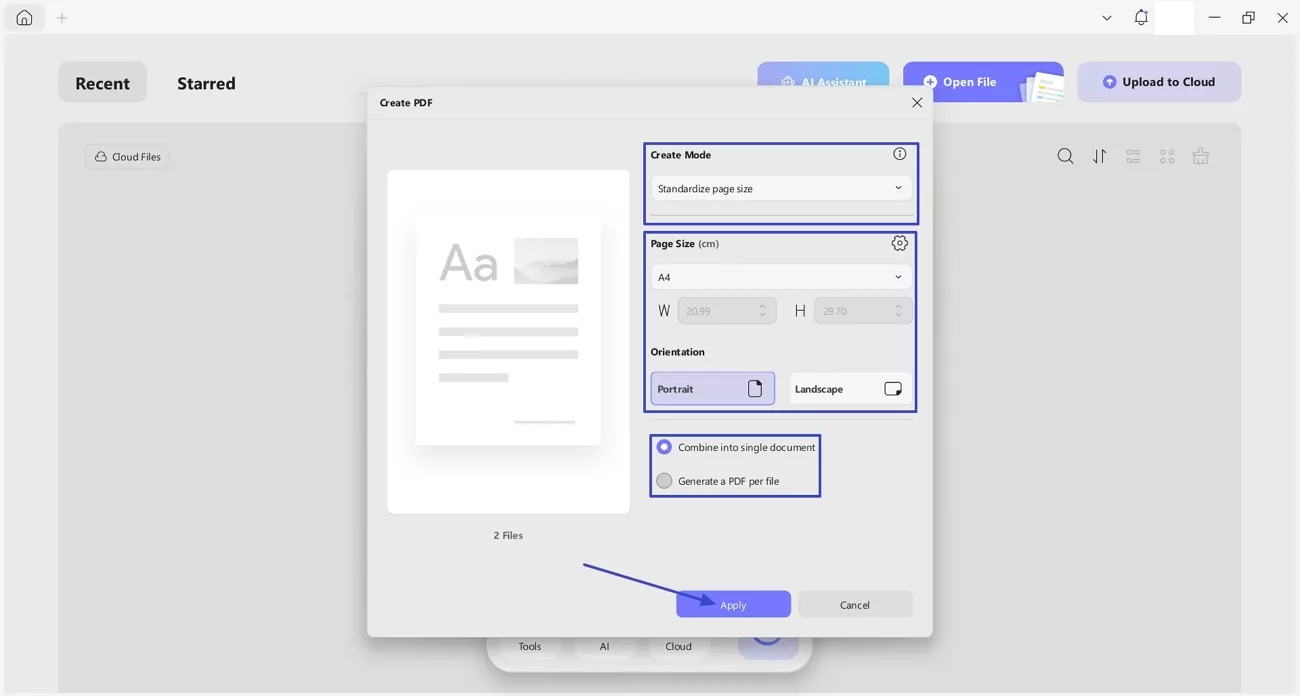
Afterwards, import as many files as you want to convert to PDF. Next, choose an appropriate option under the "Create Mode" section and select an appropriate "Page Size." Select the desired "Orientation" and choose the "Combine into Single PDF" or "Generate a PDF Per File" option as required. Lastly, press the "Apply" button to clear a PDF or multiple PDFs from files.
Part 4. How to Create a PDF From Clipboard
UPDF can also create a PDF directly from content you copy to the clipboard, which is very handy when you only need part of a document. This clipboard‑to‑PDF feature is available on both Windows and Mac, so you can turn copied material into a new PDF.
Guide to Create a PDF From Clipboard
Now, adhere to the guide below to learn how to create a PDF on Mac and Windows devices from clipboard content. The process is similar for both platforms.
Step 1. Access Create PDF From Clipboard Option
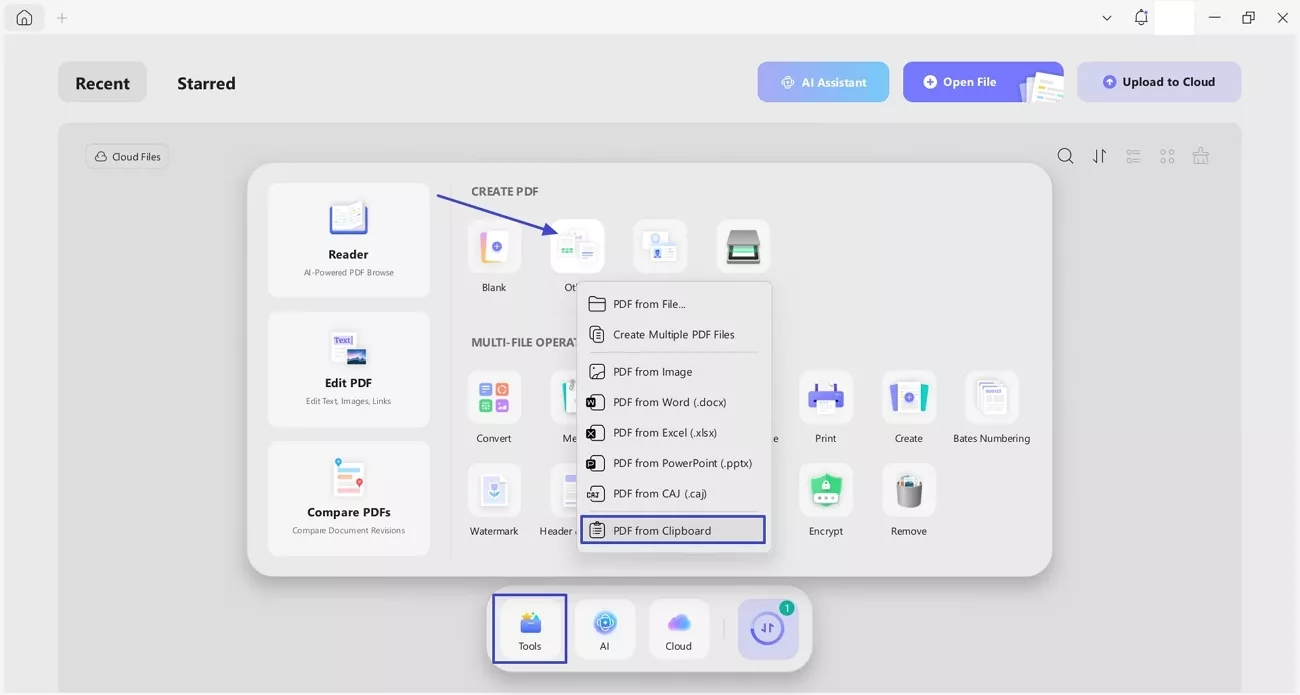
Download UPDF on your device. In the "Tools" section, press the "Others" option and click the "PDF From Clipboard" option in the context menu. It will open a pop-up window for you further.
Windows • macOS • iOS • Android 100% secure
Step 2. Create PDF From Clipboard Material
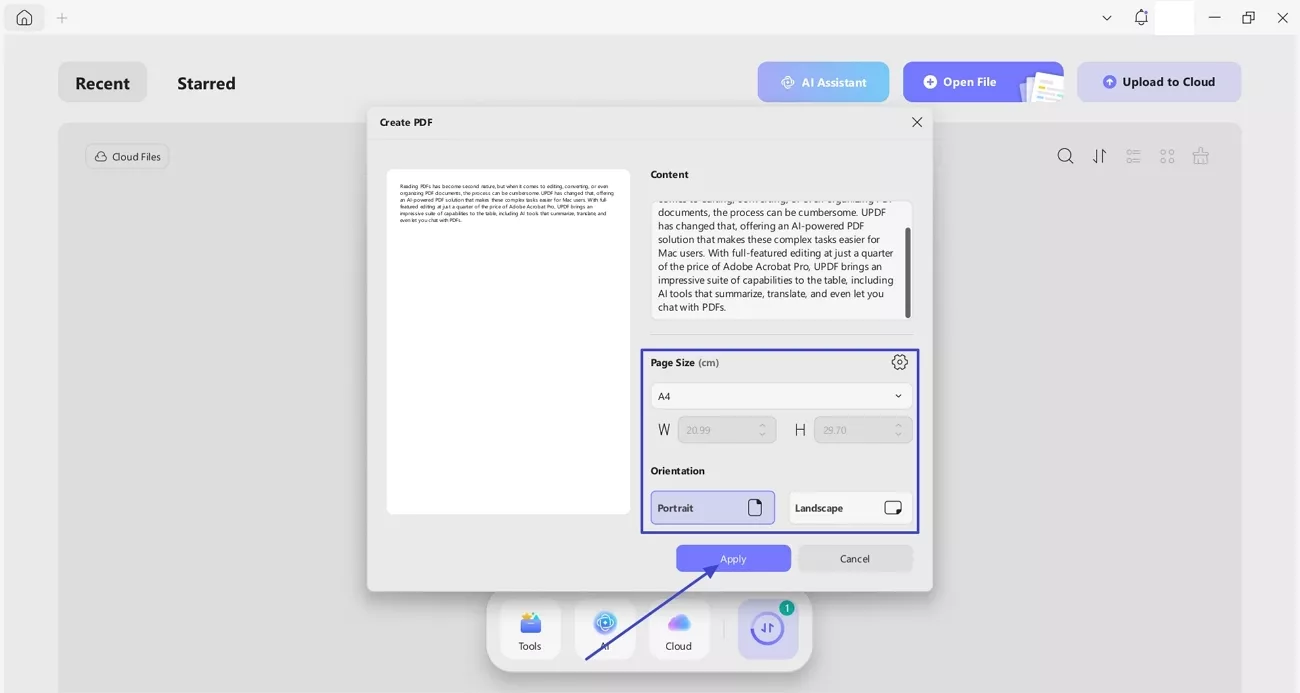
After that, it will automatically paste the text you copied last in the "Content" box. Here, choose an appropriate "Page Size" and "Page Orientation" option as per your requirement. Lastly, press the "Apply" button to start the PDF creation process.
Part 5. How to Create a PDF From Scanner
In addition to clipboard PDF creation, the same toolkit lets you turn paper documents into digital PDFs by scanning them directly into the app. Both Windows and Mac users can capture physical pages as searchable or image‑based PDFs. iOS and Android users who ask "How to create a PDF file on iPhone" can also create PDFs from paper by capturing documents and converting those images into PDF.
Ultimate Guide to Create a PDF From Scanner
Now, follow the steps below to see how you can create a PDF file from a scanner using UPDF desktop:
Step 1. Access Scanner Option in Create PDF Section
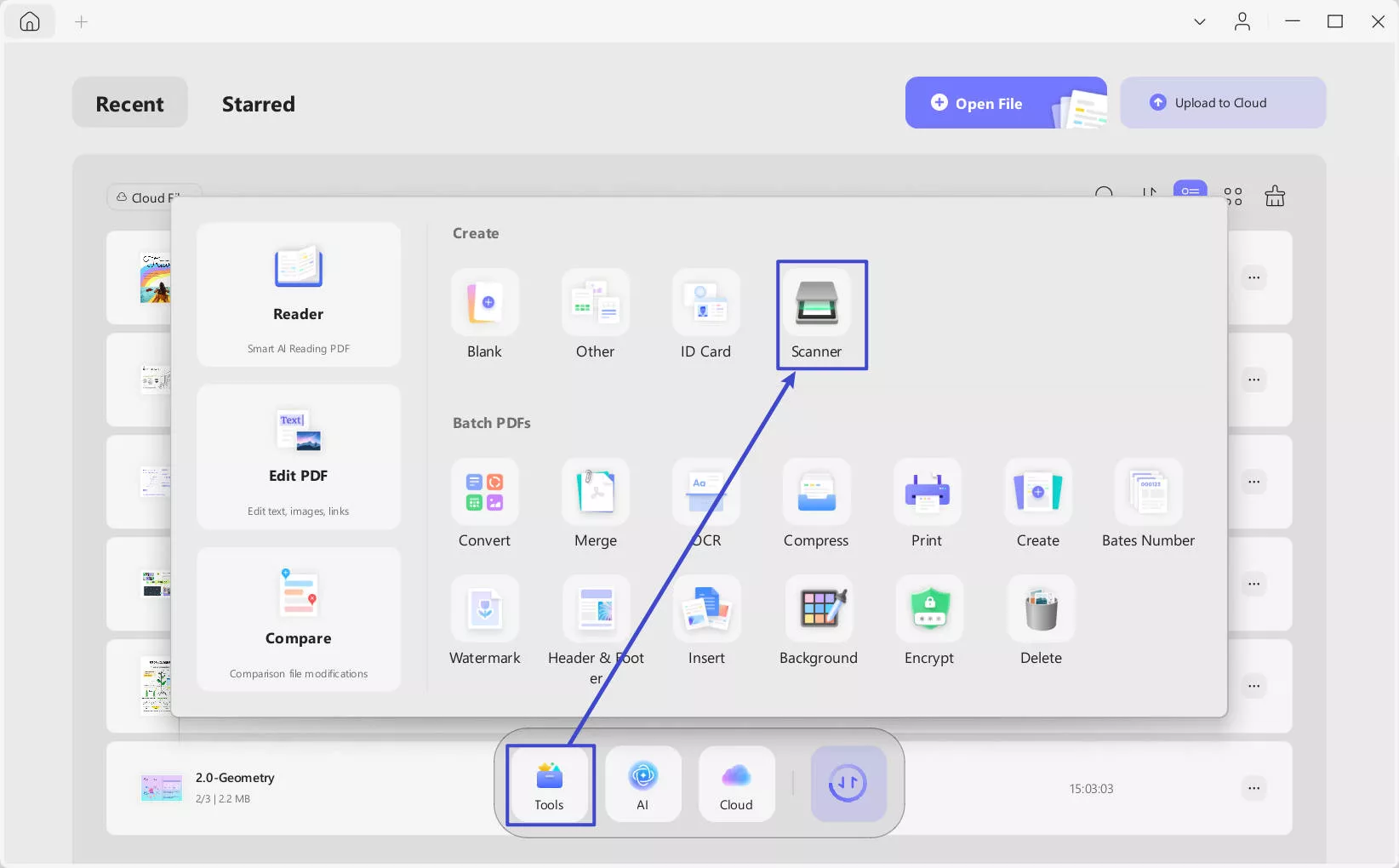
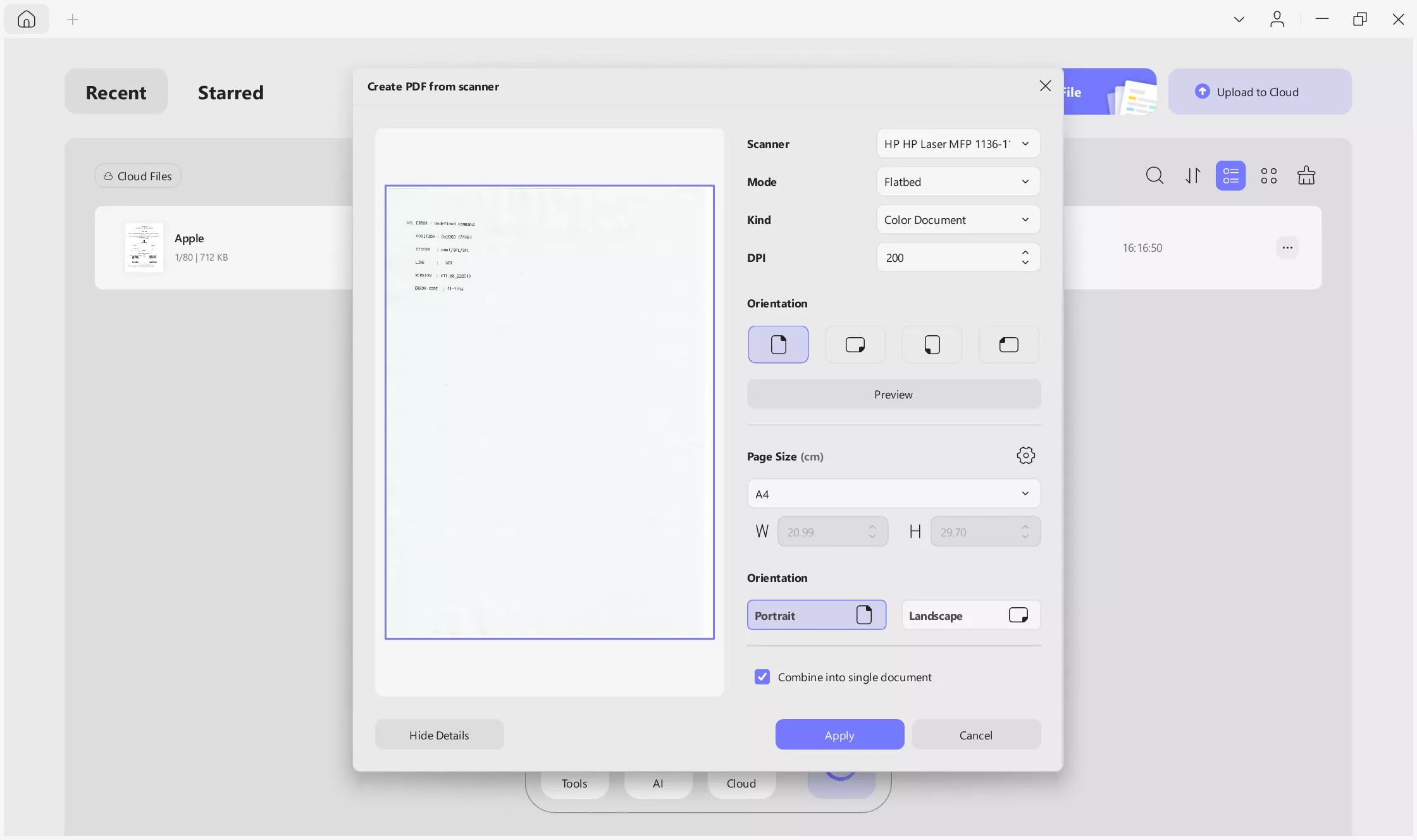
First, navigate to the "Tools" tab and press the "Scanner" option under the "Create PDF" section. Make sure your PC is already connected to a scanner and put the paper in the scanner.
Step 2. Choose the Number of Pages to Scan
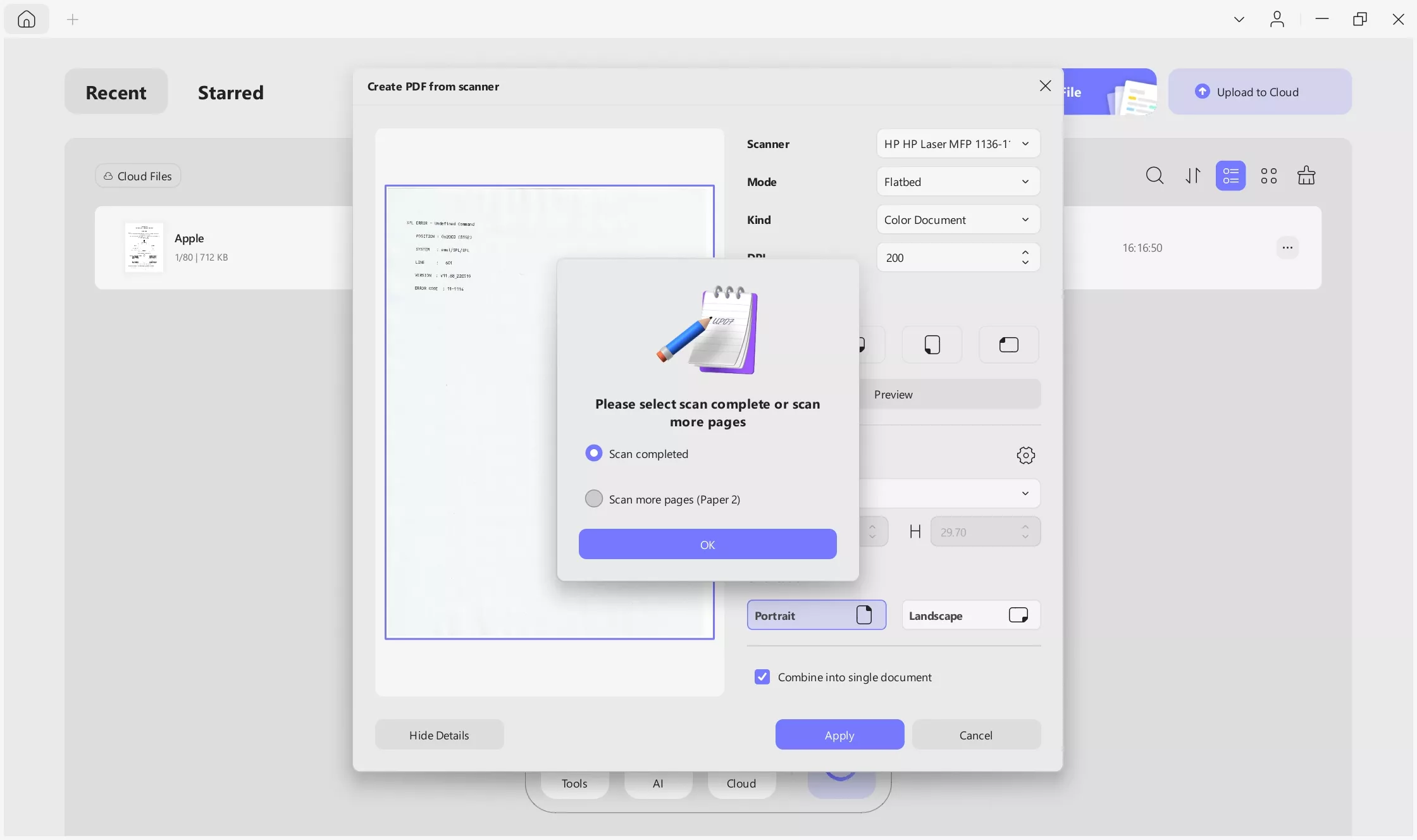
Next, select the "Scan Complete" or "Scan More Pages" option if you want to add more pages to your PDF, and press the "OK" button.
Step 3. Adjust Scan Settings
Afterwards, choose an appropriate "Mode," "Kind," and "Dots Per Inch" option. Next, choose a suitable "Page Size" and "Page Orientation" option with the "Combine into Single Document" option. Lastly, click the "Apply" button to create a PDF from scanned paper.
Part 6. How to Create a PDF Portfolio
After learning how to create a PDF from images and scanners, the next thing is to put various documents in a systematized PDF portfolio. This feature is currently available for Windows users, allowing them to bundle multiple related files into one organized PDF container.
Guide to Create a PDF Portfolio
Now, follow the steps below to learn how to create a PDF portfolio using UPDF:
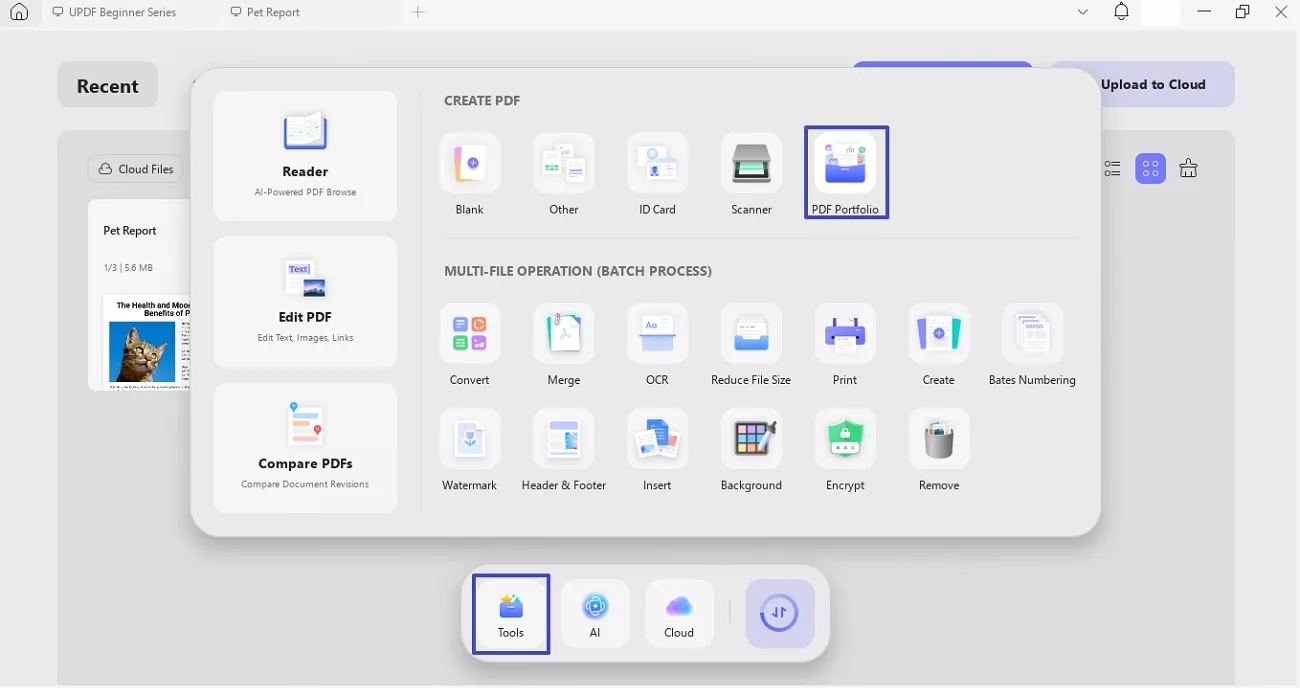
Step 1. Access PDF Portfolio Feature
Download UPDF on your device.
Windows • macOS • iOS • Android 100% secure
In the "Tools" section, press the "PDF Portfolio" option under the "Create PDF" section.
Step 2. Import PDF Files
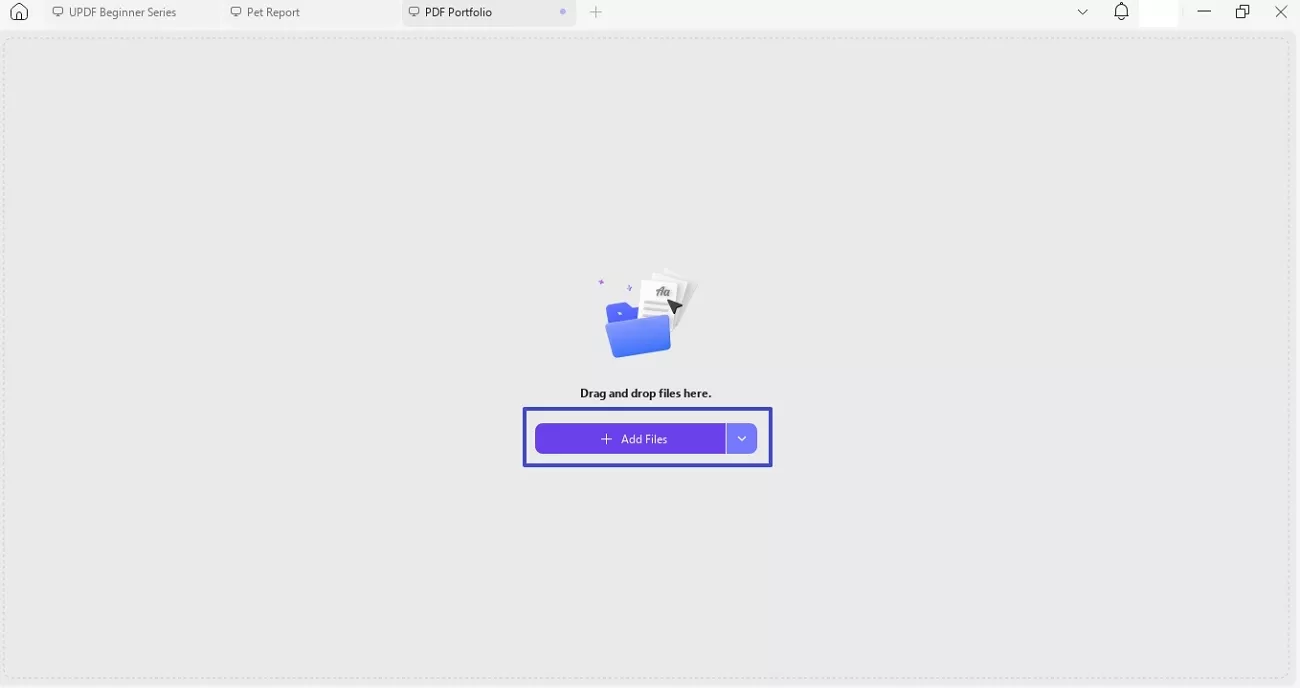
Next, click the "Add Files" button to import the PDF files you want to add to the portfolio.
Step 3. Save PDF Portfolio Within UPDF
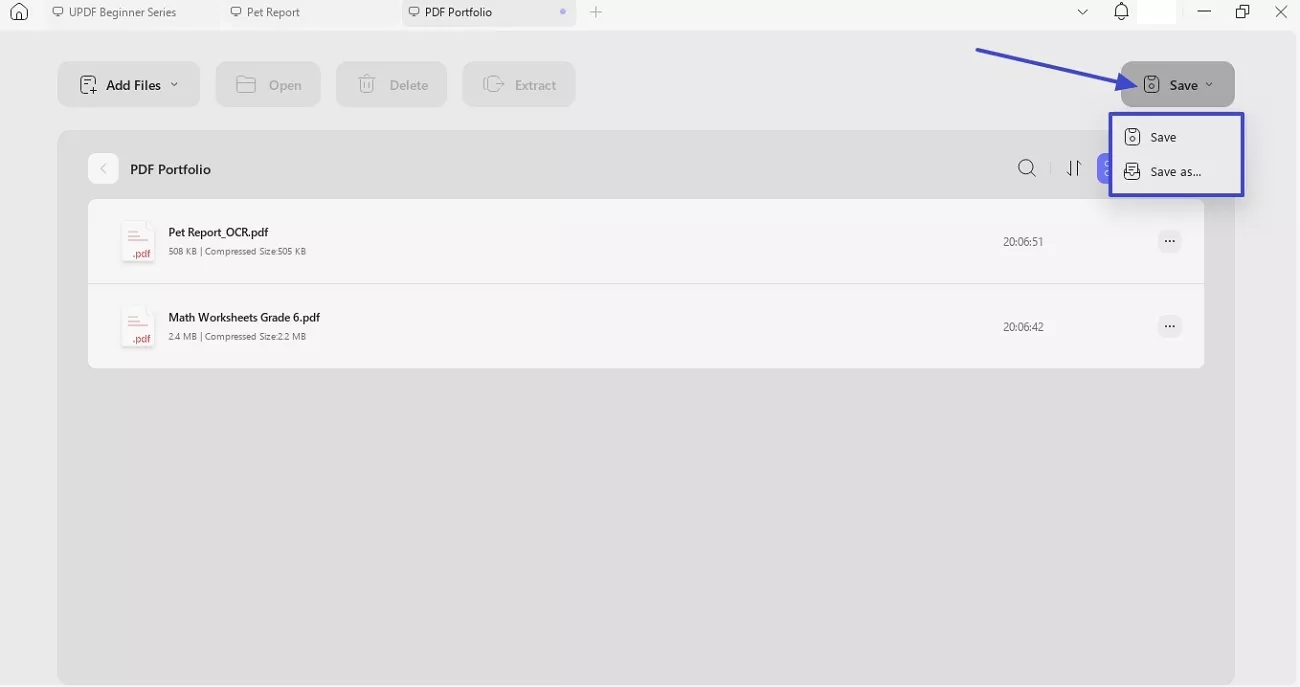
Once PDF files are uploaded, press the "Save" button and choose a location where you want to save the PDF portfolio.
Conclusion
To conclude, this article explored different methods to learn how to create a PDF across Windows, Mac, iPhone, and Android devices. PDFs from blank files, images, Word documents, or scanned documents can seem complex, but a single tool simplifies the process. Users who want to create PDFs, manage and organize files, and switch between applications can rely on UPDF as a practical, consistent solution.
Windows • macOS • iOS • Android 100% secure







 Enya Moore
 Enola Miller

