 UPDF
UPDF
 UPDF for Windows
 UPDF for Mac
 UPDF for iPhone/iPad
 UPDF for Android
 Nomostar
 UPDF AI Online
 UPDF Sign
 IvyCraft
 Edit PDF
 Annotate PDF
 Create PDF
 PDF Form
 Edit links
 Convert PDF
 OCR
OCR PDF to Word
 PDF to Image
 PDF to Excel
 Organize PDF
 Merge PDF
 Split PDF
 Crop PDF
 Rotate PDF
 Protect PDF
 Sign PDF
 Redact PDF
 Sanitize PDF
 Remove Security
 Read PDF
 UPDF Cloud
 Compress PDF
 Print PDF
 Batch Process
 About UPDF AI
 UPDF AI Solutions
 AI User Guide
 FAQ about UPDF AI
 Summarize PDF
 Translate PDF
 Chat with PDF
 Chat with AI
 Chat with image
 PDF to Mind Map
 Explain PDF
 PDF AI Tools
 Image AI Tools
 AI Chat Tools
 AI Writing Tools
 AI Study Tools
 AI Working Tools
 Other AI Tools
 AI Bookmark Generation
 AI Bookmark Summary
 AI Watermark Generation
 AI Background Generation
 AI Sticker Generation
 AI Stamp Generation
 AI Editing Suite
 UPDF Copilot
 AI Page Management
 AI Semantic Search
 PDF to Word
 PDF to Excel
 PDF to PowerPoint
 Enterprise Solution
 Enterprise Sign
 Enterprise AI
 Enterprise Plan
 Enterprise User Guide
 Enterprise Webinar
 IT
IT Education
 Construction
 Financial Service
 Healthcare
 Insurance
 Legal
Legal Manufacturing
 Government
 Researchers & PhDs
 Solopreneurs & Freelancers
 Lawyers & Legal Professionals
 Real Estate Agents & Brokers
 Education Solution
 Customer Stories
 User Guide
 UPDF Tricks
 FAQs
FAQs UPDF Reviews
 Download Center
 Blog
Blog Newsroom
 Tech Spec
 Updates
 UPDF vs. Adobe Acrobat
 UPDF vs. Foxit
 UPDF vs. PDF Expert

When designing surveys, application forms, or onboarding sheets, sending a raw document often ends in a layout disaster. Users accidentally press "Enter," mess up table borders, or rewrite your core questions. Learning how to create a fillable form in word is essential to lock your layout so users can only type exactly where they are supposed to.
However, many users quickly hit a cross-platform wall: Word's native form fields frequently freeze or break when opened on a Mac, iPhone, or Android tablet. If your forms need to remain perfectly intact on any screen—or require legally binding signatures—converting your layout into a standardized PDF is the safest route. For those who want to bypass Word's complex ribbon settings entirely, you can check out our starter guide on how to create a fillable pdf from scratch using modern, cross-platform tools like UPDF to build unbreakable forms right from the start.
Windows • macOS • iOS • Android 100% secure
1. Choose Your Form Method in Seconds
If someone uses the same Word version and needs simple fields, the Word Developer mode works better. On the other hand, cross‑platform forms needing layout locking, rich controls, and strong signing work better with UPDF interactive forms. Look at the table below to quickly decide whether to create a fillable form in Word or UPDF.
| Aspect | Method 1: Word Developer Path | Method 2: UPDF Interactive Upgrade |
| Best for | Internal team distribution, Windows PCs, same Word version, basic text fields | Forms across Windows, Mac, iOS; pixel‑perfect layout; advanced components; e‑signatures |
| Not for | External client surveys, mobile workforces, biometric signing, and stylized designs | Bare‑bones single‑line text input; recipient strictly demanding a raw .docx file |
| Platforms | Windows desktop only | Windows, Mac, iOS |
| Layout | Can shift or break on different devices | Pixel‑perfect layout locking |
| Components | Simple text fields | Radio buttons, dropdowns, action buttons |
| Signatures | Limited or manual signing | Legally binding e‑signatures |
2. Progressive Guide: 2 Ways to Build Fillable Forms
Now you will see two clear paths to make a fillable form in Word. One path keeps everything inside Word using built‑in content controls and simple protection tools. The other path later hands your layout to a PDF form builder for stronger locking and interaction.
Method 1: Using Microsoft Word's Native Content Controls (Entry-Level)
Users often fight with broken layouts when they type in normal Word files or resize tables. Native content controls in Word let you drop fields exactly where answers belong and keep labels stable. Restrict Editing then locks everything around those fields, so only the intended inputs can change. So, follow the steps below to place fields precisely and lock the master template structure:
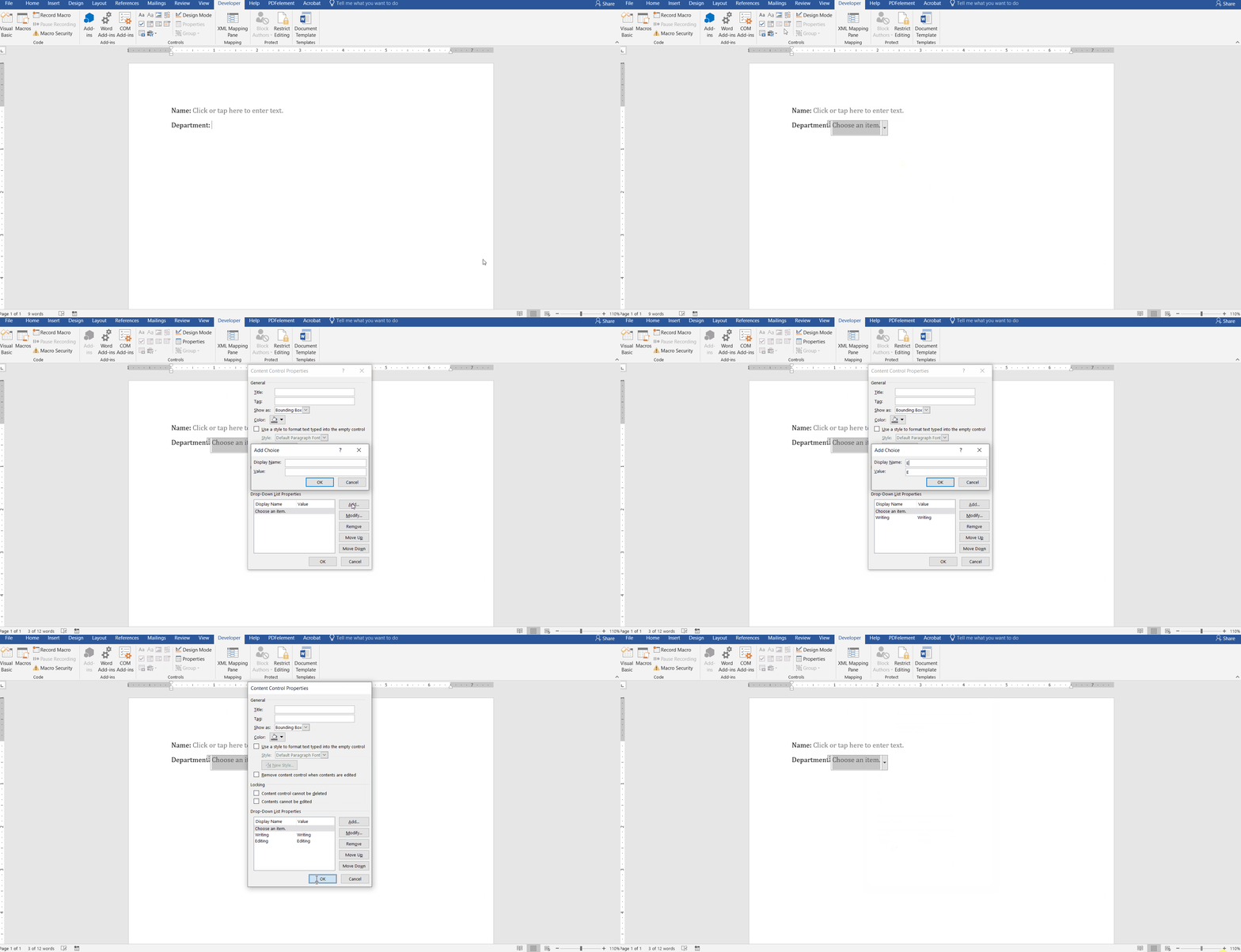
Step 1. Once you open the Word app, click the "Developer" tab in the ribbon and choose the form element.
Step 2. Now, place the cursor and click the "Drop-Down List" icon in the "Controls" section. After that, press the "Properties" option and add items to the drop-down list.
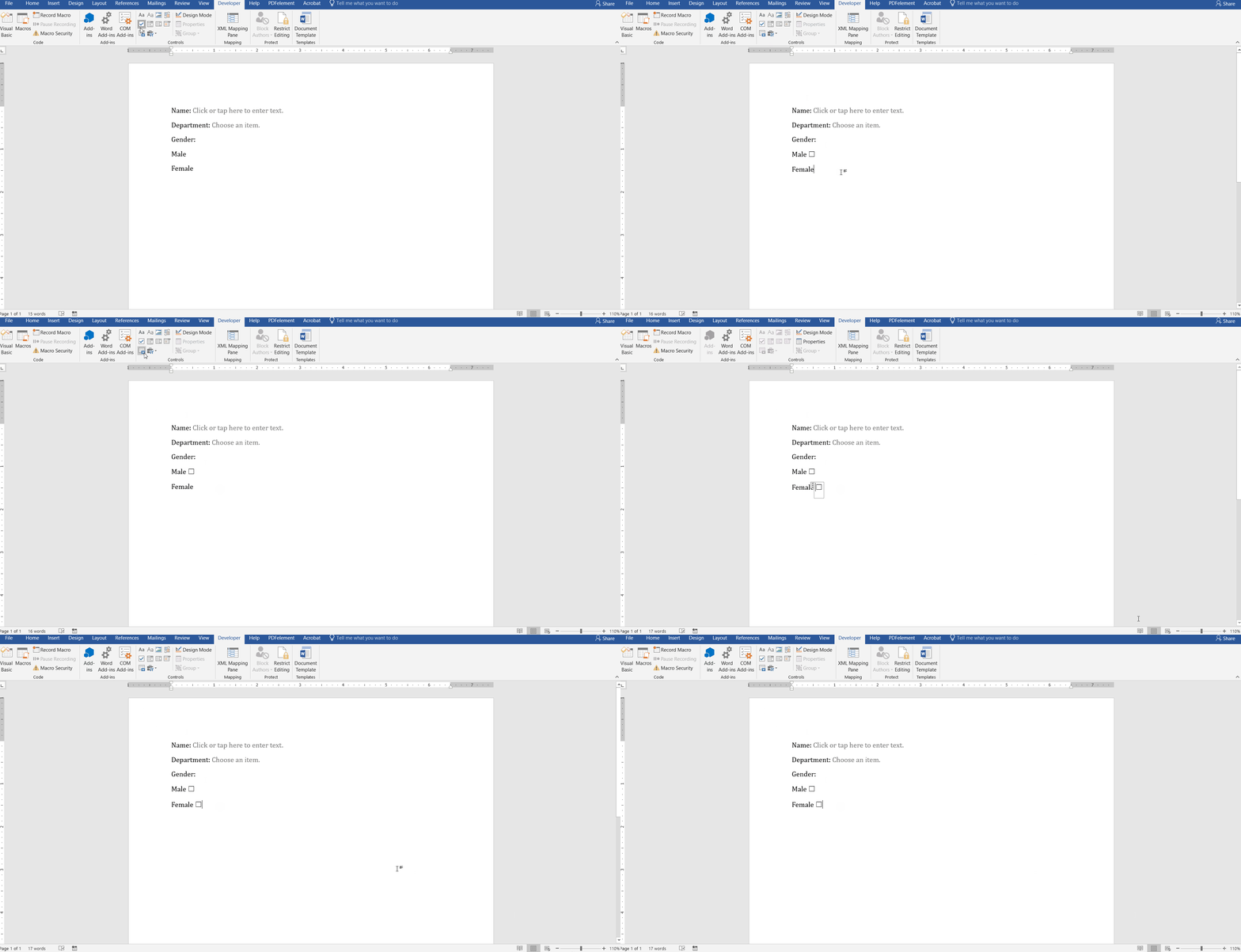
Step 3. After that, choose the "Tick Box" icon and place the boxes where you want users to check. Moreover, to adjust the symbol within the boxes from the "Properties" section.
Step 4. Once the forms are added to a Word document, press the "Review" tab and click the "Restrict Editing" button so users can only type inside the form controls and cannot change the surrounding layout.
Method 2: Creating Advanced Interactive Forms via UPDF (Professional Grade)
Many users hate seeing Word forms break when text shifts and table cells jump out of place. Others find that Word form controls look fine on desktop but stop responding on phones and tablets. Even when controls appear, they sometimes render as dead, unclickable boxes instead of true interactive fields. This is where UPDF steps in with its advanced fillable PDF creator to stabilize everything.
You first arrange headings, questions, and layout in Word, then export the file as a clean PDF. UPDF then overlays interactive elements on that PDF. The result is a professional form workflow that removes Word's instability while keeping interaction smooth for every recipient. Acting as a full PDF forms hub, UPDF covers everything from layout building to calculated fields with its automatic field recognition ability.
Core UPDF Form Scenarios
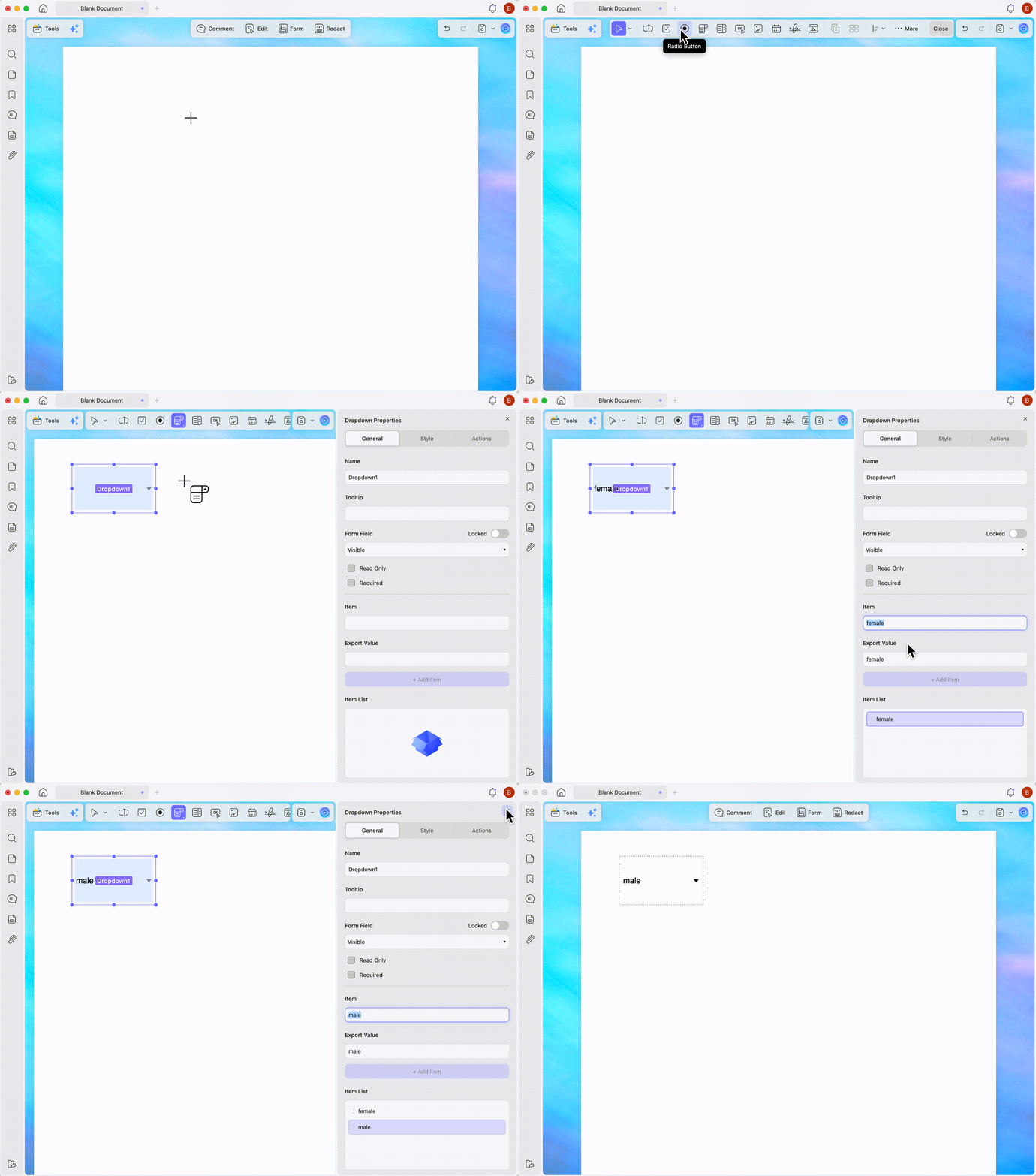
1. Dynamic Interactive Fields: With UPDF, you can create a blank PDF or open an existing form to drop in radio buttons, dropdowns, checkboxes, and "OK" buttons quickly. Fonts and grid spacing stay under your control, so every option row looks clearly organized.
2. Share‑Ready Online Forms: Instead of endless email attachments, a single UPDF share link or QR code carries the form. Anyone can open that link on their device and complete the fields without extra downloads.
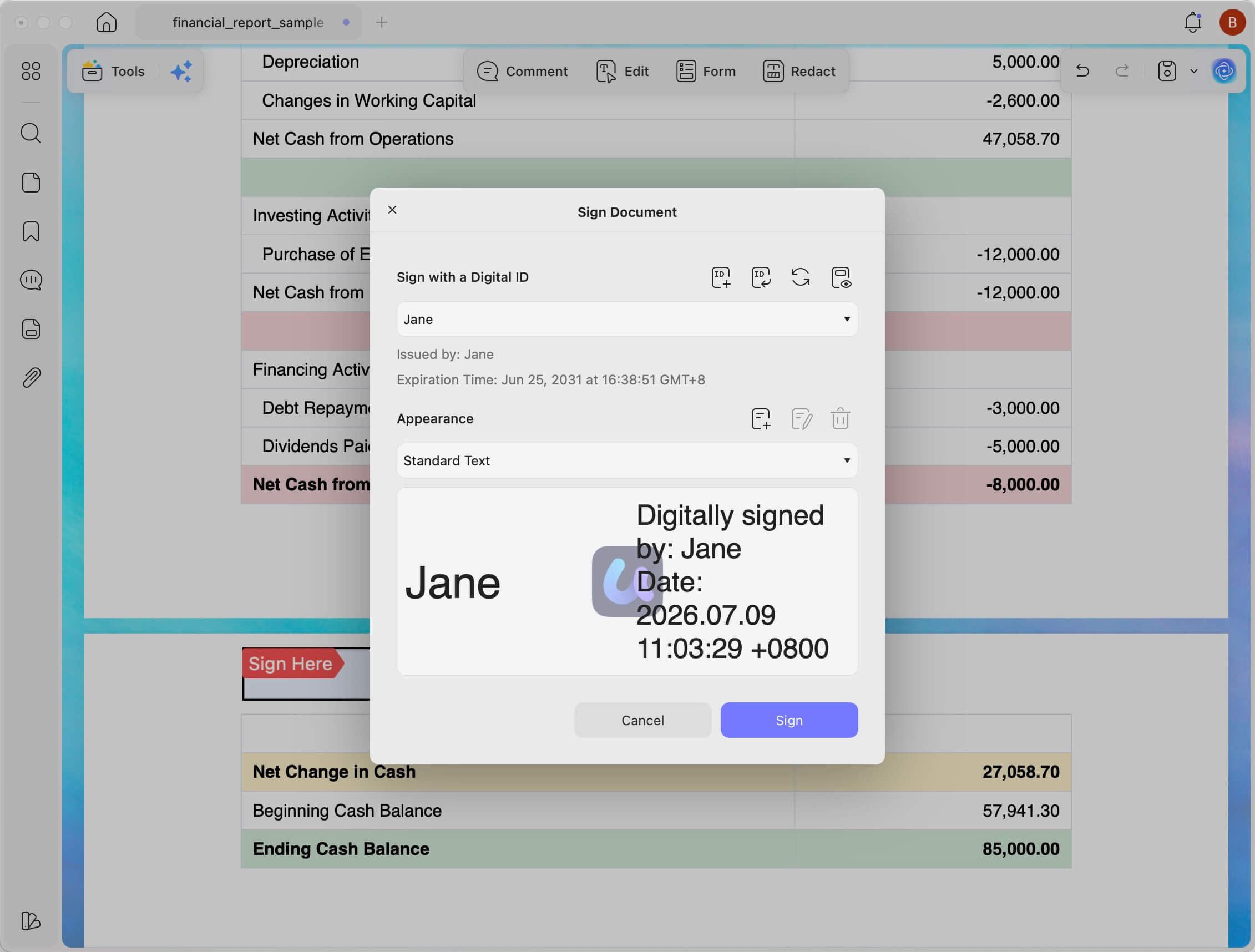
3. Built‑in Secure Signing: Approval blocks and waivers gain proper biometric or digital signatures using UPDF's Sign tools. The signature and form data finish together in one smooth, uninterrupted completion step. Once your content is ready, learn how to make a PDF signable to lock down approvals properly.
How to Create Fillable Forms with UPDF
First, convert your Word layout to PDF, then open it inside the "UPDF Prepare Form" workspace. Here's how to use UPDF to add fields and finalize sharing:
Step 1. First, import your PDF into UPDF and press the "Forms" tool in the top toolbar.
Step 2. After that, choose a fillable field like a "Radio" button and place it in multiple areas of your PDF page where needed.
Windows • macOS • iOS • Android 100% secure
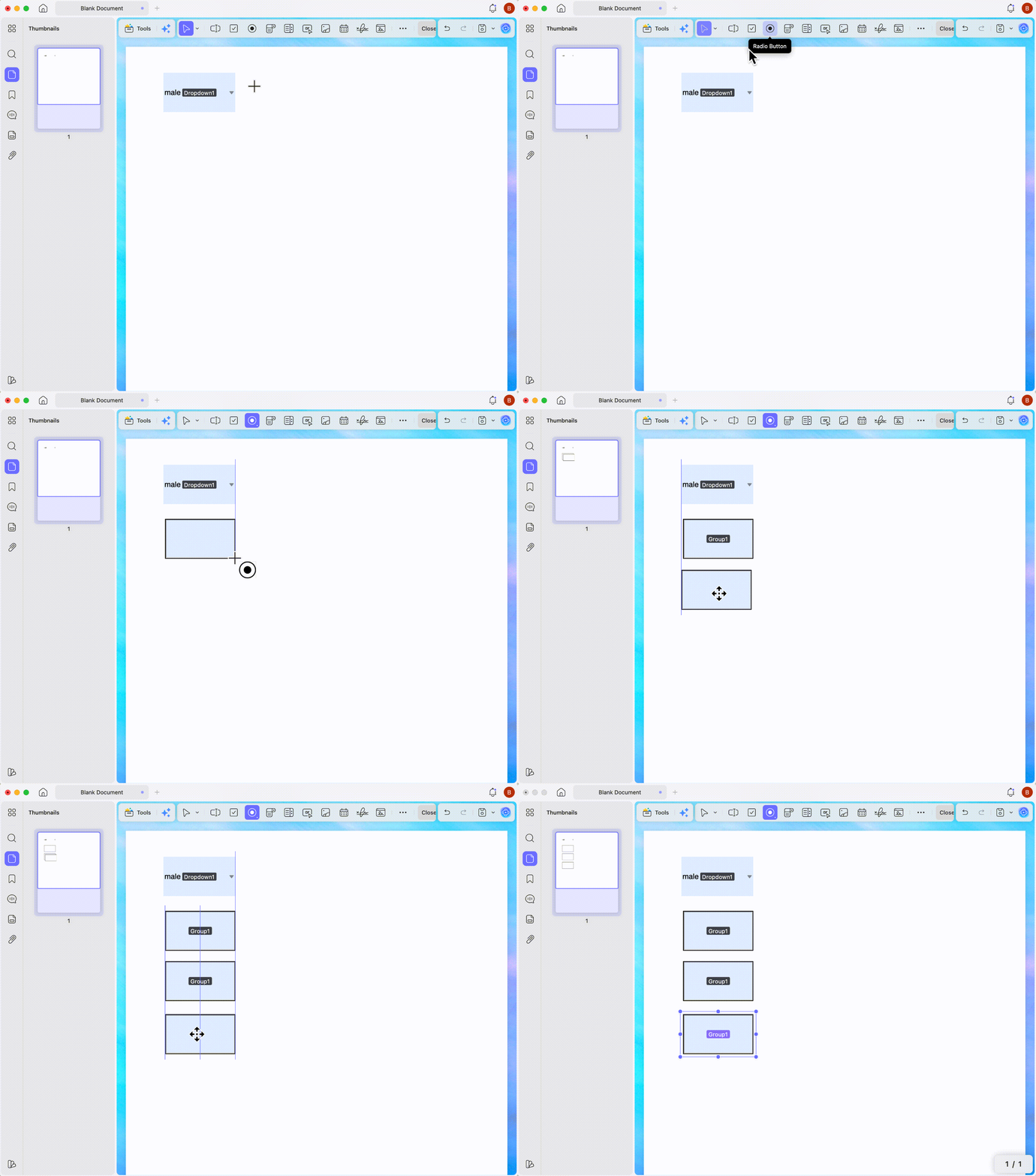
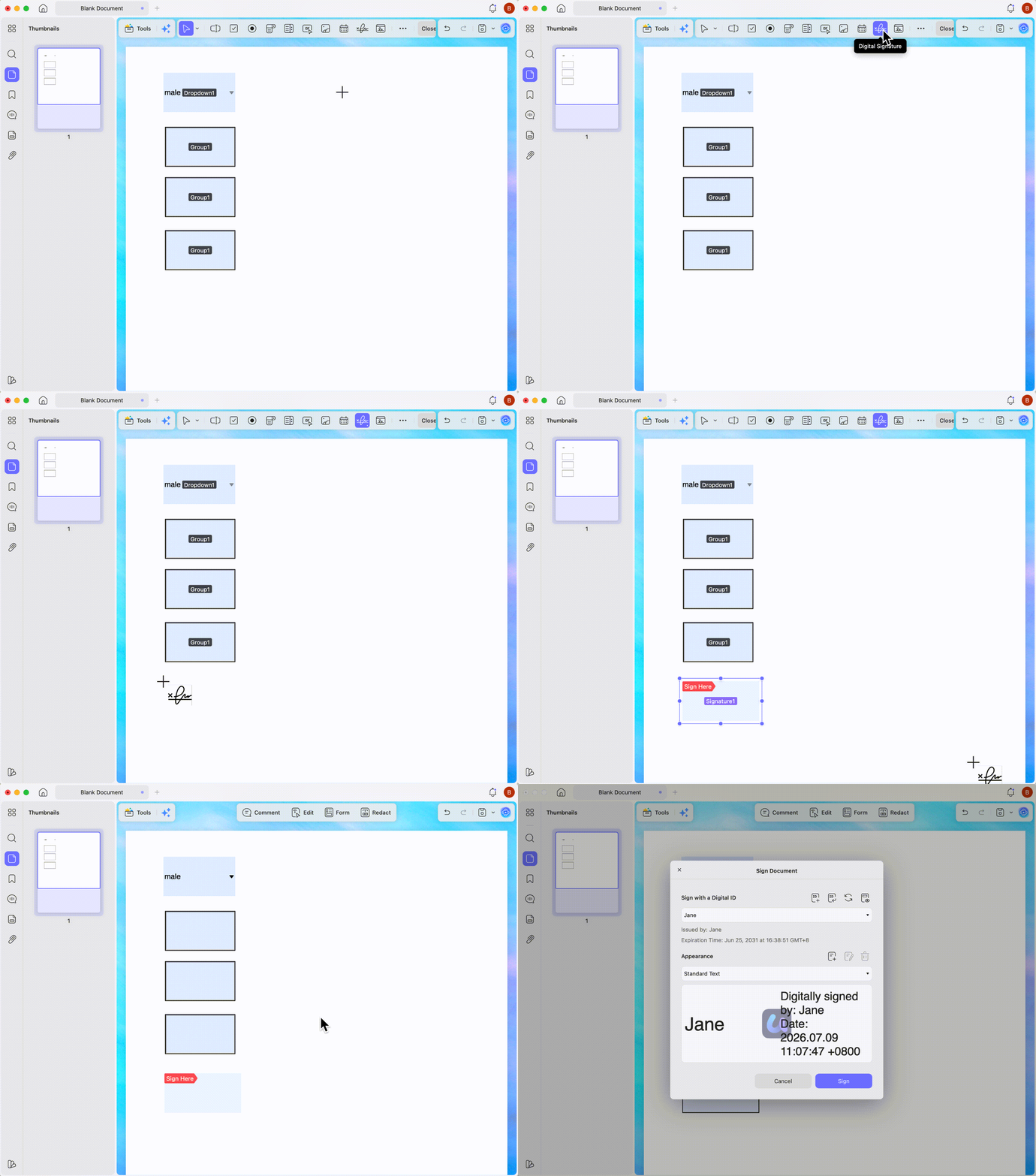
Step 3. Next, pick "Dropdown" and place the dropdown field on the PDF page. Double-click the field to open its customization panel. Use the "+ Add Item" button to add the required items to the list. Once done, click the Forms mode and fill in the create fields for testing.
Step 4. Next, add a digital signature field if needed and share the finalized PDF with the users so they can fill in the form fields and share the PDF back with you.
If your PDF is already static, you don't need to rebuild everything from scratch. Follow the tutorial on how to convert a PDF to a fillable form for instant interactive fields. This quick upgrade turns dead text boxes into real inputs you can type into immediately.
3. Head-to-Head Comparison: Word Forms vs. PDF Forms
Word forms often break on different devices and struggle when you create a fillable form field. However, PDF forms in UPDF stay stable across screens and support more advanced interactive controls. The table below shows why UPDF forms are preferred for secure sharing and signing.
| Operational Criteria | Microsoft Word Form (.docx) | UPDF Interactive Form (.pdf) |
| Multi‑Device Compatibility | Breaks, misaligns, or freezes on macOS, iOS, and Android apps | Guaranteed same look and behavior on every viewport |
| Control Element Complexity | Standard entry fields, text boxes, basic drop‑down lists | Calculation fields, single‑choice radio arrays, action macros |
| Layout Anti‑tamper Security | End‑users can clear borders, change headings, or delete prompts | Copy layers locked against accidental deletion |
| Cloud Distribution and Signing | No native sharing. Depends on complex third‑party verification tools | Encryption linking, instant QR codes, compliant e‑signatures |
4. FAQs
Why are my dropdowns and checkboxes unclickable?
This usually happens when clients open your Word form on Mac, web, or mobile apps. Legacy Developer controls are tuned for Windows desktop, so other platforms often freeze them as plain text. Exporting the document to PDF and rebuilding fields in UPDF makes everything clickable everywhere again.
Does removing gray shading change the user experience?
The gray shading is only a visual guide, and it doesn't change how fields technically work. However, hiding shading removes the visual cue, so many users simply overlook the input area. PDF forms solve this with clear borders and hover highlights that look clean without ugly blocks.
Can I make an interactive Word form without the Developer tab?
No, you cannot make a fillable field in Word without enabling the Developer tools first. Without that tab, there is no way to insert real clickable dropdowns or checkboxes. Then you're limited to static "print‑only" layouts with blank lines meant for handwriting only.
5. Conclusion
In conclusion, Word's Developer tools give only a basic, fragile way to build forms. Across devices and strict security setups, those Word forms often break, misalign, or lose protection. UPDF converts your drafts into secure, interactive PDFs ready for sharing and compliant e‑signatures. If you're serious about modern forms, we recommend using UPDF for form creation.
So, download UPDF today to test smart field recognition, link sharing, and signatures.
Windows • macOS • iOS • Android 100% secure






 Enrica Taylor

 Engelbert White

 Bruna Almeida