UPDF
UPDF
 UPDF for Windows
 UPDF for Mac
 UPDF for iPhone/iPad
 UPDF for Android
 Nomostar
 UPDF AI Online
 UPDF Sign
 IvyCraft
 Edit PDF
 Annotate PDF
 Create PDF
 PDF Form
 Edit links
 Convert PDF
 OCR
OCR PDF to Word
 PDF to Image
 PDF to Excel
 Organize PDF
 Merge PDF
 Split PDF
 Crop PDF
 Rotate PDF
 Protect PDF
 Sign PDF
 Redact PDF
 Sanitize PDF
 Remove Security
 Read PDF
 UPDF Cloud
 Compress PDF
 Print PDF
 Batch Process
 About UPDF AI
 UPDF AI Solutions
 AI User Guide
 FAQ about UPDF AI
 Summarize PDF
 Translate PDF
 Chat with PDF
 Chat with AI
 Chat with image
 PDF to Mind Map
 Explain PDF
 PDF AI Tools
 Image AI Tools
 AI Chat Tools
 AI Writing Tools
 AI Study Tools
 AI Working Tools
 Other AI Tools
 AI Bookmark Generation
 AI Bookmark Summary
 AI Watermark Generation
 AI Background Generation
 AI Sticker Generation
 AI Stamp Generation
 AI Editing Suite
 UPDF Copilot
 AI Page Management
 AI Semantic Search
 PDF to Word
 PDF to Excel
 PDF to PowerPoint
 Enterprise Solution
 Enterprise Sign
 Enterprise AI
 Enterprise Plan
 Enterprise User Guide
 Enterprise Webinar
 IT
IT Education
 Construction
 Financial Service
 Healthcare
 Insurance
 Legal
Legal Manufacturing
 Government
 Researchers & PhDs
 Solopreneurs & Freelancers
 Lawyers & Legal Professionals
 Real Estate Agents & Brokers
 Education Solution
 Customer Stories
 User Guide
 UPDF Tricks
 FAQs
FAQs UPDF Reviews
 Download Center
 Blog
Blog Newsroom
 Tech Spec
 Updates
 UPDF vs. Adobe Acrobat
 UPDF vs. Foxit
 UPDF vs. PDF Expert

Do you want to share a PDF with your audience through your Squarespace website? This could be a brochure, product catalogue, or business report you want visitors to view or download.
However, uploading a PDF to Squarespace is not very straightforward. Depending on where you want the PDF to appear, there are different ways to do it.
So, how do I upload a PDF to Squarespace exactly? In this guide, I will share two effective methods with step-by-step instructions.
Before uploading your file, UPDF can help you customize all elements of your PDFs so they look neat and professional. Click below to download and try it now!
Windows • macOS • iOS • Android 100% secure
Part 1. What is Squarespace?
Squarespace is a website-building platform that helps you create and manage your own websites without needing to know how to code. It provides ready-made templates that you can customize to fit your needs, such as building a personal blog, an online store, or a business website.
Apart from templates, Squarespace offers a complete set of tools to run an online business. These include features for selling products, sending invoices, managing memberships, and more. You can also use different marketing tools to promote your business. In addition, the platform offers an AI website builder that can help you create personalized sites aligned with your brand's personality.
Part 2. Why People Upload and Add PDFs to Squarespace
In short, you can add PDFs to Squarespace if you want to share them through your website. In practice, there are various scenarios where you may need to do this. Let’s review.
1. Sharing Detailed Documents:
As a website owner, PDFs can help you present long-form content in an organized manner. This can be for brochures, reports, or product guidelines. The document can help your visitors find all the information they need in a single file.
2. Maintaining Professional Formatting:
PDFs are not easily modified. Once shared, they keep their original layout and formatting. This makes them a great option for professional documents like brand guidelines or product catalogues.
3. Offering Downloadable Resources:
You can also use the PDF format for any downloadable materials. These can be ebooks, checklists, or digital forms. As these types of files are easy to create using PDF editor tools, you can upload them directly to your website.
4. Improving User Experience:
Squarespace allows you to link PDFs directly via buttons or text. This helps people easily open or download documents without opening another tab or moving to another website. As a result, you’re providing your audience with a better user experience.
5. For Marketing or Branding:
If you want to share marketing materials or brand assets through your website, a PDF format is the best choice. You can use a PDF software to easily design these documents with your logo and brand colors. This makes PDFs effective tools to use in promotional campaigns.
Part 3. How to Prepare Your PDF Before Uploading to Squarespace
Most of the time, PDFs added to websites are professional documents. Therefore, they should have a strong visual appeal and a well-formatted layout. The neater your PDFs are, the more your brand will appear trustworthy to your audience.
UPDF can help you design PDFs that look professional and ready to use on your website. It is a comprehensive PDF editor that allows you to fine-tune every element of your document before uploading it to Squarespace. No matter if you’re creating a brochure, a product catalog, or a business report, it can help you prepare branded documents without complex editing steps.
Windows • macOS • iOS • Android 100% secure
Key Features of UPDF for Preparing PDFs
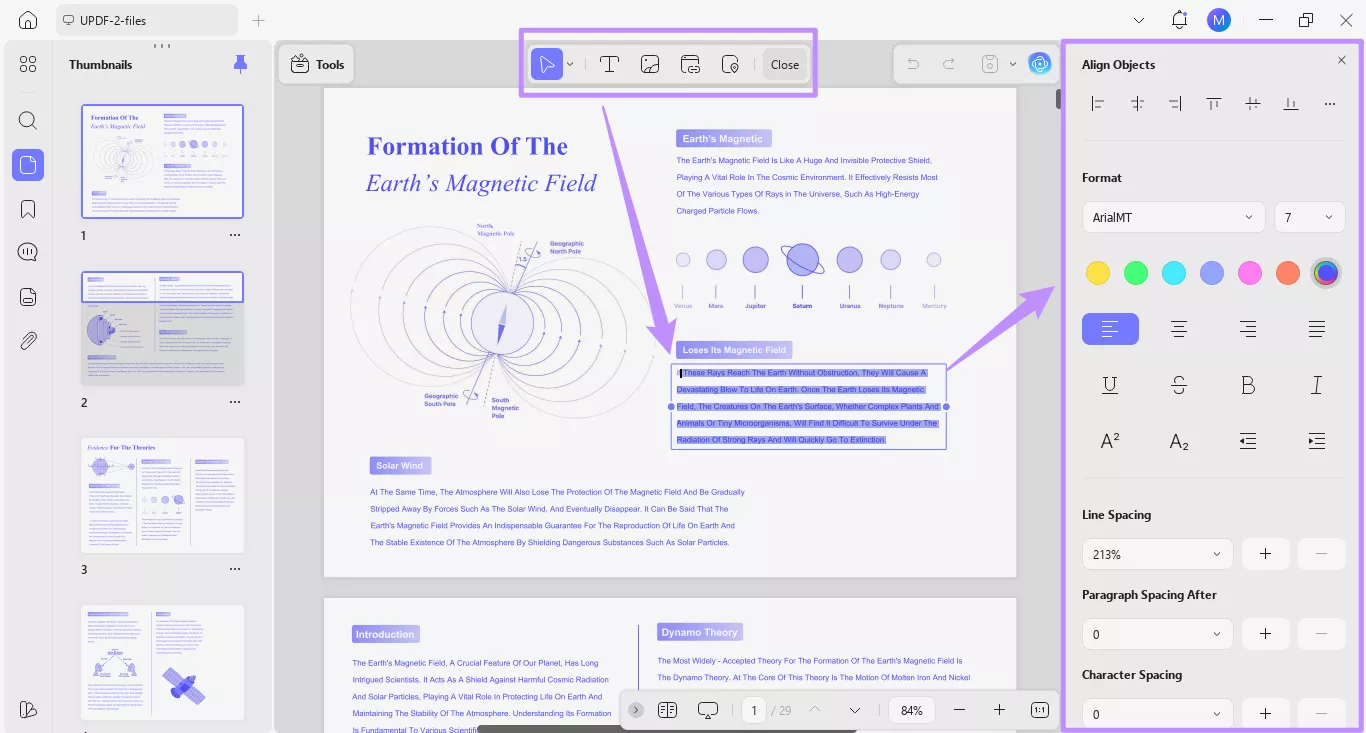
1. Edit All PDF Elements: UPDF lets you edit text, images, and links directly within the PDF. You can adjust fonts, colors, and layout to match your brand's style.
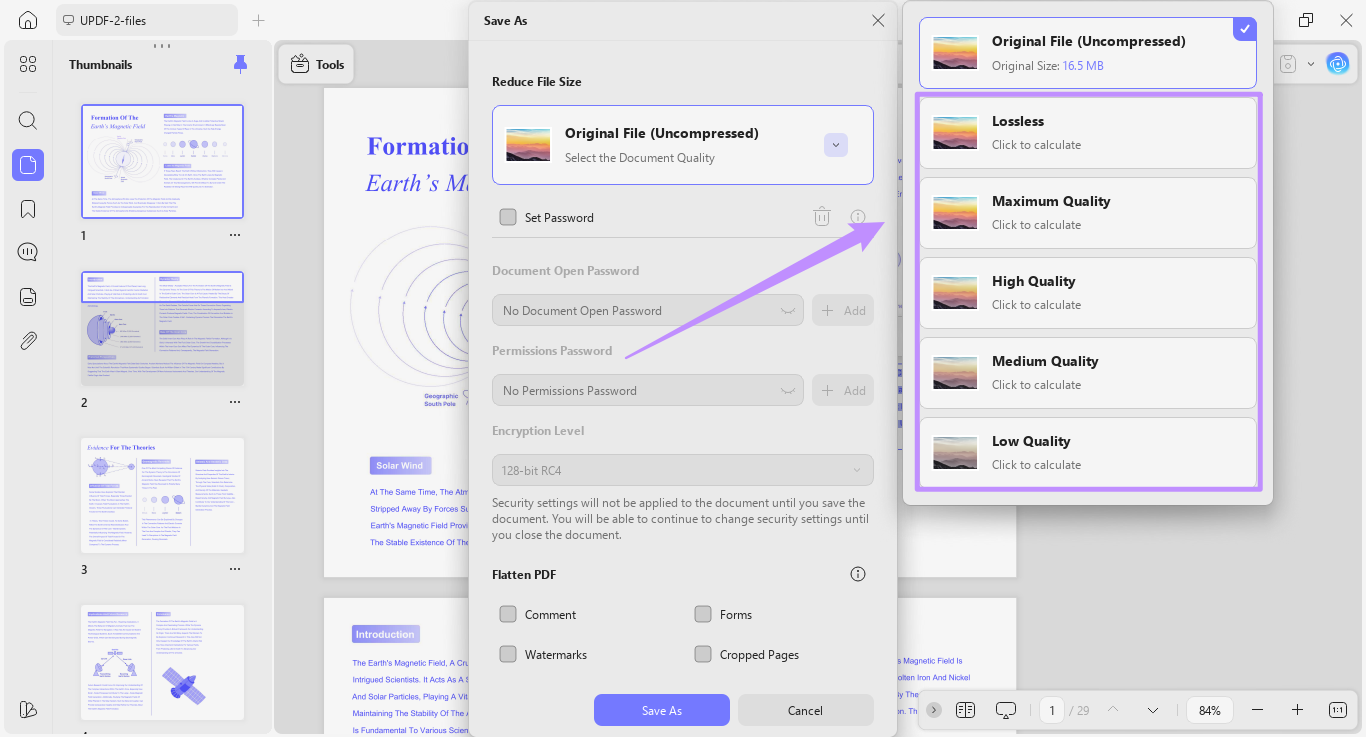
2. Reduce File Size: UPDF offers five compression levels to reduce PDF size based on the image quality and loading speed your website needs.
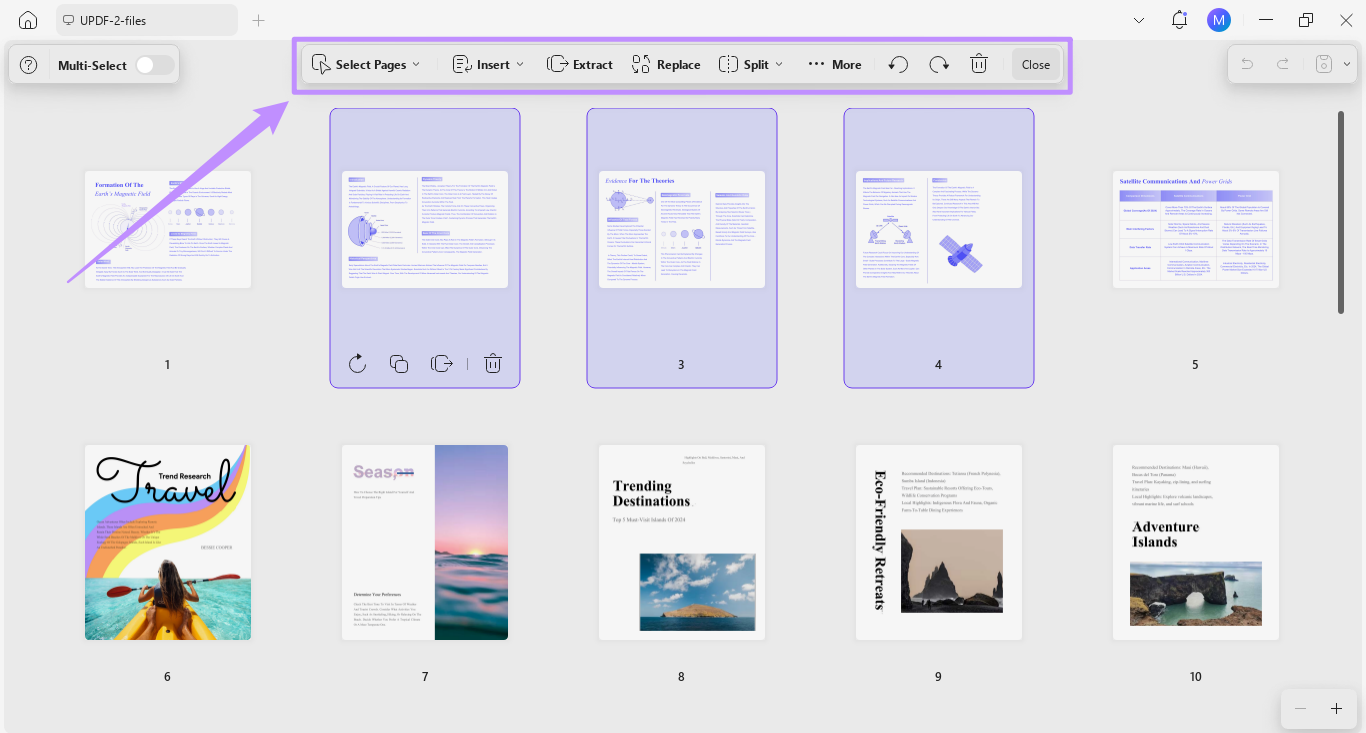
3. Merge and Organize: You can merge multiple related PDFs into one document. It also lets you add, delete, rotate, crop, rearrange pages, and more.
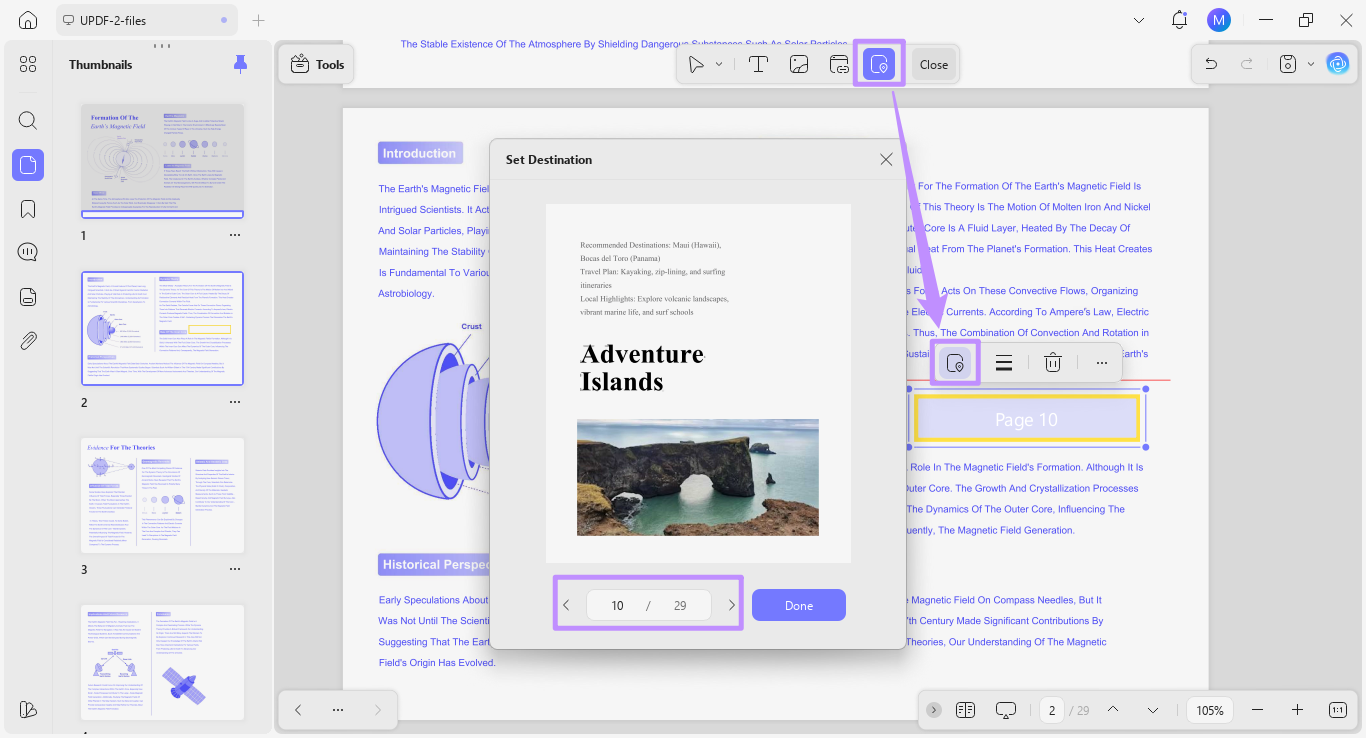
4. Add Internal Links: You can insert links that connect different pages within the same PDF. This can help you navigate long documents more quickly.
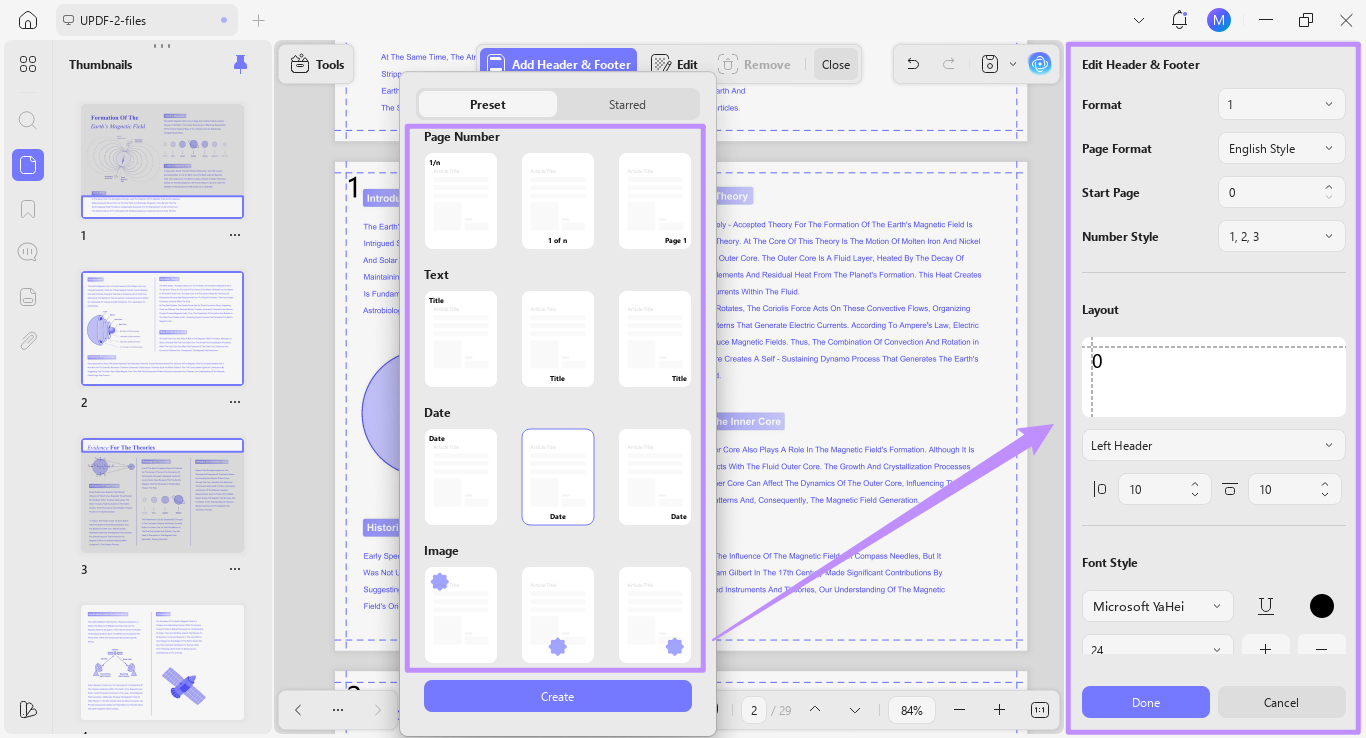
5. Edit Header and Footer: UPDF offers free templates for headers and footers. You can also create your own and customize them as needed.
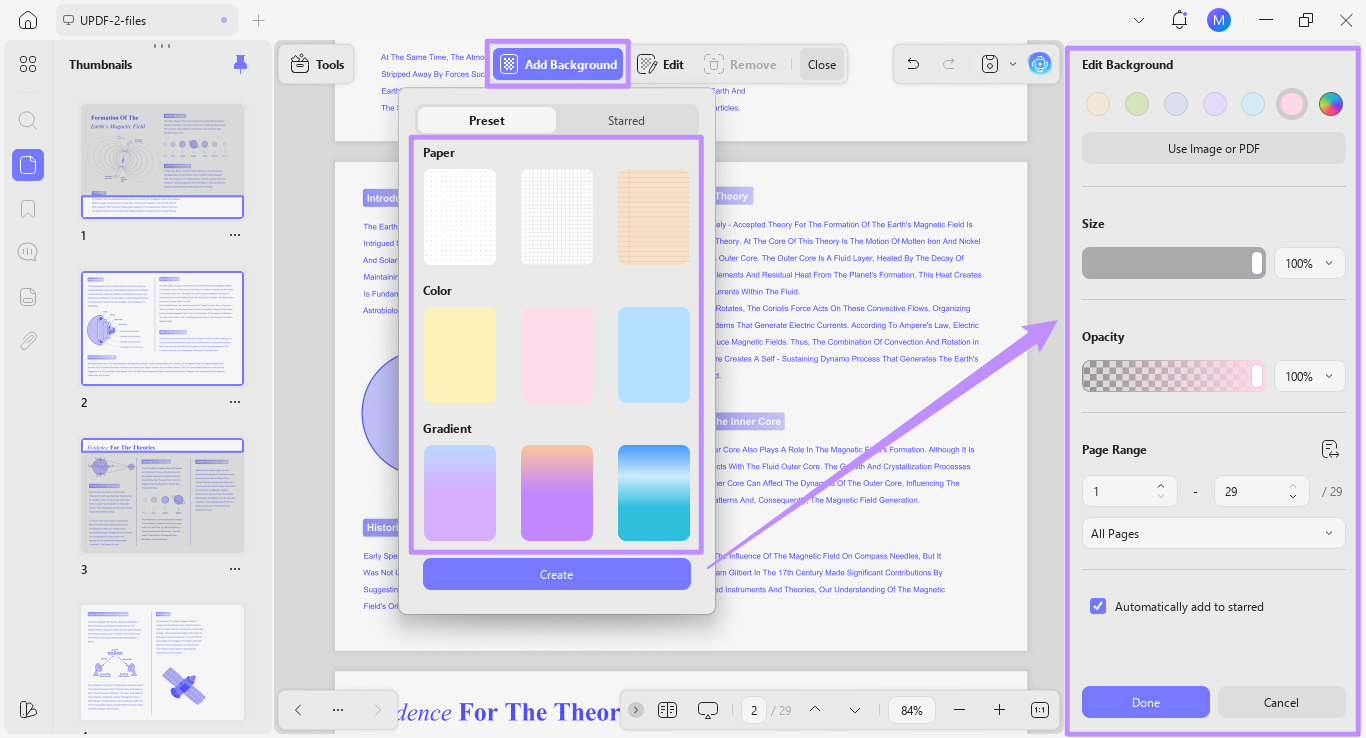
6. Customize Background: You can add PDF backgrounds as solid colors, gradients, or paper-style patterns. Or, you can use images or PDFs as backgrounds.
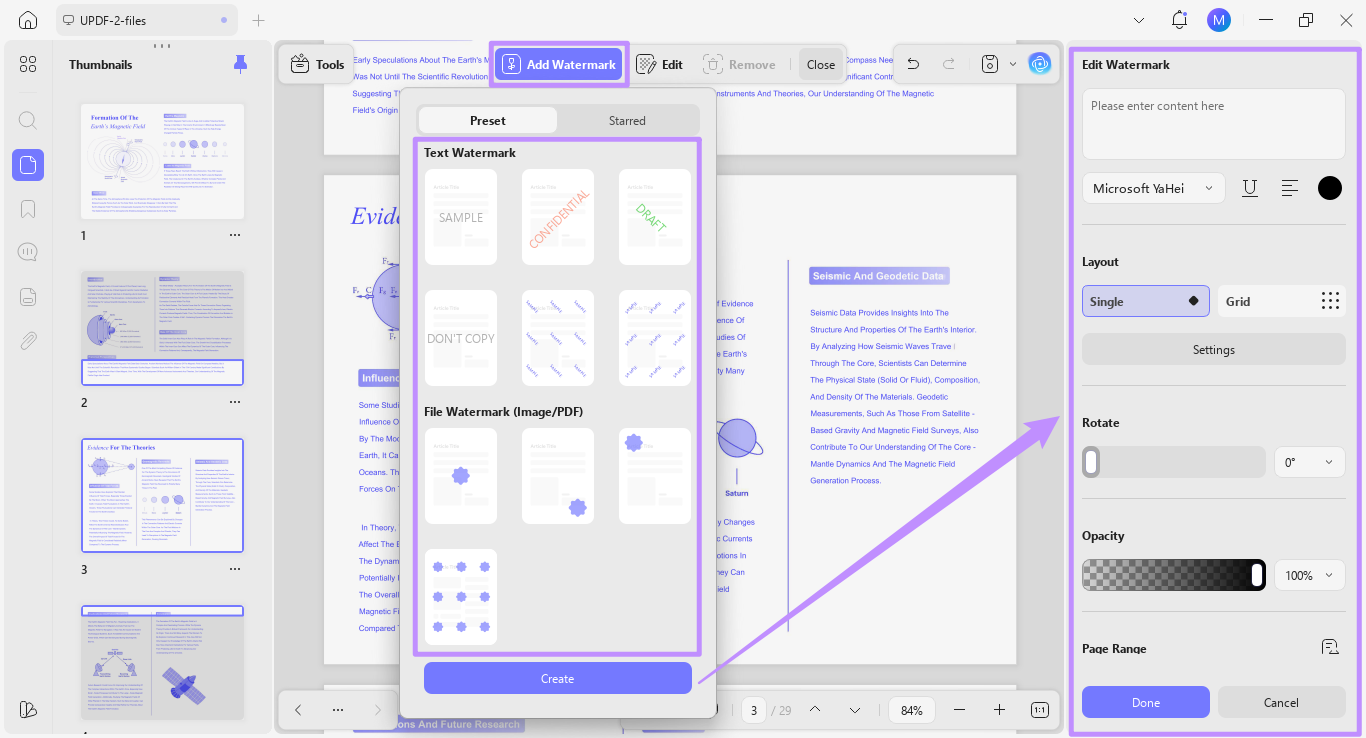
7. Protect with Watermark: UPDF lets you add text and file-based watermarks. You can choose a single or grid layout and customize opacity to protect your content.
Part 4. How to Upload PDFs to Squarespace
You can embed a PDF as a button or as a page on your site based on the place you it to appear. Let’s see how.
Method 1: Add PDF via Button
The first option is to attach the PDF as an interactive button on your webpage. Let’s learn how to add a PDF to Squarespace using this method.
Step 1. Open the dashboard of your Squarespace website. Then click “Edit” from the top.

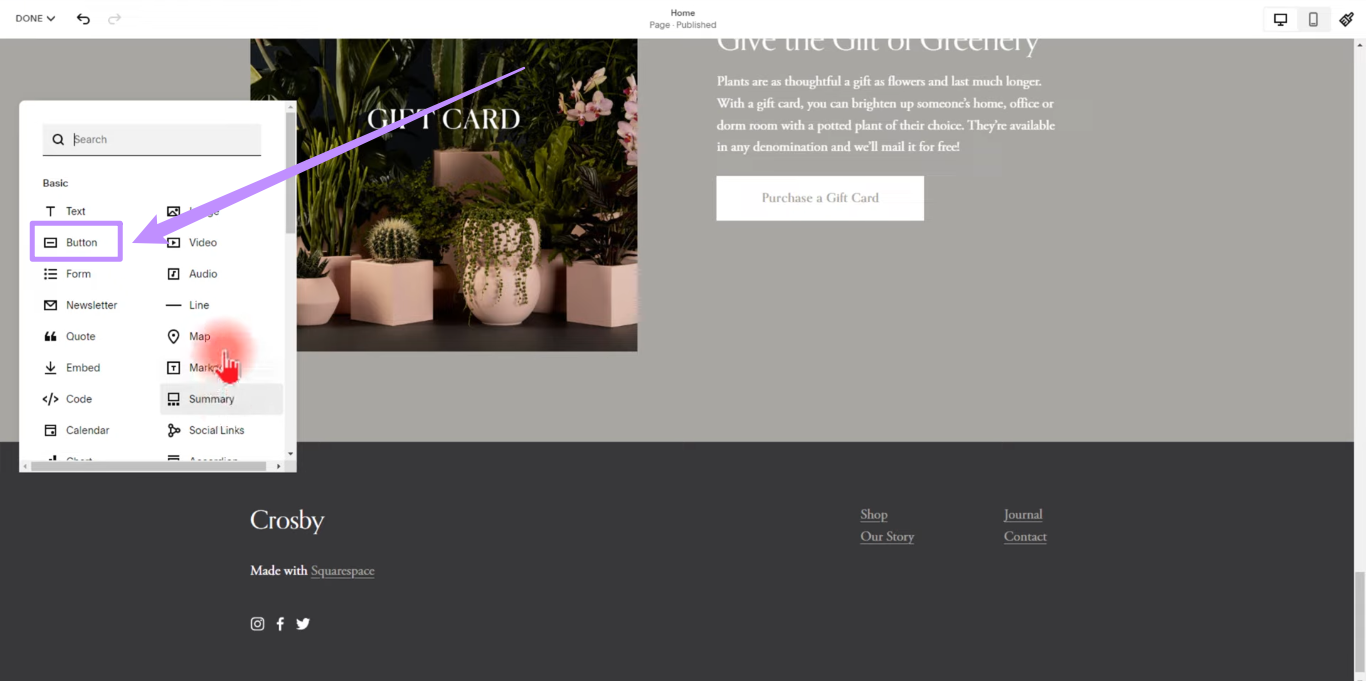
Step 2. Scroll down to where you need to add a PDF, and then click “Add Block” from the top left. Then, choose “Button” from the list.
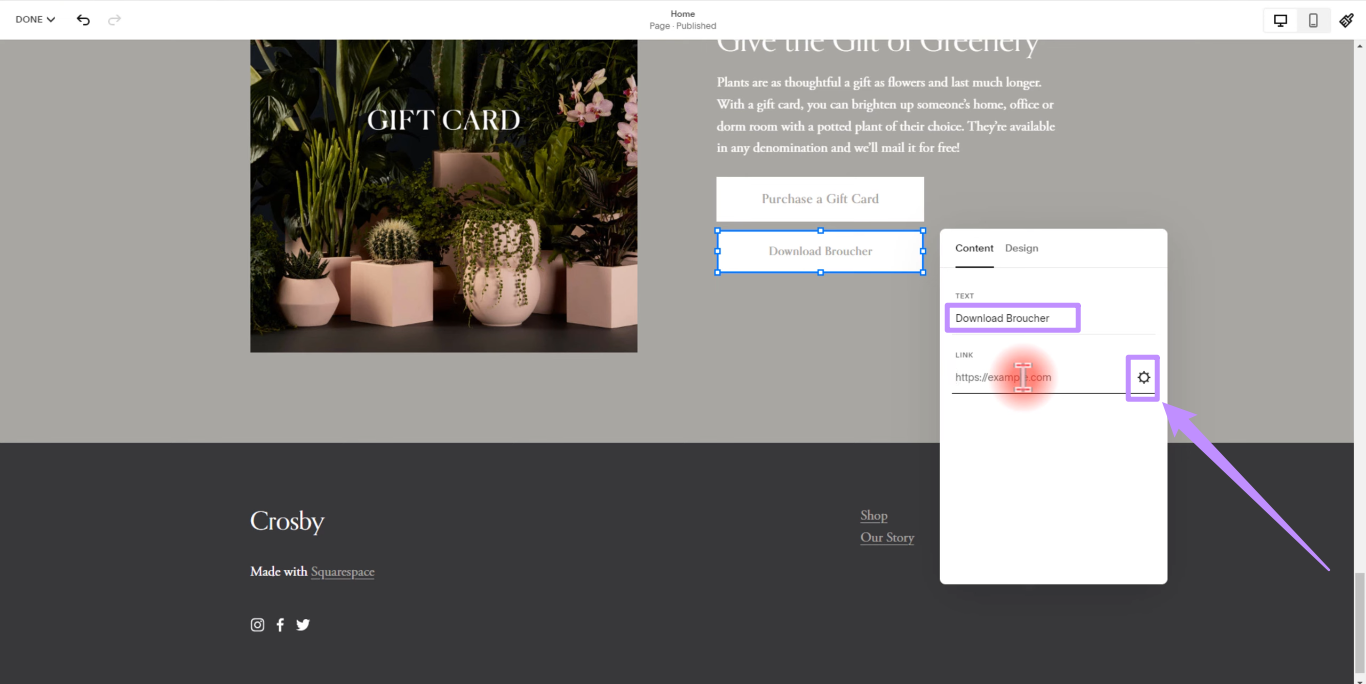
Step 3. Drag the button to your desired location. Then, double-click it and add text to display. Next, click the gear icon under “Link.”
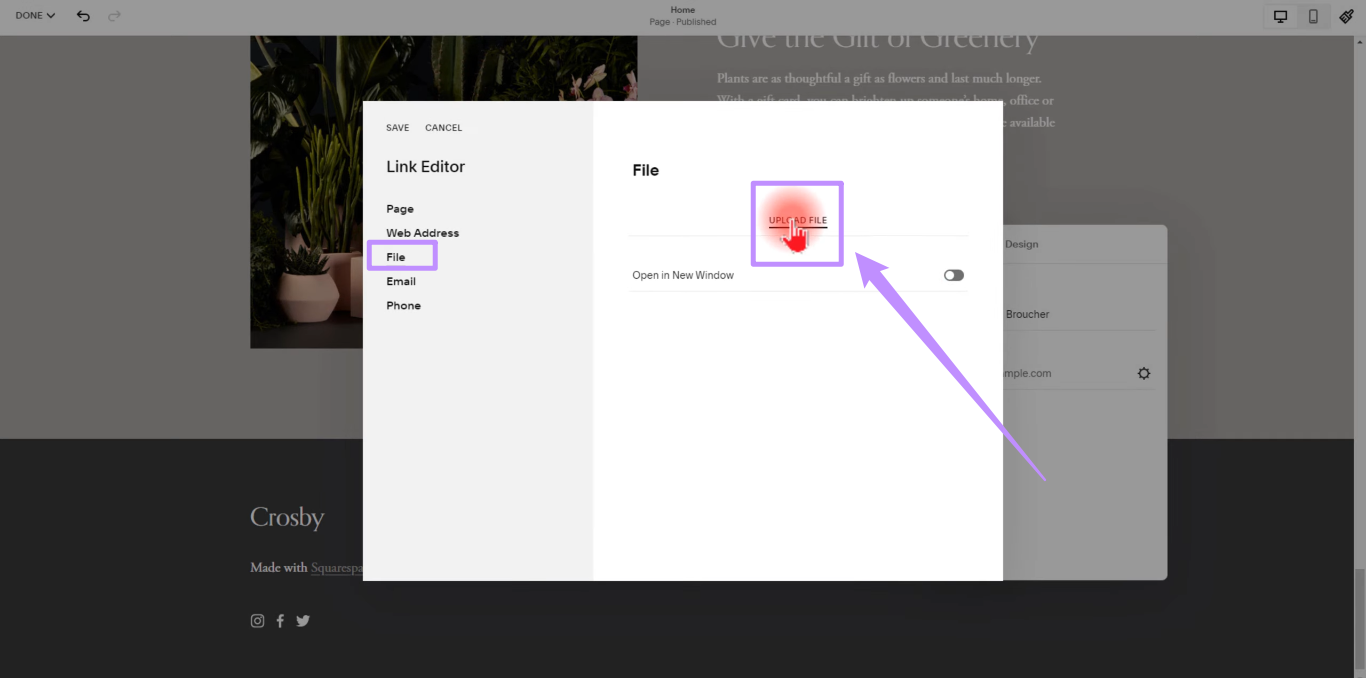
Step 4. Now, select “File” from the left. Then click “Upload File” and import your PDF.
Method 2: Upload PDF via Link
This method allows you to add a separate PDF page to your site’s main navigation menu. Here’s how to upload PDFs to Squarespace via link.
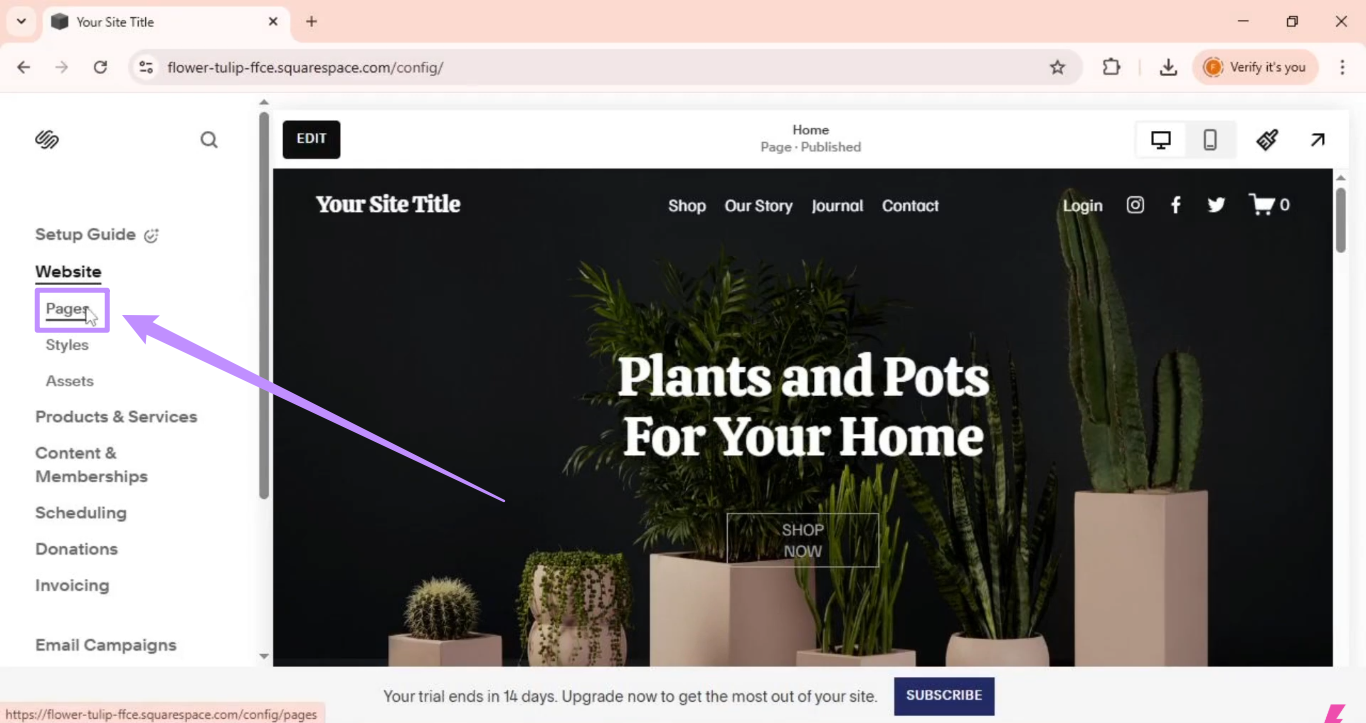
Step 1. Open your Squarespace website and expand the “Pages” menu from the left.
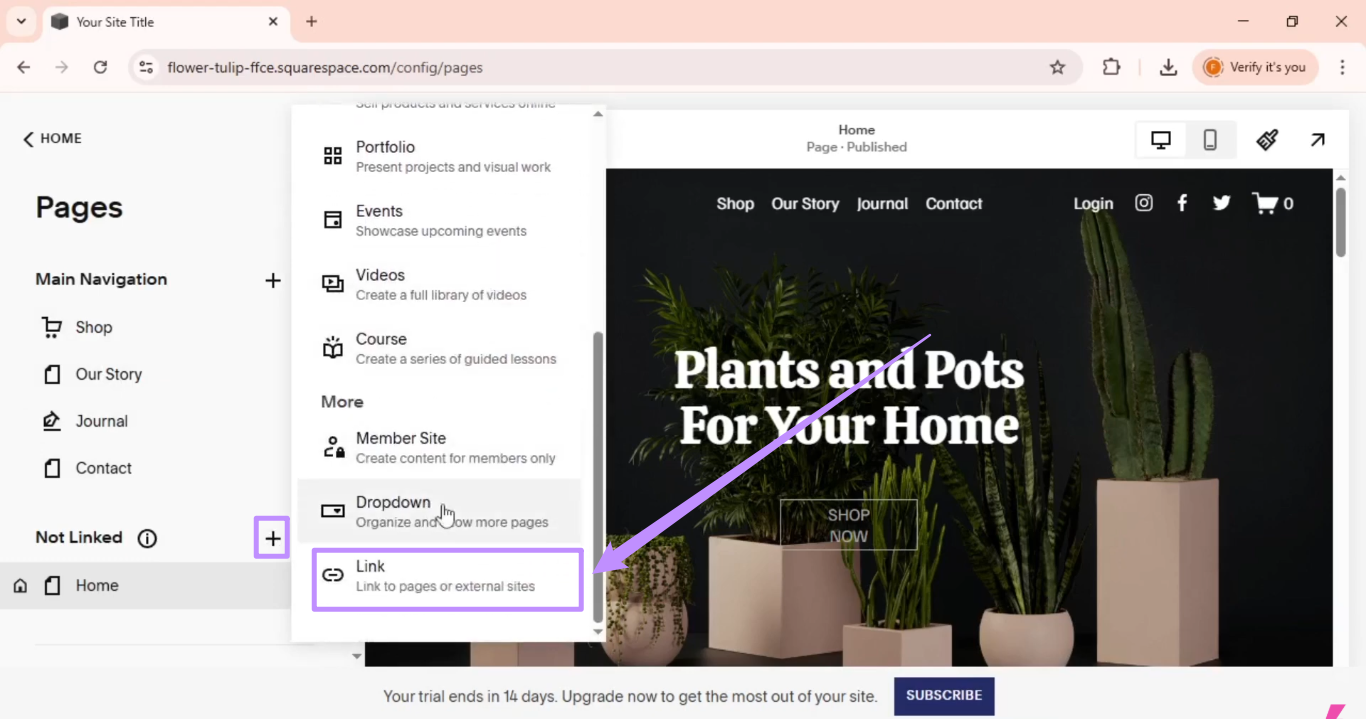
Step 2. Click the “+” button for the “Not Linked” section. From the expanded menu, choose “Link” under the “More” section.
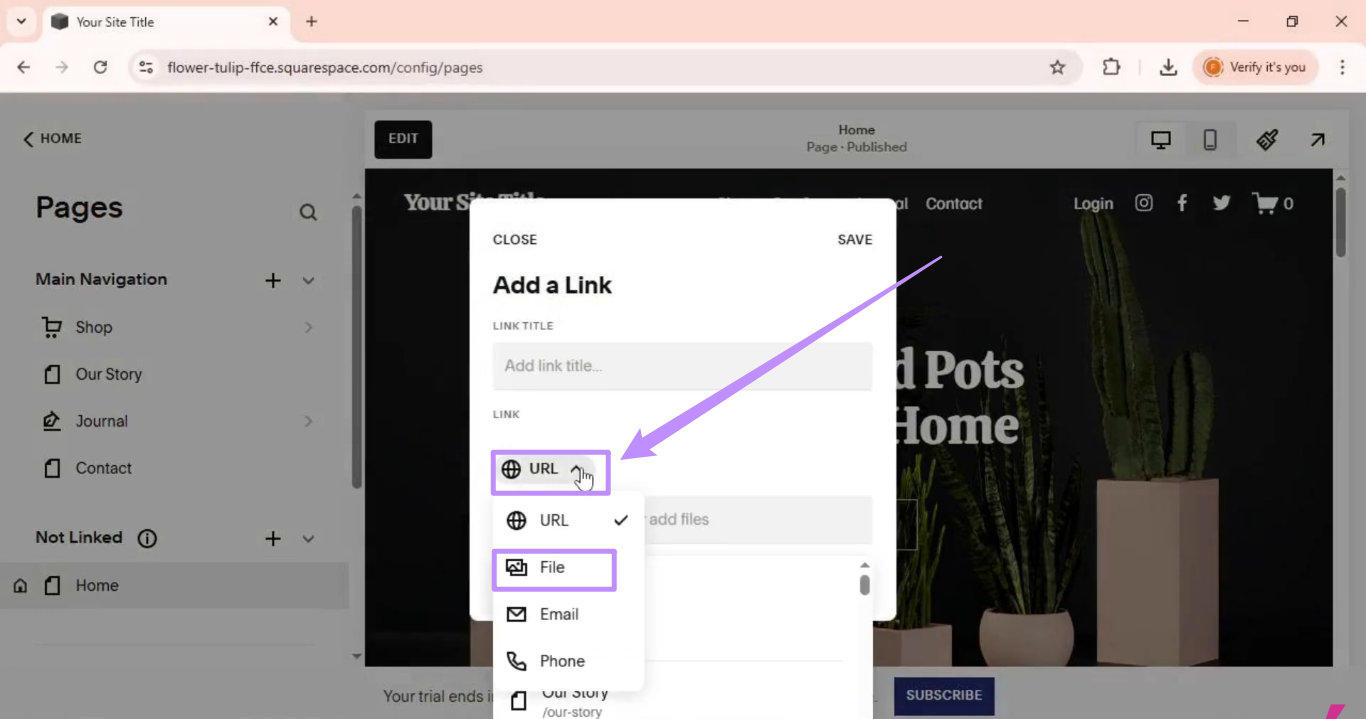
Step 3. From the pop-up, enter a link title. Then, click the URL dropdown and choose “File.”
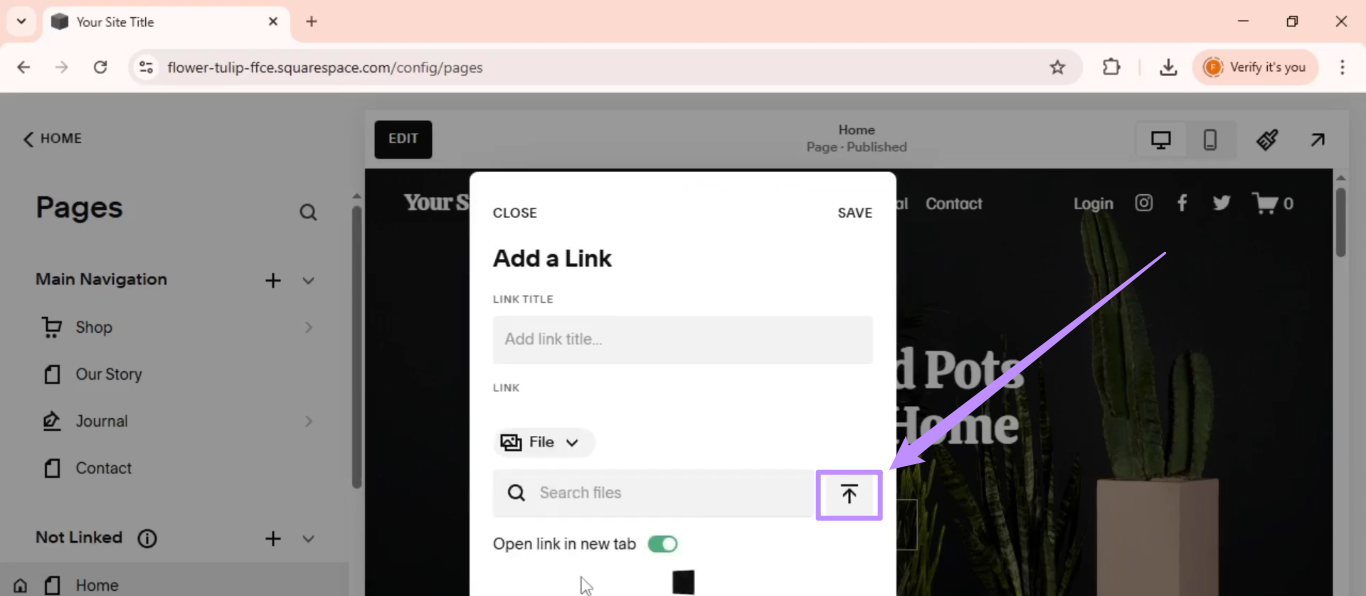
Step 4. Click the “Upload” button to import your desired PDF. Then, click “Save.”
Bonus Tips
Wix is also a popular cloud-based website builder that allows anyone to create a professional-looking website without any technical expertise. Wix also allows you to add PDFs to make your website more interactive. If you want to know how to embed PDF in Wix, please also read: How to Embed PDF in Wix using Three Different Methods.

Conclusion
The short answer to “how do I upload a PDF to Squarespace?” would be to embed the file as a button or a separate page in your site. But before uploading the file, make sure it is well-formatted with a neat layout and professional design.
UPDF can help you edit and customize these documents, so they effectively communicate your brand personality. You can customize all elements of your PDF, be it text, images, background, headers, footers, or anything else. Even better, you can try all these features with a free trial. So, don’t wait. Download and try UPDF today!
Windows • macOS • iOS • Android 100% secure








 Lizzy Lozano
 Enola Miller