 UPDF
UPDF
 UPDF for Windows
 UPDF for Mac
 UPDF for iPhone/iPad
 UPDF for Android
 Nomostar
 UPDF AI Online
 UPDF Sign
 IvyCraft
 Edit PDF
 Annotate PDF
 Create PDF
 PDF Form
 Edit links
 Convert PDF
 OCR
OCR PDF to Word
 PDF to Image
 PDF to Excel
 Organize PDF
 Merge PDF
 Split PDF
 Crop PDF
 Rotate PDF
 Protect PDF
 Sign PDF
 Redact PDF
 Sanitize PDF
 Remove Security
 Read PDF
 UPDF Cloud
 Compress PDF
 Print PDF
 Batch Process
 About UPDF AI
 UPDF AI Solutions
 AI User Guide
 FAQ about UPDF AI
 Summarize PDF
 Translate PDF
 Chat with PDF
 Chat with AI
 Chat with image
 PDF to Mind Map
 Explain PDF
 PDF AI Tools
 Image AI Tools
 AI Chat Tools
 AI Writing Tools
 AI Study Tools
 AI Working Tools
 Other AI Tools
 AI Bookmark Generation
 AI Bookmark Summary
 AI Watermark Generation
 AI Background Generation
 AI Sticker Generation
 AI Stamp Generation
 AI Editing Suite
 UPDF Copilot
 AI Page Management
 AI Semantic Search
 PDF to Word
 PDF to Excel
 PDF to PowerPoint
 Enterprise Solution
 Enterprise Sign
 Enterprise AI
 Enterprise Plan
 Enterprise User Guide
 Enterprise Webinar
 Banking
 Healthcare
 Insurance
 Legal
Legal Manufacturing
 Government
 Education Solution
 Customer Stories
 User Guide
 UPDF Tricks
 FAQs
FAQs UPDF Reviews
 Download Center
 Blog
Blog Newsroom
 Tech Spec
 Updates
 UPDF vs. Adobe Acrobat
 UPDF vs. Foxit
 UPDF vs. PDF Expert

You type a name into the first field of a PDF form — and the same text instantly fills every other field on the page. Or you type "John" and it displays as "JohnJohn". Both issues trace back to the same root cause: duplicate field names. This article covers both scenarios with step-by-step fixes using UPDF and Adobe Acrobat on Windows and Mac.
Windows • macOS • iOS • Android 100% secure
Part 1. Text Duplicates in All Form Fields of PDF: Different Scenarios & The Corresponding Right Fixes
Scenario 1: The Text Duplicates Within the Same Field
Some users have reported that inputting text in one field gets duplicated within the same field. For example, if you input the name "John", it will become "JohnJohn". If you are facing this issue, the likely reason is that you have accidentally created a duplicate field, and the position of the duplicate is slightly offset from the original field. This way, it may seem like your text is duplicating, but it is actually getting entered into another duplicate field.
To fix this issue:
Step 1. Open the fillable PDF in UPDF and click the Form icon in the left sidebar under Tools.
Windows • macOS • iOS • Android 100% secure
Step 2. Click on the field that displays the doubled text. Check if a second field is stacked on top of it — overlapping fields appear as a double-selection border.
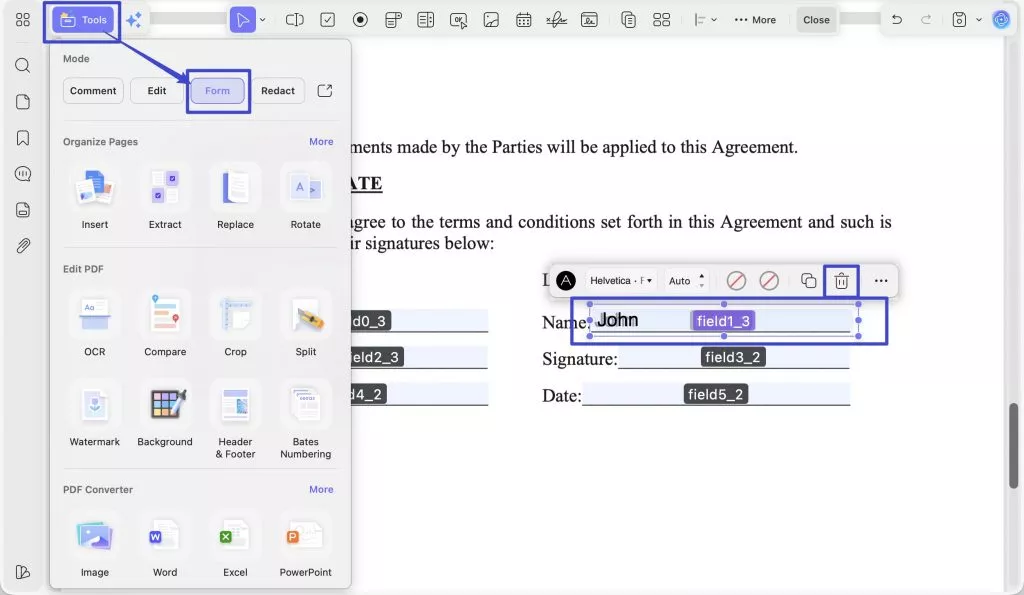
Step 3. Click the hidden field and delete it. The remaining field will now accept input normally.
Scenario 2: The Text Duplicates to Other Form Fields
If typing in the Name field also fills Address, Email, and Phone at once, the likely cause is that those fields were created by copy-pasting the original field without renaming it. PDF form logic treats all fields that share the same name as instances of a single field — input to one propagates to all. Renaming each field with a unique name breaks this link.
To fix this issue, you must ensure the duplicate fields you create have different names. Below are the two ways to fix this issue:
1. Fix Text Duplicates to Other Form Fields with UPDF
UPDF is a powerful PDF editor tool that provides an extensive set of customization options with which you can easily make changes to existing form fields, such as changing field names, setting character limits, etc.
Therefore, you can quickly fix the issue of text duplicates in all form fields PDF with UPDF by following the below steps:
Step 1. Open the fillable PDF in UPDF and click the Form icon in the left sidebar under Tools. All field names will appear labeled directly on the document.
Windows • macOS • iOS • Android 100% secure
Step 2. Scan the field name labels for duplicates. Any two fields sharing the same name are the source of the duplication.
Step 3. Double-click one of the duplicate fields. In the right sidebar, update the Name field to a unique identifier (e.g., change the second "field0_1" to "date_field").
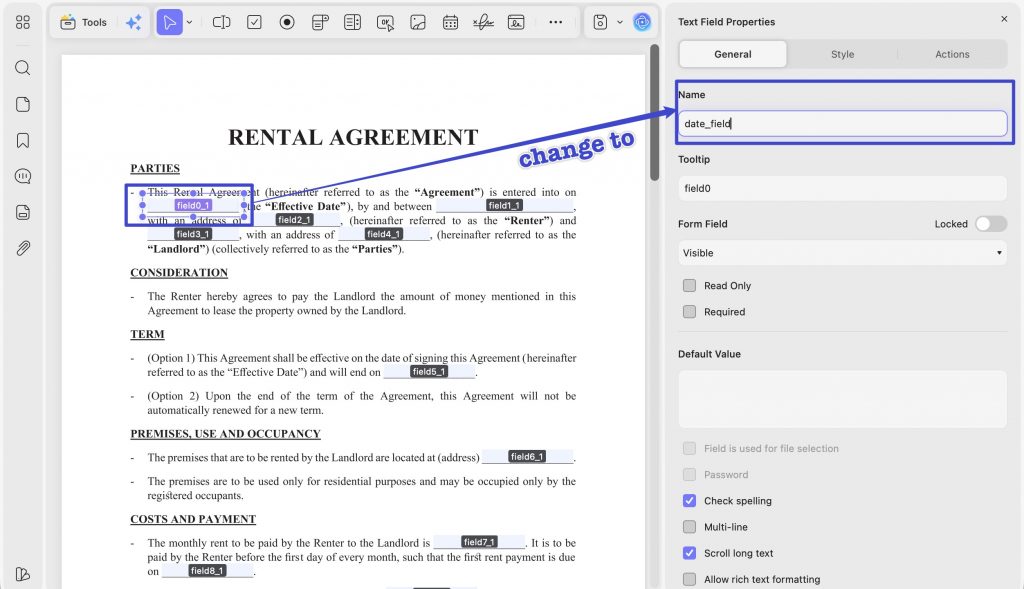
Step 4. Repeat for each remaining duplicate until every field in the form has a distinct name. Input will now be isolated to its own field.
That's it! Now, when you enter the name in one field, it will not duplicate to other fields.
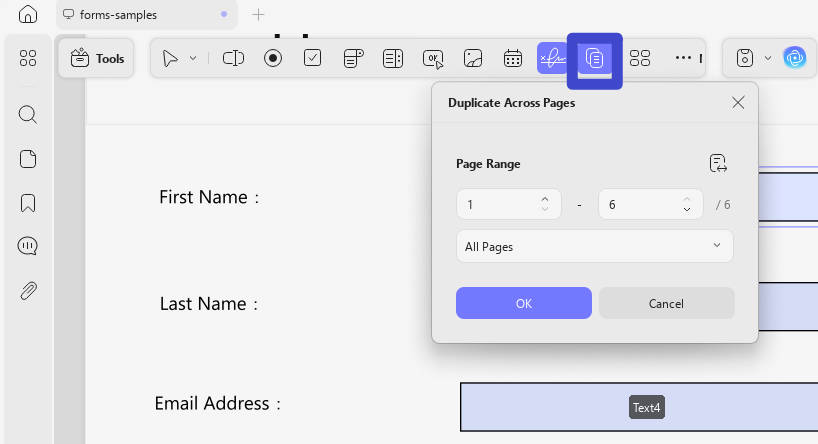
If you intentionally want a field to appear on multiple pages with the same value — such as a form number in a header — select the field, click Duplicate Across Pages in the top bar, and specify which pages should carry the instance.
In short, UPDF provides a one-stop place to easily customize PDF forms with its extensive set of features. So, download UPDF and easily create errorless PDF fillable forms right away.
Windows • macOS • iOS • Android 100% secure
2. Fix Text Duplicates to Other Form Fields with Adobe Acrobat
Adobe Acrobat Pro can also rename duplicate form fields through its field properties panel. The process is comparable to UPDF's approach but requires navigating through more menu layers.
Follow the below steps to fix the text duplicates issue with Adobe Acrobat:
Step 1. Launch Adobe Acrobat and open the fillable PDF form file you want to fix.
Step 2. Click Edit in the top toolbar to enter edit mode.
Step 3. Select a field with a duplicate name, right-click it, and choose Properties.
Step 4. In the General tab, update the Name field to a unique value.

Step 5. Rename the fields one by one until all have unique names.
This way, you can easily fix the text duplicates in all form fields of PDF issue with Adobe Acrobat.
Part 2. How to Build Error-Free PDF Forms with UPDF
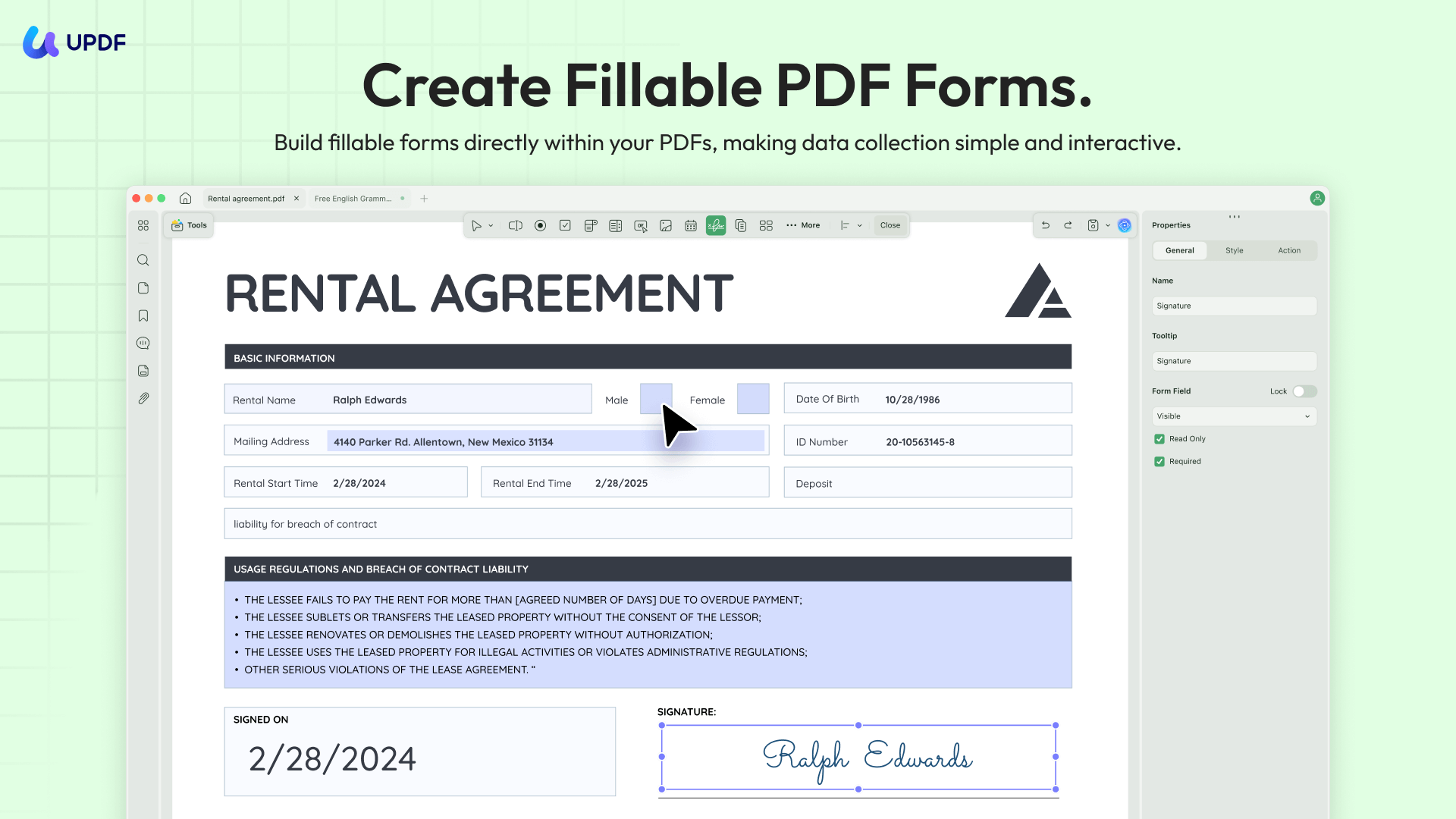
With the growing use of fillable PDF forms, you need a powerful tool that can seamlessly create, fill, and edit PDF form files. This is where UPDF shines as the best PDF editor.
Windows • macOS • iOS • Android 100% secure
The duplicate field problem usually starts during form creation — copy-pasting a field to save time, without renaming each copy. UPDF's form editor is built to make this straightforward, with every field's name visible at a glance and editable in one click.
- Create Complete PDF Forms: Add text fields, checkboxes, radio buttons, dropdowns, list boxes, and action buttons. Each new field is created individually and named automatically as a unique instance — no hidden duplicates.
- Customize Fields Properties: It allows you to change the style and appearance, limit character, set multi-line, and do plenty of other customizations with the fields.
- AI Editing Suite: Once a form has been filled and returned, the AI Editing Suite lets you rewrite, refine the tone, or correct grammar within individual text fields directly inside UPDF — without exporting to Word and reimporting. Useful when a respondent's phrasing needs standardizing before you archive or forward the form.

- Customize Fields Actions: It lets you specify the action for the field, like opening a web link, going to a page view, etc.
- Fill & Sign PDFs: It provides a seamless way to fill all fillable fields in PDFs and also create and sign electronically.
- Multiple Share Options: It provides multiple ways to share PDF forms, including via link, email, or QR code.
UPDF Pro is available at $49.99/year or $79.99 as a one-time lifetime license — compared to Adobe Acrobat Pro's $239.88/year with no perpetual option.
To learn more PDF form features, you can watch the below video.
Besides extensive PDF form filling/creating features, UPDF also offers other PDF editing and management tools. With UPDF, you can edit text/images/links, annotate, convert, compress, protect, and do a lot more with PDFs.
Download UPDF for free and start building error-free PDF forms today — no subscription required to get started.
Windows • macOS • iOS • Android 100% secure
Part 3. FAQs About PDF Form Fields
Q1. How do I change the font on all fields in a PDF form?
Step 1. Open the PDF form in UPDF and click the Form icon in the left sidebar under Tools.
Step 2. Double-click any field to select it, then open the Style section in the right sidebar.
Step 3. Select your preferred font. Repeat for each remaining field.
Q2. How do I convert a fillable PDF to a normal PDF?
UPDF provides a simple, click-based way to change the font on all fields in a PDF form:
Step 1. Open the PDF form with UPDF.
Step 2. Click the dropdown arrow (▼) next to Save → Save as Flatten → Check the “Forms” option → click “Save As” to complete the action.
Q3. What is the easiest program to make a fillable PDF?
UPDF is a strong option for building fillable PDFs from scratch. Its form editor provides text fields, checkboxes, radio buttons, dropdowns, list boxes, and action buttons — all added by clicking where you want them on the document. Field names are visible and editable in one click, which prevents the duplicate-name issue covered in this article.
Conclusion
PDF form field duplication has one root cause: multiple fields sharing the same name. Whether the problem shows as doubled text within a single field or the same input propagating across all fields, renaming each field with a unique identifier — as covered in Part 1 — resolves it completely. For ongoing form work, UPDF's AI Editing Suite handles in-field text editing without leaving the app. Download UPDF for free and fix your duplicate form fields today — no subscription required to get started.
Windows • macOS • iOS • Android 100% secure







 Enola Miller
 Enola Davis
 Lizzy Lozano
 Enid Brown