 UPDF
UPDF
 UPDF for Windows
 UPDF for Mac
 UPDF for iPhone/iPad
 UPDF for Android
 UPDF AI Online
 UPDF Sign
 Edit PDF
 Annotate PDF
 Create PDF
 PDF Form
 Edit links
 Convert PDF
 OCR
OCR PDF to Word
 PDF to Image
 PDF to Excel
 Organize PDF
 Merge PDF
 Split PDF
 Crop PDF
 Rotate PDF
 Protect PDF
 Sign PDF
 Redact PDF
 Sanitize PDF
 Remove Security
 Read PDF
 UPDF Cloud
 Compress PDF
 Print PDF
 Batch Process
 About UPDF AI
 UPDF AI Solutions
 AI User Guide
 FAQ about UPDF AI
 Summarize PDF
 Translate PDF
 Chat with PDF
 Chat with AI
 Chat with image
 PDF to Mind Map
 Explain PDF
 PDF AI Tools
 Image AI Tools
 AI Chat Tools
 AI Writing Tools
 AI Study Tools
 AI Working Tools
 Other AI Tools
 AI Bookmark Generation
 AI Bookmark Summary
 AI Watermark Generation
 AI Background Generation
 AI Sticker Generation
 AI Stamp Generation
 AI Editing Suite
 UPDF Copilot
 AI Page Management
 AI Semantic Search
 PDF to Word
 PDF to Excel
 PDF to PowerPoint
 Enterprise Solution
 Enterprise Sign
 Enterprise AI
 Enterprise Plan
 Enterprise User Guide
 Enterprise Webinar
 Banking
 Healthcare
 Insurance
 Legal
Legal Manufacturing
 Government
 Education Solution
 Customer Stories
 User Guide
 UPDF Tricks
 FAQs
FAQs UPDF Reviews
 Download Center
 Blog
Blog Newsroom
 Tech Spec
 Updates
 UPDF vs. Adobe Acrobat
 UPDF vs. Foxit
 UPDF vs. PDF Expert

AI PDF translators matter when you need long, complex PDFs translated without breaking layout. When Google Translate breaks tables and scrambles paragraphs, a dedicated PDF translator keeps everything structured. General translation tools also mishandle technical terms sometimes, so specialized software protects accuracy in documents.
Among many AI PDF translator options, UPDF stands out because it preserves layouts, handles multiple languages, and delivers fast, accurate results. In this guide, we explore leading AI translation tools and explain which situations each option suit best. We also show how UPDF helps convert complex PDFs into polished, translated documents without extra editing.
Part 1. 2026 Top 5 AI PDF Translator
Choosing the right tool in 2026 can turn slow, confusing document work into smooth AI-translated PDF workflows. Now, let’s move on and see which solutions stand out for different types of users.
Top 1: AI PDF Translator - UPDF
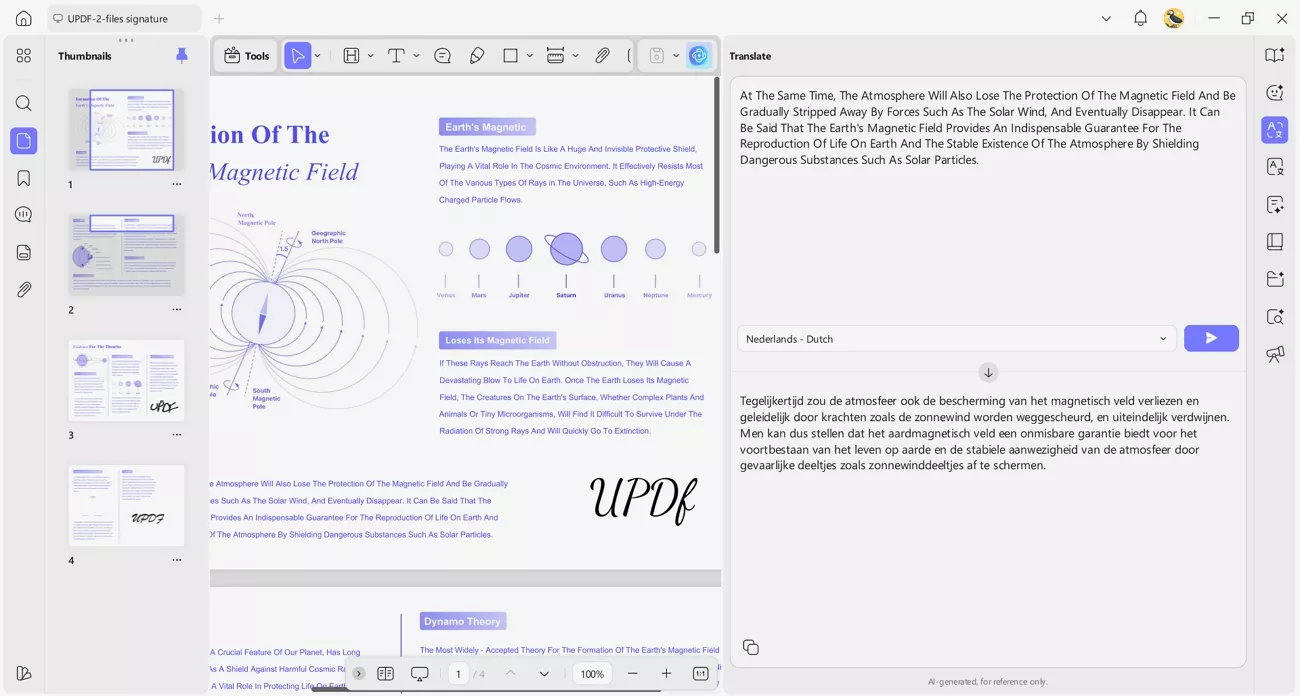
UPDF PDF Translation supports translation into 26 languages, helping users handle multilingual documents. It works by uploading your PDF and letting the built-in AI handle the translation process.
Windows • macOS • iOS • Android 100% secure
Overall Score: 9.5/10 for translation accuracy.
Core Advantages
- Translates full PDFs while preserving original formatting, fonts, and page layouts.
- Lets you pick a translated-only file or a bilingual side‑by‑side layout.
- Supports translating only selected pages and text when you need precision.
- Provides fast AI translation with simple steps to help beginners use it without confusion.
Target Audience
Built for students and professionals who need quick and accurate PDF translation without complex setup.
Pricing
| Plan | Pricing |
| UPDF Pro (Annual) (Use on 4 Devices) | $49.99 |
| UPDF Pro (Lifetime) (Use on 4 Devices) | $79.99 |
| AI Assistant (Annual) (Use on 4 Devices) | $79 |
Top 2: Foxit Reader
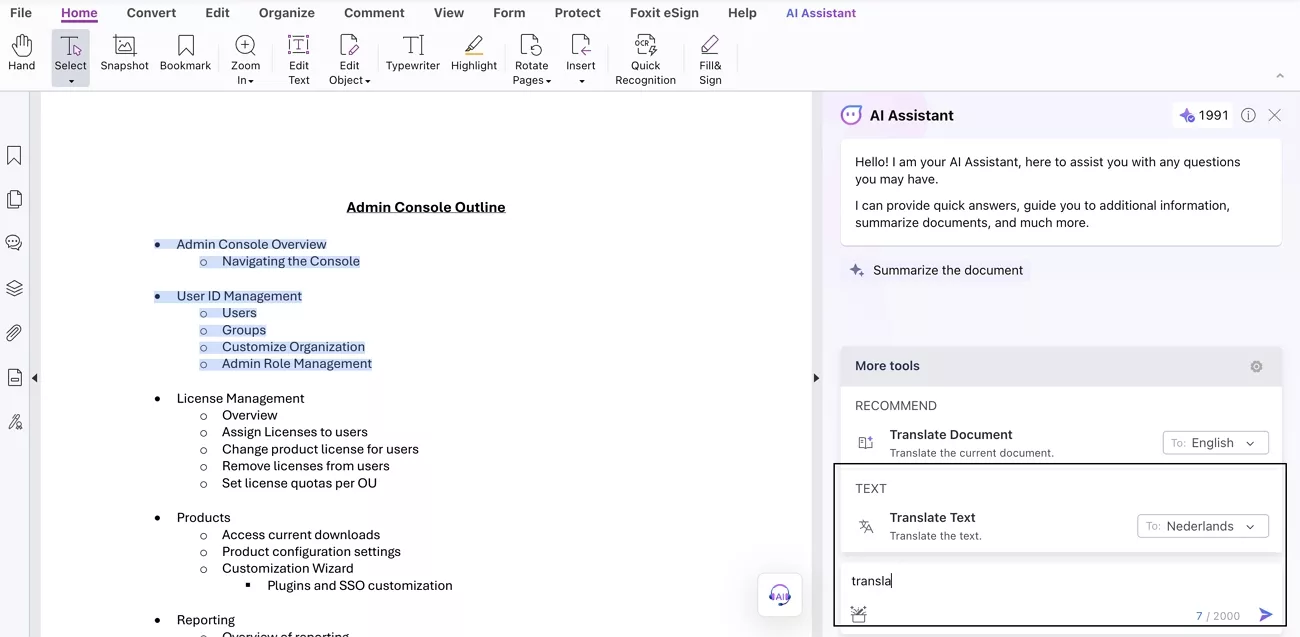
This AI PDF translator lets you upload your document and turn it into another language while keeping the layout. It supports more than 12 languages for teams that must share clear PDFs across regions and departments daily.
Core Advantages
- You can add highlights and notes to make PDFs easier to read.
- The layout feels like familiar writing software to help beginners learn quickly.
- It works across devices and systems, keeping your documents accessible anywhere.
Target Audience
Foxit Reader is best suited for casual users who only need simple translations and basic viewing.
Limitations
- It provides limited language support for translation compared with other similar tools.
- Foxit tends to crash often on lower-end devices during normal everyday use.
- There are no PDF editing features available in the current free version.
Pricing
| Plan | Pricing |
| PDF Editor | $130/year |
Top 3: NoteGPT PDF Translator
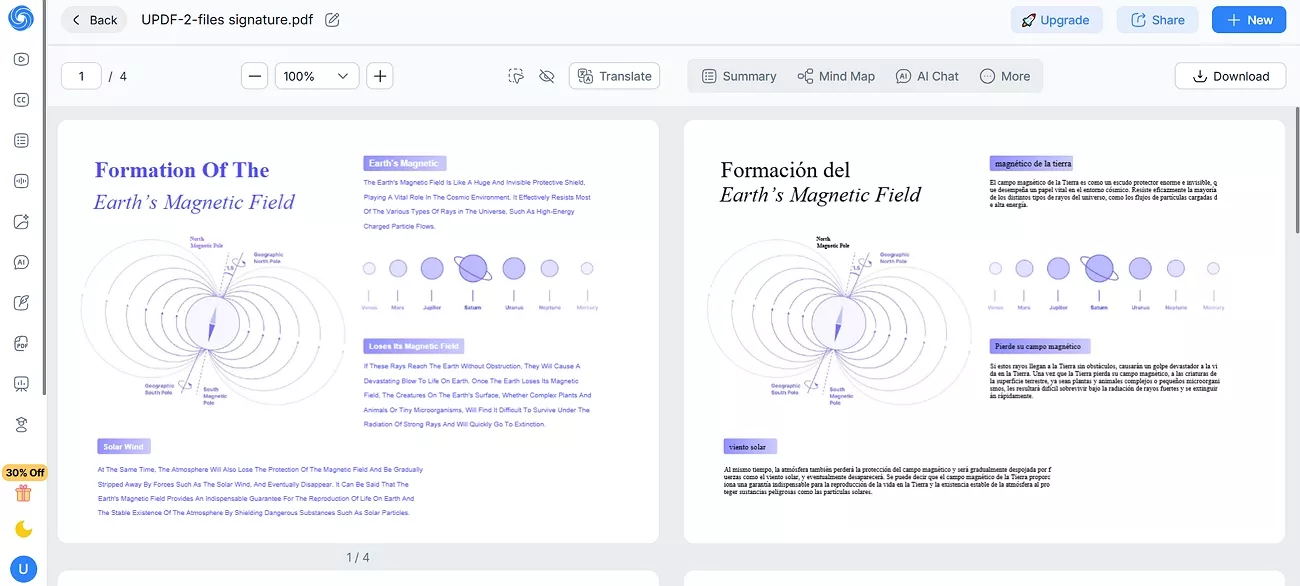
An AI PDF translator online tool that focuses on turning long and complex PDFs into clear multilingual content right beside your existing notes. It helps students and researchers translate important sections quickly while keeping context, highlights, and references organized.
Core Advantages
- Handles long, large PDF files end‑to‑end without cutting pages off.
- Runs free in the browser with no ads or sign‑up friction.
- Keeps complex layouts, formulas, and annotations correctly in translated PDFs.
Actual Performance
While the PDF uploads were quick, but translation processing was slow across different document sizes. It handled text‑heavy PDFs without crashing and kept the original layout intact after translation. Complex elements like tables and mixed languages are translated enough for everyday study and research use.
Target Audience
This tool is best for research workers and professionals who regularly read and translate long PDF documents.
Top 4: Google Translate
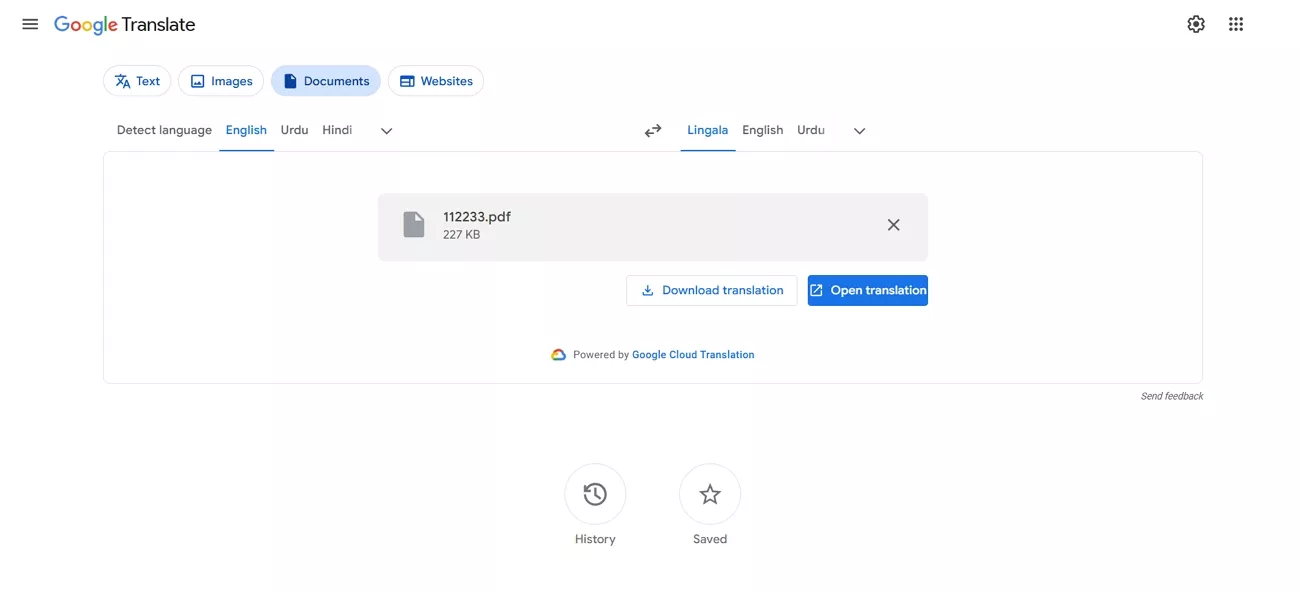
Google Translate can act as an AI PDF translator free tool, letting you upload and translate full PDFs. It is simple to use, supports many languages, and suits quick PDF translation tasks.
Core Advantages
- Supports more than 240 languages, helpful for very diverse translation needs.
- Can handle PDF files up to 20MB without breaking or timing out.
- Uses crowd‑sourced improvements, so translation quality gets better over time automatically.
Target Audience
This tool mainly suits multilingual readers who often translate medium-sized PDFs for study, work, or immigration documentation.
Top 5: Canva PDF Translation
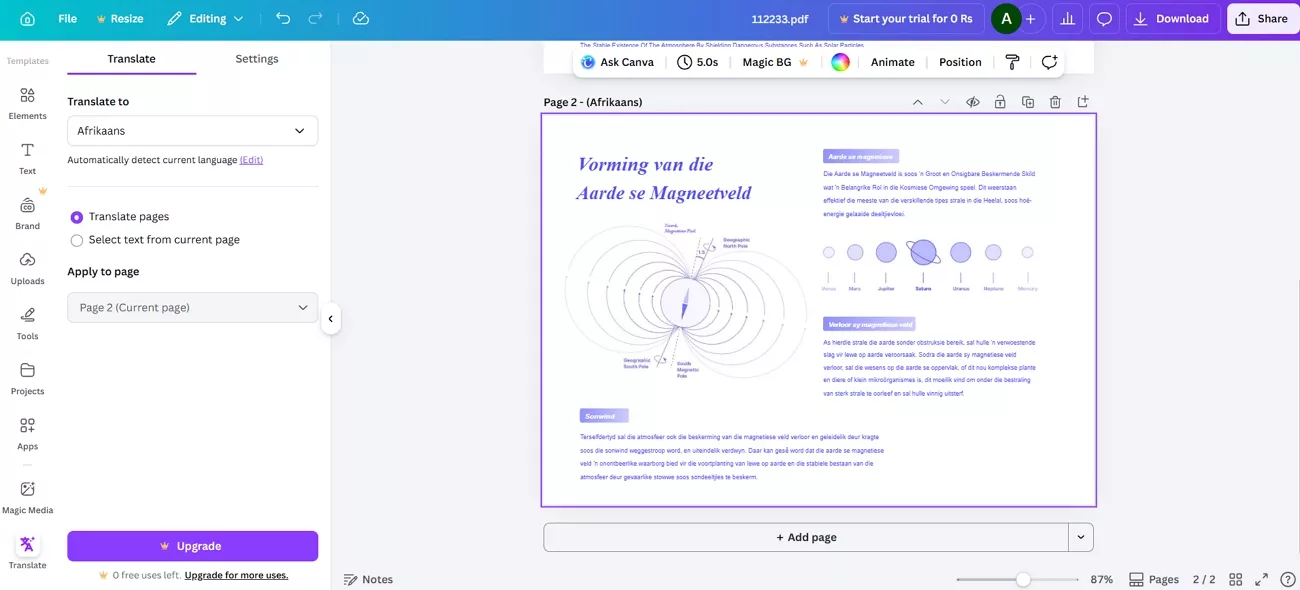
This AI PDF translator online tool supports more than 100 languages, helping people understand PDFs from many regions. Canva’s PDF translator helps you reach the other side of the world in seconds.
Core Advantages
- Lets you edit and customize PDF text and images after translation easily.
- Allows you to translate only selected text from specific PDF pages.
- Keeps the original page unchanged and creates a separate page for translations.
Target Audience
This tool is ideal for graphic designers who need to translate PDFs while also redesigning layouts, images, and text for polished multilingual versions.
Pricing
| Plan | Pricing |
| Pro Plan | $120/year |
Part 2. Guide to Using AI PDF Translator
AI PDF translators can save time, yet they also come with some real risks and limits. Before using an AI PDF translator free tool, explore a few key checks to protect your data and results:
- Beware of "Free" Traps: Free tools may store or reuse your uploaded PDFs without clear protection or deletion policies. Always check the privacy policy and avoid uploading contracts, IDs, or any sensitive personal or business information.
- Test Complex Documents First: Complex PDFs with tables, mixed languages, or images may break during full‑file translation. Start with a short 3–5 page sample to confirm layout, text order, and translation quality.
- Check Language and Format Limits: Some tools limit pages, file size, and specific language pairs without clear upfront warnings. Confirm supported languages, file size caps, and export formats before you depend on one tool for important work.
Unlike other translators, UPDF has transparent privacy policies that explain how your files are handled and protected. It processes documents securely, avoids selling user data, and lets you stay in control of what you upload and store.
Windows • macOS • iOS • Android 100% secure
Now, many users wonder how this AI PDF translator actually works in practice. Next, follow the steps below to use UPDF AI to translate PDFs into the multiple languages you need:
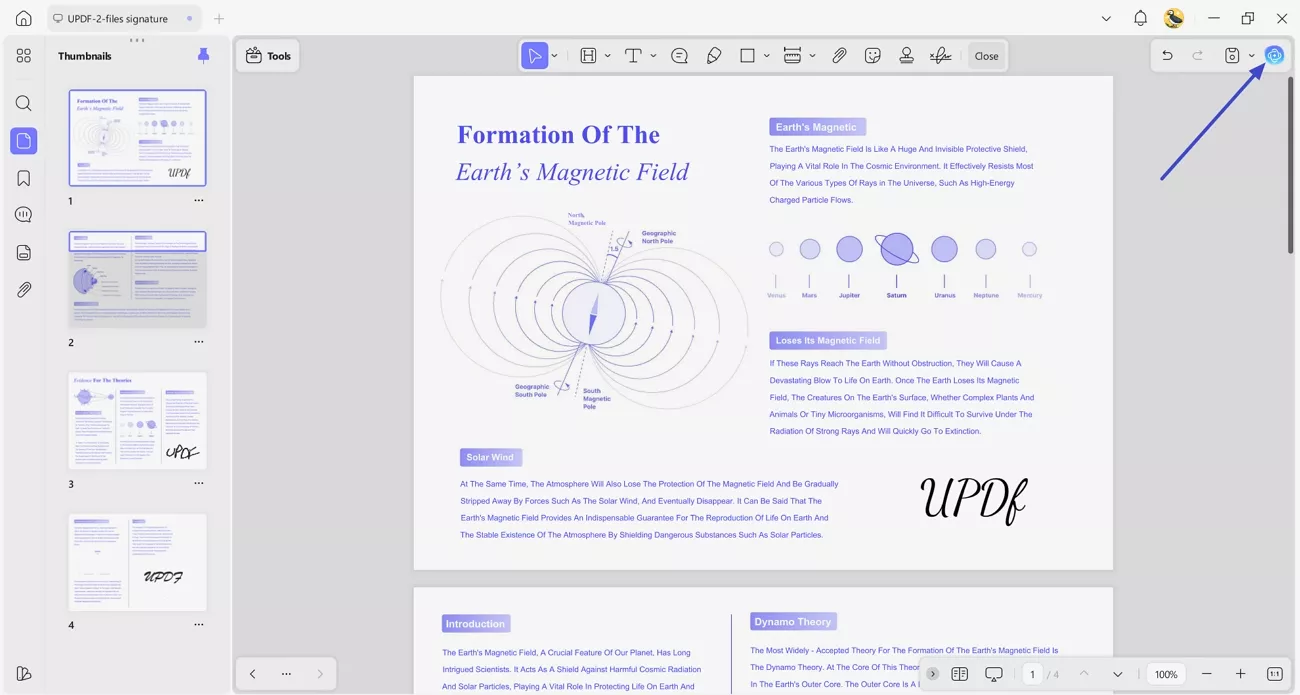
Step 1. Import PDF File and Access UPDF AI
Once you import a PDF file, press the “UPDF AI” icon in the top right corner.
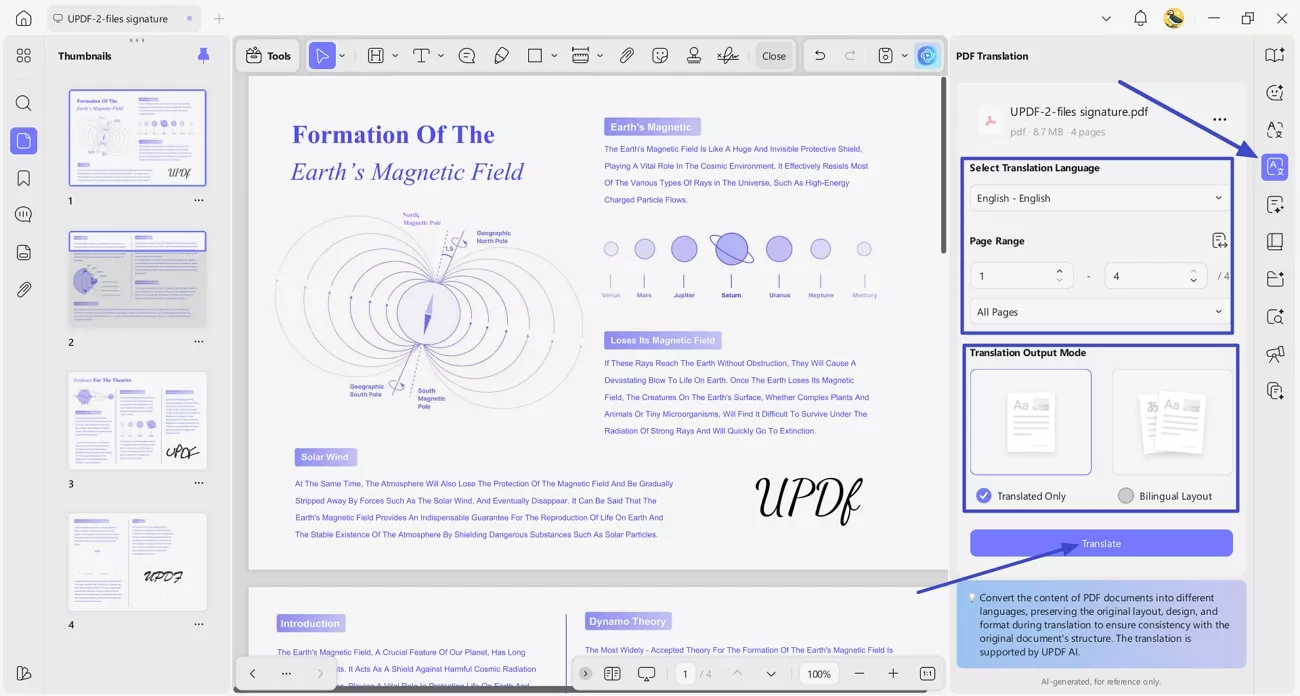
Step 2. Choose the PDF Translation Tool and Select Target Language
Next, click the “PDF Translation” option in the right-side panel and choose the targeted language. Afterwards, select the page range and output mode for the translated file. After that, click the “Translate” button and choose the location to save the new PDF.
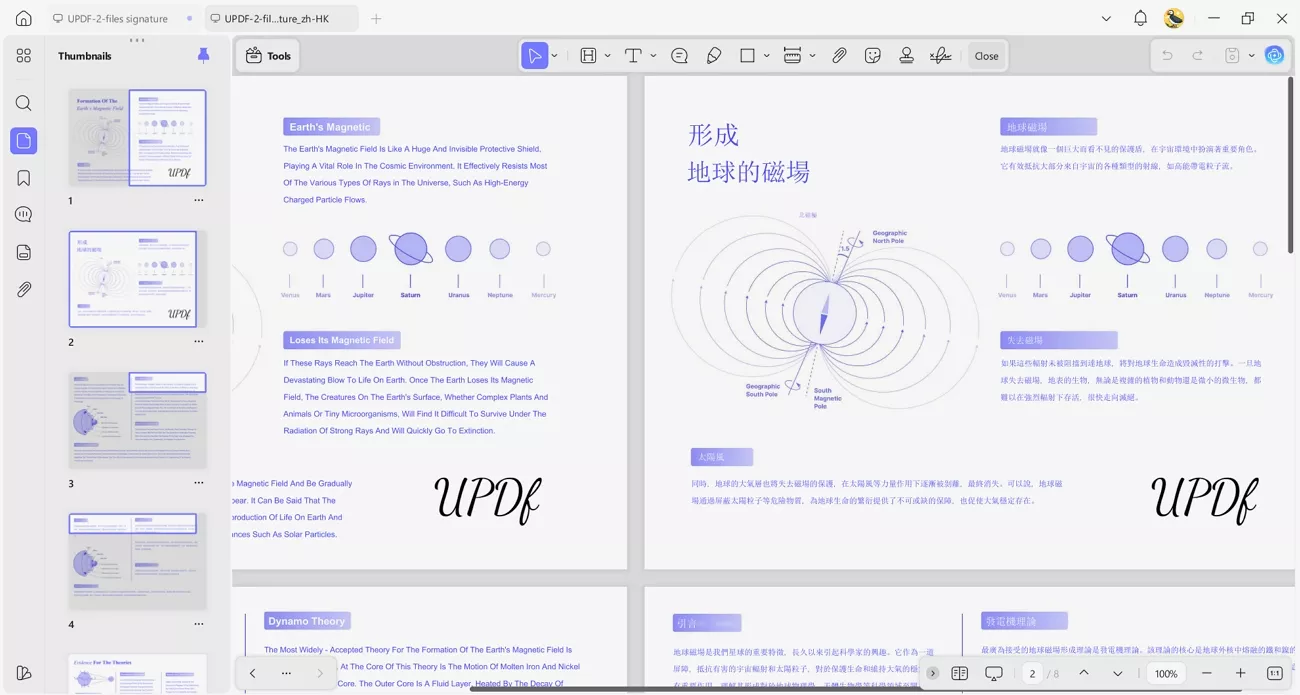
Step 3. Review The Translated PDF
Once translated, review the translation side-by-side for accuracy.
Conclusion
In conclusion, choosing the right AI PDF translator depends on your document type and workflow needs. By trying different tools for layout, language support, and editing, you can see which one fits best. If you want smooth translation plus reliable PDF editing, UPDF - AI PDF Translator is a strong option to manage and refine every file.
Windows • macOS • iOS • Android 100% secure







 Enya Moore
 Engelbert White
 Enola Davis
- mangumwarrior