 UPDF
UPDF
 UPDF for Windows
 UPDF for Mac
 UPDF for iPhone/iPad
 UPDF for Android
 UPDF AI Online
 UPDF Sign
 Edit PDF
 Annotate PDF
 Create PDF
 PDF Form
 Edit links
 Convert PDF
 OCR
OCR PDF to Word
 PDF to Image
 PDF to Excel
 Organize PDF
 Merge PDF
 Split PDF
 Crop PDF
 Rotate PDF
 Protect PDF
 Sign PDF
 Redact PDF
 Sanitize PDF
 Remove Security
 Read PDF
 UPDF Cloud
 Compress PDF
 Print PDF
 Batch Process
 About UPDF AI
 UPDF AI Solutions
 AI User Guide
 FAQ about UPDF AI
 Summarize PDF
 Translate PDF
 Chat with PDF
 Chat with AI
 Chat with image
 PDF to Mind Map
 Explain PDF
 PDF AI Tools
 Image AI Tools
 AI Chat Tools
 AI Writing Tools
 AI Study Tools
 AI Working Tools
 Other AI Tools
 PDF to Word
 PDF to Excel
 PDF to PowerPoint
 Enterprise Solution
 Enterprise Sign
 Enterprise AI
 Enterprise Plan
 Enterprise User Guide
 Enterprise Webinar
 Banking
 Healthcare
 Insurance
 Legal
Legal Manufacturing
 Government
 Education Solution
 Customer Stories
 User Guide
 UPDF Tricks
 FAQs
FAQs UPDF Reviews
 Download Center
 Blog
Blog Newsroom
 Tech Spec
 Updates
 UPDF vs. Adobe Acrobat
 UPDF vs. Foxit
 UPDF vs. PDF Expert

The first time I saw the "signing certificate is absent" message, I felt confused and stuck. I needed to sign an important PDF, yet the system refused to let me finish the task. That is when I realized many people face the same issue during everyday document work.
In this article, I'll share how I understood this problem and how I fixed it easily. I also rely on UPDF, which helps me sign PDFs without any stress or confusion. In this guide, I will explain every reason and solution in simple steps you can follow. Before proceeding, I recommend downloading UPDF now to make your digital signing process effortless.
Windows • macOS • iOS • Android 100% secure
Part 1. Signing Certificate Is Absent: Possible Reasons
When I first saw the "signing certificate is absent" error, I wanted to uncover why it happened. That is why I first checked the following common reasons that trigger this confusing message:
- Expired Certificate: I noticed this issue when my old digital certificate stopped working suddenly. The expired file blocks signing actions and forces me to renew access.
- Missing Profile: Sometimes, my system loses the needed profile required for safe digital signing. This missing data makes tools think I never saved a certificate earlier.
- Disabled Module: I sometimes forget that my signing module is disabled in system settings. Once this happens, every signing attempt fails without showing any helpful guidance.
- Wrong Format: At times, my certificate uses a format that my device cannot recognize. This mismatch stops signing tasks because the system rejects unsupported security structures.
- Certificate Missing: Many times, I found my digital certificate wasn't installed, leading to this error repeatedly. Without it, the system shows that no usable signing certificates are available.
Part 2. How to Fix "Signing Certificate Is Absent"
After seeing the "signing certificate is absent" alert, I wanted simple ways to solve it. Thus, I explored easy steps that helped me restore signing access without any confusing tasks:
Method 1. Create a New Digital ID
A digital ID gives my signing tool a trusted certificate so I can authenticate and sign PDFs. When I create or import one, the certificate becomes part of my application identity. This way, my signature always uses a valid key pair. Without a stored ID, I can't find any usable signing certificate. So, I go through the following steps to create my digital ID:
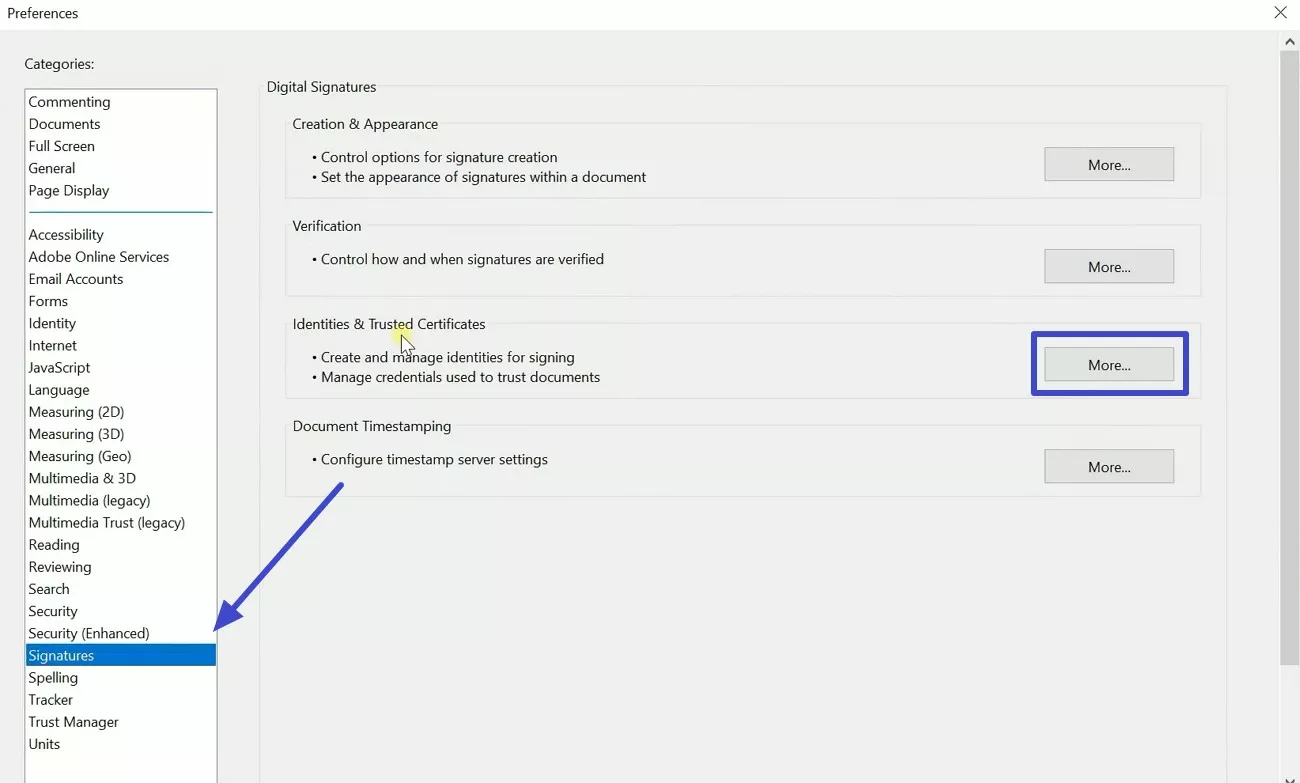
Step 1. Open Adobe Acrobat Reader DC, on the top menu bar, choose "Preferences" at the bottom.
Step 2. Head to the "Signatures" tab and hit the "More" button next to "Identities and Trusted Certificate."
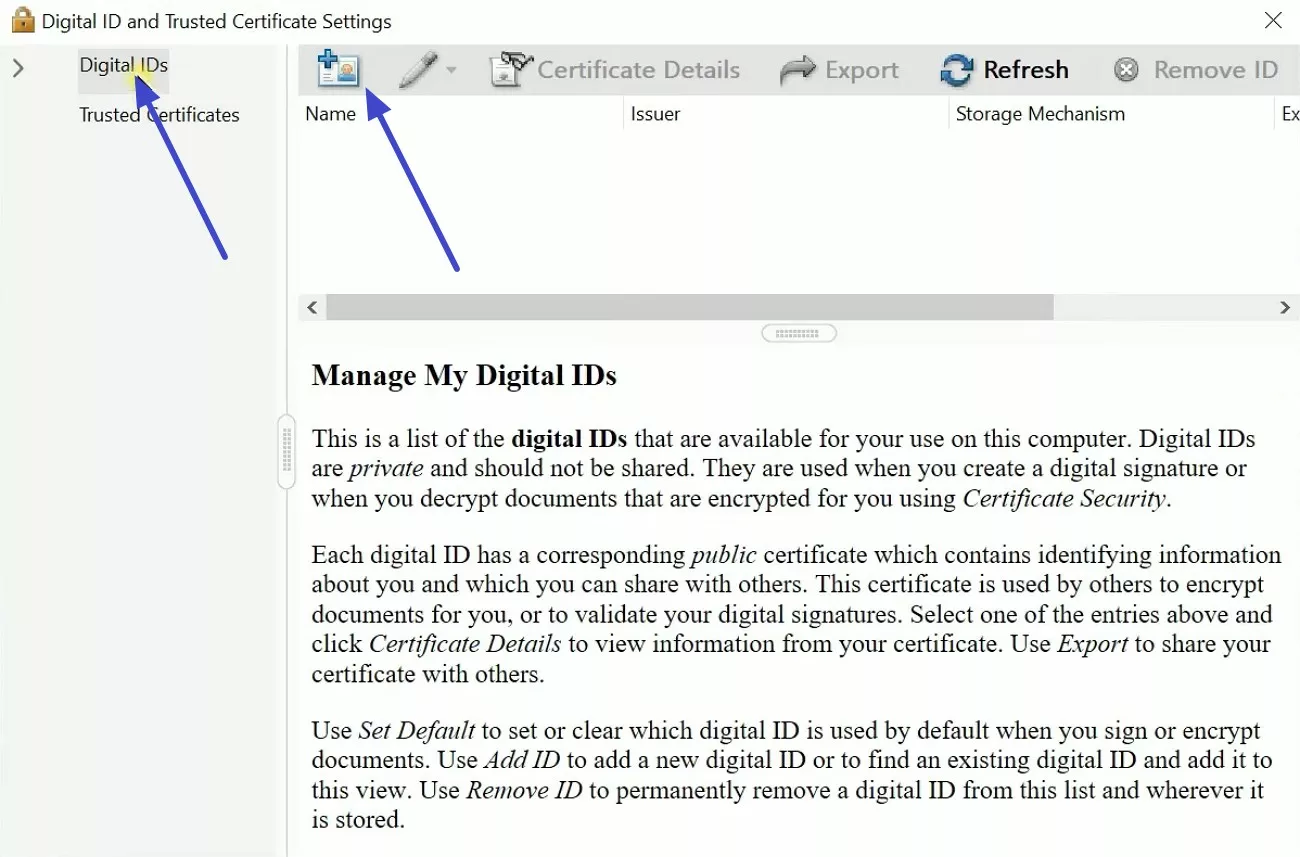
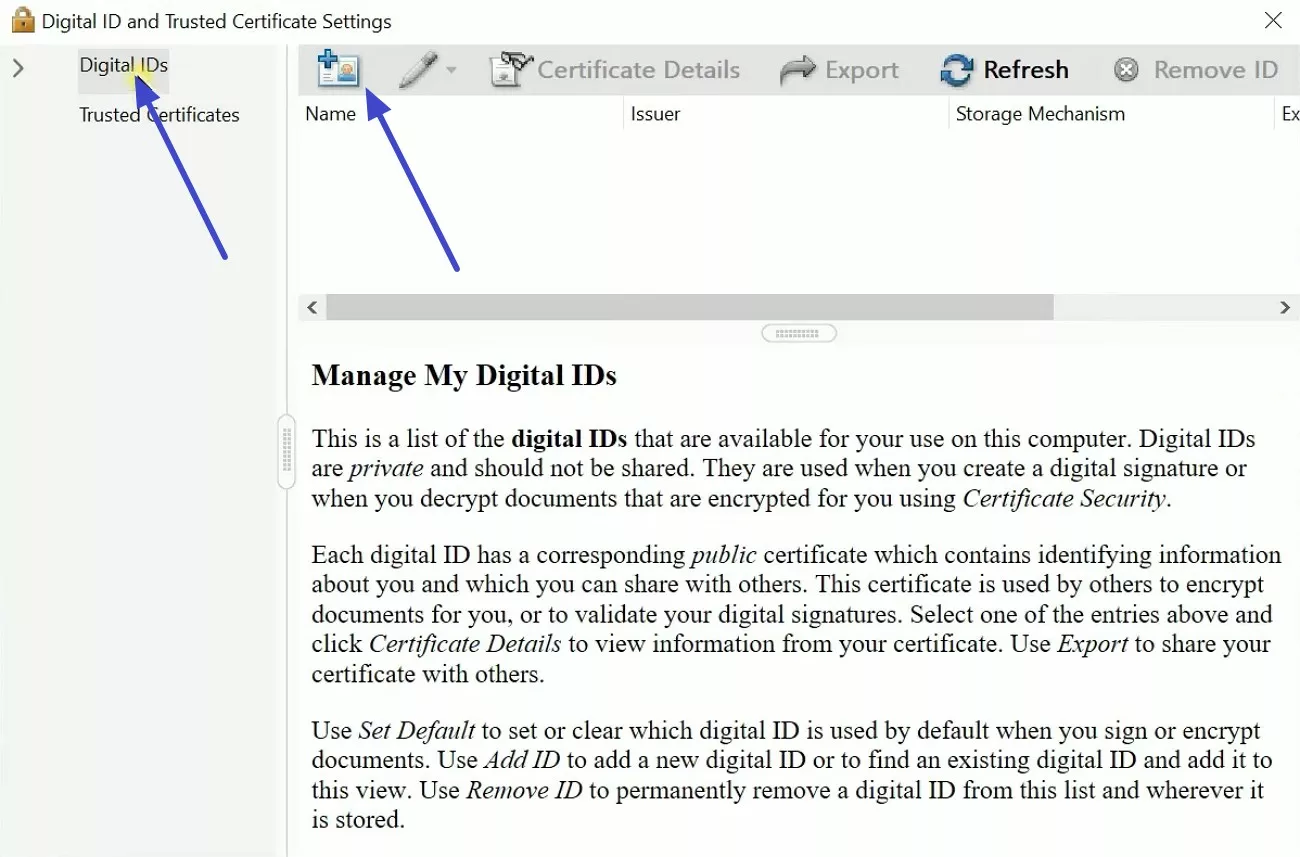
Step 3. Click on "Digital IDs" and then select the "Add ID" icon.
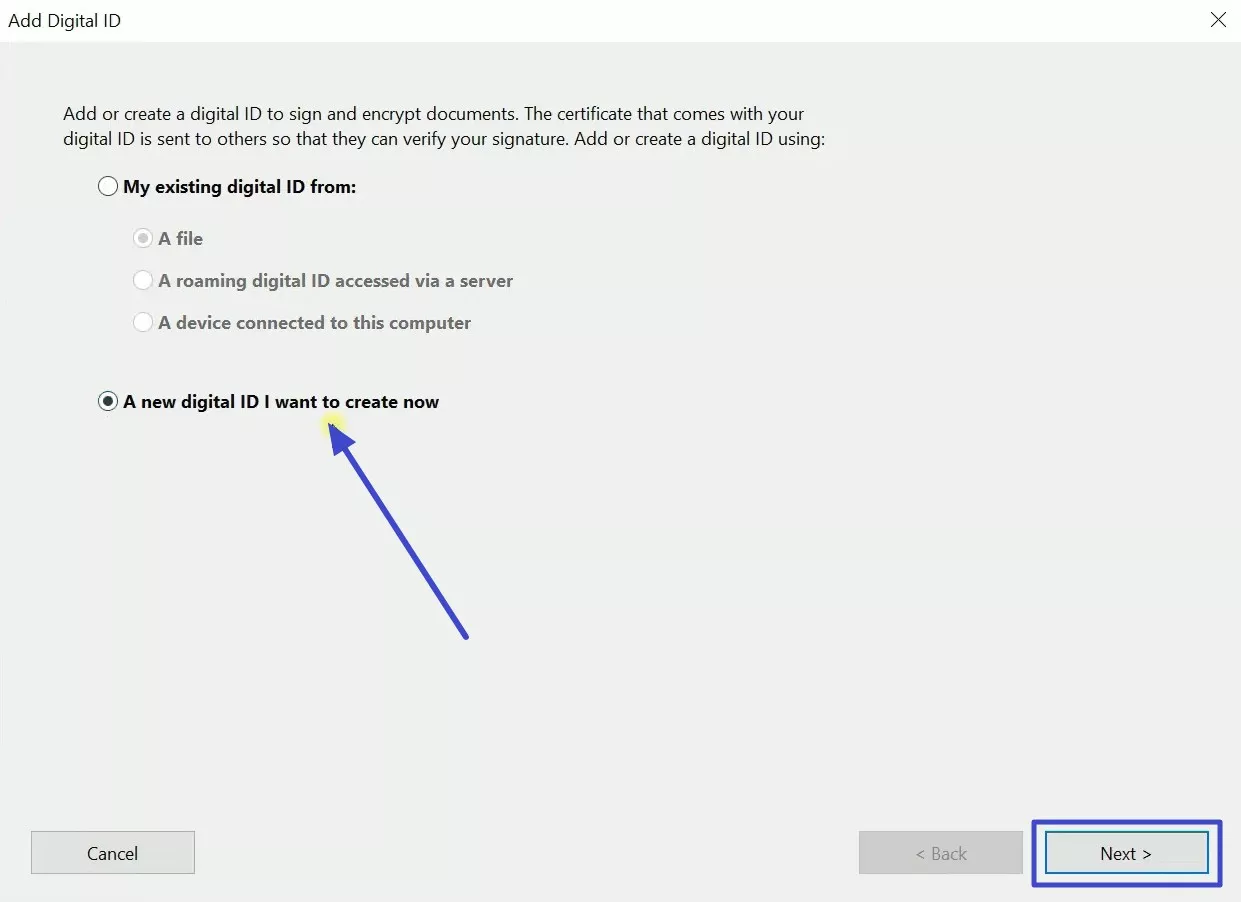
Step 4. Now select "A New digital ID I Want to Create Now," then click the "Next" button to continue. After that, follow the displayed instructions to add passwords or other details and create a digital ID.
Method 2. Register an Existing Certificate
Registering an existing certificate helps my signing tool recognize my active identity. It lets me attach my certificate correctly when I create new signatures. This usually fixes the "signing certificate is absent" error when the tool doesn't detect it. The following steps actually help me register my existing certificate:
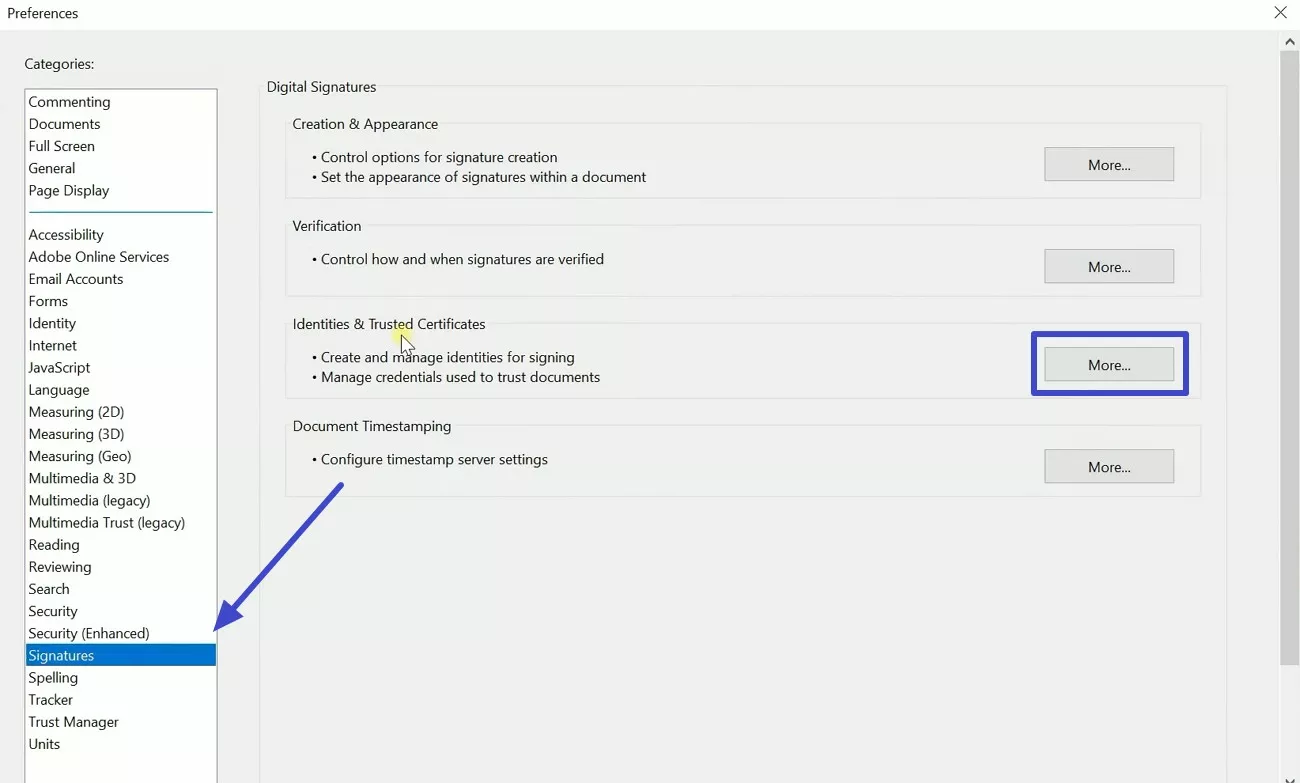
Step 1. Inside "Preferences," go to "Signatures" and tap the "More" button next to "Identities and trusted Certificates."
Step 2. Click on "Digital IDs," then press the "Add ID" button.
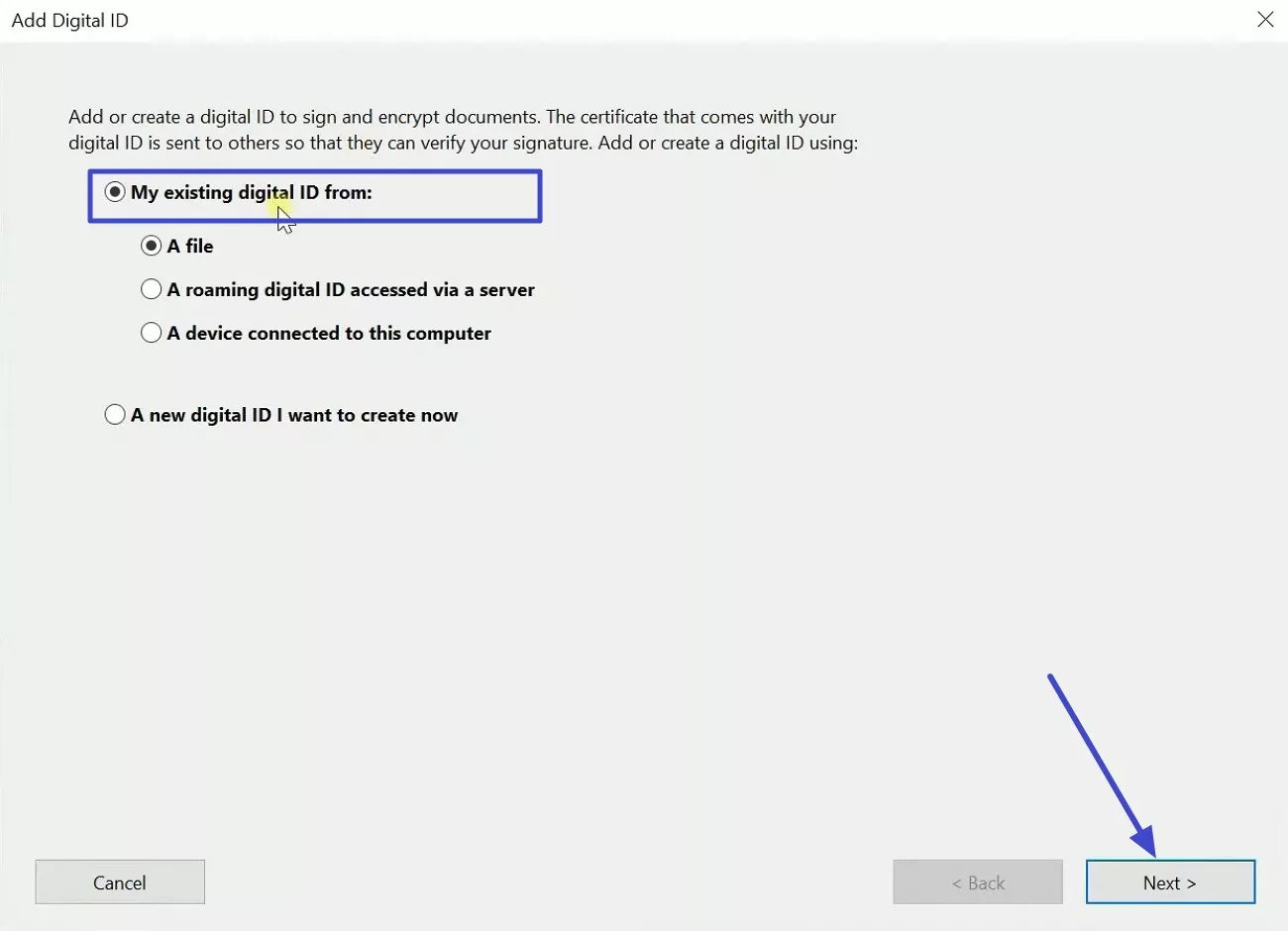
Step 3. In the "Add Digital ID" section, select a file from "My Existing Digital ID From:" and hit the "Next" button. Later, adhere to the given prompts to enter personal details.
Also Read: How to Certify PDF >>
Method 3. Choose the Signing Format (PAdES/CAdES‑equivalent)
When I choose the signing format PAdES/CAdES‑equivalent, it makes sure my digital signature includes the required signing‑certificate attribute. This attribute shows which certificate I used, and I know many validators need it to confirm authenticity. Without it, I sometimes see "no usable signing certificates are available." I performed the steps below to change the signing format:
Step 1. Click the "Menu" in Acrobat and select "Preferences" to access the settings.
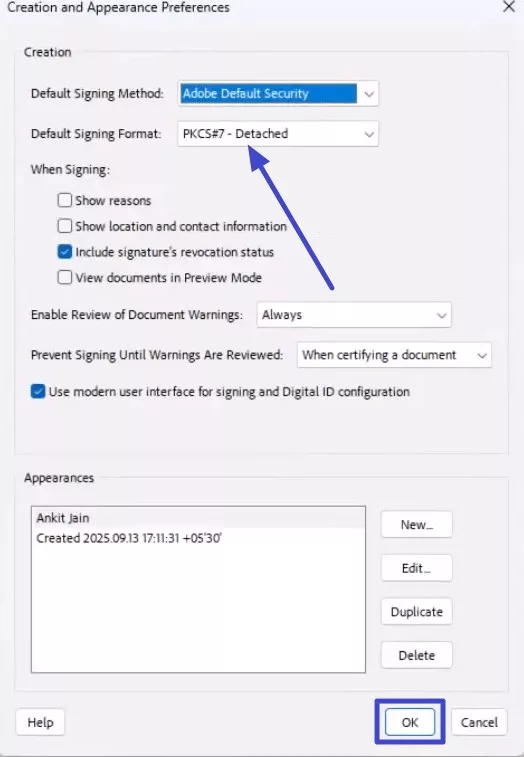
Step 2. Choose "Signatures" and click the "More" button next to "Creation and Appearance."
Step 3. Lastly, click the "Default Signing Format" drop-down list to select "PAdES/CAdES‑equivalent" and click the "OK" button.
Method 4. Re‑sign the PDF Using Certificates Tool
When I re-sign the PDF using the "Certificates" tool, I can embed a valid digital certificate directly. This replaces any mising or expired signatures and fixes the "Signing Certificate Is Absent" error. I make sure the PDF has a proper certificate chain so viewers can trust it. Thus, I go through the following steps to perform it:
Step 1. Click the "Menu" section and choose the "Open" option to import the PDF file.
Step 2. Later on, scroll down in the "All Tools" section and select the "Use a Certificate" option.
Step 3. Afterward, select the "Digitally Sign" option to open a dialogue box and press the "OK" button.
Step 4. Go ahead and opt for the "Configure New Digital ID" option.
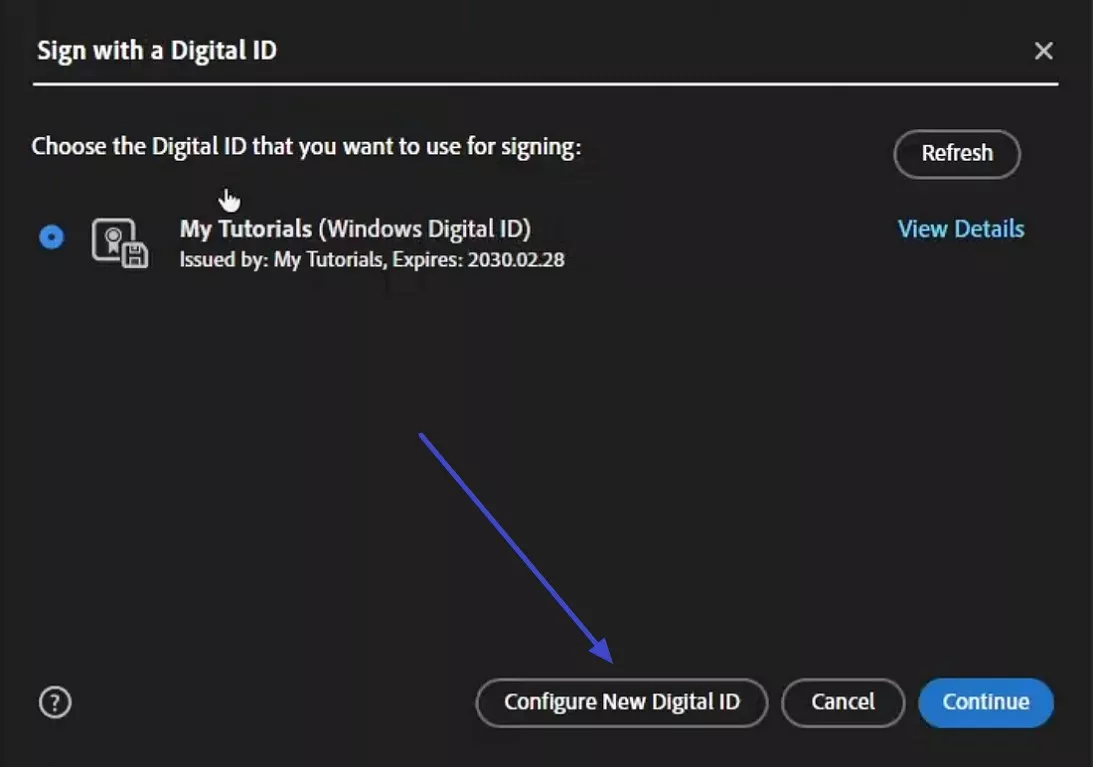
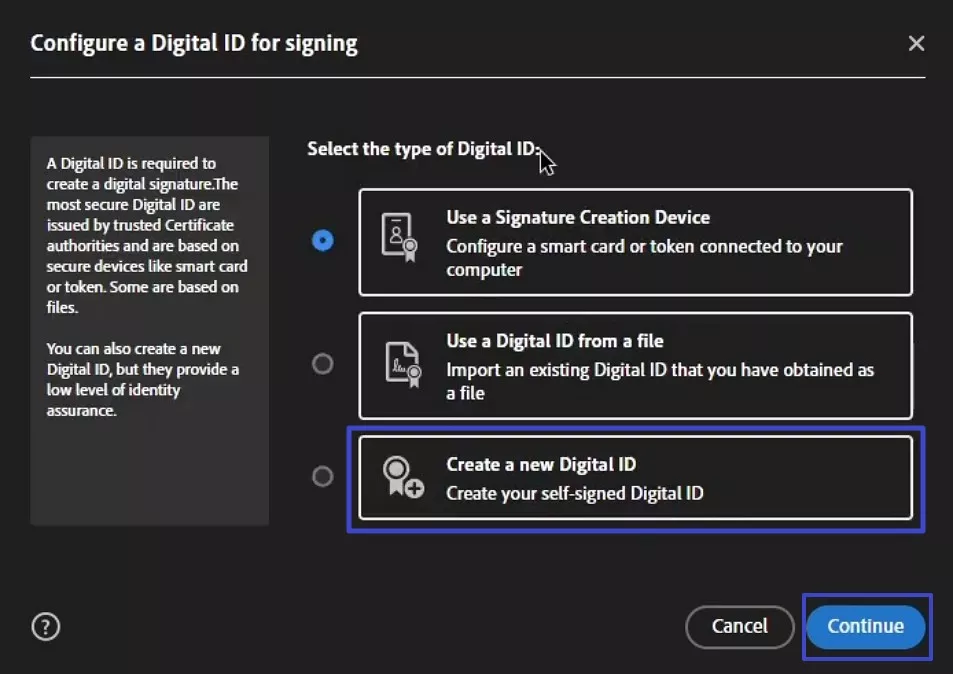
Step 5. Inside the "Configure New Digital ID" section, choose "Create a New Digital ID" and hit the "Continue" button.
Also Read: PDF Signature Validation >>
Step 6. Lastly, choose the "Save To File" option and press the "Continue" button. Afterward, follow the displayed instructions and enter the personal details to save the file in the desired place.
Method 5. Update Acrobat
Beyond that, I also updated Acrobat because it helps me to fix the "Signing Certificate Is Absent" error. Newer versions support PAdES and CAdES-equivalent signing formats. They also include updated trust lists and better certificate handling. I have gone through the given steps to update my software:
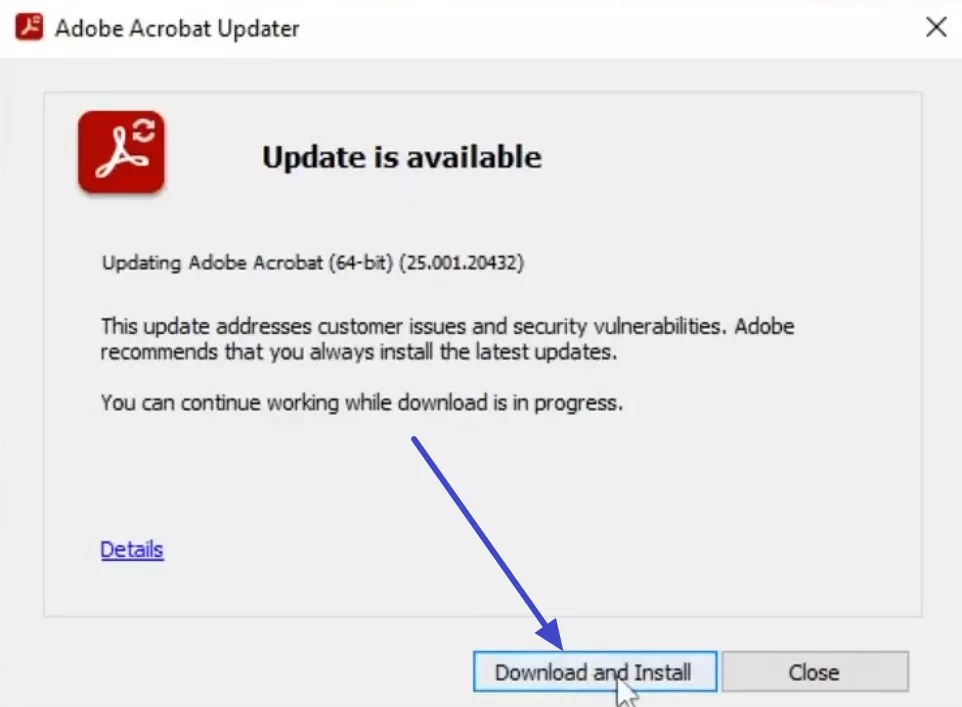
Step 1. From the "Menu," click the "Help" section and select the "Check for updates" option.
Step 2. Afterward, if an update is available, press the "Download and Install" button.
Part 3. Bonus: An All-in-one PDF Editor for Digital Signing
When dealing with issues like "no usable signing certificates are available," I needed a reliable tool that simplifies digital signing. UPDF became my go-to solution because it offers secure tools for signing and certifying PDFs across devices. I love using UPDF because it supports electronic signatures, letting me type, draw, or add an image as my signature. It also handles certificate-based digital signatures, which are perfect for legally binding documents.
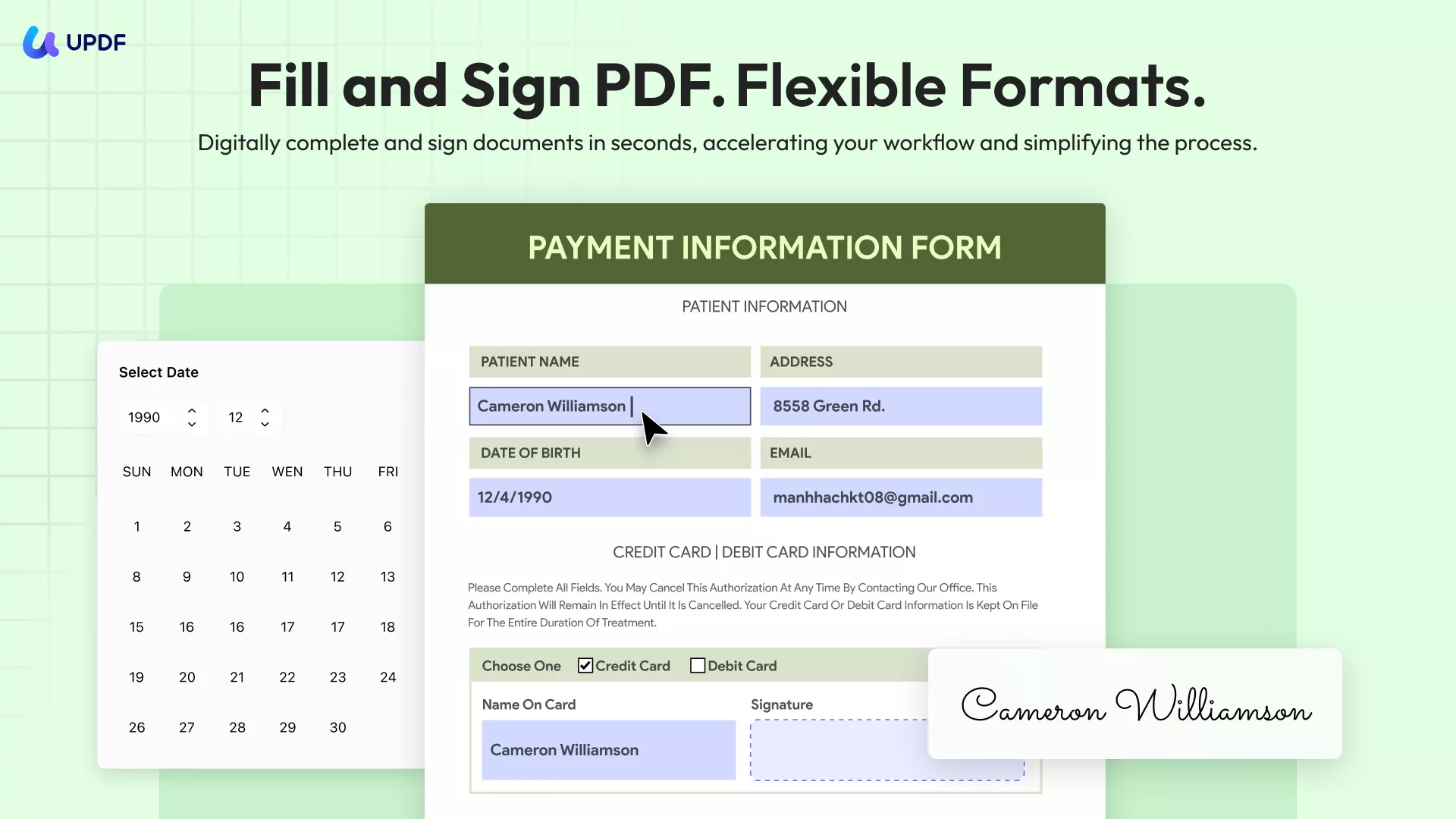
Inside UPDF, I can create or import digital IDs to manage my signatures smoothly. The customizable digital signature fields allow me to place signature boxes exactly where I want on contracts or forms. UPDF ensures all signatures are encrypted, protecting my identity and the document's integrity. The cloud service, UPDF Sign, lets me send, sign, and track documents with certificate-based signatures while providing audit trails and notifications.
Conclusion
To conclude, understanding why the signing certificate is absent message appears helped me avoid repeated confusion. I learned how simple steps can restore safe signing and prevent future document issues. These methods make my PDF tasks smoother and give me more confidence daily.
Whenever I want easier signing and stronger certificate control, I always choose reliable tools. That is why I recommend downloading UPDF now to simplify your signing process. So, download UPDF today and handle every PDF with confidence.
Windows • macOS • iOS • Android 100% secure





 Enola Miller
 Engelbert White
 Enid Brown


- Key-Research-6708