 UPDF
UPDF
 UPDF for Windows
 UPDF for Mac
 UPDF for iPhone/iPad
 UPDF for Android
 UPDF AI Online
 UPDF Sign
 Edit PDF
 Annotate PDF
 Create PDF
 PDF Form
 Edit links
 Convert PDF
 OCR
OCR PDF to Word
 PDF to Image
 PDF to Excel
 Organize PDF
 Merge PDF
 Split PDF
 Crop PDF
 Rotate PDF
 Protect PDF
 Sign PDF
 Redact PDF
 Sanitize PDF
 Remove Security
 Read PDF
 UPDF Cloud
 Compress PDF
 Print PDF
 Batch Process
 About UPDF AI
 UPDF AI Solutions
 AI User Guide
 FAQ about UPDF AI
 Summarize PDF
 Translate PDF
 Chat with PDF
 Chat with AI
 Chat with image
 PDF to Mind Map
 Explain PDF
 PDF AI Tools
 Image AI Tools
 AI Chat Tools
 AI Writing Tools
 AI Study Tools
 AI Working Tools
 Other AI Tools
 PDF to Word
 PDF to Excel
 PDF to PowerPoint
 Enterprise Solution
 Enterprise Sign
 Enterprise AI
 Enterprise Plan
 Enterprise User Guide
 Enterprise Webinar
 Banking
 Healthcare
 Insurance
 Legal
Legal Manufacturing
 Government
 Education Solution
 Customer Stories
 User Guide
 UPDF Tricks
 FAQs
FAQs UPDF Reviews
 Download Center
 Blog
Blog Newsroom
 Tech Spec
 Updates
 UPDF vs. Adobe Acrobat
 UPDF vs. Foxit
 UPDF vs. PDF Expert

When I needed to locate and manage PDF files, I struggled every time to find the right document on my computer. These files were essential for my personal projects and work, but not every method helped me identify them. This is where I began discovering the right methods that could save me a lot of time.
In this article, I’ll share how do I find a PDF file on my computer and the methods I relied on in the past. As a bonus, I’ll also show how I used UPDF as a file thumbnail provider to find the correct PDF.
Part 1. How To Find a PDF File on Computer
PDF files can be difficult to locate on a computer when file names are unclear or stored across multiple folders. To answer the question “How do I find my PDF files on my computer,” I have compiled the simplest methods for Windows and Mac users.
Finding PDF on Mac
Now, follow the steps below to locate and open the PDF files stored on your Mac:
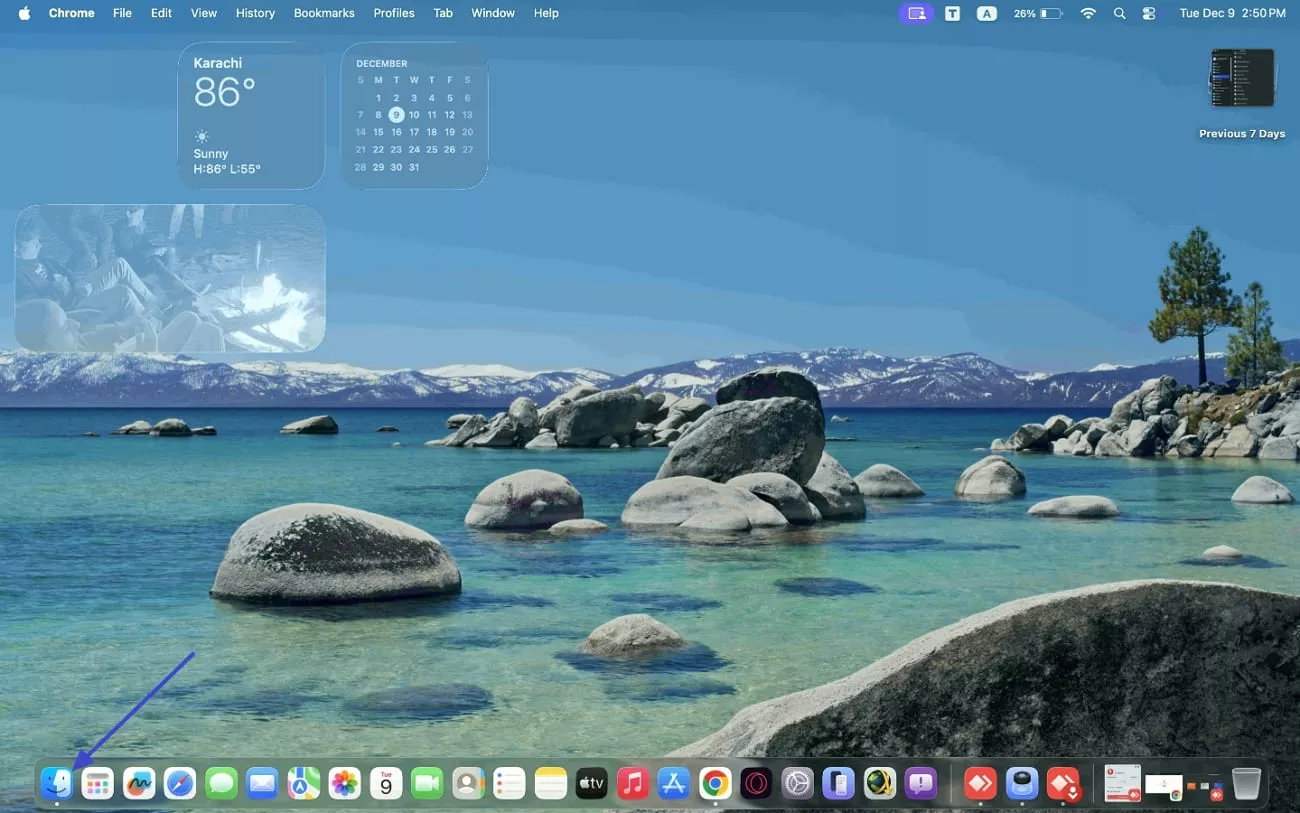
Step 1. First, hit the “Finder” icon in the taskbar below and open the location where you keep your documents.
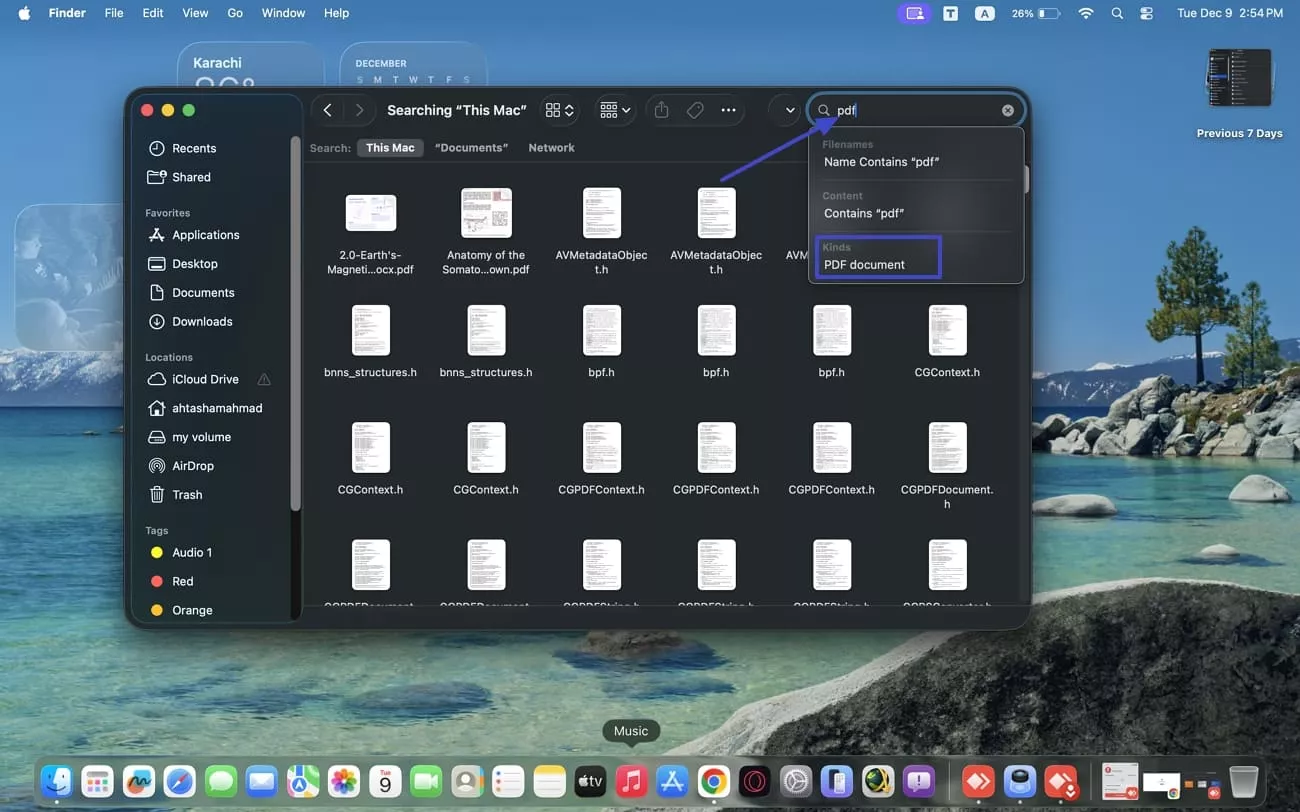
Step 2. Next, hit the “Search” icon in the top right corner and type “PDF” in the search box. Afterwards, hit the “PDF Document” option and sort the documents by date or modification to find a specific PDF.
Finding PDF on Windows
After learning how to find a PDF file on my computer as a Mac user, follow the instructions below to locate a PDF file on a Windows computer:
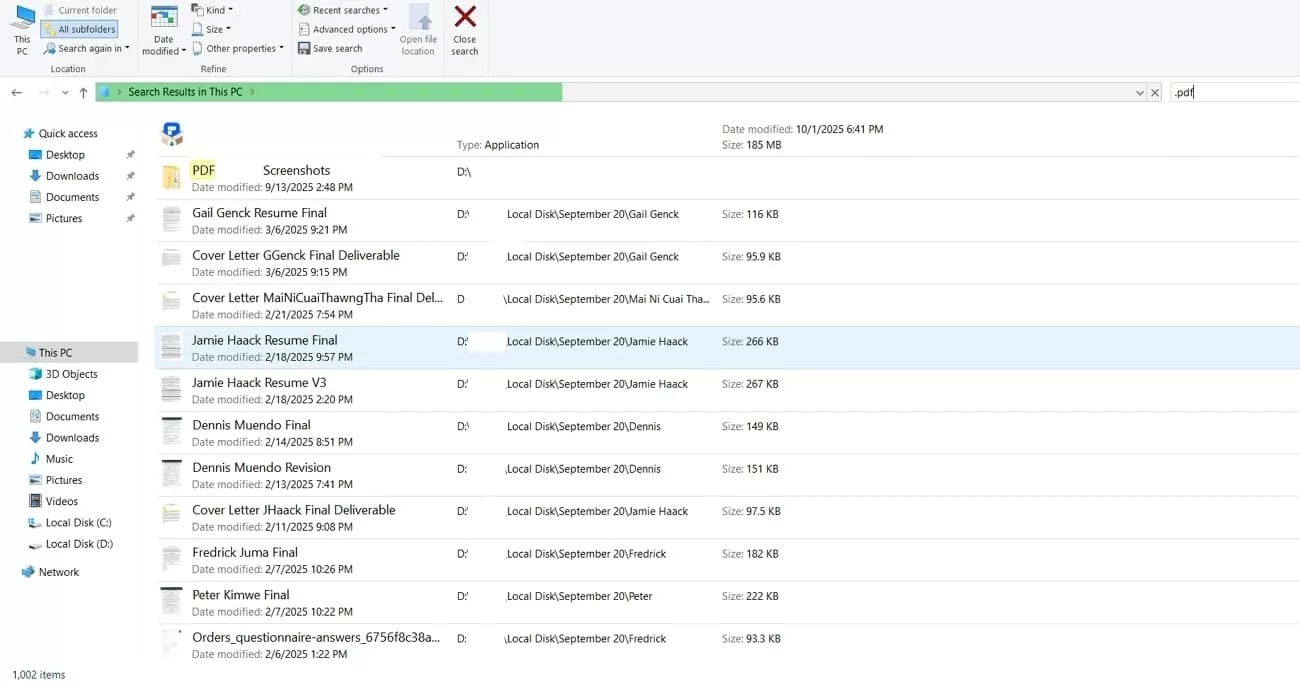
Instructions. Once you enter the Windows File Explorer, hit the “This PC” option to make a search in the entire PC. Next, type “.pdf” in the search bar in the top right corner to find all PDF files stored on your computer. This may take some time, and it depends on the number of files stored on your PC.
Part 2. Bonus Tip: Find the Right PDF Instantly with UPDF as Your Thumbnail Provider
After discovering how do I find my PDF files on my computer, I noticed that many PDF file names look very similar, making the right one hard to spot. In these situations, UPDF stands out by providing thumbnails for my PDFs and showing previews of the PDFs in my folders. With UPDF, I can identify the correct file at a glance without wasting time.
How to Set PDF Thumbnails With UPDF
Now that you know how to find PDF files on my computer, let’s take this process to another level by setting a thumbnail on PDF icons. Next, follow the steps below to set a thumbnail on PDF files using an advanced PDF editor:
Step 1. Open UPDF Settings
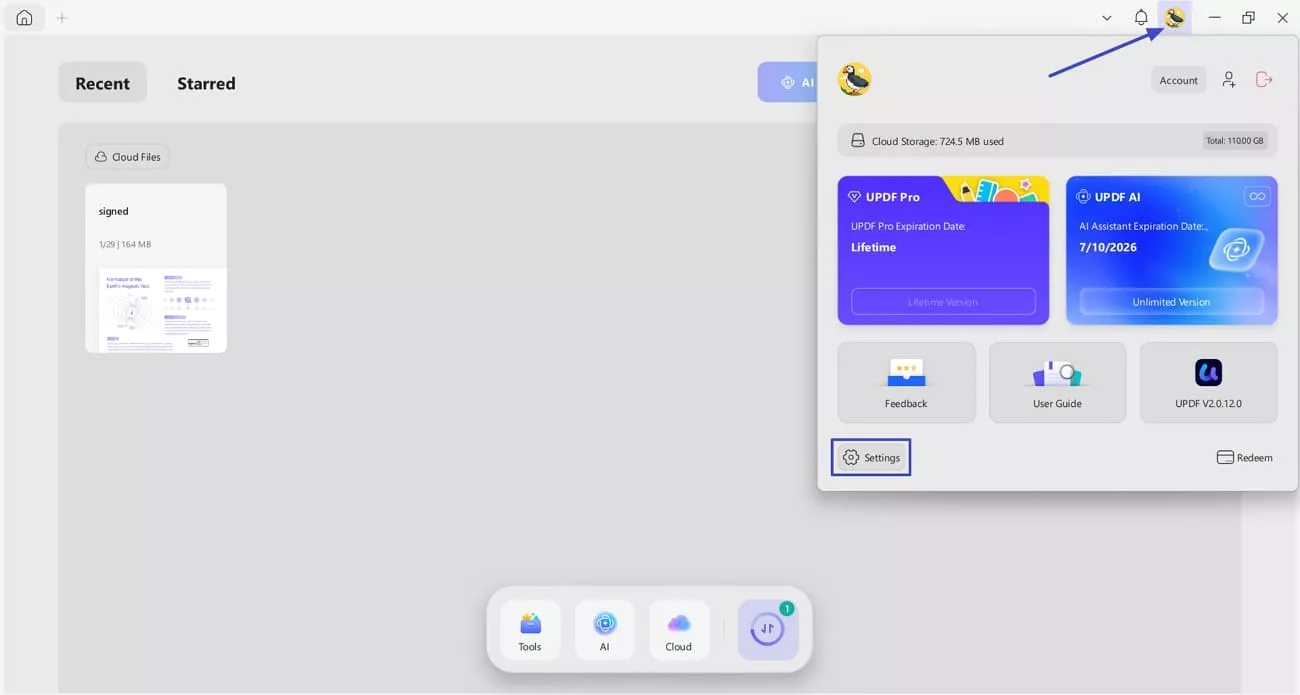
After you enter the main interface, click the “Login” button in the top right corner and hit the “Settings” button to enter the settings window.
Windows • macOS • iOS • Android 100% secure
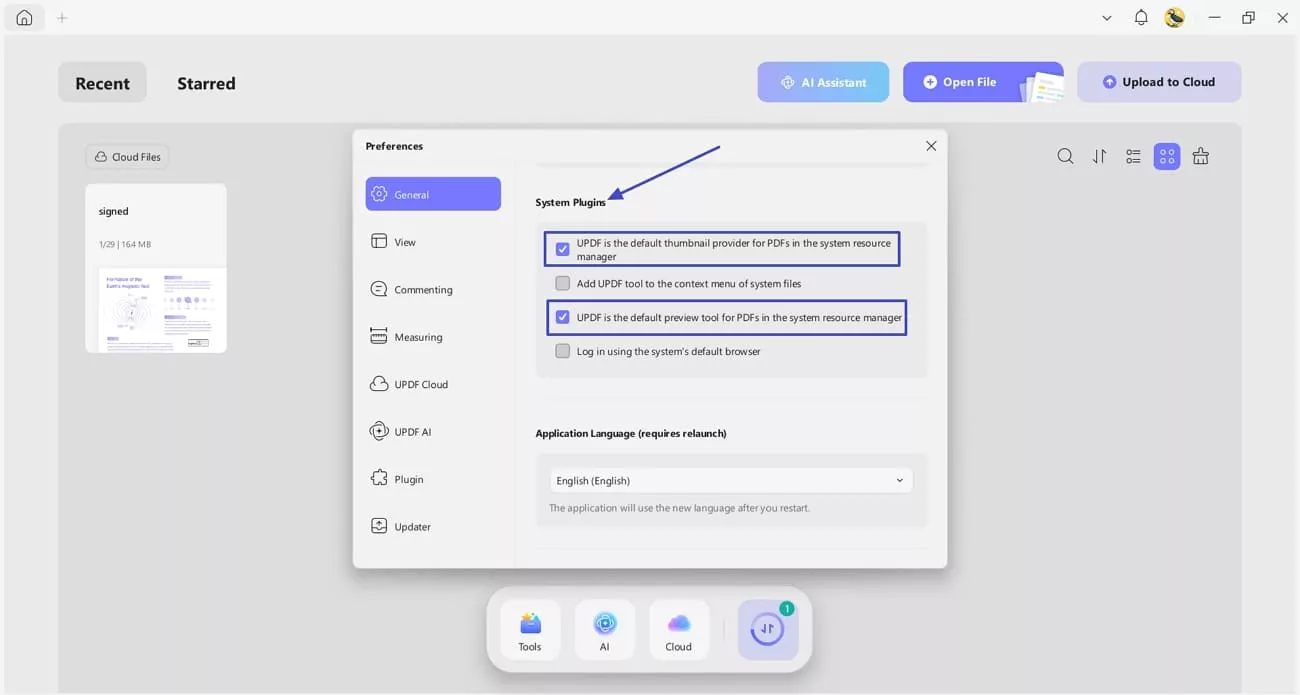
Step 2. Set UPDF as Default PDF Viewer and Thumbnail Provider
Next, scroll down to locate the “System Plugins” section and choose the “UPDF is a Thumbnail Provider” option. Afterwards, select the “UPDF is The Default Preview Tool” option to enable thumbnail previewing.
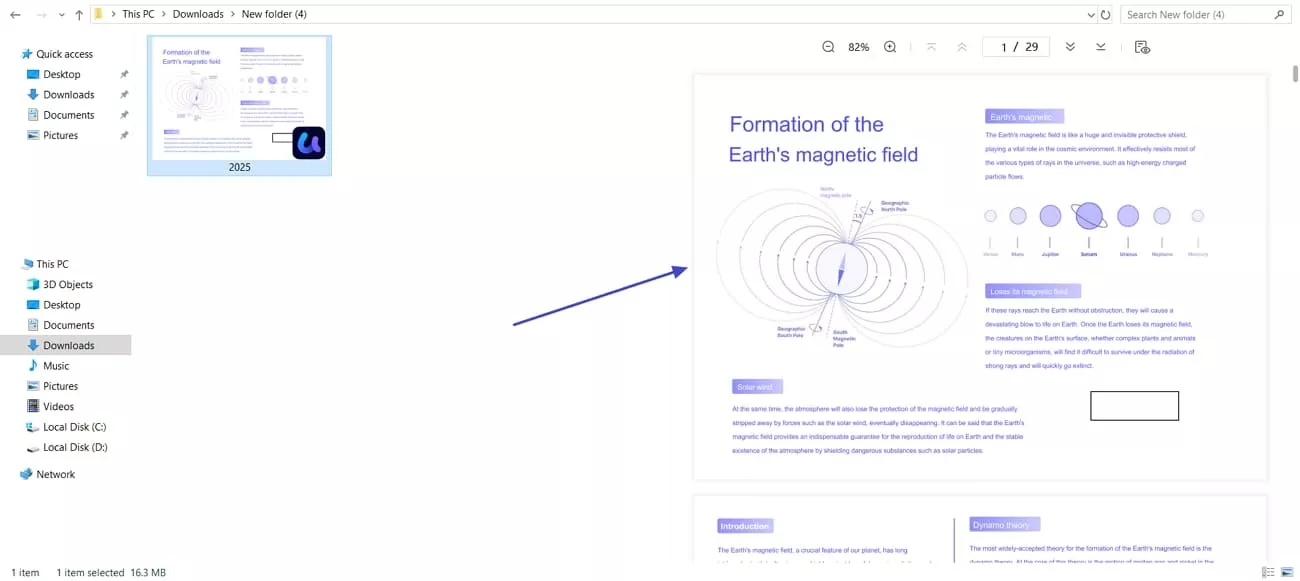
Step 3. View PDF in Preview Pane
Now, you can see PDF files in the preview pane without opening each file individually on your computer.
Moreover, UPDF gives me a straightforward way to interact with the PDFs once I find them. I can open, annotate, edit, or merge files, keeping everything organized. I can highlight important sections, add comments, or even translate entire documents without switching between programs. This makes it easier to manage multiple reports, study materials, or reference documents in one smooth workflow.UPDF is much more than a basic PDF editor, following is an outline of some notable features of UPDF which makes it special:
Windows • macOS • iOS • Android 100% secure
Key Features
- Edit The PDF: I can adjust any text in my PDFs, tweaking font size, color, and spacing until everything looks just right.
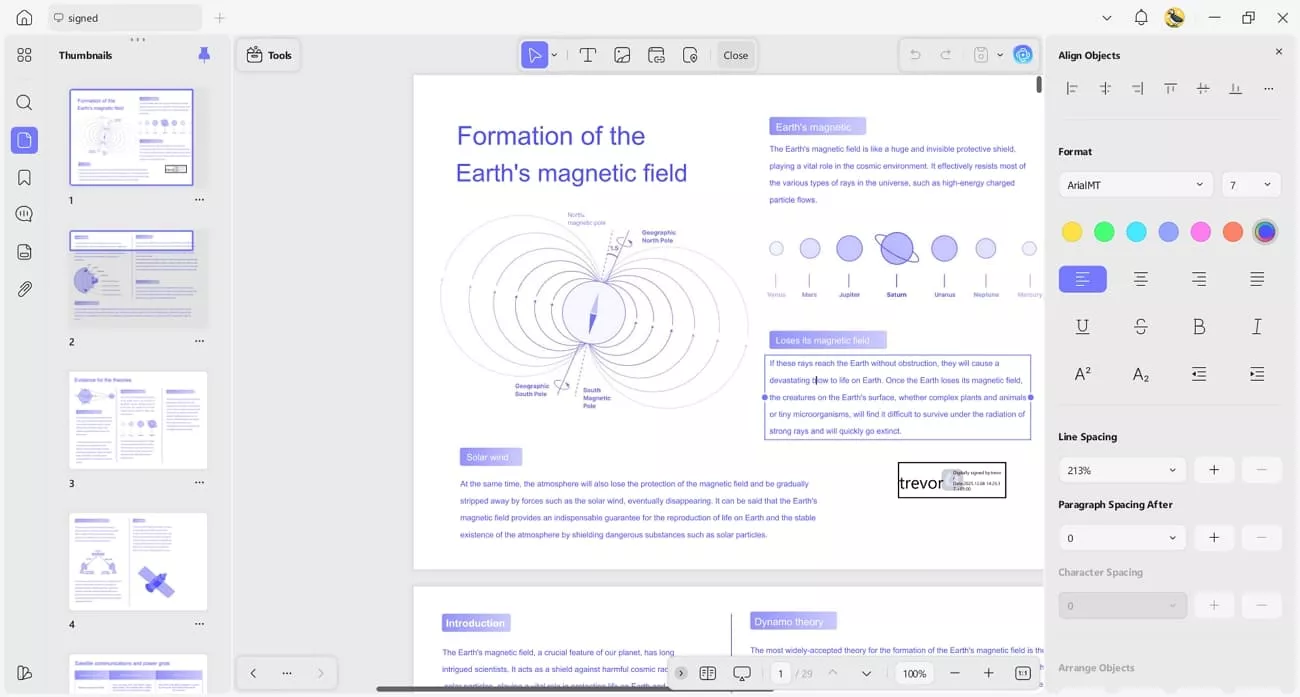
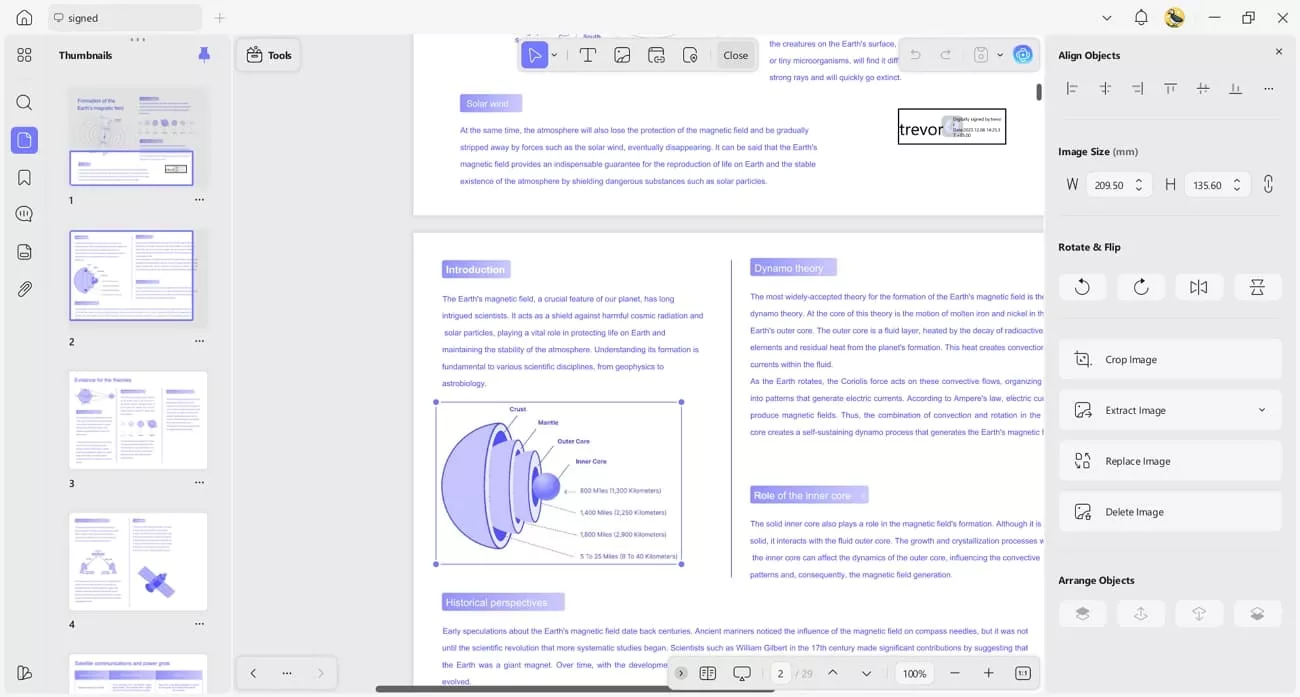
Also, I can crop or resize images, so arranging content and visuals in the document feels clean and organized.
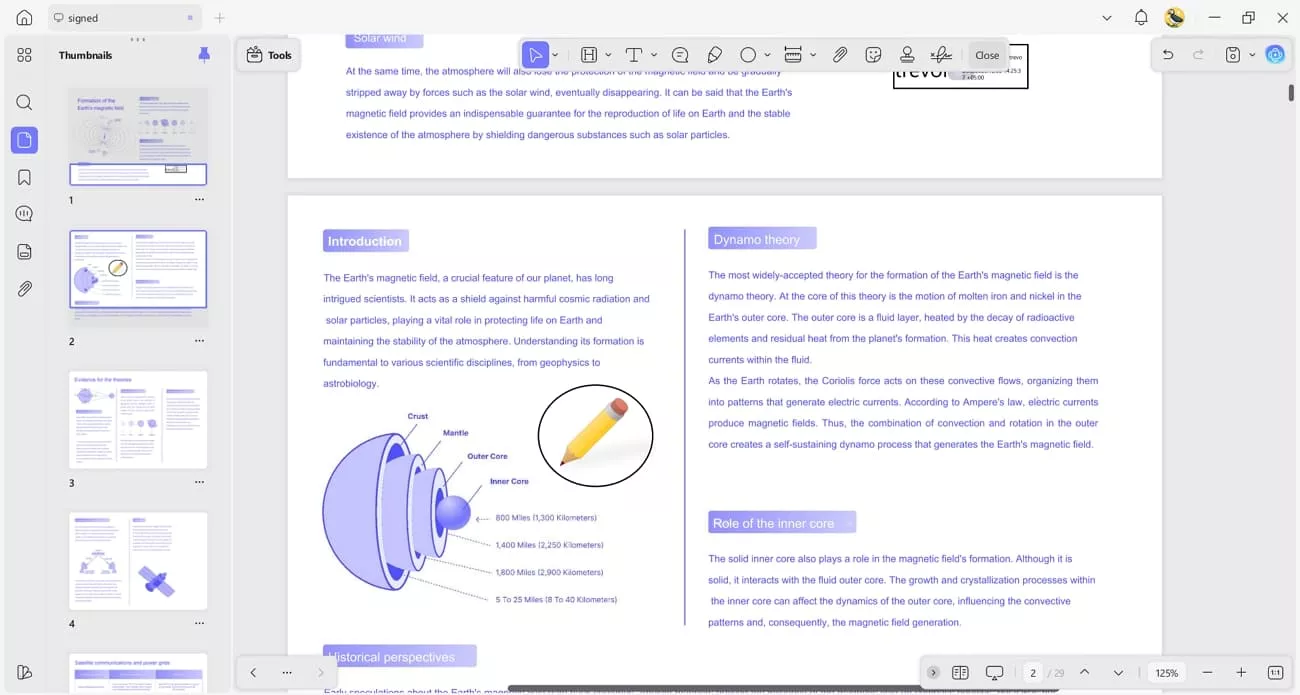
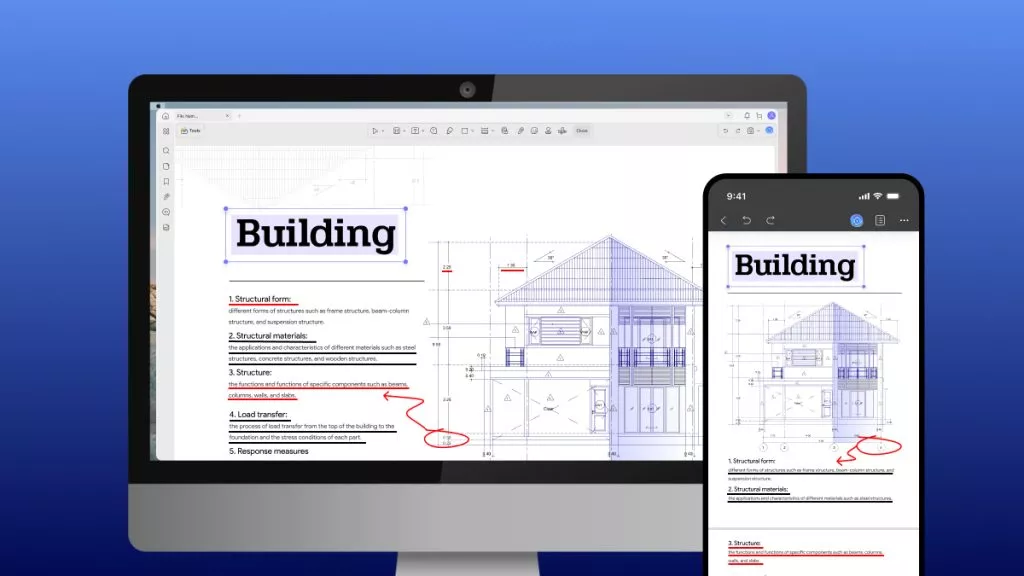
- Annotate PDF: With UPDF, highlighting key passages, adding comments, and dropping in sticky notes for instructions is very straightforward.
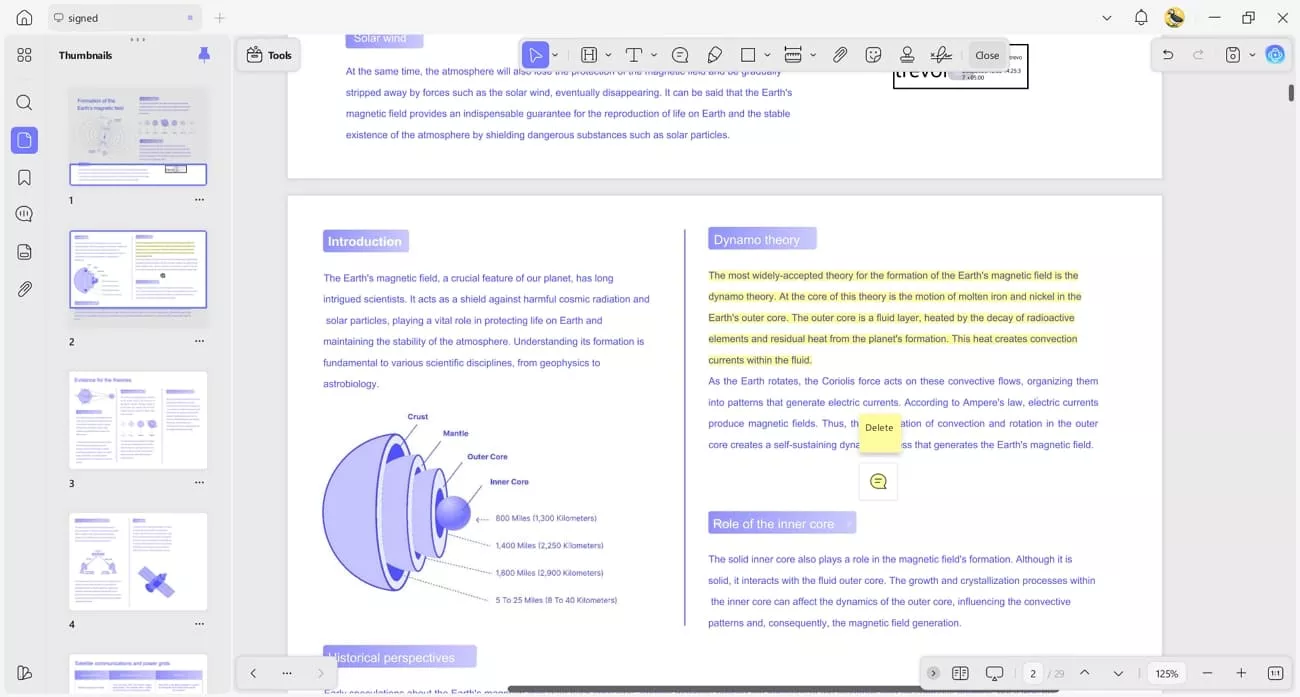
I can layer on shapes, markups, and even signatures, which makes each PDF feel both personalized and professional.
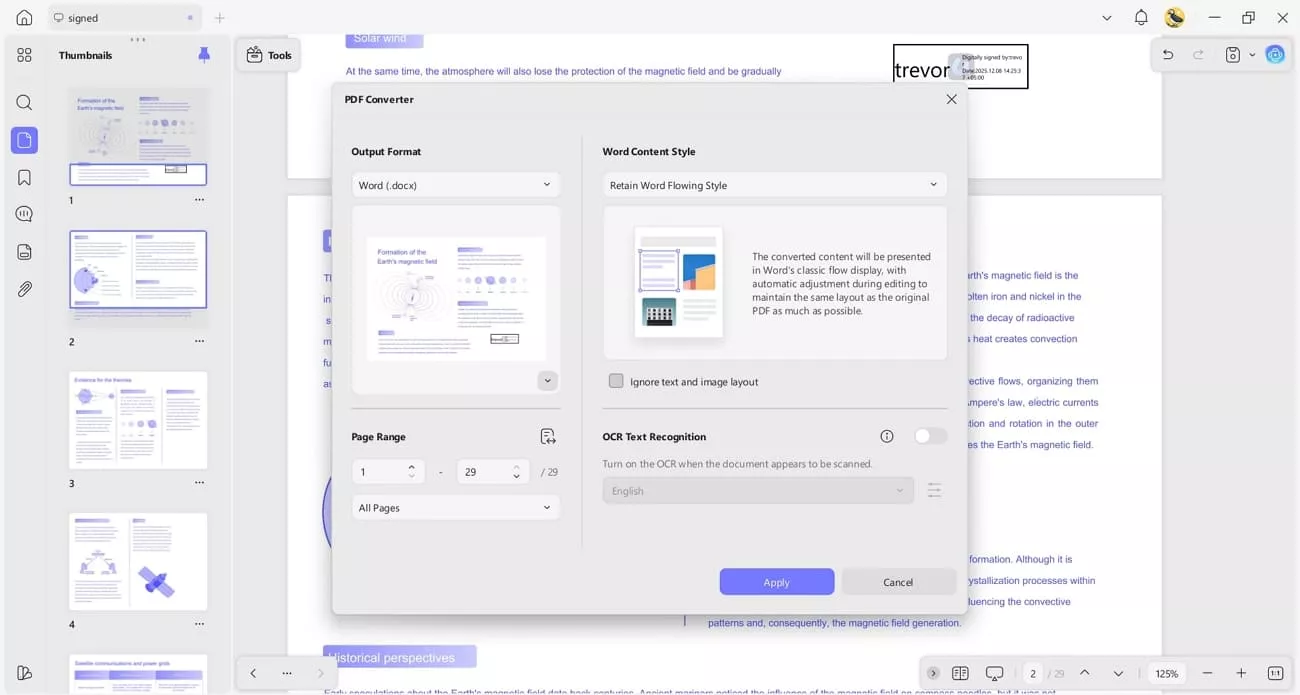
- Convert PDF: This option allows you to make PDFs editable to Word, Excel, PowerPoint, etc., so that you can easily use them. The structure and formatting stay polished, so the file is ready to work with immediately.
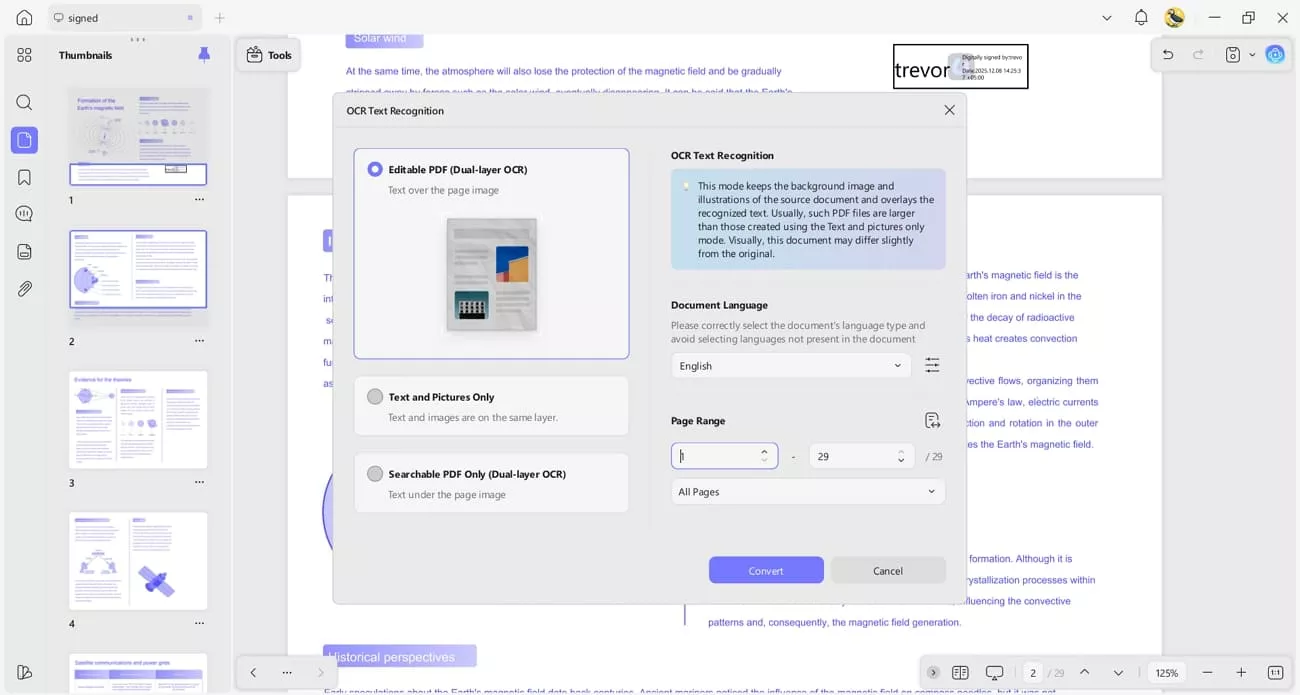
- OCR PDF: Pulling text from scanned or image-only PDFs is simple, thanks to the built-in OCR with three recognition modes. It supports multiple languages, so I can accurately capture text even from detailed or complex pages.
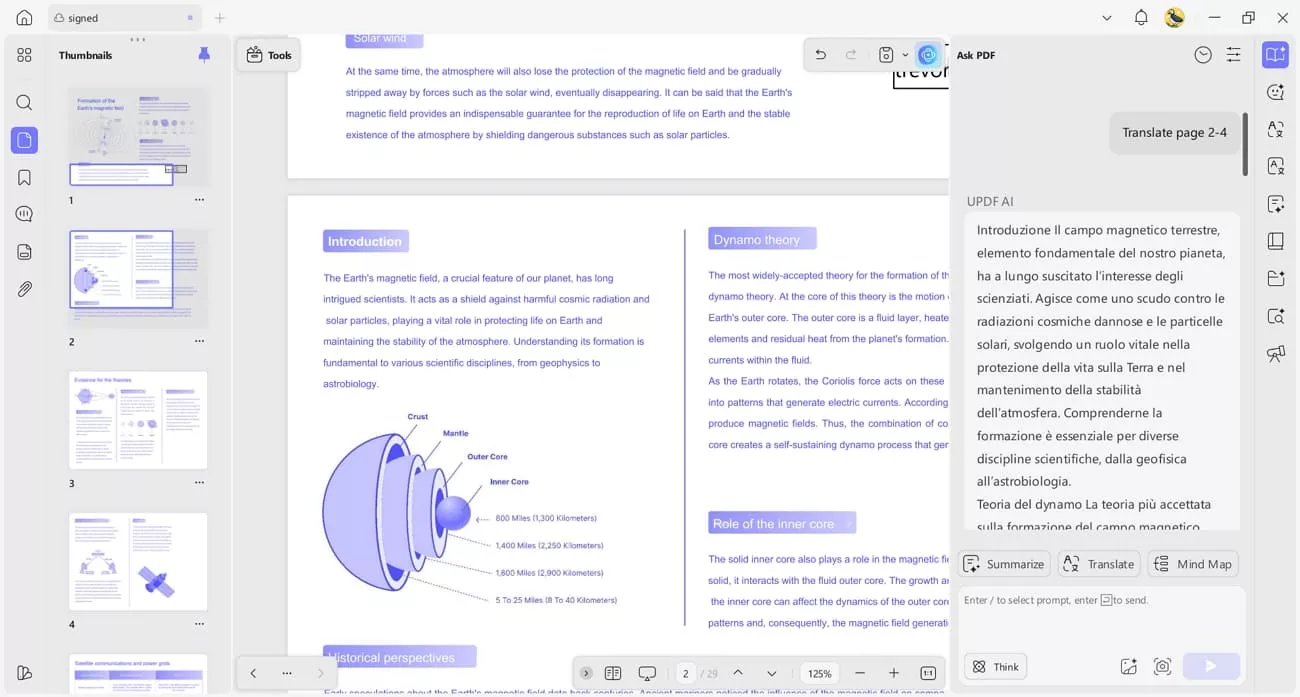
- UPDF AI: With the AI tools, I can translate entire PDFs into over 14 languages and generate concise summaries. I also create mind maps from the content, which helps me quickly understand, review, and organize long or dense documents.
Click the button below to download UPDF and get started. If you need more advanced features, you can upgrade to a paid plan to unlock additional benefits. UPDF also includes a 30-day money-back guarantee for your peace of mind.
Windows • macOS • iOS • Android 100% secure
Conclusion
To conclude, this article explored the most practical methods for answering how do I find a PDF file on my computer without opening countless documents. While both Windows and Mac offer built-in ways to locate PDFs, they can still feel slow when file names look identical. If you want a smoother experience, I recommend using UPDF as your thumbnail provider to preview, organize, and manage your PDFs more.
Windows • macOS • iOS • Android 100% secure







 Enrica Taylor
 Enid Brown


-Reddit