 UPDF
UPDF
 UPDF for Windows
 UPDF for Mac
 UPDF for iPhone/iPad
 UPDF for Android
 UPDF AI Online
 UPDF Sign
 Edit PDF
 Annotate PDF
 Create PDF
 PDF Form
 Edit links
 Convert PDF
 OCR
OCR PDF to Word
 PDF to Image
 PDF to Excel
 Organize PDF
 Merge PDF
 Split PDF
 Crop PDF
 Rotate PDF
 Protect PDF
 Sign PDF
 Redact PDF
 Sanitize PDF
 Remove Security
 Read PDF
 UPDF Cloud
 Compress PDF
 Print PDF
 Batch Process
 About UPDF AI
 UPDF AI Solutions
 AI User Guide
 FAQ about UPDF AI
 Summarize PDF
 Translate PDF
 Chat with PDF
 Chat with AI
 Chat with image
 PDF to Mind Map
 Explain PDF
 Scholar Research
 Paper Search
 AI Proofreader
 AI Writer
 AI Homework Helper
 AI Quiz Generator
 AI Math Solver
 PDF to Word
 PDF to Excel
 PDF to PowerPoint
 Enterprise Solution
 Enterprise Sign
 Enterprise AI
 Enterprise Plan
 Enterprise User Guide
 Enterprise Webinar
 Banking
 Healthcare
 Insurance
 Legal
Legal Manufacturing
 Government
 Education Solution
 Customer Stories
 User Guide
 UPDF Tricks
 FAQs
FAQs UPDF Reviews
 Download Center
 Blog
Blog Newsroom
 Tech Spec
 Updates
 UPDF vs. Adobe Acrobat
 UPDF vs. Foxit
 UPDF vs. PDF Expert



If you are working in Adobe Acrobat and suddenly see the message "The document could not be saved. There was a problem reading this document (14). Expected a dict object," you aren't just facing a minor glitch—you are facing a potential loss of hours of hard work.
This error typically stems from Adobe's legacy engine struggling with complex file structures or corrupted annotations. While it is a common frustration for Adobe users, it doesn't have to be your bottleneck.
Before spending time on complex technical workarounds, consider a more reliable alternative. UPDF is built on a modern, high-performance engine designed to handle sophisticated PDF objects without the stability issues found in older software.
Don't let legacy software errors halt your productivity. Explore how modern firms are moving toward error-free workflows in our PDF Efficiency Report.
Download UPDF - The Error-Free Adobe Alternative!
Windows • macOS • iOS • Android 100% secure
Part 1. Why Do You Get “Expected a Dict Object Error” in Acrobat?
The "Expected a Dict Object" error in Adobe Acrobat usually occurs due to issues within the PDF file. This error can pop up for several reasons:
- Corrupted PDF: The PDF file might be corrupted due to improper saving or transfer issues.
- Annotations and Markups: Adding comments or markups can sometimes trigger this error.
- Software Bugs: Outdated versions of Adobe Acrobat may have bugs causing this issue.
- Complex PDF Structure: PDFs with many embedded elements or forms can lead to this error.
Also Read: Repair A Corrupted PDF File
Let’s move forward and explore the ways to fix this error.
Part 2. 6 Effective Ways to Fix Adobe Acrobat Expected a Dict Object
This section will explore five effective ways to fix the "Adobe Acrobat expected a dict object" error. You can go through them all and follow the one that you think will work for you!
Fix 1. Export Comments
Use this method if your comments and markups are causing the error. This helps save your comments separately and then reapply them without issues. It is free to use. You can also try this method if you want to work on your PDF without comment.
Here is how you can easily export comments without any error:
Step 1: Open your PDF with comments in Adobe Acrobat. Find the "Comment" tool and click on it.
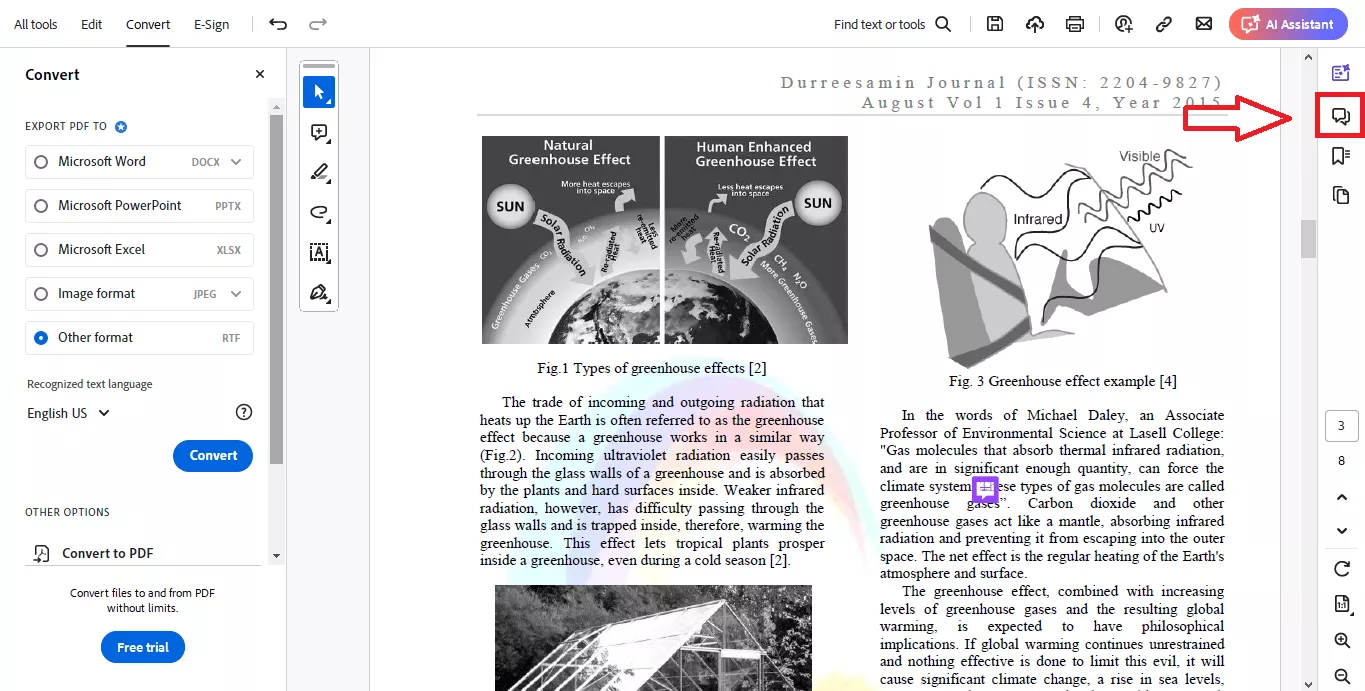
Step 2: You will see all your comments on the right side. Click on the three dots at the top right corner. Choose "Export All to Data File."
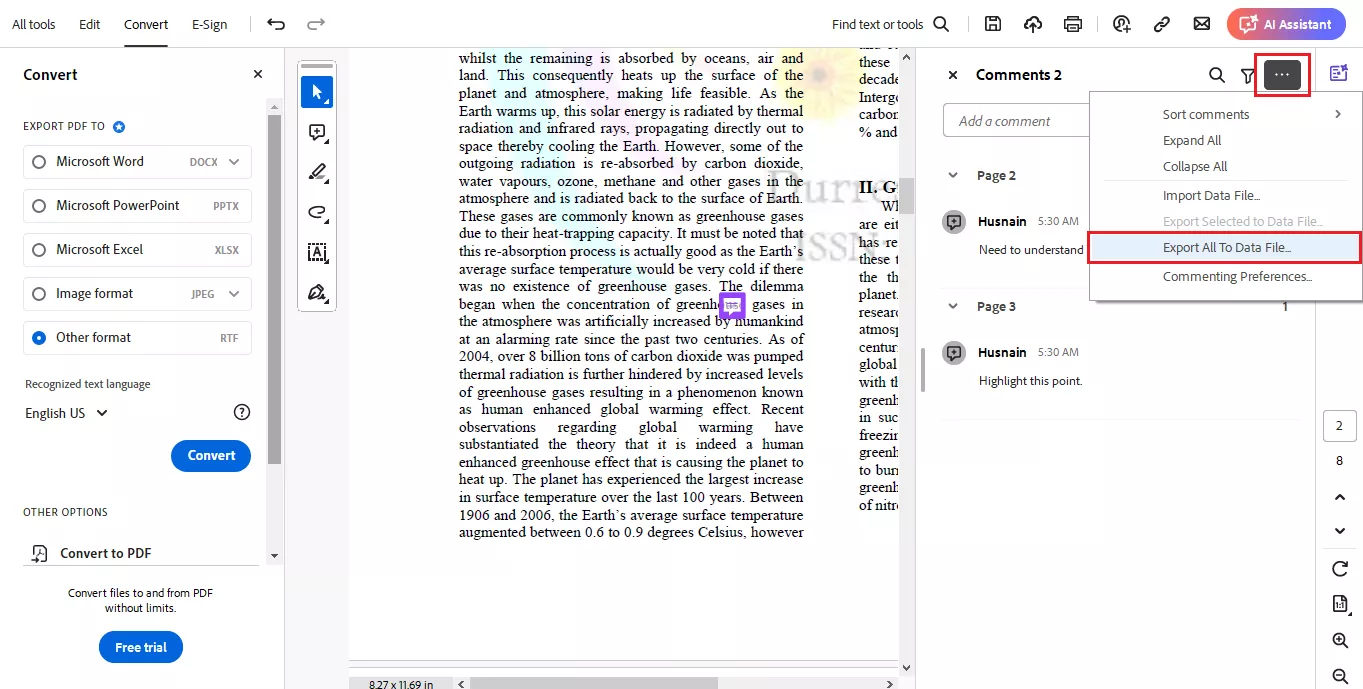
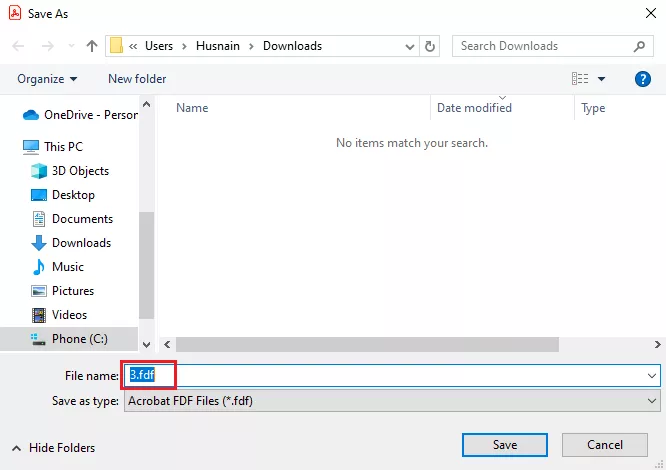
Step 3: Save the file as an FDF file. Then, open your original PDF (without comments).
Step 4: Go back to the "Comment" tool and click on "Import Data File". Find the FDF file you saved and open it. Your comments will be back in your PDF!
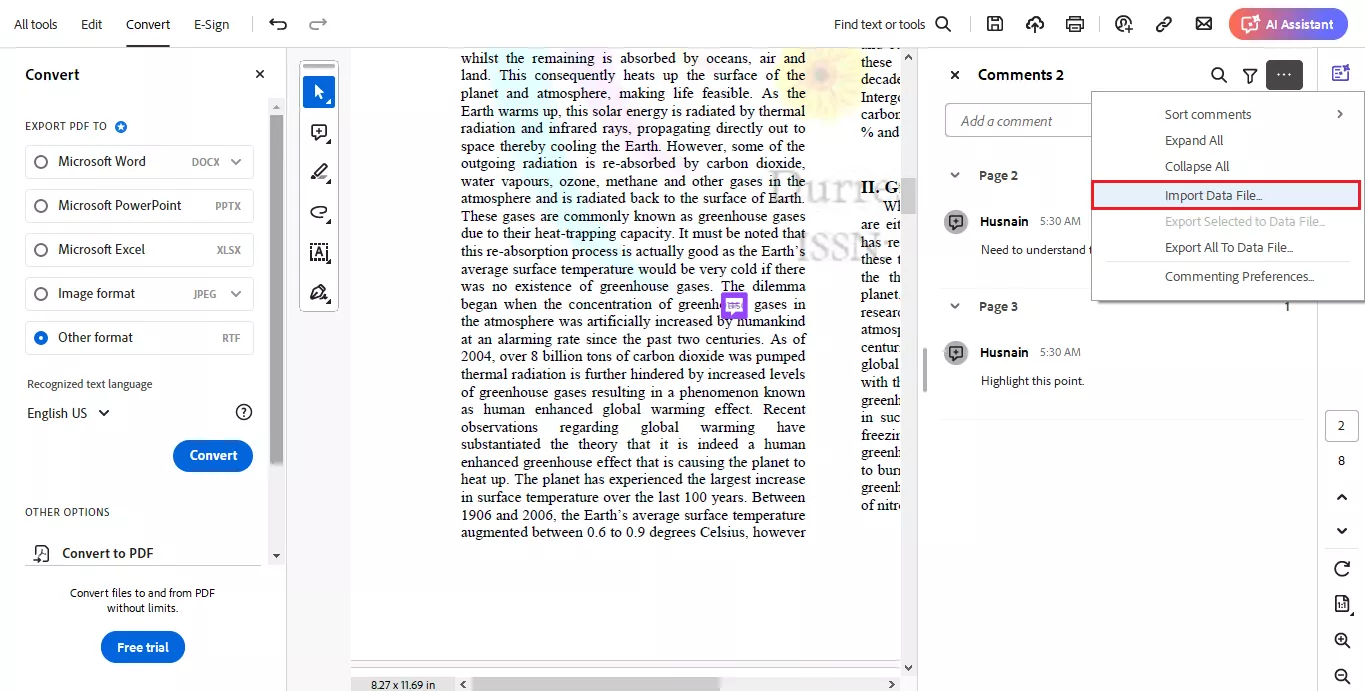
By doing this, you keep your comments safe and avoid losing any important notes. Let's explore another way to fix the "Expected a dict object Adobe Acrobat" error.
Fix 2. Print PDF with Comments
If you can't save your PDF due to the error, printing it with comments can be a good workaround. You can easily print your PDF, including comments, with just a few clicks. This way, you can keep a hard copy of your work with all comments intact. Here is how you can Print a PDF with comments and overcome the "Expected a dict object" error:
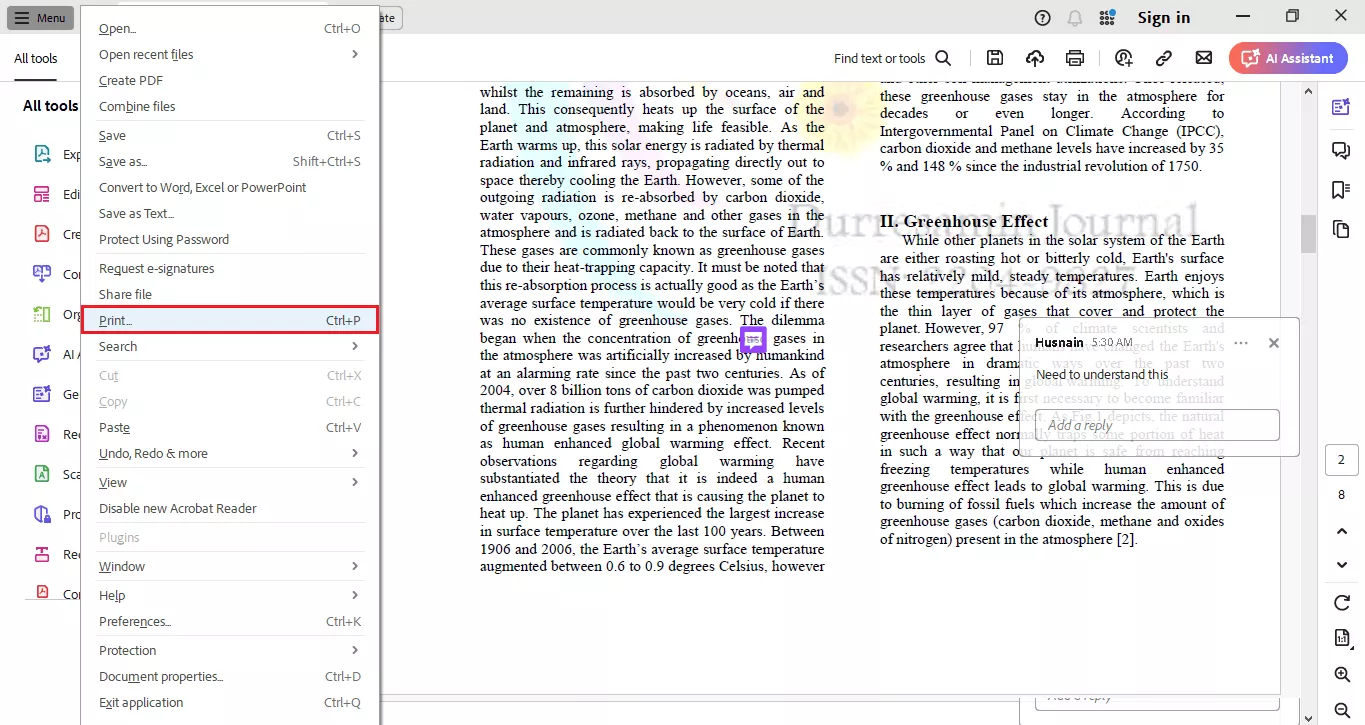
Step 1: Open your PDF in Adobe Acrobat. Go to "File" or "Menu" > "Print". You can also use the short keys "Ctrl + P".
Step 2: Now look for a setting called "Comments and Forms" or something similar. Choose "Document and Markups".
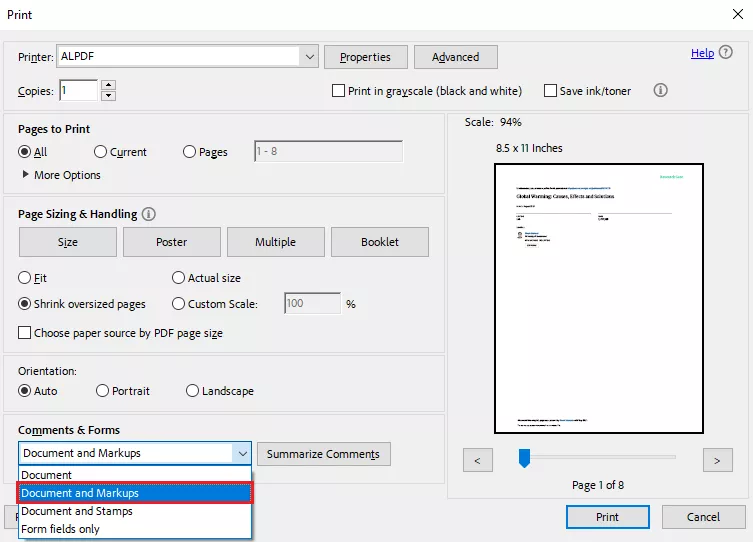
Step 3: Click "Print" and save the new PDF. This will print both your PDF and the comments.
This method ensures you have a version of your PDF with all comments, even if you can't save the original file. However, if this method doesn’t work for you, try the next one.
Efficiency Tip
Windows • macOS • iOS • Android 100% secure
Fix 3. Split PDF to Save the PDF
If you can't save the entire PDF, try splitting it into smaller parts. This can help save the document in separate files without losing any content. With this method, you can also overcome the "Expected a dict object Acrobat error."
Here is how you can split the PDF file into smaller parts.
Step 1: Open your PDF in Adobe Acrobat. Look for a tool called "Organize Pages."
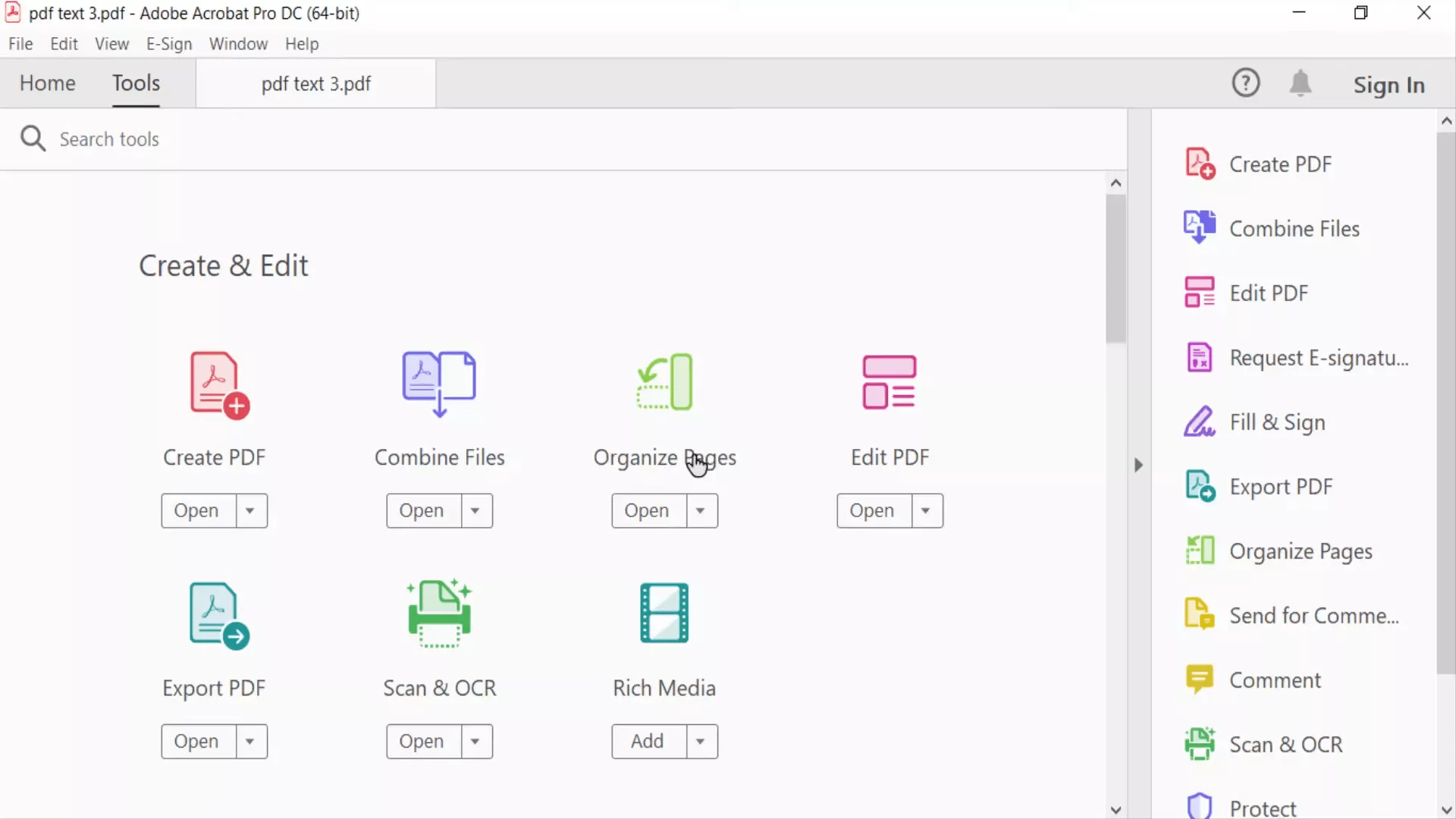
Step 2: Click on the page you want to split. Choose the "Split" option from the menu.
Step 3: You can also choose how you want to split the PDF (by number of pages, file size, or top-level bookmarks).
Click "Output Options" to choose where to save the new files and click "Ok".
This way, you can save your PDF in smaller, manageable parts. It will also reduce the chances of facing the "Expected a dict object Adobe Acrobat" error.
Fix 4. Convert PDF to PDF/A
Sometimes, saving a PDF can be tricky because of how it’s made. Converting it to PDF/A can help fix this. PDF/A is a special kind of PDF that is easier to save.
Here is how you can convert PDF to PDF/A:
Step 1: Open your PDF in Adobe Acrobat.
Step 2: Go to "File" > "Save As Other" > "Archivable PDF (PDF/A)".
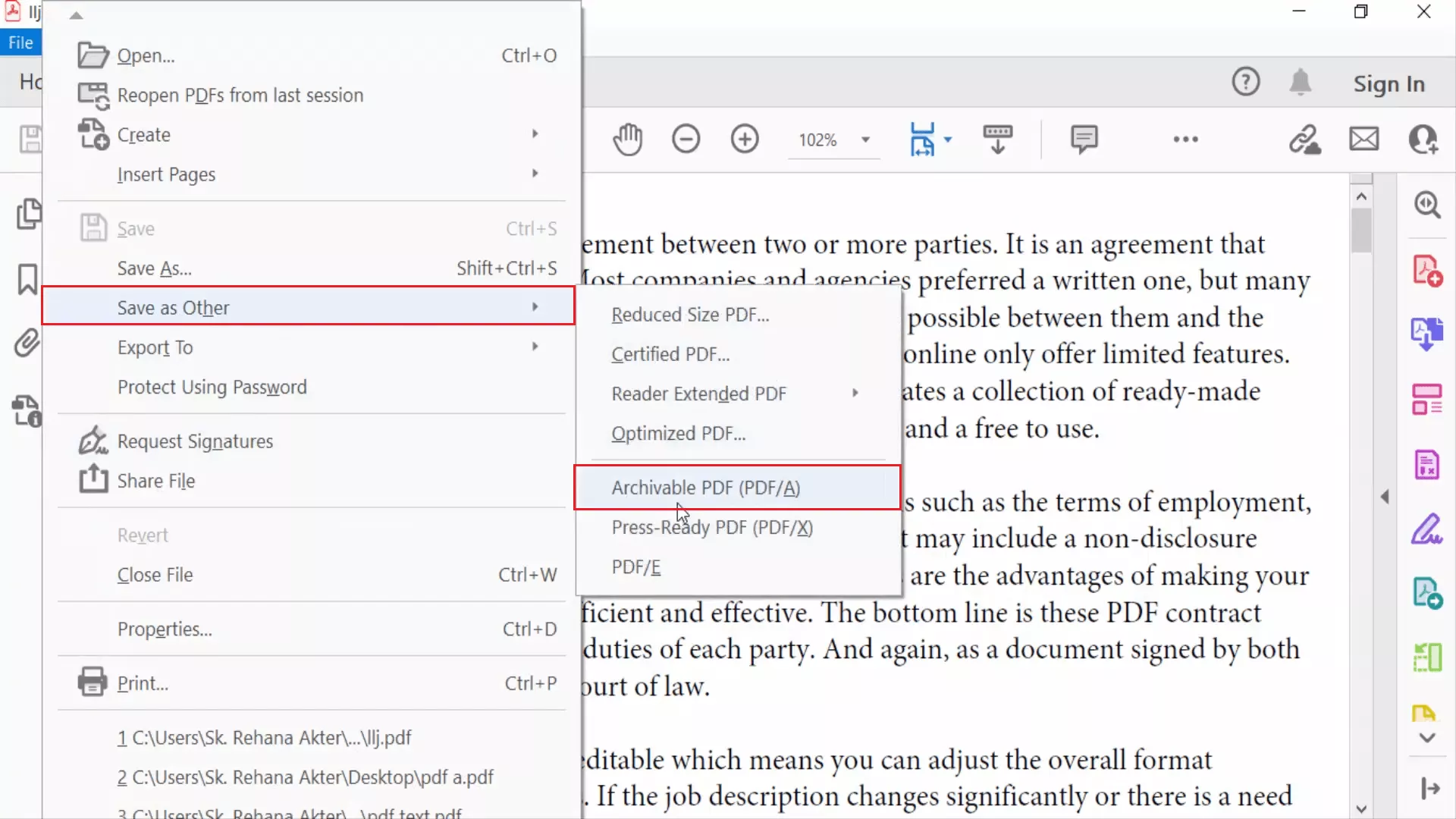
Step 3: Choose the PDF/A format (PDF/A-1b is commonly used). Click "Save" to create the PDF/A file.
Converting to PDF/A ensures your document meets archival standards, which can help resolve the saving problem.
Fix 5. Restore Previous Versions
If all else fails, you can try restoring a previous version of your PDF. This is the last thing you can try. But be careful! You will lose all the changes you made after the version you restored.
Here is how you can restore the previous version of your PDF.
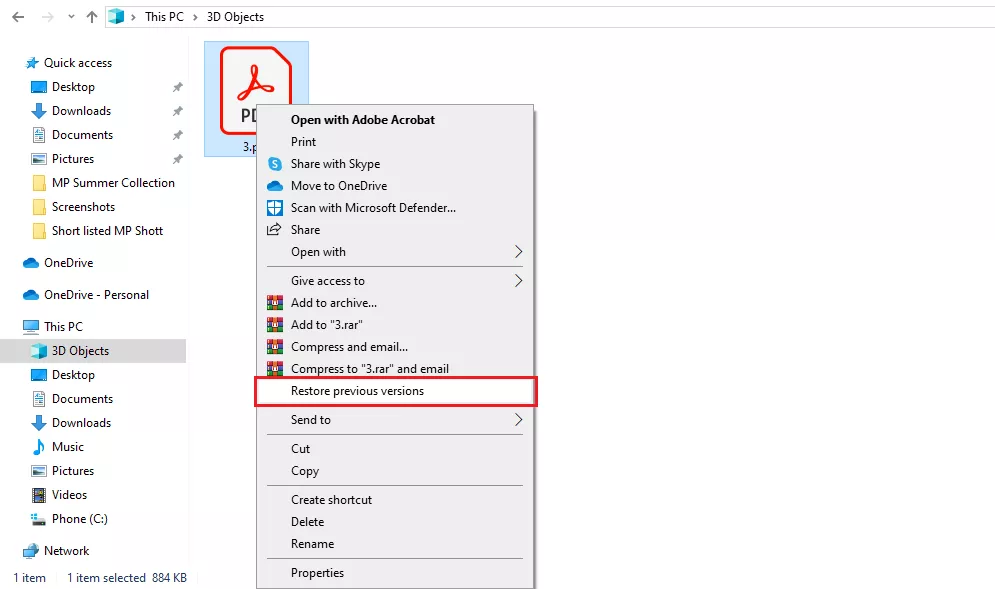
Step 1: Right-click on the PDF file. Select the "Restore previous versions" option from the context menu.
Step 2: Choose an earlier version from the list of available versions. Click "OK".
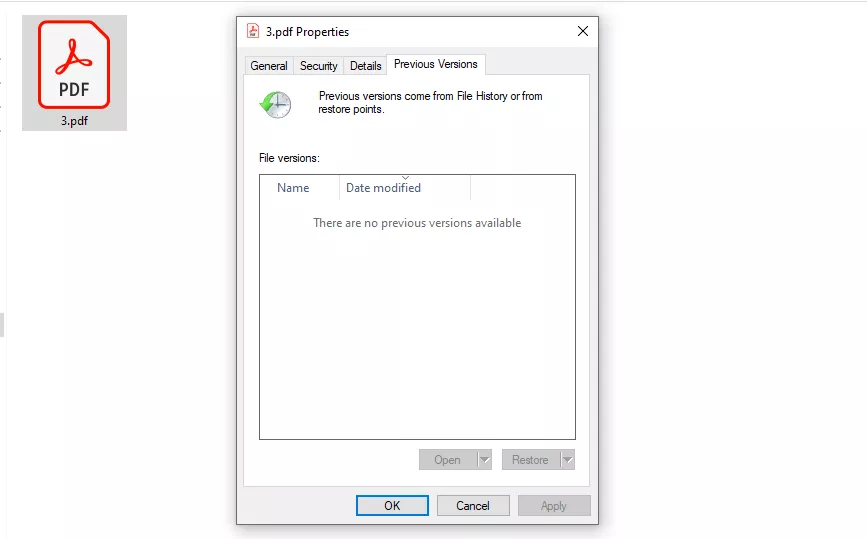
Remember, you will lose everything you did to the PDF after that version. So, be sure this is what you want to do.
Fix 6. Update or Reinstall Adobe Acrobat
If you feel there is no big changes in the PDF that re needed to be saved, but you also want to avoid the error, try updating or reinstalling Adobe Acrobat. Sometimes, this simple solution can help you overcome the "Expected a dict object Adobe Acrobat" error.
To Update Adobe Acrobat:
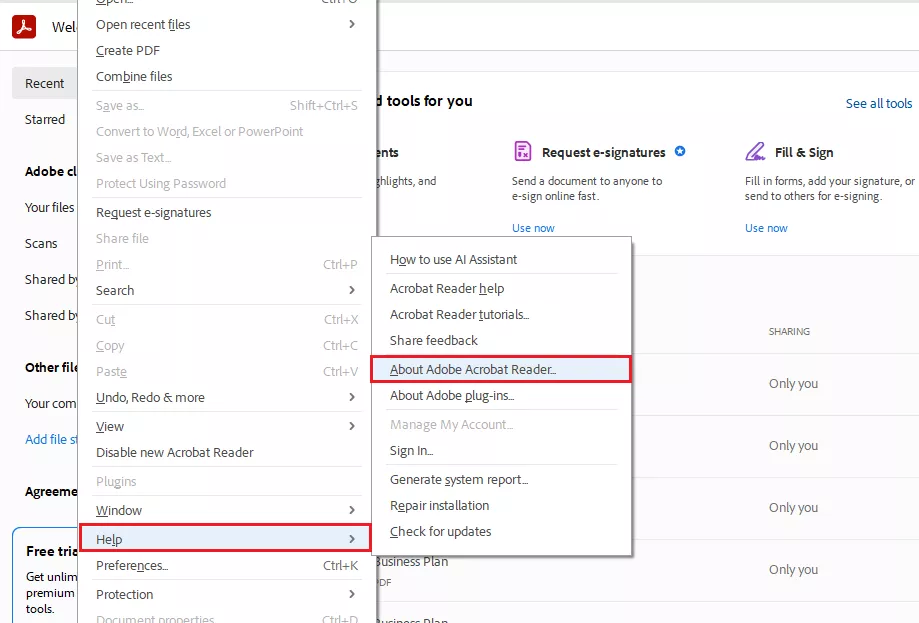
Open Adobe Acrobat. Look for “Menu” > "Help" > "About Acrobat" to know which version you are in. Check for the new updates, you need to select “Check for updates” in the “Help” menu.
To Reinstall Adobe Acrobat:
Step 1: Close Adobe Acrobat. Open your PC's Start menu and find Adobe Acrobat.
Step 2: Right-click on it and select "Unintsall". It will open the Program and Features window.
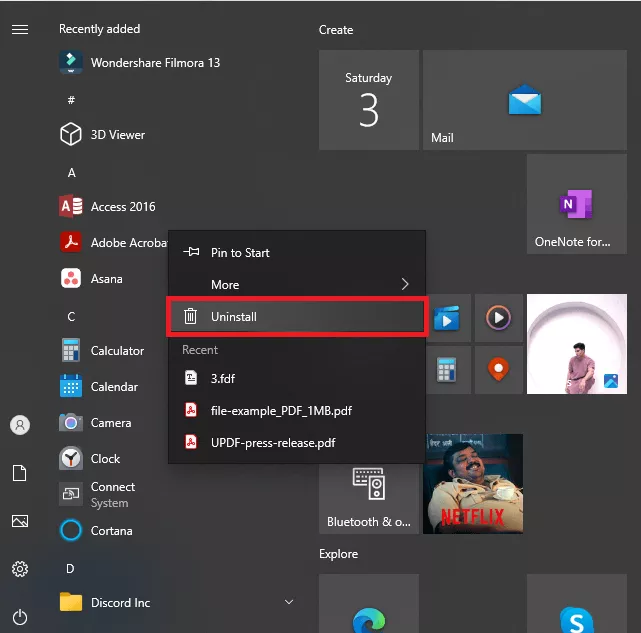
Step 3: Find Adobe Acrobat, right-click on it, and select "uninstall". Then, restart your computer.
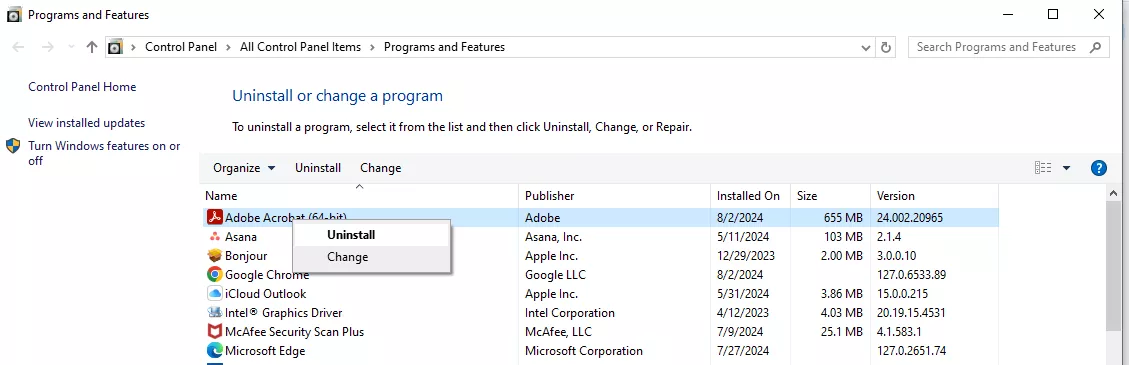
Step 4: Download and install the latest version of Adobe Acrobat from the Adobe website.
Part 3. Bonus Tips: The Best Adobe Acrobat Alternative
When using Adobe Acrobat, you might face many errors like the "Adobe expected a dict object" error. If you're tired of dealing with these issues, consider using UPDF instead. UPDF doesn't have this error and offers many great features that make it a better choice.
Why UPDF is the Smarter Choice for Professionals
Following are the reasons that would be enough to Choose UPDF over Adobe Acrobat:
- Error-Free Engine: UPDF is built on a streamlined, modern codebase that handles complex dictionary objects (dict objects) more reliably than legacy software.
- Seamless Transition: You can import your Adobe-commented PDFs directly into UPDF without formatting loss.
- Cost-Efficient Power: Get all of Adobe’s Pro features—plus exclusive AI tools—at a fraction of the cost.
- Safety First: UPDF ensures your document structure remains intact during saves, preventing the very corruption that causes Error 14.
Ready to switch? Download UPDF and purchase UPDF today for a smoother, error-free PDF experience. Watch this video to learn more about UPDF.
Final Words
Dealing with the "Adobe expected a dict object" error can be frustrating, but there are several ways to resolve it. From exporting comments to converting your PDF, each method offers a potential fix.
However, if you want a better experience without these errors, consider using UPDF. It's an excellent alternative to Adobe Acrobat. You get advanced features and a user-friendly interface. So, download UPDF today for a hassle-free PDF experience!
Windows • macOS • iOS • Android 100% secure





 Enola Davis


 Grace Curry
 Enrica Taylor
from Acrobat Community