UPDF
UPDF
 UPDF for Windows
 UPDF for Mac
 UPDF for iPhone/iPad
 UPDF for Android
 Nomostar
 UPDF AI Online
 UPDF Sign
 IvyCraft
 Edit PDF
 Annotate PDF
 Create PDF
 PDF Form
 Edit links
 Convert PDF
 OCR
OCR PDF to Word
 PDF to Image
 PDF to Excel
 Organize PDF
 Merge PDF
 Split PDF
 Crop PDF
 Rotate PDF
 Protect PDF
 Sign PDF
 Redact PDF
 Sanitize PDF
 Remove Security
 Read PDF
 UPDF Cloud
 Compress PDF
 Print PDF
 Batch Process
 About UPDF AI
 UPDF AI Solutions
 AI User Guide
 FAQ about UPDF AI
 Summarize PDF
 Translate PDF
 Chat with PDF
 Chat with AI
 Chat with image
 PDF to Mind Map
 Explain PDF
 PDF AI Tools
 Image AI Tools
 AI Chat Tools
 AI Writing Tools
 AI Study Tools
 AI Working Tools
 Other AI Tools
 AI Bookmark Generation
 AI Bookmark Summary
 AI Watermark Generation
 AI Background Generation
 AI Sticker Generation
 AI Stamp Generation
 AI Editing Suite
 UPDF Copilot
 AI Page Management
 AI Semantic Search
 PDF to Word
 PDF to Excel
 PDF to PowerPoint
 Enterprise Solution
 Enterprise Sign
 Enterprise AI
 Enterprise Plan
 Enterprise User Guide
 Enterprise Webinar
 IT
IT Education
 Construction
 Financial Service
 Healthcare
 Insurance
 Legal
Legal Manufacturing
 Government
 Researchers & PhDs
 Solopreneurs & Freelancers
 Lawyers & Legal Professionals
 Real Estate Agents & Brokers
 Education Solution
 Customer Stories
 User Guide
 UPDF Tricks
 FAQs
FAQs UPDF Reviews
 Download Center
 Blog
Blog Newsroom
 Tech Spec
 Updates
 UPDF vs. Adobe Acrobat
 UPDF vs. Foxit
 UPDF vs. PDF Expert

Translating an English PDF to Portuguese often results in broken tables, misaligned text, and lost formatting. Google Translate may work for short text, but it fails with complex layouts, fails with scanned documents, and doesn't handle the differences between European and Brazilian Portuguese well. You need a solution that preserves your document's structure while delivering accurate, natural-sounding Portuguese.
This guide compares two categories of tools: traditional translators (Google Translate, Microsoft Translator, Smallpdf, Soda PDF) and AI-powered translators (UPDF AI, DeepL, ChatGPT ). You'll learn which approach works for your document type, privacy needs, and budget. And UPDF AI is the perfect choice that fits these needs; try it with us now.
Windows • macOS • iOS • Android 100% secure
Traditional vs. AI Translation: Which One You Need?
Before we dive into tools, let’s clarify a fundamental distinction – it will shape your choice.
Traditional Neural Machine Translation (NMT) – used by engines like Google Translate's standard mode. They are fast, reliable, and excel at straightforward prose. However, they sometimes struggle with long‑document context, idioms, and highly specialised terminology, producing translations that feel “stiff” or literal.
Large Language Model (LLM) Translation – powered by models like GPT, Claude, or Gemini. These are slower and more expensive to run, but they handle context, nuance, and domain‑specific jargon much better. For academic papers, legal contracts, or technical manuals, LLM‑driven tools often deliver translations that truly “understand” the document.
The good news: many modern tools blend both, like UPDF – using NMT for speed and LLMs for deep‑context passages. Understanding this helps you pick the right balance for your task.
| Your Scenario | What You Need | Recommended Path |
|---|---|---|
| Quick translation, one file, non-sensitive | Fast, free, no signup | Traditional online tool |
| Scanned English PDF | OCR + translation | Traditional online tool with OCR or AI tool |
| Sensitive document — contracts, legal | Privacy, local processing | AI desktop software |
| Need natural, fluent Portuguese | High translation quality | AI translation platform |
| Need European or Brazilian Portuguese | Variant selection | AI tool with variant support |
| Complex layout — tables, columns | Layout preservation | AI tool |
Let's see these online PDF translators and AI-powered PDF translators below together.
Translate PDF English to Portuguese in Traditional Online Translators
Traditional translators like Google Translate, Microsoft Translator, and Soda PDF offer fast, free translations. They work best for simple text-based PDFs without complex layouts.
| Tool | Free Access | English OCR | Layout Preservation | PT Variant Support | File Limits | Best For |
|---|---|---|---|---|---|---|
| Google Translate | Unlimited (free) | ❌ | ⭐ | ❌ | 10MB / 300 pages | Short text-only PDFs |
| Microsoft Translator | Unlimited (free) | ❌ | ⭐⭐ | ❌ | — | Office ecosystem users |
| Soda PDF Online | Free | ❌ | ⭐⭐⭐ | ✅ | 100MB | Simple PDF translation |
| iLovePDF Translate | 1 doc/day | ✅ | ⭐⭐⭐⭐ | ✅ | — | Scanned documents, layout preservation |
| GroupDocs.Translation | 10,000 chars | ✅ | ⭐⭐⭐⭐ | ✅ | 10,000 chars | Quick, reliable translation |
iLovePDF's translation service maintains the format, but only offers one free translation per day. Upgrading requires purchasing AI credits. Moreover, the steps for using most of these online translation tools are similar: upload the file to be translated, select the target language, and wait for the translation to complete. The differences lie in the export format, the preservation of the original document's formatting, and the quality of the translation.
If you want to maintain the original document formatting while ensuring high-quality OCR and translation, you won't want to miss the AI translators featured below—complete with detailed, step-by-step instructions.
Translate PDF English to Portuguese in AI-Powered Translators
AI-powered translators understand context, preserve formatting, handle scanned documents, and let you choose between European and Brazilian Portuguese.
| Tool | Pricing | Portuguese Variants | Layout Preservation | OCR | Platform | Best For |
|---|---|---|---|---|---|---|
| UPDF AI | $79 per year | PT-PT & PT-BR | ⭐⭐⭐⭐⭐ | ✅ | Win, Mac, iOS, Android, Web | Best value — all-in-one |
| DeepL | Free tier / Pro (~$20/mo) | PT-PT & PT-BR | ⭐⭐⭐⭐⭐ | ✅ | Web, Desktop | Premium quality |
| ChatGPT | Free tier | PT-PT & PT-BR | ⭐⭐ | ❌ | Web, Mobile | Contextual understanding |
| Lingocloud | Free tier / Paid | PT-PT & PT-BR | ⭐⭐⭐⭐ | ✅ | Web | Layout preservation |
UPDF combines a full PDF editor with AI translation. It can translate entire documents while preserving original layout, formatting, tables, and images. Built-in OCR handles scanned PDFs. You can choose between European Portuguese (PT-PT) and Brazilian Portuguese (PT-BR). Supports batch processing for multiple files. All processing is 100% offline — files never leave your device. Let's check how to use UPDF AI translate PDF English to Portuguese.
Windows • macOS • iOS • Android 100% secure
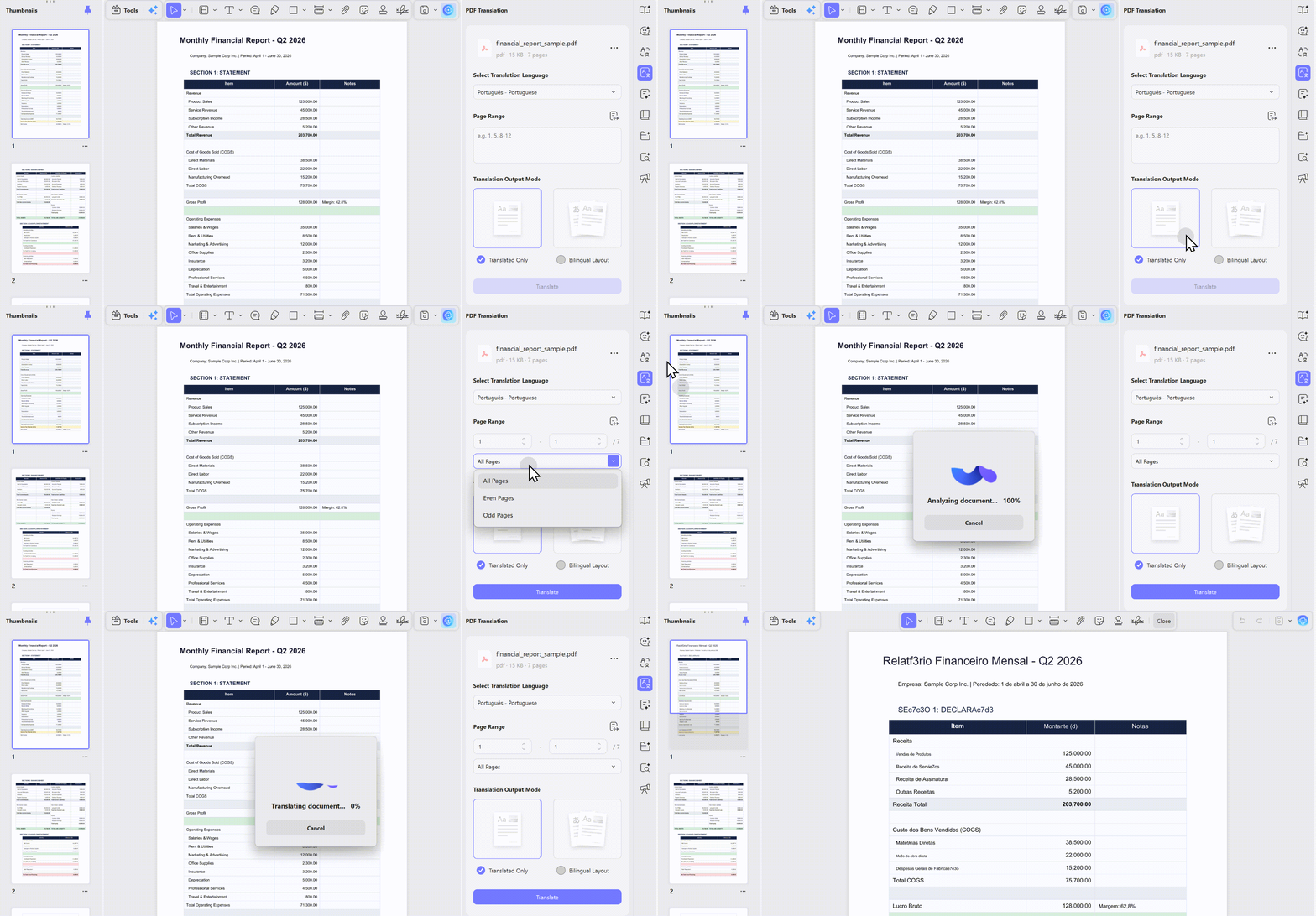
Way 1. Translate The Whole PDF from English to Portuguese with Layout Keeping
If you want to translate the whole PDF from English to Portuguese without changing the layout, you can follow these steps.
Watch the UPDF walkthrough below to see how full-document, page-range, selected-text, and scanned-PDF translation works across supported devices.
Step 1. Open the English PDF, then go to "PDF Translation", select "Portuguese" as the output language, and click on "Translate" to select the place to save the translated PDF.
Step 2. When the translation process is done, you can find the translated PDF opened in UPDF.
Way 2. Translate PDF from English to Portuguese Via Selecting Texts
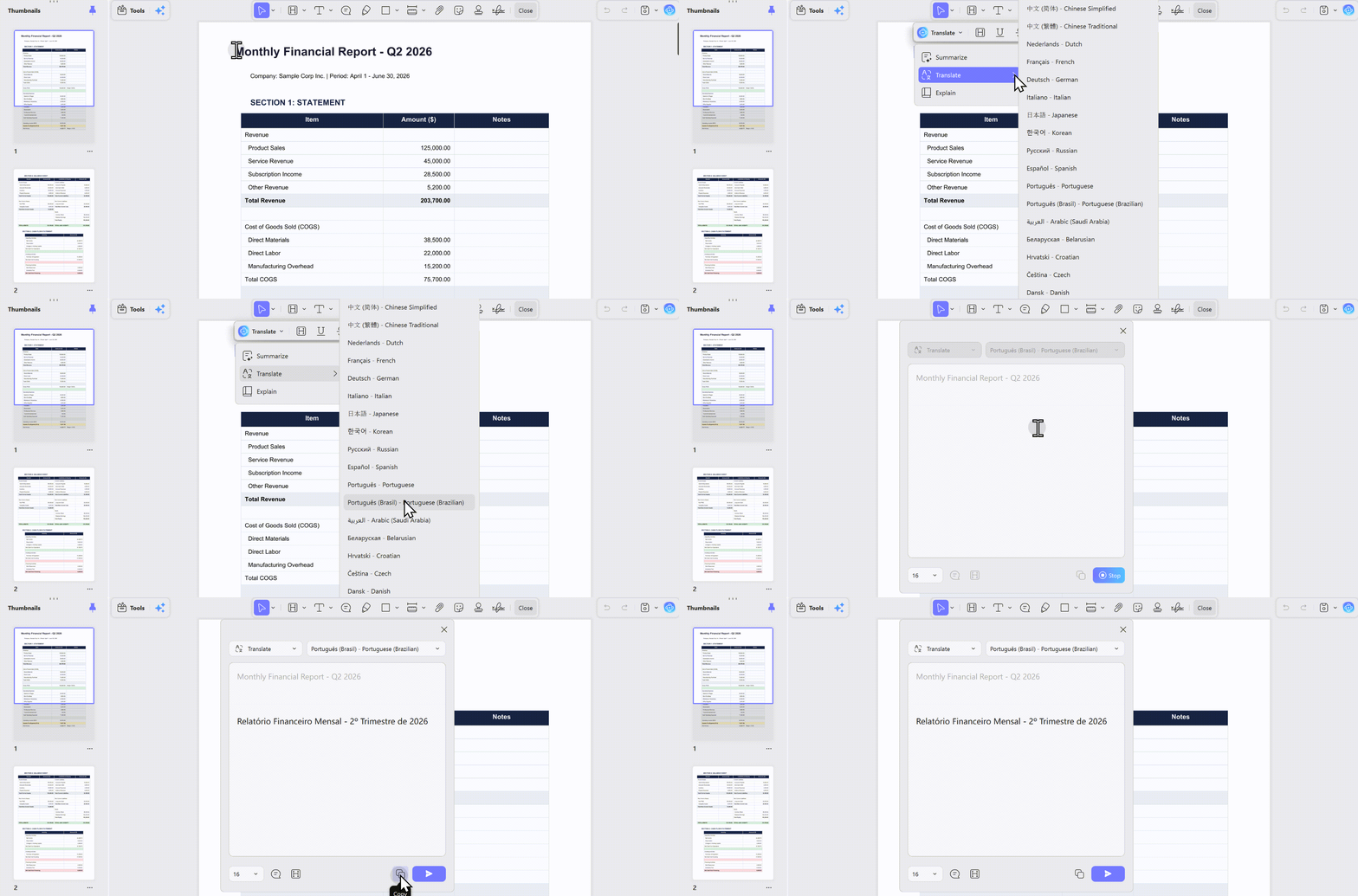
You can also select the texts, and use UPDF AI to translate directly. All you have to do is follow these simple steps to carry out any translation-related work.
Step 1: Select Content You Want to Translate into Portuguese
After uploading your PDF sample work or documents written in English on UPDF, click on the "Comment" icons to highlight the content you want to translate into Portuguese. After highlighting the text, you'll see a pop-up toolbar containing the UPDF AI feature. Following the appearance of the toolbar, hit the "Dropdown" icon adjacent to the UPDF AI prompt.
Step 2: Choose Translate Prompt on UPDF AI
Finally, you can hover over the "Translate" prompt to select Portuguese as the output language. Once the translation is done, add it to your file as a sticky note.
Way 3. Translate PDF from English to Portuguese Via Translating by Pages
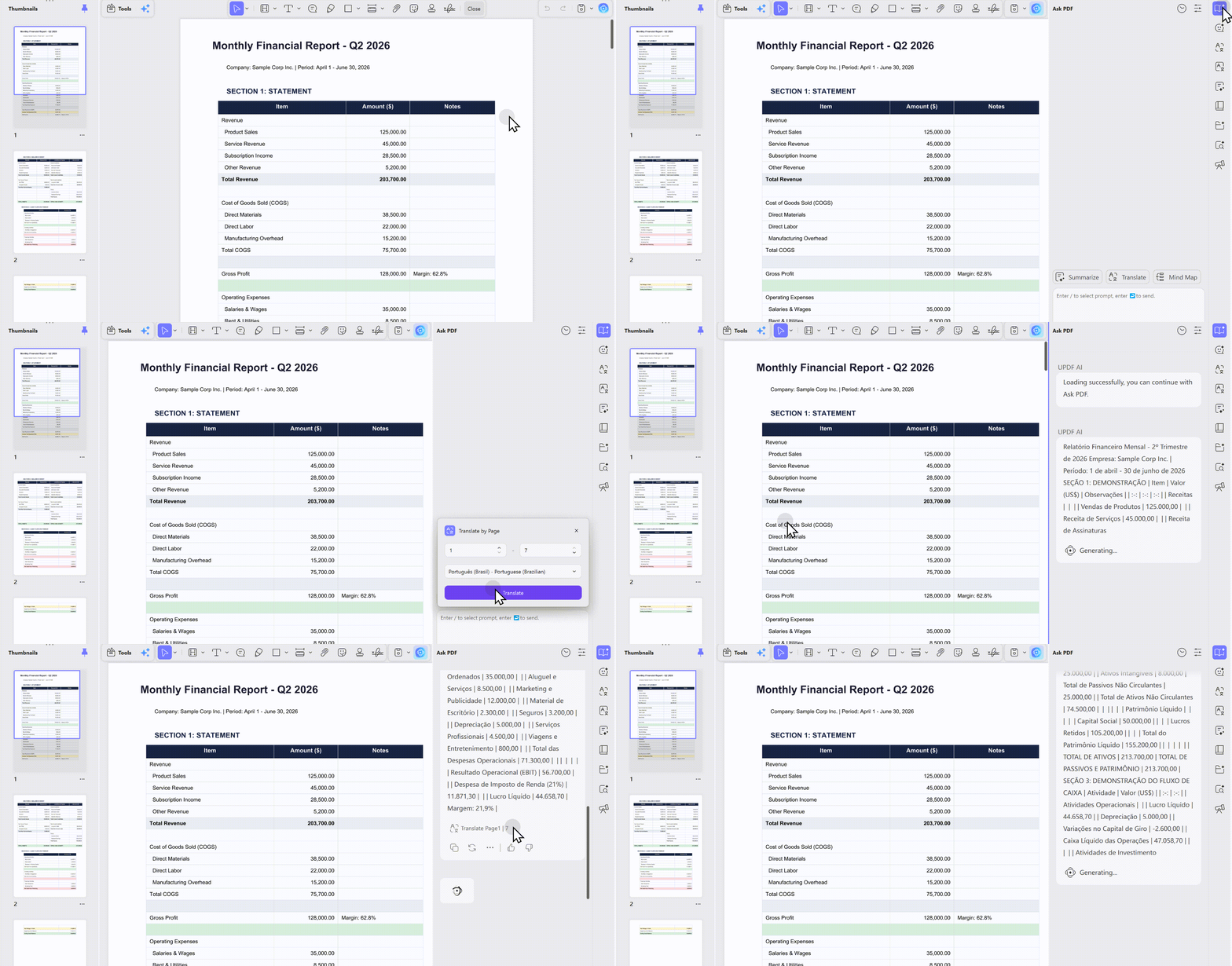
Users aren't limited just to translating PDF from English to Portuguese with the two methods mentioned above in UPDF. Copying your text and giving a UPDF AI prompt to translate it is another method. You can download UPDF PDF translator to perform this method with these convenient guidelines:
Windows • macOS • iOS • Android 100% secure
Click on the "UPDF AI" icon to enter the “Ask PDF” mode of this tool. Afterward, you can click on the "Prompt" to select the "Translate by Page" prompt in the UPDF AI dropdown menu and choose the Portuguese language.
Why not download UPDF and follow the steps below to try it now?
Windows • macOS • iOS • Android 100% secure
Way 4. Translate Scanned PDF from English to Portuguese Via OCR and UPDF AI
If you have a scanned English PDF and want to translate from English to Portuguese, you have two ways to do that with UPDF. One is to use OCR, then use UPDF AI; the other is to use UPDF AI's chatting with image feature. I will show you these two methods here.
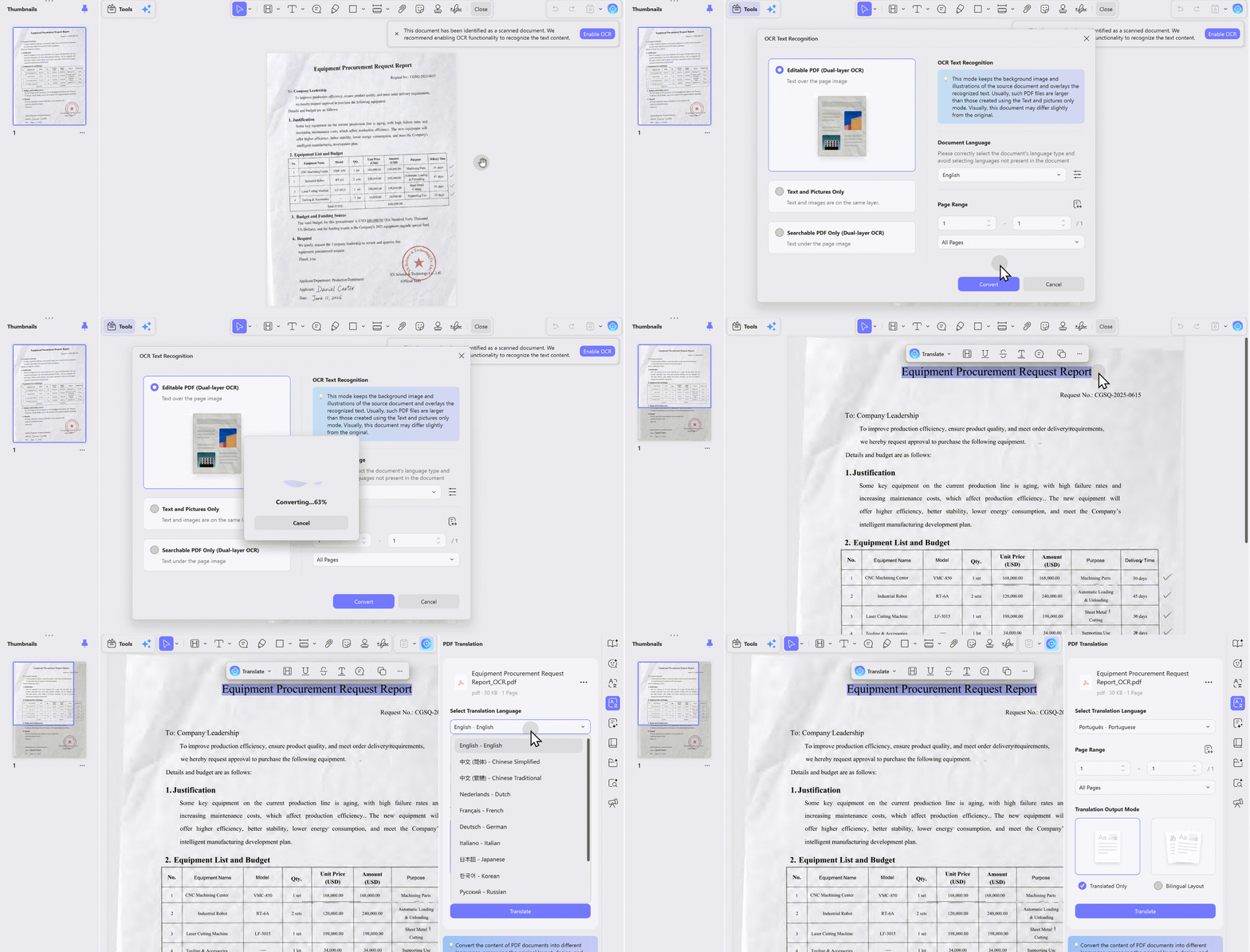
Firstly, upload your English scanned documents on UPDF to start the process of translating these scanned PDFs. Then proceed to hit the “OCR” in Tools, select "English" as the document language, and click on "Convert" to convert your images or scanned PDF to an editable file document.
Finally, you can utilize any of the methods explained before to translate PDF English to Portuguese with the help of UPDF AI.
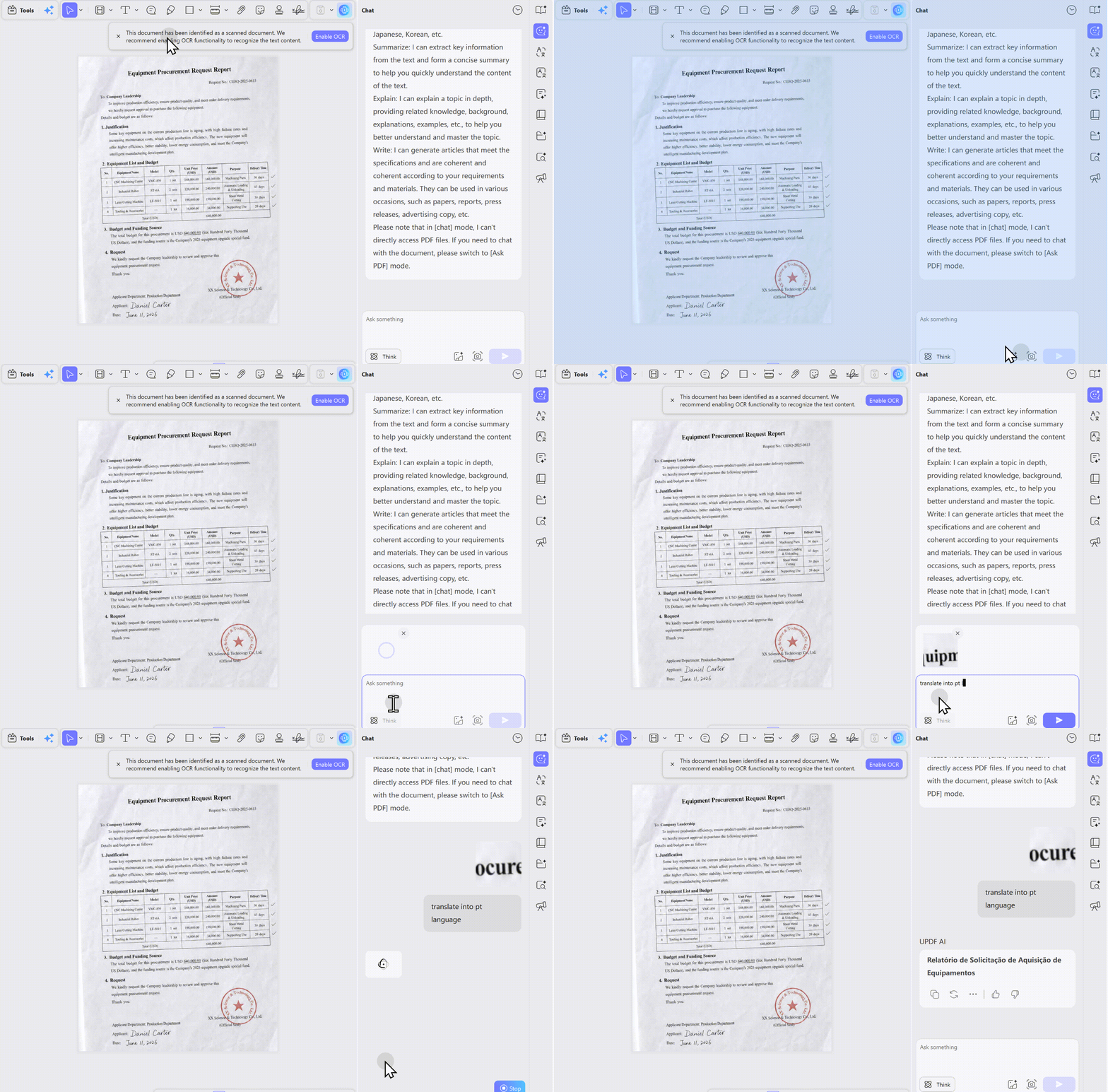
Or use UPDF AI's Image Chatting Feature. Just open the scanned English PDF with UPDF, click on "UPDF AI", go to "Chat" mode, choose the "Screenshot" icon to select the section you want to translate, or select the "Add Image" icon to upload the image. Then, enter the prompt "Translate to Portuguese".
Windows • macOS • iOS • Android 100% secure
Way 5. Translate PDF from English to Portuguese with UPDF AI Online
UPDF AI also has an online version which allows you to translate English PDFs to Portuguese easily. And it has 100 free prompts to use; you can click the button below to visit and follow the guide below to translate an English PDF to Portuguese.
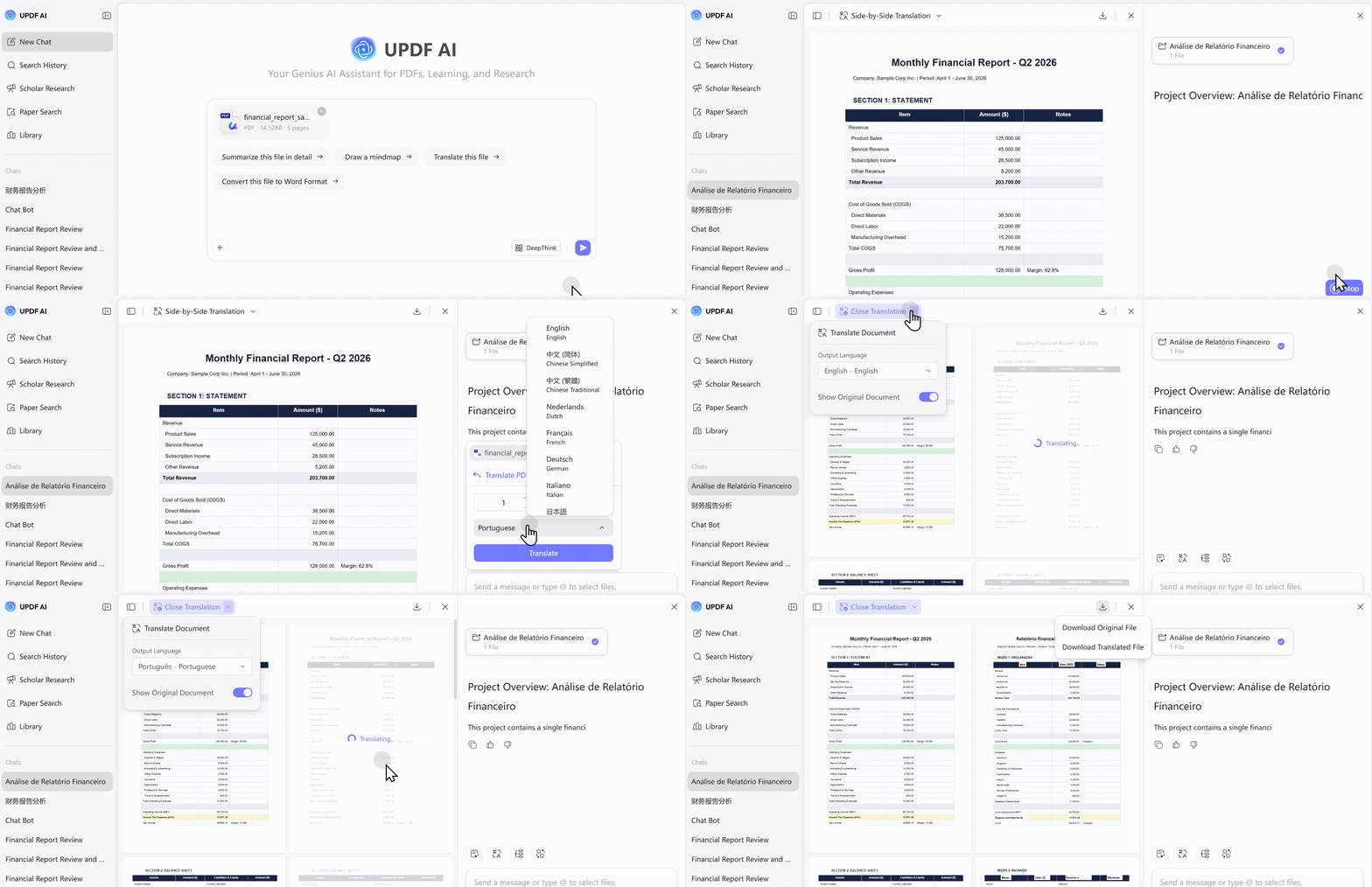
Step 1. Click on the "Upload File" button to select the PDF file to import, then click on the uploaded PDF to open it. Now, click on "Get Started" to let UPDF AI analyze it.
Step 2. Now, select "Portuguese" as the output language, click on the "Prompt", select "Translate PDF by Page" to choose the page range, and click on the "Go" to translate.
FAQ — Common Questions
Can Google Translate handle Portuguese accents and special characters?
Google Translate can handle Portuguese accents in text output, but it often fails to preserve them correctly in PDF exports due to font embedding issues. Use a dedicated translation tool like UPDF for accurate accent rendering.
What's the difference between European and Brazilian Portuguese translation?
European Portuguese (PT-PT) and Brazilian Portuguese (PT-BR) differ in spelling, vocabulary, and grammar. For example, "train" is "comboio" in PT-PT and "trem" in PT-BR. Not all tools let you choose the variant, so check before translating.
Why do Portuguese accents appear as garbled characters in my translated PDF?
This happens when the translation tool doesn't embed a font that supports Portuguese diacritics (á, é, í, ó, ú, â, ê, ô, ã, õ, ç). Use a tool with proper font embedding like UPDF or DeepL.
Is it safe to translate confidential PDFs with AI tools?
Online AI tools require uploading files to cloud servers. For confidential documents, use offline software like UPDF that processes files locally on your device.
Closing Thoughts
Translating your PDF documents and PDF sample work into the local language of the client gives you a big professional advantage over other competitors. You can utilize any of the above-mentioned tools to translate PDF from English to Portuguese.
All of these tools and methods will prove equally effective in giving an accurate translation of your text. However, considering everything mentioned in the article, UPDF and UPDF AI Online stand out as the best tools. Download UPDF or visit UPDF AI Online now to get benefit from this multi-dimensional PDF translator.
This guide covers everything you need to translate English PDFs to Portuguese. If you're looking for a more comprehensive walkthrough on PDF AI chat and document intelligence — summarizing, translating, extracting insights, and more — visit our full pillar guide: PDF AI Chat.
Windows • macOS • iOS • Android 100% secure






 Enola Davis
 Enrica Taylor
 Lizzy Lozano