UPDF
UPDF
 UPDF for Windows
 UPDF for Mac
 UPDF for iPhone/iPad
 UPDF for Android
 Nomostar
 UPDF AI Online
 UPDF Sign
 IvyCraft
 Edit PDF
 Annotate PDF
 Create PDF
 PDF Form
 Edit links
 Convert PDF
 OCR
OCR PDF to Word
 PDF to Image
 PDF to Excel
 Organize PDF
 Merge PDF
 Split PDF
 Crop PDF
 Rotate PDF
 Protect PDF
 Sign PDF
 Redact PDF
 Sanitize PDF
 Remove Security
 Read PDF
 UPDF Cloud
 Compress PDF
 Print PDF
 Batch Process
 About UPDF AI
 UPDF AI Solutions
 AI User Guide
 FAQ about UPDF AI
 Summarize PDF
 Translate PDF
 Chat with PDF
 Chat with AI
 Chat with image
 PDF to Mind Map
 Explain PDF
 PDF AI Tools
 Image AI Tools
 AI Chat Tools
 AI Writing Tools
 AI Study Tools
 AI Working Tools
 Other AI Tools
 AI Bookmark Generation
 AI Bookmark Summary
 AI Watermark Generation
 AI Background Generation
 AI Sticker Generation
 AI Stamp Generation
 AI Editing Suite
 UPDF Copilot
 AI Page Management
 AI Semantic Search
 PDF to Word
 PDF to Excel
 PDF to PowerPoint
 Enterprise Solution
 Enterprise Sign
 Enterprise AI
 Enterprise Plan
 Enterprise User Guide
 Enterprise Webinar
 IT
IT Education
 Construction
 Financial Service
 Healthcare
 Insurance
 Legal
Legal Manufacturing
 Government
 Researchers & PhDs
 Solopreneurs & Freelancers
 Lawyers & Legal Professionals
 Real Estate Agents & Brokers
 Education Solution
 Customer Stories
 User Guide
 UPDF Tricks
 FAQs
FAQs UPDF Reviews
 Download Center
 Blog
Blog Newsroom
 Tech Spec
 Updates
 UPDF vs. Adobe Acrobat
 UPDF vs. Foxit
 UPDF vs. PDF Expert

Quick Answer:
The world is progressing, and new research and discoveries are coming from all around the world. Now, these revolutions are recorded in native languages, but to better comprehend these, people usually have to translate them into their own languages. If you are in such a situation, this article will introduce you to a popular tool, Canva.
Fortunately, Canva translates PDF files into multiple languages to make content comprehensive. However, if you find the procedure complex while using this solution, read this article and get a better substitute.
Part 1. Which PDF Translation Workflow Should You Use?
| Your PDF and goal | Recommended workflow | Main limitation |
|---|---|---|
| Editable brochure, flyer, or presentation that you also want to redesign | Canva Translate | Imported elements and translated text may need manual layout fixes |
| PDF whose original layout must remain close to the source | UPDF PDF Translation | Machine translation still requires human review for critical content |
| Scanned or image-only PDF | OCR first, then translate with UPDF | OCR accuracy depends on scan quality and source-language support |
| A few sentences or one page only | Select the text and translate only that section | Not efficient for a complete long document |
| Confidential contract, medical file, or financial record | Use an approved local workflow and review the privacy policy | Avoid uploading sensitive files without authorization |
Canva is the better fit when translation is part of a design-editing job. A PDF-focused workflow is the better fit when the translated PDF itself is the final deliverable.
Part 2. How To Translate PDF Files With Canva?
Canva's Translate app supports 134 languages. Canva currently allows one free trial of Translate; continued use requires an eligible Canva Pro, Teams, Education, or nonprofit account. Availability and plan limits can change, so check the Translate panel in your account before starting a large project.
Best for:
- Visual PDFs that you want to translate and continue redesigning in Canva.
Not for:
- Files where a small change in font, spacing, pagination, or table alignment would make the deliverable unusable.
Step 1. Open the Canva PDF Translator and fetch the file by pressing the "Upload Your File" button.
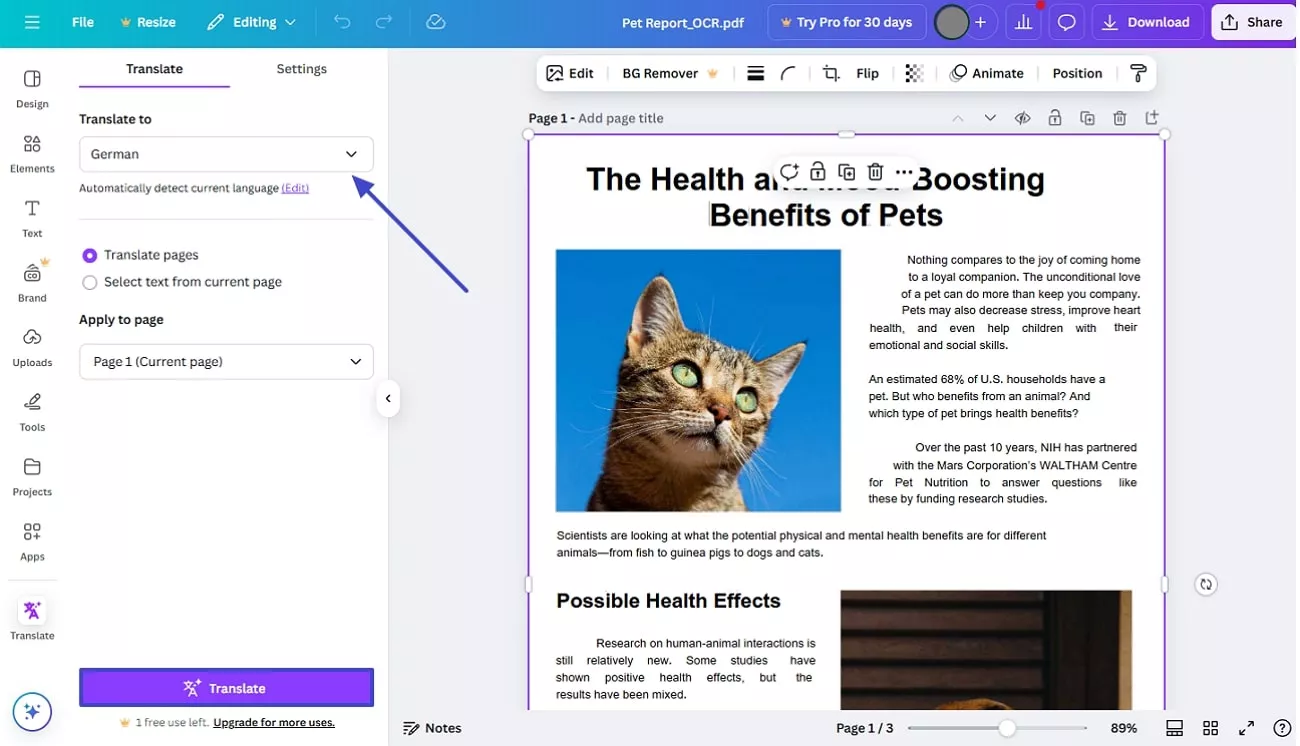
Step 2. Once uploaded, select the page or text you want to translate and enter a targeted language from the drop-down menu under the "Translate to" section. Hit the "Translate" button to convert the PDF text into the selected language.
Step 4. After translating your text, click the "Share" button to copy the link, or simply tap the "Download" button to save the PDF.
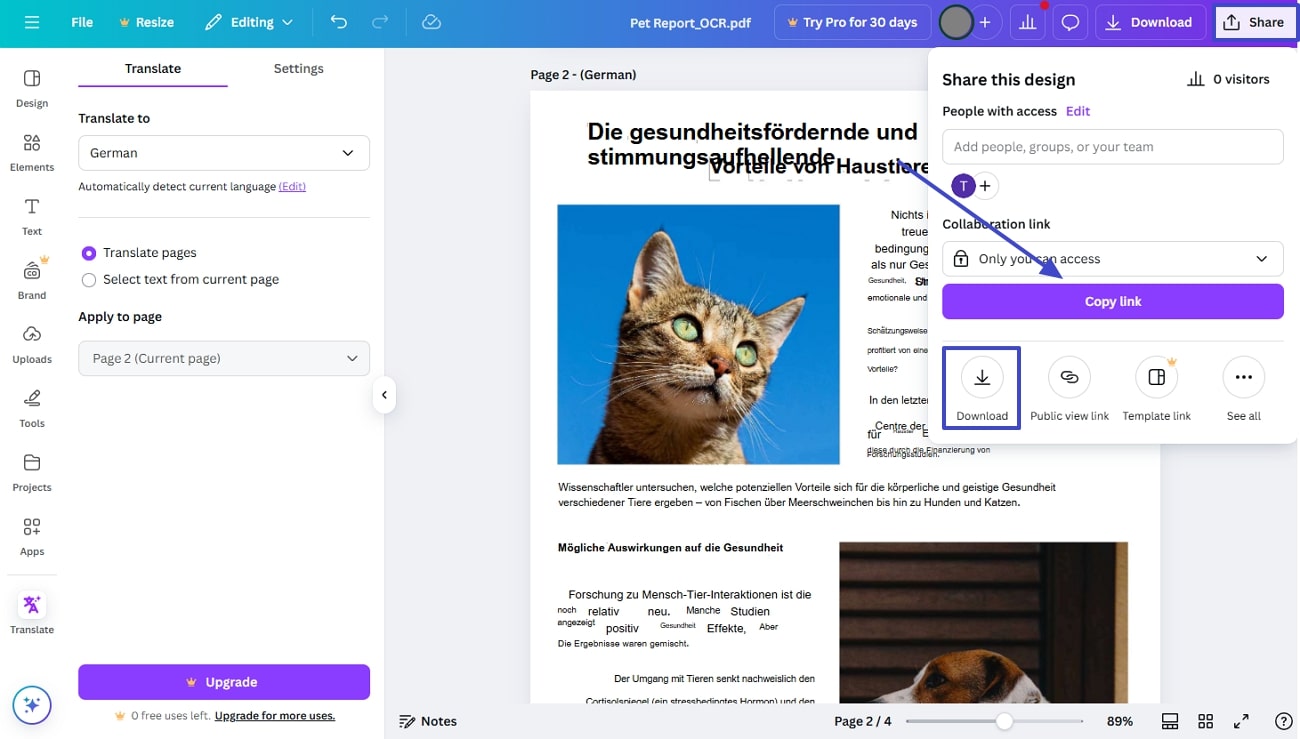
From the above steps, it is evident that the Canva PDF translation is complex for beginners as it disturbs the original formatting. While using it, one has to manually change the font size, style, and alignment, which can affect the overall workflow. So, if you are looking for an alternative tool that is easier to use and also preserves original file settings, dive into the sequential part.
Part 3. Translate PDF Files With Original Layouts Using A Better Canva Alternative
If you are exhausted with Canva's uncertainty and inaccurate AI-generated results, a better option for you would be UPDF. This PDF editing solution offers an AI Assistant powered by GPT-5, offering higher precision than Canva. This makes working with PDFs efficient by providing AI-powered translation, summarization, and context explanation. For translation, it allows you to translate text through various modes such as "Comment Mode", "Ask PDF" (activating AI is required first), or "Select to Translate".
Unlike Canva PDF translator, UPDF allows you to regenerate translations if the results seem unsatisfactory. Additionally, it offers a free trial, through which users can upload up to 5 PDFs for translation.
A Step-By-Step Guideline To Translate Your PDFs With UPDF
Although there are multiple methods of translating a PDF into UPDF, this section will mainly focus on the "Comment Mode" method using the "PDF Translation" feature, as it will generate a new file with origial layouts for the translation. To translate your PDF using this feature, adhere to the following steps:
Step 1. Access the Tool and Add Your PDF
Download UPDF and launch it, and import the PDF by clicking the "Open File" tab.
Windows • macOS • iOS • Android 100% secure
Step 2. Opt For PDF Translation
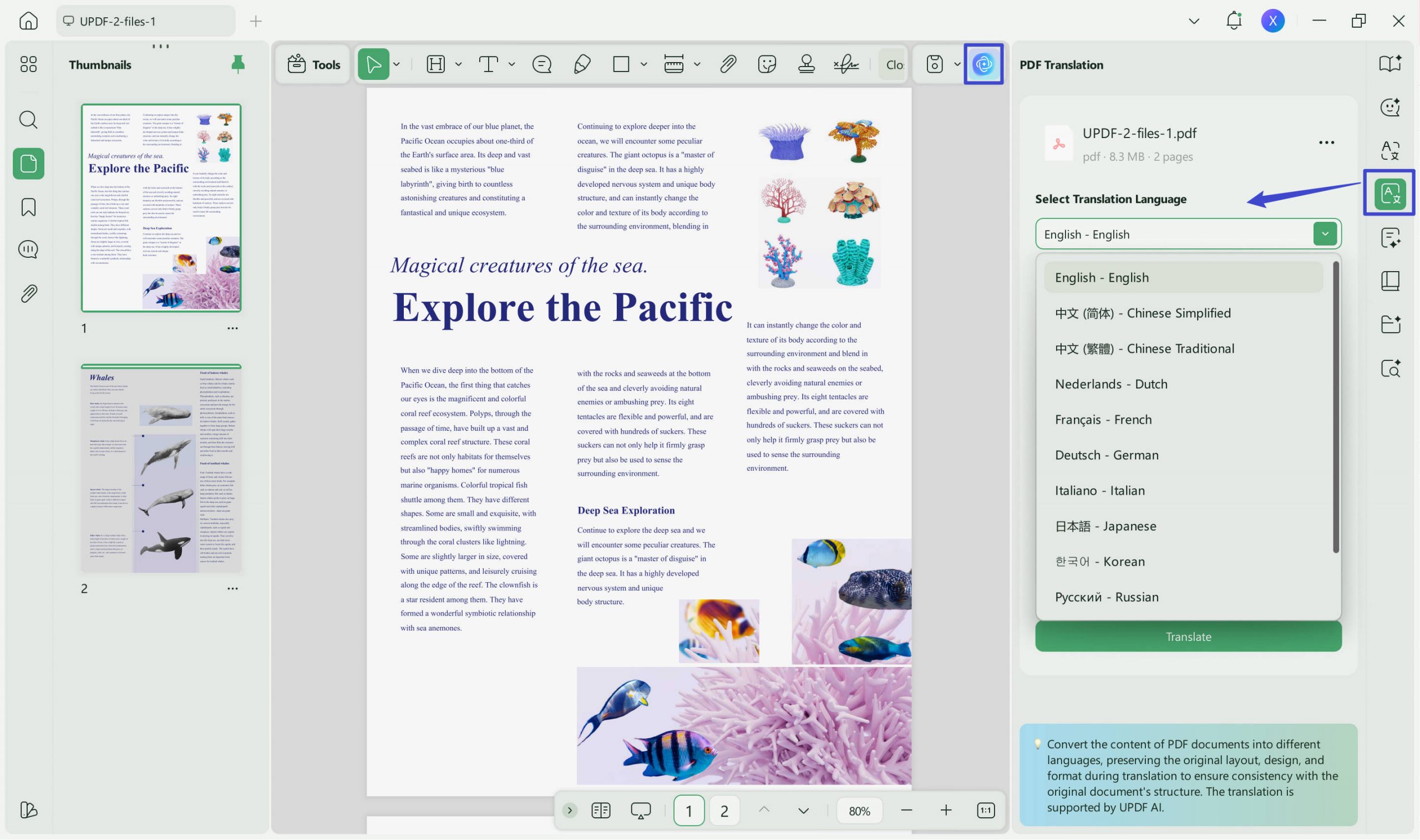
As the file is there, access and tap the "UPDF AI" icon from the left toolbar and press the "PDF Translation" option from the top-right corner.
Step 3. Choose a Language And Convert The Text
From the pop-up menu of the PDF Translation, pick a language from the drop-down menu of "Select Translation Language." After that, either select all pages or select a custom page range and finally, hit the "Translate" button.
Step 4. Save the File To Access Translated Version
Immediately after tapping, a pop-up will appear to save the translated PDF, after which it will open up in a separate window.
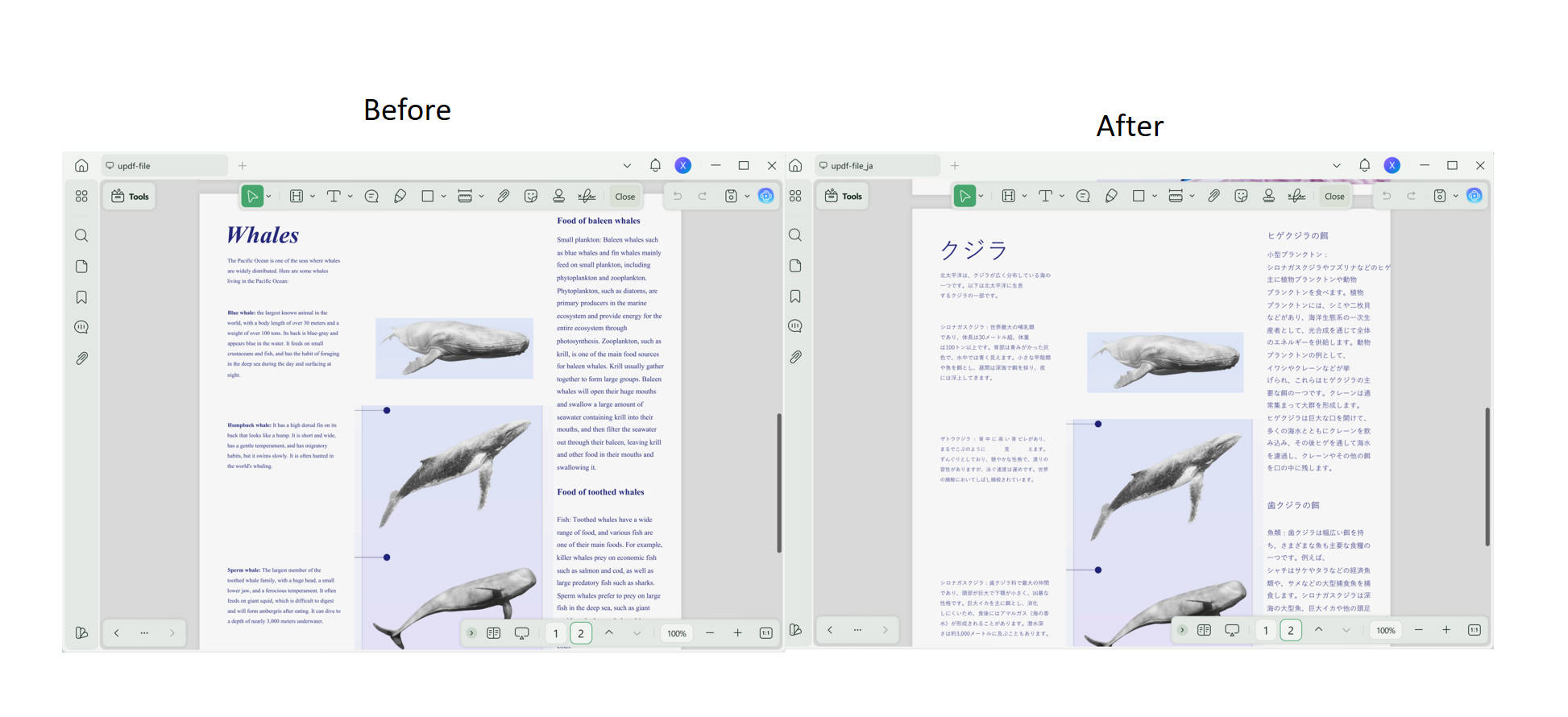
Comparatively, Canva translates PDFs in complex ways, but UPDF offers the most efficient one, which can save a lot of time by selecting a particular page. Moreover, it offers a lot of languages to choose from. Just in case you have any doubts about the results, it lets you compare the before and after versions by making a separate file folder.
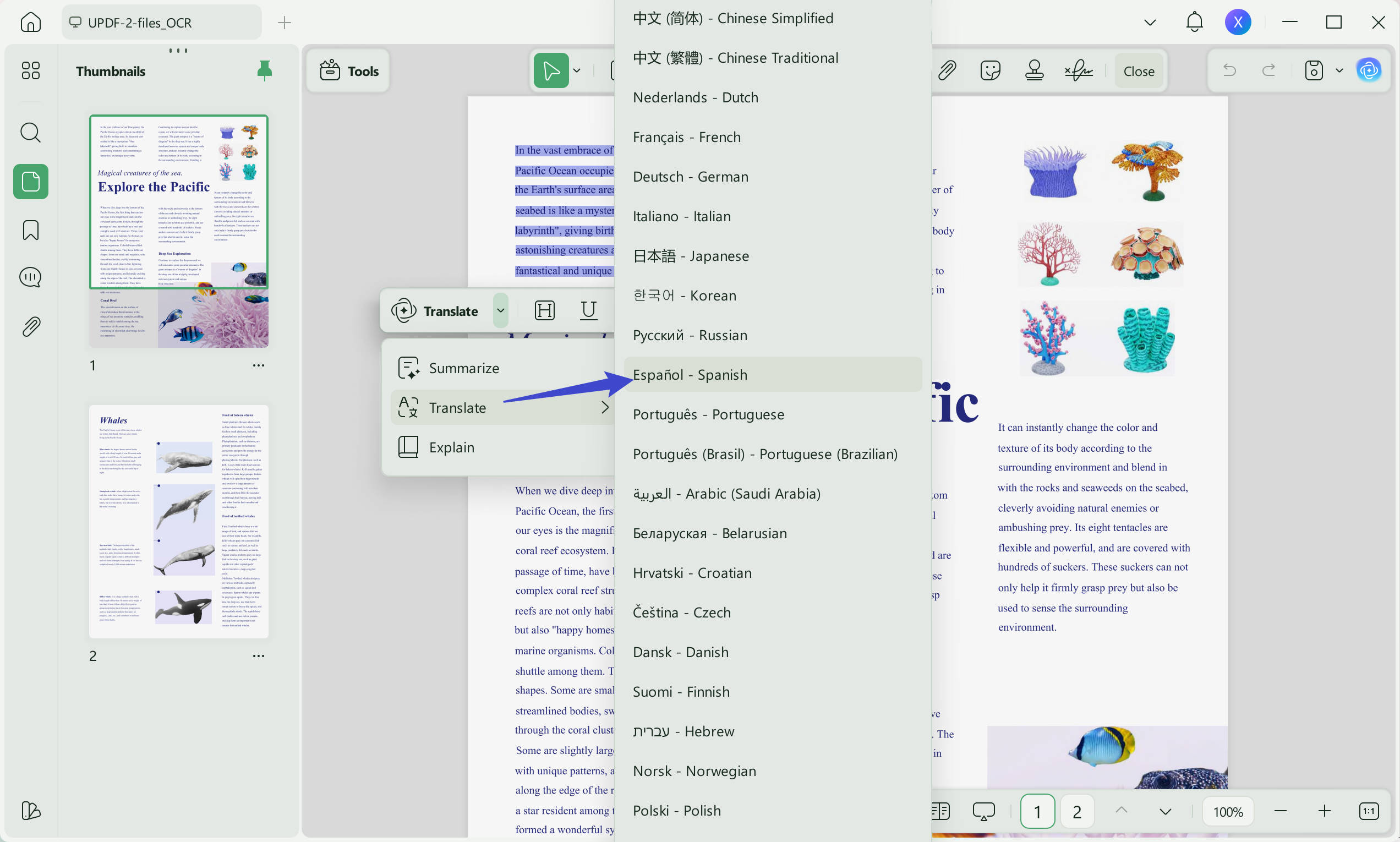
Translating in Reader Mode is just one of the many ways that UPDF offers. For instance, in Comment Mode, you can select specific text for translation. Moreover, you can translate the PDF according to the page range in Ask PDF mode. If you are interested in other methods as well, read this article to explore further.
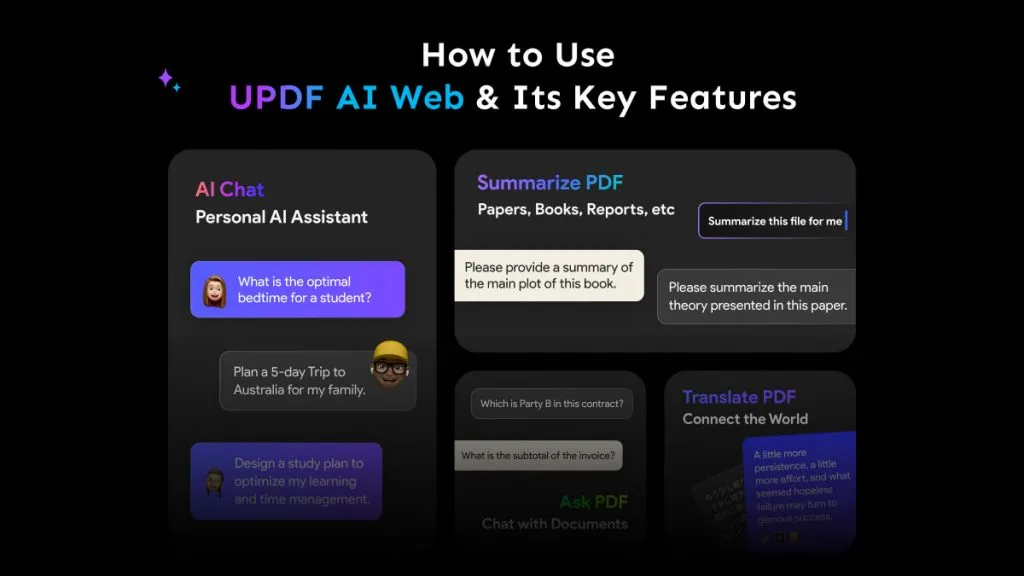
For a visual overview of translating PDFs while preserving the original layout, watch the UPDF walkthrough below.
FAQs
Q1: Can Canva translate an entire PDF?
Yes, if Canva imports the text correctly. Open Apps > Translate, choose the pages and target language, and run Translate. Review the imported layout and final export because conversion and text expansion can change the design.
Q2: Can Canva translate a scanned PDF?
Not without a usable text layer. If the scan imports as a page image, Canva Translate has no editable text to process. Run OCR first, then translate the recognized document.
Q3: Is machine translation safe for contracts?
Use it only as a reviewed draft. Check confidentiality rules before uploading the file, and have a qualified person verify clauses, defined terms, names, dates, and obligations. Certified or legal-use translations may require an accredited human translator.
Conclusion
Use Canva Translate when the PDF contains editable text and you plan to keep designing the translated pages in Canva. Check the import before translation, duplicate the source pages, and inspect the downloaded PDF for overflow and font changes.
Use UPDF when the translated PDF itself is the deliverable, the source layout matters, or the document needs OCR before translation. In both workflows, machine translation should be reviewed before publication or professional use.
Once you have confirmed that the source language and document type are supported, test the workflow on a few representative pages before processing the whole file.
Download UPDF for free to create and review a translated PDF on Windows or Mac — installation is free, and Pro removes the trial watermark from exported files.
Windows • macOS • iOS • Android 100% secure







 Lizzy Lozano
 Enid Brown