 UPDF
UPDF
 UPDF for Windows
 UPDF for Mac
 UPDF for iPhone/iPad
 UPDF for Android
 Nomostar
 UPDF AI Online
 UPDF Sign
 IvyCraft
 Edit PDF
 Annotate PDF
 Create PDF
 PDF Form
 Edit links
 Convert PDF
 OCR
OCR PDF to Word
 PDF to Image
 PDF to Excel
 Organize PDF
 Merge PDF
 Split PDF
 Crop PDF
 Rotate PDF
 Protect PDF
 Sign PDF
 Redact PDF
 Sanitize PDF
 Remove Security
 Read PDF
 UPDF Cloud
 Compress PDF
 Print PDF
 Batch Process
 About UPDF AI
 UPDF AI Solutions
 AI User Guide
 FAQ about UPDF AI
 Summarize PDF
 Translate PDF
 Chat with PDF
 Chat with AI
 Chat with image
 PDF to Mind Map
 Explain PDF
 PDF AI Tools
 Image AI Tools
 AI Chat Tools
 AI Writing Tools
 AI Study Tools
 AI Working Tools
 Other AI Tools
 AI Bookmark Generation
 AI Bookmark Summary
 AI Watermark Generation
 AI Background Generation
 AI Sticker Generation
 AI Stamp Generation
 AI Editing Suite
 UPDF Copilot
 AI Page Management
 AI Semantic Search
 PDF to Word
 PDF to Excel
 PDF to PowerPoint
 Enterprise Solution
 Enterprise Sign
 Enterprise AI
 Enterprise Plan
 Enterprise User Guide
 Enterprise Webinar
 IT
IT Education
 Construction
 Financial Service
 Healthcare
 Insurance
 Legal
Legal Manufacturing
 Government
 Researchers & PhDs
 Solopreneurs & Freelancers
 Lawyers & Legal Professionals
 Real Estate Agents & Brokers
 Education Solution
 Customer Stories
 User Guide
 UPDF Tricks
 FAQs
FAQs UPDF Reviews
 Download Center
 Blog
Blog Newsroom
 Tech Spec
 Updates
 UPDF vs. Adobe Acrobat
 UPDF vs. Foxit
 UPDF vs. PDF Expert

Quick answer:
For a second opinion abroad, the specialist reviewing your case often has only 10–15 minutes — and a 200-page pile of raw scans buries the very thing they need to see. The real deliverable isn't a bigger stack of translated pages. It's a one-page summary up front, sitting on top of a clean, navigable file.
I learned this helping a family member send oncology records to a specialist overseas. What we had was a stack of phone photos of lab sheets, a discharge summary, and a couple of CT reports — in no particular order, and all of it in our own language, none of it in one the specialist could read. Turning that into something a foreign doctor could actually use took a workflow, not a translation app.
This guide walks through that full document workflow. Part 2 covers the OCR and translation steps, and Part 6 covers the one thing most guides skip entirely: when AI translation is fine to use, and when you legally need a certified human translator.
Part 1: What a Doctor-Ready Package Actually Looks Like
Search "translate medical records for a doctor abroad" and you get two kinds of results: translation agencies selling their service, and generic medical-tourism checklists. Almost none of them show the part you actually have to do yourself — the document handling. That's what this guide is.
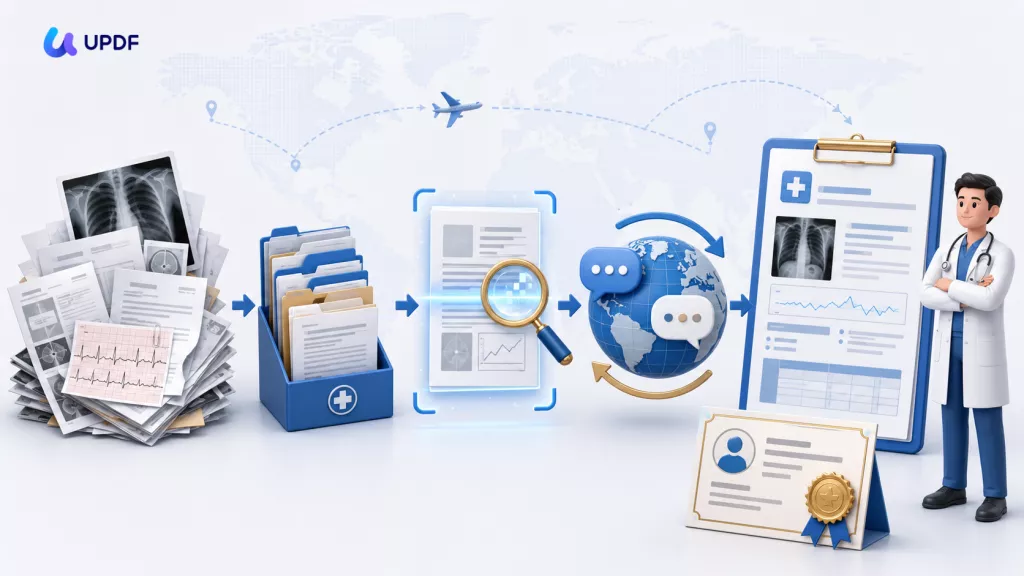
Here's the whole pipeline at a glance. Find where your situation starts and jump to the step you need:
| What you're starting with | What you need to do | Section |
|---|---|---|
| Paper reports / phone photos | Scan, then OCR to make the text selectable | Part 2 |
| 200 pages in random order | Reorder by date, delete duplicates, rotate | Part 3 |
| No overview for the doctor | Build a one-page medical summary | Part 4 |
| Questions you can't phrase in their language | Write and translate your questions | Part 5 |
| Reports the overseas doctor can't read | Translate them so the specialist can follow | Part 6 |
| ID numbers and unrelated data | Redact before sending across borders | Part 7 |
| An 80 MB file, portal caps at 20 MB | Bookmark, compress, secure, send | Part 8 |
You don't need seven separate tools for this. I ran the whole thing inside UPDF, working on one file from start to finish, because juggling a scanner app, a translator, a redaction tool, and a compressor is where things get lost.
Part 2: Digitize and OCR — Turn Scanned Reports Into Selectable Text
Phone photos and hospital printouts are image layers. To a translator — human or AI — they're pictures, not text, and you can't copy a single lab value out of them. OCR is the step that unlocks everything after it.
In UPDF, open the scanned PDF and go to Tools, then choose OCR under the Edit PDF group. In the OCR Text Recognition panel, pick Editable PDF (Dual-layer OCR) — it overlays selectable text on the original page image, so the file stays copyable and translatable while looking like the original. Under Document Language, set the language of your report; if it contains more than one language, select several at once. Set the Page Range if you only need part of the file, then click Convert. Your image-only scan becomes a searchable, selectable PDF that translation can read.
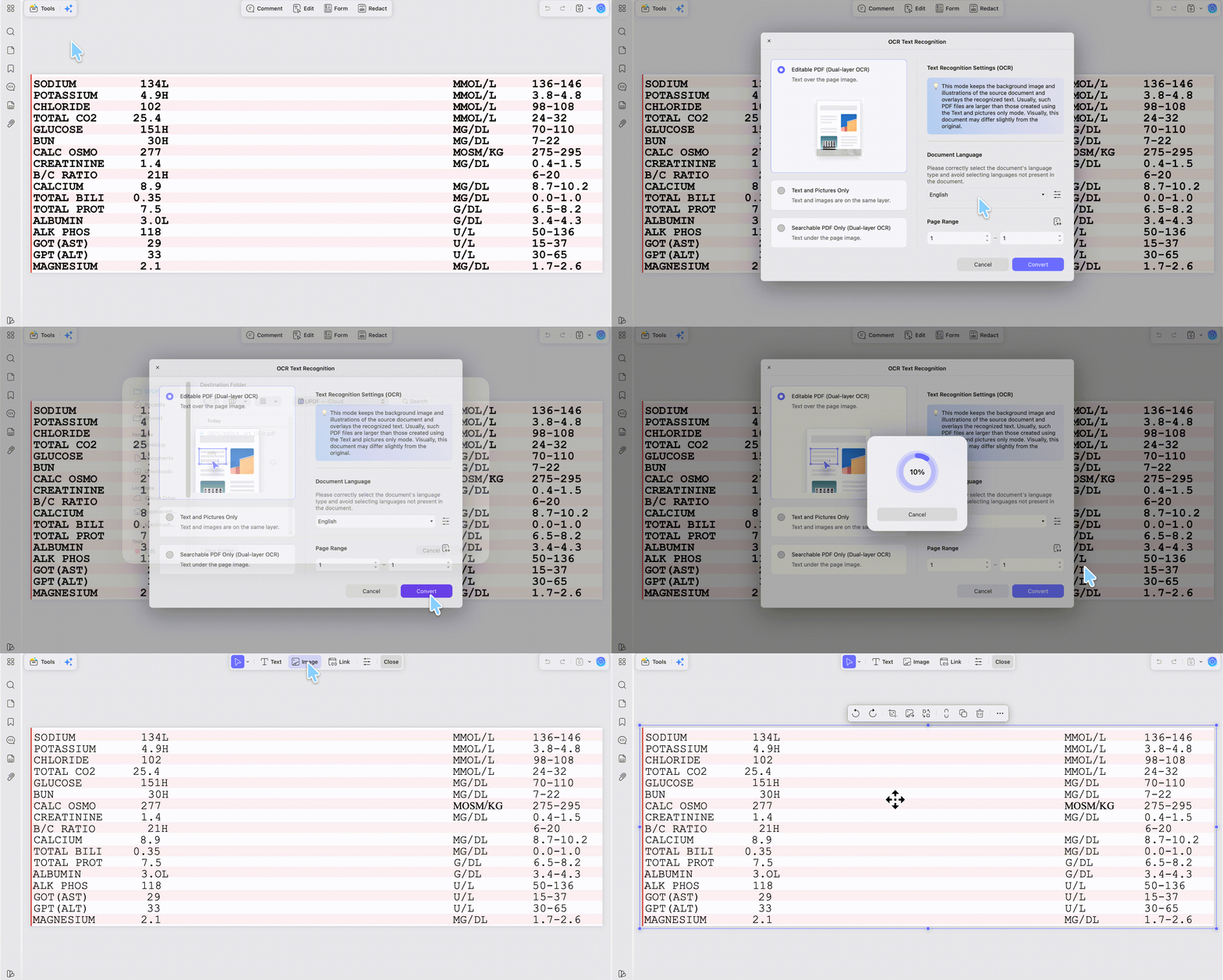
UPDF's OCR runs on Windows, Mac (the Apple-chip build from the official site — not the Intel or Mac App Store version), iOS, and Android, and the mobile apps aren't stripped down: they offer the same three recognition modes as the desktop.
One thing OCR can't do is read handwriting — it's built for printed text, so a doctor's handwritten note or signature won't convert. There's a way around that using UPDF AI, covered in Part 5.
One limit to plan around: OCR handles up to 300 pages per file. A history longer than that has to be split, OCR'd in parts, and merged back together — which UPDF also does, covered in Part 8.
To try this on your own scans first, download UPDF for free and run OCR on a copy — installation is free, and Pro is there when you're ready to export the watermark-free finished file.
Windows • macOS • iOS • Android 100% secure
Part 3: Reorganize the File — Order, Rotate, Remove Duplicates
Scanned records come back sideways, out of sequence, and dotted with duplicate registration slips. A doctor opening that can't follow the case.
Open Organize Pages in the left sidebar and drag the thumbnails to put the file in a logical order — reverse-chronological, or grouped by type: pathology, imaging, discharge summaries, labs. From the same view you can rotate any sideways scans upright, delete the duplicate slips and irrelevant pages, and merge several separate single-file PDFs into one master document.
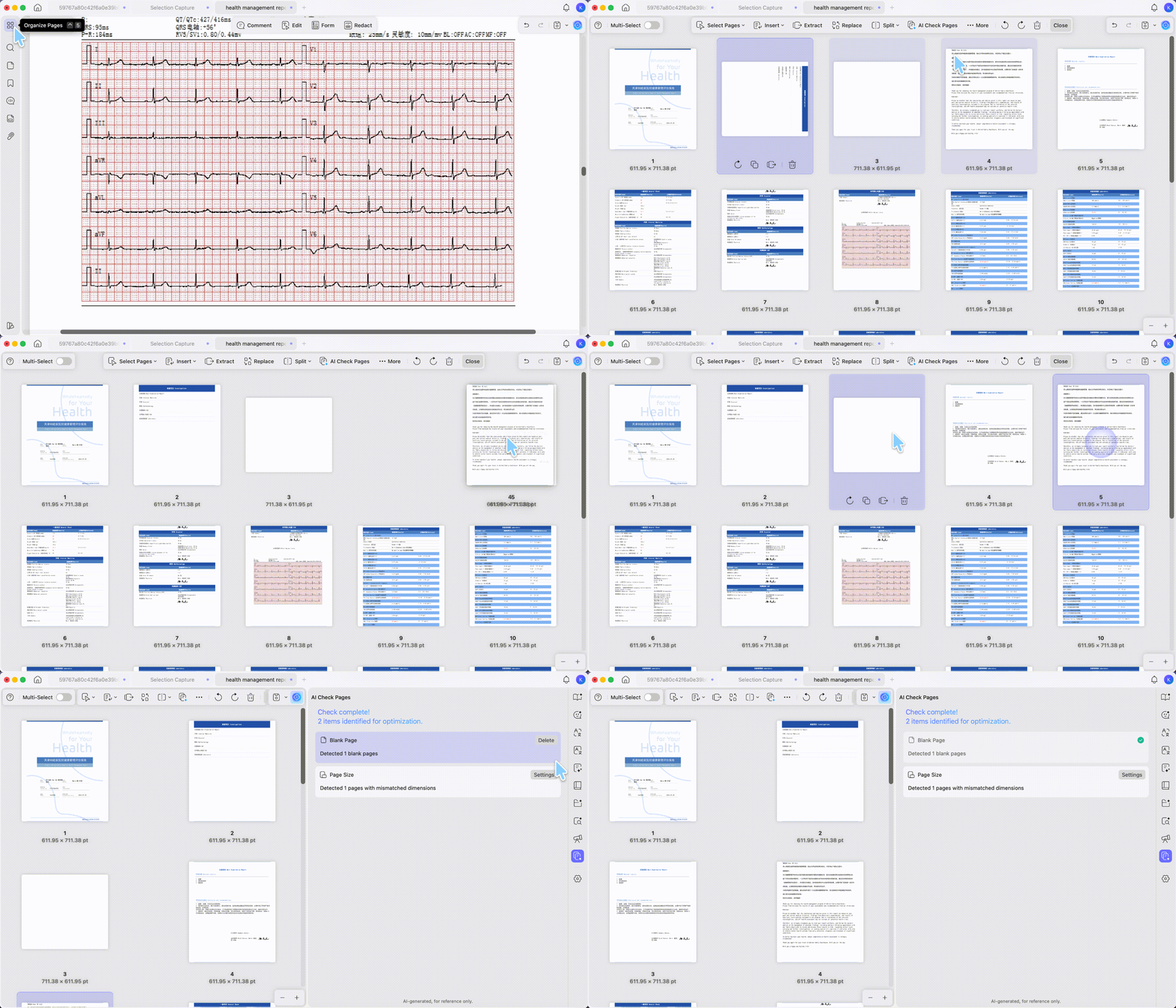
If you're staring at a couple hundred scanned thumbnails, UPDF's AI Page Organizer saves you from eyeballing every one. Run its AI Check Pages, and it scans the whole file and flags the problems that make a scanned pile messy: blank pages, pages that need rotating, non-consecutive or missing pages, pages whose size doesn't match the rest, pages that carry annotations, and scanned pages that still need OCR. It hands you back a checklist of exactly what it found — for example, "2 blank pages," "2 pages need rotation," "5 invalid pages," "2 scanned pages."
One thing to be clear on: the AI Page Organizer detects and recommends — it doesn't clean the file on its own. Each flagged item comes with its own action button (rotate, delete, run OCR, and so on), and you decide what to do and click to apply it. This matters on medical records: a page the AI reads as "blank" might carry a faint stamp or a handwritten note, so review each flag before you delete anything. It's a fast triage pass, not an autopilot.
A small thing that helps while sorting:
Part 4: Build a One-Page Medical Summary
This is the highest-value page in the whole package, because it's the page the specialist reads first. It should lay out the diagnosis, the key treatment timeline, the critical test values, current medications, and the specific questions you want answered.
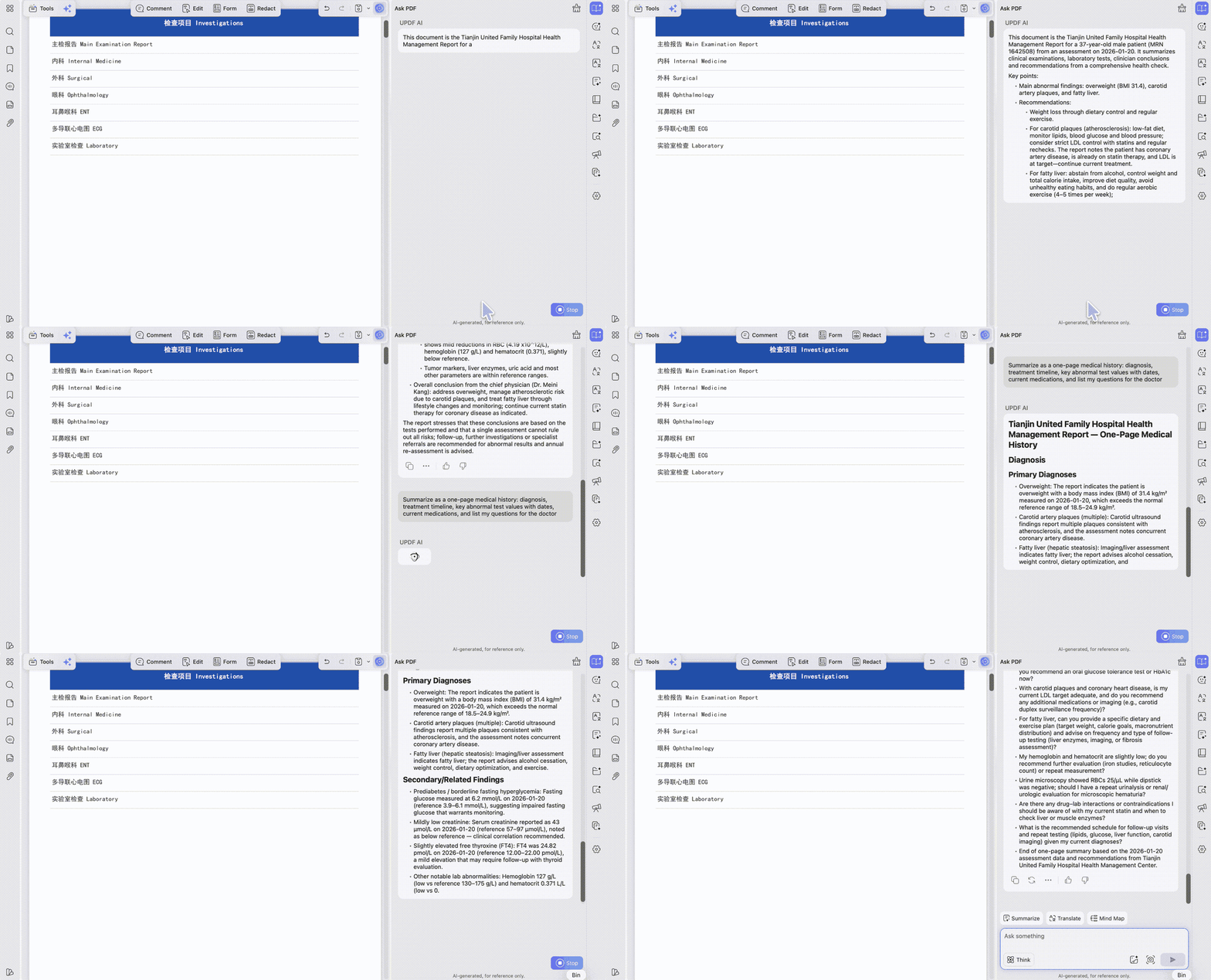
You can write it yourself, or have UPDF AI draft it from the full history for you to trim down. Open the merged file and click the UPDF AI button in the top-right corner — UPDF AI runs on GPT-5.6 and DeepSeek R1 — then, on the Ask PDF tab, press Get Started and it produces a summary of the whole document automatically. Then, in the chat box, give it a focused instruction so the draft matches what a specialist needs, for example: "Summarize as a one-page medical history: diagnosis, treatment timeline, key abnormal test values with dates, current medications, and list my questions for the doctor." You can refine it further with follow-up prompts before you paste it onto your summary page.
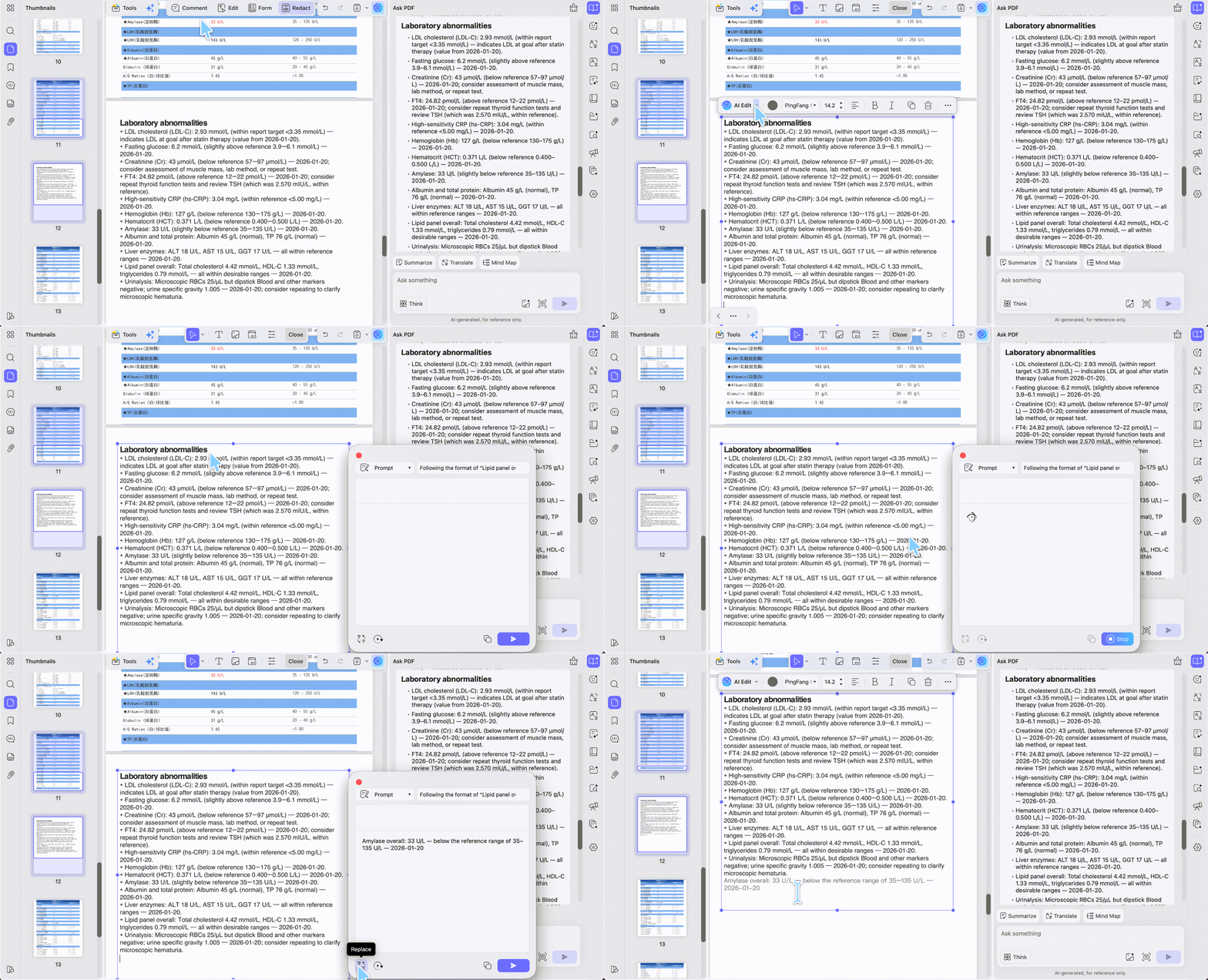
If your check turns up something the draft left out — a key result or a value that belongs in the summary but isn't there — you can instruct UPDF's AI Editing Suite to add that specific figure into the existing text instead of retyping the paragraph yourself. It works on the document's body text, so it's for targeted additions and corrections to what's already there. Whatever it adds gets the same treatment as the rest: check it against the original report before you trust it.
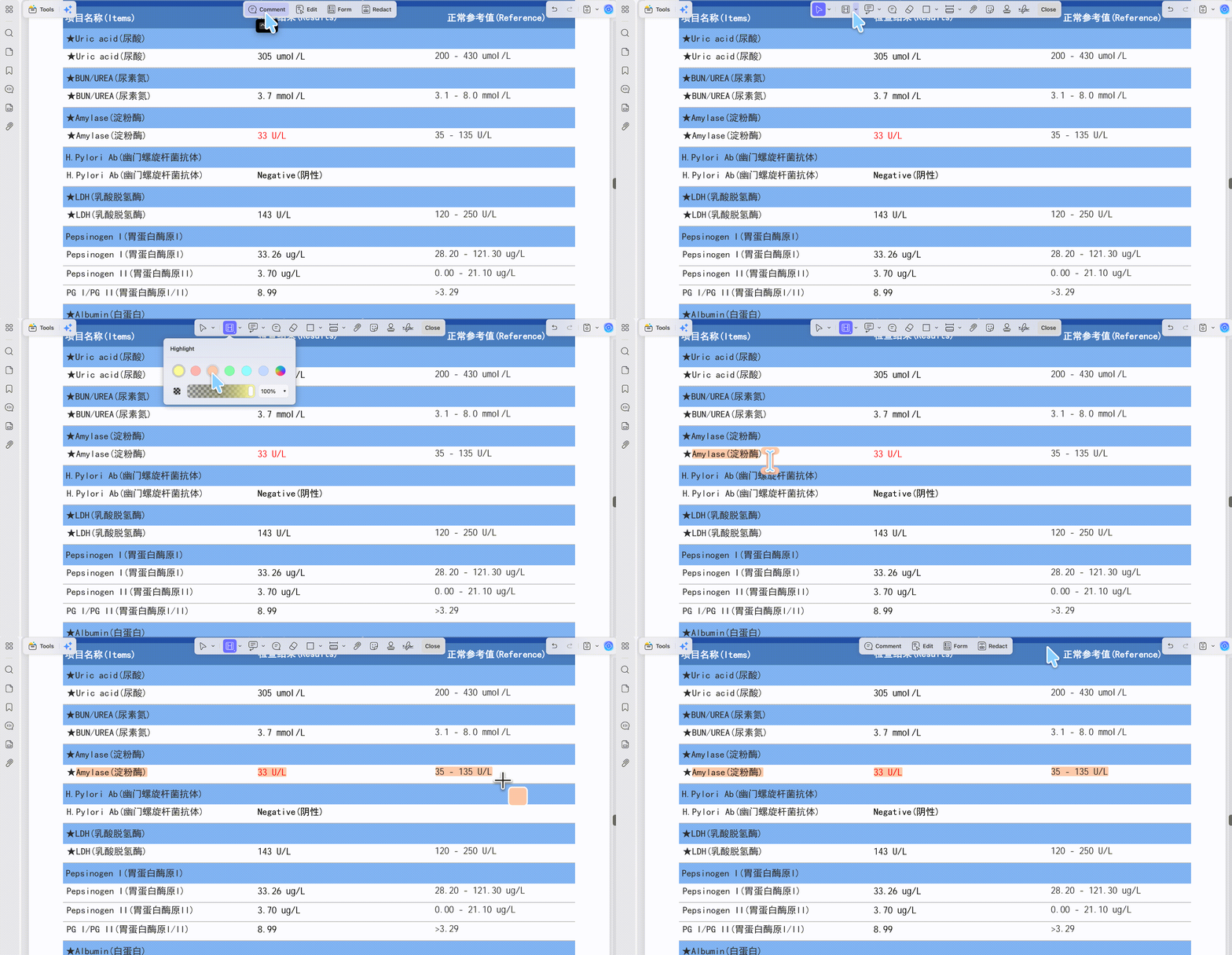
Once the summary is done, mark the critical out-of-range findings in the body reports so a specialist scanning the file lands straight on what matters. Go to Comment in the top toolbar, pick the Highlight tool, and drag over the values that matter — an elevated tumor marker, for example — instead of leaving the doctor to read every line.
Part 5: Write Down Your Questions — So You Know What to Ask
Most guides stop at "organize the records." But you almost always have questions about your own reports — and at the appointment, the language barrier makes them freeze in your throat. This step gets you walking in ready to ask.
There are two ways to do it, and you can use both.
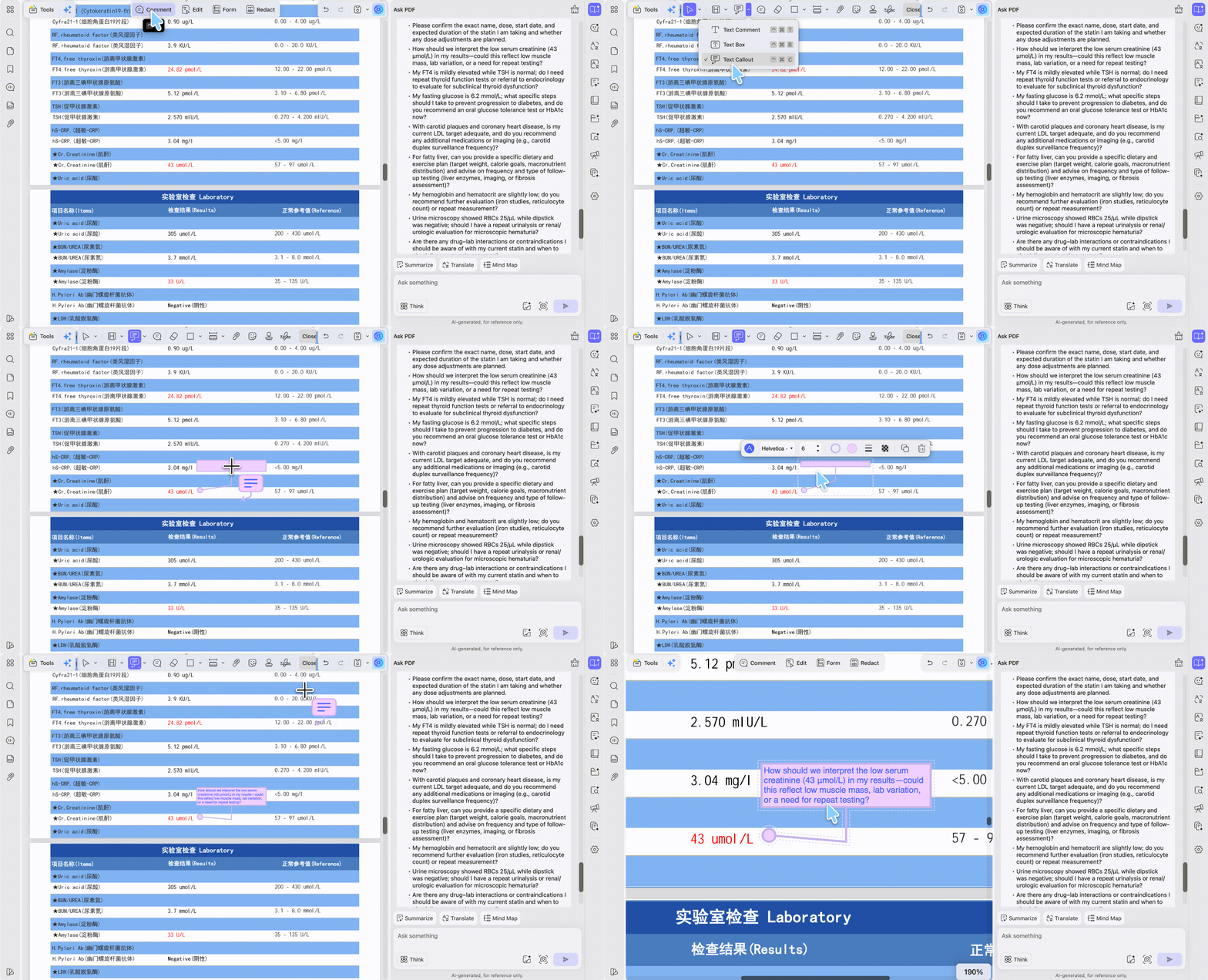
Pin a question where it belongs. At any point in the report you don't understand or want to ask about, go to Comment in the top toolbar, pick the annotation tool, and click the spot to type your question right there. Not sure how to phrase it in the doctor's language? Ask UPDF AI to help word it and translate it, then paste the translated question into the note, sitting right next to the finding it's about. Now the question and the thing it refers to travel together.
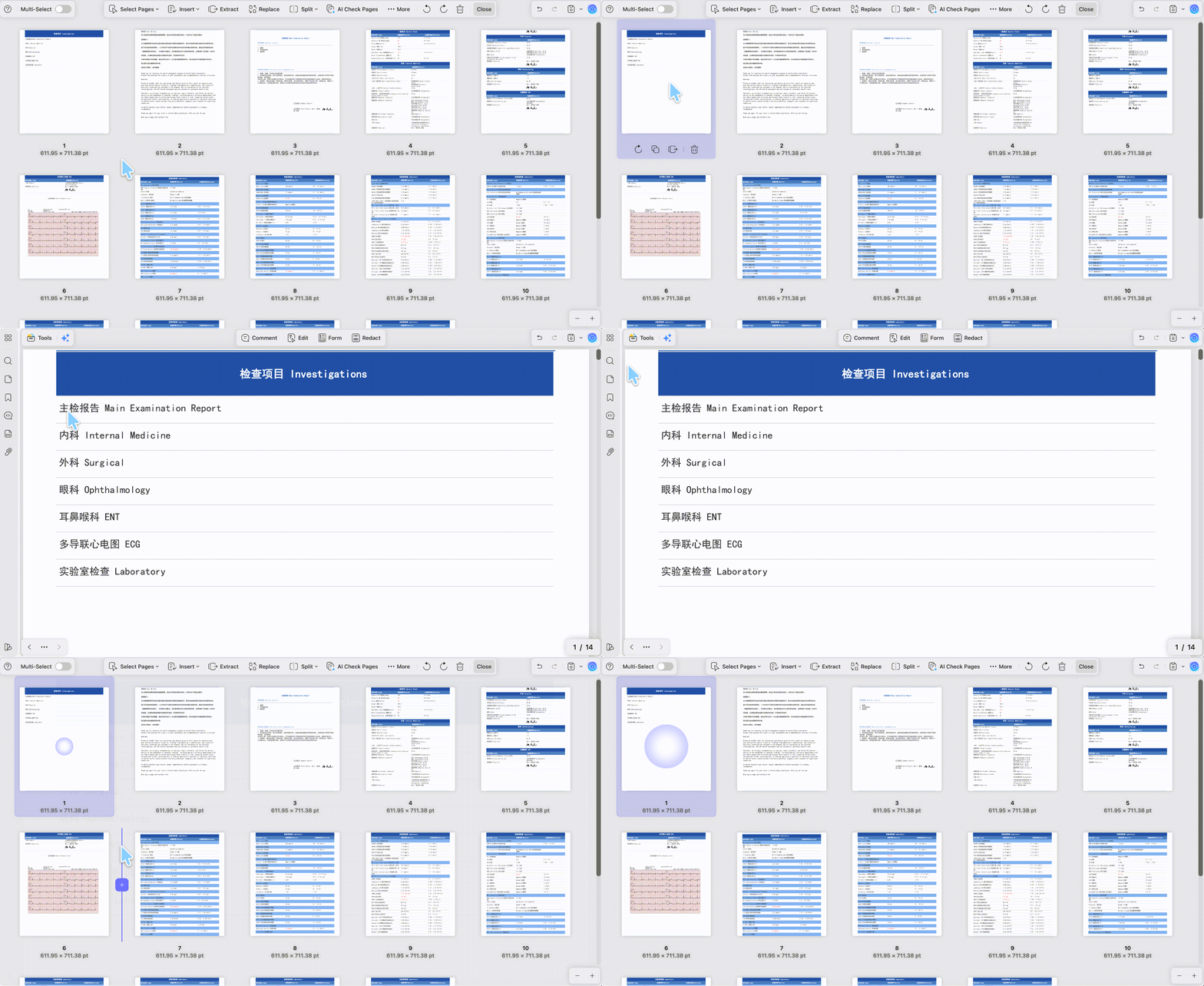
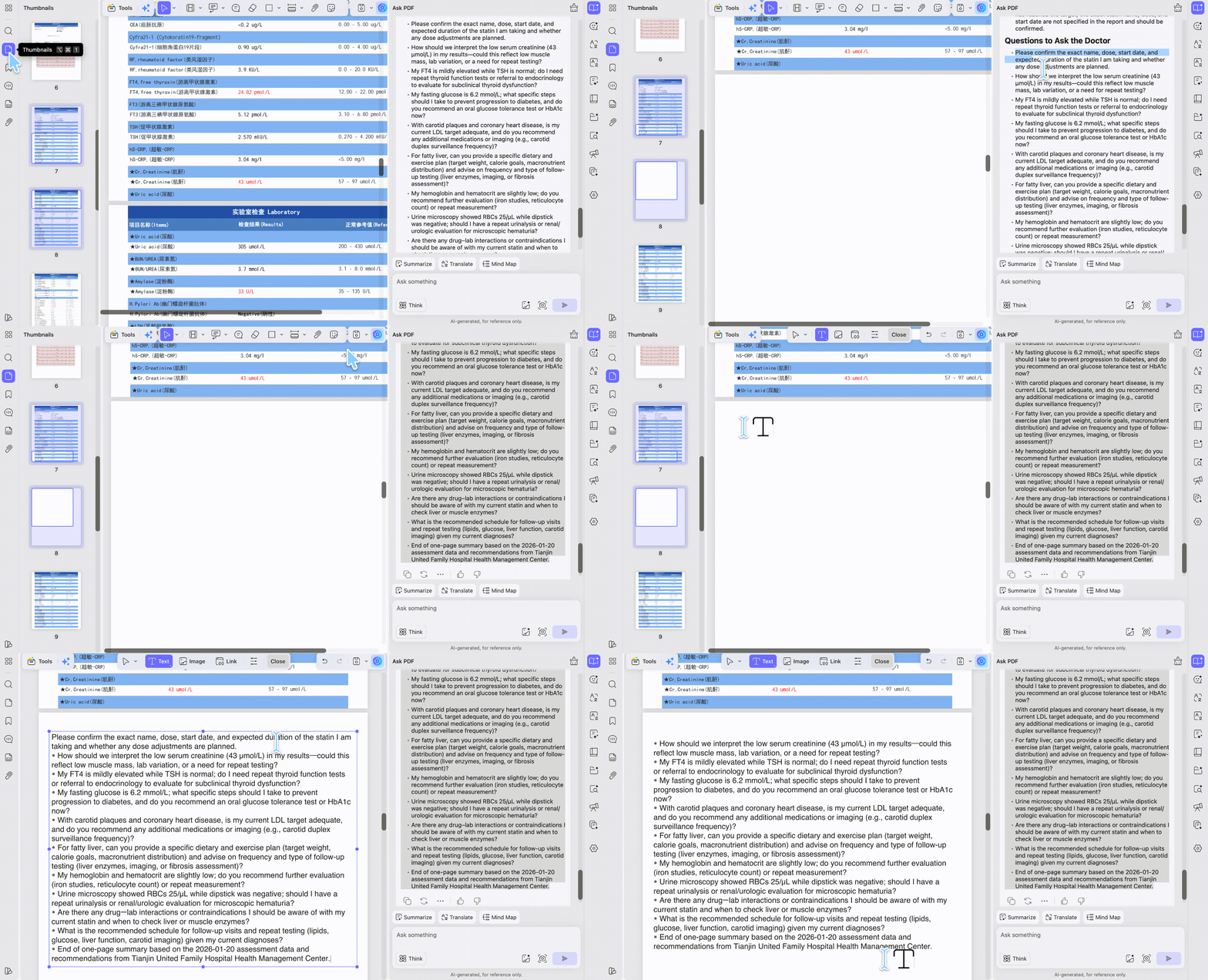
Or make one clean question sheet. In the page thumbnails on the left, right-click where you want the sheet and choose Insert Pages → Blank Page, then list all your questions in your own language. Use UPDF AI to translate them into the doctor's language, go to Edit in the toolbar, and add Text to type the translated questions onto that page. You walk into the appointment with a single sheet you can hand over or read from — no scrambling to translate in the moment.
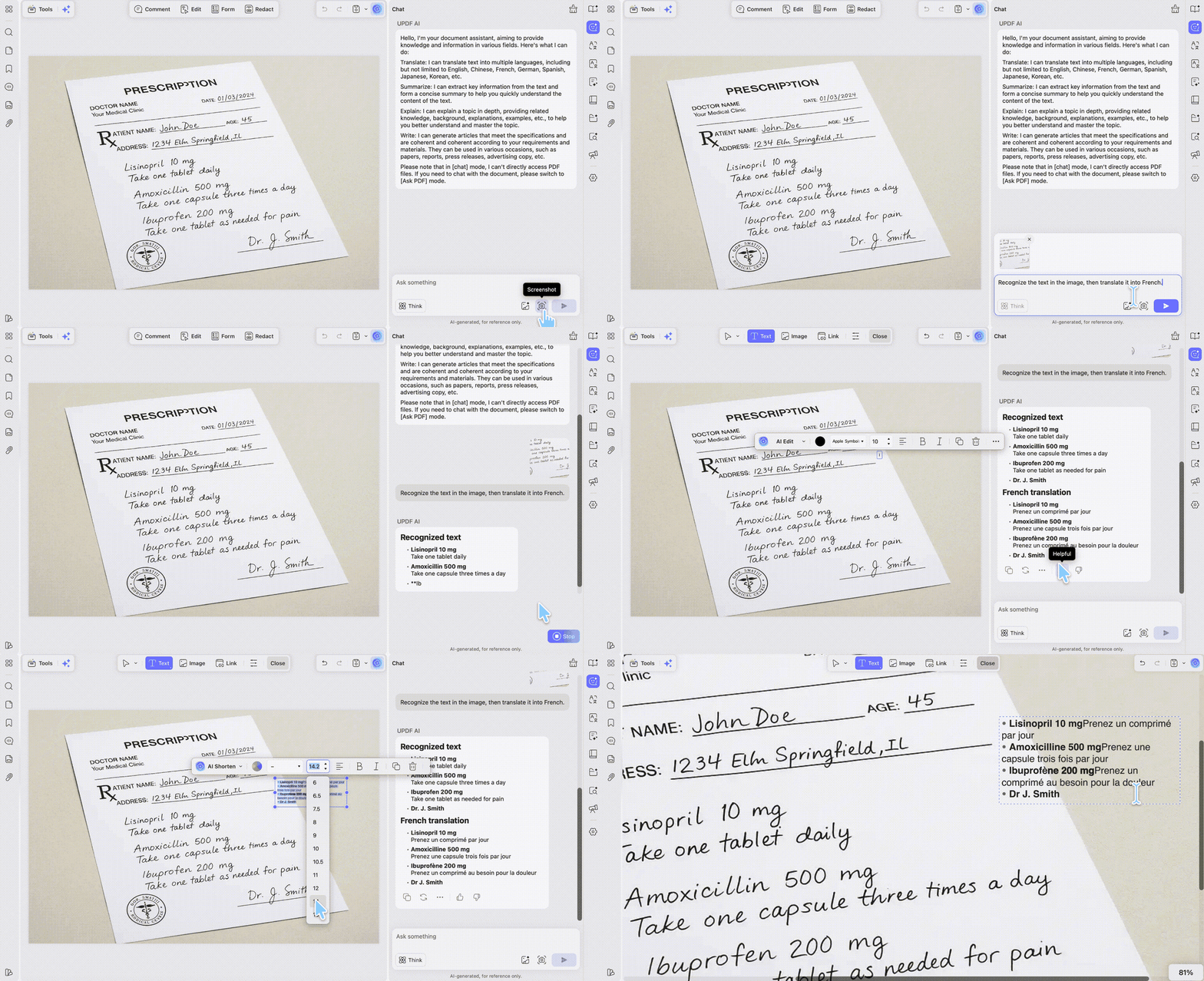
When the text is handwritten. OCR only reads printed text, so a doctor's handwritten note or a handwritten diagnosis won't convert — and that's often exactly the line you most want to understand. The workaround: take a screenshot of the handwritten passage and hand it to UPDF AI, which can read the image and pull out (or translate) the text. Then paste what it returns into a note beside that spot, or onto your questions page with the Edit tool. Handwriting recognition is harder than printed text, so this is a best-effort reading, not a guaranteed one — check it against the context, and if the note is critical, ask the issuing doctor or hospital to confirm what it says.
Translating the reports themselves so the doctor can read them is a bigger step, with a real boundary around it — that's next.
Part 6: Translate the Reports So the Doctor Can Read Them — and Where the Legal Line Is
Your reports are already in your own language — you can read them. The problem is the specialist on the other end can't. So this step is about producing a version the foreign doctor can actually follow during the consultation, and it's the step to slow down on, because it's the one with a real boundary around it.
UPDF gives you two ways to translate, and the right one depends on the language and on what you need back.
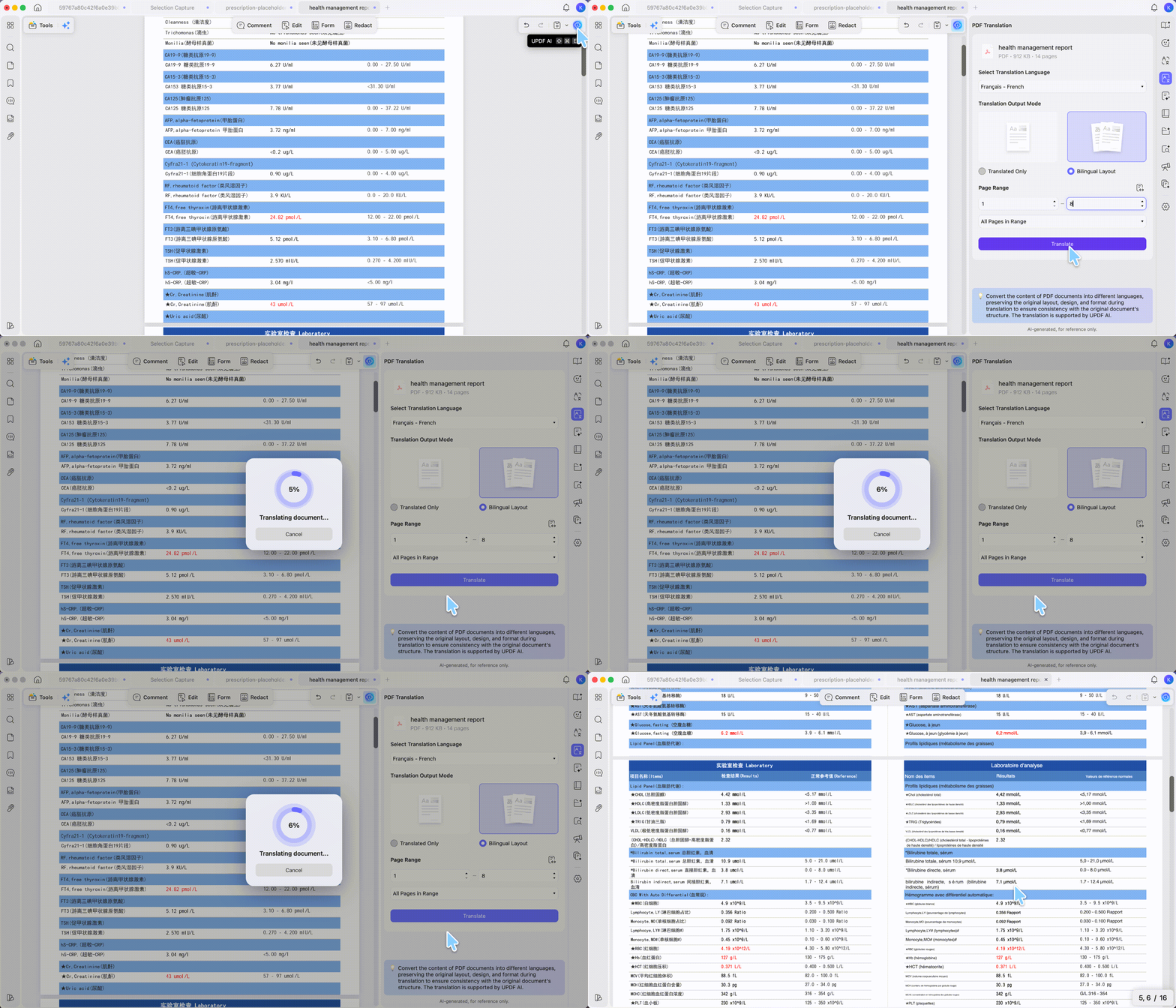
Layout-preserving PDF Translation. Open the OCR'd file, click the UPDF AI button in the top-right corner, choose PDF Translation, and pick your target language. Choose the Bilingual Layout output so the translation sits next to your original — useful for checking nothing was skipped and that each section lines up — or a full replacement if you prefer. You can translate the whole document, a page range, or just selected text, and the layout and tables stay intact. This mode currently supports 13 languages — English, Simplified and Traditional Chinese, Dutch, French, German, Italian, Japanese, Korean, Portuguese, Russian, Spanish, and Arabic — which covers most major international-treatment destinations.
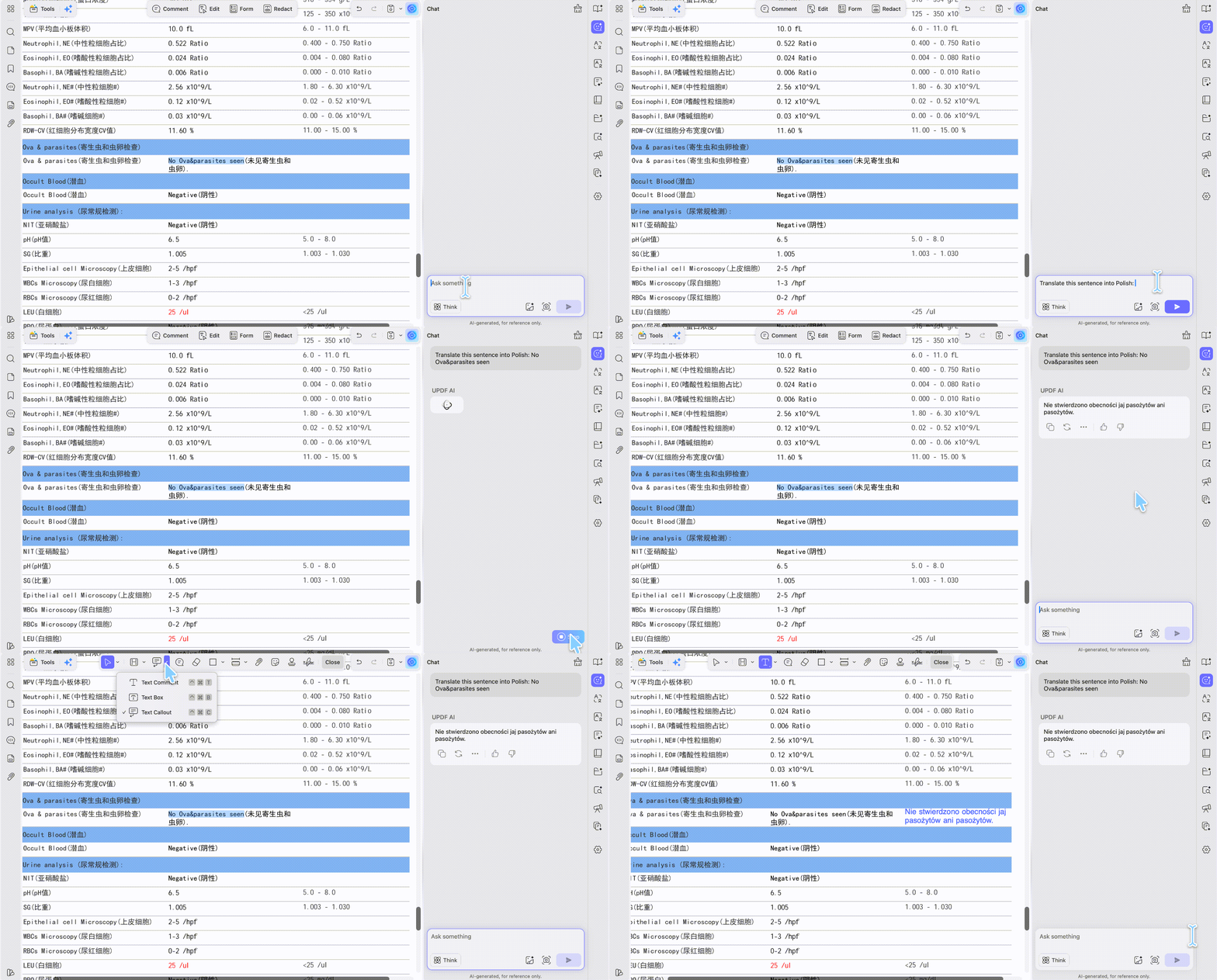
AI Chat translation, for any other language. If the doctor's language isn't in that list — Thai, Vietnamese, or Polish, say — use UPDF AI's chat instead: it can translate into essentially any language, but it returns the translated text in the chat box, not a formatted, layout-preserving file. So you'd copy that text into a Note or onto a questions page (the Part 5 method), rather than getting a translated PDF back.
Both run on Windows, Mac, iOS, Android, and the web. The free tier includes 100 AI uses; it's free to try, exports carry a trial watermark, and Pro removes it.
Now the boundary, because it matters more here than on any ordinary document:
An AI translation is a communication aid — something to help the doctor read your reports and talk them through with you during the visit — not the official document you submit to a hospital. It gets the specialist oriented fast, but don't treat it as a final, authoritative medical record.
Because the translation is AI-generated, it can contain errors — in terminology, in a dosage, in the wording of a diagnosis. On a medical document, a single mistranslation can lead to a wrong prescription or a rejected file. Treat every AI translation as a draft, not a finished record.
And the part to be firm about:
UPDF's role here is the preparation around professional translation — digitizing your records, organizing them, and giving the doctor a readable working version to talk from — not a substitute for a qualified human translator when certification is on the line.
With that understood, download UPDF for free to OCR and translate a working copy of your reports — installation is free, and Pro is available when you need to export the finished file.
Windows • macOS • iOS • Android 100% secure
Part 7: Redact Private Data Before It Crosses Borders
Sending records across borders exposes things the doctor doesn't need: national ID numbers, family contacts, insurance IDs. And covering them with a black box isn't enough — the text underneath survives, and anyone can lift it back out.
Open UPDF and choose Redact, drag the cursor over the text or area you want gone — an ID number, a family contact — and click Apply. UPDF's Redact tool permanently removes the underlying characters, not just the visible mark on top, and it shows a warning before it applies, because the removal can't be undone. That's the difference that matters: covering hides text on screen; redaction deletes the data itself. Keep an unredacted master copy for your own records before you redact the version you'll send.
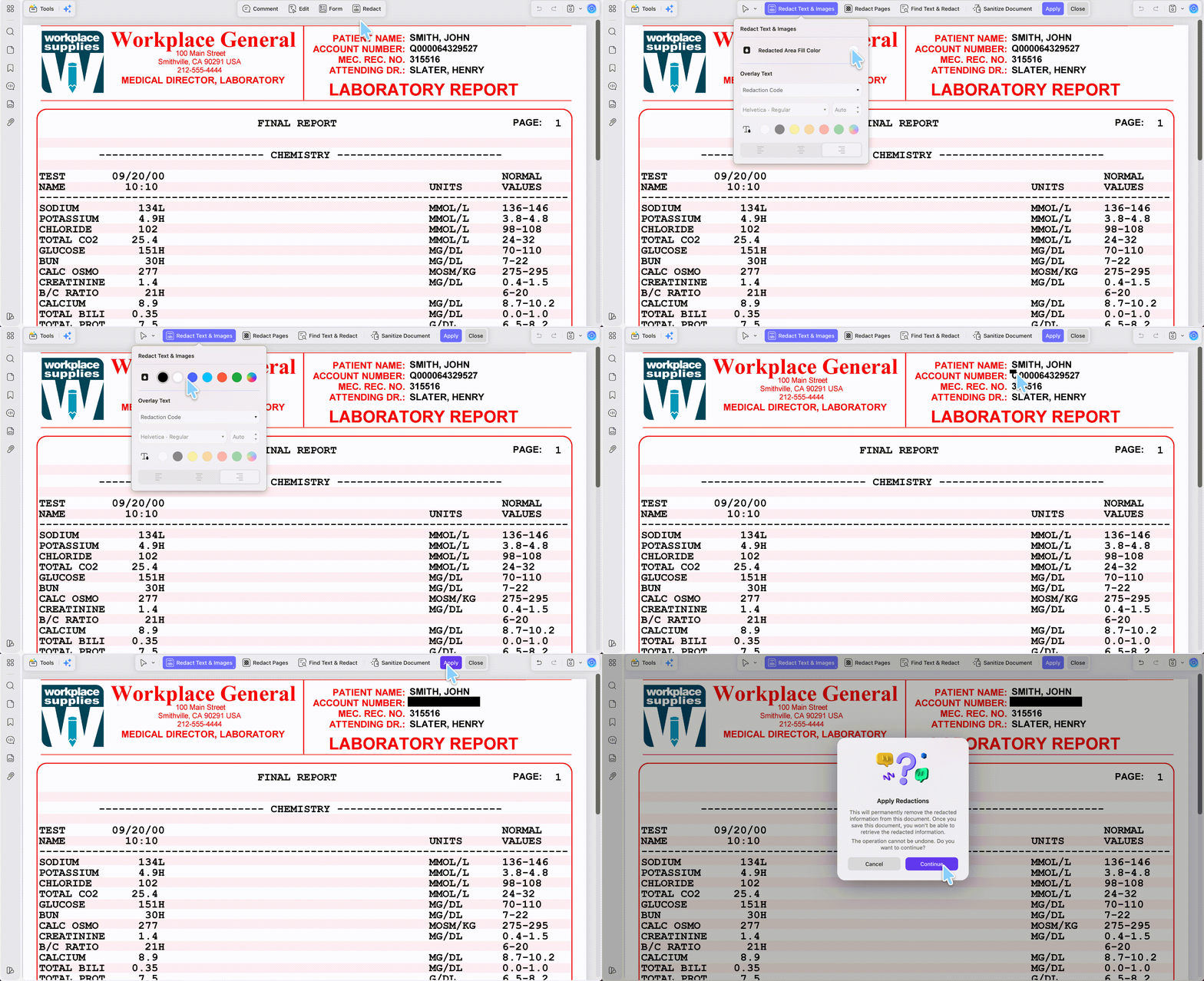
Send only what the new provider needs for treatment, confirm the recipient's official contact before anything leaves your hands, and use a secure channel. Once your records are overseas, local privacy law governs how the recipient handles them — so the fewer unnecessary details you send, the better. And only redact or edit records you own or are authorized to handle.
Part 8: Bookmark, Compress, and Secure — Make It Portal-Ready
Two things trip people up at the final step. Hospital upload portals often cap files at 10–20 MB, and a set of high-resolution scans can run 60–80 MB. And a 50-page file with no navigation forces the doctor to hunt for the pathology report.
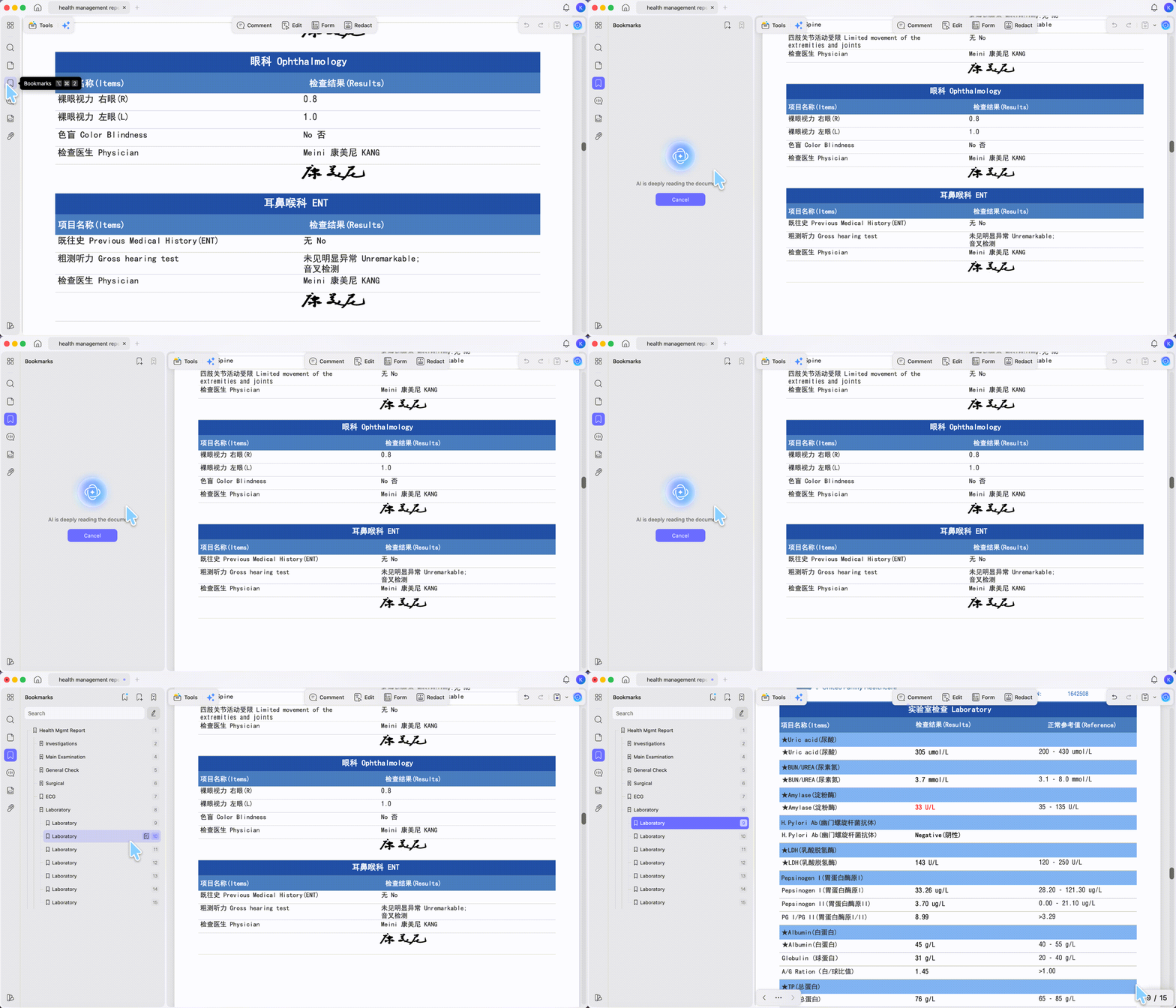
To add navigation, use the AI Bookmark Generator from the Bookmarks panel on the left sidebar— it scans the document and creates section bookmarks automatically, which saves you adding them one by one. Since a merged scan may not have the clear headings the AI keys off, use + to adjust or add entries so they match your file's real sections — 1. Summary, 2. Pathology, 3. Imaging, 4. Labs — letting the specialist jump straight to a section instead of scrolling.
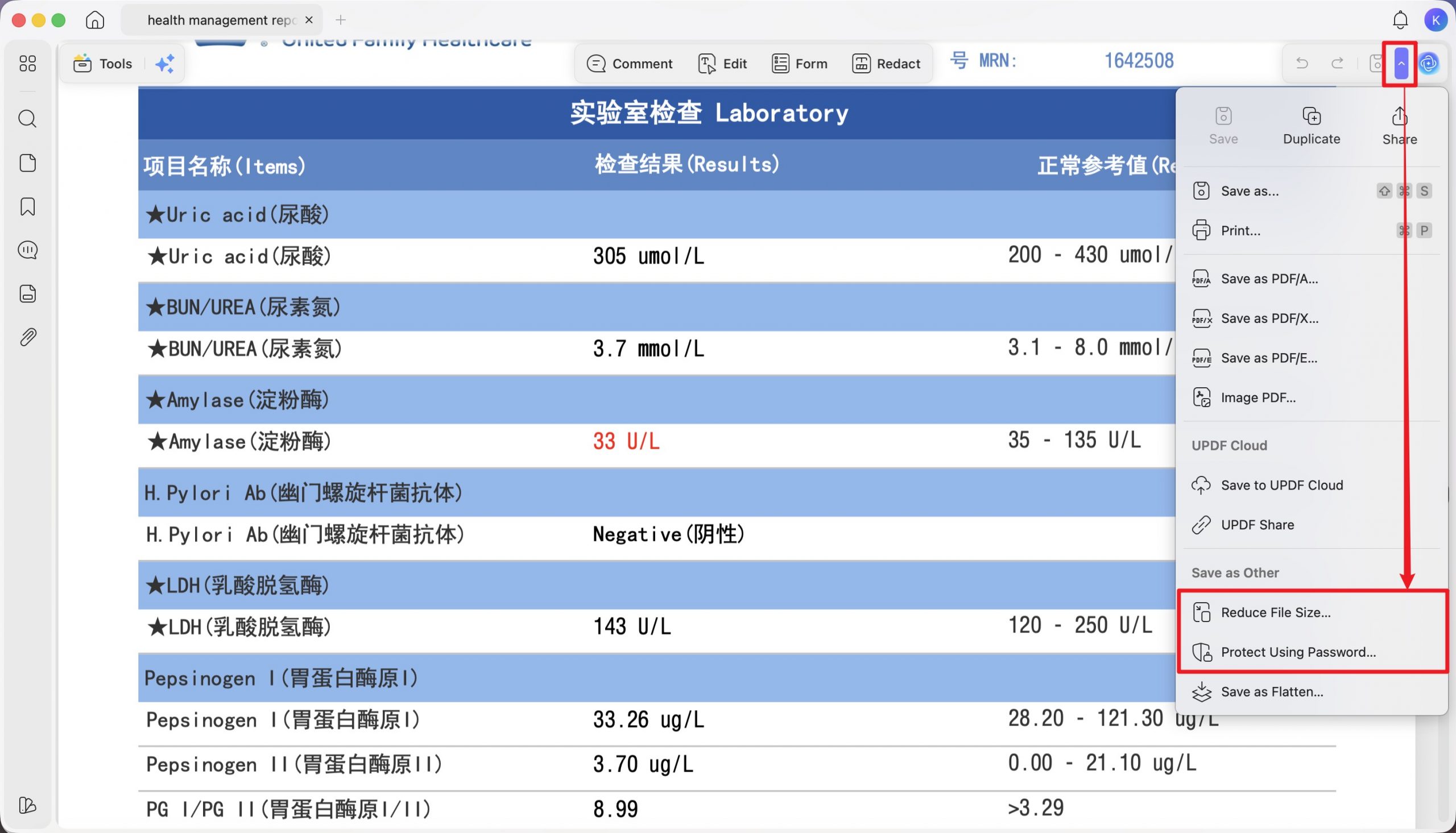
To shrink the file, click the drop-down menu next to the Save button in the top-right corner, then select Reduce File Size, which brings it under the portal cap without wrecking legibility. And to lock it, click the dropdown arrow next to Save, choose Protect Using Password, and set a Document Open Password so it's protected in transit if you're sending by email.
Doing This on Your Phone
Most people's medical records start as phone photos, so it's worth knowing you can run nearly this whole workflow on the UPDF mobile app without ever moving to a desktop. On iOS and Android, you can OCR scanned pages, translate and ask UPDF AI about your reports, highlight and add notes, insert a blank page and edit text onto it, reorganize and rotate pages, add bookmarks, and compress the final file — the same steps as above, reached from the app's bottom toolbar and Tools menu instead of a top bar.
Two differences to plan around. Redaction isn't available on mobile — it's a desktop-only tool, so if you need to permanently remove ID numbers or contacts, do that step on Windows or Mac before you send. And mobile password protection covers the open password (the one that stops the file from being opened) but not the more granular permission settings you'd set on desktop. For preparing your records on the go, though, the phone handles almost everything.
Part 9: What Each Step Solves — and Its Limit
| Task | UPDF tool | What to watch for |
|---|---|---|
| Scanned → selectable text | OCR (converter toggle) | 300-page/file cap; Mac = Apple-chip official build only |
| Reorder / rotate / dedupe | Page management / AI Page Organizer | Organizer detects & suggests; you still apply each fix manually |
| One-page summary | UPDF AI + AI Editing Suite | Verify the AI draft against originals; edits body text only |
| Ask questions at the visit | Note annotation + Edit on a blank page | AI-translated questions — read them back before relying on them |
| Read handwritten notes | Screenshot → UPDF AI | Best-effort reading; confirm anything critical with the issuer |
| Translate & keep layout | AI PDF Translation | 13 languages; a working version for the doctor, not certified; AI can make mistakes |
| Translate any other language | AI Chat translation | Any language, but returns text only — no layout-preserved file |
| Remove private data | Redact | Permanent — keep an unredacted master copy; desktop only, not on mobile |
| Fit portal + secure | Compress + Password | Compress too hard and small print blurs |
Part 10: Edge Cases and Exceptions
Original imaging files. The report translates fine, but the actual CT or MRI scan images (DICOM files) usually travel separately from the PDF. Check whether the specialist wants the raw image files too, not just the report.
Reference ranges and units. Lab units differ by country — mmol/L versus mg/dL, for instance. Keep the original value and unit visible next to any translation; don't let a converted number stand on its own.
The clinic requires a specific format. Some institutions only accept their own intake form or a notarized translation. Confirm what they require before you build the package, or you'll build it twice.
A very long history. A specialist won't read 200 pages. The summary and bookmarks are what make the file usable — put the full originals in an appendix section behind them, not up front.
Part 11. FAQs
1. Can I use AI to translate my medical records for a doctor abroad?
As a working version for the visit, yes — not as an official document. An AI translation helps the overseas doctor read your reports and talk them through with you. If the hospital or insurer needs a certified or sworn translation, use a professional medical translator instead.
2. Do overseas hospitals require certified translations of medical records?
It depends on the country and institution. Many public and specialist hospitals require certified or notarized translations; others accept the originals plus a summary. Confirm what the receiving clinic accepts before you submit.
3. Is it safe to send my medical records across borders?
Send only what's needed, through a secure channel. Redact the data the doctor doesn't need, confirm the recipient's official contact, and use a password-protected file. Once records are overseas, local privacy law governs how they're handled.
Conclusion
Preparing for international treatment isn't about translating a stack of paper. It's about turning scattered scans into one navigable, verified package — in the language your specialist reads — that a busy doctor can get through in minutes, with your questions ready and the private data stripped out.
The pipeline is the same every time: digitize, organize, summarize, write your questions, translate the reports so the doctor can read them, redact, and secure. AI gets the specialist oriented fast and gets your questions into the room. When the institution needs a certified document, that's where a qualified human translator comes in.
To build your own doctor-ready records package on a copy of your file, download UPDF for free — installation is free, and Pro handles watermark-free export, OCR, and compression when you're ready.
Windows • macOS • iOS • Android 100% secure




 Enid Brown
 Delia Meyer
Attention!