 UPDF
UPDF
 UPDF for Windows
 UPDF for Mac
 UPDF for iPhone/iPad
 UPDF for Android
 Nomostar
 UPDF AI Online
 UPDF Sign
 IvyCraft
 Edit PDF
 Annotate PDF
 Create PDF
 PDF Form
 Edit links
 Convert PDF
 OCR
OCR PDF to Word
 PDF to Image
 PDF to Excel
 Organize PDF
 Merge PDF
 Split PDF
 Crop PDF
 Rotate PDF
 Protect PDF
 Sign PDF
 Redact PDF
 Sanitize PDF
 Remove Security
 Read PDF
 UPDF Cloud
 Compress PDF
 Print PDF
 Batch Process
 About UPDF AI
 UPDF AI Solutions
 AI User Guide
 FAQ about UPDF AI
 Summarize PDF
 Translate PDF
 Chat with PDF
 Chat with AI
 Chat with image
 PDF to Mind Map
 Explain PDF
 PDF AI Tools
 Image AI Tools
 AI Chat Tools
 AI Writing Tools
 AI Study Tools
 AI Working Tools
 Other AI Tools
 AI Bookmark Generation
 AI Bookmark Summary
 AI Watermark Generation
 AI Background Generation
 AI Sticker Generation
 AI Stamp Generation
 AI Editing Suite
 UPDF Copilot
 AI Page Management
 AI Semantic Search
 PDF to Word
 PDF to Excel
 PDF to PowerPoint
 Enterprise Solution
 Enterprise Sign
 Enterprise AI
 Enterprise Plan
 Enterprise User Guide
 Enterprise Webinar
 IT
IT Education
 Construction
 Financial Service
 Healthcare
 Insurance
 Legal
Legal Manufacturing
 Government
 Researchers & PhDs
 Solopreneurs & Freelancers
 Lawyers & Legal Professionals
 Real Estate Agents & Brokers
 Education Solution
 Customer Stories
 User Guide
 UPDF Tricks
 FAQs
FAQs UPDF Reviews
 Download Center
 Blog
Blog Newsroom
 Tech Spec
 Updates
 UPDF vs. Adobe Acrobat
 UPDF vs. Foxit
 UPDF vs. PDF Expert

An LASC case summary or Register of Actions (ROA) is the official timeline of everything that has happened in a court case. This includes all filings, hearings, rulings, and other important updates. This helps track proceedings for civil, family, probate, or criminal cases.
This article offers a complete guide on the Los Angeles Superior Court case search and how to analyze and manage these documents effectively.
Also, ROAs are very long and complex PDFs that can be difficult to read and manage without the right tools. UPDF helps simplify this process with its built-in AI assistant, strong security features, and tools designed specifically for legal work. You can click below to download and try UPDF for free.
Windows • macOS • iOS • Android 100% secure
Part 1. Retrieval Guide: How to Get a LASC Case Summary Online
The Los Angeles Superior Court allows you to access any case summary through its online portal, as long as you know the case number or the names of the involved parties.
Here's how to get a LASC case summary using it.
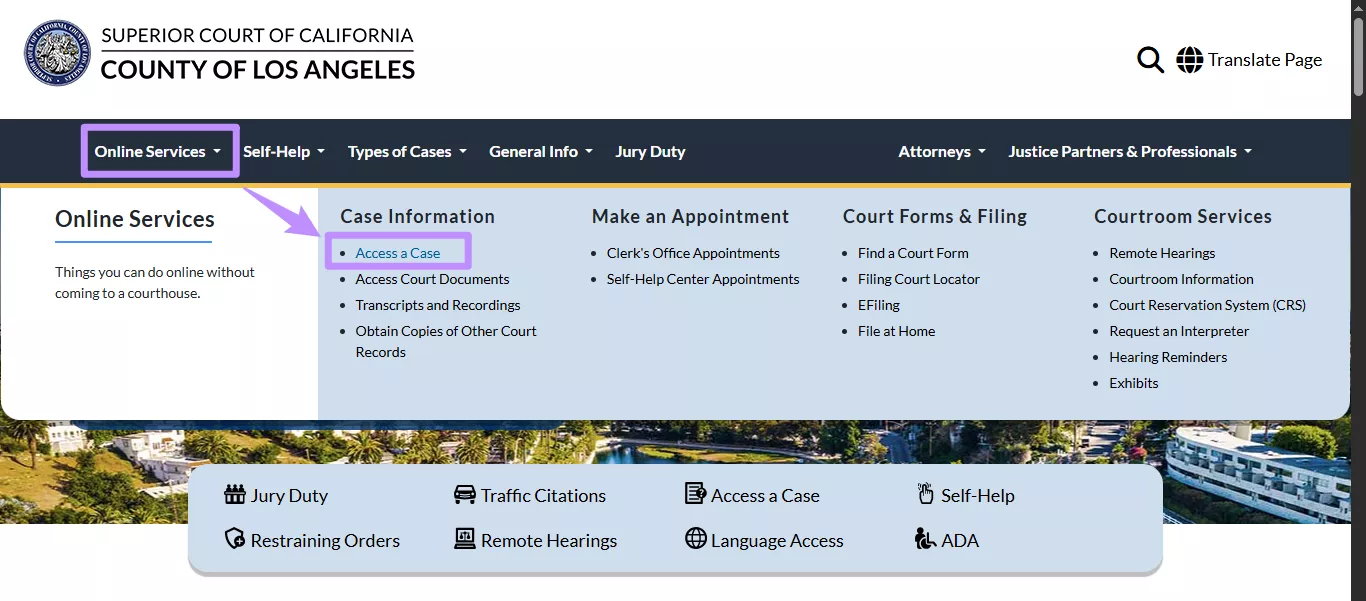
Step 1. Visit the official website of the Superior Court of California and click the "Online Services" option at the top. Then, go to the "Case Information" section and select "Access a Case."
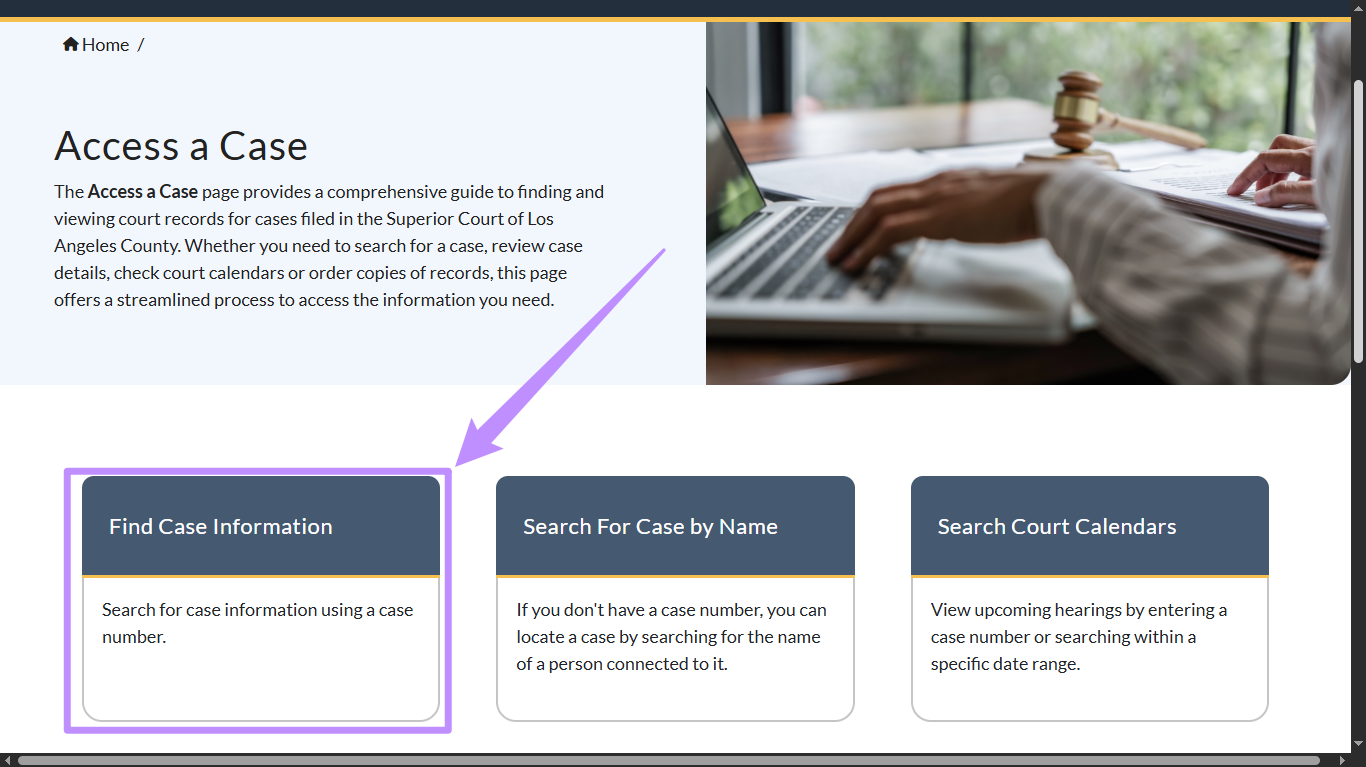
Step 2. You will be directed to the central search interface, where you can retrieve case summaries using either a case number or a party name.
Method 1. Search by Case Number:
Case number search is the most accurate way to find a case summary, as it removes the ambiguity caused by common names across multiple cases.
Here's how it works.
Step 1. To find a case based on its unique number, click the "Find Case Information" option.
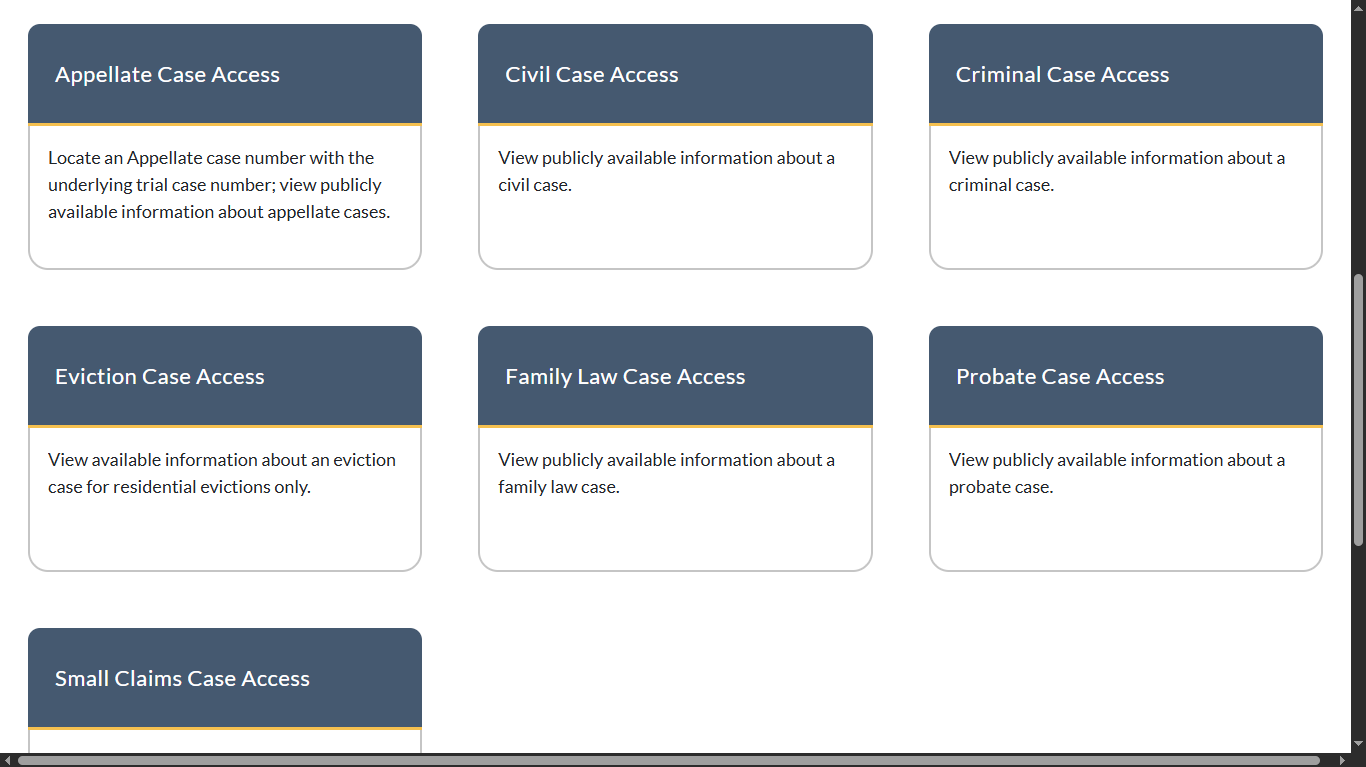
Step 2. Select the case type you want to access, such as:
- Appellate
- Civil
- Criminal
- Eviction
- Family Law
- Probate
- Small Claims
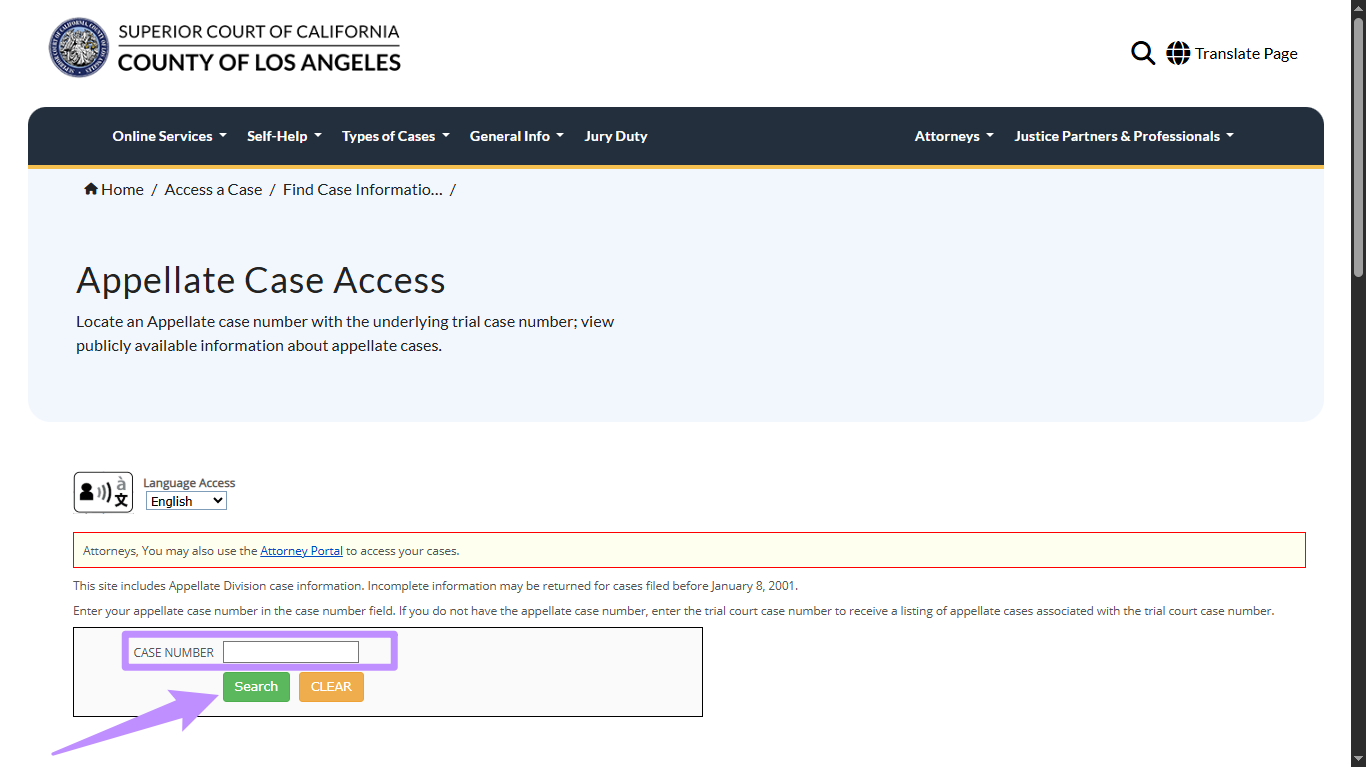
Step 3. After selecting the case type, enter your case number in the provided text field. Then, click the "Search" button to find the case summary.
Method 2. Search By Name
If you don't have a case number, you can search by the full legal name of any person associated with the case.
Here's how to do a Los Angeles Superior Court case search by name.
Step 1. Select the "Search for Case by Name" option available on the Access a Case page.
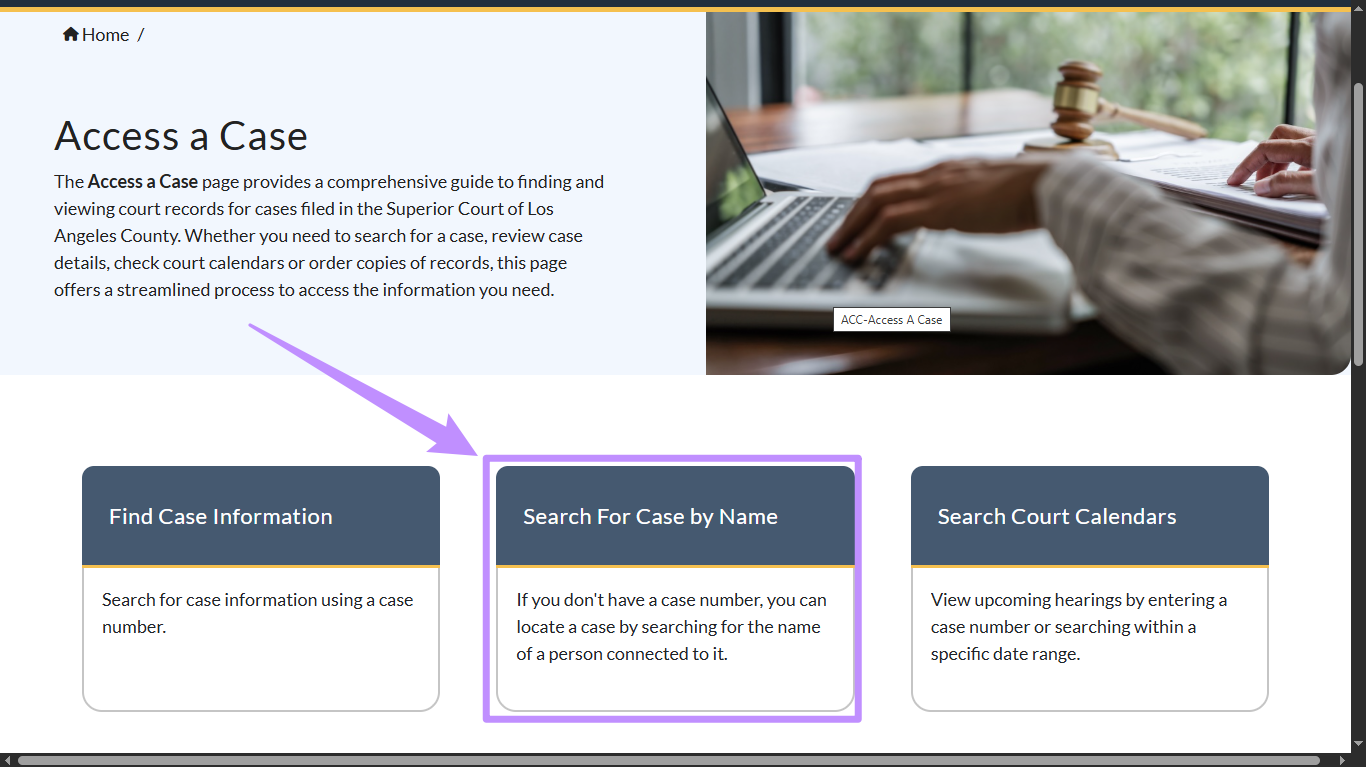
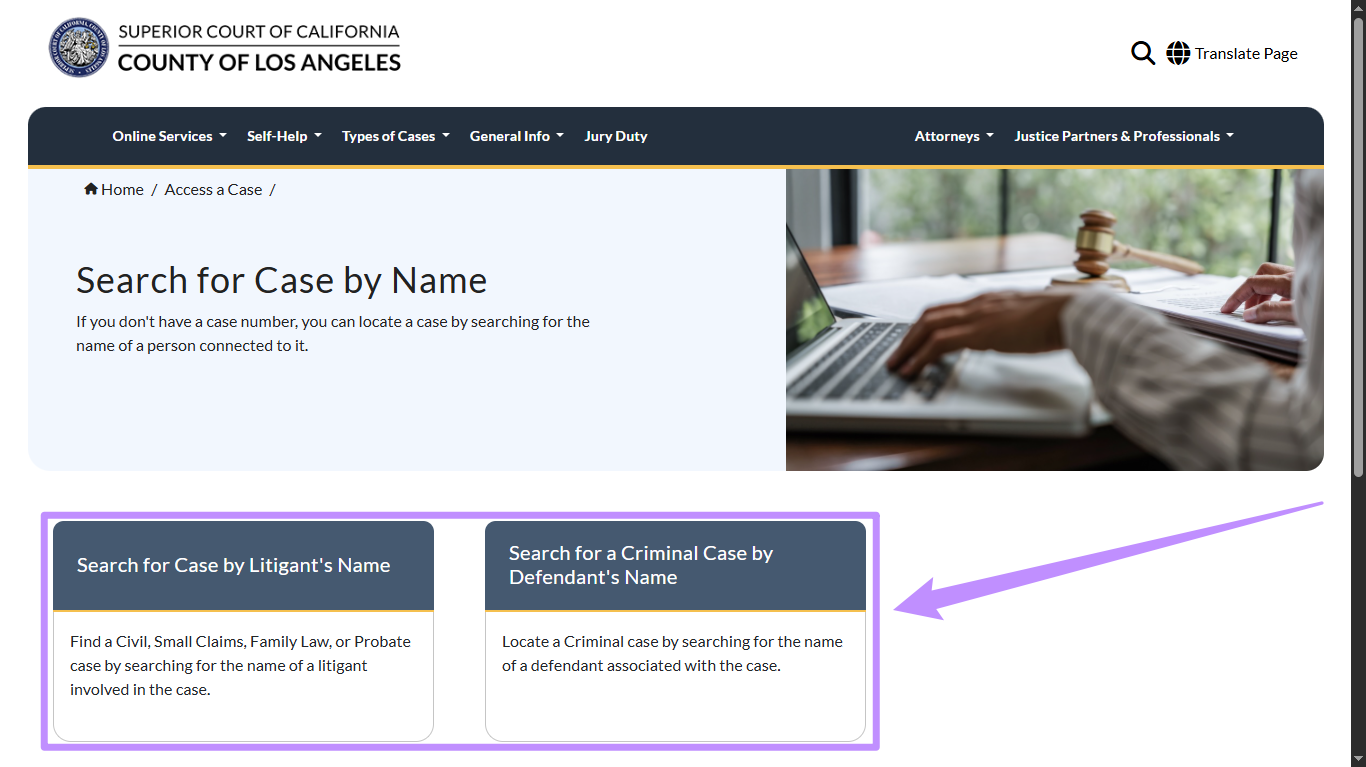
Step 2. The following page will divide the case search into two categories. From here:
- Select "Search for Case by Litigant's Name" if you're looking for a Civil, Small Claims, Family Law, or Probate case summary.
- Choose "Search for a Criminal Case by Defendant's Name" when you want to access a criminal case summary.
Step 3. Review the information provided on the next page. Then, scroll down and click "Continue."
Step 4. Log in to your account with your user ID and password. If you don't have an account registered, click "Continue as Guest" or choose to create a new account.
Step 5. Once you're in the portal, enter the first and last name of the person in the search box or enter the company's name to start searching.
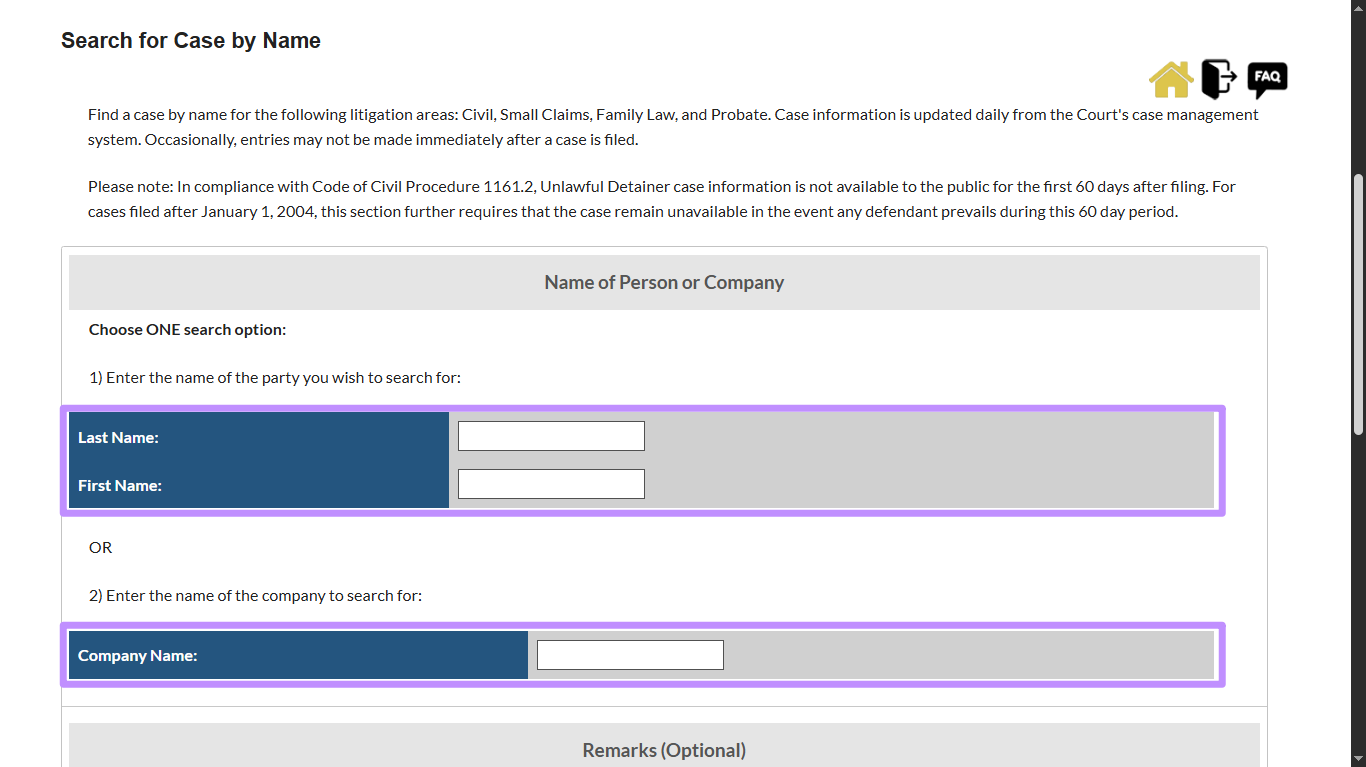
Step 6. Fill in other information, such as search start and end dates, and any remarks you want to add. Lastly, click the "Search" button to access the case summary. From there, you can view the LASC case summary online or download it as a PDF.
Fees and Accessibility
Part 2. Professional Analysis: Managing the "Register of Actions" (ROA)
After accessing the LASC case summary, you will need to analyze the Register of Actions (ROA) to extract important information. However, court PDFs are often flat, unsearchable, and contain over 50 pages. This makes it difficult to find specific details such as hearing dates, rulings, or counsel information.
As a result, this can slow down the process of legal review and increase the risk of oversight. UPDF AI solves this problem by providing quick summaries and extracting any key details you need. You can use its chat interface to have a back-and-forth conversation and clarify complex ideas.
You can access UPDF AI both online and via the UPDF desktop app. Here's how I'll use the app version to show a quick workflow example of how it can help you. So, make sure to download and install UPDF.
Windows • macOS • iOS • Android 100% secure
Then, use the following steps to get started.
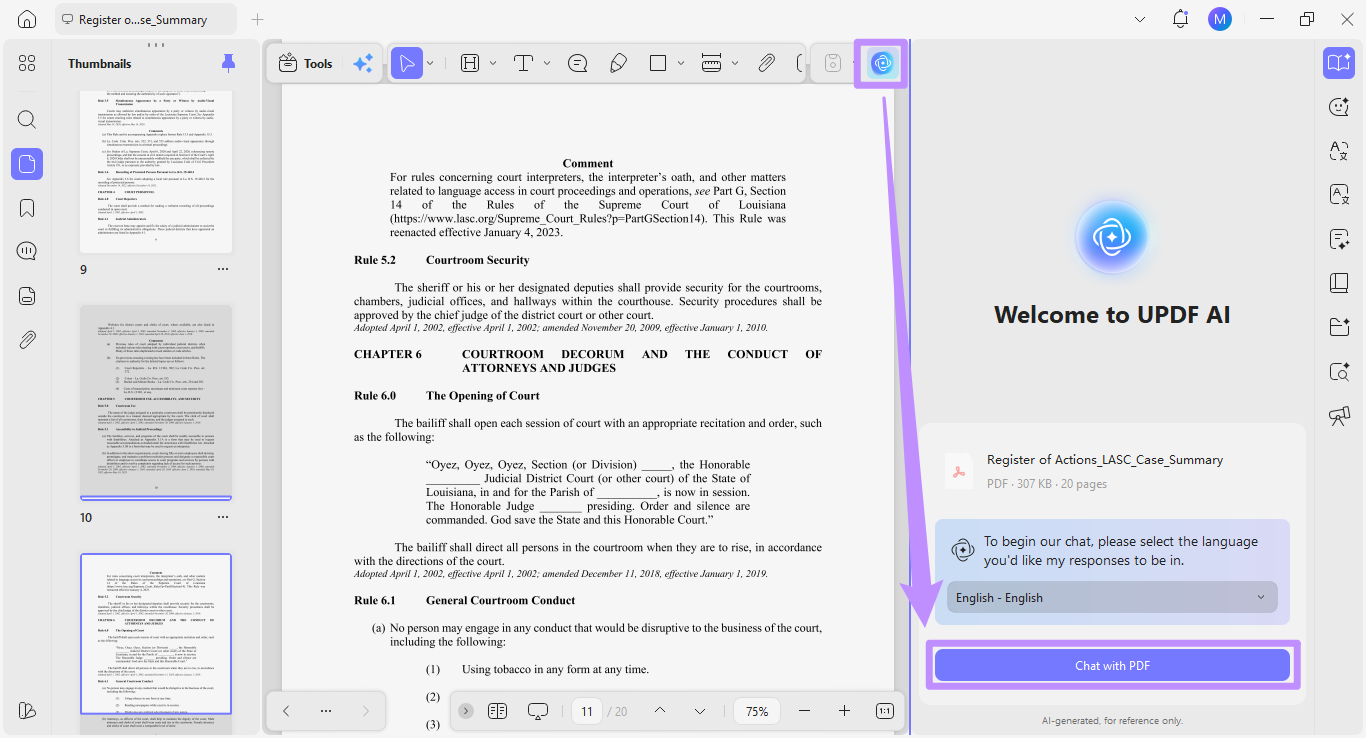
Step 1. Launch UPDF and click "Open File" to import the PDF of the Register of Actions.
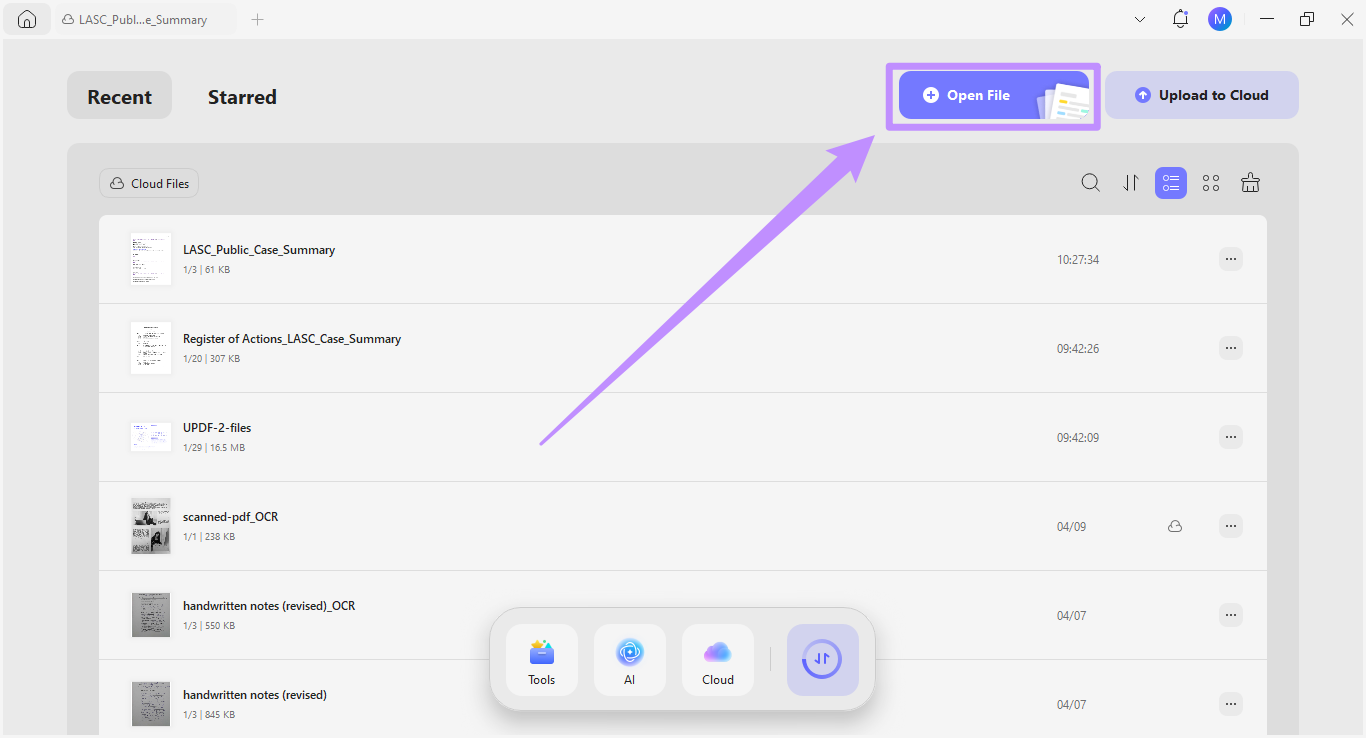
Step 2. Once opened, click the "UPDF AI" icon at the top right. Then, click on "Chat with PDF" to upload the document to UPDF AI.
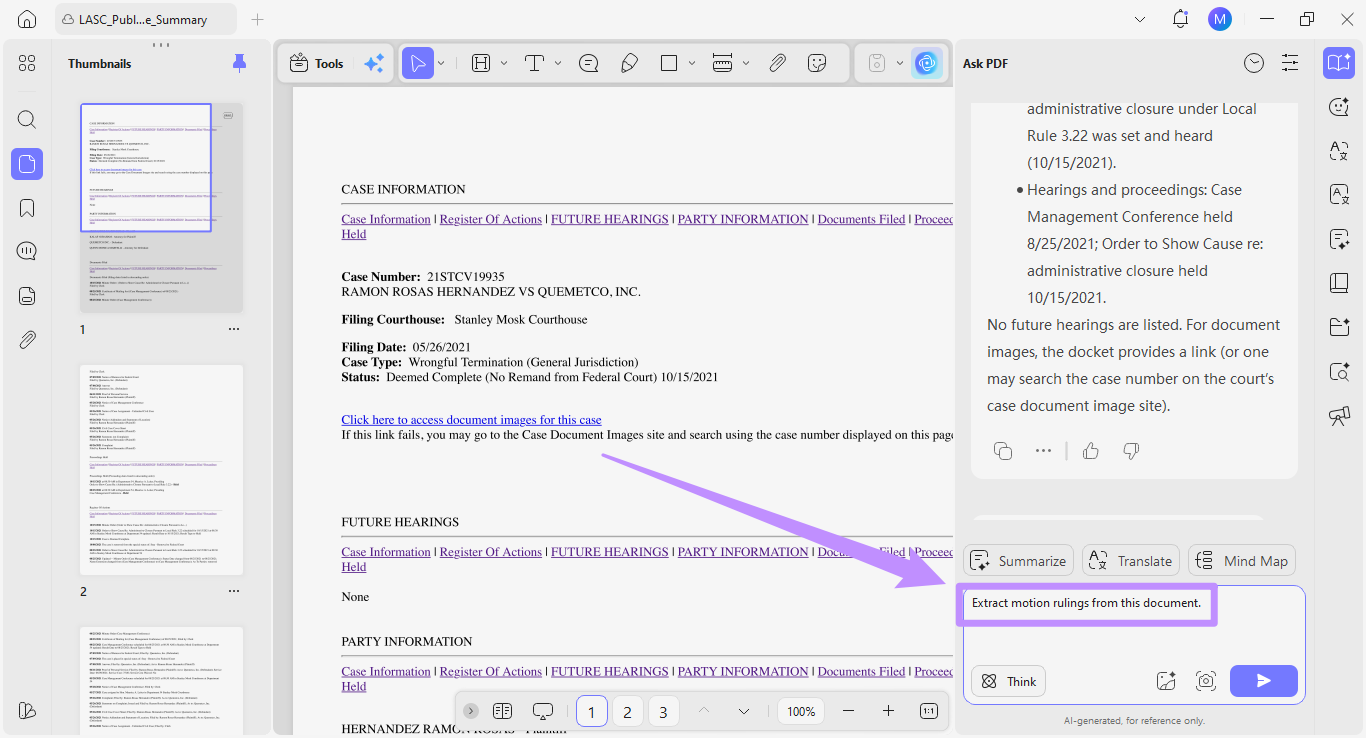
Step 3. In the text box, write a prompt to retrieve any information from the document and click the "Send" button.
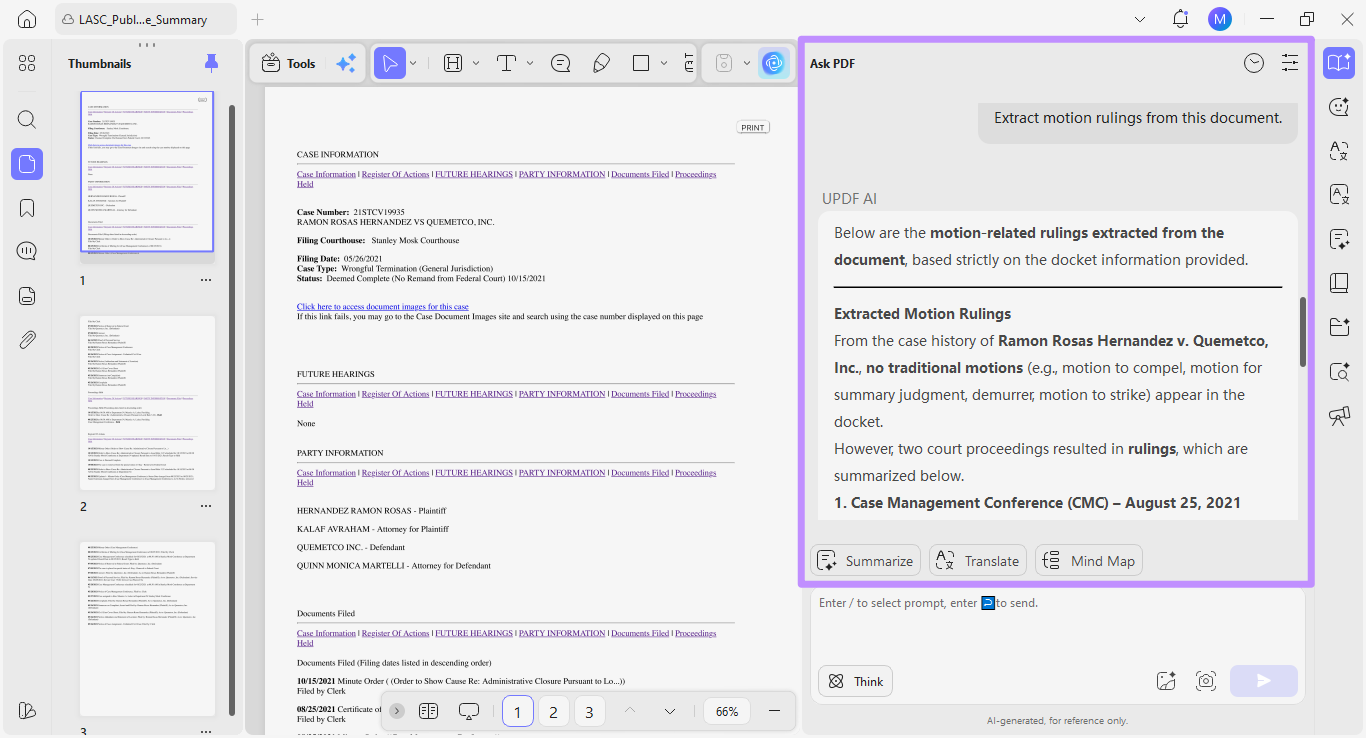
- For example, you can ask AI to "List all Upcoming Hearing Dates" or "Extract motion rulings from this document."
Step 4. The AI will retrieve the relevant information instantly and present it in a structured manner, along with a summary.
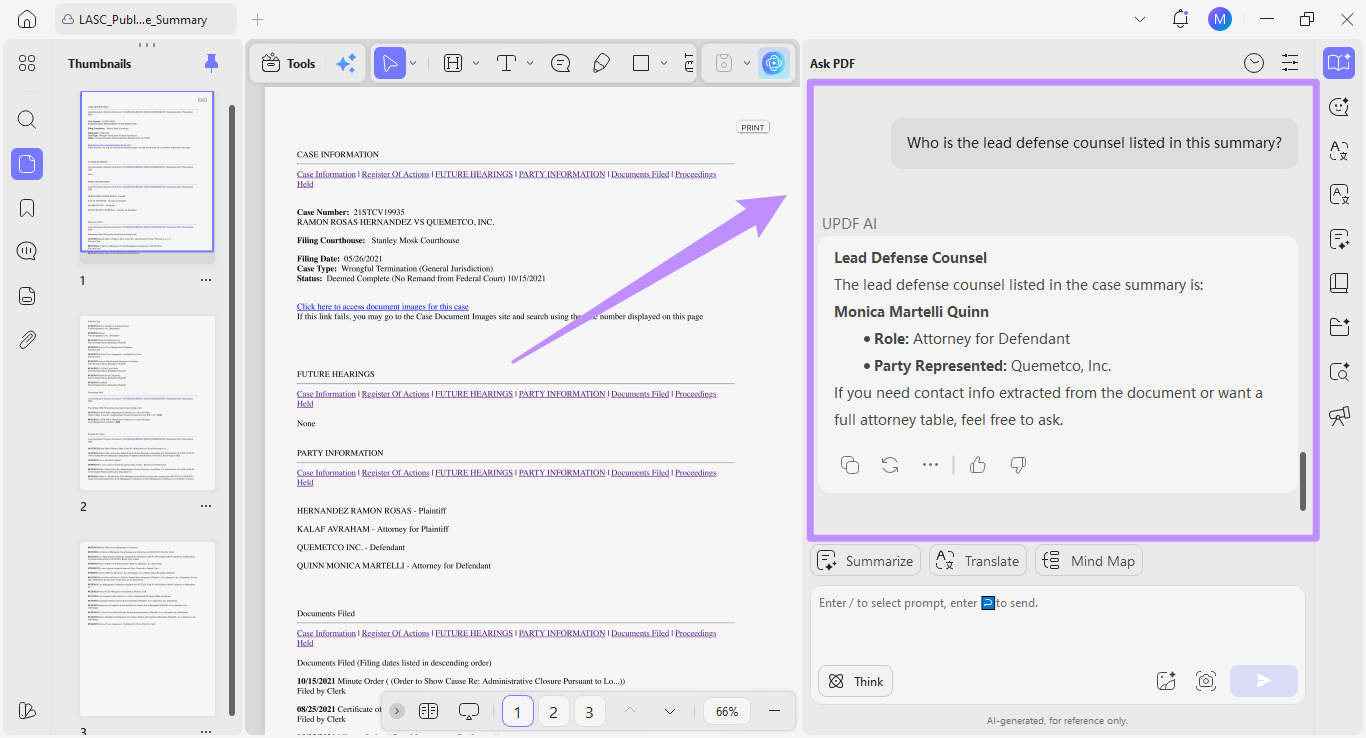
Step 5. UPDF AI also supports deeper legal inquiry. For instance, you can ask, "Who is the lead defense counsel listed in this summary?" The AI will provide a context-aware answer without you needing to manually search through multiple pages.
So, that's how UPDF can help you review and summarize legal cases without much manual effort on your part. You can significantly reduce the time spent on each case analysis and work more productively.
Part 3. Enterprise-Grade Security: Protecting Sensitive Legal Data
Legal documents include sensitive case information that must not be compromised. For example, a Register of Actions in a civil case may include Social Security numbers, financial details, or confidential statements that need strong protection. That's why it's important to choose a secure platform to handle these records safely.
To address these risks, UPDF is built with enterprise-level security standards in mind. As an ISO 27001-certified tool, it provides a controlled environment where legal documents are processed securely and are not exposed to public AI training models.
Additionally, UPDF aligns with data protection frameworks, including GDPR standards and AATL certification. This level of security ensures that your legal documents stay confidential and safe from data breaches.
How UPDF Helps You Protect Legal Documents:
Here are the key features UPDF offers to protect sensitive documents.
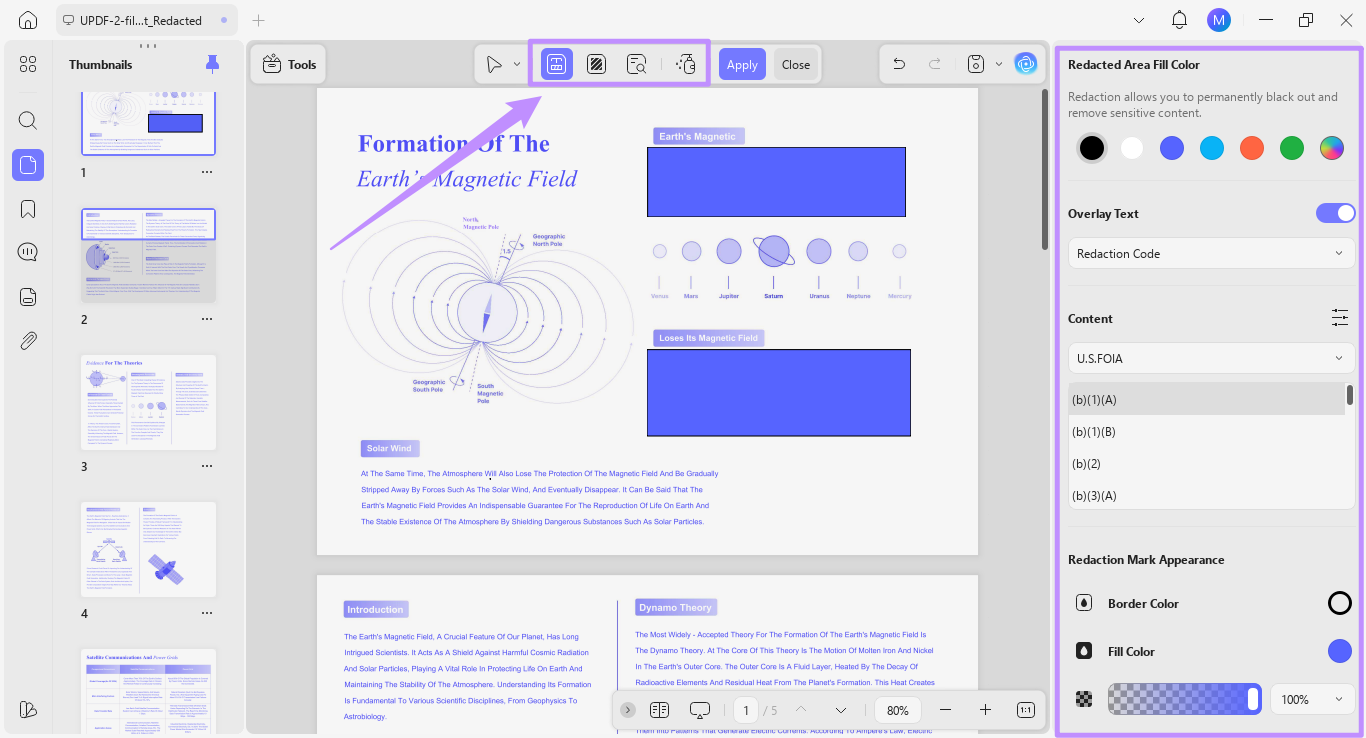
- Redaction: You can use the redaction tool to permanently black out sensitive information such as witness names, bank account details, or confidential case references. Once applied, redacted content cannot be recovered.
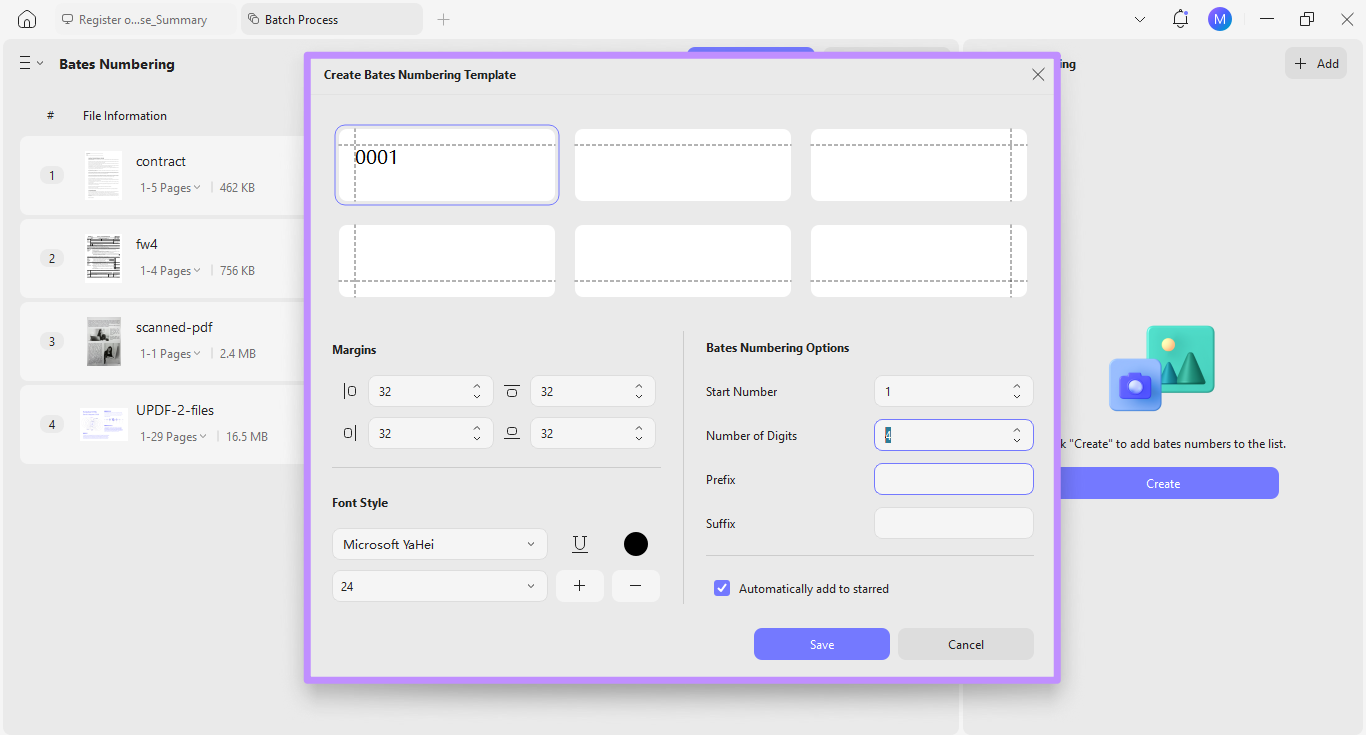
- Bates Numbering: The litigation process involves multiple LASC case summaries. UPDF helps you add Bates numbering to multiple PDFs at once. This makes it easier to track and organize documents before submitting to the court.
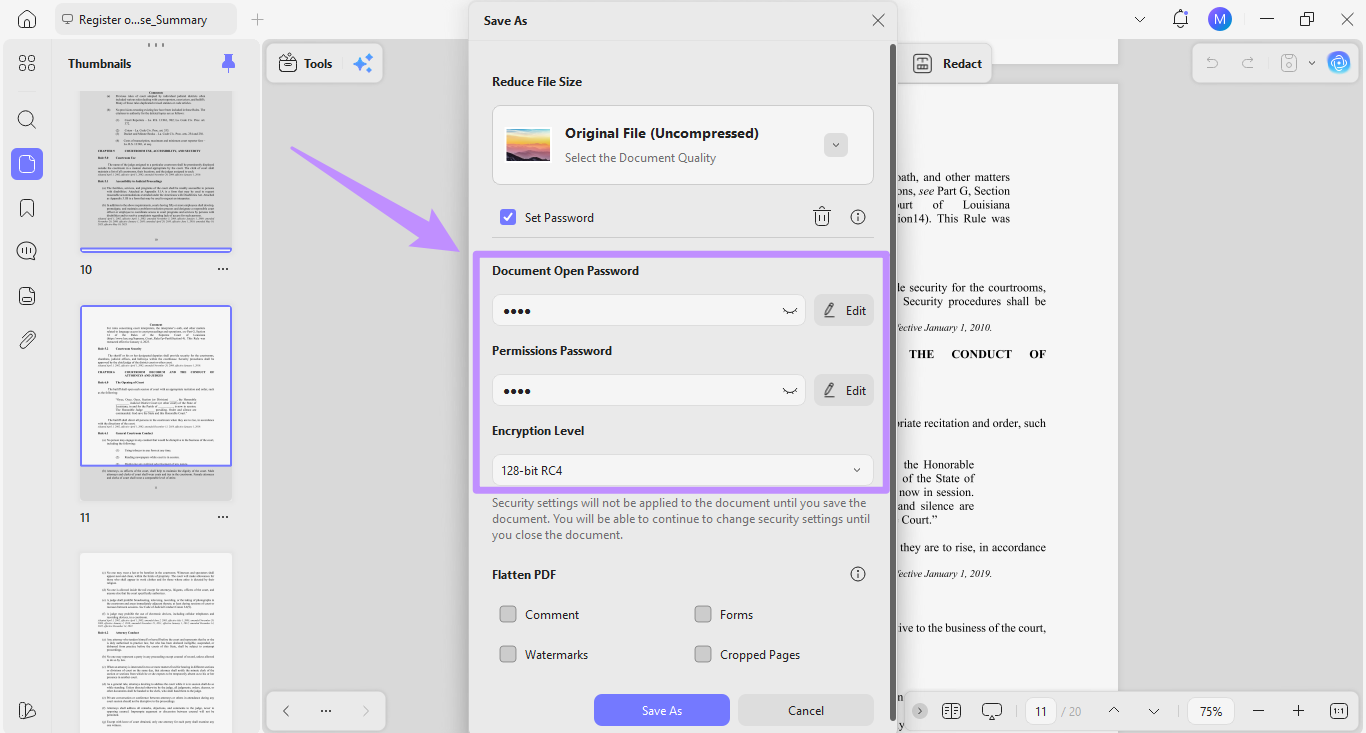
- Password Protection: Case documents are only to be viewed by the involved parties and legal team. To ensure these documents stay confidential, UPDF allows you to set open and permission passwords to control access.
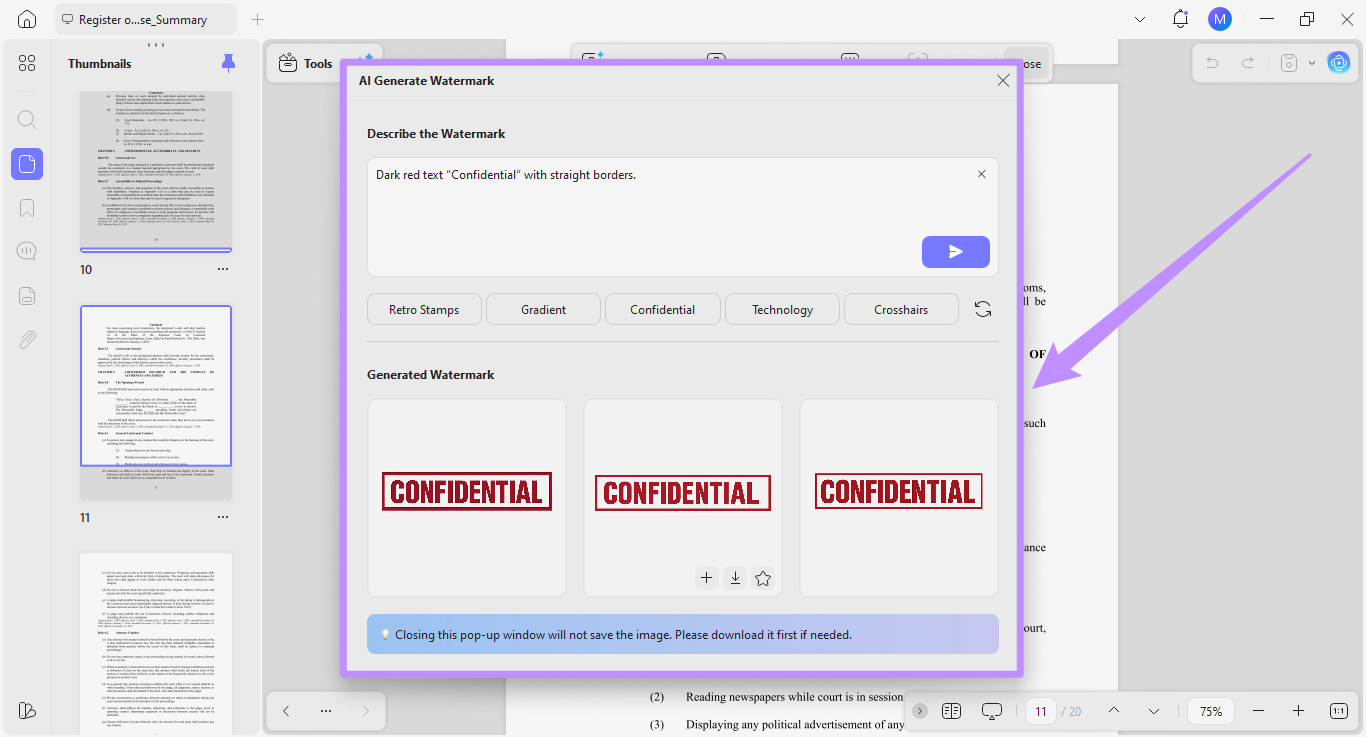
- Watermarks: Watermarks help you clarify the status of documents and prevent their unwanted use. With UPDF, you can manually add single or grid watermarks and customize their appearance. You can also use its AI to generate new watermark designs.
Part 4. Troubleshooting & Expert Tips
While the LASC online portal offers a straightforward way to access case summaries, there are times when you might face issues. Let's look at the common problems and how to resolve them.
Why can't I find my case?
This happens when the case has been recently filed and has not yet been fully entered into the system. In addition, access may also be restricted if the record is sealed or partially confidential by court order.
Why does the PDF look distorted?
Many Register of Actions documents are generated using legacy court formatting systems. As a result, exported PDFs can appear misaligned or difficult to read. This is even more common when viewing these PDFs on mobile devices or non-standard PDF readers.
Also, if you're having issues finding a case, make sure to verify the courthouse location. While this is an optional setting in the portal, in my experience, this can resolve most search errors.
FAQs
Q1. Can I get a LASC case summary for free?
You can view the basic case information for free if the case is publicly available. However, for most cases, downloading the full Register of Actions requires a small fee of around $1 per search or document.
Q2. Is an online LASC case summary considered a certified document?
No. An online LASC case summary is for informational use only. It is not a certified court document and cannot be used as official proof in legal proceedings. For certified copies, you'll need to request them directly from the court clerk.
Q3. What is the LASC Rule 3.4?
LASC Rule 3.4 tells you how to format your documents, such as page layout, file type, and required sections. It also outlines the steps you must follow when submitting documents online. These requirements help ensure that the court can review, process, and accept your filings without delays.
Conclusion
That's all about how to search and manage an LASC case summary. But retrieving it is just the beginning. You'll also need to effectively analyze, secure, and act on that information.
UPDF makes this easier with its advanced AI-assisted document analysis, enterprise-level security, and dedicated tools for legal workflows. It has everything you need to work with legal documents more productively. Give it a try. Download UPDF now!
Windows • macOS • iOS • Android 100% secure







 Engelbert White
  Delia Meyer
 Enrica Taylor