UPDF
UPDF
 UPDF for Windows
 UPDF for Mac
 UPDF for iPhone/iPad
 UPDF for Android
 UPDF AI Online
 UPDF Sign
 Edit PDF
 Annotate PDF
 Create PDF
 PDF Form
 Edit links
 Convert PDF
 OCR
OCR PDF to Word
 PDF to Image
 PDF to Excel
 Organize PDF
 Merge PDF
 Split PDF
 Crop PDF
 Rotate PDF
 Protect PDF
 Sign PDF
 Redact PDF
 Sanitize PDF
 Remove Security
 Read PDF
 UPDF Cloud
 Compress PDF
 Print PDF
 Batch Process
 About UPDF AI
 UPDF AI Solutions
 AI User Guide
 FAQ about UPDF AI
 Summarize PDF
 Translate PDF
 Chat with PDF
 Chat with AI
 Chat with image
 PDF to Mind Map
 Explain PDF
 PDF AI Tools
 Image AI Tools
 AI Chat Tools
 AI Writing Tools
 AI Study Tools
 AI Working Tools
 Other AI Tools
 AI Bookmark Generation
 AI Bookmark Summary
 AI Watermark Generation
 AI Background Generation
 AI Sticker Generation
 AI Stamp Generation
 AI Editing Suite
 UPDF Copilot
 AI Page Management
 AI Semantic Search
 PDF to Word
 PDF to Excel
 PDF to PowerPoint
 Enterprise Solution
 Enterprise Sign
 Enterprise AI
 Enterprise Plan
 Enterprise User Guide
 Enterprise Webinar
 Banking
 Healthcare
 Insurance
 Legal
Legal Manufacturing
 Government
 Education Solution
 Customer Stories
 User Guide
 UPDF Tricks
 FAQs
FAQs UPDF Reviews
 Download Center
 Blog
Blog Newsroom
 Tech Spec
 Updates
 UPDF vs. Adobe Acrobat
 UPDF vs. Foxit
 UPDF vs. PDF Expert

When I first started writing academic papers, one of my biggest questions as a student and researcher was: " How do you reference a thesis correctly?” Citations are the backbone of academic integrity, and they matter because they credit original authors, strengthen your arguments, and prevent plagiarism. In this article, I’ll walk you through everything you need to know about referencing theses in different styles, the challenges of traditional methods and modern solutions. Stick with me until the end to discover how I use UPDF AI to automate the heavy lifting, making the process much faster and easier.
Part 1. What is the importance of referencing a thesis?
I realised that referencing isn’t just an academic formality. It’s a way to show respect for original research and to prove that your work is credible. By referencing a thesis correctly, you are telling the readers that arguments are backed by serious research, not personal opinion. When you cite a thesis, you acknowledge the author’s contribution and allow readers to trace your sources.
Another reason citations matter is plagiarism. Universities take plagiarism very seriously. Even unintentional mistakes can lead to penalties. Referencing protects you from that risk. Proper referencing also strengthens your credibility as a researcher.
There isn’t one universal rule for citations. The format changes depending on the style guide mandated by your institution or publisher.
Here are the most common citation styles I’ve used:
- APA (American Psychological Association): Common in social sciences. If you are wondering how to cite a thesis in APA, it usually requires the author, year, title, and institution.
- MLA (Modern Language Association): Common in the humanities, focusing on the author and title.
- Chicago Style: Used in history, business, and fine arts. It offers two systems: notes and bibliography, or author-date.
- Harvard Style: Similar to APA, but with slight formatting differences. A widely used "author-date" style in various disciplines.
- IEEE: Used in engineering and technical fields, with numbered references.
| Style | Example Citation |
| APA | Smith, J. L. (2020). Exploring leadership styles in nonprofit organisations [Doctoral dissertation, Harvard University]. ProQuest Dissertations Publishing. |
| MLA | Ahmed, Sara. Cultural Identity in Modern Literature. 2021. University of Karachi, MA thesis. |
| Chicago (Notes & Bibliography) | David Brown, Urban Migration Patterns in South Asia (PhD diss., University of Cambridge, 2018). |
| Chicago (Author-Date) | Brown, David. 2018. Urban Migration Patterns in South Asia. PhD diss., University of Cambridge. |
| Harvard | Ali, M. 2022. Artificial intelligence in healthcare decision-making. PhD thesis, University of Oxford. |
| IEEE | [1] S. Patel, “Machine learning approaches to cybersecurity,” PhD thesis, Stanford University, 2020. |
Part 2. Traditional Citation Methods and Their Challenges
Before I discovered smarter tools like UPDF AI, I relied on traditional citation methods. I used to keep style guides open in different tabs, trying to figure out how to cite a thesis in APA based on whether it was published in a database or found in a dusty library archive.
1. Manual Citation Using Style Guides
The traditional method is to manually format citations by following official style guides (APA, MLA, Chicago, Harvard, IEEE). For example, if I needed to cite a thesis in APA, I would:
- Look up the APA manual or online guide.
- Identify the correct format for a thesis/dissertation.
- Write out the author, year, title, institution, and database details.
- Double-check punctuation, italics, and capitalisation.
This process is slow, and it takes 5–10 minutes per citation. And requires constant cross-checking, I often miss small details like italics or punctuation. Style guides are also updated regularly, so older references may not match the latest edition.
2. Reference managers and citation generators
In the past, everything was manual, but tools like Google Scholar and other citation generators have made the "manual" part of the job faster.
Google Scholar Citation Tool:
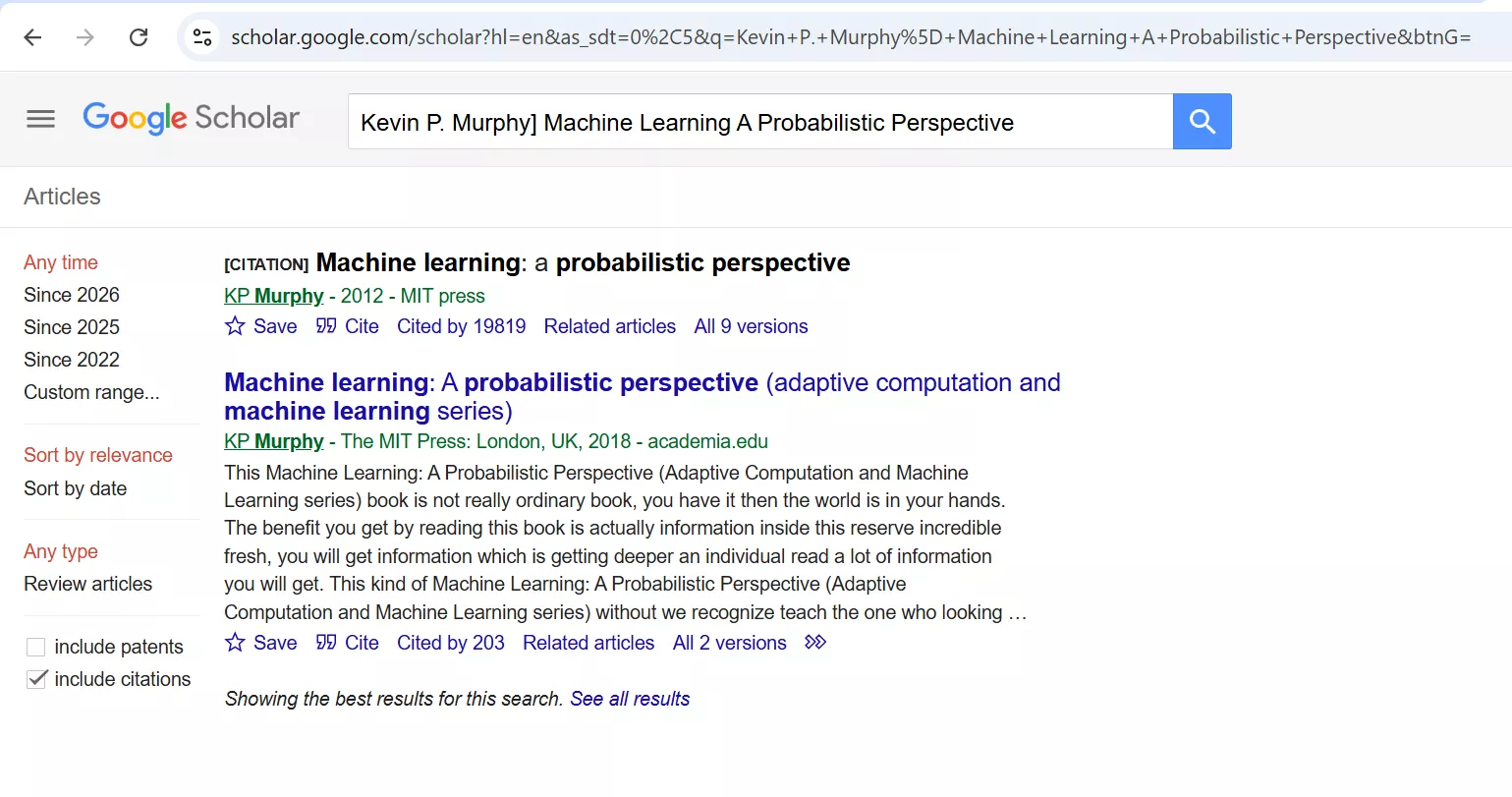
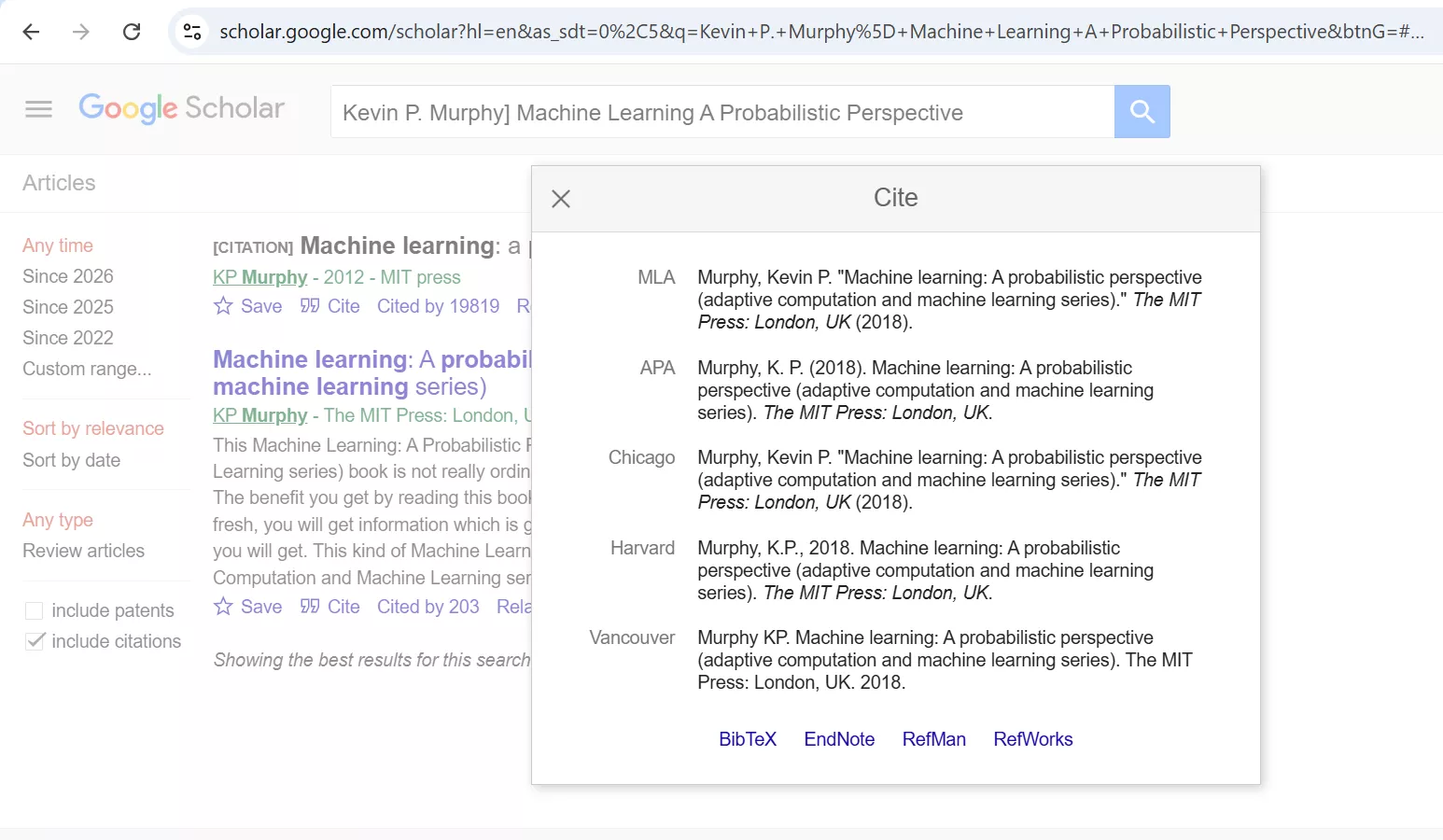
Google Scholar has a built-in citation feature that generates quick references in multiple styles (APA, MLA, Chicago, Harvard, IEEE).
Steps I Followed:
1. Go to Google Scholar.
2. Search for the thesis or dissertation title. Under the result, click the quotation mark (“Cite”) icon.
3. A pop-up appears with formatted citations in APA, MLA, Chicago, Harvard, and IEEE, which I can copy and paste into my paper.
Challenge:
- Metadata is often incomplete or incorrect (e.g., missing institution, wrong capitalisation).
- Sometimes the thesis isn’t indexed properly, so the citation is generic.
- Google Scholar doesn’t always follow the latest style guide updates.
Using Third-Party Generators (e.g., Scribbr)
Many students turn to tools like “Scribbr,” which offers a free citation generator that supports multiple styles and is more user-friendly than Google Scholar.
Steps I Followed:
1. Go to “Scribbr Citation Generator” and select the citation style (APA, MLA, Chicago, etc.).
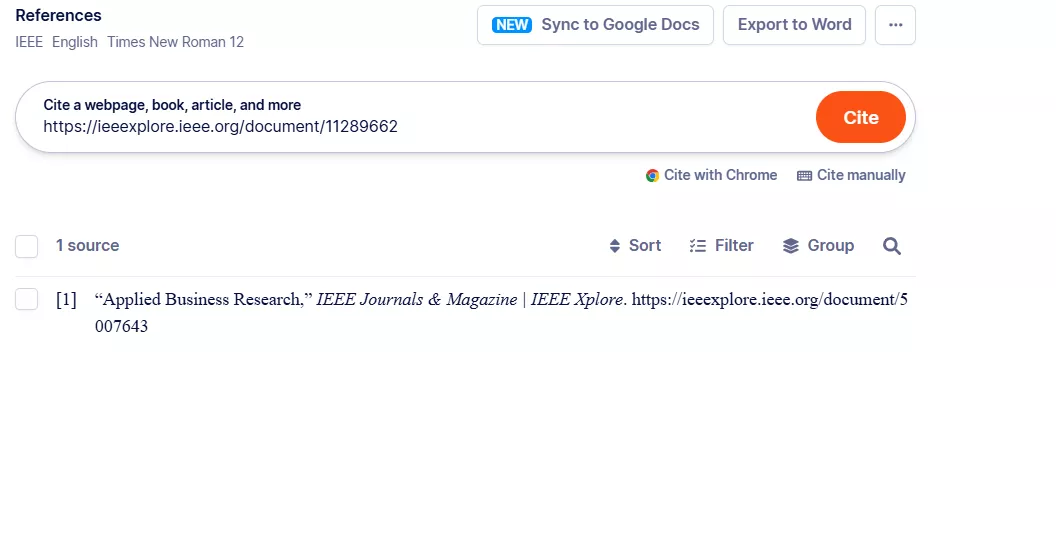
2. Choose the source type (e.g., thesis/dissertation). Review and edit the automatically filled information, author, year, title, institution, degree type, etc., then click "Cite source" to add it to your list.
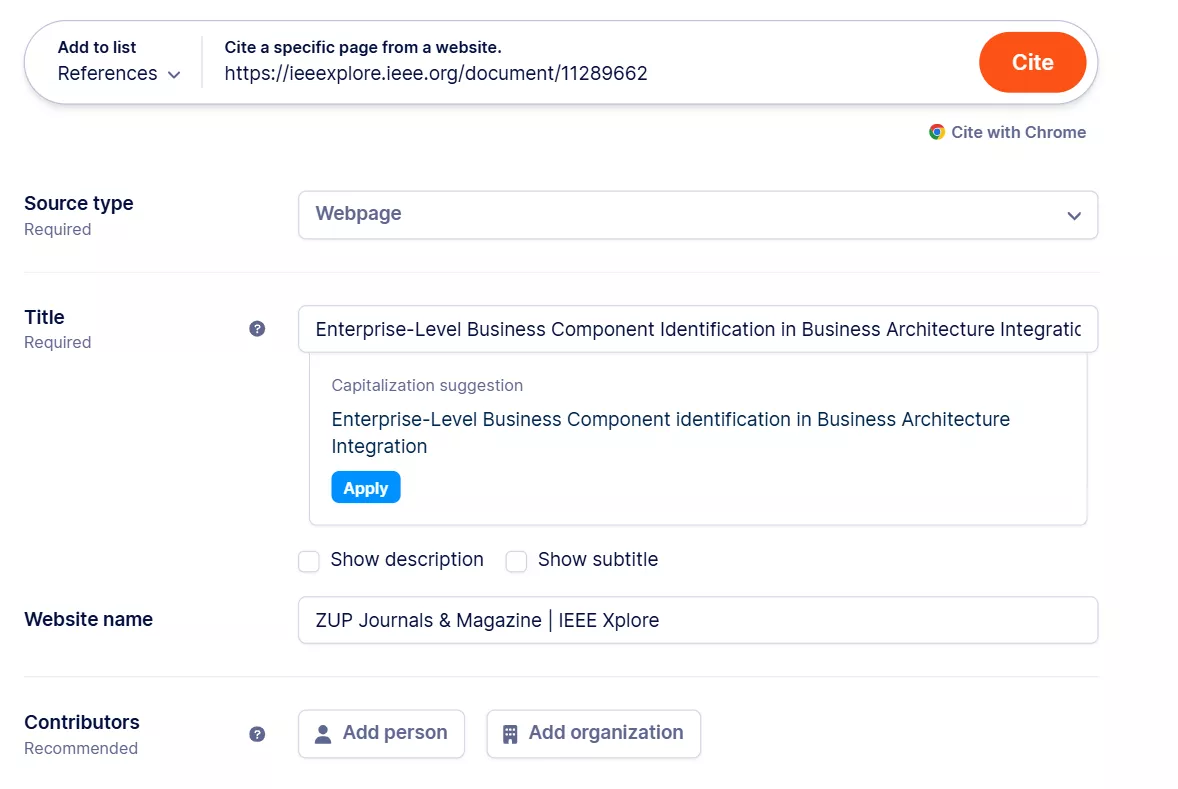
3. “Scribbr” generates a formatted citation, which I can copy and paste.
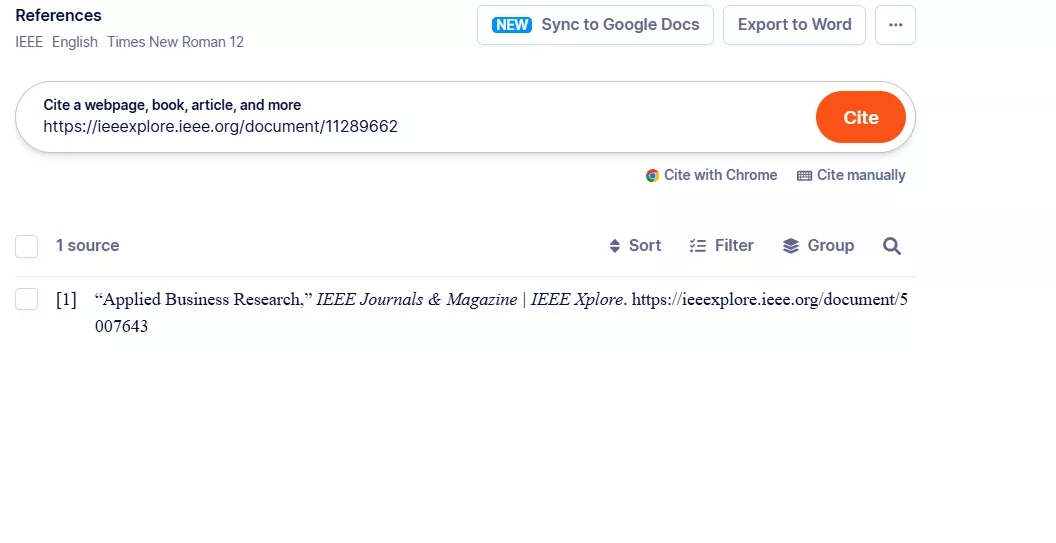
Screenshots of these tools show you manually entering details, but the process still feels clunky. I wanted something integrated that let me read, extract, and cite everything in one place.
Challenge:
- Entering details manually is still time-consuming.
- If I don’t have complete metadata, the citation may be inaccurate.
- “Scribbr” sometimes lags behind the latest style guide updates.
- Switching between my PDF reader and “Scribbr’s” website disrupted my workflow and led to errors and lost focus.
Part 3. Modern Solution: Reference a Thesis Using UPDF AI
After years of struggling with manual citation guides, hunting for dates and publications, dealing with incomplete metadata, and filling out forms, I finally found UPDF AI a smoother way to handle references. UPDF AI has completely changed my research workflow by moving the citation process directly into my PDF workspace. UPDF is an all-in-one assistant that works across your PC, mobile, and even online.
Whether I’m on my laptop, phone, or using the online version, UPDF AI combines powerful PDF handling with intelligent citation assistance. This all-in-one approach means fewer manual steps, fewer formatting errors, and a lot less frustration.
How to Reference a Thesis with UPDF AI
I can use UPDF AI to reference a thesis in a few steps, all in one place
I can access UPDF AI across different platforms:
- Desktop app
- Mobile app
- Online at UPDF AI
All options feel consistent, which saves time on learning.
Desktop Application:
Step 1. Launch the UPDF app installed on your computer, drag and drop the thesis file into UPDF or simply use the “Open File” option. Then click the “UPDF AI” icon in the toolbar.
Windows • macOS • iOS • Android 100% secure
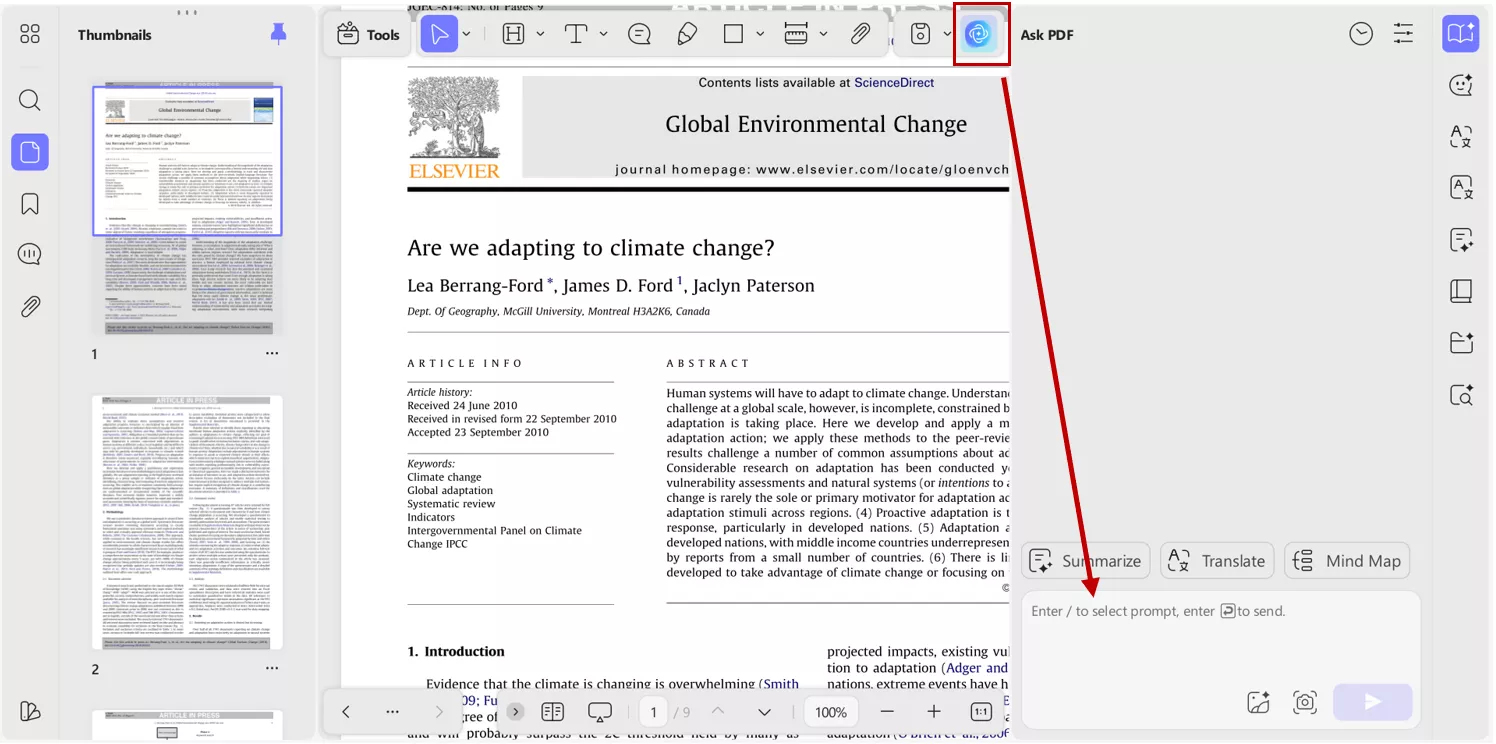
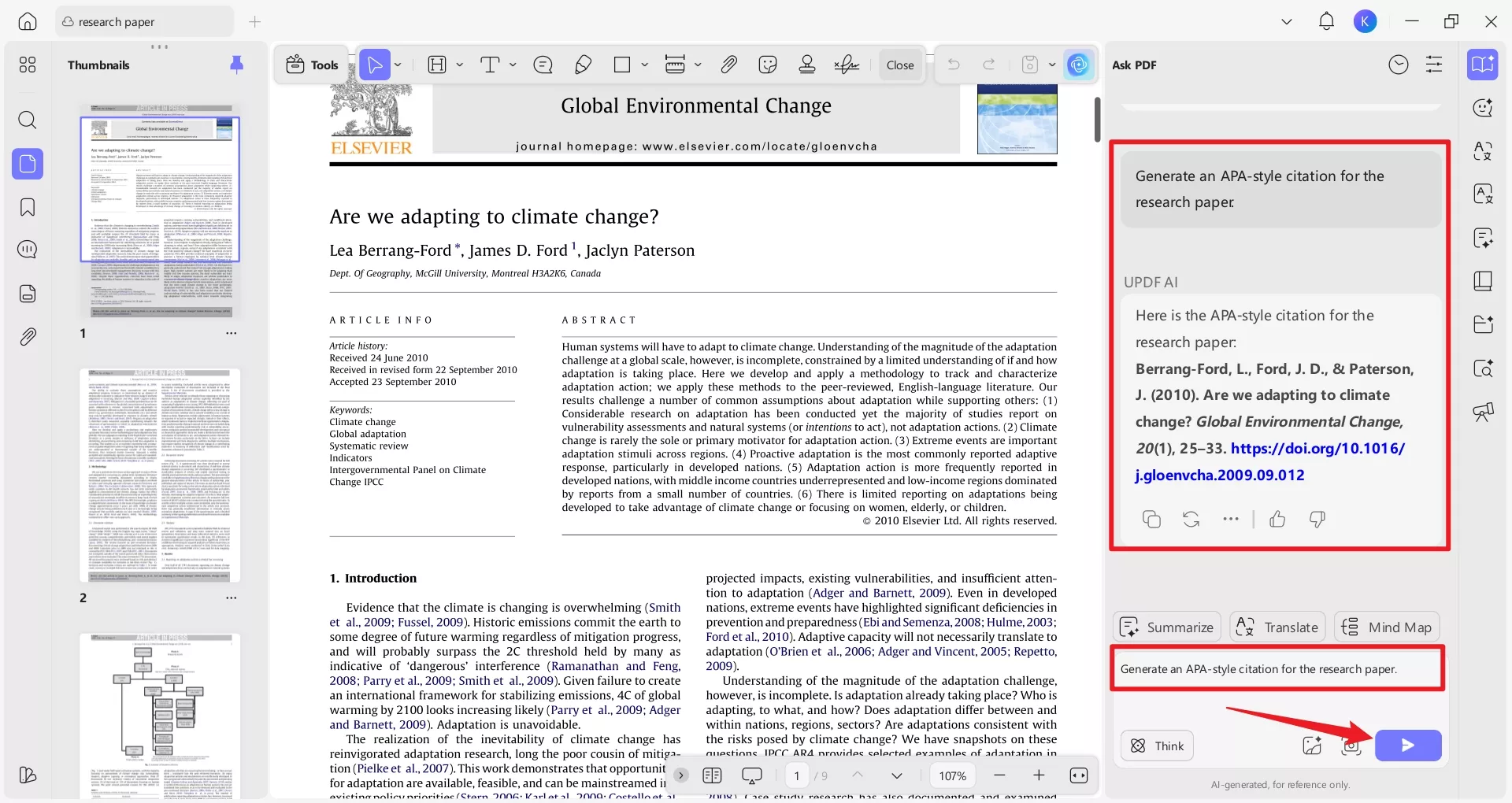
Step 2. Then, enter a command in the dialog box, for example: Generate an APA-style citation for the research paper.
UPDF Mobile App:
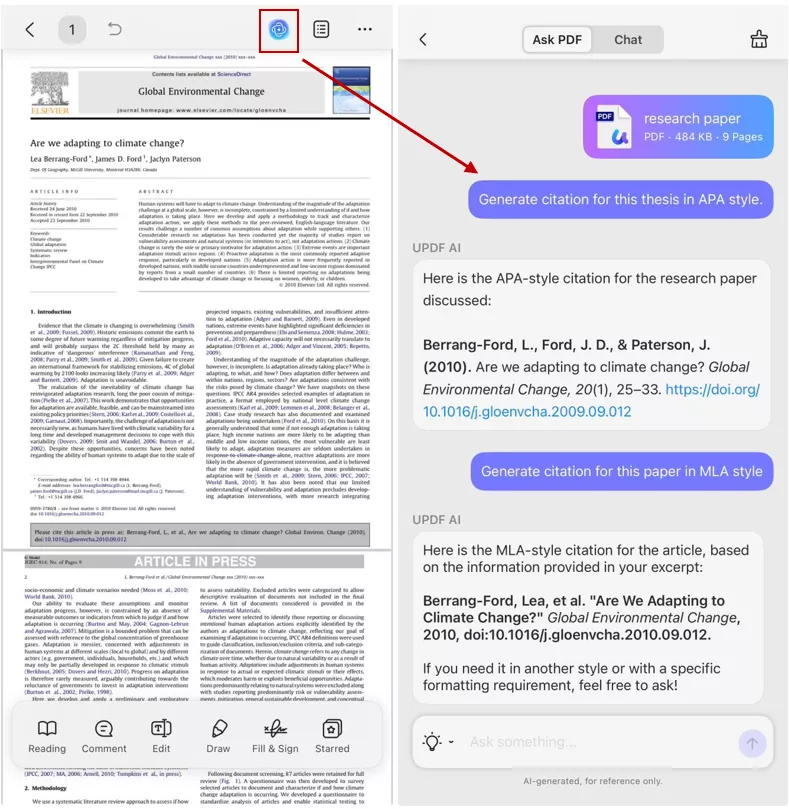
Step 1. Download UPDF from App Store/Google Play if not installed and sign in with your UPDF account. Tap “+” to upload a PDF or open an existing one in UPDF cloud.
Step 2.Tap the “UPDF AI” button at the top of the screen and choose “Ask PDF” mode to interact with the paper and generate a citation in your desired style.
Online (Web Browser):
Step 1. Visit the official UPDF AI website or click the button below to access UPDF AI Online. Drag and drop your PDF into the browser.
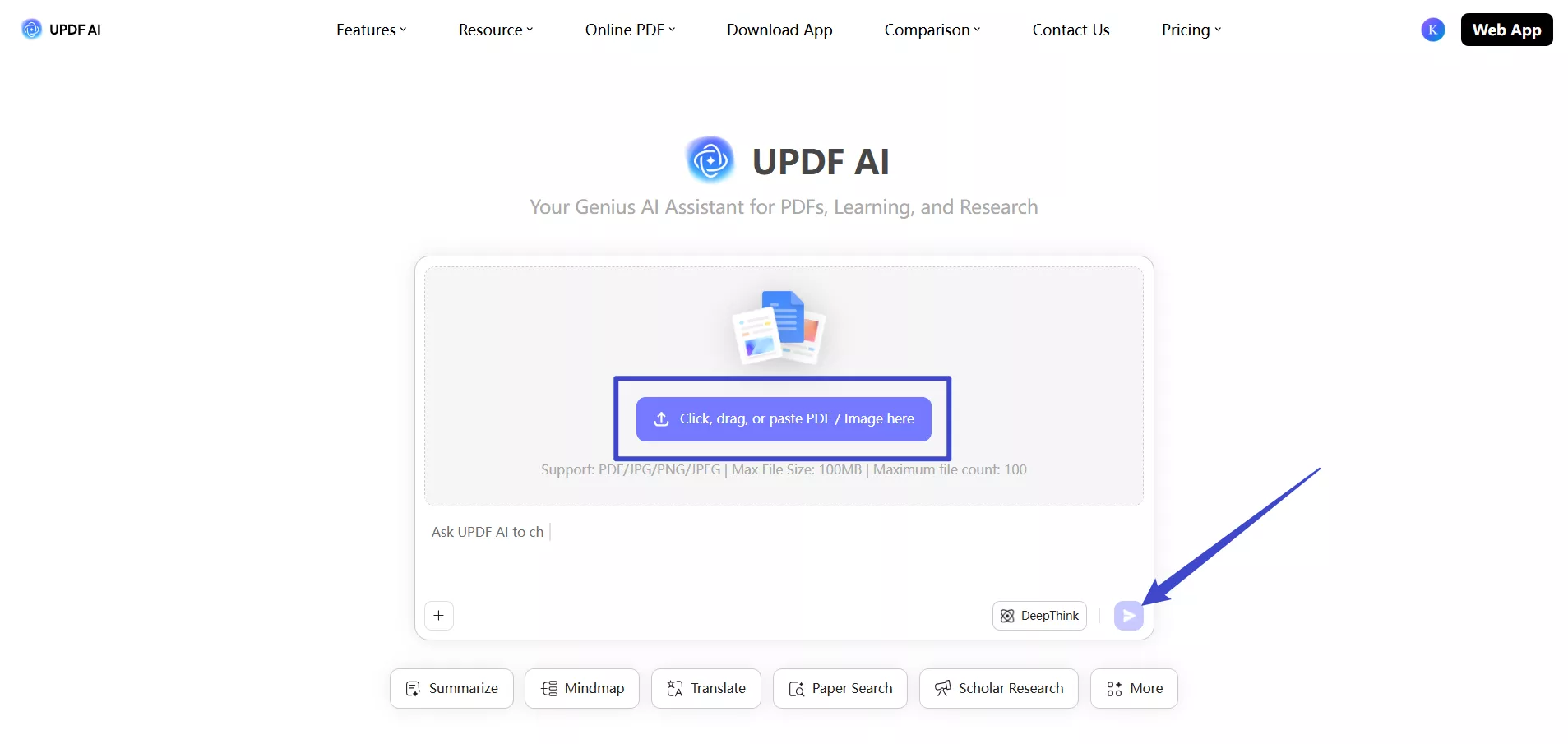
Step 2. Manually type metadata (author, title, year, etc.), or use ask PDF AI to extract details from the uploaded paper.
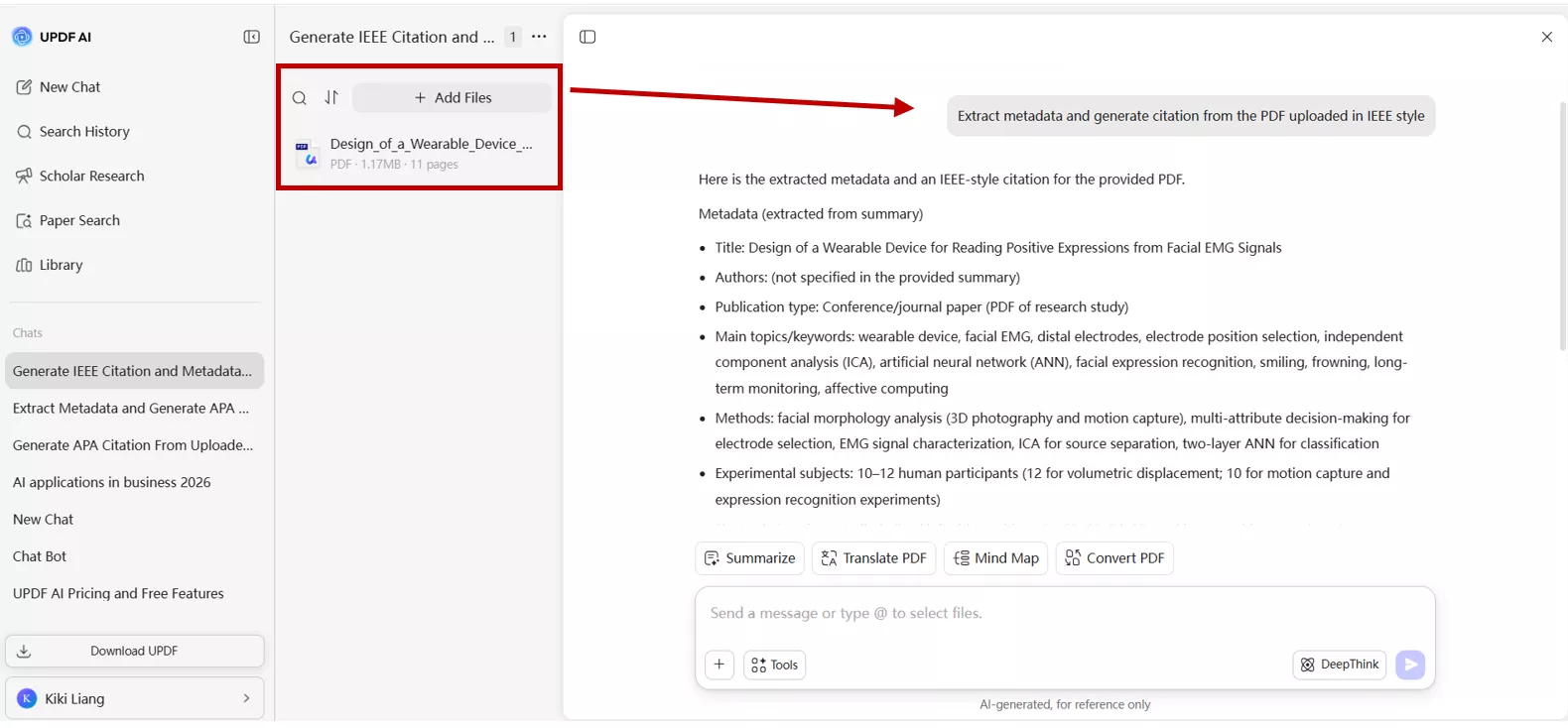
Step 3. You can also generate citations without opening a PDF file, directly by entering the metadata: author(s), title, publication year, journal/book name, DOI/URL, etc., and selecting the desired citation style (APA, MLA, Chicago, IEEE, Harvard, or other supported formats).
More Than Just Citations: The AI Advantage
Beyond citation generation, UPDF AI offers a comprehensive research ecosystem that streamlines academic and professional workflows. Here’s how I use its advanced features and why they matter.
Paper Search:
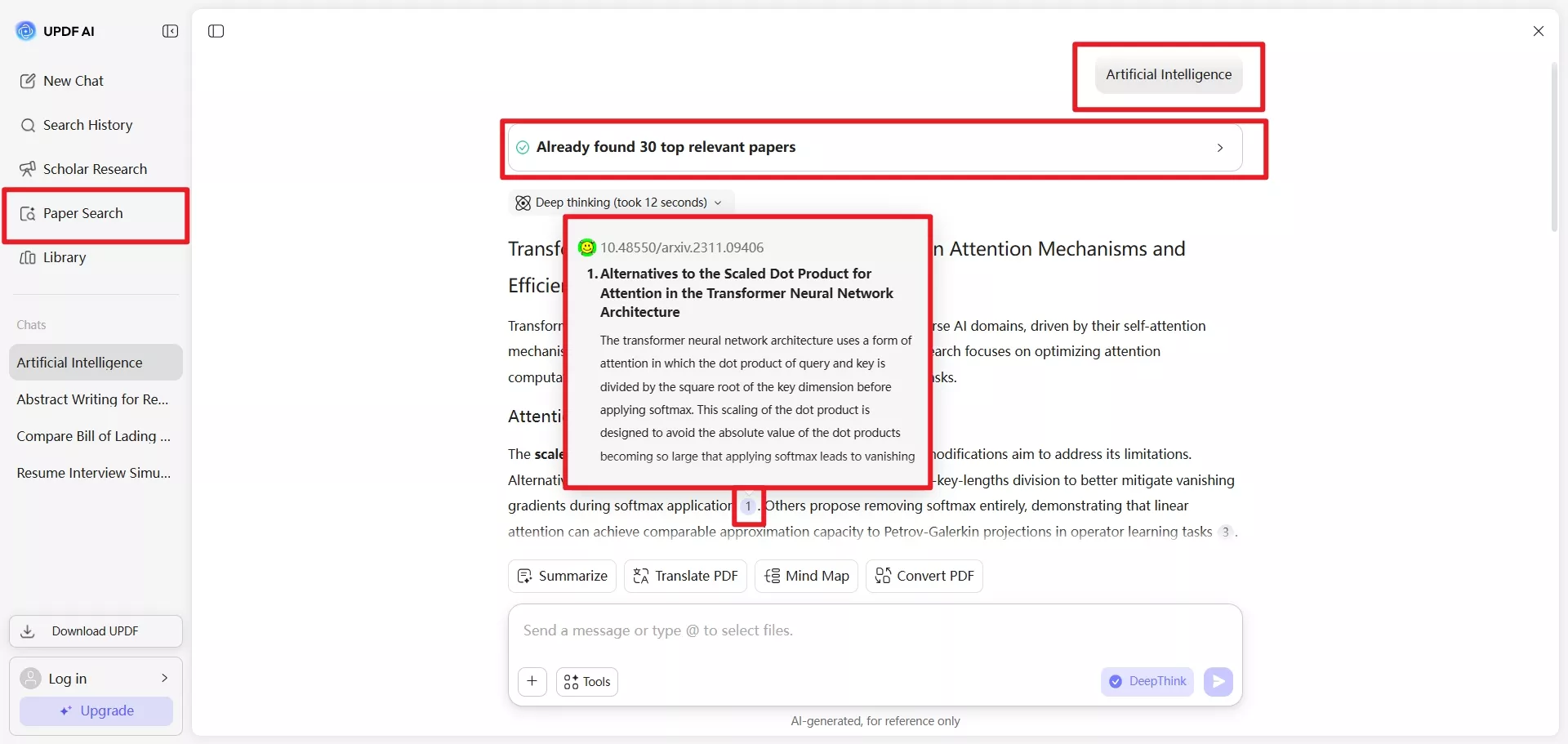
One feature I love is the “Paper Search”, which lets you find and cite millions of peer-reviewed works without leaving the app. Simply ask what you are searching for, and related research papers that you can summarise or ask questions about.
Scholar Research:
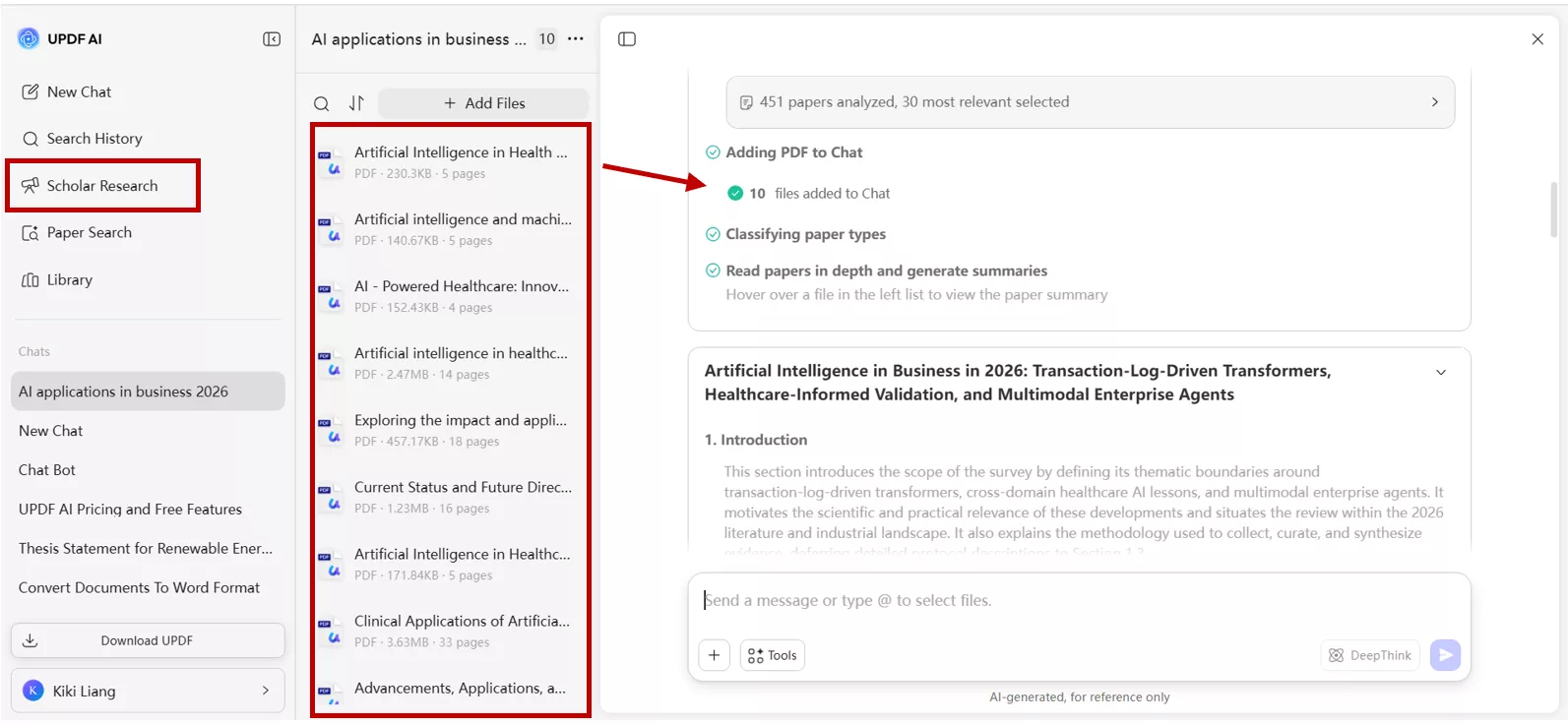
UPDF AI’s “Scholar research” feature allows me to generate structured literature reviews on any topic. The “Scholar Research” feature analyses multiple papers at once to build a structured report with citations included.
It saves hours of manual searching and ensures I don’t miss essential studies. This is especially useful when you are preparing background sections for a thesis or executive reports.
Chat with PDFs and Images:
One of my favourite features is the ability to chat directly with PDFs or even images. For example, if I upload a thesis PDF, I can ask UPDF AI: “Summarise Chapter 3” or “Extract all references from this document.”
No need to scroll through hundreds of pages manually. I can quickly extract tables and figures from scanned documents, which saves enormous time during data analysis.
Summarise & Explain:
Don't have time to read 300 pages? Ask the AI for a structured summary covering methodology and research gaps. UPDF AI can generate concise summaries of long academic papers or theses. I often combine this with the citation tool—summarise first, then create the citation if I decide to use the paper.
Cutting-Edge Models:
It's powered by GPT-5 and DeepSeek R1, which means ensuring fewer formatting errors and much better reasoning than standard chatbots. Since AI understands context better, I don’t need to over-explain; citations and summaries also follow the latest academic standards.
Cross Platform Access:
UPDF AI works seamlessly across desktop, mobile, and online. One license covers all platforms, so I can start research on my laptop, continue reading or citing on my phone and access everything online when I’m away from my devices.
This flexibility is crucial for modern researchers and executives who work across multiple environments.
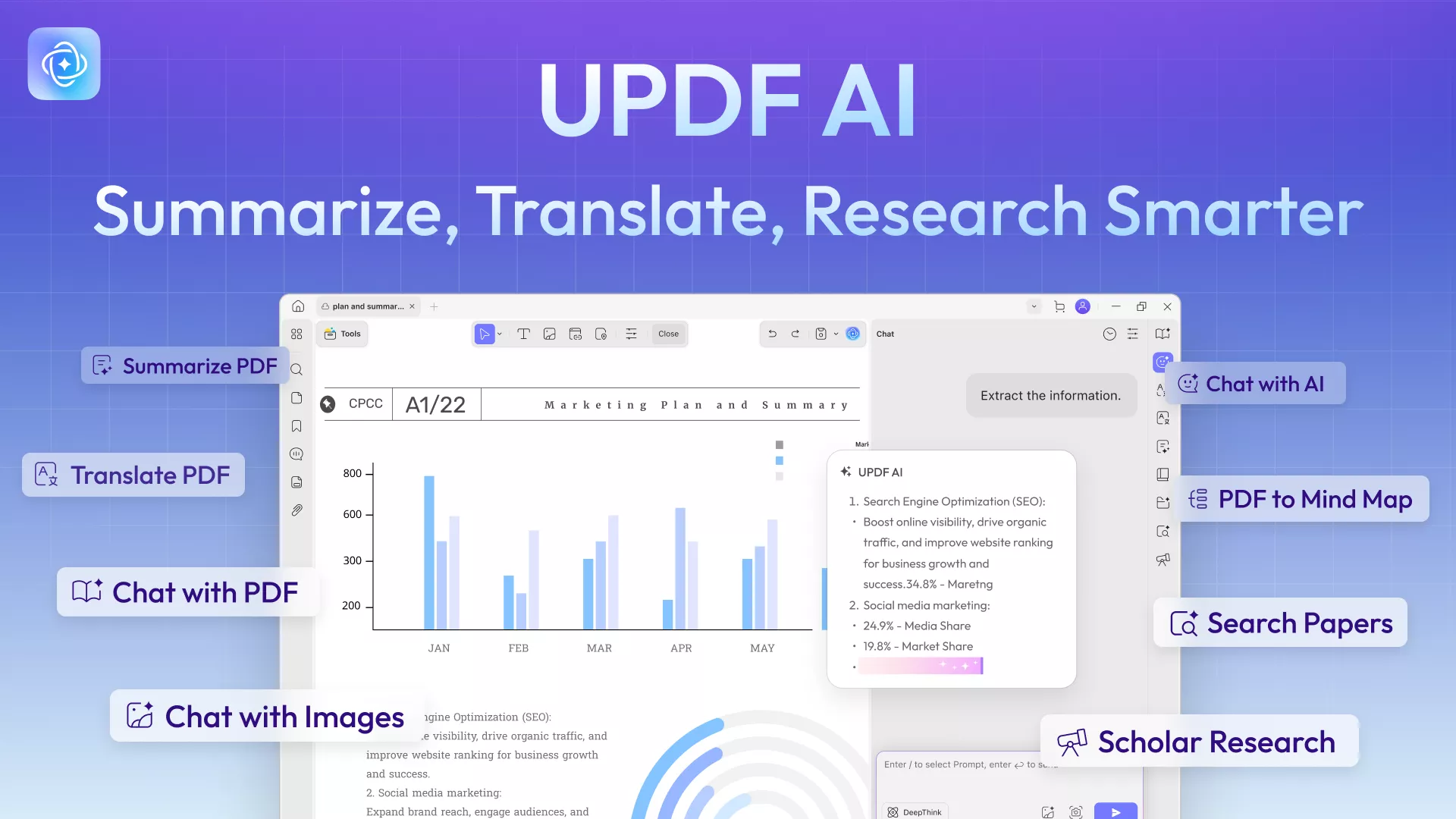
UPDF AI offers a free version for basic tasks, but if you’re doing heavy academic work, I highly recommend their paid plan. It unlocks unlimited AI questions and advanced research tools. I personally upgraded because the premium plan saves me significant time and ensures accuracy across complex projects.
Conclusion
UPDF AI isn’t just a citation generator but a complete research assistant. From Deep Research for literature reviews to chatting with PDFs to summary generation, it streamlines every step of the academic workflow. It saves time, reduces errors, and keeps the research workflow smooth. If you want accurate citations without stress, I genuinely recommend giving UPDF AI a try.
Download UPDF today and let AI handle the heavy lifting, and you focus on your research.
Windows • macOS • iOS • Android 100% secure








 Enola Miller
 Enrica Taylor
 Engelbert White