 UPDF
UPDF
 UPDF for Windows
 UPDF for Mac
 UPDF for iPhone/iPad
 UPDF for Android
 UPDF AI Online
 UPDF Sign
 Edit PDF
 Annotate PDF
 Create PDF
 PDF Form
 Edit links
 Convert PDF
 OCR
OCR PDF to Word
 PDF to Image
 PDF to Excel
 Organize PDF
 Merge PDF
 Split PDF
 Crop PDF
 Rotate PDF
 Protect PDF
 Sign PDF
 Redact PDF
 Sanitize PDF
 Remove Security
 Read PDF
 UPDF Cloud
 Compress PDF
 Print PDF
 Batch Process
 About UPDF AI
 UPDF AI Solutions
 AI User Guide
 FAQ about UPDF AI
 Summarize PDF
 Translate PDF
 Chat with PDF
 Chat with AI
 Chat with image
 PDF to Mind Map
 Explain PDF
 Scholar Research
 Paper Search
 AI Proofreader
 AI Writer
 AI Homework Helper
 AI Quiz Generator
 AI Math Solver
 PDF to Word
 PDF to Excel
 PDF to PowerPoint
 Enterprise Solution
 Enterprise Sign
 Enterprise AI
 Enterprise Plan
 Enterprise User Guide
 Enterprise Webinar
 Banking
 Healthcare
 Insurance
 Legal
Legal Manufacturing
 Government
 Education Solution
 Customer Stories
 User Guide
 UPDF Tricks
 FAQs
FAQs UPDF Reviews
 Download Center
 Blog
Blog Newsroom
 Tech Spec
 Updates
 UPDF vs. Adobe Acrobat
 UPDF vs. Foxit
 UPDF vs. PDF Expert

Some of you may find Nuance PDF Editor when trying to find a solution to edit PDFs. However, you may be confused about what it is, how to download it, what features it has, and how to use it as it changes its name several times. In this article, we will answer all these questions and at the end of the article, we are sure you know everything about Nuance PDF Editor.
Nuance PDF Editor is very expensive and may not have the features you need, so we will also introduce one Nuance PDF Editor alternative - UPDF to you. You can click the below button to compare it with Nuance PDF Editor now.
Windows • macOS • iOS • Android 100% secure
Part 1. What is Nuance PDF Editor?
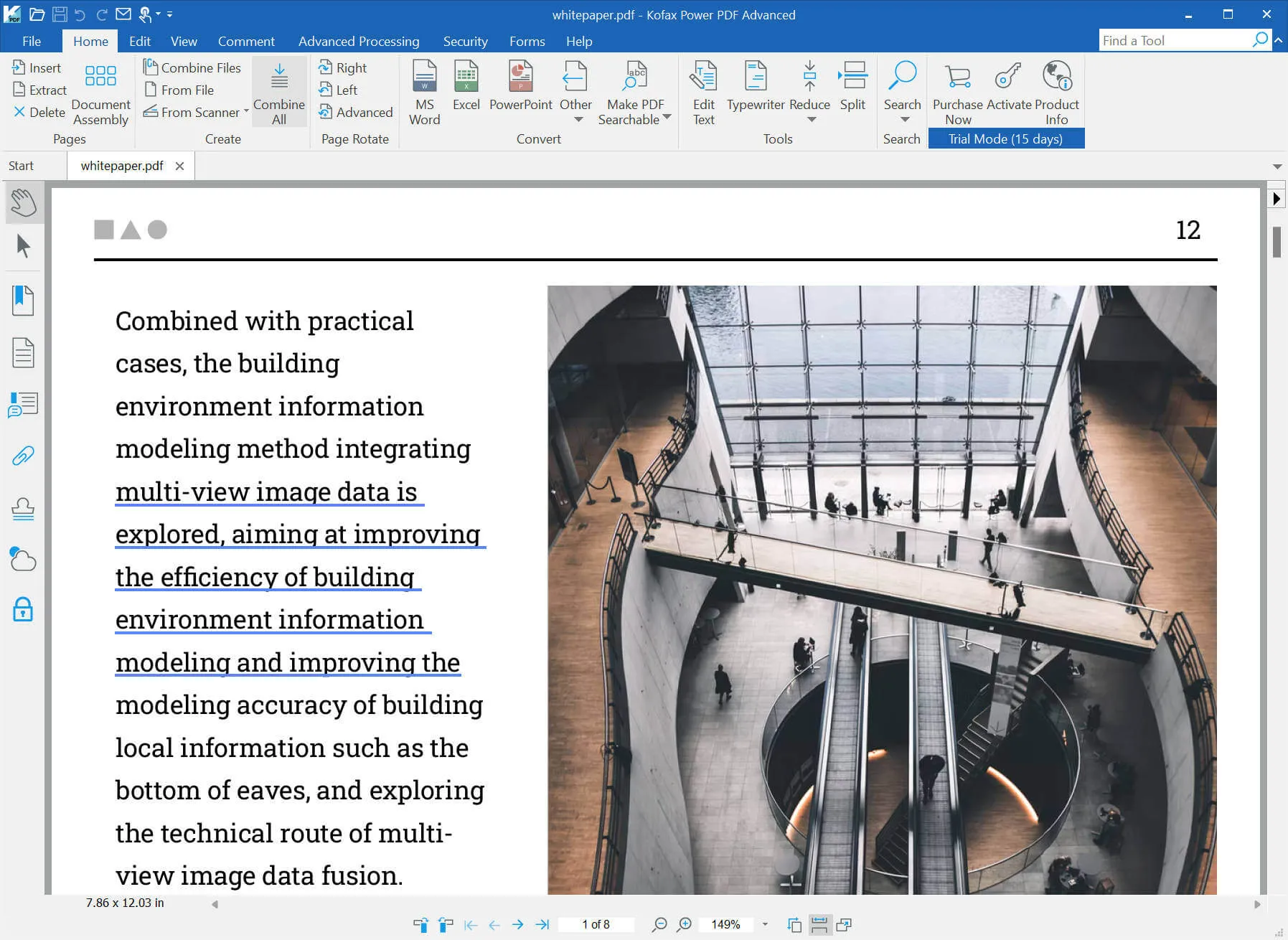
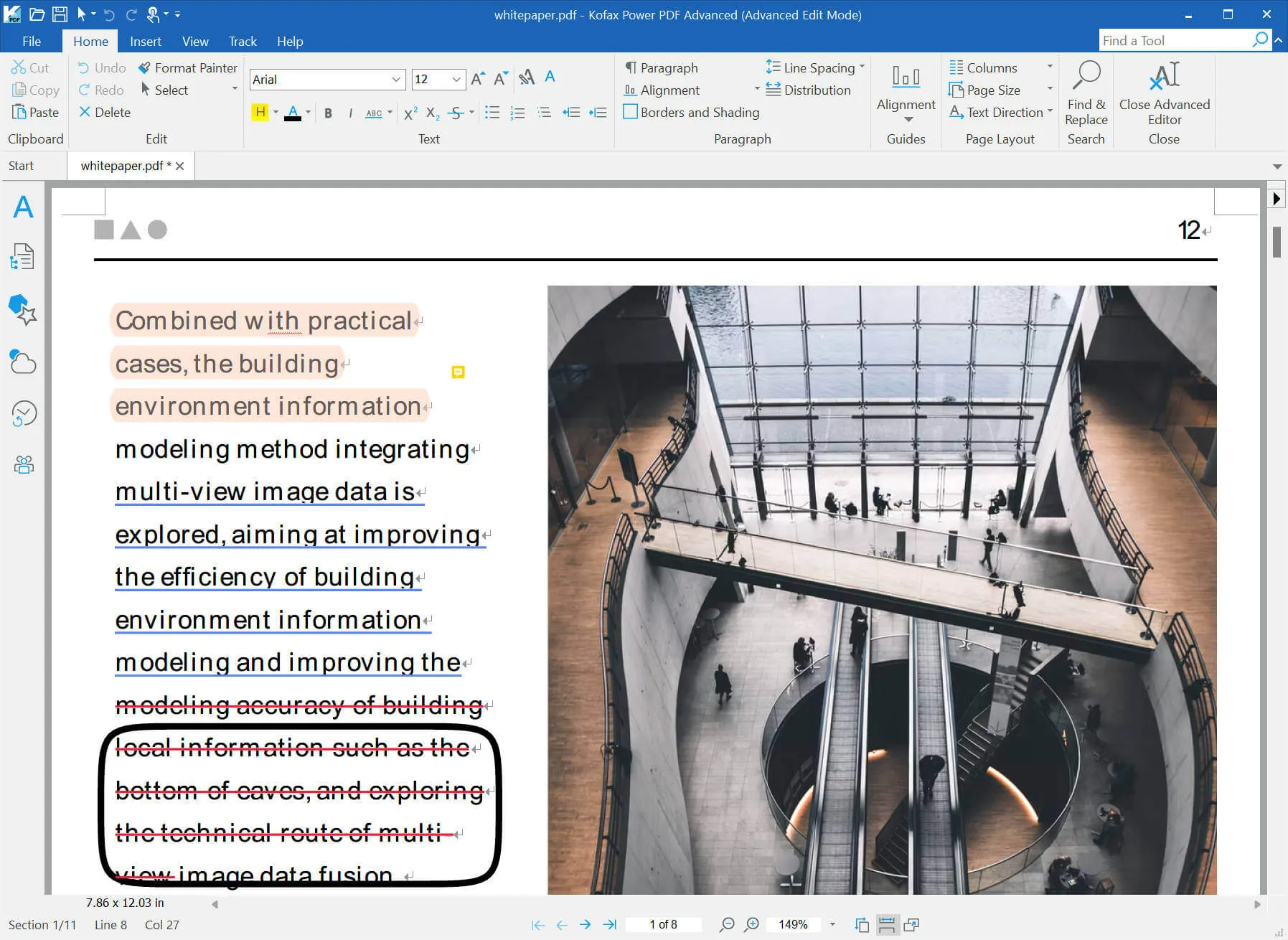
Nuance PDF Editor also known as Kofax Power PDF and Tungsten Power PDF. It has a similar interface to Word. You can use it to create PDFs, read PDFs, convert PDFs, edit PDF,s and more.
Part 2. What Features Does Nuance PDF Editor Have?
Nuance PDF Editor has many features. Here are some key features it has:
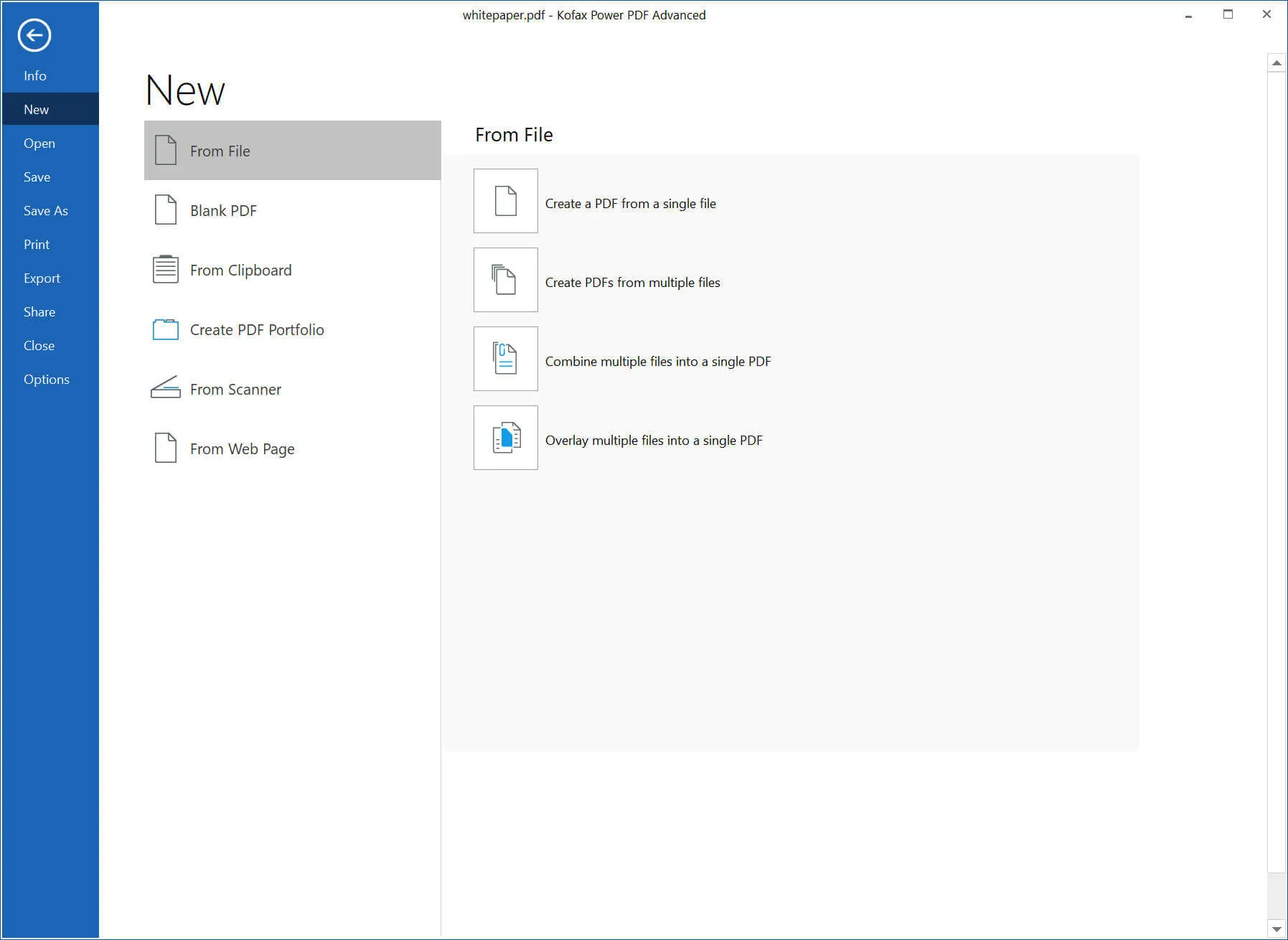
- Create PDF: You can create PDF from popular formats like Word, PPT, Excel, etc. You can create one PDF one by one, create all PDFs in batch, create one PDF from multiple files, and more. Moreover, it supports creating blank PDFs and creating PDFs from clipboards, scanners, and web pages.
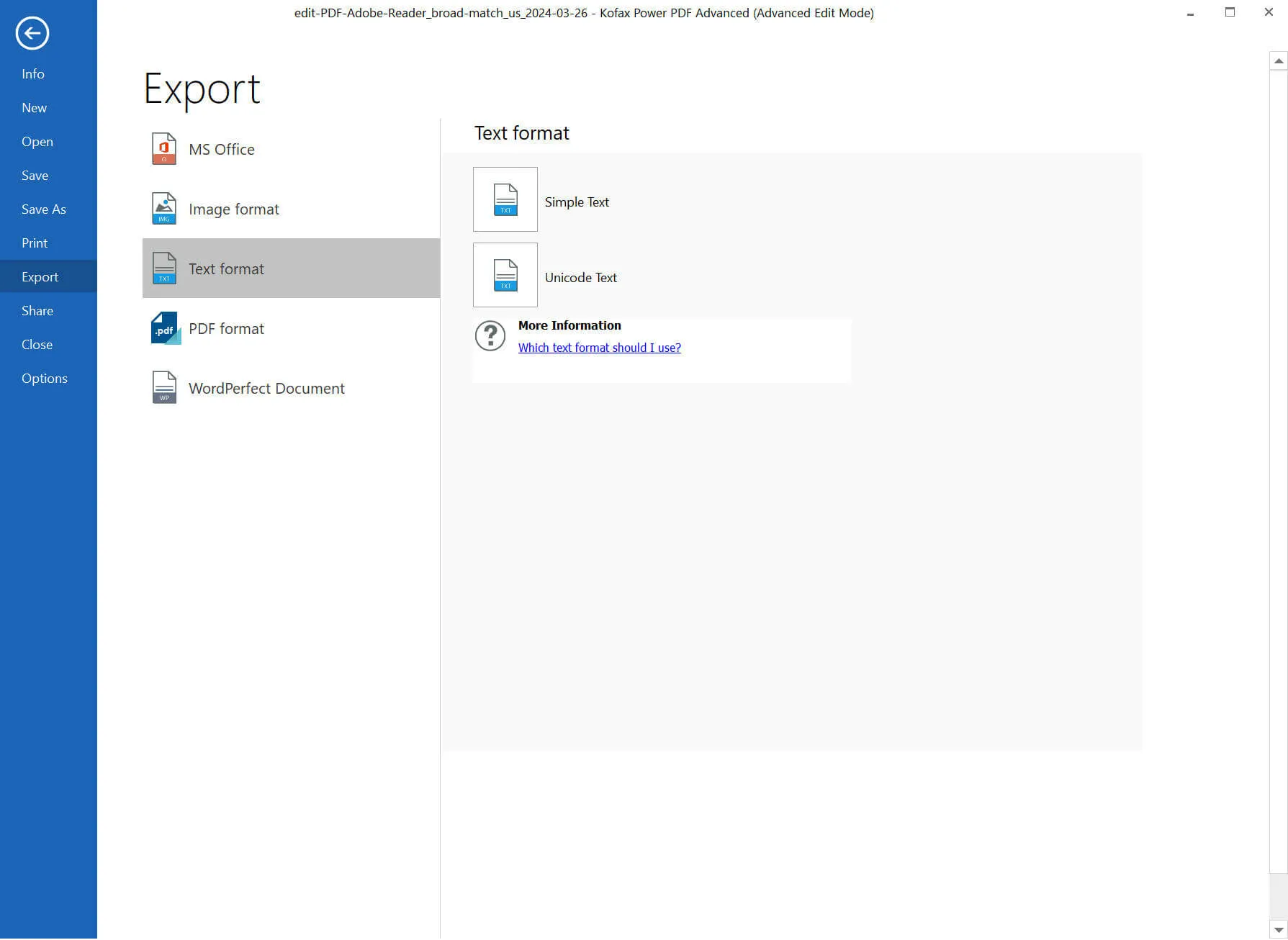
- Convert PDF: Convert PDF to PPT, Word, Excel, Image, Text, Wordperfect, or other PDF formats.
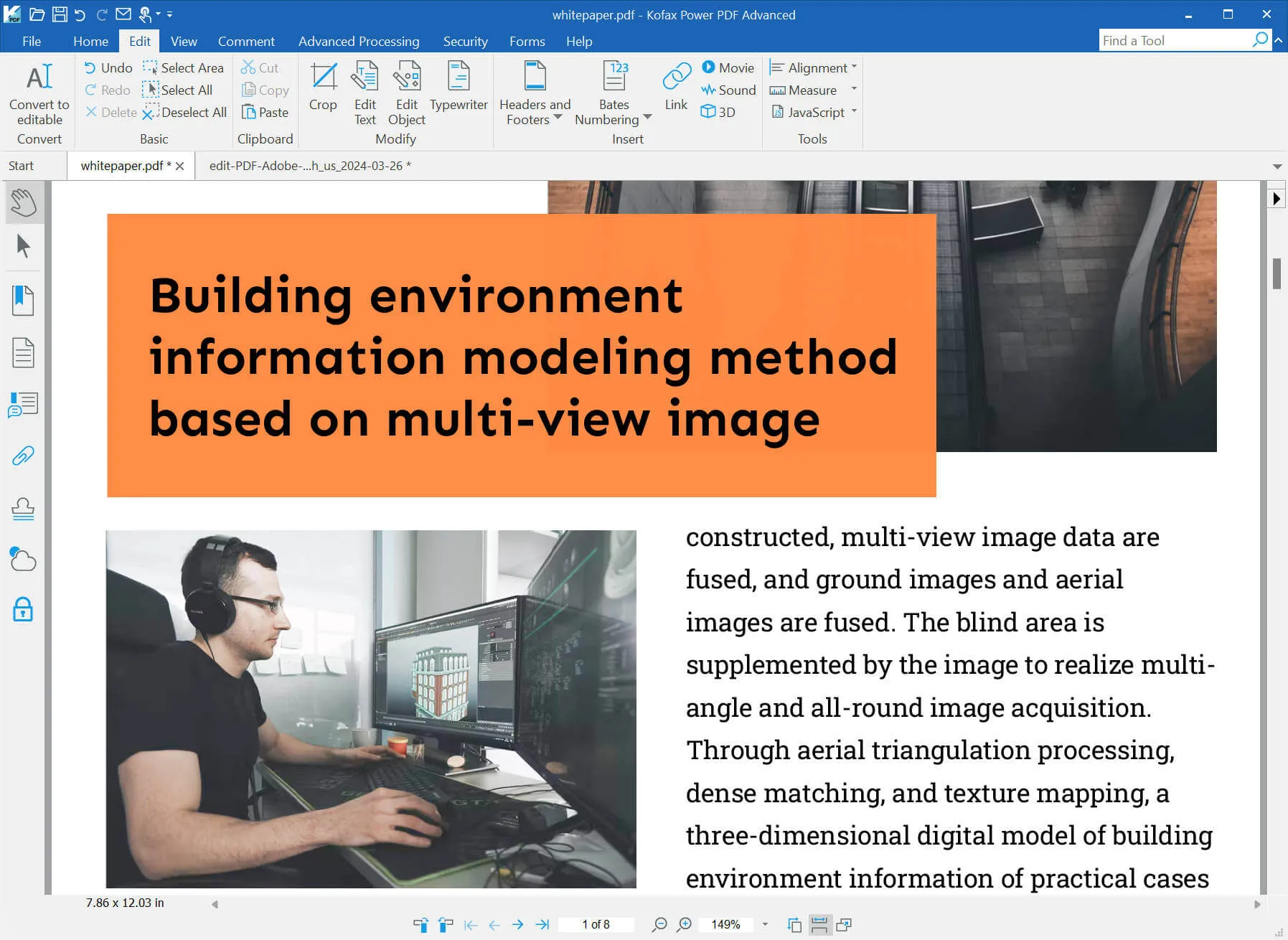
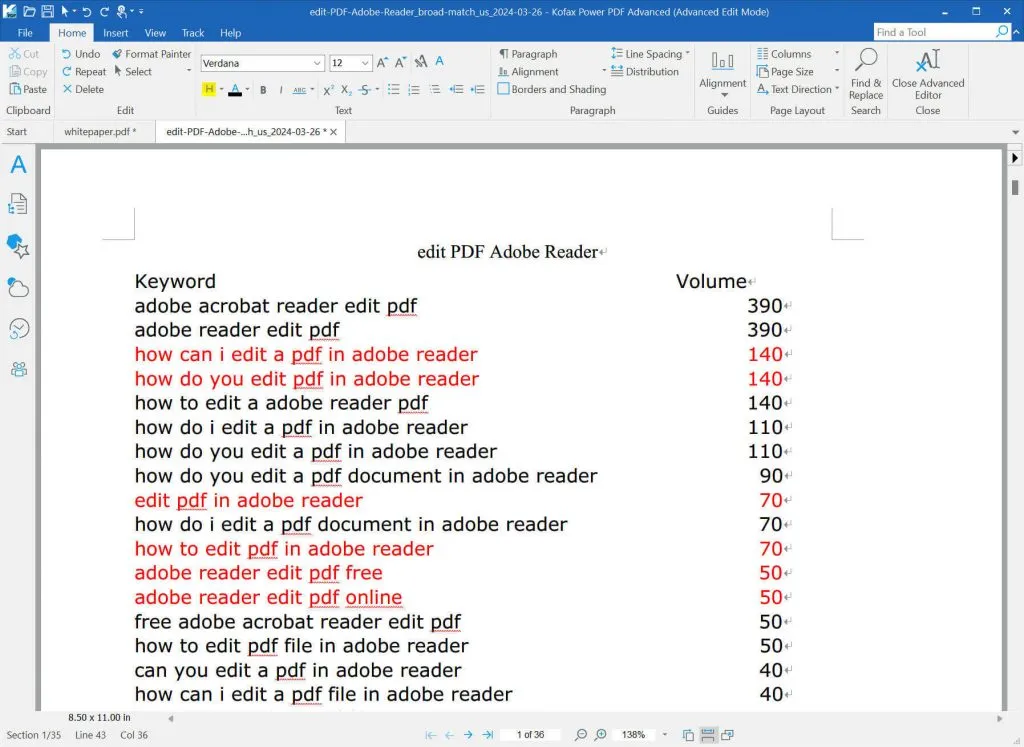
- Edit PDF: You can edit it like in the other PDF editors. In this mode, you have text and object editing, typewriting, cropping pages, adding footers, headers, and Bates numbering, inserting links, videos, audio, and 3D files, and measurement tools.
You can also convert PDF to a more freely editable style. In this mode, you can edit like in Word and has most features in Word editing.
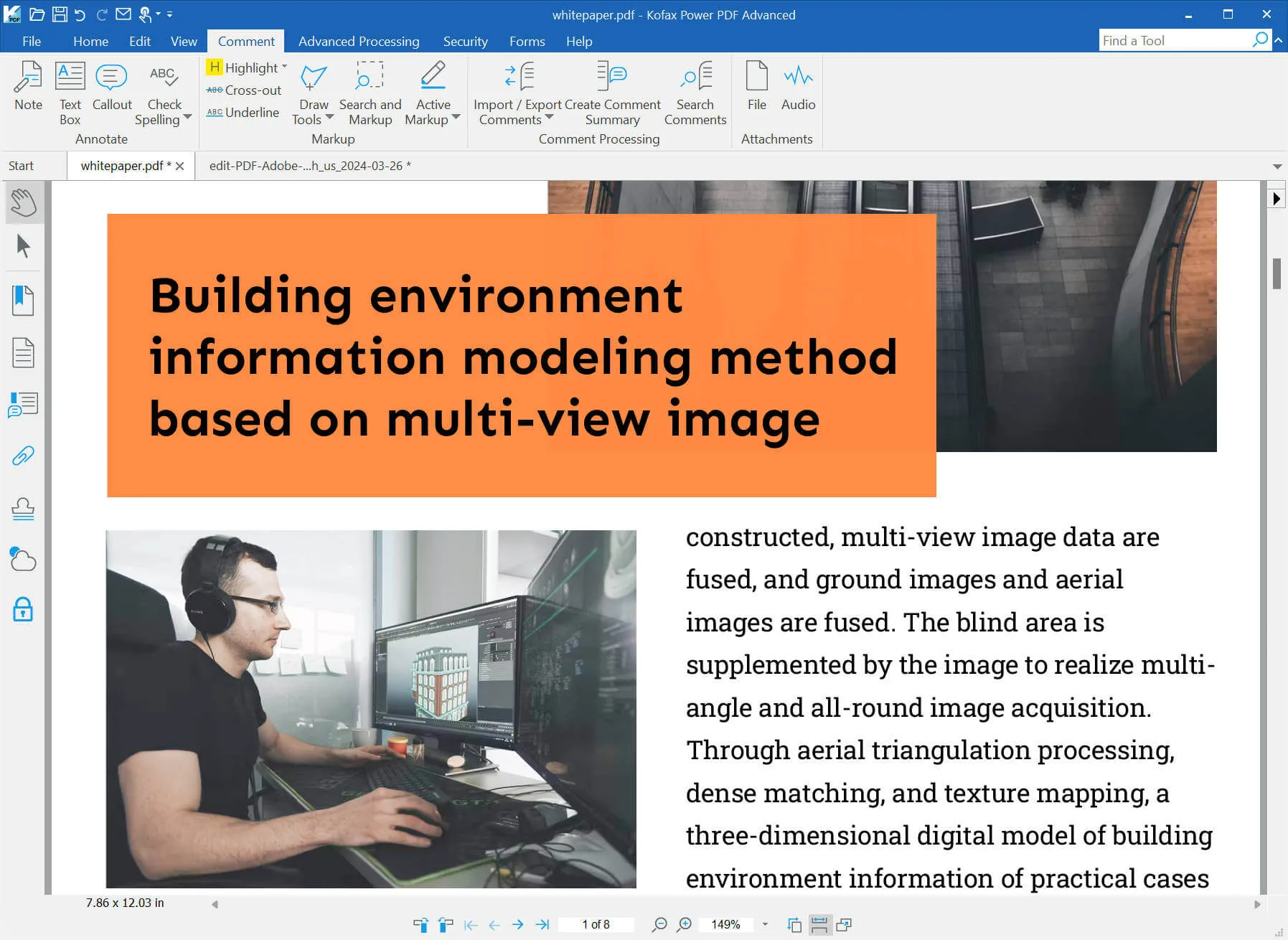
- Comment: In the PDF editing mode, you can have comment features like note, callout, text comment, highlight, cross-out, underline, drawing tools, search and markup, and more.
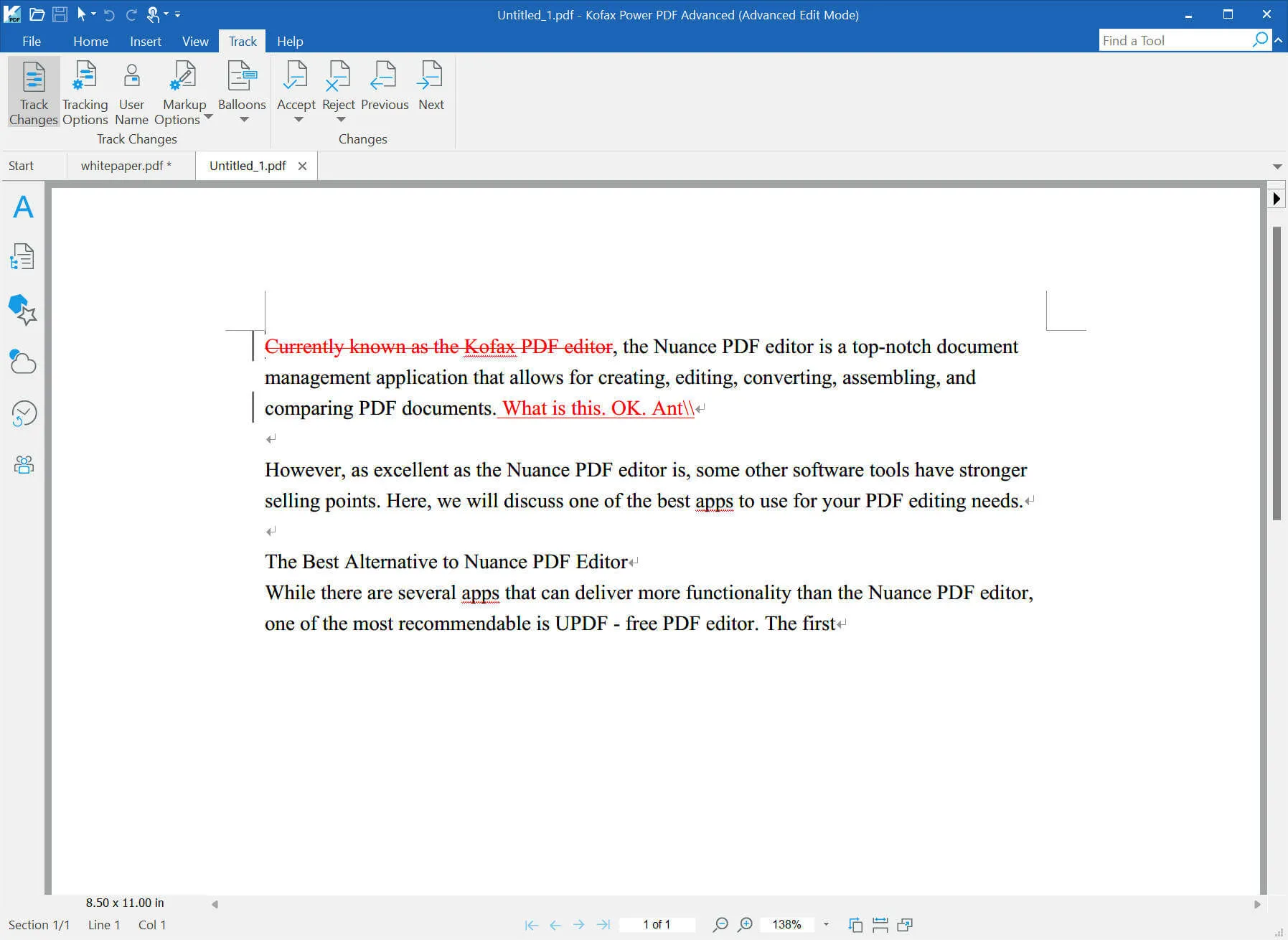
- Track Changes in PDF: The special tool that Nuance PDF Editor has is tracking changes in PDF. However, it can only be found in the freely editable style.
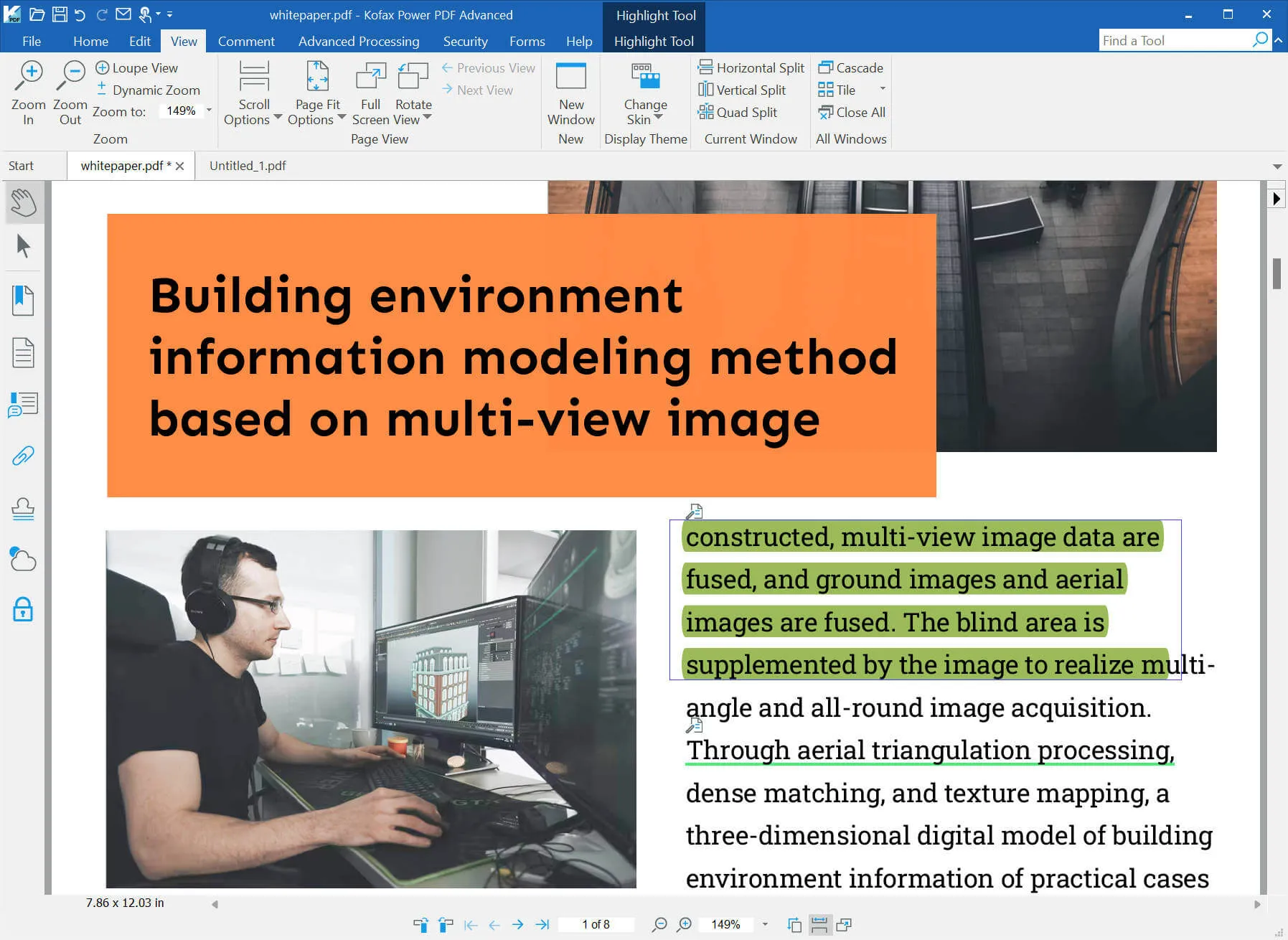
- Read PDF: Read PDF in the mode you like. You can zoom in, zoom out, change fit page options, rotate pages, etc.
- Protect PDF: It has different options to protect PDFs like redacting, adding a signature, and more.
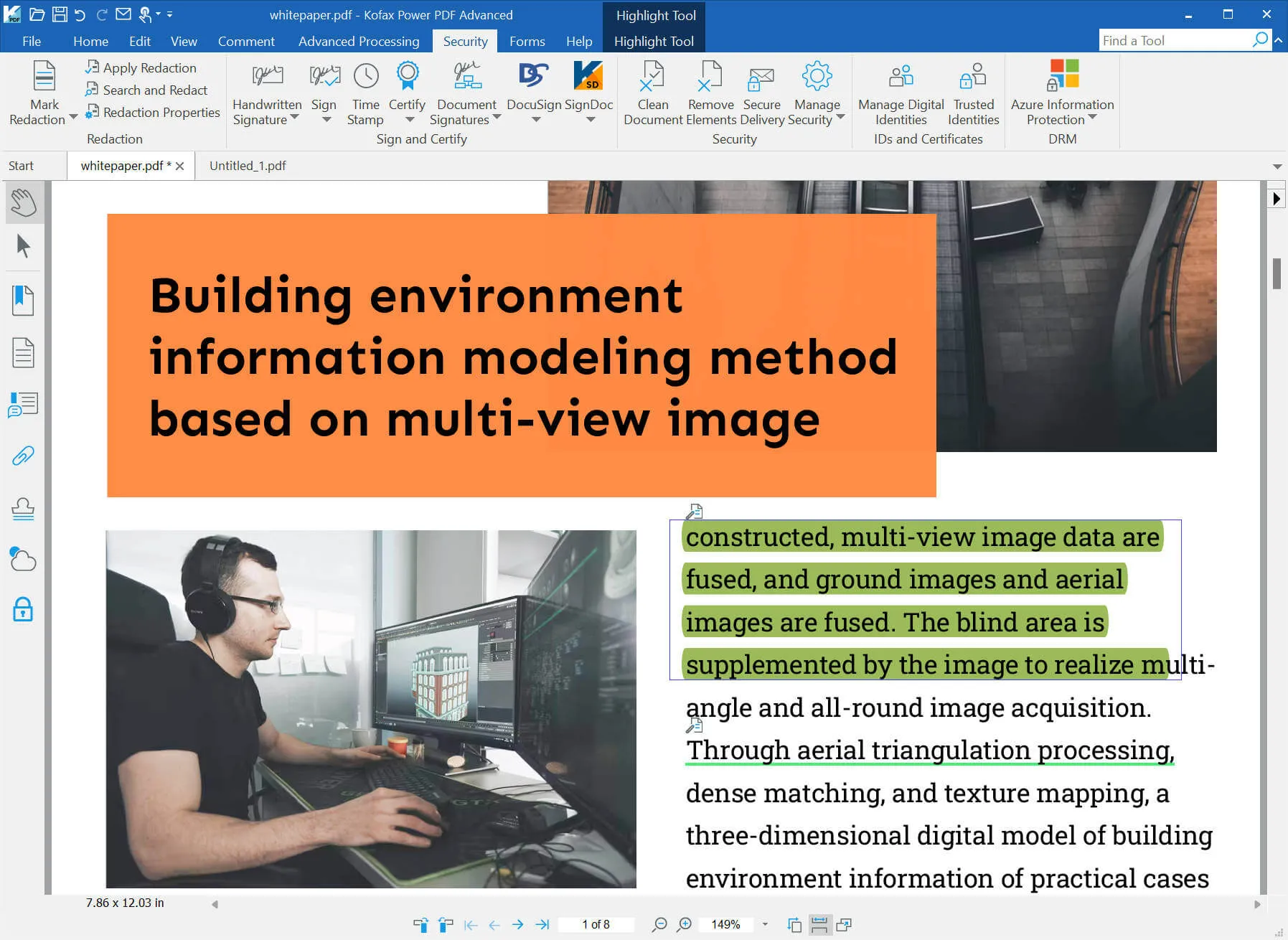
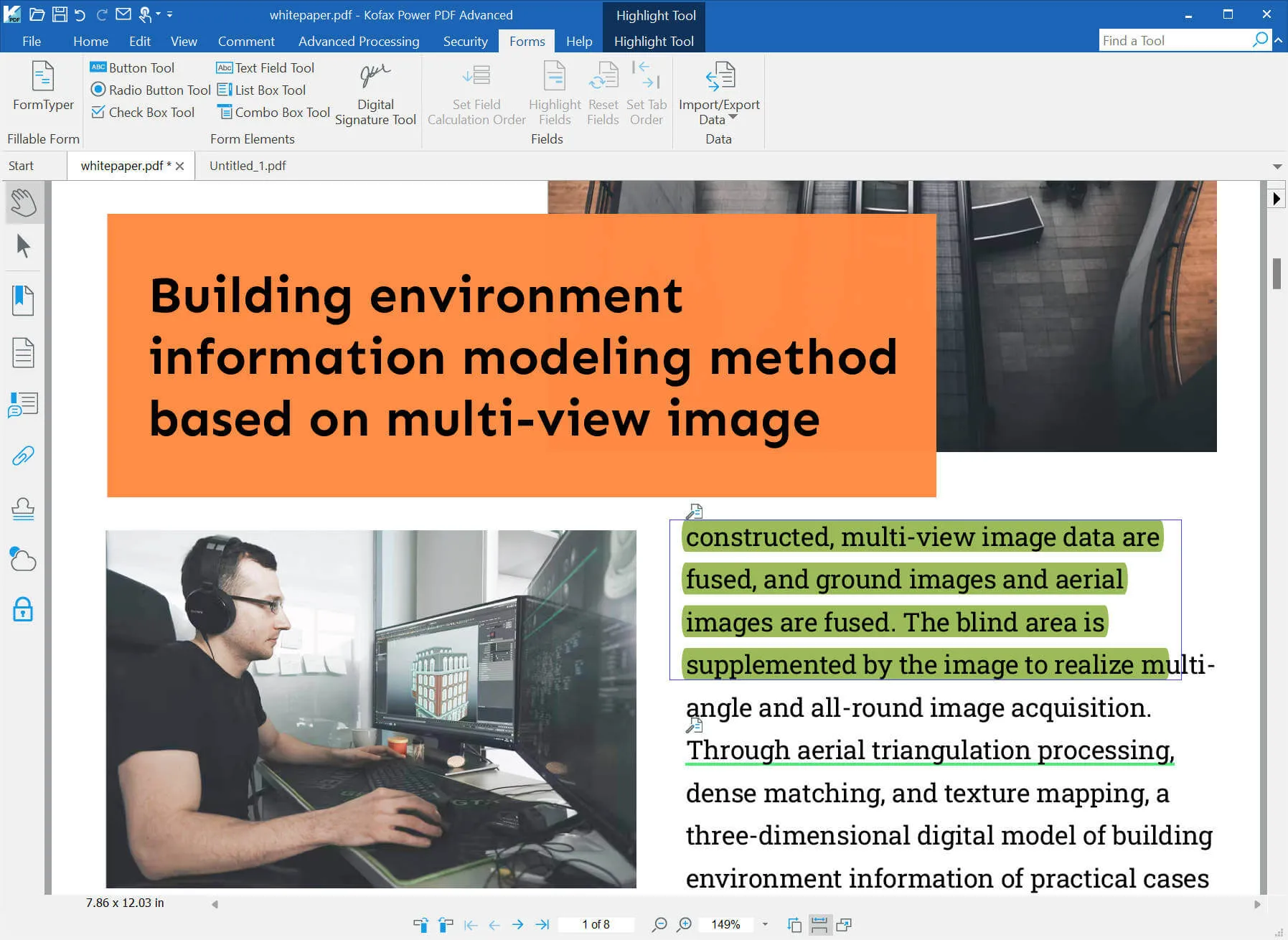
- Create PDF Fillable Forms: It has a text field, list box, check box, radio button, digital signature, etc to help you create the form you need.
- Other Features: flattening PDF, comparing PDF, splitting PDF, Compressing PDF, and reading aloud.
Also Read: Kami Review: Is It The Tool You Need?
Part 3. Is Nuance PDF Editor Free?
No. Nuance PDF Editor is not free. It costs USD159 for one perpetual license and one device. However, it offers 15 day free trial for all its features.
Part 4. How to Download Nuance PDF Editor?
It is not easy for you to download Nuance PDF Editor without a detailed guide. So here is the guide for you.
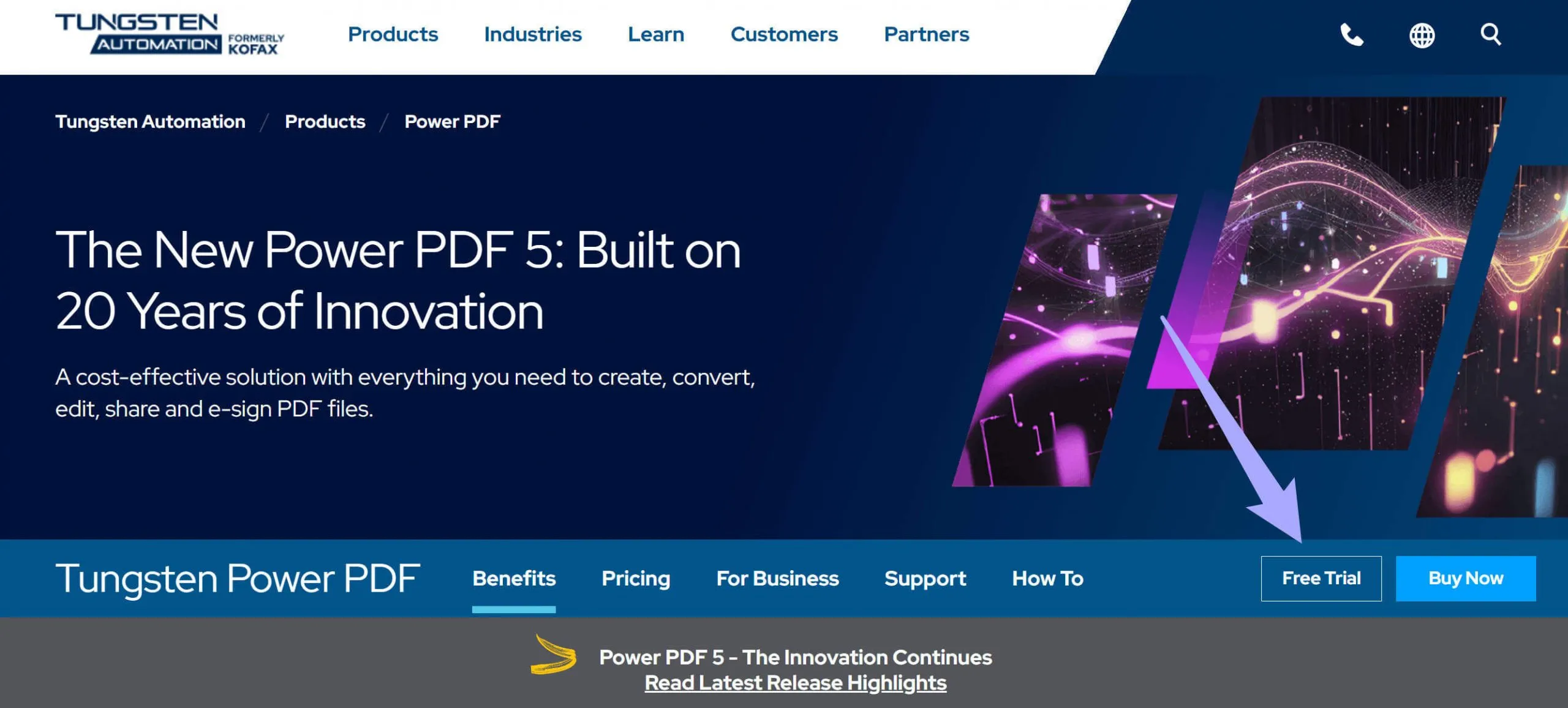
Step 1. Click here to visit Nuance PDF Editor/Kofax Power PDF/Tungsten Power PDF official website. Now, click on the "Free Trial" button.
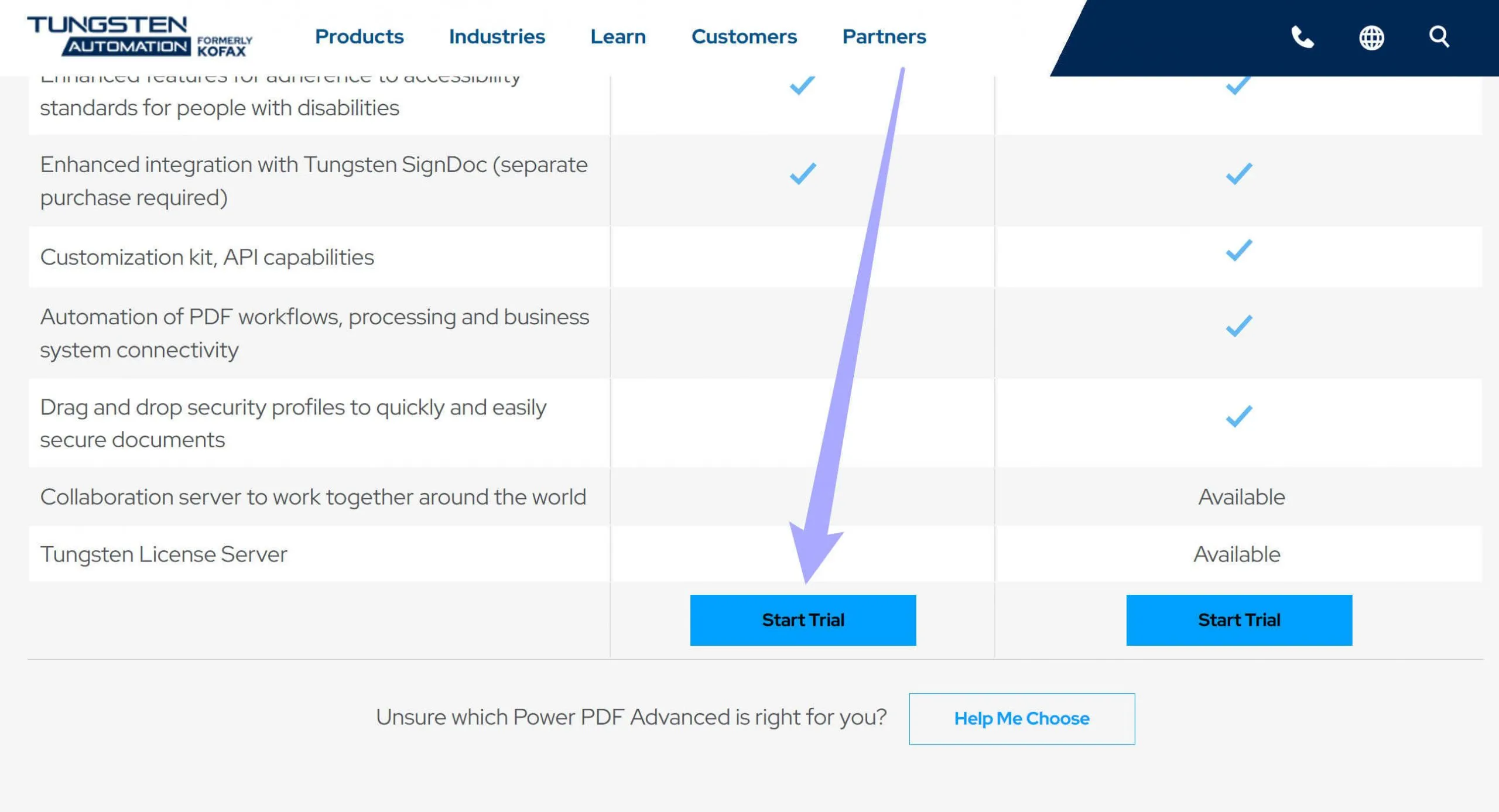
Step 2. Now, you are on the new page with a detailed comparison of the individual version and enterprise version. Scroll down to find the "Start Trial" button and click on it.
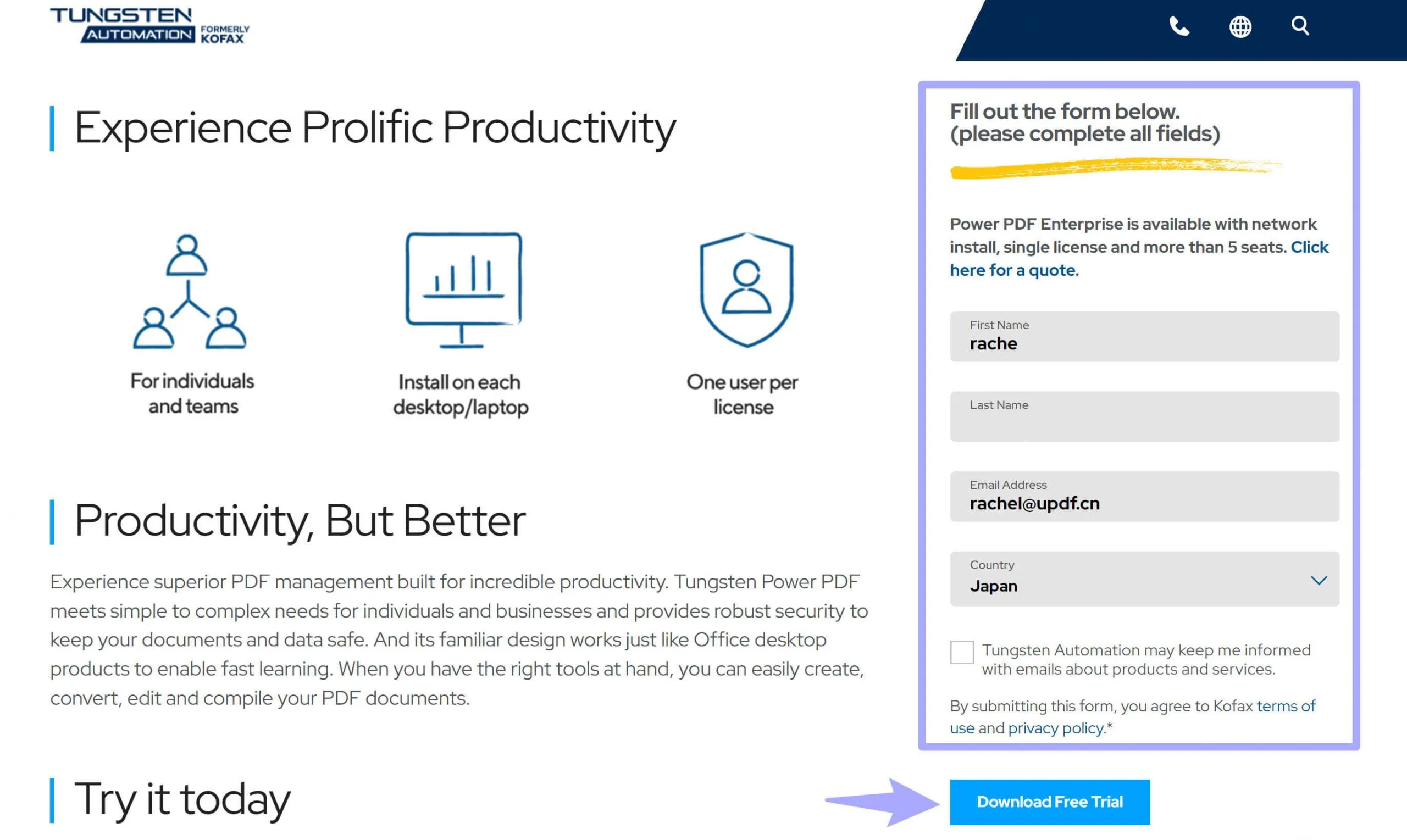
Step 3. You are brought to a new page. You need to fill in the form with your name and email, then, click on the "Download Free Trial".
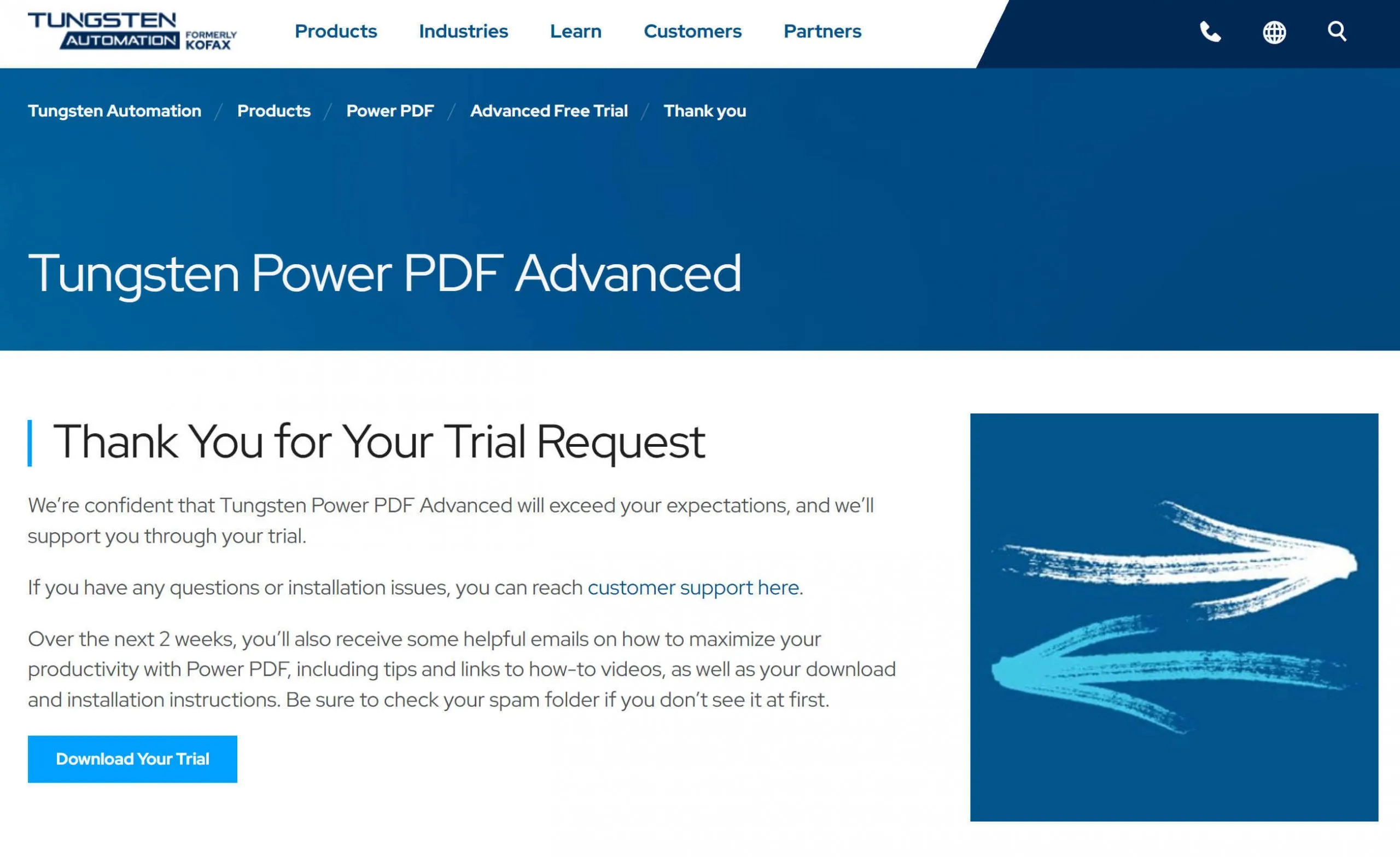
Step 4. In the new page, click on the "Download Your Trial" to start to download your free trial version. Follow the on screen guide to install it on your computer.
Part 5. How to Use Nuance PDF Editor?
When you install Nuance PDF Editor on your computer, you can follow the below guide to use Nuance PDF Editor.
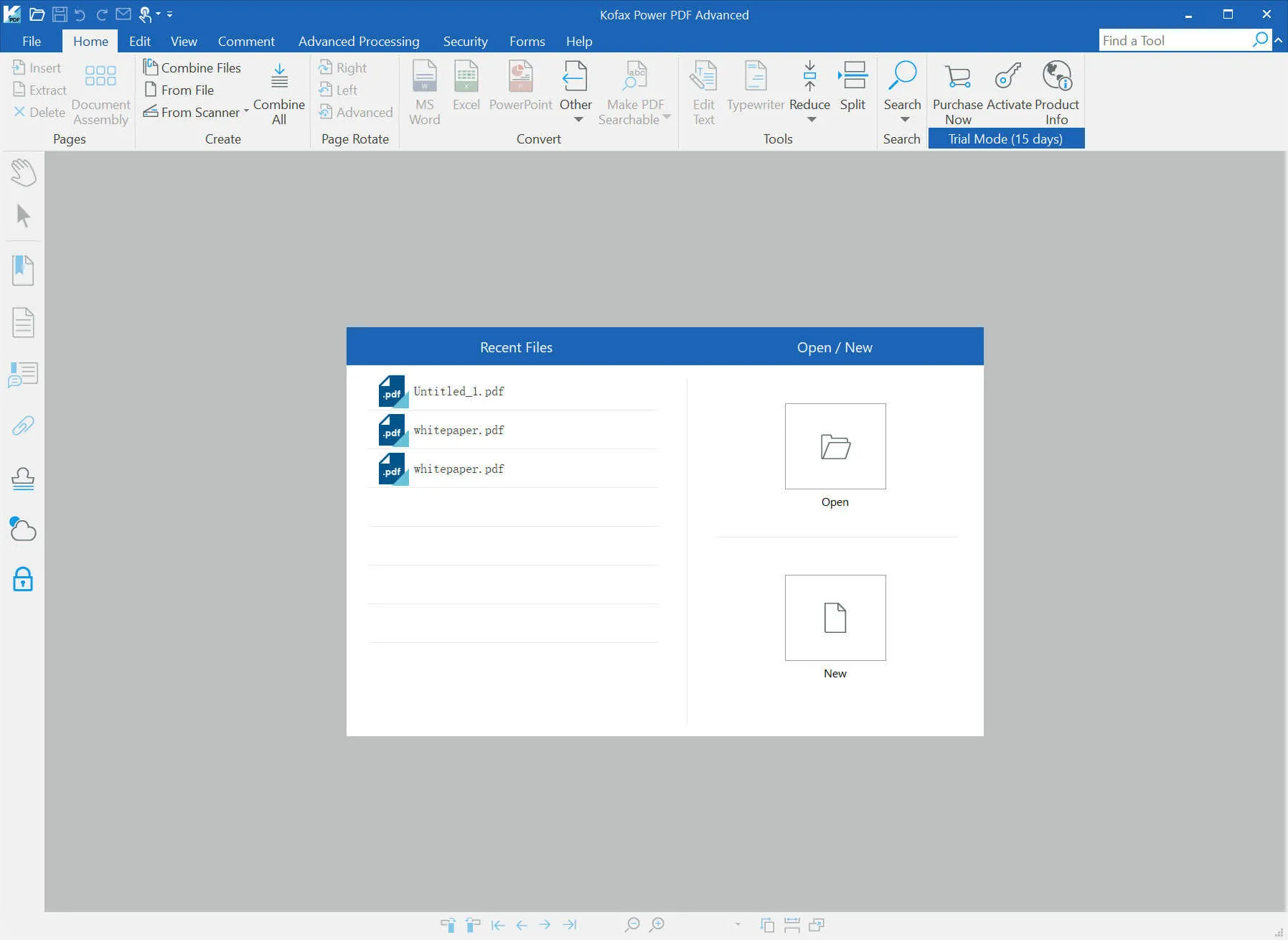
First of all, you need to launch Nuance PDF Editor, click the "Open" to select the PDF you want to edit.
1) Set up for the Document for Editing
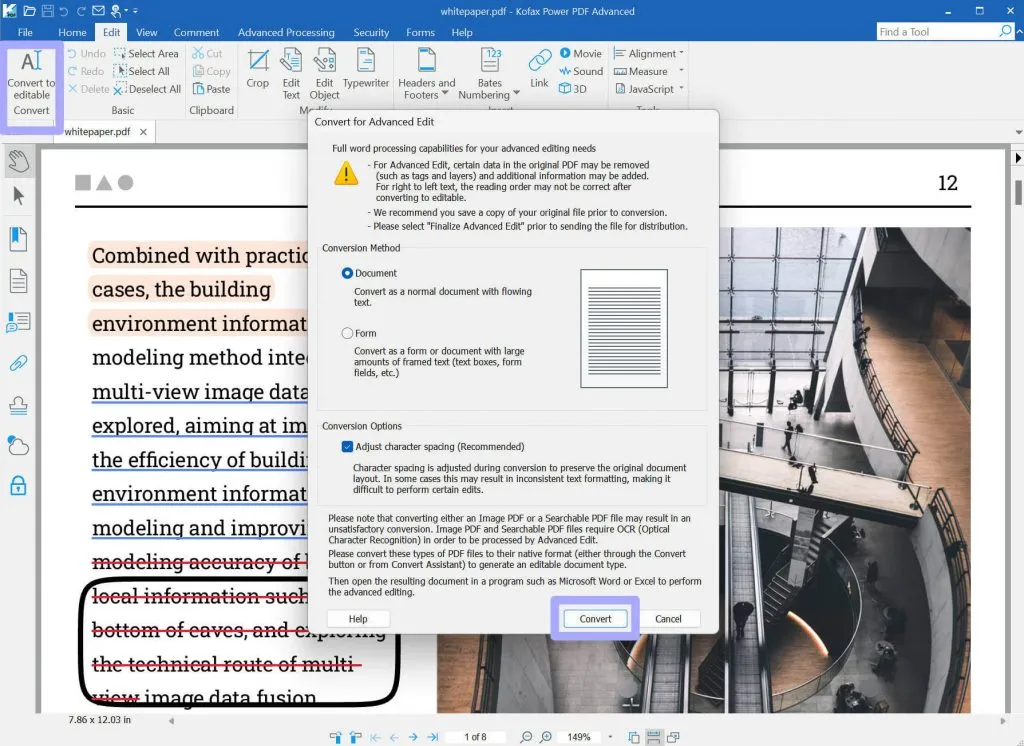
Open the document in the Nuance Power PDF editor and go to the top of the page. In the 'Edit' toolbar, you will find the "Convert to editable" function. Click on it, now, you can edit the PDF like in Word.
2) Add Notes, Textboxes and Callouts
Also in the Home toolbar, you find options for highlights, font size, paragraph, alignment, line spacing, and more. Select the contents and choose the option you need to make changes.
Part 6. The Best Alternative to Nuance PDF Editor
Although Nuance PDF Editor has many features. It is too expensive to use. And it takes time to learn how to use it. Moreover, it lacks many features like OCR, AI, and other PDF editing features. While there are several apps that can deliver more functionality than the Nuance PDF editor, one of the most recommendable is UPDF - PDF editor.
The first thing you notice upon launching the UPDF software is its attractive interface, which makes reading and editing PDF files a delightful experience. Then the layout is designed to be easily navigable, and as such, you can seamlessly make your way around the first-rate features that the software offers. Download UPDF via the button below to have a try now.
Windows • macOS • iOS • Android 100% secure
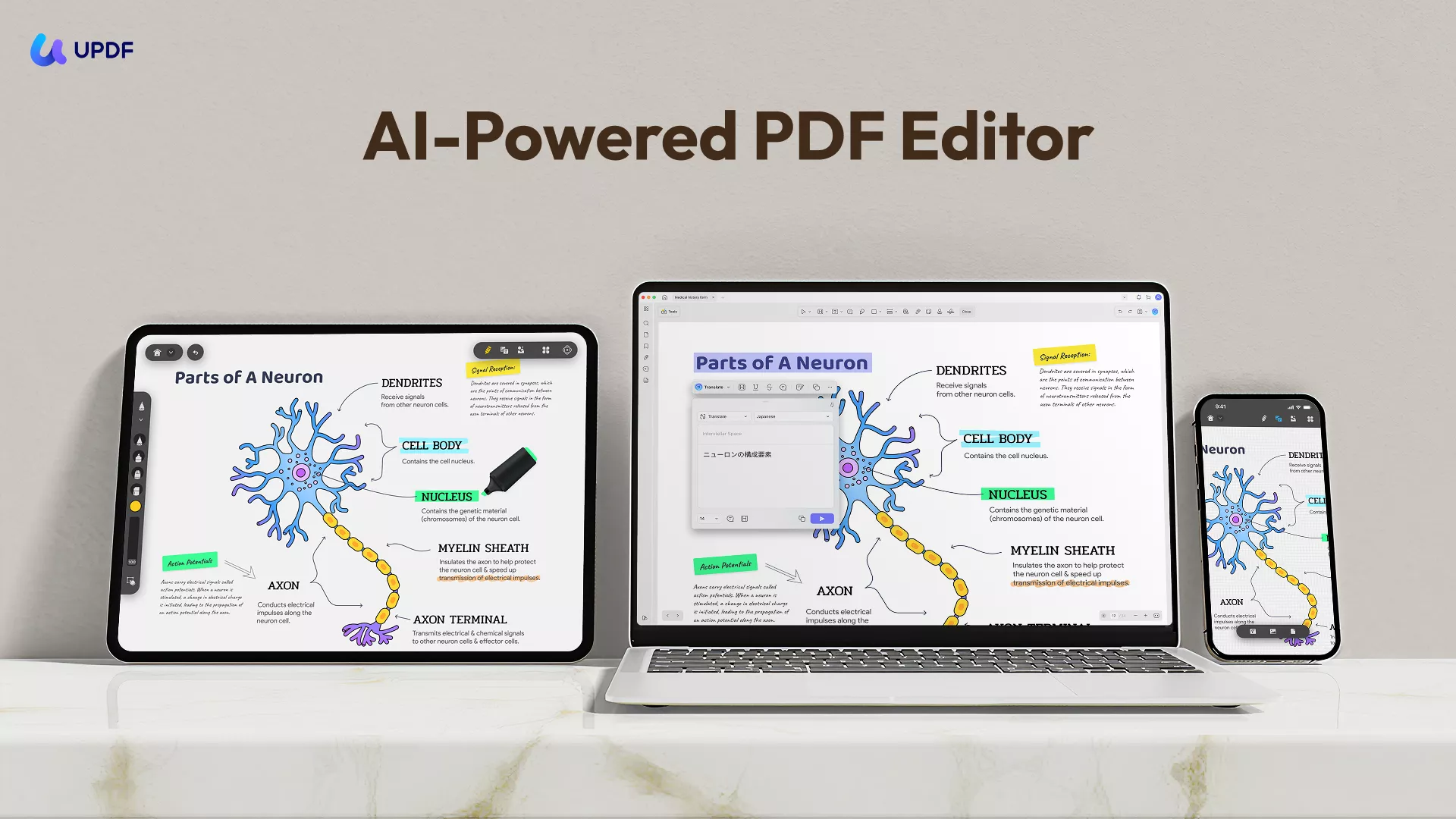
Now, let me introduce its detailed features to you.
- View PDFs: Open any PDF file and read through it without any trouble or delay. You can also change PDF background color as you like.
- Annotate PDFs: You can highlight content, drop a comment, draw a shape, and mark up your PDF as you like.
- PDF Creation: Effortlessly create stunning PDFs from Word, images, or even clipboard content. Merge files or create a PDF Portfolio—all in just a few clicks!
- Batch Processing: You can batch convert, compress PDF files, OCR and so on to save your time.
- Fill Forms: It allows you to fill and sign the PDF files in a convient way. In addition, you can't miss the advanced auto fill PDF form feature!
- UPDF AI: It comes with a ChatGPT-powered AI assistance that can assist in reading and consuming PDF content by providing summaries, translations, or create a mind map.
- OCR: UPDF can pull out the text from your scanned file so you can work with it.
To know more features about UPDF, you can read this UPDF review or watch the video guide below.
Why not download UPDF via the button below and use all features on your own?
Windows • macOS • iOS • Android 100% secure
How to Edit PDF Files with Nuance PDF Editor Alternative - UPDF
Having agreed that UPDF is the PDF editing software, we ask the next obvious question: "How do I edit PDF files using UPDF?" Below is a step-by-step process to get that done.
STEP 1: Launch the App's Editing Mode
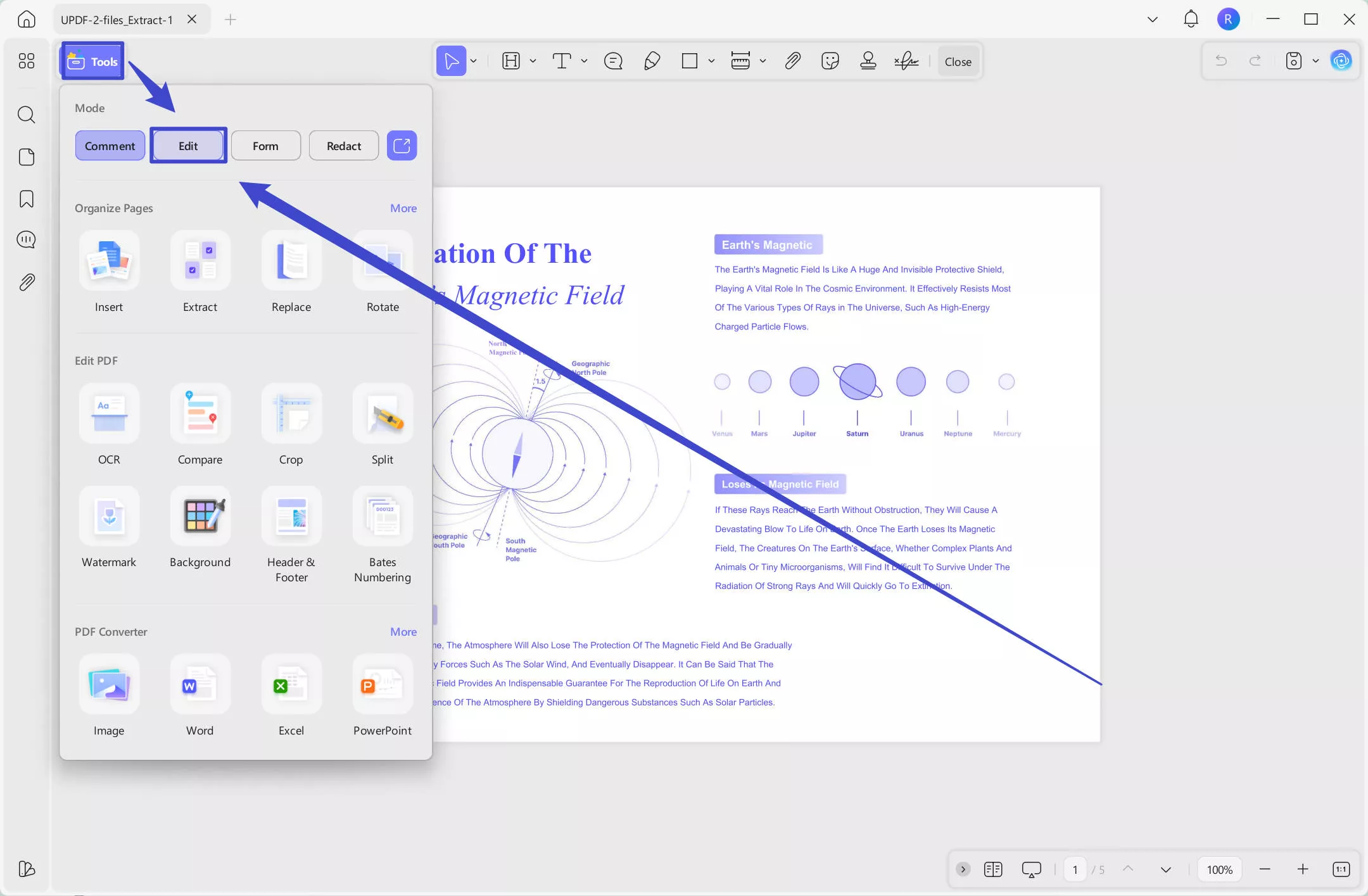
The first thing to do is to make the app editable by activating its "Edit" feature. Before doing this, you need to open the file you wish to edit. Simply click the "Open File" button. Next, search for the file you wish to edit and open it.
Upon opening the file, you will clicking the "Edit" button after clicking on the "Tools".
STEP 2: Add Text to PDF Document
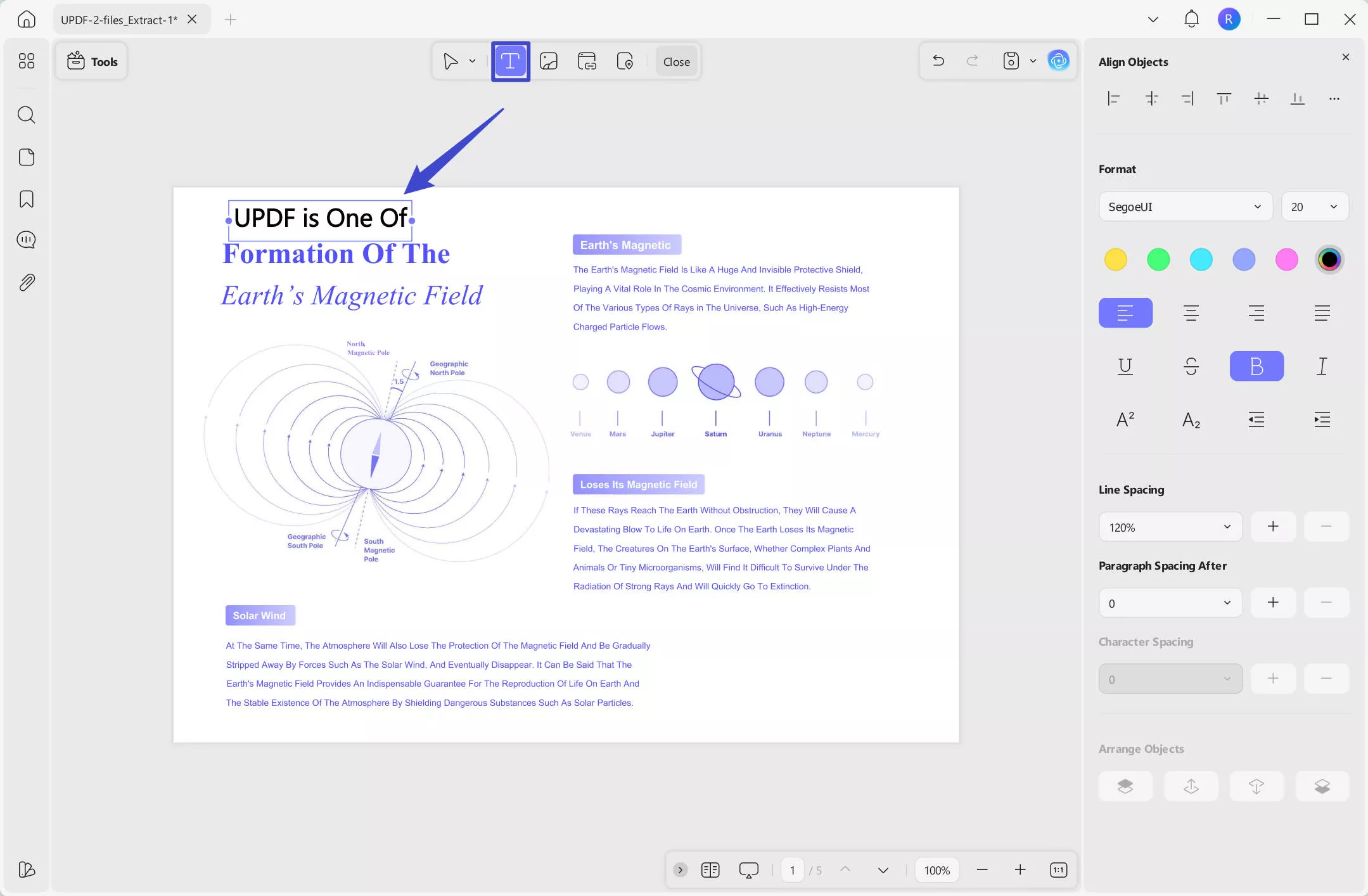
Activating the "Edit" button will reveal a toolbar that is similar to that of Microsoft Word. You can add new text to a PDF document by clicking the "Add Text" icon.
Then you just click anywhere you want to place the text in your documents.
STEP 3: Edit the Texts
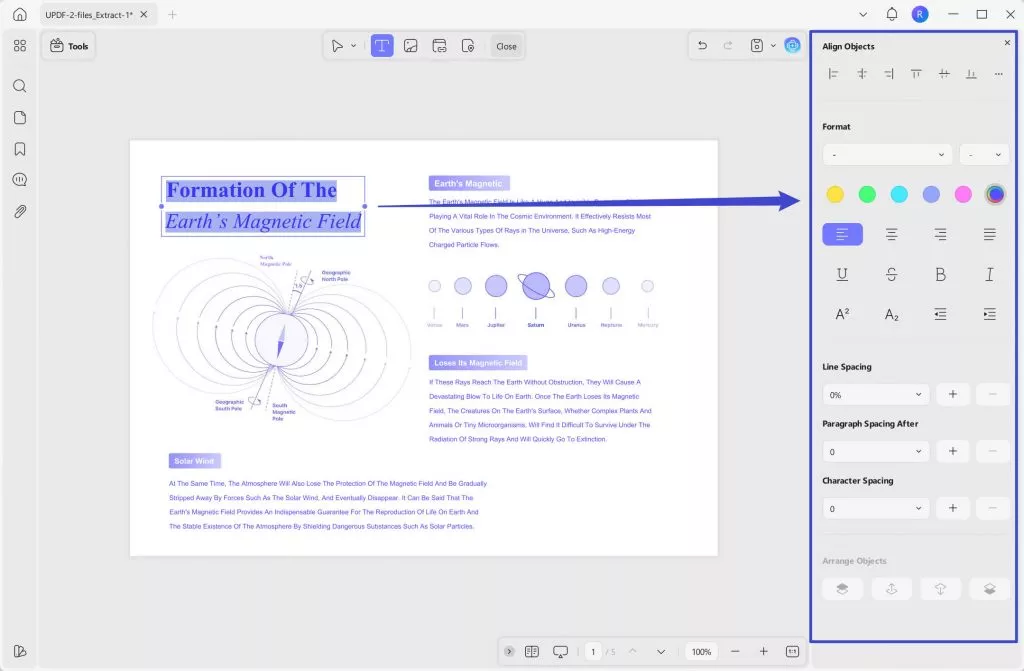
After clicking the "Edit" button, you can start to edit the existing text on PDF documents. Just click on the text in the PDF, then, you can edit, change, and remove.
Things you can change in the texts include font type, size, and color, and you can make them bold or convert them to italics. Furthermore, you can modify, add, or delete entire paragraphs. What you need to do is click on the "Three Dots" icon on the pop-up menu after selecting the texts you want to edit. Then, you can find the properties panel on the right side.
STEP 4: Edit the Images
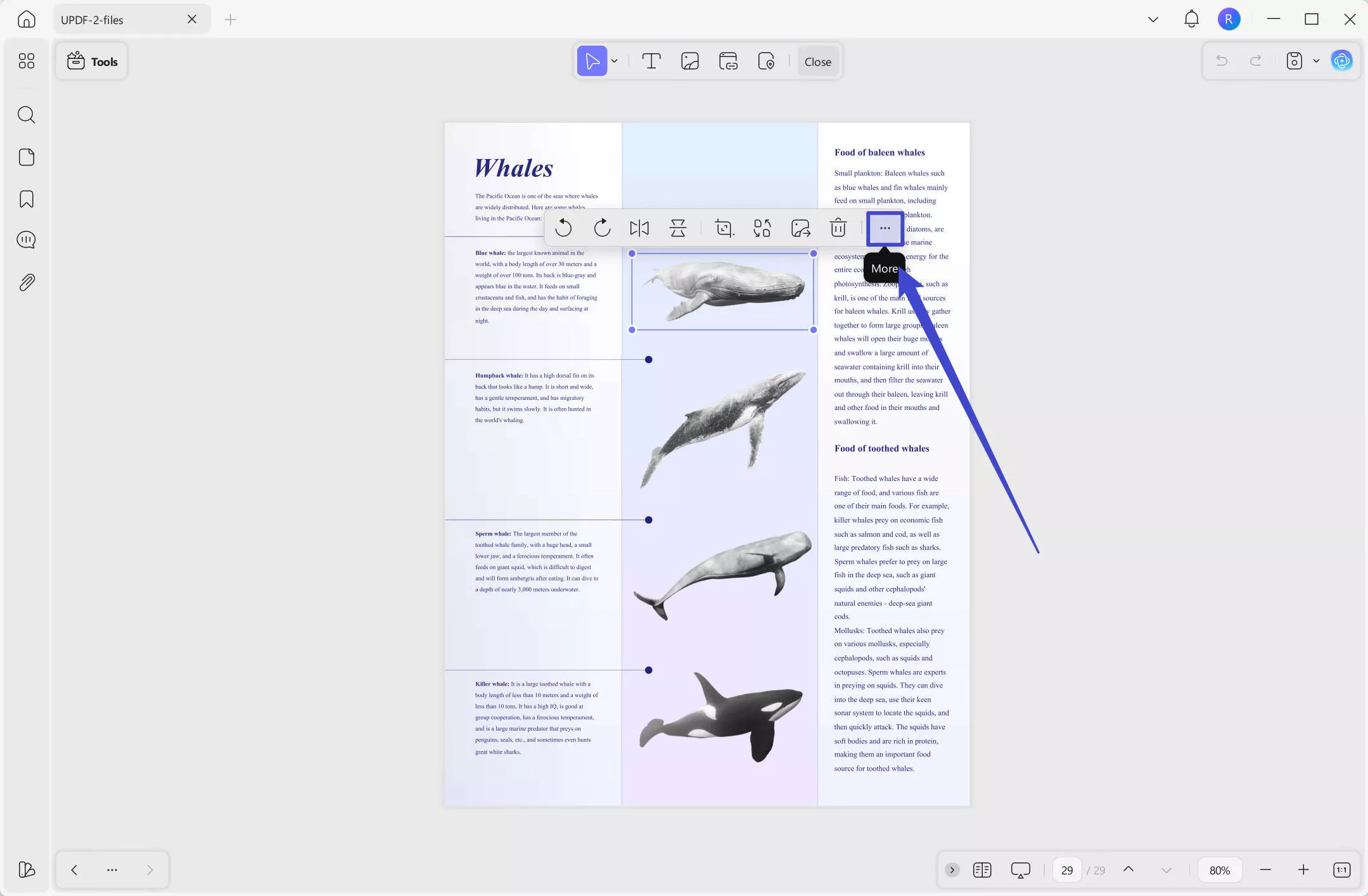
All you need to edit the images is to click them. Then, a small toolbar will pop up with options for actions that you can carry out on the selected image. Those actions are represented by certain symbols and include rotating, cropping, extracting, and some basic manipulation. You can also get more options by clicking on the "Three Dots" icon.
🚀Boost Your Productivity!
Windows • macOS • iOS • Android 100% secure
Conclusion
The Nuance PDF Editor, now known as the Kofax PDF Editor and Tungsten Power PDF, offers excellent functionality and a smooth user experience. However, there are better alternatives. With excellent Optical Character Recognition (OCR) capacity, AI features, and the ability to organize PDFs as desired, the UPDF is the PDF editing app to install. Here, we have thoroughly outlined steps to edit your PDF files on UPDF. So download UPDF to try it now.




 Enid Brown
 Thanakorn Srisuwan
 Engelbert White
 Enola Davis