UPDF
UPDF
 UPDF for Windows
 UPDF for Mac
 UPDF for iPhone/iPad
 UPDF for Android
 Nomostar
 UPDF AI Online
 UPDF Sign
 IvyCraft
 Edit PDF
 Annotate PDF
 Create PDF
 PDF Form
 Edit links
 Convert PDF
 OCR
OCR PDF to Word
 PDF to Image
 PDF to Excel
 Organize PDF
 Merge PDF
 Split PDF
 Crop PDF
 Rotate PDF
 Protect PDF
 Sign PDF
 Redact PDF
 Sanitize PDF
 Remove Security
 Read PDF
 UPDF Cloud
 Compress PDF
 Print PDF
 Batch Process
 About UPDF AI
 UPDF AI Solutions
 AI User Guide
 FAQ about UPDF AI
 Summarize PDF
 Translate PDF
 Chat with PDF
 Chat with AI
 Chat with image
 PDF to Mind Map
 Explain PDF
 PDF AI Tools
 Image AI Tools
 AI Chat Tools
 AI Writing Tools
 AI Study Tools
 AI Working Tools
 Other AI Tools
 AI Bookmark Generation
 AI Bookmark Summary
 AI Watermark Generation
 AI Background Generation
 AI Sticker Generation
 AI Stamp Generation
 AI Editing Suite
 UPDF Copilot
 AI Page Management
 AI Semantic Search
 PDF to Word
 PDF to Excel
 PDF to PowerPoint
 Enterprise Solution
 Enterprise Sign
 Enterprise AI
 Enterprise Plan
 Enterprise User Guide
 Enterprise Webinar
 IT
IT Education
 Construction
 Financial Service
 Healthcare
 Insurance
 Legal
Legal Manufacturing
 Government
 Researchers & PhDs
 Solopreneurs & Freelancers
 Lawyers & Legal Professionals
 Real Estate Agents & Brokers
 Education Solution
 Customer Stories
 User Guide
 UPDF Tricks
 FAQs
FAQs UPDF Reviews
 Download Center
 Blog
Blog Newsroom
 Tech Spec
 Updates
 UPDF vs. Adobe Acrobat
 UPDF vs. Foxit
 UPDF vs. PDF Expert

To remove a PDF password in Foxit PDF Editor, open the authorized document and select Protect > Secure Document > Remove Security. Enter the permissions password if Foxit asks for it, confirm the change, and save an unprotected copy. Foxit cannot remove an unknown open password from a file you are not authorized to access.
This guide explains the desktop steps, Foxit’s browser-based Unlock PDF tool, the limits to check before you start, and a local alternative for users who prefer to keep sensitive files on their own device.
Part 1. How to Remove a Password from PDF with Foxit PDF Editor
Before following the steps, identify the type of protection on the PDF. An open password prevents the file from opening, while a permissions password restricts actions such as editing, printing, or copying. Certificate-secured PDFs use a different security method and may require the matching digital ID. If you are learning the wider differences between these controls, see this guide to PDF password protection.
| Protection type | What you need |
|---|---|
| Open password | The correct password to open the PDF first |
| Permissions password | The correct permissions password when Foxit prompts for it |
| Certificate security | The authorized digital ID or certificate credentials |
Foxit PDF Editor can remove password security when you have the required authorization. The free Foxit PDF Reader does not provide the complete password-removal workflow described below.
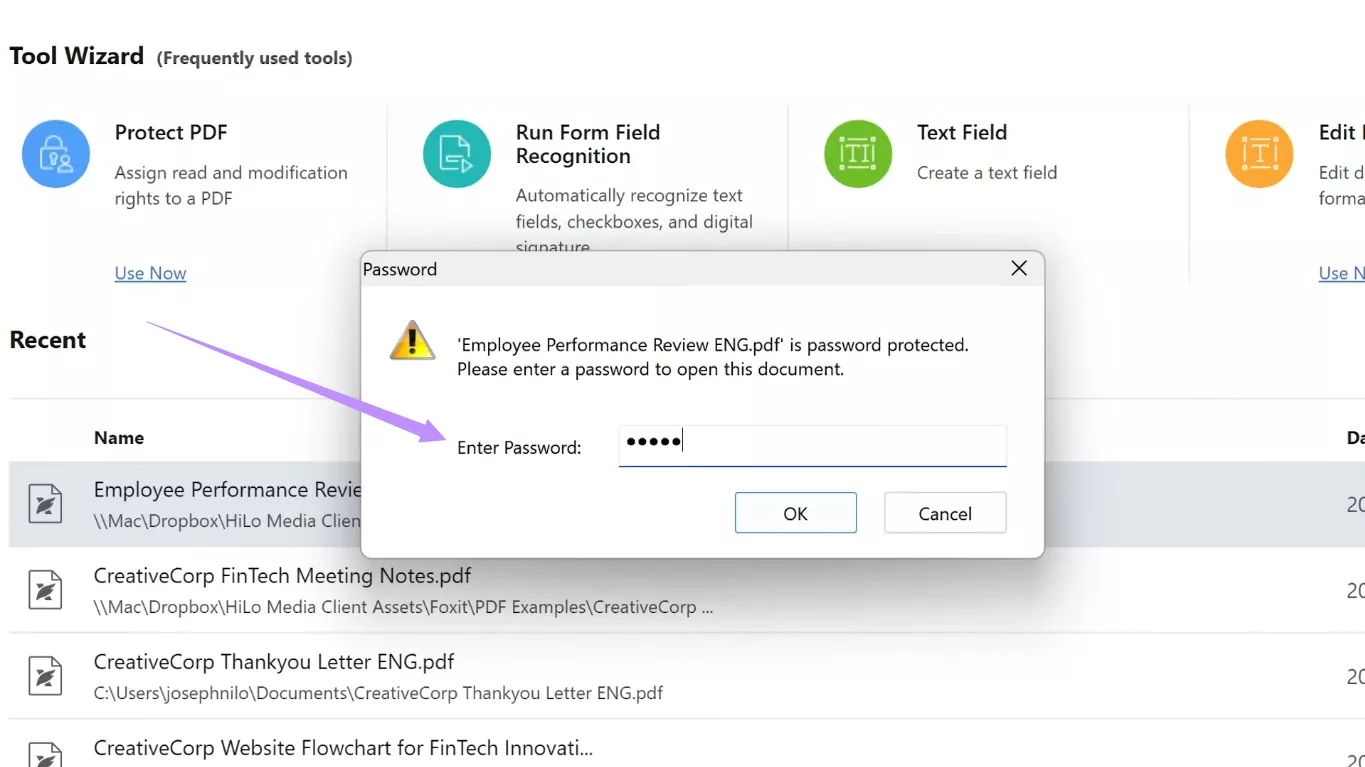
Step 1. Open the PDF in Foxit PDF Editor. If the document has an open password, enter it to access the file.
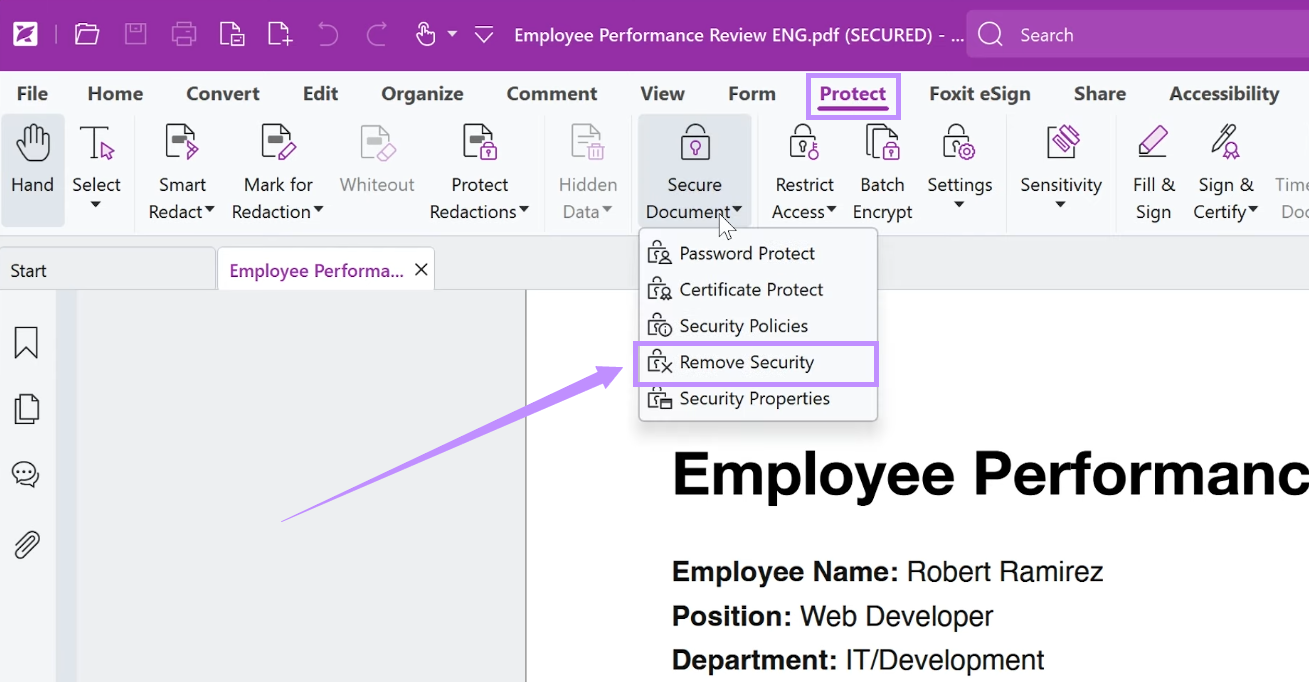
Step 2. Open the Protect tab and choose Secure Document > Remove Security.
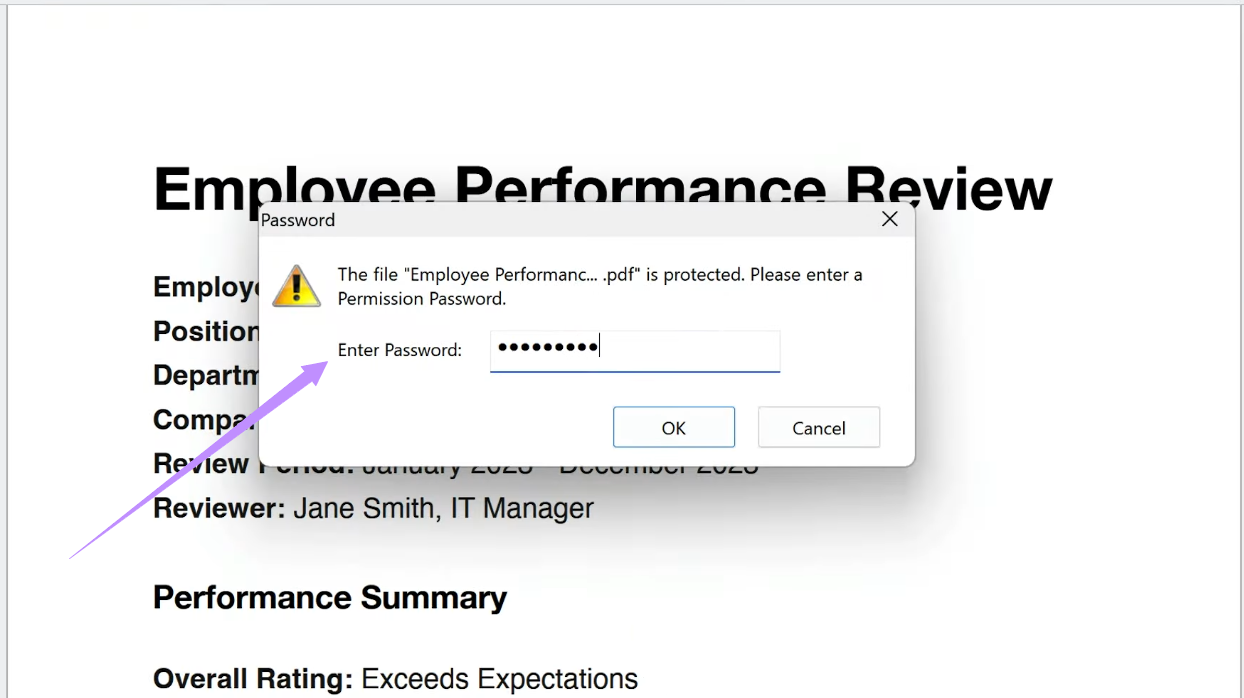
Step 3. Confirm that you want to remove the security. If the PDF has a permissions password, enter it and click OK.
Step 4. Select File > Save, or use Save As to keep the protected original and create a separate unprotected copy.
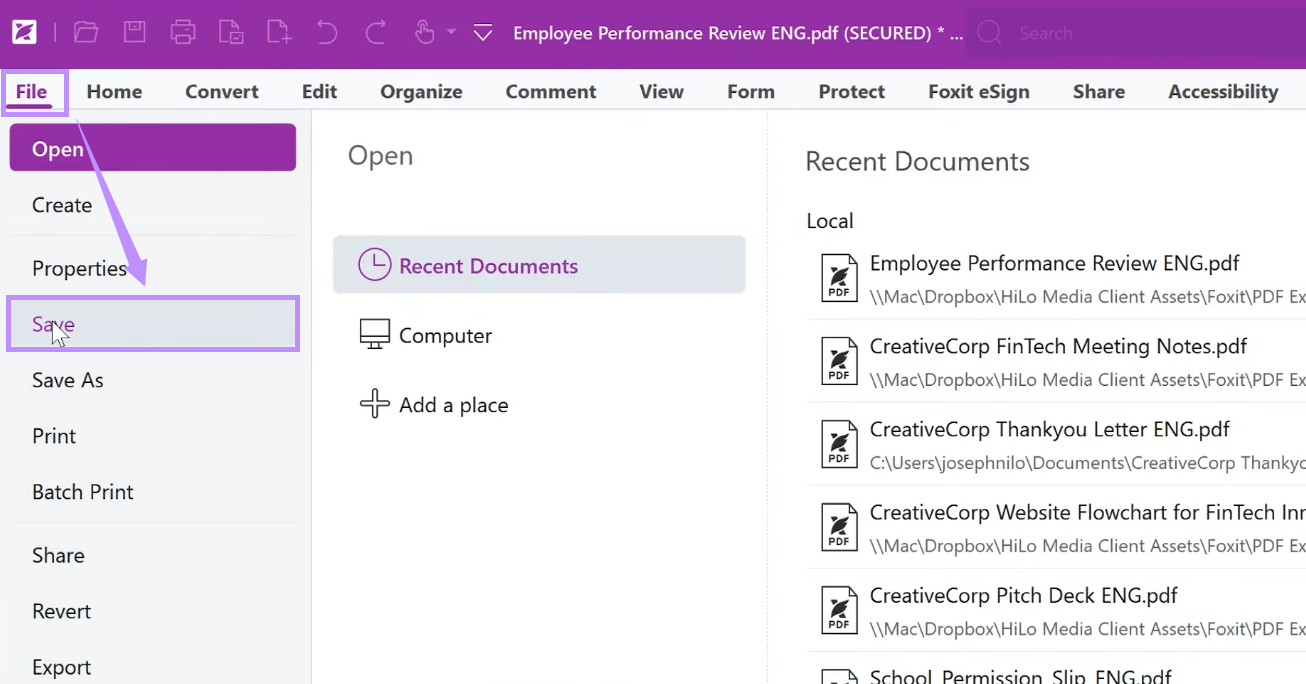
You can also open File > Properties > Security, set Security Method to No Protection, and save the file. Foxit documents both paths in its official Remove Security instructions.
Part 2. How to Remove a PDF Password with Foxit Online
If you do not want to install the desktop editor, Foxit also offers an online Unlock PDF tool. This option is useful for a non-sensitive file when you already know its password.
- Open Foxit’s online Unlock PDF tool.
- Upload the protected PDF.
- Enter the correct password when prompted and start the unlocking process.
- Download the unlocked PDF and test that it opens without the previous password.
Only upload a file you own or are authorized to modify. Because an online tool transfers the document to a remote service for processing, a desktop workflow may be more appropriate for bank statements, contracts, HR records, or other confidential files. For additional methods, see how to remove a password from a PDF.
Part 3. What to Check Before Using Foxit
Foxit can complete this task, so the choice mainly depends on where you want to process the file and which plan fits your workflow. The following points replace the outdated assumption that Foxit only provides basic features.
| Item | Current detail to check |
|---|---|
| Desktop trial | Foxit currently advertises a 14-day free trial with no credit card required, but an account or email may be needed. |
| PDF Editor | US list price shown at the time of writing: $129.99 per year. |
| PDF Editor+ | US list price shown at the time of writing: $159.99 per year. |
| Perpetual option | Foxit currently lists a $209.99 one-time-purchase option. |
| Online unlock | Runs in a browser, so consider the sensitivity of the document before uploading it. |
Prices and plan contents can change, so confirm them on the official Foxit pricing page. If you are comparing long-term cost, interface, platform coverage, and other PDF features, this Foxit vs. UPDF comparison offers a broader feature-by-feature view.
Part 4. How to Remove a PDF Password with a Foxit Alternative
UPDF is a practical alternative when you want to remove known password protection locally on Windows or Mac. It can remove an open password after you use it to access the document, and it can remove editing, printing, or copying restrictions after you provide the permissions password. The PDF tools work on the device, which is useful when you prefer not to upload a sensitive file to an online unlocker.
Download UPDF below to try the workflow. After installing it, follow these steps to save an unprotected copy.
Windows • macOS • iOS • Android 100% secure
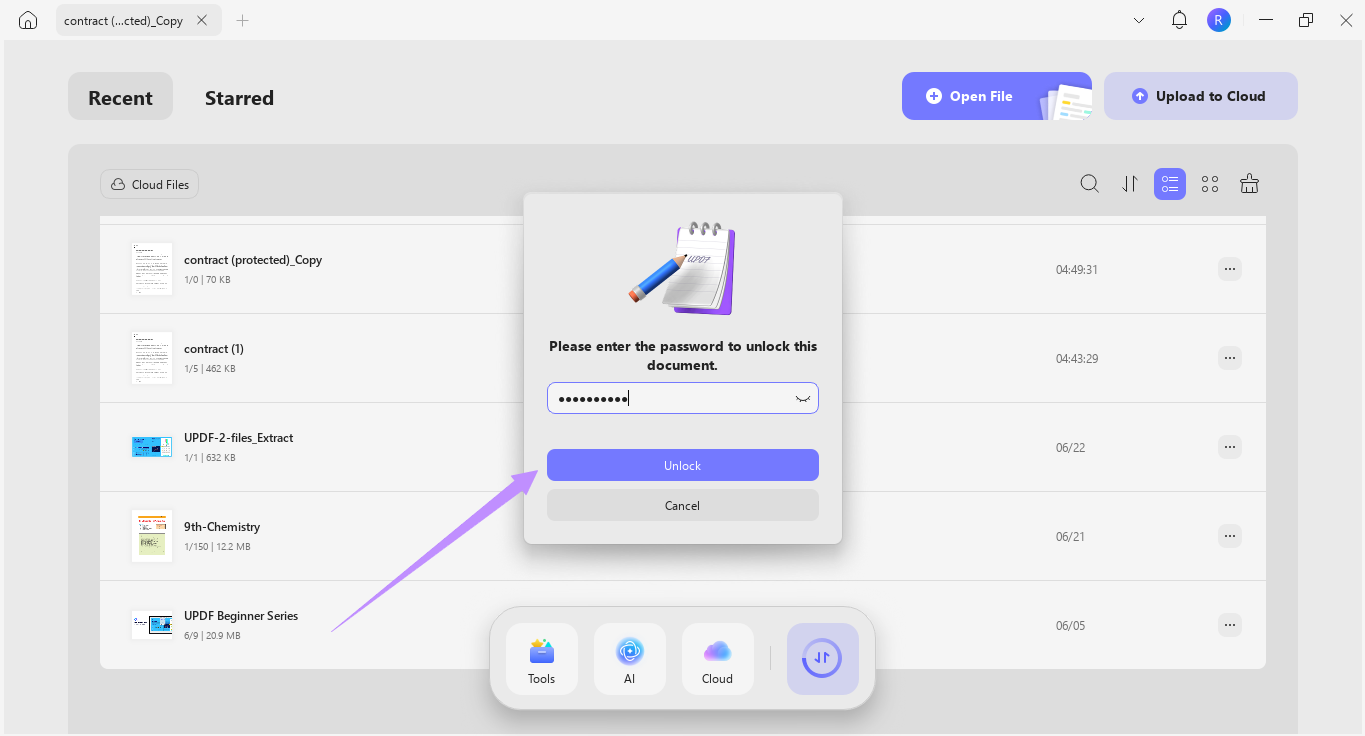
Step 1. Launch UPDF and click Open File.
Step 2. If the PDF has an open password, enter it and click Unlock to access the document.
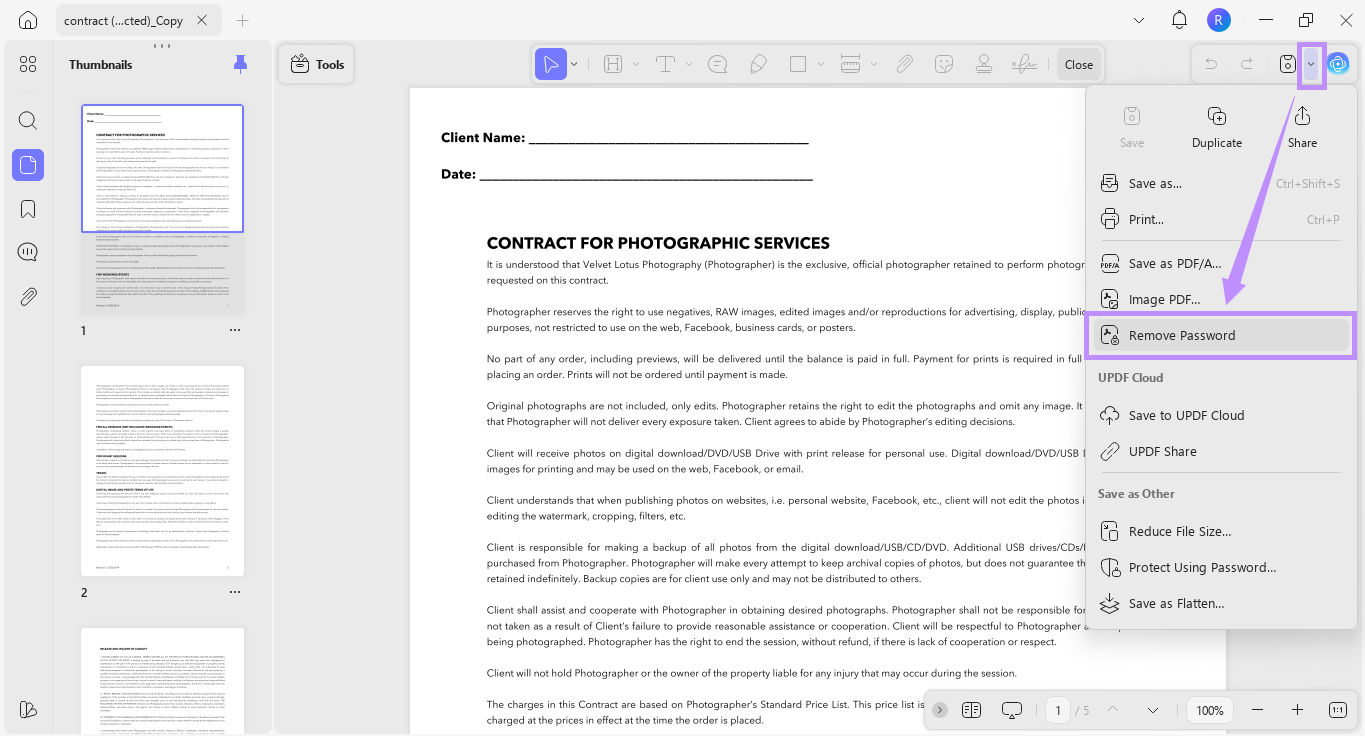
Step 3. Expand the Save menu in the upper-right corner and choose Remove Security.
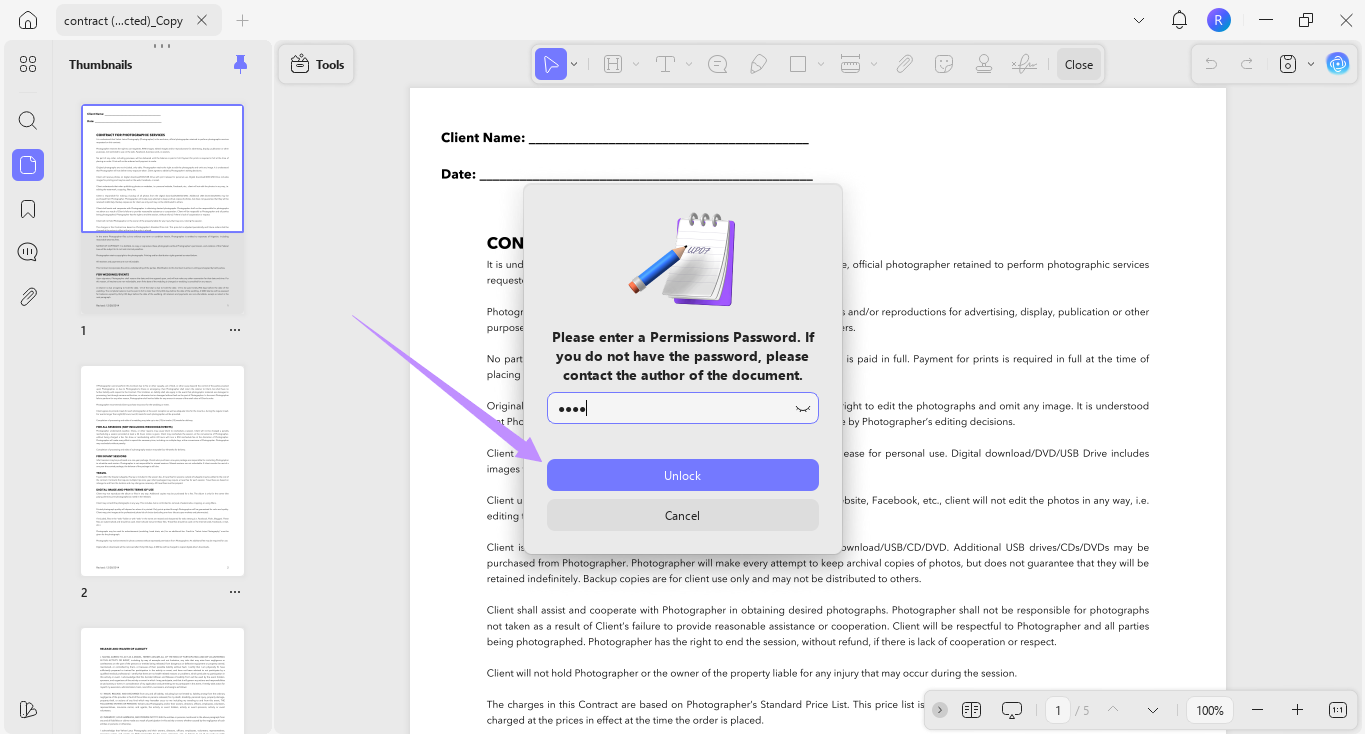
Step 4. If UPDF asks for a permissions password, enter it and confirm the removal.
Step 5. Choose a destination and save the unprotected copy. The exact button label can vary slightly by version, but the current workflow is available in this guide to remove a PDF password on Windows.
Neither Foxit nor UPDF should be presented as a tool for bypassing an unknown password. If you forgot the password, first try an authorized backup, the document owner, your password manager, or the recovery checks in this forgot PDF password guide.
Final Words
Foxit removes PDF security reliably when you know the required password: use Protect > Secure Document > Remove Security in the desktop editor, or use its online unlocker for a suitable non-sensitive file. If you prefer a local, cross-platform alternative, UPDF provides a short password-removal workflow and broader PDF editing tools in the same app.





 Enrica Taylor
 Enola Davis
 Lizzy Lozano