UPDF
UPDF
 UPDF for Windows
 UPDF for Mac
 UPDF for iPhone/iPad
 UPDF for Android
 Nomostar
 UPDF AI Online
 UPDF Sign
 IvyCraft
 Edit PDF
 Annotate PDF
 Create PDF
 PDF Form
 Edit links
 Convert PDF
 OCR
OCR PDF to Word
 PDF to Image
 PDF to Excel
 Organize PDF
 Merge PDF
 Split PDF
 Crop PDF
 Rotate PDF
 Protect PDF
 Sign PDF
 Redact PDF
 Sanitize PDF
 Remove Security
 Read PDF
 UPDF Cloud
 Compress PDF
 Print PDF
 Batch Process
 About UPDF AI
 UPDF AI Solutions
 AI User Guide
 FAQ about UPDF AI
 Summarize PDF
 Translate PDF
 Chat with PDF
 Chat with AI
 Chat with image
 PDF to Mind Map
 Explain PDF
 PDF AI Tools
 Image AI Tools
 AI Chat Tools
 AI Writing Tools
 AI Study Tools
 AI Working Tools
 Other AI Tools
 AI Bookmark Generation
 AI Bookmark Summary
 AI Watermark Generation
 AI Background Generation
 AI Sticker Generation
 AI Stamp Generation
 AI Editing Suite
 UPDF Copilot
 AI Page Management
 AI Semantic Search
 PDF to Word
 PDF to Excel
 PDF to PowerPoint
 Enterprise Solution
 Enterprise Sign
 Enterprise AI
 Enterprise Plan
 Enterprise User Guide
 Enterprise Webinar
 IT
IT Education
 Construction
 Financial Service
 Healthcare
 Insurance
 Legal
Legal Manufacturing
 Government
 Researchers & PhDs
 Solopreneurs & Freelancers
 Lawyers & Legal Professionals
 Real Estate Agents & Brokers
 Education Solution
 Customer Stories
 User Guide
 UPDF Tricks
 FAQs
FAQs UPDF Reviews
 Download Center
 Blog
Blog Newsroom
 Tech Spec
 Updates
 UPDF vs. Adobe Acrobat
 UPDF vs. Foxit
 UPDF vs. PDF Expert

Have you ever struggled to translate Arabic PDFs into English? Most of you work with scanned contracts, immigration certificates, or academic papers. After translation, tables and official seals get messed up. Image-based PDFs cannot extract editable text, forcing you to copy words manually.
Example: For an Arabic contract with right-to-left clauses and English account numbers, translate a short section first and verify names, dates, and number order before processing the full file. For a related workflow, see translate a PDF with Google Translate.
Common machine translation makes many mistakes on legal and academic jargon, costing you hours of proofreading. Free tools only convert plain text and ruin original layouts. Worse still, uploading sensitive personal documents to unknown platforms poses a severe risk of data leakage.
No worries! This article offers online and offline options for you to choose from to translate PDF files according to your needs and scenarios. And the best way is to use UPDF, an AI-powered tool with full format preservation and generous free quotas, to finish accurate PDF translation effortlessly.
Windows • macOS • iOS • Android 100% secure
Part 1. Which Method Suits You Best for Translating PDF Arabic to English?
Now that you understand the unique challenges of translating Arabic PDFs to English — from right-to-left layout to Arabic OCR complexity — the next step is finding the right approach for your specific situation. Not every method works for every document. Here's how to decide which path is right for you.
Note: On the market, aside from highly specialized software like Adobe and ABBYY that natively support Arabic OCR, most online PDF tools—including Smallpdf, iLovePDF, and even UPDF, despite being positioned as professional solutions—do not currently offer OCR functionality for Arabic text.
| Your Scenario | What You Need | Recommended Path |
|---|---|---|
| Quick translation, one file, non-sensitive, no costs | Fast, free, no signup | Online tool |
| Sensitive document — contracts, legal | Privacy, local processing | Desktop software |
| Complex layout — tables, columns, graphics | Layout preservation | Desktop software |
| Need fluent, natural-sounding English | High translation quality | Desktop software with AI translation/AI Translation Platform |
Once you've identified your scenario, let's dive into the actual translation methods. For most users, the quickest and easiest path is an online tool — no installation required, often free, and accessible from any device. Here are the top online solutions for Arabic-to-English PDF translation.
Part 2. How to Translate PDF Arabic to English Online Free
Most free and online lightweight Arabic-to-English PDF tools are best for occasional translation of simple text-based PDFs, like Smallpdf. iLovePDF keeps the layout formatting but has a one-day free trial for one day, and UPDF AI can support 5 files for translation.
| Tool | Free Access | Layout Preservation | RTL Support | File Limits | Best For |
|---|---|---|---|---|---|
| UPDF AI | 100 free AI questions | ⭐⭐⭐⭐⭐ | ✅ | 5 files, 10M | Online, free, no sign up, translate with formatting |
| iLovePDF Translate | 1 document/day (free) | ⭐⭐⭐ | ✅ | — | Full document translation with formatting |
| Smallpdf Translate | 2 tasks/day (free) | ⭐ | ✅ | — | Simple, no signup |
| Online Doc Translator | Free with ads | ⭐⭐ | ✅ | — | Quick, reliable translation, powered by Google Translate |
| Google Translate | Unlimited (free) | ⭐ | ⚠️ | 10MB | Short documents only |
UPDF AI leads competitors with 100 free AI questions, layout preservation, and a 5-file 10M limit without sign-ups. Rivals face tight daily quotas, ads, or size caps. Simply upload files, activate translation AI, and click to choose the output language as English, then wait for translation, and finally export formatted documents smoothly.
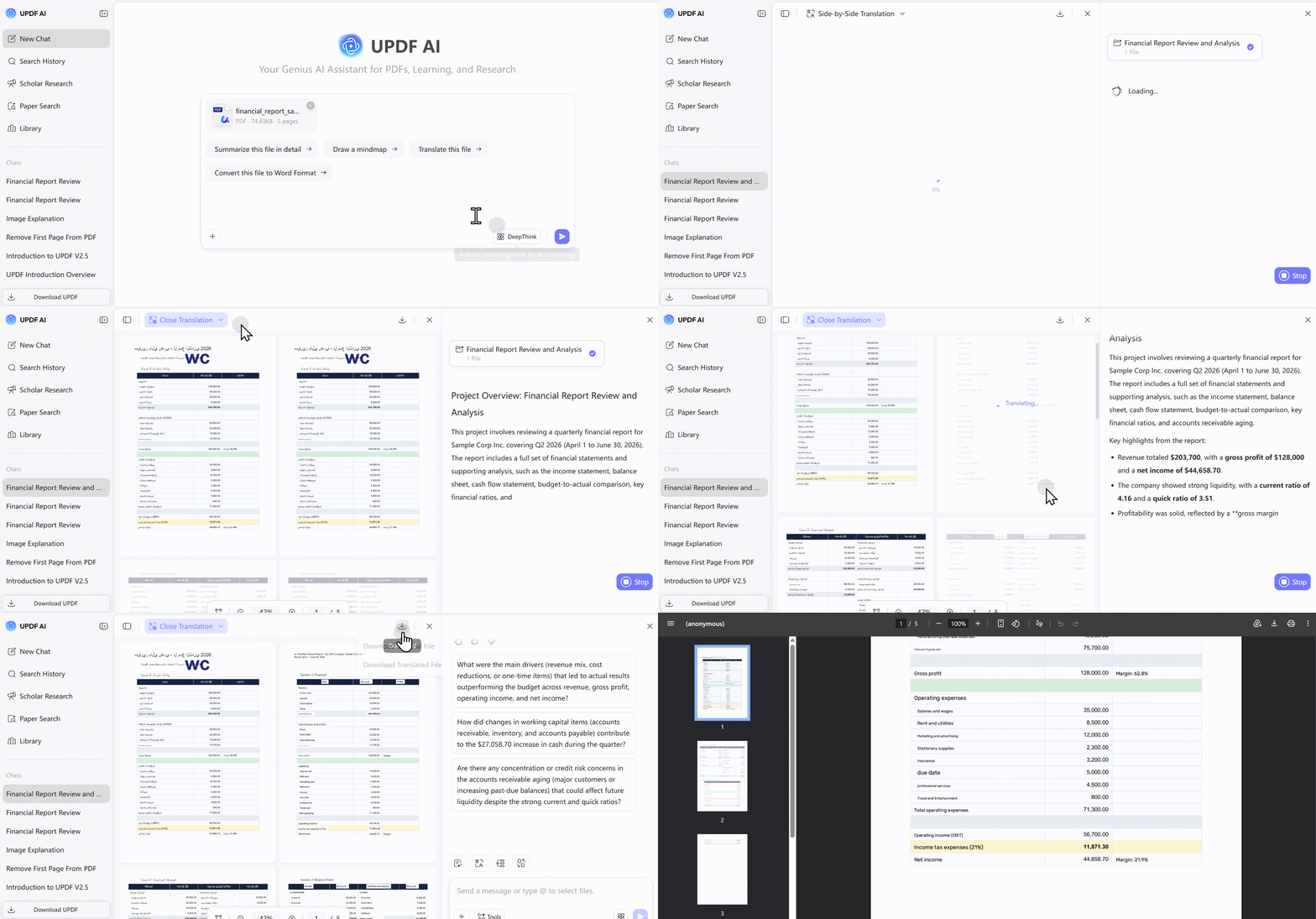
iLovePDF performs well in this regard, but the free trial is only available once, and it doesn't offer previews or comparison features like UPDF AI. Smallpdf’s performance is merely average, as it only translates to plain text and does not support exporting.
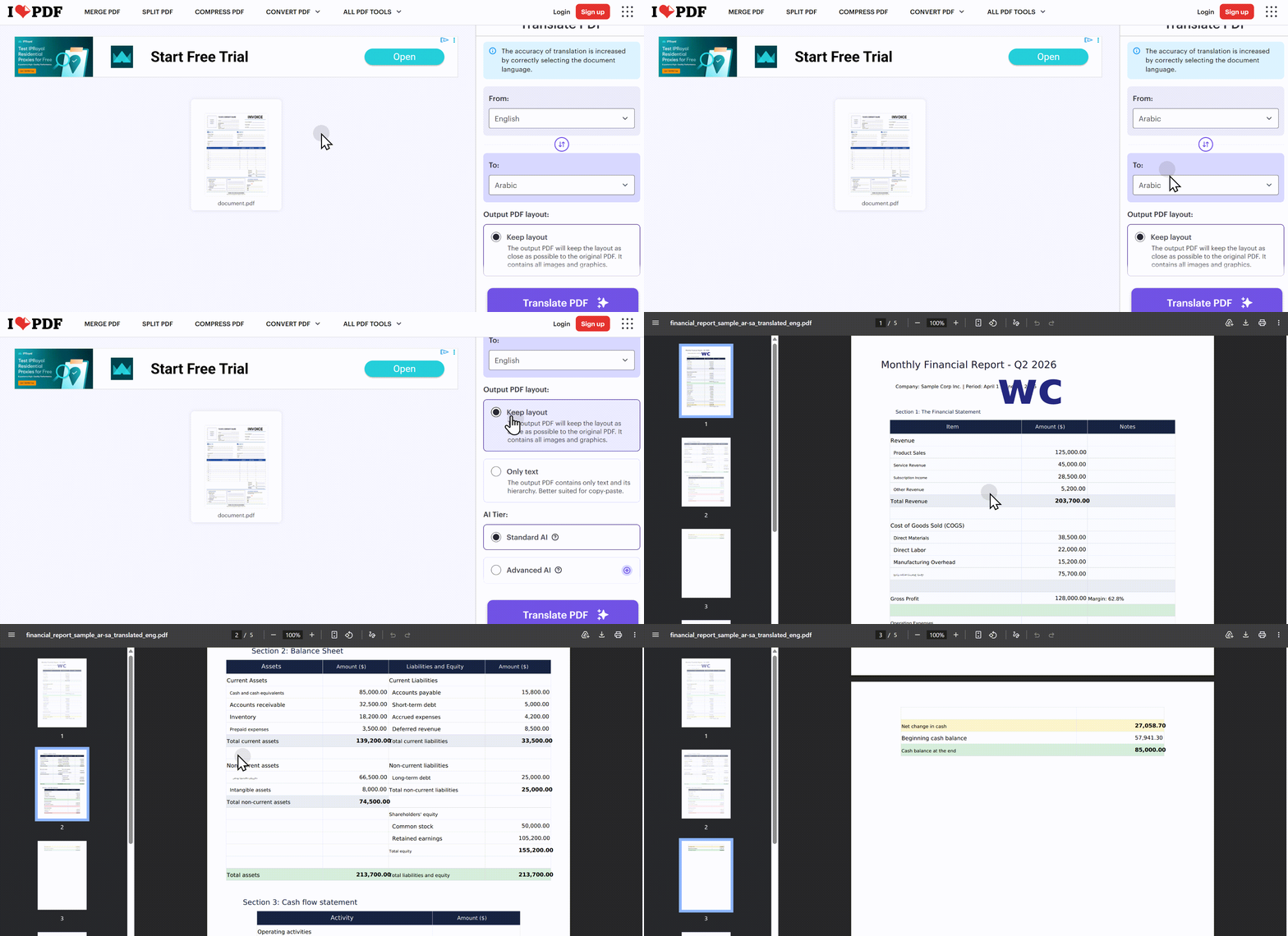
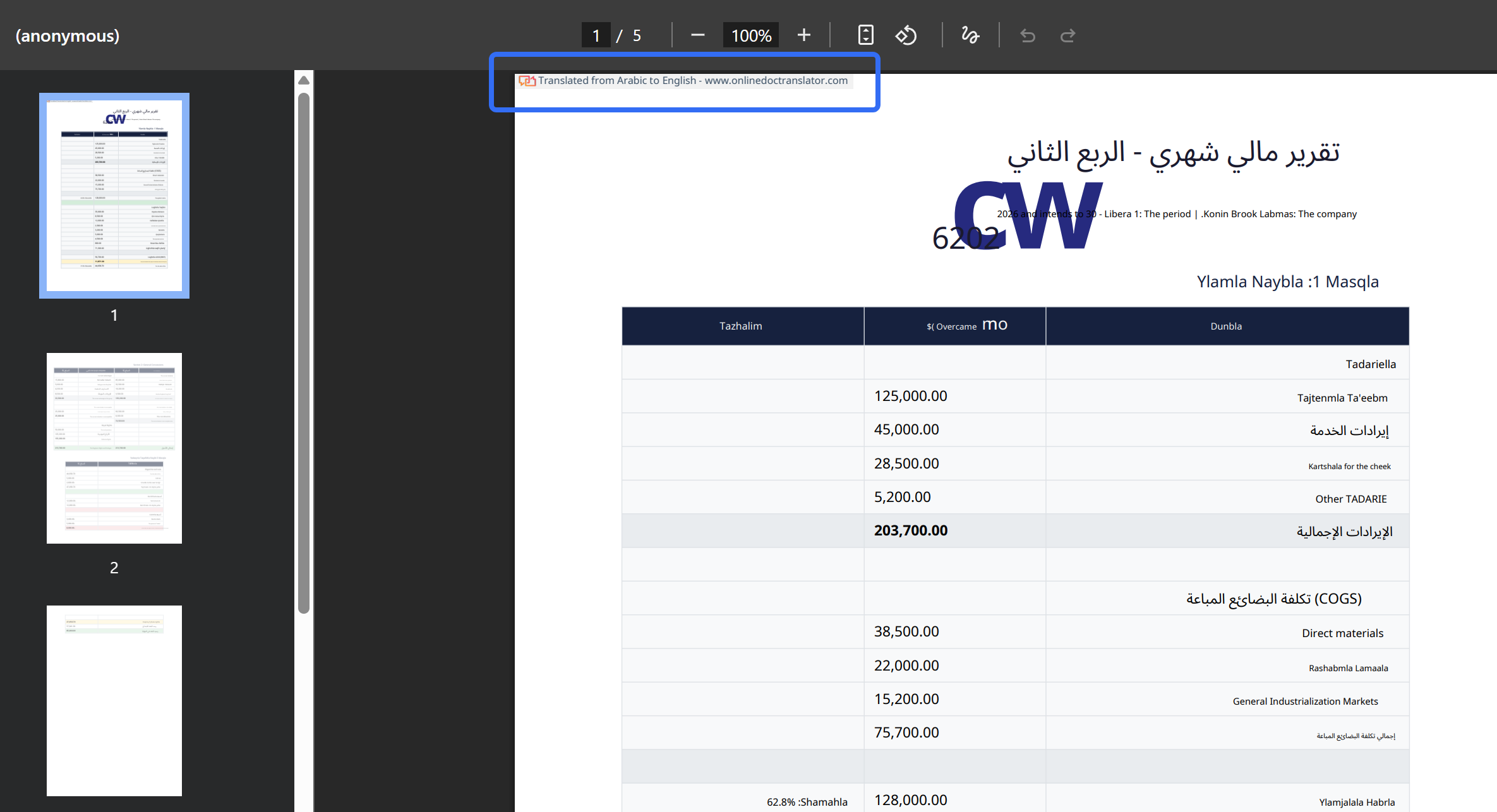
We've also tested Online Doc Translator; The results were still not quite ideal. However, a comprehensive comparison reveals that UPDF AI is a highly well-rounded tool; it excels in areas such as free usage allowances, translation quality, export options, and comparison and preview features. It also offers 100 free AI Q&A opportunities, allowing you to have the AI summarize documents, generate mind maps, and chat PDF with AI and more.
Online tools are fast and convenient — but they have limits: file uploads and privacy concerns. If your document contains sensitive information, complex layouts, or if you need batch processing, desktop software is the better choice. Here's where offline solutions come in.
Part 3. How to Translate PDF Arabic to English on Desktop Software
Desktop software keeps your files on your own machine (no cloud upload) and offers the highest layout preservation for Arabic script.
| Tool | Pricing | Layout Preservation | Platform | Best For |
|---|---|---|---|---|
| Adobe Acrobat Pro | Subscription (~$240/year) | ⭐⭐⭐⭐⭐ | Win, Mac | Industry standard, full control |
| UPDF | One-time ($79.99) | ⭐⭐⭐⭐⭐ | Win, Mac, iOS, Android | Best value — one-time, cross-platform |
| Foxit PDF Editor | Subscription (~$130/year) | ⭐⭐⭐⭐ | Win, Mac | Enterprise workflows |
| PDFgear | Completely free | ⭐⭐ | Win, Mac | Budget $0 |
UPDF's translation feature is both intuitive and efficient, making it an indispensable tool for professionals and students alike who require quick translations of PDF documents. Powered by the latest AI technology, GPT-5.6, users can convert their Arabic PDFs into accurate English texts, facilitating seamless communication and comprehension across language barriers. This feature proves particularly beneficial for handling official documents, academic materials, or any content intended for non-Arabic-speaking audiences. Furthermore, UPDF's AI translation capability supports translations to and from any language based on PDF content.
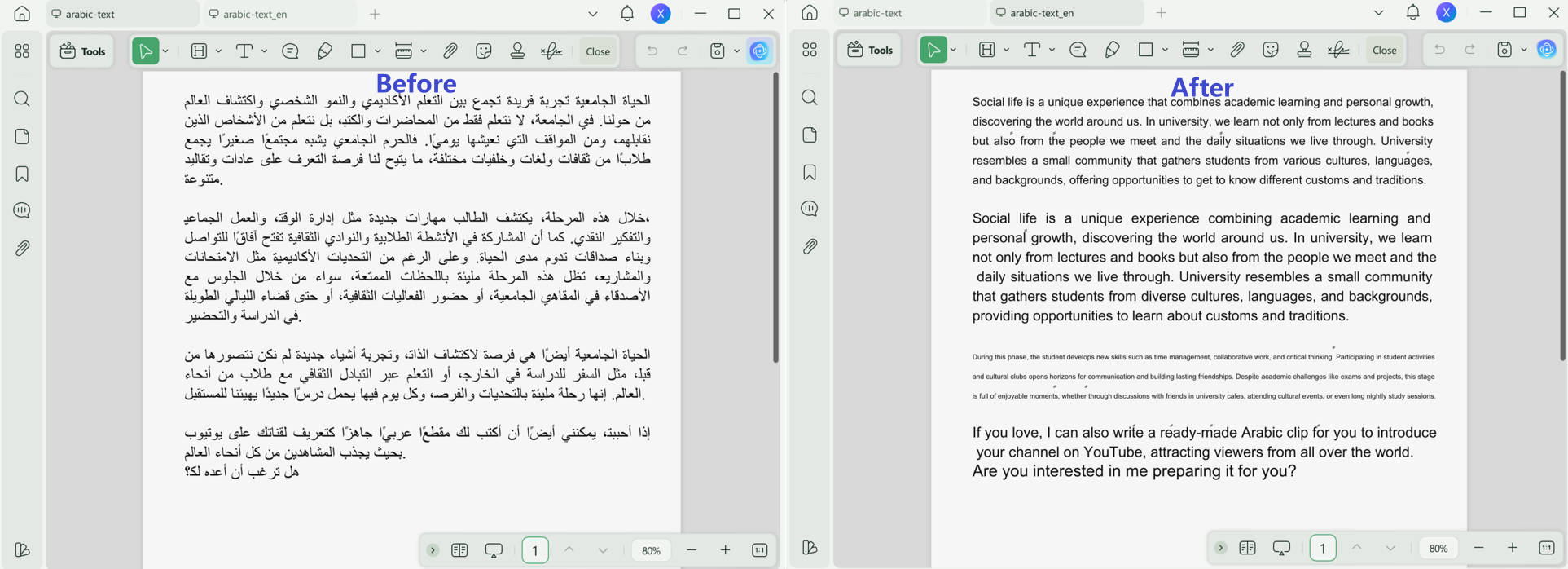
For those looking for a reliable and efficient way to translate PDFs from Arabic to English, UPDF is the tool to turn to. Its user-friendly interface and comprehensive features make it a standout choice. Take the first step towards breaking down language barriers by exploring UPDF today!
Windows • macOS • iOS • Android 100% secure
Way 1. Translate PDF from Arabic to English with Layout Retention
To translate PDF from Arabic to English with layout retention, you can use UPDF on Windows and Mac.
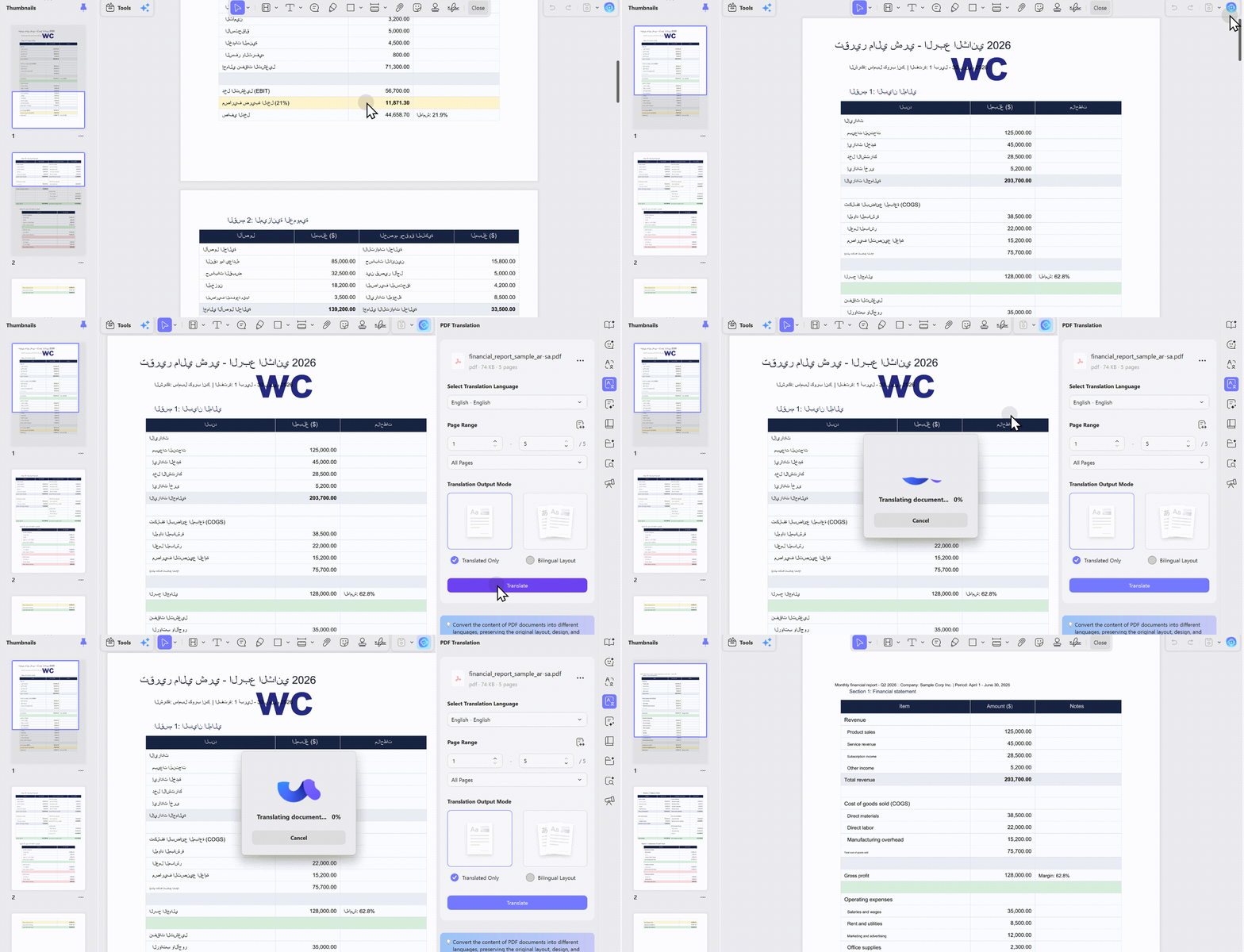
Step 1. Open the Arabic PDF with UPDF, then click on "PDF Translation", select "English" in the language part, and click on the "Translate" button.
Step 2. Now, select the place where you want to save the translated PDF. Once it is done, the translated PDF will open in UPDF automatically. You can see that the Arabic content is translated with layout retention.
Way 2. Translate a Whole PDF/Specific Pages from Arabic to English
Building on UPDF's remarkable features, it's essential to delve deeper into its capabilities, especially the AI-driven method for translating PDFs. This innovative approach not only allows for the translation of entire documents but also provides the flexibility to translate specific pages from Arabic to English, catering to diverse needs and scenarios.
Utilizing UPDF's AI to translate your PDF from Arabic to English is a straightforward process, designed to ensure efficiency and accuracy. Here's a step-by-step guide to harnessing this powerful feature:
- Begin by downloading UPDF and installing it on your device.
Windows • macOS • iOS • Android 100% secure
- Once UPDF is ready, open the application and upload the PDF document you wish to translate. You can easily drag and drop the file or use the upload option within the software.
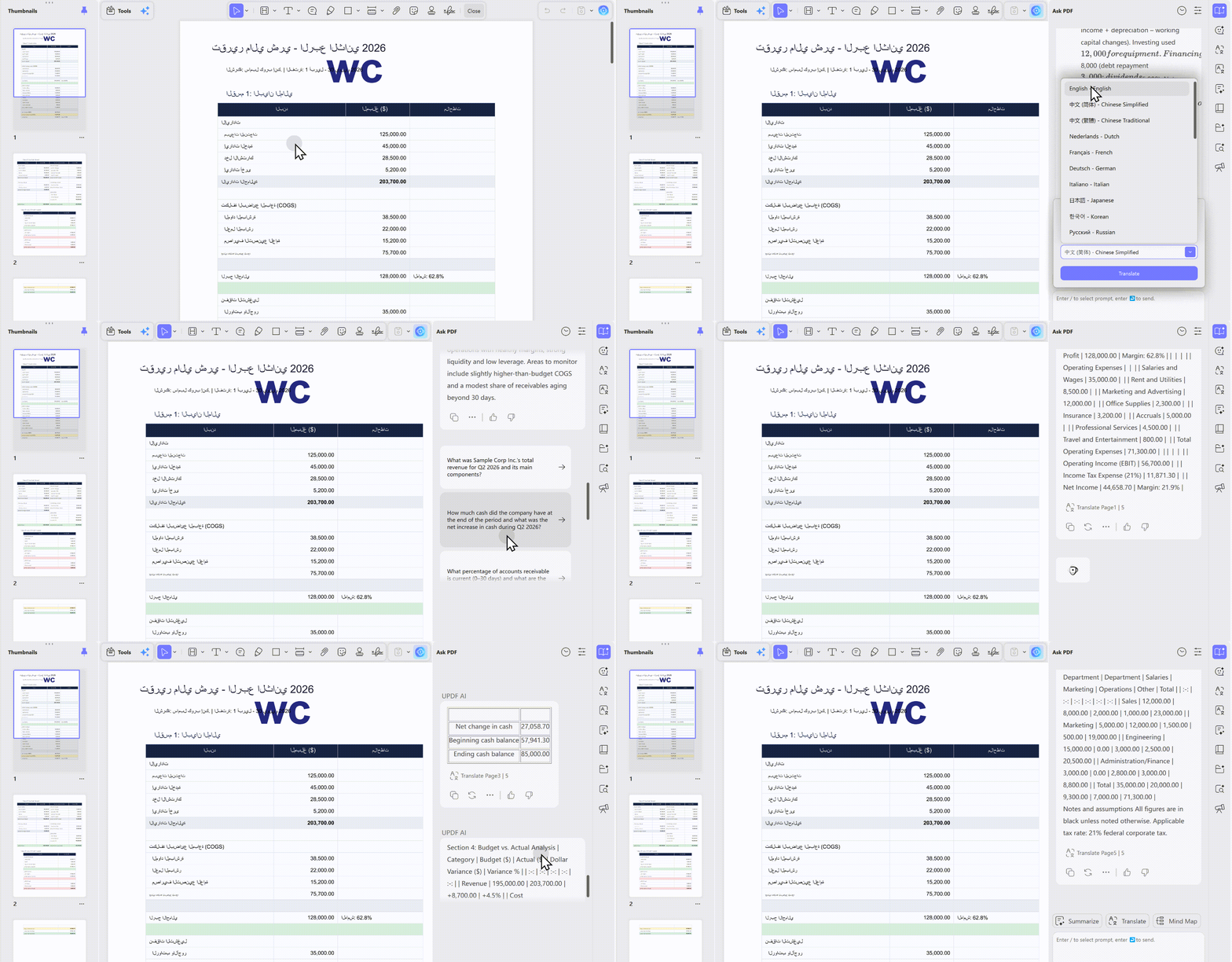
- On the side menu bar of the UPDF interface, look for a colorful icon situated at the bottom right – this is your gateway to UPDF AI. Clicking this icon opens a new dimension of PDF interaction. Make sure you're on the Ask PDF function.
- After accessing UPDF AI, click Get Started. UPDF will automatically send you a summary of the uploaded PDF.
- Then, click on the bulb icon and choose "Translate by page".
- UPDF will provide you with the option of selecting the document language and page range before the translation. Choose English and the page that you want to translate, and click on the "Translate" button.
- After that, UPDF will automatically provide the English translation of the Arabic PDF.
Way 3. Translate Any Content in a PDF from Arabic to English with the Copy & Paste Method
While the above method available in UPDF is impressively efficient for translating whole pages or specific sections, there's an alternative method for users who prefer a more hands-on approach. The copy and paste method offers flexibility and simplicity for translating any content within a PDF from Arabic to English, catering to varied user preferences.
Adapting to the needs of diverse users, UPDF also supports a straightforward copy and paste method for translating text from Arabic to English. Here's how to utilize this feature:
- Launch UPDF and upload the document you wish to work with. You can either drag and drop the file into the application or select the upload option directly.
- Once your PDF is open, navigate to the text you wish to translate.
- Select and copy the Arabic text you intend to translate.
- Access UPDF AI through the colorful icon on the bottom right of the side menu. Paste the copied Arabic text into the Ask PDF window of UPDF AI and enter the prompt: Translate this into English: [paste Arabic text here].
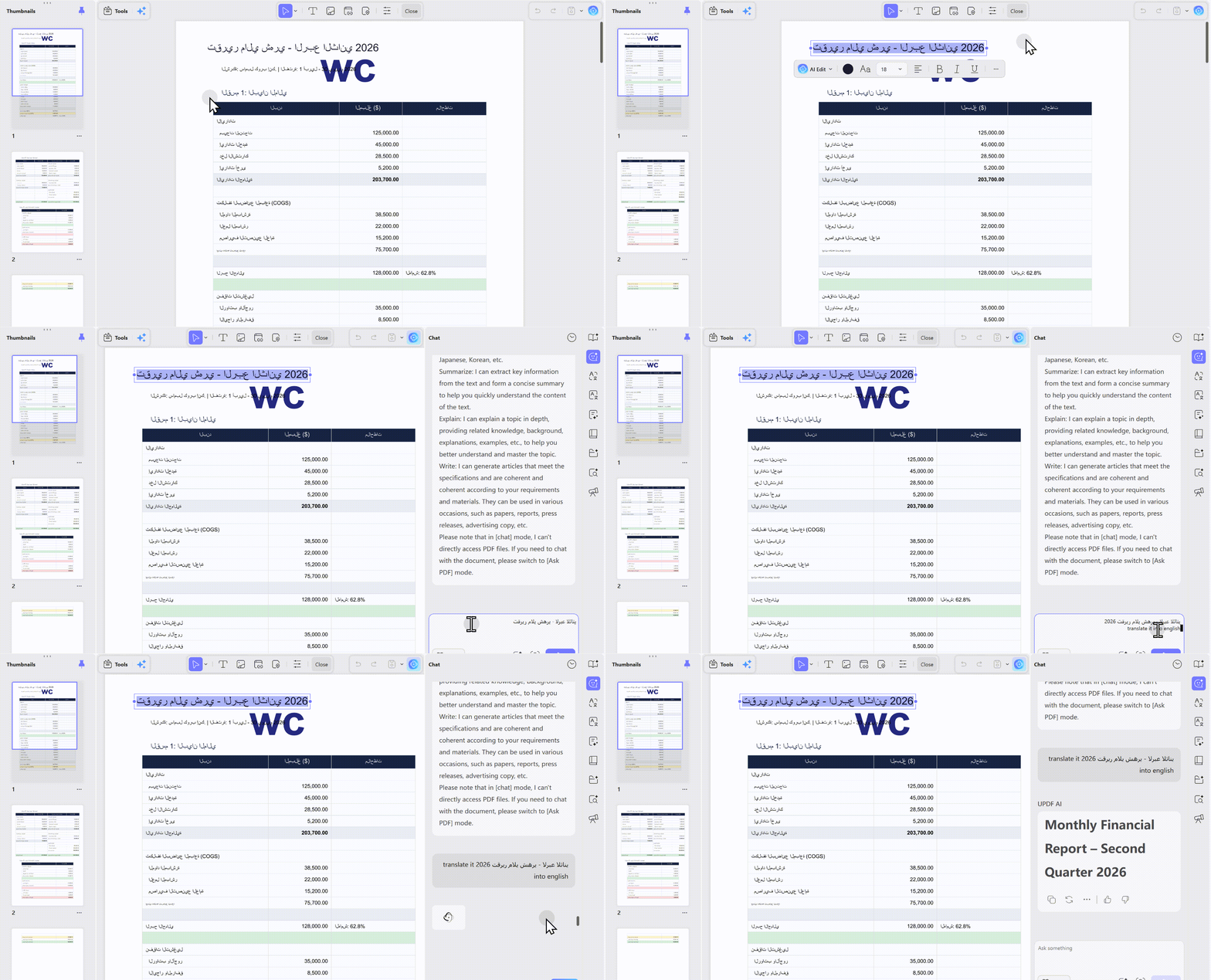
This copy and paste method via UPDF AI offers a precise, user-controlled approach to translating texts within PDFs, ensuring that even the most specific translation needs are met with ease and accuracy.
Way 4. Direct Document Selection for Translating Content from Arabic to English in PDFs
Beyond the versatility of the copy and paste method, UPDF introduces an even more direct approach for translating content within your PDFs. This innovative feature allows users to translate any text from Arabic to English by simply selecting it directly on the document, streamlining the translation process for an effortless user experience.
Embarking on a translation journey with UPDF's direct selection method is both efficient and user-friendly. Here's how to seamlessly translate text from Arabic to English directly within your document:
- Download and open UPDF on your device, a gateway to a broad spectrum of PDF editing and translation tools.
Windows • macOS • iOS • Android 100% secure
- Import the PDF you wish to translate by either dragging and dropping it into UPDF or using the upload feature.
- Navigate through your document to find the text you wish to translate, and select it.
- Upon selecting the text, a menu bar will automatically appear adjacent to the selected text. Look for the "English" option in the drop-down menu of "Translate".
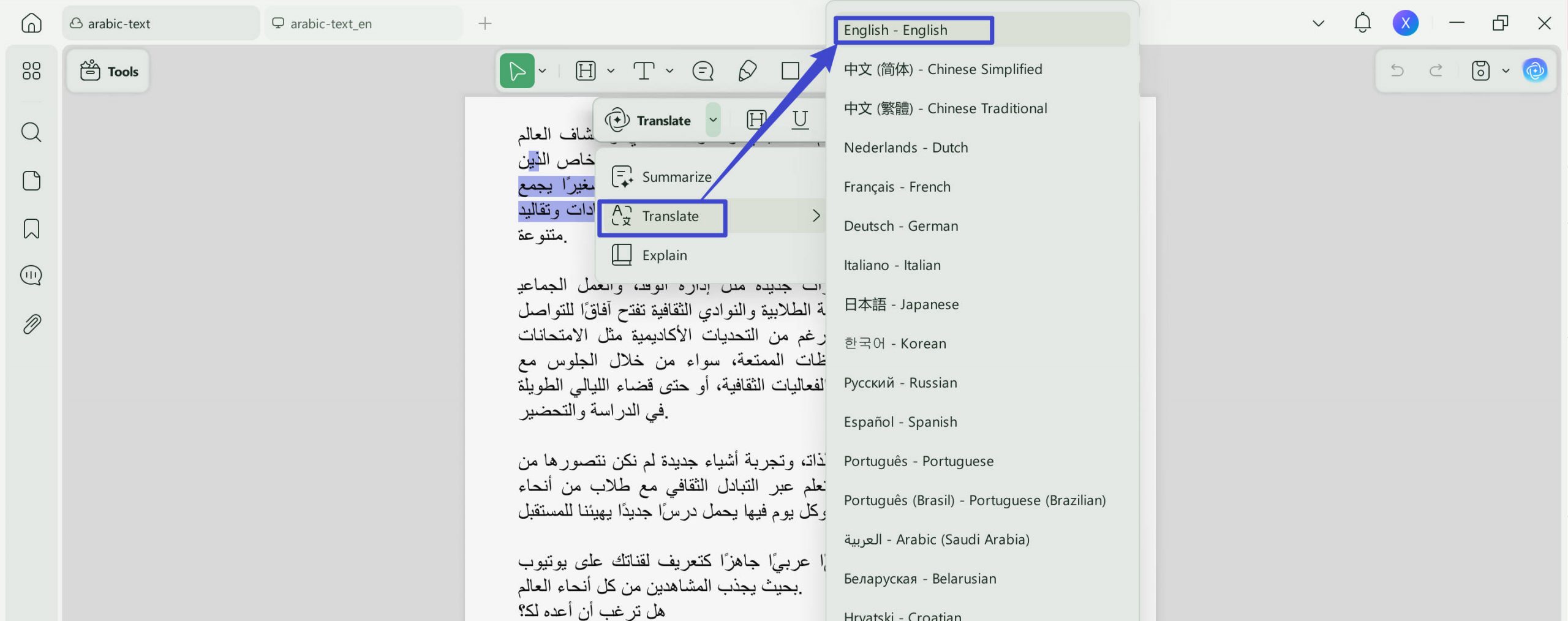
- Once the language is selected, UPDF will translate the selected text instantly, allowing you to view the English translation directly within your document.
- You can choose to save the translation as a sticky note, highlight the selected text and save the translation as a sticky note, or simply copy the translation.
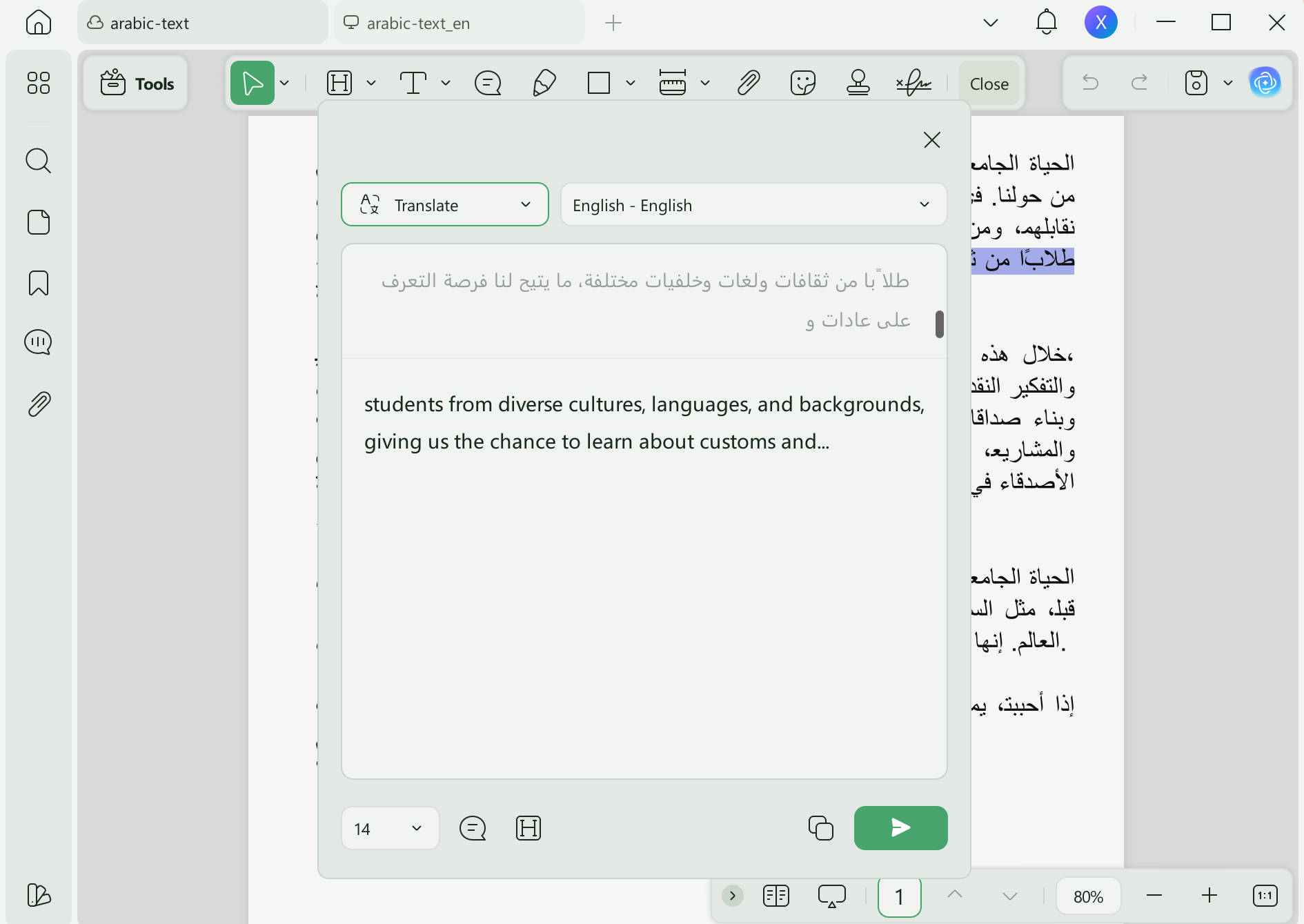
This direct selection method underscores UPDF's commitment to providing intuitive and accessible translation tools, enabling users to translate specific text segments effortlessly and accurately.
Part 4. How to Translate PDF Arabic to English in AI Translation Platform
Working with Arabic PDFs often creates translation hurdles like text misalignment. This section walks through straightforward operations on AI translation platforms to deliver accurate, well-formatted English translations of Arabic PDF files.
| Tool | Translation Quality | Arabic Support | File Upload | Free Limit | Best For |
|---|---|---|---|---|---|
| DeepL | ⭐⭐⭐⭐⭐ | ✅ (Arabic recently added) | ✅ (Pro) | Free tier | Premium quality English output |
| ChatGPT | ⭐⭐⭐⭐ | ✅ | ✅ | Free tier | Contextual understanding, natural output |
| Microsoft Translator | ⭐⭐⭐⭐ | ✅ | ✅ | Unlimited | Office ecosystem integration |
These AI platforms do not support scanned documents; if you have a scan, you must first use OCR software—such as Adobe or ABBYY—to extract the Arabic text before it can be translated.
Translating a regular PDF file is also very simple. Just copy the Arabic text you want to translate into the dialog box and then enter the command: "Translate the following Arabic text into English, preserving the original meaning and tone." And then you can review and refine the translation. (Optional) Ask ChatGPT to format the output or extract key points.
Common Questions About Translating Arabic PDFs to English
Why does my translated Arabic PDF have broken formatting?
Arabic is a right-to-left language. When translating to English (left-to-right), tools that don't properly handle bidirectional text can break layouts, tables, and bullet points.
Is it safe to upload confidential Arabic PDFs to online translators?
Online tools require uploading files to cloud servers. For contracts, legal documents, financial records, or personal data, use offline desktop software with local processing. UPDF offers 100% local processing.
Why does my Arabic text show as garbled characters after translation?
This usually means the tool doesn't support Arabic script properly, or the font isn't embedded. Use a tool that specifically supports Arabic, such as UPDF.
Frequently Asked Questions
Can Arabic PDF translation preserve right-to-left formatting?
Sometimes, but mixed Arabic and English layouts can shift. Review alignment, punctuation, and number order after translation.
Why is Arabic text garbled when copied from a PDF?
The PDF may use embedded font encoding or scanned images. Run OCR with Arabic selected before translating the text.
How should I check an Arabic-to-English PDF translation?
Compare names, dates, legal terms, and numeric values with the source, and use a qualified reviewer for important documents.
Conclusion
In conclusion, UPDF emerges as the ultimate tool for anyone looking to translate Arabic PDFs to English, thanks to its innovative AI-driven and direct selection translation methods. With added functionalities for editing, annotating, and more, UPDF is your go-to solution. Embrace the ease and efficiency UPDF offers and elevate your document management experience today.
This guide covers everything you need to translate English PDFs to Greek. If you're looking for a more comprehensive walkthrough on PDF AI chat and document intelligence — summarizing, translating, extracting insights, and more — visit our full pillar guide: PDF AI Chat.
Windows • macOS • iOS • Android 100% secure






 Lizzy Lozano
 Enya Moore

 Enid Brown