 UPDF
UPDF
 UPDF for Windows
 UPDF for Mac
 UPDF for iPhone/iPad
 UPDF for Android
 Nomostar
 UPDF AI Online
 UPDF Sign
 IvyCraft
 Edit PDF
 Annotate PDF
 Create PDF
 PDF Form
 Edit links
 Convert PDF
 OCR
OCR PDF to Word
 PDF to Image
 PDF to Excel
 Organize PDF
 Merge PDF
 Split PDF
 Crop PDF
 Rotate PDF
 Protect PDF
 Sign PDF
 Redact PDF
 Sanitize PDF
 Remove Security
 Read PDF
 UPDF Cloud
 Compress PDF
 Print PDF
 Batch Process
 About UPDF AI
 UPDF AI Solutions
 AI User Guide
 FAQ about UPDF AI
 Summarize PDF
 Translate PDF
 Chat with PDF
 Chat with AI
 Chat with image
 PDF to Mind Map
 Explain PDF
 PDF AI Tools
 Image AI Tools
 AI Chat Tools
 AI Writing Tools
 AI Study Tools
 AI Working Tools
 Other AI Tools
 AI Bookmark Generation
 AI Bookmark Summary
 AI Watermark Generation
 AI Background Generation
 AI Sticker Generation
 AI Stamp Generation
 AI Editing Suite
 UPDF Copilot
 AI Page Management
 AI Semantic Search
 PDF to Word
 PDF to Excel
 PDF to PowerPoint
 Enterprise Solution
 Enterprise Sign
 Enterprise AI
 Enterprise Plan
 Enterprise User Guide
 Enterprise Webinar
 IT
IT Education
 Construction
 Financial Service
 Healthcare
 Insurance
 Legal
Legal Manufacturing
 Government
 Researchers & PhDs
 Solopreneurs & Freelancers
 Lawyers & Legal Professionals
 Real Estate Agents & Brokers
 Education Solution
 Customer Stories
 User Guide
 UPDF Tricks
 FAQs
FAQs UPDF Reviews
 Download Center
 Blog
Blog Newsroom
 Tech Spec
 Updates
 UPDF vs. Adobe Acrobat
 UPDF vs. Foxit
 UPDF vs. PDF Expert

Quick answer:
The first time I lost a PDF, I knew it was somewhere on my laptop — I just couldn't remember what I'd named it or which folder it landed in. Below are the exact methods I use now, sorted by the situation you're actually in, so you're not scrolling through every folder on your drive.
Part 1. Which Method Fits Your Situation
Pick the row that matches your problem, then jump to that section.
| Your situation | Fastest method | Section |
|---|---|---|
| I just downloaded it and don't know where it went | Check the Downloads folder / browser download history | Part 2 |
| I remember part of the file name | Windows Search or Mac Spotlight by name | Part 3 / Part 4 |
| I forget the name but know a word inside it | Search by content (indexed full-text search) | Part 3 / Part 4 |
| Search returns dozens of near-identical file names | Turn on PDF thumbnails / preview | Part 5 |
Part 2. You Just Downloaded It — Check Downloads First
Best for:
- a PDF you saved from a browser or email in the last few minutes and simply can't locate.
Not for:
- an old file you saved weeks ago and have since moved — skip to Part 3 or Part 4 and search instead.
Most browsers drop files into one place by default, so start there before running any search.
Step 1. Open your browser's download list — Ctrl + J on Windows, or Cmd + Shift + J on Chrome for Mac. Your most recent PDF sits at the top.
Step 2. Hover over the file and click Show in folder (Chrome/Edge) or Show in Finder (Safari) to open the exact location on your computer, with the file already highlighted.

Step 3. If the list is empty or the file was cleared, open your Downloads folder directly — it's the default save location for Chrome, Edge, Firefox, and Safari — and sort by Date modified to bring the newest file to the top.
If it's not in Downloads, it was probably saved somewhere custom or renamed — that's what search is for.
Part 3. Find a PDF on Windows
Best for:
- any PDF anywhere on a Windows PC, whether you remember the name or only a word inside it.
Not for:
- files that live only in the cloud as online-only placeholders — see Edge Cases for that.
Windows gives you two search entry points and one syntax worth learning.
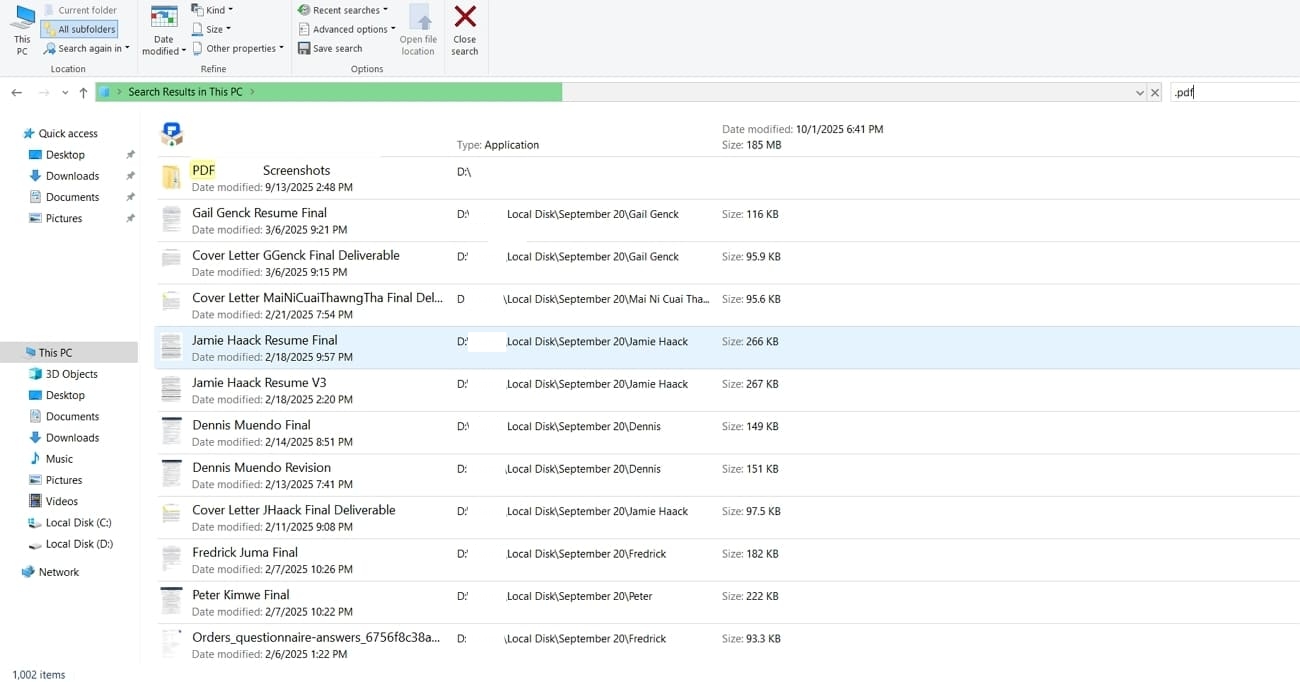
Step 1 — Search the whole PC by type. Open File Explorer, click This PC (to search every drive) or a specific folder, then type this in the search box (top-right):
kind:pdfThis returns every PDF in that location. Add a keyword to narrow it — kind:pdf invoice finds PDFs with "invoice" in the name. You can also use ext:.pdf for the file extension specifically.
Step 2 — Narrow with filters. File Explorer accepts Advanced Query Syntax, which you can combine:
kind:pdf date:last week— PDFs modified in the last 7 daysreport*— wildcard for files starting with "report" when you're unsure of the full namekind:pdf date:>=2026-01-01— PDFs modified on or after a date
Step 3 — Search by content (the text inside the PDF). If you've forgotten the name but remember a phrase inside the document, use the content operator — it works even in non-indexed folders:
content:"quarterly forecast"For plain keyword searches to look inside files automatically, turn on content search once: in File Explorer go to the ··· (See more) menu → Options → Search tab → tick Always search file names and contents. For folders outside your user profile, also confirm indexing under Settings → Privacy & security → Searching Windows.
Step 4 — Or search from the taskbar. Press Win + S, type your keyword or pdf, and Windows Search scans names, contents, and metadata across indexed locations without opening File Explorer at all.
Part 4. Find a PDF on Mac
Best for:
- locating a PDF on a Mac by name, date, or a word inside it — usually in seconds.
Not for:
- searching drives you've excluded from Spotlight indexing (check System Settings → Spotlight).
macOS indexes file text by default, so content search mostly just works.
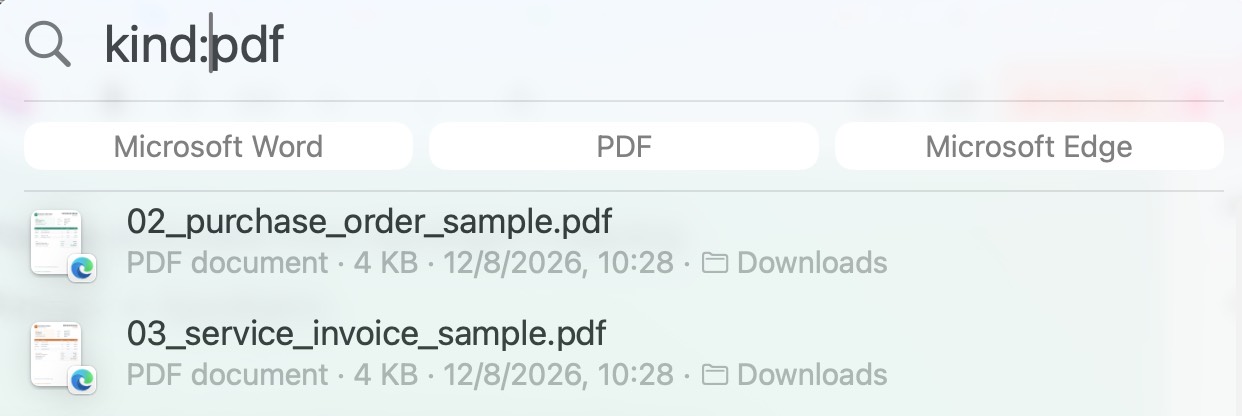
Step 1 — Spotlight for speed. Press Cmd + Space, type pdf plus a keyword, and Spotlight surfaces matches by file name and by text inside the document. Use kind:pdf to limit results to PDFs only — for example, kind:pdf report.
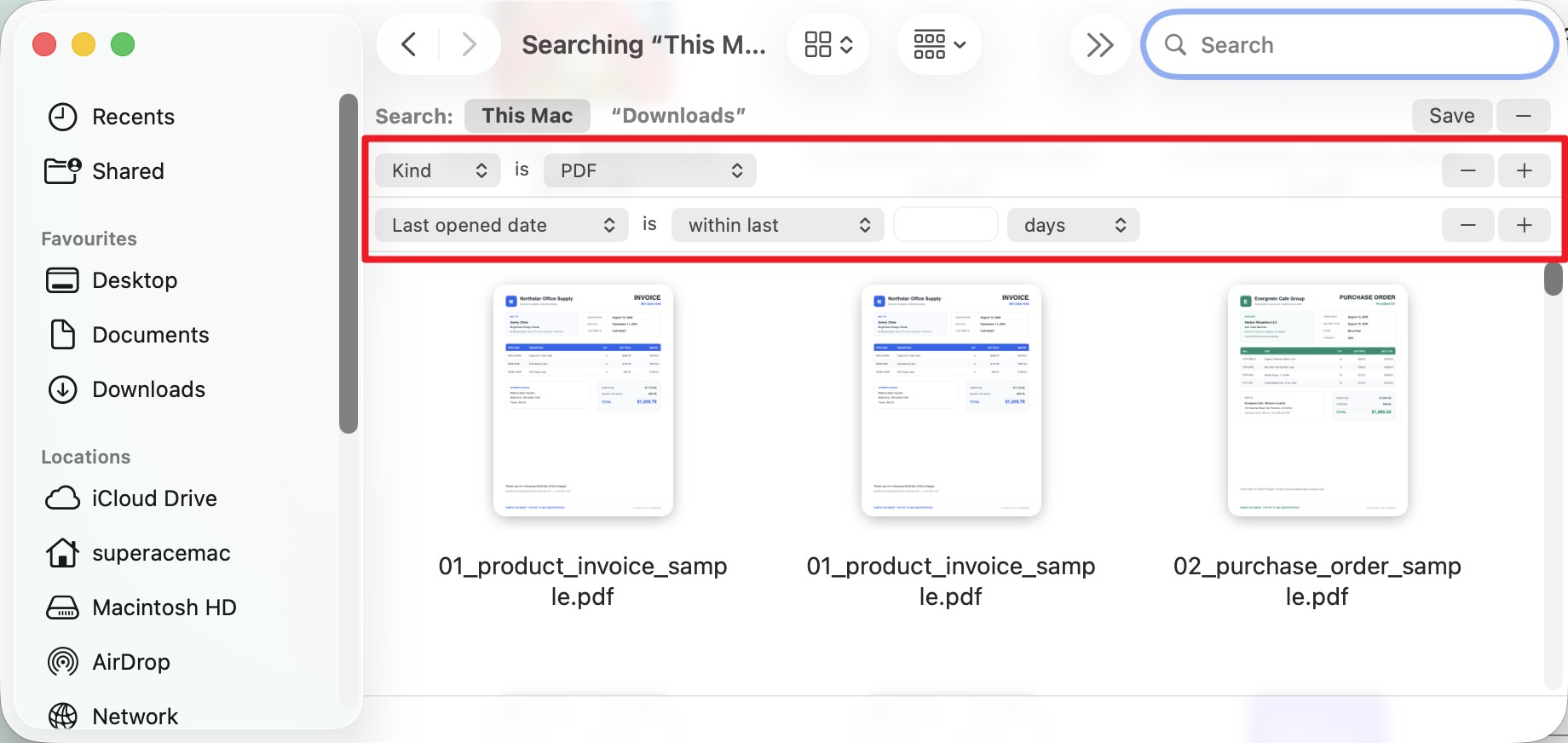
Step 2 — Finder for precise filters. Open Finder, press Cmd + F, set the scope to This Mac, and choose Kind → PDF from the first criterion. Click the + button to add more rules, such as Contents contains a phrase, or Created / Modified date within a range.
Step 3 — Sort to find the right one. In the results, switch to List view and sort by Date Modified or Date Added so the file you're thinking of rises to the top.
Step 4 — Save it for next time (optional). Click Save in a Finder search to create a Smart Folder that always shows your PDFs, updating automatically as you add files.
Part 5. Can't Tell Which PDF Is Which? Preview Before You Open
Best for:
- Windows users whose search returns a wall of similar names (document.pdf, document(1).pdf, scan_final_v2.pdf) and who need to identify the right one without opening each.
Not for:
- Mac users — Finder already shows PDF thumbnails, and pressing Space on any file opens Quick Look, so you don't need an extra tool.
Search finds the files; it doesn't tell you what's in them. On Windows, a thumbnail and a live preview pane close that gap — and there's a timely reason many people need a fix here: starting with Windows 11 25H2, Microsoft hardened the preview subsystem, which now blocks the built-in preview pane for PDFs downloaded from the internet or synced from cloud drives. If your preview pane recently stopped working, that's usually why.
Setting UPDF as your thumbnail and preview provider restores a controllable preview you can zoom and page through in File Explorer.
Windows • macOS • iOS • Android 100% secure
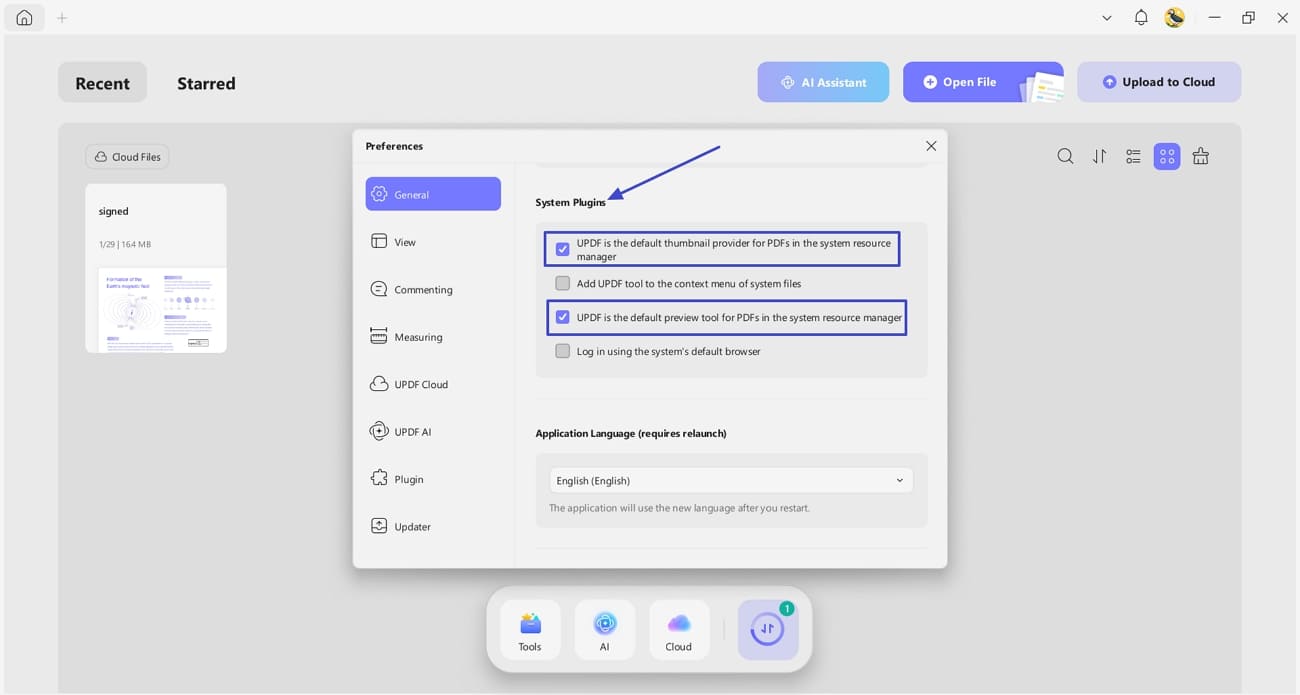
Step 1. Open UPDF, click your profile icon in the top-right → Preferences → General, and scroll to the System Plugins section.
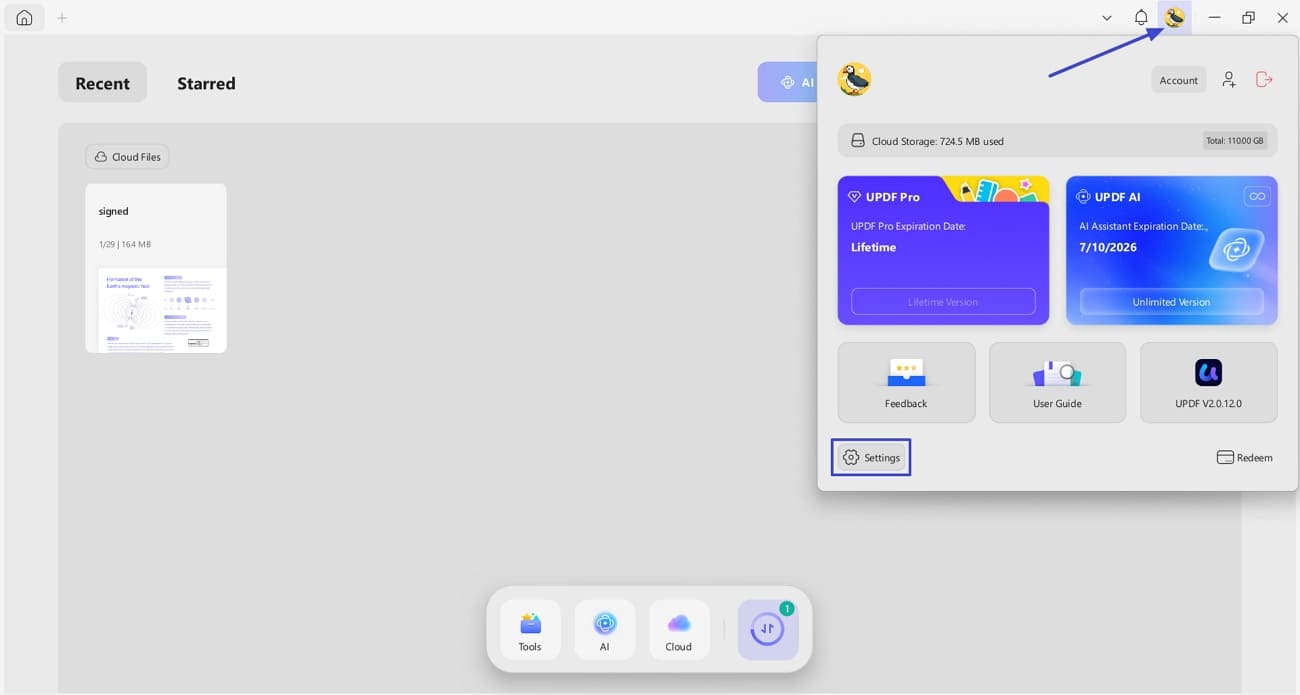
Step 2. Tick UPDF is a Thumbnail Provider and UPDF is the Default Preview Tool for PDFs in the system resource manager, then close UPDF for the change to apply.
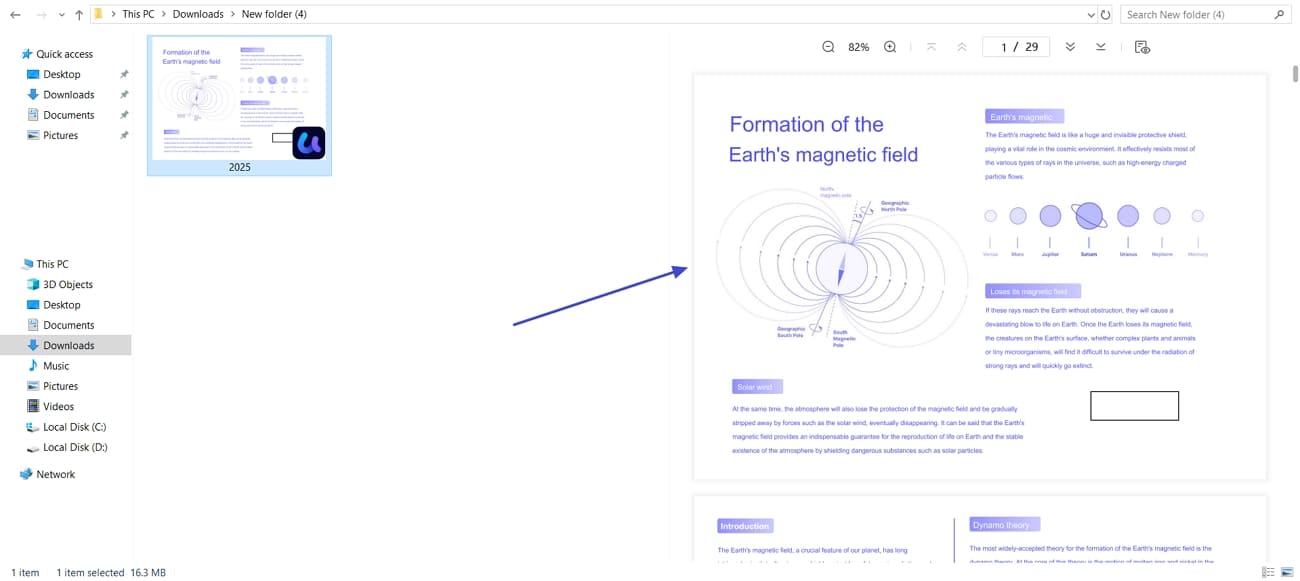
Step 3. Back in File Explorer, click any PDF and it shows in the preview pane on the right — where you can zoom in/out and jump to any page to confirm it's the file you want before opening.
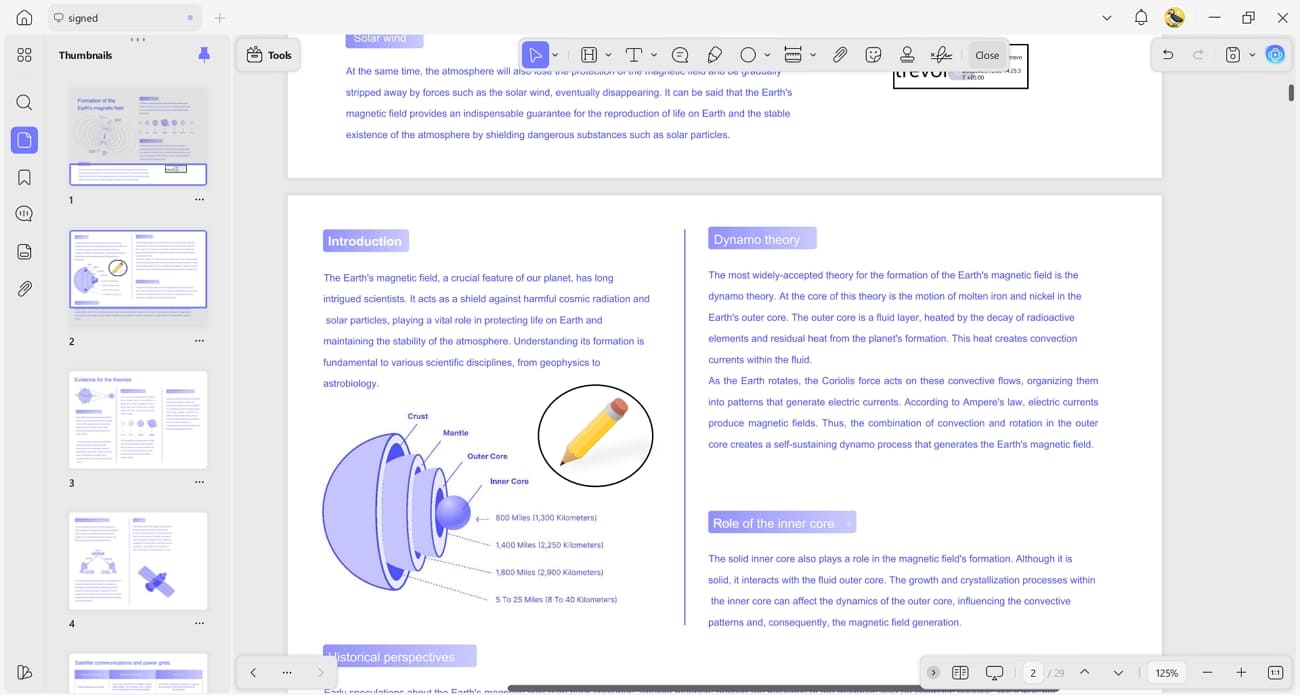
Found your PDF? Read, annotate, edit, and convert it in a single app — no switching programs.
Windows • macOS • iOS • Android 100% secure
Part 6. Filename Search vs. Content Search vs. Thumbnail Preview
These three solve different problems, and mixing them up is why people give up mid-search:
- Filename search is looking for a book by the title printed on its spine — fast, but useless if the title is generic or wrong.
- Content search is opening the book and reading a line to identify it — slower, but it finds the file even when the name tells you nothing (as long as the PDF has a real text layer).
- Thumbnail preview is glancing at the cover — the quickest way to tell two similarly-named files apart at a glance.
Use filename search first, fall back to content search when the name fails you, and turn on previews when the results all look alike.
| Method | Finds by name | Finds by content | Needs indexing | Works offline | Best when |
|---|---|---|---|---|---|
| Windows / Mac name search | ✓ | ✗ | ✗ | ✓ | You remember part of the name |
| Content / full-text search | ✓ | ✓ | ✓ (Windows) / built-in (Mac) | ✓ | You only remember what's inside |
| Downloads / browser history | ✗ | ✗ | ✗ | ✓ | You just saved it |
| Thumbnail + preview pane | — | Visual | ✗ | ✓ | Names are near-identical |
Part 7. Edge Cases
- Search finds nothing at all. The file may have been renamed or saved without a
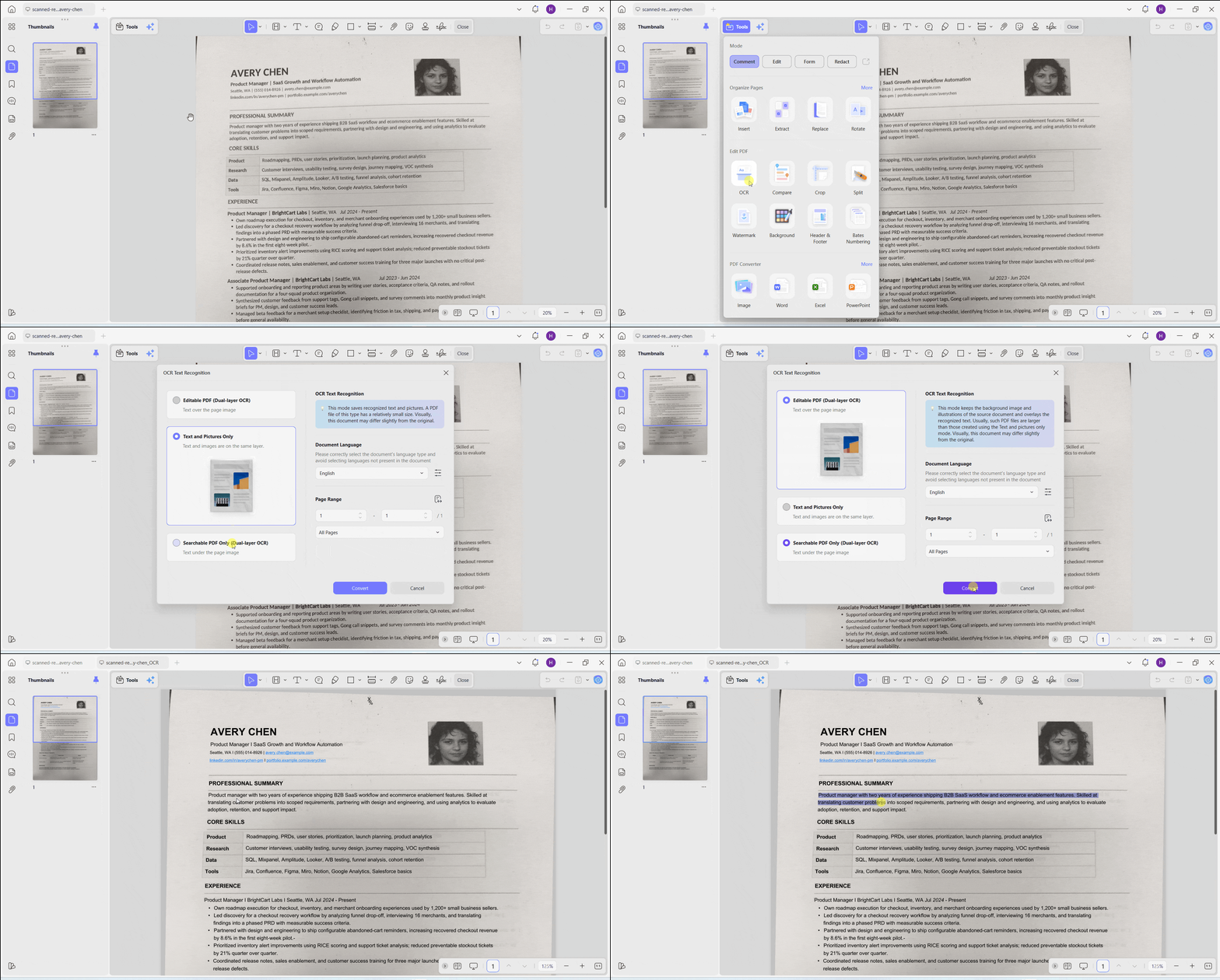
.pdfextension. Try searching by a word you remember from inside it (content search) rather than by name. - Search finds the name but not the text inside. Either content indexing is off (Windows), or it's a scanned / image-only PDF with no text layer — there's nothing for search to read. Run OCR on it to make the text searchable with UPDF.
Windows • macOS • iOS • Android 100% secure
- The PDF is on a USB or external drive. Point the search at that drive specifically. On Windows, enabling Enhanced search under Searching Windows widens coverage beyond your user folders.
- It's a cloud file (OneDrive, iCloud, Google Drive). It may exist only as an online-only placeholder that local search can't read. Make it Always available on this device, or search inside the service's web app instead.
- It's password-protected. Content search can't read the text inside an encrypted PDF unless the file is unlocked first, so search will only match its file name.
Part 8. FAQ
1. How can I search inside multiple PDFs at once without opening them?
On Windows, turn on content indexing (or use the content:"phrase" operator) and search a folder in File Explorer. On Mac, Spotlight already indexes PDF text, so typing a phrase finds every PDF that contains it. Note that image-only scanned PDFs won't match until they've been run through OCR.
2. What's the fastest way to reopen a PDF I just had open?
Check the recents list before searching: Quick access in File Explorer and Recents in Finder both surface recently opened files, and most PDF apps keep a Recent list on their home screen.
3. Does searching "pdf" find files saved with the wrong extension?
No. If a file was saved or renamed without a .pdf extension, a type-based search skips it. Search by a keyword from its name or contents instead, then check the file's properties.
4. Can I recover a PDF I deleted by accident?
Yes, if it's recent. Open the Recycle Bin (Windows) or Trash (Mac), find the file, and choose Restore / Put Back to return it to its original folder.
Conclusion
Finding a PDF on your computer comes down to matching the method to the situation: check Downloads if you just saved it, search by name when you remember what you called it, and search by content when you only remember what's inside. When the results all look alike, a thumbnail preview is the fastest way to pick the right one — and on Windows, UPDF's preview plugin restores that preview even after the recent 25H2 update broke the built-in pane. Start with the built-in tools, keep content search turned on, and you'll rarely lose a PDF again.
Get UPDF and handle every PDF on your computer — search, preview, and open them the fast way.
Windows • macOS • iOS • Android 100% secure








 Delia Meyer

 Enrica Taylor

 Enola Miller