 UPDF
UPDF
 UPDF for Windows
 UPDF for Mac
 UPDF for iPhone/iPad
 UPDF for Android
 Nomostar
 UPDF AI Online
 UPDF Sign
 IvyCraft
 Edit PDF
 Annotate PDF
 Create PDF
 PDF Form
 Edit links
 Convert PDF
 OCR
OCR PDF to Word
 PDF to Image
 PDF to Excel
 Organize PDF
 Merge PDF
 Split PDF
 Crop PDF
 Rotate PDF
 Protect PDF
 Sign PDF
 Redact PDF
 Sanitize PDF
 Remove Security
 Read PDF
 UPDF Cloud
 Compress PDF
 Print PDF
 Batch Process
 About UPDF AI
 UPDF AI Solutions
 AI User Guide
 FAQ about UPDF AI
 Summarize PDF
 Translate PDF
 Chat with PDF
 Chat with AI
 Chat with image
 PDF to Mind Map
 Explain PDF
 PDF AI Tools
 Image AI Tools
 AI Chat Tools
 AI Writing Tools
 AI Study Tools
 AI Working Tools
 Other AI Tools
 AI Bookmark Generation
 AI Bookmark Summary
 AI Watermark Generation
 AI Background Generation
 AI Sticker Generation
 AI Stamp Generation
 AI Editing Suite
 UPDF Copilot
 AI Page Management
 AI Semantic Search
 PDF to Word
 PDF to Excel
 PDF to PowerPoint
 Enterprise Solution
 Enterprise Sign
 Enterprise AI
 Enterprise Plan
 Enterprise User Guide
 Enterprise Webinar
 Banking
 Healthcare
 Insurance
 Legal
Legal Manufacturing
 Government
 Researchers & PhDs
 Solopreneurs & Freelancers
 Lawyers & Legal Professionals
 Real Estate Agents & Brokers
 Education Solution
 Customer Stories
 User Guide
 UPDF Tricks
 FAQs
FAQs UPDF Reviews
 Download Center
 Blog
Blog Newsroom
 Tech Spec
 Updates
 UPDF vs. Adobe Acrobat
 UPDF vs. Foxit
 UPDF vs. PDF Expert

Many people struggle to extract text from images, handwritten notes, and scanned documents on digital devices. Google Keep offers built-in OCR that recognizes and copies text from images directly into notes. It is convenient for quick use, but weak for complex layouts, multi-page files, and bulk processing.
So in this article, let’s learn everything about Google Keep OCR and use it from zero to professional! As for multiple scanned PDFs and large batches, the ultimate solution is OCR professional tool, this guide explains when to rely on Keep and when to use professional OCR tools for longer-lasting results.
Part 1. Google Keep OCR Overview
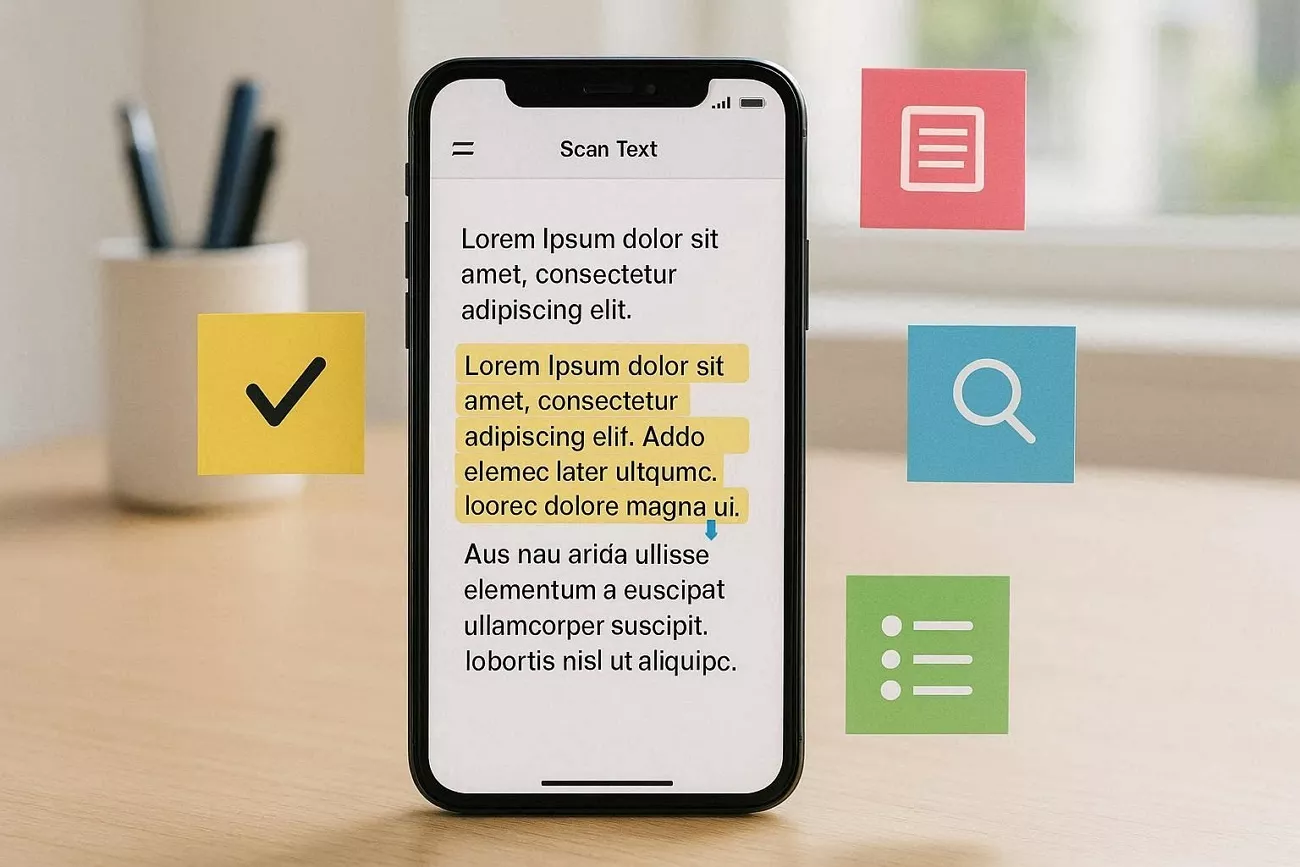
OCR means turning printed and handwritten text from pictures into editable and searchable digital text. It helps the Keep users copy and save text captured from receipts and other images. The feature works directly inside the Google Keep app on both Android phones and desktop browsers. With Google Keep image to text, you can quickly pull words from any photo and store them in notes.
Why is It Worth Paying Attention To?
First off, let’s see why this simple OCR feature is worth your attention.
- Time Saver: It quickly captures text from pictures without needing manual typing or extra editing tools.
- Cross-Device Access: Notes with recognized text sync automatically between phone and computer through the Google account.
- Free and Easy: It costs nothing and requires no complex setup or learning to operate effectively.
- Practical Accuracy: On clear printed documents, recognition is good enough for everyday copying, quoting, or quick archiving.
Limitations of Google Keep OCR
Next, we will look at where this OCR feature can feel weak in daily use.
- Dark photos or slightly angled pages often lead to broken lines of text.
- The layout from the original page does not persist, so sections become a single flat block.
- Handling many images takes time because each image requires separate capture and text-extraction steps.
- Google Keep text recognition is not a good match for big document collections.
When these issues become frustrating, a professional tool, UPDF offers clearer text, preserved layouts, and quicker bulk processing.
Windows • macOS • iOS • Android 100% secure
Part 2. How to Use Google Keep OCR - from Beginner to Expert
Many people use Keep for quick notes and never touch its built‑in image-to-text feature. Let’s learn a basic way to begin with simple captures, then move toward flexible everyday use.
Starting from Zero: A Minimalist Three-Step Method
Some new users feel unsure about where to tap first when trying text capture in Keep. Now, we will break the process into three tiny moves that feel easy and repeatable.
Method 1: From the Album
Go through the steps to learn how to use Google Keep OCR on saved album photos:
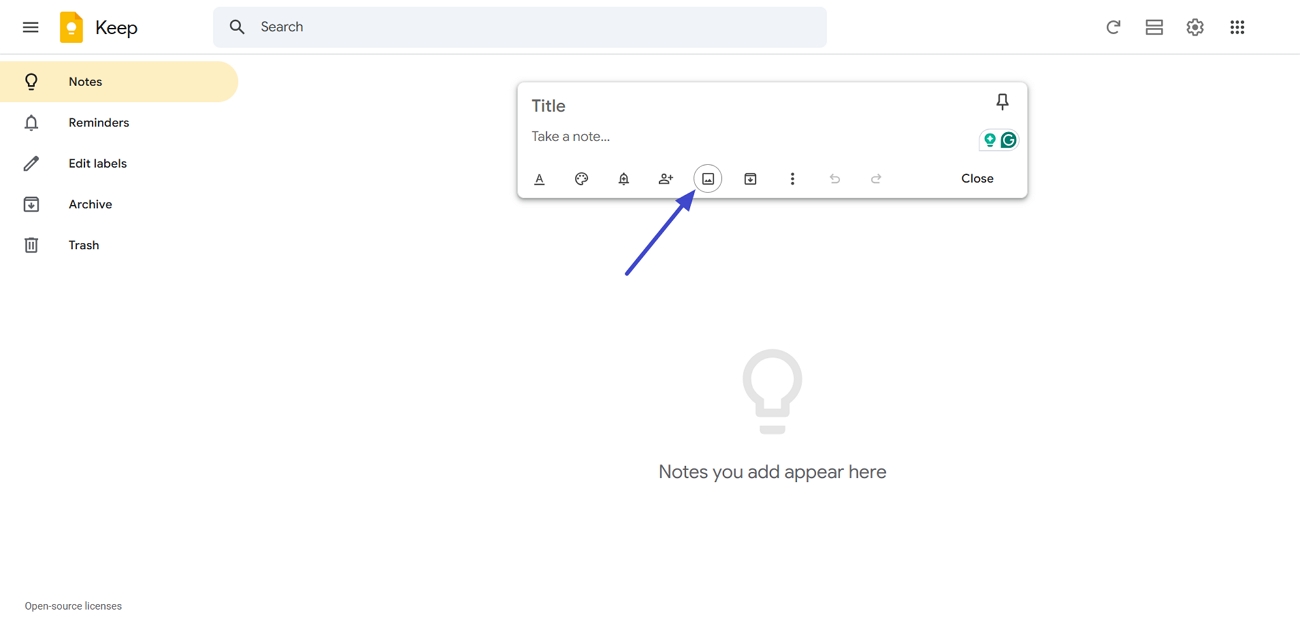
Step 1. Once you open Google Keep, click the “Add Image” icon and upload the targeted image.
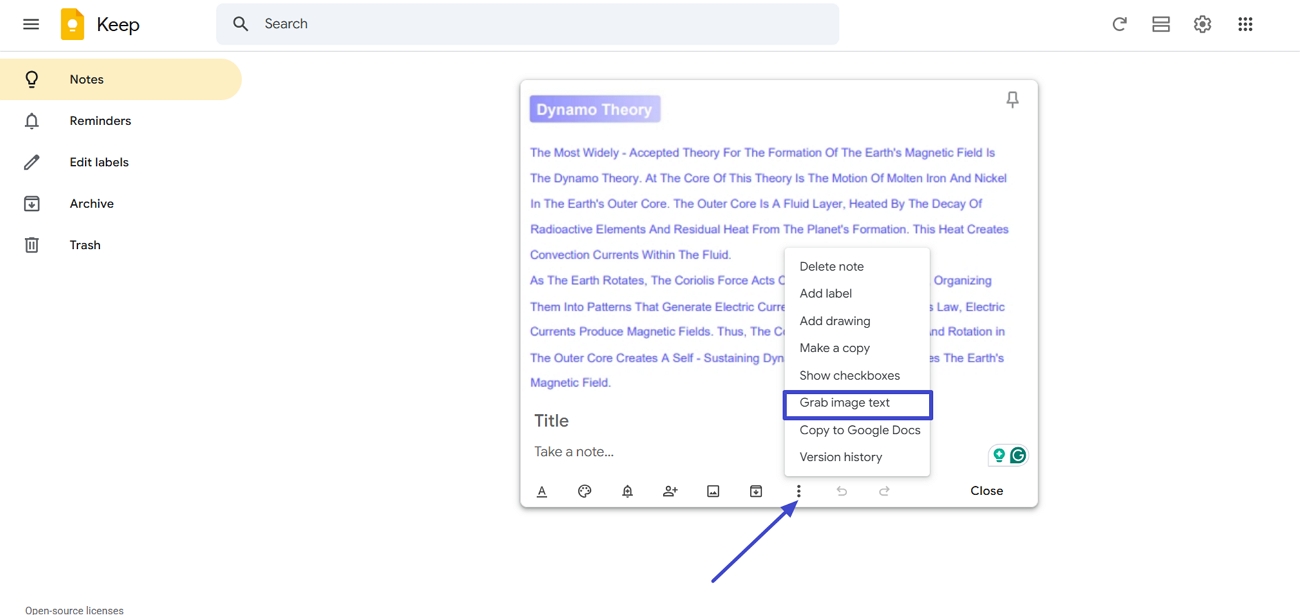
Step 2. Next, click the “Three-Dots” icon at the bottom and press the “Grab Image Text” option.
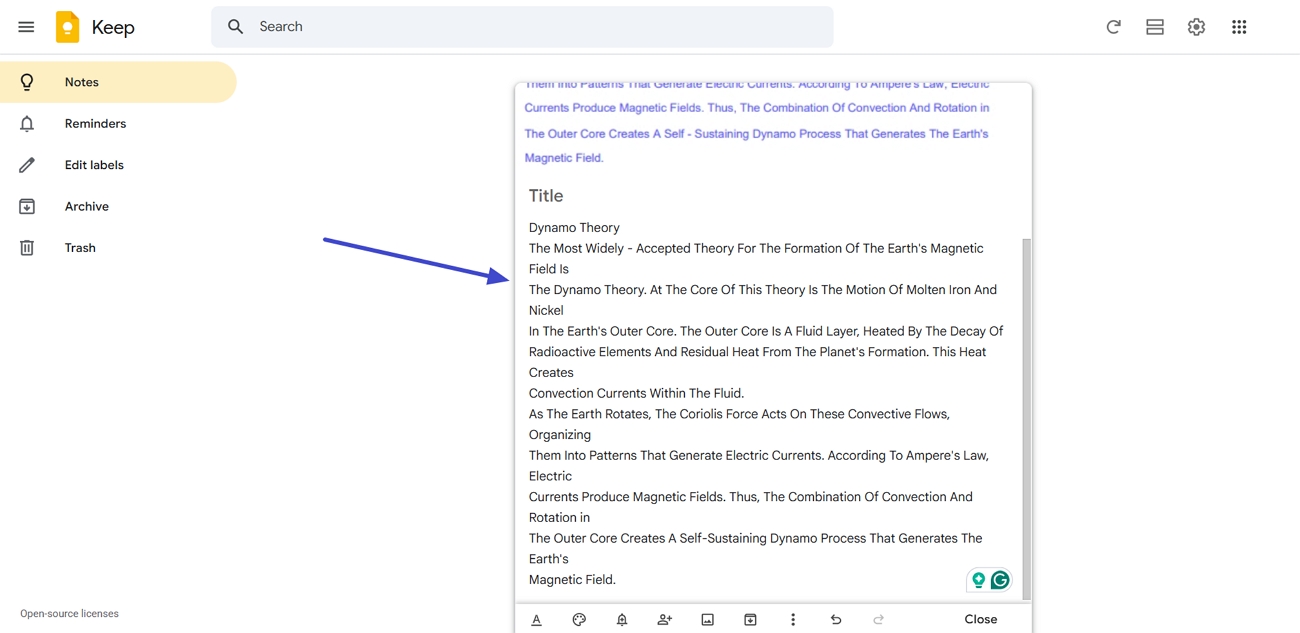
Step 3. Once done, review the extracted text and copy it for further use.
Method 2: From Camera
Follow the steps below to try Google Keep OCR Android on fresh photos you capture yourself:
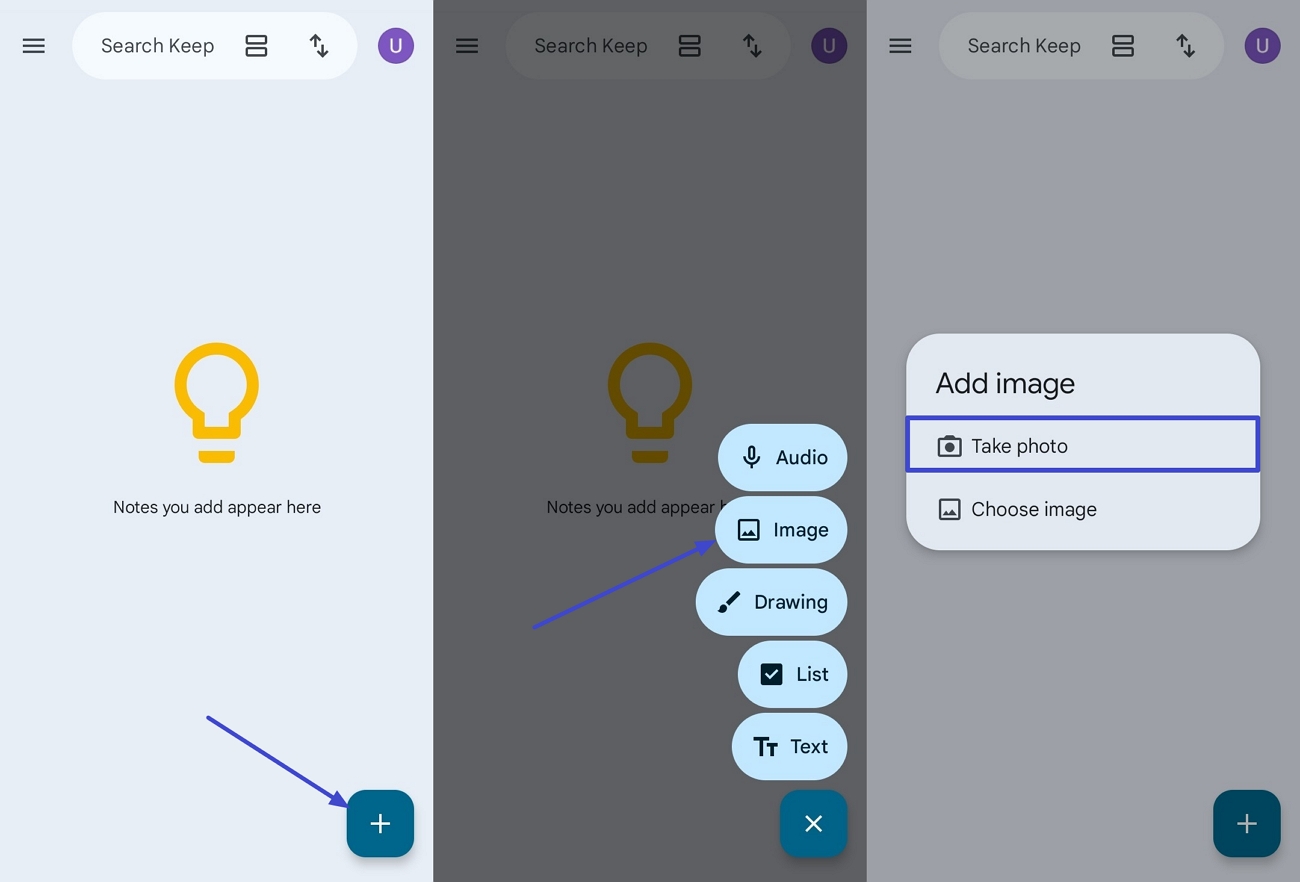
Step 1. After opening the Google Keep app on the phone, tap the “+” icon, press the “Image” option, and use the “Take Photo option.
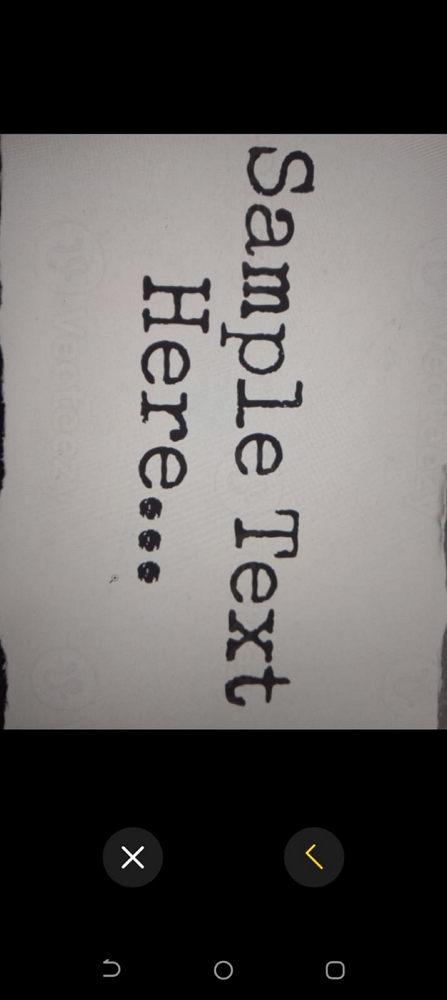
Step 2. Then, use the phone camera to capture the photo.
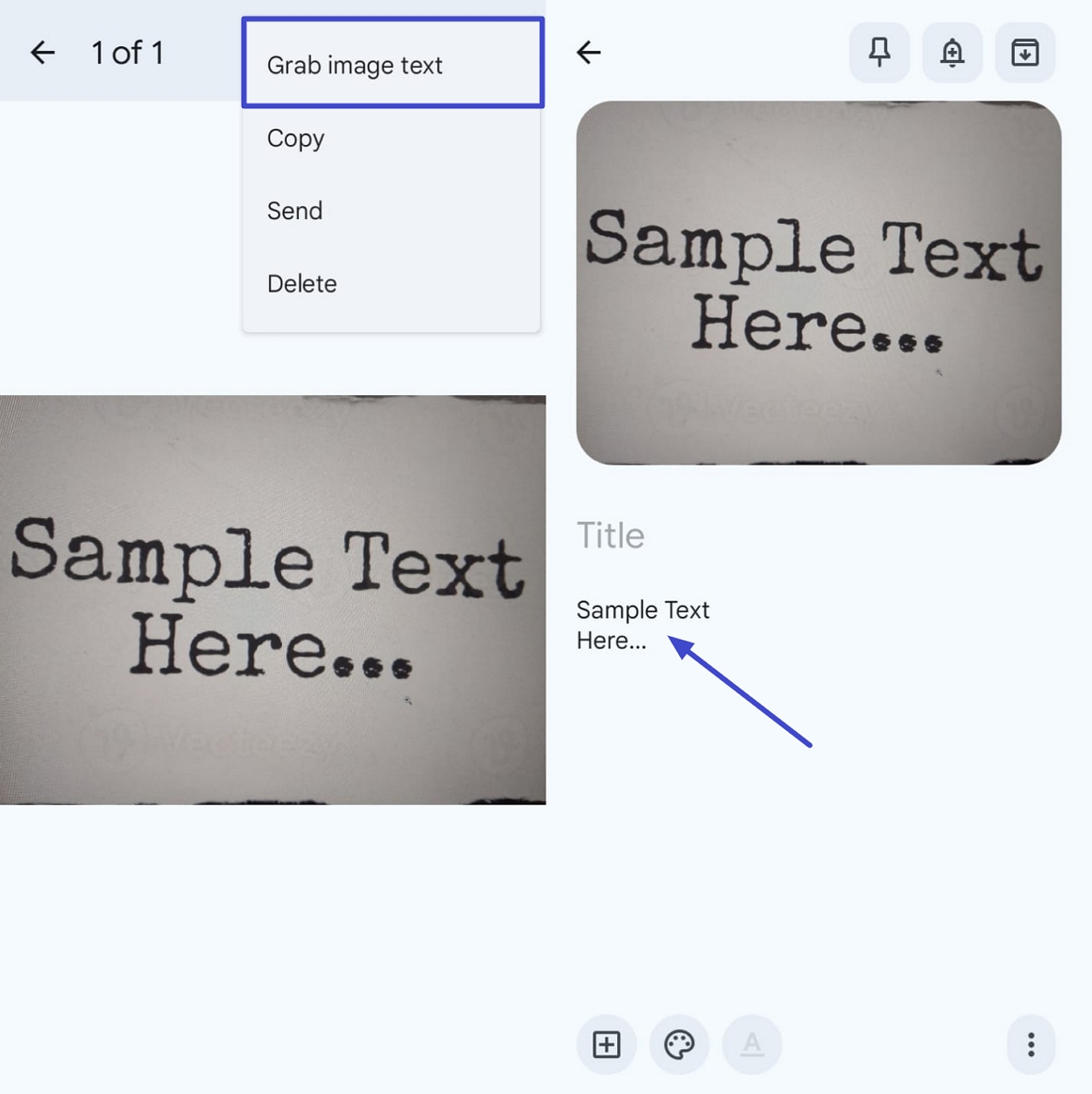
Step 3. Tap the photo and press the “Three Dots” icon. Afterward, use the “Grab Image Text” option to take out the text.
Advanced Techniques
Having learned the basic methods, look at a few ways to use this feature more smartly.
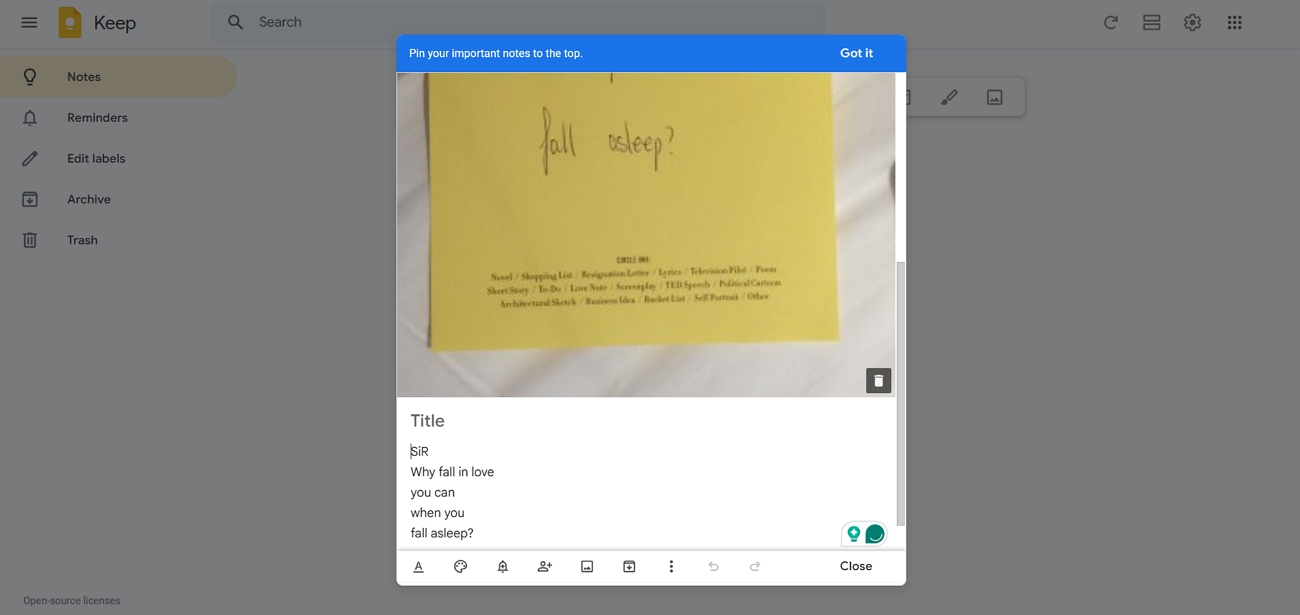
Tip 1: Handwritten Notes Text Extraction
Use it on clear notebook pages when you want digital copies without typing everything. Neat writing with dark ink usually gives better results than rushed lines or very light pencil marks.
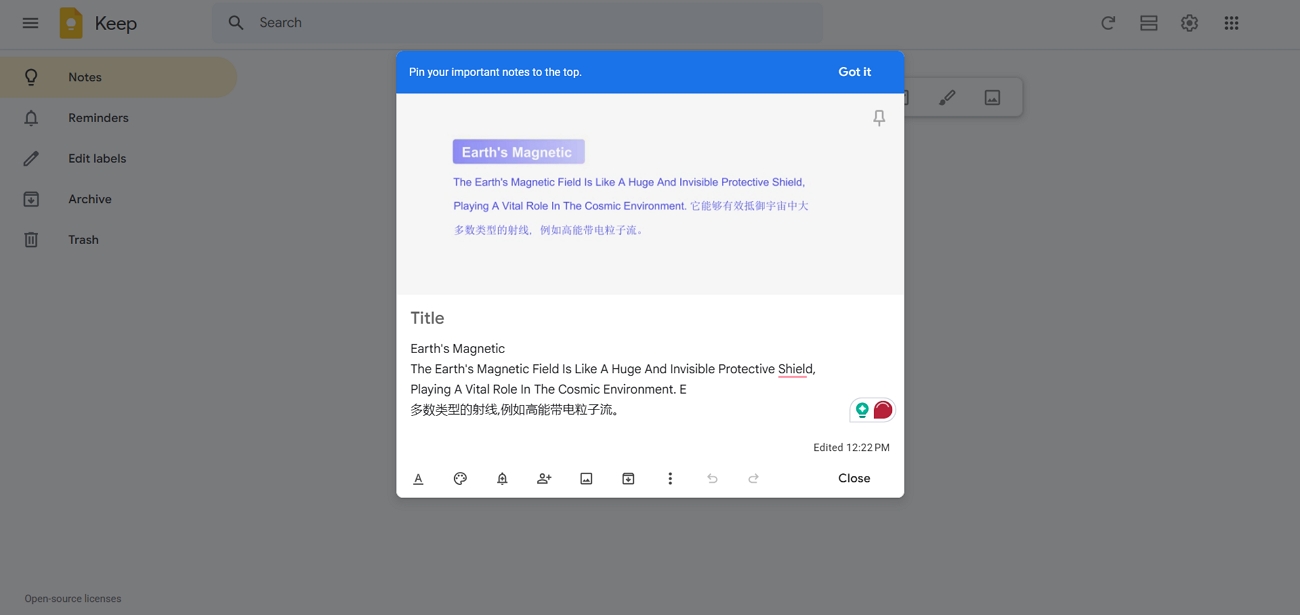
Tip 2: Multilingual Mixed Recognition
Point your camera at pages that mix two languages and let the tool capture the main printed text. Results are best when the letters are large and not squeezed tightly near the edges.
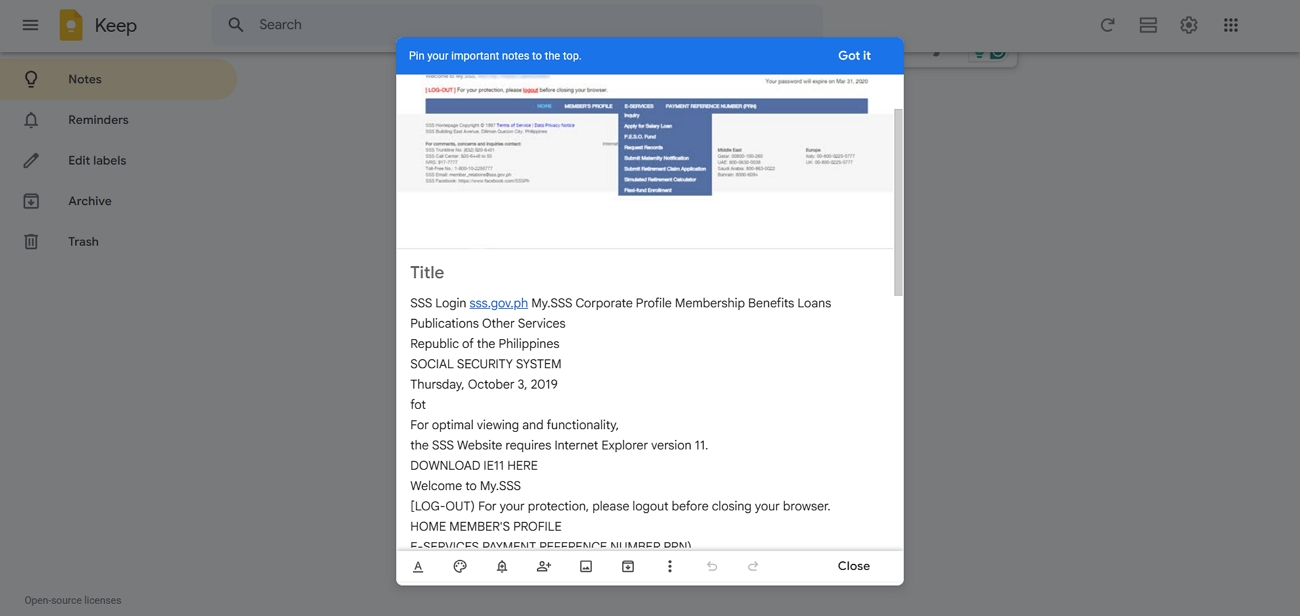
Tip 3: Webpage Screenshots Extraction
Take a screenshot of long articles and pull only the essential lines. Google Keep OCR online style tools help you copy dates, codes, or amounts without scrolling and selecting everything.
Part 3. Professional Alternative to Google Keep OCR
Some users soon hit hard limits with Google Keep OCR when processing large volumes of documents. This is where UPDF comes in as a dedicated PDF solution that handles both single files and large batches. It supports scanned PDFs and image files while keeping layouts closer to the original pages you started with.
The engine can recognize text in 38 global languages, which is helpful for mixed or international documents. UPDF's advanced technology ensures up to 99% accuracy on clear scans, so less time goes into fixing mistakes. Other than that, users can also use UPDF AI to extract text directly from images with simple text prompts.
Windows • macOS • iOS • Android 100% secure
UPDF vs Google Keep OCR
Many users still feel confused about which tool actually fits their own daily document work best. Now, look at the table below to see where Google Keep and UPDF Pro fit different needs:
| Dimensions | Google Keep OCR | UPDF Pro |
| Price | Free, built-in | $49.99 per year $79.99 for lifetime ($10 coupon for new V2.5) |
| Input Format | Photos, screenshots only | PDFs, images, scanned documents |
| Batch Process | Single image at a time | Batch OCR for multiple files |
| Layout Preservation | Plain text only | Keeps layout, fonts, and structure |
| Output Format | Text inside notes | Searchable PDF, Word, Excel, other exports |
| AI Functions | N/A | AI reading, summarizing, Q&A, rewrite |
| Handwriting Recognition | Basic, neat writing only | Stronger support for handwritten documents |
| Applicable Scenarios | Quick captures, casual notes | Office work, archives, long PDFs, bulk scans |
| Supported Platform | Web, Android, iOS | Windows, macOS, iOS, Android |
| Technological Advantages | Simple cloud note tool | Advanced OCR engine with multi-language support |
Tips: UPDF Version 2.5 is currently available with a $10 discount , valid until May 7th.
How to Use UPDF for OCR (PDFs and Images)
Now, go through the steps below to see how UPDF works better for PDFs and images than Google Keep's image-to-text:
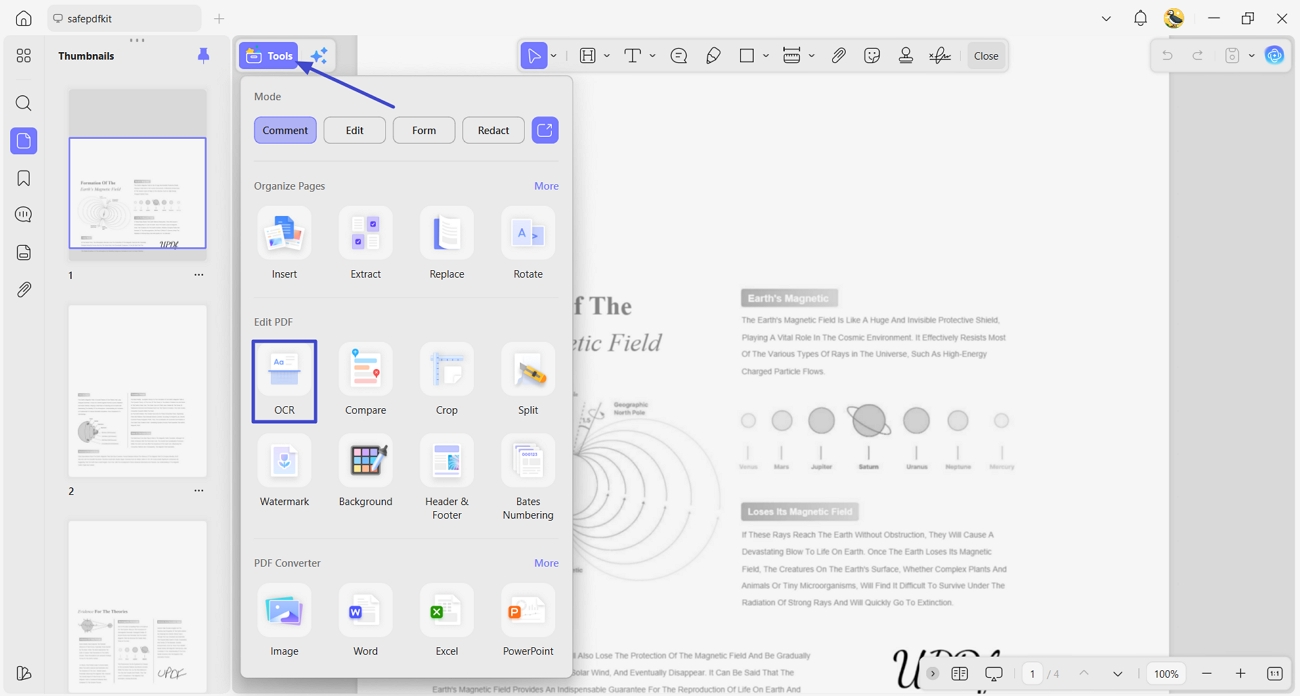
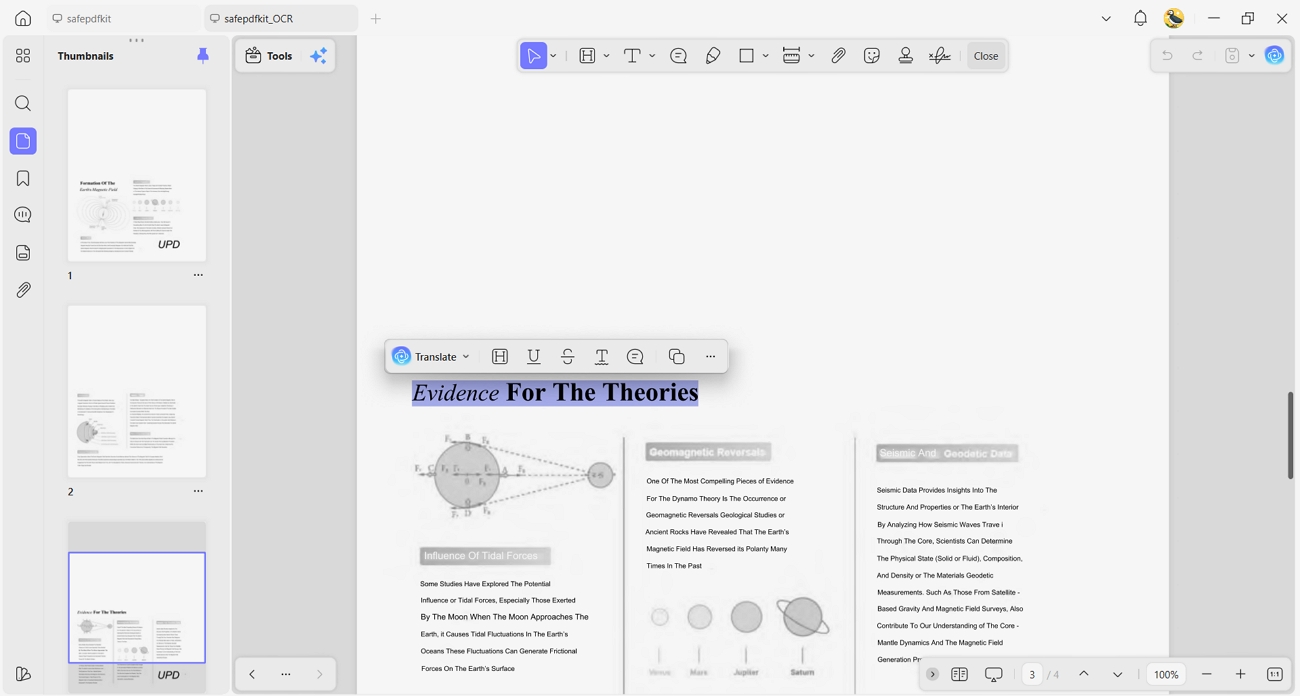
Step 1. Access OCR Feature
Once you import a PDF file, click the “Tools” option and use the “OCR” option to open the OCR pop-up interface.
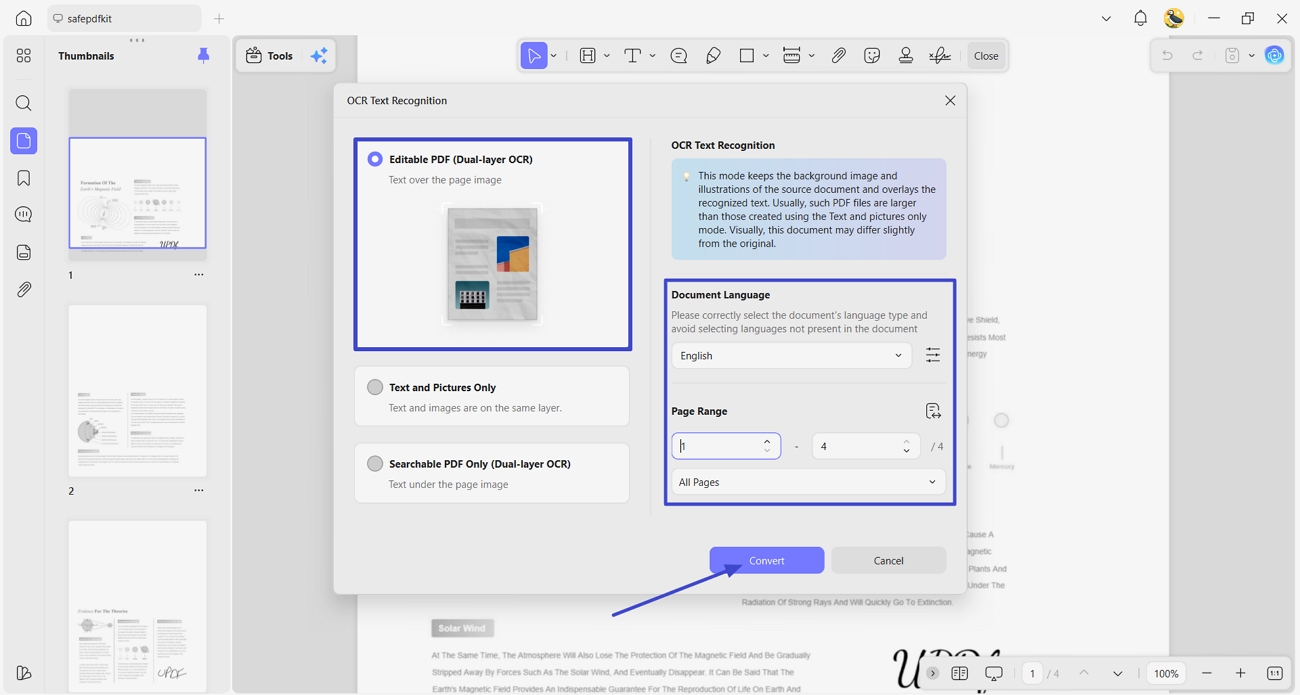
Step 2. Choose OCR Mode and Languages
Next, select the OCR mode and choose accurate languages. Afterward, select the page range to OCR and click the “Convert” button.
Step 3. Review the OCRed File
Once the OCRed file opens automatically, select the text to verify if it is properly done.
Conclusion
In conclusion, Google Keep OCR is handy for casual captures yet quickly reaches its natural limits. It struggles with larger PDF collections, strict layouts, and users who need organized, reliable archives rather than scattered notes. If you care more about accuracy, layout preservation, batch processing, and AI‑assisted document handling, UPDF is the better long‑term choice.
Windows • macOS • iOS • Android 100% secure





 Delia Meyer
 Lizzy Lozano
 Enola Miller
  Engelbert White