 UPDF
UPDF
 UPDF for Windows
 UPDF for Mac
 UPDF for iPhone/iPad
 UPDF for Android
 Nomostar
 UPDF AI Online
 UPDF Sign
 IvyCraft
 Edit PDF
 Annotate PDF
 Create PDF
 PDF Form
 Edit links
 Convert PDF
 OCR
OCR PDF to Word
 PDF to Image
 PDF to Excel
 Organize PDF
 Merge PDF
 Split PDF
 Crop PDF
 Rotate PDF
 Protect PDF
 Sign PDF
 Redact PDF
 Sanitize PDF
 Remove Security
 Read PDF
 UPDF Cloud
 Compress PDF
 Print PDF
 Batch Process
 About UPDF AI
 UPDF AI Solutions
 AI User Guide
 FAQ about UPDF AI
 Summarize PDF
 Translate PDF
 Chat with PDF
 Chat with AI
 Chat with image
 PDF to Mind Map
 Explain PDF
 PDF AI Tools
 Image AI Tools
 AI Chat Tools
 AI Writing Tools
 AI Study Tools
 AI Working Tools
 Other AI Tools
 AI Bookmark Generation
 AI Bookmark Summary
 AI Watermark Generation
 AI Background Generation
 AI Sticker Generation
 AI Stamp Generation
 AI Editing Suite
 UPDF Copilot
 AI Page Management
 AI Semantic Search
 PDF to Word
 PDF to Excel
 PDF to PowerPoint
 Enterprise Solution
 Enterprise Sign
 Enterprise AI
 Enterprise Plan
 Enterprise User Guide
 Enterprise Webinar
 IT
IT Education
 Construction
 Financial Service
 Healthcare
 Insurance
 Legal
Legal Manufacturing
 Government
 Researchers & PhDs
 Solopreneurs & Freelancers
 Lawyers & Legal Professionals
 Real Estate Agents & Brokers
 Education Solution
 Customer Stories
 User Guide
 UPDF Tricks
 FAQs
FAQs UPDF Reviews
 Download Center
 Blog
Blog Newsroom
 Tech Spec
 Updates
 UPDF vs. Adobe Acrobat
 UPDF vs. Foxit
 UPDF vs. PDF Expert

Canva’s AI sticker tools are designed for people who want to generate and use smart stickers, not just “make designs prettier.” Just like Canva invests in AI to turn short text prompts into readytouse stickers inside your designs, UPDF also focuses on AI sticker generation.
In this guide, we explain how Canva AI sticker generator works and how UPDF offers a similar AI sticker creation experience across PDF documents.
Windows • macOS • iOS • Android 100% secure
Part 1. Canva AI Sticker Generator Core Features Overview
Canva Sticker Generator makes sticker design easy for beginners and busy creators who need quick visual content. Its smart tools turn short ideas into polished stickers that work across social media and branding. Let’s explore how the Canva AI sticker generator online works and see its main features.
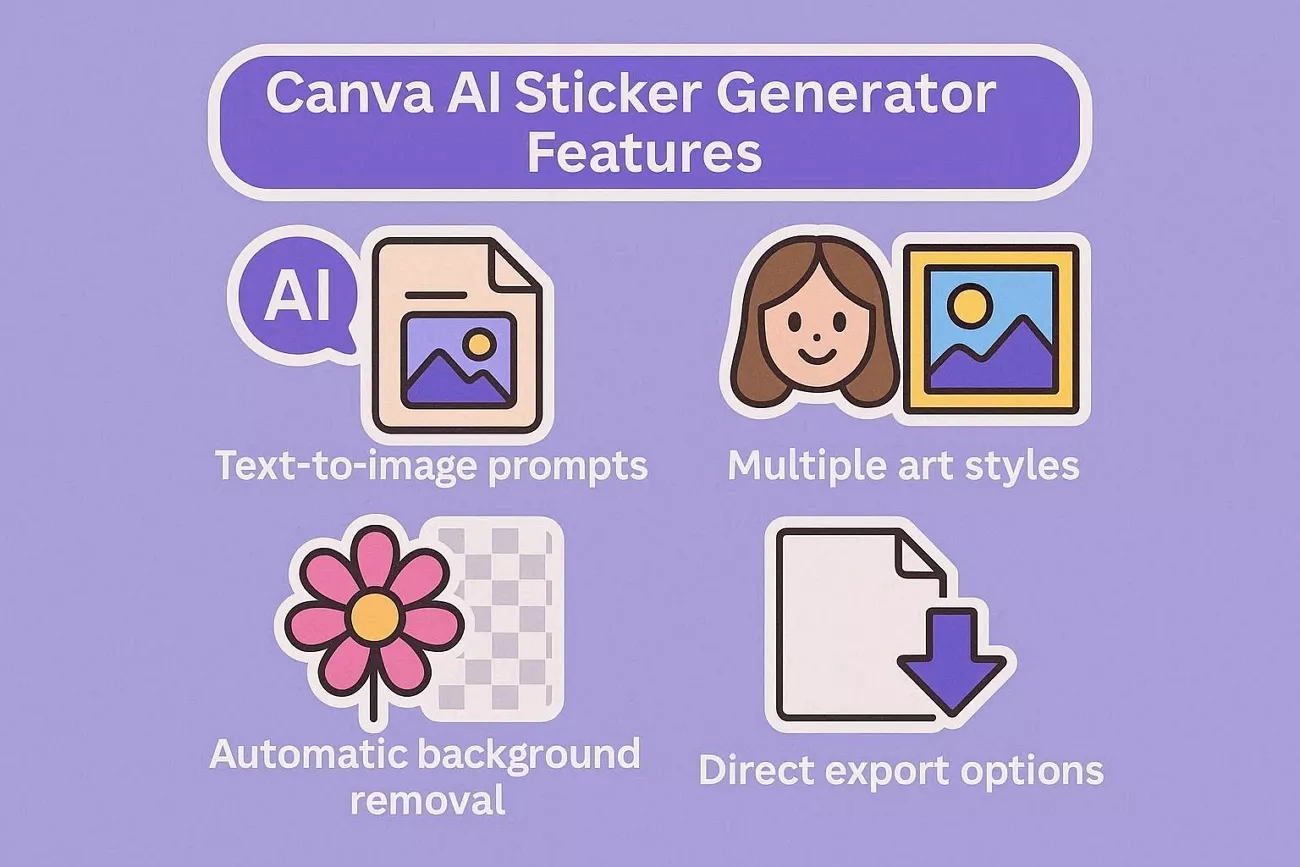
Core Features
- Text-to-Image Prompts: Turn simple descriptions into creative stickers for posts, stories, and casual conversations everywhere.
- Multiple Art Styles: Match your stickers with playful brands, minimal feeds, or fun personal content easily.
- Automatic Background Removal: Create clean, transparent stickers ready for exports, messaging apps, and marketing layouts instantly.
- Direct Export Options: Enable quick downloads or instant use inside Canva designs, saving valuable time for busy creators.
Strengths and Limitations of Canva AI Sticker Generator
Having access to the Canva AI sticker generator free tool gives creators powerful tools, but there are still some important trade-offs:
Pros:
- Helps non-designers create stickers that still look fairly professional.
- Offers multiple visual styles to match different branding and content needs.
- Integrates stickers into Canva projects without extra exporting steps.
- Works in browser and app, reducing the need for separate design software.
Cons:
- Output quality varies, sometimes requiring several generations to get usable stickers.
- Limited fine-tuning controls compared to advanced standalone AI art tools.
- Some styles or assets may require paid plans for full access.
Pricing Overview
For users who create AI stickers, generally a free or a Pro plan works best. Both options support creative workflows, but they suit different habits, project volumes, and branding requirements. Now, look at the table below to see which Canva AI sticker maker plan fits you:
| Plan | Price | Templates & Assets | Cloud Storage Access |
| Free | 0$ | 1.6M+ templates and 4.7M+ assets | 5GB |
| Pro | 120$/year | 3.6M+ templates and 141M+ premium assets | 100GB |
Who Should Choose Which Plan
Now, let’s match each Canva plan to different sticker creation needs:
- Choose Free Plan if: Stickers are something you make now and then for personal chats or small side projects. You want to explore features, practice with prompts, and avoid any recurring subscription payments.
- Choose Pro Plan if: Sticker creation supports your brand, marketing campaigns, or client work across several platforms. You prioritize consistent visuals, smoother workflows, and are willing to invest in reliable creative tools.
Part 2. Can I Make Stickers on Canva?
Yes, you can design custom AI stickers using simple prompts on Canva. Let’s explore how these AI sticker options work in real examples so you understand each step clearly.
Test 1: Simple Prompt vs. Detailed Prompt
Simple and detailed prompts provide very different results in Canva’s AI sticker tool. Let’s explore what differences you can see between these prompts when you generate cat stickers.
Simple Prompt
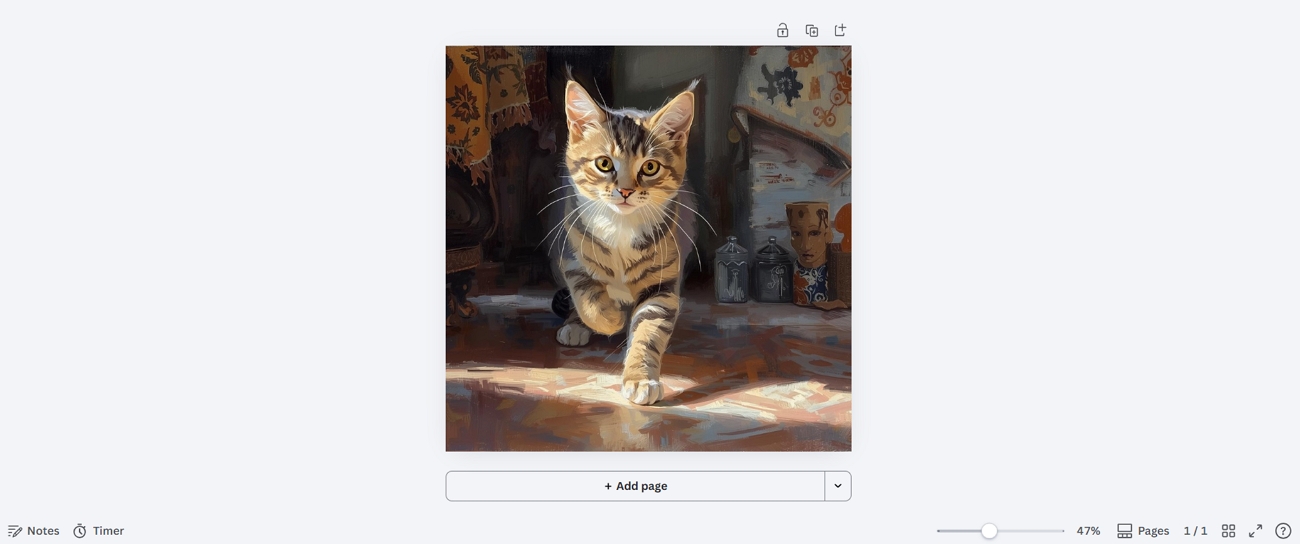
During testing, the simple “A cat” prompt still produced an impressive, charming painting-style sticker. The result looked clean, colorful, and expressive enough for casual messages, stories, or fun social posts.
Detailed Prompt
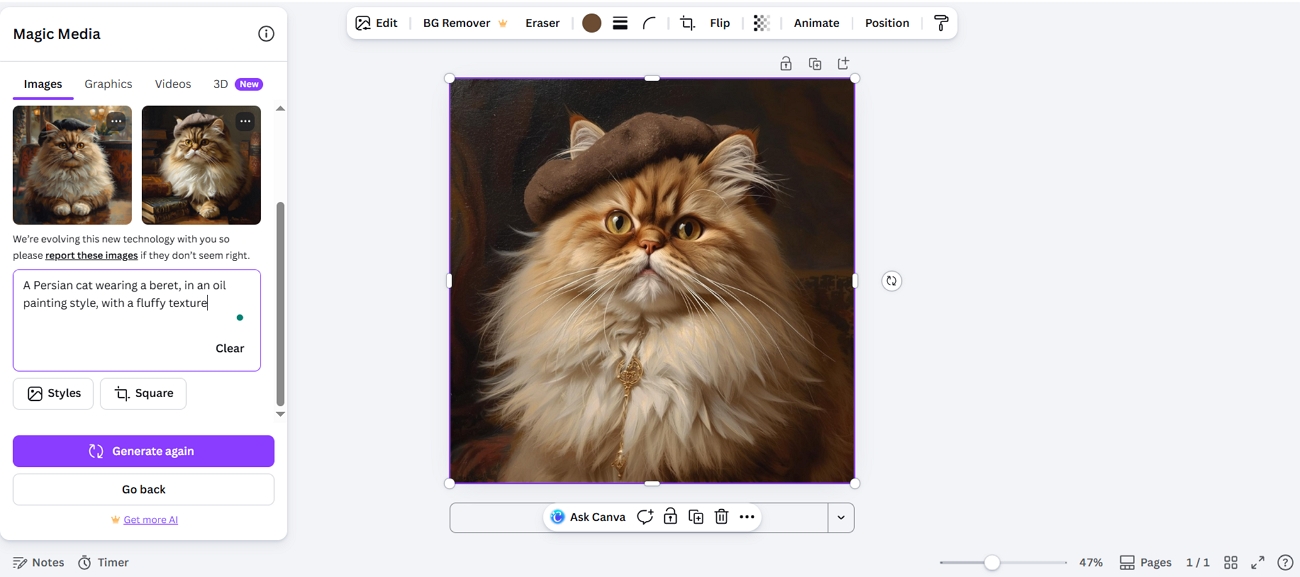
For the detailed prompt, the AI followed instructions, adding the Persian breed and beret. The cat sticker showed soft, fluffy texture and painterly brushstrokes that matched the requested artistic look. Overall, the detailed description produced a sticker that felt intentional, specific, and close to your exact vision.
Test 2: Comparison of Different Styles
Different sticker creator styles give each design a unique tone, mood, and overall feeling. Let’s explore three popular options and see how Canva AI sticker outputs change with each style.
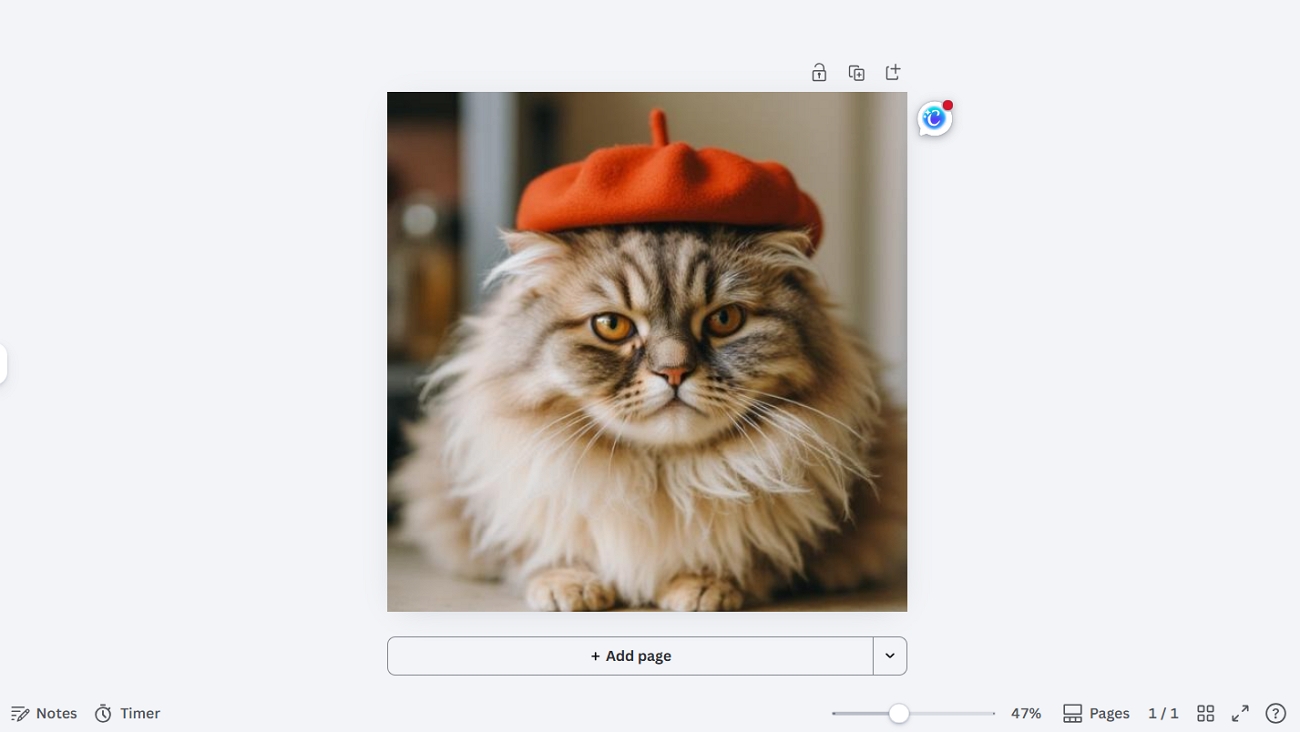
1. Filmic Style: This style adds cinematic lighting and soft shading, making the cat feel like a movie frame. It is generated by choosing a filmic or dramatic option, which boosts contrast and atmosphere automatically.
2. 3D Model: The cat appears rounded, shaded, and dimensional, almost like a small digital figurine or toy. Canva creates this look by applying 3D-style rendering, adding highlights and depth to the sticker.
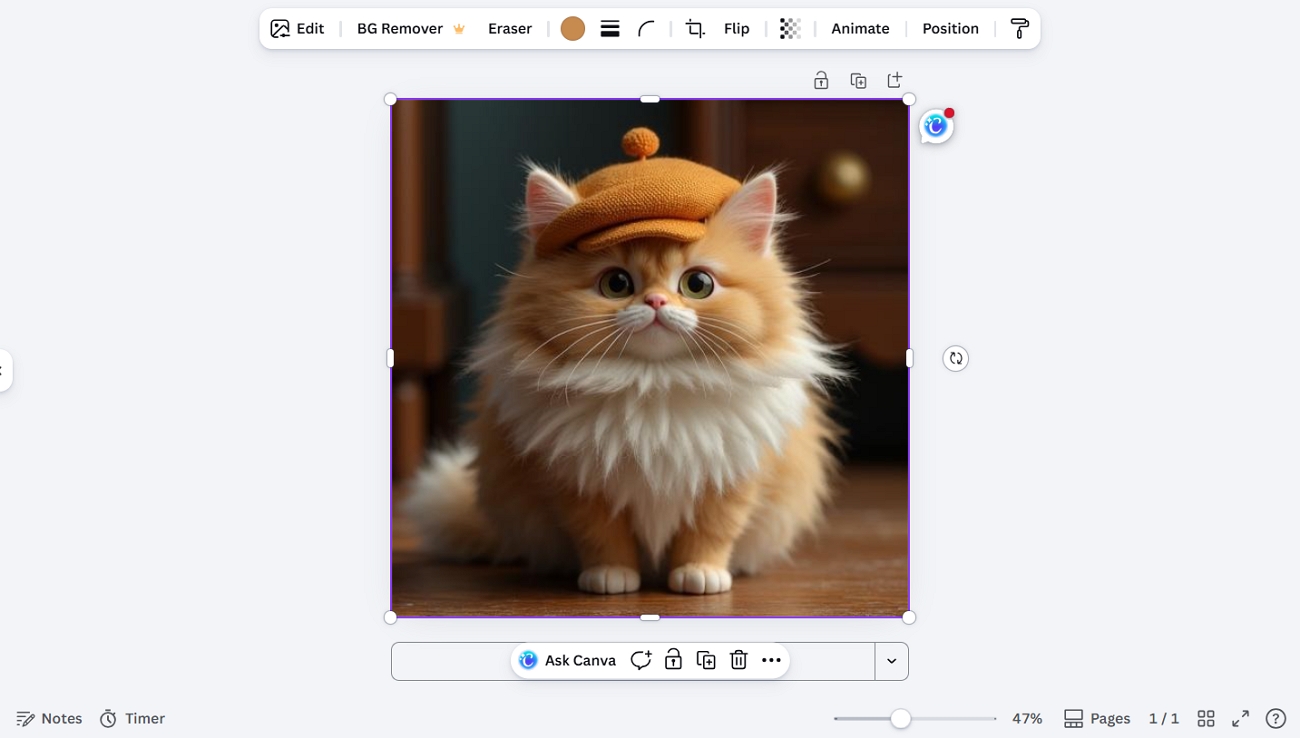
3. Anime: Large expressive eyes, clean lines, and bright colors give the cat a playful anime charm. This style comes from selecting anime options, which adjust proportions and colors for a stylized character feel.
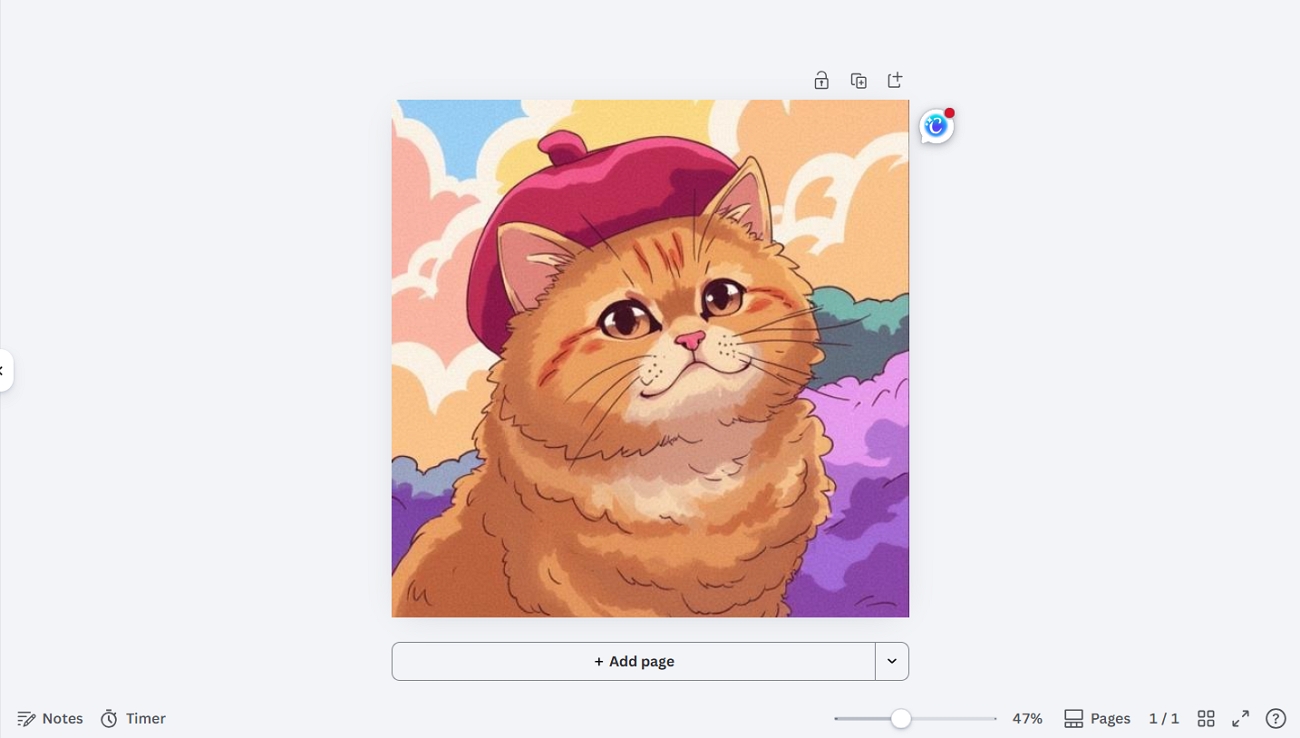
Test 3: Sticker Features
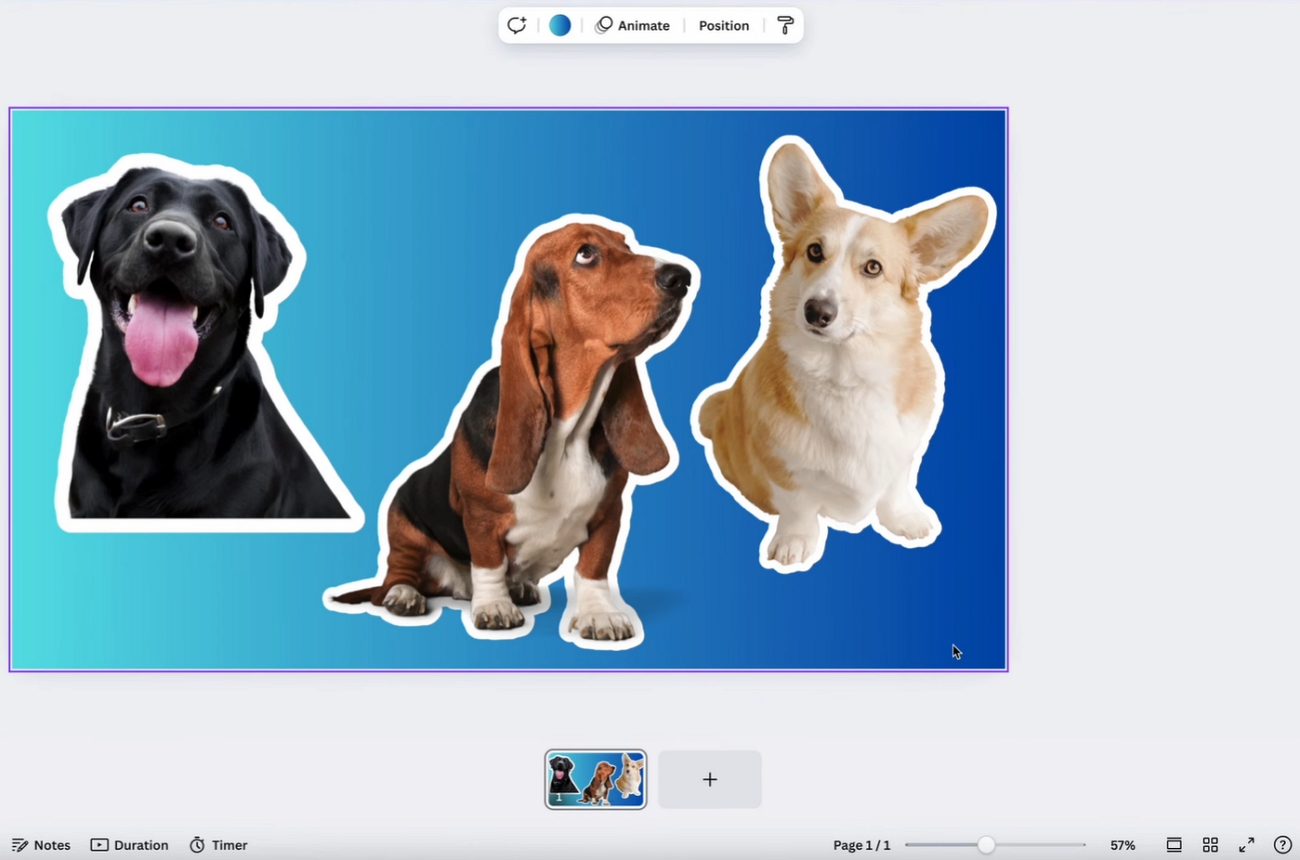
Its outline feature adds a clear border around your sticker to help it stand out on busy backgrounds. This simple effect makes the design feel like a real sticker you see in chats. When combined with other edits, it keeps the main subject readable in different layouts.
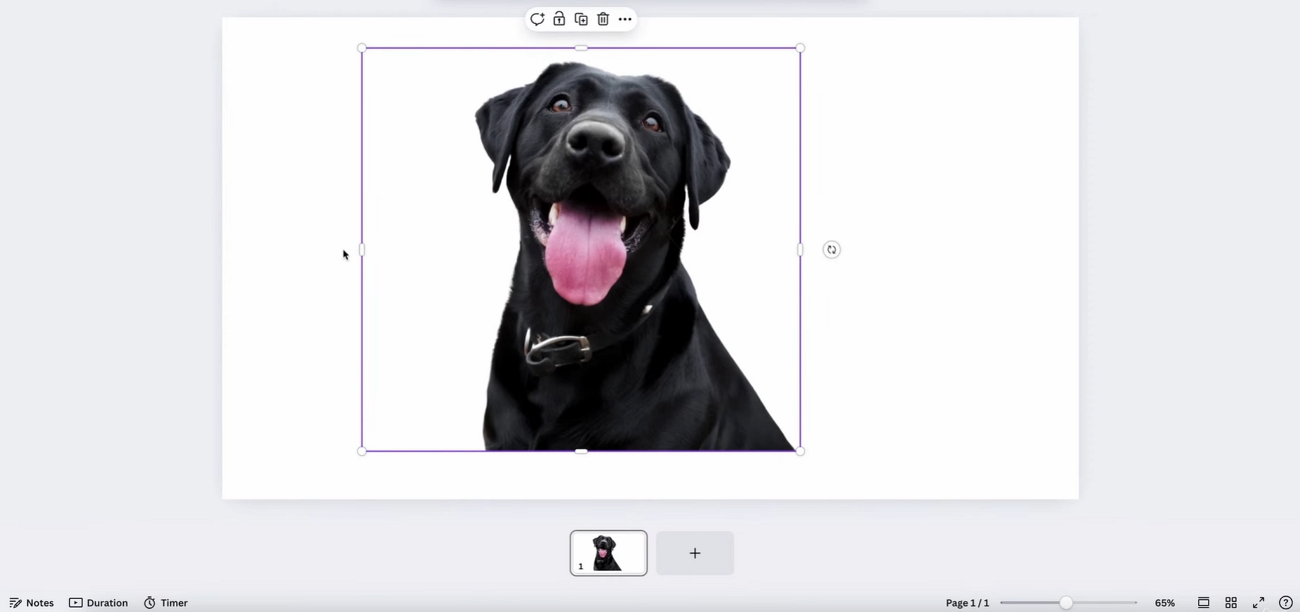
The transparent background feature removes any solid color behind your sticker, leaving only the main shape visible. This makes it easy to place your sticker on photos and PDFs without awkward boxes. Together, outline and transparency turn a normal AI image into a flexible sticker ready for sharing.
Bonus Tip: Can I Make a Sticker for a PDF?
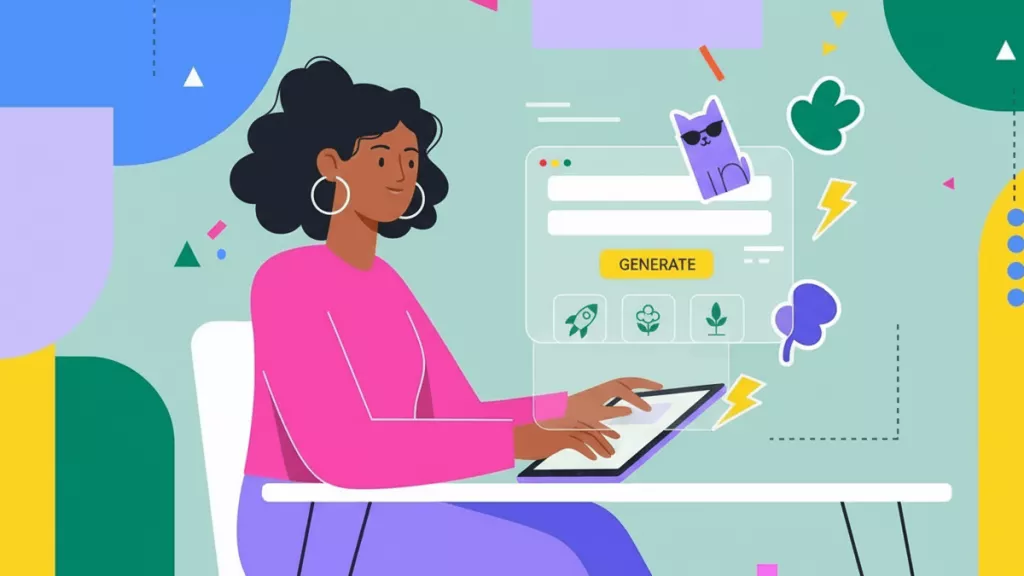
Some readers want more than chat stickers, and they also decorate PDFs for work and study. For PDFs, UPDF supports this need by allowing users to place creative stickers directly onto documents.
You can type a short description, and the AI produces stickers that match your notes and reports. Everything stays inside one tool, so you can resize, move, duplicate, and reuse stickers across multiple PDFs easily.
Windows • macOS • iOS • Android 100% secure
To see how UPDF works and is more flexible than the Canva AI sticker maker, follow the simple steps below:
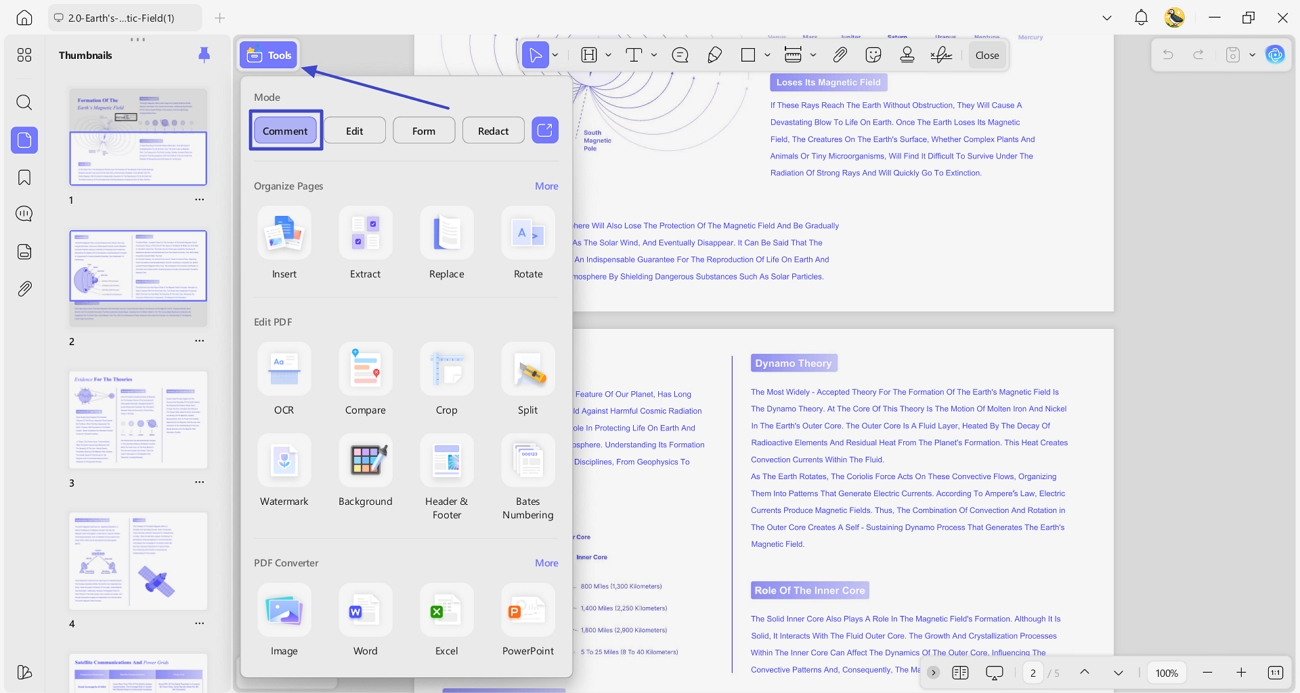
Step 1. Import PDF File and Enter Comment Feature
After you import a PDF file, click the “Tools” option and press the “Comment” tool to enter the interface.
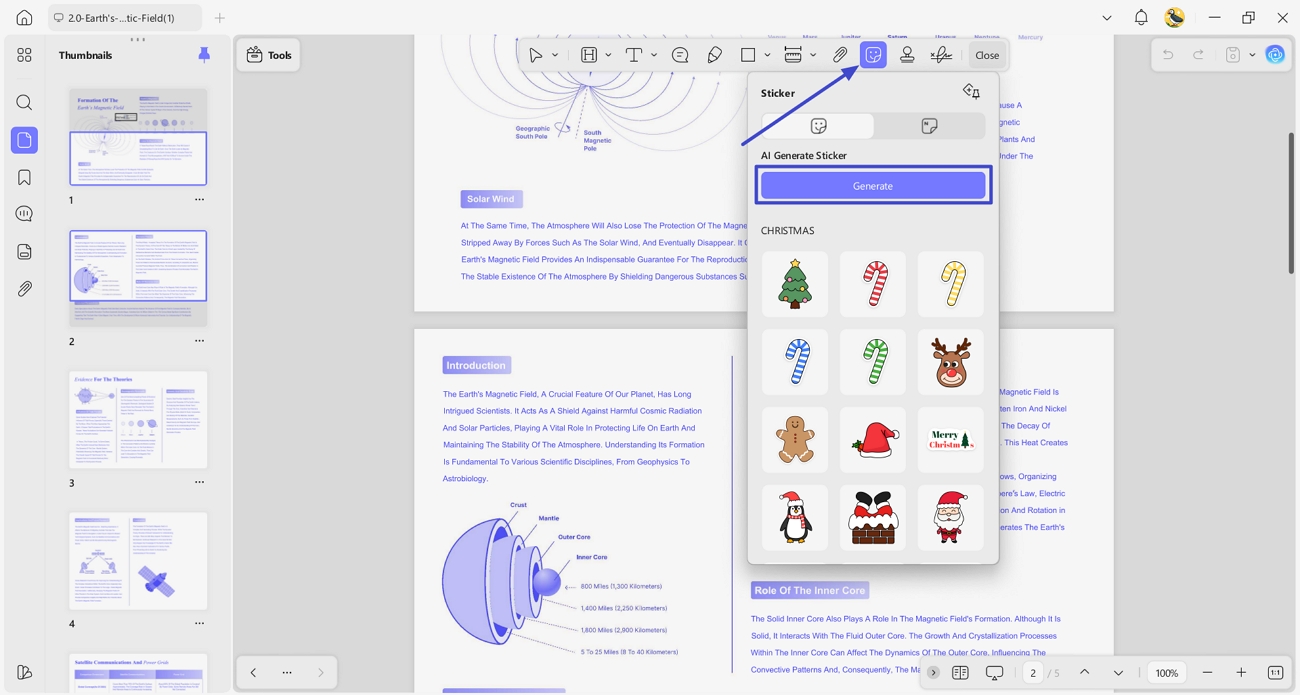
Step 2. Select Sticker Annotation Tool
Upon entering the interface, click the “Sticker” icon and press the “Generate” button to create custom stickers.
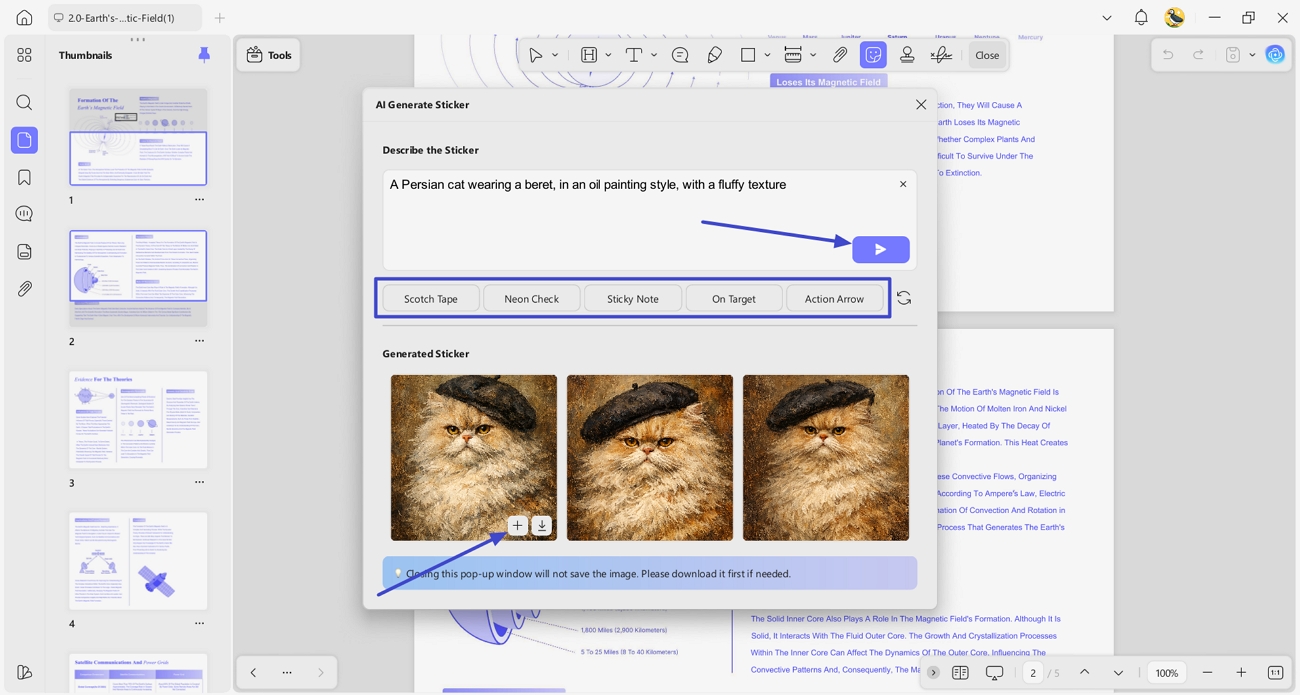
Step 3. Enter Sticker Description
Next, enter the sticker description or select a “Keyword” to auto-generate prompts. Afterwards, press the “Send” button and get 3 high-quality stickers. After that, press the “Add” icon to add the sticker to the PDF.
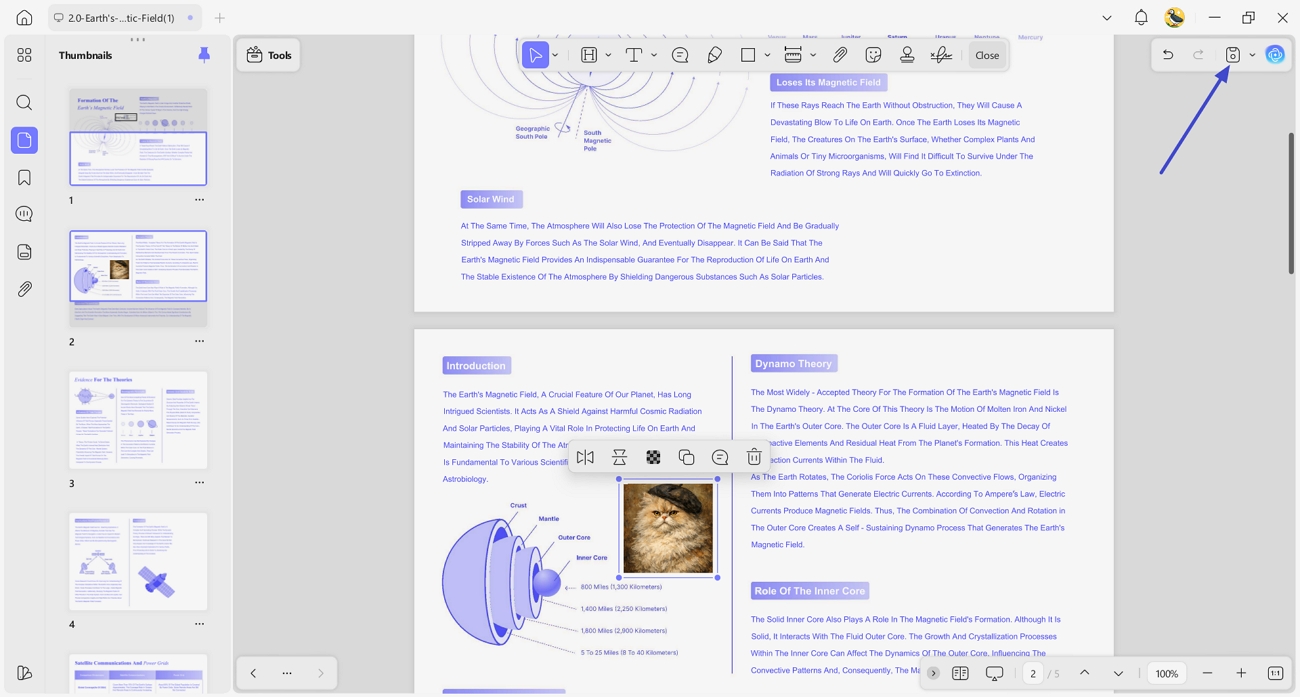
Step 4. Use the Generated Sticker on the PDF and Save
Lastly, click anywhere on the PDF page to use the generated sticker and press the “Save” icon to save the PDF.
Conclusion
In conclusion, the Canva AI sticker generator makes custom sticker creation easier for beginners, marketers, and busy creators. By testing prompts, styles, and sticker features, you can find designs that match your personal or brand identity. If you want to organize documents and decorate PDFs with smart stickers, using UPDF - PDF Sticker Maker to enhance every page is a good choice.
Windows • macOS • iOS • Android 100% secure



 Enola Davis
 Enrica Taylor
 Enya Moore
 Grace Curry
 Engelbert White