 UPDF
UPDF
 UPDF for Windows
 UPDF for Mac
 UPDF for iPhone/iPad
 UPDF for Android
 Nomostar
 UPDF AI Online
 UPDF Sign
 IvyCraft
 Edit PDF
 Annotate PDF
 Create PDF
 PDF Form
 Edit links
 Convert PDF
 OCR
OCR PDF to Word
 PDF to Image
 PDF to Excel
 Organize PDF
 Merge PDF
 Split PDF
 Crop PDF
 Rotate PDF
 Protect PDF
 Sign PDF
 Redact PDF
 Sanitize PDF
 Remove Security
 Read PDF
 UPDF Cloud
 Compress PDF
 Print PDF
 Batch Process
 About UPDF AI
 UPDF AI Solutions
 AI User Guide
 FAQ about UPDF AI
 Summarize PDF
 Translate PDF
 Chat with PDF
 Chat with AI
 Chat with image
 PDF to Mind Map
 Explain PDF
 PDF AI Tools
 Image AI Tools
 AI Chat Tools
 AI Writing Tools
 AI Study Tools
 AI Working Tools
 Other AI Tools
 AI Bookmark Generation
 AI Bookmark Summary
 AI Watermark Generation
 AI Background Generation
 AI Sticker Generation
 AI Stamp Generation
 AI Editing Suite
 UPDF Copilot
 AI Page Management
 AI Semantic Search
 PDF to Word
 PDF to Excel
 PDF to PowerPoint
 Enterprise Solution
 Enterprise Sign
 Enterprise AI
 Enterprise Plan
 Enterprise User Guide
 Enterprise Webinar
 Banking
 Healthcare
 Insurance
 Legal
Legal Manufacturing
 Government
 Researchers & PhDs
 Solopreneurs & Freelancers
 Lawyers & Legal Professionals
 Real Estate Agents & Brokers
 Education Solution
 Customer Stories
 User Guide
 UPDF Tricks
 FAQs
FAQs UPDF Reviews
 Download Center
 Blog
Blog Newsroom
 Tech Spec
 Updates
 UPDF vs. Adobe Acrobat
 UPDF vs. Foxit
 UPDF vs. PDF Expert

When I work on longer documents, I realize how much repetitive headers can hurt the reading experience. Instead of helping, a single generic header on every page makes it hard for me to separate chapters, sections, or content types. Over time, I tried different methods to control headers and refined my approach until each page’s header could change without breaking consistency
In this article, I share the methods for how to make header different on each page. Later, I also explain how UPDF fits naturally into real document workflows for smoother, more flexible editing.
Windows • macOS • iOS • Android 100% secure
Part 1. How to Make the Header Different on Each Page
Upon changing headers page by page, I realized every tool handles them a little differently. Let’s explore different methods you can use to control each page’s header with precision and keep your document structure clear.
1. Creating Different Headers on Each Page in PDF Files
To work with PDF files, I used UPDF to customize the headers page by page while keeping the layout intact. However, UPDF also allows me to convert all major file formats into PDF and add headers afterwards. Follow the steps below see how you can do this with UPDF:
Step 1. Access Header and Footer Interface
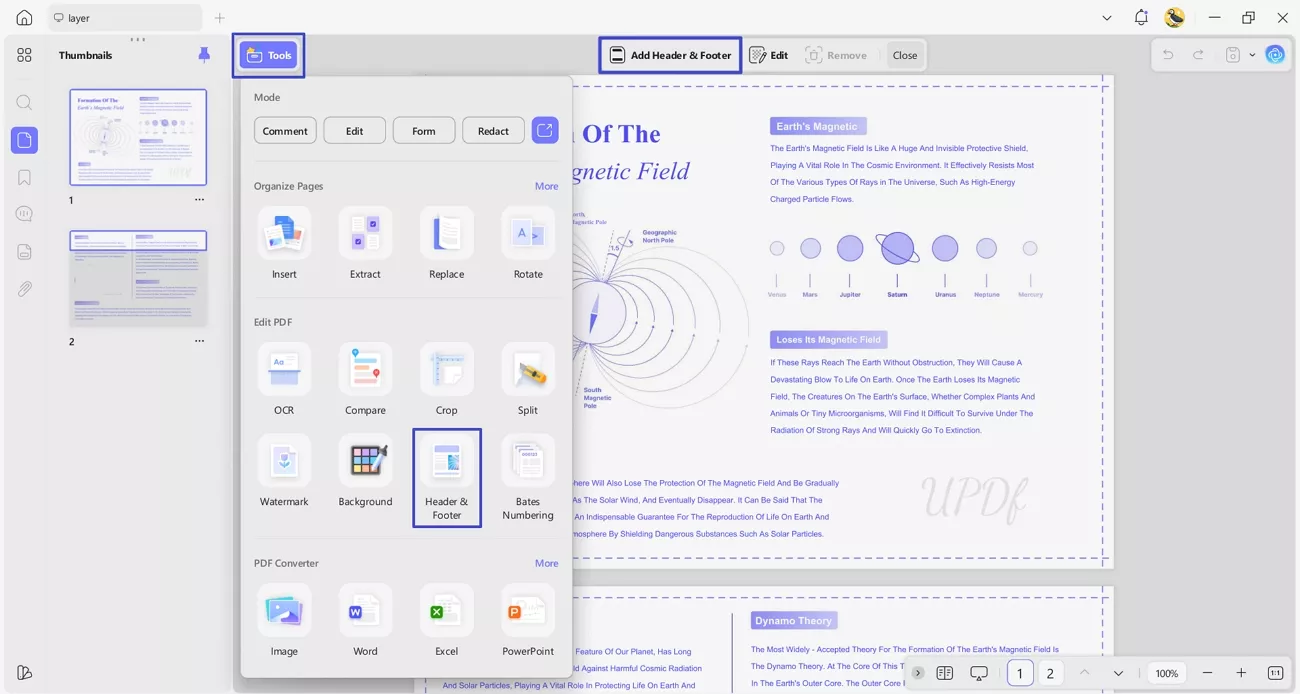
Once you open a PDF file in UPDF, press the “Tools” option and click the “Header & Footer” option. Next, press the “Add Header & Footer” option and choose a header.
Windows • macOS • iOS • Android 100% secure
Step 2. Define Properties of Header
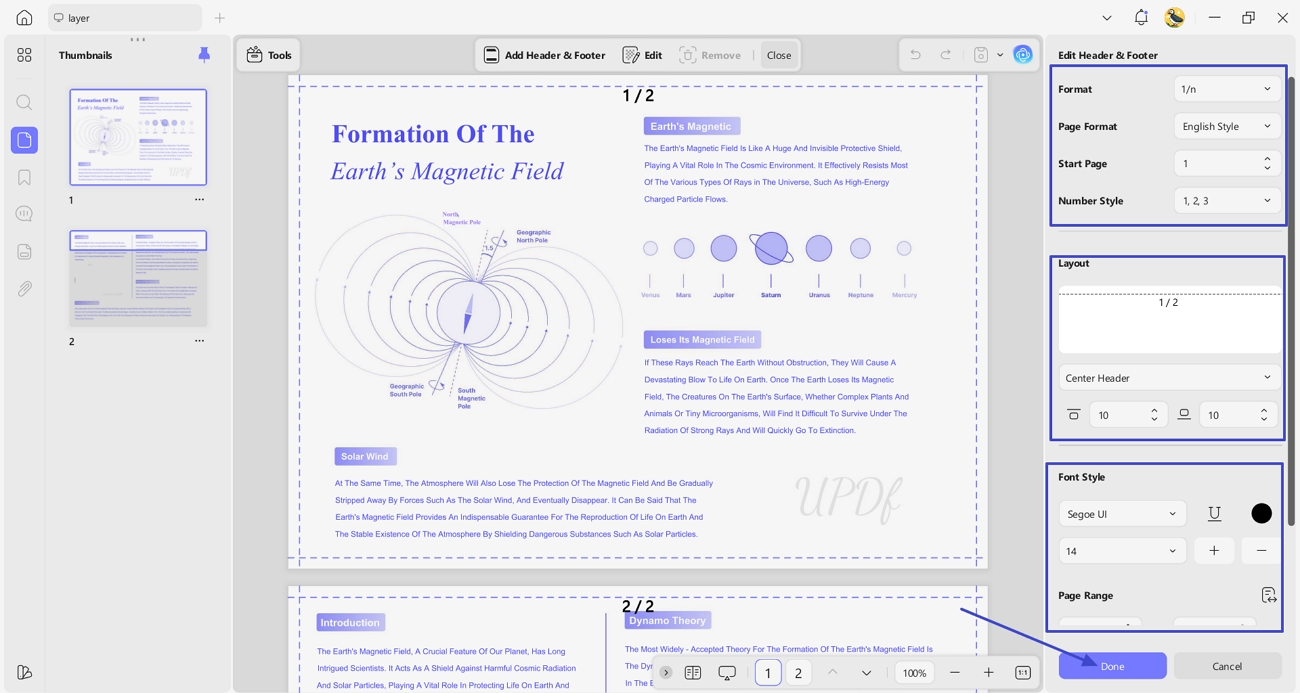
Next, set the “Format”, “Page Format”, “Start Page”, and “Number Style” you want in the headers. Afterwards, set the “Layout”, “Font Style”, and “Page Range” for the header. Once finalized, press the “Done” button to add headers on PDF file.
2. How to Make the Header Different on Each Page in Word?
Now, let’s learn about Word files before diving into how to make header different on each page Google Docs file. Upon exploring, I found two methods, which I have outlined below.
Method 1 - Different First Page
Adhere to the steps below to see how you can make the first page header different:
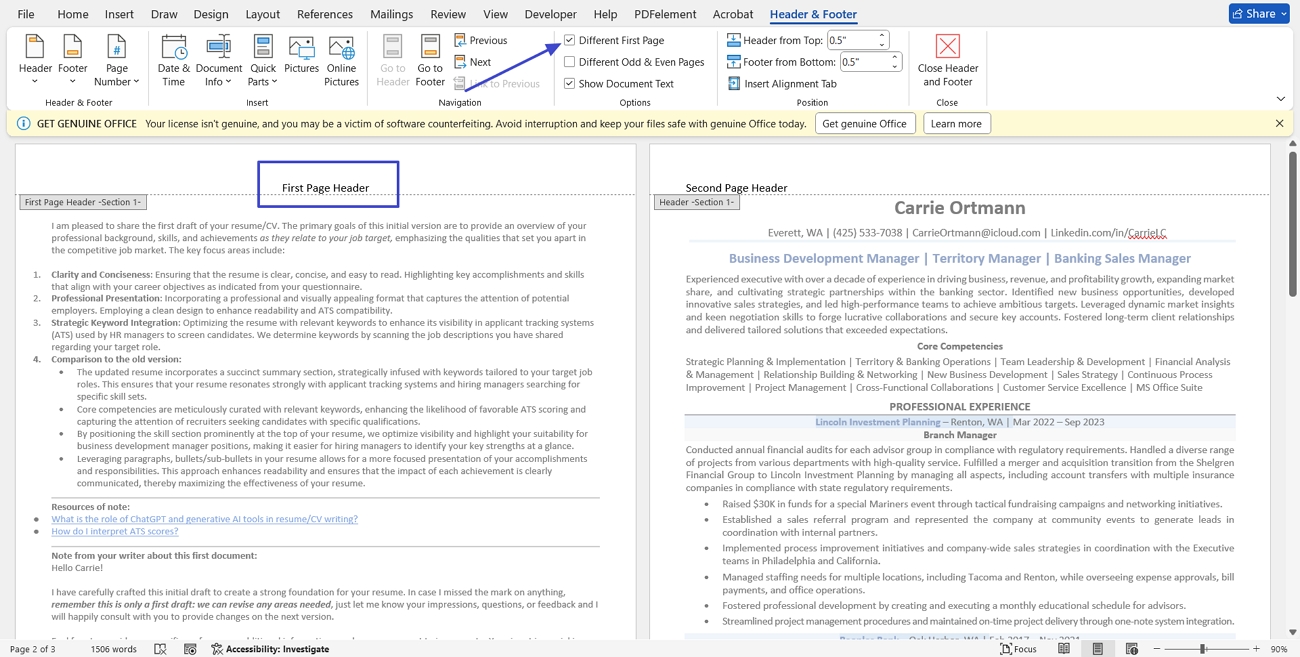
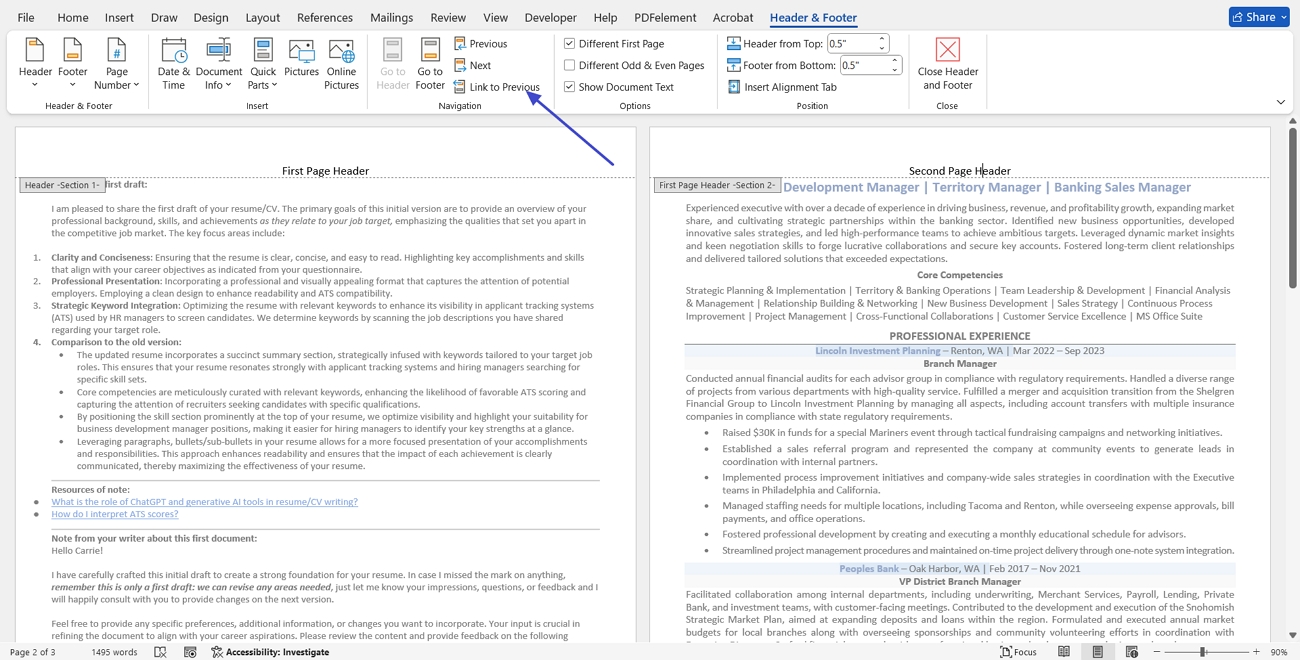
Instructions. First, double-click the header area to activate the header. Next, tick the “Different First Page” option in the “Options” section. Afterwards, you’ll be able to add a different header on the first page of your Word document.
Method 2 - Different Headers on Different Pages/Sections
Now, adhere to the steps below to see how you can assign unique headers to specific pages or sections:
Step 1. Once you open the Word file, click on the top of the second page. Next, press the “Layout” tab, click the “Breaks” option, and use the “Next Page” option in the drop-down menu. Repeat this process for all pages ahead.
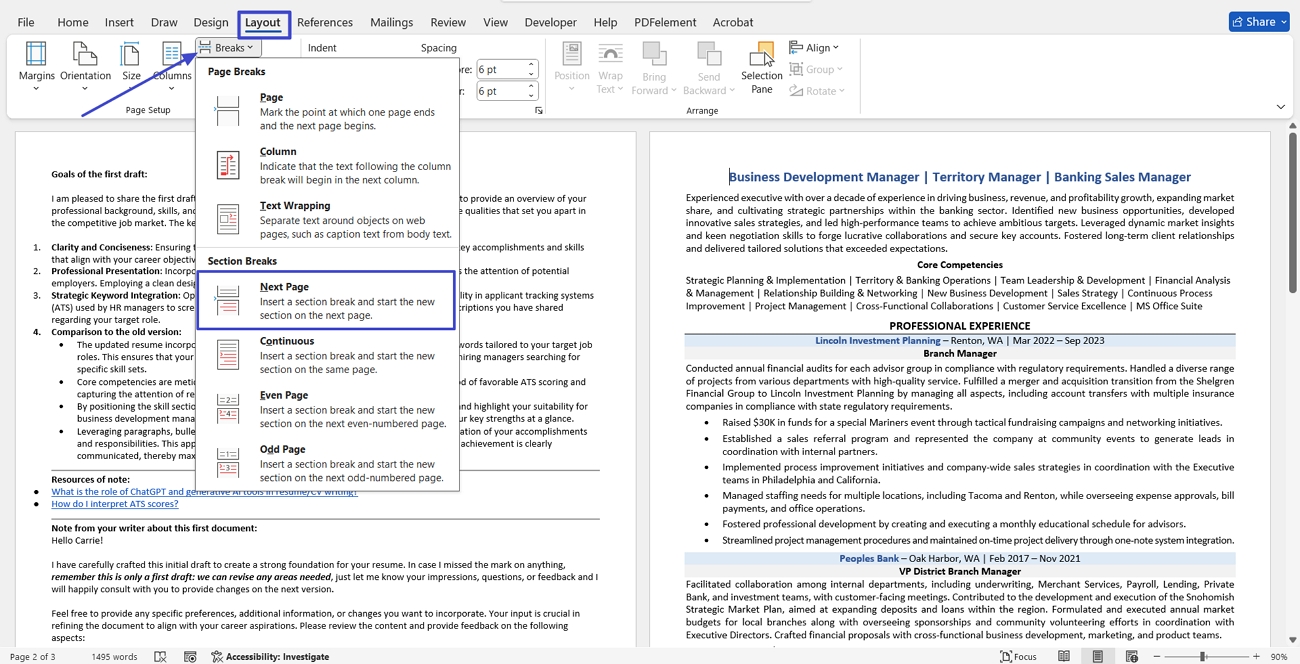
Step 2. Afterwards, activate the header area and disable the “Link to Previous” option to unlink the headers. Repeat this for all pages ahead to make different headers across different pages.
3. How to Make the Header Different on Each Page in Google Docs?
Once you know how to make header different on each page in Word files, many users also enquire about Google Docs. Let’s explore both methods of adding headers in Google Docs.
Method 1 - Different First Page
Follow the instructions below to learn how to create a different header on the first page in Google Docs:
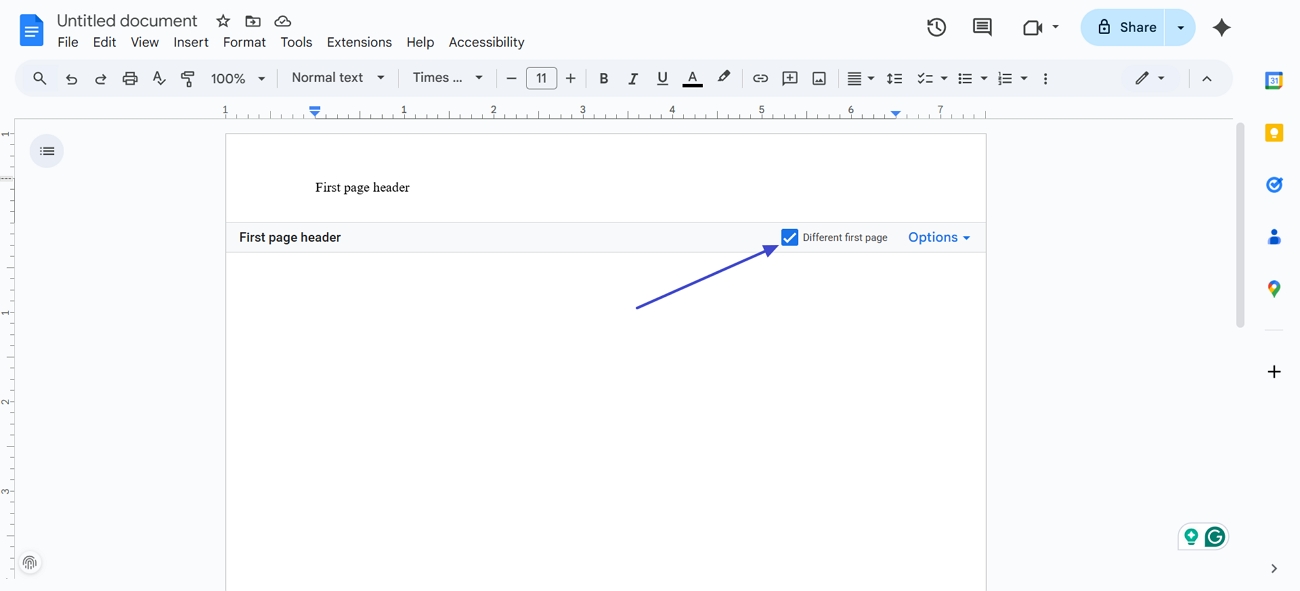
Instructions. After opening a new document, double-click the header area to activate it. Next, tick the “Different First Page” option and enter the text in the first page header.
Method 2 - Different Headers on Different Pages/Sections
Afterwards, go through the steps below to create different headers across different pages:
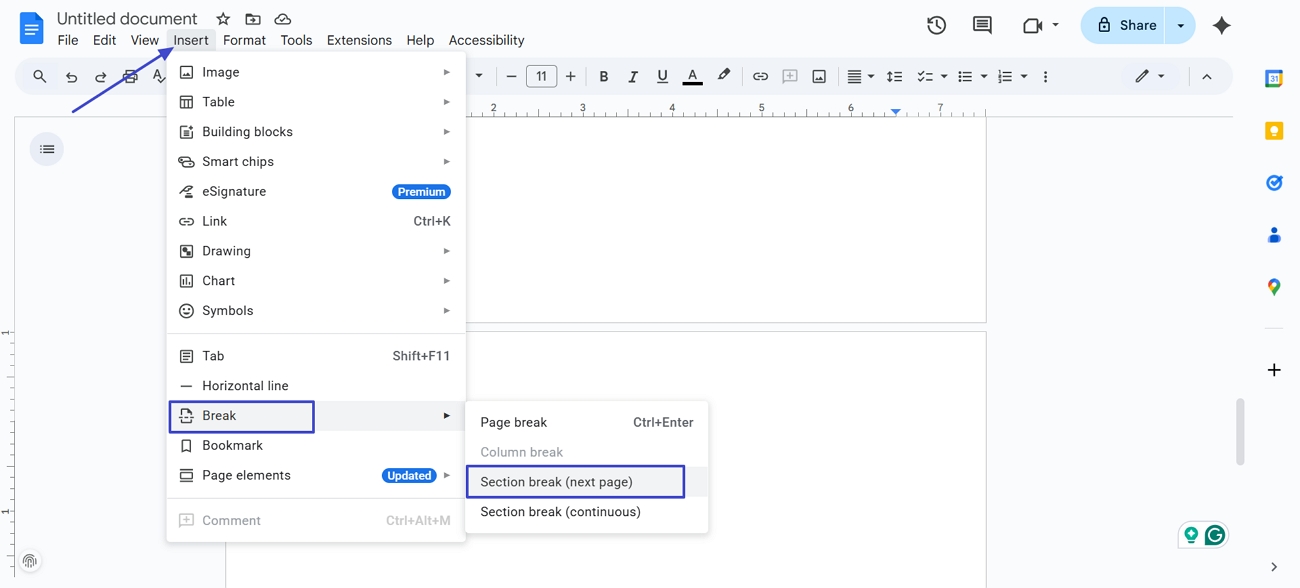
Step 1. First, click on the top of the page where you want to start a new section. Next, press the “Insert” option and hover your mouse over the “Break” option. Afterwards, choose the “Section Break (Next Page)” option.
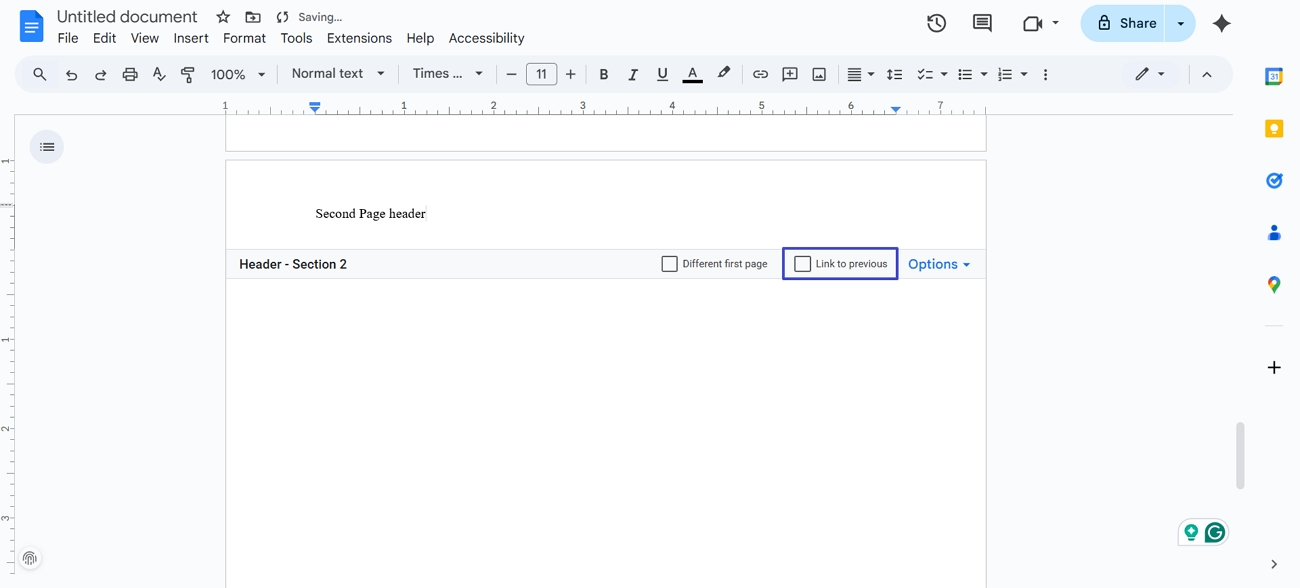
Step 2. Next, activate the header area and uncheck the “Link to Previous” option. After that, write the content in the header and repeat this procedure for every page ahead.
4. How do I Put Different Headers on Each Page in Excel?
When I started experimenting with page layouts in spreadsheets, I noticed Excel handles page-based headers a bit differently. Below, I will explore both methods you can use so you can choose what fits best.
Method 1 - Different Header on The First Page
Adhere to the instructions below to create a different header on the first page of the Excel file:
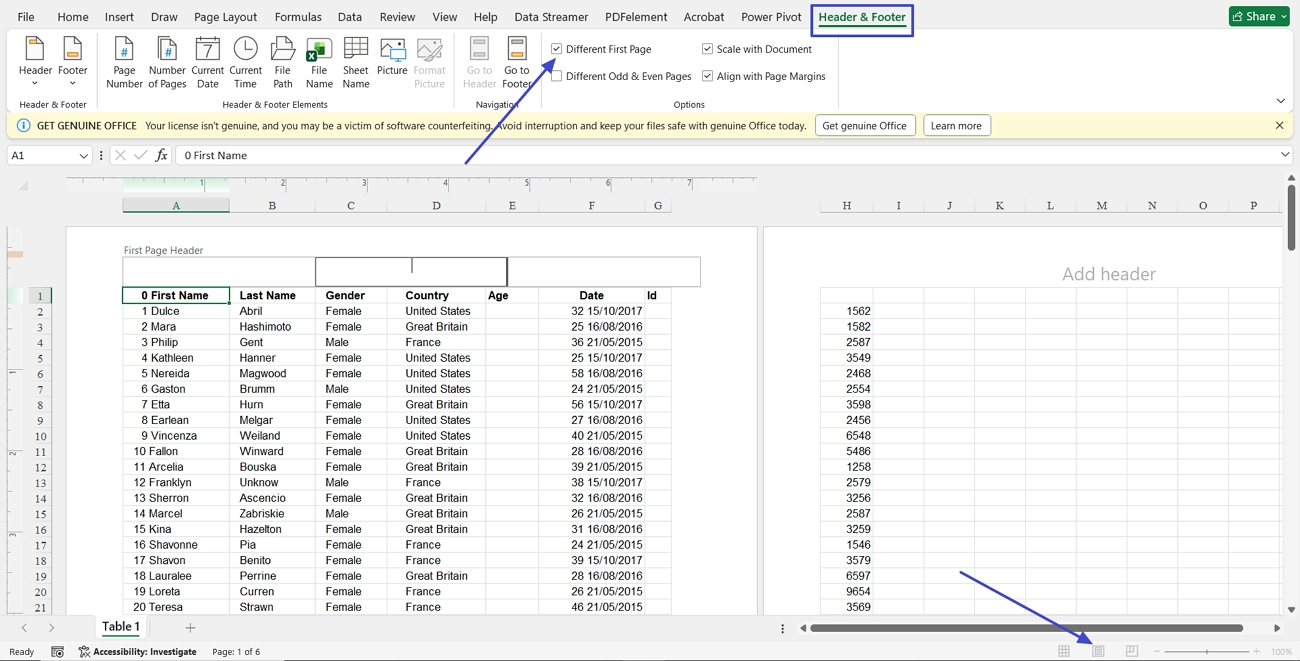
Instructions. Once you open the Excel file, switch to the Page Layout by clicking the “Page Layout” icon below. Next, press the “Header & Footer” tab and check the “Different First Page” option. This way you’ll be able to add different header on the first Excel page.
Method 2 - Different Headers on Different Pages
Follow the guidelines below to apply separate headers to individual pages throughout your Excel file:
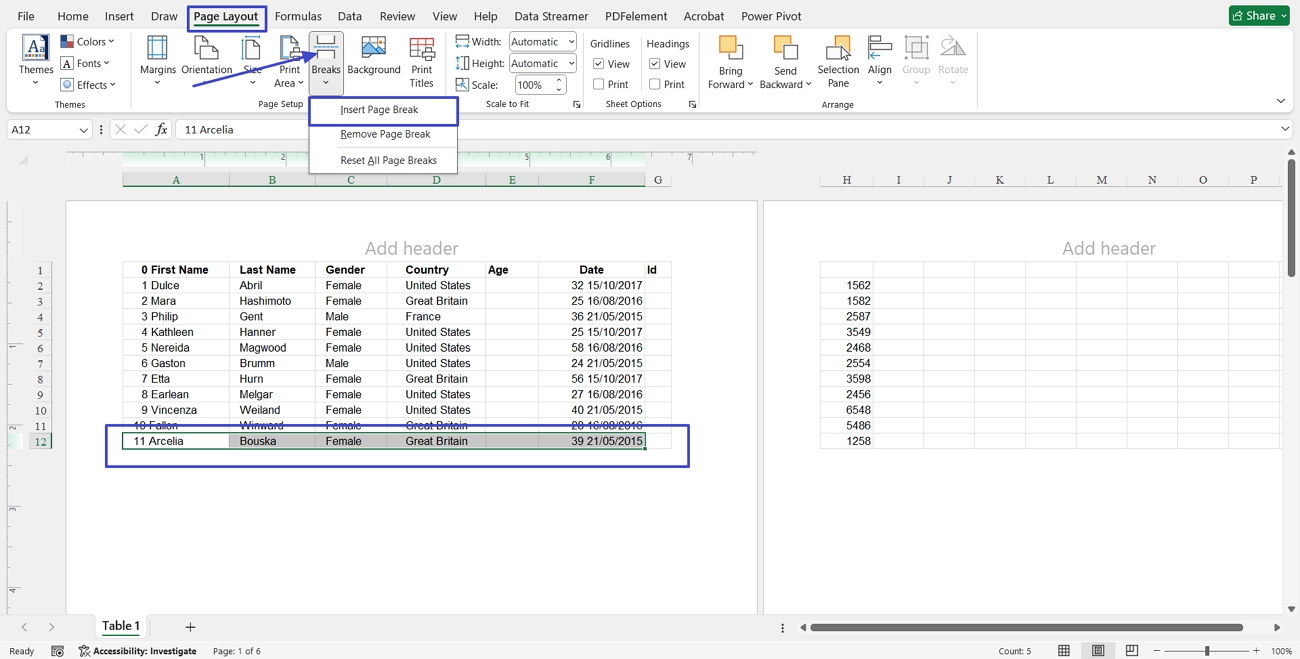
Step 1. First, select the row where you want to separate the section and press the “Page Layout” tab. Next, press the “Break” option and click the “Insert Page Break” option to add a page break. Repeat this process until all needed rows are separated.
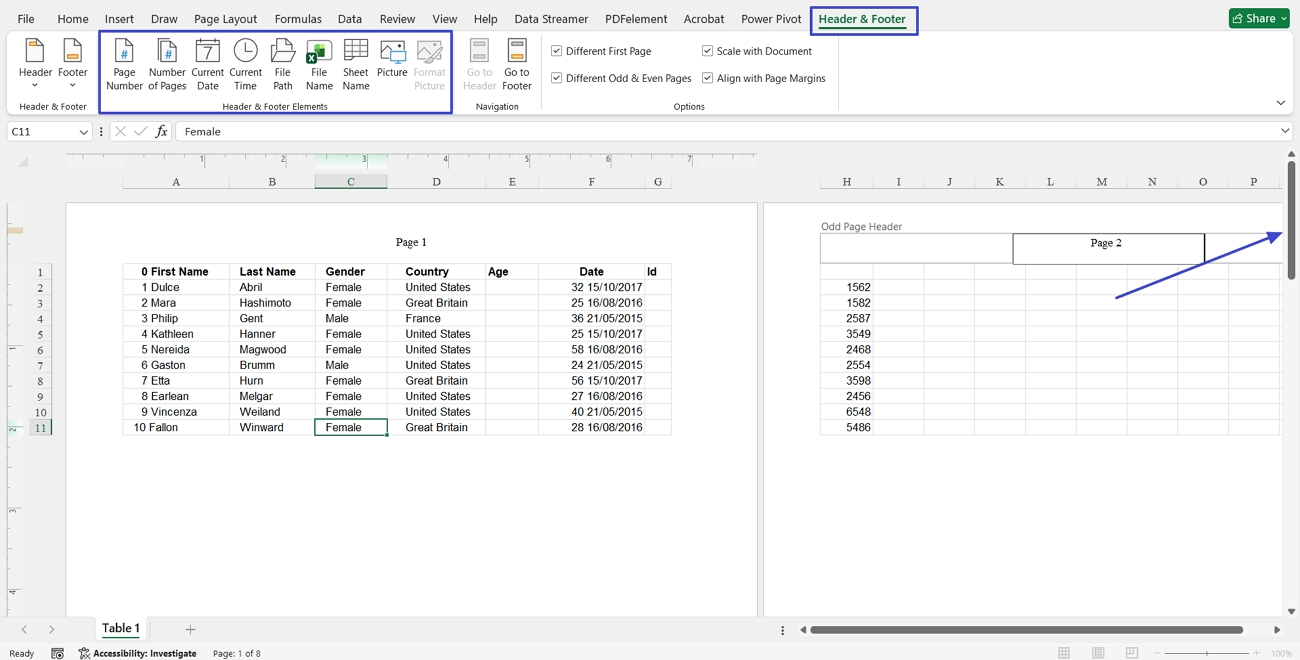
Step 2. Next, press the “Header & Footer” tab and add different headers. Use the “Page Number” or “Current Date” options in the “Elements” section if needed. Use the “Scroll” option carefully to scroll down or up to add headers.
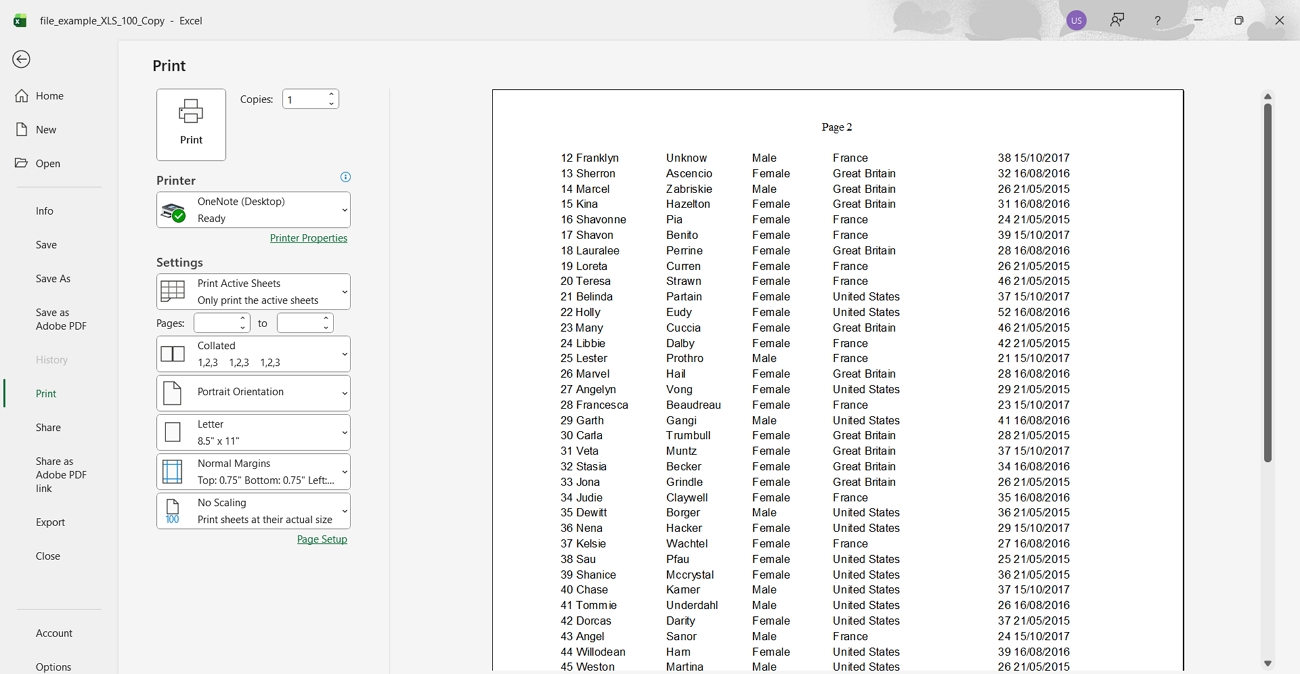
Step 3. Lastly, press the “Ctrl + P” keys to open the Print interface and verify that every page has a different header.
5. How do I Add Different Headers on Each Page in PowerPoint?
After learning how to make header different on each page Google Docs, I wanted the same control in my presentations too. Go through the steps below to learn how you can change the header on each page in PowerPoint:
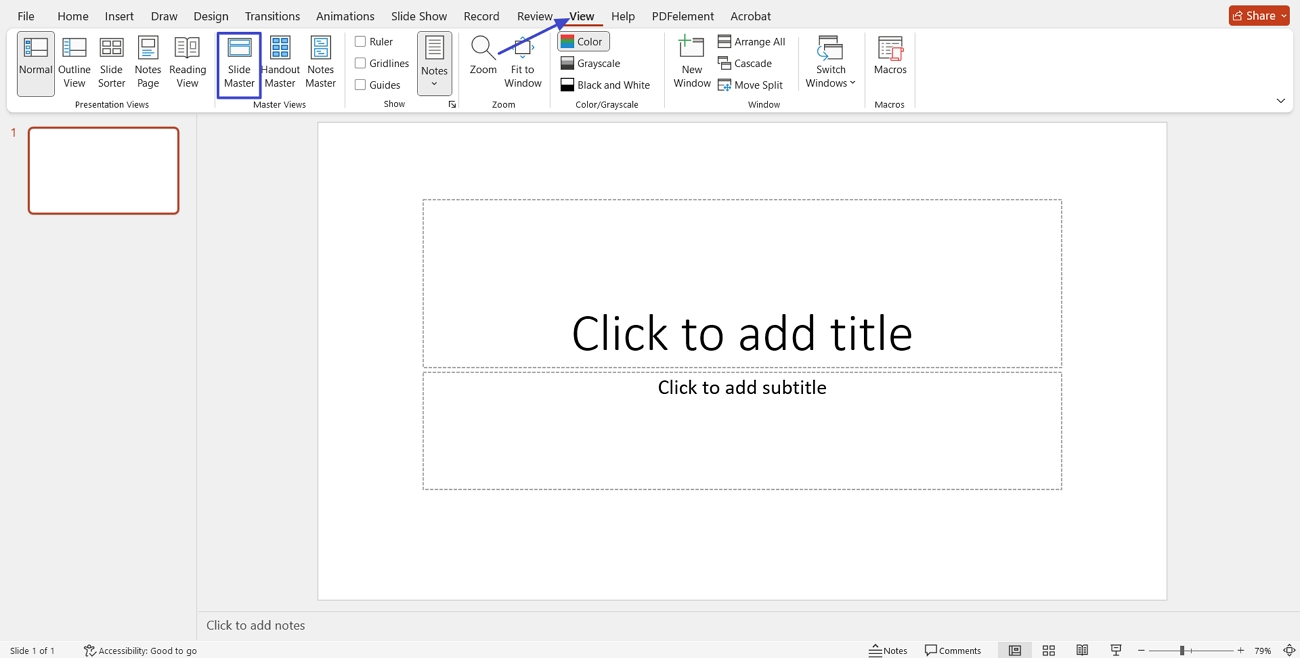
Step 1. Once you open a PPT file, press the “View” and click the “Slide Master” option.
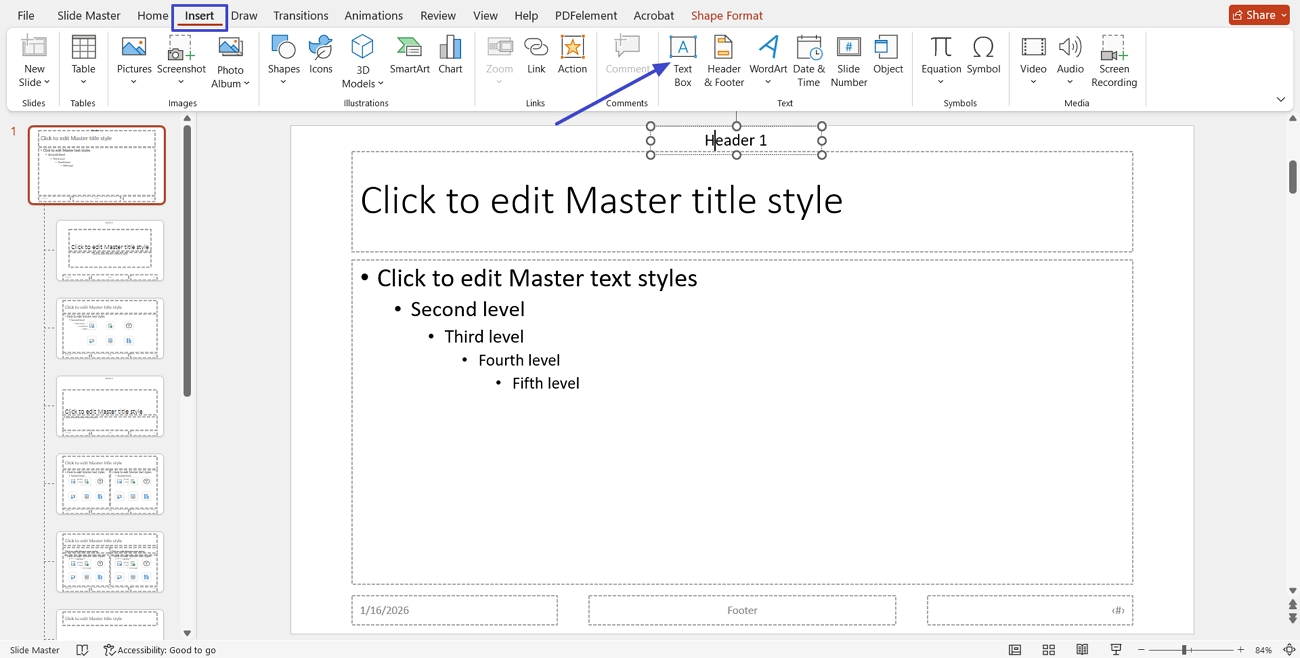
Step 2. Next, press the “Insert” tab and click the “Text Box” option to add a text box and write text for the header.
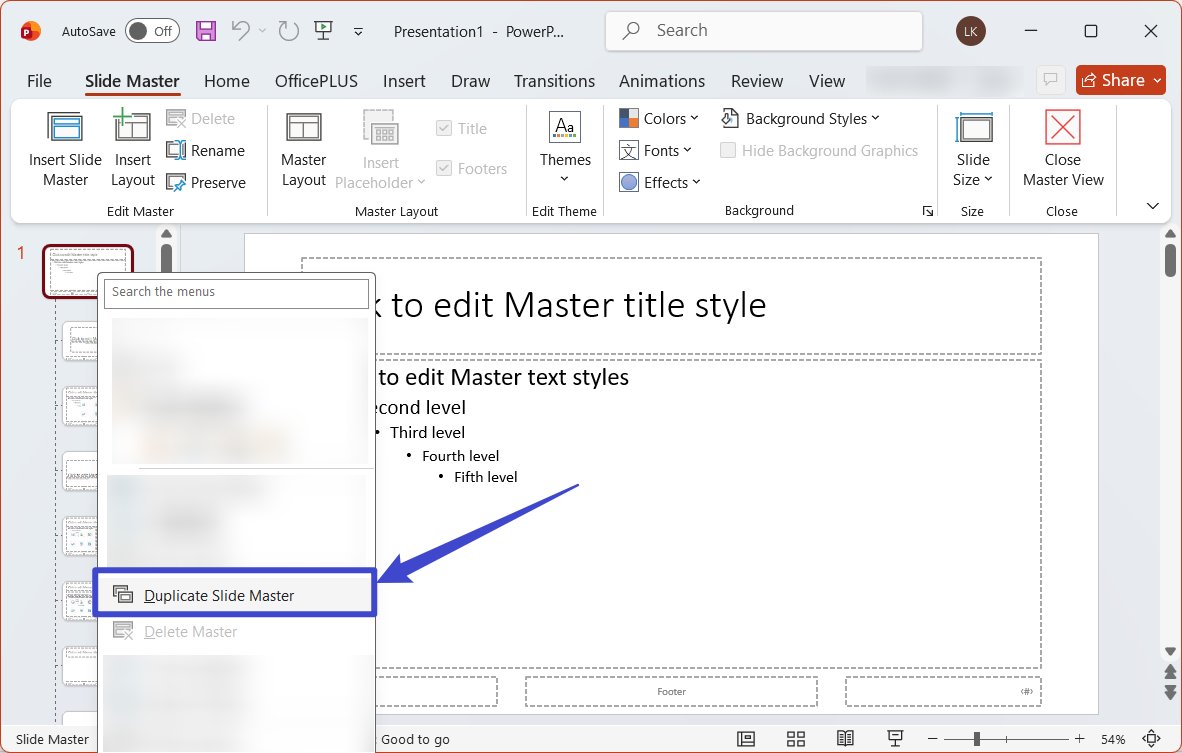
Step 3. Afterwards, click the “Slide Master” tab and right-click the first master layout, then select “Duplicate Slide Master” to create a copy of the slide master.
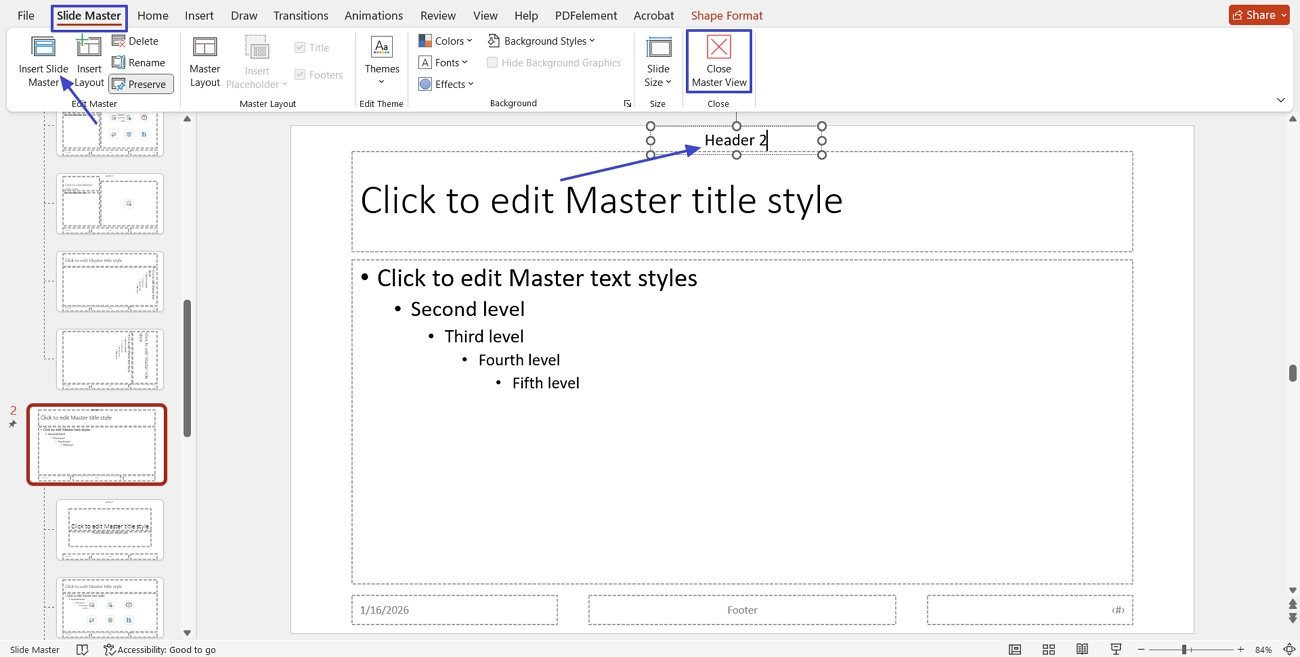
Step 4. This will also duplicate its header, which you can then change to “Header 2.” Finally, click “Close Master View.”
Step 5. Next, press the “New Slide” option and insert a new slide from the “Custom Design” section that you just created. This way, you’ll see different headers on each slide.
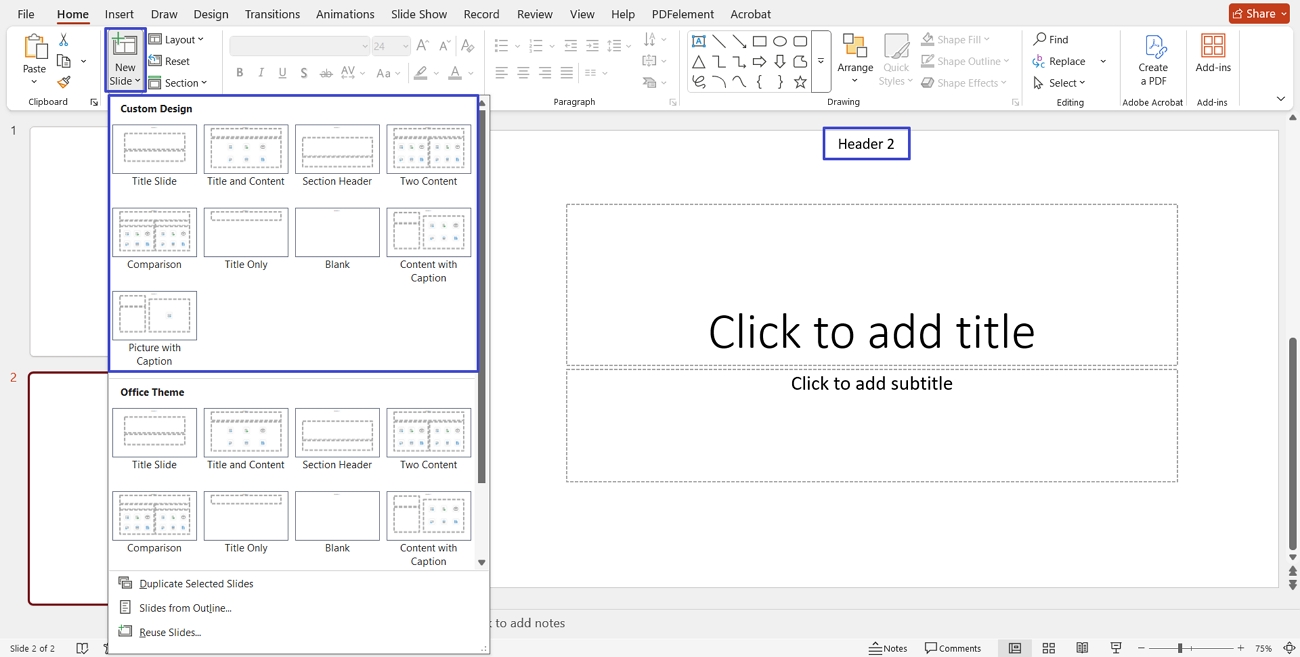
This way, you’ll see different headers on each slide.
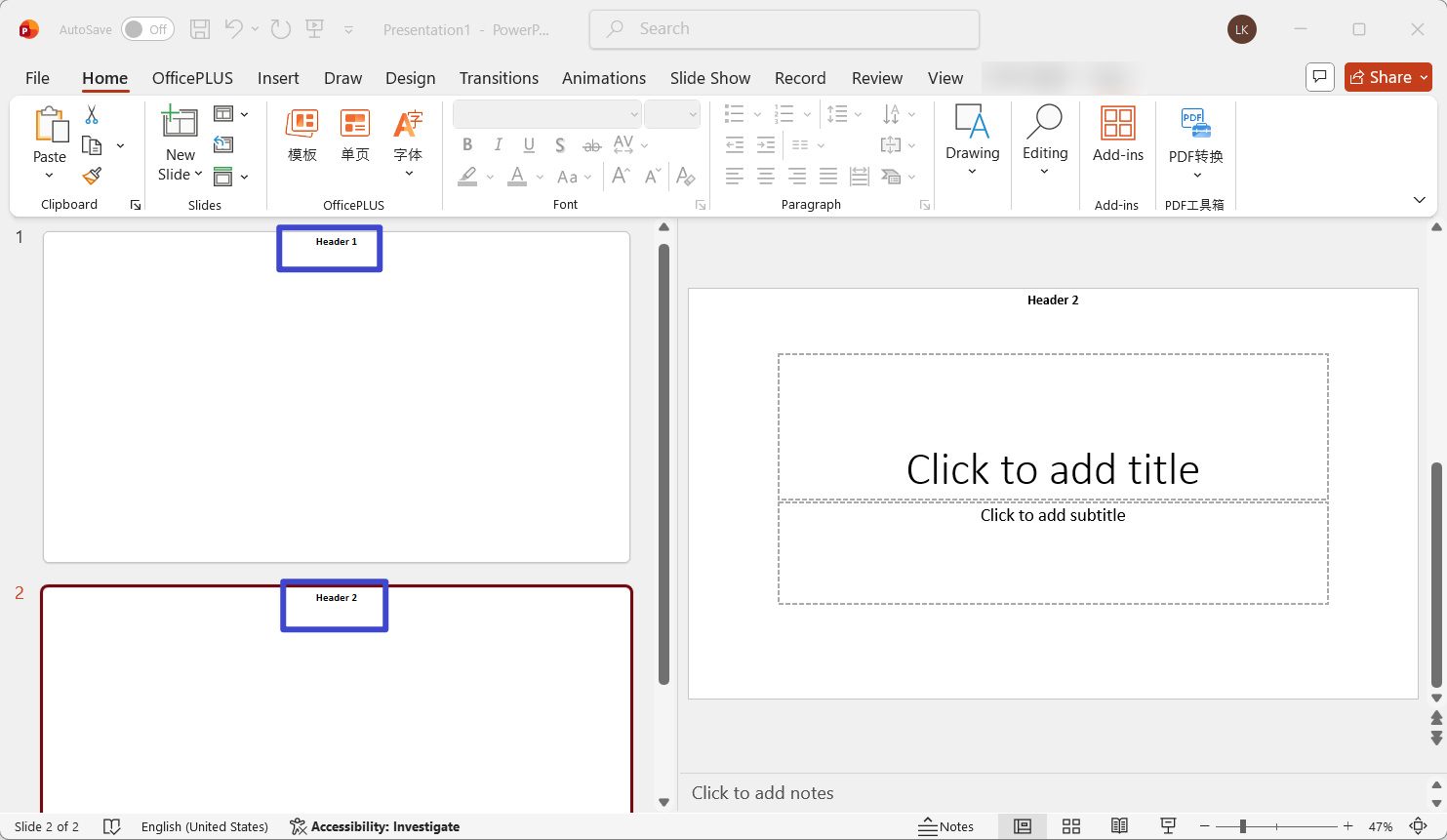
Part 2. No More Switching Software: How to Batch Add Headers and Footers to Multiple Files At Once With UPDF
When I need to apply the same header or footer across many documents, doing it one file at a time feels repetitive and inefficient. Switching between Word, Excel, PowerPoint, and PDF tools only slows the workflow and increases the chance of mistakes. UPDF solves this problem with its batch header and footer feature, allowing me to add consistent headers and footers to multiple files.
I drag and drop multiple files, convert them into PDFs, and apply headers across all pages in one step. Now, follow the steps below to see how to make header different on each page for multiple files:
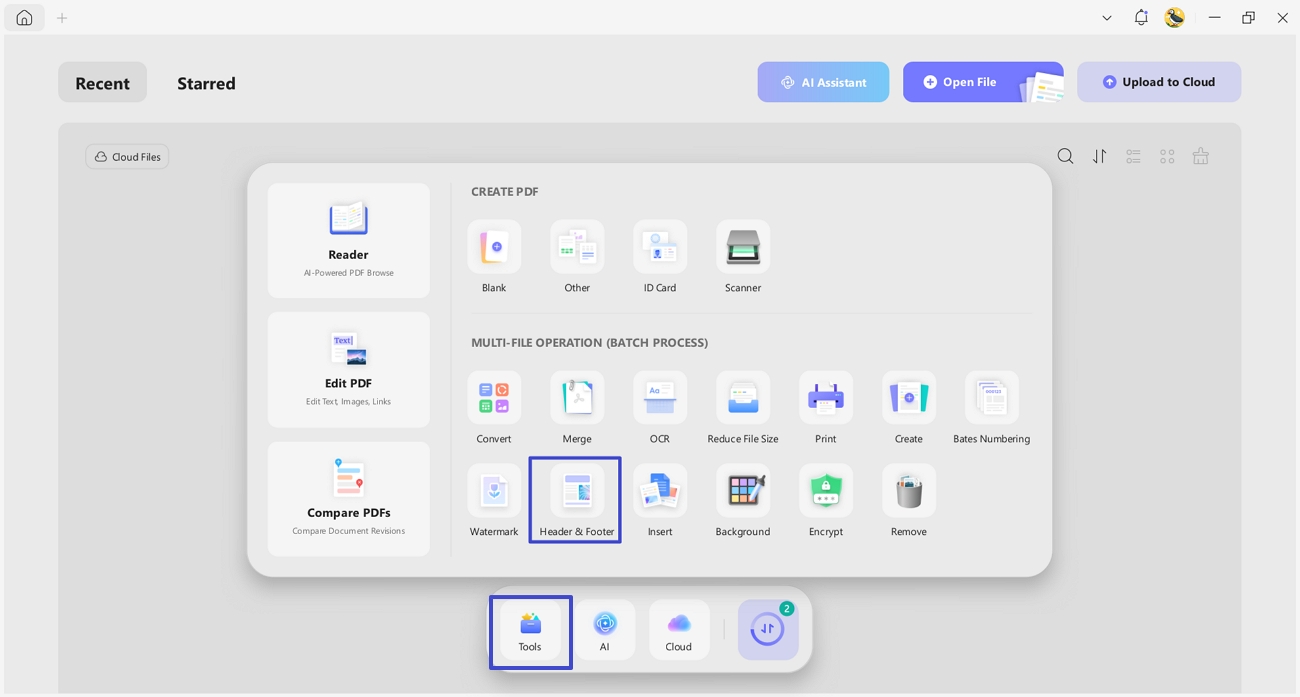
Step 1. Access Batch Add Headers and Footers
Upon reaching the main interface, press the “Tools” option and click the “Header & Footer” option under the “Batch Process” section.
Windows • macOS • iOS • Android 100% secure
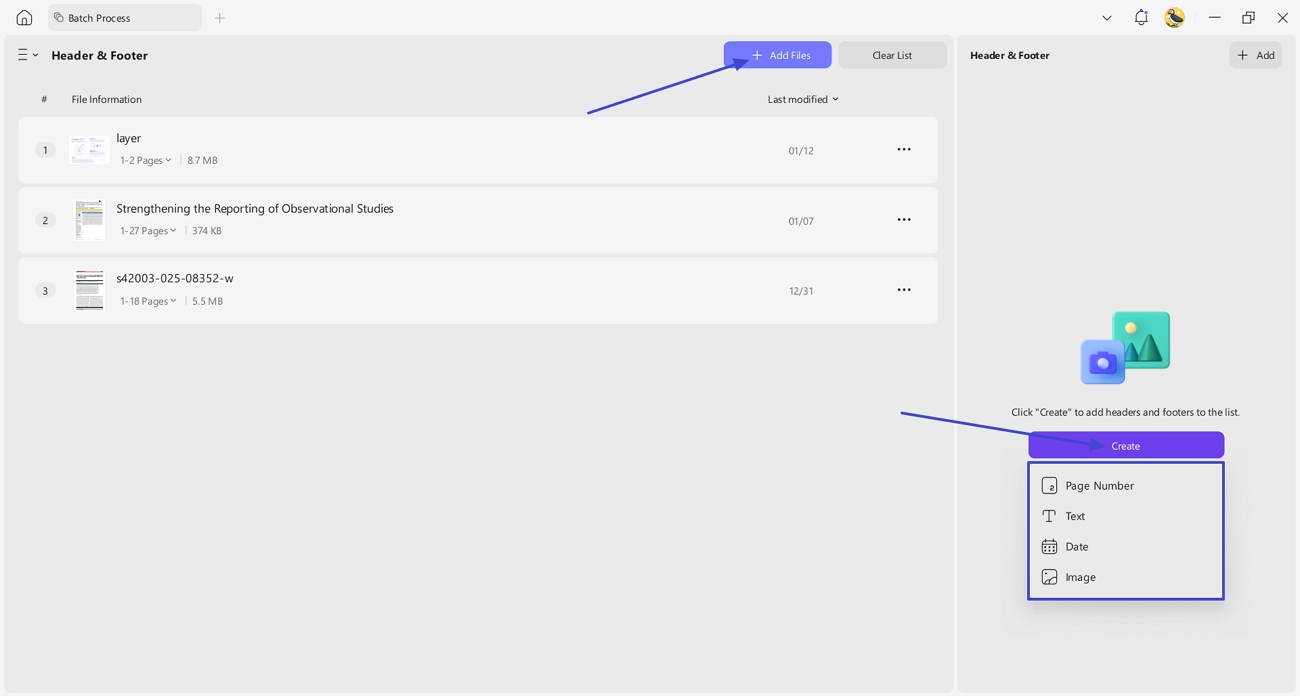
Step 2. Import PDF Files to UPDF
In the following interface, press the “Add Files” button to import multiple files. Afterwards, press the “Create” button and choose the type of headers and footers you want.
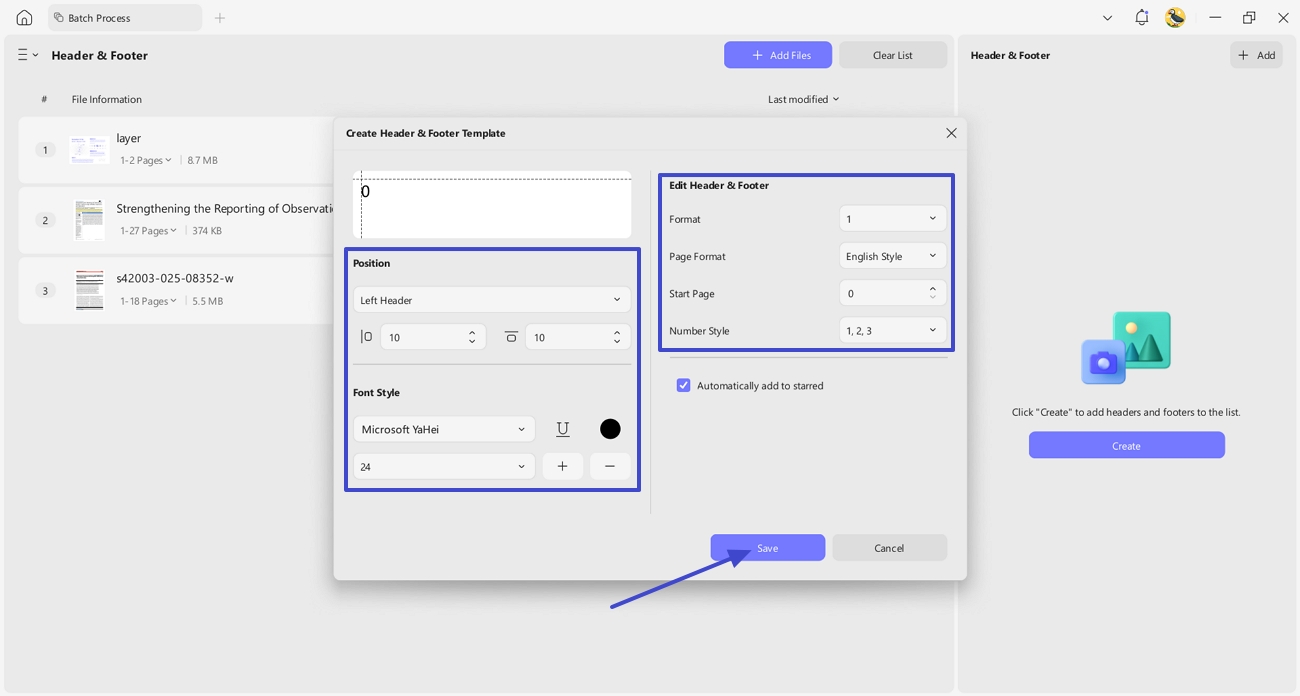
Step 3. Define Header and Footer Properties
Next, set the “Position” and “Font Style” of the content you aim for in the headers and footers in all documents. Set all parameters under the “Edit Header & Footer” section and press the “Save” button to store the template.
Step 4. Add Headers and Footers to All PDFs
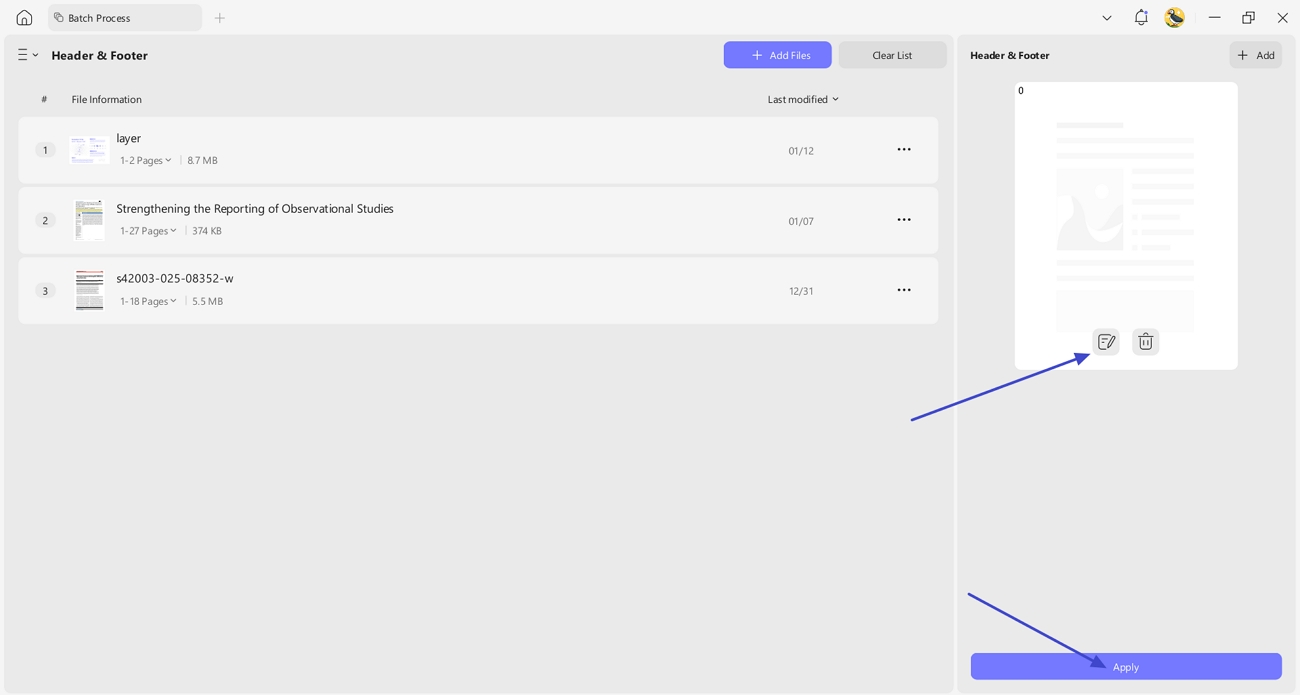
Once the template is saved, press the “Edit” icon to edit the Headers and Footers if you’re not satisfied with them. After finalizing, press the “Apply” button at the bottom to batch add Headers and Footers to all PDFs.
Windows • macOS • iOS • Android 100% secure
Part 3. You May Also Want to Know About Extracting and Splitting Pages
When learning how to make header different on each page Google Docs, I realized headers are not enough. In real projects, certain pages need to be separated or shared independently after header customization. This situation commonly appears when working with reports requiring flexible page handling.
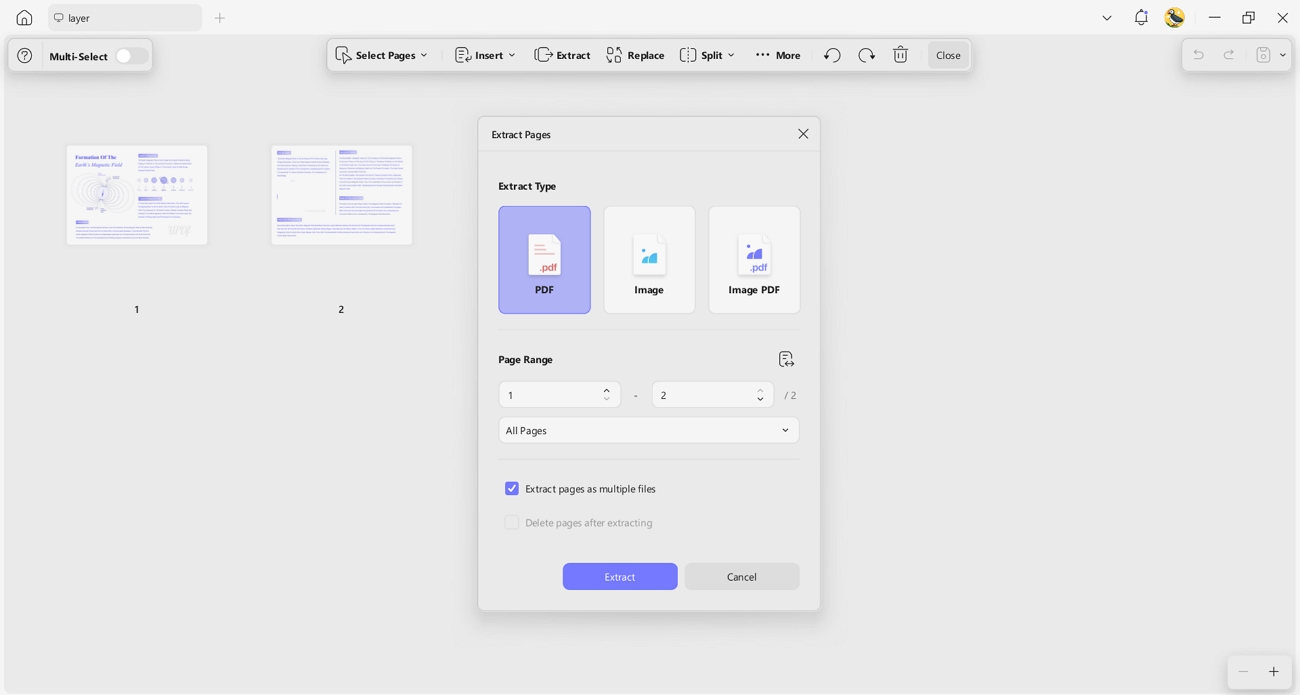
In these cases, I rely on UPDF’s Extract feature to isolate exactly the pages I need. It allows me to extract pages as PDF or image formats without affecting the original document. I can define page ranges and extract selected pages as multiple files for separate delivery.
Windows • macOS • iOS • Android 100% secure
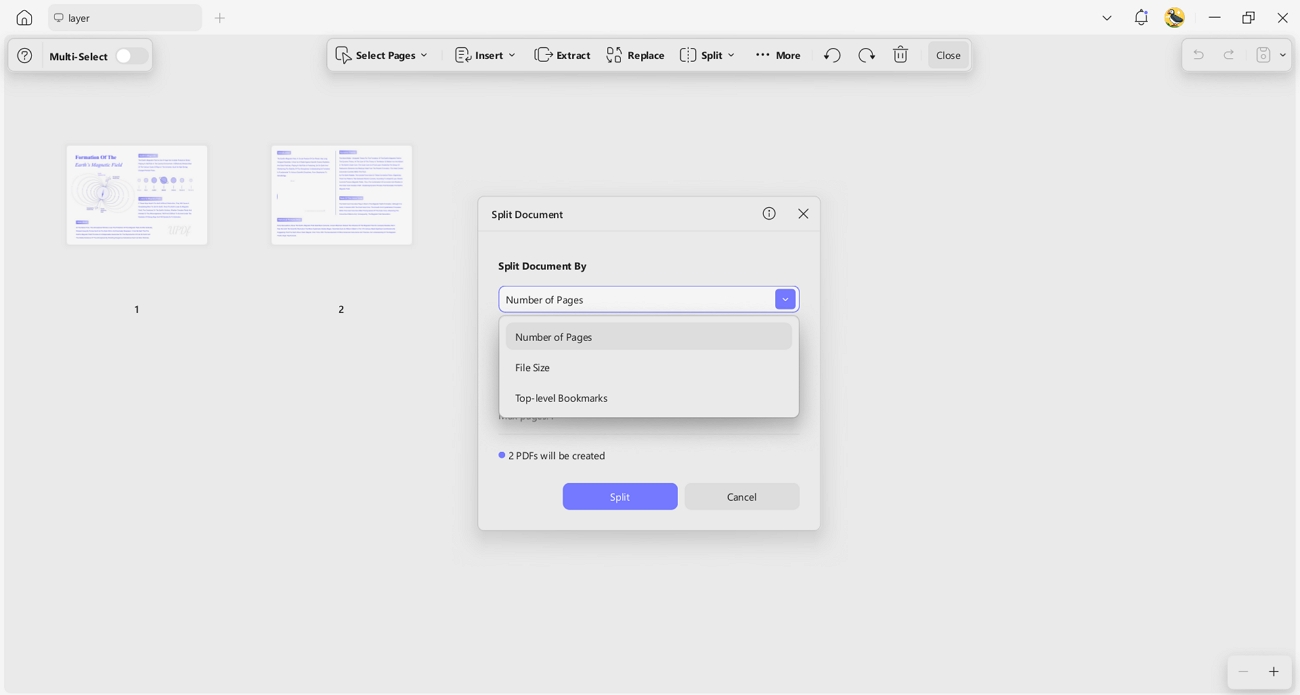
When files become too large, the “Split” feature helps me reorganize content. UPDF lets me split pages by page number, file size, or top-level bookmarks. This makes managing complex documents easier when different sections require unique headers and structure.
Windows • macOS • iOS • Android 100% secure
Conclusion
In conclusion, this article showed how to make header different on each page using Word, Excel, PowerPoint, and Google Docs. While built-in methods work for simple documents, UPDF makes it easier to customize, batch apply and manage headers across multiple pages. If you work with large files or need consistent formatting, UPDF is a reliable choice.
Windows • macOS • iOS • Android 100% secure







 Enrica Taylor


